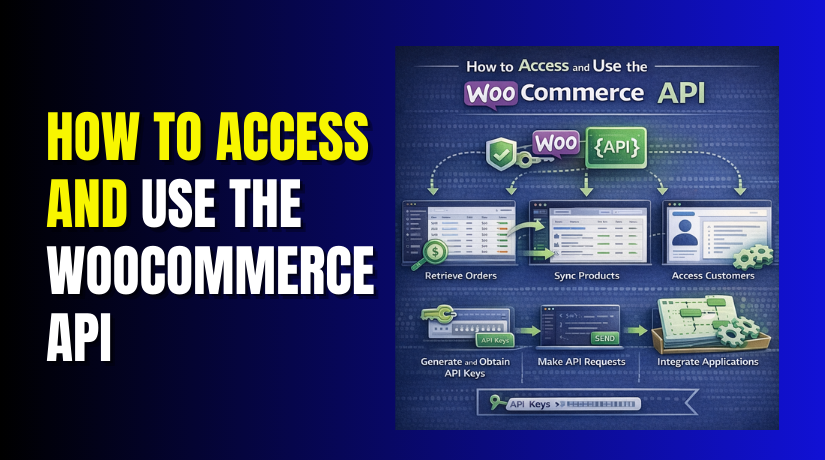
How to Access and Use the WooCommerce API: Complete Step-by-Step Guide
Table of Contents
- Introduction
- What Is the WooCommerce API?
- Common Use Cases of the WooCommerce API?
- How to Access and Use the WooCommerce API (Detailed Guide)
- How to Connect to the WooCommerce API Using Simple and Practical Methods
- How to Use the WooCommerce API for Common Tasks in Real Store Work
- Common WooCommerce API Errors and How to Fix Them
- Conclusion
Introduction
Running an online store often needs more than basic website features. You may need tools that share data automatically. You may also need apps that work smoothly with your store. This is where the WooCommerce API becomes very useful. It helps your store talk with other systems easily. It also helps developers build custom features without changing everything manually.
If you want to learn how to access WooCommerce API, this guide will help. It explains the basics in a simple and practical way. You will also understand how to use WooCommerce REST API correctly. This is helpful for store owners, developers, and support teams. With the right setup, you can save time every day. You can also reduce mistakes in product and order work.
Many growing stores use APIs for faster and smoother operations. They connect payment tools, shipping platforms, mobile apps, and dashboards. They also sync customer and stock data in real time. If you want to know how to connect external apps to WooCommerce API, start here. This first part covers the core ideas you must understand.
What Is the WooCommerce API?
The WooCommerce API is a bridge between your store and software. It lets other systems read or send store data safely. In simple words, it helps WooCommerce share information automatically. Instead of doing every task from the dashboard, apps can help. They can request data and get a response from WooCommerce. They can also send data back when needed.
This makes many store tasks faster and easier to handle. For example, an app can pull your product list automatically. Another tool can update order details after a shipment. A mobile app can show live store data to users. A reporting system can collect sales details without manual export. This is why many businesses now depend on APIs daily. When people ask how to access WooCommerce API, they usually want this connection.
They want their store to work with another platform or tool. The API makes that possible without manual copy and paste. It creates a clear path for data movement. That is the basic purpose of the WooCommerce API.
Common Use Cases of the WooCommerce API?
Using the WooCommerce API for Faster and Smarter Product Management
The WooCommerce API helps store owners manage products more easily. You can fetch product lists, check product details, and update important fields. It also lets you create new products without manual dashboard work. This is useful for stores with large catalogs. You can change prices, stock levels, descriptions, and product names quickly. It also helps external inventory systems stay updated. This reduces manual work and keeps your product data more accurate across connected tools.
Using the WooCommerce API to Manage Orders More Efficiently
Order handling becomes much easier when you use the WooCommerce API. It allows external systems to read order details in real time. You can fetch new orders, filter them by status, and track customer purchases. It also helps update order progress in connected tools. This is helpful for shipping, billing, and reporting systems. Stores with many daily orders save time this way. It also reduces errors because teams do not need to copy order data manually.
Using the WooCommerce API to Access and Work with Customer Data
The WooCommerce API also helps manage customer information in a better way. It can pull customer details such as names, email addresses, and billing data. This makes it easier to connect customer records with support or marketing tools. Businesses can use this data for reporting, account management, and service improvement. It also supports better follow-up after orders. When systems stay connected, customer data remains more organized. This improves store operations and reduces repeated manual work.
Using the WooCommerce API to Connect Third-Party Apps and Business Tools
One of the most useful features of the WooCommerce API is integration. It helps connect your store with tools like CRM systems, ERP software, shipping apps, payment platforms, and mobile apps. These tools can send or receive store data automatically. For example, a shipping app can pull order details without manual entry. A CRM can collect customer data after each sale. This creates a smoother workflow and helps different business systems work together more effectively.
Using the WooCommerce API for Store Automation and Custom Workflows
The WooCommerce API is very useful for automation and custom tasks. It helps businesses reduce repeated manual work by connecting actions across systems. For example, stock can update automatically after a sale. Order data can move into reports without export work. Teams can also build custom dashboards using live store data. Some businesses create special workflows based on their own needs. This gives them more control and flexibility. It also helps growing stores work faster and with fewer mistakes.
How to Access and Use the WooCommerce API (Detailed Guide)
Step 1: Make Sure Your Store Is Ready
- First, confirm that WordPress and WooCommerce are installed and working correctly.
- Your site should use HTTPS, and your permalinks should not be set to Plain.
- WooCommerce’s current REST API uses the WordPress JSON route structure, so permalink setup matters for clean endpoint access.
Step 2: Open the WooCommerce REST API Settings
- Log in to your WordPress dashboard.
- Then go to WooCommerce > Settings > Advanced > REST API.
- This is the area where WooCommerce lets you create and manage API keys for authenticated REST API access.
Step 3: Create a New API Key
- Click Add key. Add a clear description, choose the correct user, and then select the permission level you need.
- After that, click Generate API key.
- WooCommerce will show a Consumer Key and Consumer Secret right away, and the secret will be hidden later, so save both safely at once.
Step 4: Choose the Right Permission Level
- Use Read when you only need to fetch data.
- Use Write when you need to create, edit, or delete data.
- Use Read/Write when the connected app needs both types of access.
- Choosing only the access you need is the safer setup.
Step 5: Find Your REST API Base URL
WooCommerce REST API requests use this base structure:
https://yourstore.com/wp-json/wc/v3/
After that base path, add the resource you want, such as products, orders, or customers. WooCommerce’s official REST API documentation uses this same wc/v3 route pattern.
Step 6: Send Your First Test Request
A simple first test is a GET request for products or orders. For example:
GET https://yourstore.com/wp-json/wc/v3/products
You can test this in Postman, Insomnia, or through code. This step confirms that your keys, permissions, and endpoint path are working properly.
Step 7: Start Using Common API Actions
- Once access works, you can use standard REST actions.
- GET fetches data, POST creates data, PUT updates data, and DELETE removes data.
- These methods are the normal way to work with WooCommerce products, orders, and customers through the REST API.
Step 8: Use the REST API for Store Management Tasks
Use the WooCommerce REST API when you want to manage store data like products, orders, customers, coupons, and similar records. For customer-facing cart, checkout, and storefront product experiences, WooCommerce also provides the Store API, which uses a different path: wp-json/wc/store/v1/.
Step 9: Keep Your API Keys Secure
Do not place your consumer key and secret in frontend code or public files. Store them securely and give apps only the permission they really need. This helps protect your store and reduces the risk of unwanted access.
Step 10: Build From Simple Requests First
Start with a small read-only request, such as listing products. Then move to creating or updating data after your connection works well. This makes debugging easier and helps you avoid mistakes on a live store. WooCommerce’s docs present the API in this same practical flow: generate keys first, then test requests against the correct endpoints.
How to Connect to the WooCommerce API Using Simple and Practical Methods
After generating your keys, the next step is connection. This is where many users first learn how to access WooCommerce API properly. WooCommerce’s current REST API guide recommends testing with Postman or Insomnia first because these tools make requests easier to see and debug. The same guide uses the wp-json/wc/v3/orders route as a basic example and shows Basic Auth over HTTPS with your consumer key and secret.
Using Postman to Connect to the WooCommerce API in an Easy Way
Postman is one of the easiest tools for first testing. You add the request URL, choose the request method, and then enter your credentials under Basic Auth. WooCommerce’s official guide specifically shows this workflow for testing whether the API is working on your server. This is a smart first step before writing any code or live integration.
Using cURL to Send Simple WooCommerce API Requests from the Command Line
cURL is another useful option when you want a quick test. It works well for developers who prefer terminal commands. The WooCommerce API documentation shows authenticated requests over HTTPS with the consumer key as the username and the consumer secret as the password. This makes cURL a fast way to confirm that your API keys and endpoint are working correctly.
Using Custom Code to Connect Your Website or App with WooCommerce
Custom code is the best choice when you need real automation. A mobile app, custom dashboard, or internal tool can send requests directly to WooCommerce using the REST API. WooCommerce explains that the REST API lets you read and write products, orders, customers, coupons, and shipping zones, which makes it a strong option for advanced store workflows. This is also where many teams begin learning how to connect external apps to WooCommerce API in a reliable way.


Using Integration Platforms to Connect External Apps to WooCommerce Faster
Not every store needs custom development from day one. Some stores use automation tools or connectors instead. These tools usually send API requests in the background after you add your store URL and keys. The main benefit is speed and convenience. The same REST API powers those connections, even when you do not write code yourself. That is why understanding the basics still matters.
How to Use the WooCommerce API for Common Tasks in Real Store Work
Once the connection works, you can start real tasks. This is the point where people move from setup to action. The WooCommerce REST API supports products, orders, customers, coupons, and shipping zones, while the Store API is meant for public storefront functions like cart, checkout, and public product display. For backend store management, the REST API is usually the right choice.
Get All Products from Your WooCommerce Store Through the API
Fetching all products is one of the most common first tasks. It helps apps read your catalog and build reports, dashboards, or sync jobs. WooCommerce’s API reference includes endpoints for viewing a product list, viewing a single product, creating a product, and updating a product. That means the API is designed not only for reading products but also for managing them over time.
When you request the product list, WooCommerce returns JSON data. This response usually includes product details such as names, prices, stock information, and IDs. That structured format makes it easier for other systems to read and use the data. This is a key part of learning how to use WooCommerce REST API in a practical way for real stores.
Get a Single Product by Using the Product ID
Sometimes you do not need the whole catalog. You may only need one product for editing, sync checks, or support work. The WooCommerce API reference includes a dedicated endpoint for viewing a single product. This is useful when an external app needs to inspect one item before updating price, stock, description, or another field.
Using a single product request is also faster than loading all items. It reduces unnecessary data movement and makes debugging easier. For stores with large catalogs, this matters a lot. Small, focused requests usually perform better and are easier to test when you are still learning how to access WooCommerce API without confusion.
Create a New Product Through the WooCommerce REST API
Creating a product by API is useful for automation. Some stores import products from ERP tools, supplier systems, or internal dashboards. WooCommerce’s API reference includes a product creation endpoint, and its documentation also notes support for bulk creation and updating in v3. This makes the REST API a strong option for stores that add many products regularly.
A product creation request usually includes key fields like the name, product type, regular price, and status. Once the request is accepted, WooCommerce returns a JSON response with the newly created product data. This confirms that the item was added successfully and gives the external system a record of the created product.
Update Existing Product Details Without Manual Dashboard Work
Updating products is another major use case. The API reference includes a product update endpoint, which allows systems to change data without opening the WordPress dashboard. This is useful for stock adjustments, price changes, title edits, or content fixes. It is a practical example of how to connect external apps to WooCommerce API for live store management.
This kind of update flow works well for stores with changing inventory. A connected tool can update stock after warehouse activity or change prices after a pricing rule runs. That reduces manual work and keeps the store more consistent. It also lowers the chance of errors caused by repeated dashboard edits.
Get WooCommerce Orders for Store Processing and Reporting
Orders are another core area of the REST API. WooCommerce’s documentation shows the wp-json/wc/v3/orders route as a basic request example, and its MCP documentation lists order management features such as listing orders with filtering and pagination, retrieving detailed order data, creating orders, and updating existing orders. This makes the API very useful for shipping, reporting, and operations work.
Fetching orders helps external systems read recent purchases, track status, and process fulfillment steps. Many businesses use this for shipping apps, ERP tools, or custom admin dashboards. Instead of copying order details manually, the system can pull them directly from WooCommerce and keep other tools updated with less effort.
Get Customer Data from the WooCommerce API Safely
Customer data is also supported by the WooCommerce REST API. The main REST API documentation lists customers among the store data types that can be read and written through the API. The official API reference also notes v3 support for bulk creation and updating of customers. This is helpful when a store connects CRM, loyalty, or support systems.
A customer request can help an app read names, email addresses, and account-related details. That data can then support customer service, follow-up automation, or account-based reporting. Because customer data is sensitive, it should always be accessed with secure credentials and the smallest possible permission level.
Update Order or Customer Data Through API Requests
Updating data is where the REST API becomes especially powerful. WooCommerce’s documentation supports updating products and orders, and the API reference also notes bulk updating for customers in v3. This means you can build workflows that change order details, customer records, or product information without manual edits in the dashboard.
This helps when a connected system needs to push changes back into WooCommerce. For example, an internal tool may update order-related information after fulfillment work, or a CRM may refresh customer data after account changes. These kinds of flows show the real value of learning how to use WooCommerce REST API beyond simple read-only tests.
Common WooCommerce API Errors and How to Fix Them
When you start using the API, errors are normal. Most issues come from keys, URLs, permissions, SSL, or request data. WooCommerce’s current REST API docs also focus on these setup areas first because they directly affect access and request success.
Fix WooCommerce API Authentication Failed Errors the Right Way
An authentication error usually means your request cannot prove identity. This often happens when the consumer key or secret is wrong. It can also happen when the key was created for the wrong user or permission type. WooCommerce requires authenticated REST API access for sensitive store data, so valid credentials are essential. Recheck the keys, regenerate them if needed, and make sure you are using the REST API, not the public Store API route.
Fix 404 Endpoint Not Found Errors in the WooCommerce API
A 404 error usually points to a wrong endpoint path. It can also happen when permalinks are still set to Plain. WooCommerce clearly states that the standard REST API URI structure needs permalinks configured to something other than Plain. Check your base path, confirm you are using /wp-json/wc/v3/, and then test the endpoint again. Small typing mistakes in the route can also cause this problem.
Fix Permission Denied Errors When API Requests Are Rejected
A permission error means the request reached WooCommerce, but access was limited. This often happens when a read-only key tries to update data. It can also happen when the selected user should not access that resource. WooCommerce supports read, write, and read/write permissions, so the key must match the job. Review the permission level first, then generate a new key if your app needs broader access.
Fix SSL and Secure Connection Problems in WooCommerce API Requests
Secure connections matter because REST API requests often handle products, orders, and customer details. WooCommerce recommends authenticated access over secure connections, and its docs describe the REST API as the tool for reading and writing sensitive store data. If your site has SSL warnings, mixed content, or a wrong site URL, requests may fail or behave strangely. Fix the site’s HTTPS setup first, then test the request again.
Fix Invalid Data or Bad Request Errors in API Calls
A bad request usually means the request body is incomplete or wrongly structured. This often happens when required fields are missing or parameter names are incorrect. WooCommerce returns JSON responses, so the request data should also follow the expected format for that endpoint. Review the exact fields your chosen endpoint needs, correct the request body, and send a smaller test request before trying a full data push.
Handle Slow Requests and Performance Problems More Safely
Performance issues often appear when stores send large requests too often. Pulling too many products or orders at once can slow testing and debugging. WooCommerce’s Store API team has also documented performance-focused loading changes, which shows that API efficiency matters in real stores. Start with small requests, use filters where possible, and test one resource at a time before scaling the integration.
Conclusion
The WooCommerce API gives your store more speed and flexibility. It helps you connect tools, automate tasks, and manage data better. You can use it for products, orders, customers, and custom workflows. It also helps reduce manual work across your store operations. When used correctly, it saves time and improves daily efficiency. The key is to start with the right setup. Use secure API keys and correct permission levels always. Test every request carefully before using it on live stores. Also choose the right API for the right task. The REST API works best for backend store management needs. With the right steps, the WooCommerce API becomes very useful. It can support growth, automation, and better store control.
Need help with WooCommerce API setup or connection errors? WooHelpDesk can help you generate keys and fix API issues. We also help with authentication, endpoints, and custom integration needs. If your store needs expert WooCommerce support, visit WooHelpDesk today and get practical solutions that keep everything working smoothly.



