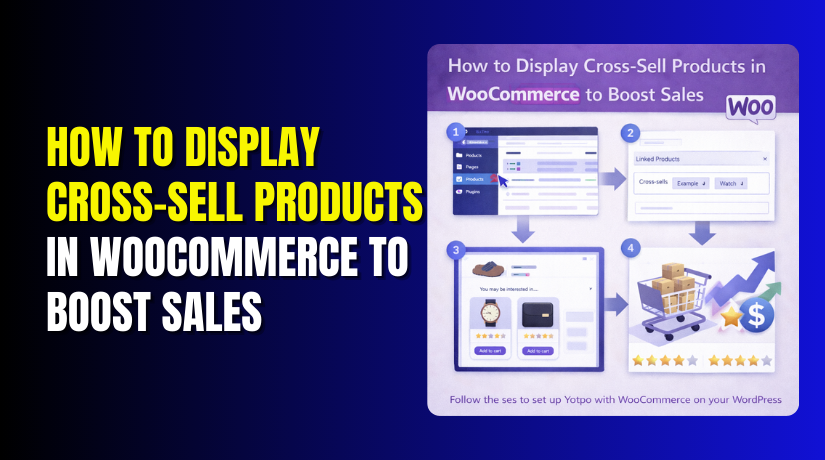
How to Display Cross-Sell Products in WooCommerce to Boost Sales (Detailed Guide)
Table of Contents
- Introduction
- What Cross-Sell Products Mean in WooCommerce?
- Why Displaying Cross-Sell Products in WooCommerce Helps Your Store Grow
- Important Things You Should Check Before Displaying Cross-Sell Products in WooCommerce
- How to Add Cross-Sell Products in WooCommerce (Step by Step Guide)
- How to Display Cross-Sell Products on the WooCommerce Cart Page in the Right Way
- How to Display Cross-Sell Products on Other WooCommerce Pages
- Common Reasons Why Cross-Sell Products May Not Show in WooCommerce Properly
- Conclusion
Introduction
If you want more sales from each order, cross-sells can help. They show extra products that match what the customer already wants. This makes shopping easier and more useful for buyers. It also helps store owners increase order value without pushing hard. That is why many stores use cross-sell products WooCommerce features every day. When used well, they can improve shopping flow and bring better results. They also help customers notice items they may have missed before. This is one simple way to increase sales with WooCommerce cross sell methods.
Many store owners focus only on getting more visitors each day. But higher traffic alone does not always increase revenue fast. A better plan is improving what each customer buys per order. Cross-sells support that goal in a simple and smart way. They work by showing useful items beside products already chosen. For example, a phone case can appear with a mobile phone. A charger can appear with a tablet or laptop purchase. These suggestions feel helpful when they match the buyer’s needs. That is why WooCommerce product recommendations are important for many stores.
WooCommerce already gives store owners a built-in cross-sell option. You do not need a complex setup to begin using it. Once you assign the right items, they can appear for buyers. This gives you a simple way to guide more product choices. It also improves the shopping experience across your online store. When buyers see relevant products, they often add more items. That means more value for customers and better revenue for you. Good cross-sell placement can support both trust and sales at once.
What Cross-Sell Products Mean in WooCommerce?
Cross-sell products are extra items linked to a main purchase. These products support, match, or improve the main item. In WooCommerce, you can connect them to specific products easily. This helps shoppers find useful add-ons during the buying process. It is one of the easiest ways to improve product discovery. It also makes your store feel more planned and customer-friendly. That is why many brands use WooCommerce cross sell products display options.
Let us understand this with a very simple store example. Suppose a customer adds running shoes to the cart first. You can show socks, shoe cleaner, or sports insoles next. These items are not the main product being purchased. But they are useful with the main product in the cart. This makes the suggestion feel helpful instead of random or forced. Customers often like related items when they solve a need. That is the basic idea behind cross-sell products in WooCommerce.
Here is another example from an electronics store. A customer adds a laptop to the shopping cart. You can suggest a laptop bag, mouse, or cooling pad. These items improve how the main product gets used later. In the same way, a customer buying a camera may need a memory card. A buyer choosing a dining table may need matching chairs. These are practical suggestions based on real shopping behavior. This is why WooCommerce related products set up matters for store growth.
Why Displaying Cross-Sell Products in WooCommerce Helps Your Store Grow
Cross-Sell Products Help Increase Your Average Order Value
Cross-sell products help customers buy more in one order. A buyer may come for one item only. But a useful extra product can increase the cart total. This helps your store earn more from the same visitor. You do not need extra traffic for that extra sale. This is one strong reason store owners use cross-sell products WooCommerce features. It is a simple way to improve order value.
Cross-Sell Products Help Customers Find Useful Related Items
Many shoppers do not know what else they may need. They often focus only on the main product first. Cross-sell suggestions help them notice matching or supporting items. For example, a customer buying shoes may also need socks. A customer buying a phone may also need a cover. These suggestions make shopping easier and more helpful. This improves the value of your WooCommerce product recommendations.
Cross-Sell Products Improve Product Visibility in Your Store
Some products stay hidden when customers do not search for them. Cross-sell sections give those products more visibility in the store. This is helpful for accessories, add-ons, and supporting items. When shown at the right time, these products get more clicks. Customers can notice them during the buying process easily. This is why a smart WooCommerce related products setup can help sales.
Cross-Sell Products Create a Better Shopping Experience
A good store should guide buyers in a simple way. Cross-sell products make that journey smoother and more complete. Customers can see useful items without opening many pages. This saves time and reduces confusion during shopping. Helpful suggestions also make the store feel more organized. That is why WooCommerce cross sell products display is useful for user experience. It supports both convenience and better buying decisions.
Cross-Sell Products Support More Sales Without Extra Marketing Cost
Getting new visitors often needs ads, SEO, or promotions. But cross-sells work with visitors already inside your store. You show useful products at the right moment. This can bring extra sales without extra ad spending. It is a smart method for stores with limited budgets. That is one reason many owners add cross sell products in WooCommerce. It helps improve revenue using your current traffic.
Cross-Sell Products Make Your Store Look More Professional
When products are linked in a useful way, the store feels planned. Customers see that your store understands their buying needs. It shows that your products are organized with clear purpose. This builds trust and makes the shopping process easier. A random store feels weak, but a guided store feels better. That is how you can increase sales with WooCommerce cross sell methods while improving store quality.
Important Things You Should Check Before Displaying Cross-Sell Products in WooCommerce
Before you start, make sure your WooCommerce store is working properly. A small setup issue can stop cross-sells from showing correctly. That is why checking a few basics first is very important. It helps you avoid confusion and saves time later. A clean setup also improves your WooCommerce cross sell products display. This step is simple, but it matters a lot.
Make Sure WooCommerce Is Installed and Active on Your Website
First, confirm that WooCommerce is installed on your WordPress site. Then check that the plugin is active and fully working. If WooCommerce is inactive, cross-sell settings will not appear. You also may not see product options in the dashboard. This is the first thing to confirm before anything else. A working plugin is the base for cross-sell products WooCommerce setup. Without it, the feature cannot work as expected.
Confirm That Your Products Are Already Created in WooCommerce
You cannot assign cross-sells if products do not exist yet. The main product and related items must already be added. This includes product title, image, price, and stock details. A product list makes the linking process much easier later. It also helps you choose better matching product combinations. This supports a stronger WooCommerce related products setup for your store. So always add your products before setting up cross-sells.
Check Whether Cross-Sell Items Make Sense for the Main Product
Cross-sell items should match the main product in a useful way. Random suggestions do not help customers and can reduce trust. A buyer wants helpful extras, not unrelated product options. For example, a laptop bag fits better than kitchen tools. Good matches improve the buying experience and increase extra purchases. This is how smart WooCommerce product recommendations usually work best. Relevance should always guide your cross-sell product selection.
Review Your Theme Styling and Cart Page Layout Carefully
Sometimes cross-sells are added, but the theme hides their section. In some stores, the cart layout also changes the display area. A custom theme may move or remove WooCommerce default blocks. This can make store owners think the feature is broken. So review the cart page and theme output before testing. This step helps confirm your WooCommerce cross sell products display is visible. It also helps you spot style or layout issues early.
How to Add Cross-Sell Products in WooCommerce (Step by Step Guide)
Step 1: Open Your WordPress Dashboard
- First, log in to your WordPress admin area.
- This is where you manage your WooCommerce store.
- Make sure WooCommerce is already active on the website. Without it, cross-sell settings will not appear.
- This is the starting point to manage cross-sell products in WooCommerce settings.
Step 2: Go to the Products Section
- From the left menu, click Products in the dashboard.
- Here you will see all products added to your store.
- Find the product where you want cross-sell items displayed.
- This should be the main product customers may buy first. You will link extra items to this product.
Step 3: Edit the Product You Want to Use
- Now click Edit under the selected product name.
- This will open the full product edit page.
- On this screen, you can manage product details, price, images, and links.
- This is where you will add cross sell products in WooCommerce properly.
Step 4: Scroll Down to the Product Data Box
- On the edit page, scroll down below the product description.
- You will see the Product data box on the screen.
- This area contains important settings for the selected product.
- WooCommerce keeps many product options inside this section. You need this box for cross-sell setup.
Step 5: Click on the Linked Products Tab
- Inside the Product data box, click Linked Products.
- This tab is used for both upsells and cross-sells.
- It helps you connect related products with the main item.
- This is the main area for WooCommerce related products setup.
- Open this tab before selecting your extra items.
Step 6: Find the Cross-Sells Field
- Inside the Linked Products tab, look for the Cross-sells field.
- WooCommerce usually shows it below the upsells field.
- This field is used to add products for cart suggestions.
- These products will appear as helpful extras for buyers.
- This supports better WooCommerce product recommendations in your store.
Step 7: Search and Select Related Products
- Click inside the Cross-sells field and start typing a product name.
- WooCommerce will show matching products in a dropdown list.
- Select the products that fit well with the main product.
- Choose useful items only, not random products.
- Good matching products improve your WooCommerce cross sell products display.
Step 8: Choose Only Relevant Cross-Sell Products
- Select products that support the main purchase naturally.
- For example, suggest a cover with a mobile phone.
- Suggest socks with shoes or batteries with a device.
- Relevant suggestions help customers more during shopping.
- They also help increase sales with WooCommerce cross sell methods. Avoid adding too many products in one list.
Step 9: Update or Publish the Product
- After adding the cross-sell items, click Update or Publish.
- This saves your product and stores the linked settings.
- If you do not save, the changes will be lost.
- This step is very important for proper setup. Always confirm the product has been saved successfully.
Step 10: Test the Product on the Frontend
- Now visit your store and open that product.
- Add the main product to the cart page. Then check whether the cross-sell items appear there.
- This helps you confirm the setup is working correctly.
- Testing also helps you catch issues early.
- It is the final check for your cross-sell products WooCommerce setup.
Step 11: Repeat the Same Process for Other Products
- Once one product is done, repeat the same steps again.
- Add cross-sells to other important store products as well.
- Focus on best-selling or high-traffic items first.
- This gives better results from existing customer visits. Over time, this can improve store sales steadily.
How to Display Cross-Sell Products on the WooCommerce Cart Page in the Right Way
WooCommerce already includes a default way to show cross-sell suggestions. You do not need extra setup for the basic cart display. Once you link products, WooCommerce can show them on the cart page. This makes the process easy for most store owners. It is one reason many people use cross-sell products WooCommerce features first. The default system is simple, useful, and beginner-friendly.
Step 1: Log In to Your WordPress Dashboard


- First, open your WordPress admin panel and sign in.
- Make sure WooCommerce is active on your site. You need full access before changing any product settings.
Step 2: Open the Products Section in WooCommerce
- From the left menu, click Products in your dashboard.
- This will show all products already added to your store. Choose the product you want to use for cross-sells.
Step 3: Edit the Main Product
- Click Edit below the product name you selected.
- This opens the full product settings page. Here you can manage price, stock, images, and linked products.
Step 4: Scroll Down to the Product Data Section
- Move down the page until you see Product data.
- This section contains many tabs for product settings. You will use this area to set up cross-sell items.
Step 5: Click the Linked Products Tab
- Inside the Product data box, click Linked Products.
- This tab controls upsells and cross-sells for that product.
- It is the main place for cross-sell products WooCommerce setup.
Step 6: Add Products in the Cross-Sells Field
- Find the Cross-sells field inside that tab.
- Start typing the names of related products. Select the items that match the main product naturally.
Step 7: Choose Useful and Relevant Products Only
- Pick products that help the customer in a clear way.
- For example, suggest a cover with a mobile phone.
- Suggest socks with shoes or a cable with a device.
- This improves WooCommerce product recommendations and buyer experience.
Step 8: Update the Product
- After selecting the cross-sell products, click Update.
- This saves your settings inside the product.
- Without saving, the cross-sell section will not work properly.
Step 9: Visit Your Store Frontend
- Now open your website from the customer side.
- Go to the product page you just edited. Add that main product to the shopping cart.
Step 10: Open the Cart Page
- After adding the product, open the cart page.
- WooCommerce usually shows cross-sell items there automatically.
- This is the default WooCommerce cross sell products display area.
Step 11: Check Whether Cross-Sell Products Are Showing Correctly
- Look below the cart table or near the totals area.
- In many themes, cross-sell products appear in that section. If they are showing, your setup is working correctly.
Step 12: Test With More Than One Product
- Repeat the same process with other important products.
- This helps you build a better WooCommerce related products setup across the store.
- It also gives more chances to increase sales with WooCommerce cross sell methods.
How to Display Cross-Sell Products on Other WooCommerce Pages
Step 1: Decide Where Else You Want to Show Cross-Sells
- First, choose the page where you want extra product suggestions.
- Many store owners choose the product page, checkout page, or sidebar.
- This helps you plan the display clearly.
Step 2: Check Whether Your Theme Already Supports Custom Product Blocks
- Some themes include built-in product blocks or custom sections.
- Check your theme options before using extra plugins. This can save time and keep the layout simple.
Step 3: Choose a Safe Method for Custom Display
Now choose how you want to place cross-sells on other pages. Most store owners use one of these methods:
- A WooCommerce plugin
- A page builder
- Custom code by a developer
Step 4: Use a Plugin if You Want a No-Code Method
- Install a plugin that supports custom product recommendations or related product blocks.
- Many store owners use this method because it is easier. It helps add cross sell products in WooCommerce without editing theme files.
Step 5: Set the Display Location Inside the Plugin or Builder
- Open the plugin settings or page builder section.
- Choose where the cross-sell products should appear. You can set them on the product page, checkout page, or a custom section.
Step 6: Select the Right Products or Product Source
- Choose whether the section should pull manual cross-sells or related items.
- It is better to use products already linked inside WooCommerce. This keeps your setup cleaner and more relevant.
Step 7: Adjust the Section Title and Layout
- Set a clear title like You May Also Need or Recommended for Your Cart.
- Then adjust the number of products, columns, and spacing. A simple layout gives better results.
Step 8: Save the Changes
- After setting the location and layout, save your changes.
- Do not forget this step. Unsaved settings will not appear on the frontend.
Step 9: Test the Selected Page on the Frontend
- Now open the page where you placed the cross-sells.
- Check whether the section appears correctly. Test it on desktop and mobile for better accuracy.
Step 10: Keep the Display Clean and Relevant
- Do not show too many products in one section.
- Keep only useful suggestions that match the buyer’s needs.
- This makes WooCommerce product recommendations stronger and easier to trust.
Common Reasons Why Cross-Sell Products May Not Show in WooCommerce Properly
Sometimes you set everything correctly, but the cross-sell section still does not appear. This can confuse store owners, especially when the product links already look saved. In many cases, the issue is small and easy to miss. It may come from product settings, theme layout, cache, or custom code. That is why checking each possible cause matters step by step. A better setup helps your WooCommerce cross sell products display work correctly. It also keeps your product suggestions visible to real shoppers.
Cross-Sell Products Are Not Assigned Properly
The most common issue is missing product linking. If you do not assign cross-sell items inside the Linked Products section, WooCommerce cannot show them. Sometimes store owners type the product name but do not select it from the dropdown. Always save the product after selection. This is the first thing to check in your cross-sell products WooCommerce setup.
Theme Override Is Hiding the Cross-Sell Section
Some WordPress themes change the default WooCommerce cart layout. Because of this, the cross-sell section may not appear in its normal place. In some cases, the section is removed completely. This can affect your WooCommerce cross sell products display even when products are linked correctly. Testing with a default theme can help you confirm this issue quickly.
Cache Is Showing an Old Version of the Cart Page
Caching can stop recent changes from appearing right away. You may add cross-sell items, but the old cart page still loads. This makes it look like the feature is not working. Clear your browser cache, plugin cache, and server cache after changes. This simple step often fixes missing WooCommerce product recommendations on the cart page.
Plugin Conflict Is Affecting the Cart Display
Some plugins change the cart page, checkout flow, or product display. A conflict between plugins can stop cross-sell products from loading properly. This often happens with cart builders, sales tools, or layout plugins. If your WooCommerce related products setup is not showing, disable extra plugins one by one and test the cart again.
Custom Cart Page Is Not Using Default WooCommerce Structure
If your store uses a custom cart page, the default WooCommerce cross-sell section may not load. Many custom templates and page builders skip native WooCommerce hooks. That means the products are linked, but they never appear to customers. This can break your WooCommerce cross sell products display and reduce the value of your cart suggestions.
Custom Code Is Removing or Hiding Cross-Sell Products
Sometimes custom code removes the cross-sell section without notice. A snippet inside functions.php or custom CSS may hide the block. In other cases, the section is moved to a place customers cannot see. If your store uses custom edits, review them carefully. This is important if you want to increase sales with WooCommerce cross sell features.
Conclusion
Displaying cross-sell products in WooCommerce is a smart way to grow sales. It helps customers find useful extra items during shopping. It also improves cart value without needing more traffic. WooCommerce makes this feature easy to set up from the product edit page. You only need to choose relevant products and test the display properly. When cross-sells are planned well, they improve both user experience and store results. Even a small cross-sell section can make your store more helpful, more professional, and more profitable.
Need help setting up cross-sell products the right way in WooCommerce? WooHelpDesk can help you add, manage, and display cross-sell products properly on your store. From product linking to cart page fixes and custom display support, our team can handle it for you. Visit WooHelpDesk to get expert WooCommerce support and improve your store sales faster.



