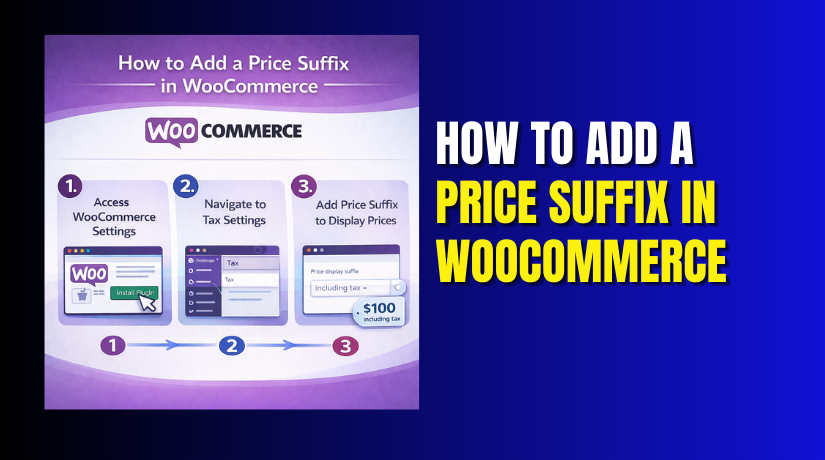
How to Add a Price Suffix in WooCommerce (Step by Step Guide)
Table of Contents
- Introduction
- What Is a Price Suffix in WooCommerce and Why It Matters
- How to Add a Price Suffix in WooCommerce: Beginner Friendly
- Where the Price Suffix Should Appear Across Your WooCommerce Store
- Common Problems and Fixes When Price Suffix Does Not Work
- Conclusion
Introduction
Many stores need extra text after the product price. This extra text is called a suffix. It helps customers understand the pricing in seconds. You can show unit-based pricing like “/kg” or “/piece”. You can also show tax notes like “incl. tax” clearly. If you sell services, you may need “per session” text. This guide answers: How do I add a price suffix in WooCommerce. You will learn what a suffix is and why it matters. You will also learn where it appears across your store pages. You will understand how the WooCommerce price suffix improves clarity. You will also know when a suffix is the wrong solution.
What Is a Price Suffix in WooCommerce and Why It Matters
A price suffix is a short text shown after the price. It appears next to the price on product displays. Many store owners use it for unit or tax notes. This suffix can build trust and reduce confusion. It can also reduce checkout questions and refund requests. The suffix is part of how prices are presented. That is why it connects to WooCommerce price display settings. Customers see the price and the meaning together. This is better than hiding details in long descriptions. You can treat it like a small price label helper. Many users call it WooCommerce price suffix text in guides. Some also call it a WooCommerce add price label feature.
Before You Add a Price Suffix, Check These Important Points
- Decide if one suffix fits all products. Many stores need one suffix site-wide. This works for simple tax notes and pricing clarity. Example: “incl. tax” for every product price. But unit pricing stores often need different suffix rules. A global suffix can confuse “/kg” and “/piece” items together. This check helps your WooCommerce price suffix stay accurate everywhere.
- Confirm where you want the suffix to show. Some owners want it only on product pages. Others want it on shop and category listings too. Many also expect it on cart and checkout pages. Your theme controls some parts of the display. That is why you must test after you add the price suffix WooCommerce. This ensures WooCommerce shows the price suffix in all needed areas.
- Match the suffix with your tax display settings. If your store shows prices including tax, use matching text. If prices exclude tax, the suffix must reflect that. Wrong tax text can cause confusion and trust issues. Always review WooCommerce price display settings before adding suffix text. This keeps your WooCommerce price suffix text correct and clear.
- Keep the suffix short for mobile and clean layouts. Price areas are often small on product cards. Long suffix text can wrap and look messy on phones. Short text keeps the design neat and readable. It also helps your WooCommerce add price labels look professional. Use simple words that customers understand quickly.
- Check if you need different suffixes by category. Some products need “per meter” and others need “per pack”. If your catalog has mixed product types, category rules help. A single suffix can become misleading across categories. Plan this early to avoid rework later. This ensures your WooCommerce price suffix stays consistent for each product group.
How to Add a Price Suffix in WooCommerce: Beginner Friendly
There are two simple ways to add a price suffix in WooCommerce. The first way uses the built-in WooCommerce price display settings. It adds one common WooCommerce price suffix for all products. This method is fast and works for most basic stores. The second way uses a plugin to add different suffix rules. This helps when you need different WooCommerce price suffix text by category.
For example, one category needs “/kg” and another needs “/piece”. In this guide, we will start with the easiest method first. This will help you add the price suffix WooCommerce without extra tools.
Method 1: Add a Global Price Suffix in WooCommerce Using Built-In Settings
This method is best for one suffix across your full store. It works well for tax notes and unit notes. It is also the easiest way to start quickly. You can do it without any plugin or code. This is the simplest answer to “How do I add a price suffix in WooCommerce”.
Step 1: Open the WooCommerce Price Display Settings Area
- Go to your WordPress dashboard and open WooCommerce settings.
- Click WooCommerce and then click Settings from the menu.
- Now open the Tax tab if it is enabled.
- If you do not see Tax, you must enable taxes first.
- The suffix option is part of your WooCommerce price display settings. It helps WooCommerce format prices in a consistent way.
Step 2: Find the Setting Called Price Display Suffix
- Inside the Tax settings, open the Tax options section.
- Look for a field named Price display suffix. This is where you add your WooCommerce price suffix text.
- Whatever you add here shows after every product price. This is the core setting for WooCommerce price suffix.
Step 3: Add the Price Suffix Text the Right Way
- Click inside the suffix field and type your text. Keep your suffix short for clean shop page design.
- Use simple words that customers understand in seconds. This setting helps you Add price suffix WooCommerce in one place.
- After saving, WooCommerce will show it on prices. This is how most stores WooCommerce show price suffix everywhere.
Examples of Price Suffix Text You Can Copy and Use
Use the examples below as ready-to-use suffix formats. These options work well as a WooCommerce add price label style. Choose one format that matches your pricing rules.
- Tax note styles: “incl. tax”, “excl. tax”, “including GST”, “excluding GST”.
- Unit styles: “/kg”, “/piece”, “/meter”, “per pack”, “per seat”.
- Service styles: “per session”, “per booking”, “per hour”, “per day”.
If you sell mixed products, use a neutral global suffix. For example, “incl. tax” works across many product types. If you use “/kg” for all products, it can confuse shoppers.
Step 4: Save Changes and Confirm the Update Immediately
- Scroll down and click the Save changes button.
- Open your shop page in a new browser tab next.
- Check a few products with different pricing types.
- The suffix should now show after every price value.
- This confirms your WooCommerce price suffix is working properly.
Step 5: Test the Suffix on Product Pages and Listing Pages
- Test the suffix in all common store locations.
- Check your shop page and a category page first. Then open a single product page for deeper checking.
- Add a product to the cart and view the totals.
- Some themes show suffix only on product pages.
- That is why testing is important after Add price suffix WooCommerce.
Quick Fix Tips If the Suffix Does Not Show
Sometimes the setting is correct, but the theme changes output. Clear your caching plugin cache if you use caching. Also clear browser cache and test in an incognito window. Switch to a default theme for quick comparison testing.
If it works on default theme, your theme needs styling changes. This still means your WooCommerce price display settings are correct.
Method 2: Add a Price Suffix by Category or Product Type Using a Plugin
This method is useful when one suffix is not enough. Many stores sell mixed product types and units. One product may need “/kg” and another needs “/piece”. A plugin helps you control suffix rules by category. It also helps when you want different price notes per product type.
This is a smart option when the global WooCommerce price suffix causes confusion. It keeps your store pricing clear for every product group. It also improves customer trust and reduces checkout questions.
Step 1: Choose a plugin that supports suffix rules.
- Pick a plugin that can add suffix by category or product type.
- It should support variable products and sale prices too.
- It must not break your theme’s price layout. This helps your WooCommerce price suffix stay consistent everywhere.
Step 2: Install and activate the plugin in WordPress.
- Go to Plugins > Add New and search the plugin name.
- Click Install Now and then click Activate. After activation, you can start adding suffix rules.
- This is a simple way to add the price suffix WooCommerce without code.
Step 3: Open the plugin settings or rules page.
- Most plugins add a menu under WooCommerce or Settings.
- Open the plugin page and find its rules section.
- This is where you add your WooCommerce price suffix text. Keep your text short and easy to read.
Step 4: Create a suffix rule for your first category.
- Select a category like “Fruits” or “Groceries” as an example. Add a suffix like “/kg” or “per pack” for that category.
- Save the rule and confirm it is enabled. This makes WooCommerce show price suffix only where needed.
Step 5: Add another rule for a different category or product type.
- Choose another category like “Accessories” or “Single Items”.
- Add a suffix like “/piece” or “per item” for this group.
- Save the rule and keep rules clear and separate. This avoids wrong suffix across mixed products.
Step 6: Test the suffix on shop and product pages
- Open your shop page and check products from each category.
- Open one product page from each category and confirm the suffix appears.
- This verifies your WooCommerce price suffix rules are working.
Step 7: Test variable products, cart, and checkout screens.


- Open a variable product and change variations once.
- Add it to the cart and check the price display there.
- Go to checkout and confirm spacing and text looks clean.
- This ensures your WooCommerce price display settings and plugin rules work together.
Step 8: Clear cache and test again in a private window.
- Clear your caching plugin cache if you use one.
- Also clear browser cache and open a private window.
- Recheck the suffix display on key pages again. This prevents cache issues while you WooCommerce show price suffix live.
Where the Price Suffix Should Appear Across Your WooCommerce Store
After you add the suffix, you must check its visibility. A good WooCommerce price suffix should look consistent everywhere. It should not confuse customers on any important page. It should also match your WooCommerce price display settings clearly. Below are the key places where stores usually show it.
Shop and Category Pages
Shop pages are where customers compare products quickly. So the suffix should appear beside each price clearly. This helps customers understand unit pricing like “/kg” faster. It also helps when you use tax text like “incl. tax”. When you WooCommerce shows the price suffix here, customers trust prices more. This also reduces product page clicks for basic price questions.
Single Product Page
The product page is the most important place for suffix clarity. Customers check details and price before adding to cart. Your WooCommerce price suffix text must sit cleanly beside the price. It should not push the layout or break the design. It should also stay correct for sale prices and variations. This keeps your Add price suffix WooCommerce work useful.
Cart and Checkout Pages
Cart and checkout pages confirm the final price for customers. Many store owners want the suffix shown there too. It helps explain if prices include tax or exclude tax. It can also remind users about unit pricing where needed. If the suffix shows here, keep it very short. Long text can distract customers during checkout. This is why testing is important after changes.
Emails
Some stores also want the suffix in order emails. It can help customers understand the price format in receipts. But some themes or email templates may not show it. If it appears, ensure it looks clean and readable. If it does not show, it is still okay for many stores. Most customers rely on checkout totals more than email text.
Common Problems and Fixes When Price Suffix Does Not Work
Even small settings can cause display issues sometimes. Your theme and caching can affect output. Some plugins can also change how price HTML is shown. Use the fixes below when your WooCommerce price suffix is not working.
Suffix Not Showing at All
This usually happens due to wrong settings or disabled tax options. Check your WooCommerce price display settings again first. Confirm the suffix field is saved properly. Clear cache and refresh the page after saving. Test in an incognito window to avoid browser cache.
Suffix Showing Twice
This often happens when both WooCommerce and a plugin add it. Disable one method and test again after disabling. If you use a suffix plugin, remove the global suffix. If you use global suffix, disable suffix rules in plugin. This keeps your WooCommerce price suffix text clean and single.
Layout Issues on Mobile
Mobile screens have smaller space for price display. Long suffix text may wrap under the price. Keep the suffix short and avoid long sentences. Use short words like “/kg” instead of long phrases. This helps your WooCommerce add price label look neat.
Theme or Cache Conflicts
Some themes override WooCommerce price templates fully. This can hide suffix text from shop page cards. Switch to a default theme for quick testing once. If it works on default theme, theme needs adjustment. Also clear cache plugins and server cache properly. Caching often shows old price HTML after changes.
Tax Text Mismatch Confusion
This happens when suffix text does not match tax settings. If you show prices including tax, suffix must say “incl. tax”. If you show prices excluding tax, suffix must say “excl. tax”. A mismatch can confuse and reduce trust fast. Always align suffix text with your pricing rules.
Conclusion
A price suffix helps customers understand your pricing quickly. It adds clear text after the product price. It reduces confusion about units and tax display. It also improves trust during cart and checkout steps. If your store needs one suffix, use settings first. If you need different suffix rules, use a plugin method. Always test the suffix on shop and product pages. Also test cart, checkout, and email templates carefully. This makes your WooCommerce price suffix clean and consistent.
Still confused about WooCommerce price suffix text setup? Need category rules, clean layout, or theme fixes? Let WooHelpDesk handle it for you. We can set up the best WooCommerce price display settings for your store. We also fix theme conflicts and suffix display issues fast.



