How To Fix WordPress White Screen Of Death On Hostinger
3 mins read

How To Fix WordPress White Screen Of Death On Hostinger

Introduction

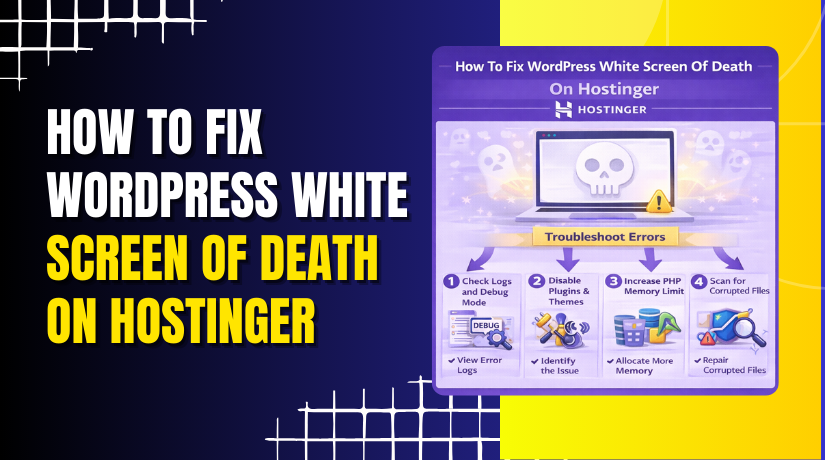
A white screen issue in WordPress, often referred to as the “White Screen of Death,” can occur due to PHP errors, insufficient memory limits, outdated PHP versions, or theme and plugin conflicts. When this issue appears, your website may load as a blank page without any error message, making it difficult to identify the root cause. On Hostinger, resolving this issue involves enabling WordPress debug mode, adjusting PHP configuration settings, and ensuring your themes and system settings are up to date. In this guide, you’ll learn how to enable debugging through the wp-config.php file, increase PHP execution time and memory limits, update the PHP version, and refresh WordPress settings. Following these steps helps accurately diagnose and fix the white screen issue while restoring your website’s functionality.

1. White Screen

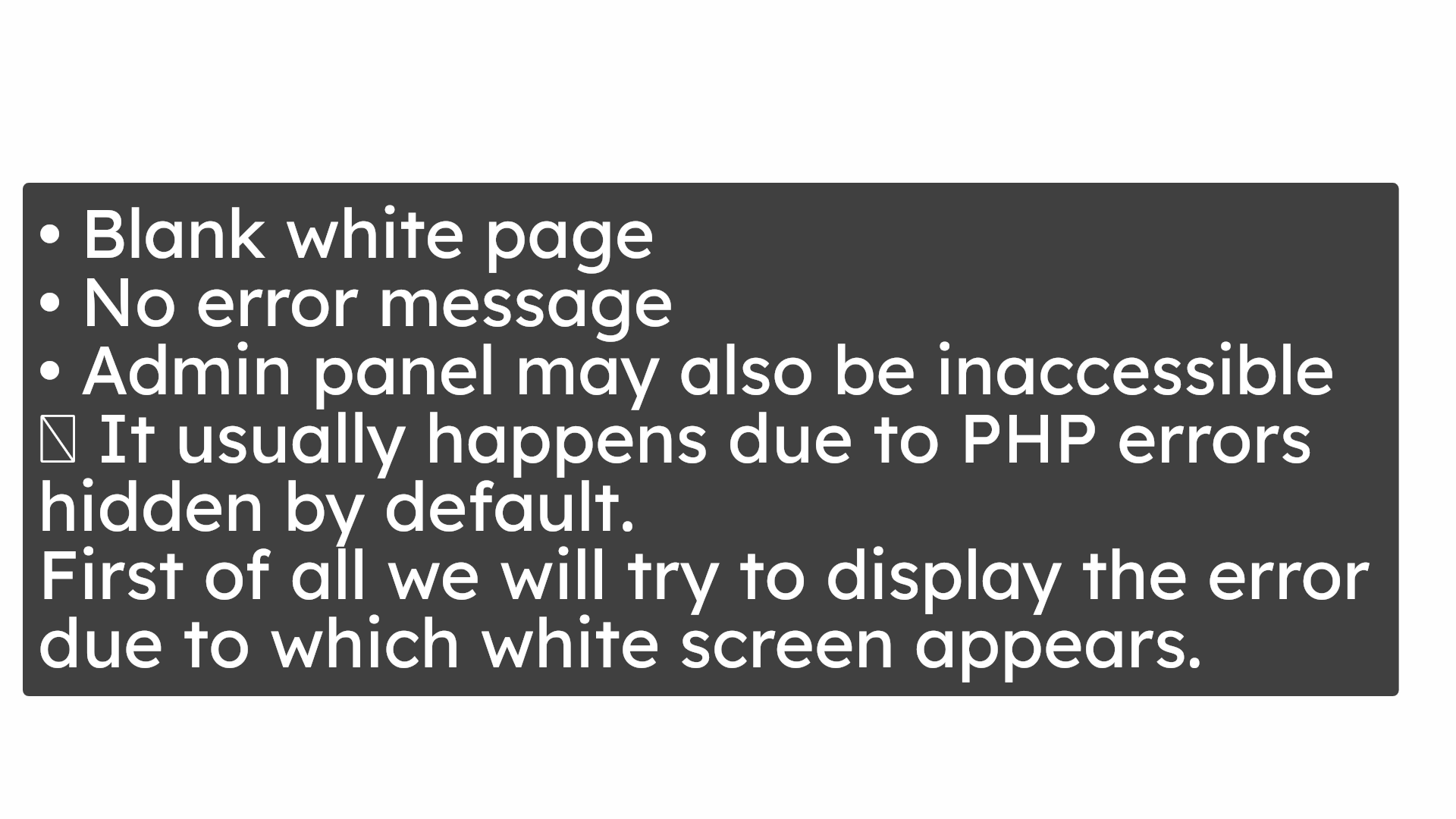
Here you can see that we have white screen issue in our website.

White Screen

2. check the issue

It happens due to multiple reasons.

check the issue

3. Navigate to Dashboard
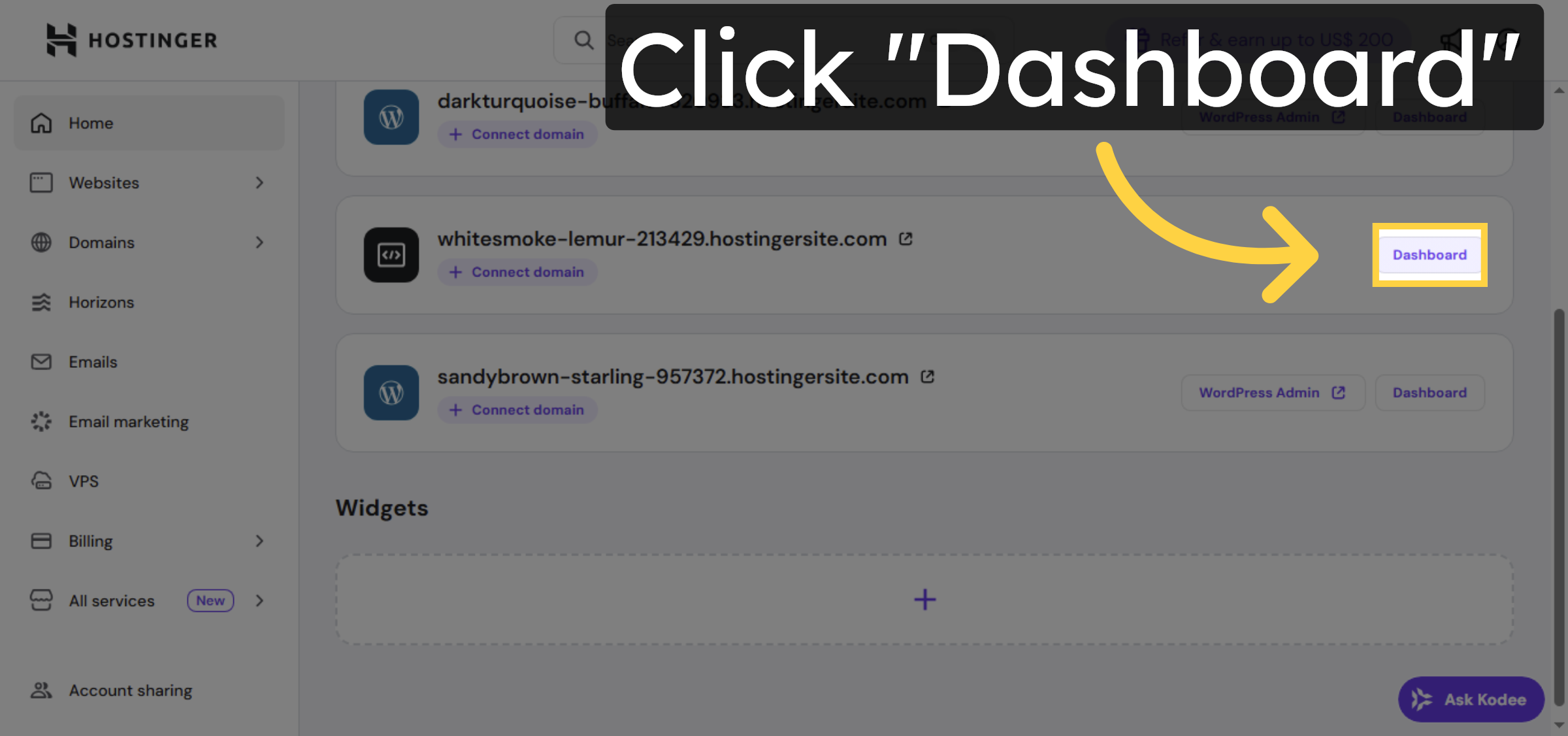
Click the Dashboard to access your Hostinger control panel.

Navigate to Dashboard

4. Open File Manager
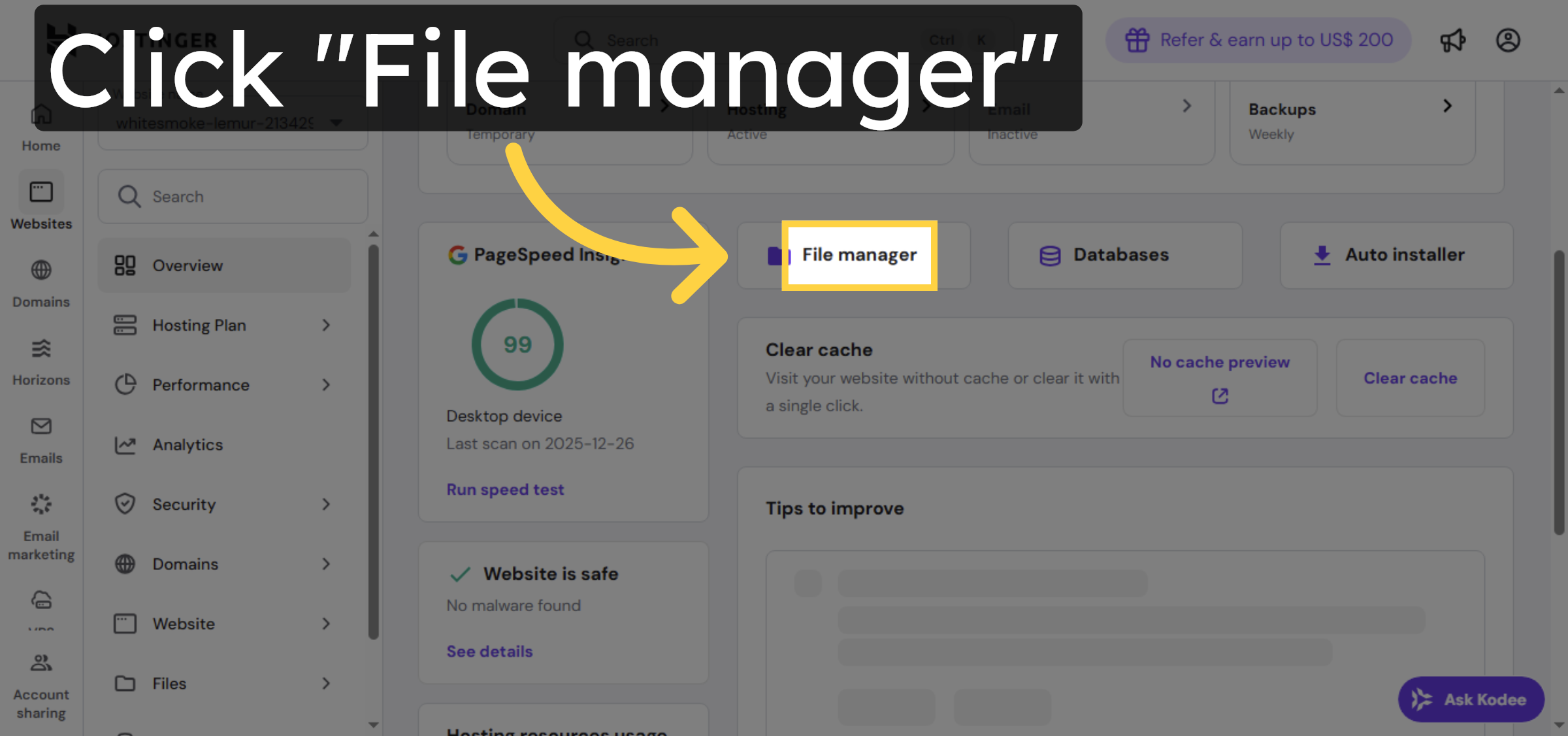
Click File manager to browse your website files.

Open File Manager

5. Open Public HTML Folder
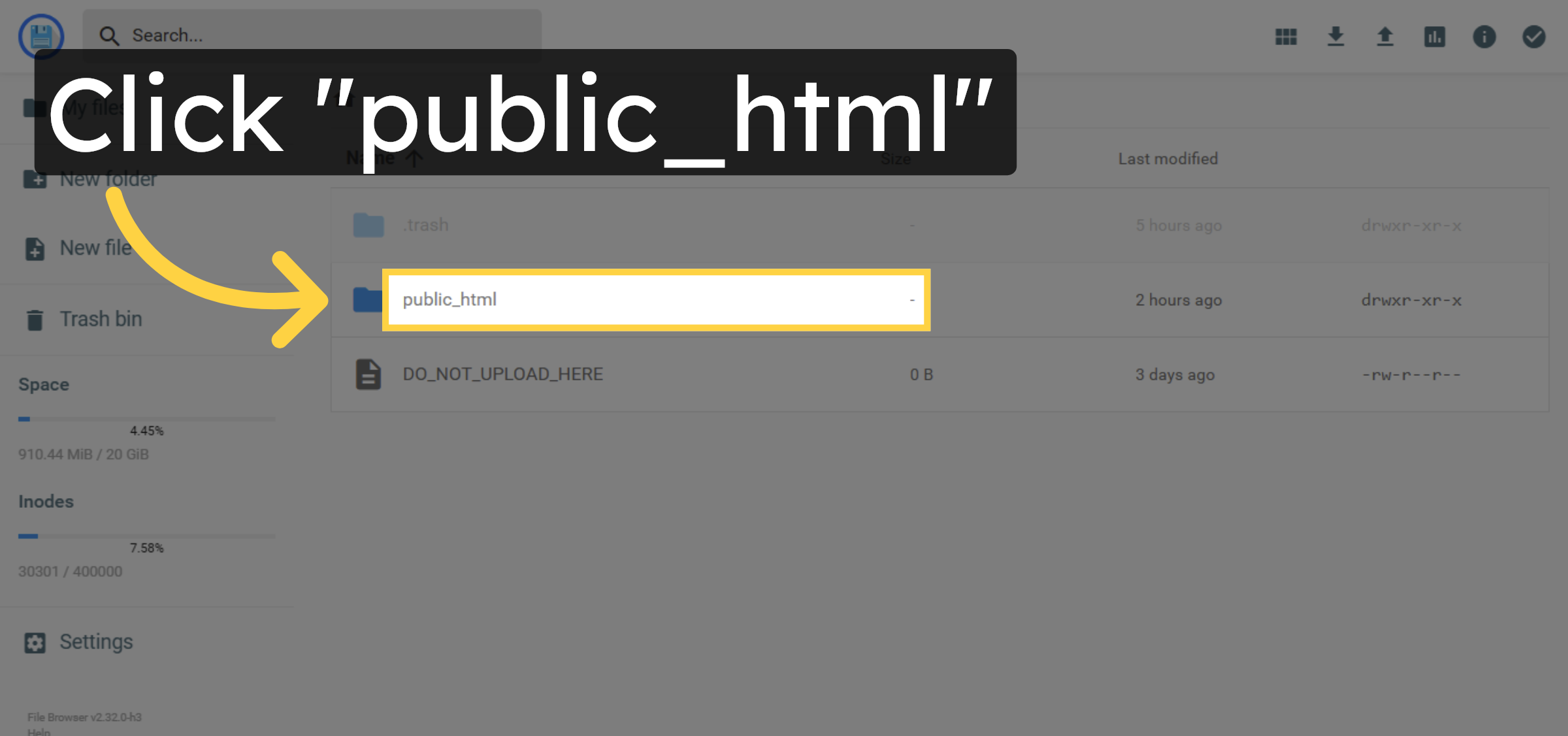
Click public_html to access the root folder of your website.

Open Public HTML Folder

6. Open Demo Folder
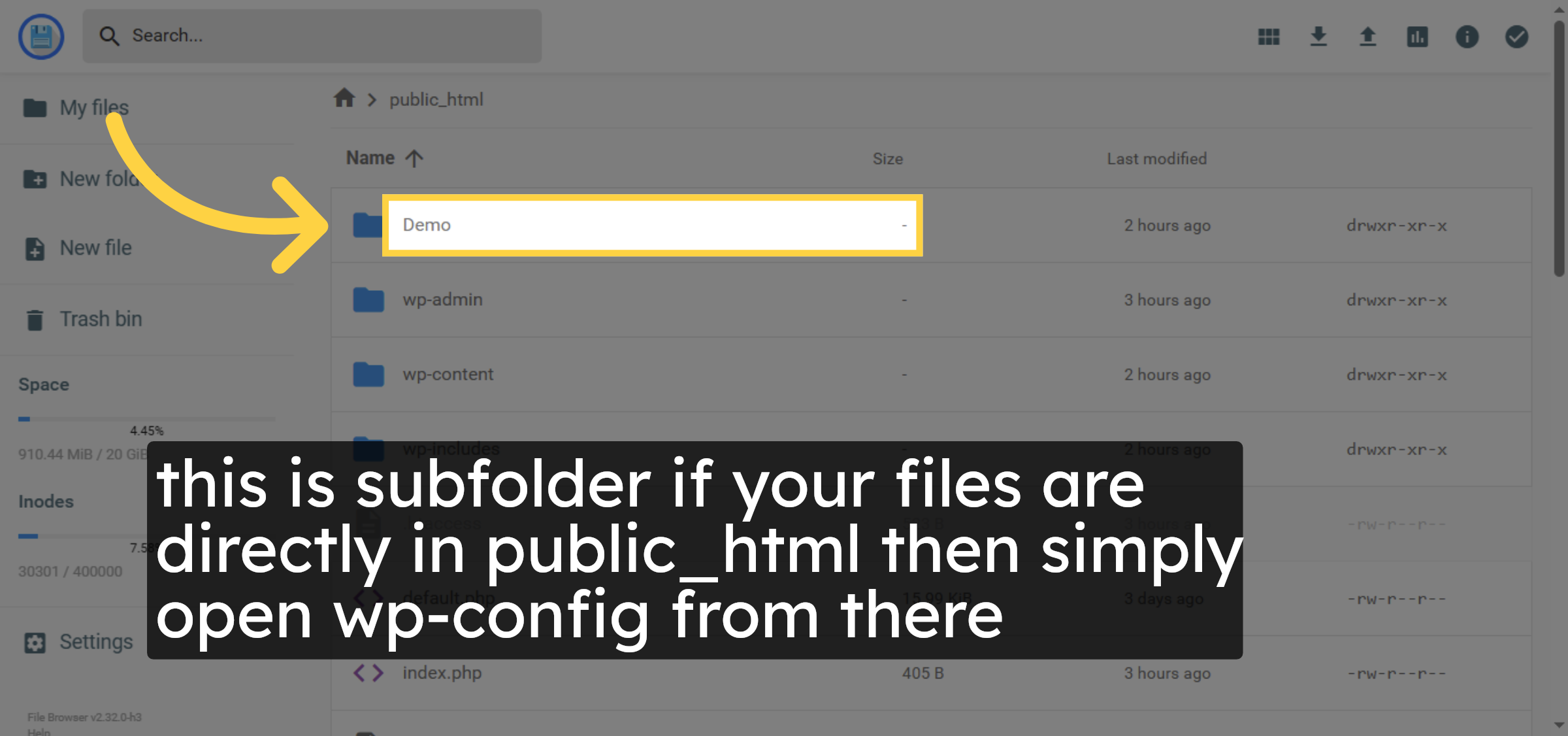
this is subfolder if your files are directly in public_html then simply open wp-config from there

Open Demo Folder

7. Select wp-config.php File
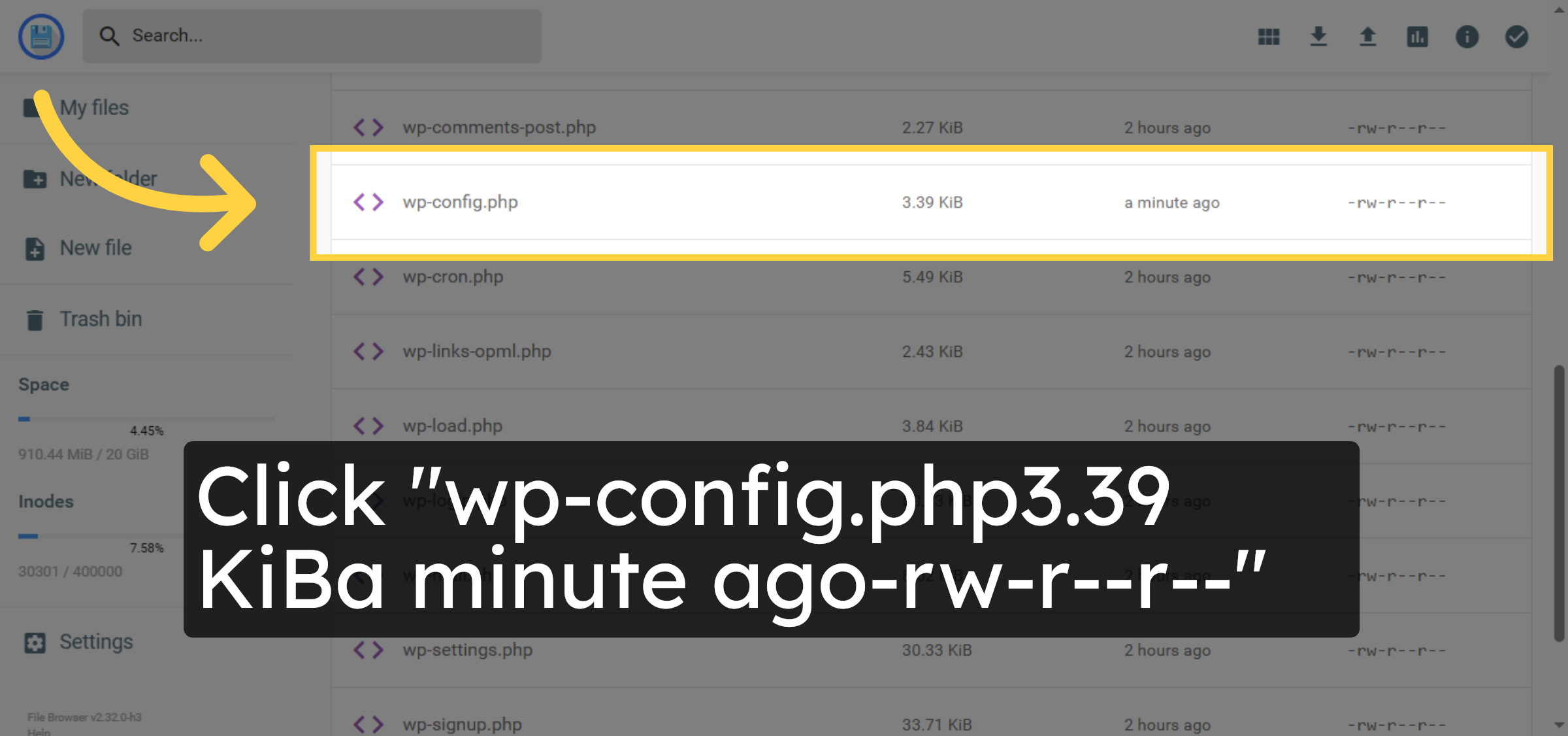
Click the wp-config.php file to open it for editing.

Select wp-config.php File

8. Locate Debugging Section
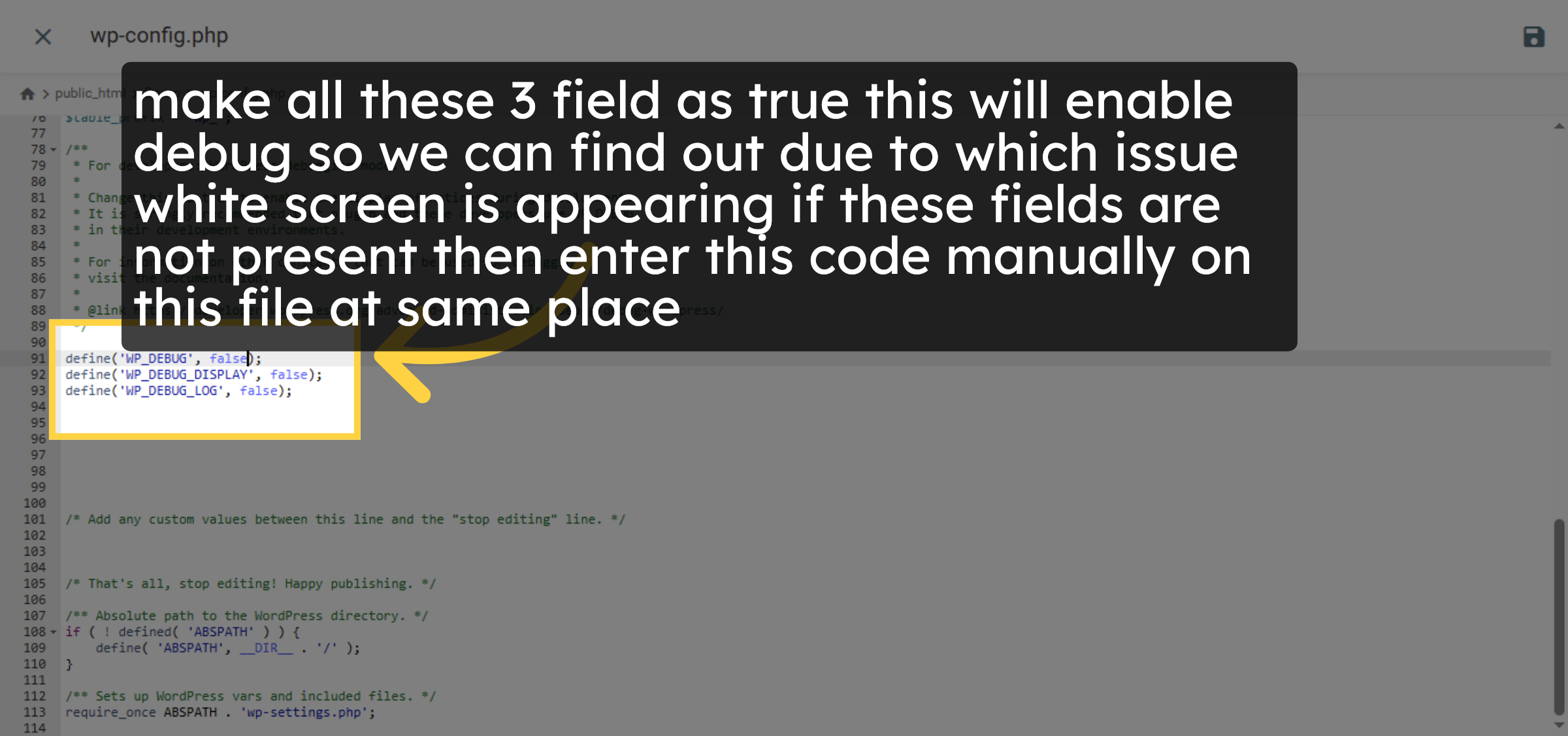
make all these 3 field as true this will enable debug so we can find out due to which issue white screen is appearing if these fields are not present then enter this code manually on this file at same place

Locate Debugging Section

9. Save wp-config.php Changes
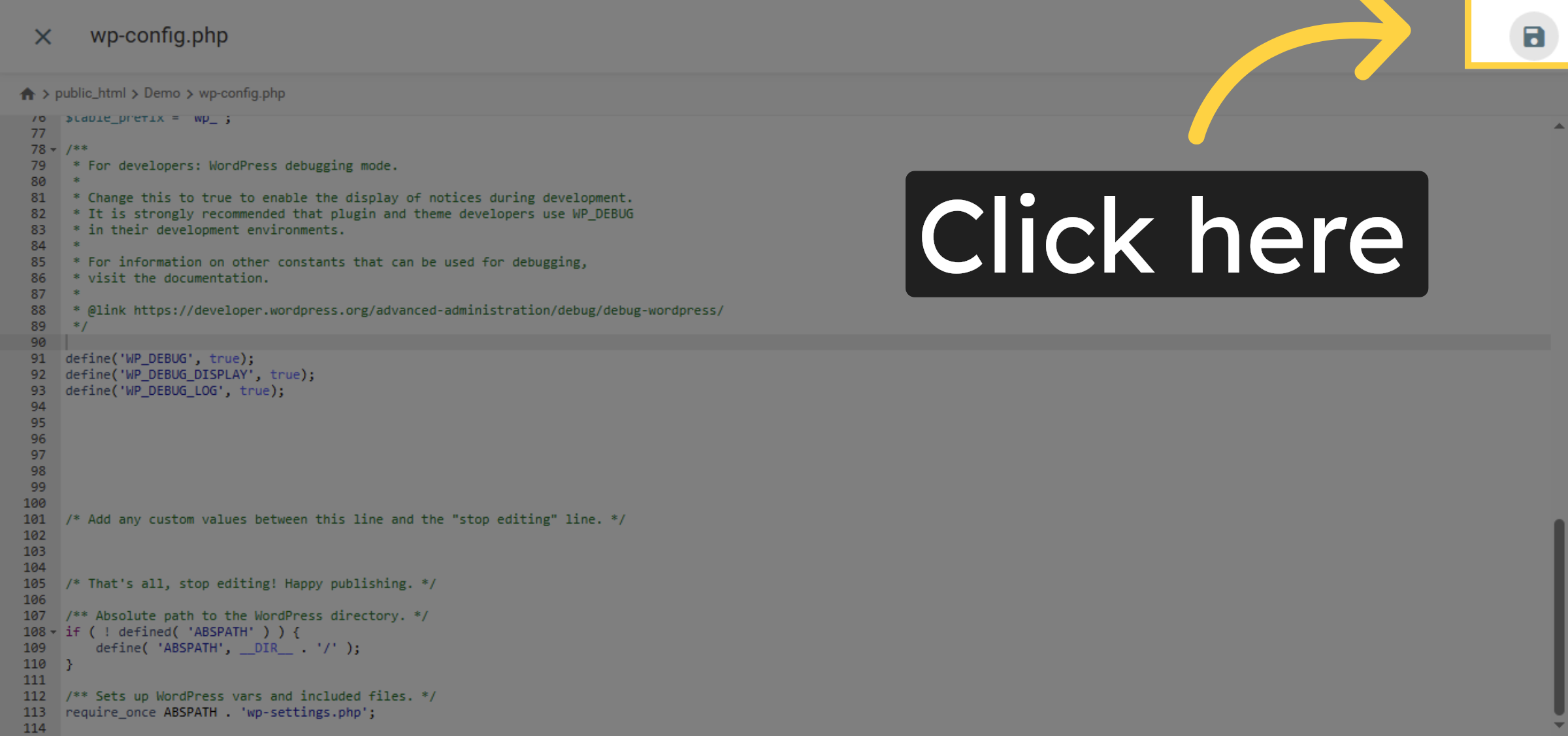
Click here to save the changes made to the wp-config.php file.

Save wp-config.php Changes

10. Close file

close file after editing

Close file

11. Access Advanced Settings
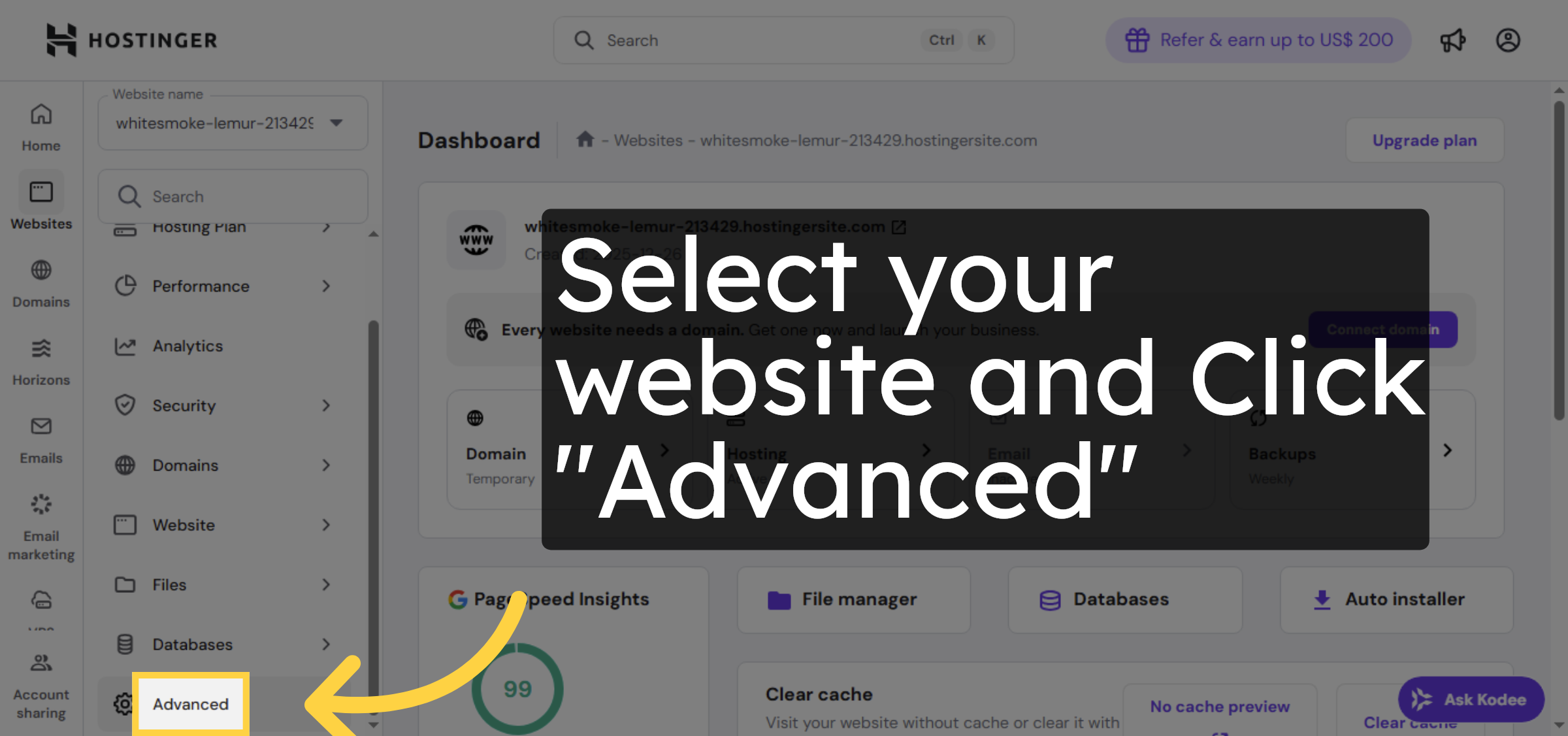
eturn to hostinger dashboard option of your website and Click Advanced to open additional configuration options.

Access Advanced Settings

12. Open PHP Configuration
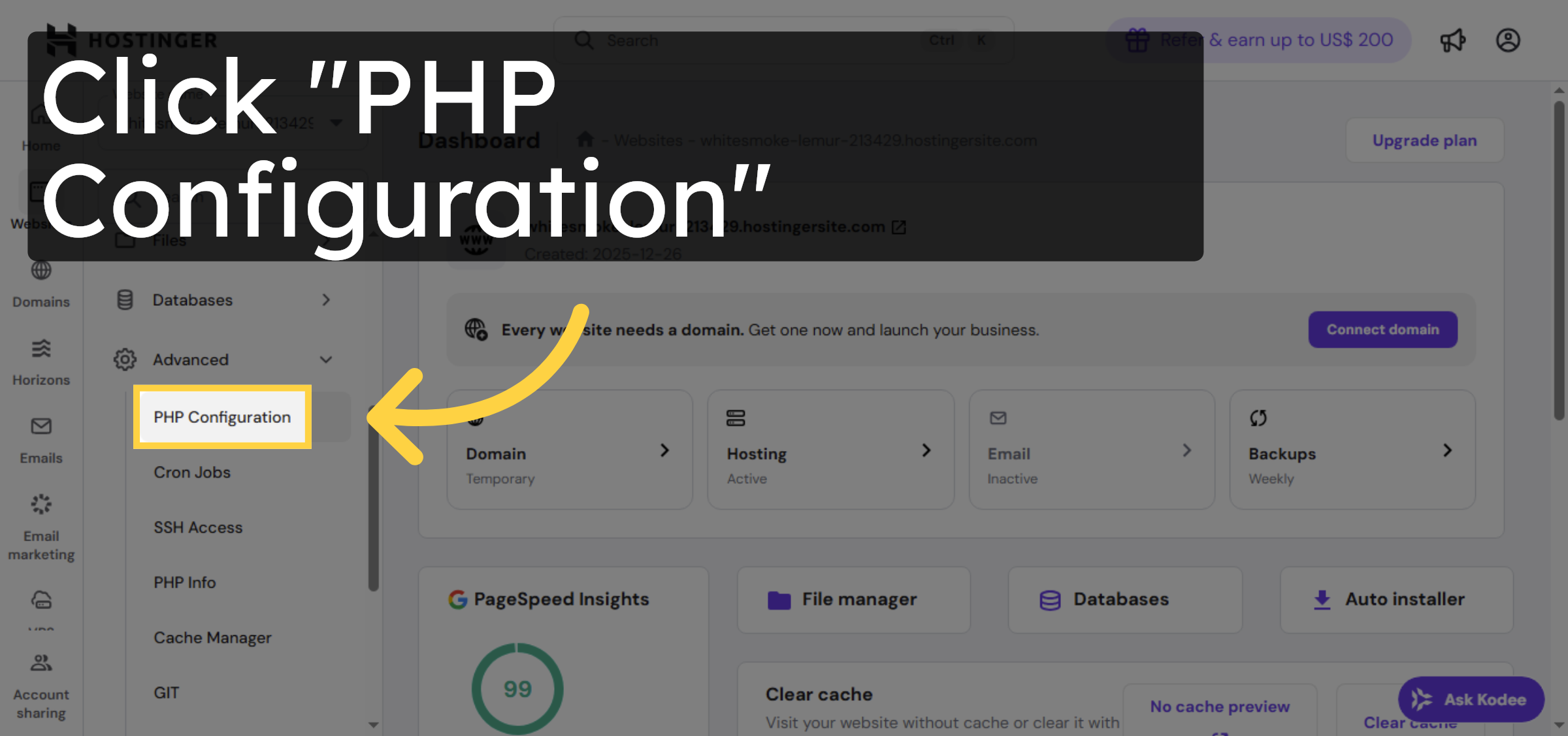
Click PHP Configuration to modify PHP settings for your hosting.

Open PHP Configuration

13. Select PHP Options
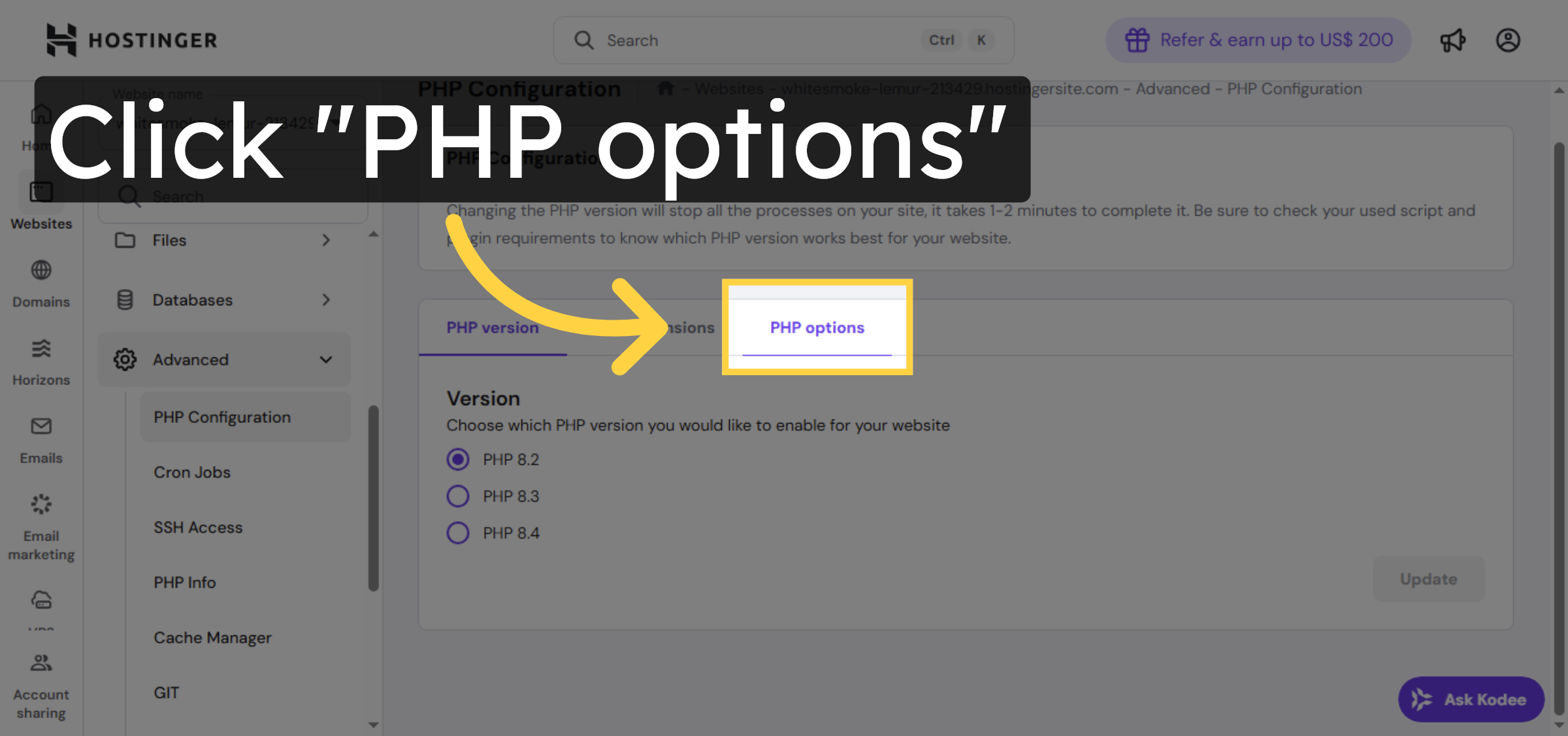
Click PHP options to view and change PHP parameters.

Select PHP Options

14. Adjust max_execution_time
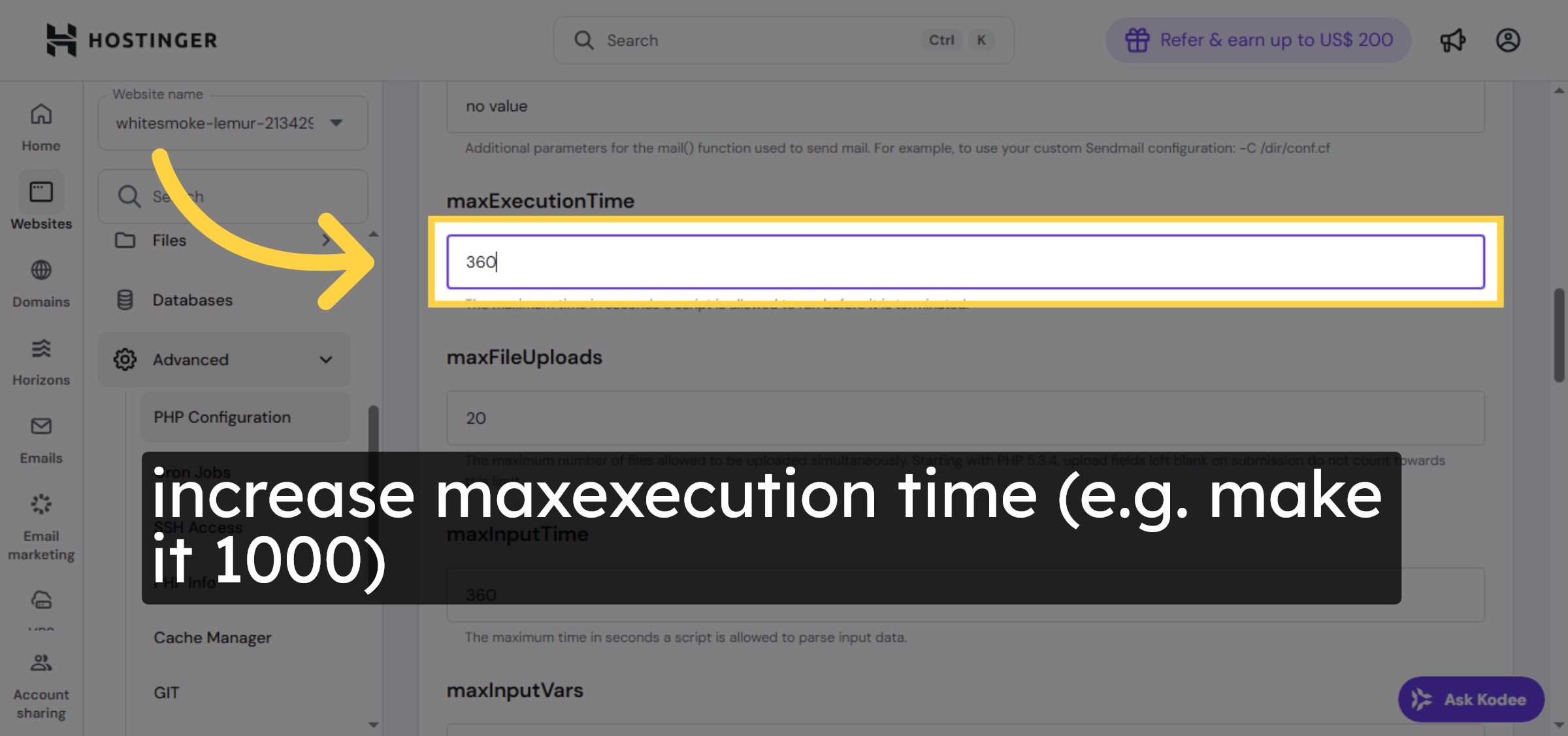
increase maxexecution time (e.g. make it 1000)

Adjust max_execution_time

15. Increase PHP Memory Limit
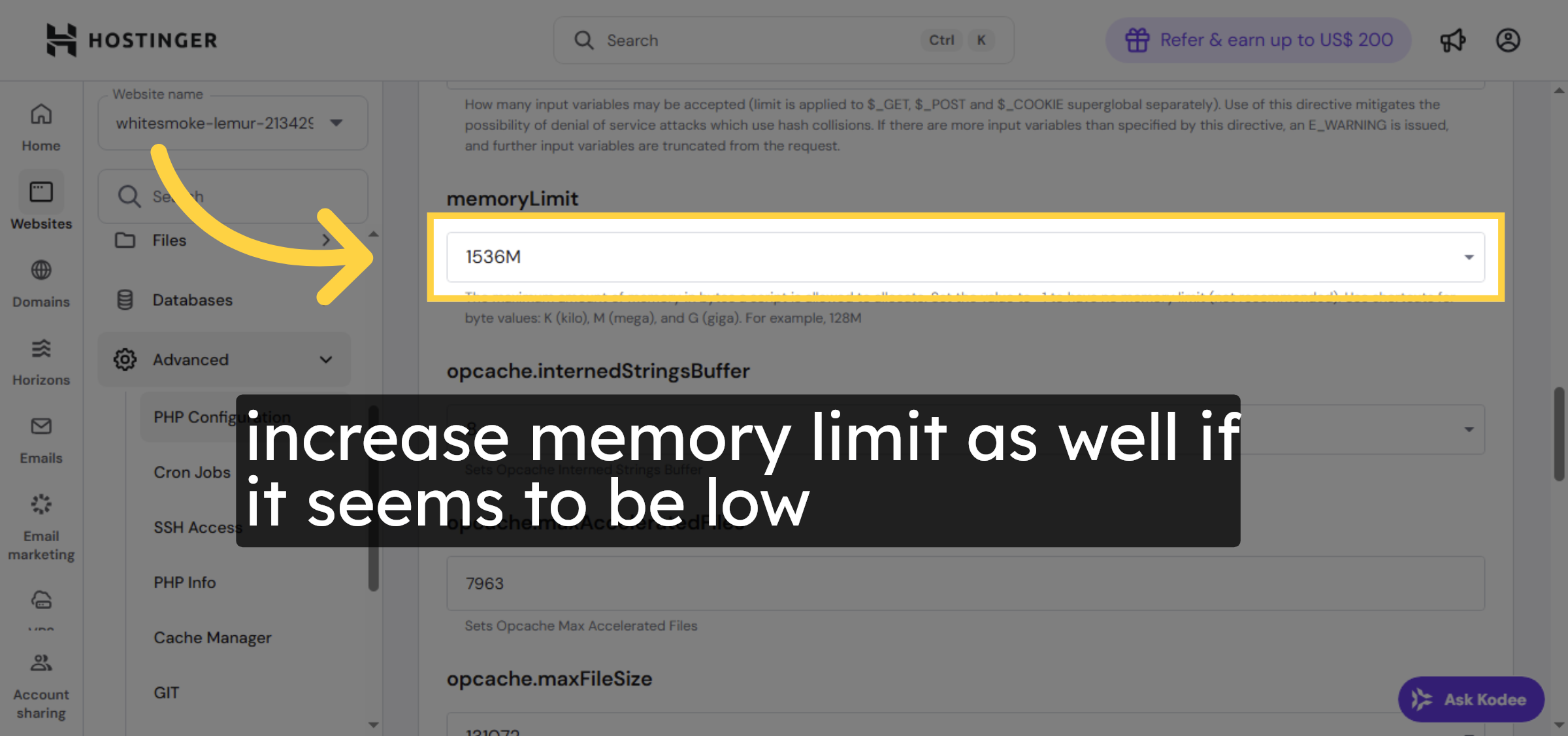
increase memory limit as well if it seems to be low

Increase PHP Memory Limit

Ad Banner

16. Save PHP Configuration

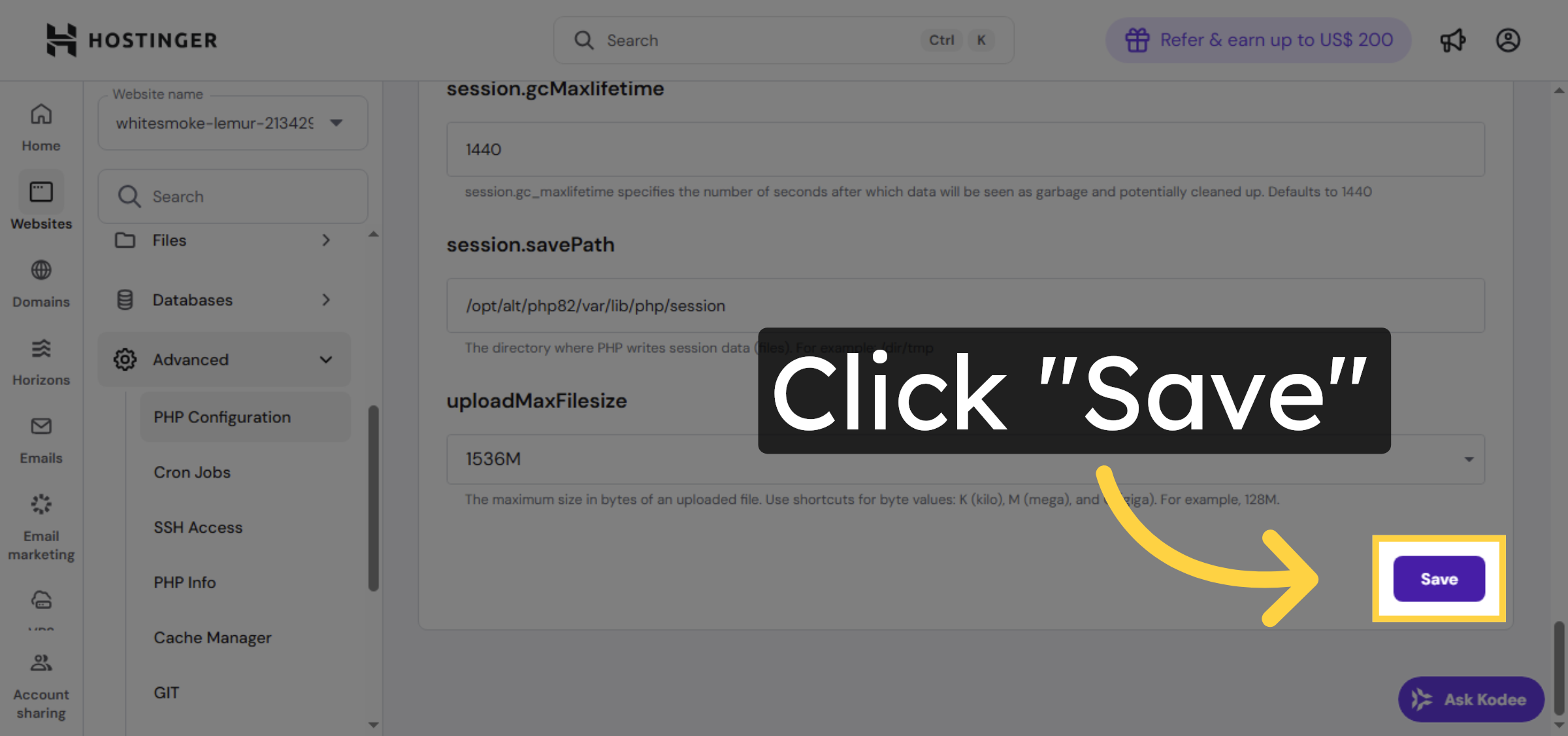
Click Save to apply the updated PHP settings.

Save PHP Configuration

17. Open PHP Version Settings
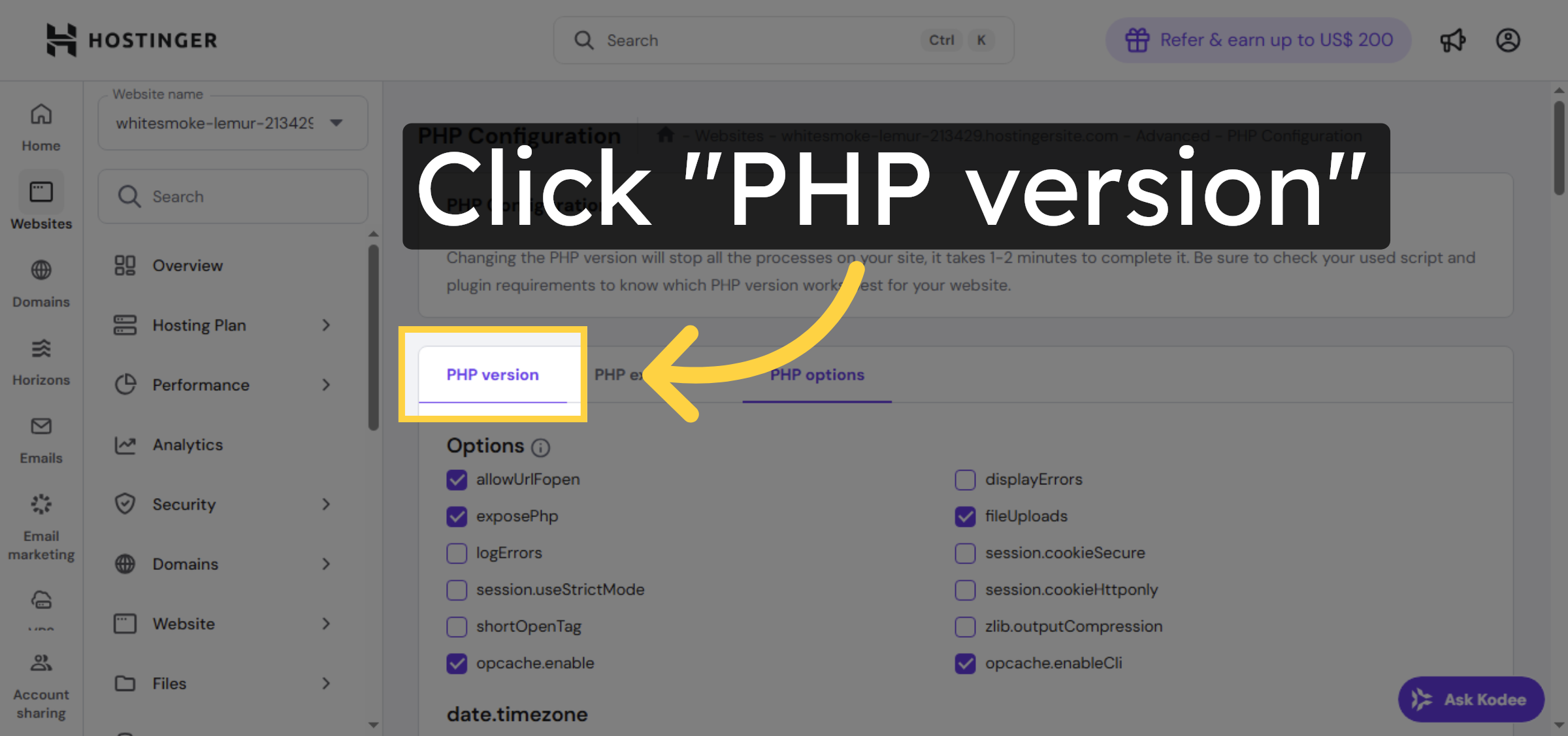
Click PHP version to check or change the PHP version used.

Open PHP Version Settings

18. Select PHP Version Dropdown
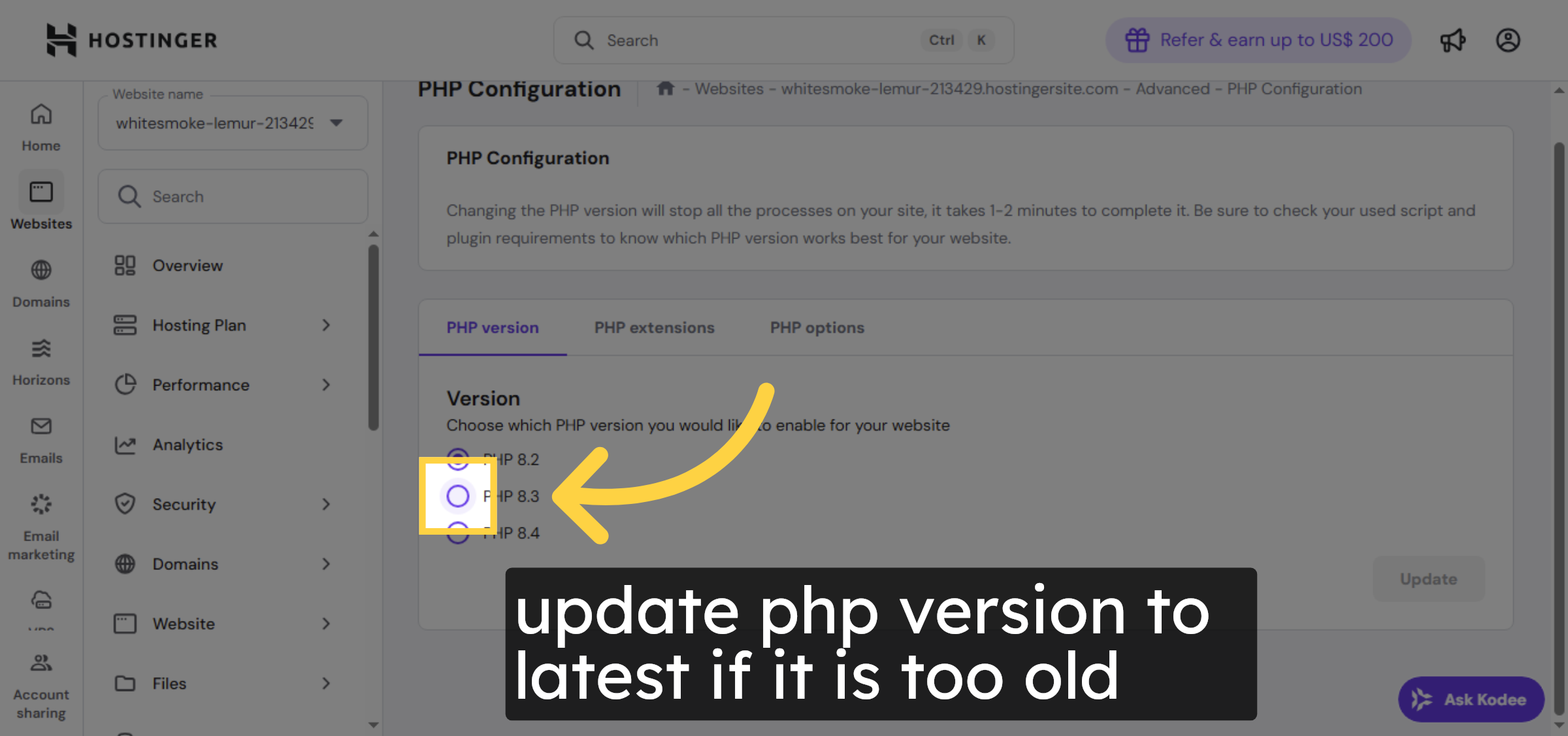
update php version to latest if it is too old

Select PHP Version Dropdown

19. Update PHP Version
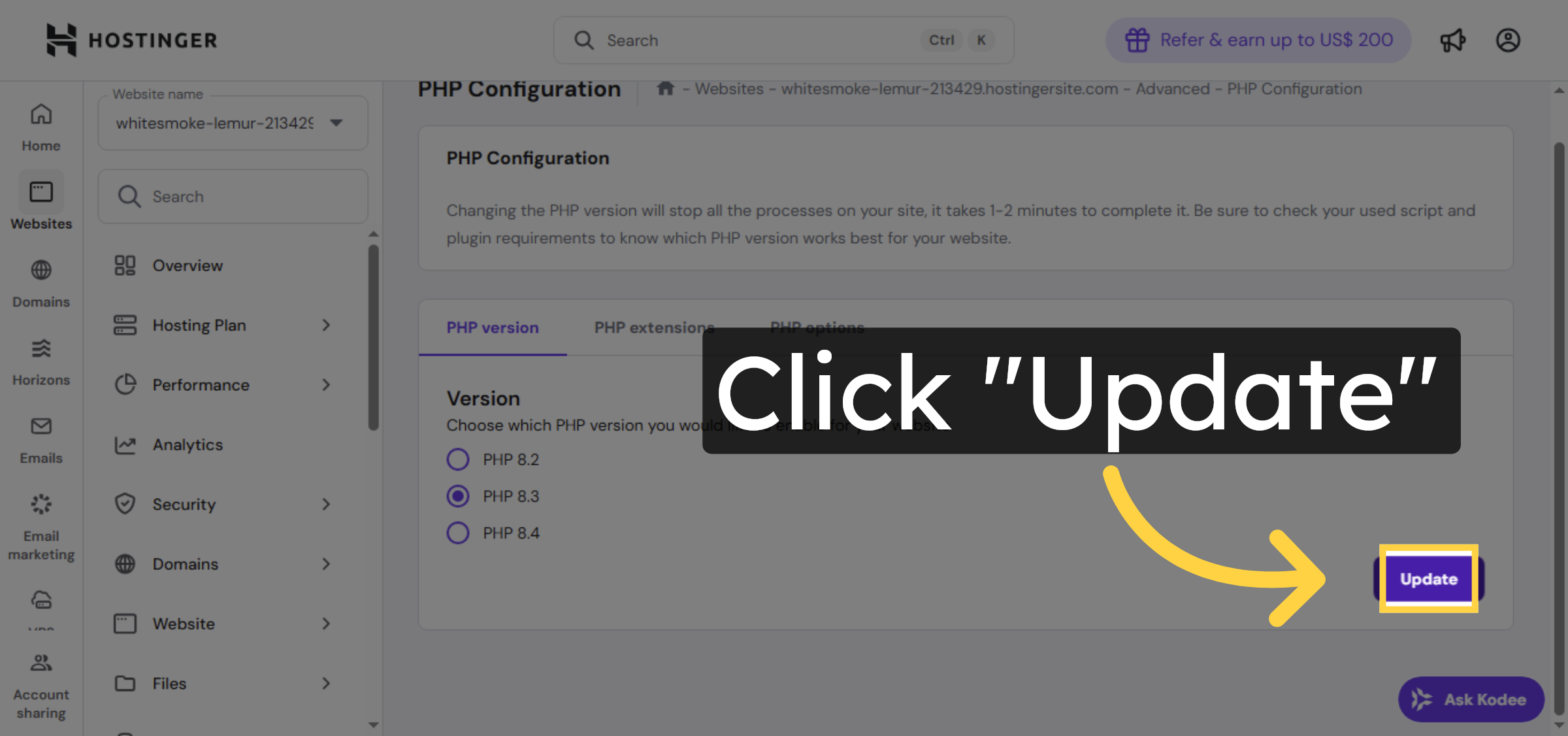
Click Update to save the new PHP version settings.

Update PHP Version

20. Confirm PHP Update
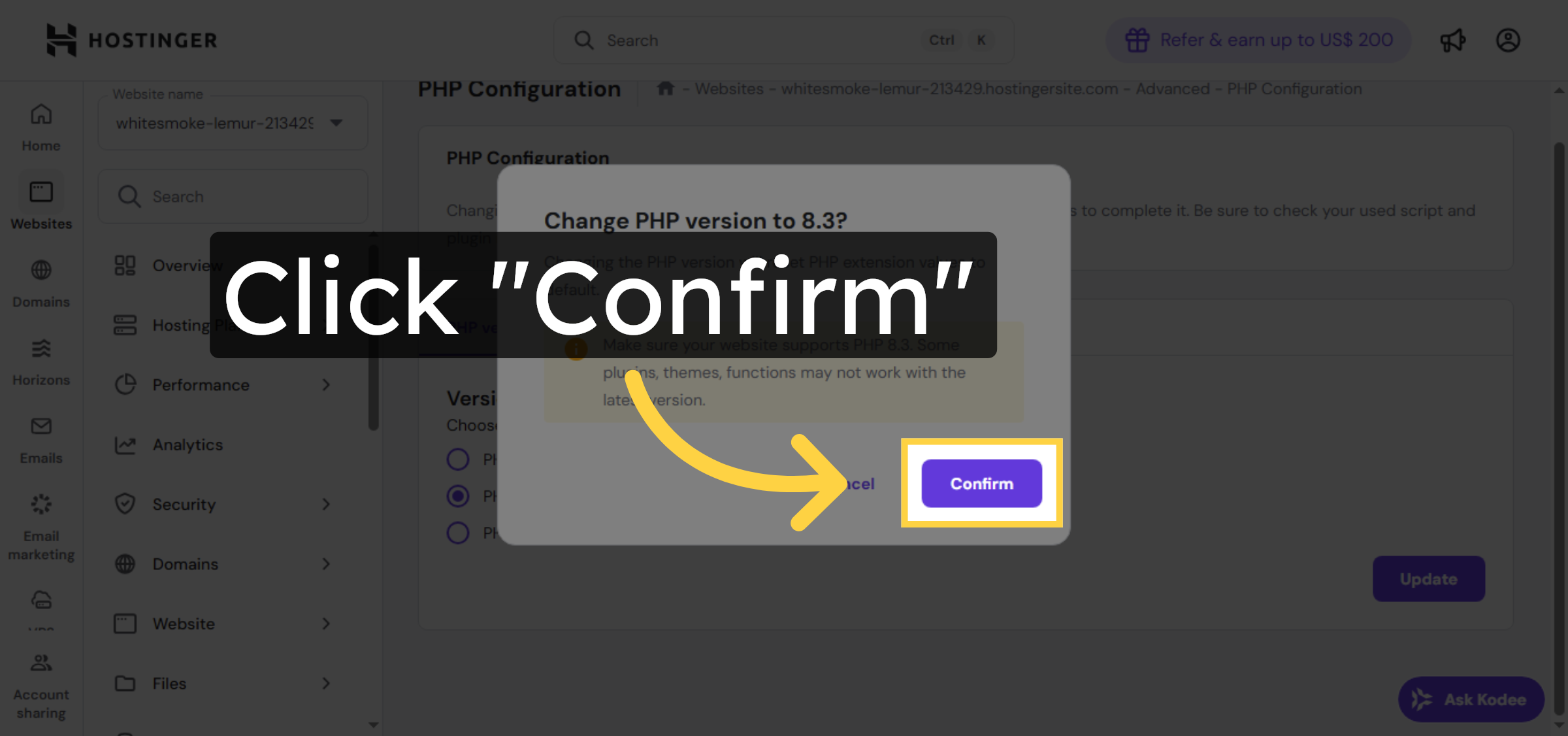
Click Confirm to finalize the PHP version change.

Confirm PHP Update

21. Return to WordPress Site
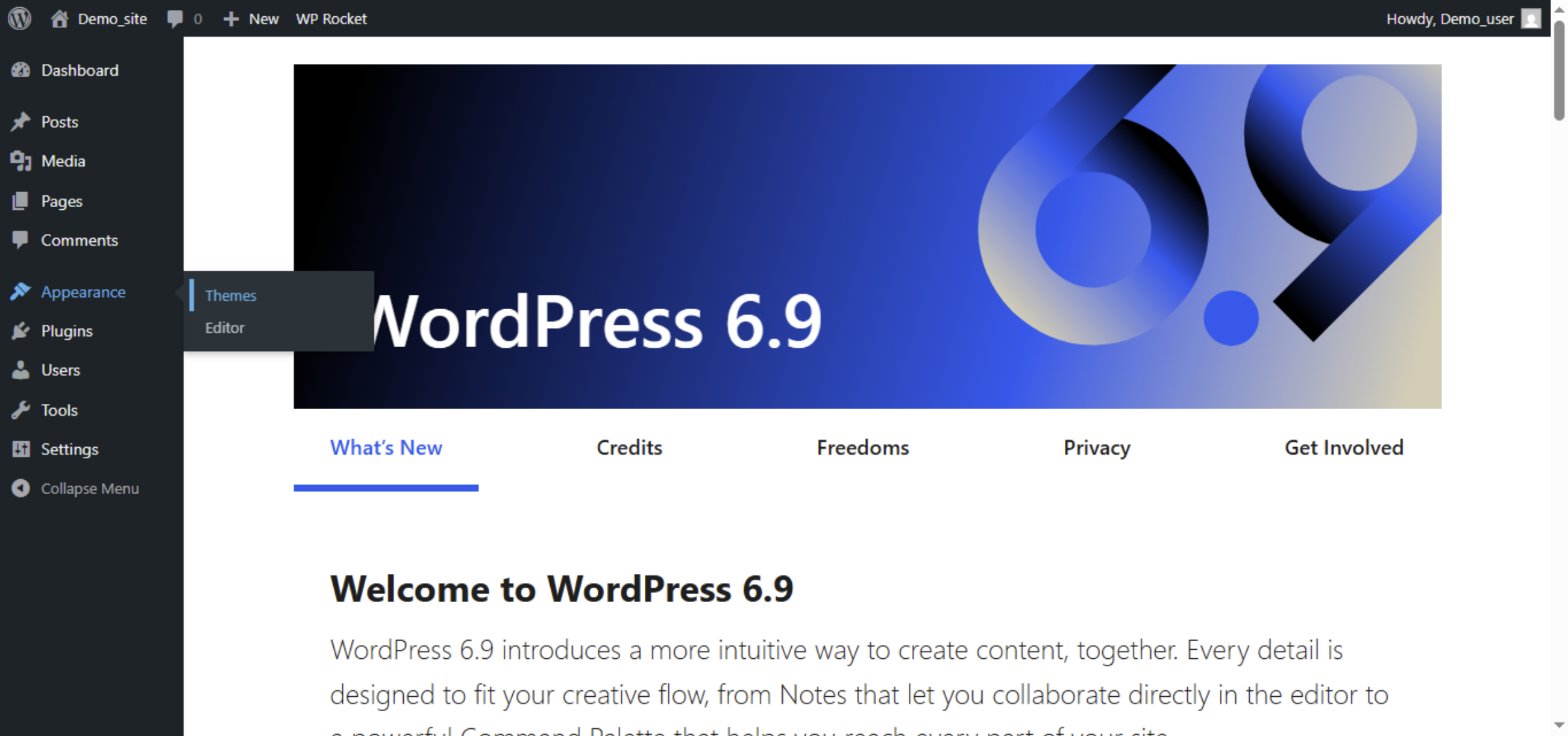
Return to wordpress admin dashboard of your website.

Return to WordPress Site

22. Open Themes Section
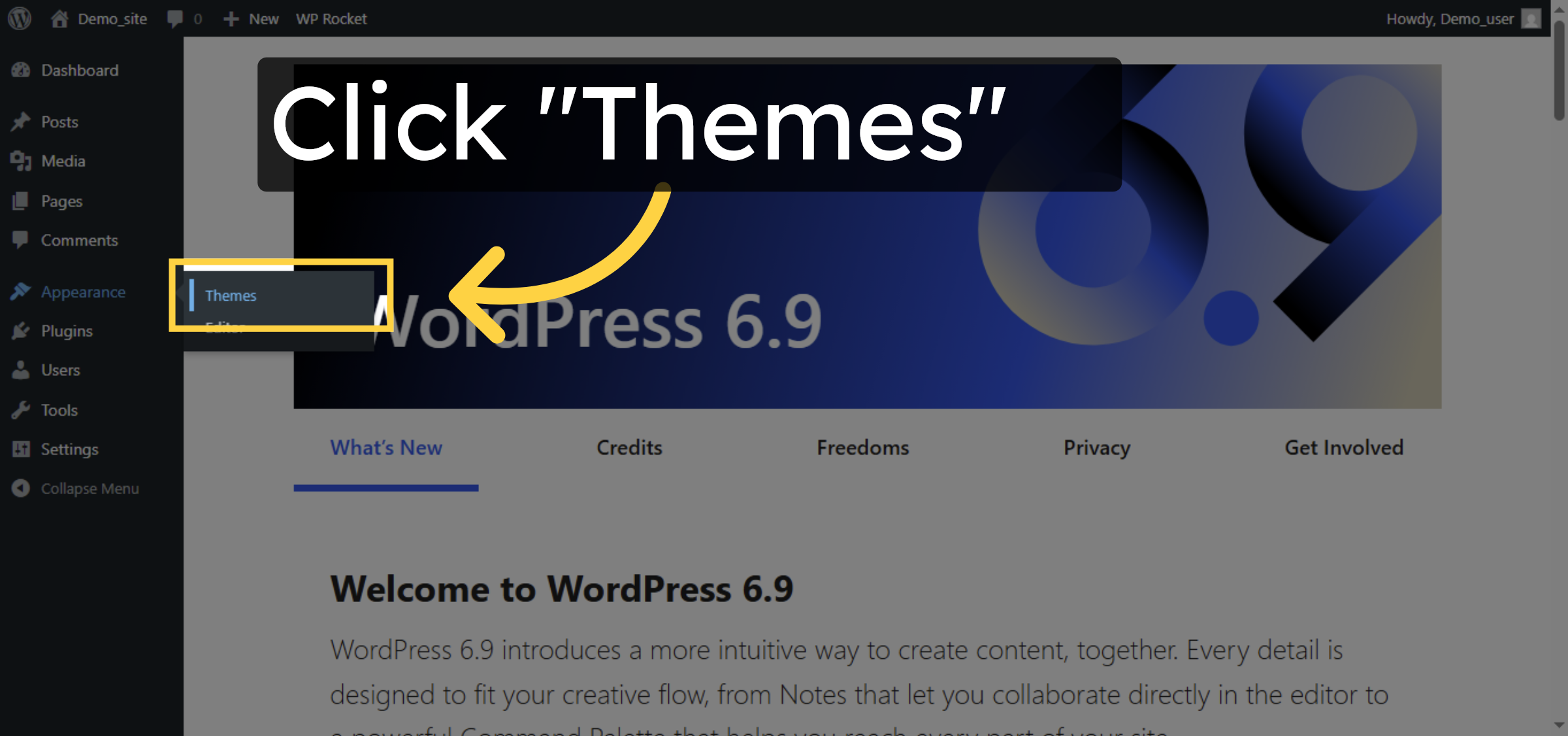
Click Themes to manage your WordPress themes.

Open Themes Section

23. update your theme
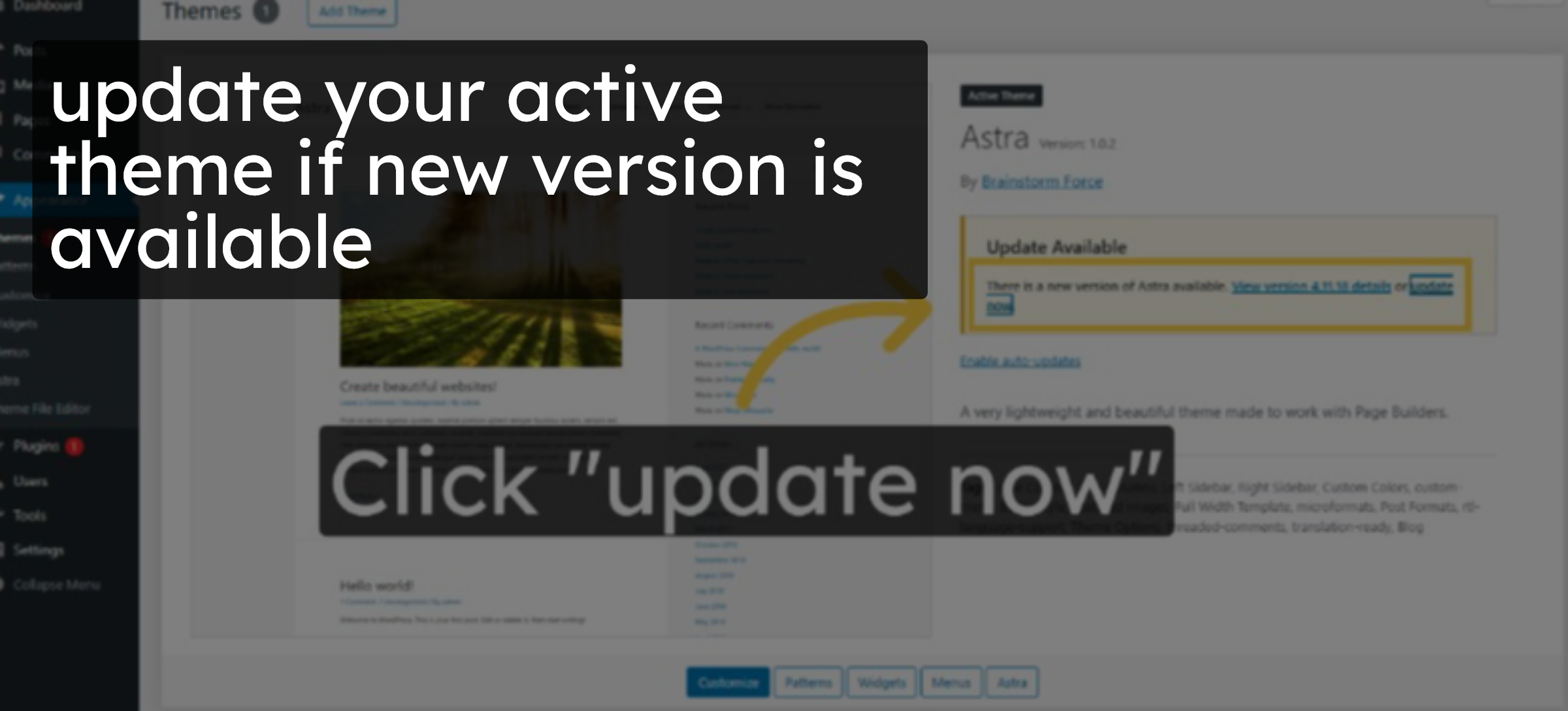
update your active theme if new version is available

update your theme

24. Access Permalink Settings
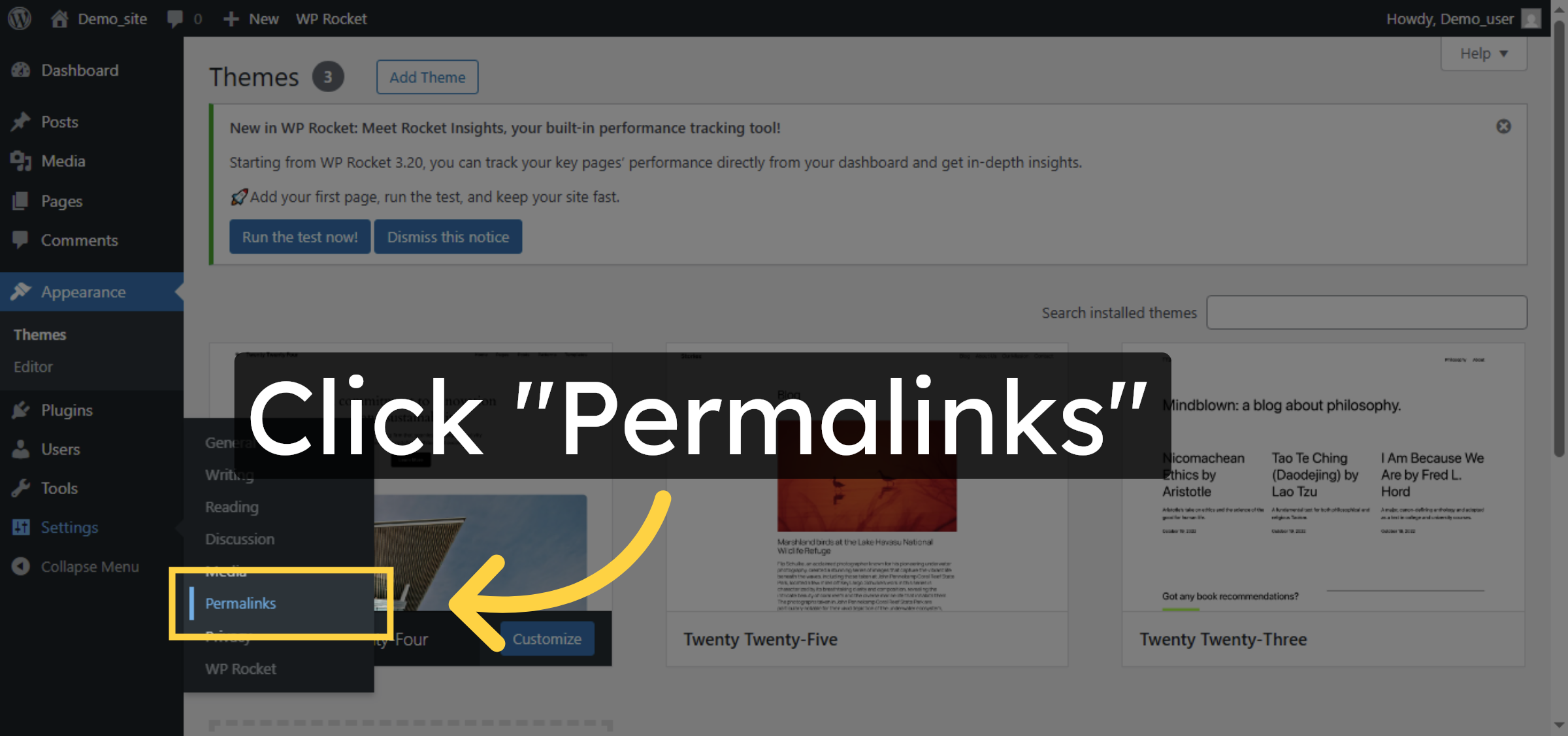
Click Permalinks to adjust your site’s URL structure.

Access Permalink Settings

25. Save Permalink Changes
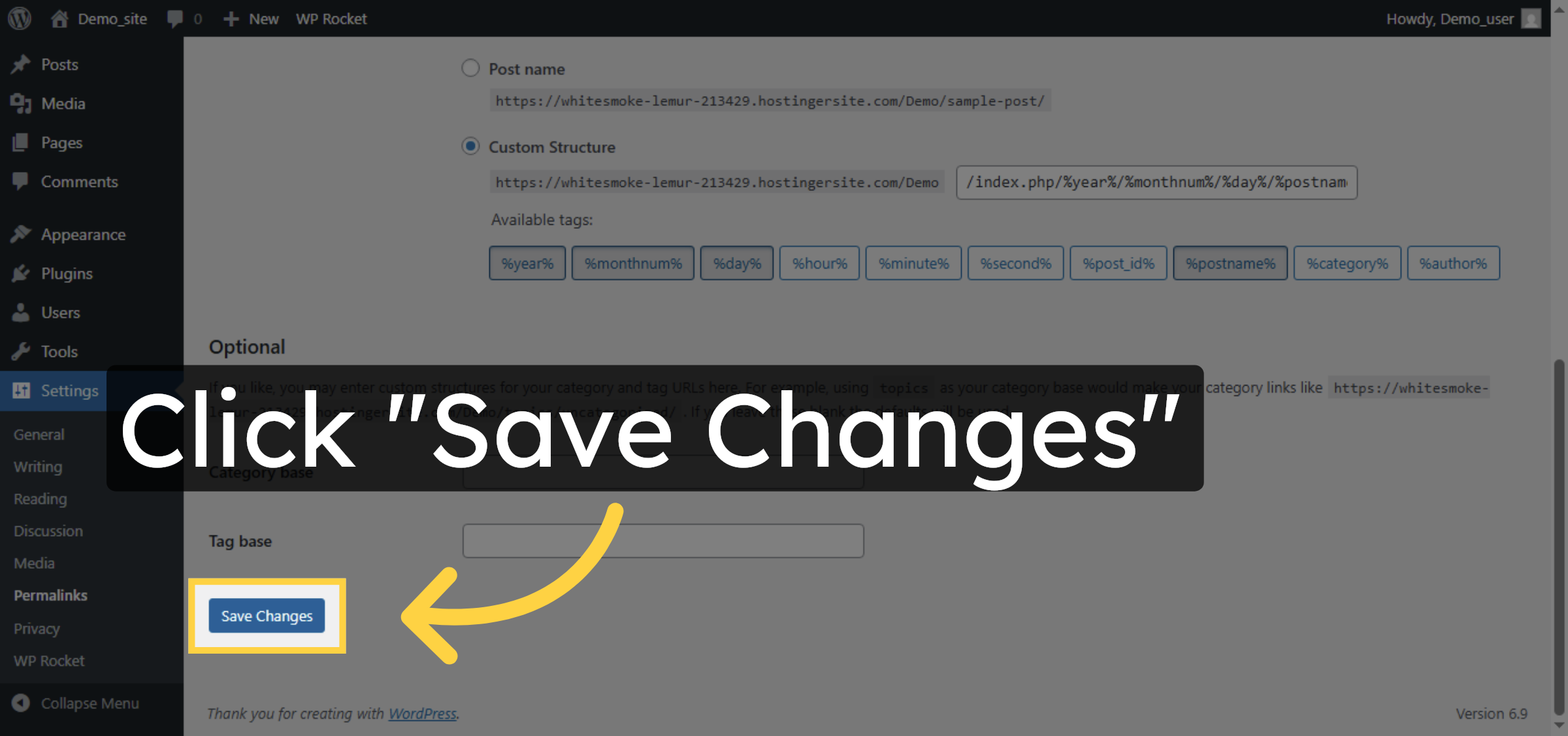
Click Save Changes to refresh permalink settings and clear rewrite rules.

Save Permalink Changes

26. Return to Site Dashboard
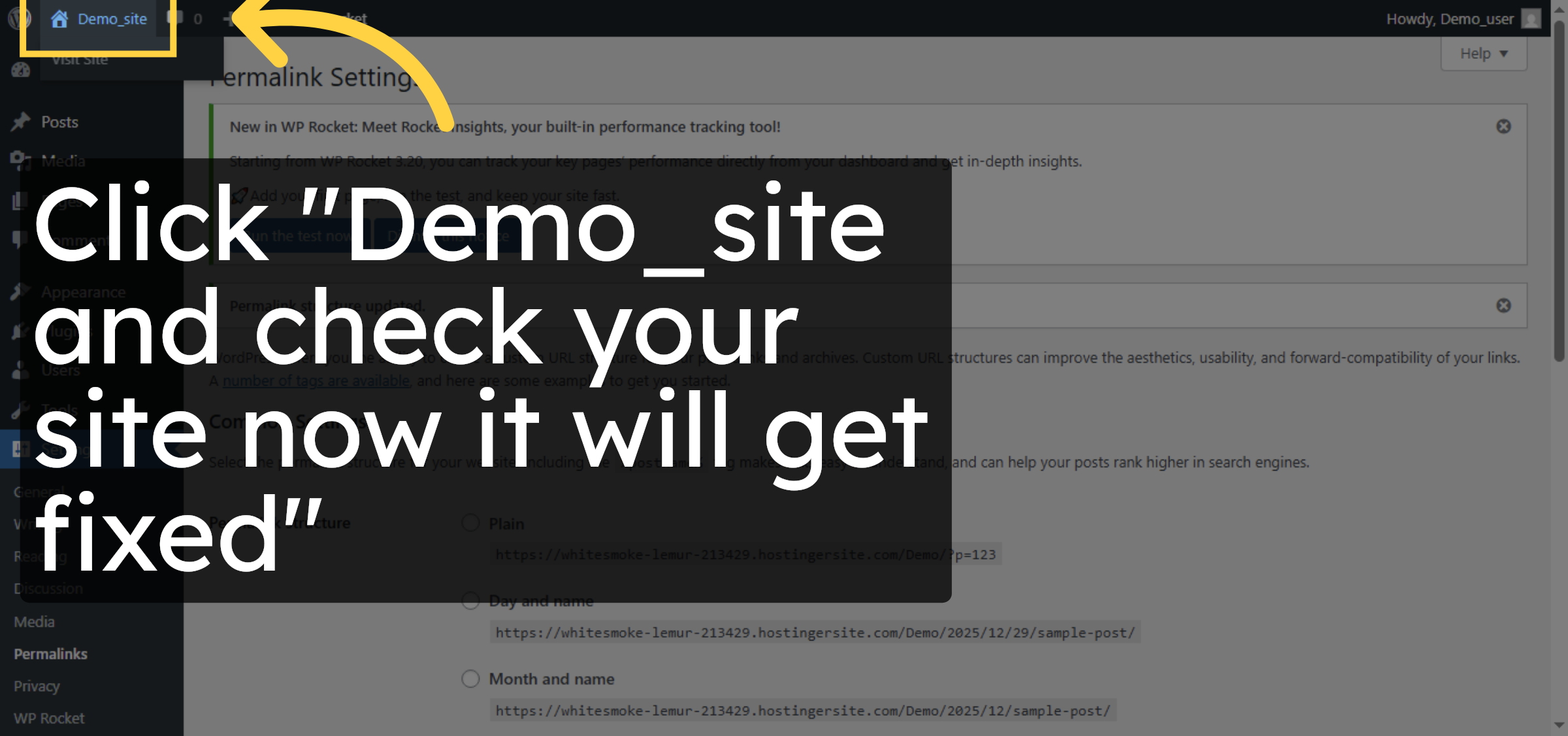
Click Demo_site to return to your WordPress dashboard home.

Return to Site Dashboard

27. error resolved
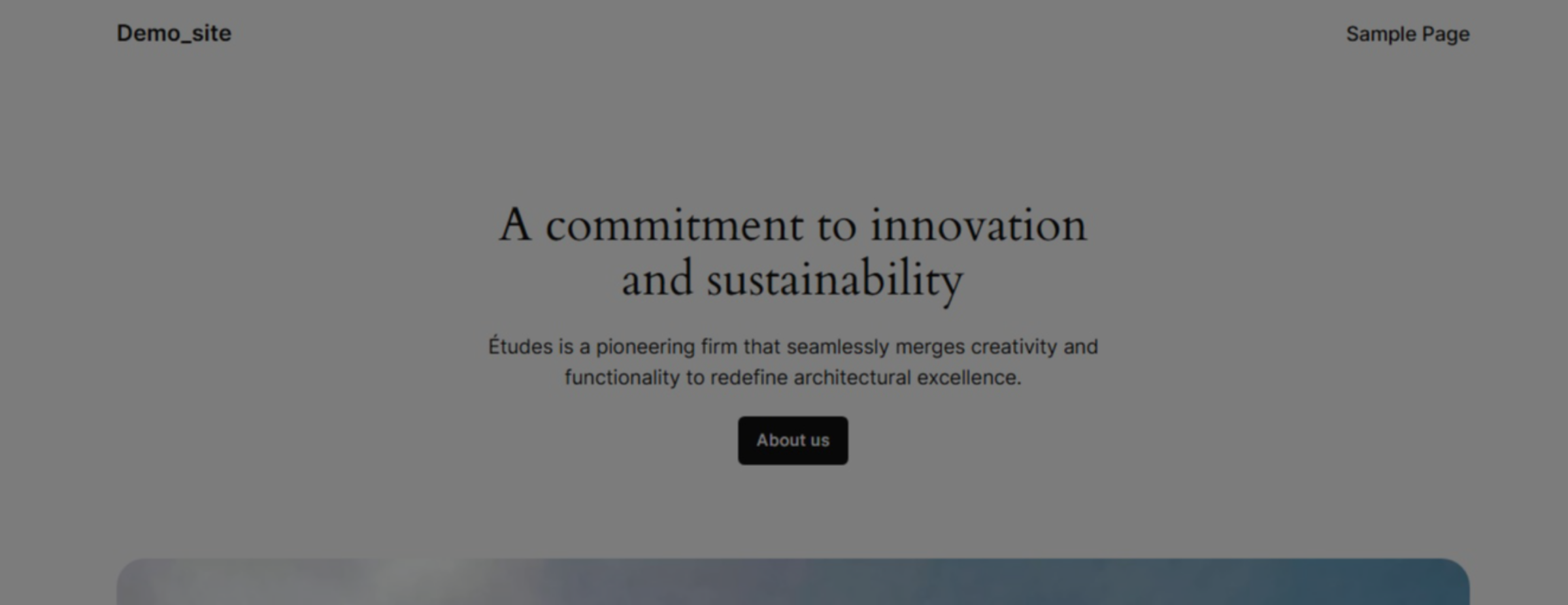
Here you can check that error has been resolved.

error resolved

Conclusion

By following the steps outlined in this guide, you can successfully diagnose and resolve the WordPress white screen issue on Hostinger. Enabling debug mode, adjusting PHP settings, updating PHP versions, and keeping themes up to date helps eliminate common causes of blank screen errors. Regular maintenance and proper configuration are best practices for preventing similar issues and ensuring a stable WordPress website.

Visit: https://www.woohelpdesk.com
Call Us Toll-Free: +1 888 602 0119 (US & Canada)
Get professional support for WordPress configuration, hosting management, performance optimization, and troubleshooting.


Leave a Reply

Your email address will not be published. Required fields are marked *

Leave a Reply

Your email address will not be published. Required fields are marked *