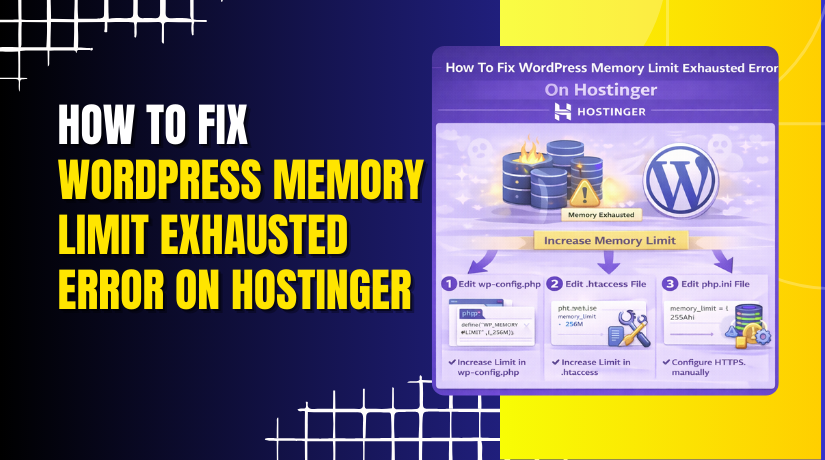
How To Fix WordPress Memory Limit Exhausted Error On Hostinger
Introduction
The WordPress memory limit exhausted error is a common issue that occurs when your website requires more PHP memory than is currently allocated by the hosting environment. This error can prevent pages from loading properly and may disrupt plugin functionality, theme operations, or admin access. On Hostinger, increasing the PHP memory limit is a straightforward process that can be managed directly from the hosting dashboard. In this guide, you’ll learn how to identify the memory limit error, access advanced hosting settings, modify PHP configuration options, and increase the memory limit safely. Following these steps helps ensure your WordPress site has sufficient resources to run smoothly and avoids performance-related interruptions.
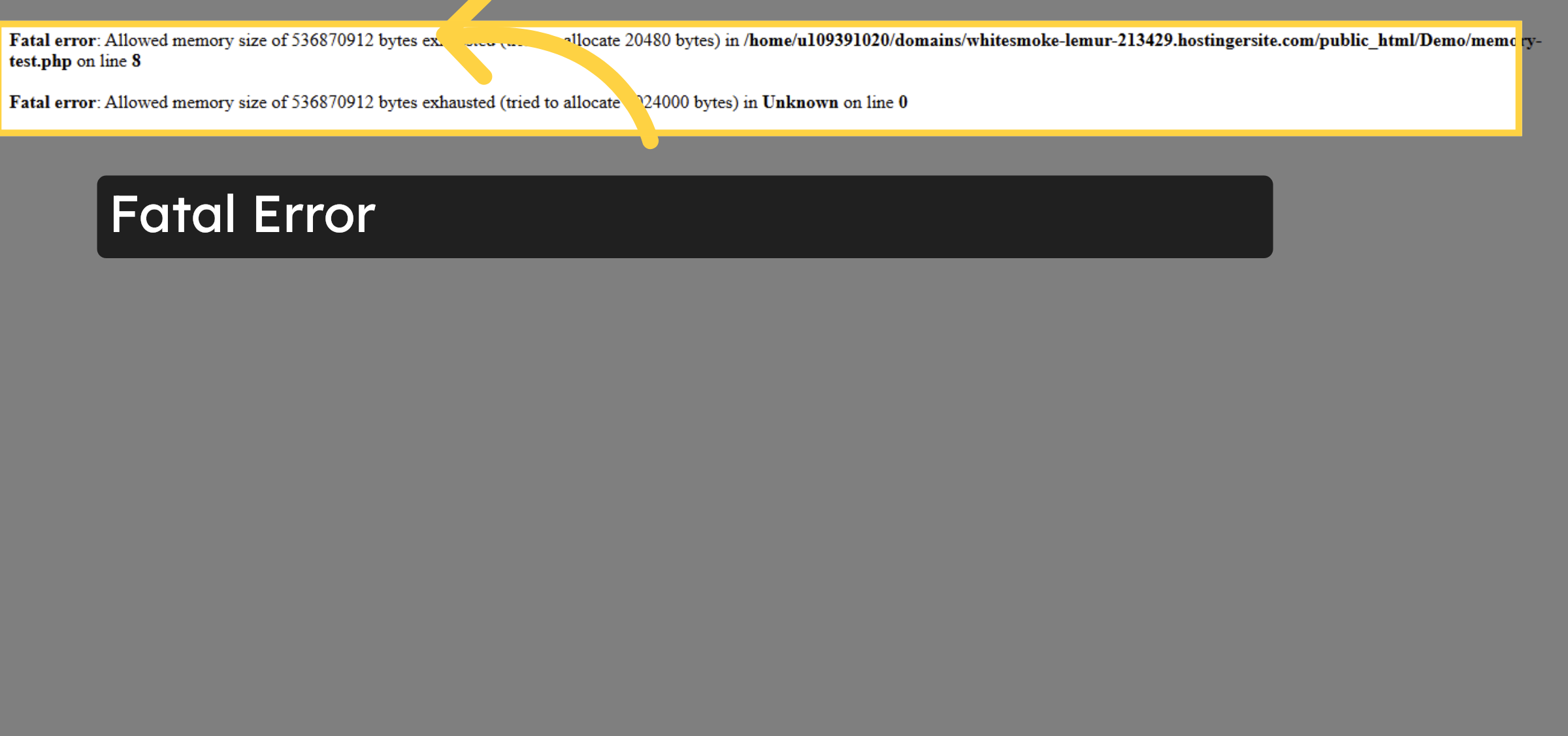
1. Identify Memory Limit Error
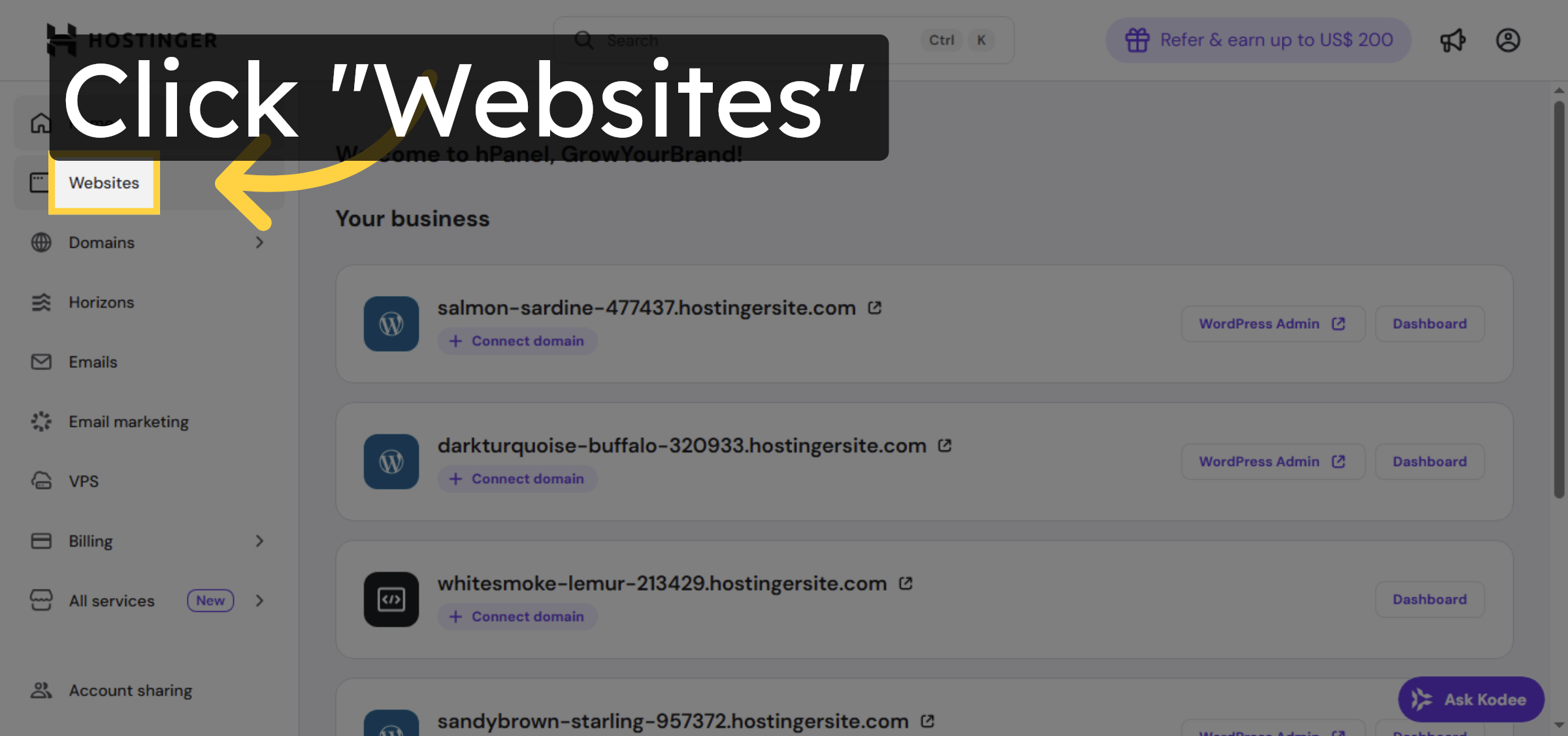
2. Access Websites Section
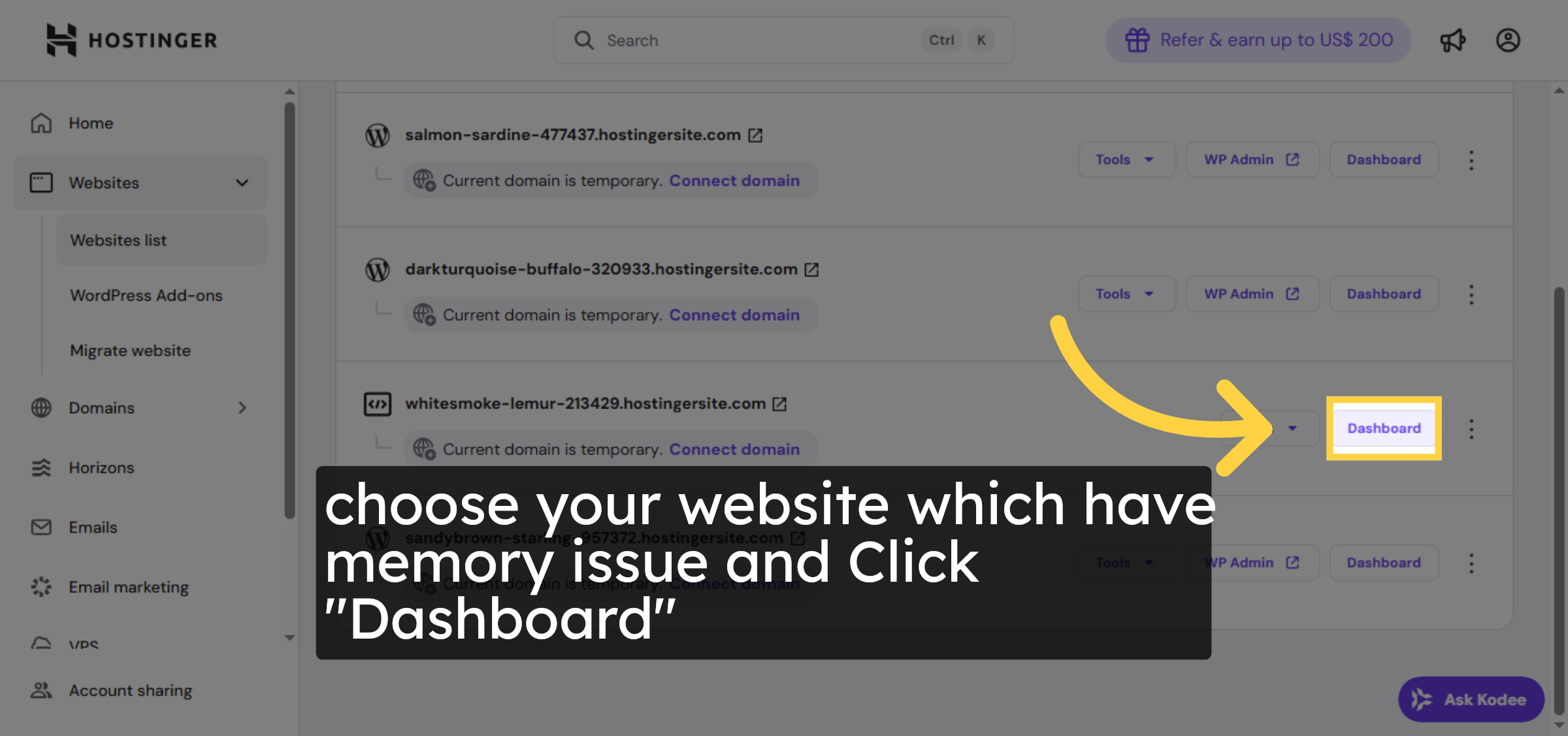
3. Open Dashboard
4. Navigate To Advanced Settings
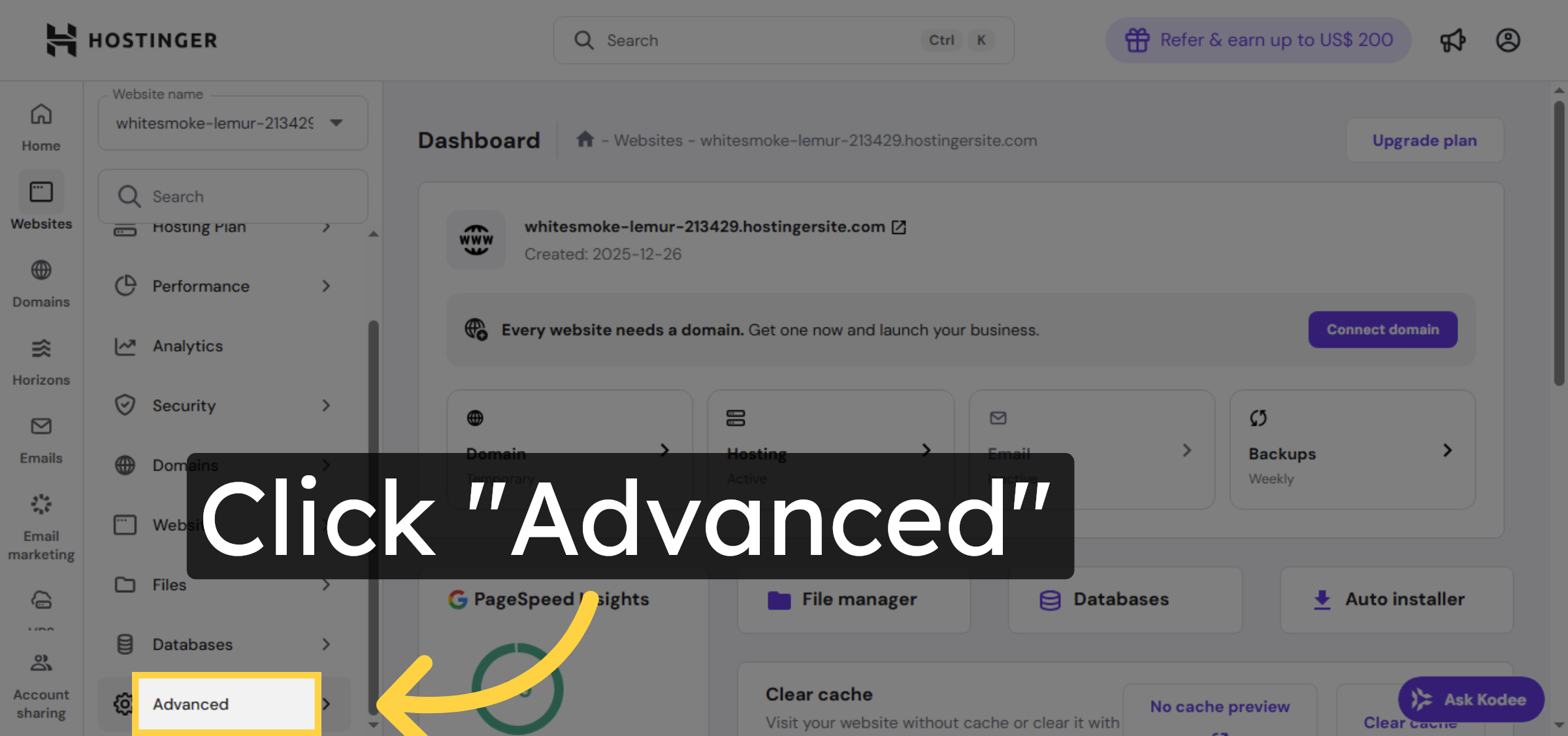
5. Open PHP Configuration
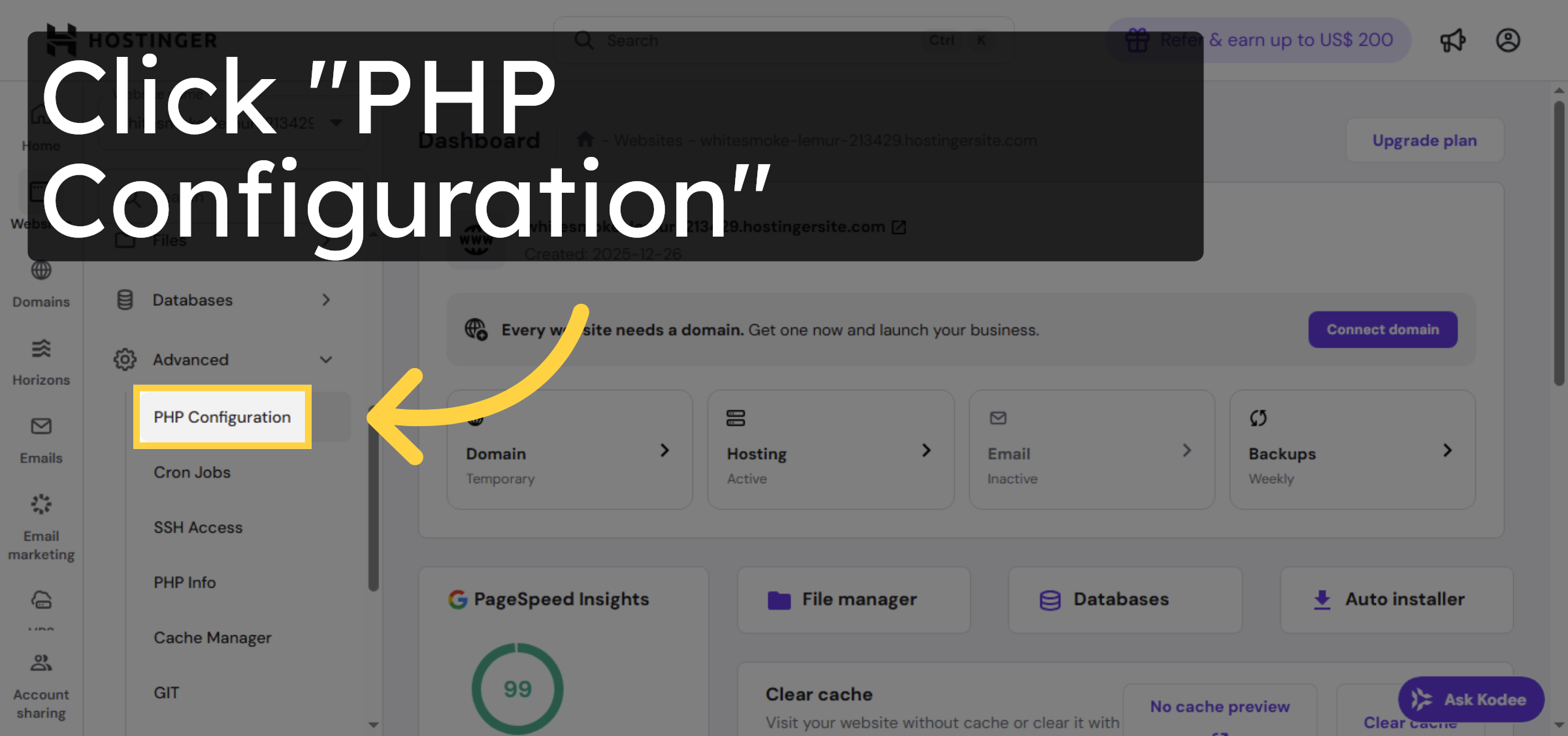
6. Access PHP Options
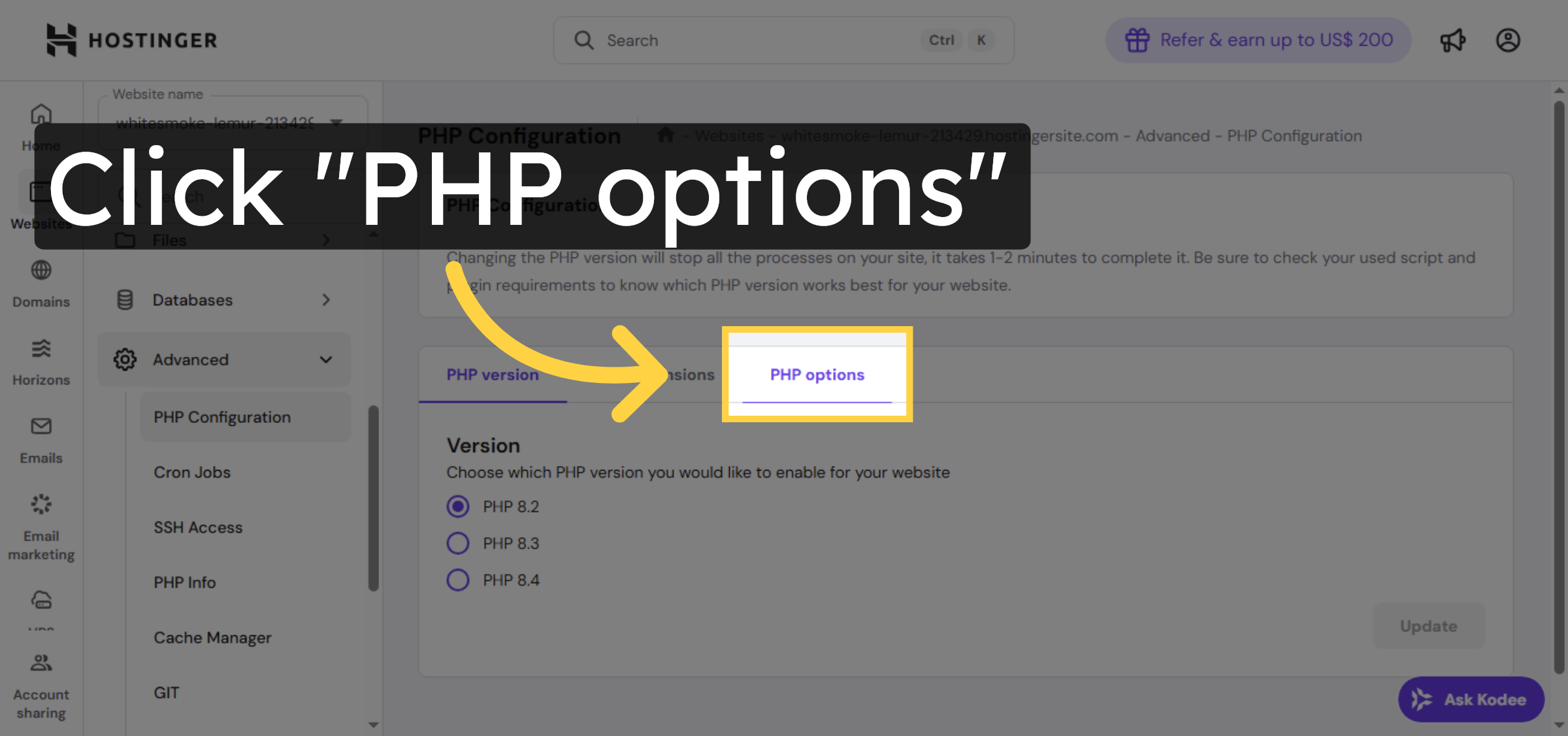


7. Select Memory Limit
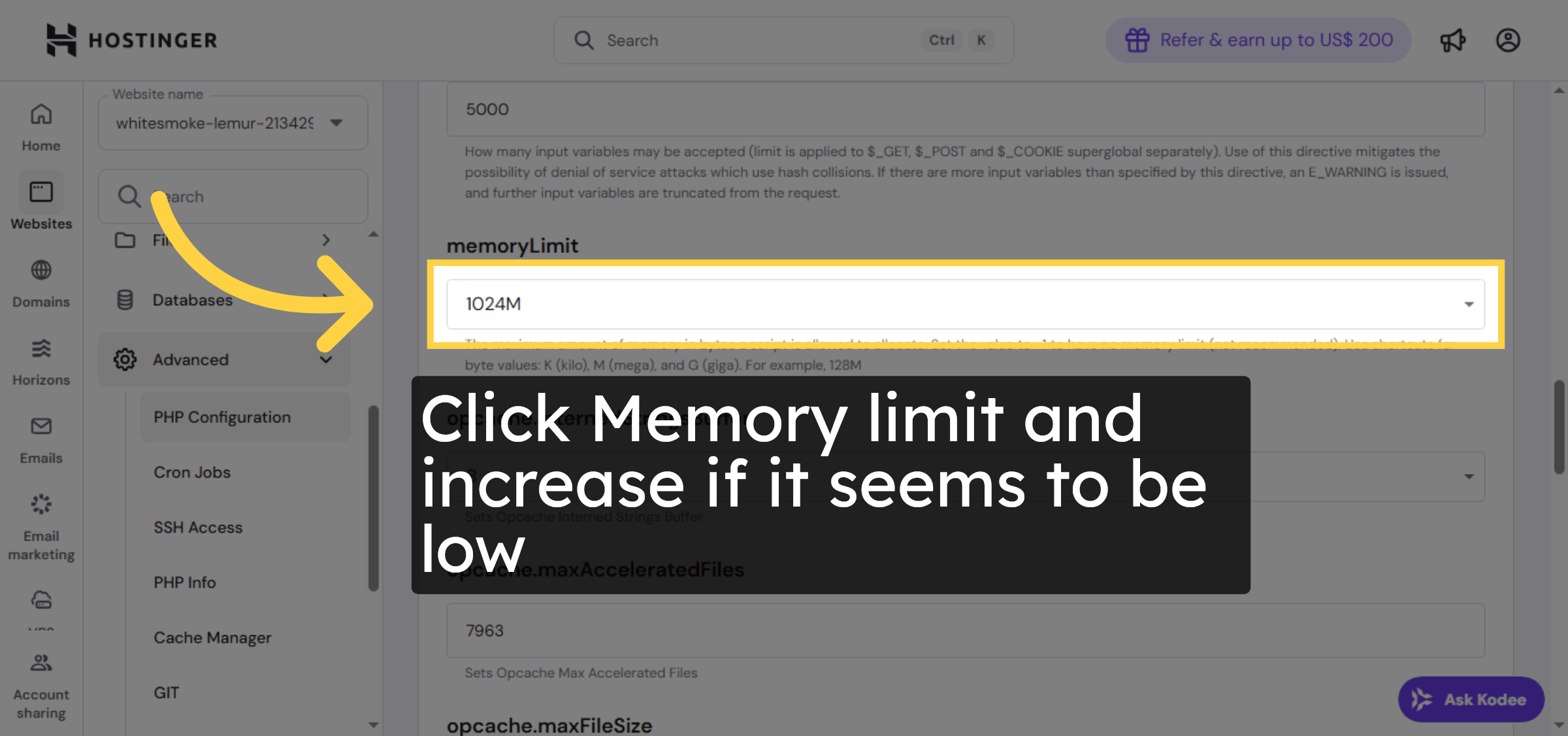
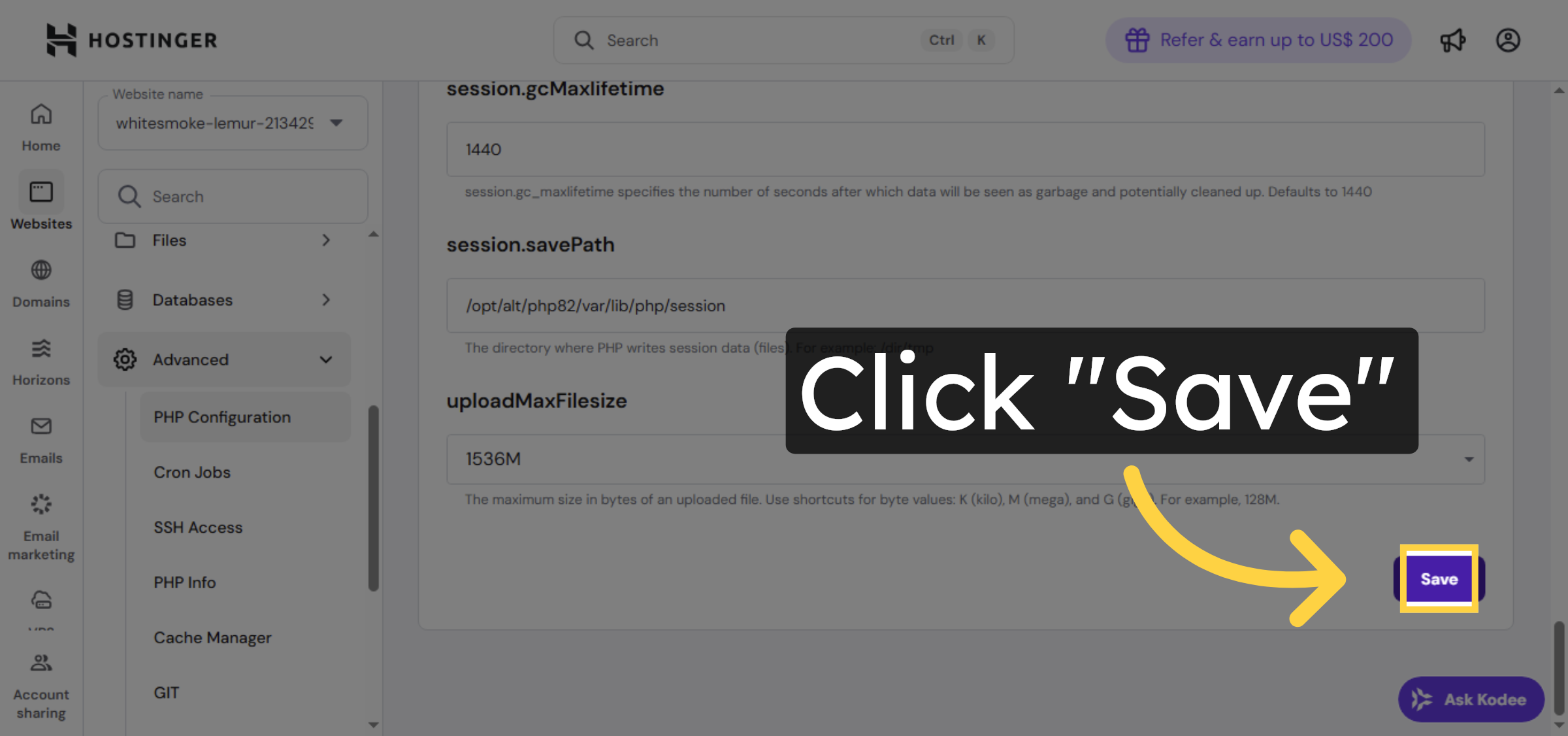
8. Save PHP Configuration
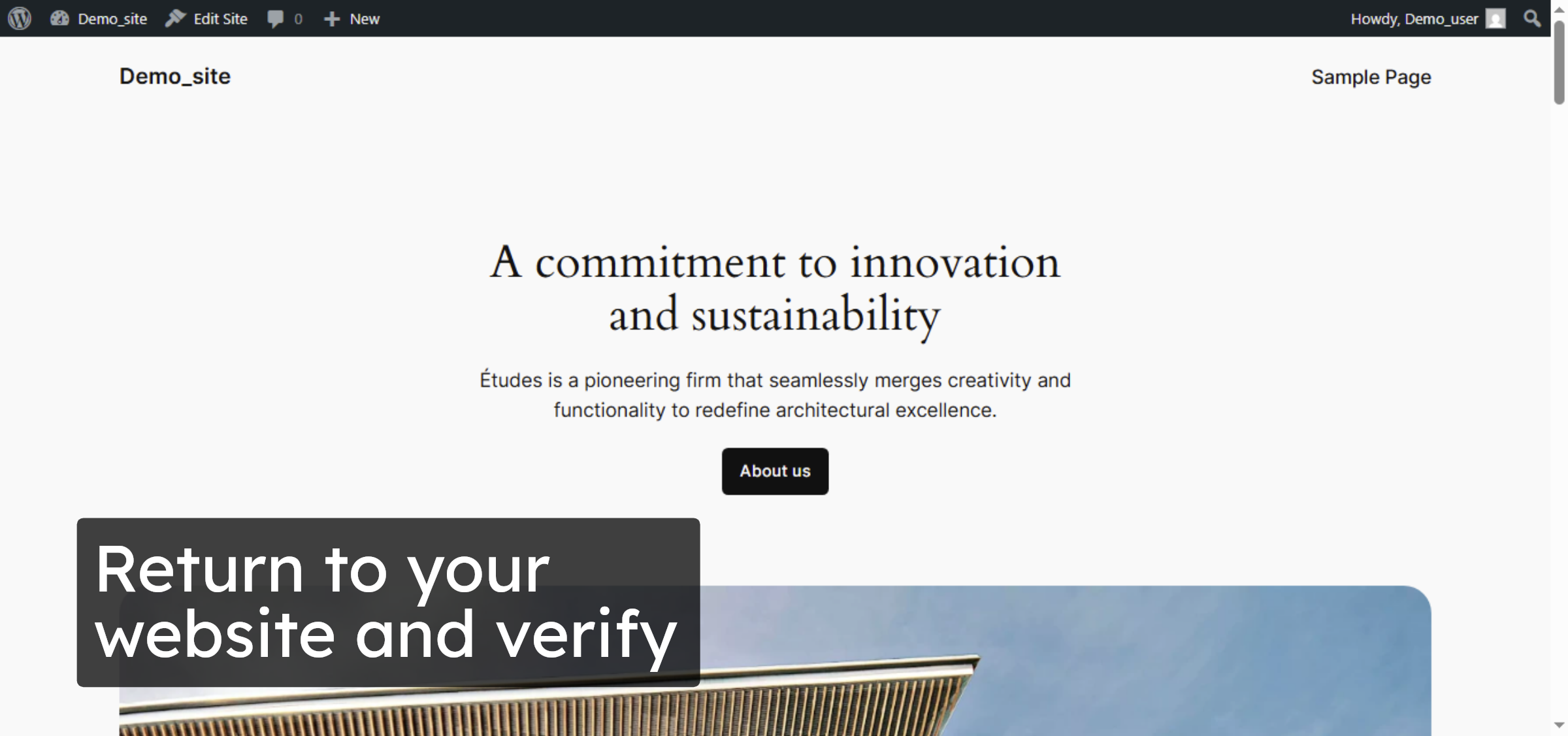
9. Return To Website
Conclusion
By following the steps outlined in this guide, you can successfully resolve the WordPress memory limit exhausted error by increasing the PHP memory limit on Hostinger. Allocating sufficient memory improves website stability, prevents errors, and ensures better performance for themes and plugins. Regularly monitoring and adjusting PHP settings is a best practice for maintaining a healthy WordPress hosting environment.
Visit: https://www.woohelpdesk.com
Call Us Toll-Free: +1 888 602 0119 (US & Canada)
Get professional support for WordPress configuration, hosting management, performance optimization, and troubleshooting.



