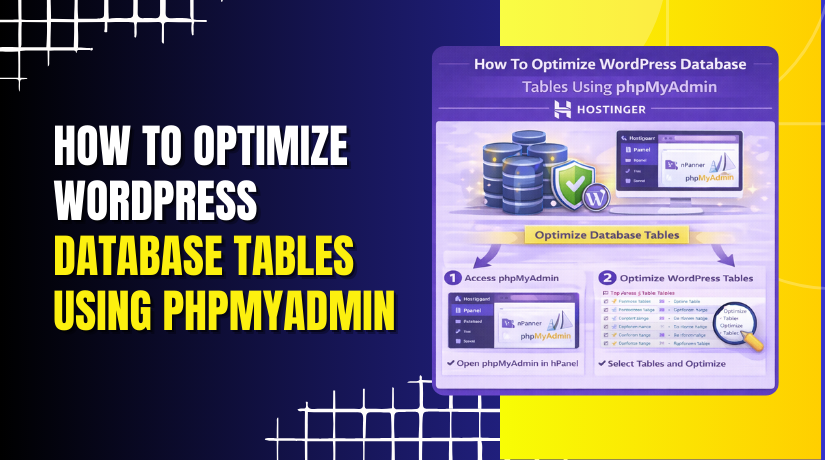
How To Optimize WordPress Database Tables Using phpMyAdmin On Hostinger
Introduction
Optimizing your WordPress database is an important maintenance task that helps improve website performance, reduce unnecessary overhead, and ensure efficient data storage. Over time, databases can become cluttered with unused data, causing slower query execution and affecting overall site speed. Hostinger makes database optimization easy by providing access to phpMyAdmin, a powerful tool that allows you to manage and optimize database tables directly from the hosting dashboard. In this guide, you’ll learn how to access phpMyAdmin through Hostinger, select database tables, and optimize them using built-in options. Performing regular database optimization helps maintain a fast, stable, and well-performing WordPress website.
1. Navigate to Websites Section
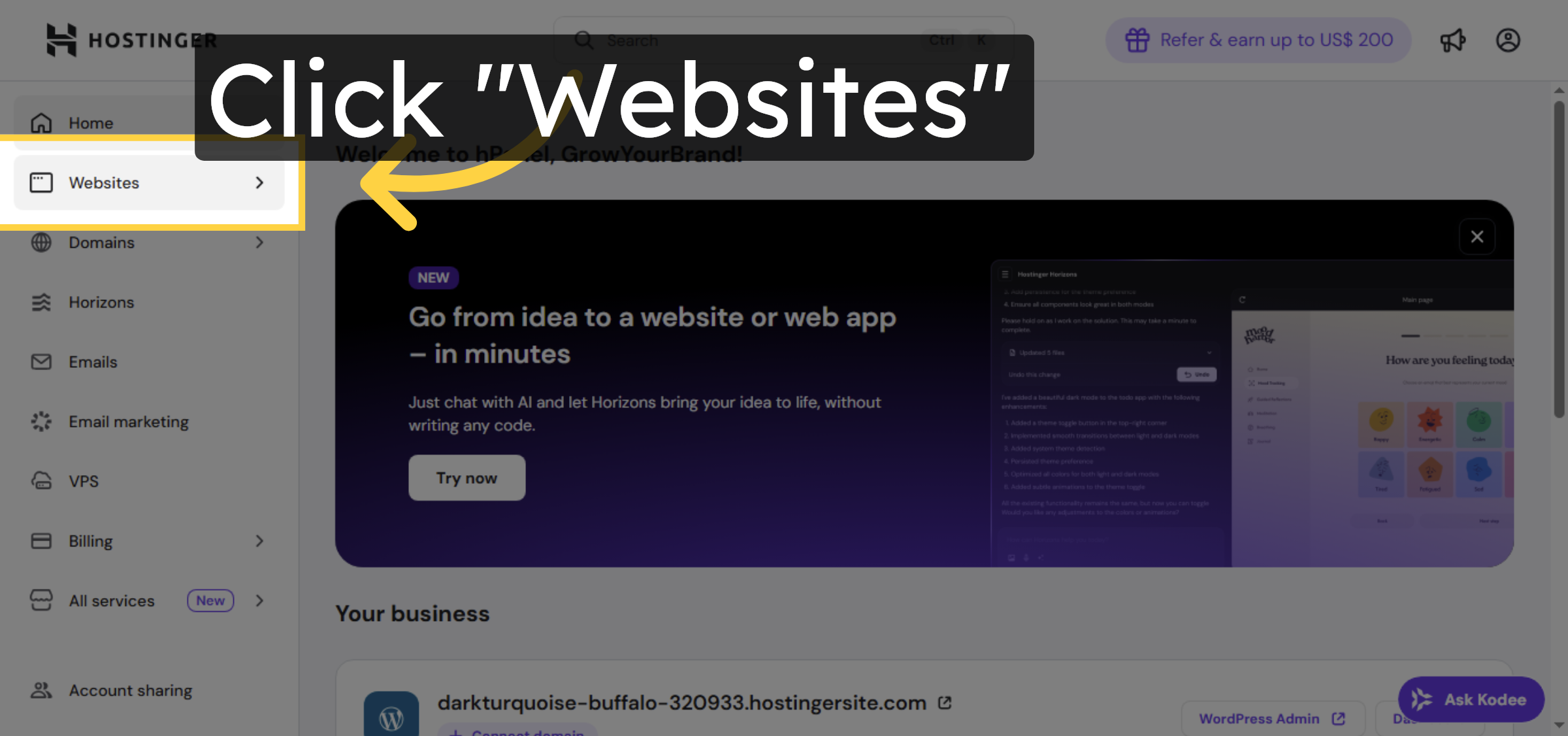
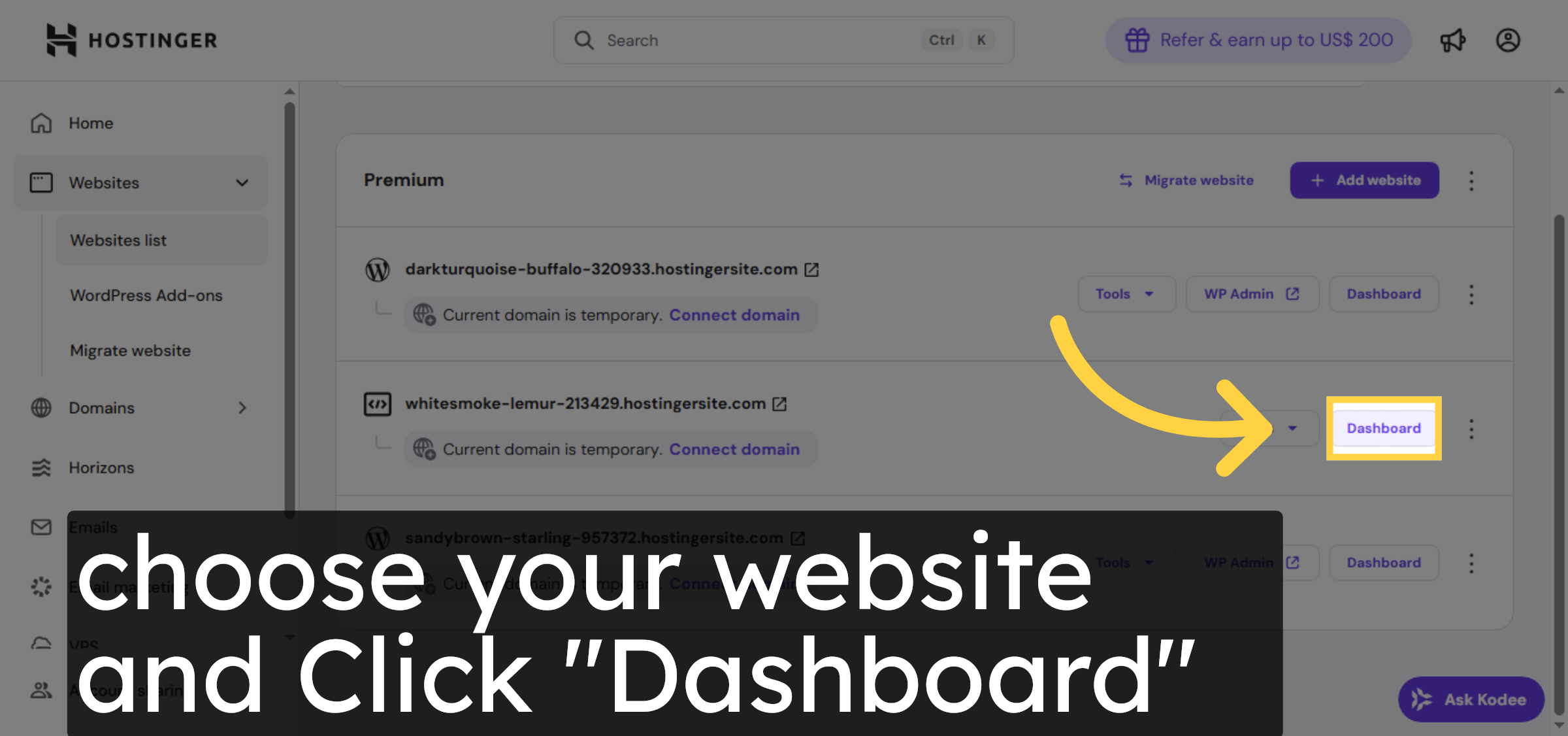
2. Open Website Dashboard
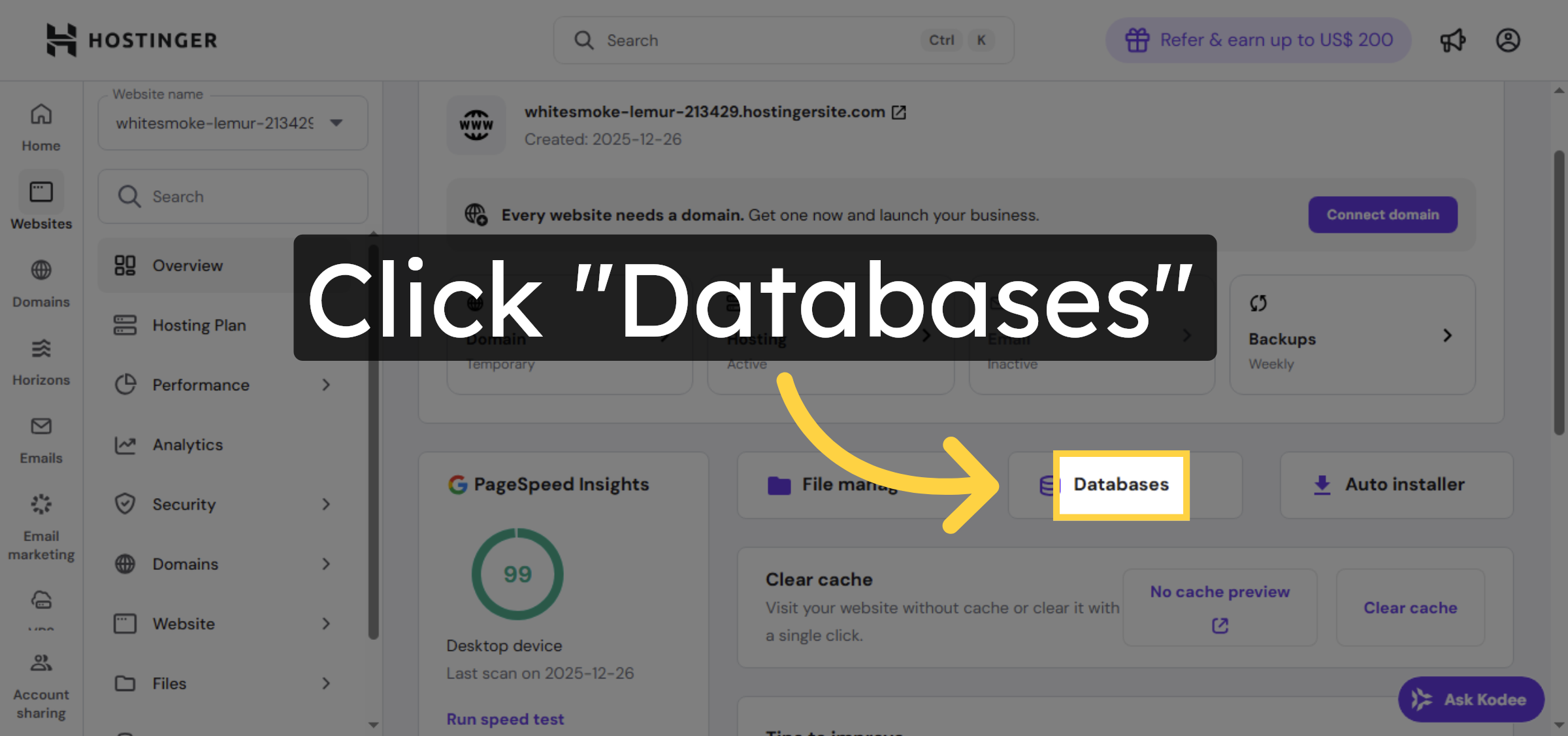
3. Access Databases Menu
4. Enter phpMyAdmin Interface
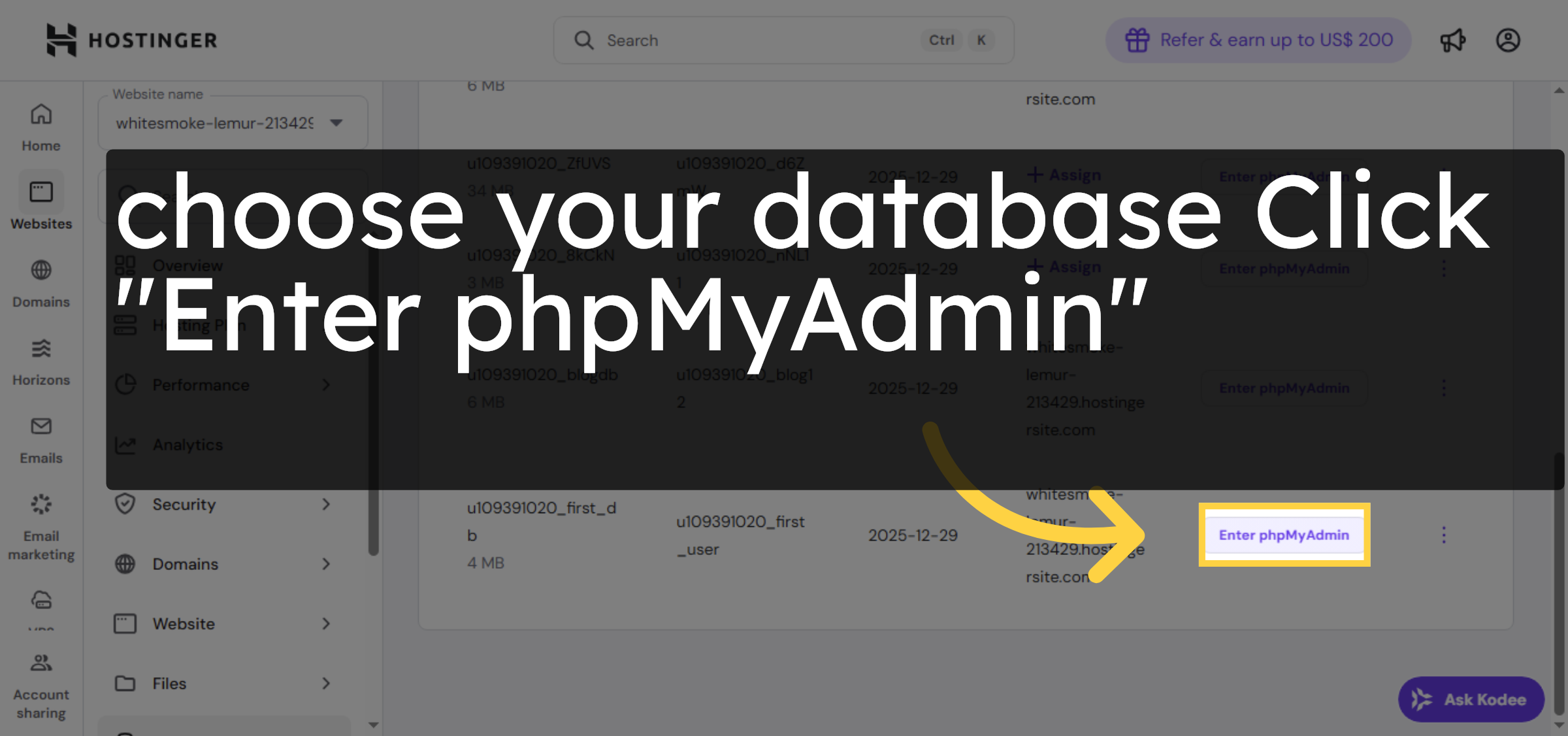
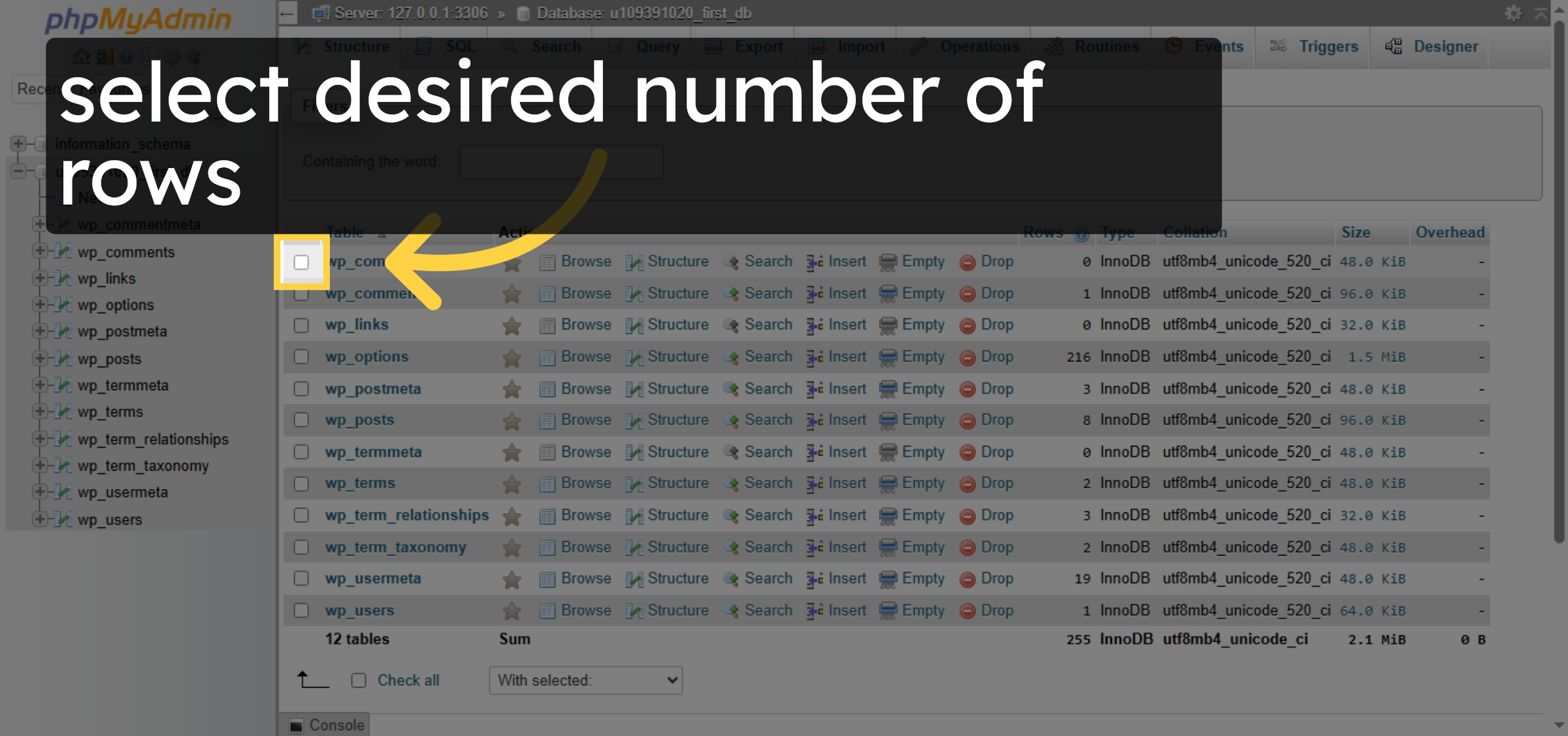
5. Select rows
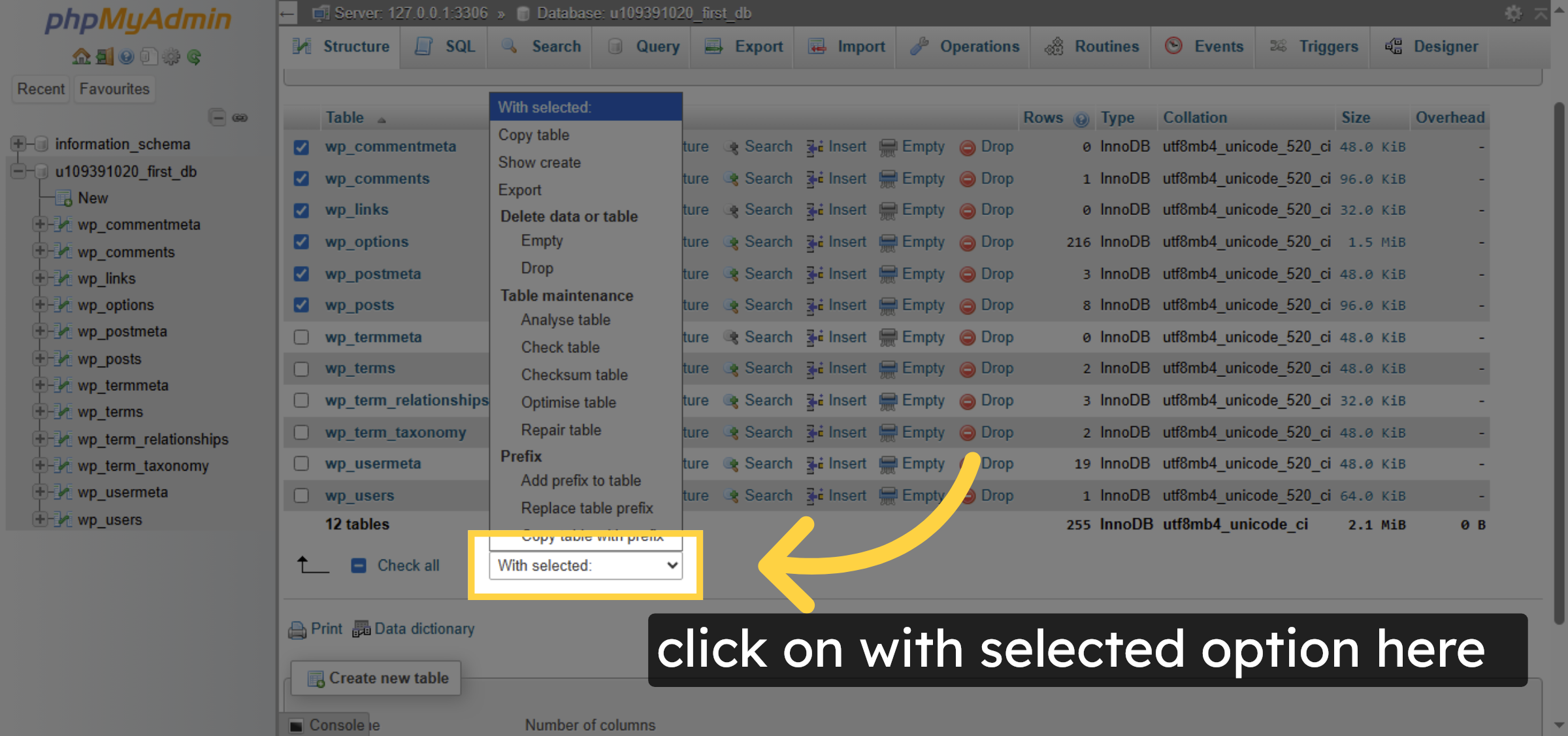
6. Open Table Action Menu


7. Choose Optimize Table Action
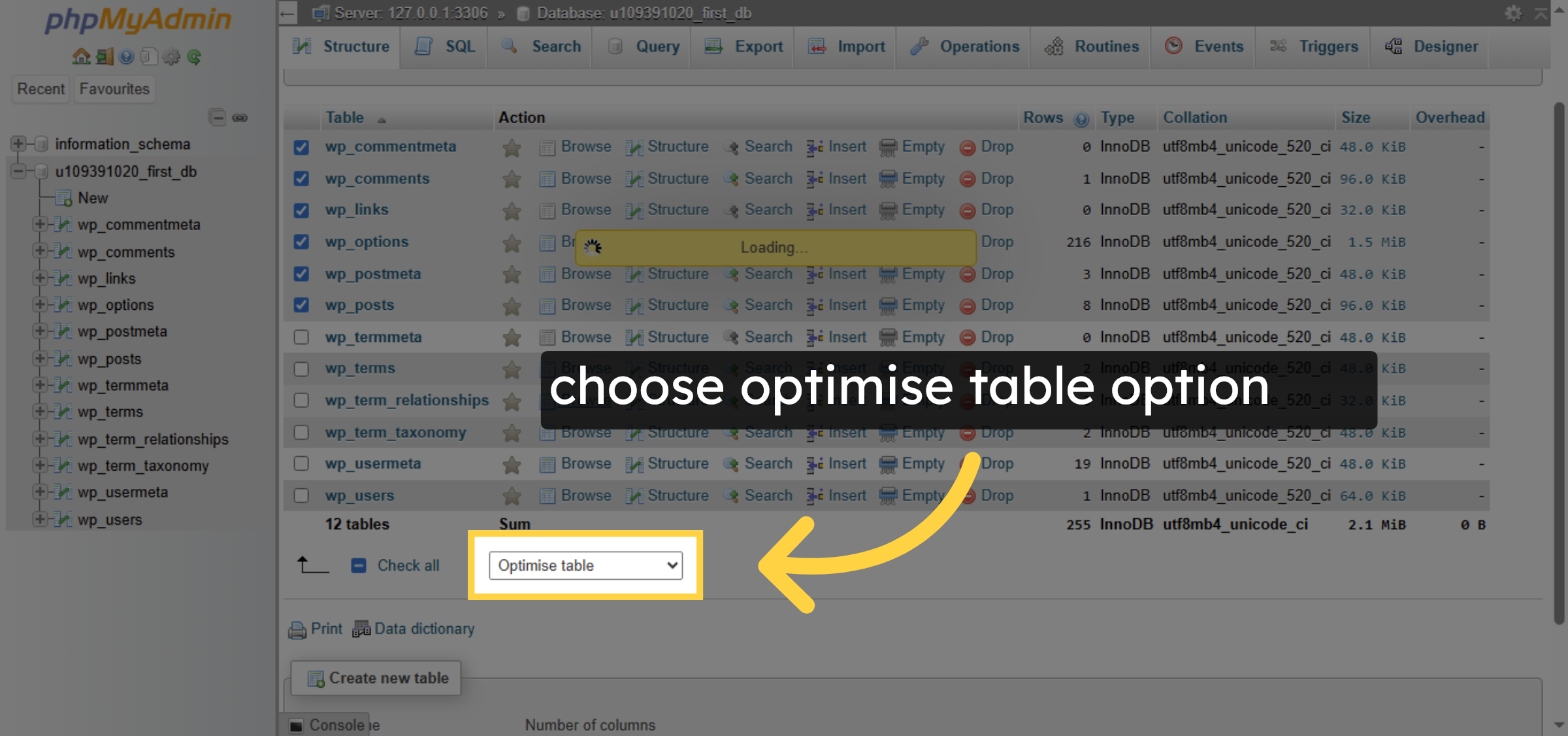
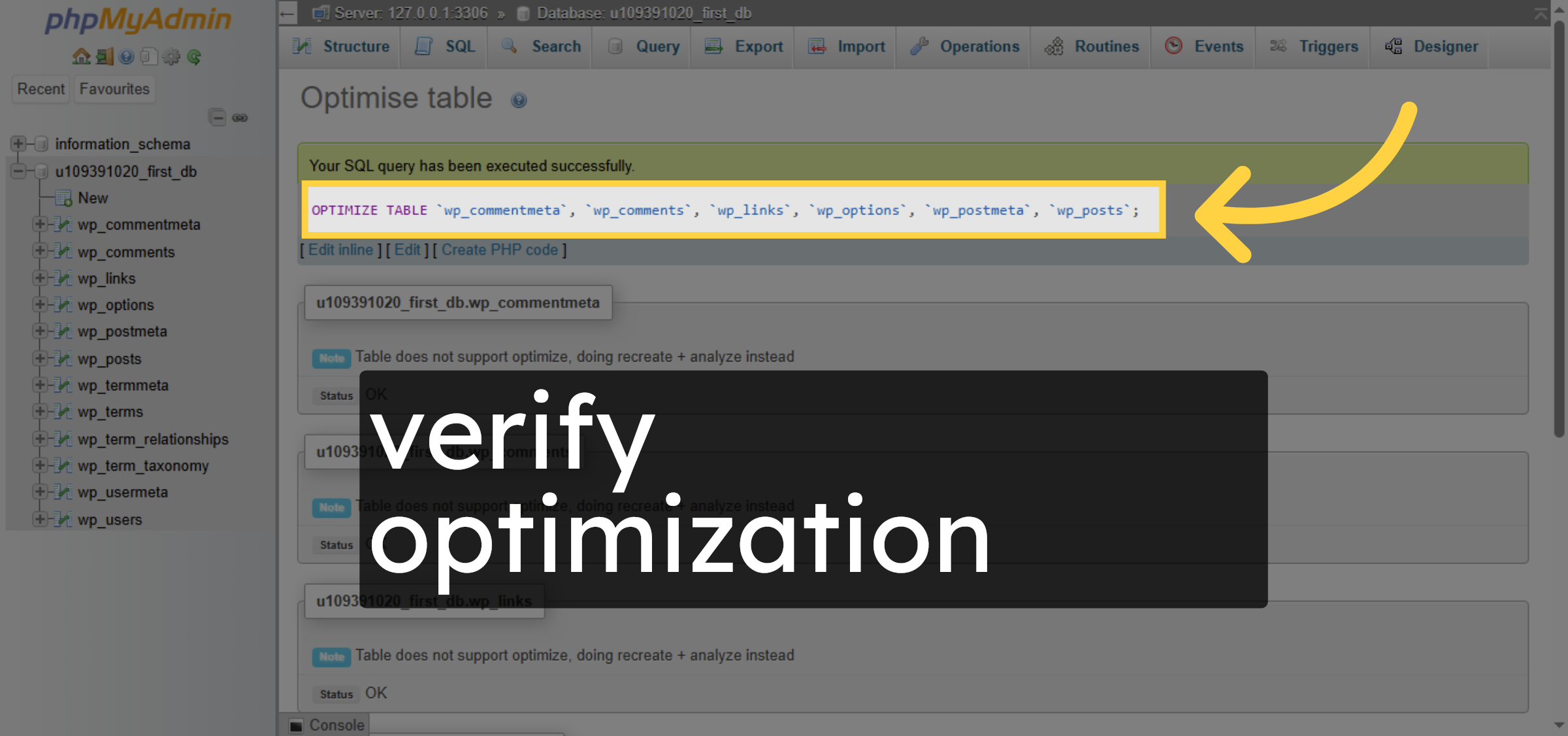
8. verify optimization
Conclusion
By following the steps outlined in this guide, you can successfully optimize your WordPress database tables using phpMyAdmin on Hostinger. Database optimization helps reduce overhead, improve query performance, and enhance overall website speed. Regularly maintaining your database is a best practice for keeping your WordPress site efficient and responsive.
Visit: https://www.woohelpdesk.com
Call Us Toll-Free: +1 888 602 0119 (US & Canada)
Get professional support for WordPress configuration, hosting management, performance optimization, and troubleshooting.



