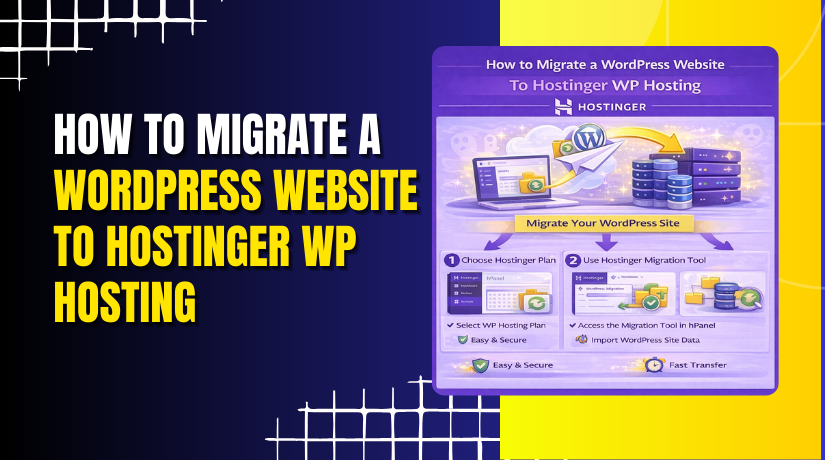
How to Migrate a WordPress Website To Hostinger WP Hosting
3 mins read

How to Migrate a WordPress Website To Hostinger WP Hosting

Introduction

Migrating a WordPress website from one site to another can seem complex, especially when transferring content, settings, plugins, and themes without errors. Using a reliable migration plugin like All-in-One WP Migration simplifies this process by allowing you to export your entire website into a single backup file and import it into a new WordPress installation. This method eliminates the need for manual database handling or FTP transfers. In this guide, you’ll learn how to create a full backup of your existing WordPress site, install the migration plugin on a target site, import the backup file, and finalize the migration by updating permalink settings. Following these steps ensures a smooth and secure WordPress site migration with minimal downtime and complete data integrity.

1. open hostinger panel
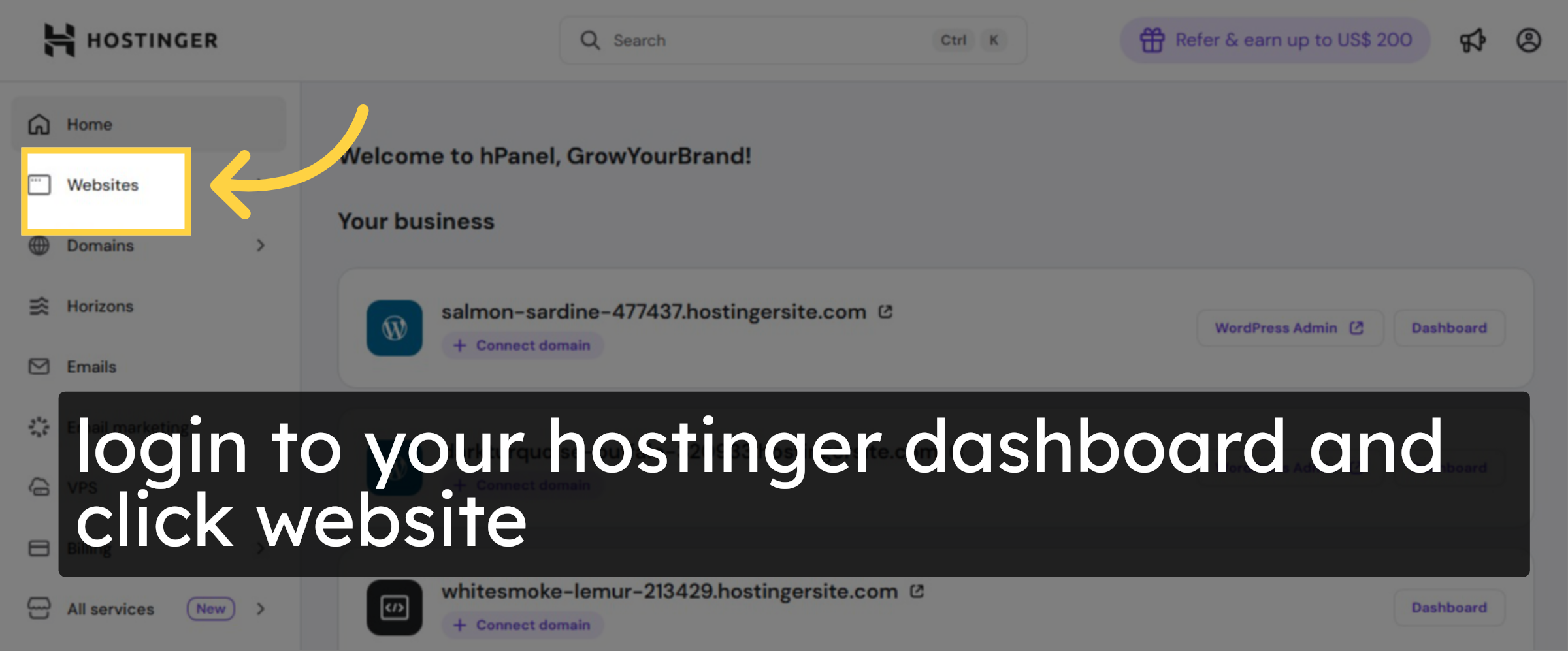
Login to your hostinger account.

open hostinger panel

2. choose your website
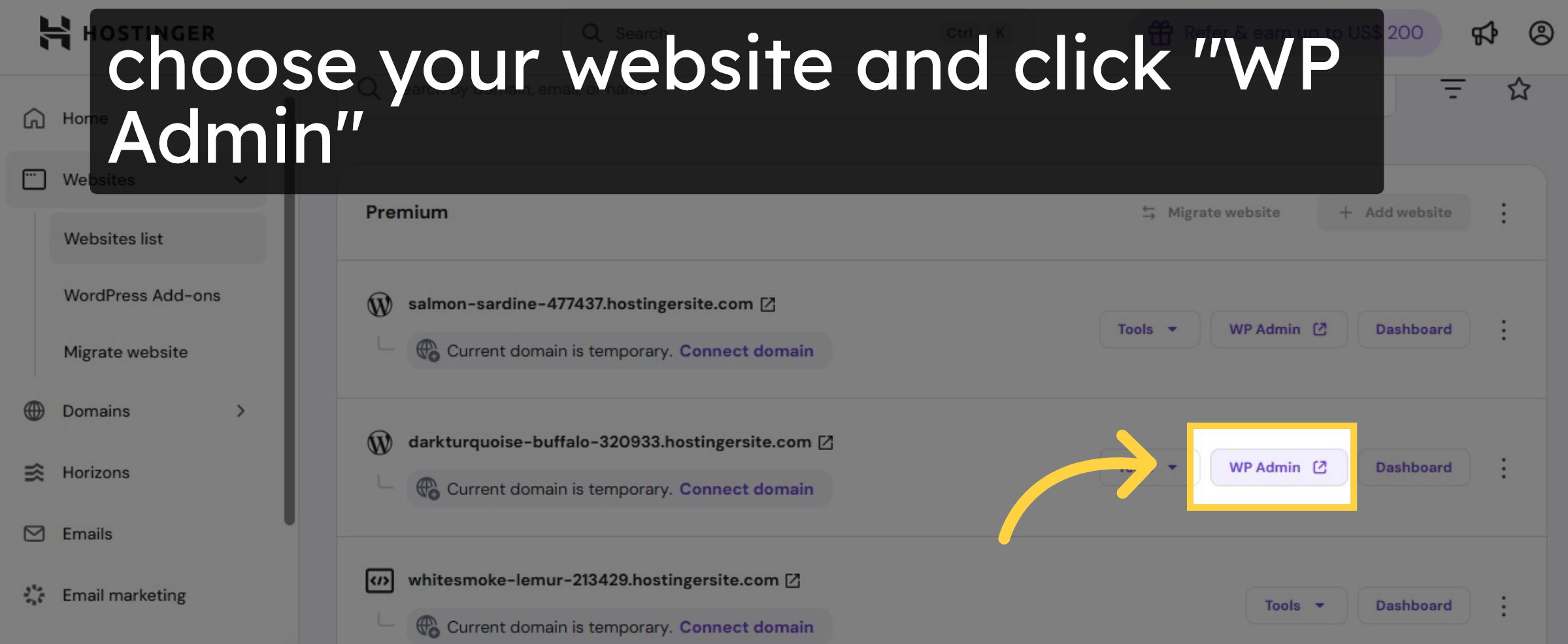
Select your Website from website lists.

choose your website

3. Open WordPress Dashboard
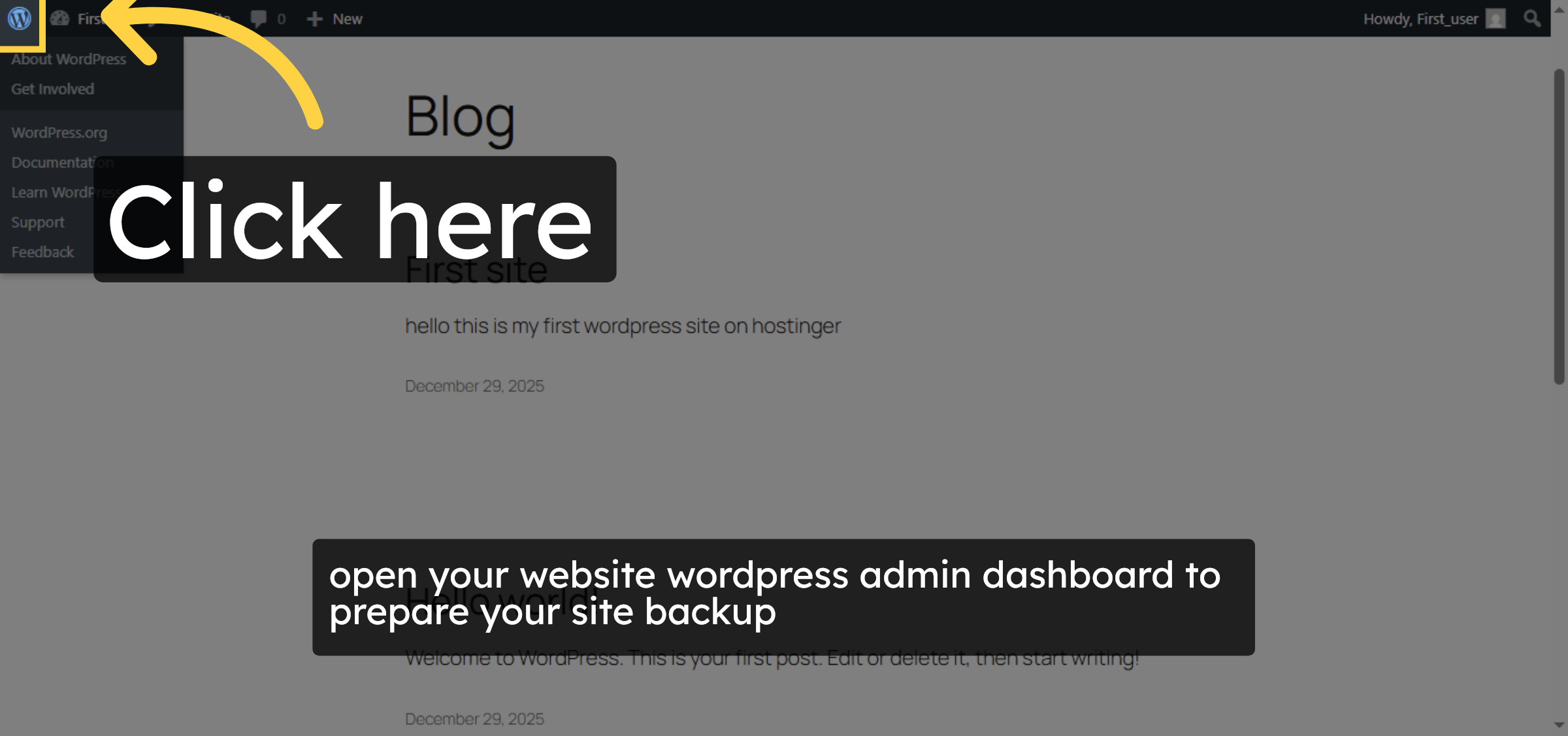
open wordpress Admin Dashboard. Click the main menu to access your WordPress dashboard on Hostinger.

Open WordPress Dashboard

4. Access Add Plugin Section
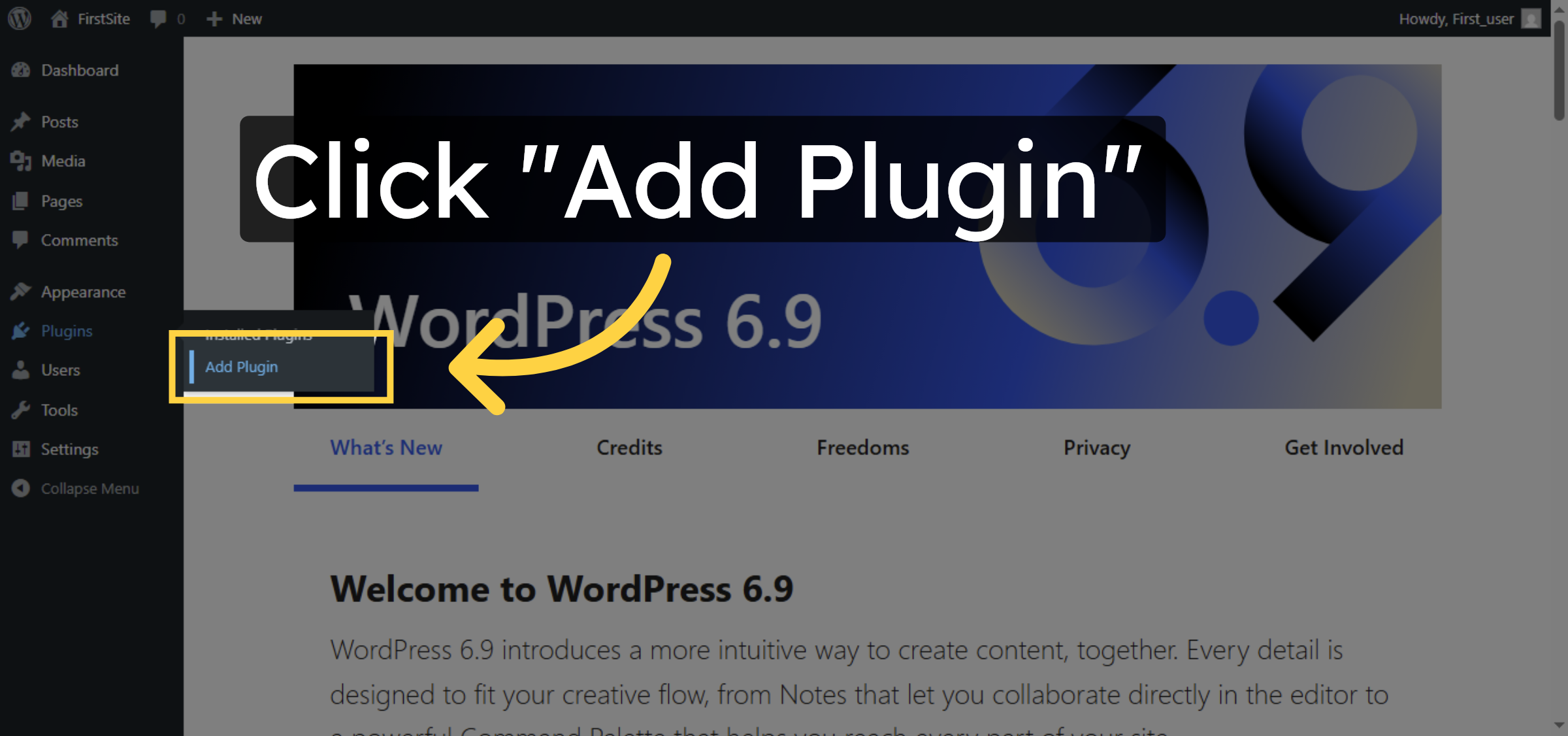
Click “Add Plugin” to open the plugin installation page within your WordPress dashboard.

Access Add Plugin Section

5. Open Plugin Search
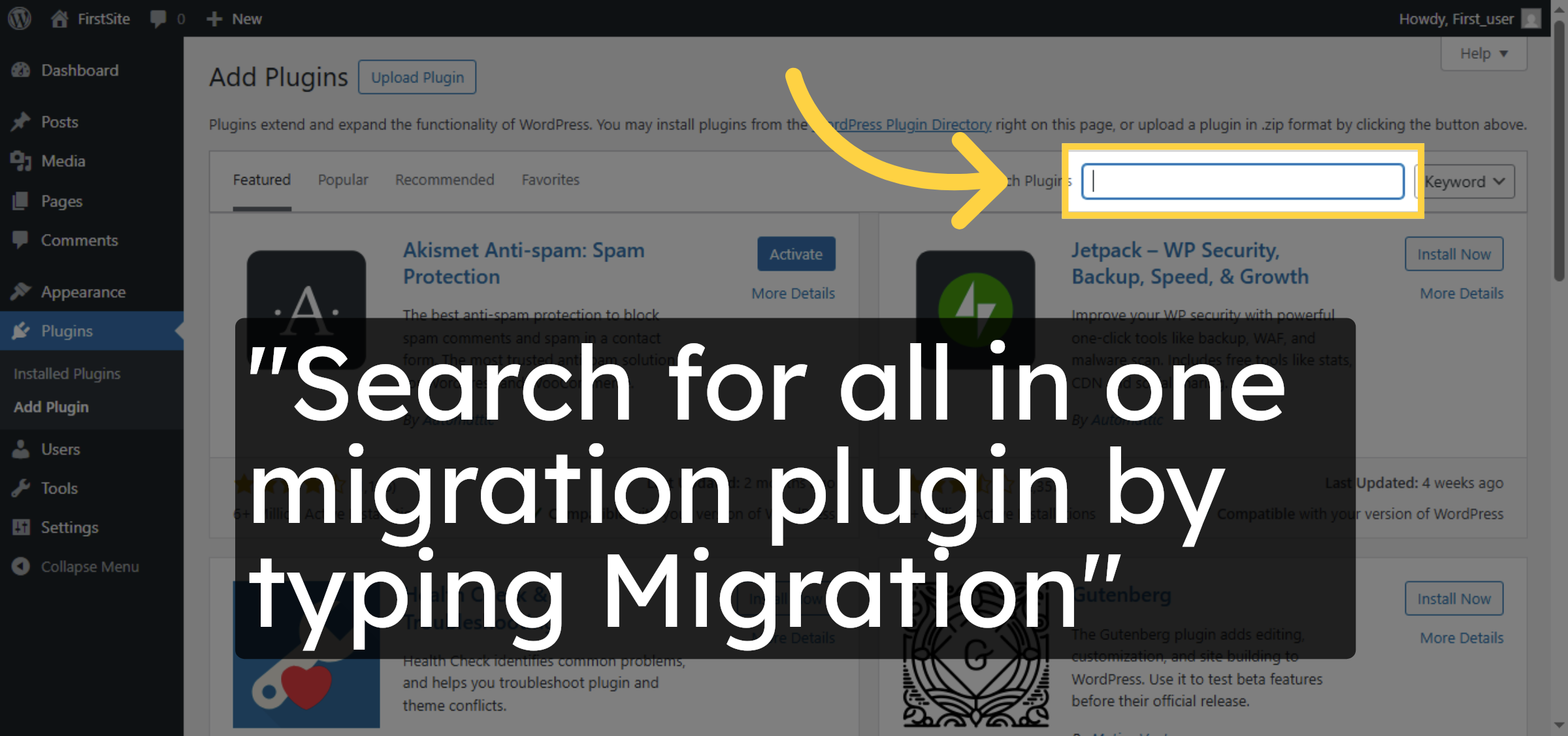
“Search for all in one migration plugin by typing Migration”

Open Plugin Search

6. Install Migration Plugin
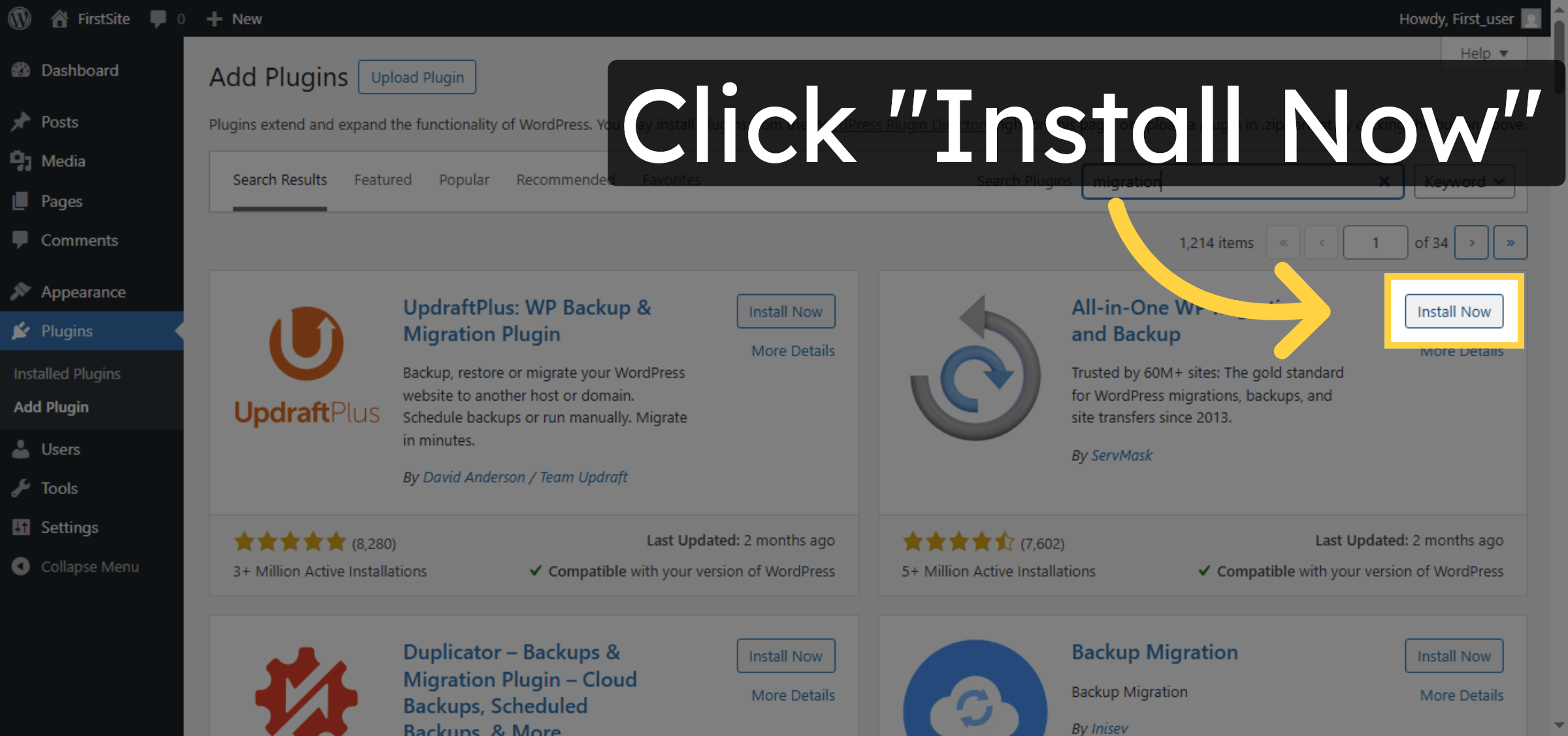
Click “Install Now” to begin installing the migration plugin on your WordPress site.

Install Migration Plugin

7. Activate Migration Plugin
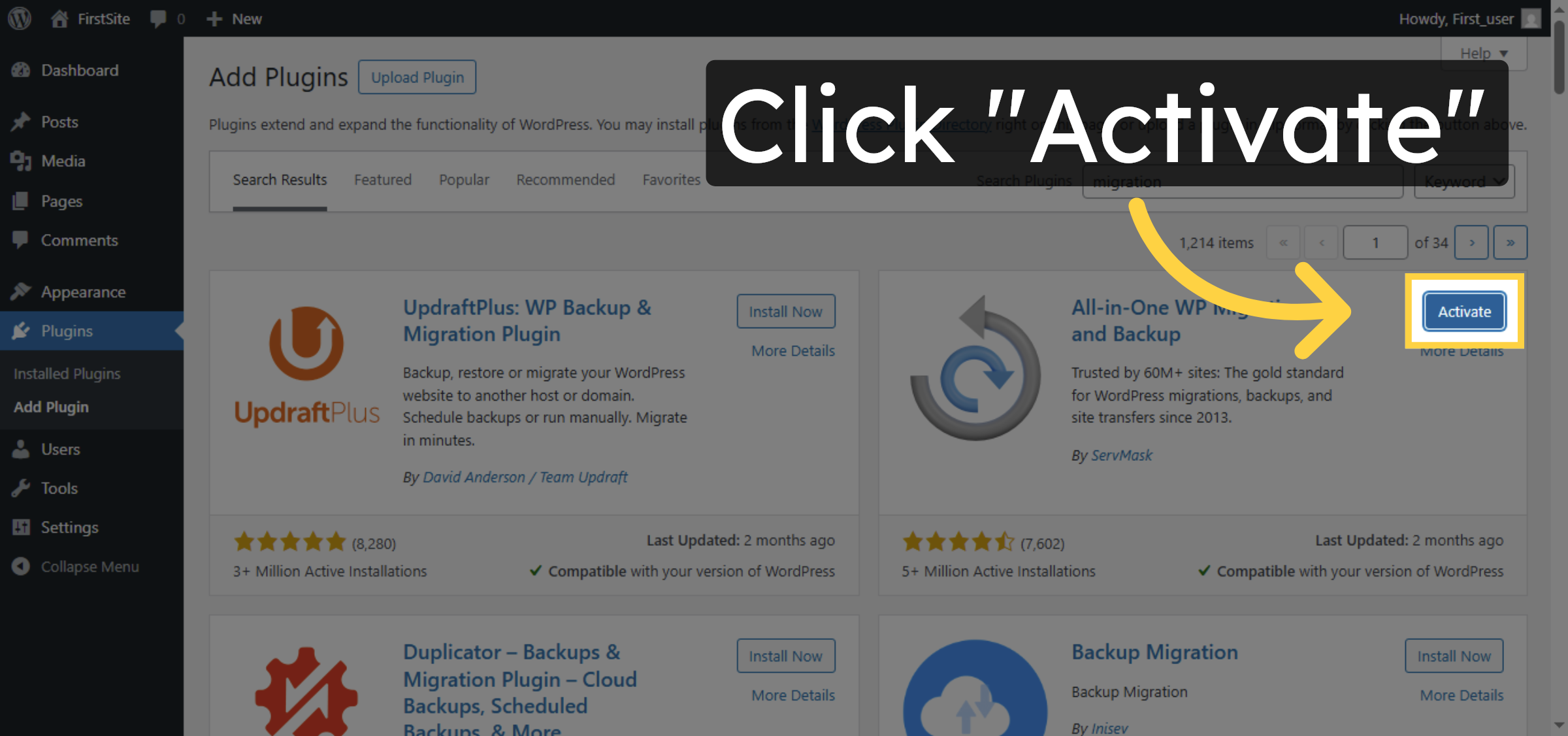
Click “Activate” to enable the migration plugin after installation.

Activate Migration Plugin

8. Open Backups Plugin
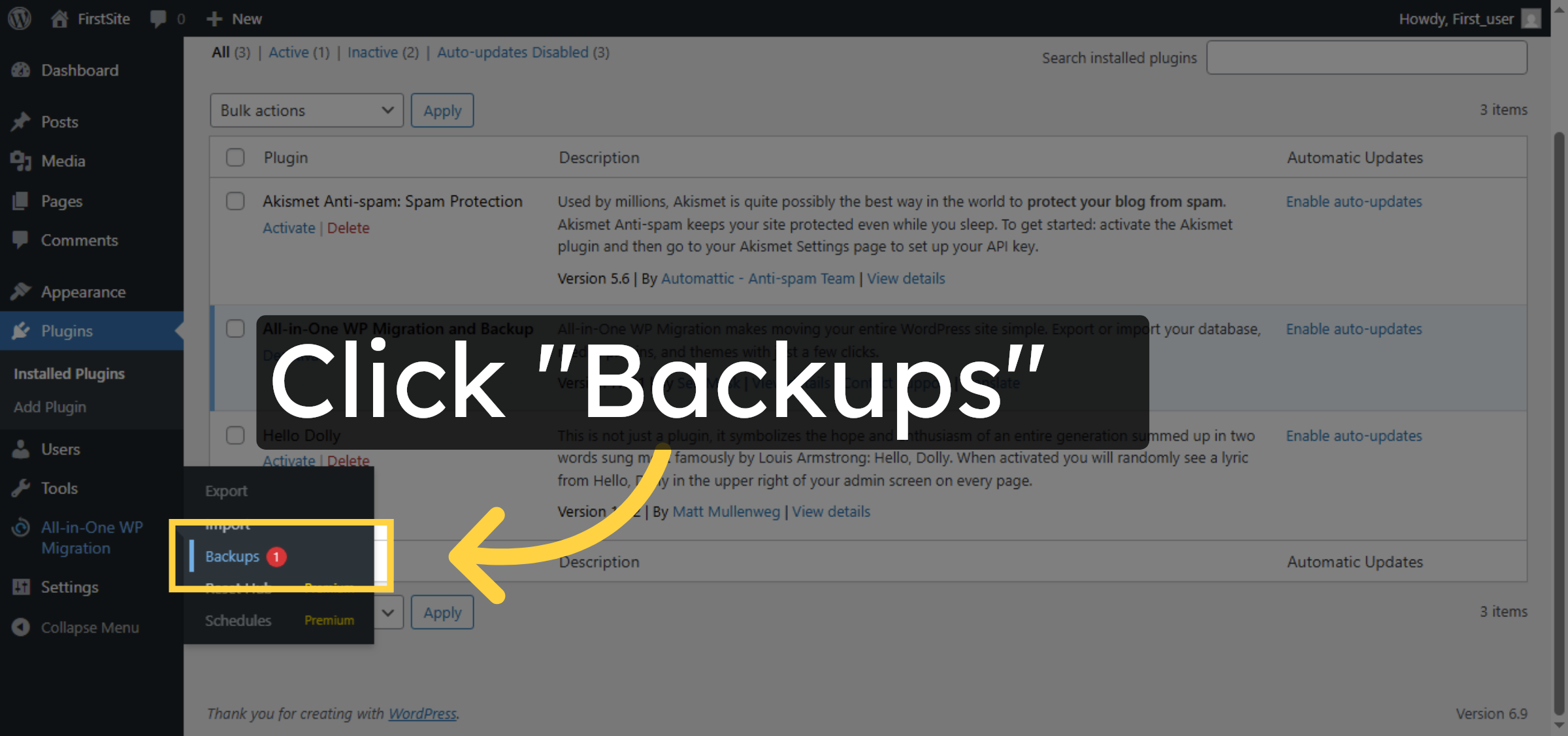
Click “Backups” to access the backups section provided by the plugin.

Open Backups Plugin

9. Create New Backup
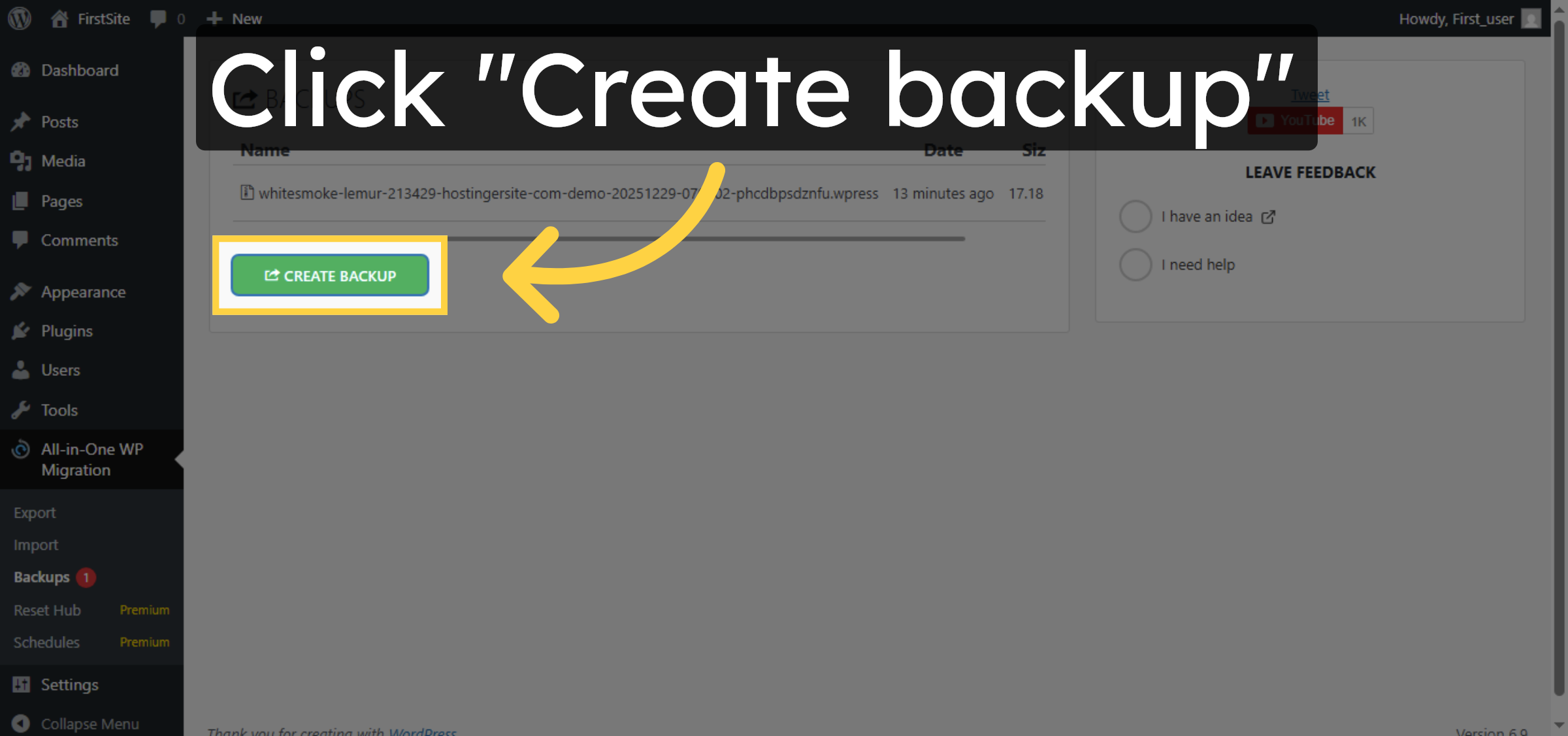
Click “Create backup” to generate a new backup of your WordPress website.

Create New Backup

10. Download Backup File
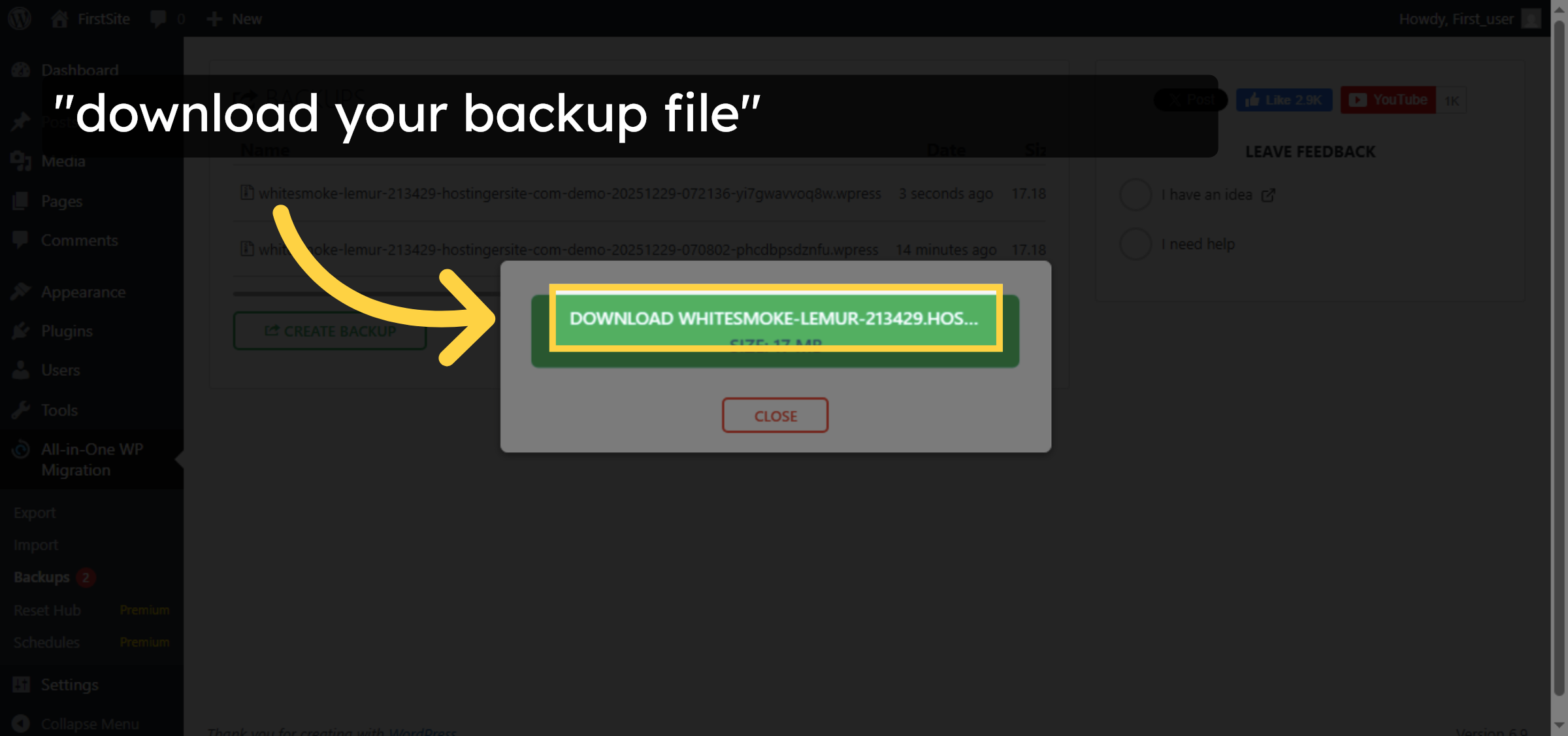
Download your website’s backup file.

Download Backup File

11. Close Backup Window
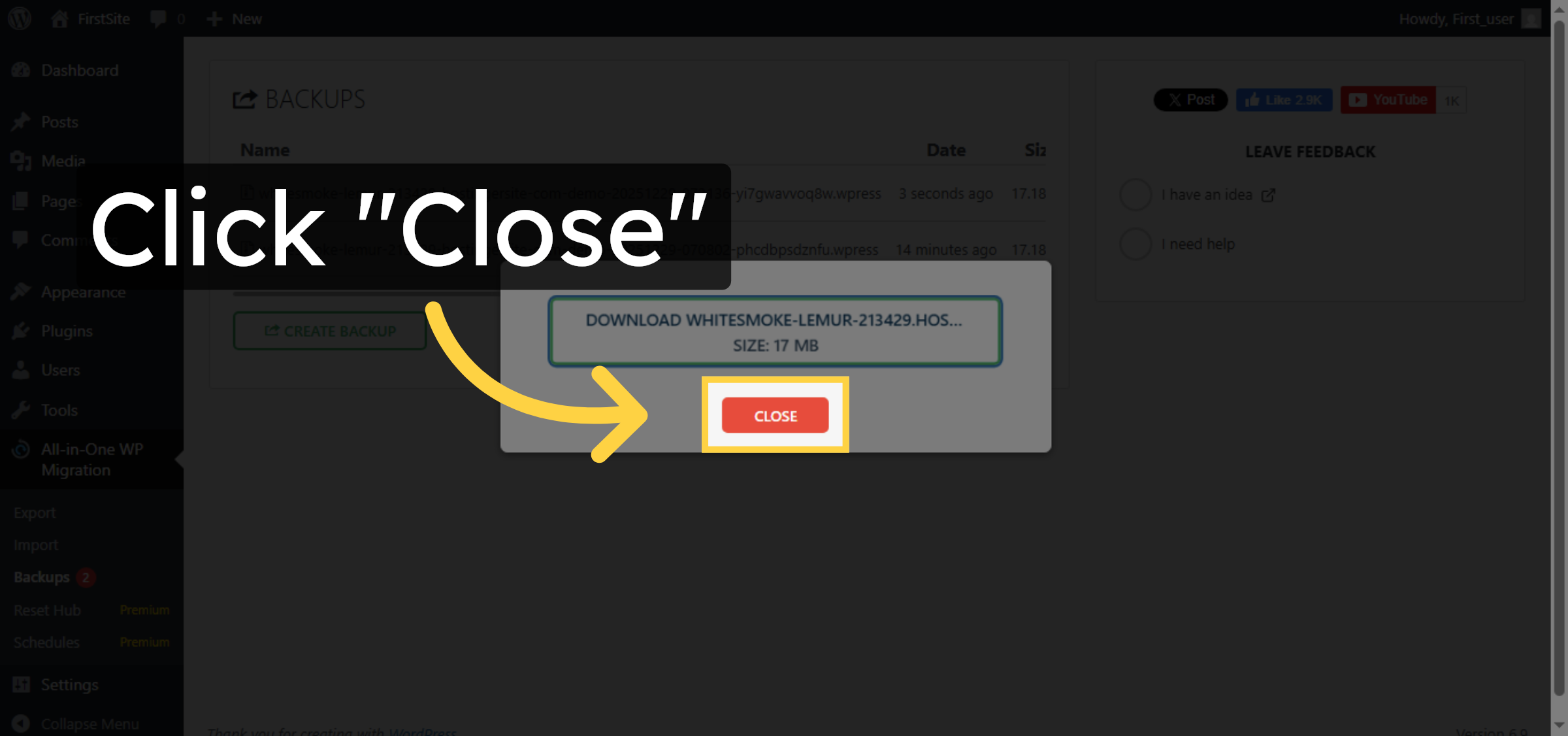
Click “Close” to exit the backup interface after downloading your backup file.

Close Backup Window

12. Open Target Site Dashboard
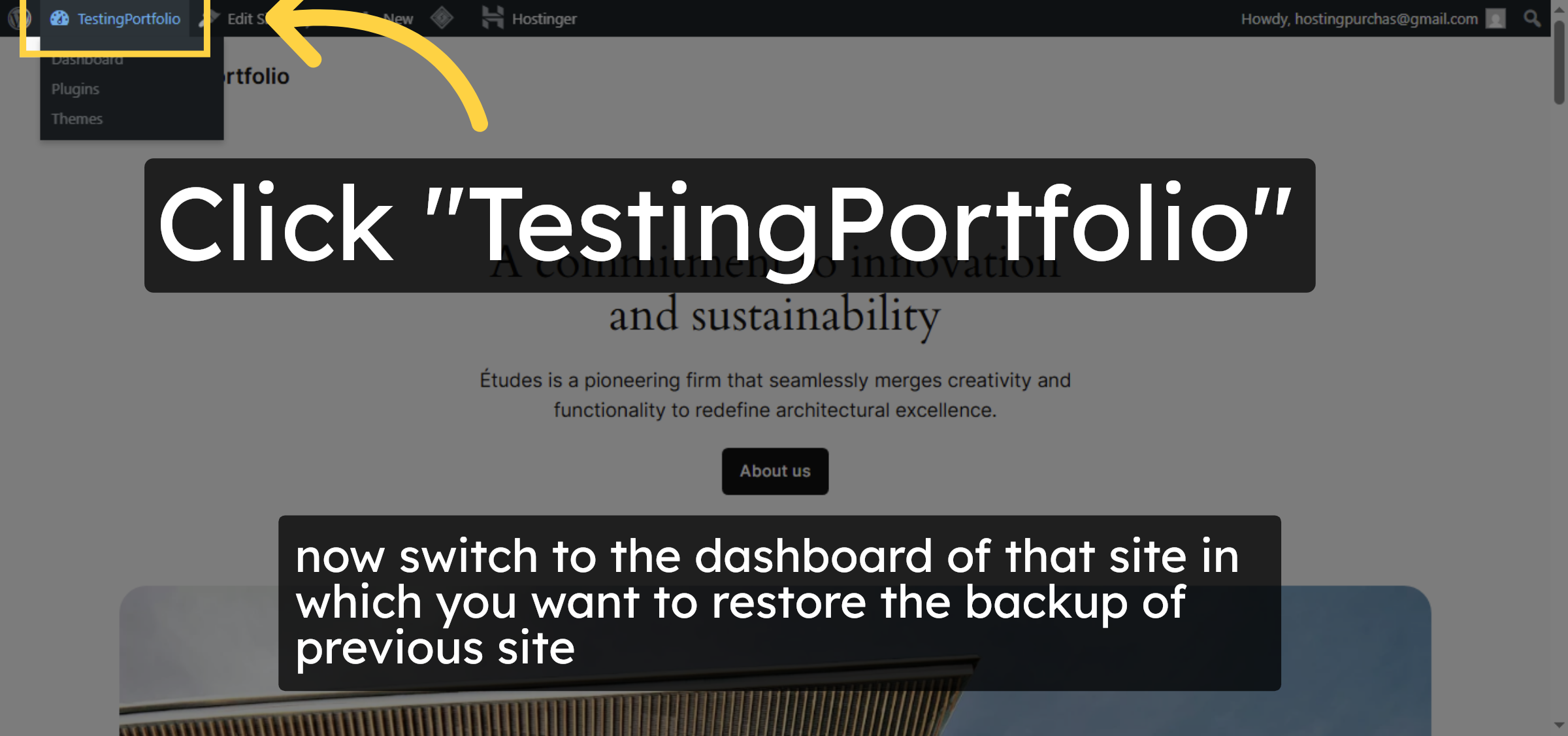
open the website in which you want to import the backup of previous site.

Open Target Site Dashboard

13. Access Add Plugin on Target
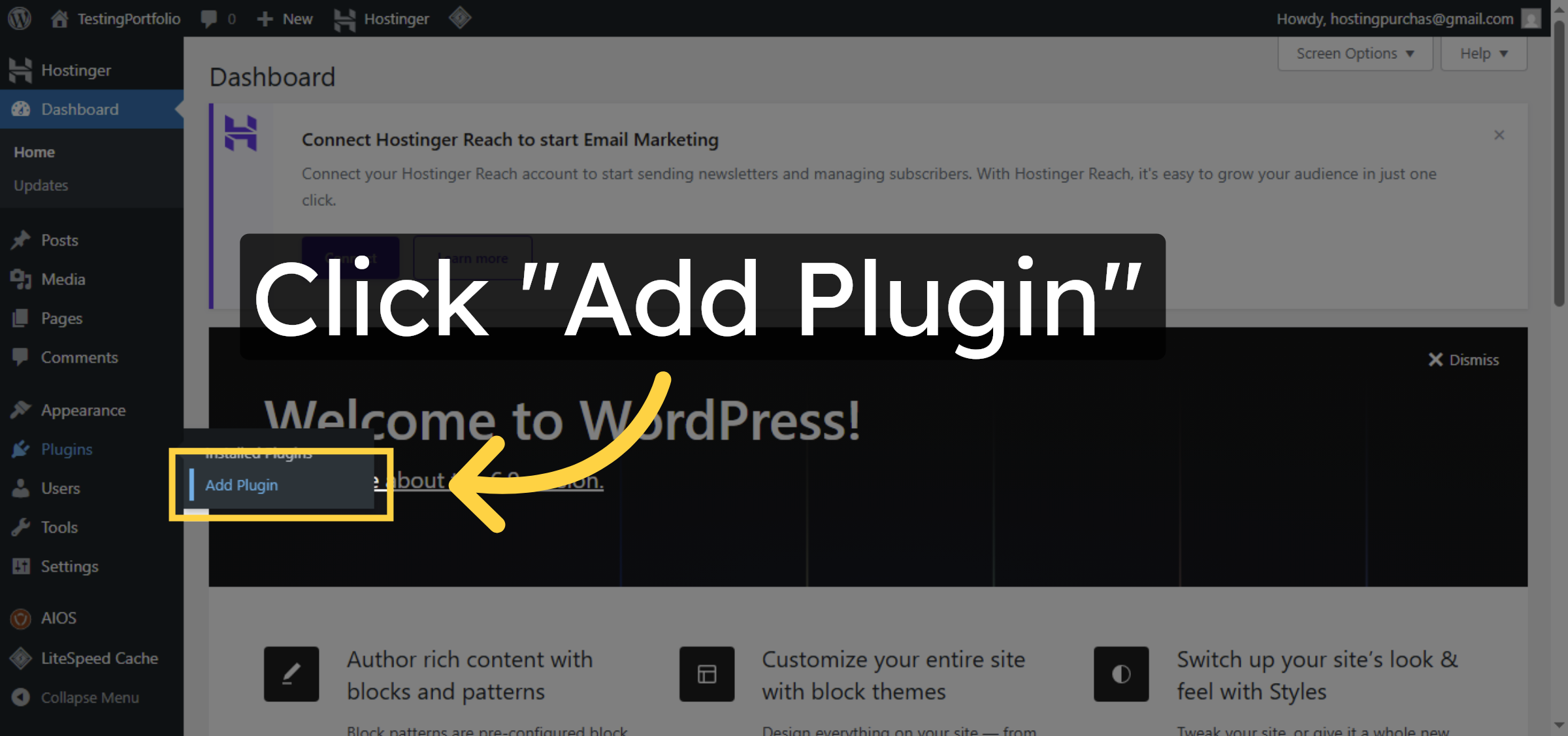
Click “Add Plugin” to open the plugin installation page on the target WordPress site.

Access Add Plugin on Target

14. Search Migration Plugin Again
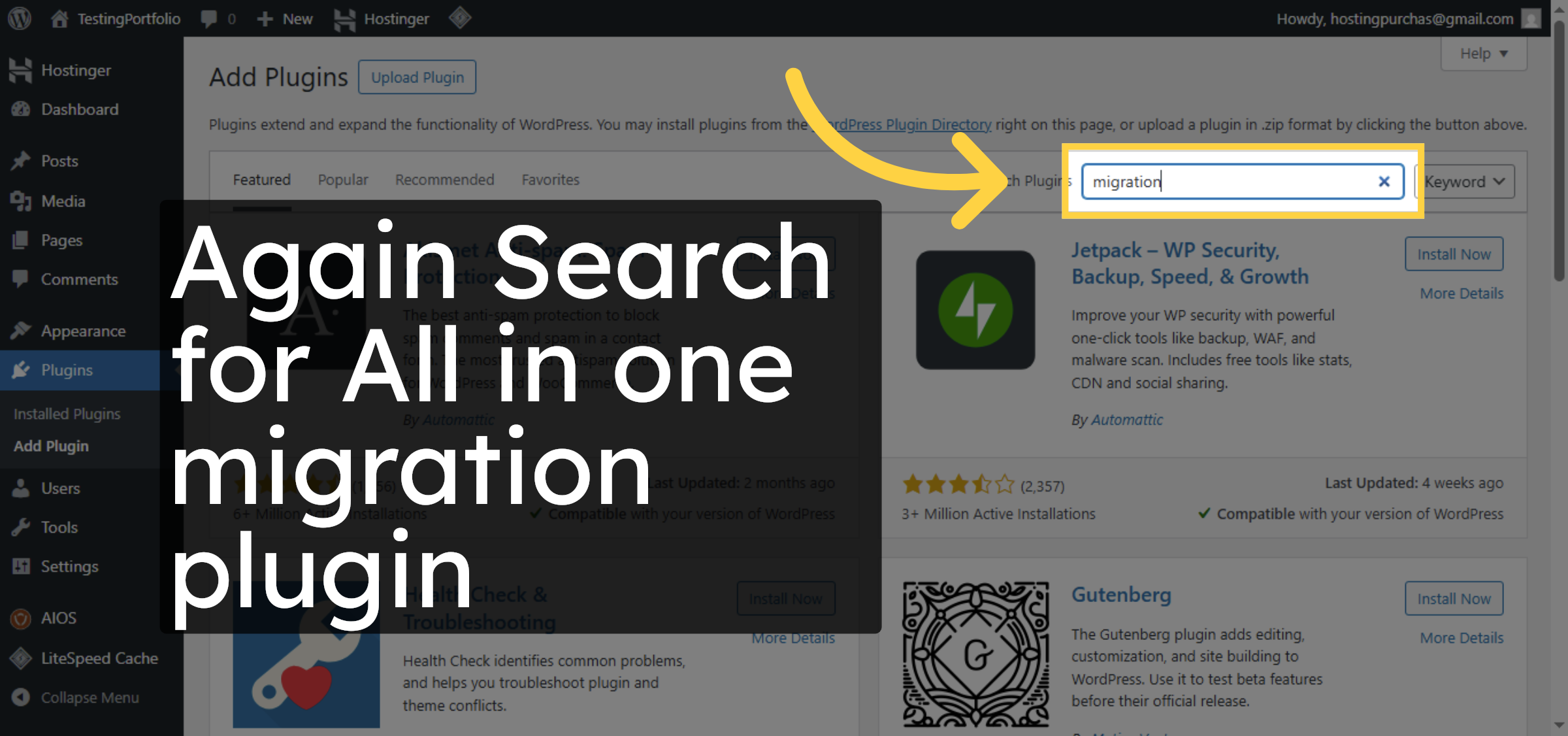
Enter “migration” in the search field to locate the migration plugin for installation.

Search Migration Plugin Again

15. Install Migration Plugin Target
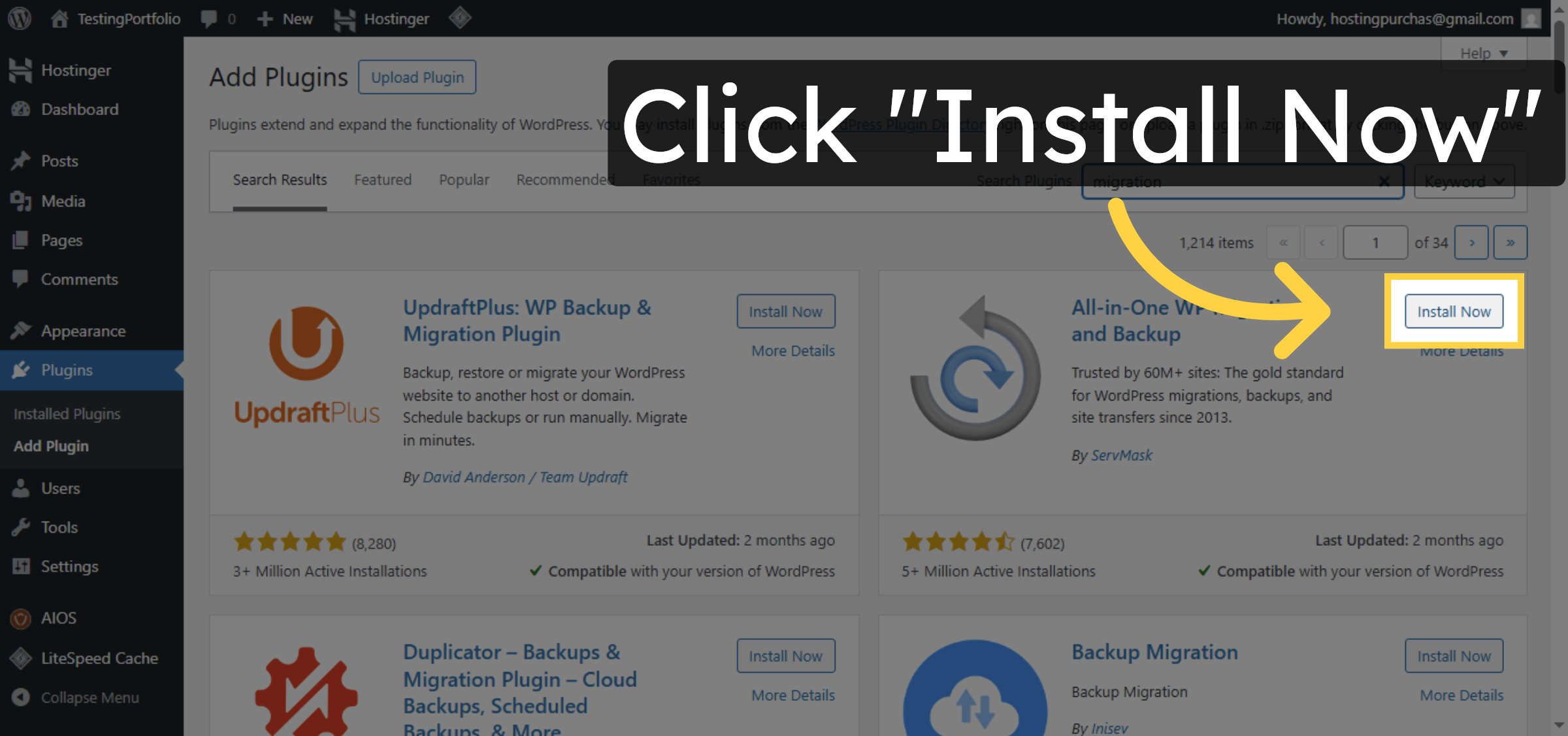
Click “Install Now” to install the migration plugin on the target WordPress site.

Install Migration Plugin Target

Ad Banner

16. Activate Migration Plugin Target
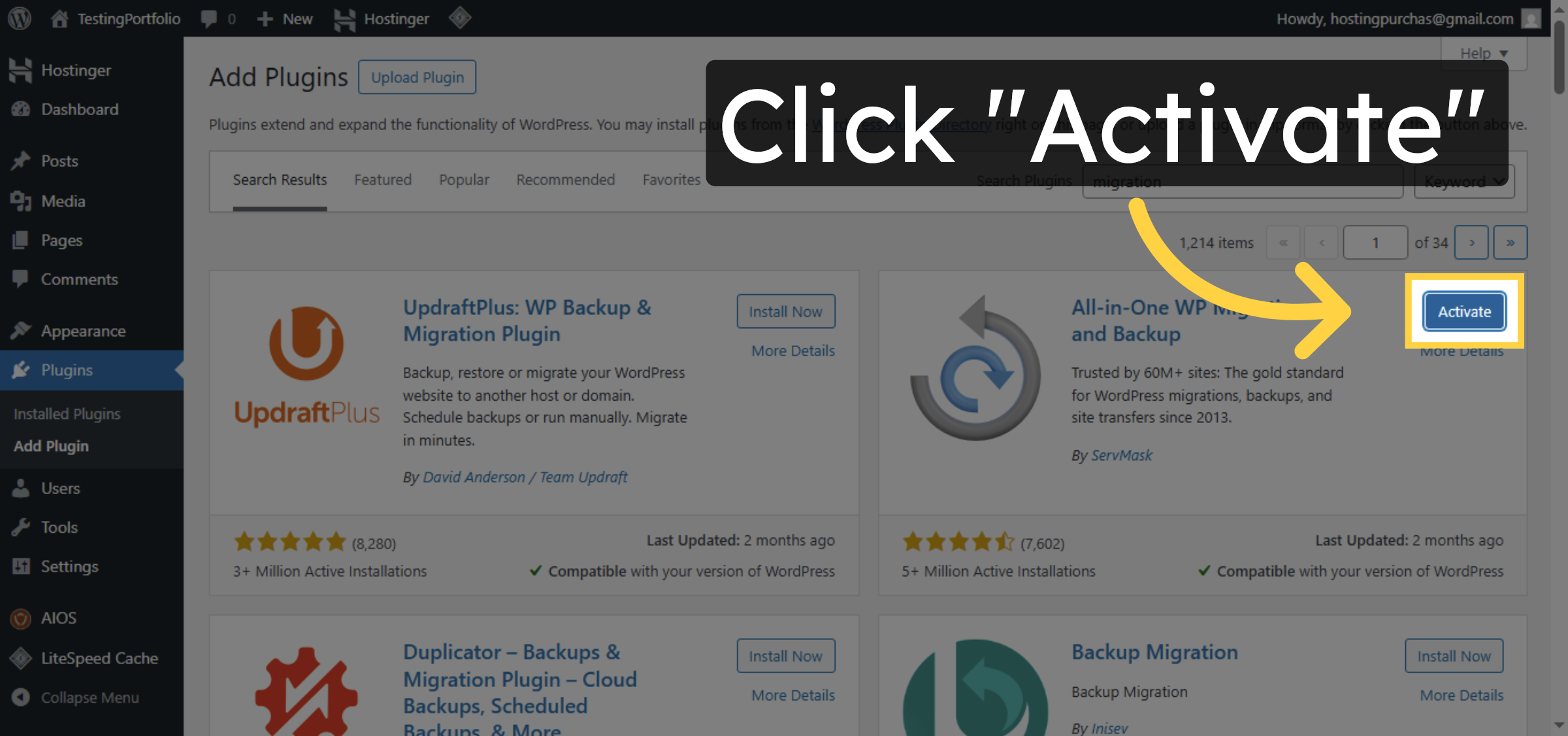
Click “Activate” to enable the migration plugin after installation on the target site.

Activate Migration Plugin Target

17. Open Import Section
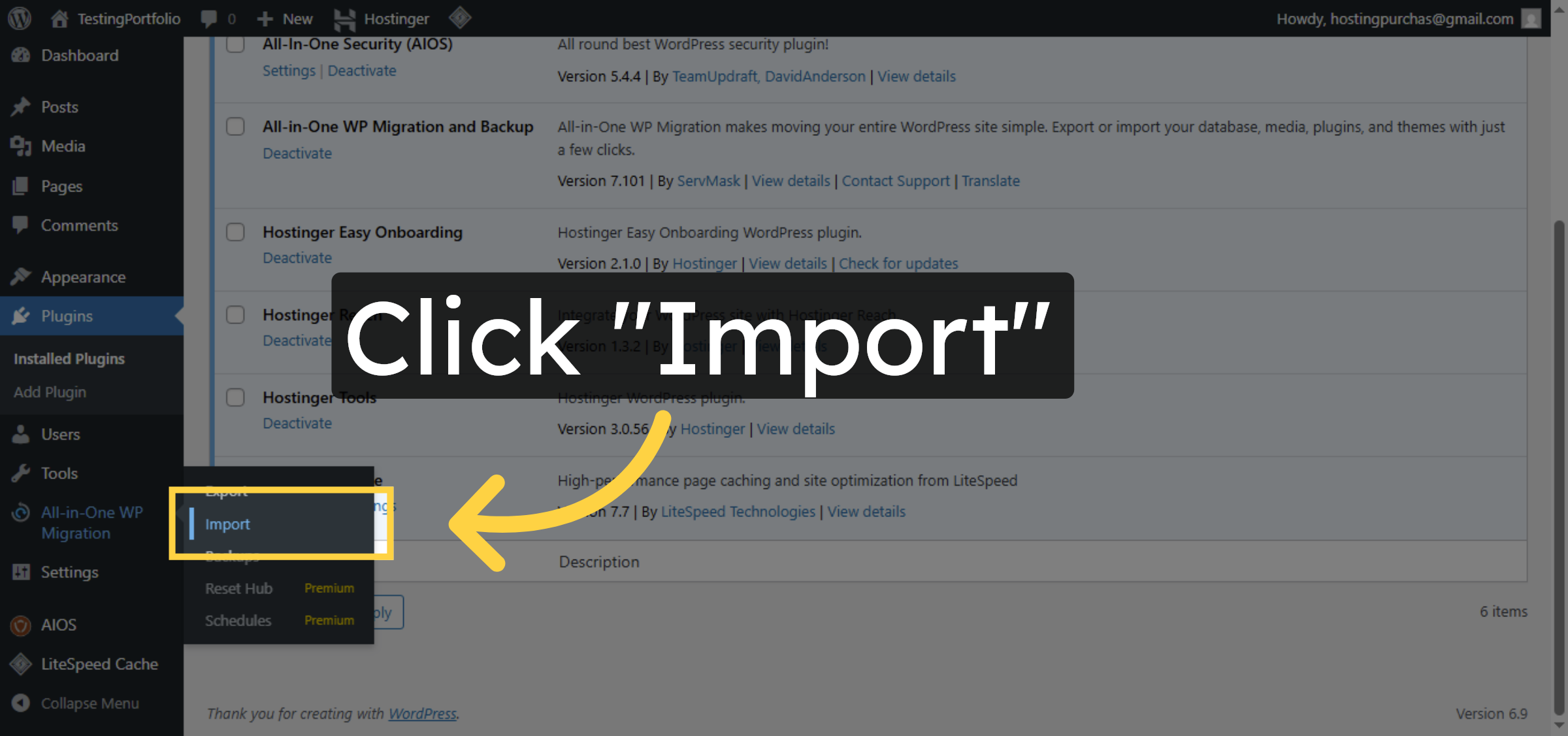
Click “Import” to begin the process of importing your backup file into the target site.

Open Import Section

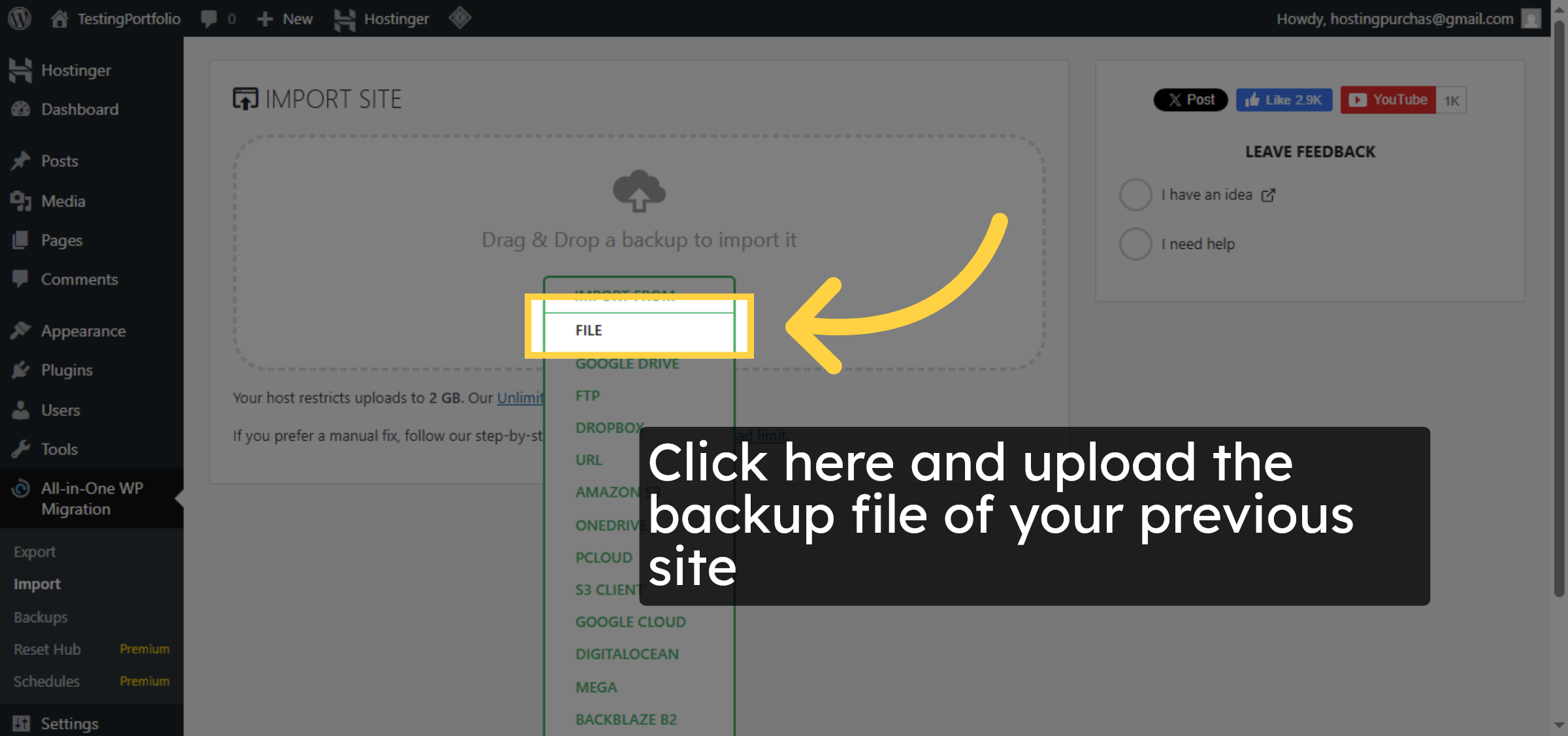
18. Select Import File Option
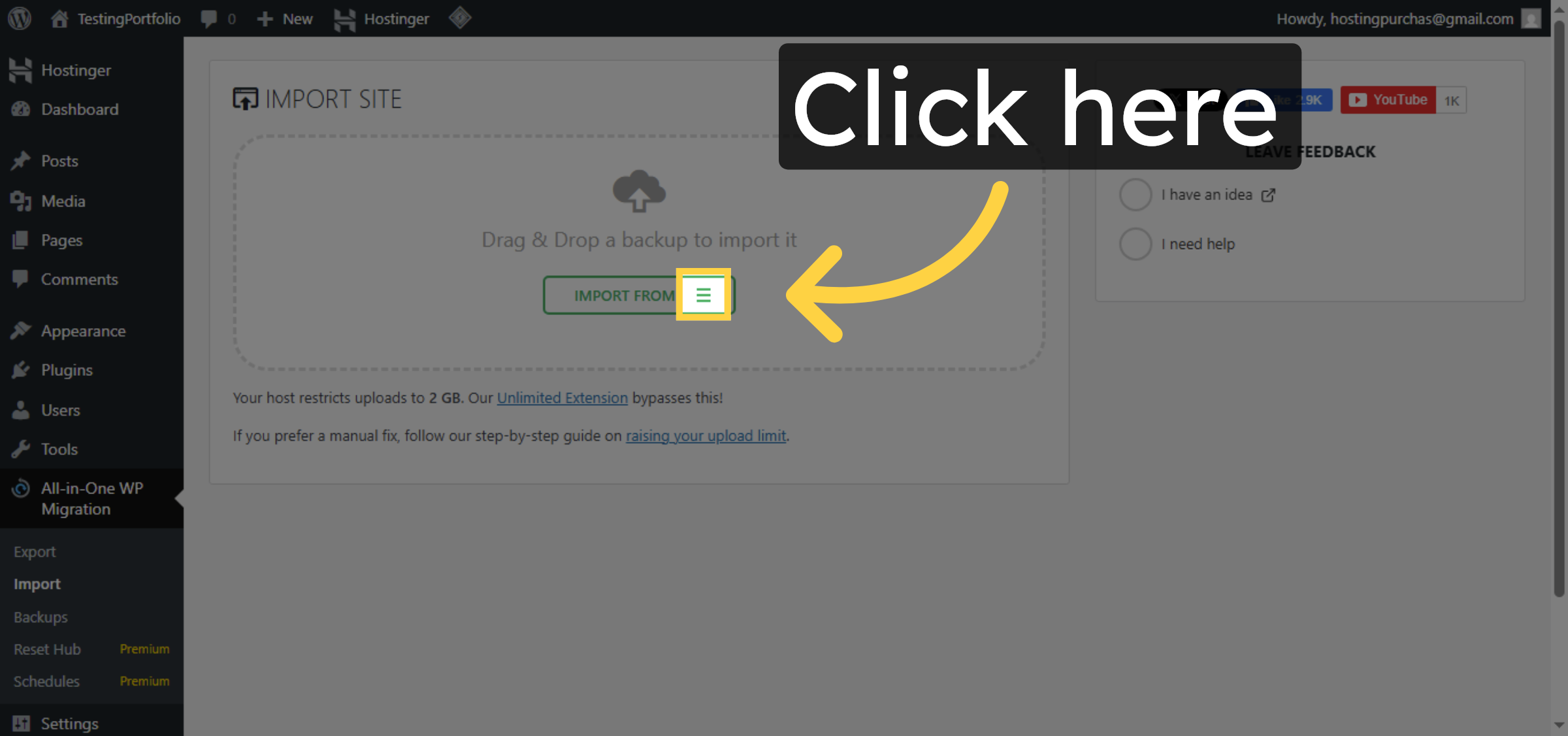
Click the option to upload your backup file for import.

Select Import File Option

19. Choose Backup File
Click to browse and select the backup file you previously downloaded.

Choose Backup File

20. Proceed with Import
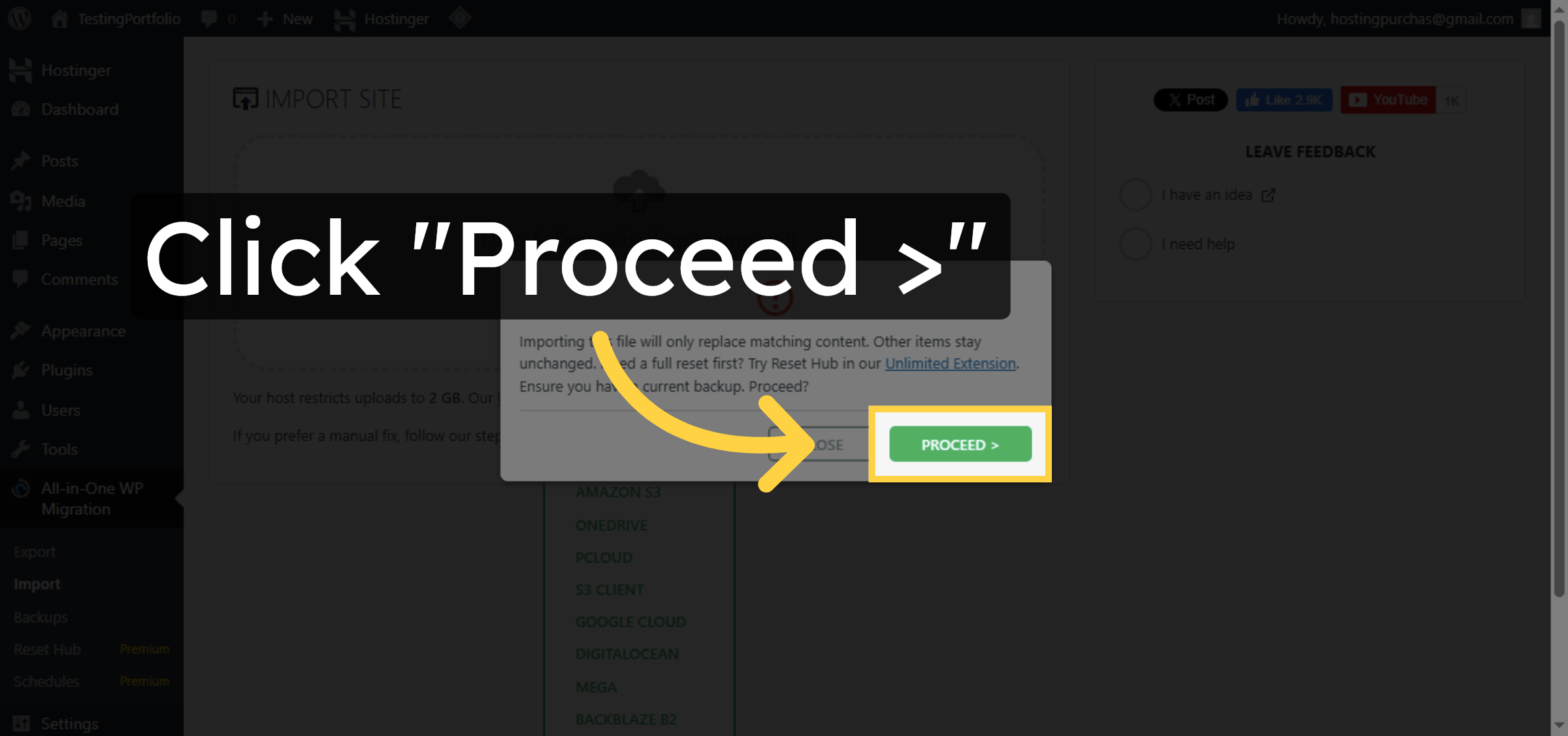
Click “Proceed ” to start the import process of your backup file.

Proceed with Import

21. Finish Import Process
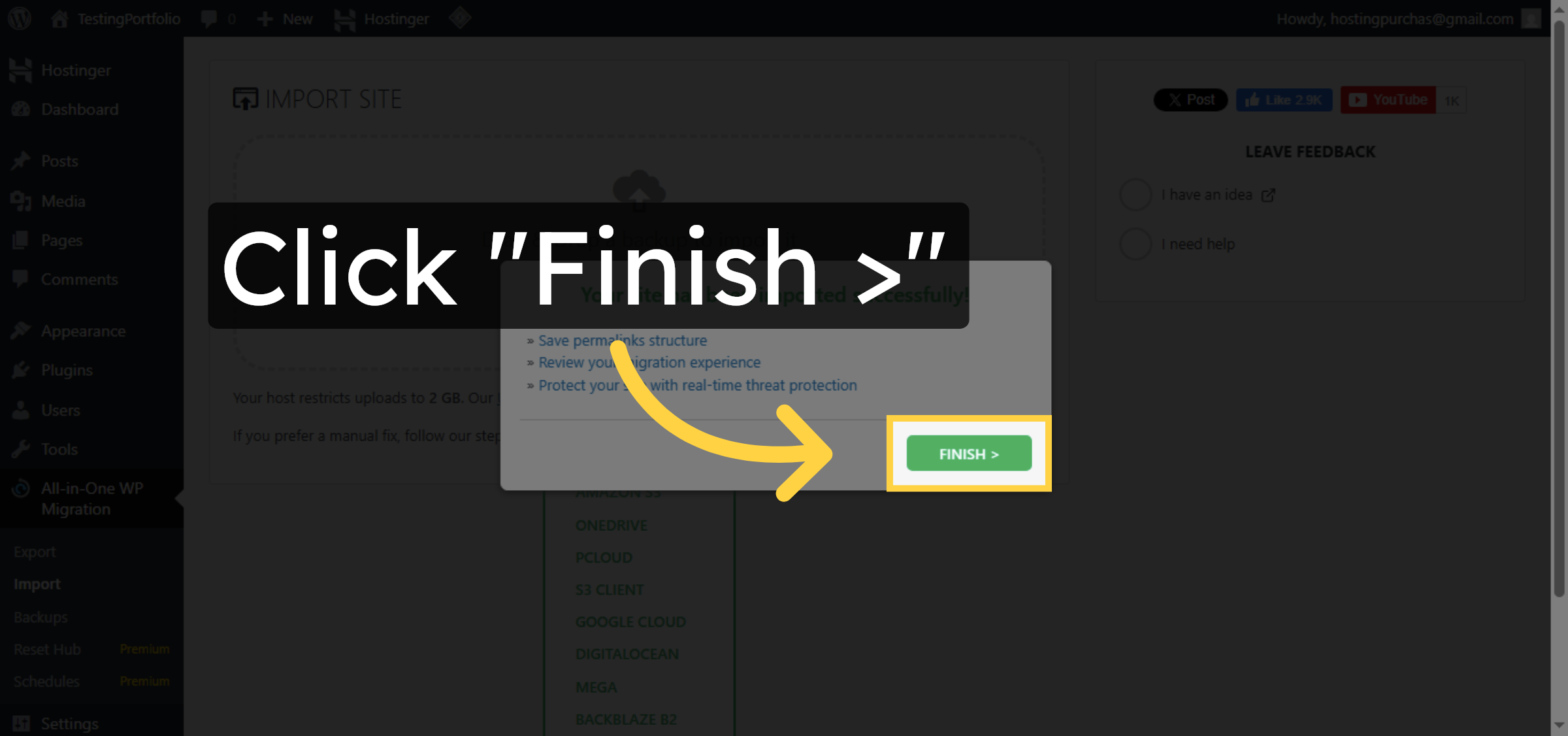
Click “Finish” to complete the import and restore your website content.

Finish Import Process

22. Access Permalink Settings
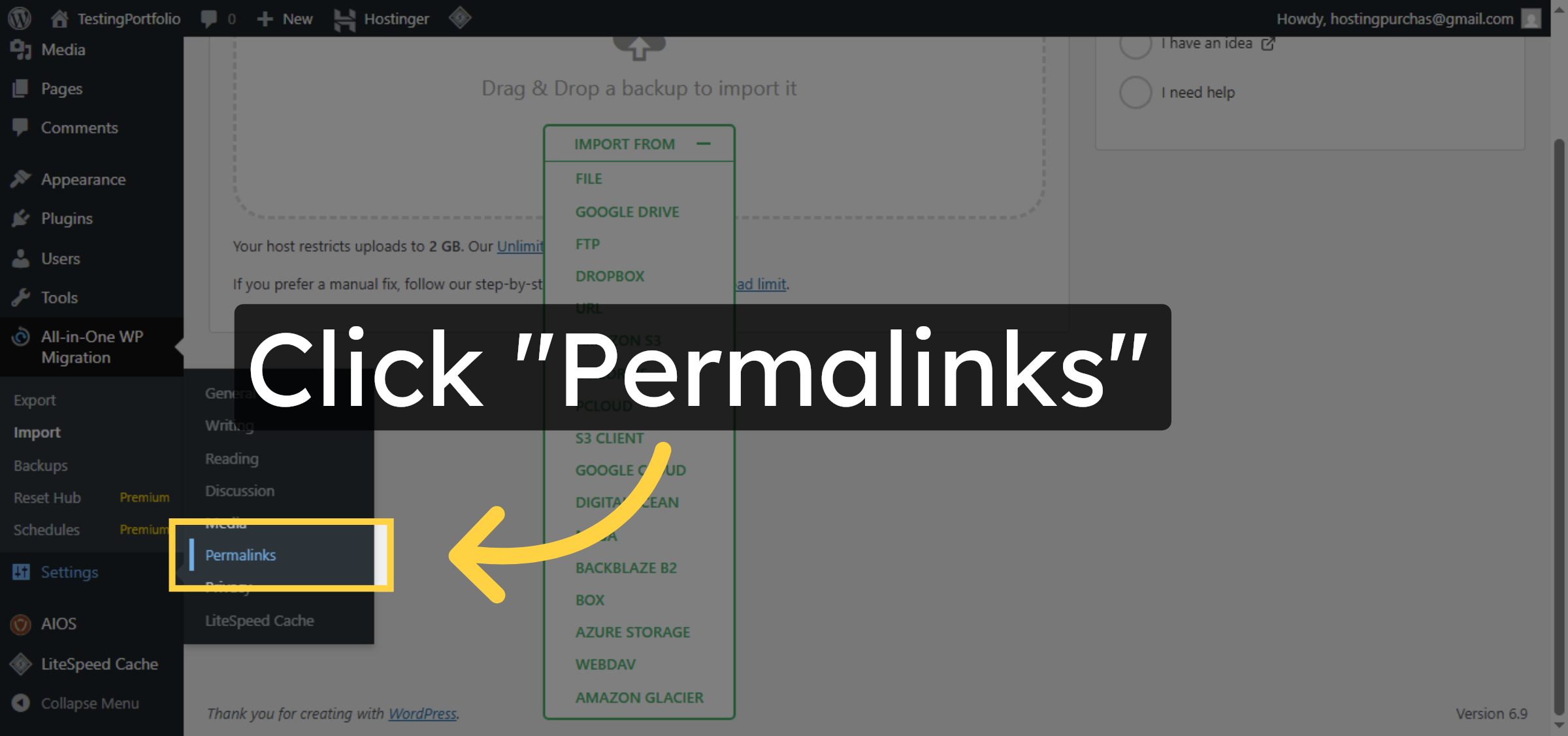
Click “Permalinks” to open the permalink settings page for your WordPress site.

Access Permalink Settings

23. Login again
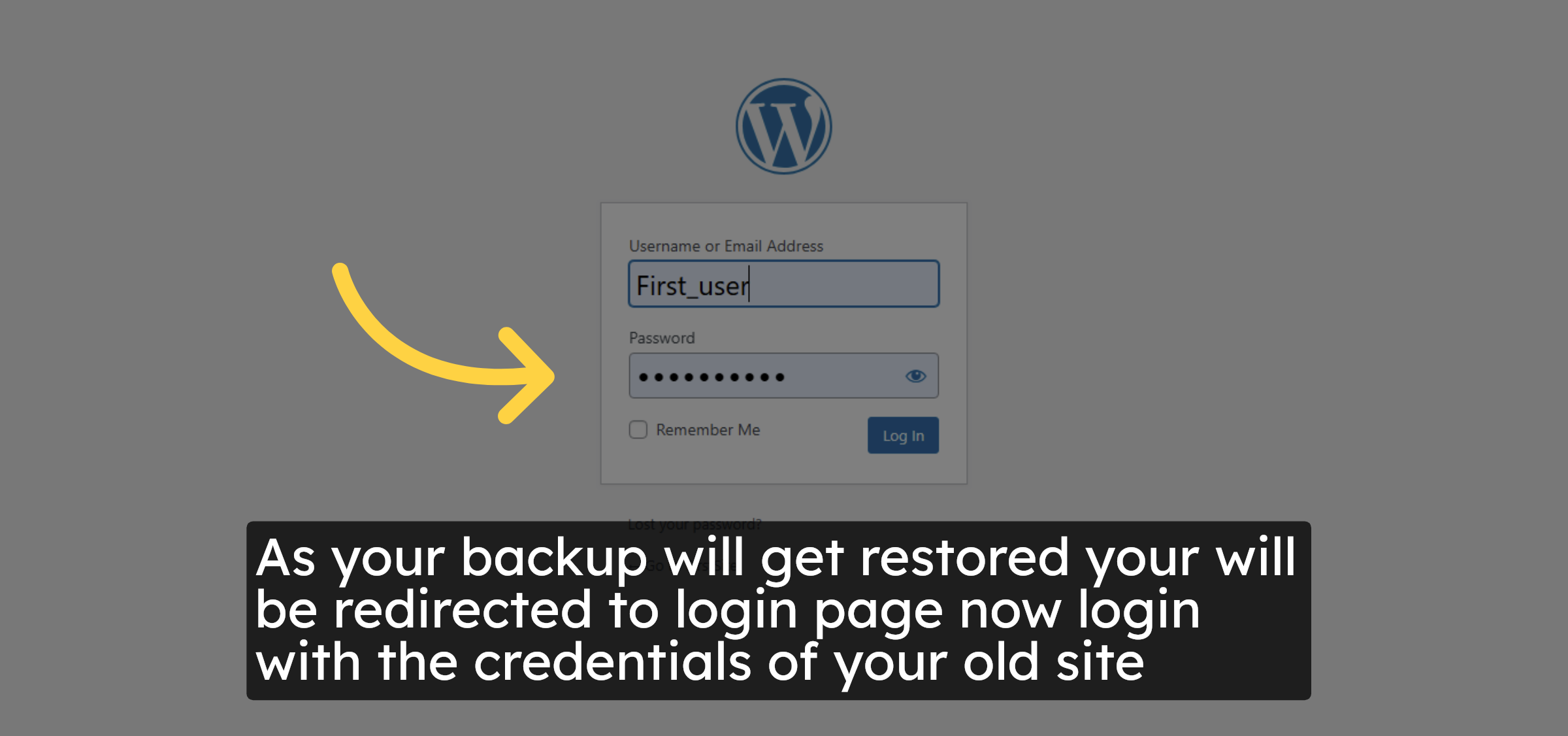
As your backup will get restored your will be redirected to login page now login with the credentials of your old site

Login again

24. Open Permalink Settings Again
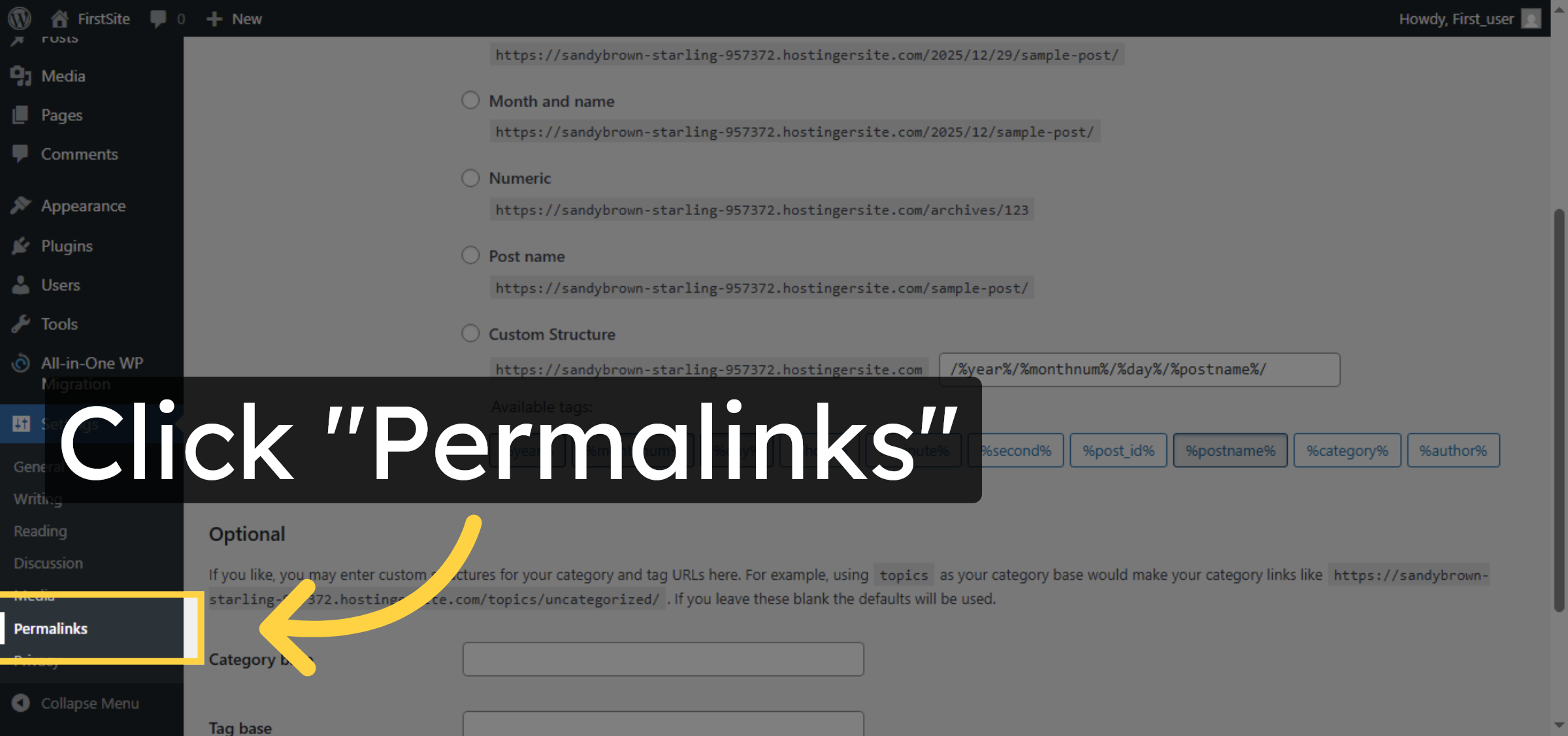
Click “Permalinks” to revisit the permalink settings after logging in.

Open Permalink Settings Again

25. Save Permalink Changes
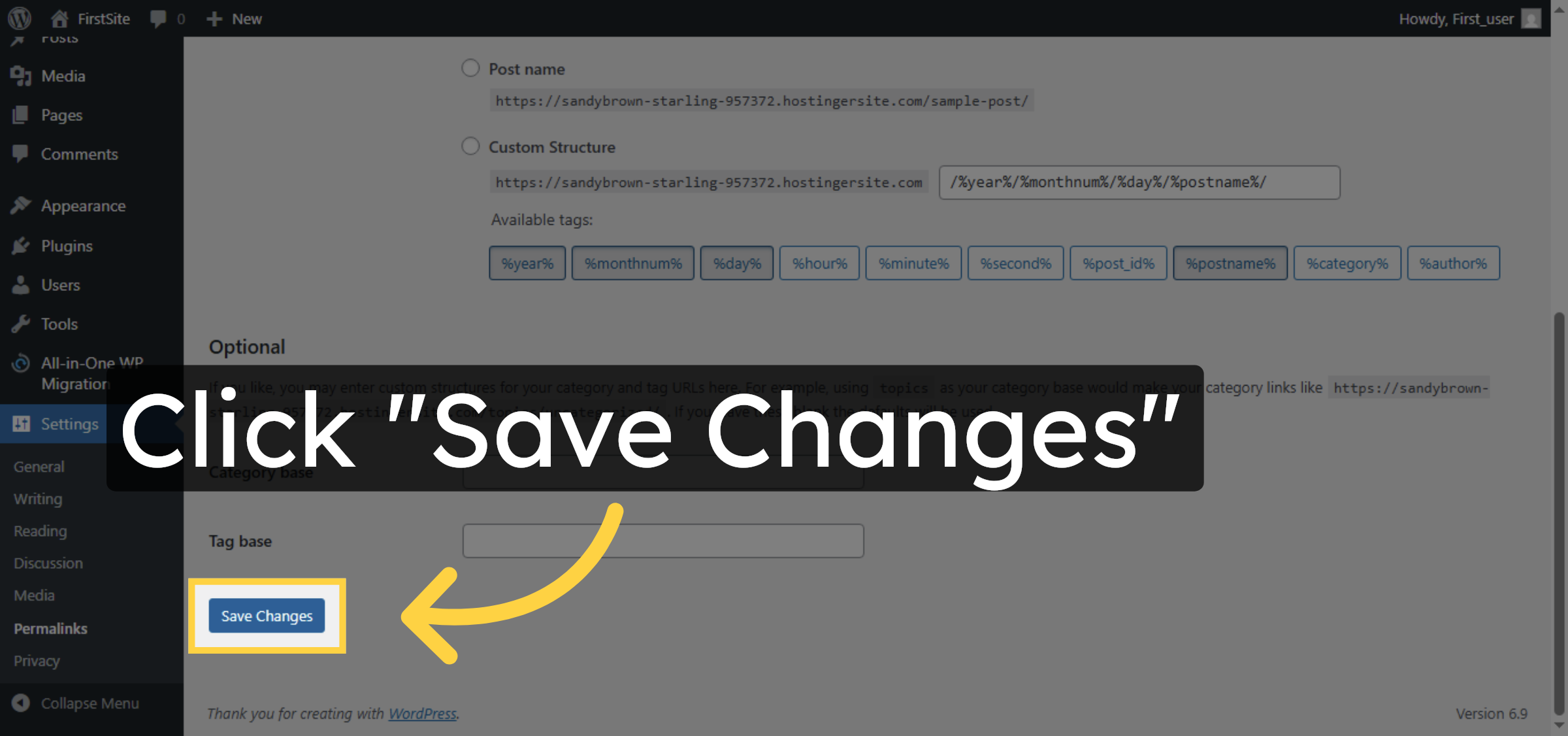
Click “Save Changes” to apply the permalink settings and ensure proper URL structure.

Save Permalink Changes

26. Return to Site Dashboard
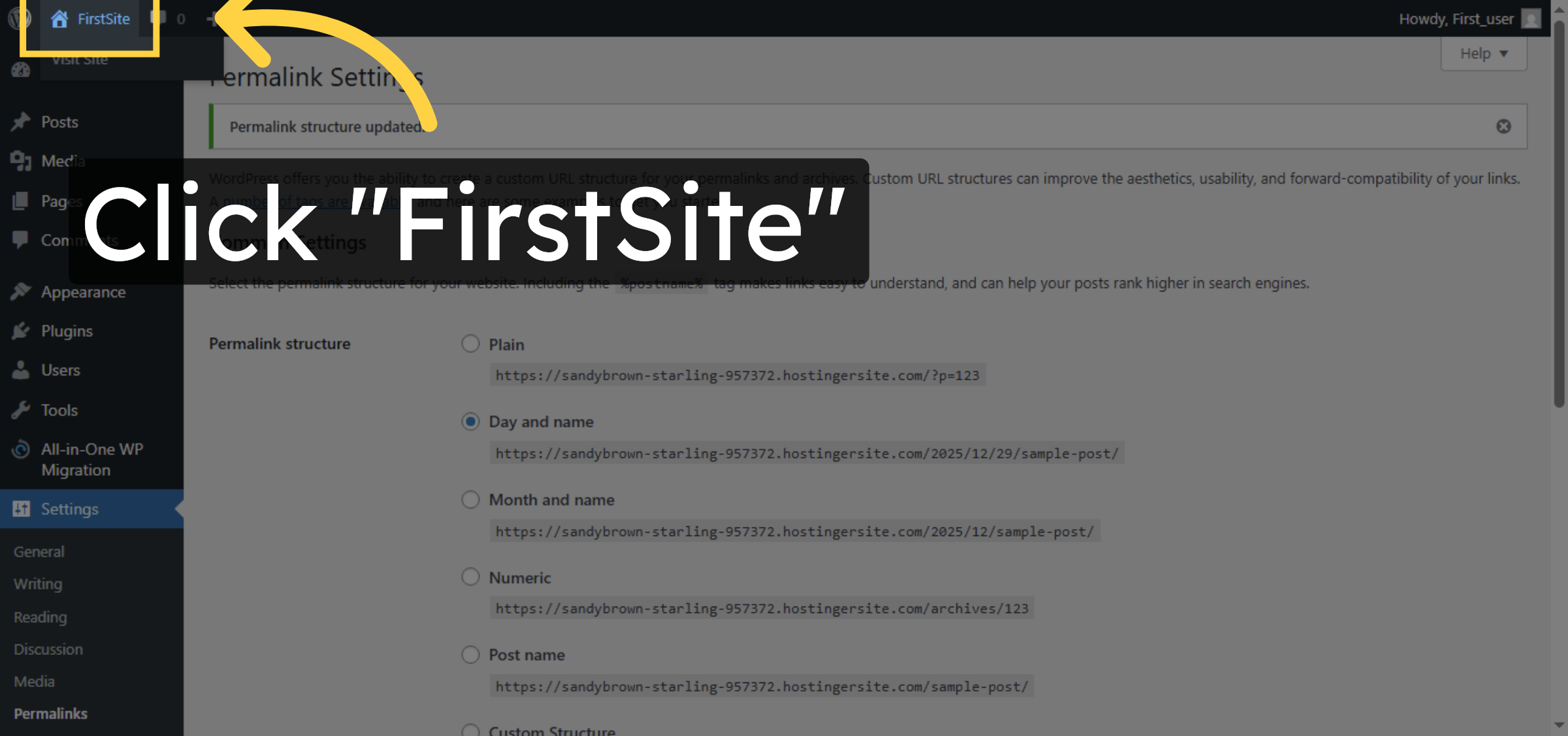
verify that your site content is visible or not

Return to Site Dashboard

Conclusion

By following the steps outlined in this guide, you can successfully migrate your WordPress website using the All-in-One WP Migration plugin. Creating a backup, importing it into the target site, and updating permalinks ensures that your content, settings, and structure are restored correctly. This approach provides a reliable and efficient way to move WordPress websites without technical complexity or data loss.

Visit: https://www.woohelpdesk.com
Call Us Toll-Free: +1 888 602 0119 (US & Canada)
Get professional support for WordPress configuration, hosting management, performance optimization, and troubleshooting.


 

Leave a Reply

Your email address will not be published. Required fields are marked *

Leave a Reply

Your email address will not be published. Required fields are marked *



