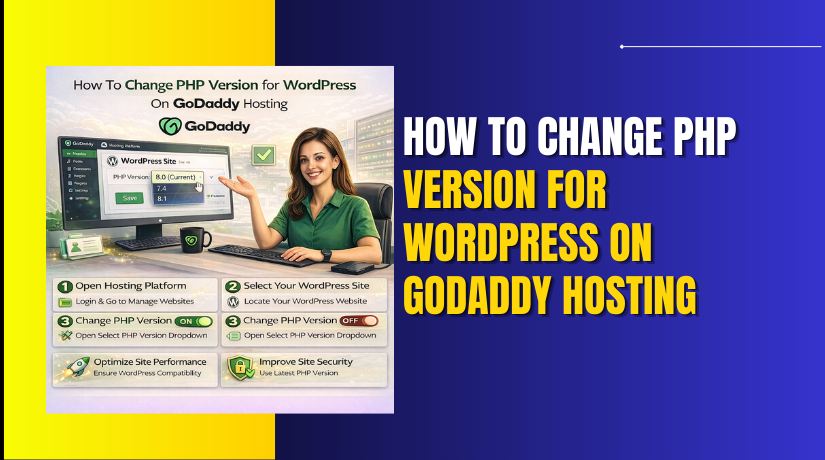
How To Change PHP Version for WordPress On GoDaddy Hosting
Introduction
Changing the PHP version is an essential step in maintaining the performance, security, and compatibility of your WordPress website on GoDaddy hosting. PHP is the core server-side language that powers WordPress, and using an outdated or incompatible version can lead to slow performance, plugin conflicts, or even site errors. GoDaddy allows you to easily switch between PHP versions directly from the hosting settings, giving you control over your website’s backend environment. In this guide, you’ll learn how to access your GoDaddy dashboard, navigate to hosting settings, and update the PHP version safely for your WordPress site. Verifying the update ensures your site is running on the selected PHP version and benefiting from improved speed and stability. Keeping PHP updated is a best practice for smooth WordPress functionality and long-term site health.
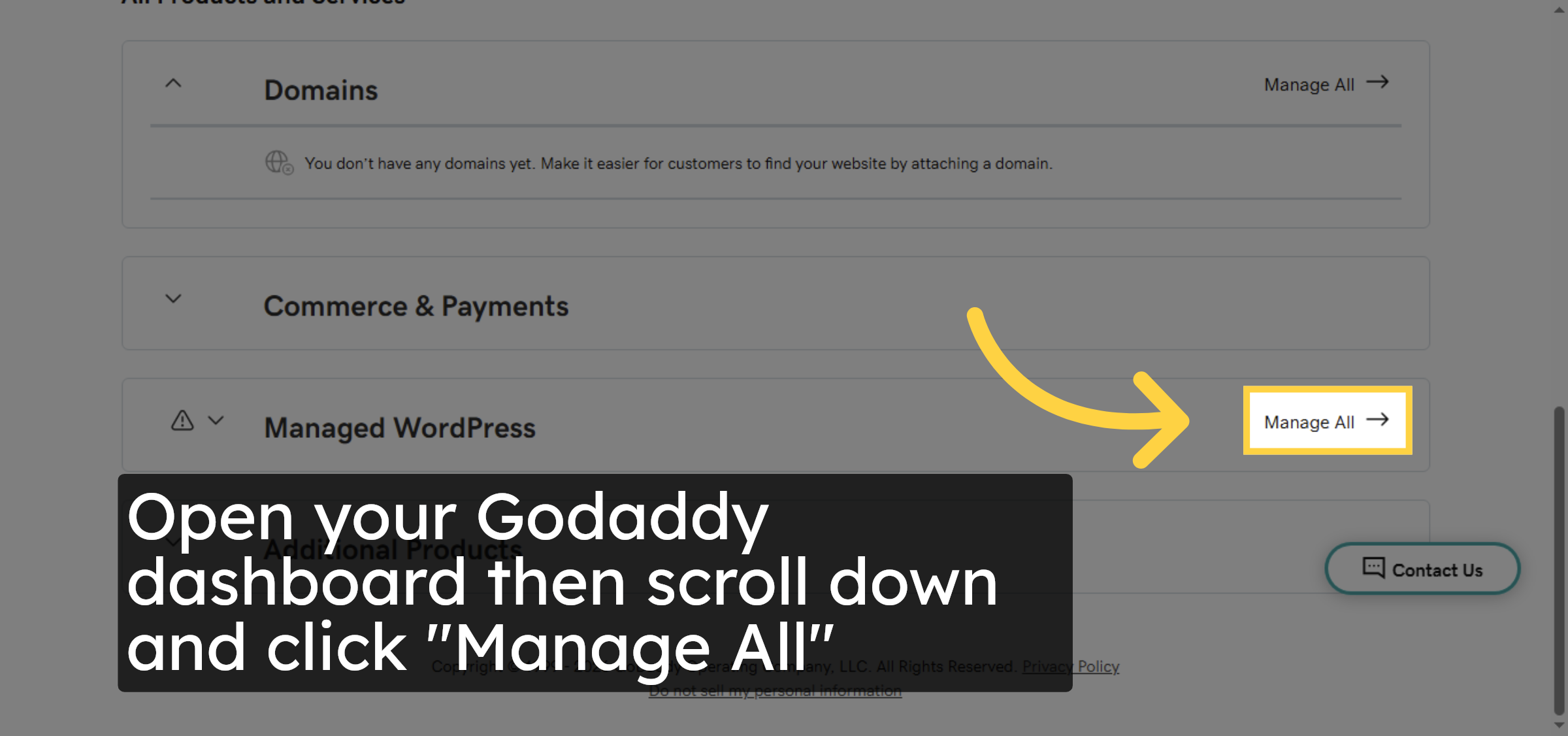
1. Access Manage All Products
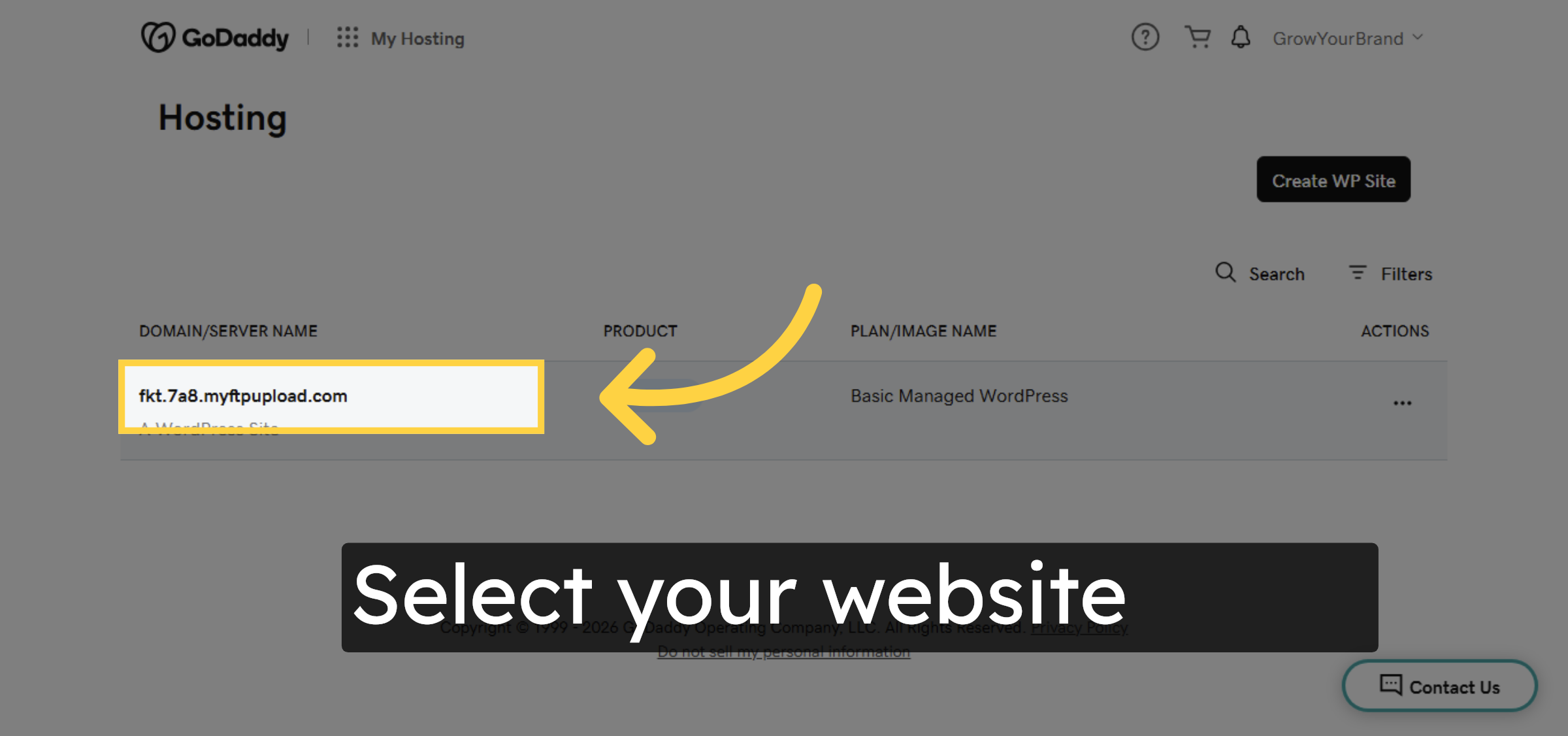
2. Select Your Hosting Account
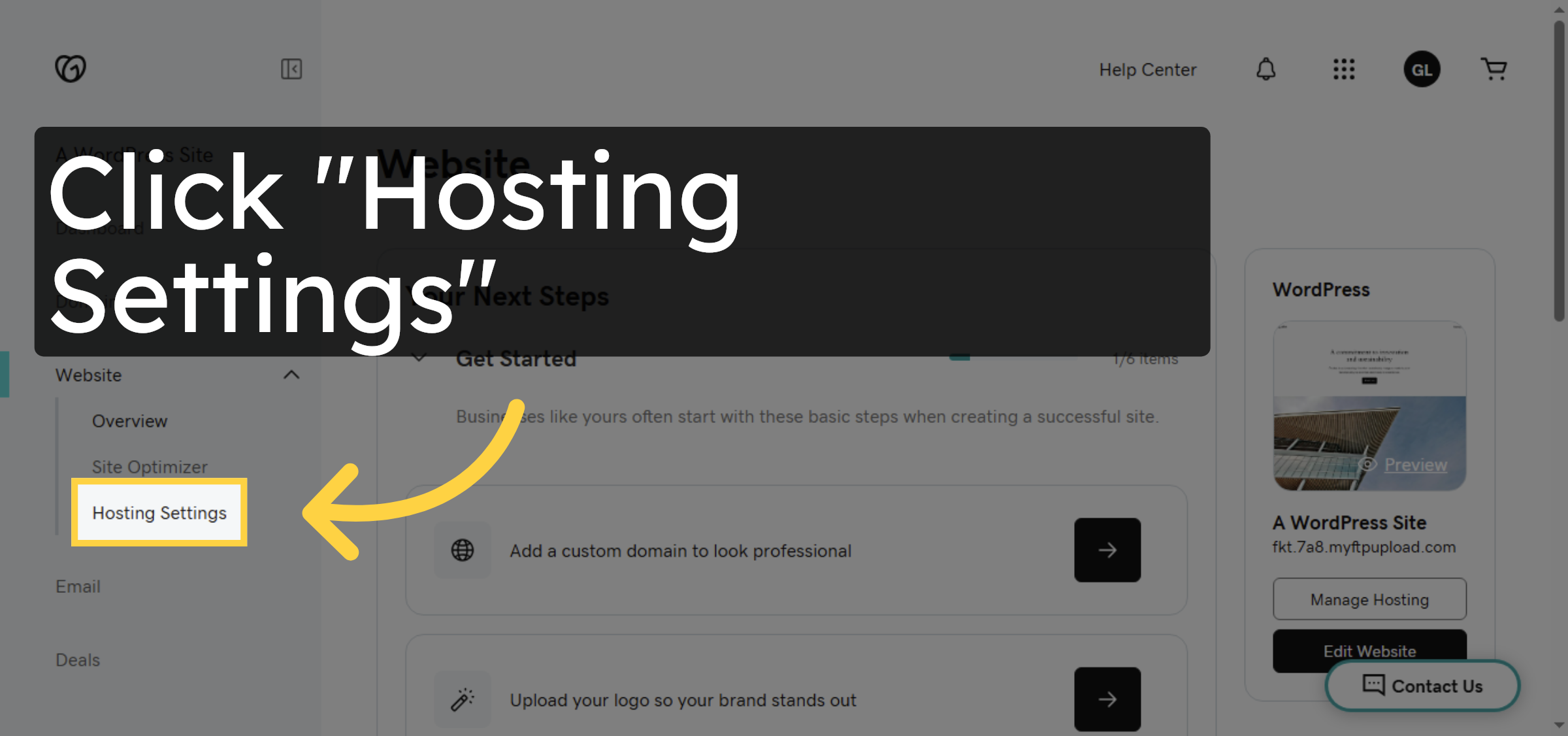
3. Open Hosting Settings
4. Initiate PHP Version Change
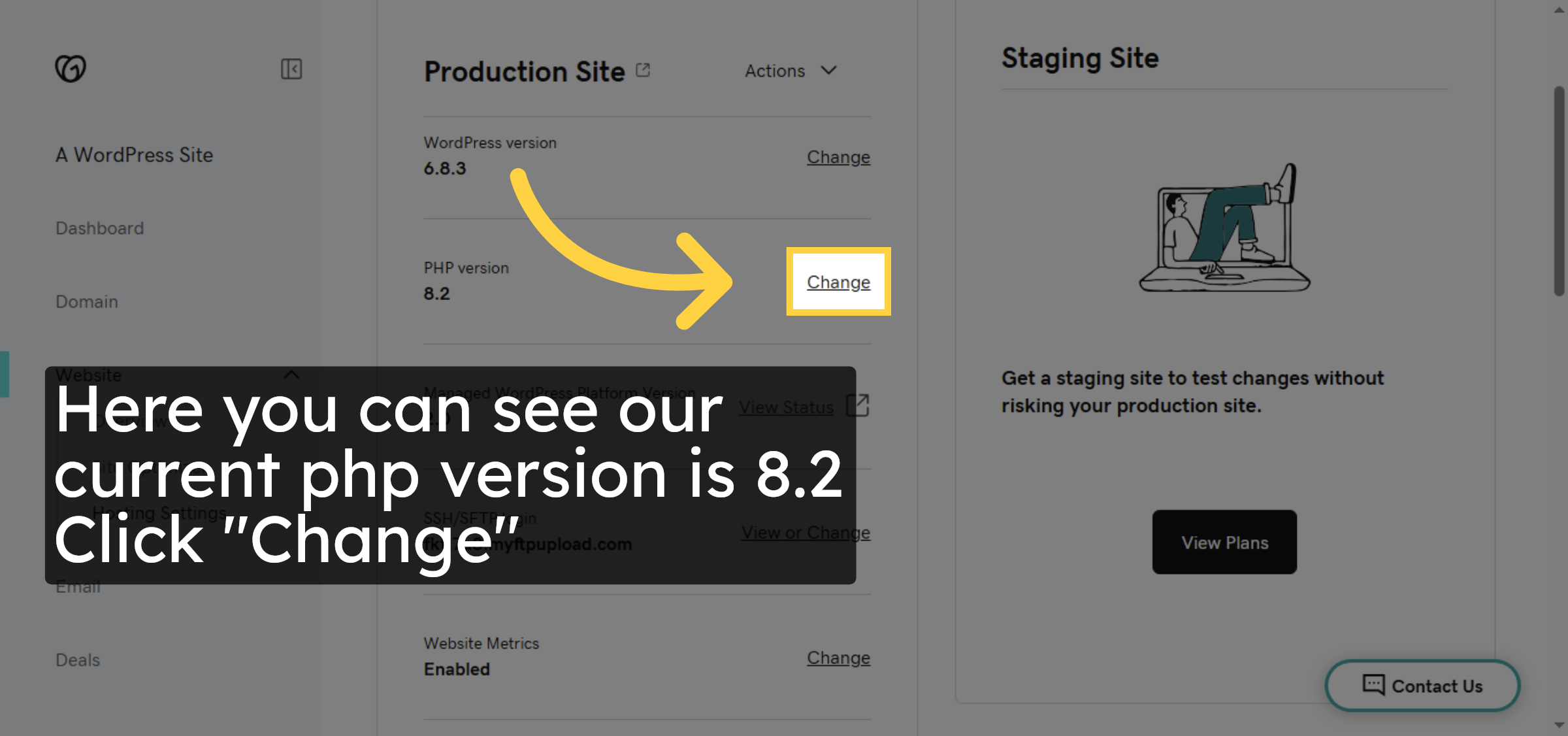
5. Open PHP Version Options
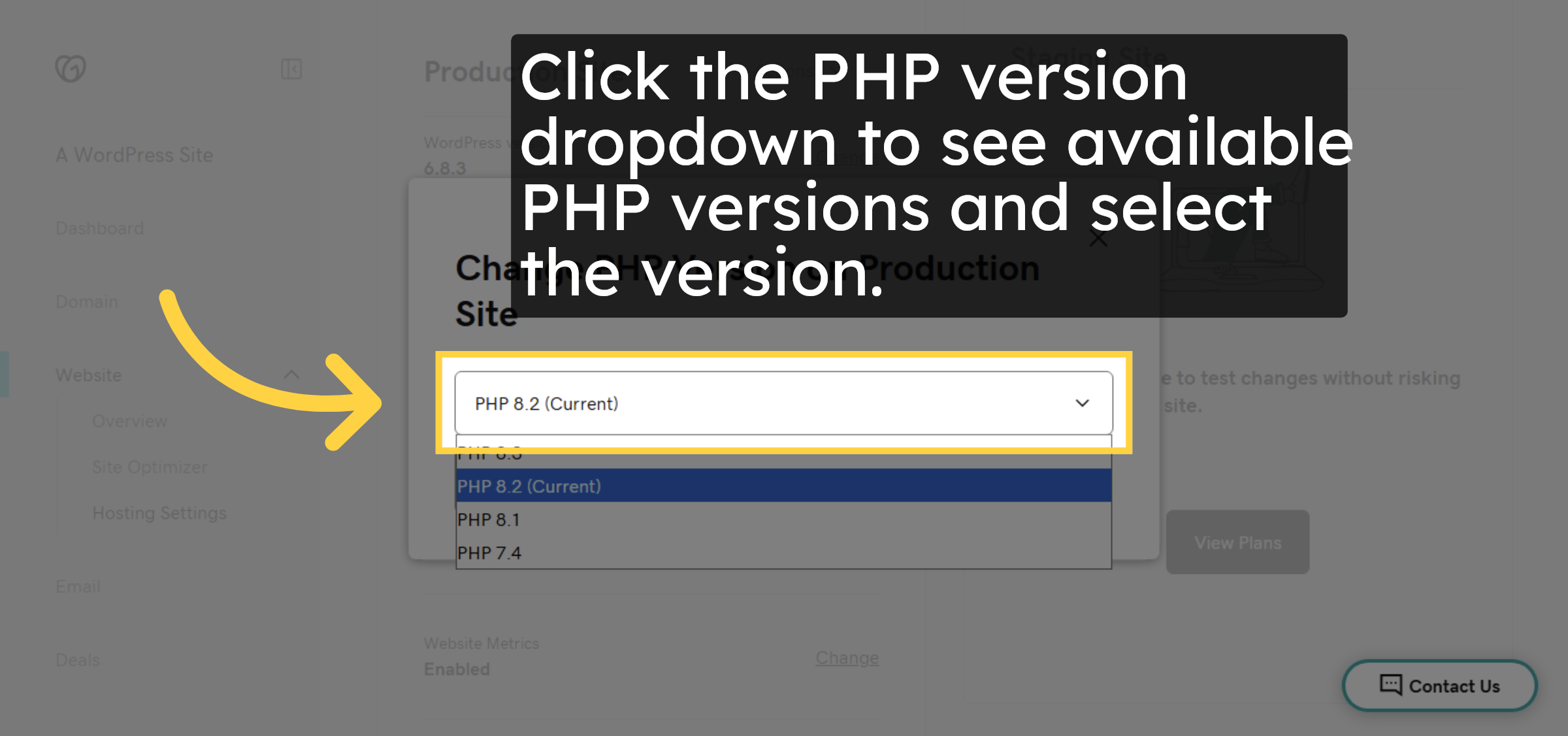
6. Save PHP Version Changes
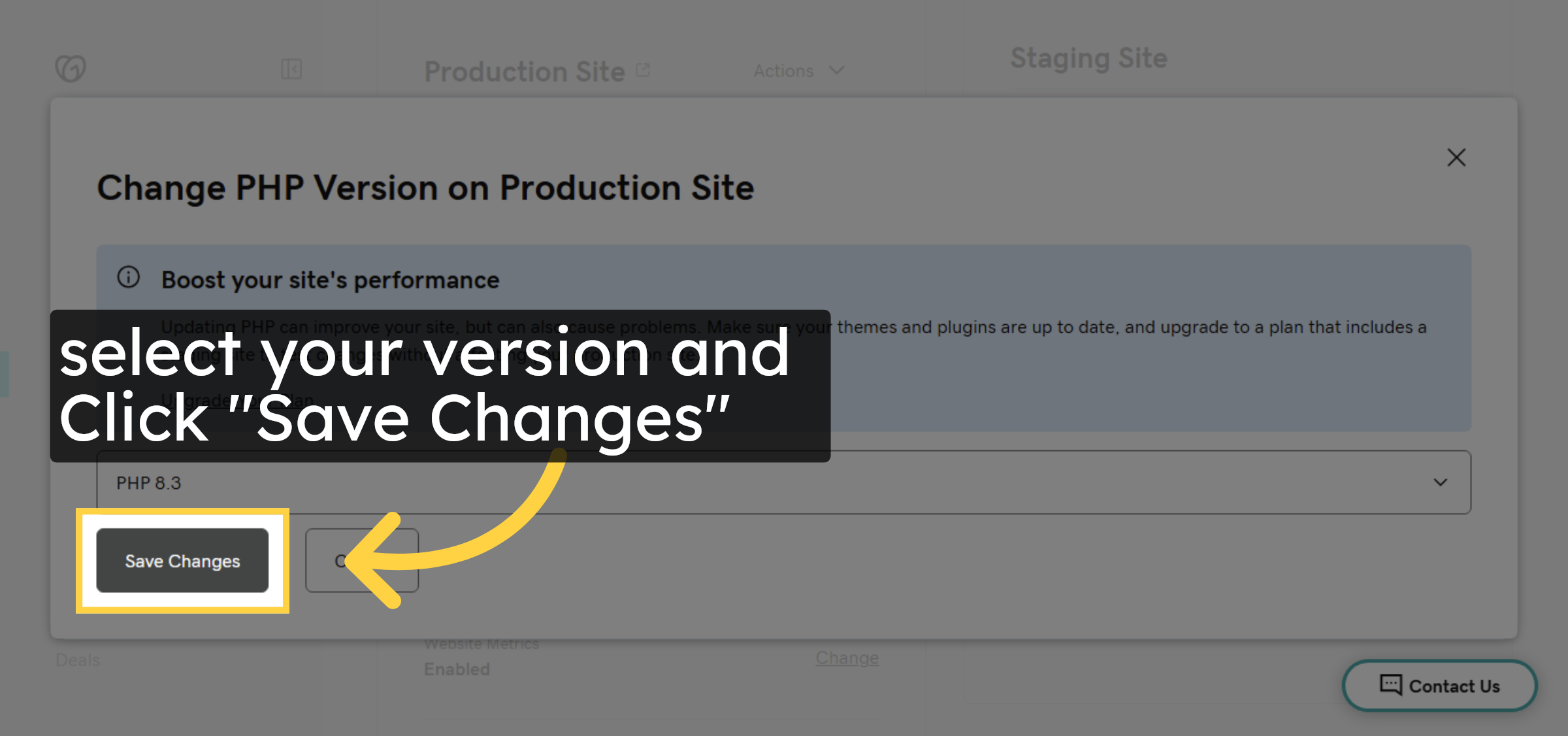
7. Confirm PHP Update Notification
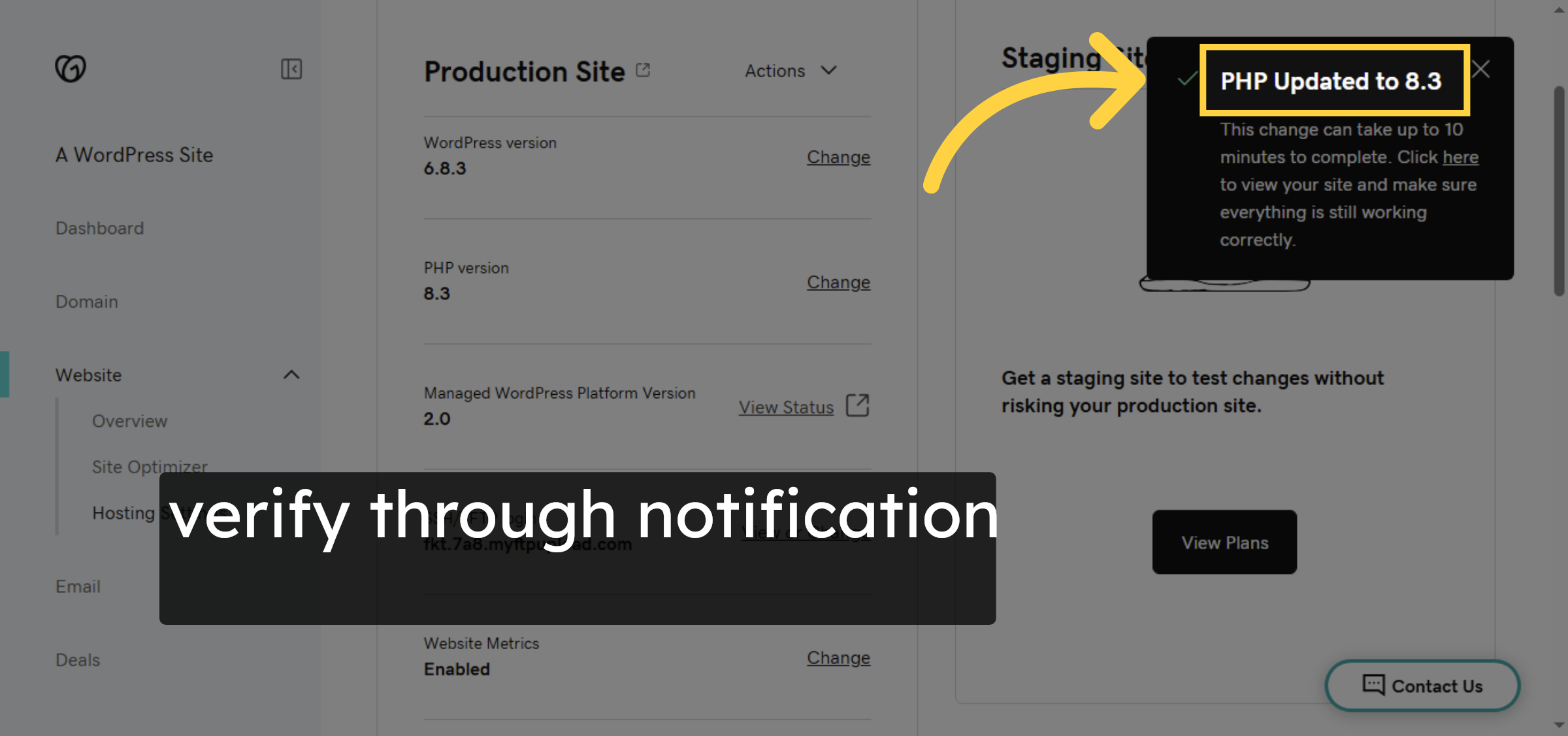


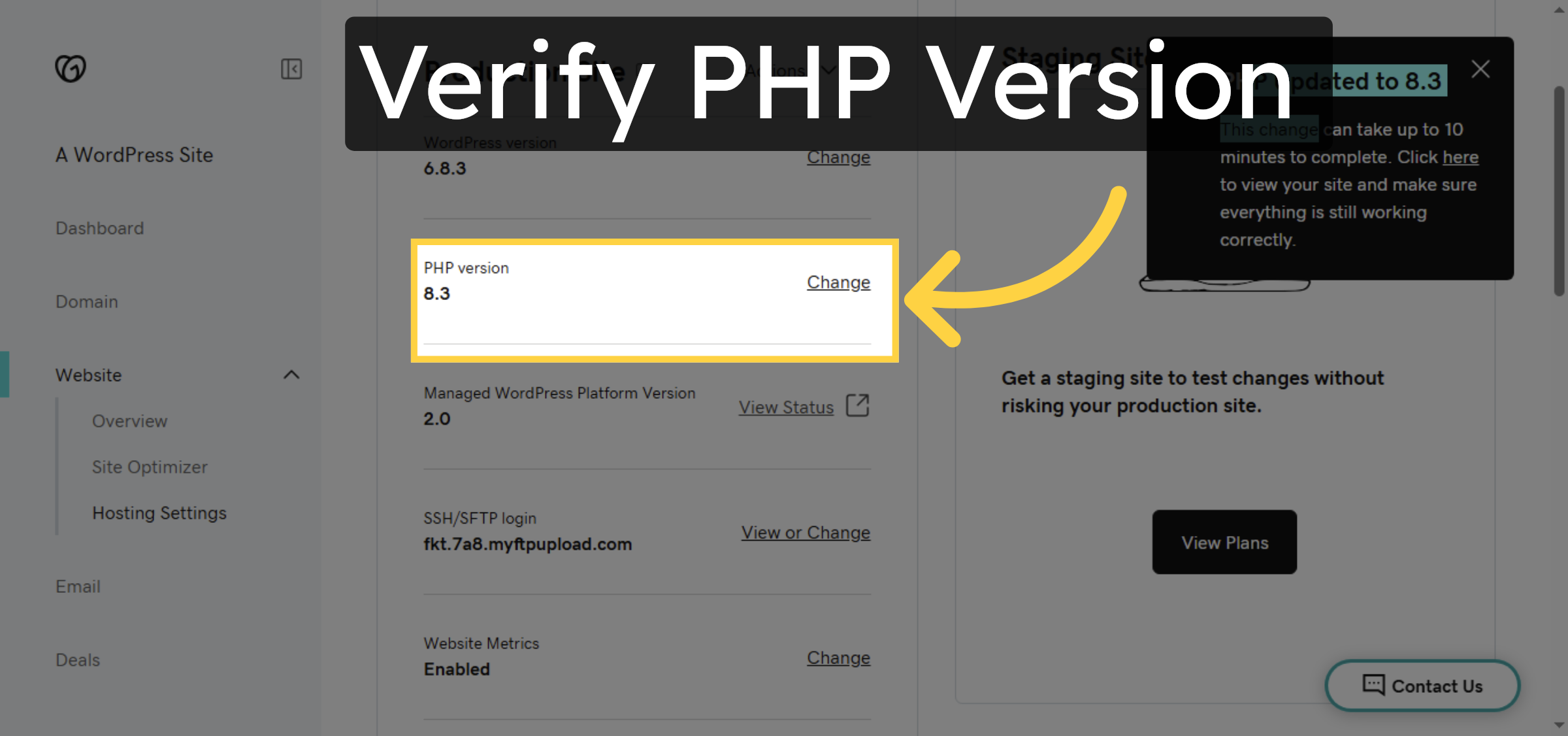
8. Verify PHP Version Setting
Conclusion
By following the steps in this guide, you have successfully addressed the causes of a slow WordPress admin dashboard on GoDaddy hosting. Updating PHP, removing unused themes and plugins, optimizing database tables, clearing cache, and configuring WP Rocket significantly improve performance and reduce server load. Regular optimization and maintenance will help keep your WordPress dashboard fast and efficient.
-
Visit: https://www.woohelpdesk.com
-
Call Us Toll-Free: +1 888 602 0119 (US & Canada)
-
Get professional support for fixing slow WordPress admin dashboard issues, GoDaddy performance optimization, PHP configuration, database cleanup, caching setup, and WooCommerce solutions



