5 mins read

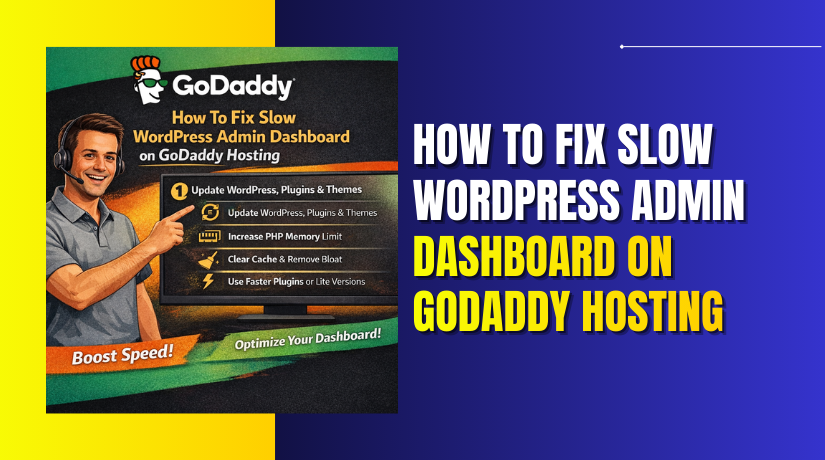
How To Fix Slow WordPress Admin Dashboard On GoDaddy Hosting

Introduction

A slow WordPress admin dashboard can significantly affect productivity and make website management frustrating. This issue usually occurs when server resources are overloaded or when WordPress is burdened with heavy plugins, unused themes, database bloat, or low PHP memory limits. On GoDaddy hosting, improper PHP configuration and lack of performance optimization can further slow down the admin panel. In this guide, we explain how to fix a slow WordPress admin dashboard using two effective methods. The first method focuses on basic optimization steps such as removing unused themes and plugins, updating the PHP version, clearing cache, and optimizing database tables via phpMyAdmin. The second method demonstrates how to use the WP Rocket plugin to improve performance through caching, database cleanup, and file optimization. Following these steps will help restore a fast, smooth, and responsive WordPress admin experience on GoDaddy hosting.

1. Why this happens?

A slow WordPress admin dashboard happens when server resources are overloaded or plugins, themes.It is commonly caused by heavy plugins, database bloat, low PHP memory limits, or hosting configuration issues on Godaddy.
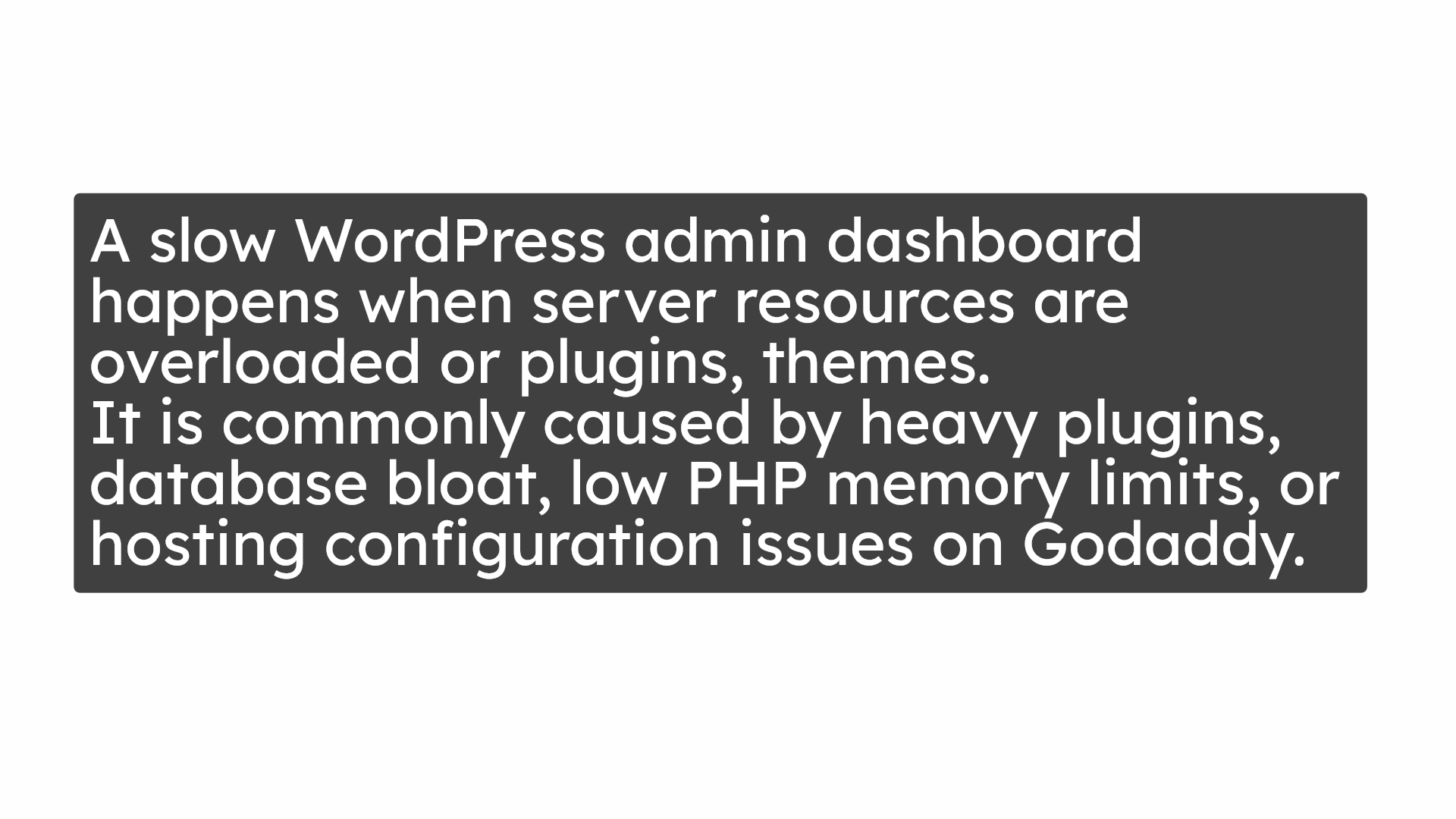
Why this happens?

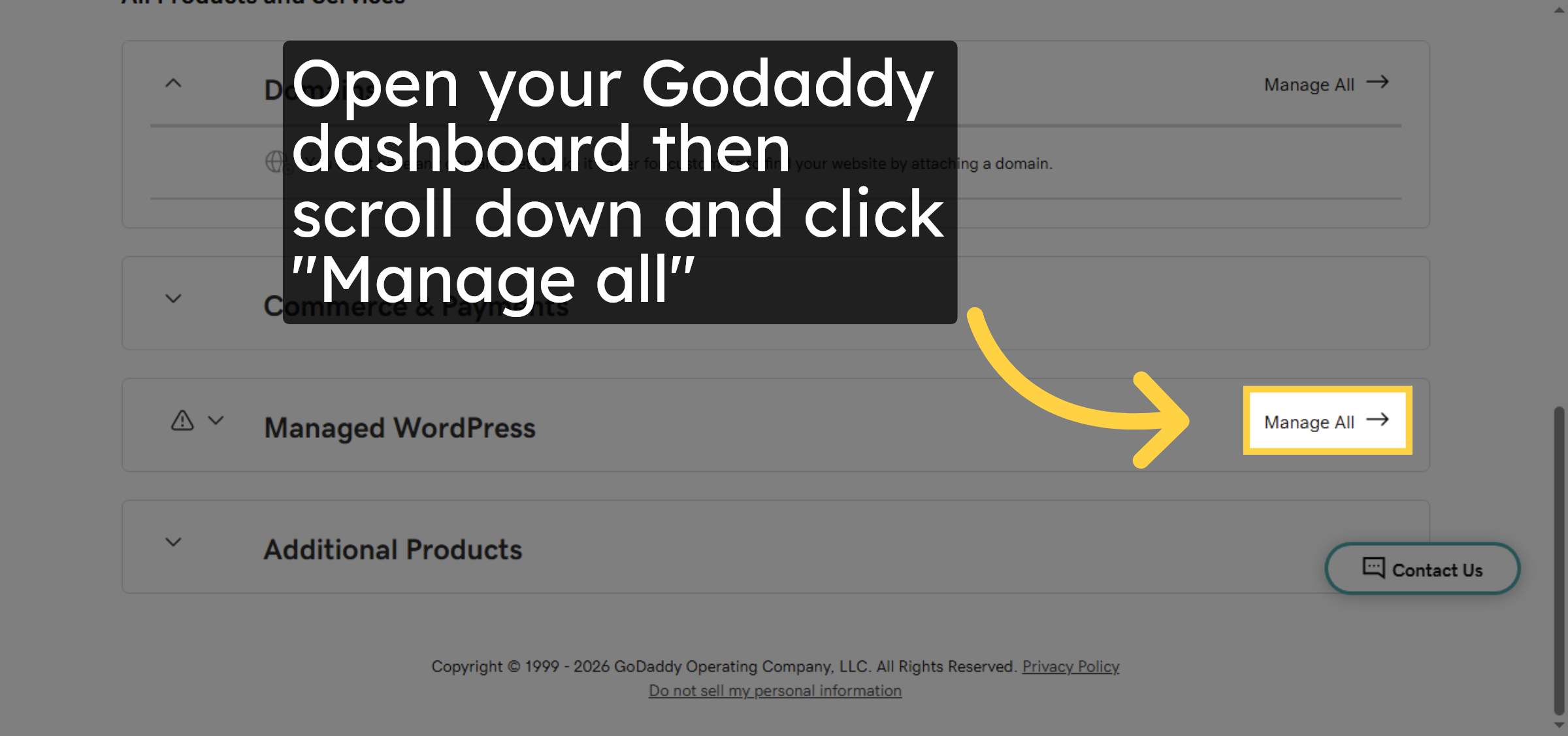
2. Click Manage All

Open your Godaddy dashboard then scroll down and click “Manage all”

Click Manage All

3. Select A WordPress Site
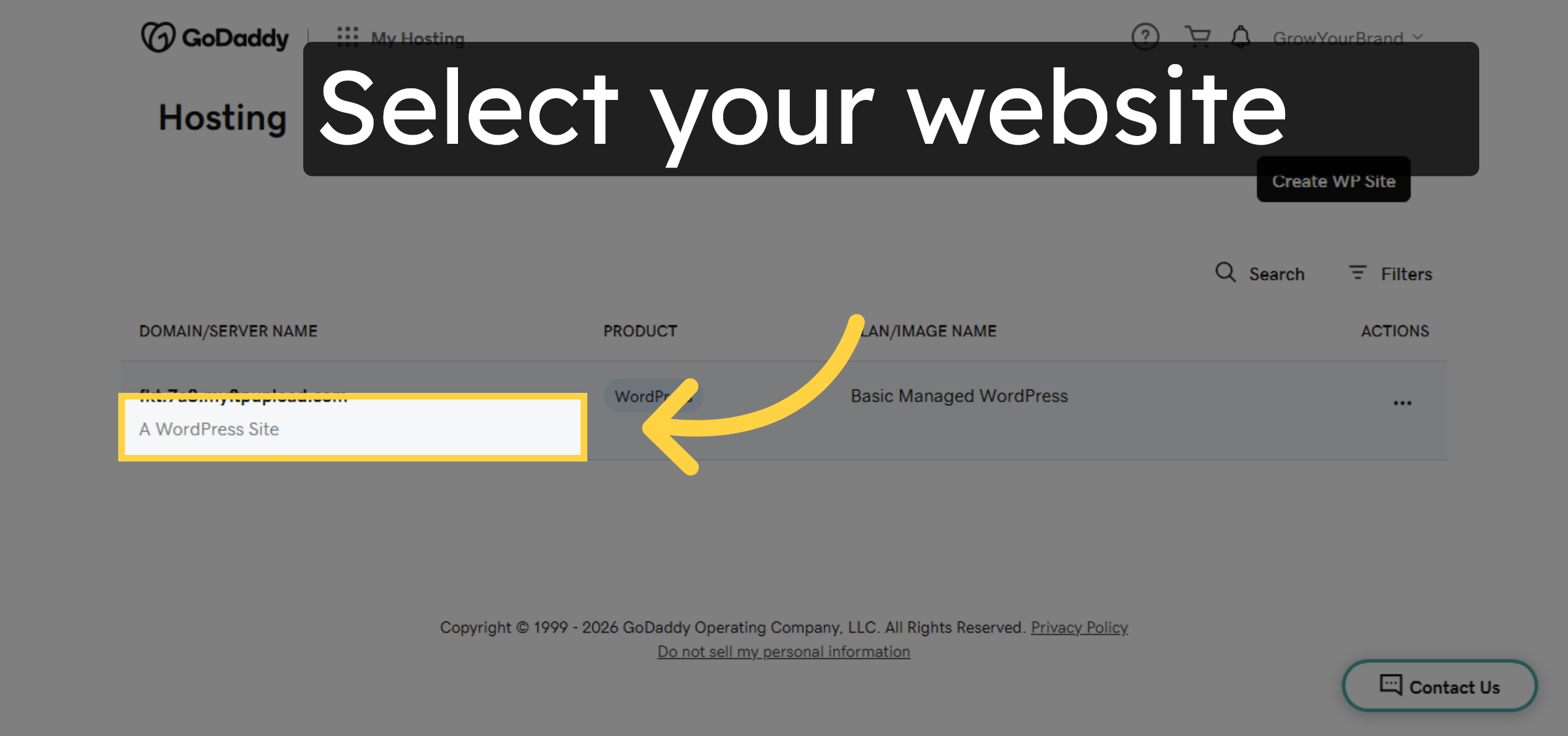
Select a WordPress site from your hosting products to manage its settings and dashboard.

Select A WordPress Site

4. Click Edit Website
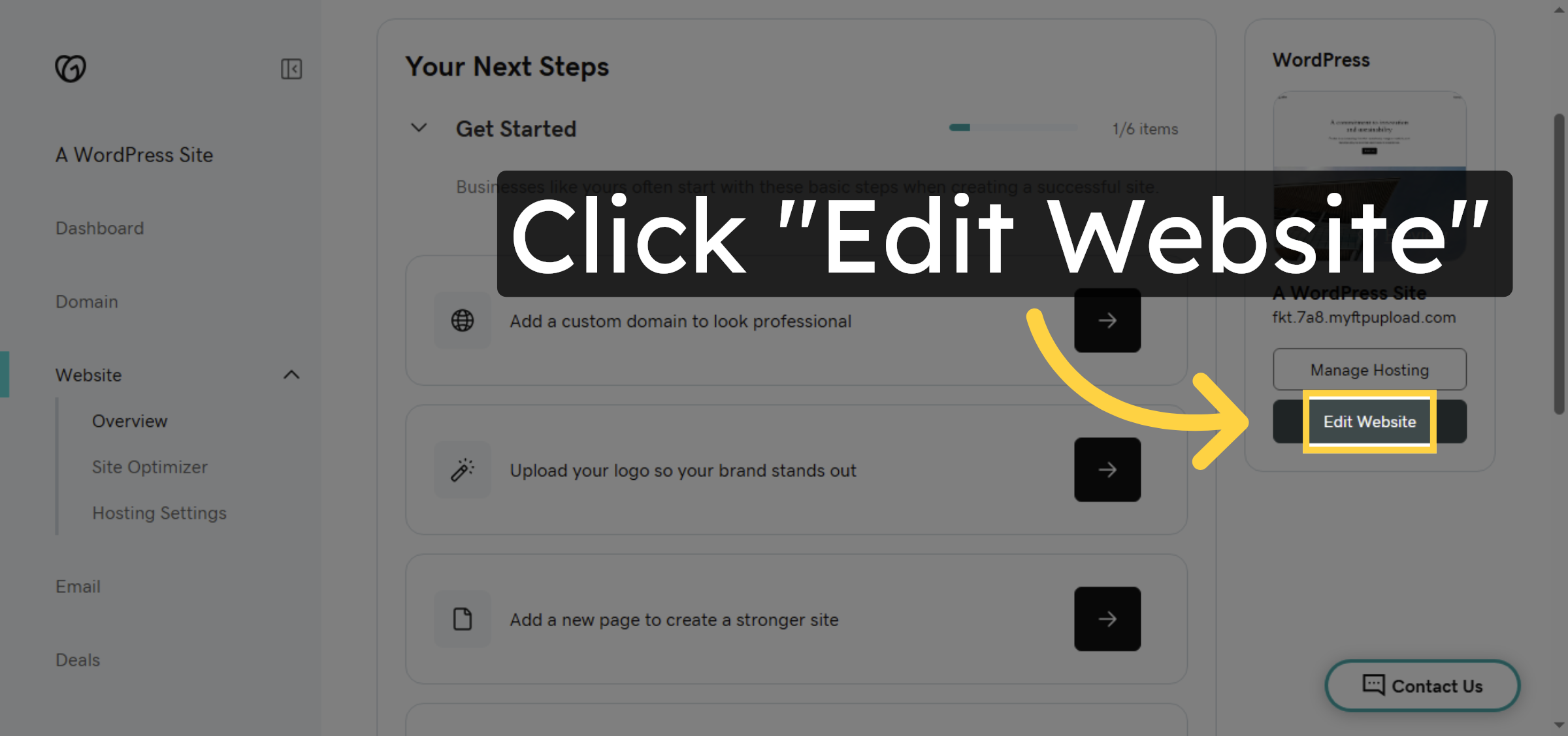
Click the Edit Website button to open the WordPress site editor for your selected site.

Click Edit Website

5. Click Appearance Menu
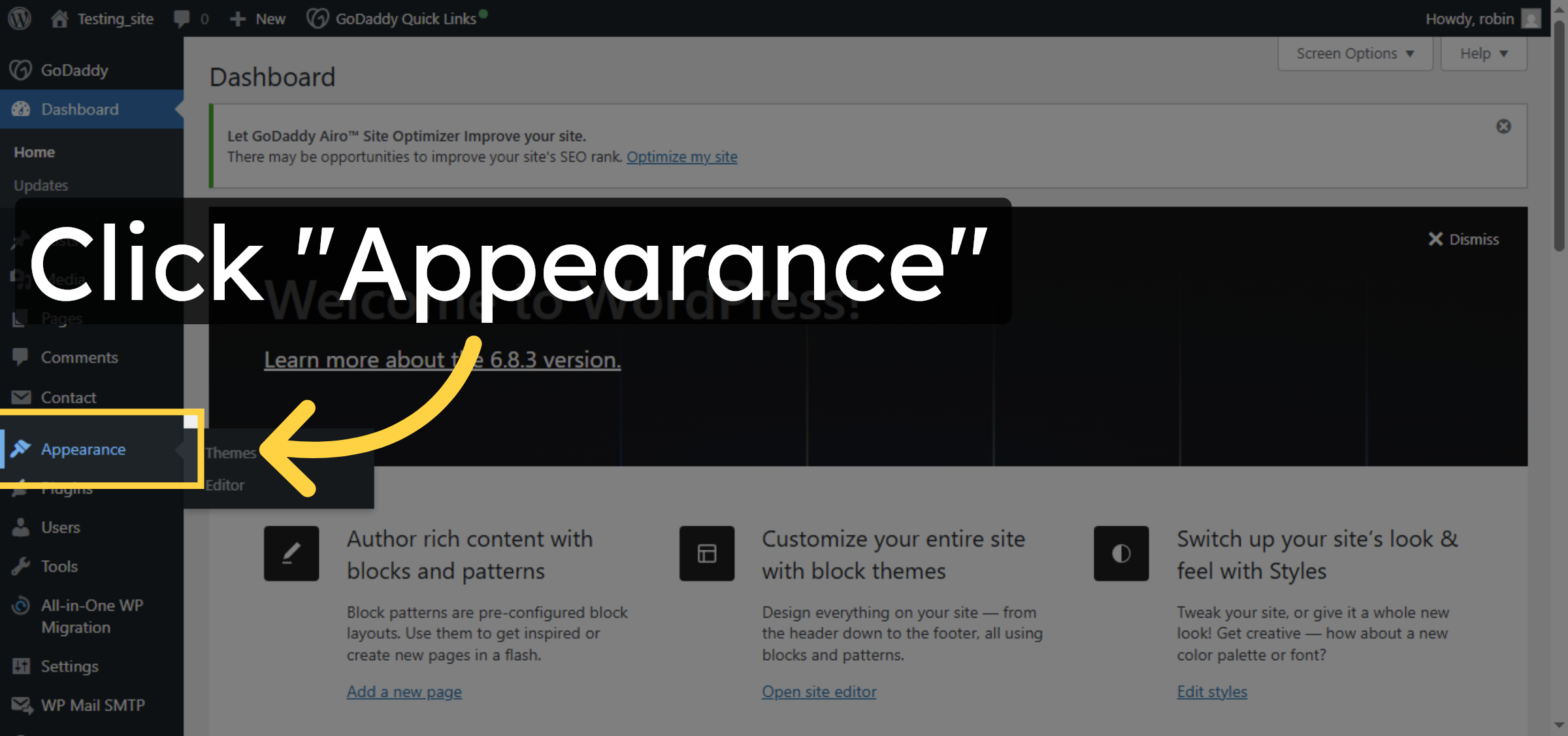
Click the Appearance menu in the WordPress dashboard to manage themes and site design.

Click Appearance Menu

6. Delete unnecessary Themes.
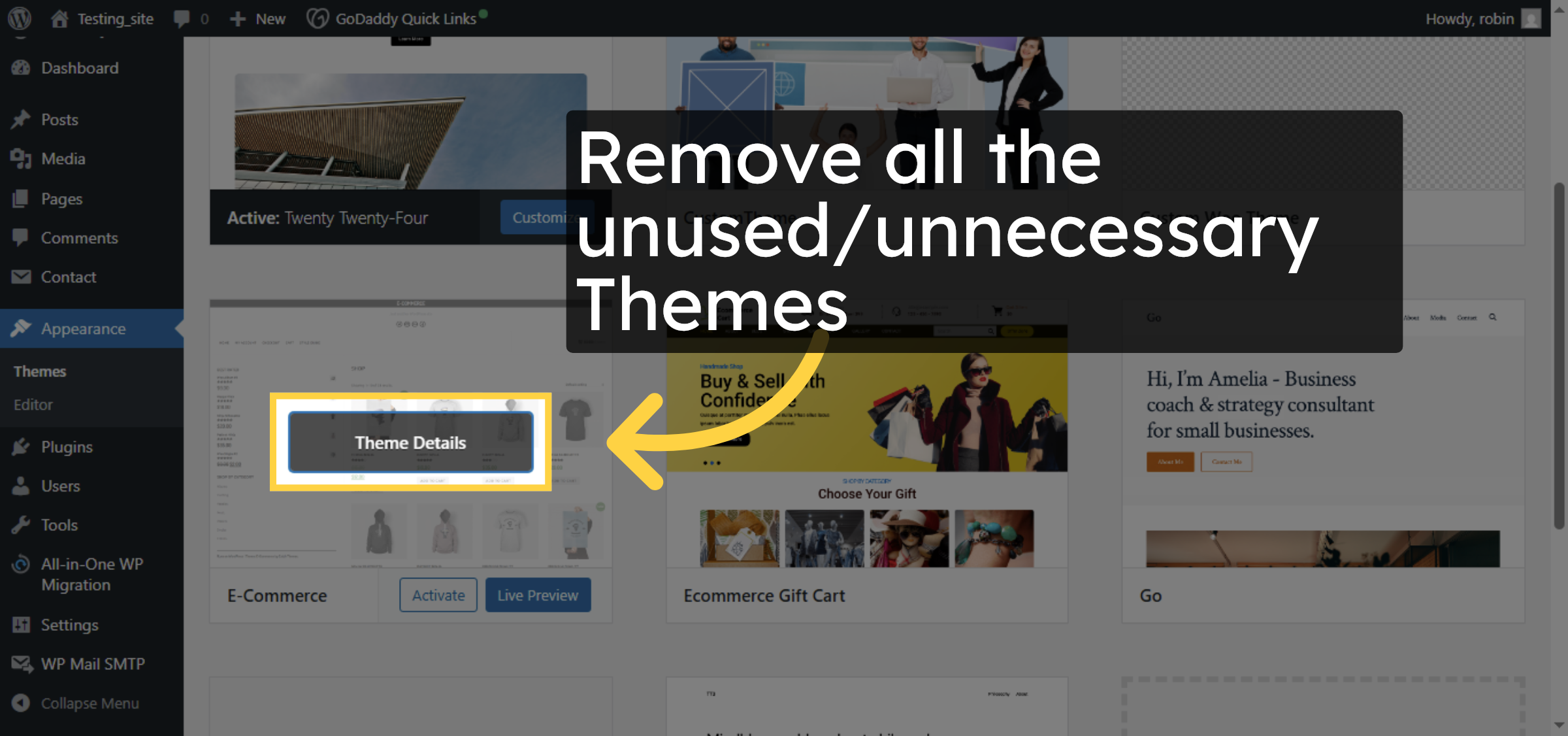
Remove all the unused/unnecessary Themes

Delete unnecessary Themes.

7. Delete Unused Theme
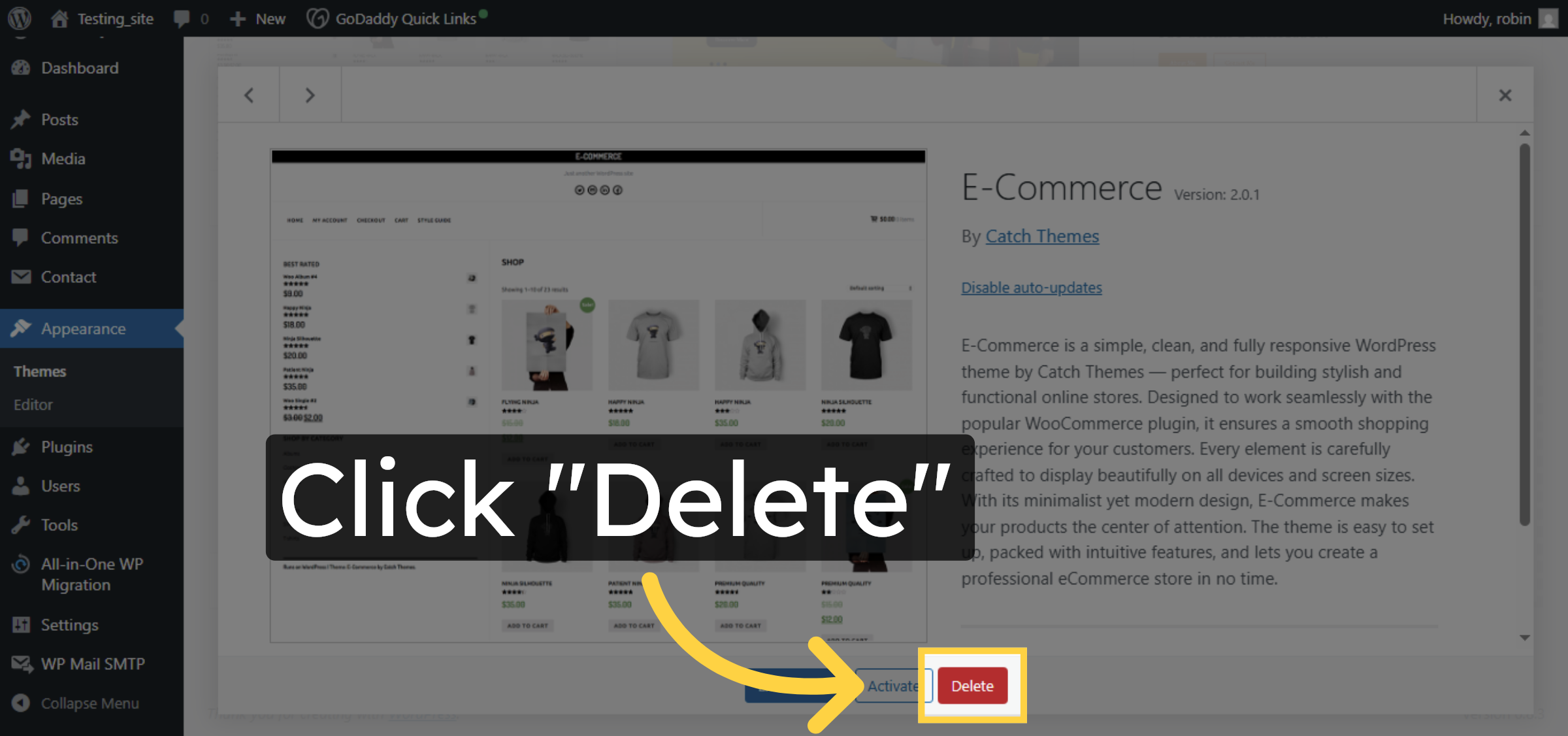
Delete any unused or unnecessary themes to reduce site load and improve performance.

Delete Unused Theme

8. Open Plugins Section
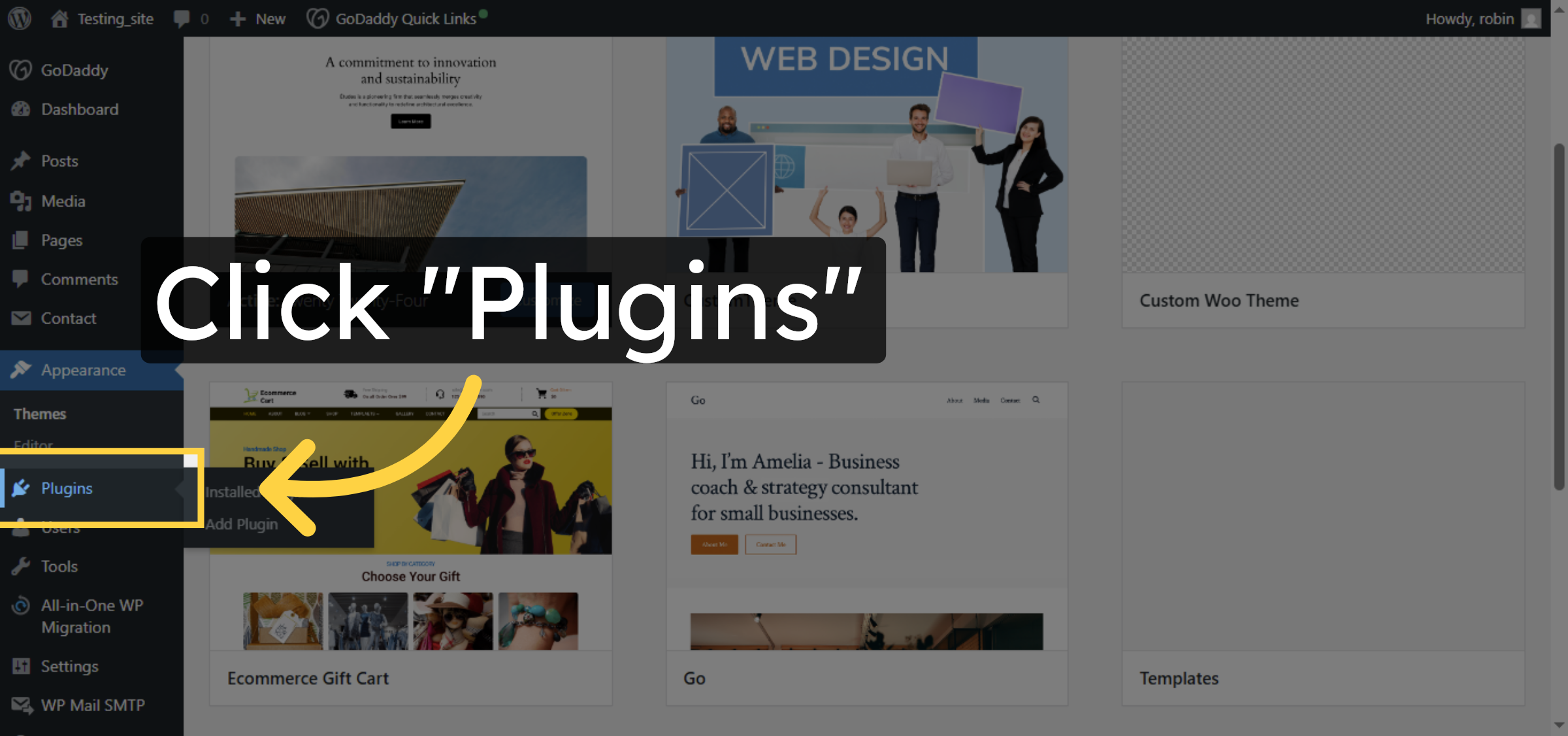
Open the Plugins section in WordPress to manage installed plugins.

Open Plugins Section

9. Delete Unused Plugins
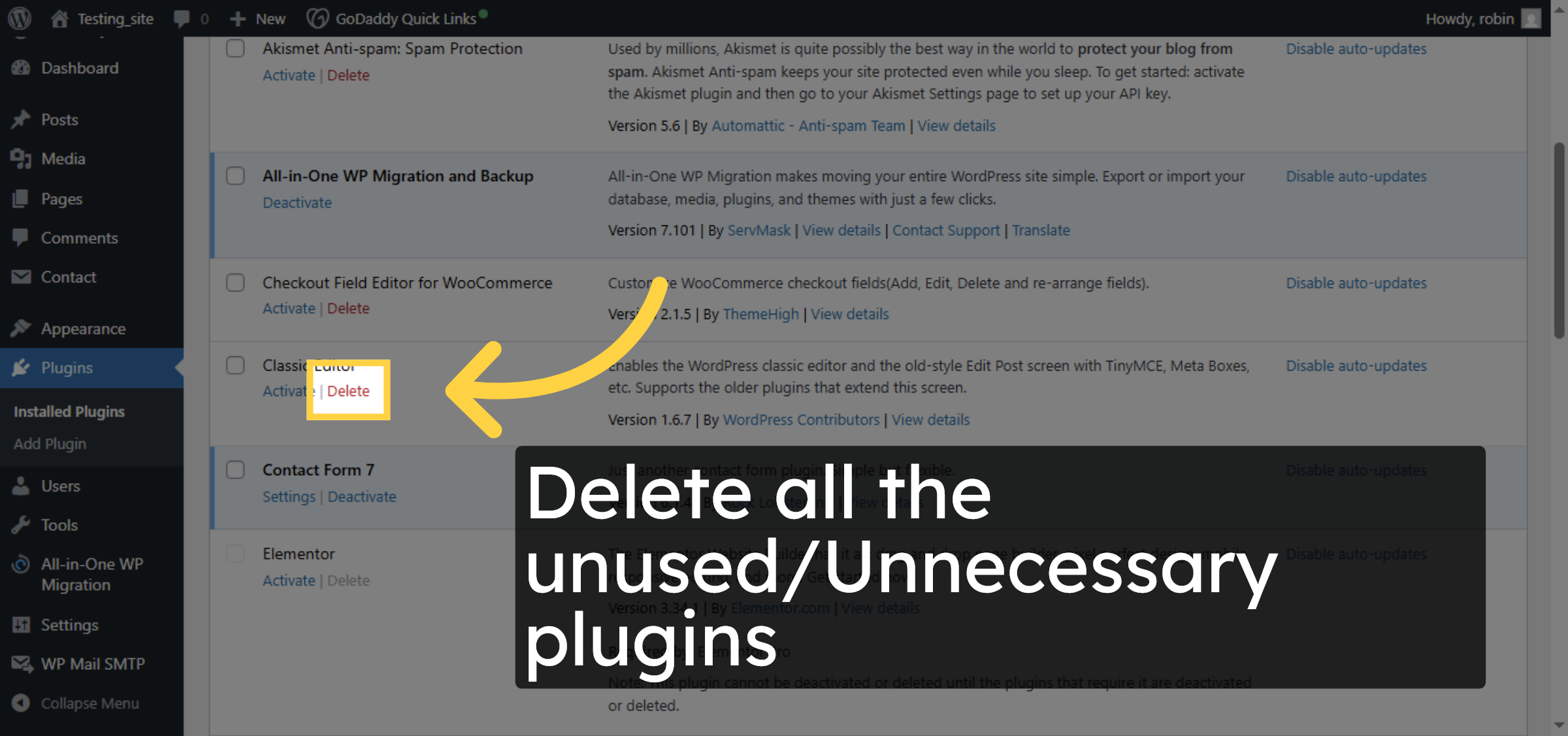
Delete any plugins that are not in use to optimize your WordPress site’s speed.

Delete Unused Plugins

10. Access Hosting Settings
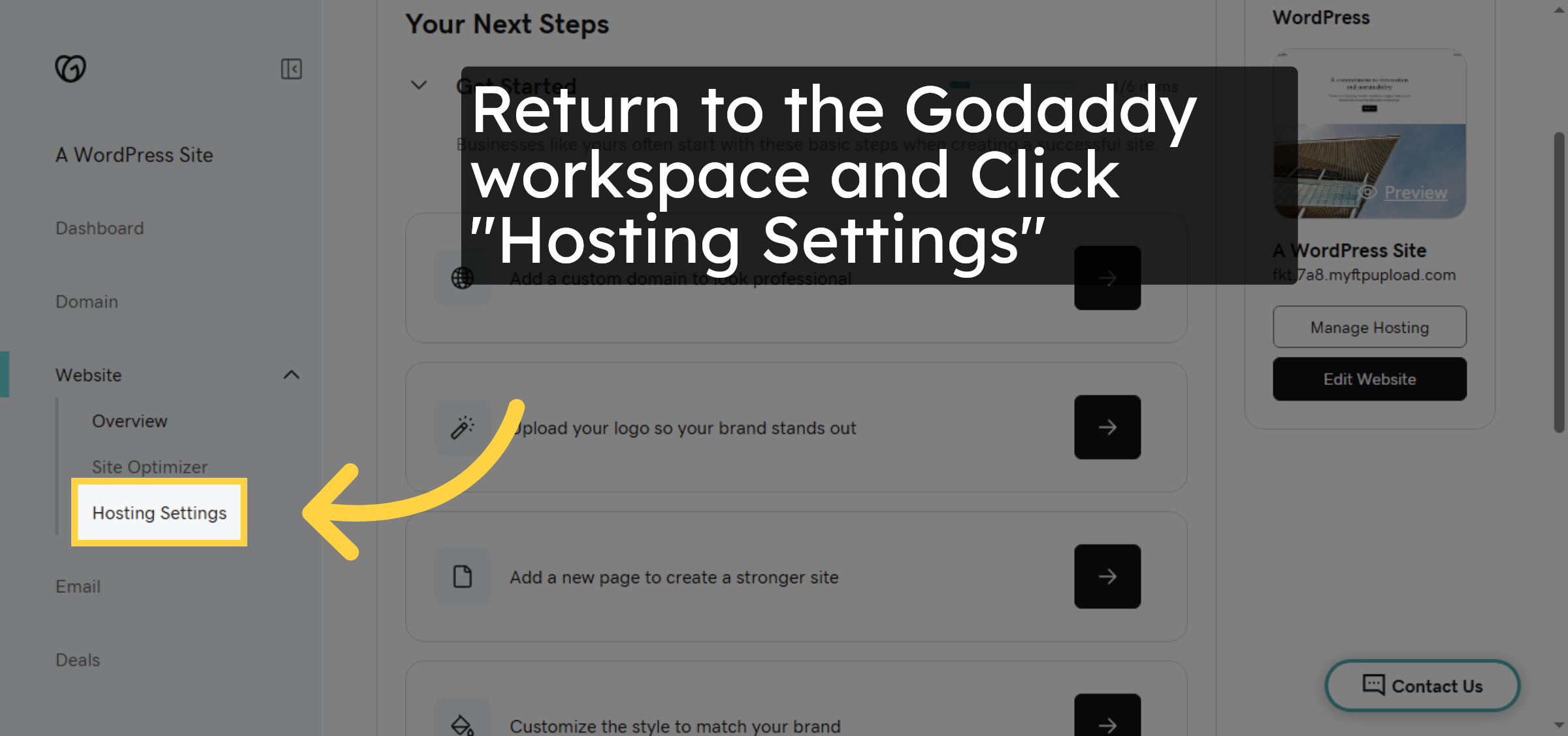
Return to the Godaddy workspace and Click “Hosting Settings”.

Access Hosting Settings

11. Click Change PHP Version
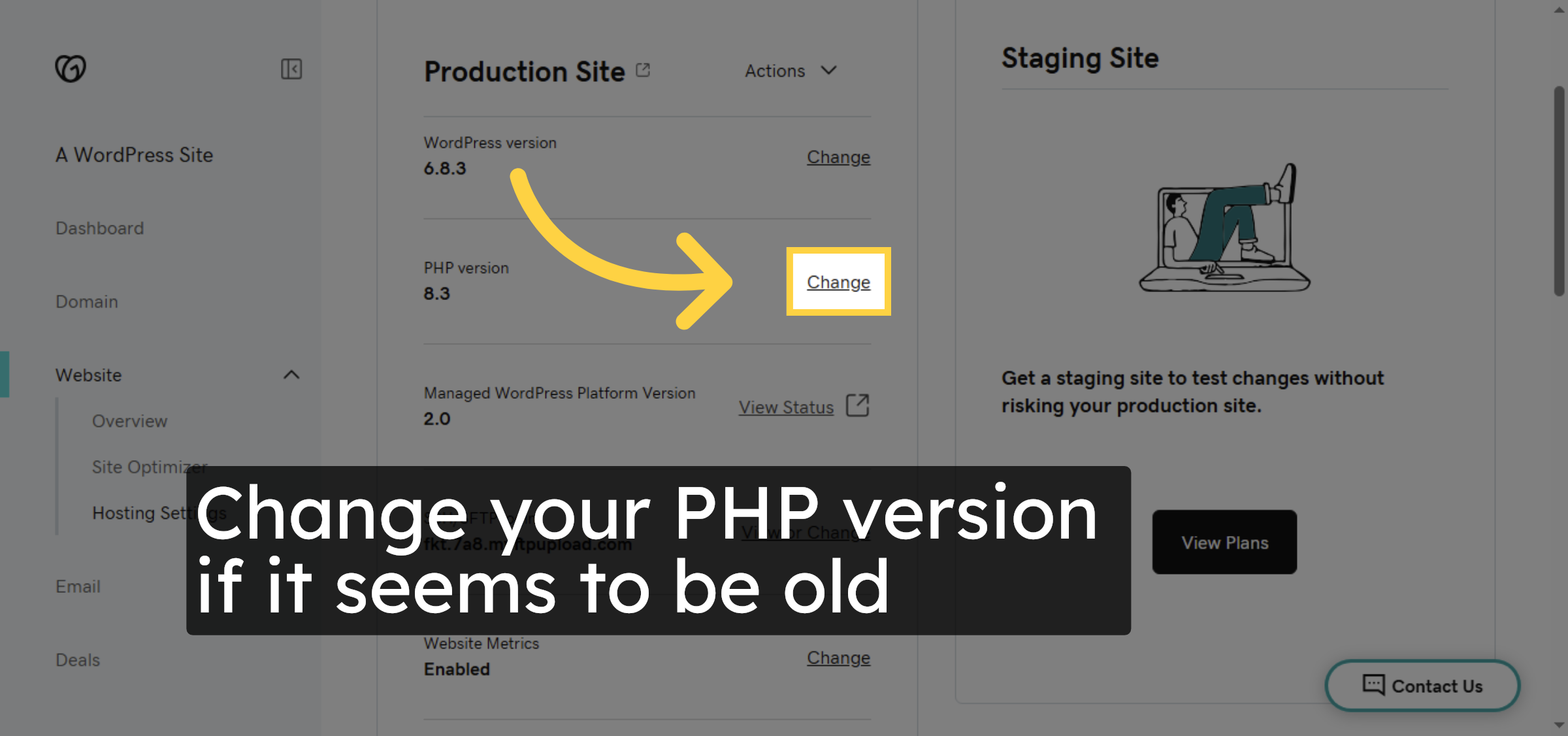
Click the Change button to update your PHP version for better performance.

Click Change PHP Version

12. Select PHP Version
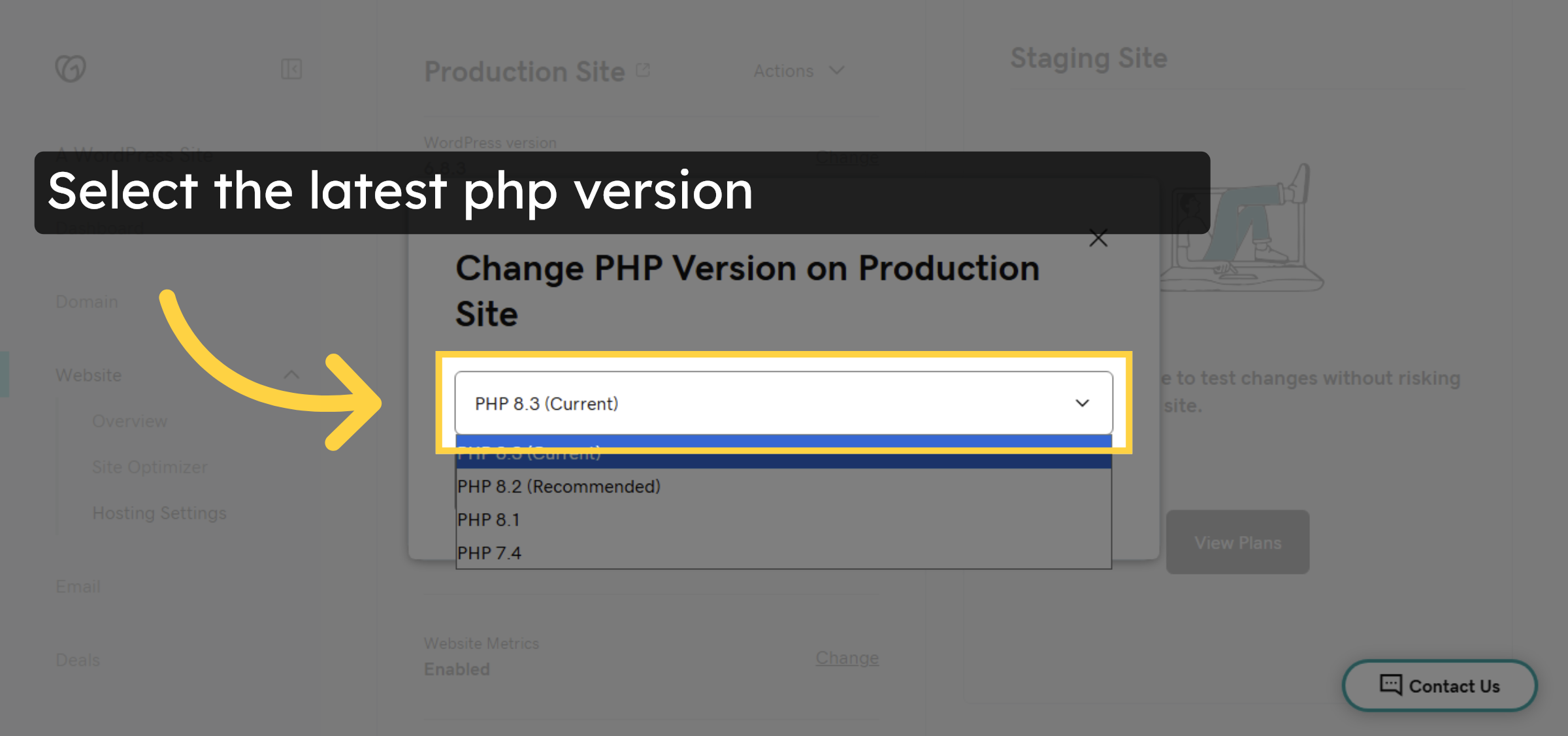
Select the latest php version.

Select PHP Version

13. Save Hosting Changes
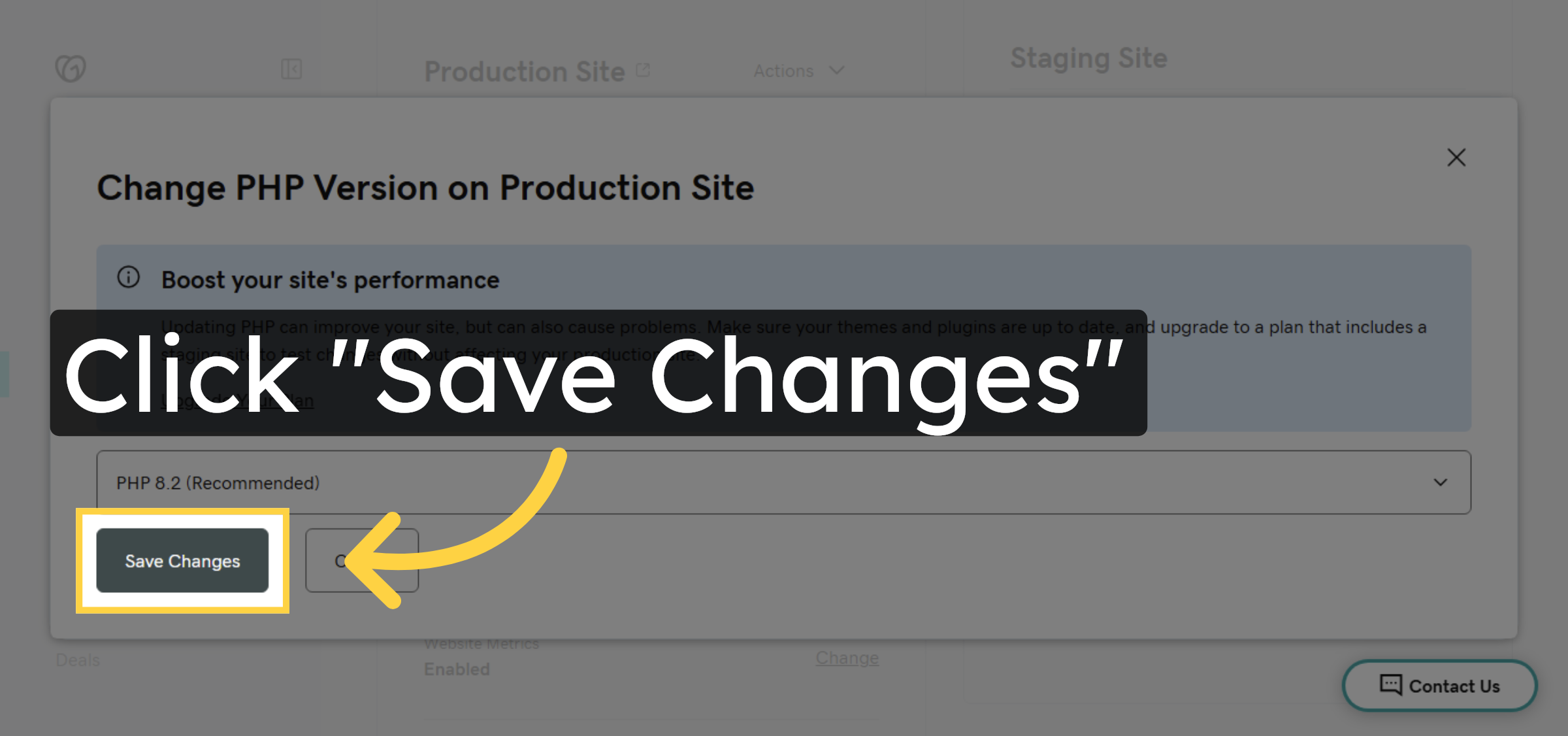
Click Save Changes to apply the new PHP version.

Save Hosting Changes

14. Flush Cache
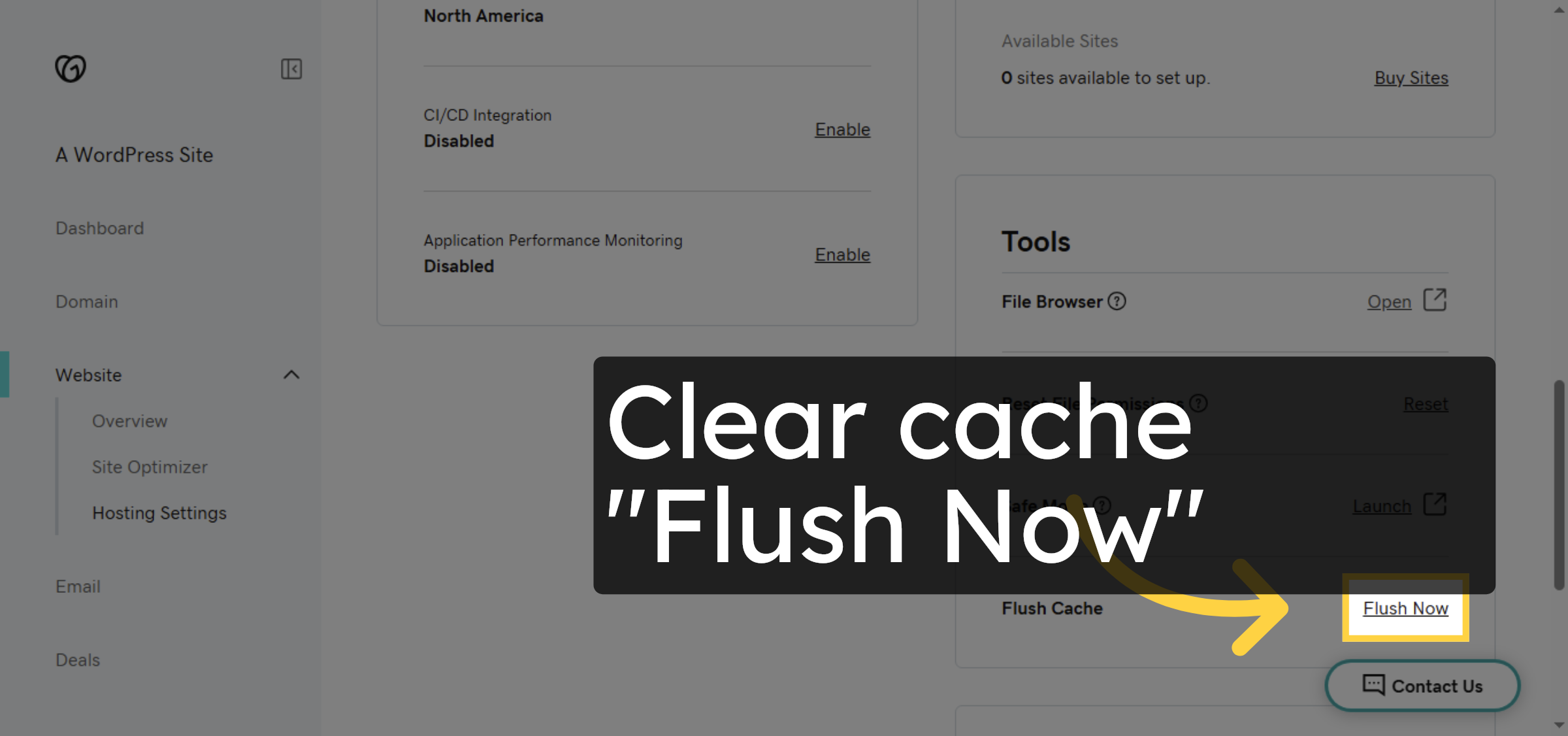
Click Flush Now to clear your hosting cache and refresh your site settings.

Flush Cache

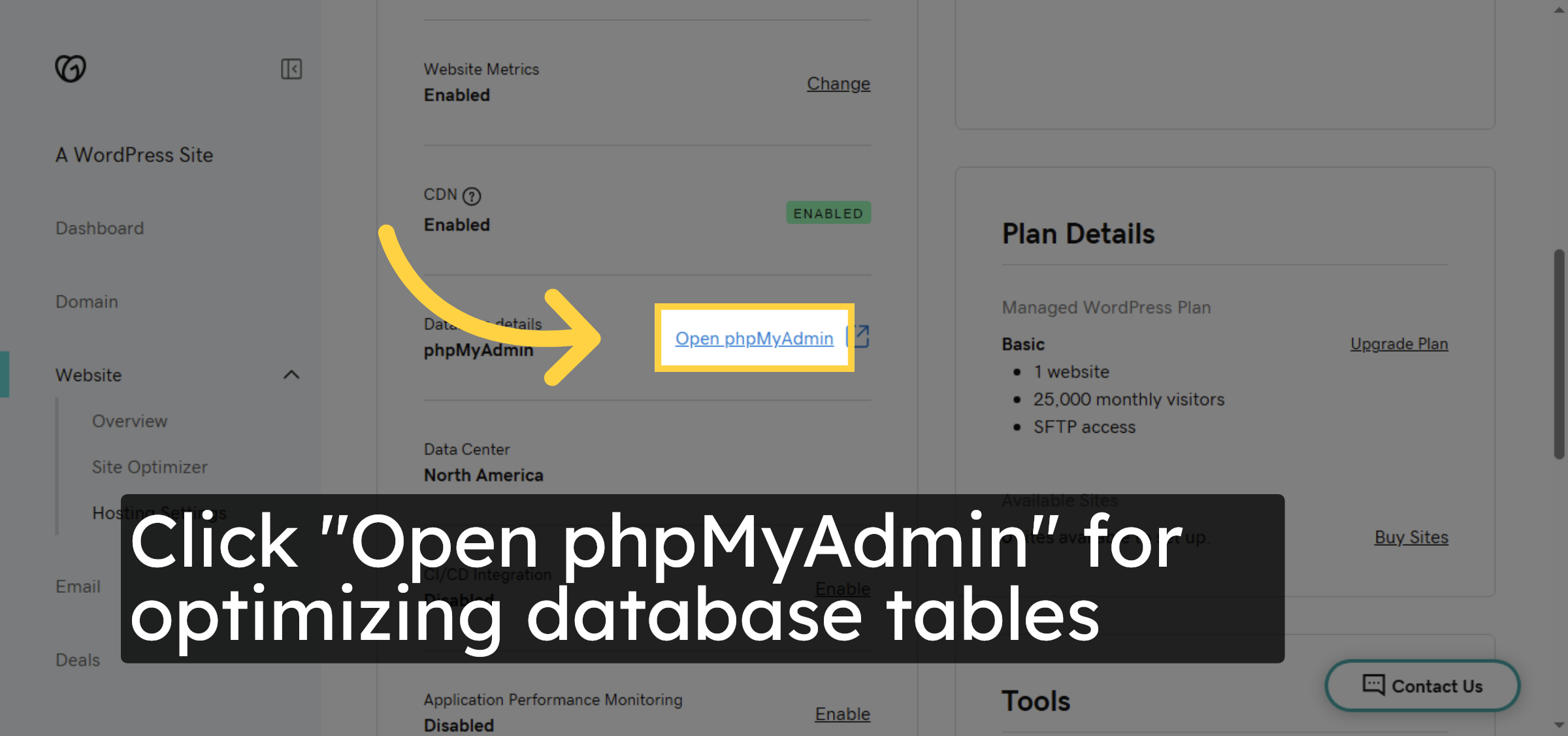
15. Open phpMyAdmin

Click “Open phpMyAdmin” for optimizing database tables

Open phpMyAdmin

16. Select WordPress Database
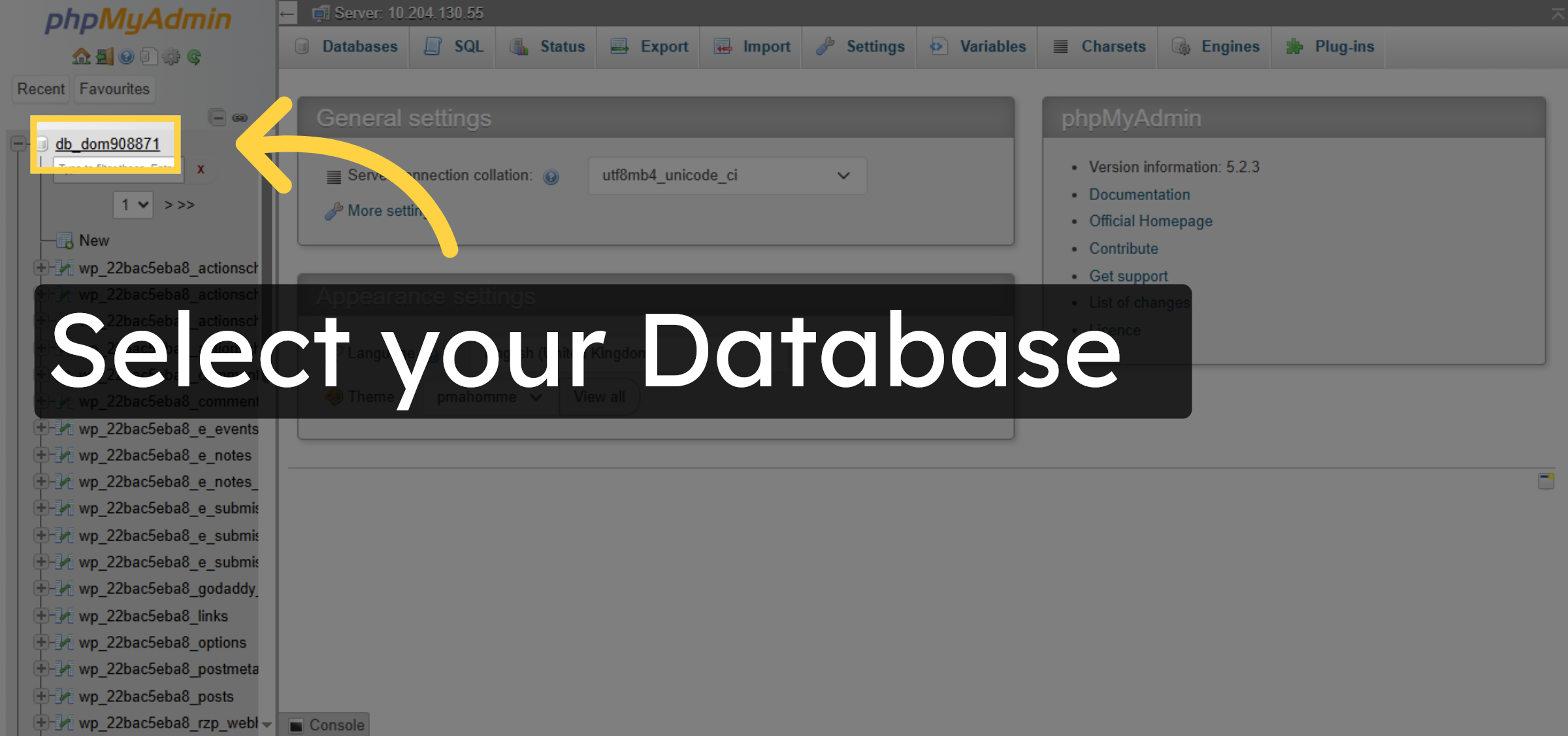
Select your WordPress database from the list to view its tables and data.

Select WordPress Database

17. Select rows to optimize.
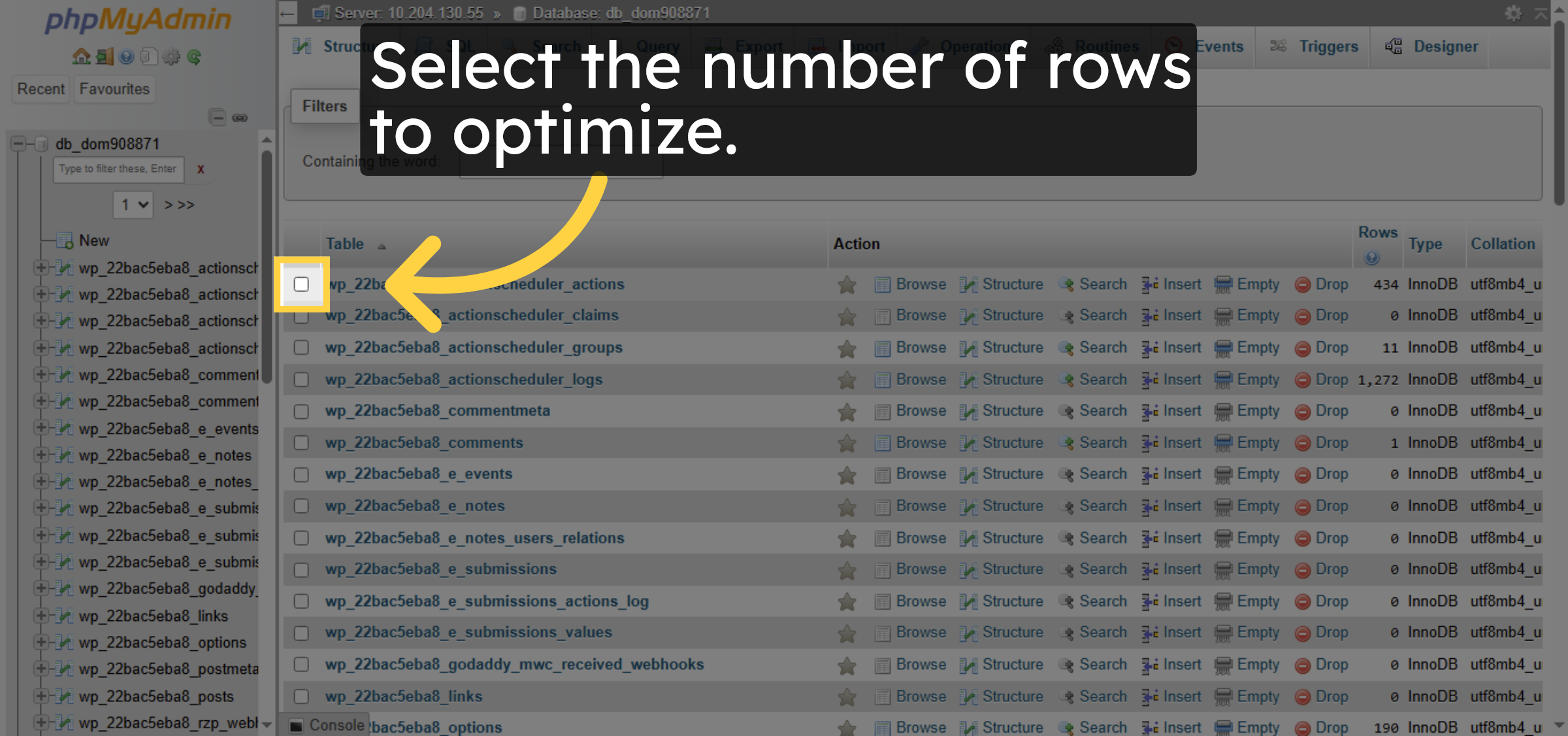
Select the number of rows to optimize.

Select rows to optimize.

18. Click on Dropdown.
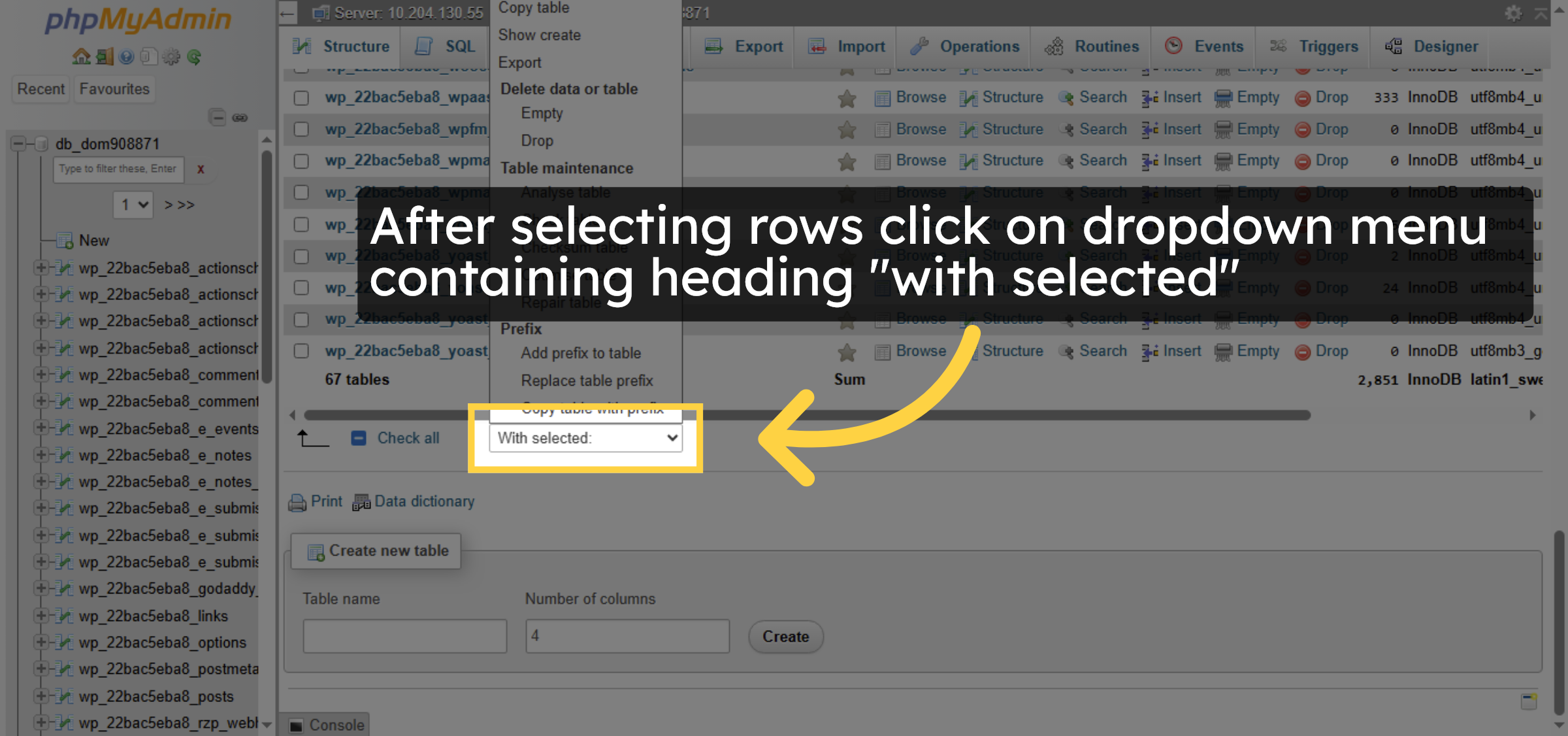
After selecting rows click on dropdown menu containing heading “with selected”

Click on Dropdown.

19. Select optimize table option.
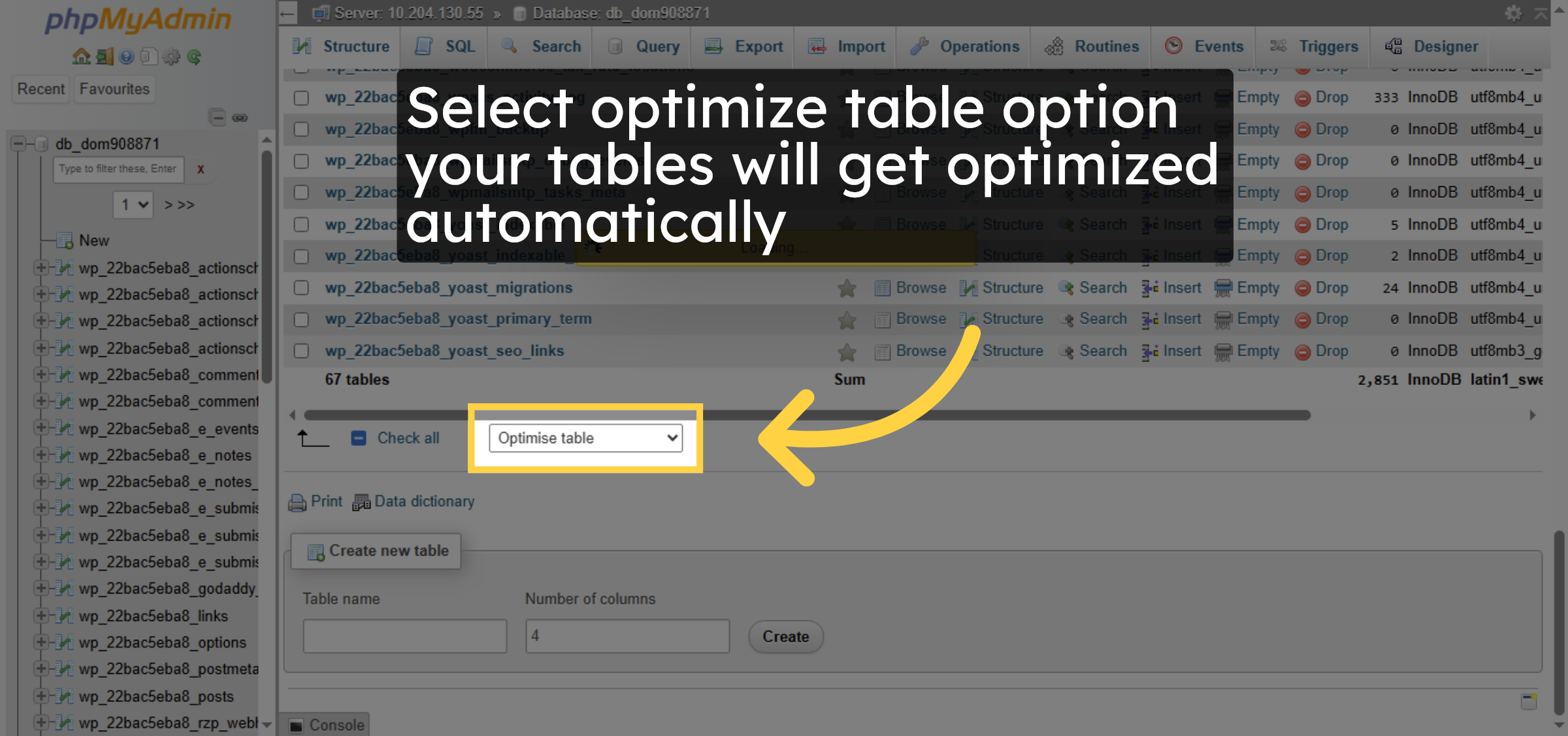
Select optimize table option your tables will get optimized automatically.

Select optimize table option.

20. Verify Optimization.
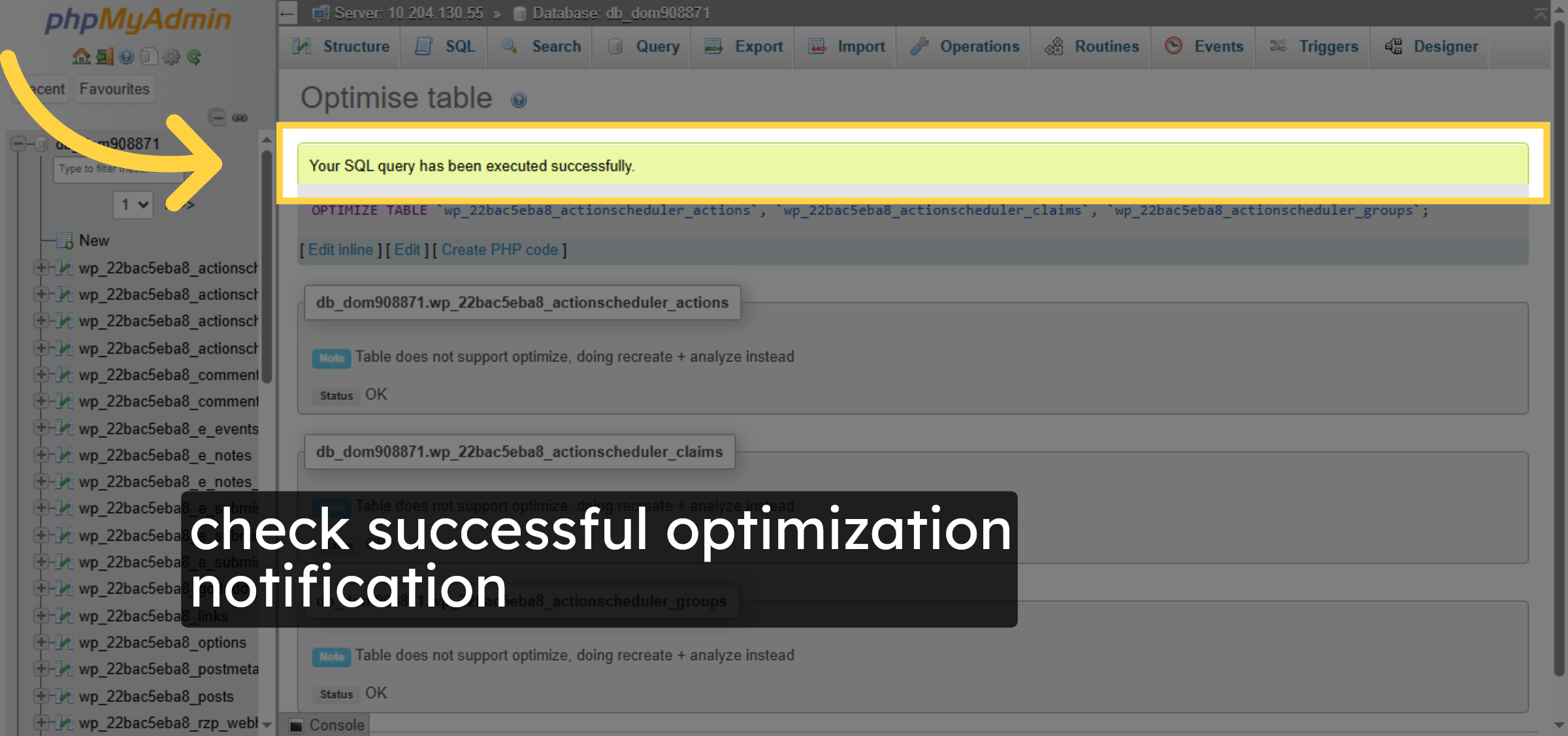
check successful optimization notification.

Verify Optimization.

21. Method 2

This is Another Method to fix Slow WordPress Admin Dashboard through wp-rocket plugin“Using the WP Rocket plugin, we can improve and fix a slow WordPress Admin Dashboard by optimizing the database, controlling the Heartbeat API, and reducing server load.”
Method 2

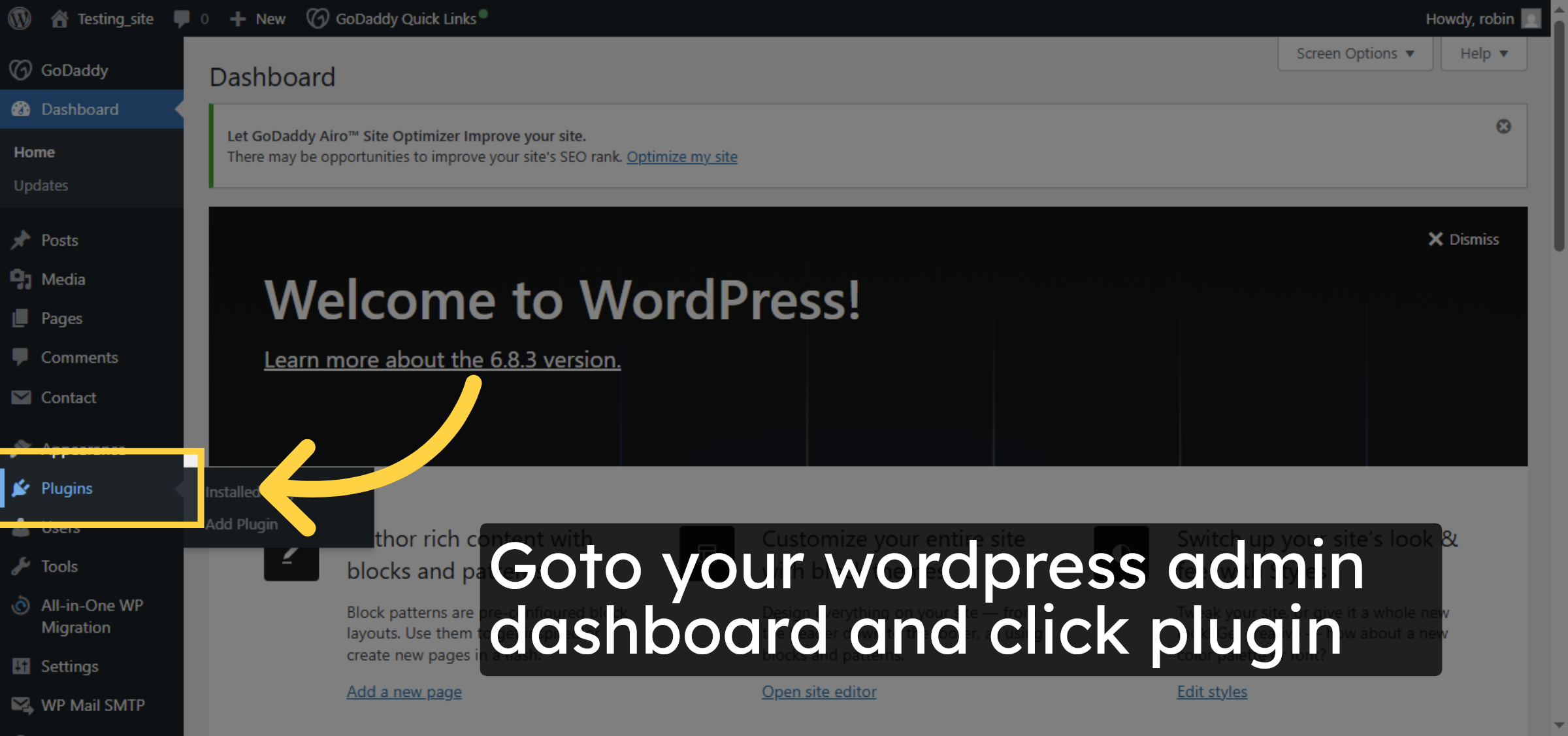
22. Open Plugins Menu

Goto your wordpress admin dashboard and click plugin.

Open Plugins Menu

Ad Banner

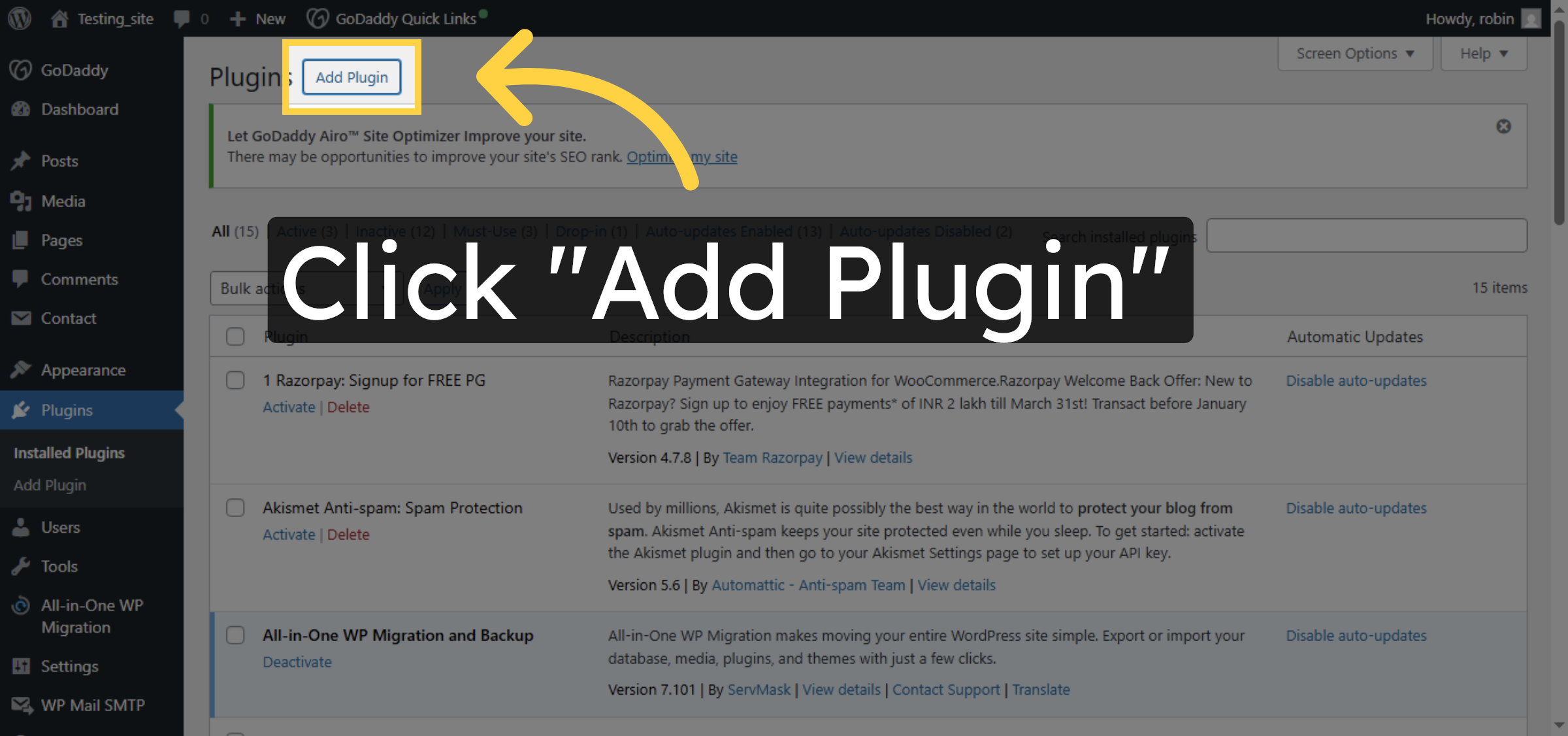
23. Add New Plugin

Click Add Plugin to upload and install new plugins to enhance your site functionality.

Add New Plugin

24. Upload Plugin File
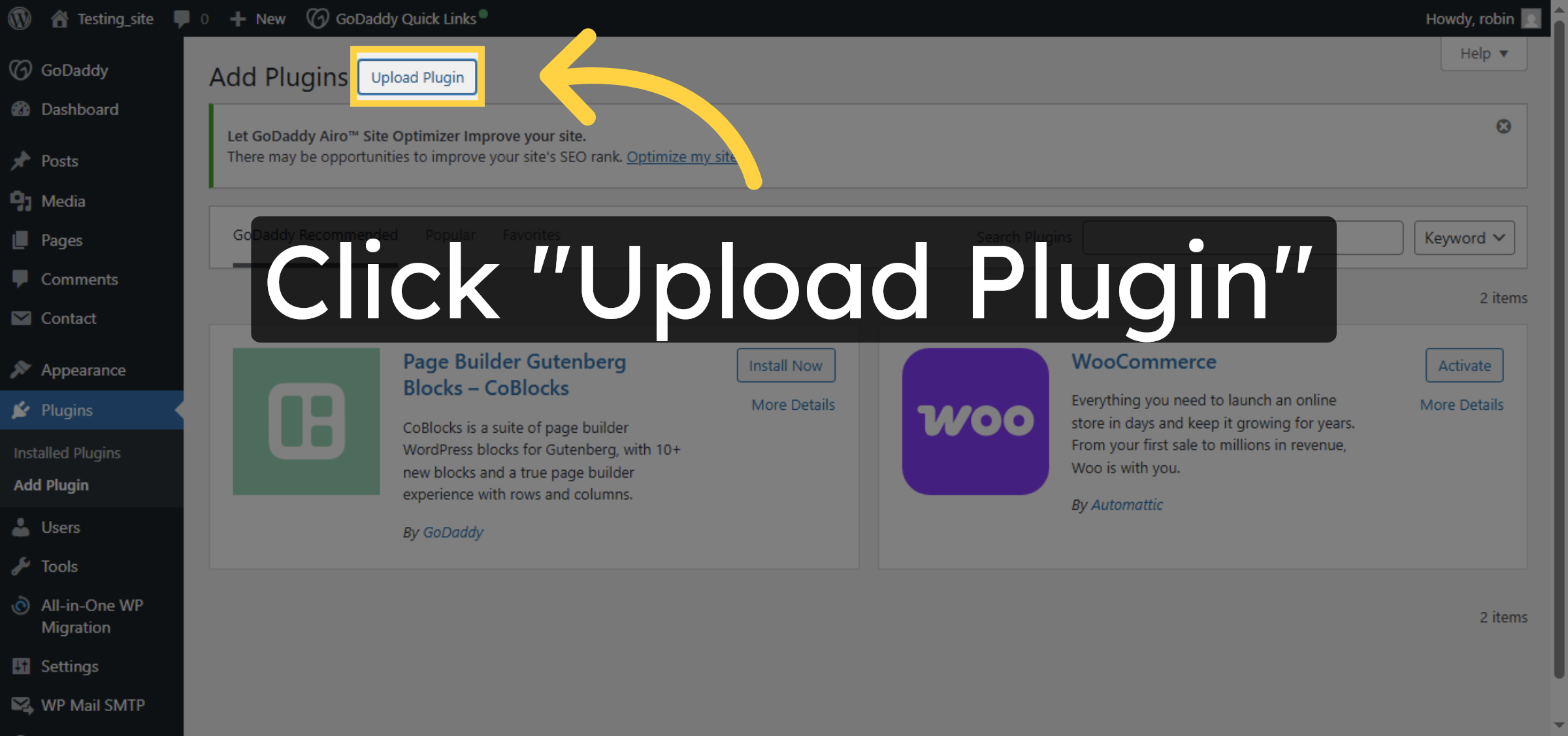
Click Upload Plugin to select a plugin zip file from your computer for installation.

Upload Plugin File

25. Search WP Rocket
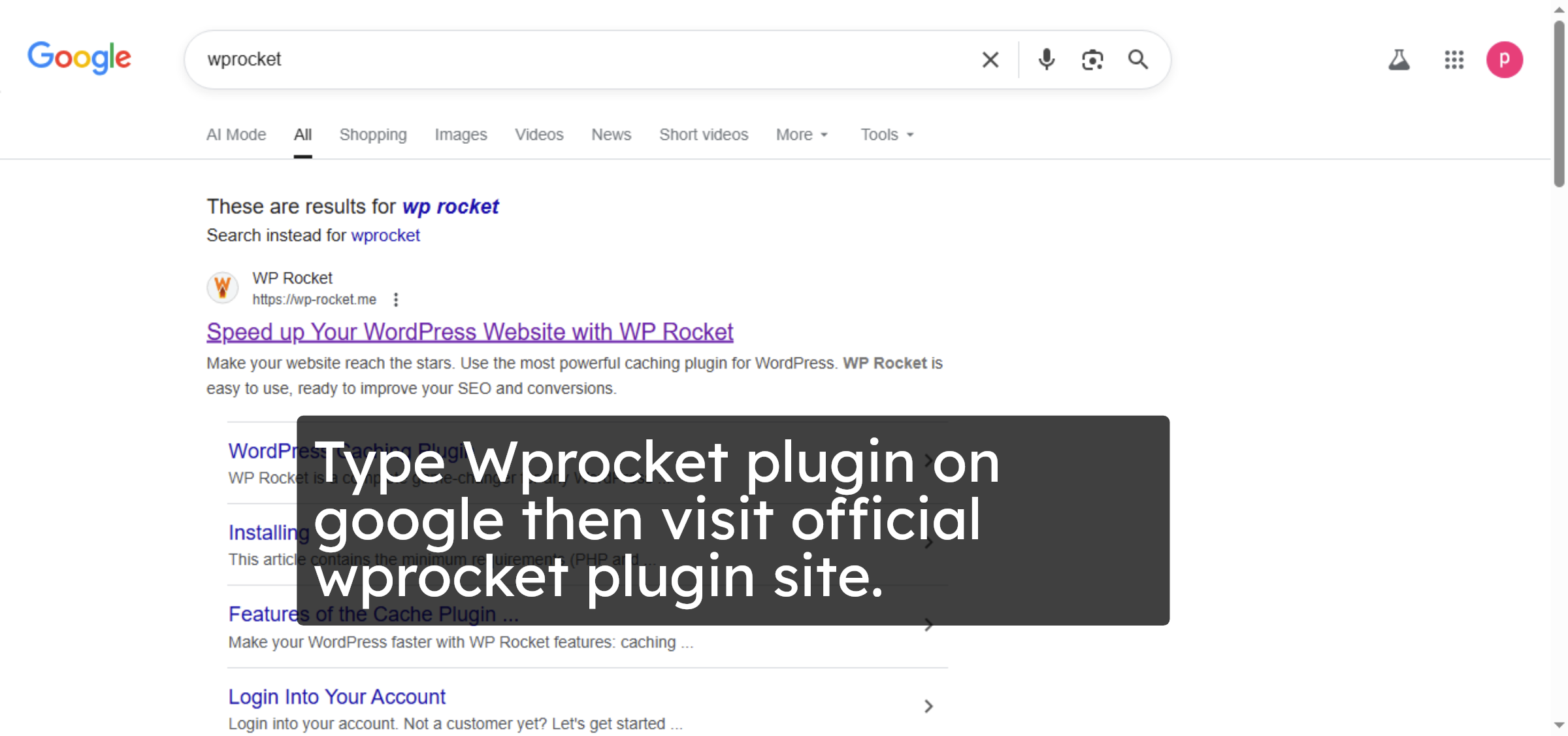
Type Wprocket plugin on google then visit official wprocket plugin site.

Search WP Rocket

26. Select WP Rocket Site
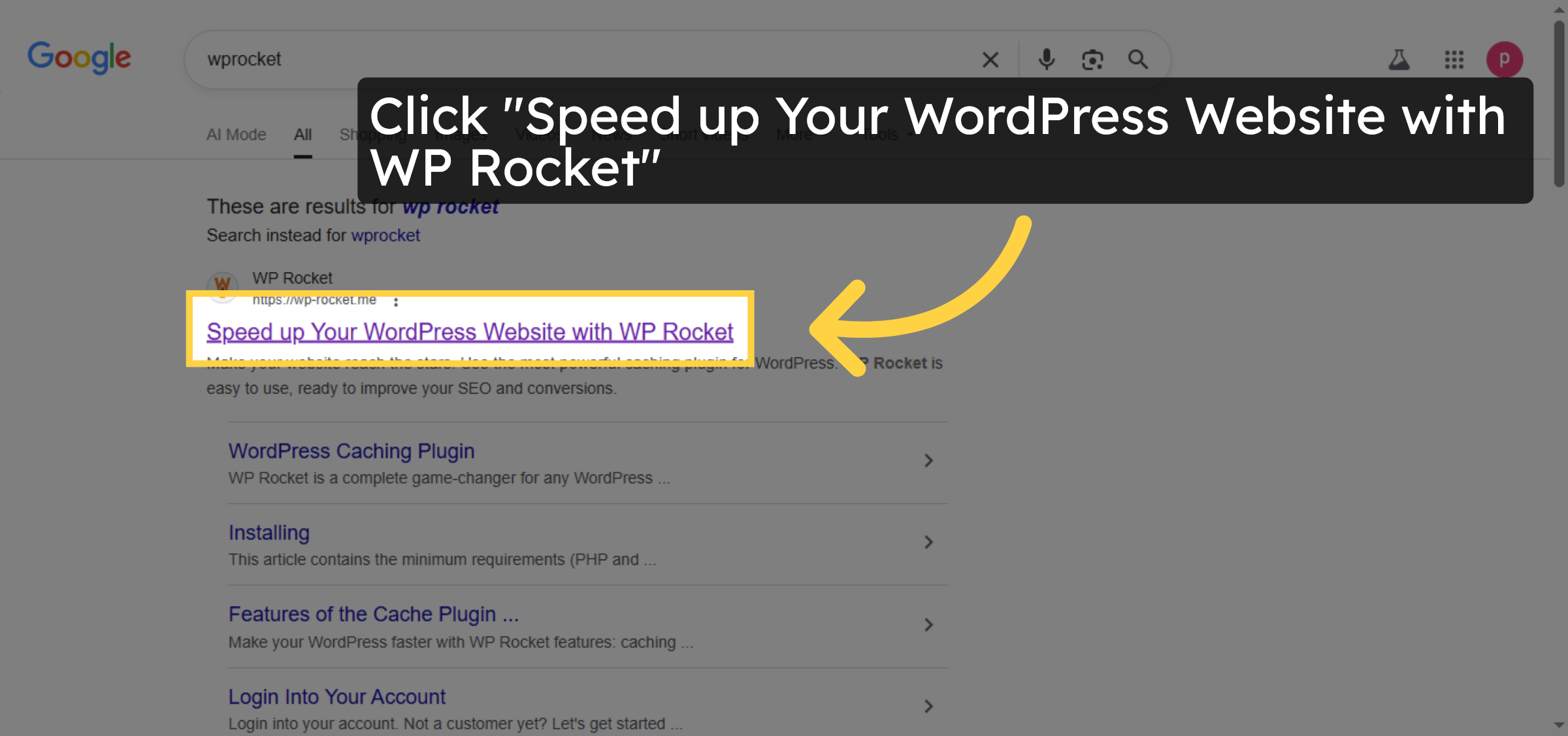
Click the WP Rocket link in search results to visit the official plugin website.

Select WP Rocket Site

27. Get WP Rocket Plugin
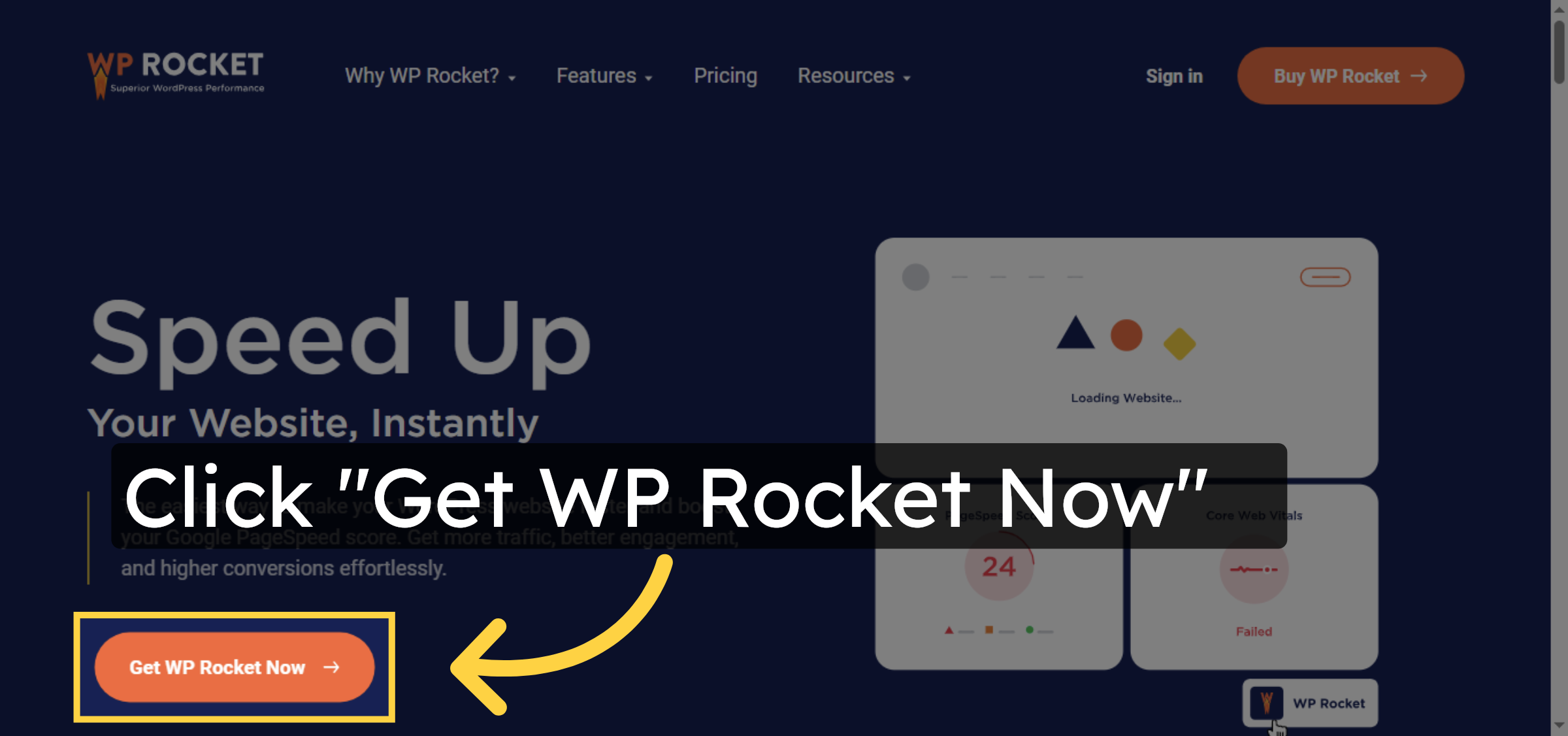
Click Get WP Rocket Now to proceed with purchasing or downloading the plugin.

Get WP Rocket Plugin

28. Purchase WP Rocket
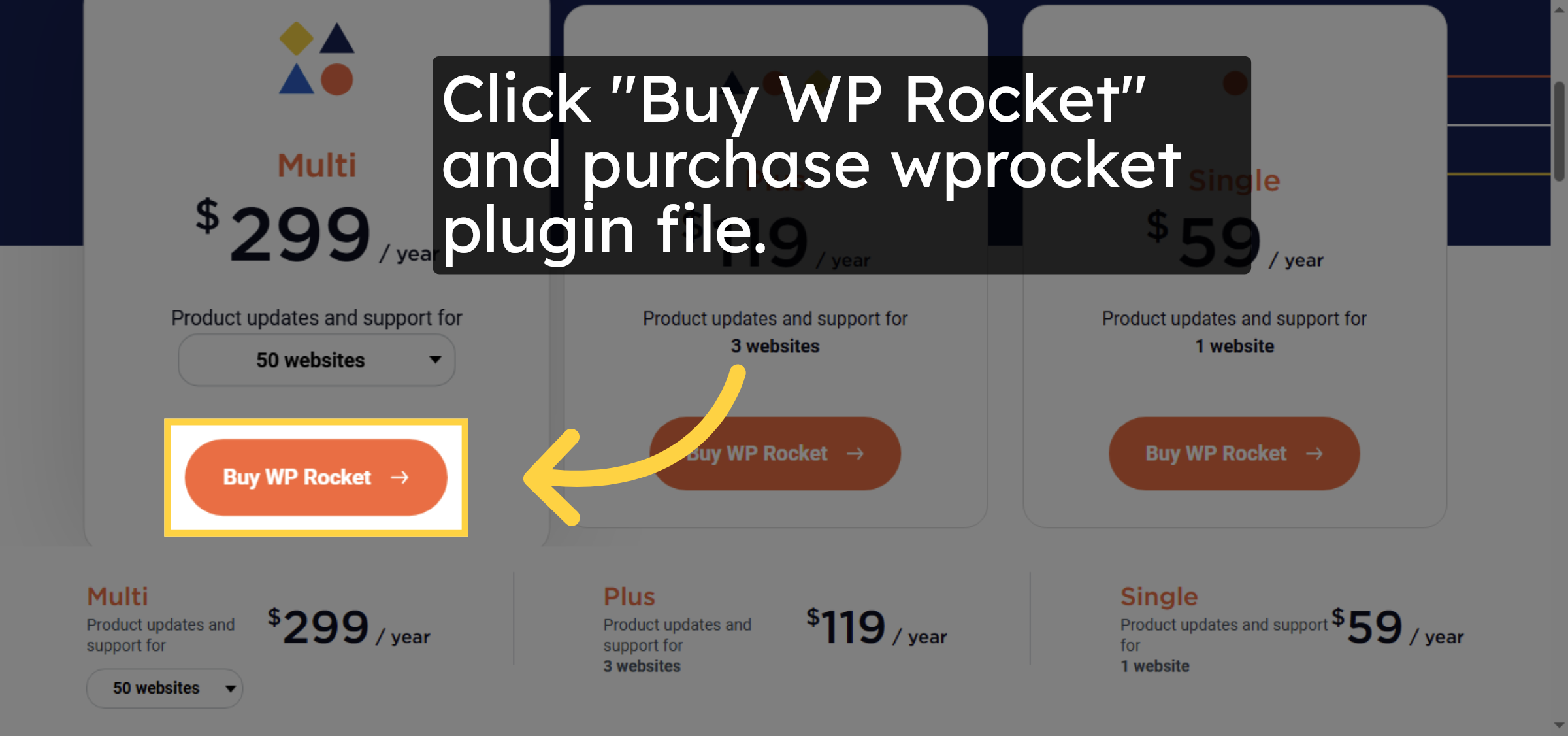
Click “Buy WP Rocket” and purchase wprocket plugin file.

Purchase WP Rocket

29. Select Plugin Zip File
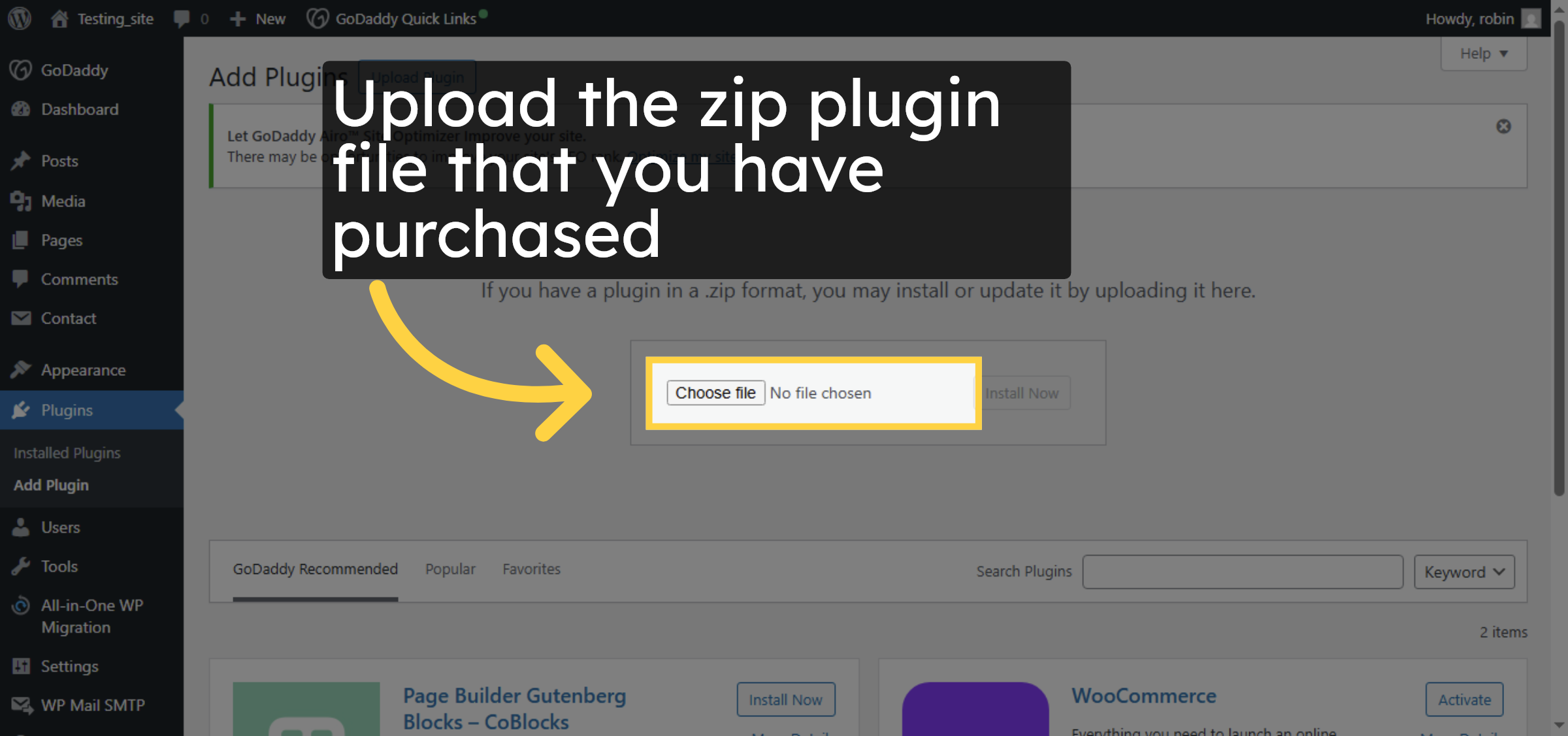
Upload the zip plugin file that you have purchased.

Select Plugin Zip File

30. Install Plugin
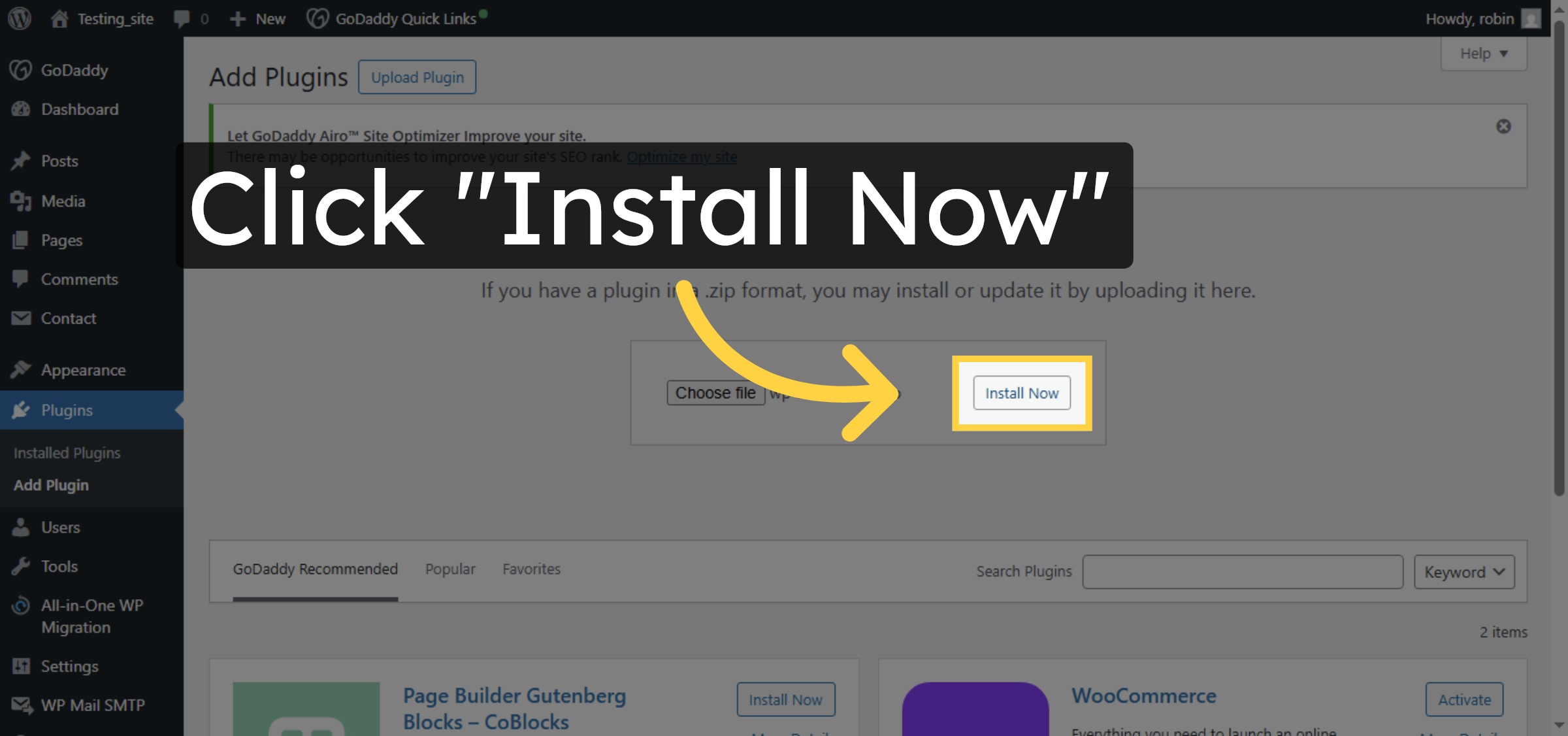
Click Install Now to upload and install the WP Rocket plugin on your WordPress site.

Install Plugin

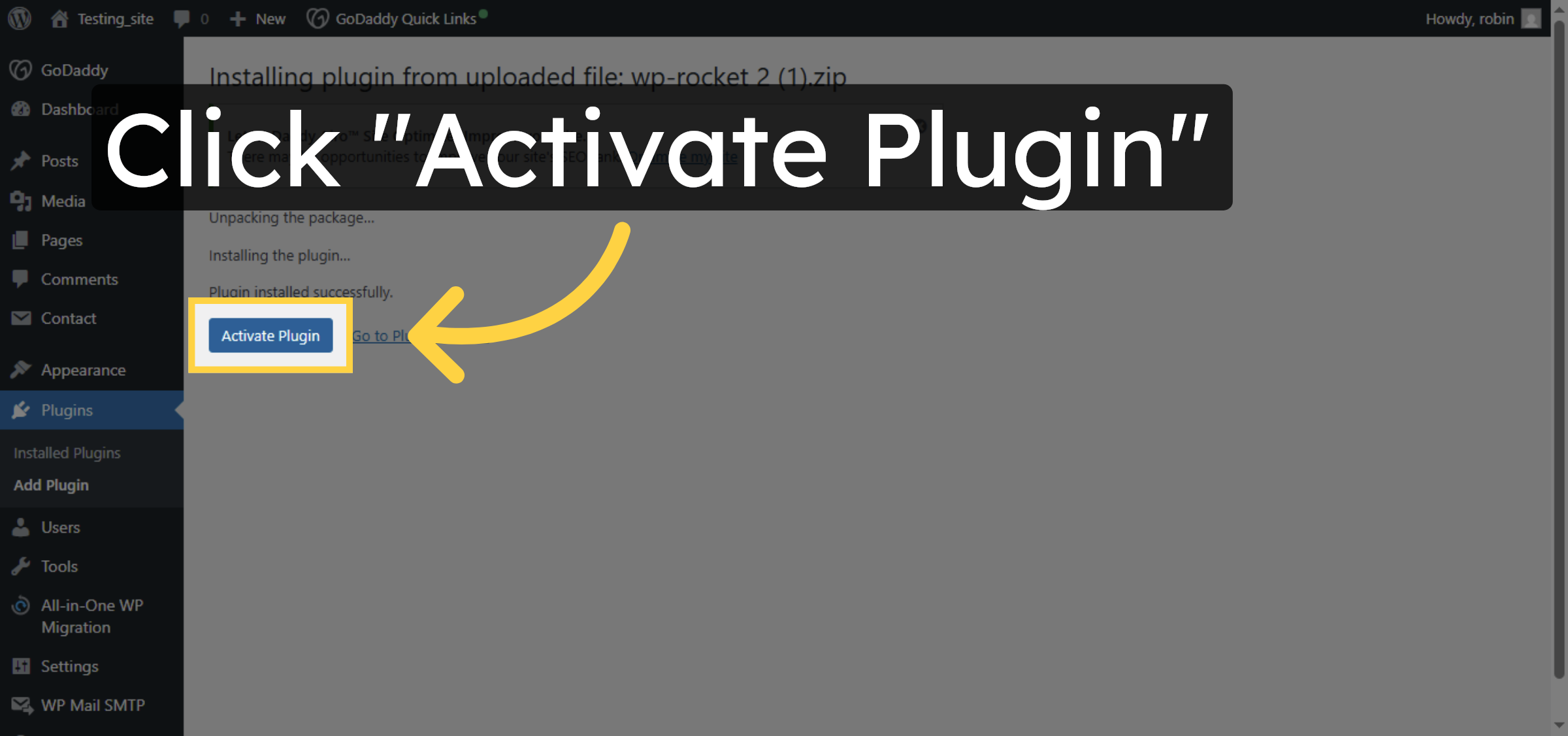
31. Activate Plugin

Click Activate Plugin to enable WP Rocket and start using its optimization features.

Activate Plugin

32. Open WP Rocket Settings
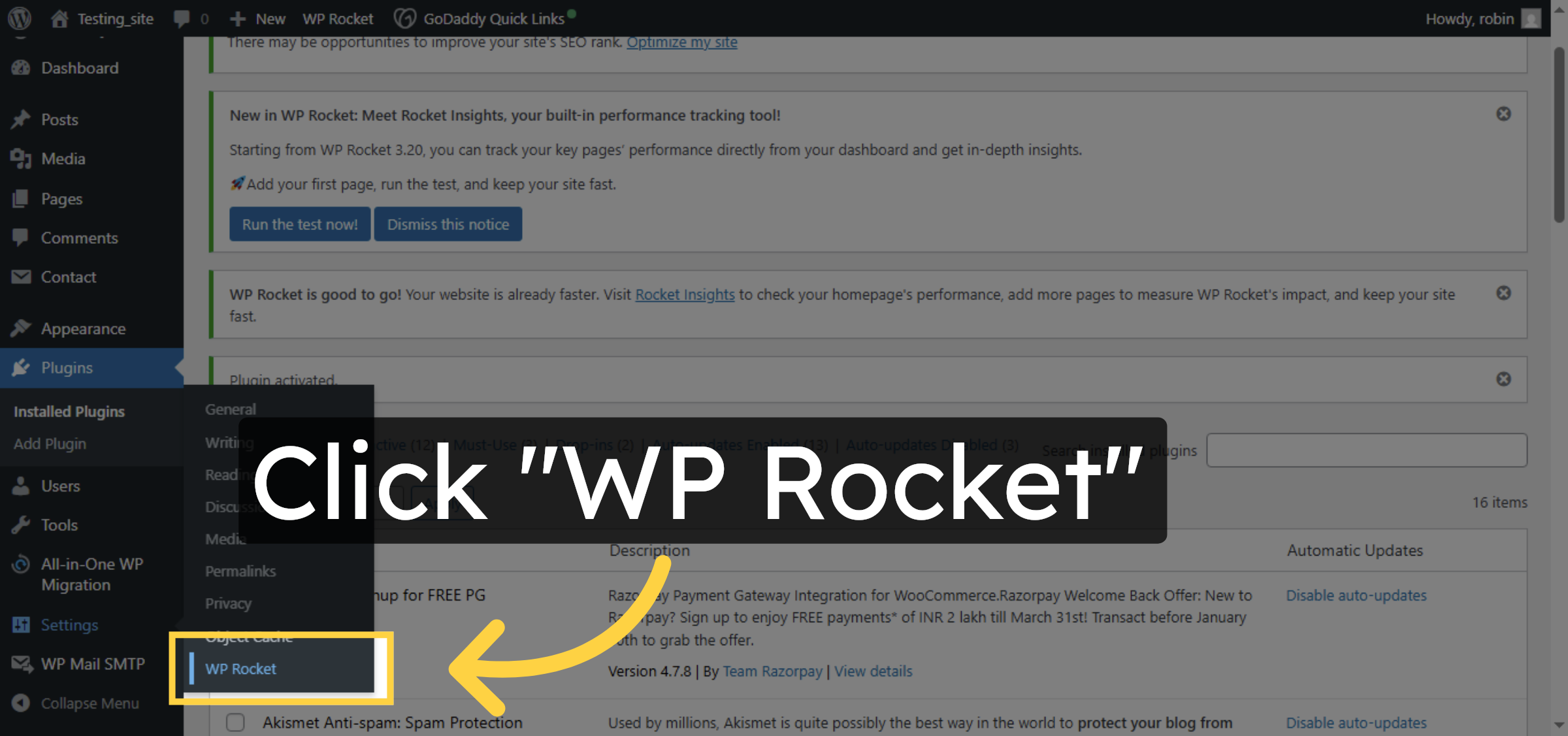
Click WP Rocket in the plugins list to access its settings and configuration options.

Open WP Rocket Settings

33. Access File Optimization
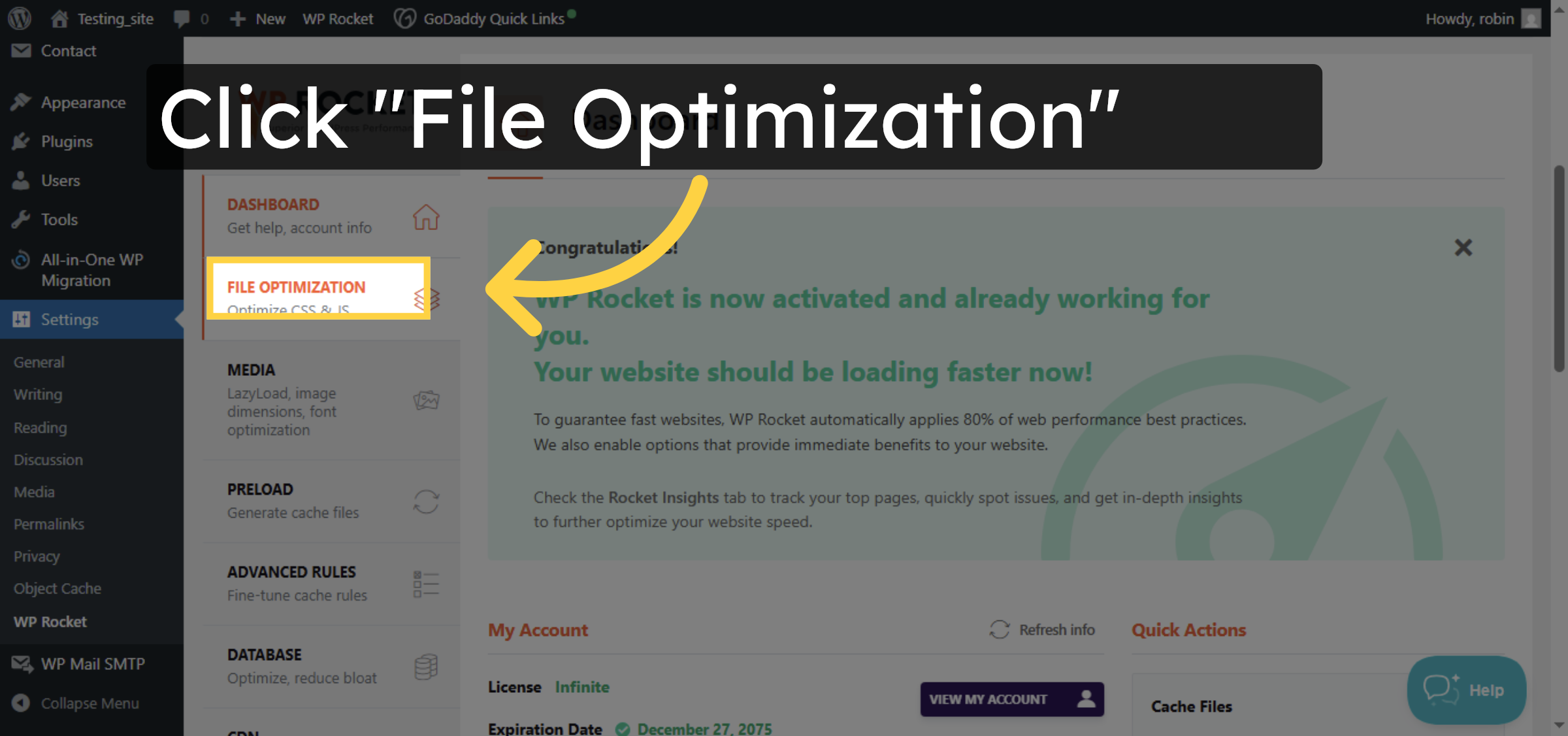
Click the File Optimization tab to configure CSS and JavaScript optimization settings.

Access File Optimization

34. Enable CSS Delivery Optimization
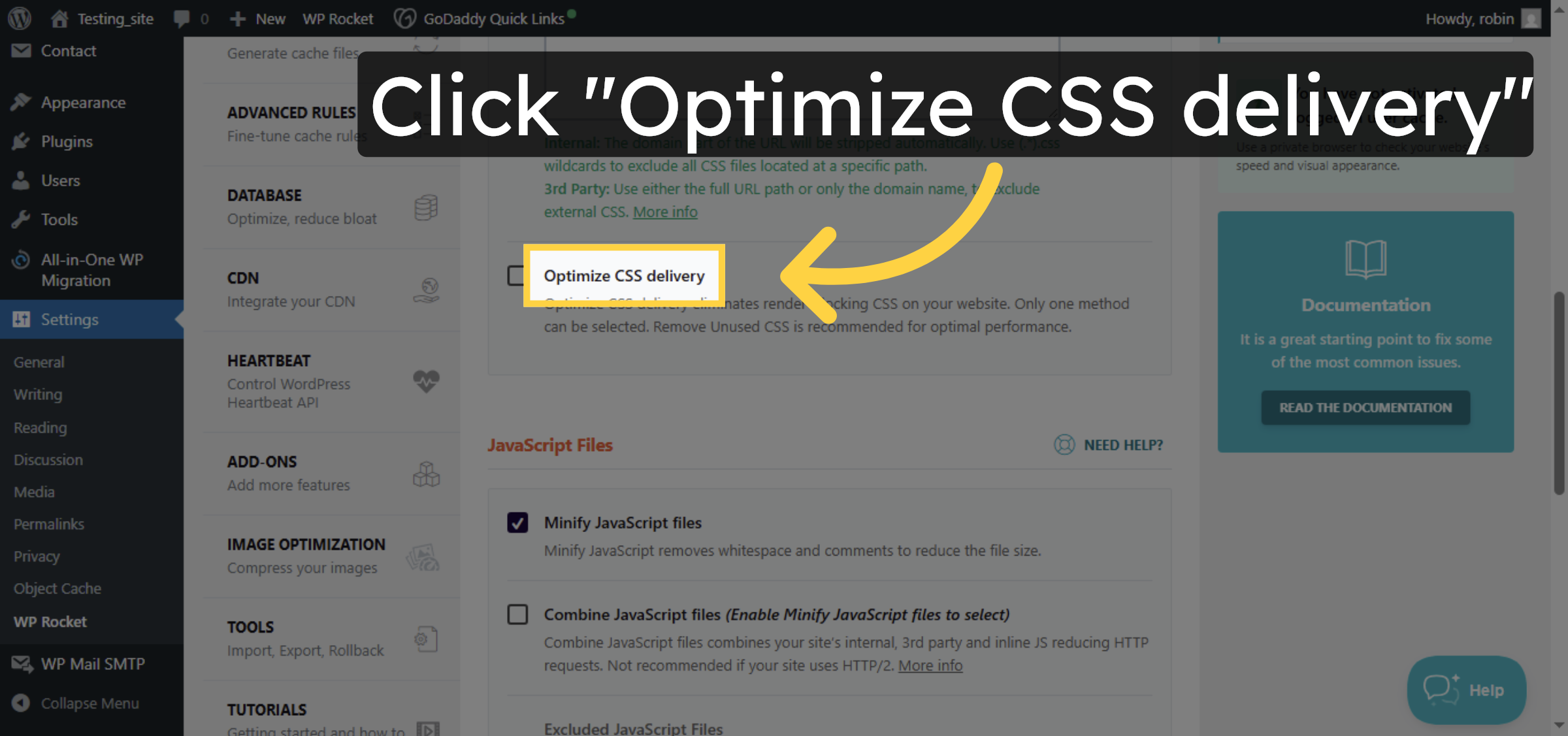
Click Optimize CSS delivery to improve page load speed by optimizing CSS files.

Enable CSS Delivery Optimization

35. Activate Remove Unused CSS
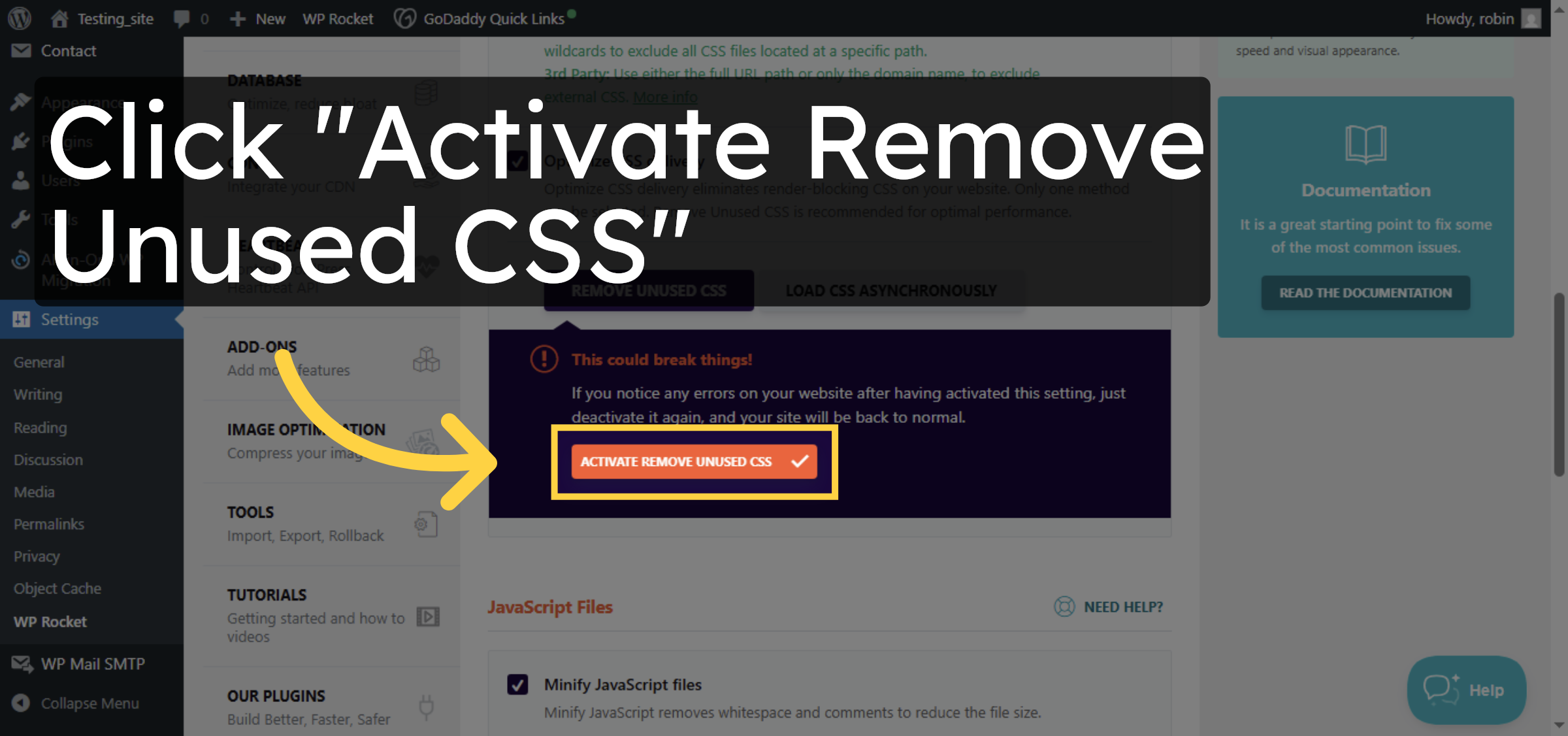
Click Activate Remove Unused CSS to eliminate unnecessary CSS and enhance performance.

Activate Remove Unused CSS

36. Save Optimization Settings
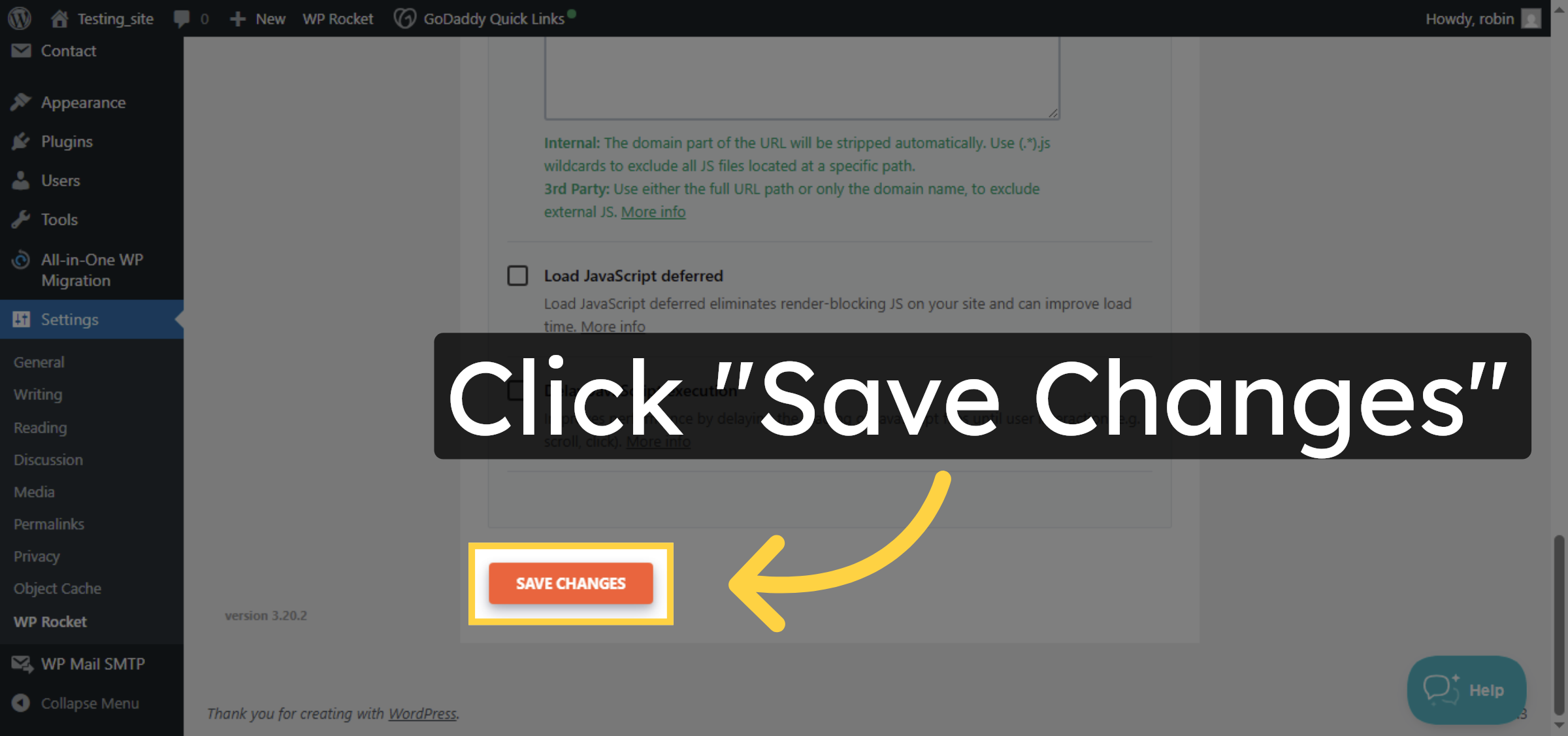
Click Save Changes to apply your file optimization settings in WP Rocket.

Save Optimization Settings

37. Open Database Tab
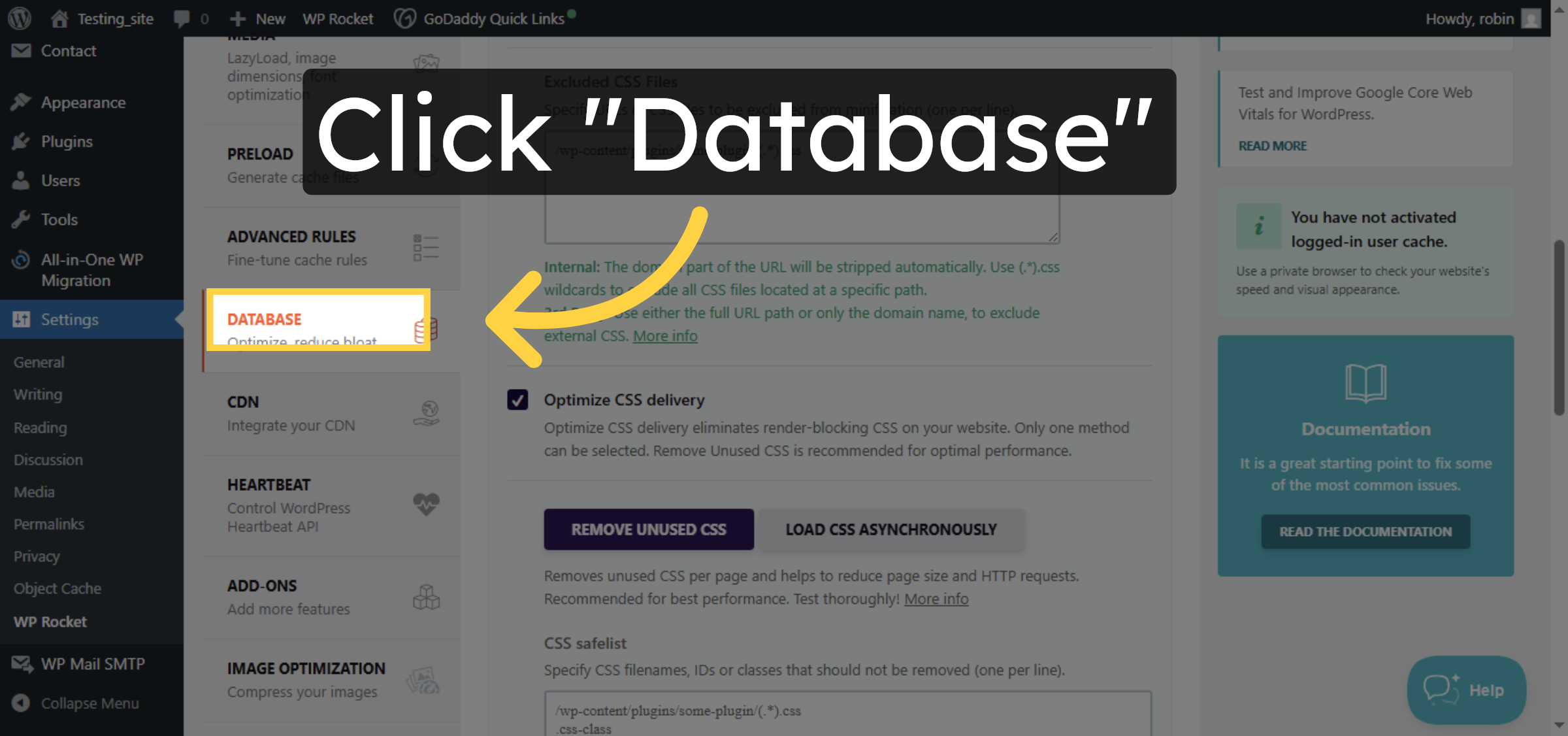
Click the Database tab in WP Rocket to manage database cleanup and optimization.

Open Database Tab

38. Select All Transients
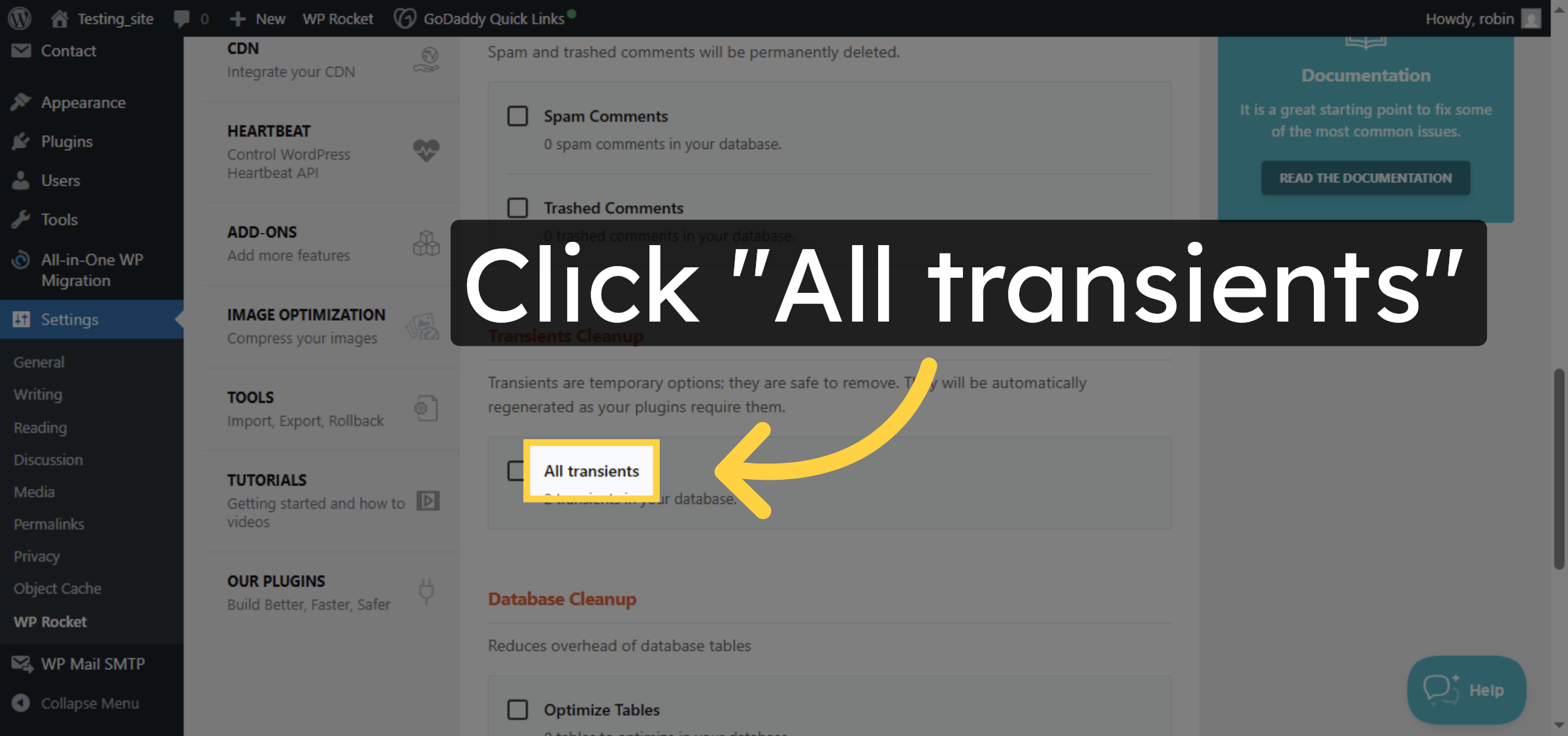
Click All transients to select temporary cached data for removal.

Select All Transients

39. Optimize Database Tables
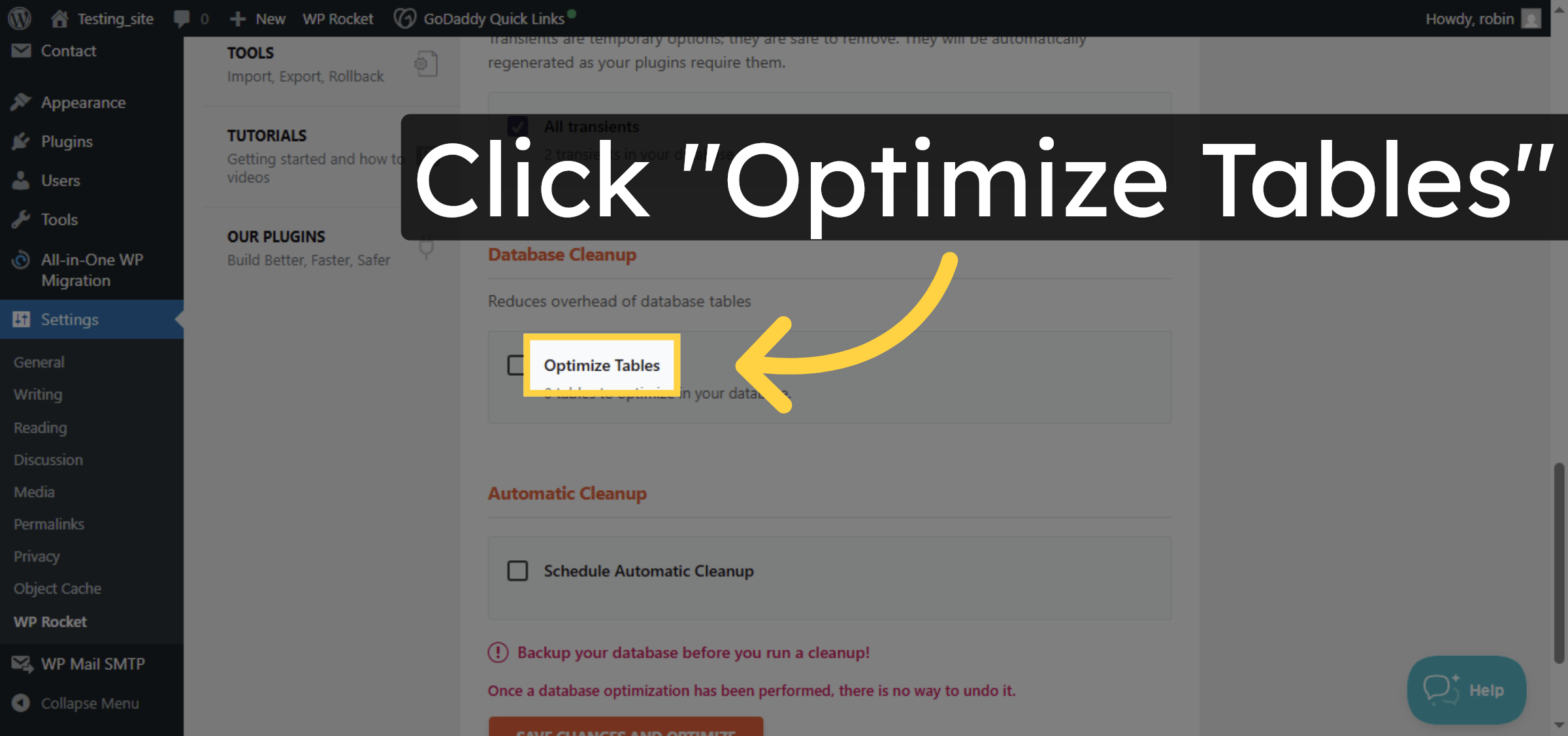
Click Optimize Tables to improve database performance by optimizing table structures.

Optimize Database Tables

40. Save And Optimize Database
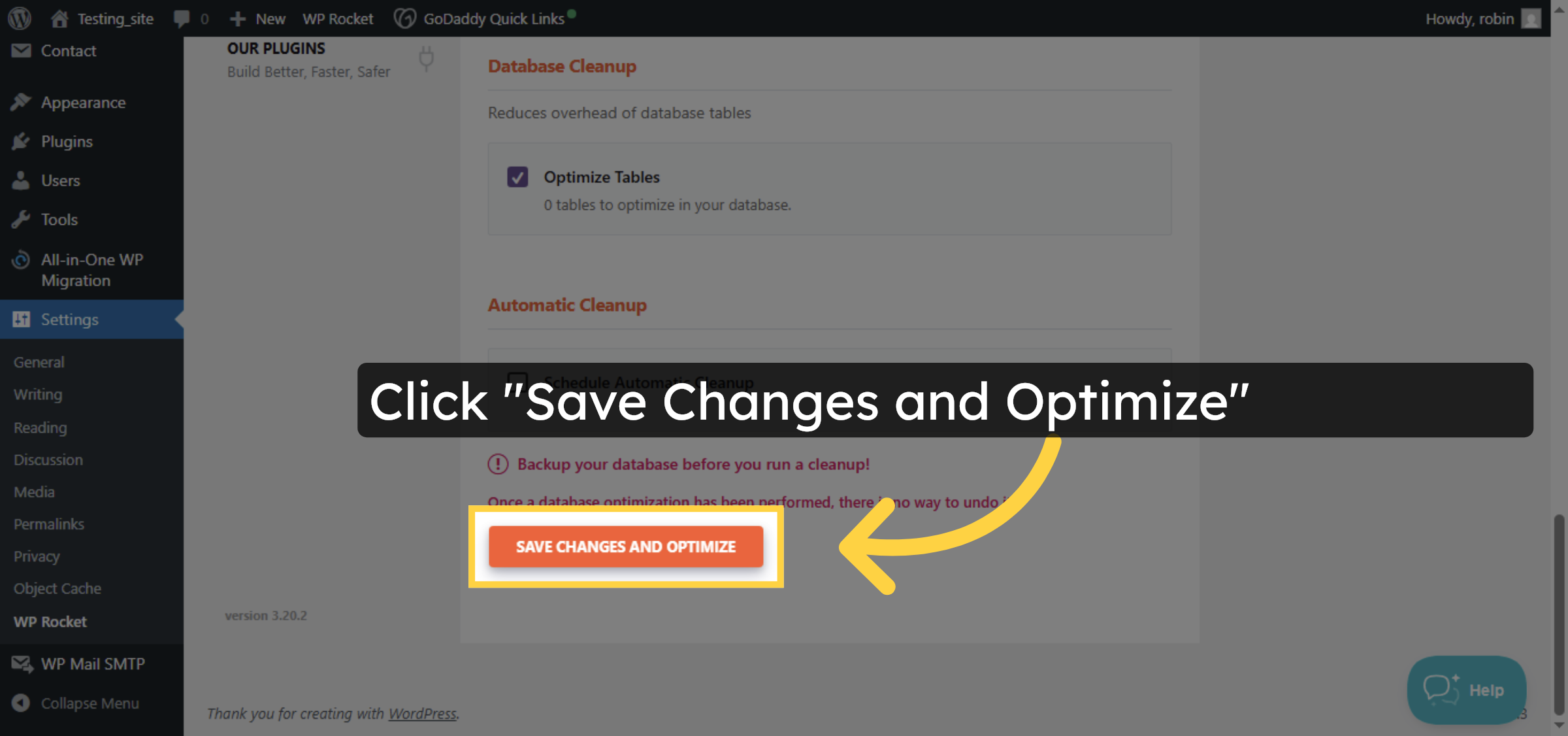
Click Save Changes and Optimize to apply database optimizations and cleanup.

Save And Optimize Database

41. Results
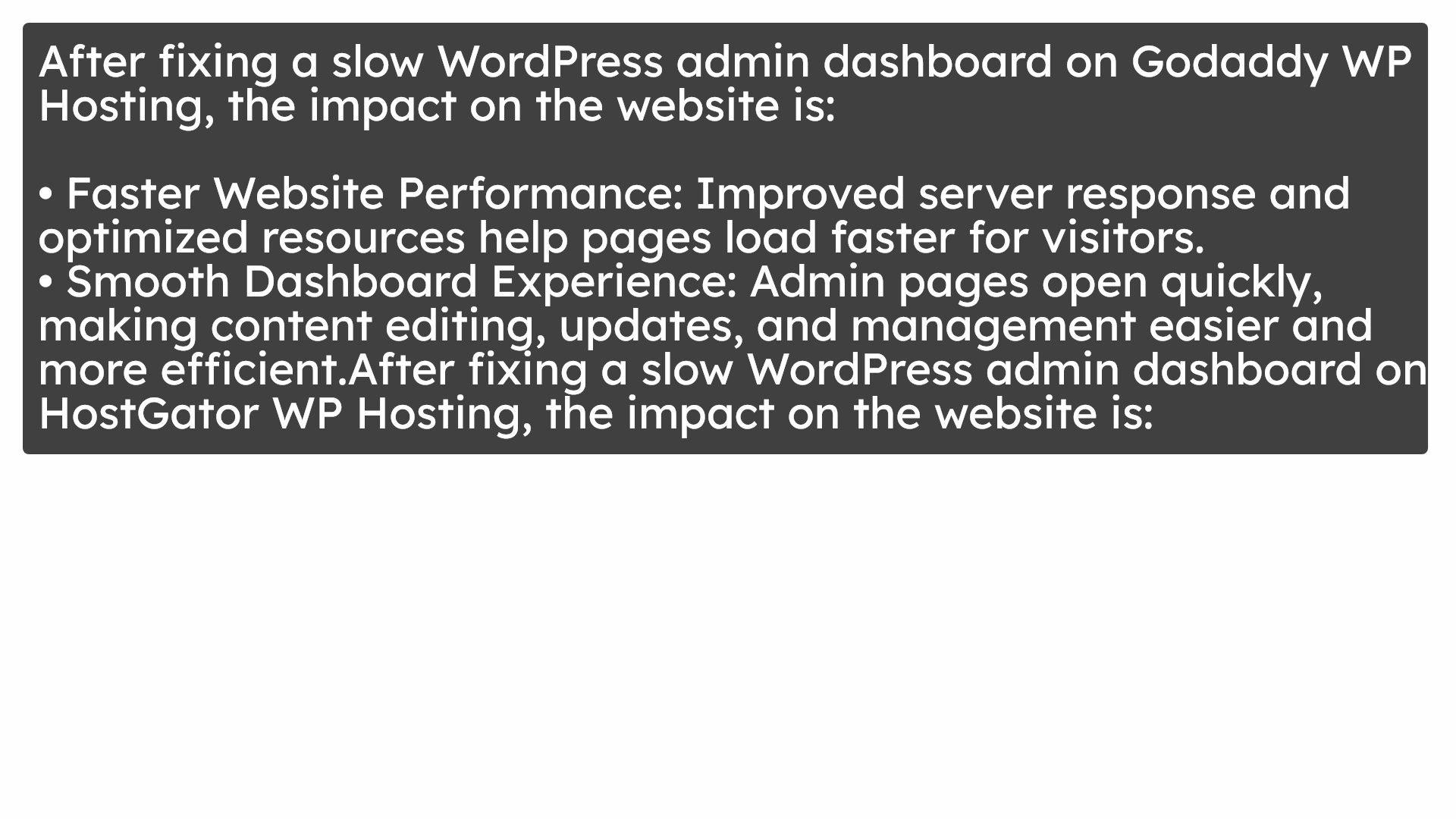
Results

Conclusion

By following the steps in this guide, you have successfully addressed the causes of a slow WordPress admin dashboard on GoDaddy hosting. Updating PHP, removing unused themes and plugins, optimizing database tables, clearing cache, and configuring WP Rocket significantly improve performance and reduce server load. Regular optimization and maintenance will help keep your WordPress dashboard fast and efficient.

  • Visit: https://www.woohelpdesk.com

  • Call Us Toll-Free: +1 888 602 0119 (US & Canada)

  • Get professional support for fixing slow WordPress admin dashboard issues, GoDaddy performance optimization, PHP configuration, database cleanup, caching setup, and WooCommerce solutions


Leave a Reply

Your email address will not be published. Required fields are marked *

Leave a Reply

Your email address will not be published. Required fields are marked *