4 mins read

How To Back Up A WordPress Site On Godaddy WP Hosting From Plugin

Introduction

Backing up your WordPress website is one of the most important steps to protect your data from accidental loss, hacking attempts, server issues, or failed updates. In this guide, you’ll learn how to back up a WordPress site hosted on GoDaddy using the UpdraftPlus plugin, one of the most reliable and widely used backup solutions for WordPress. This article walks you through installing and configuring UpdraftPlus, setting up automatic backup schedules for files and databases, enabling email notifications, and creating an instant manual backup when needed. Whether you are managing a personal blog, business website, or WooCommerce store, having regular backups ensures you can quickly restore your site if anything goes wrong. Following these steps helps you maintain website security, minimize downtime, and keep your data safe while giving you full control over how and where your backups are stored.


1. Introduction
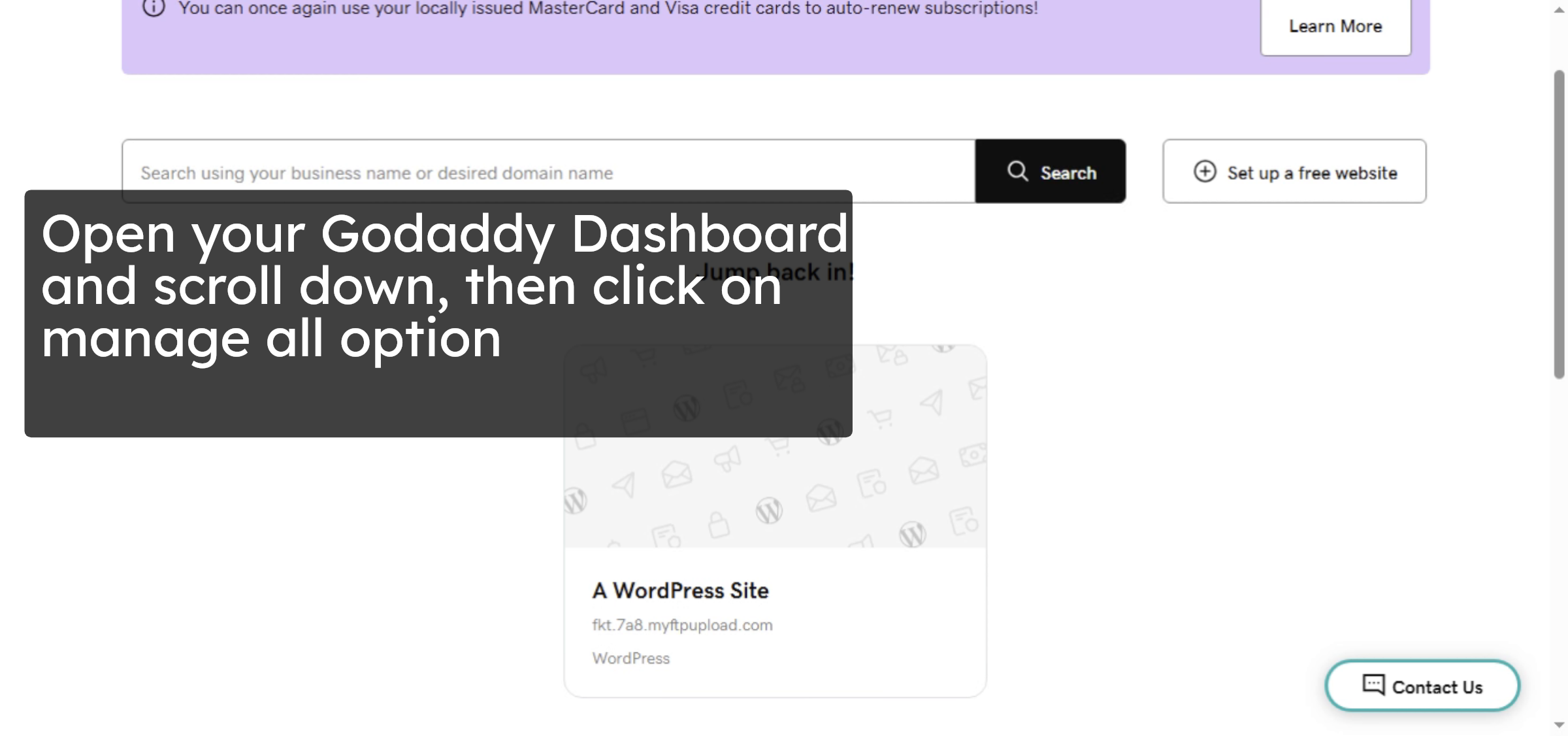
Open your Godaddy Dashboard and scroll down, then click on manage all option

Introduction

2. Access Manage All Products
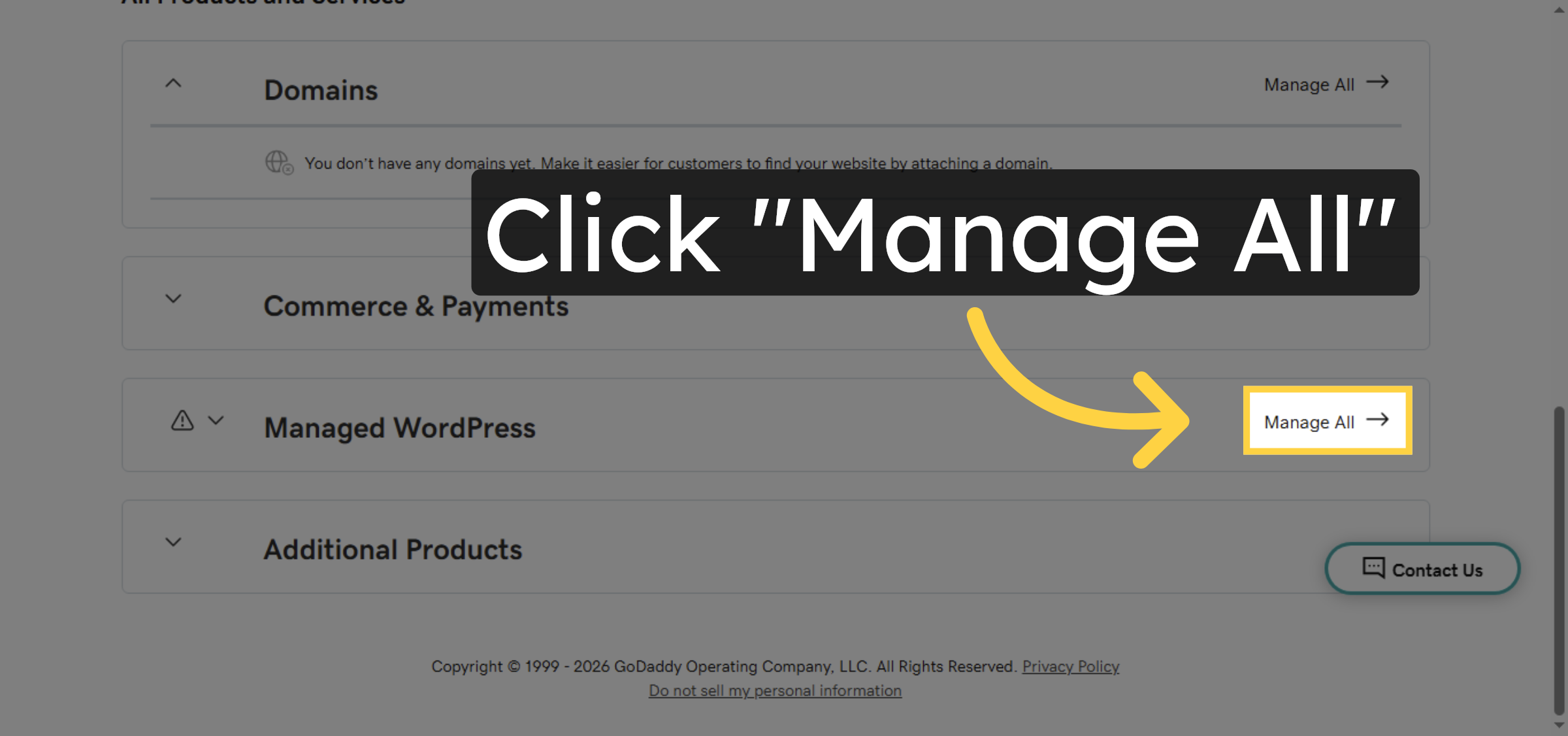
Click Manage All to view all your GoDaddy products and services.

Access Manage All Products

3. Select Hosting Account
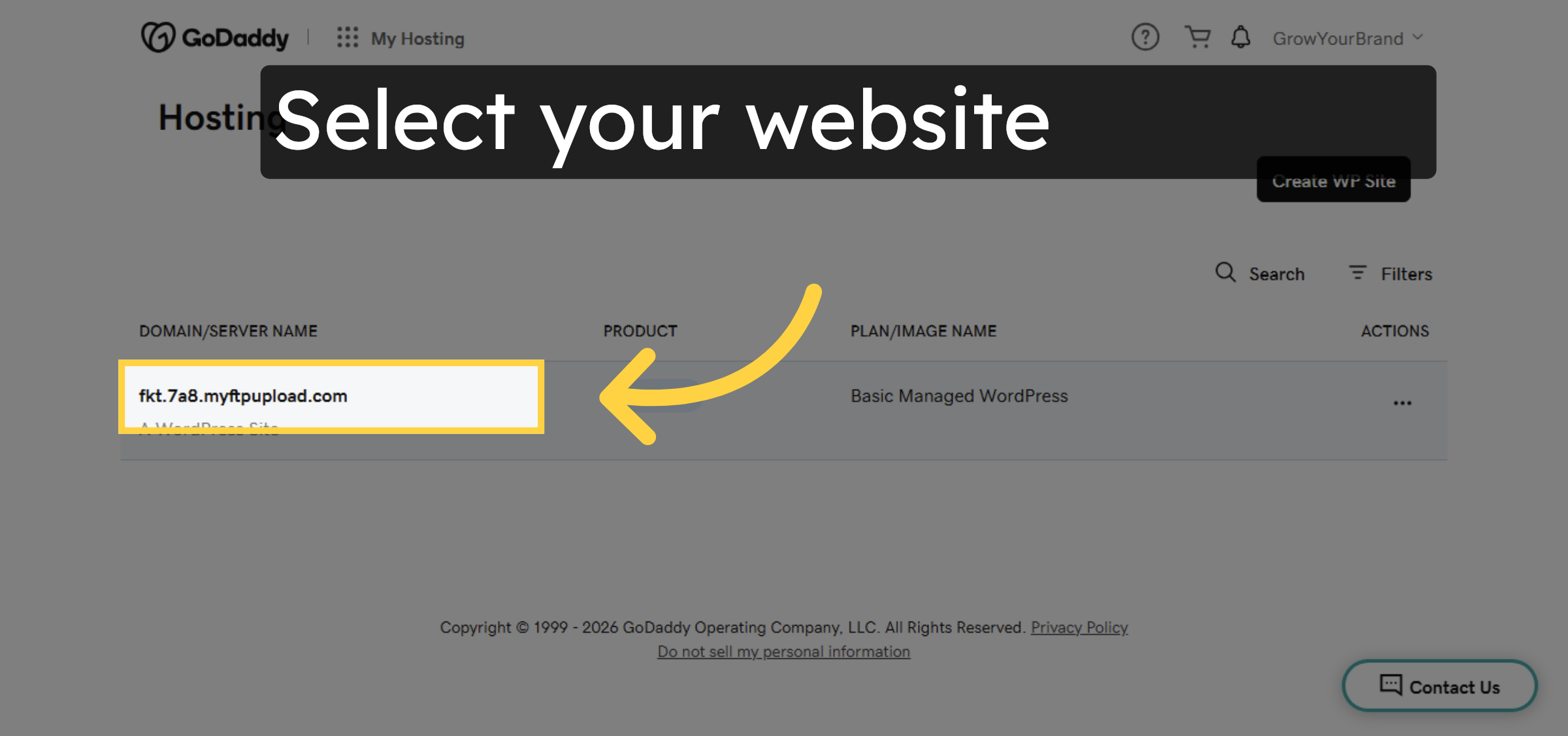
Select your website

Select Hosting Account

4. Edit WordPress Website
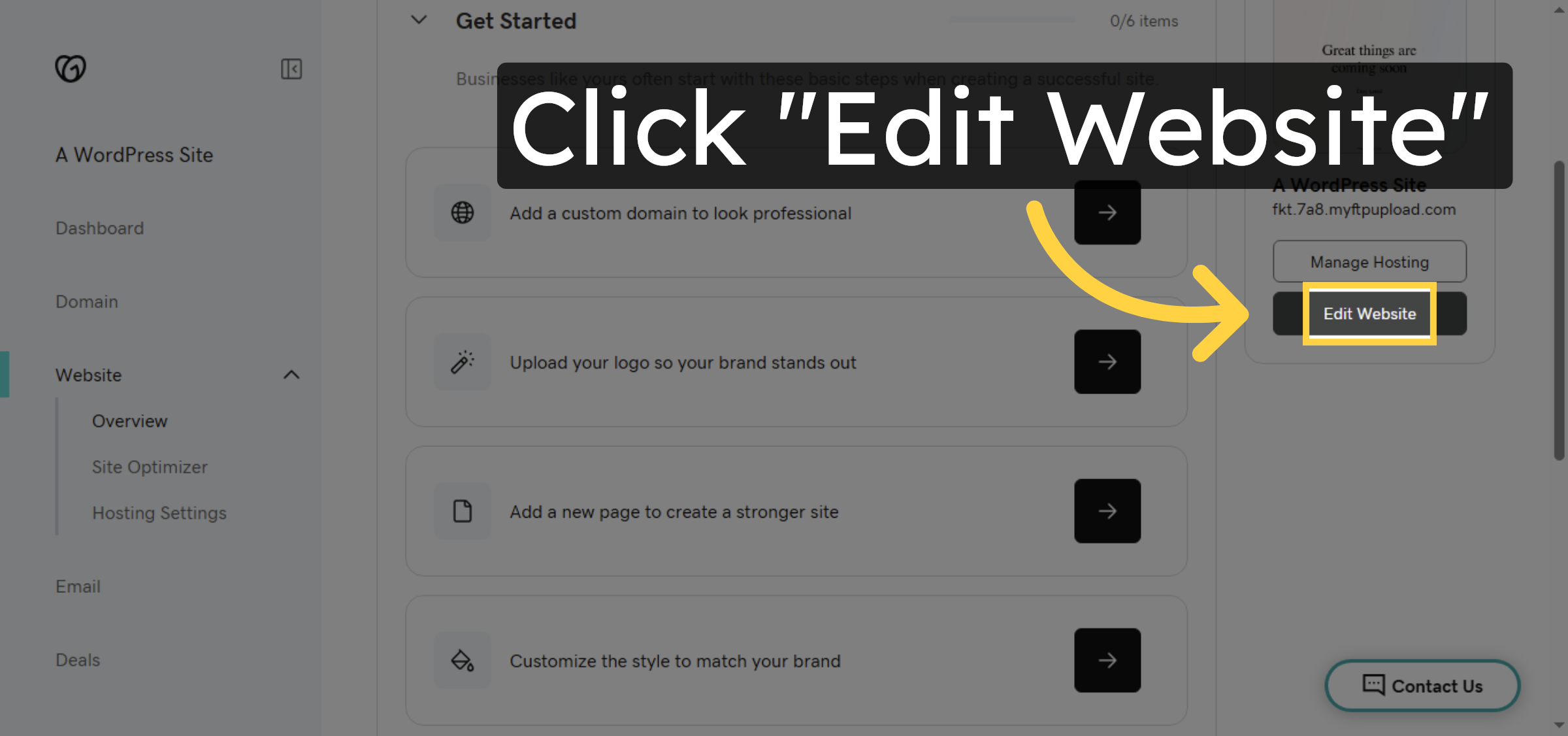
click on edit website.

Edit WordPress Website

5. Open Plugins Section
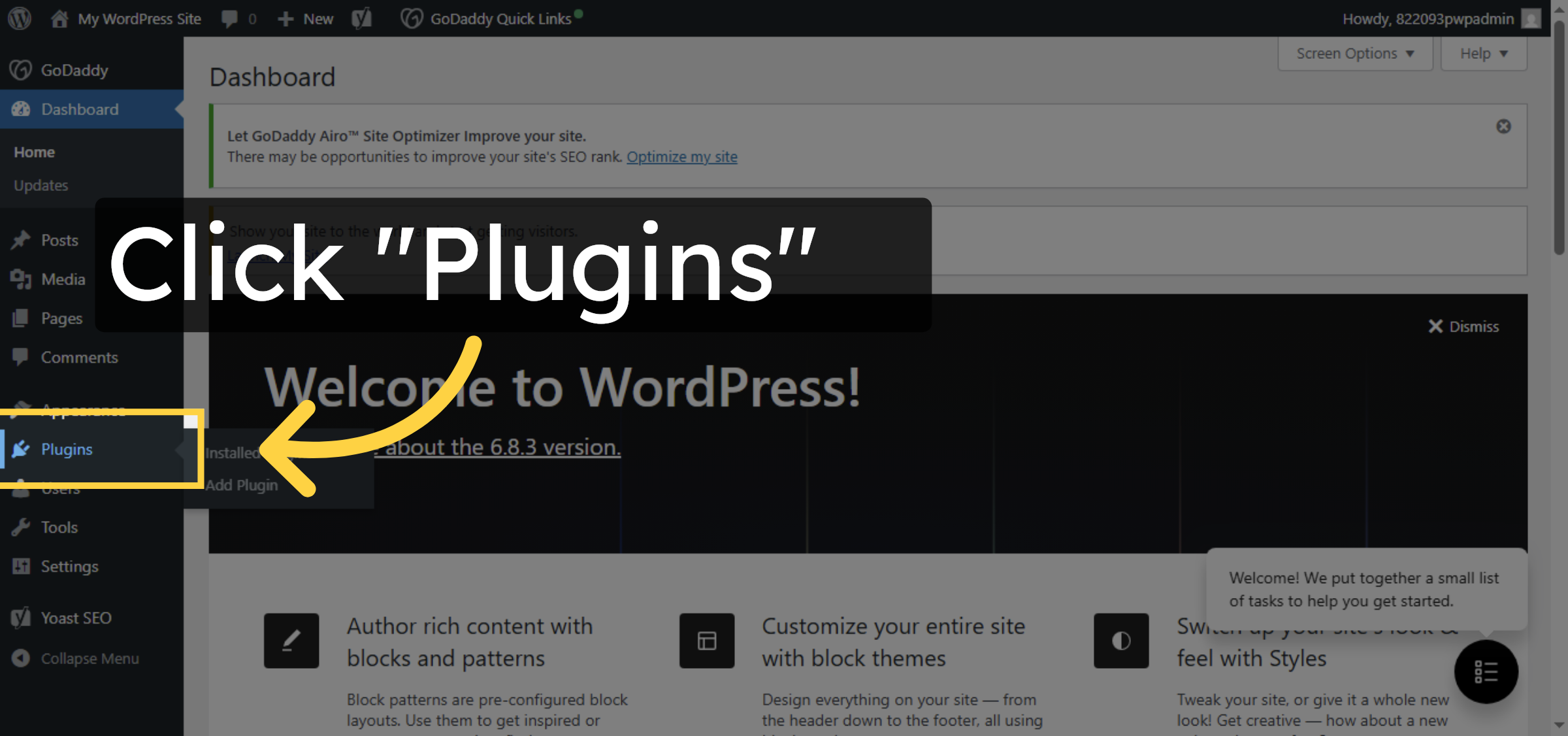
click on plugins option to install plugin

Open Plugins Section

6. Add New Plugin
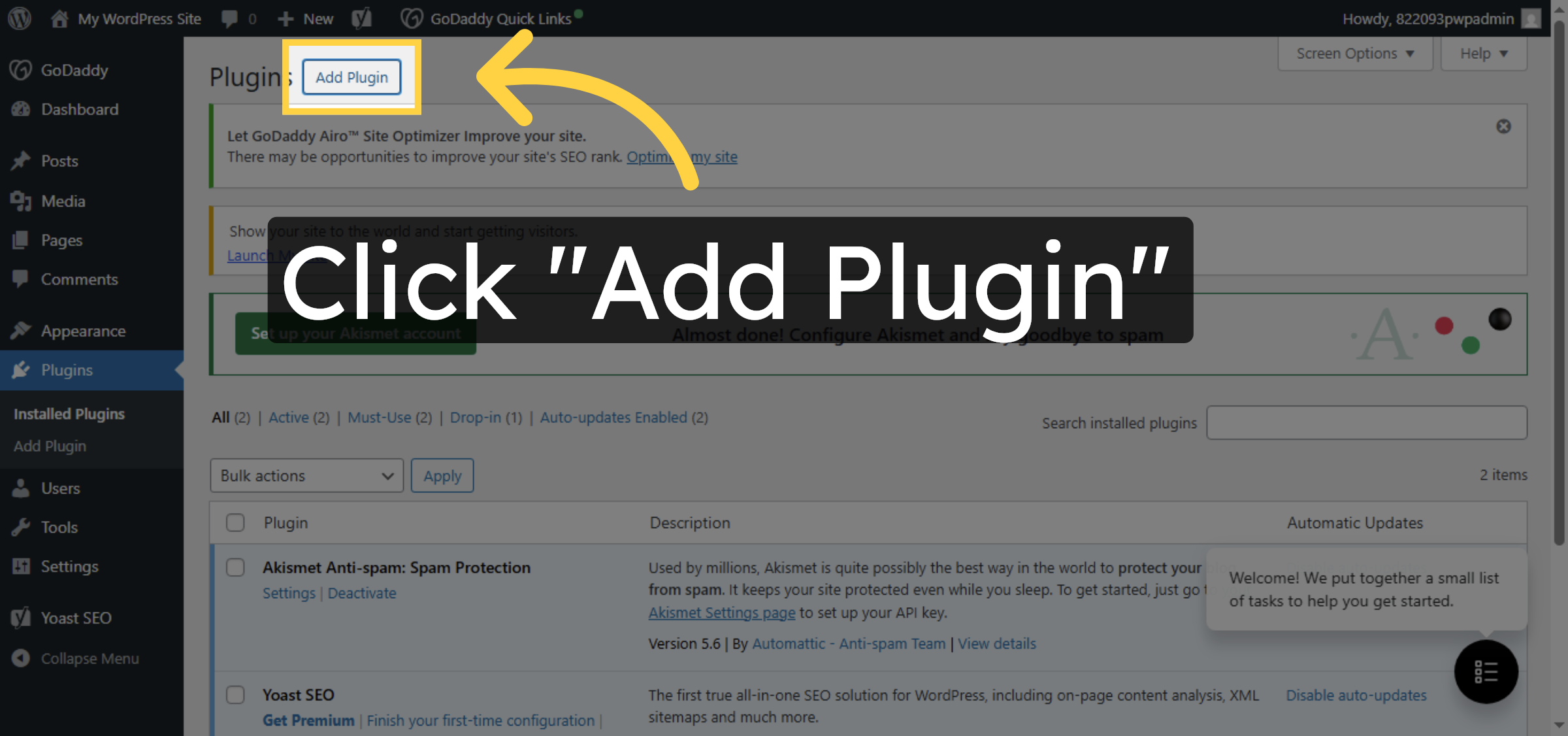
Click Add Plugin to search for and install new WordPress plugins.

Add New Plugin

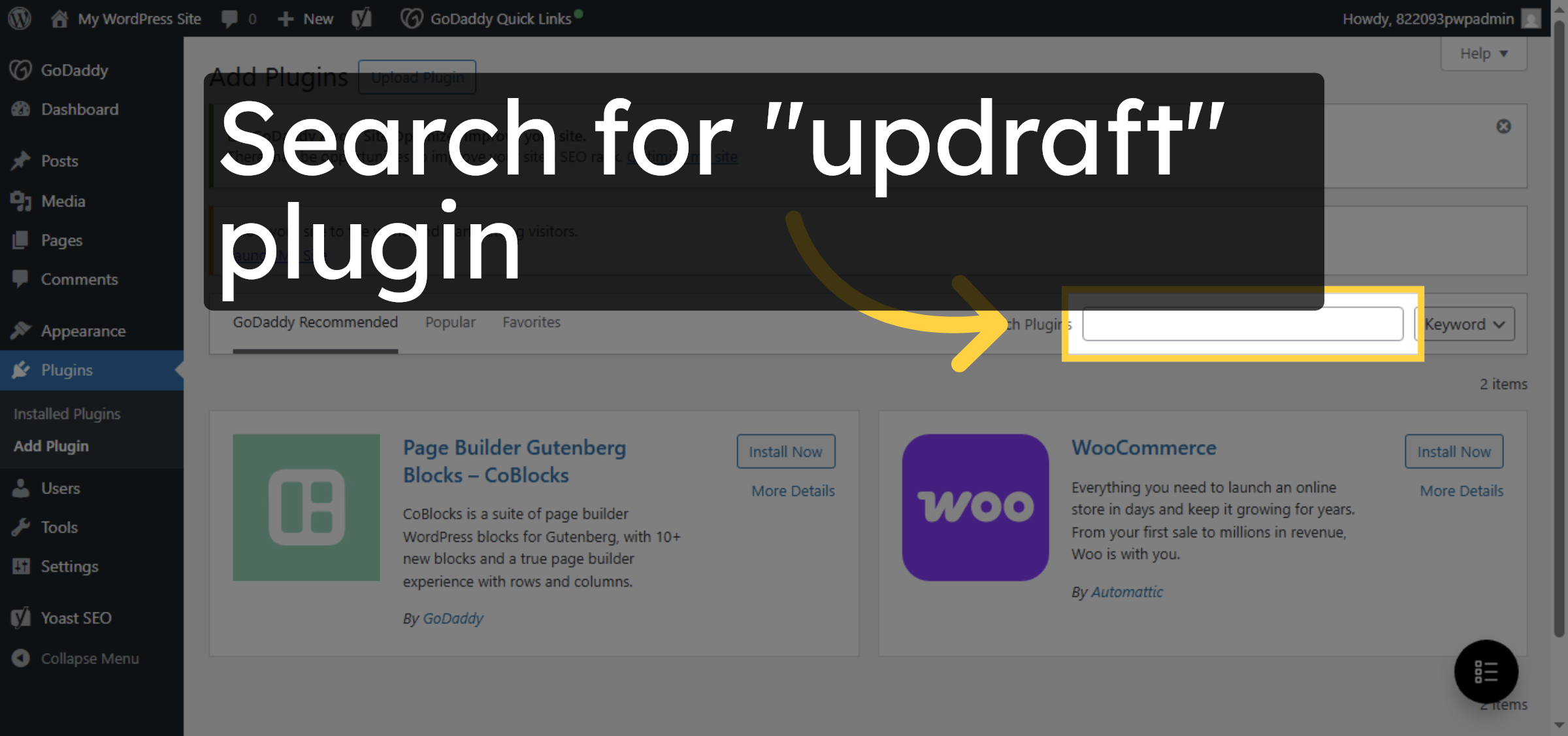
7. Search for Plugin

click on search bar and Search for “updraft” plugin.

Search for Plugin

8. Install UpdraftPlus Plugin
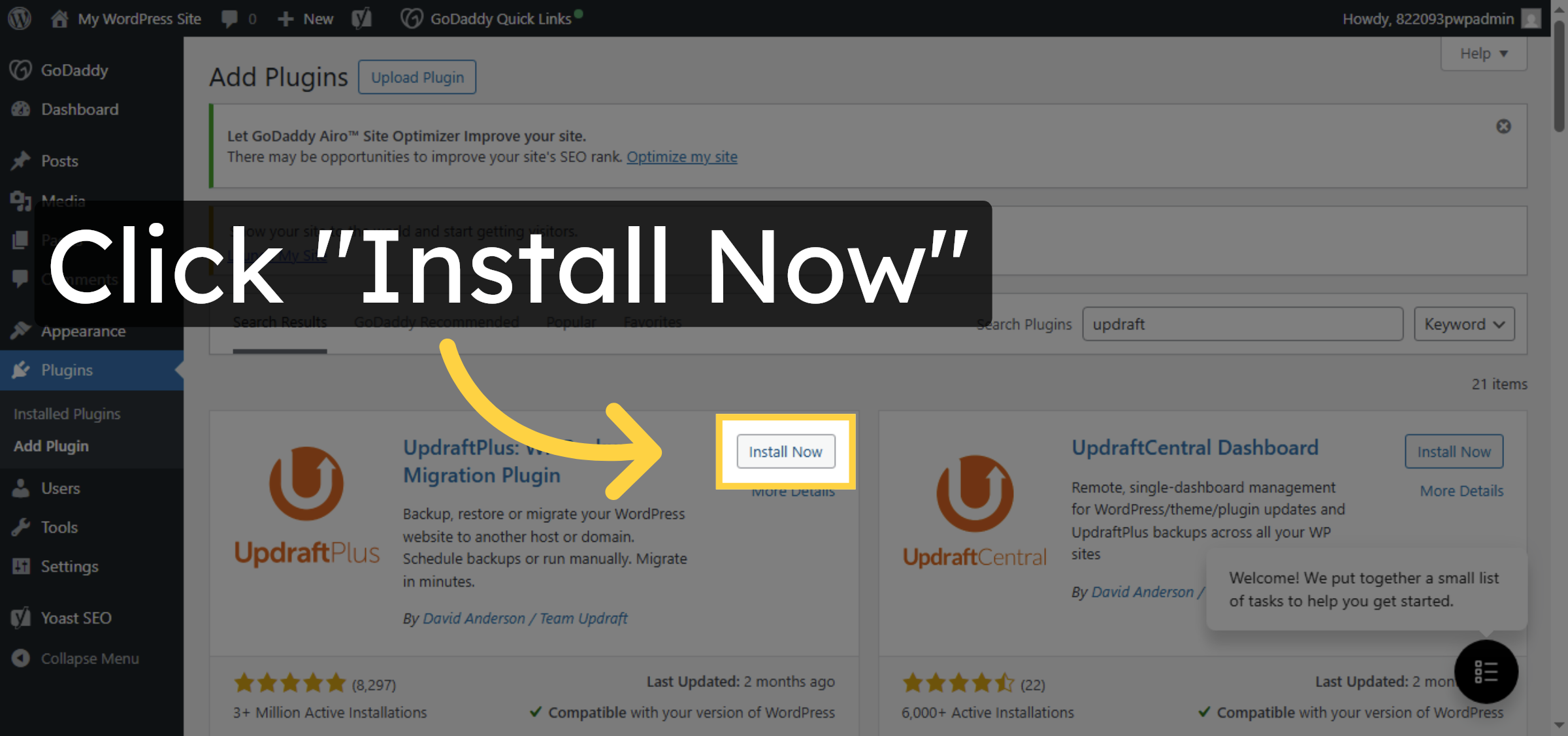
Click Install Now to begin installing the UpdraftPlus plugin on your WordPress site.

Install UpdraftPlus Plugin

9. Activate UpdraftPlus Plugin
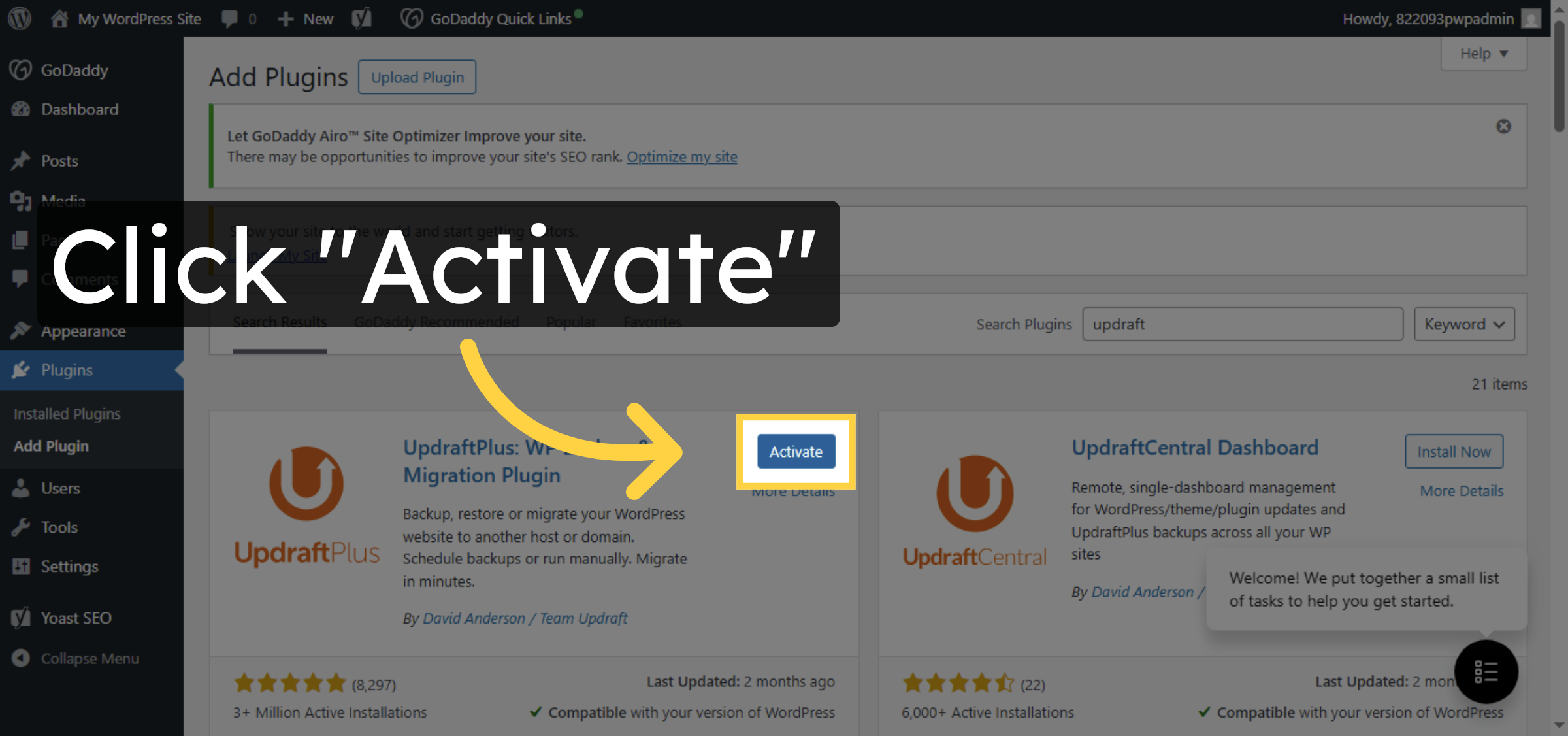
Click Activate to enable the UpdraftPlus plugin after installation.

Activate UpdraftPlus Plugin

10. Open Plugin Settings
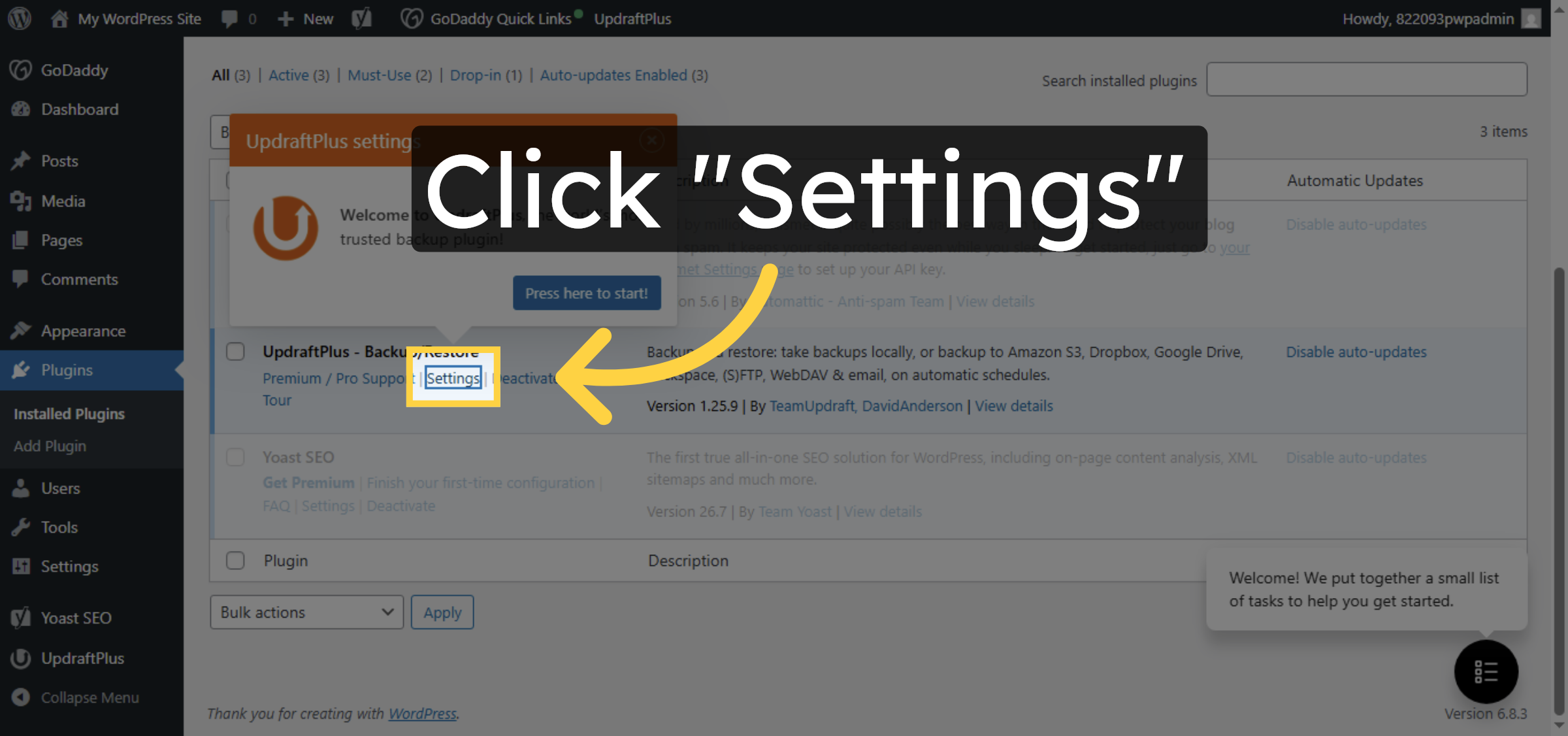
Click Settings to access the configuration options for the UpdraftPlus plugin.

Open Plugin Settings

11. Access UpdraftPlus Settings
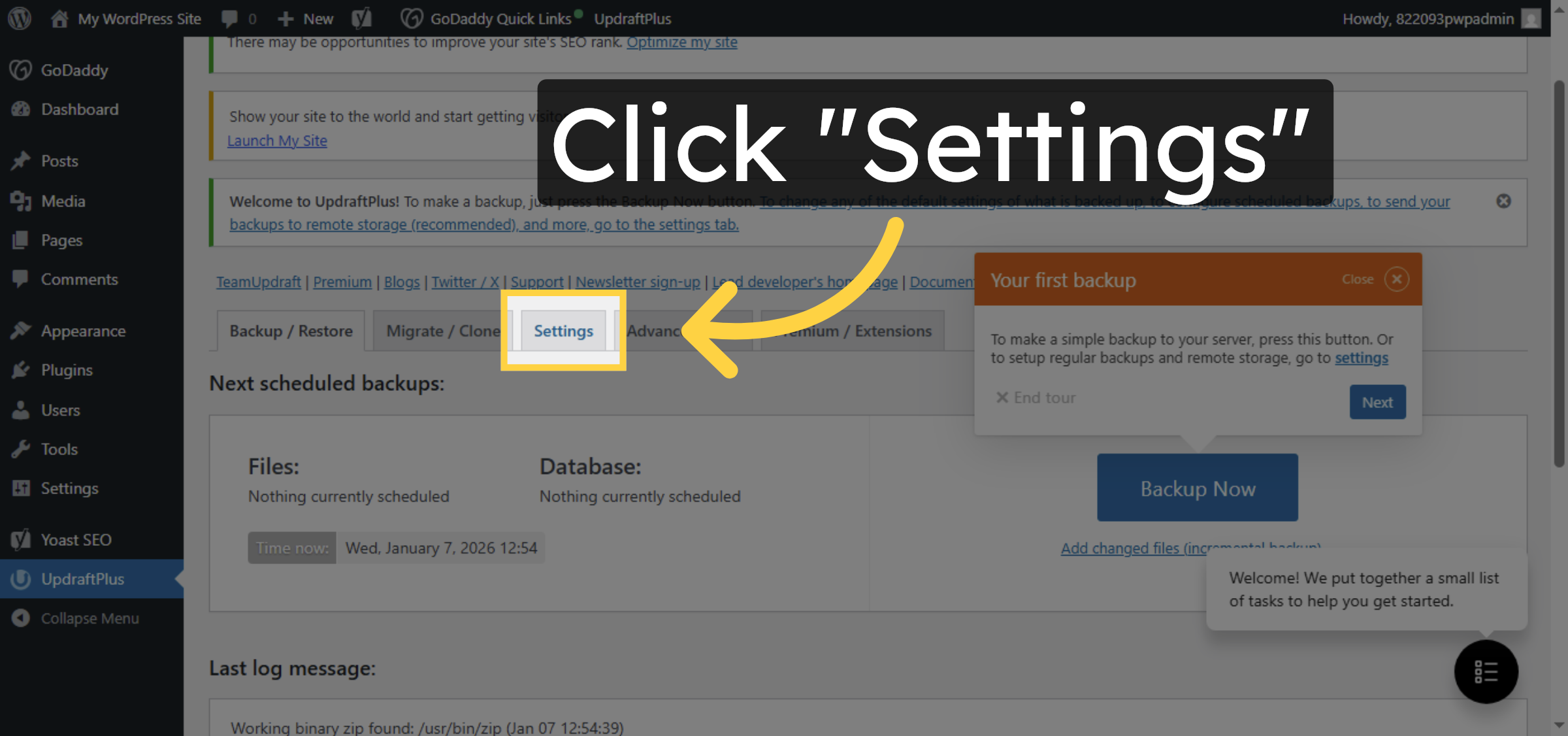
Click Settings again within UpdraftPlus to open detailed backup configuration.

Access UpdraftPlus Settings

12. Open Backup Schedule Options
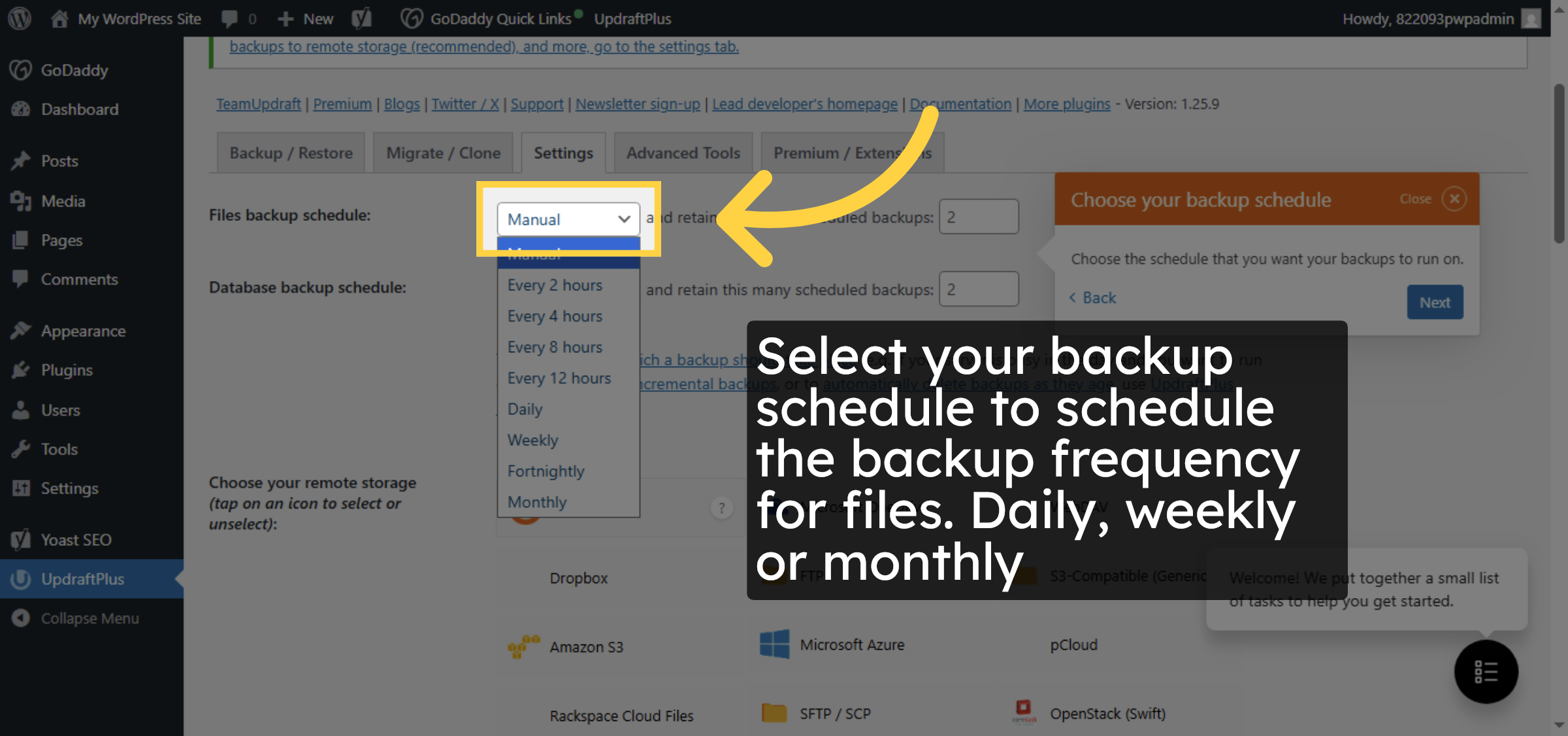
Select your backup schedule to schedule the backup frequency for files. Daily, weekly or monthly

Open Backup Schedule Options

13. Select Backup Interval for files
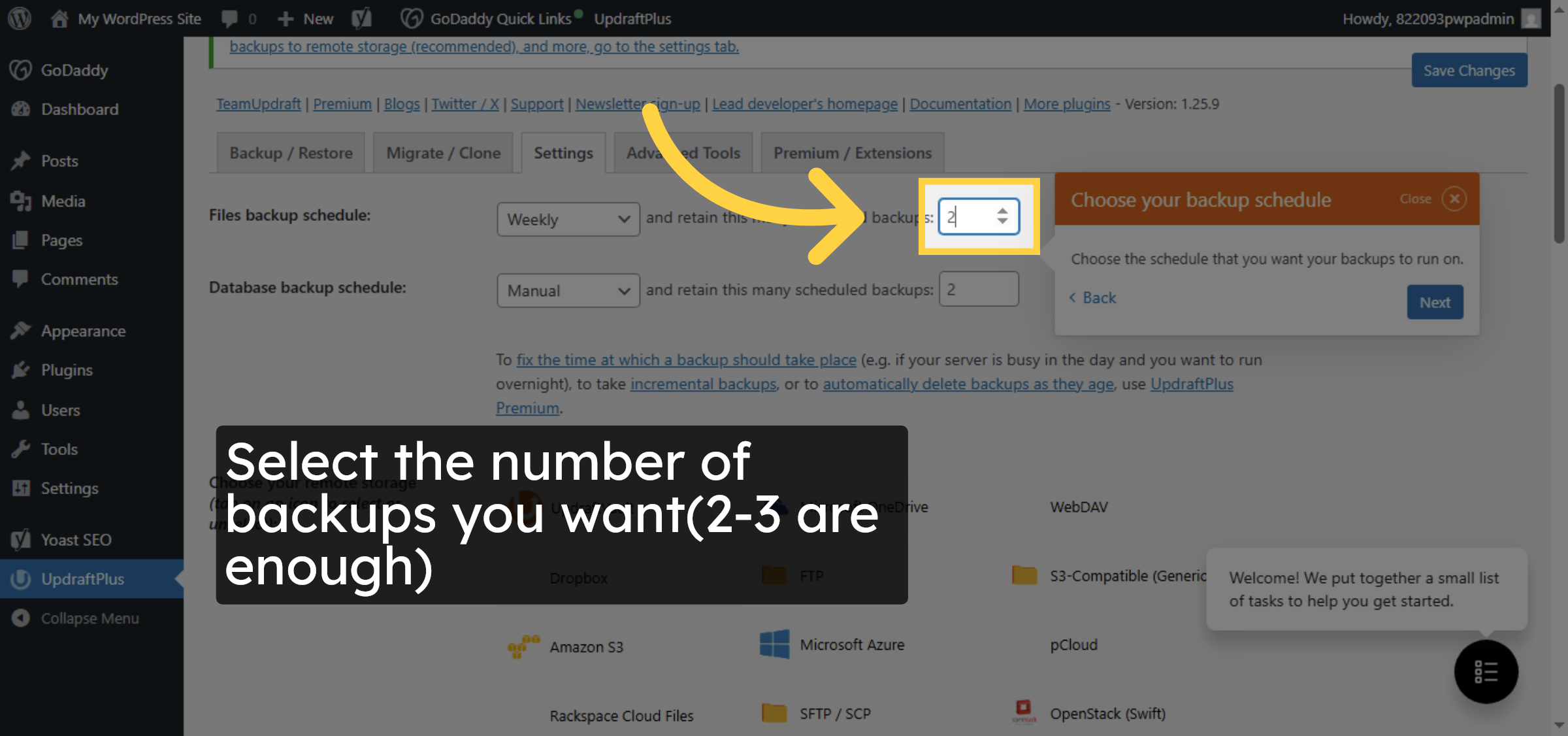
Select the number of backups you want(2-3 are enough)

Select Backup Interval for files

14. select backup schedule for database
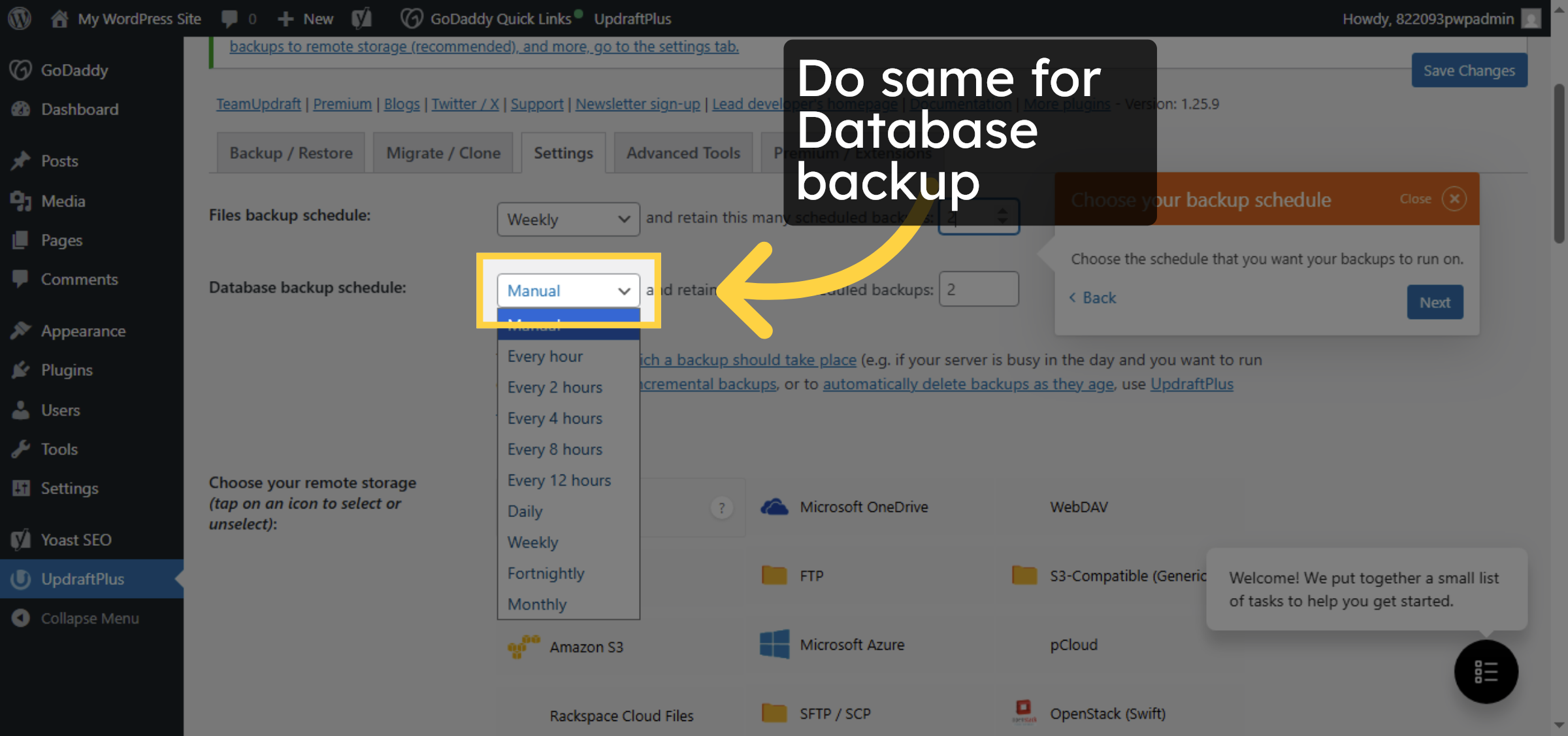
Do same for Database backup

select backup schedule for database

15. Select File Backup Interval for database
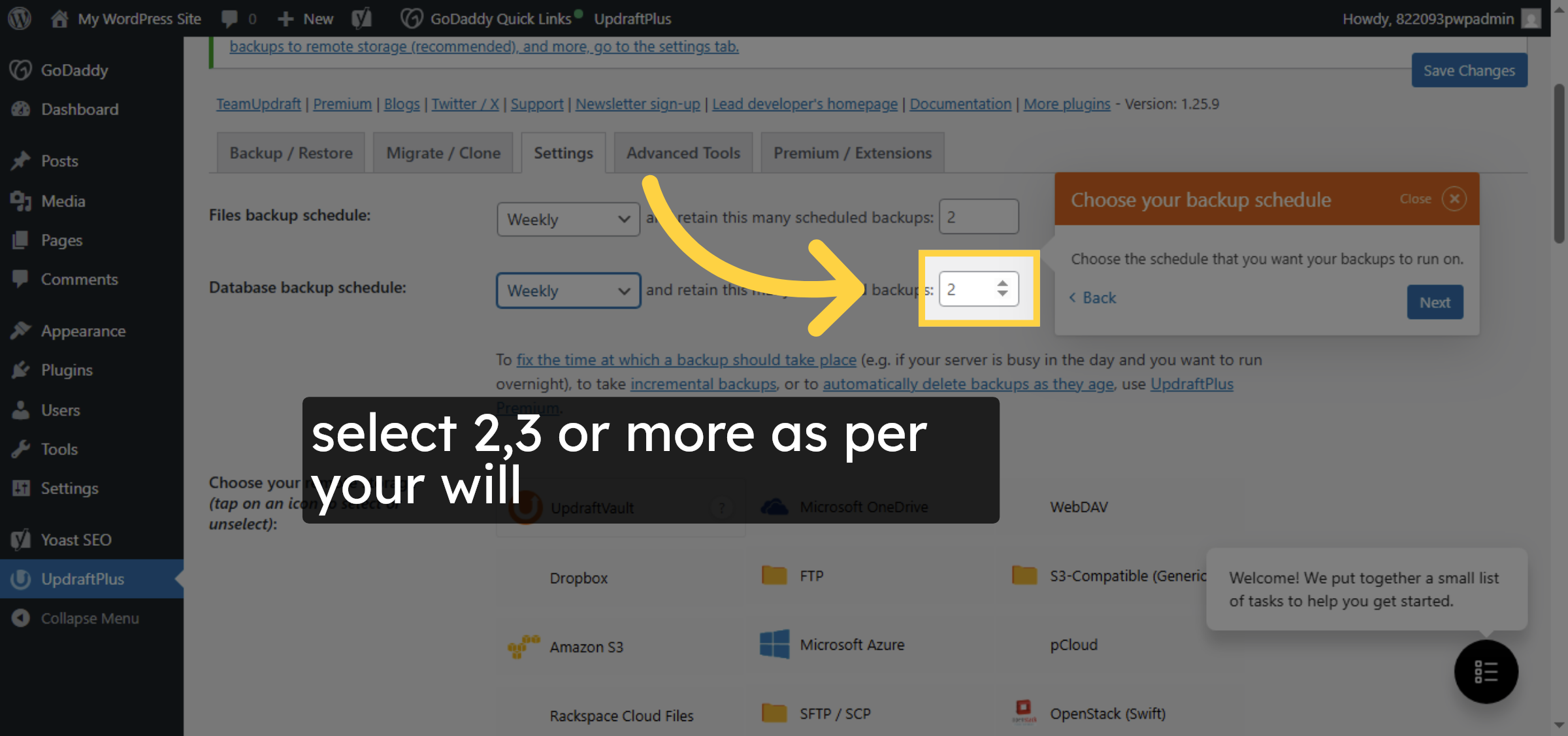
select 2,3 or more as per your will.

Select File Backup Interval for database

16. Choose Remote Storage
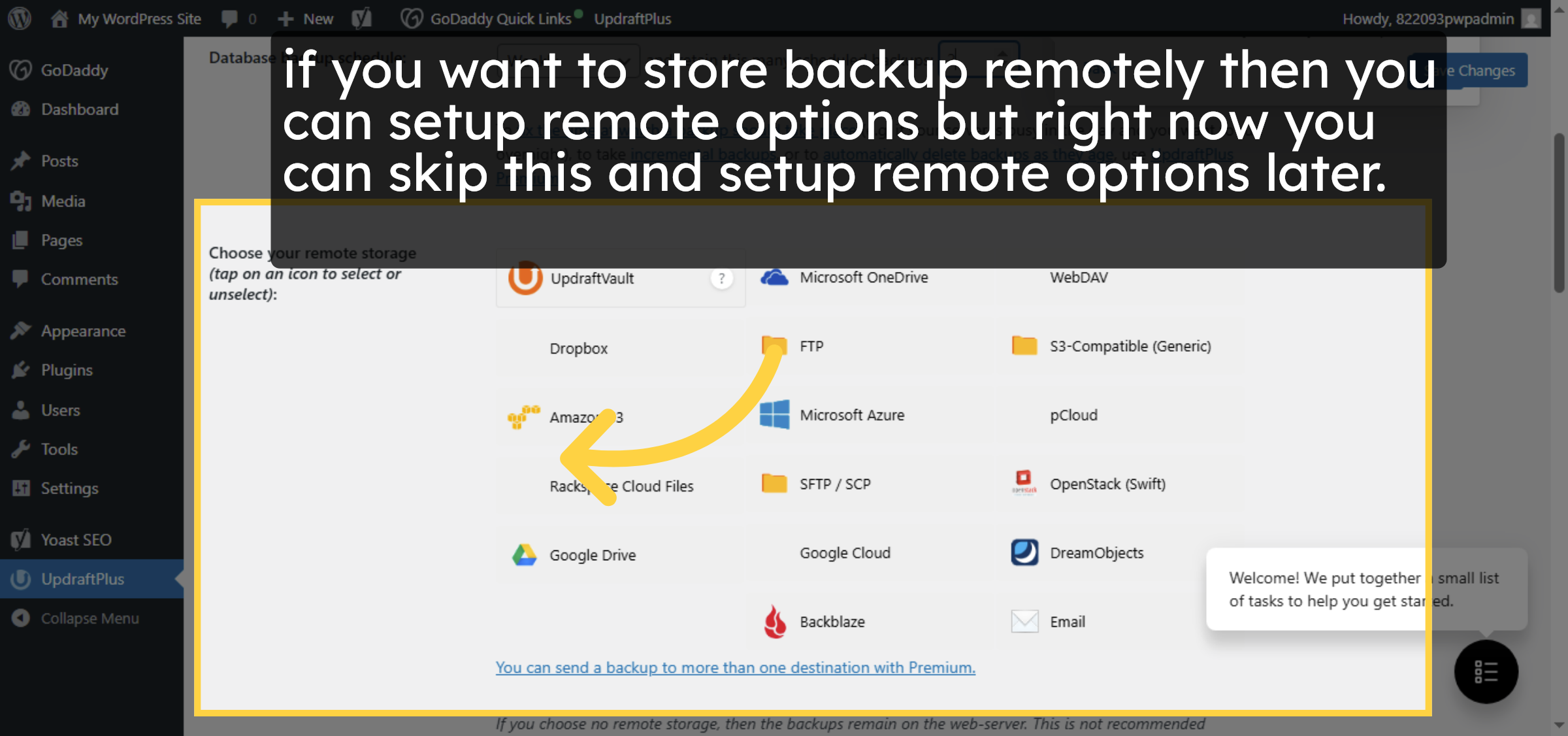
if you want to store backup remotely then you can setup remote option but right now you can skip this and setup remote options later.

Choose Remote Storage

Ad Banner

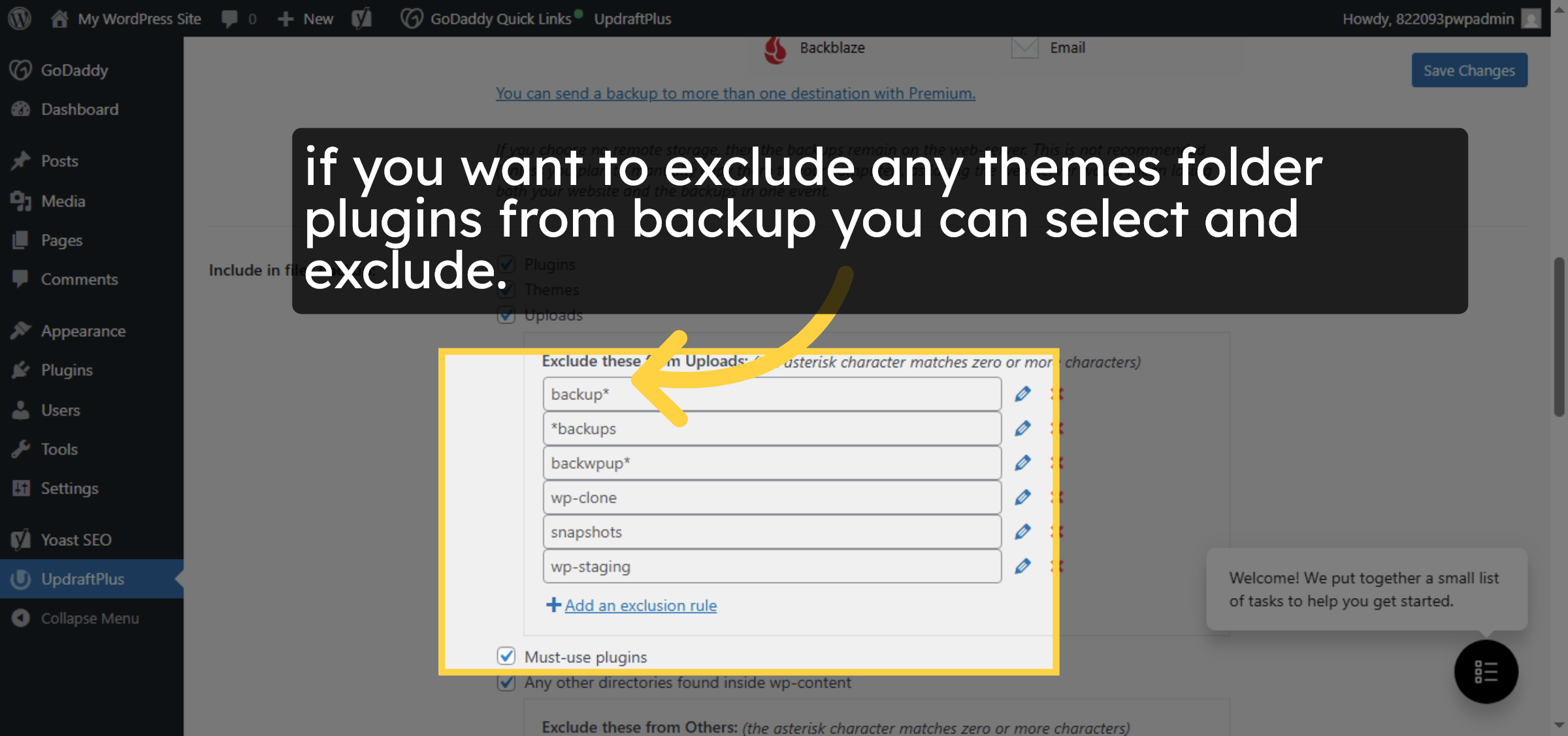
17. Configure Backup Exclusions

if you want to exclude any themes folder plugins from backup you can select and exclude.

Configure Backup Exclusions

18. Enable Backup Reports
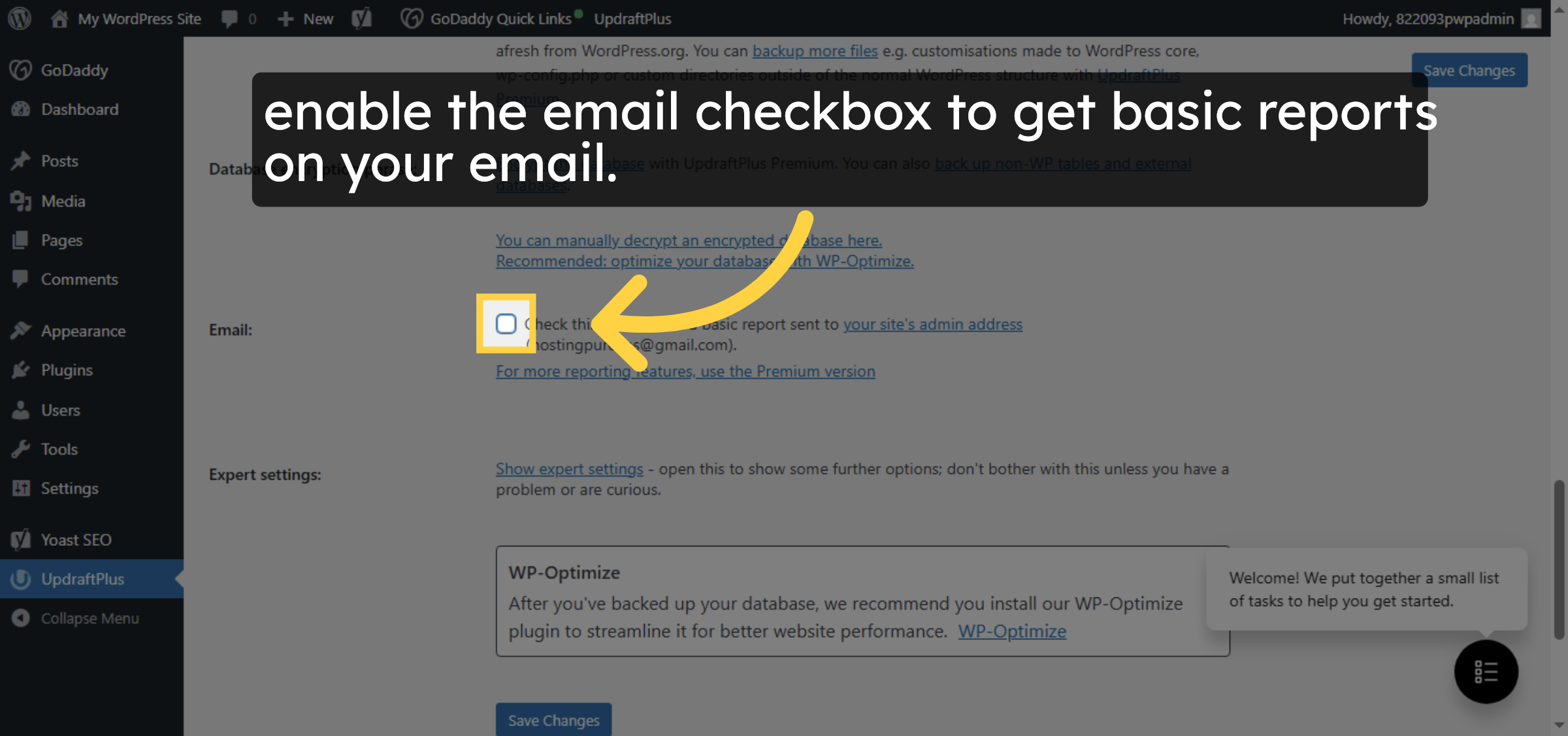
enable the email checkbox to get basic reports on your email.

Enable Backup Reports

19. Save Backup Settings
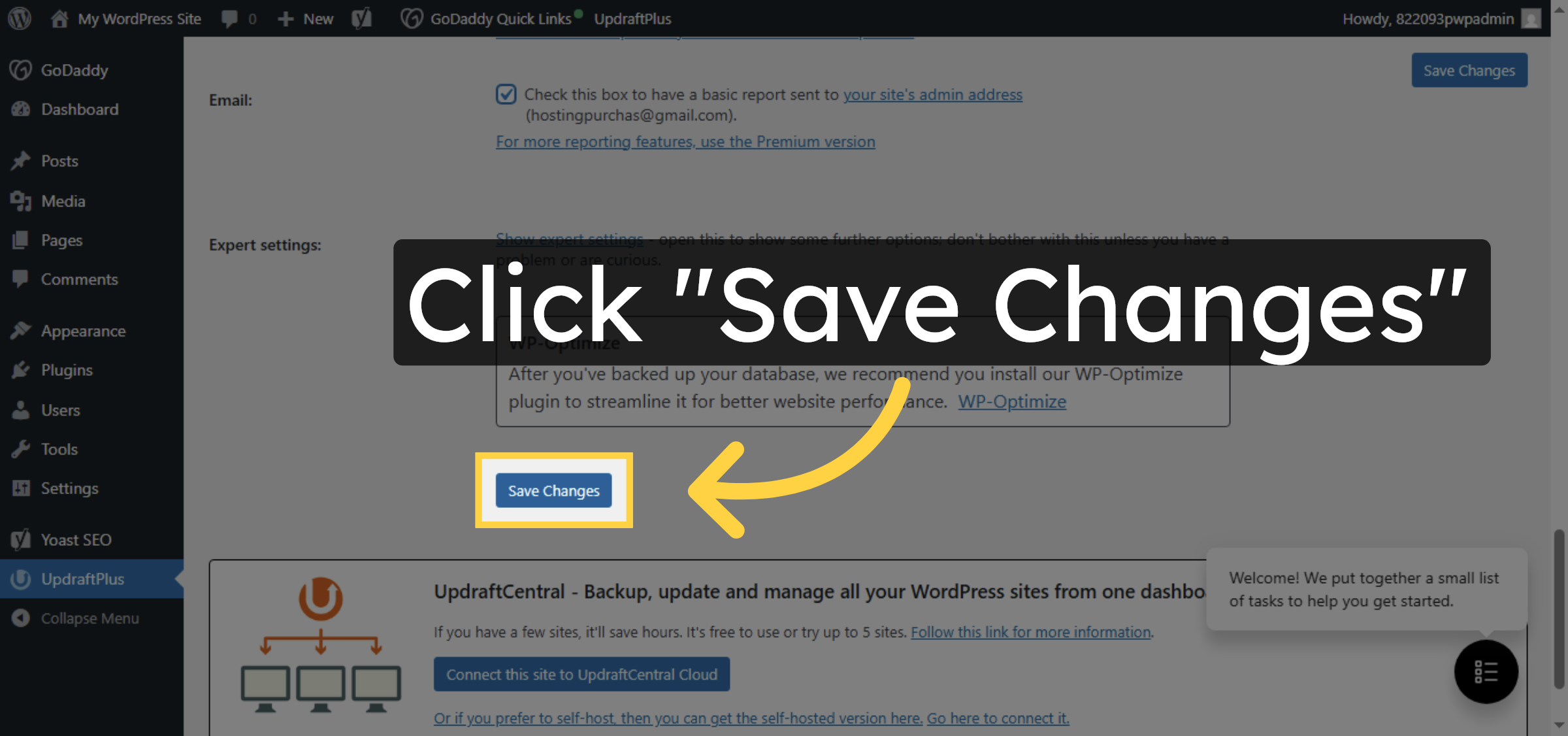
Click Save Changes to apply your backup configuration settings.

Save Backup Settings

20. Open Backup Restore Tab
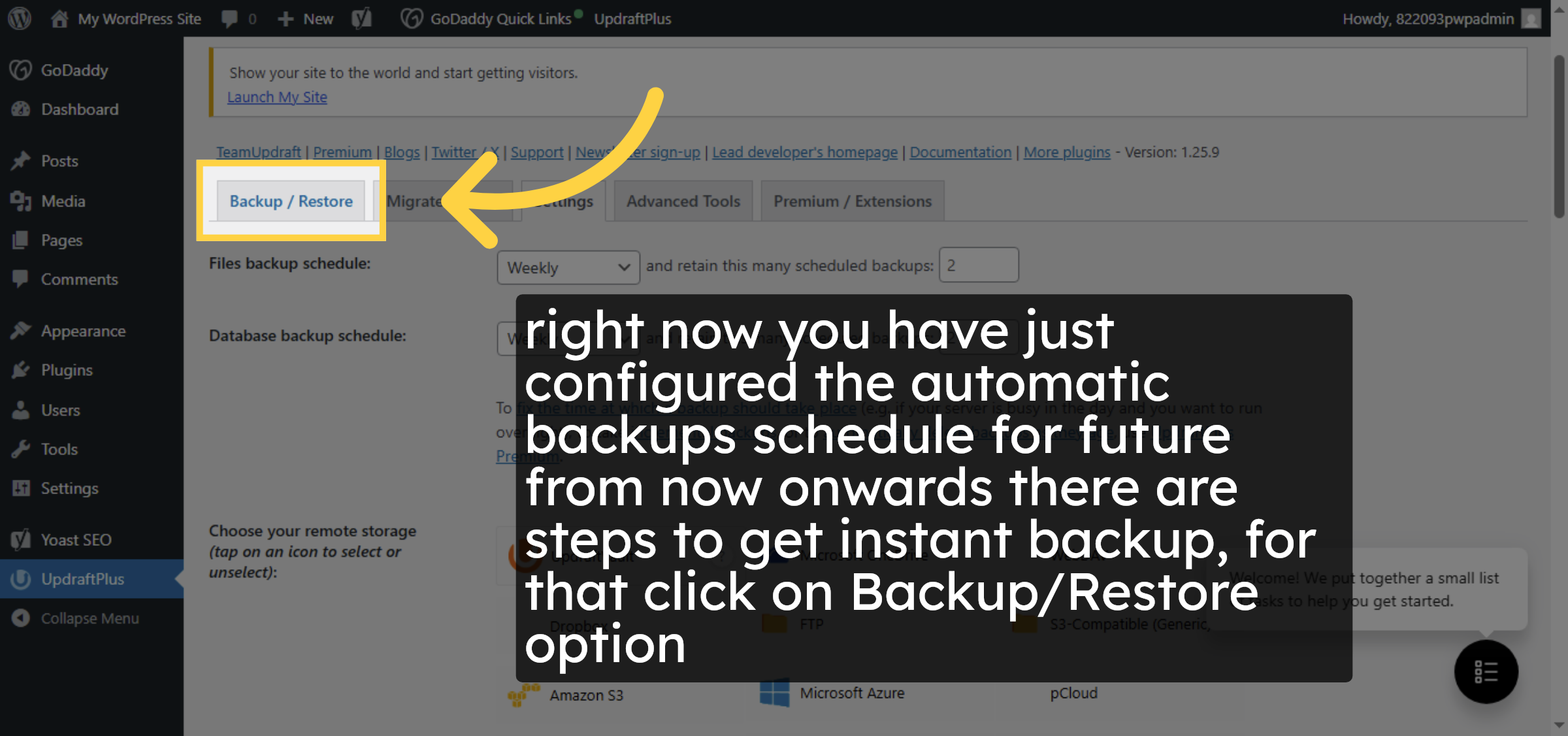
right now you have just configured the automatic backups schedule for future from now onwards there are steps to get instant backup, for that click on Backup/Restore option

Open Backup Restore Tab

21. Initiate Manual Backup
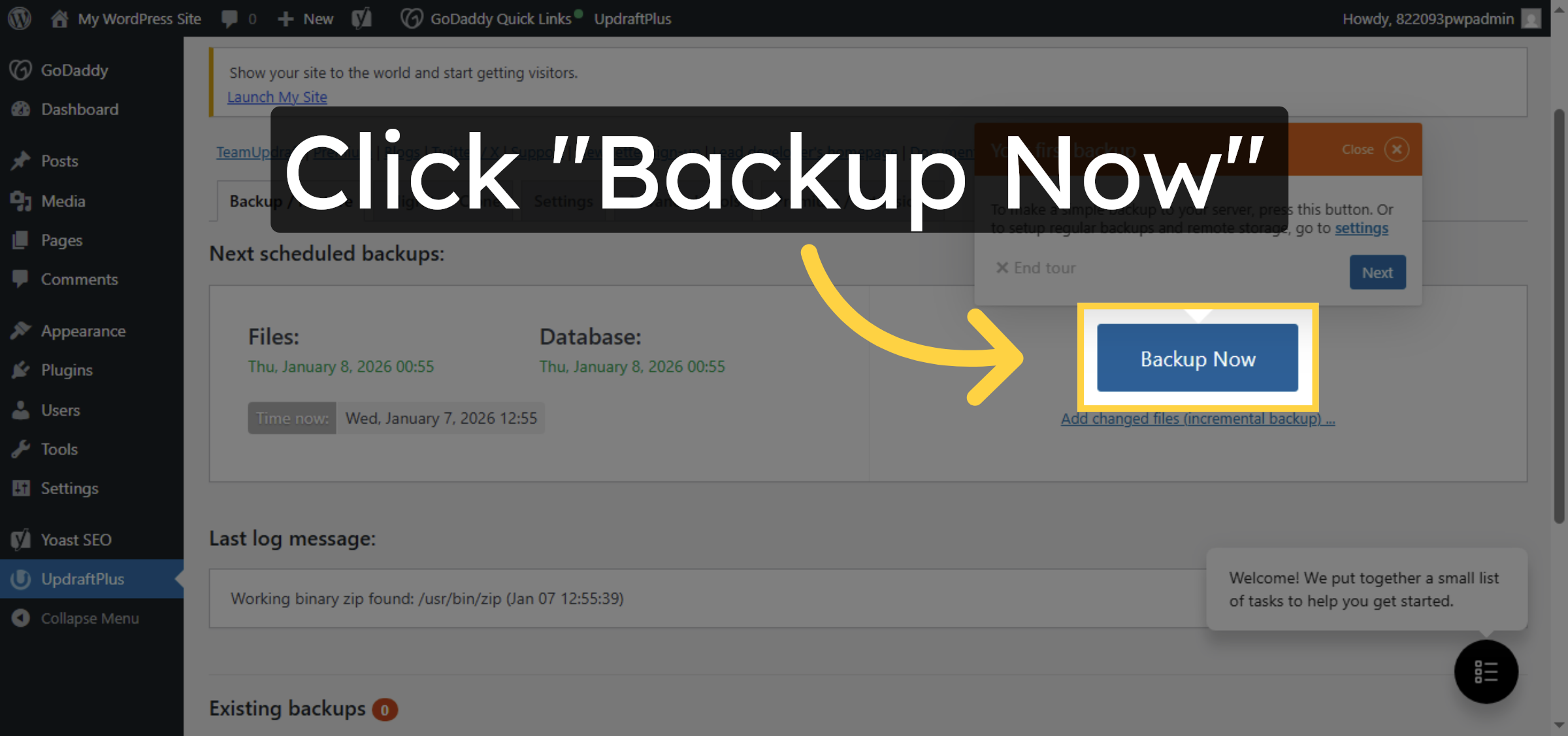
Click Backup Now to start creating a manual backup of your WordPress site.

Initiate Manual Backup

22. Enable Manual Backup Retention
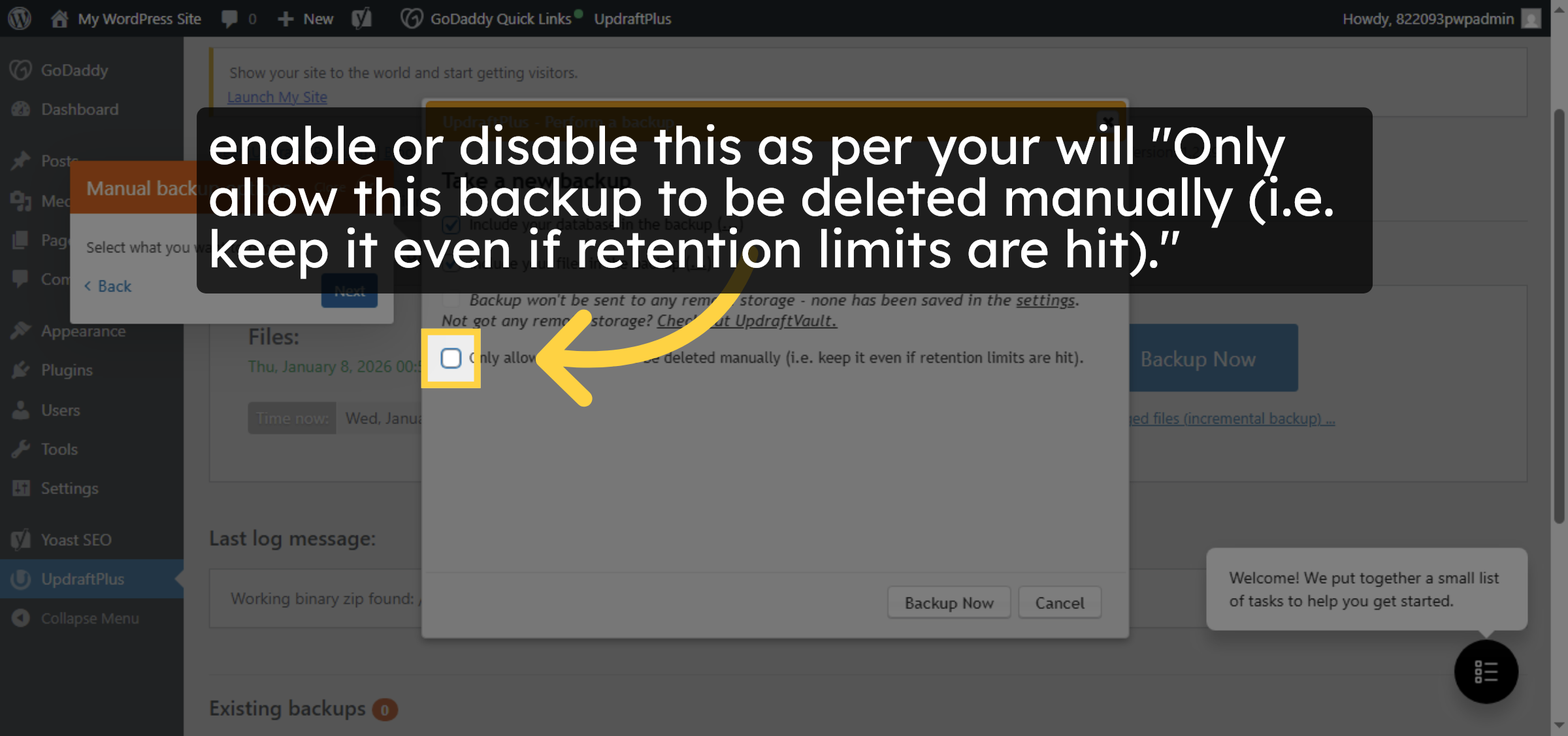
enable or disable this as per your will “Only allow this backup to be deleted manually (i.e. keep it even if retention limits are hit).”

Enable Manual Backup Retention

23. Confirm Retention Setting
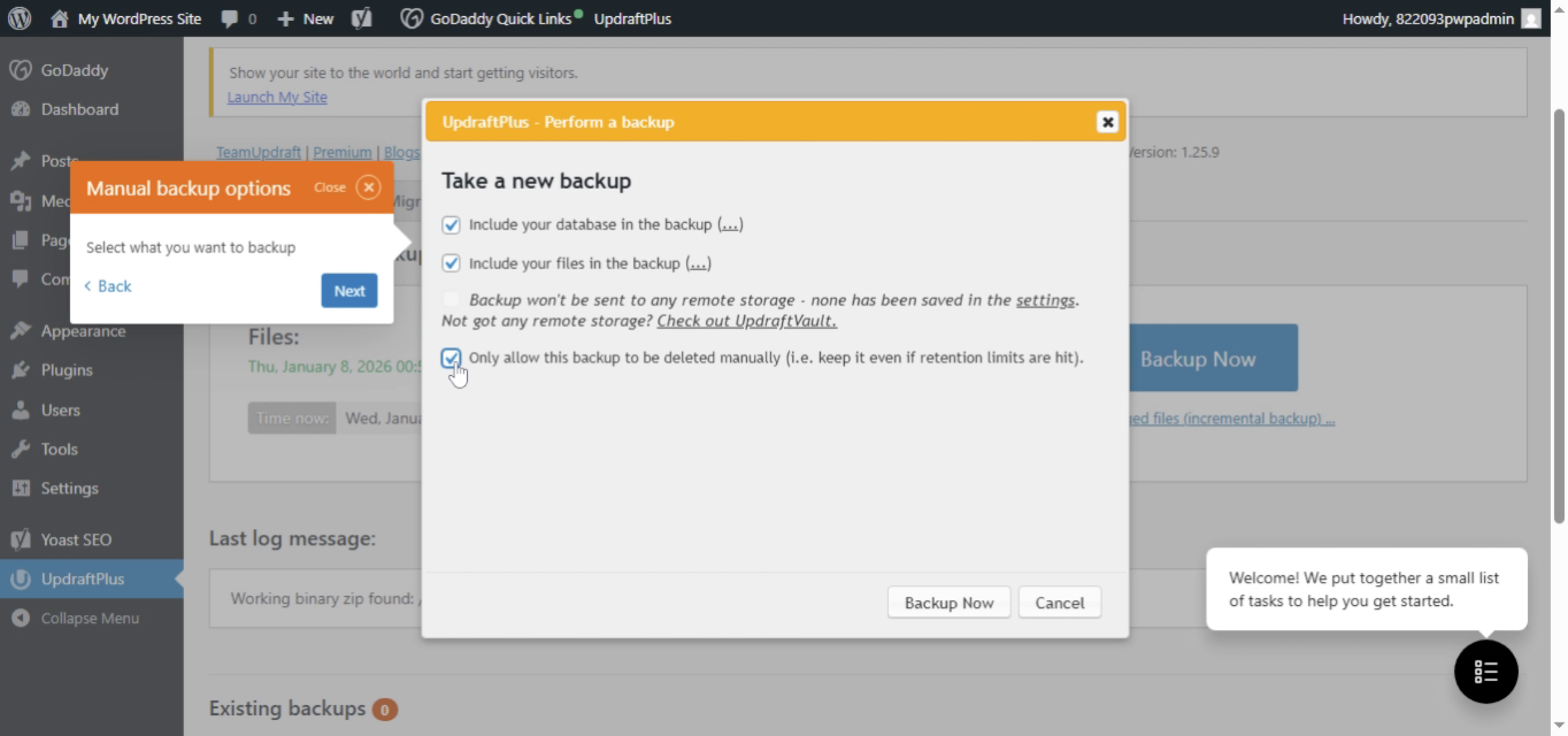
Fill on to activate the manual backup retention option.

Confirm Retention Setting

24. Start Backup Process
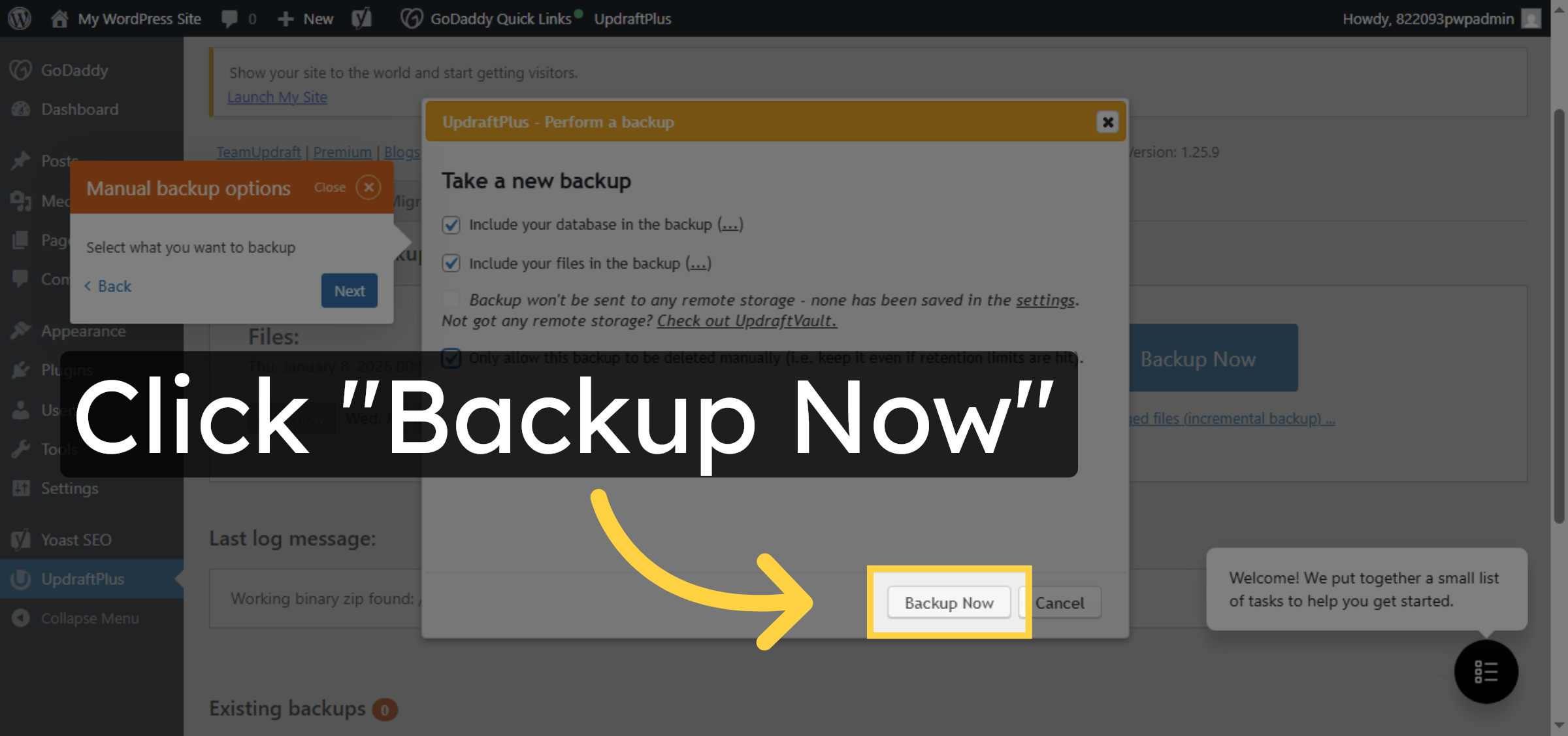
Click Backup Now to confirm and begin the backup creation process.

Start Backup Process

25. Monitor Backup Progress
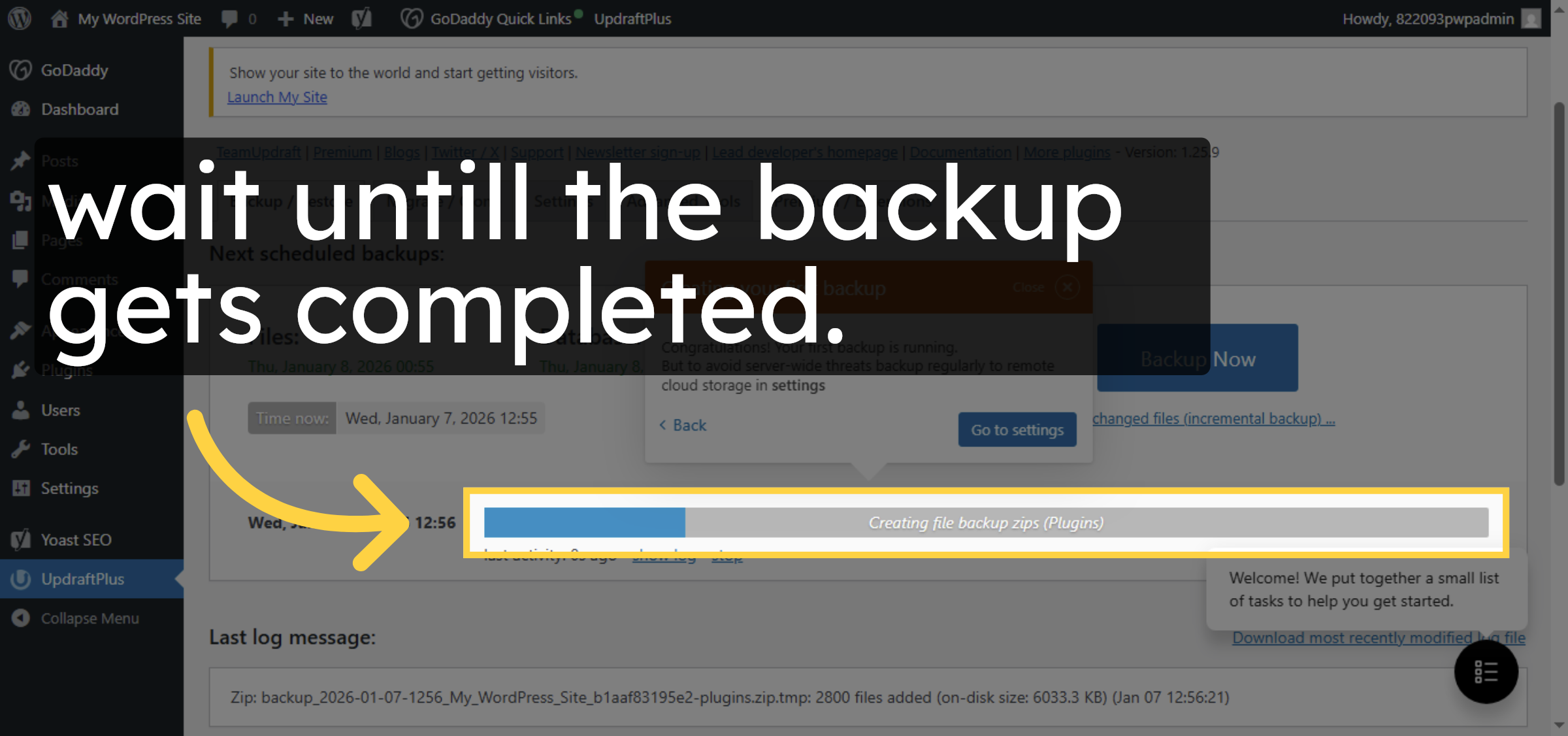
wait untill the backup gets completed.

Monitor Backup Progress

26. Close Backup Window
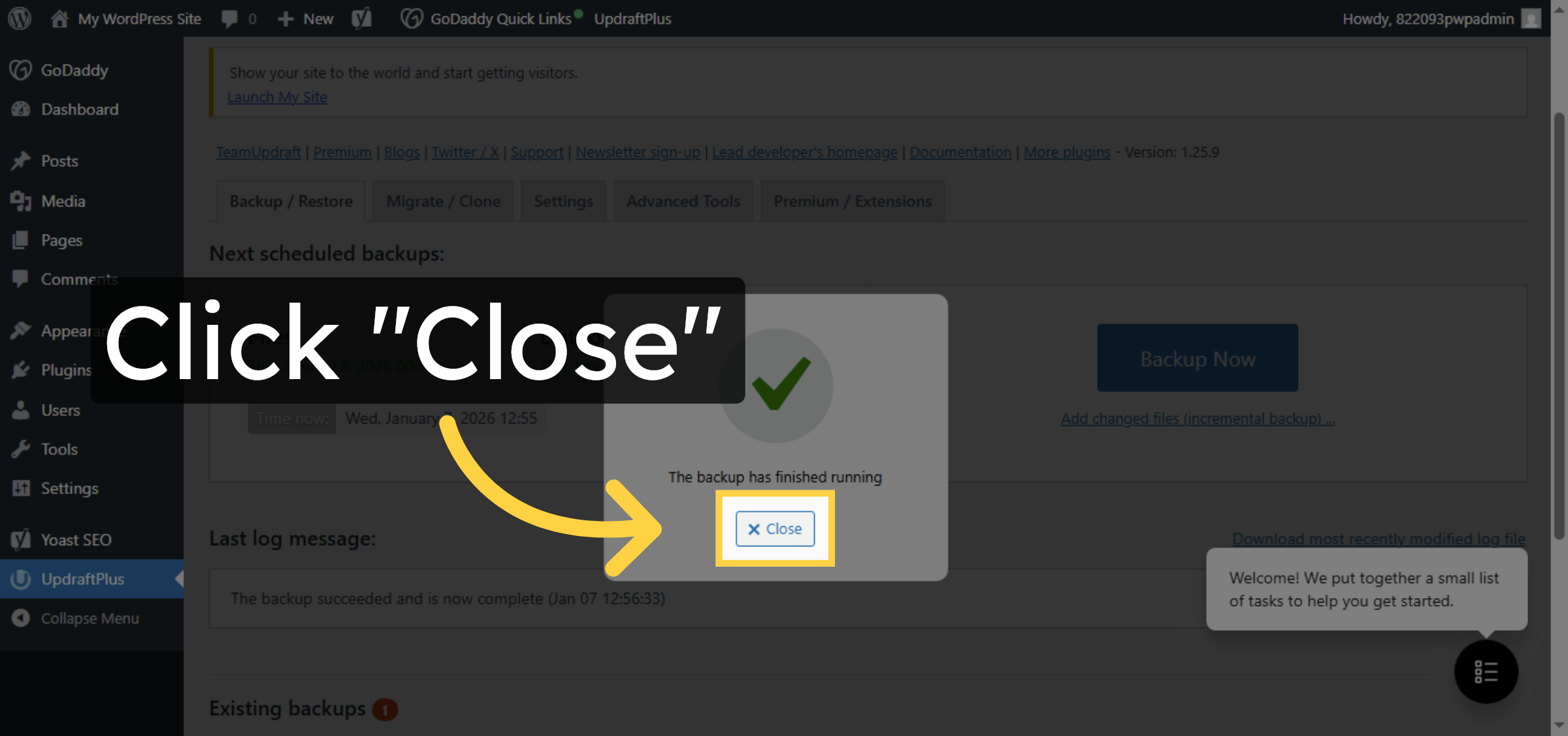
Click Close to exit the backup progress window once the backup is complete.

Close Backup Window

27. View Backup Timestamp
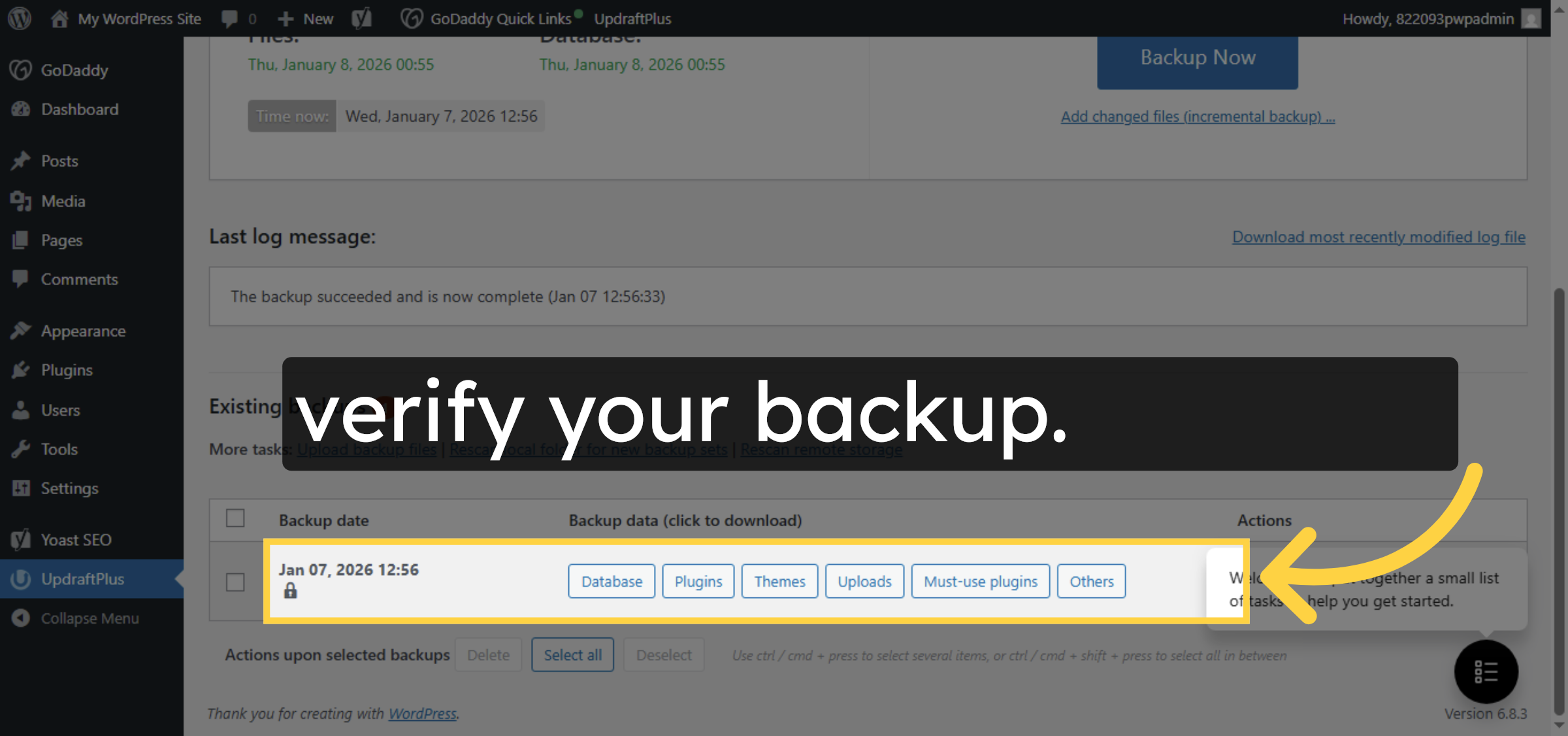
verify your backup.

View Backup Timestamp

Conclusion

By following this guide, you have successfully set up both automatic and manual WordPress backups on GoDaddy using the UpdraftPlus plugin. Configuring scheduled backups, choosing retention limits, and creating on-demand backups ensures your website data remains protected at all times. Regular backups are essential for site security, quick recovery, and long-term website stability.

  • Visit: https://www.woohelpdesk.com

  • Call Us Toll-Free: +1 888 602 0119 (US & Canada)

  • Get professional support for WordPress backups, GoDaddy hosting assistance, UpdraftPlus configuration, website recovery, performance optimization, and WooCommerce solutions


Leave a Reply

Your email address will not be published. Required fields are marked *

Leave a Reply

Your email address will not be published. Required fields are marked *