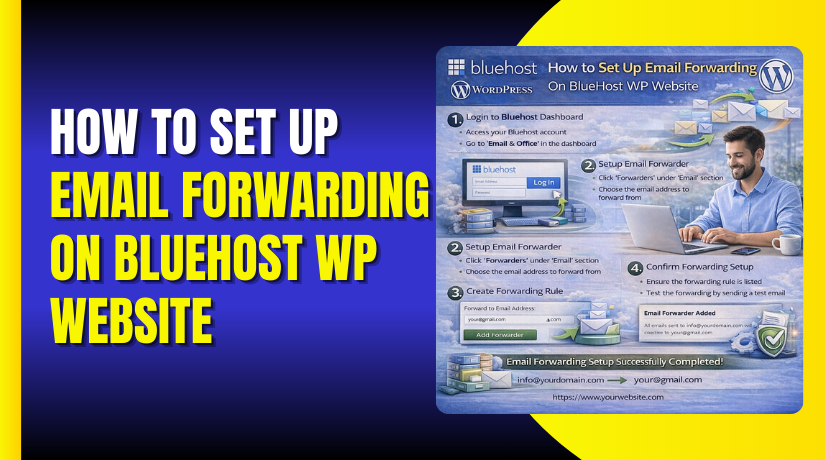
How to Set Up Email Forwarding On Bluehost WP Website
Introduction
Email forwarding is a valuable feature that helps website owners manage communications efficiently by redirecting incoming emails from domain-based addresses to preferred personal or business inboxes. This ensures that important messages are received promptly without requiring multiple email logins. Hosting providers such as Bluehost offer built-in tools through cPanel that allow users to configure email forwarding quickly and securely.
This guidde explains how to set up email forwarding on a Bluehost WordPress website using the cPanel Forwarders feature. It provides step-by-step instructions for accessing hosting settings, selecting domains, creating forwarding rules, and testing email delivery. By following this guide, users can streamline email management, improve responsiveness, and maintain consistent communication across platforms.
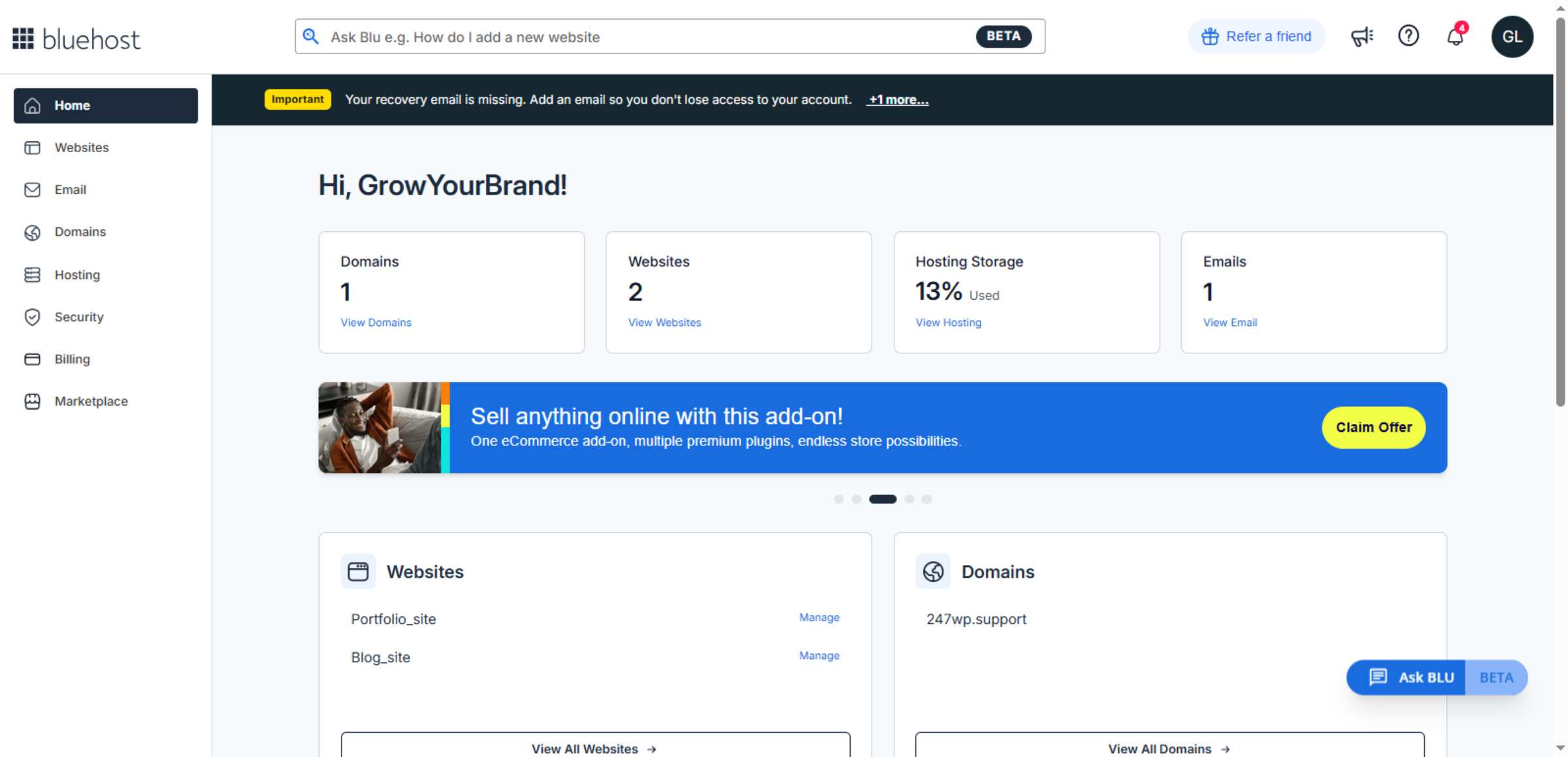
1. Bluehost Hosting Dashboard
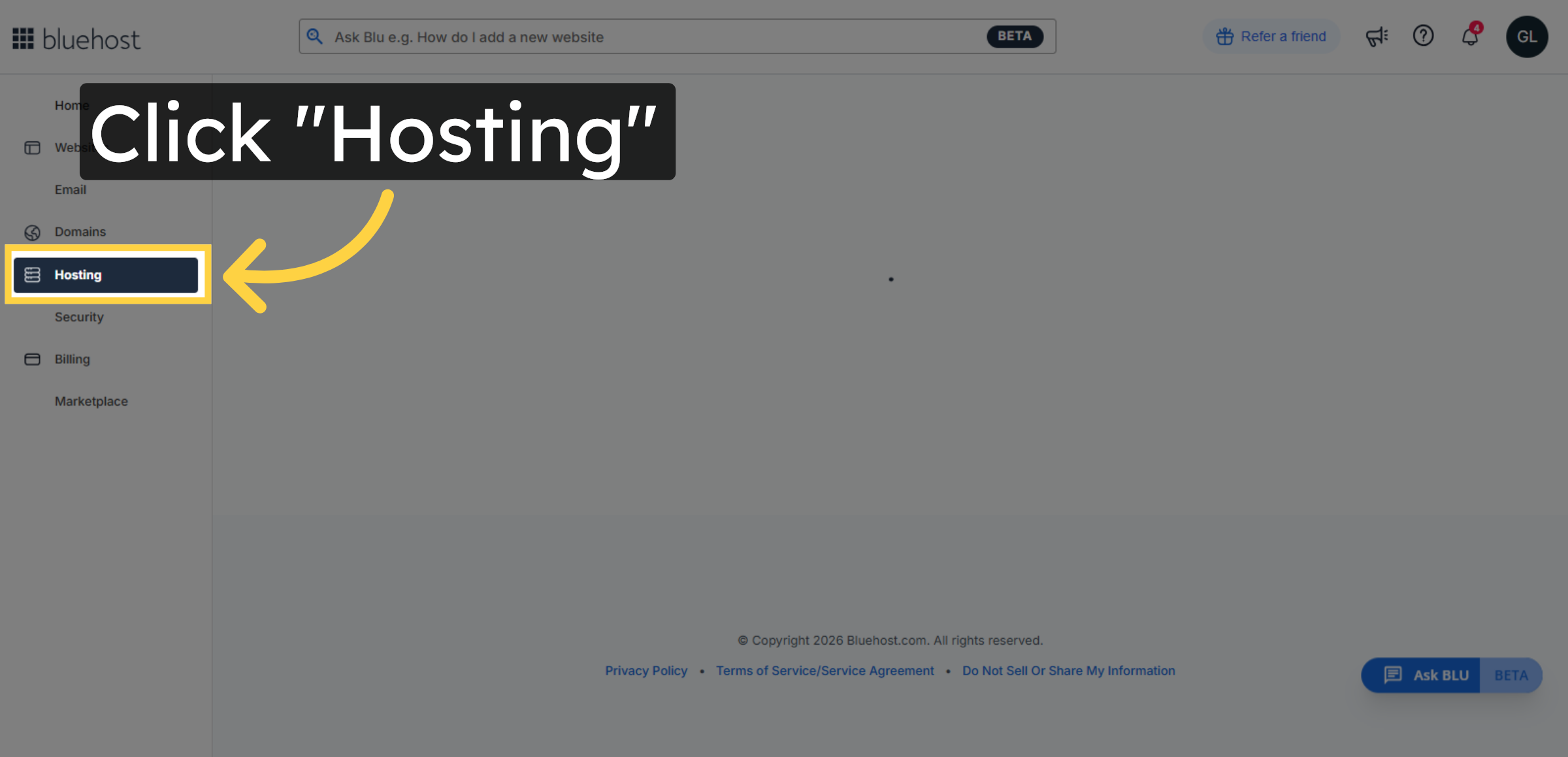
2. Access Hosting Section
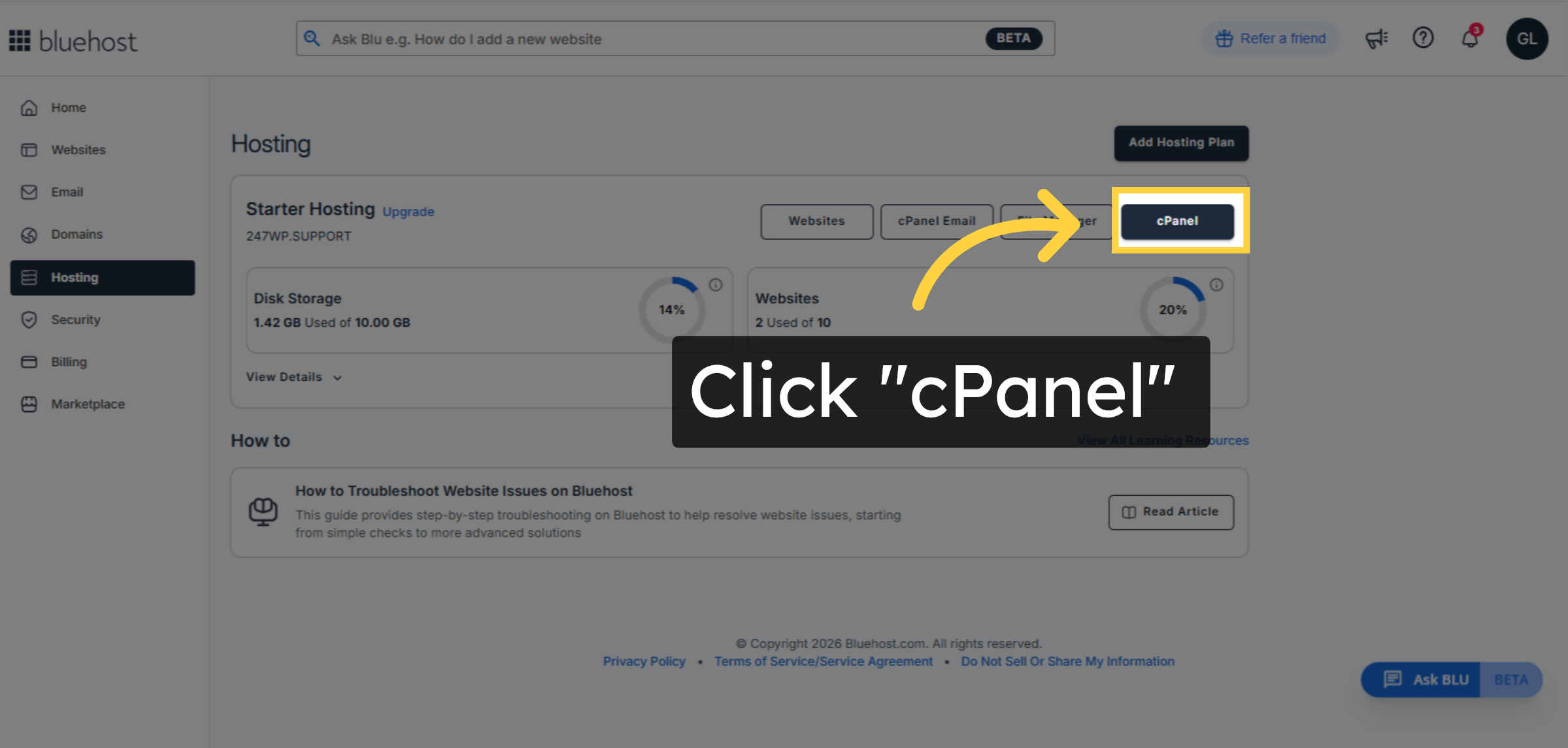
3. Open cPanel Interface
4. Switch to cPanel URL
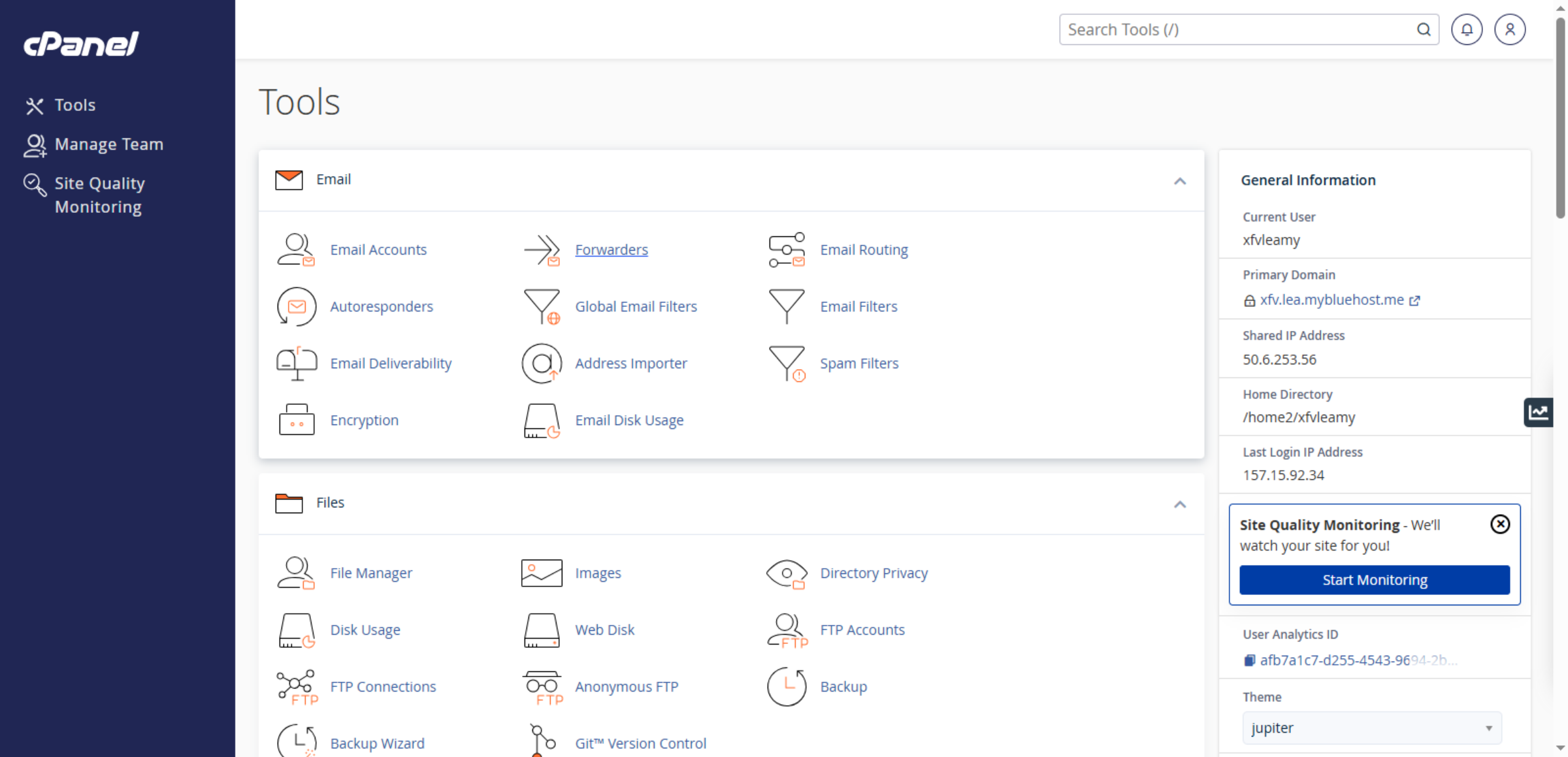
5. Open Forwarders Section
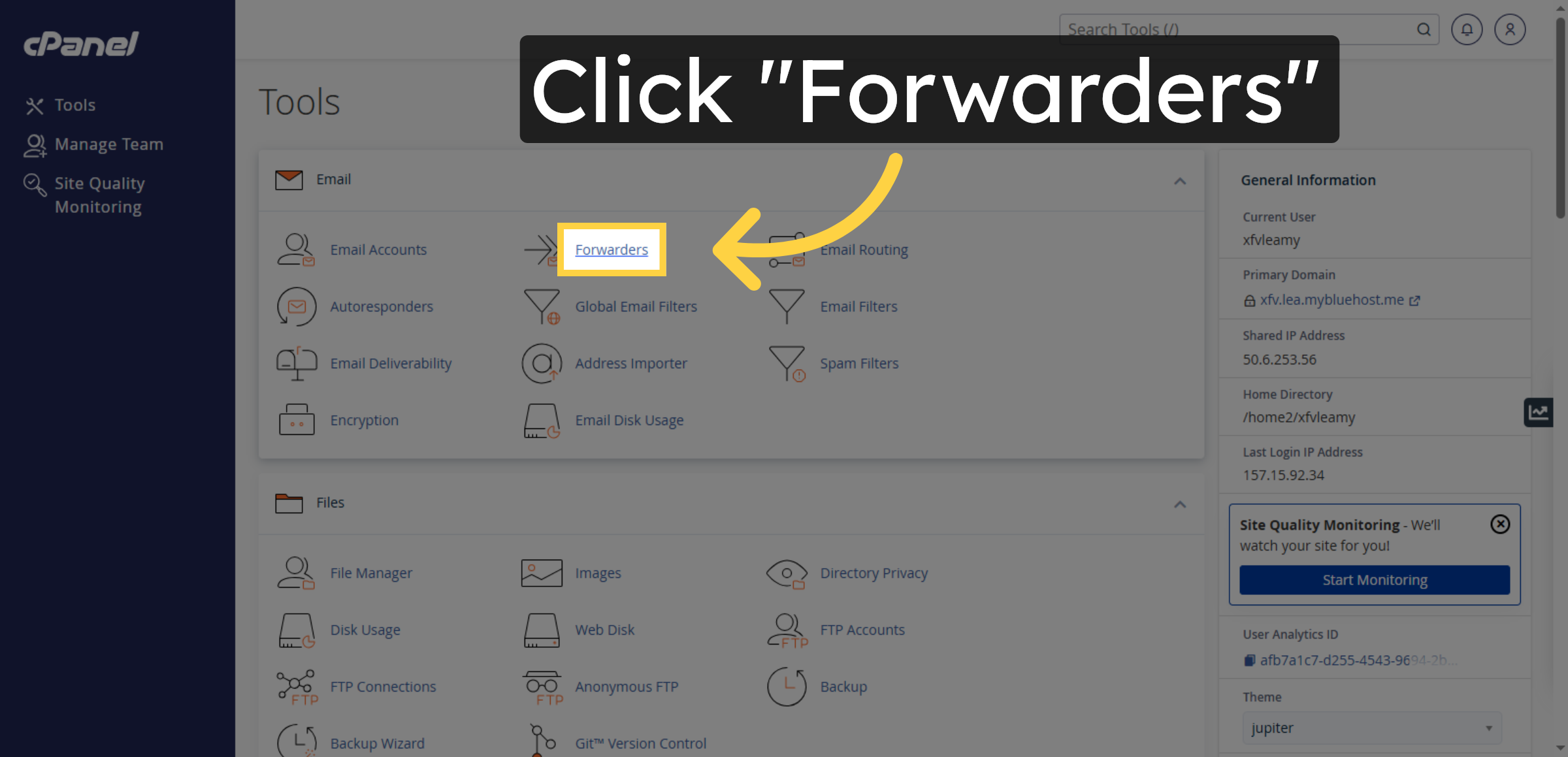
6. Select Domain for Forwarding
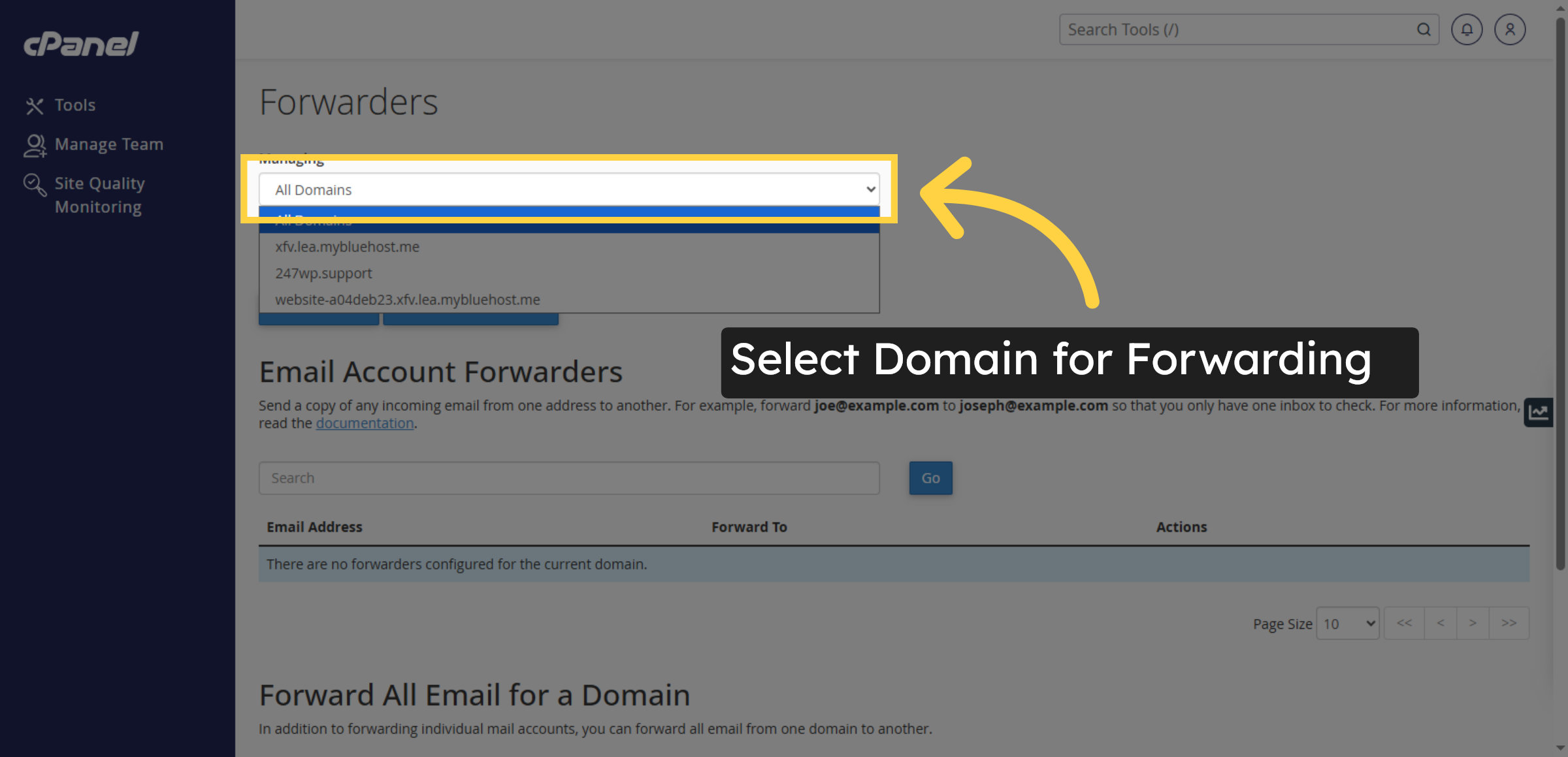
7. Add New Forwarder
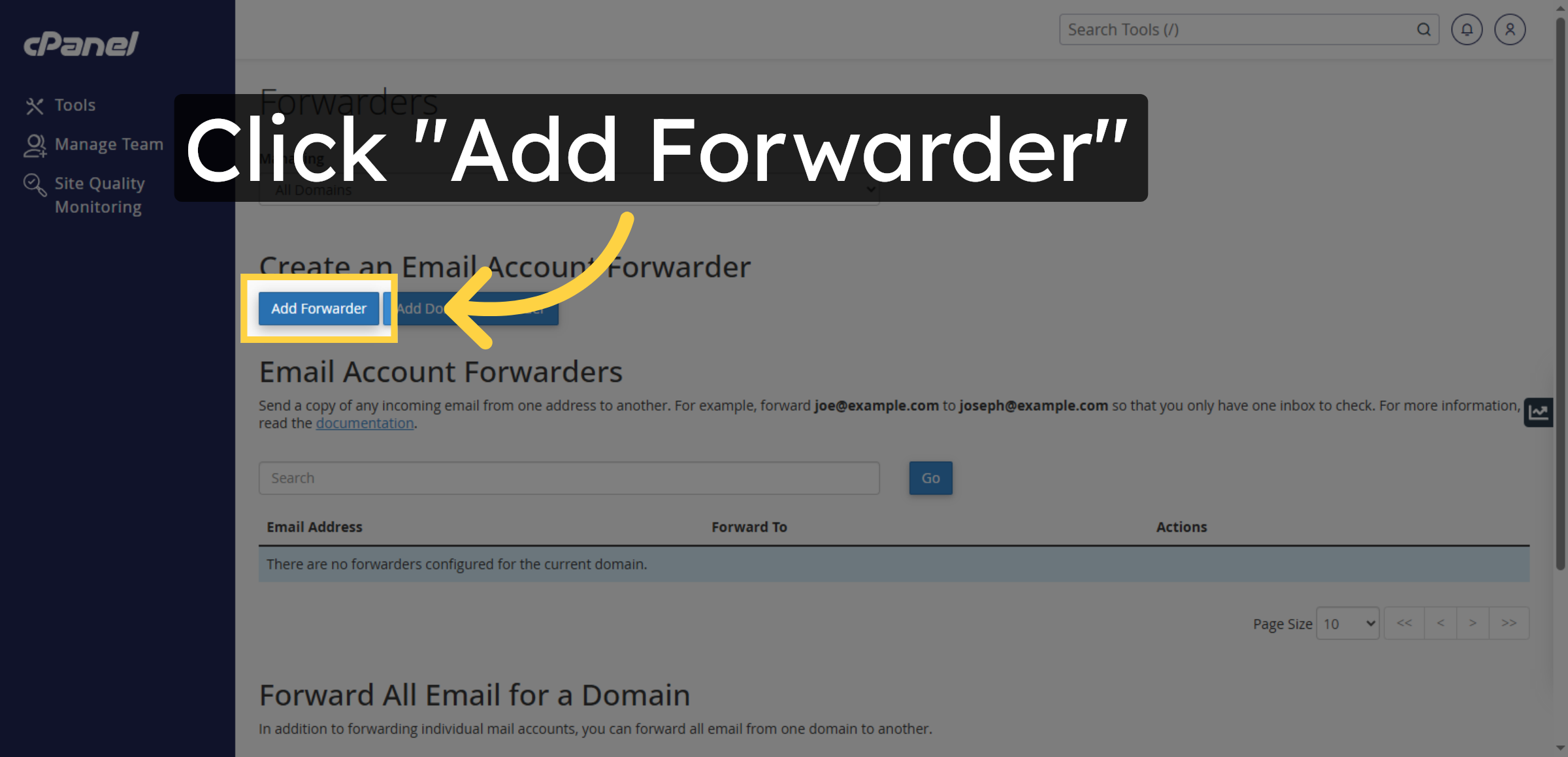
8. Select Forwarding Address
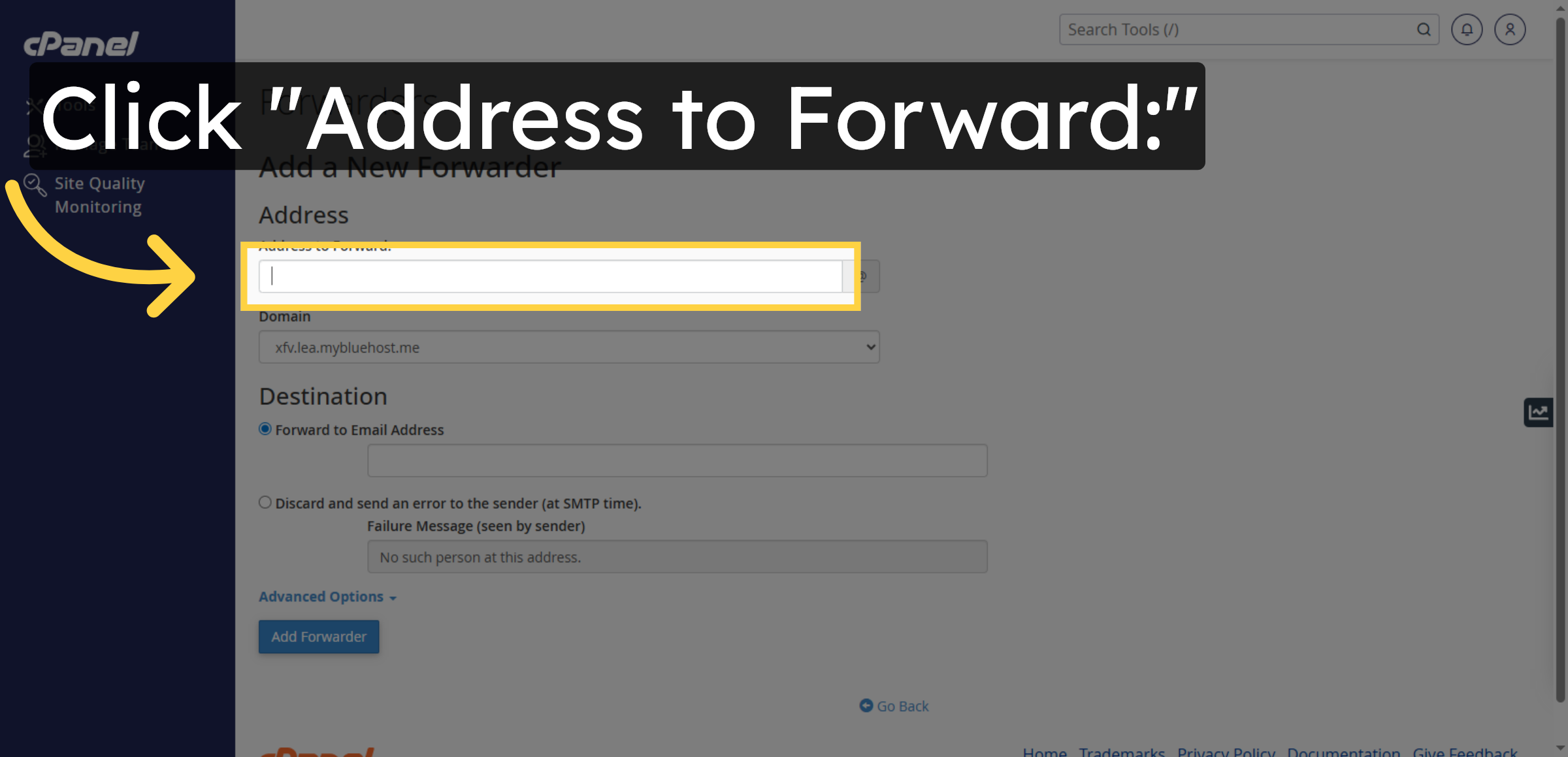
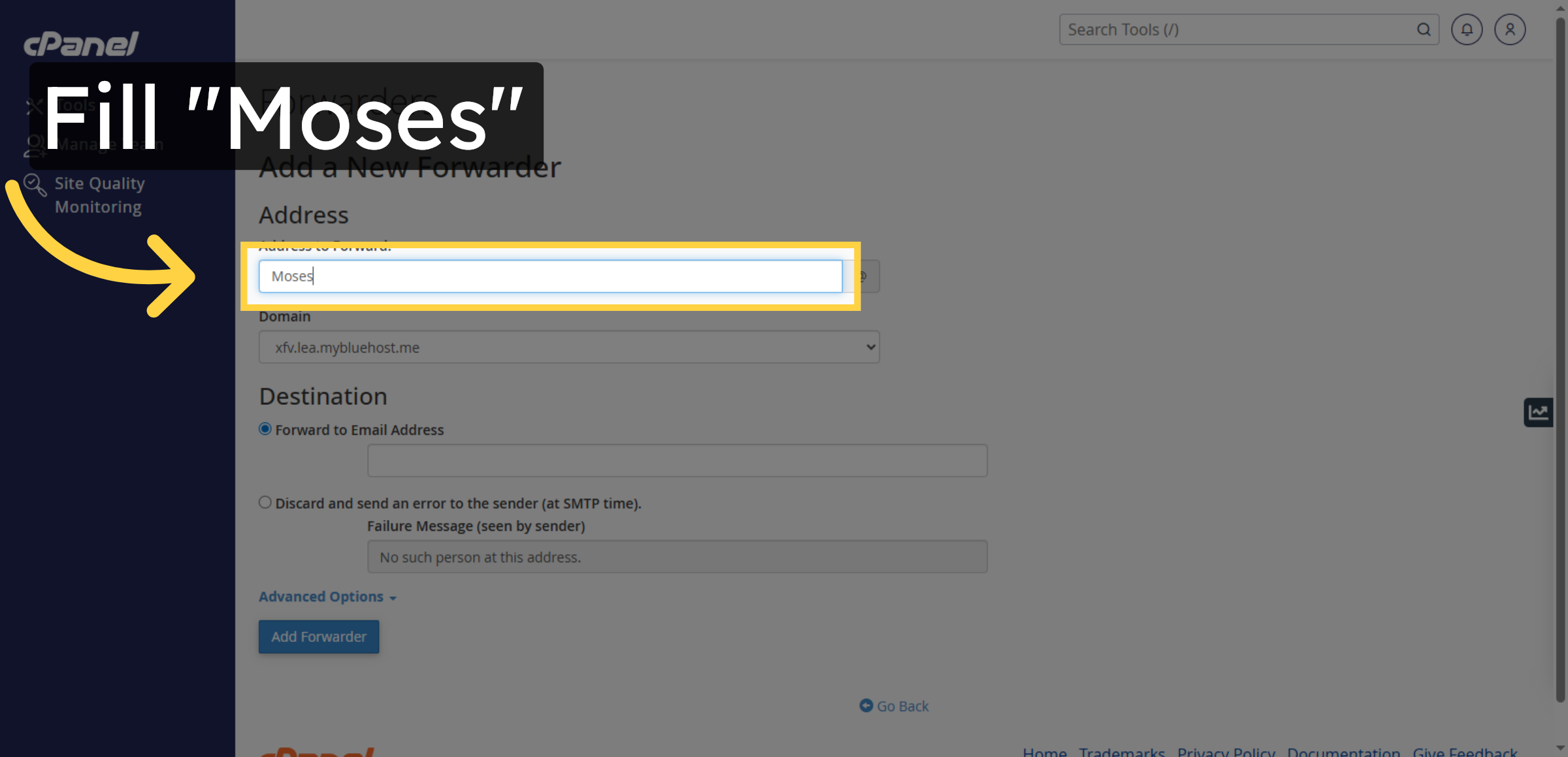
9. Enter Forwarder Name
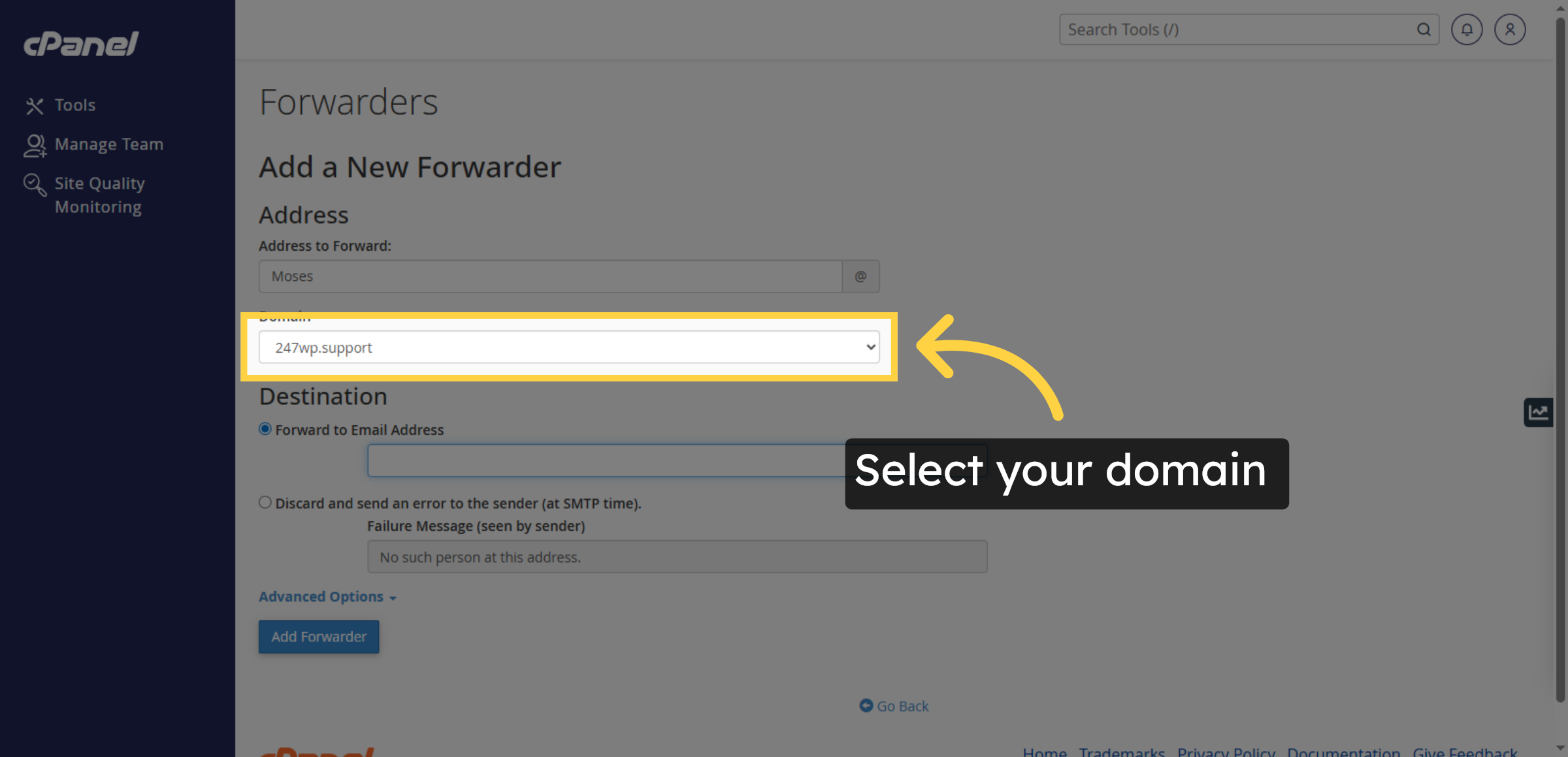
10. Select Your Domain
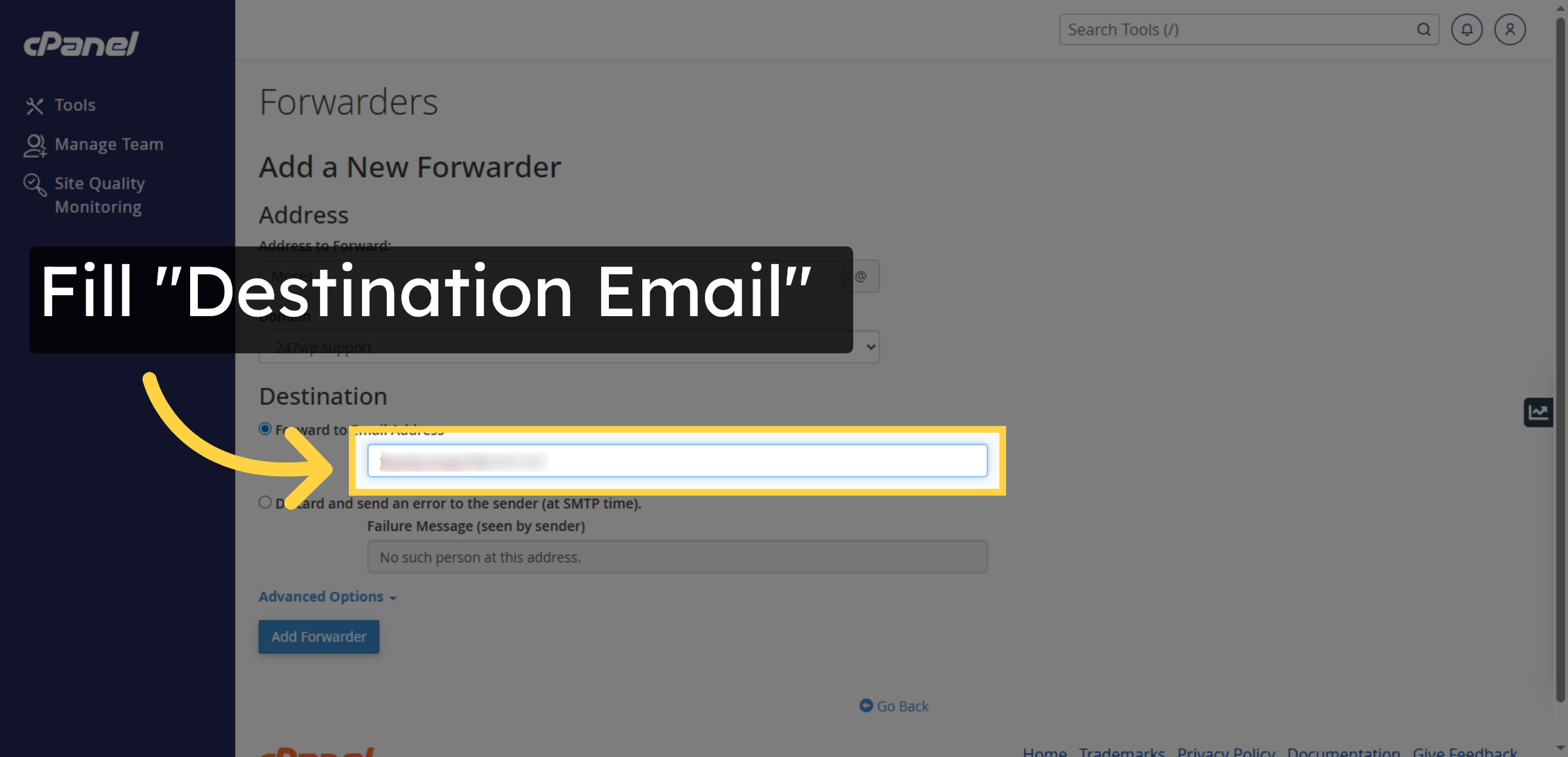
11. Enter Destination Email
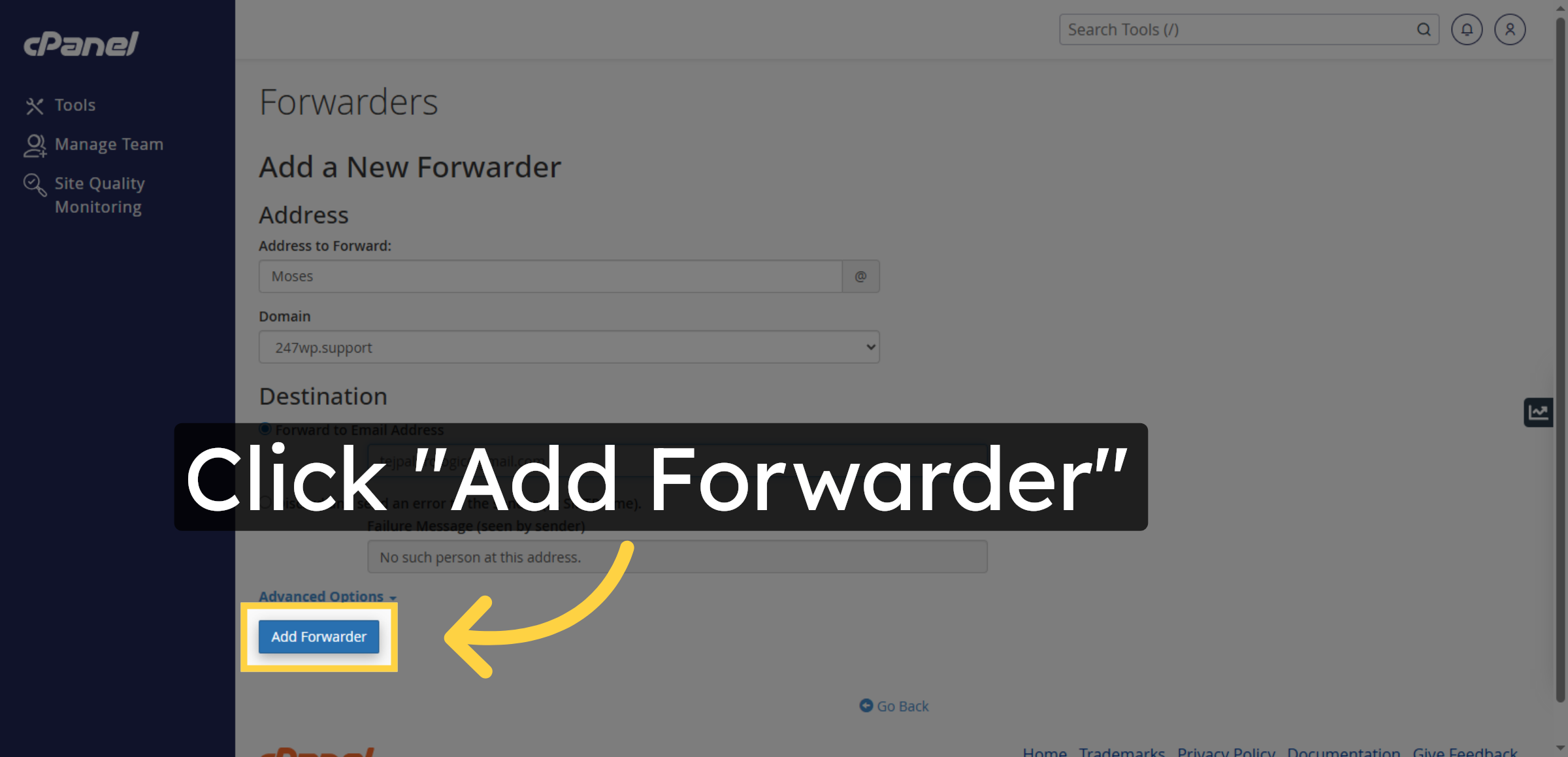
12. Add Forwarder


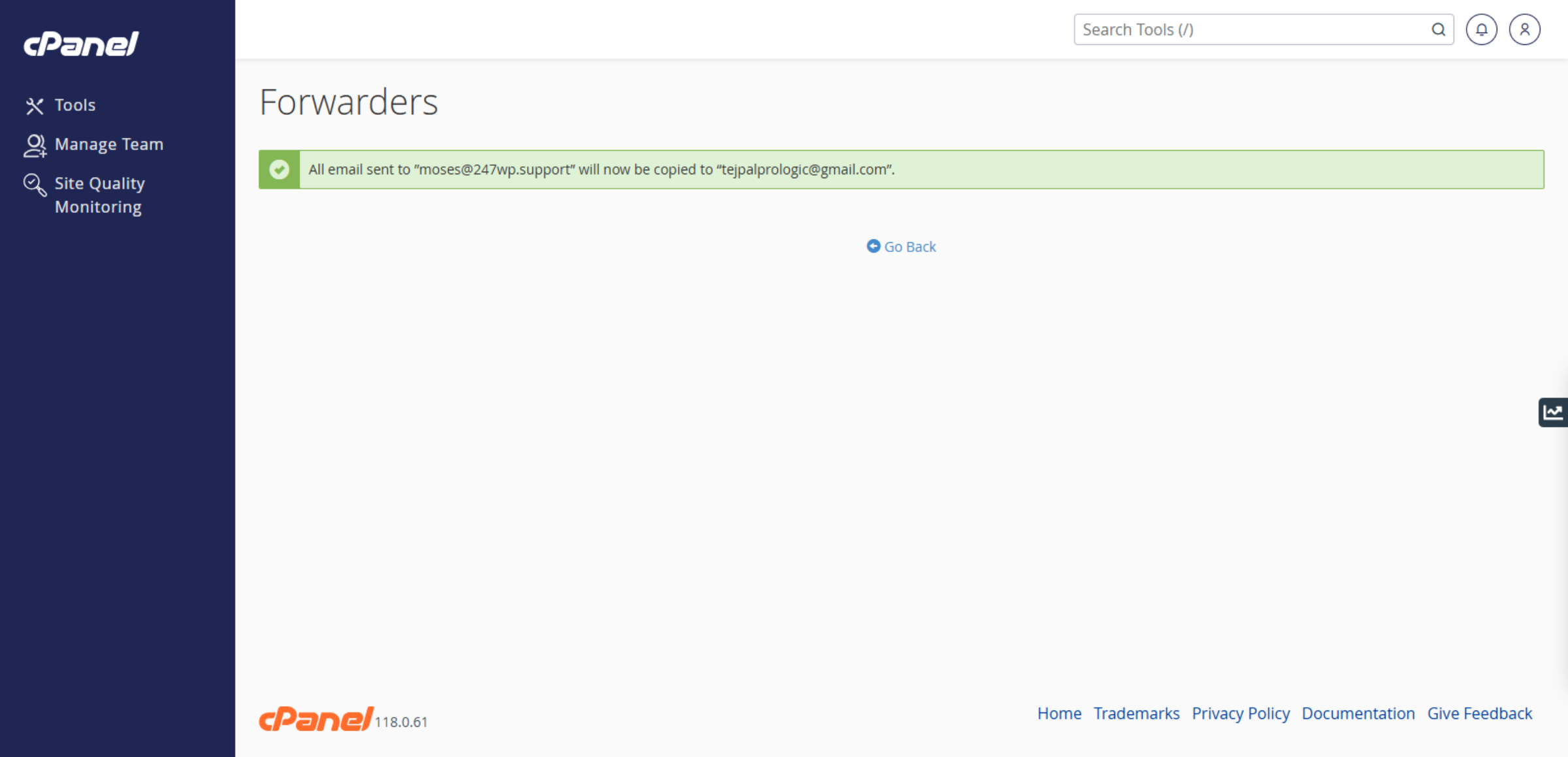
13. Email Forwarding Enabled
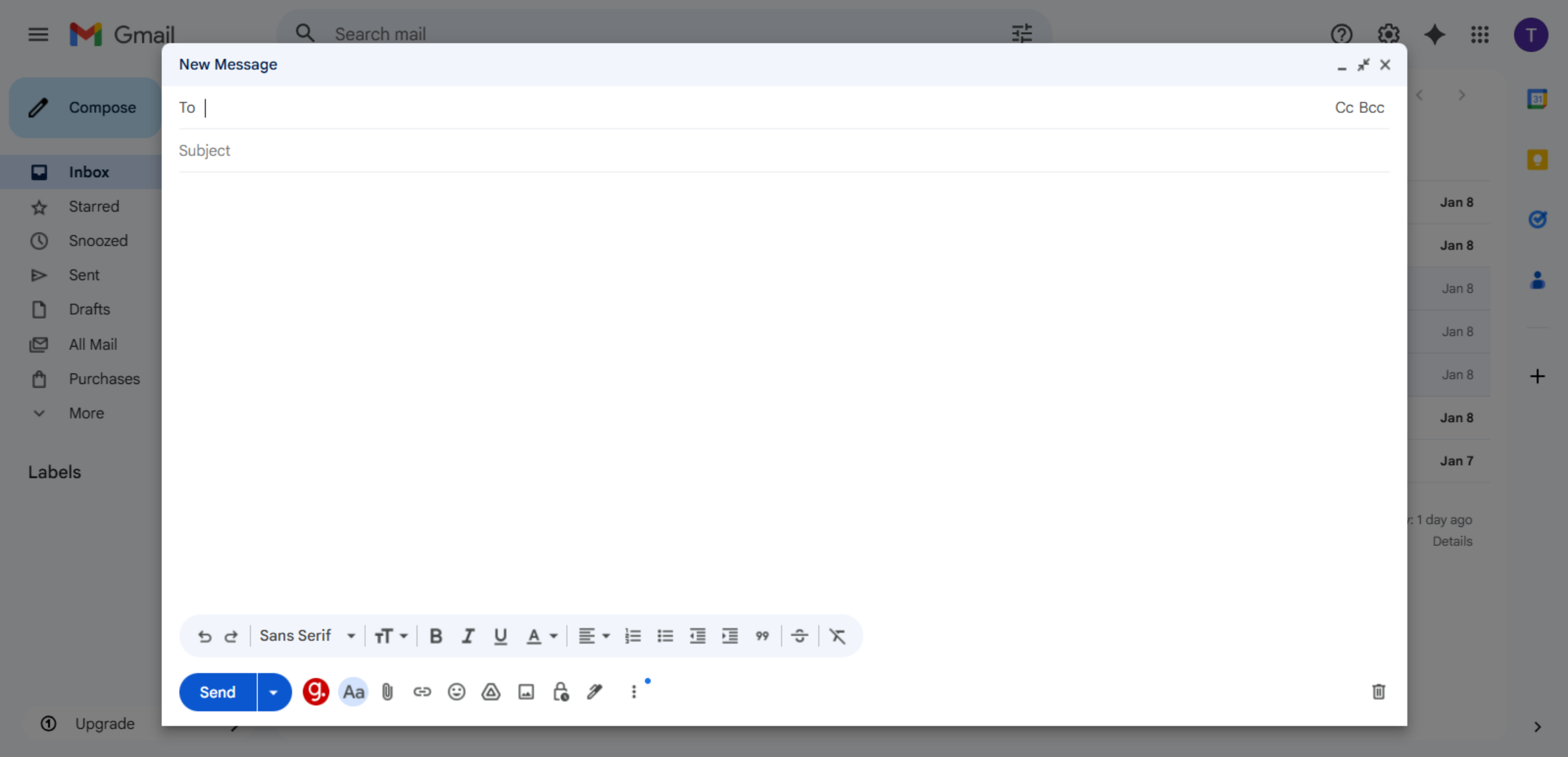
14. Open Gmail Inbox
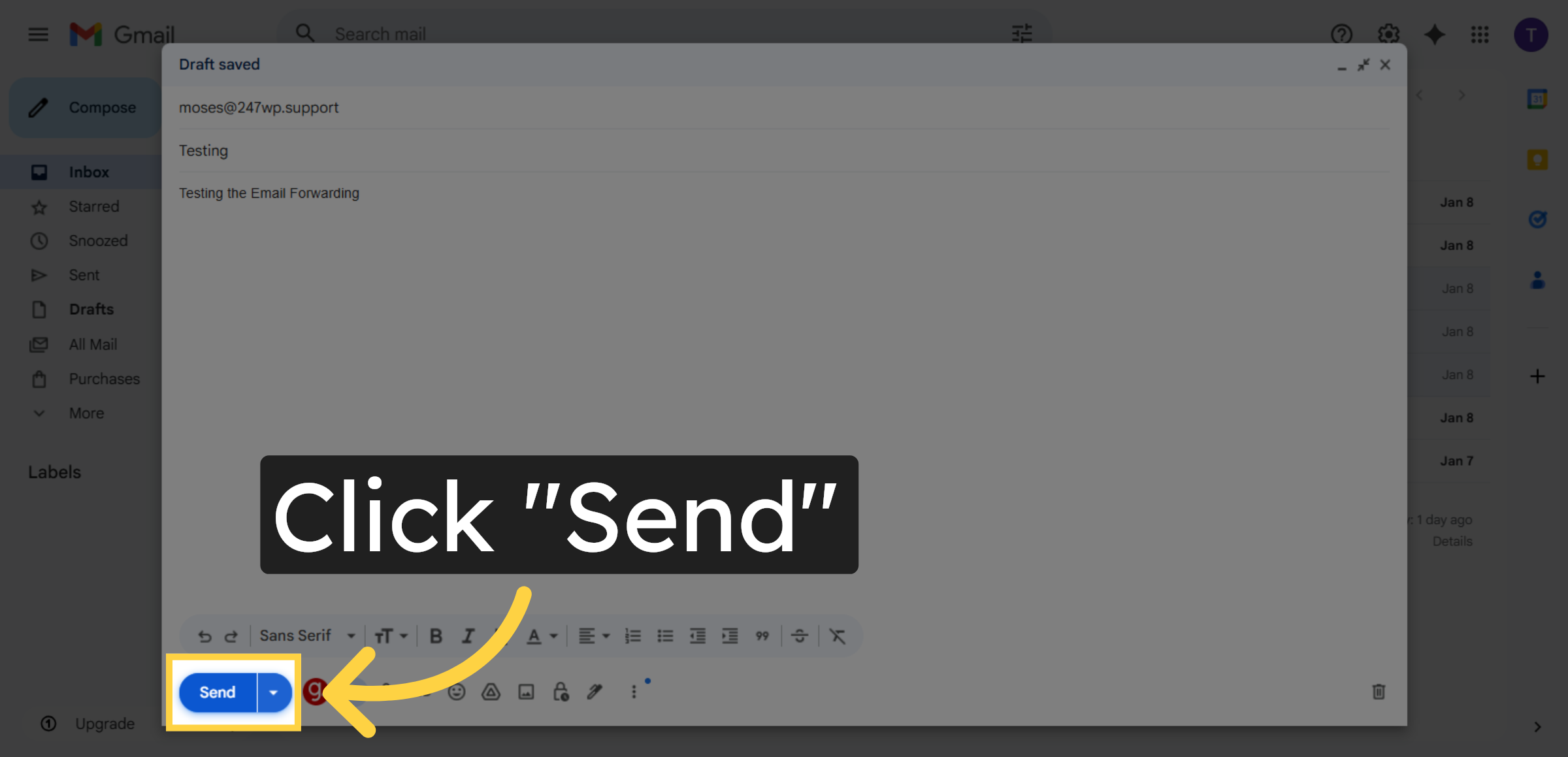
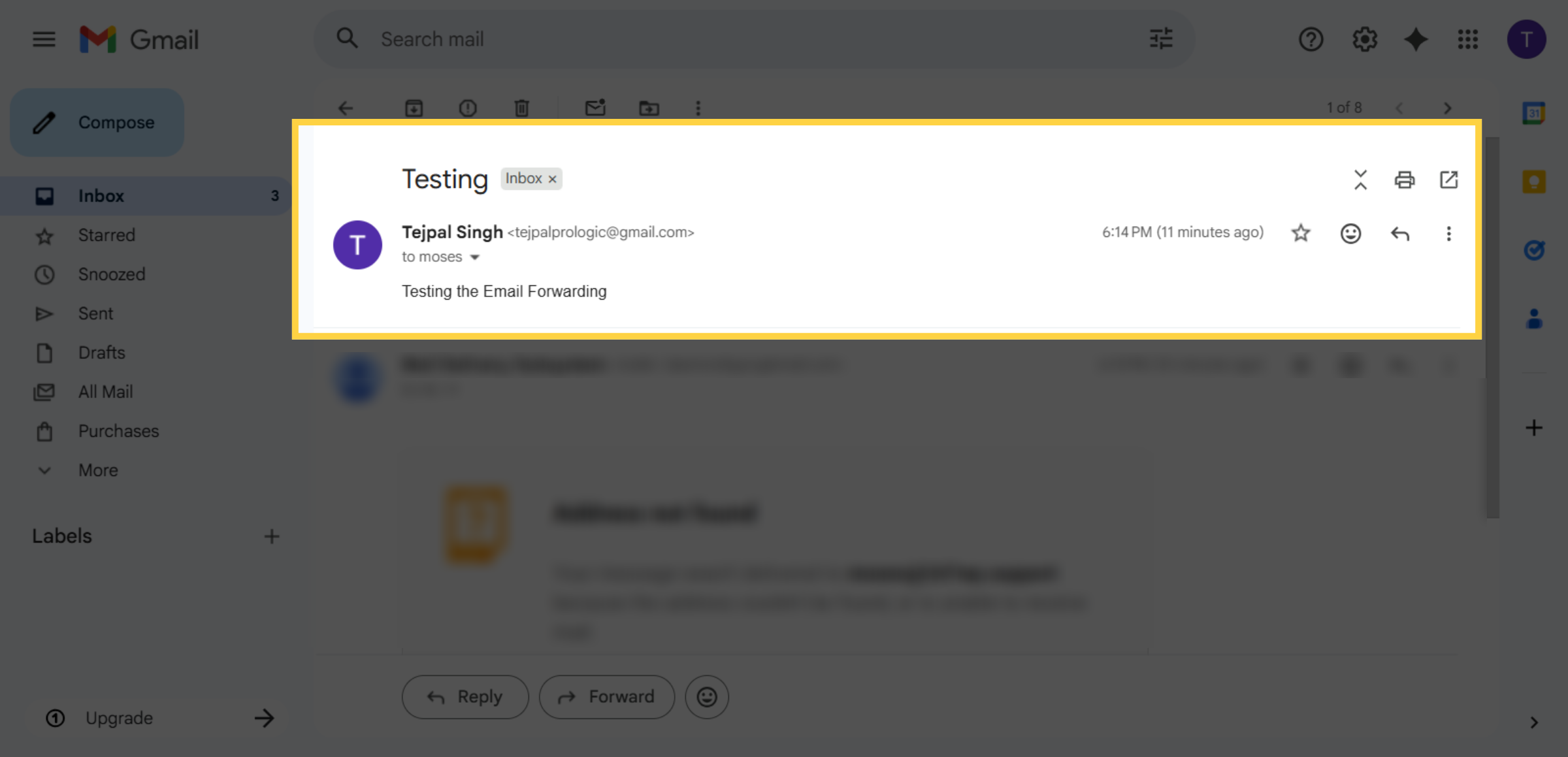
15. Send Test Email
16. Email Forwarding Verified
Conclusion
Proper email forwarding configuration plays an important role in maintaining reliable and organized communication channels. By following the steps outlined in this guide, you have successfully created and verified email forwarding rules on your Bluehost hosting account. This setup ensures that emails sent to your domain-based addresses are automatically delivered to your chosen destination inbox.
To maintain uninterrupted service, it is recommended to periodically test forwarding rules, update destination addresses when required, and monitor email activity. Regular reviews of email settings help prevent delivery failures and ensure consistent performance. With effective email forwarding in place, your business and website communications remain efficient, accessible, and dependable.
WooHelpDesk Support
Need professional assistance with email forwarding, business email setup, hosting configuration, or troubleshooting delivery issues? WooHelpDesk provides expert technical support to help you manage your email systems with confidence.
Visit: https://www.woohelpdesk.com
Call Us Toll-Free: +1 888 602 0119 (US & Canada)
Reliable Setup | Secure Configuration | Trusted Support
Contact WooHelpDesk today for dependable WordPress and Bluehost email support solutions.



