How To Back Up A WordPress site On BlueHost WP Hosting Using UpdraftPlush Plugin
Introduction
Creating regular backups is one of the most important steps in maintaining a secure and reliable WordPress website. Backups protect your site against data loss caused by accidental changes, plugin conflicts, security issues, or server failures. This guide walks you through the process of backing up your WordPress site on Bluehost using the UpdraftPlus plugin, one of the most trusted and widely used backup solutions for WordPress. You will learn how to install and activate the plugin, access its settings, and create a manual backup that is retained until you choose to delete it. By following these steps, you ensure that a complete copy of your website files and database is safely stored and can be restored whenever needed. This approach provides peace of mind and gives you full control over your website’s backup process directly from the WordPress dashboard.
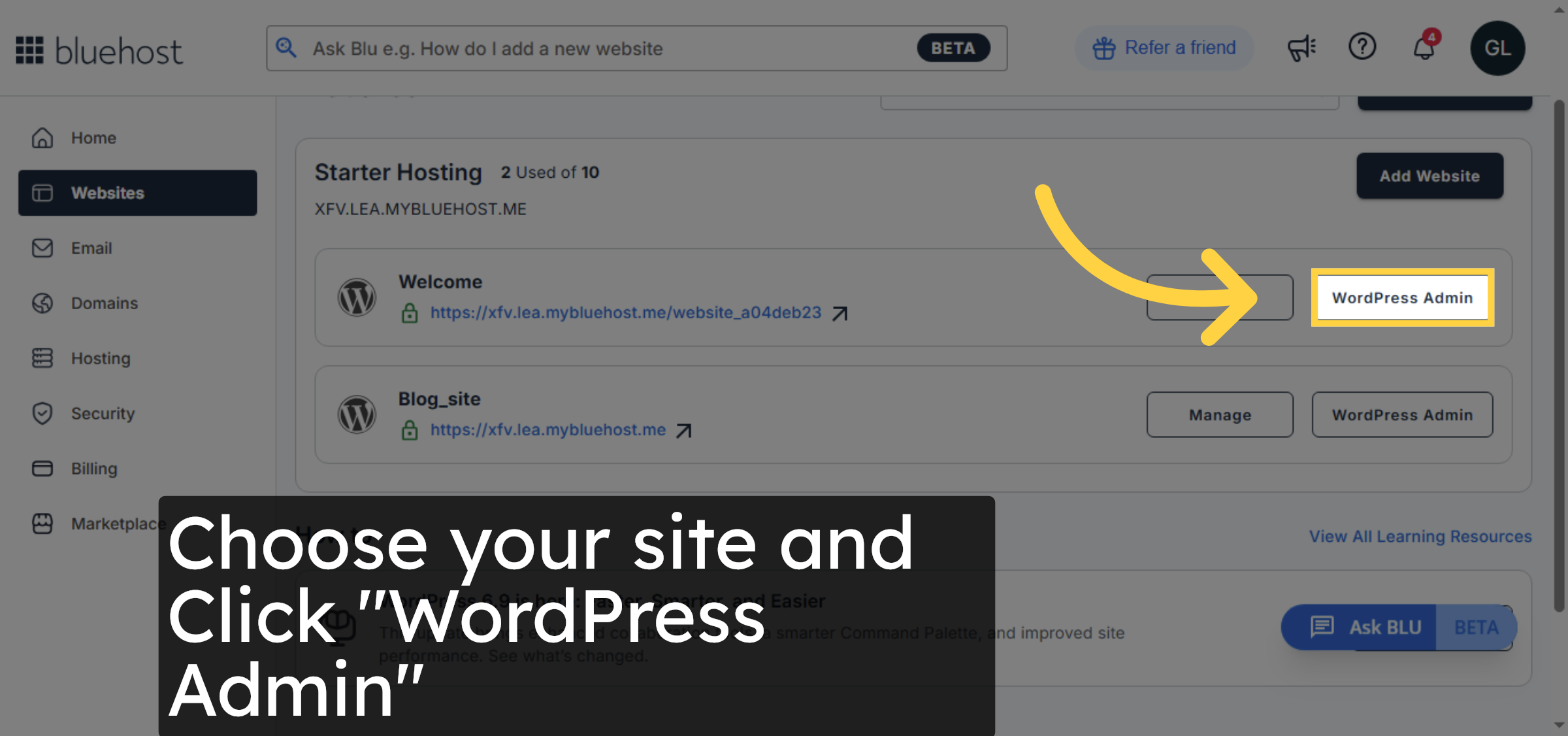
1. Navigate to Websites Section

2. Open WordPress Admin Panel
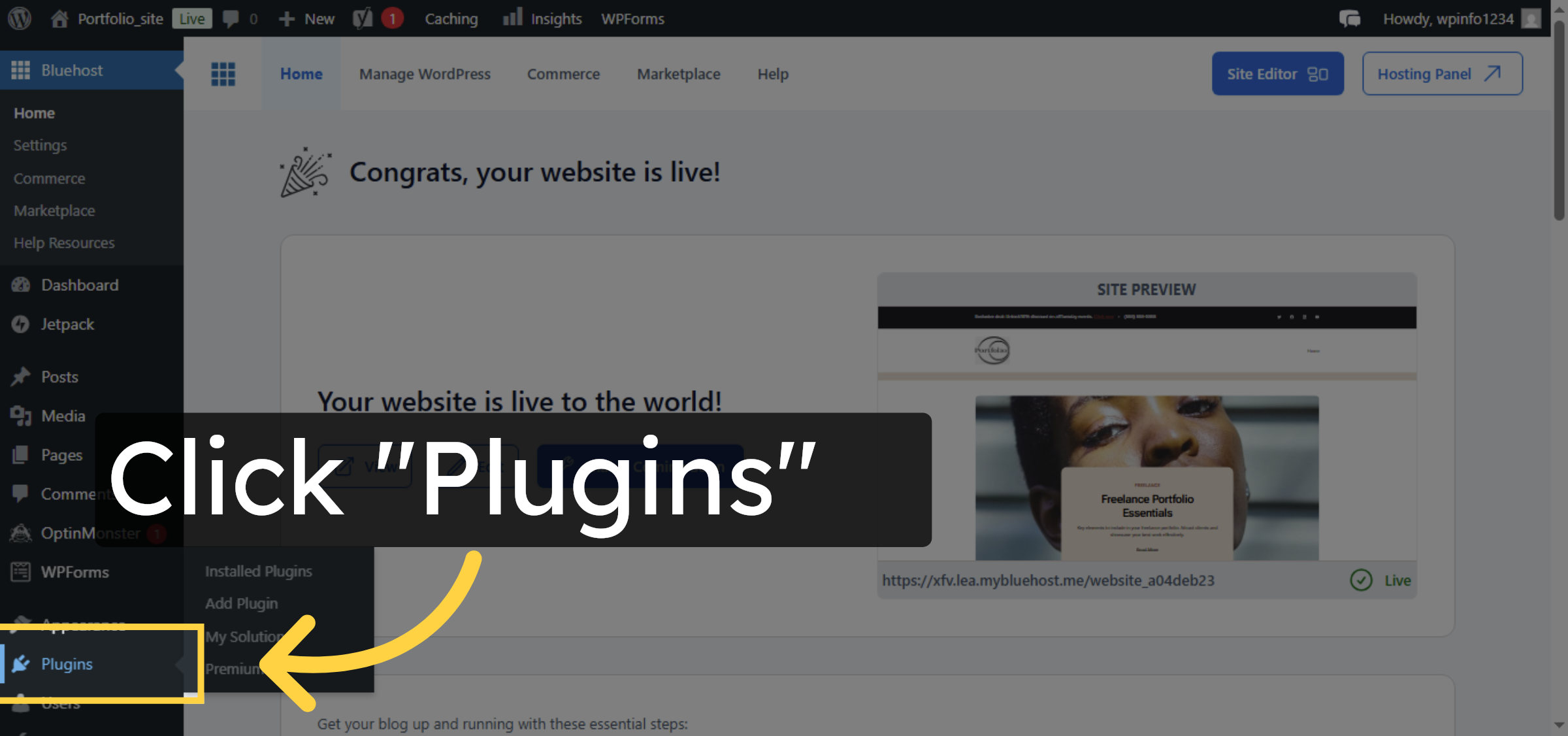
3. Access Plugins Menu
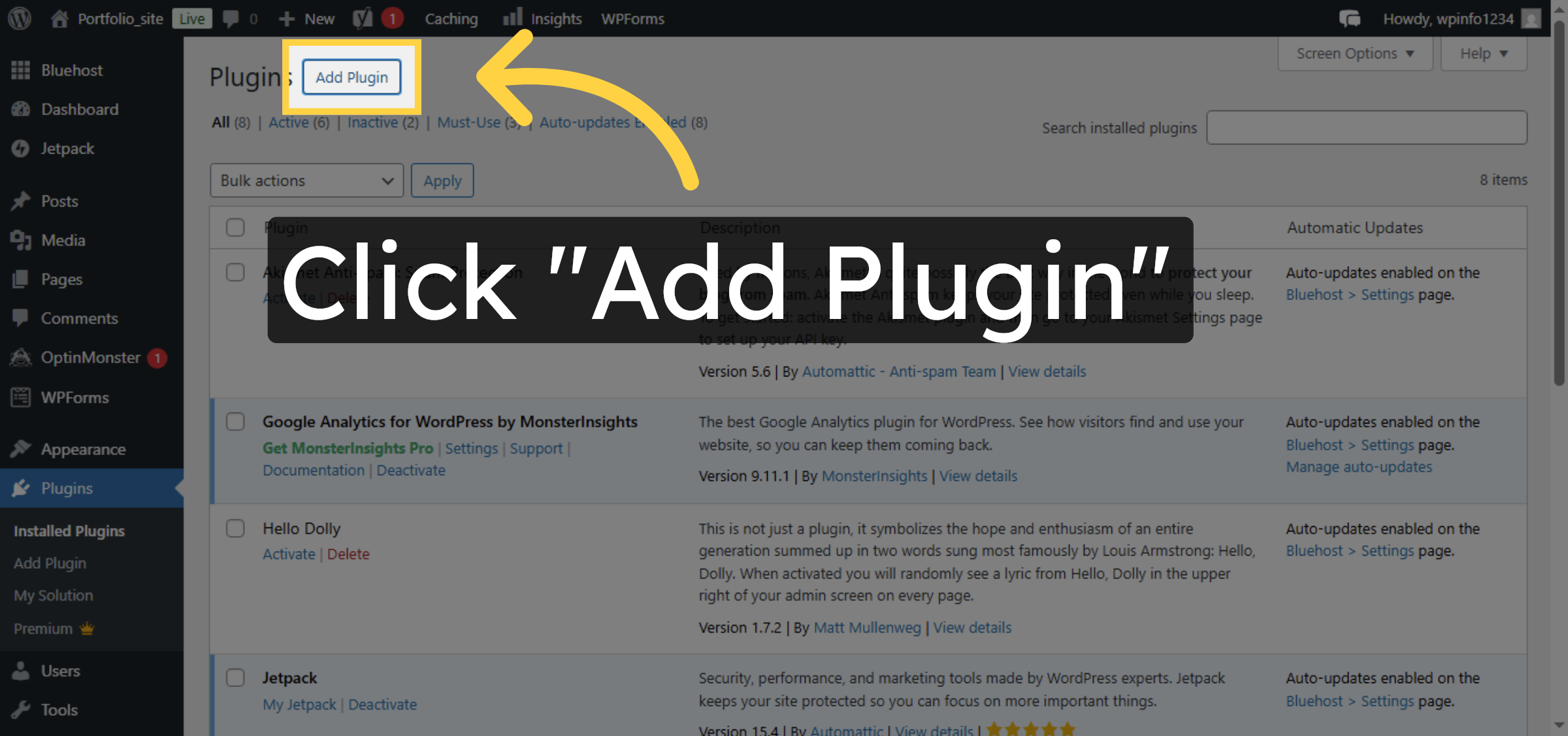
4. Add New Plugin
5. Search for Plugins
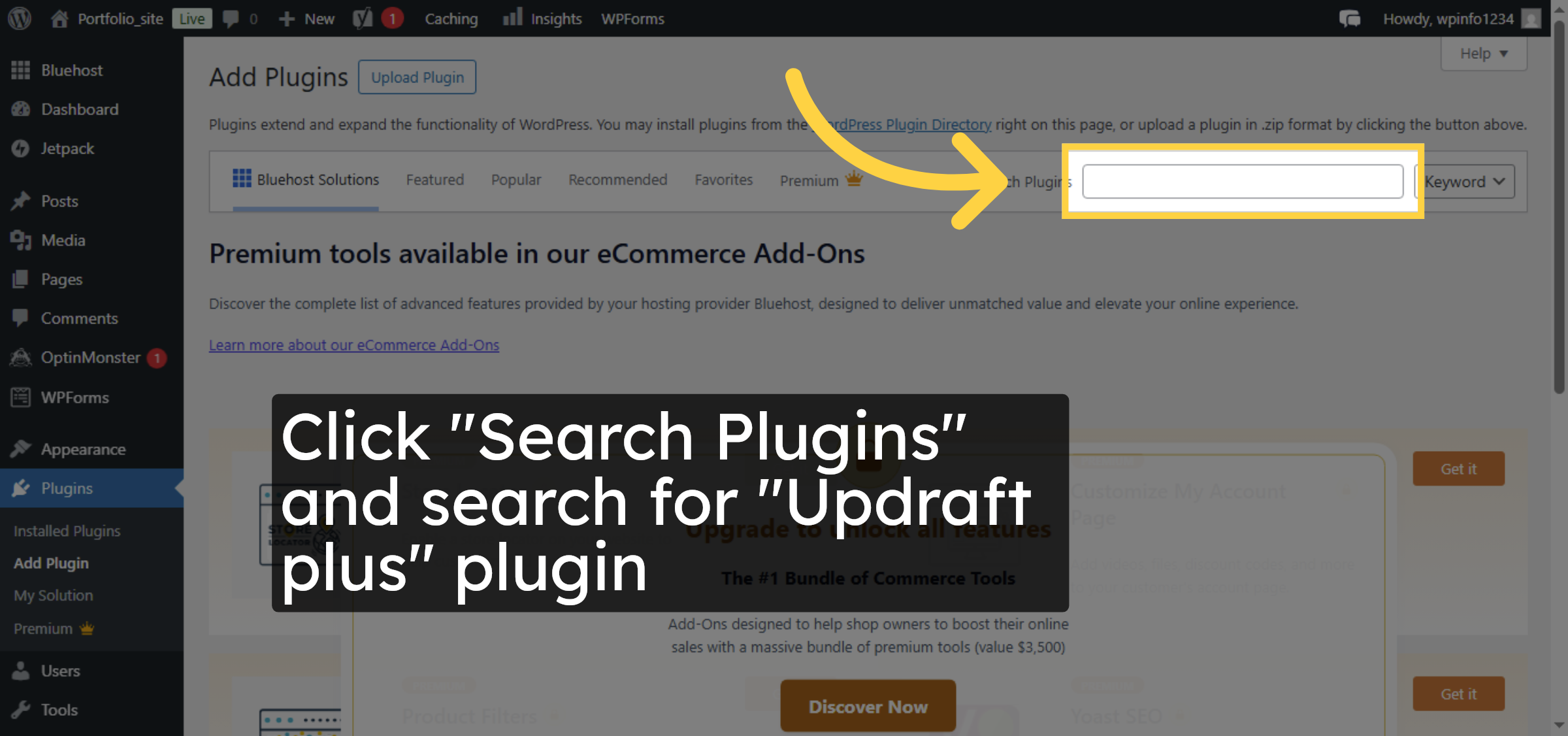
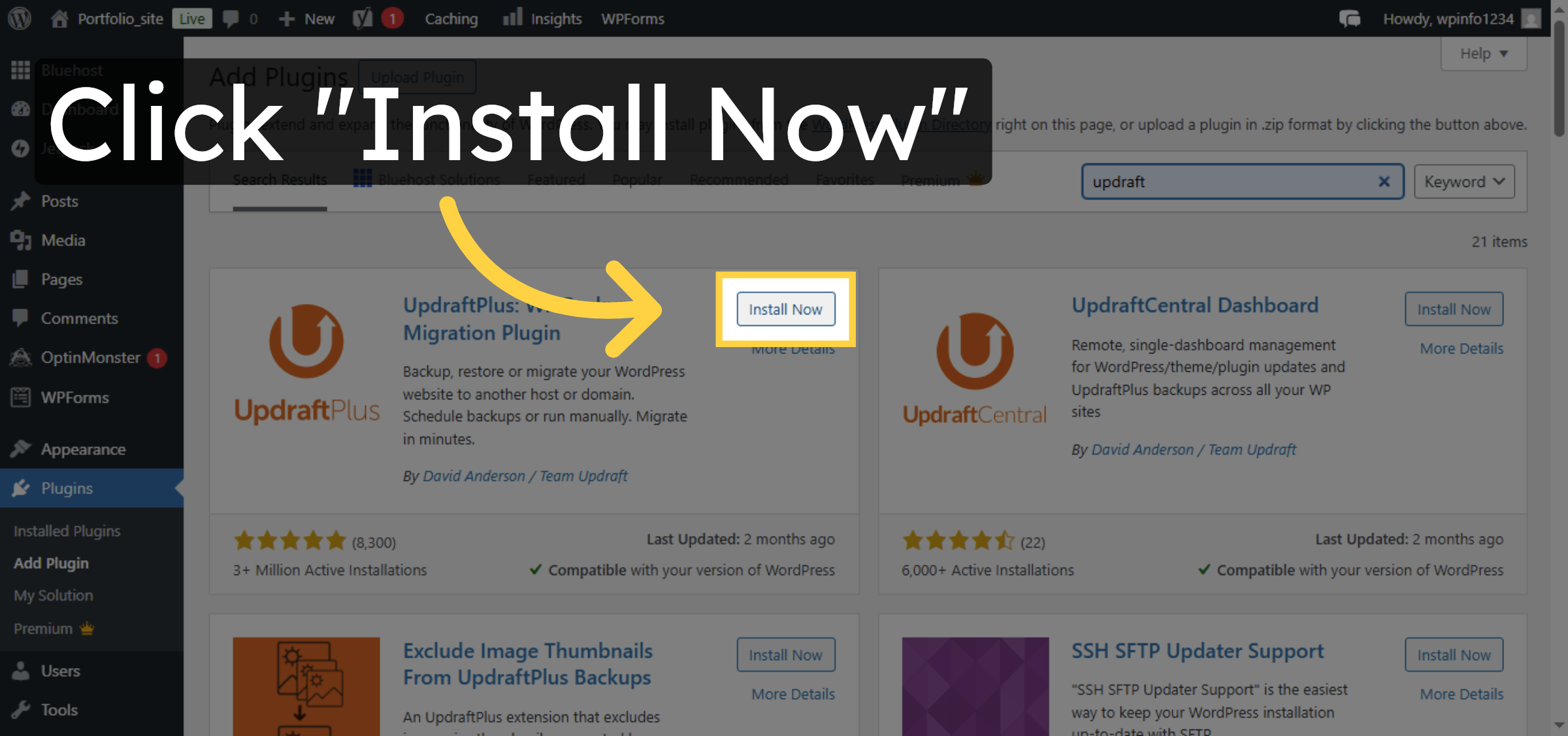
6. Install UpdraftPlus Plugin
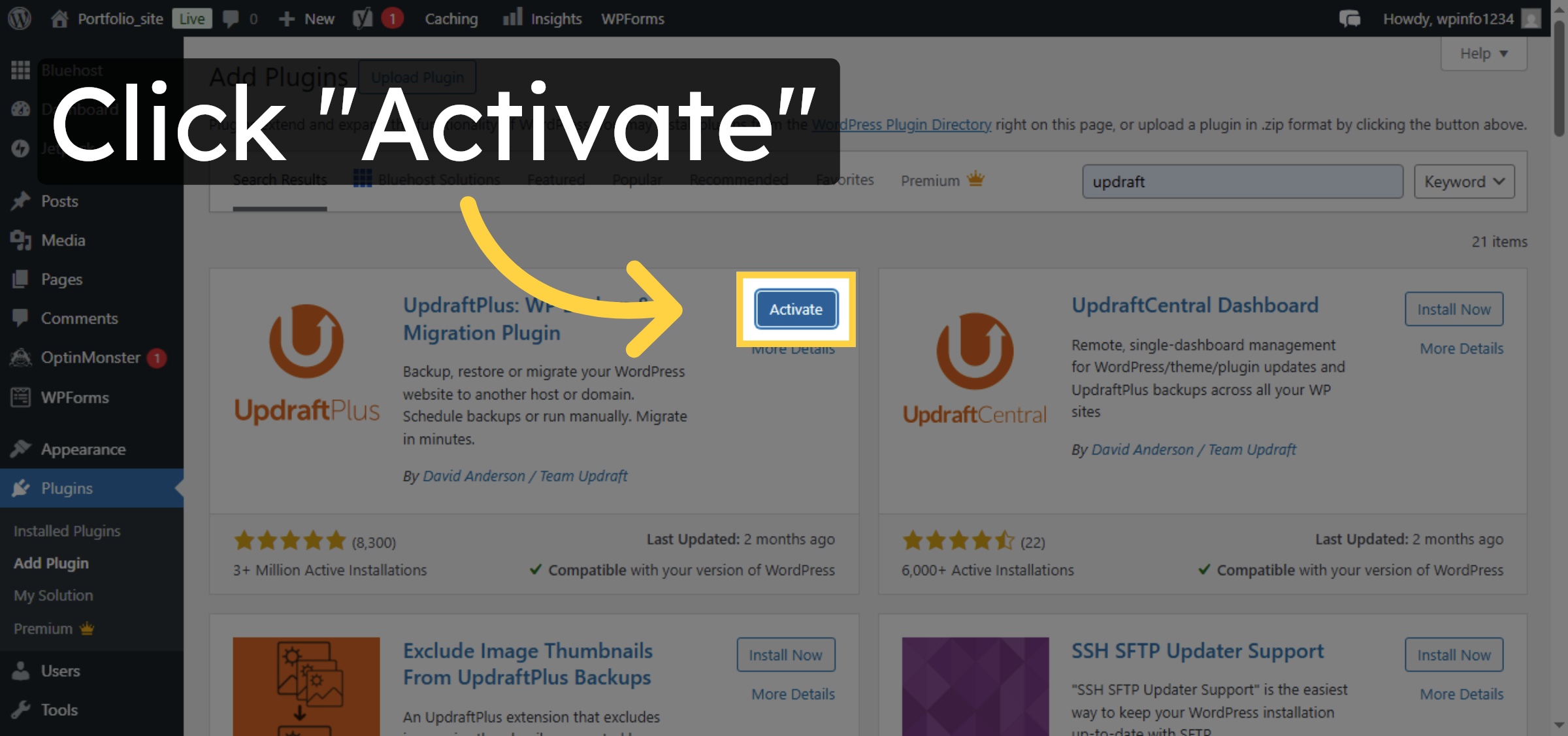
7. Activate Installed Plugin
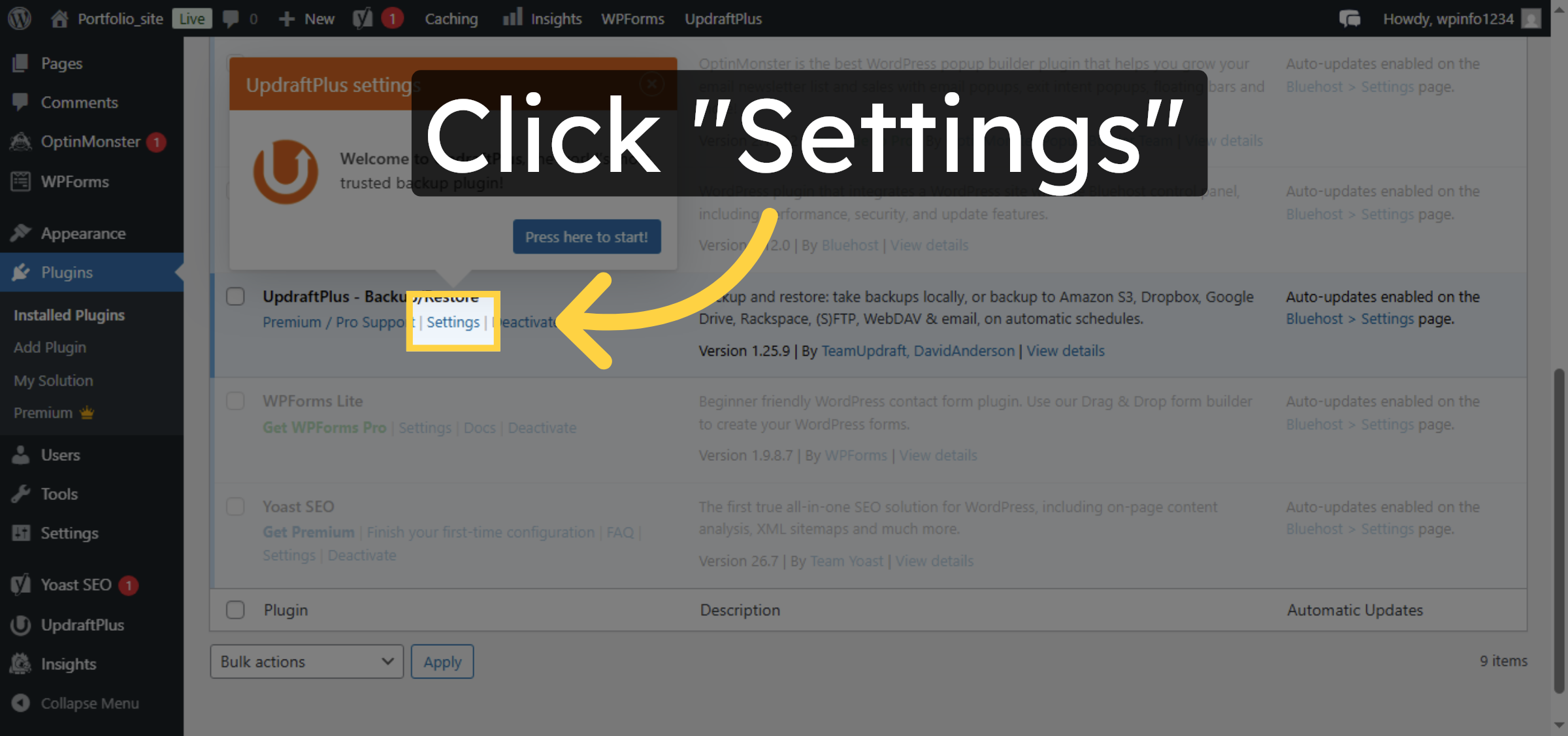
8. Open Plugin Settings
9. Go to Backup/Restore Tab
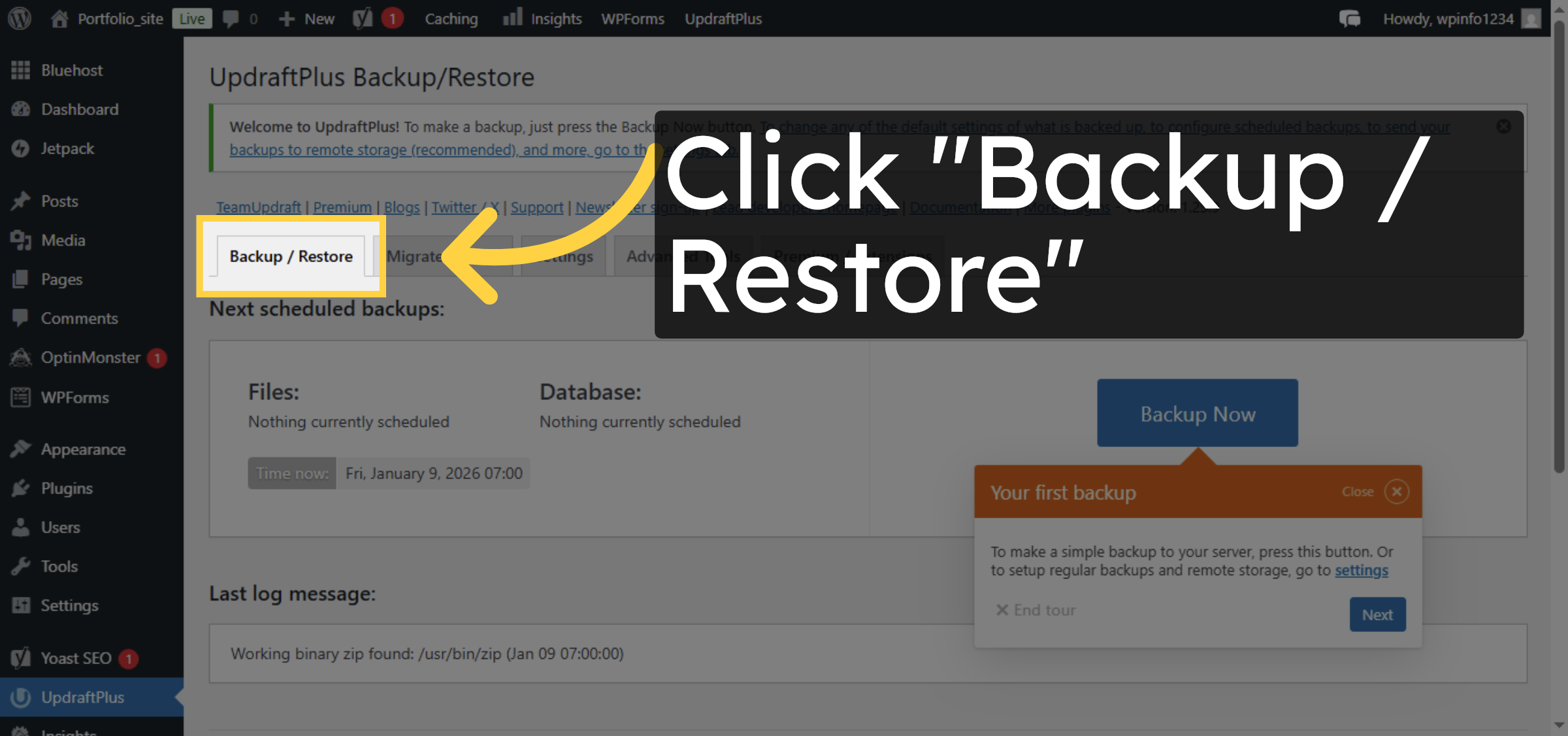
10. Initiate Backup Process
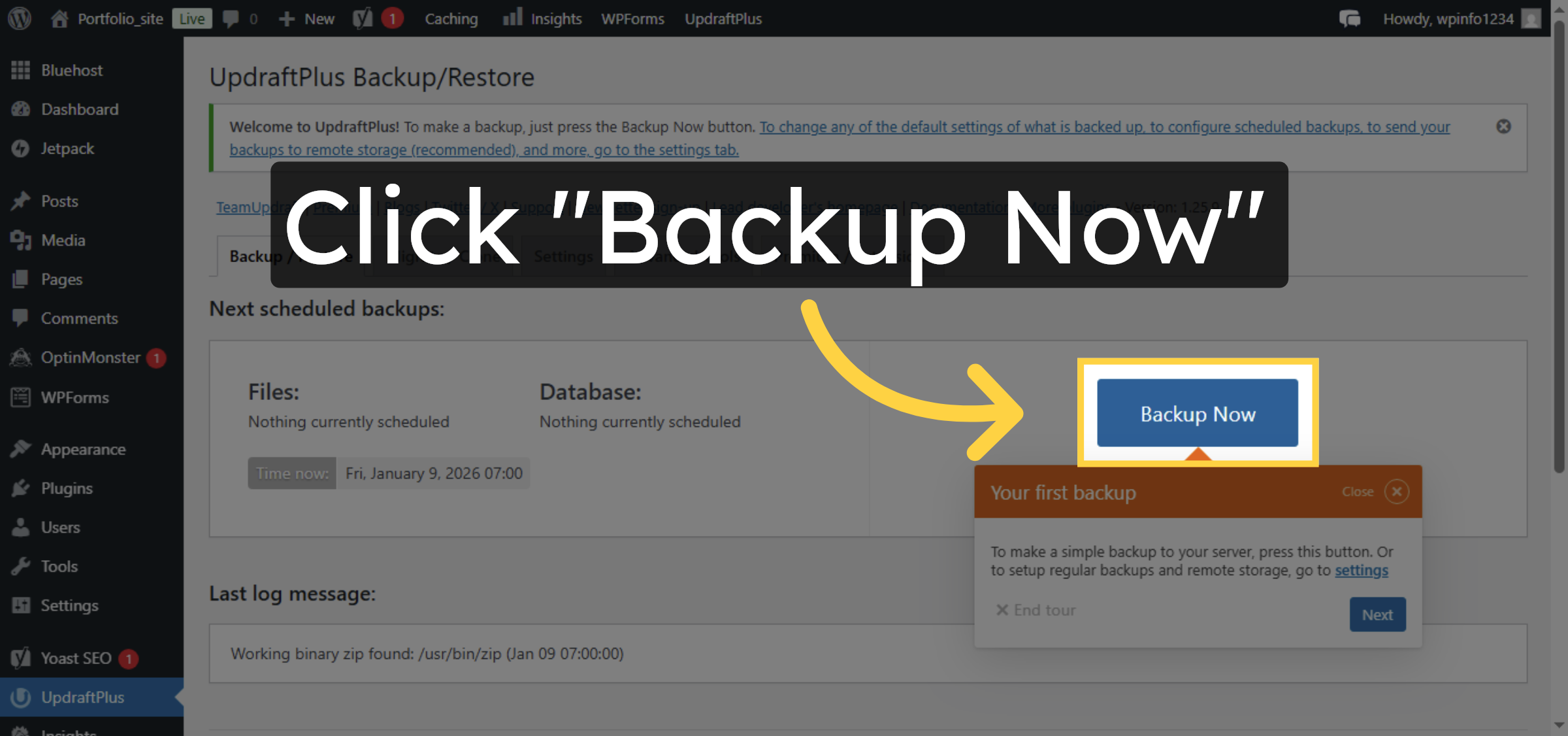


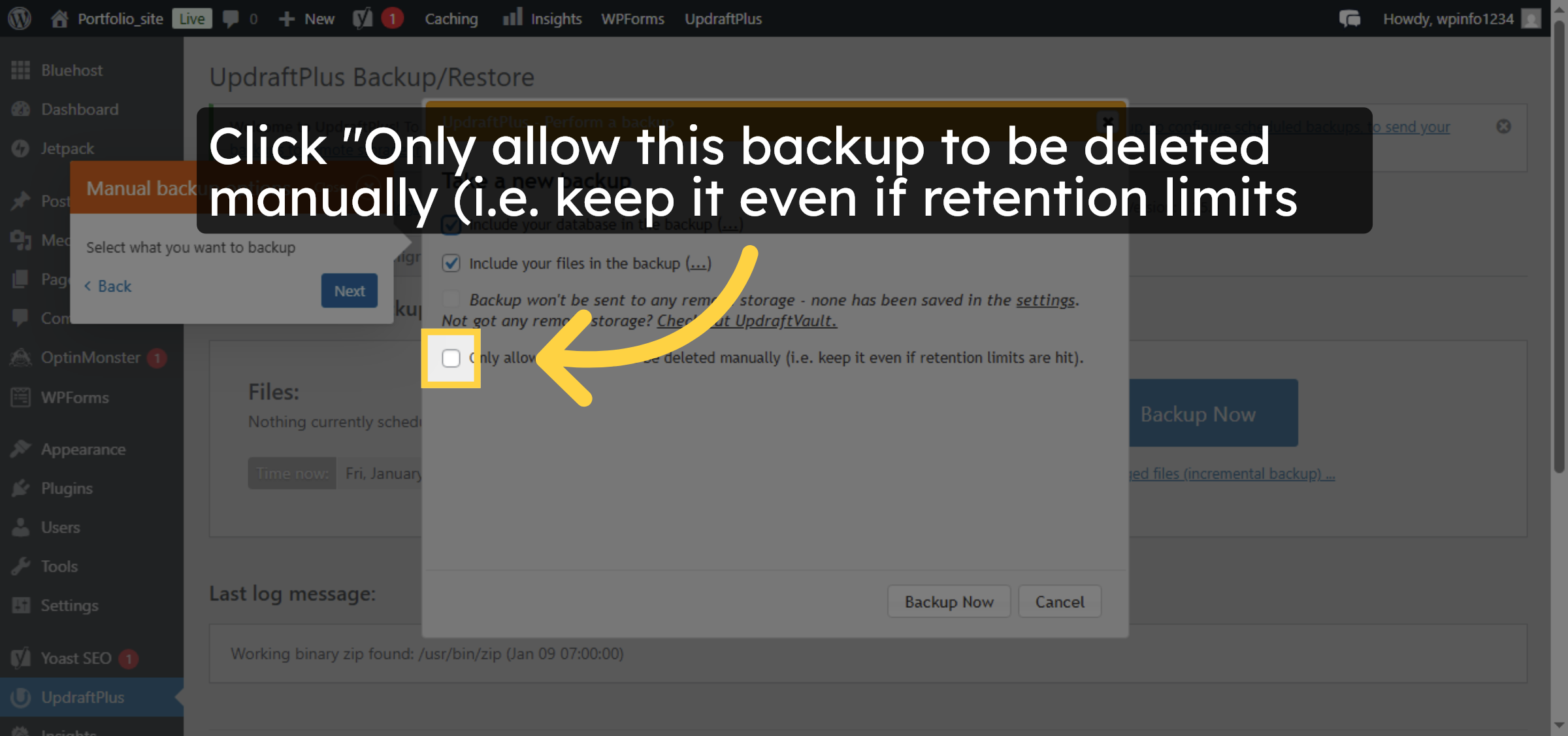
11. Enable Manual Backup Retention
12. Start Backup Now
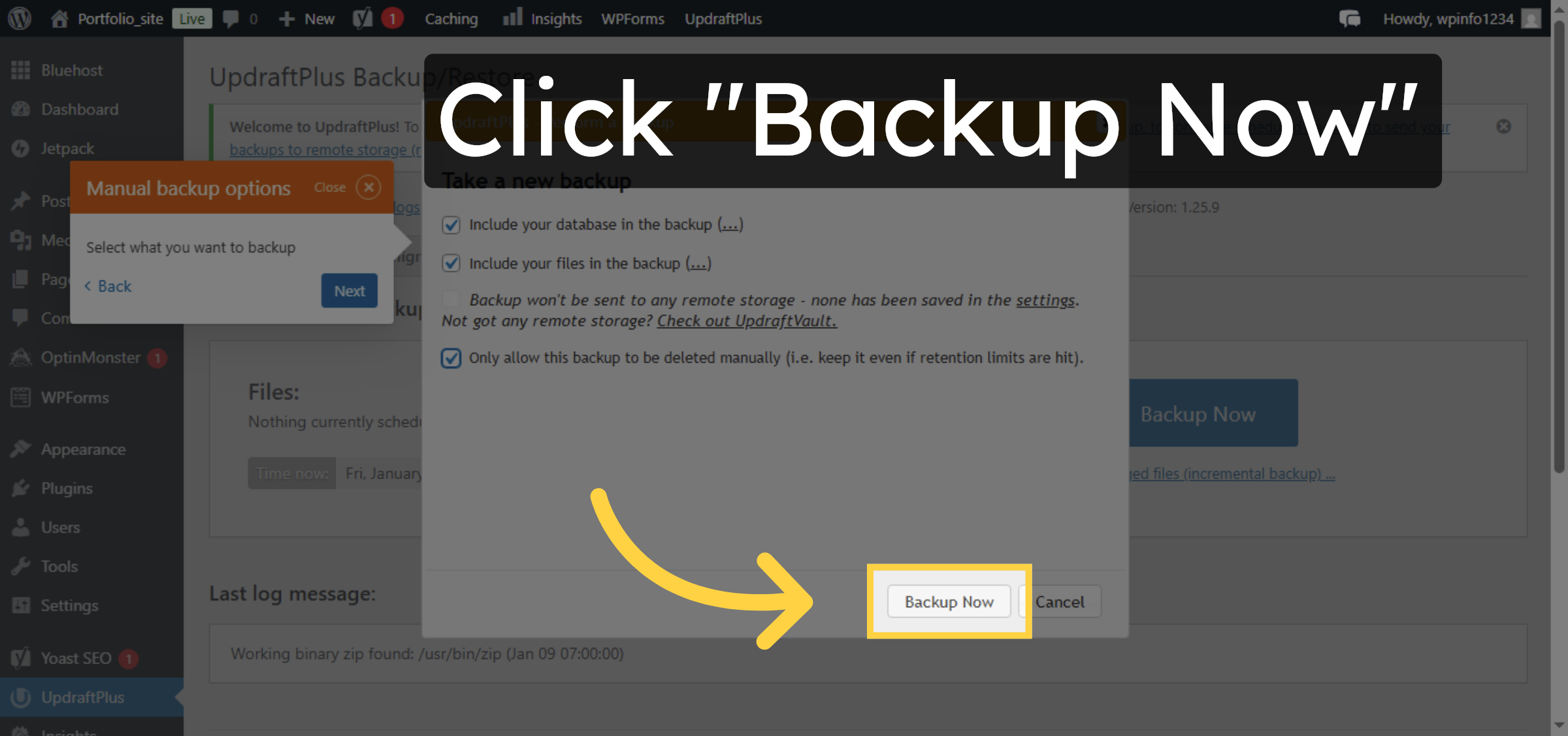
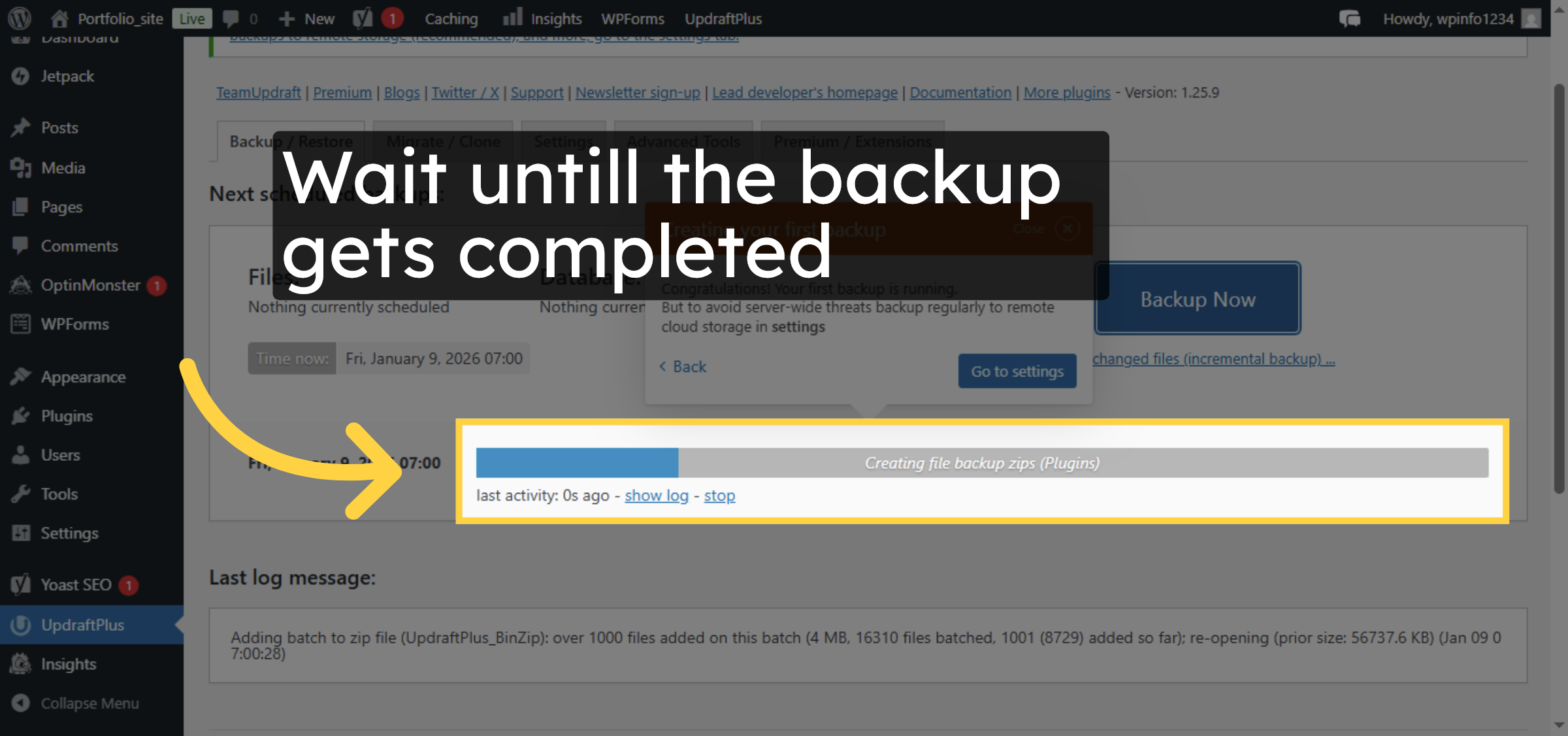
13. Monitor Backup Progress
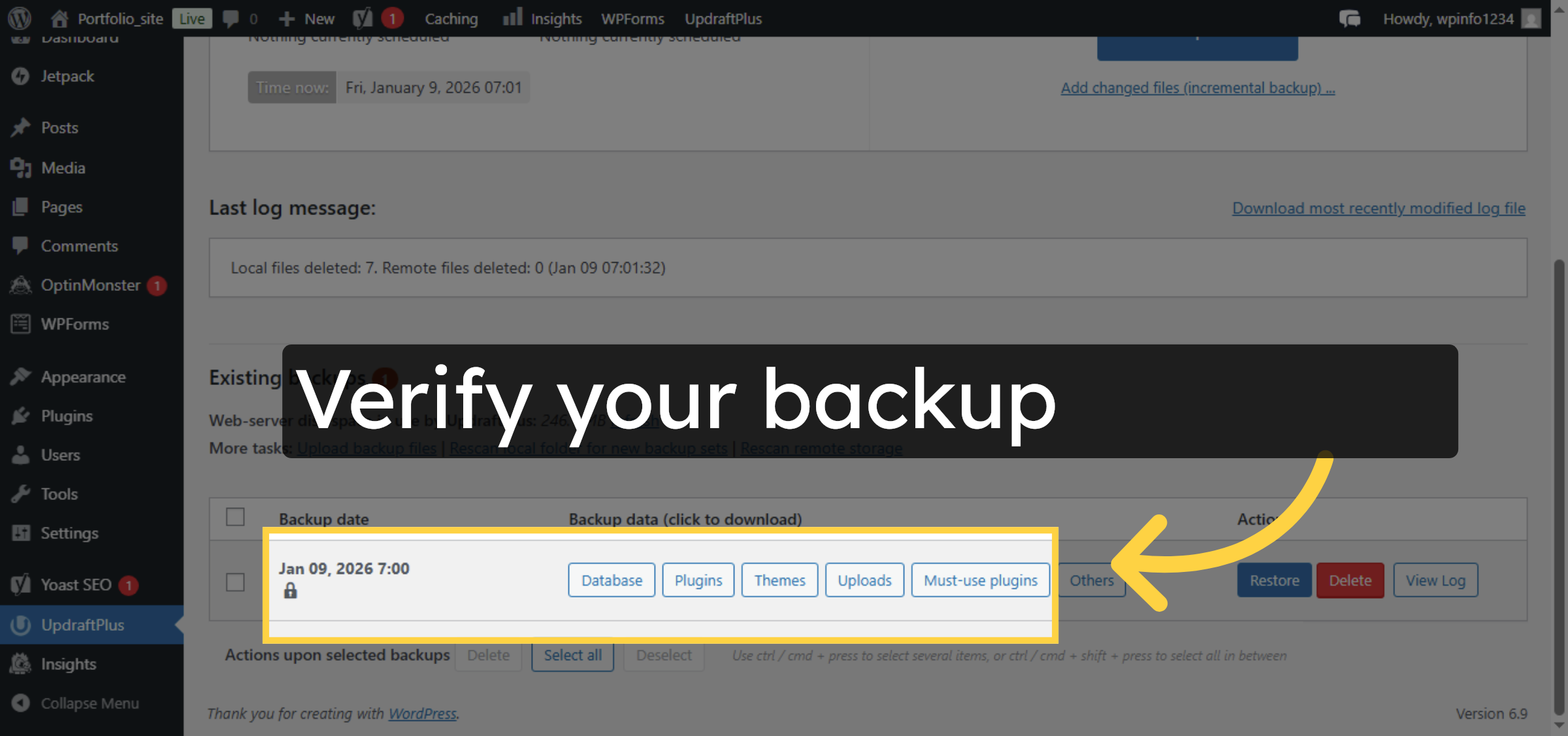
14. View Backups
Conclusion
By following the steps in this guide, you have successfully created a manual backup of your WordPress site on Bluehost using the UpdraftPlus plugin. This backup ensures that your website data is protected and can be restored quickly in case of unexpected issues. Regular backups are essential for maintaining website stability, security, and continuity, making this process a critical part of WordPress site management.
-
Visit: https://www.woohelpdesk.com
-
Call Us Toll-Free: +1 888 602 0119 (US & Canada)
-
Get professional support for WordPress backups, restorations, Bluehost hosting management, troubleshooting, and WooCommerce solutions



