How to Export WordPress Website Content Using HostGator WP Hosting
Introduction
Exporting your WordPress website is an essential step when preparing for a site migration, backup, or transfer to a new hosting environment. The All-in-One WP Migration plugin provides a simple and reliable way to export your entire WordPress site, including content, media files, plugins, and database information. This guide walks you through the process of installing and activating the migration plugin on your HostGator WP Hosting environment and using it to export your website as a downloadable file. Whether you are a beginner or an experienced site administrator, following these steps ensures that your website data is safely packaged and ready for import into another WordPress installation. By using a plugin-based export method, you reduce the risk of data loss and maintain full control over your website during the migration process.
1. Open Add Plugin Page
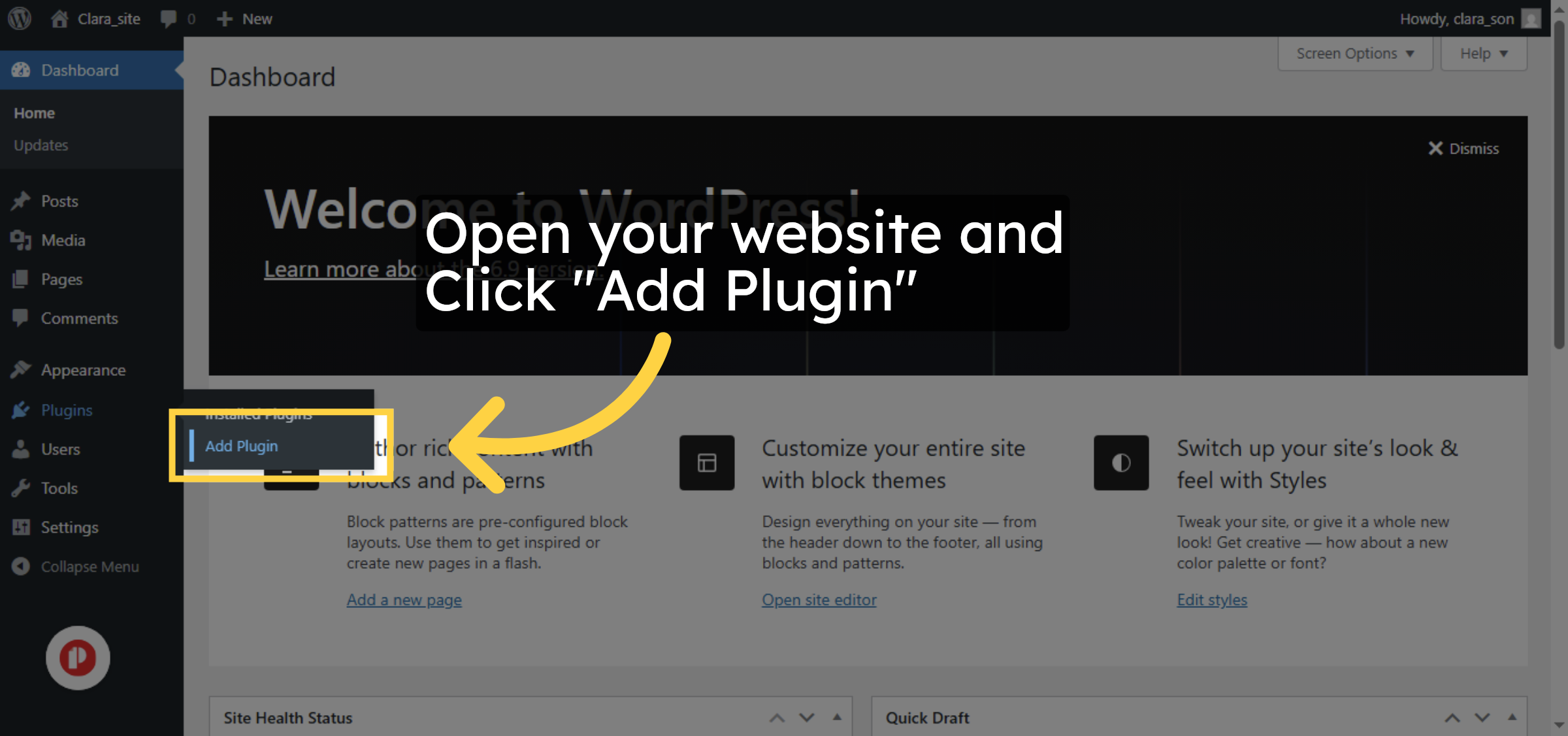
2. Access Plugin Search
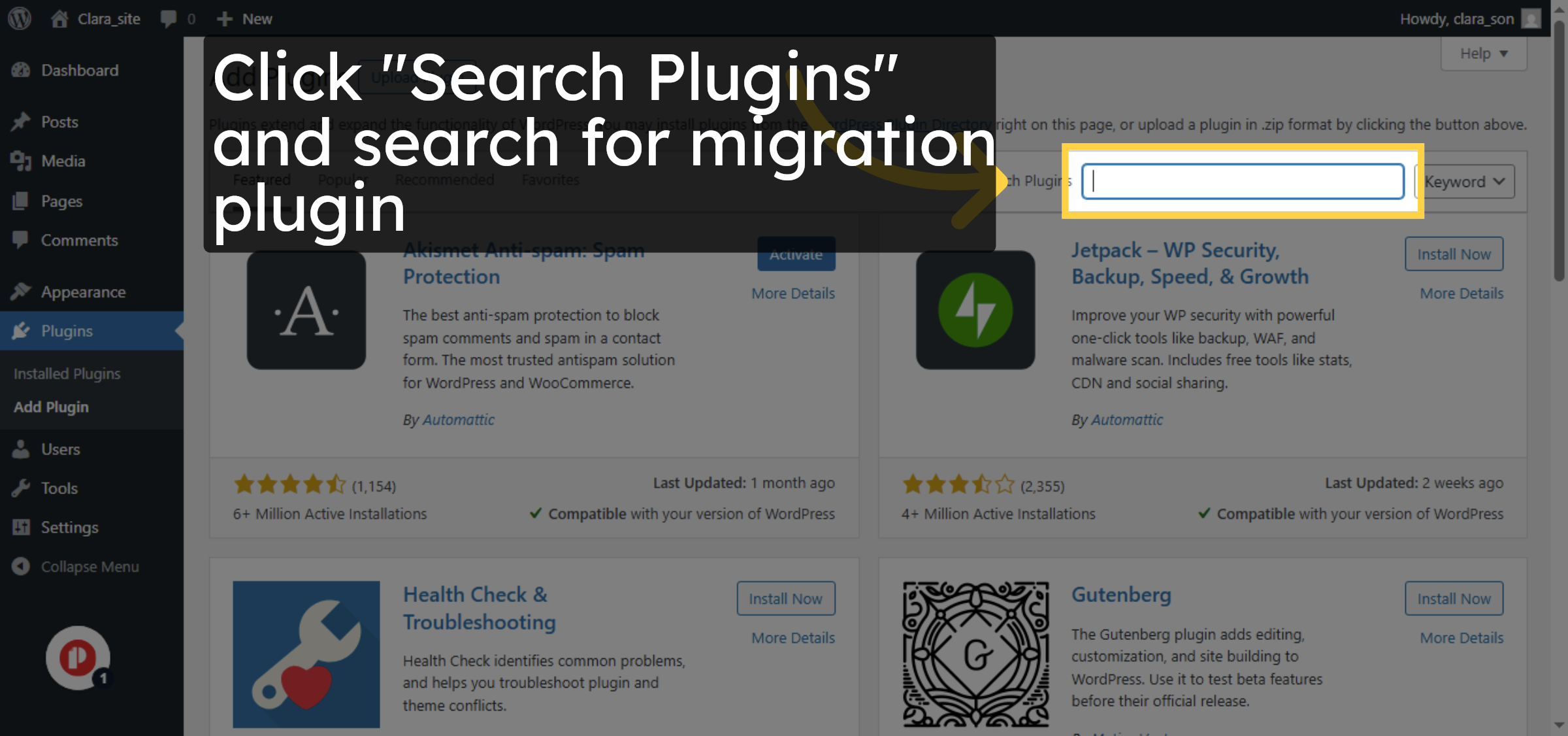
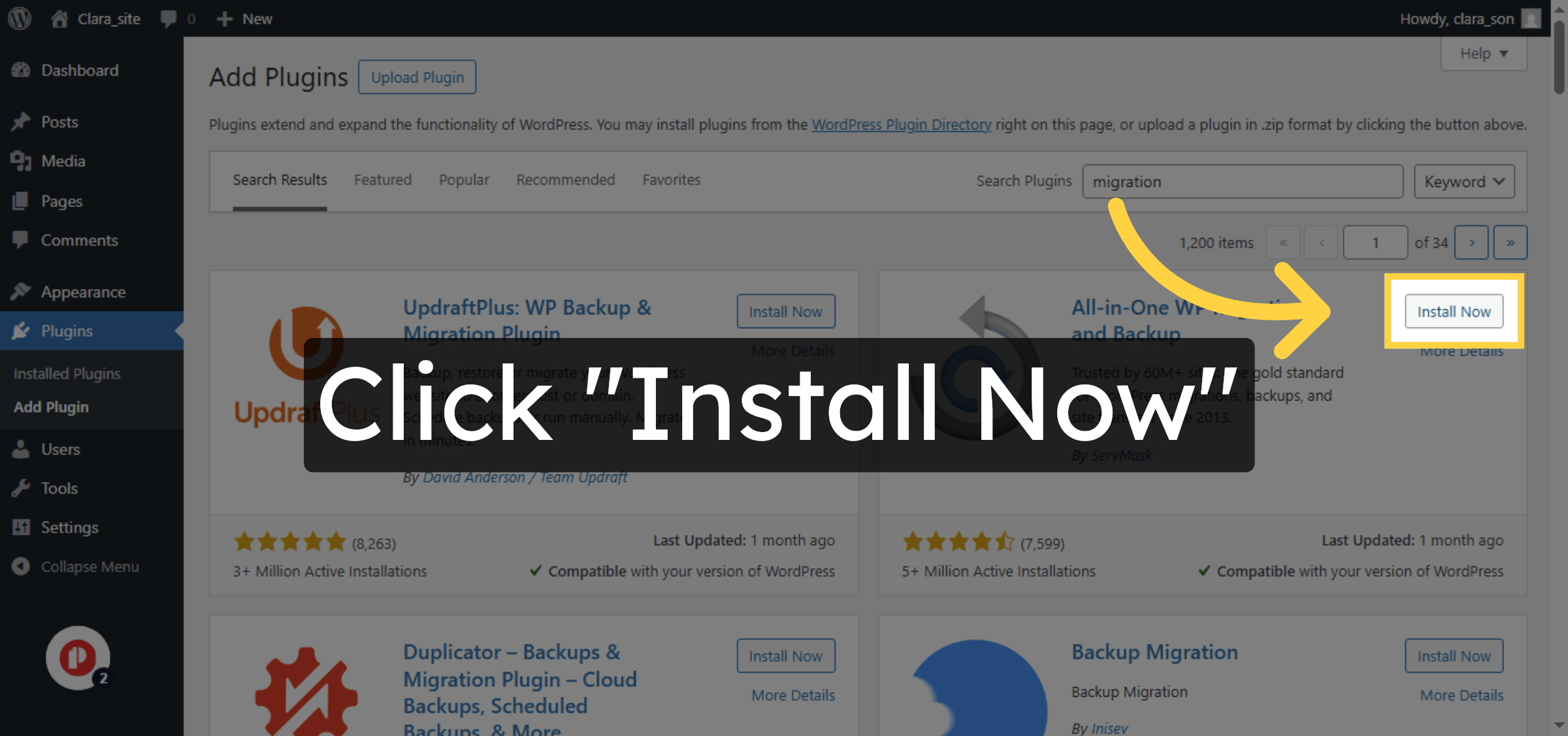
3. Install Migration Plugin
4. Activate Migration Plugin
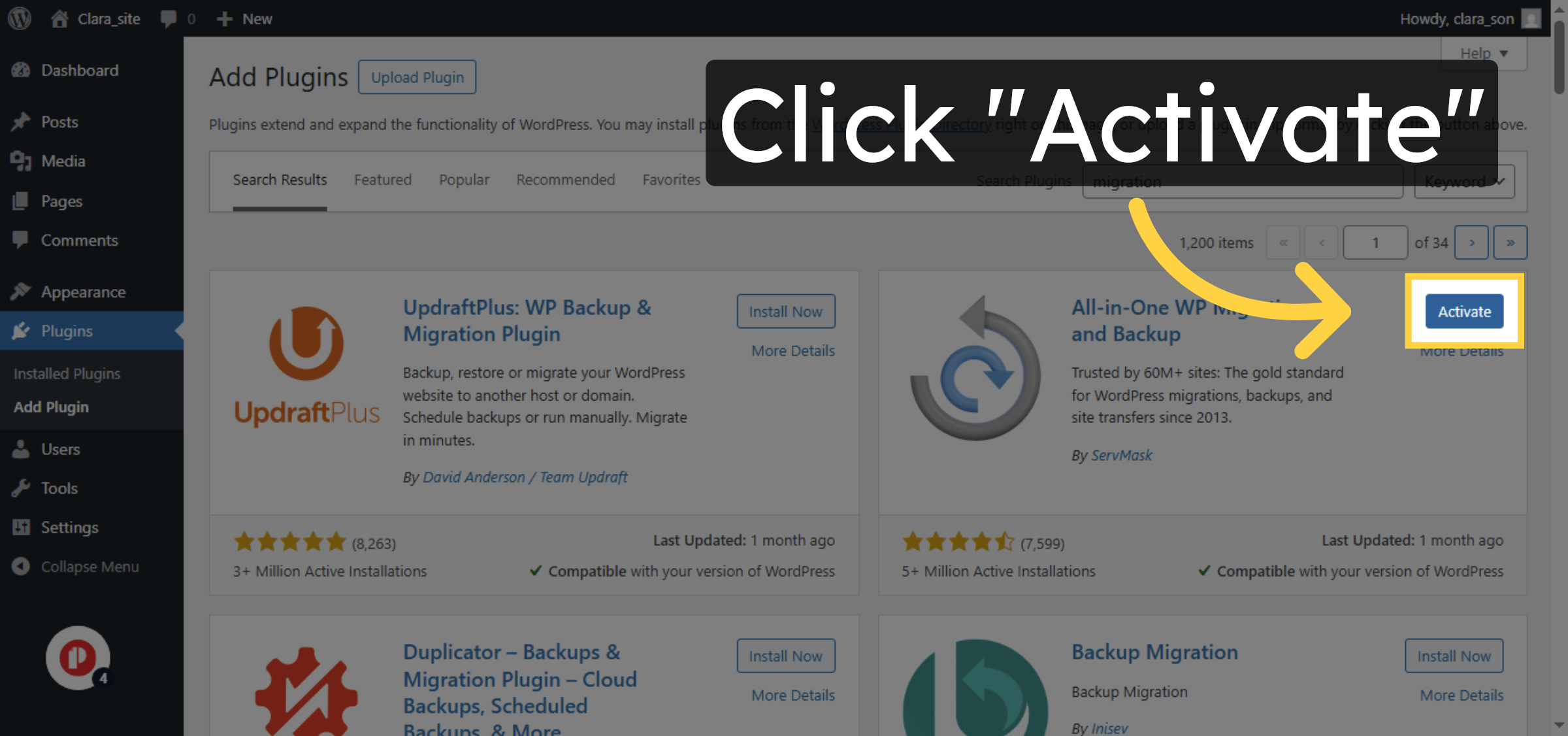
5. Open Migration Plugin
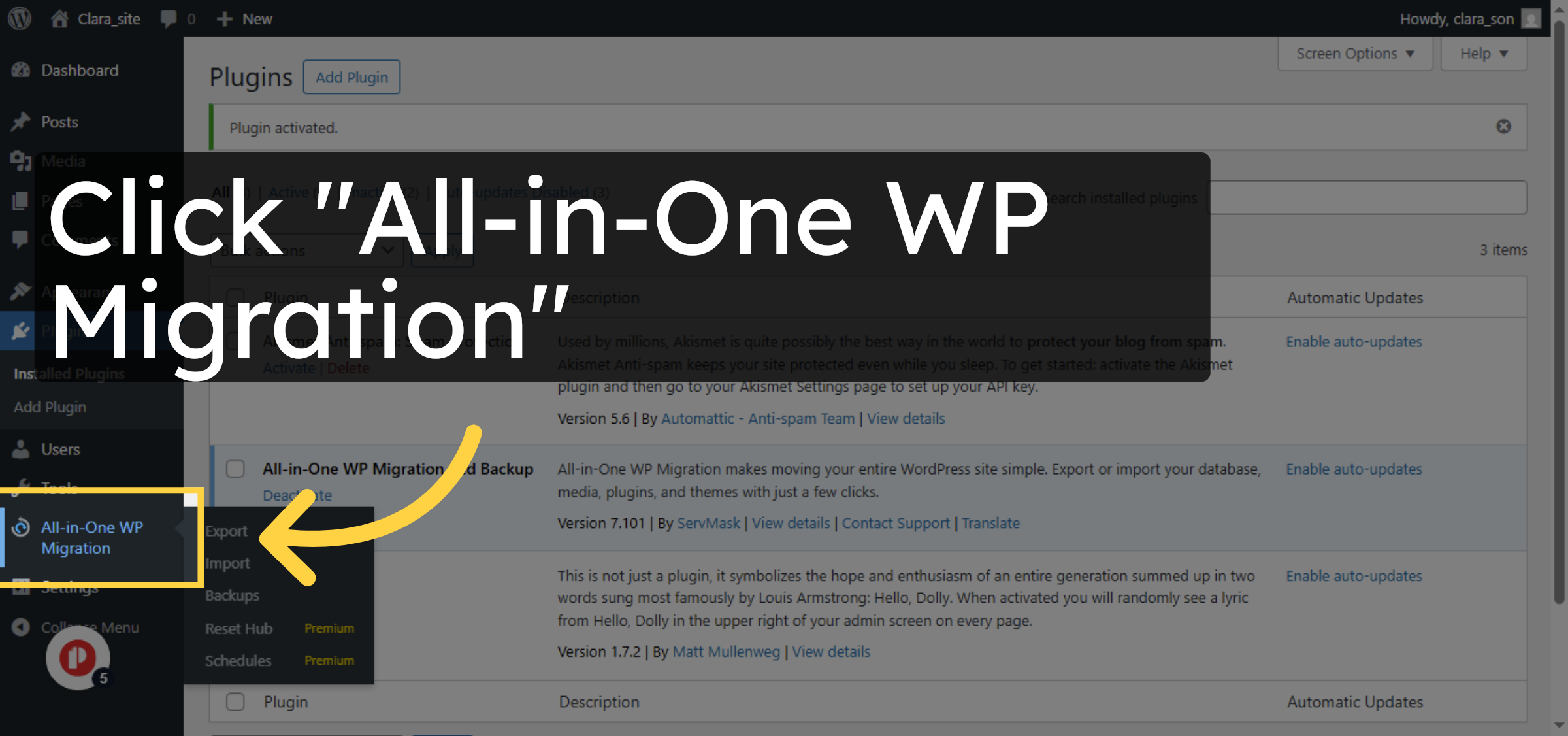
6. Open Export Options
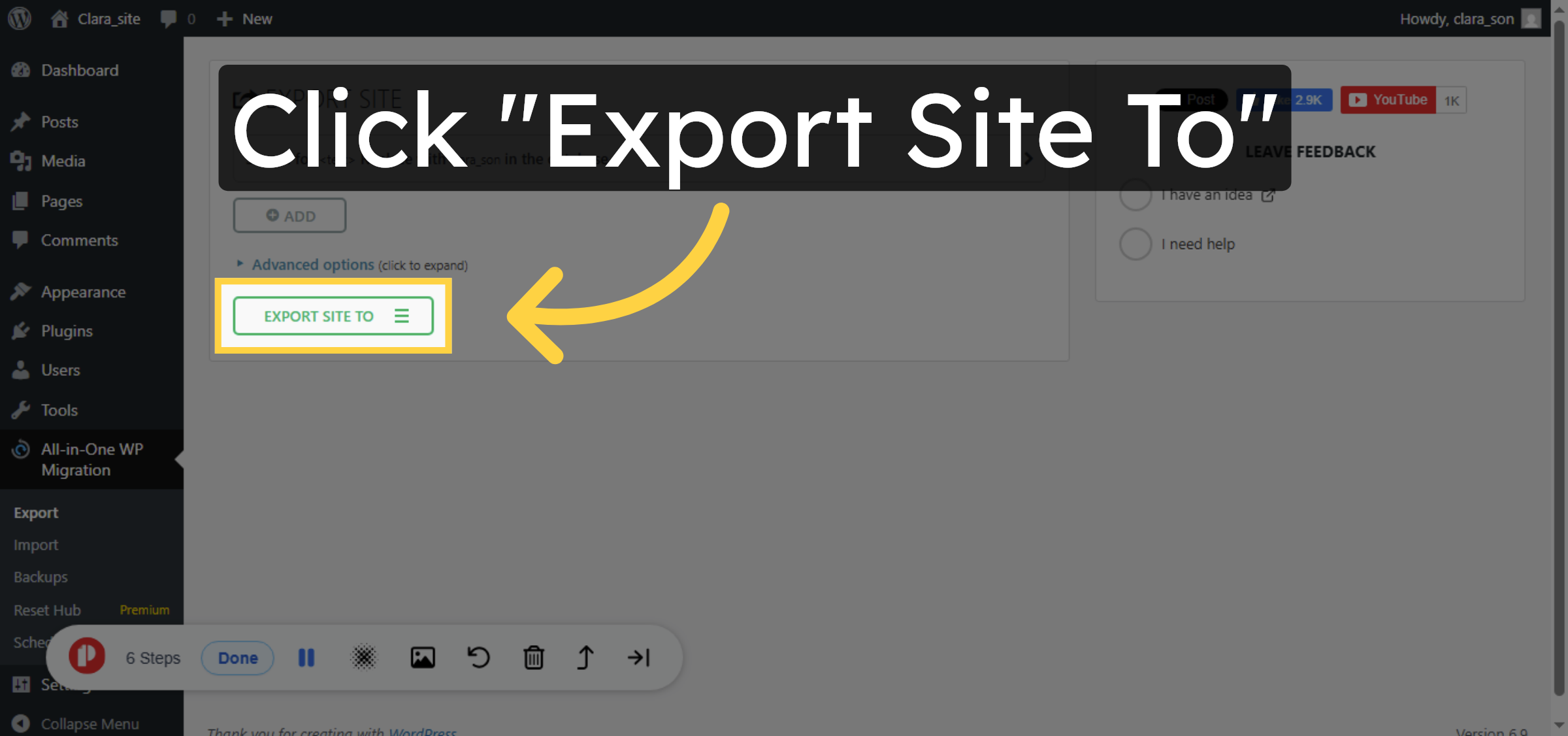
7. Select Export File Option
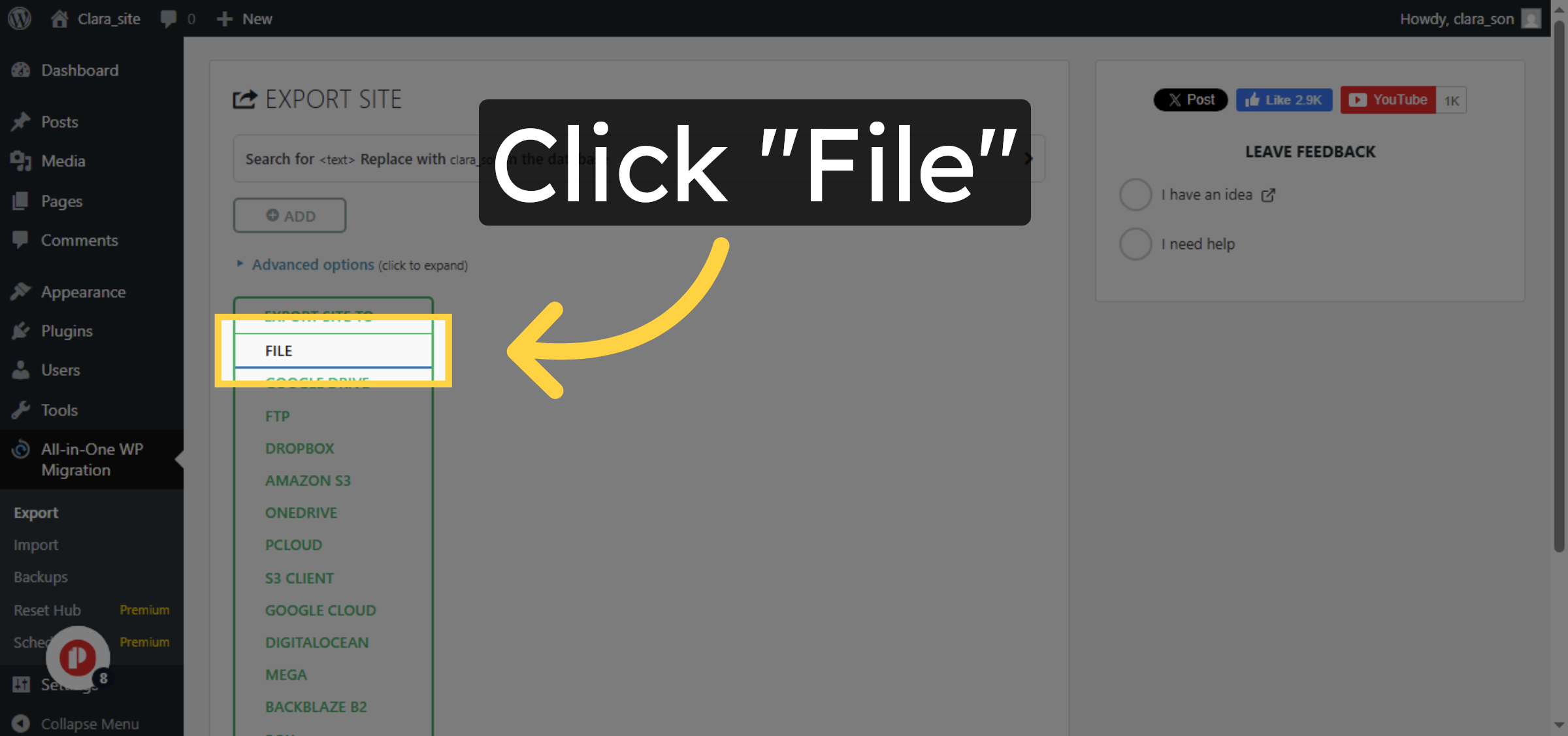


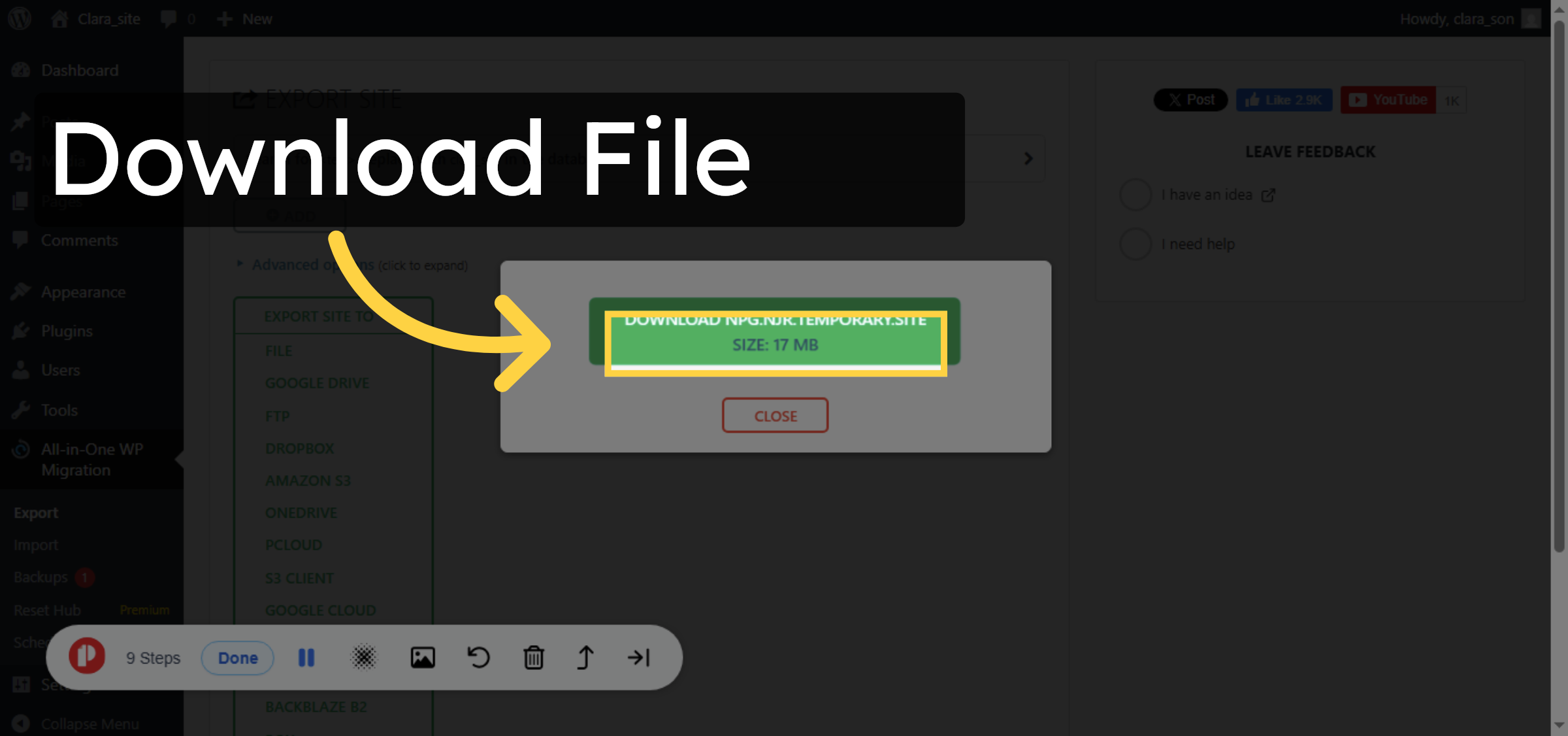
8. Download Exported File
Conclusion
By completing the steps outlined in this guide, you can successfully export your WordPress website using the All-in-One WP Migration plugin on HostGator WP Hosting. This method allows you to create a complete copy of your site in a single downloadable file, making it easy to move, restore, or back up your website when needed. Once the export is complete, the file can be securely stored or imported into another WordPress environment. This process is ideal for users who want a straightforward and dependable way to manage website migrations and backups without technical complexity.
-
Visit: https://www.woohelpdesk.com
-
Call Us Toll-Free: +1 888 602 0119 (US & Canada)
-
Get expert assistance with WordPress exports, migrations, backups, and plugin management



