How to Migrate WordPress Website to HostGator WP Hosting
Migrating a WordPress website to HostGator WP Hosting can be a smooth and secure process when done using the right plugin and method. Whether you are moving an existing site to a new hosting environment or setting up a fresh WordPress installation on HostGator, exporting and importing your site data ensures that your content, settings, and structure remain intact. This step-by-step guide walks you through the complete migration process—from logging in to your original website and exporting data using a migration plugin to importing the site into a freshly installed WordPress environment on HostGator. This approach is ideal for website owners, developers, and administrators who want a controlled and reliable way to migrate their WordPress site without risking data loss or downtime. By carefully following each step, you can successfully move your site and verify that all posts, pages, and configurations are transferred correctly.
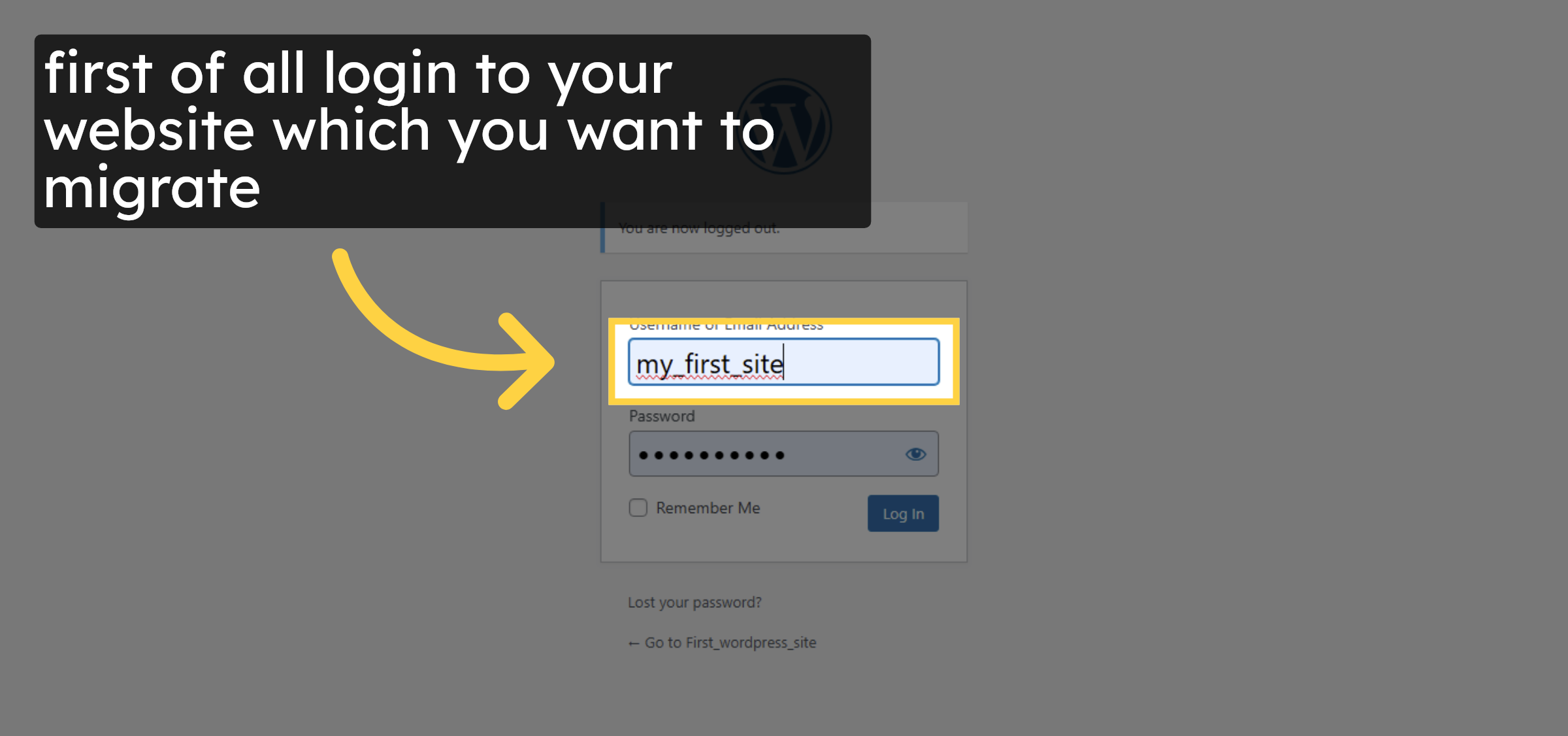
1. Login to your website.
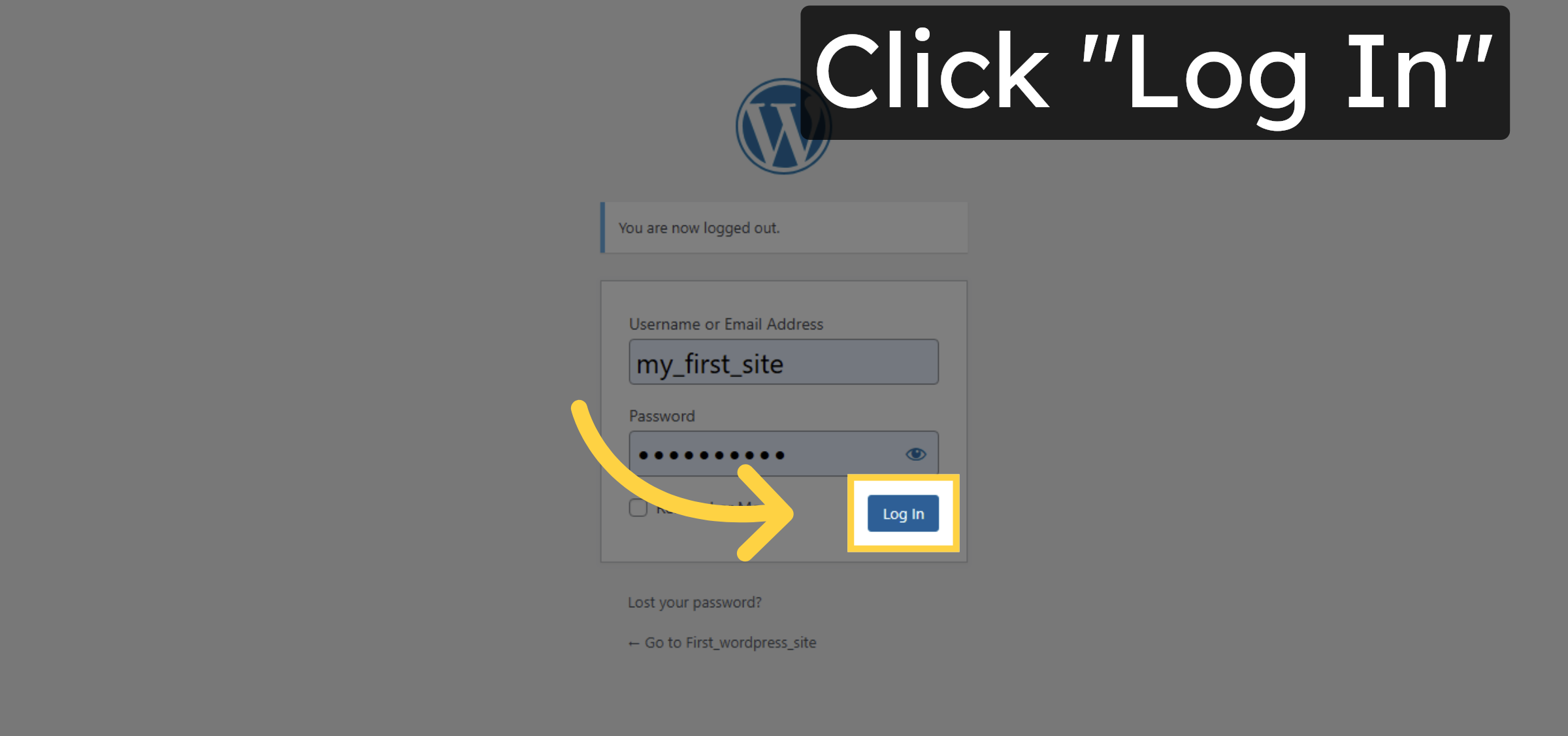
2. Click Log In Button
3. Goto Dashboard
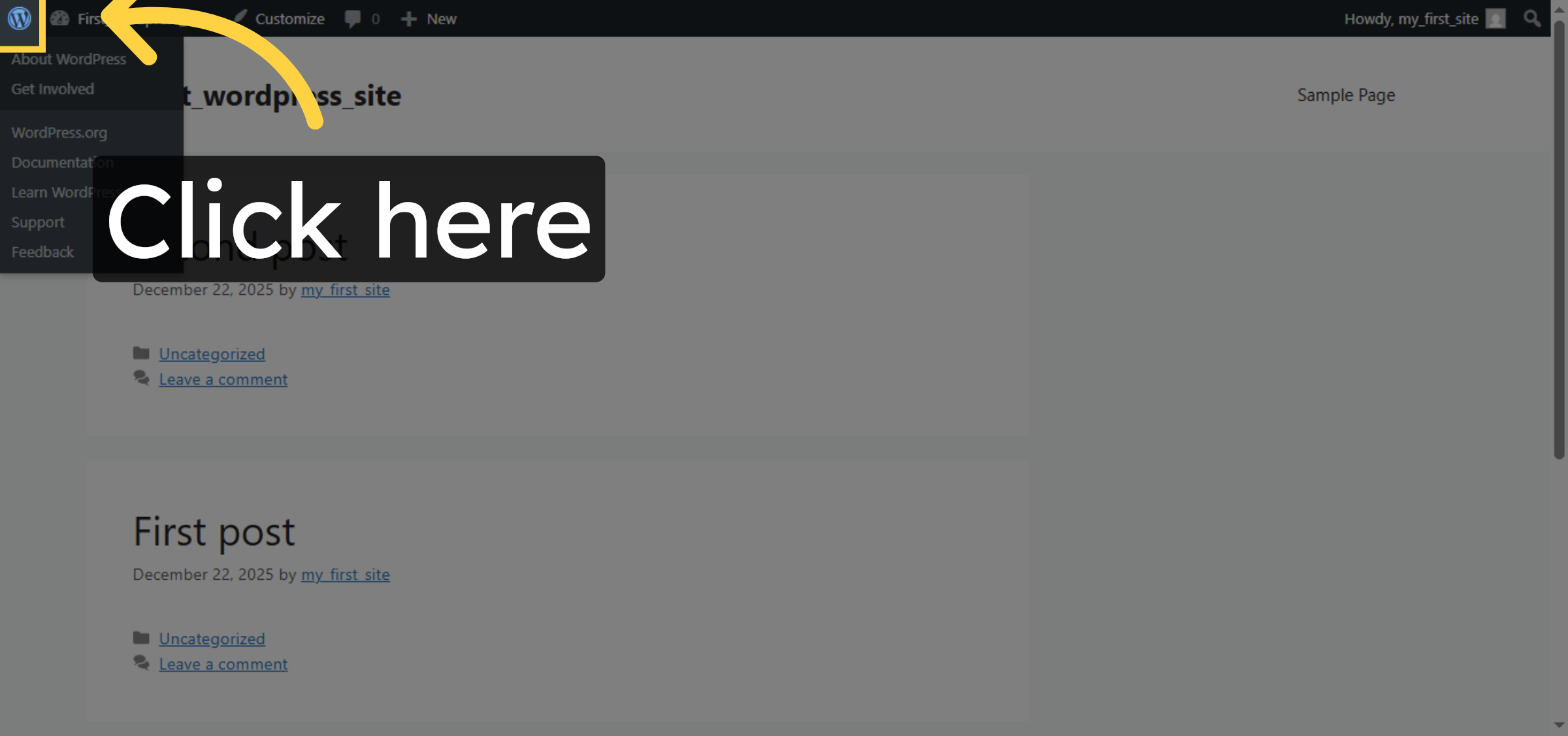
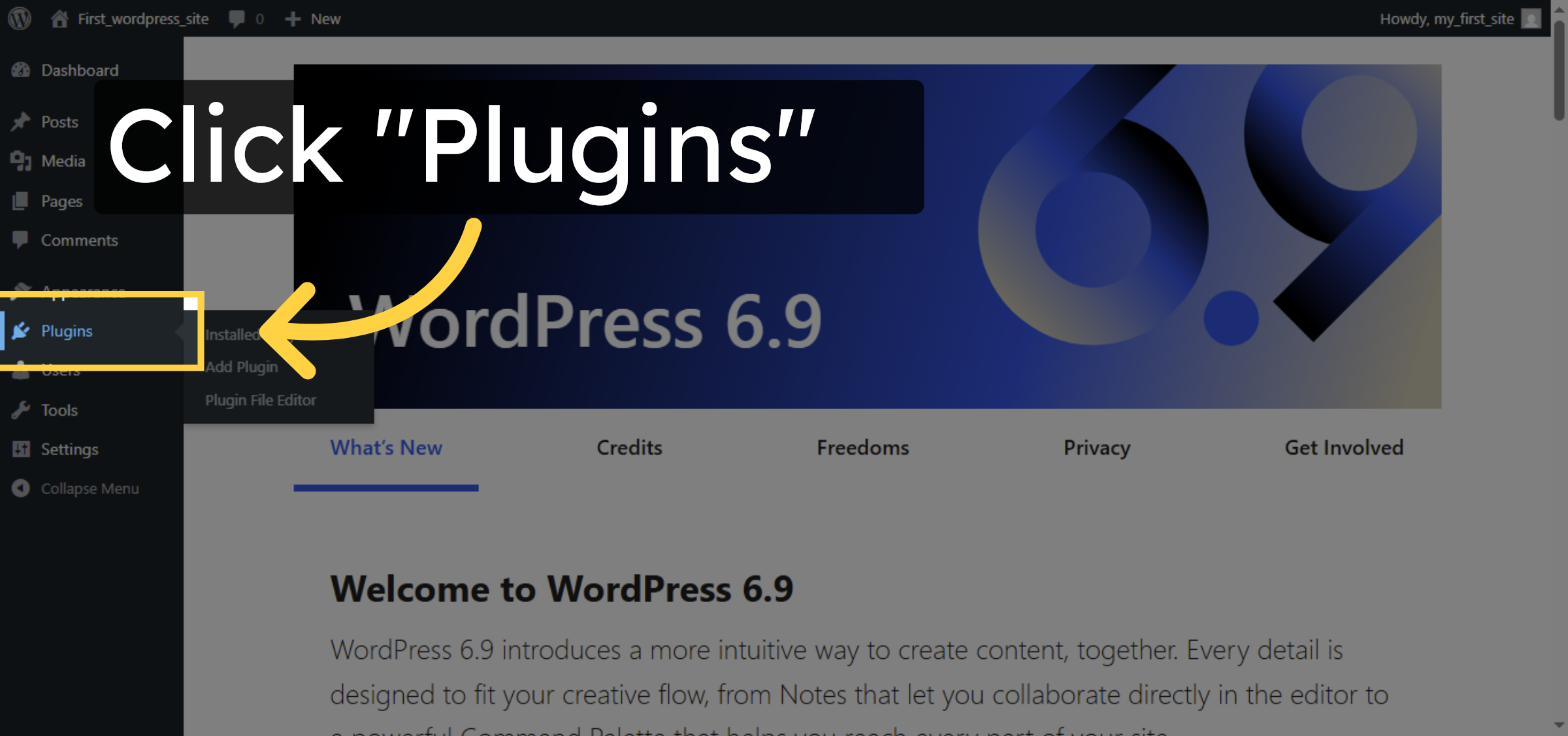
4. Open Plugins Section
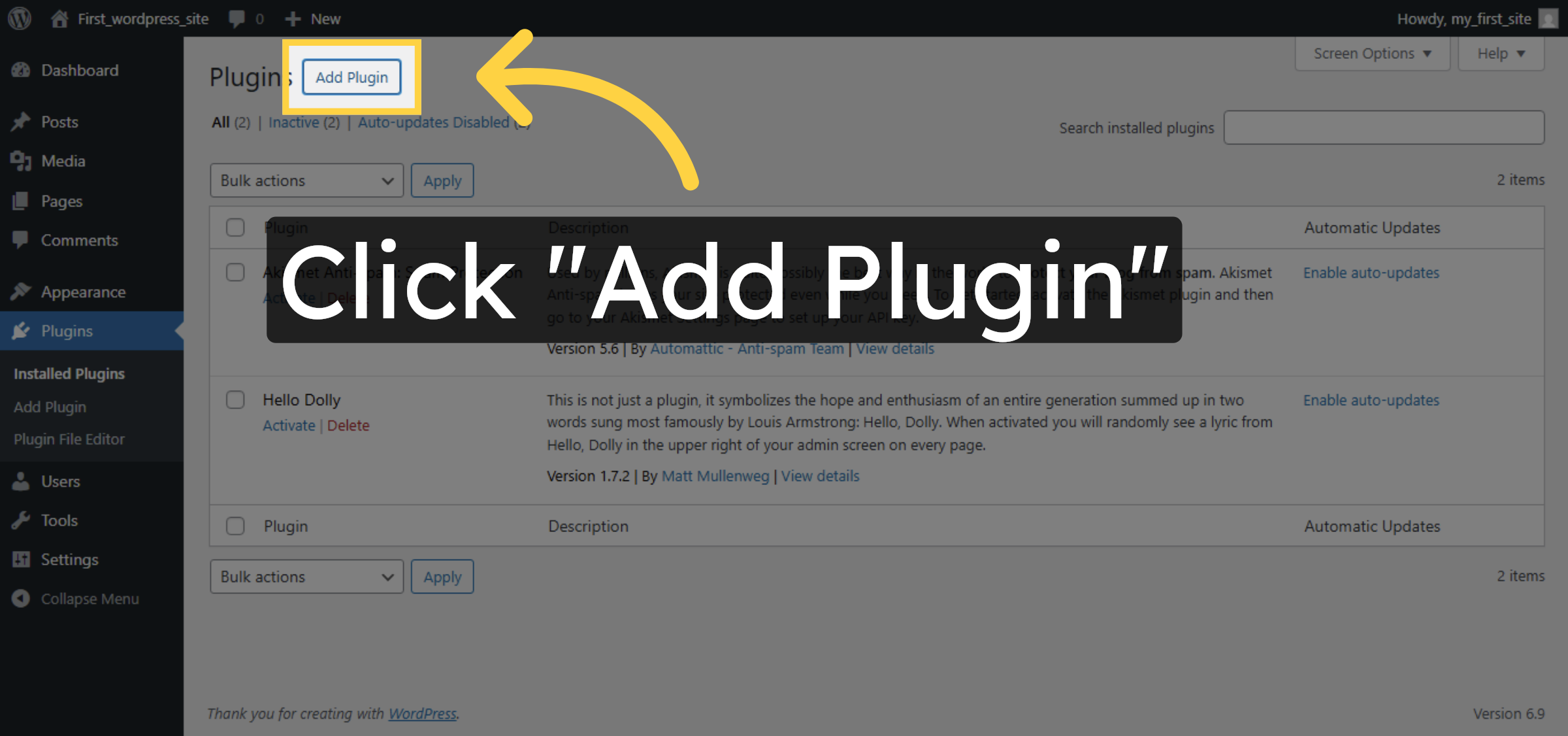
5. Add New Plugin
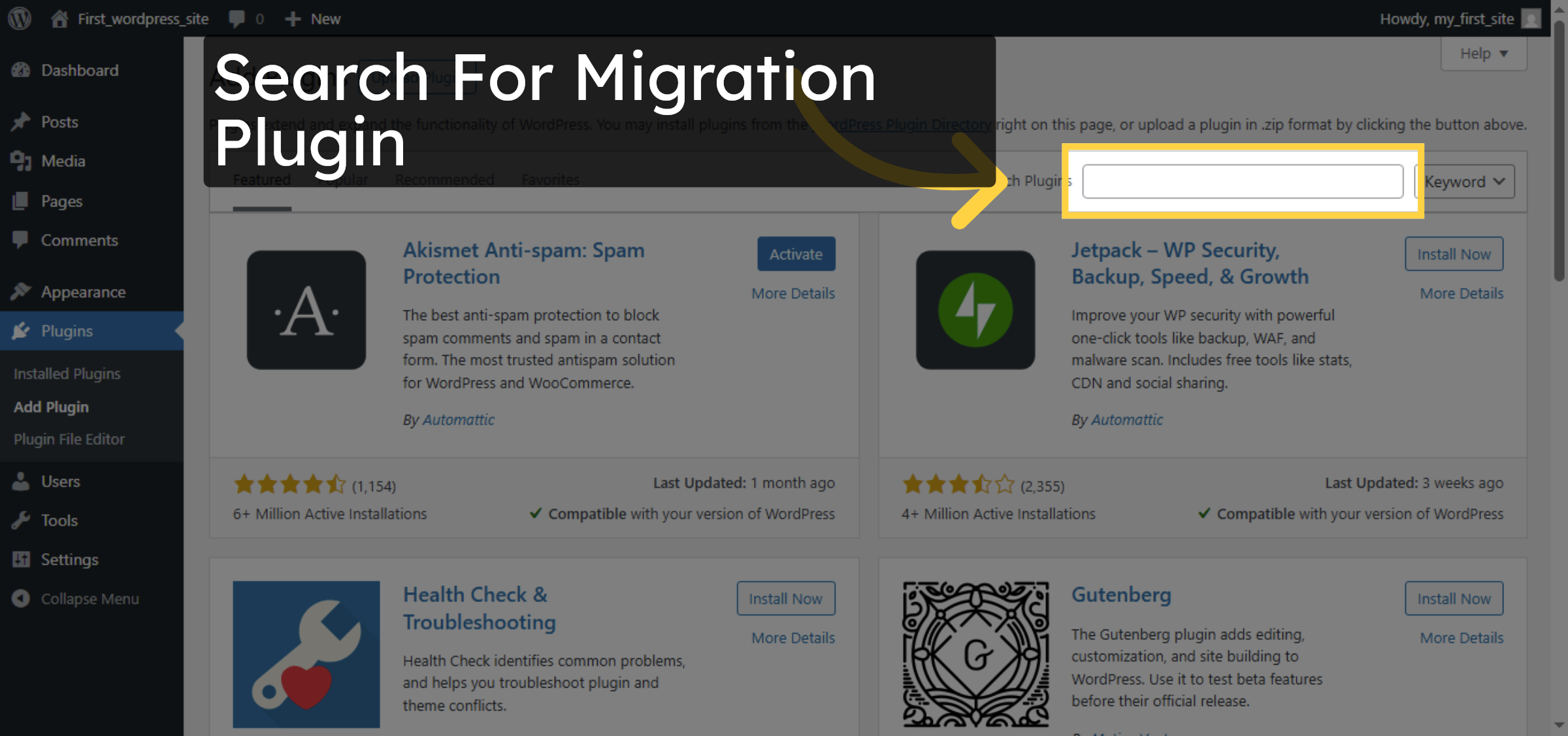
6. Search For Migration Plugin
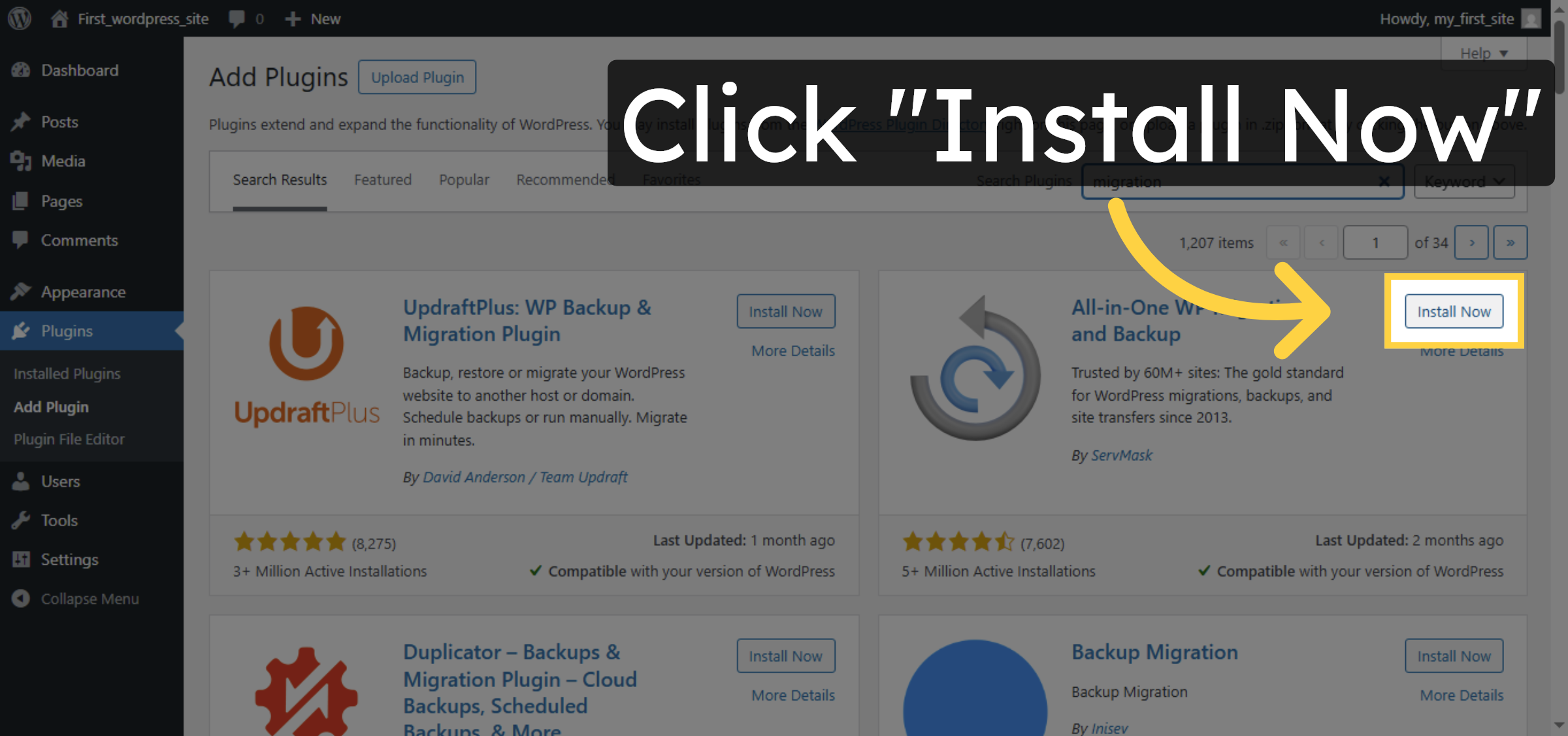
7. Install Migration Plugin
8. Activate Migration Plugin
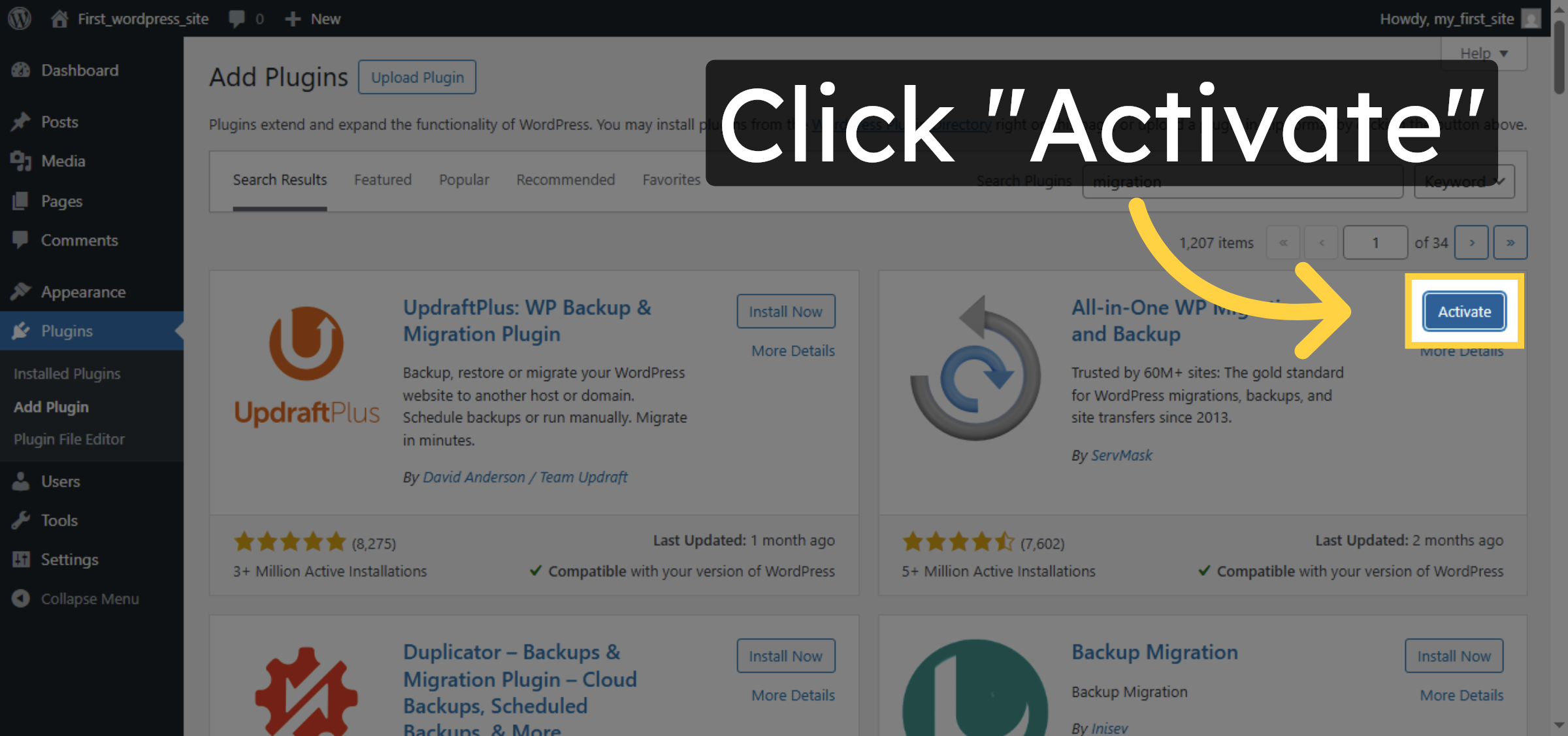
9. Click Export Option
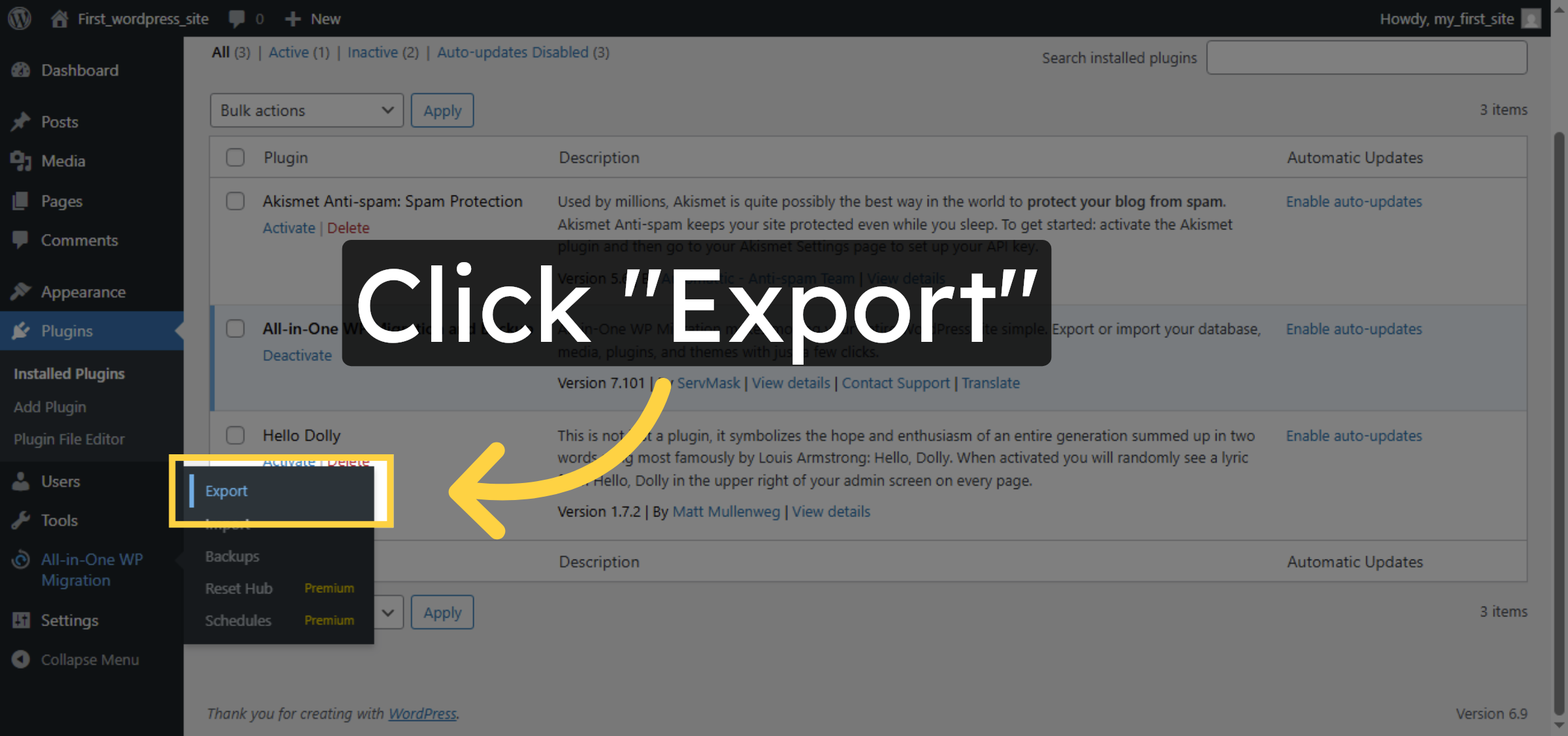
10. Select Export Destination
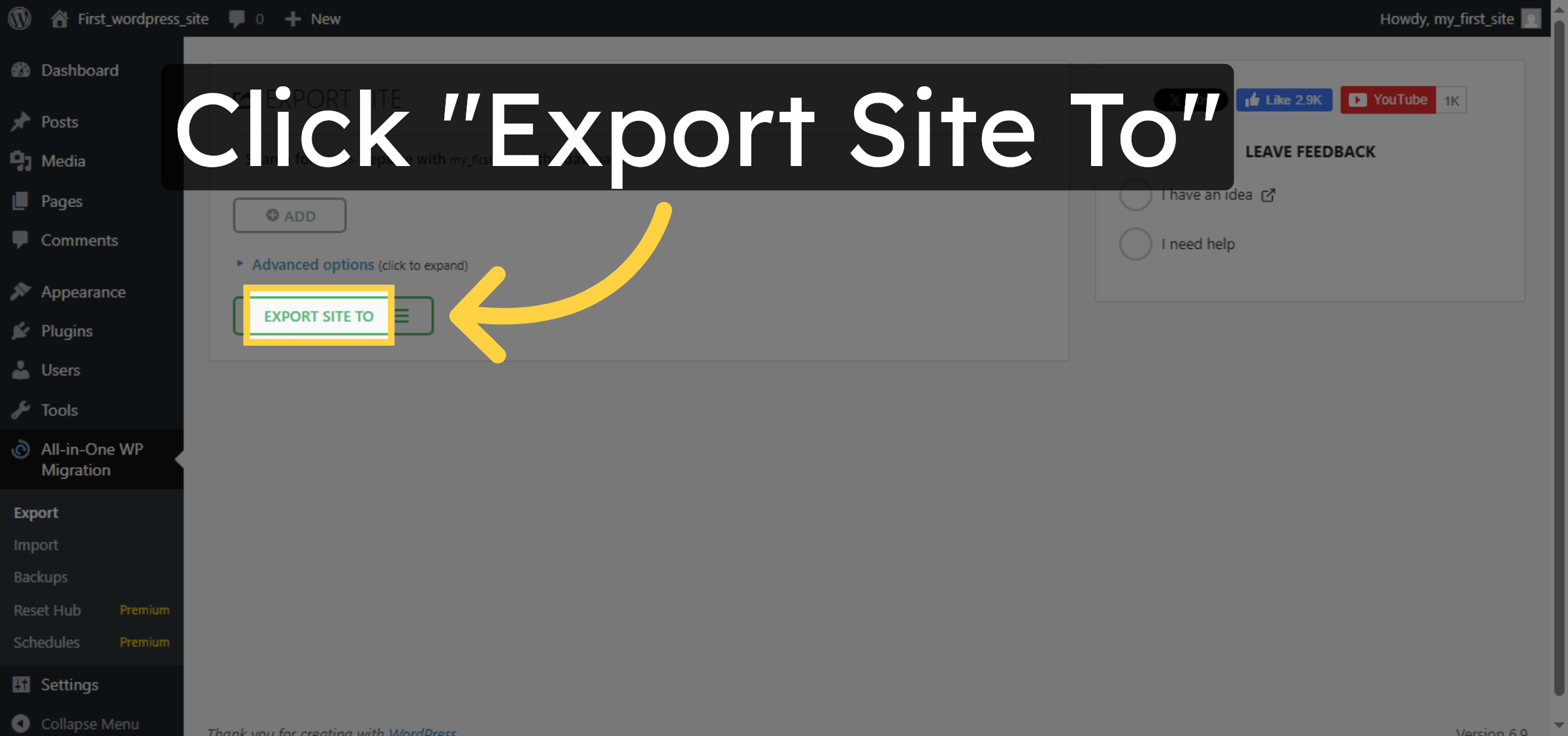
11. Choose File Export
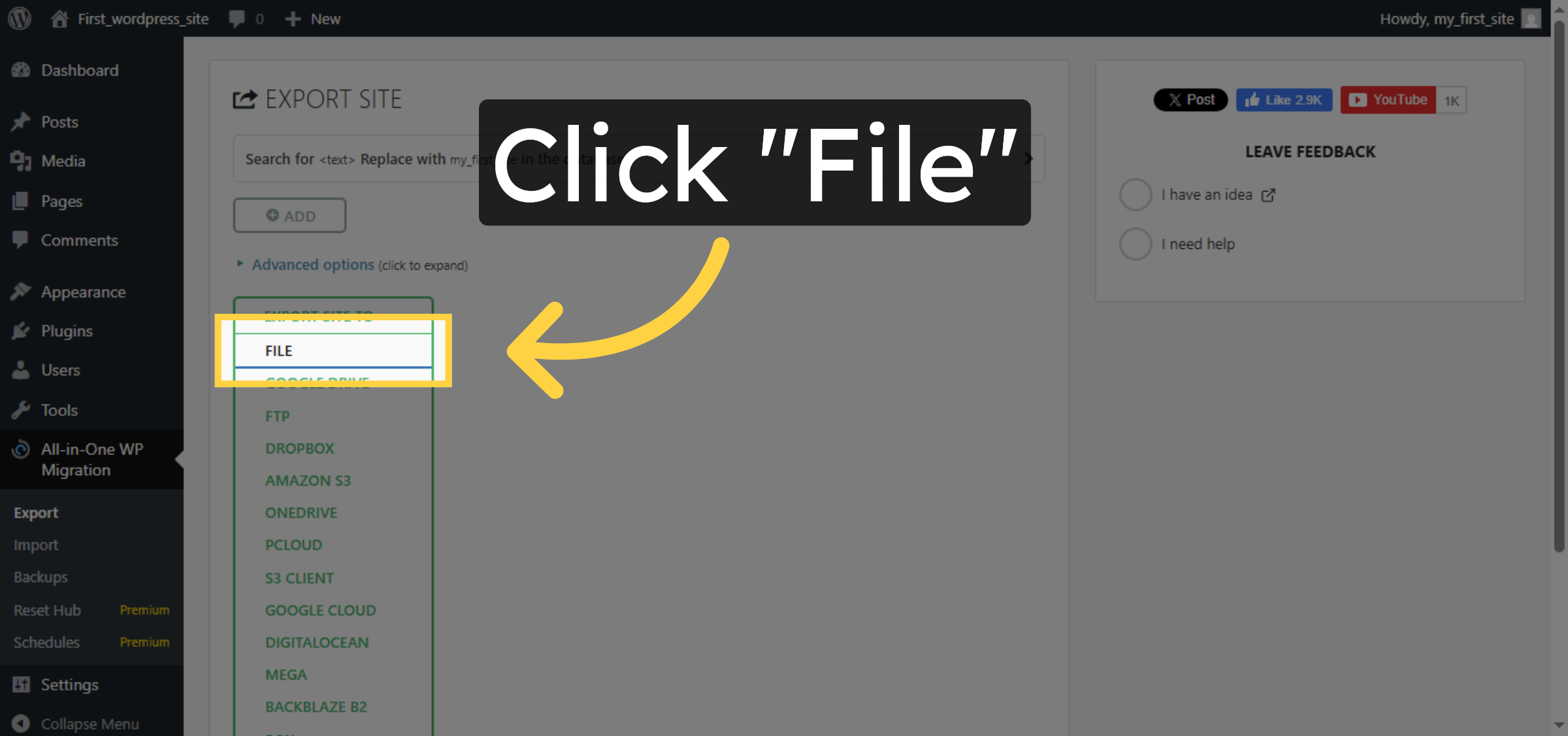
12. Download Exported File
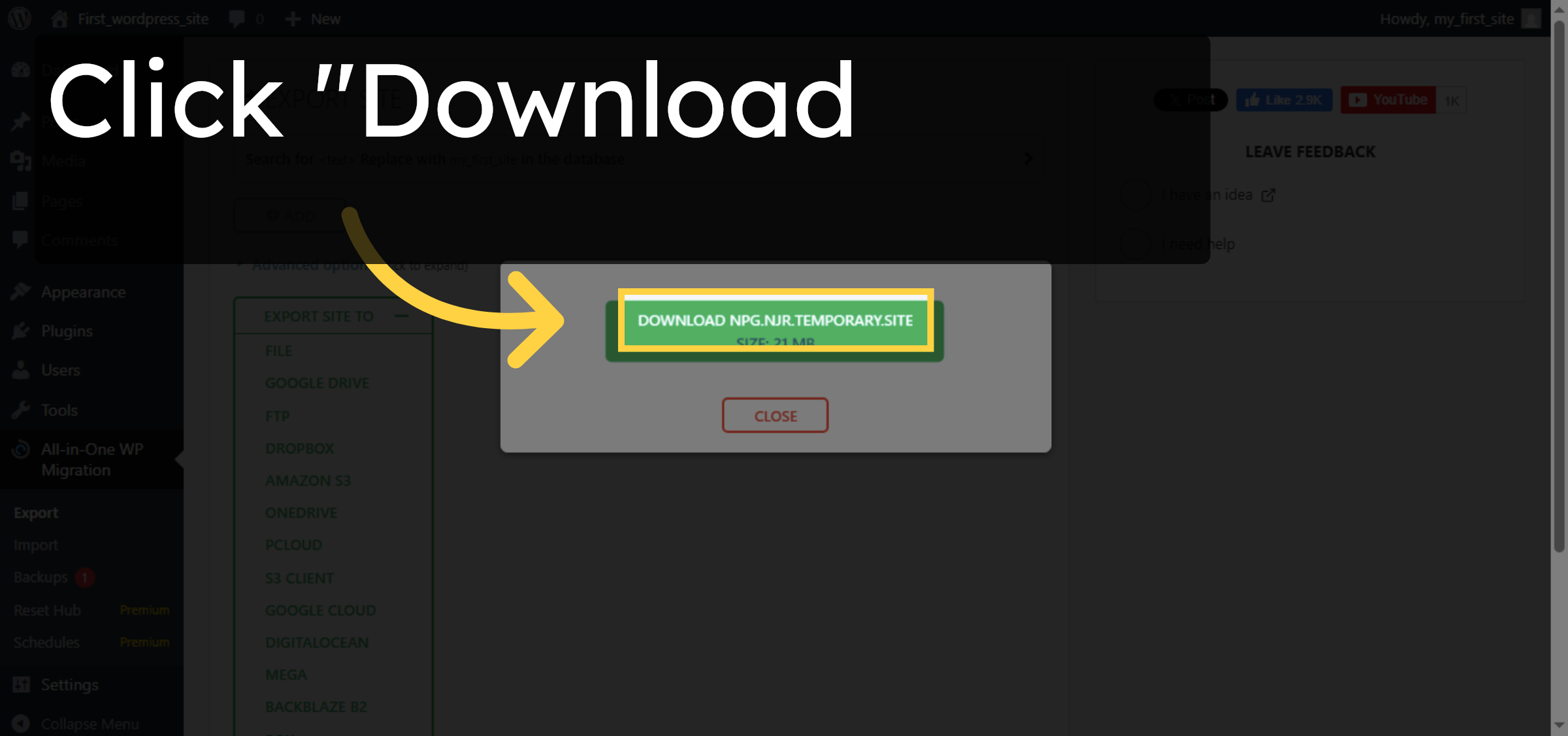
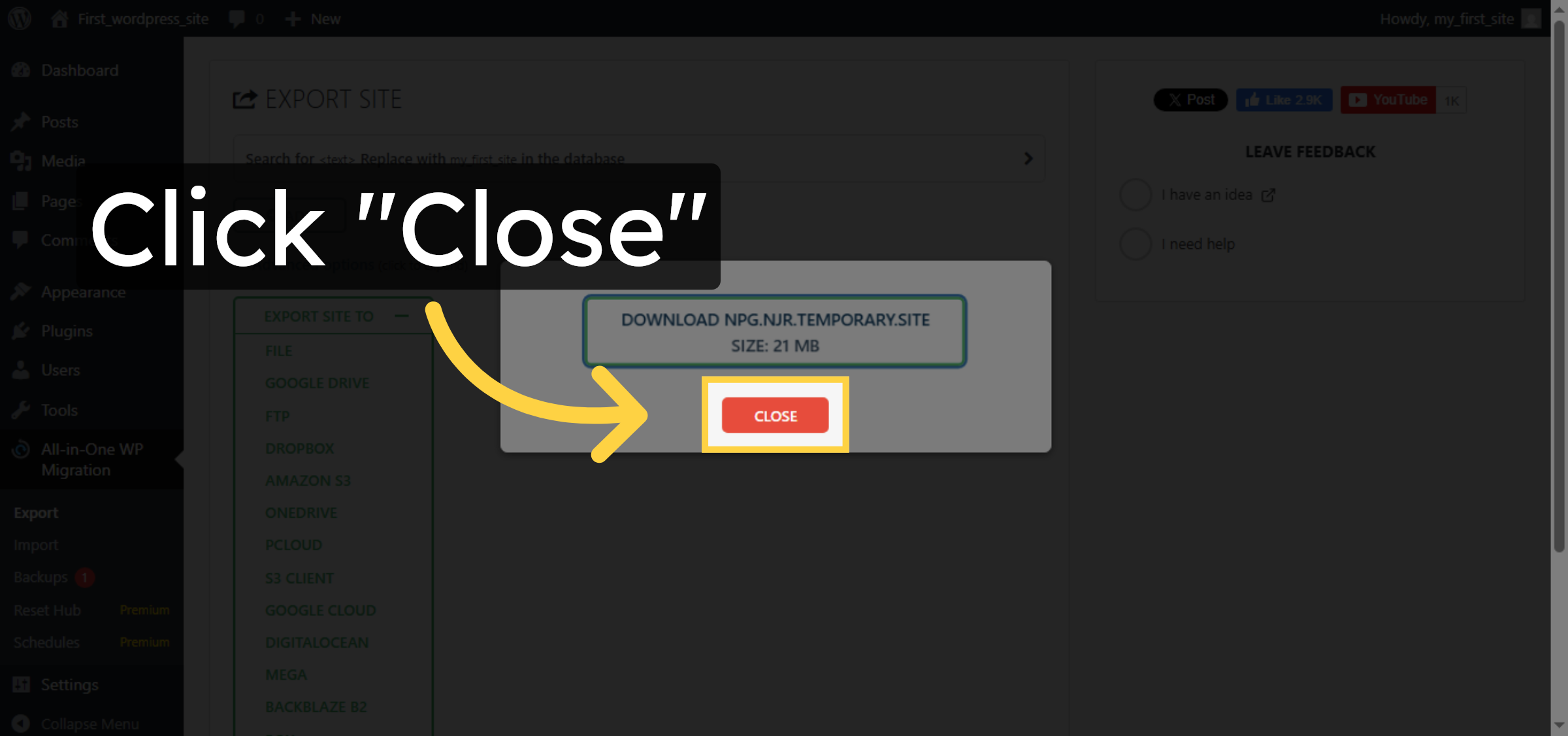
13. Close Export Window
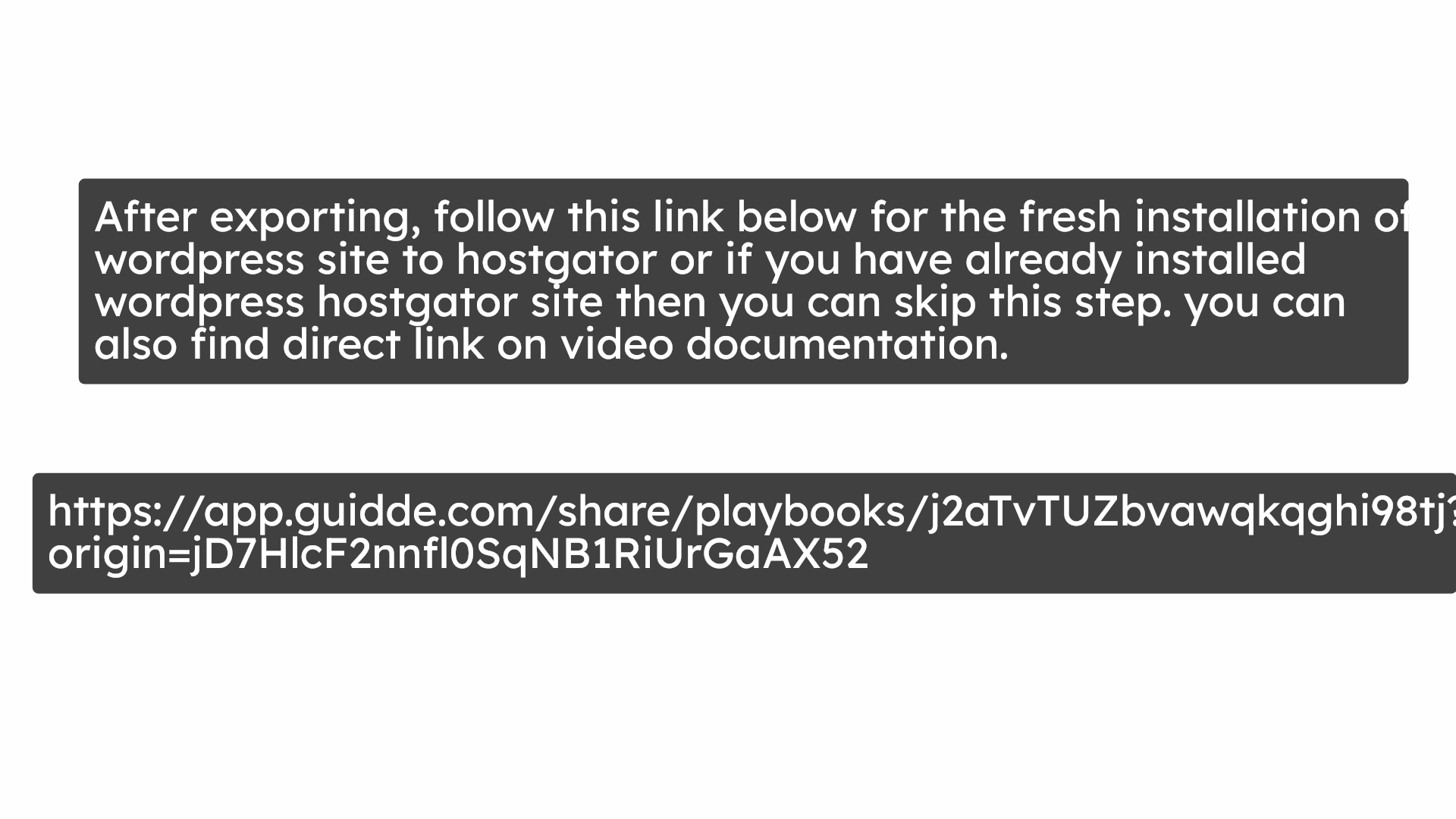
14. Install fresh wordpress on hostgator


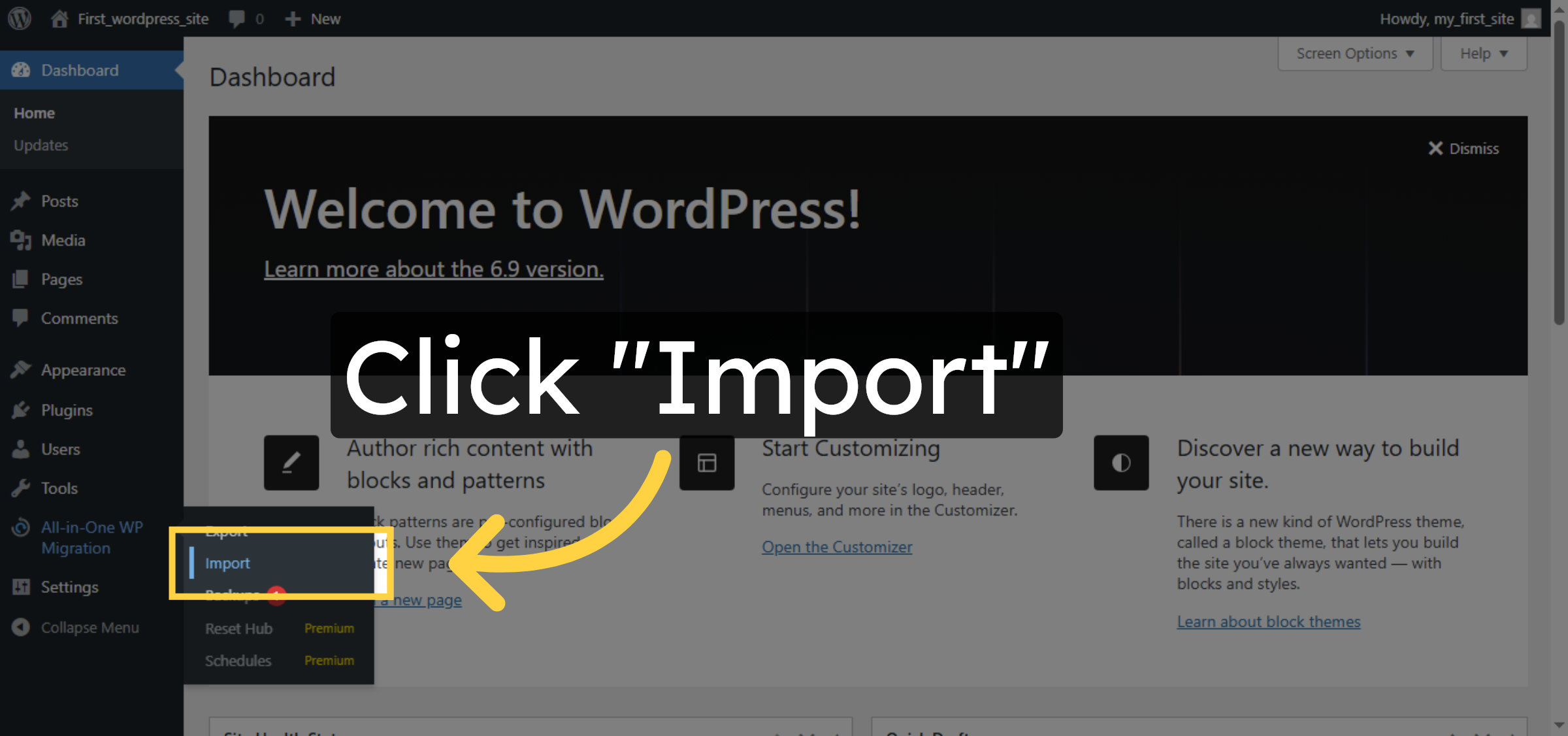
15. Open website and Import Data
16. Select Import Source
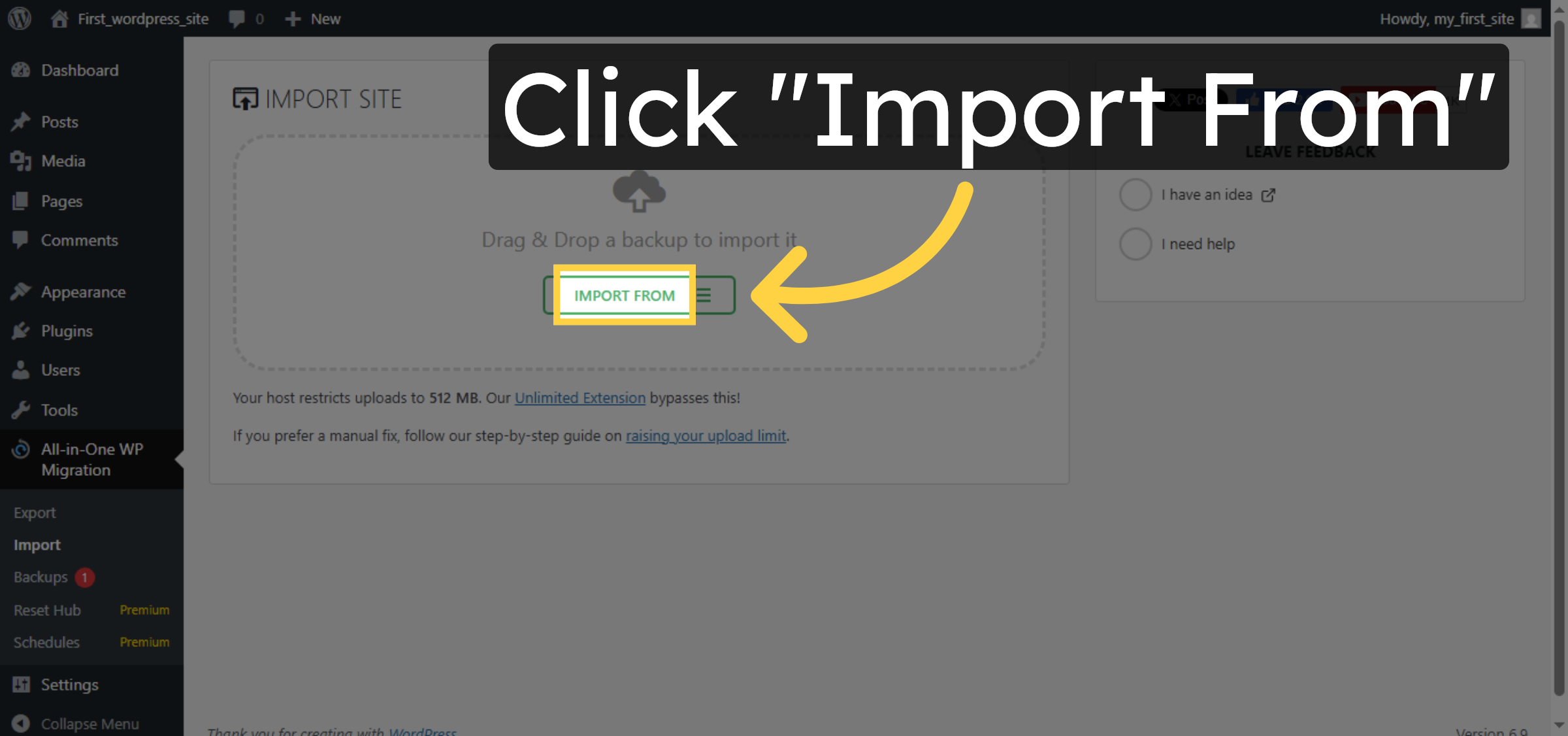
17. Open Import File Selector
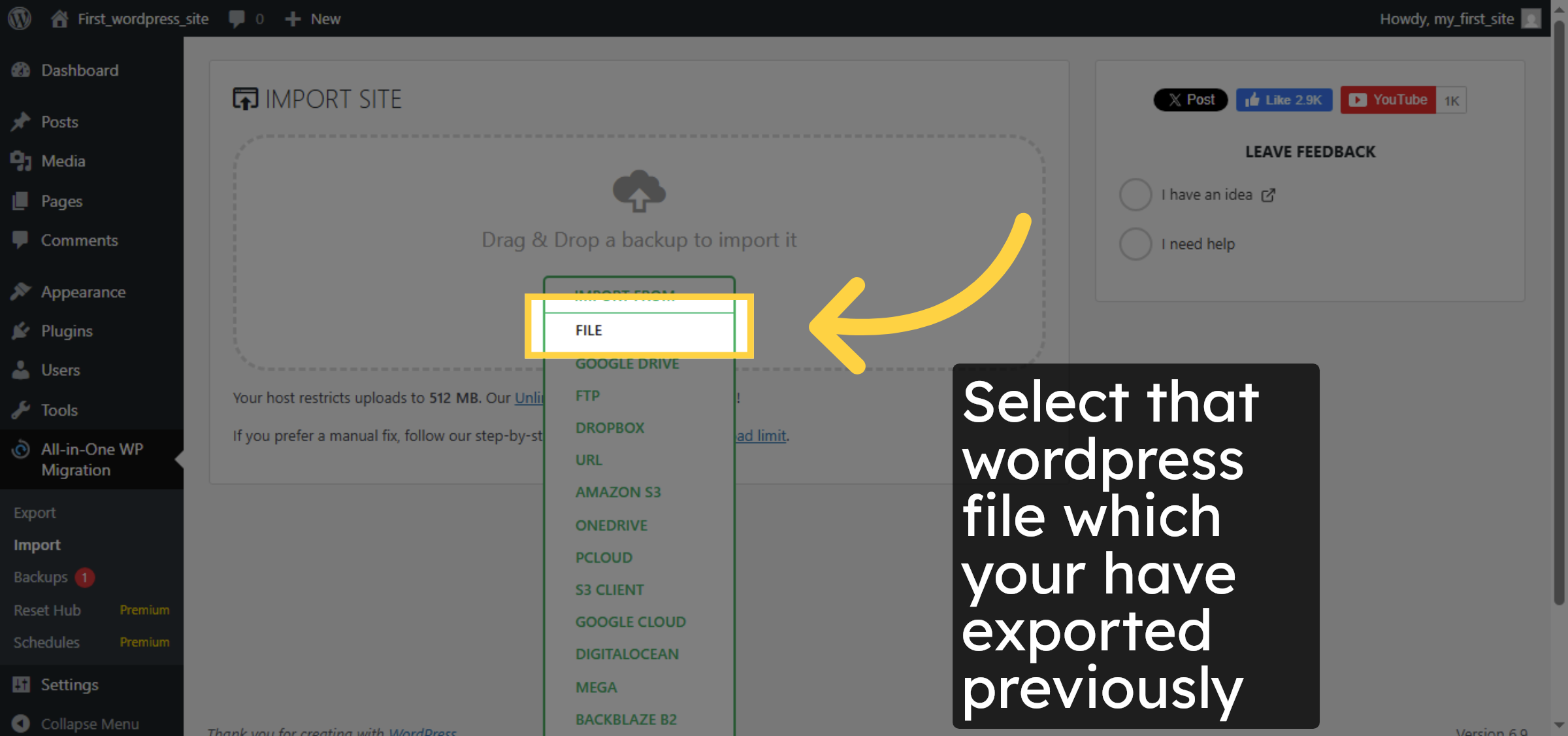
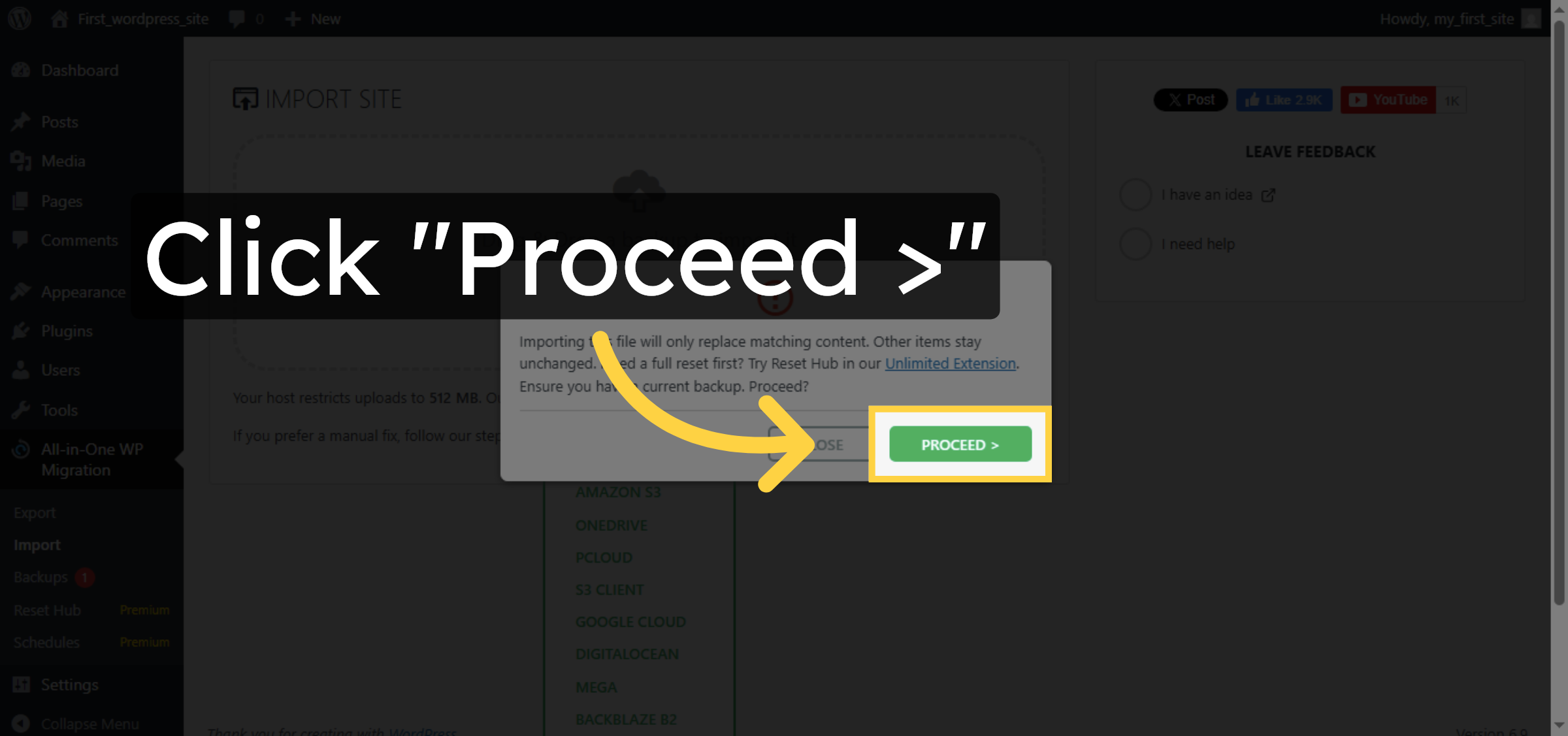
18. Proceed With Import
19. Finish Import Process
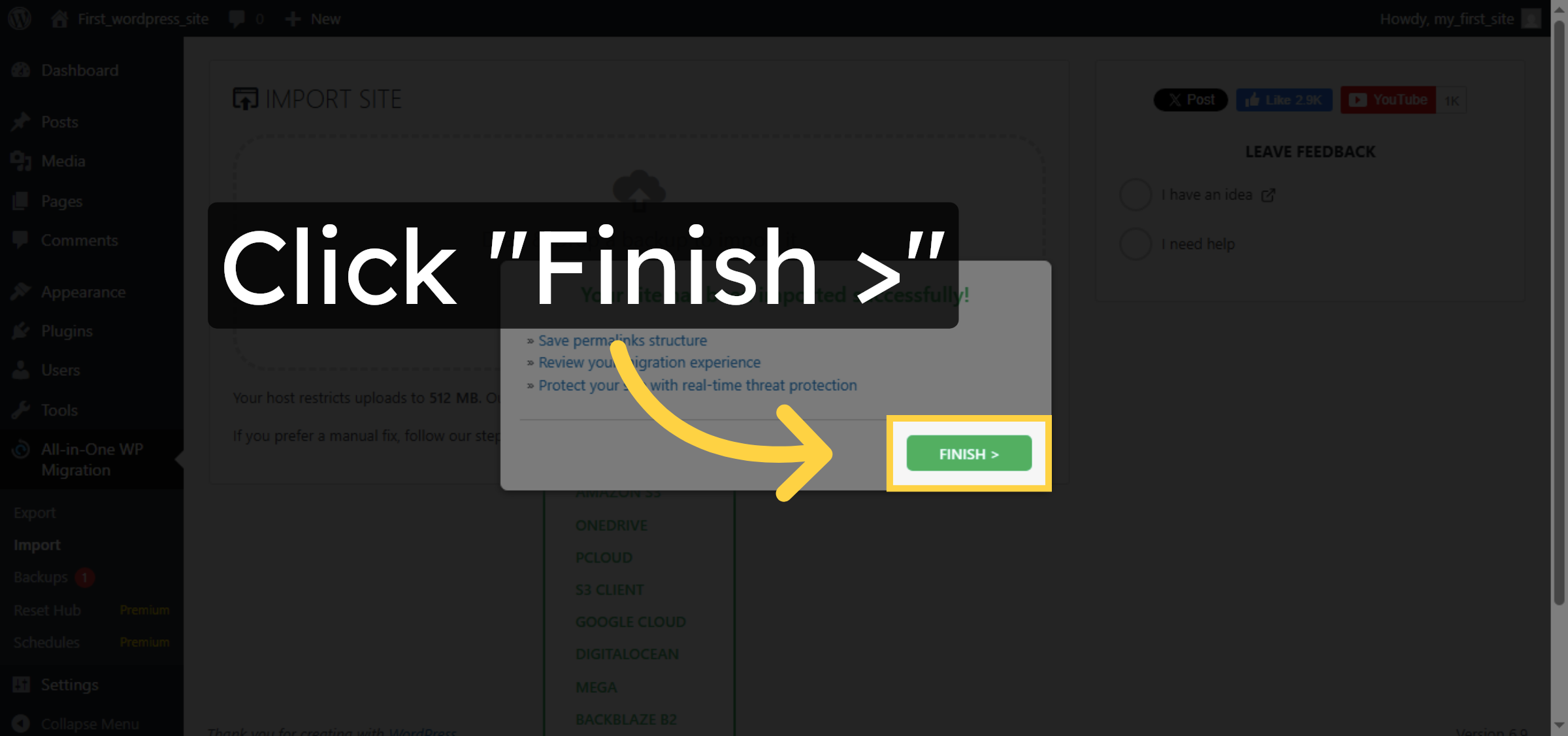
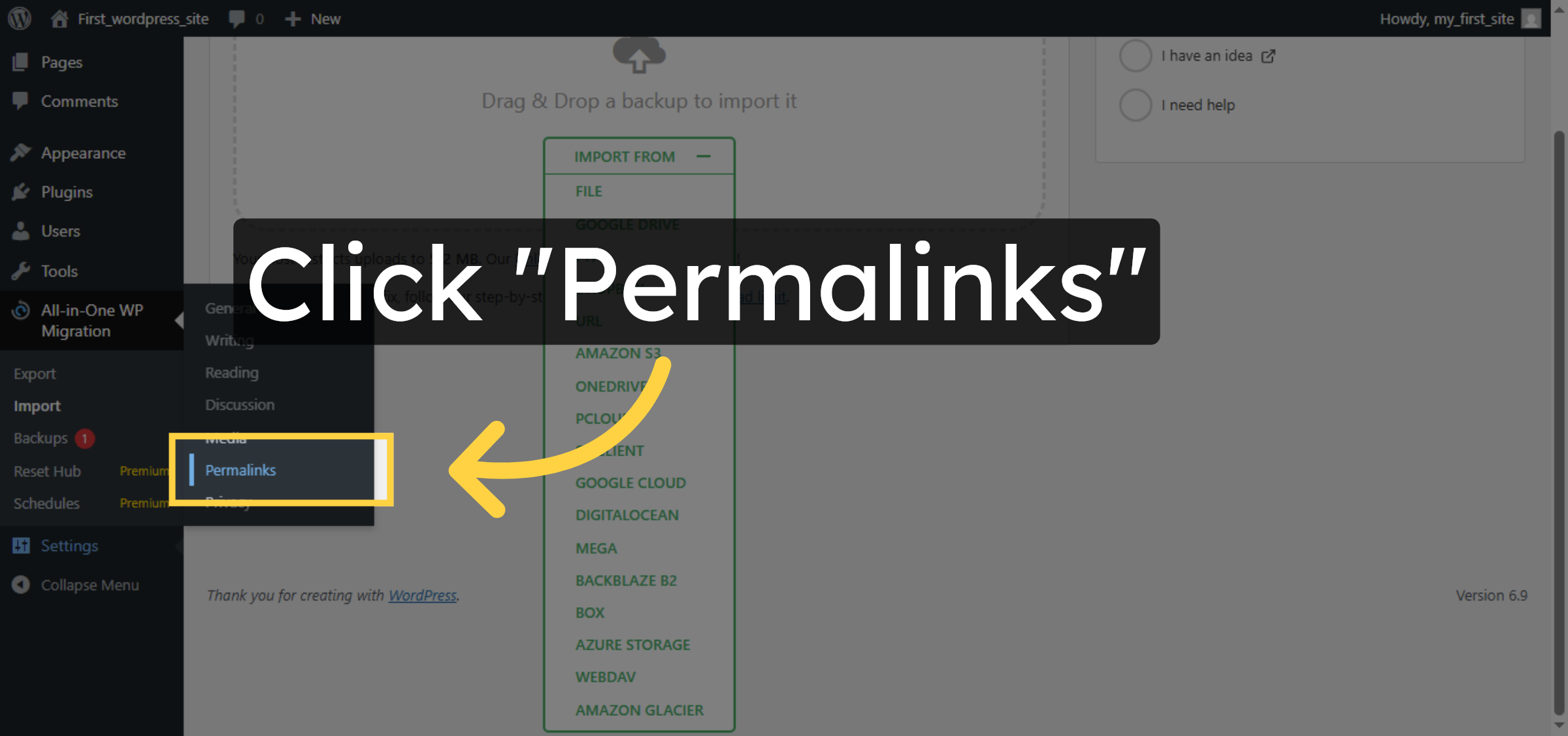
20. Open Permalinks Settings
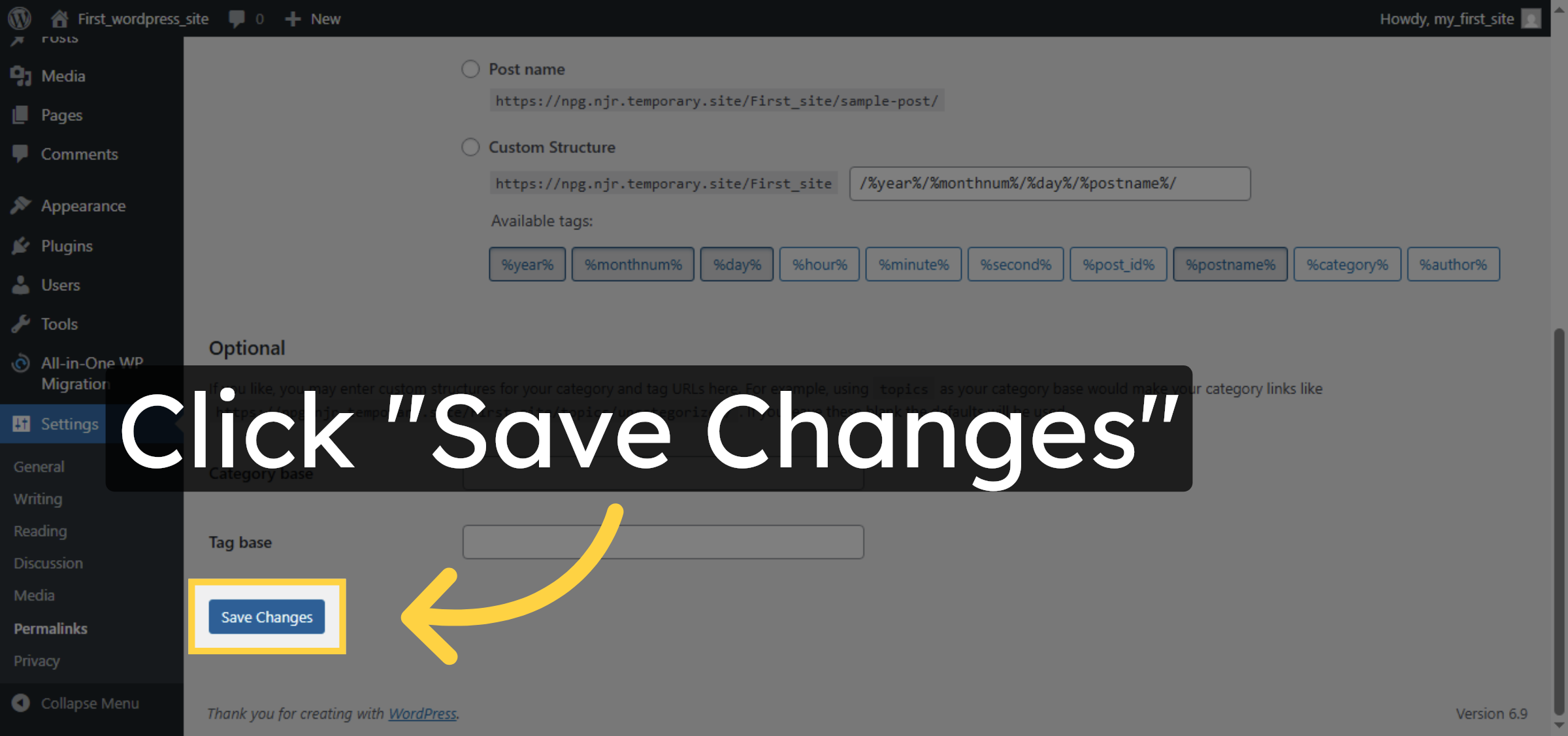
21. Save Additional Changes
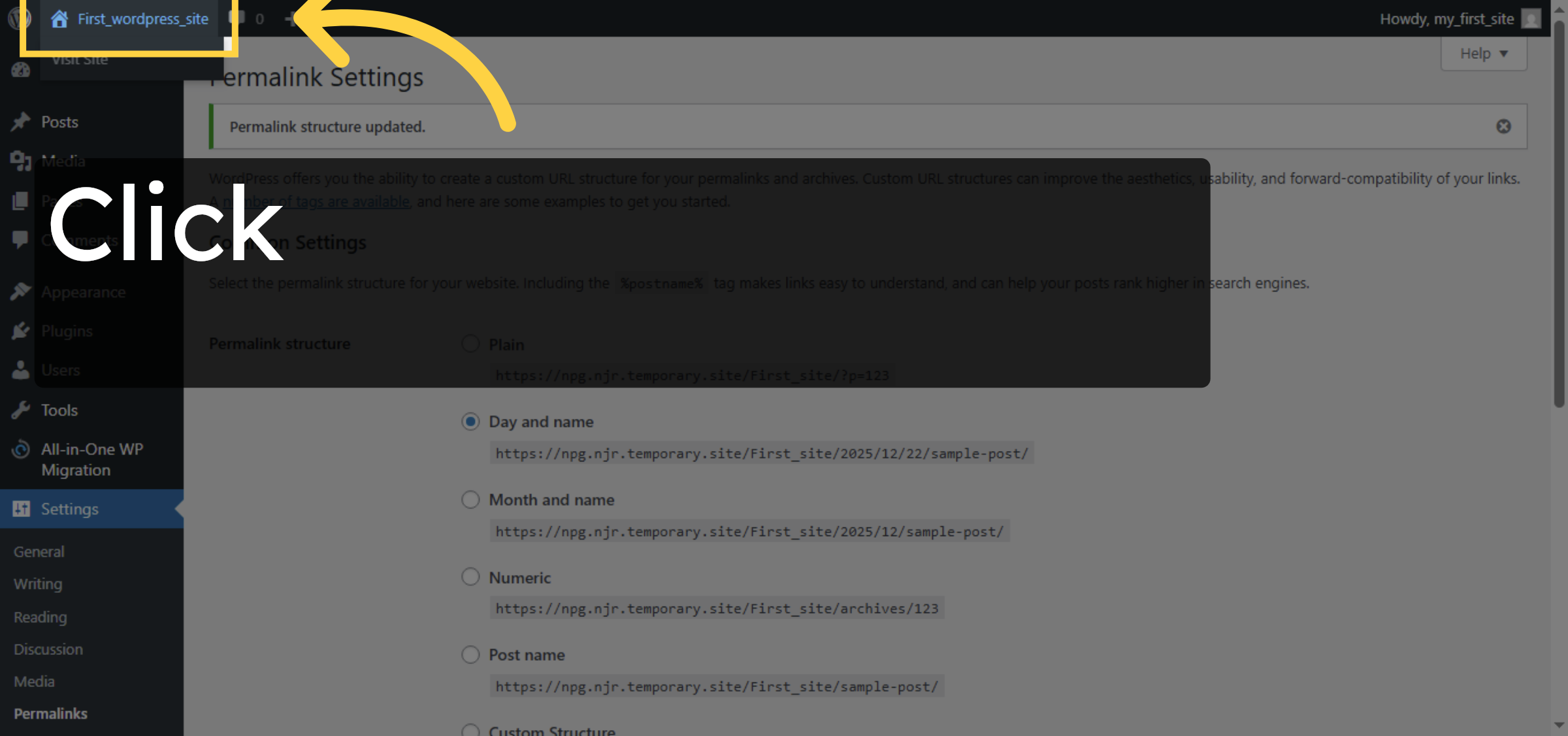
22. Open WordPress Site Dashboard
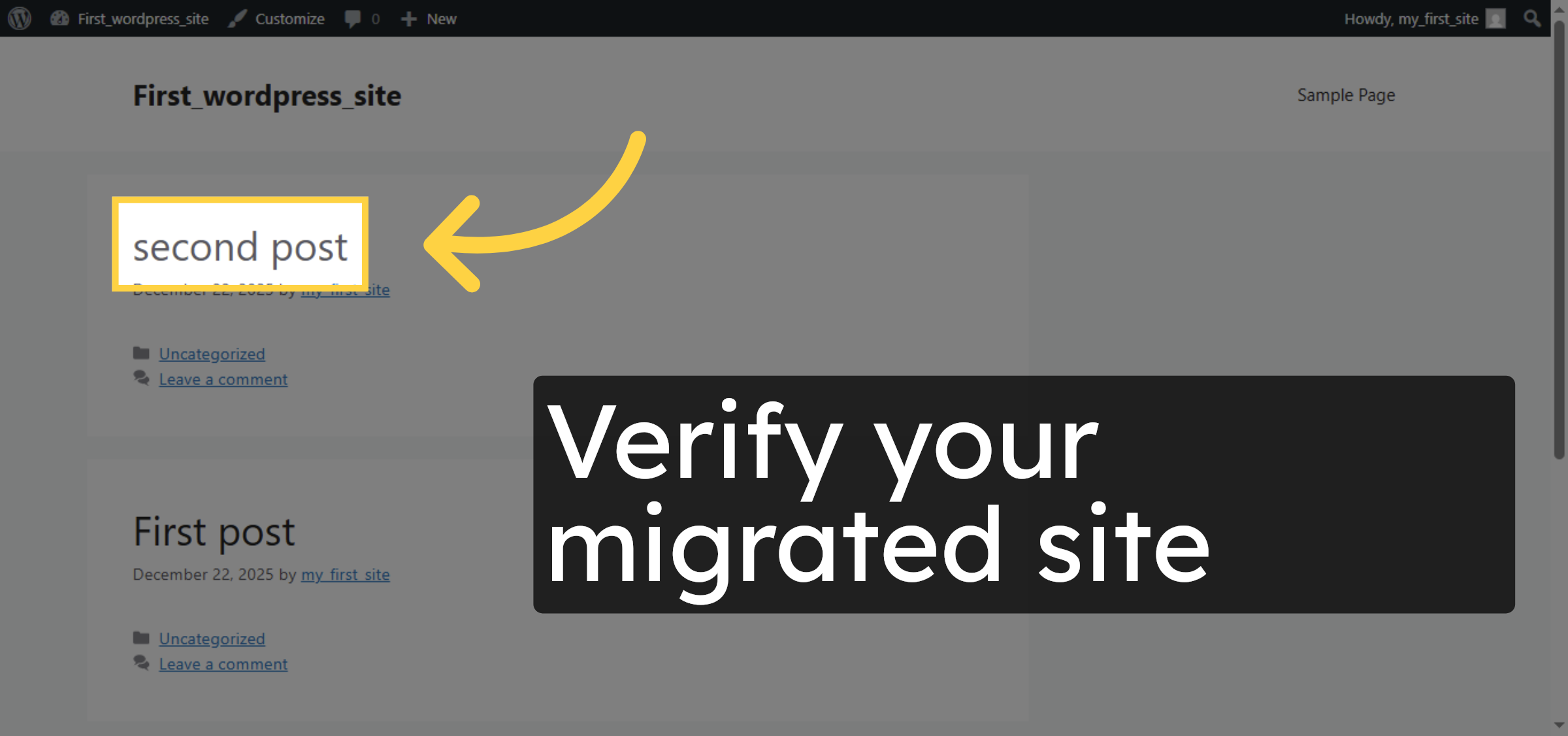
23. View Imported Post
Conclusion
By following the steps outlined in this guide, you can successfully migrate your WordPress website to HostGator WP Hosting using a plugin-based export and import method. This process helps preserve your website’s content, structure, and settings while ensuring a smooth transition to the new hosting environment. Once the import is complete, reviewing permalinks and verifying your posts allows you to confirm that the migration was successful. This method is suitable for both beginners and experienced users who want a reliable and repeatable migration workflow. With your site now fully migrated, you can continue managing, optimizing, and scaling your WordPress website on HostGator with confidence.
-
Visit: https://www.woohelpdesk.com
-
Call Us Toll-Free: +1 888 602 0119 (US & Canada)
-
Get expert help with WordPress migration, hosting setup, performance optimization, and ongoing WooCommerce support



