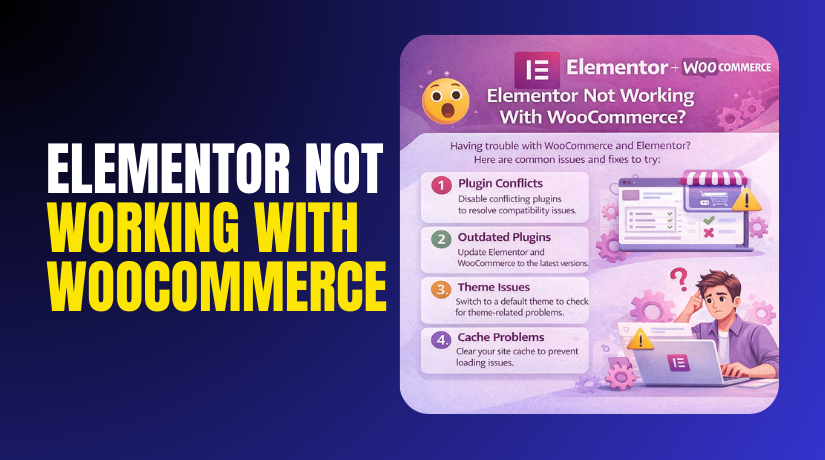
Elementor Not Working With WooCommerce: Causes and Easy Fixes (Step By Step)
Table of Contents
- Introduction
- Understand the Problem Source: Editor Issue or Frontend Display Issue
- Most Common Reasons Elementor Not Working With WooCommerce
- How To Fix Elementor Not Working With WooCommerce (Step-by-Step)
- How To Prevent Elementor and WooCommerce Breaks in the Future
- Conclusion
Introduction
If you see this issue, you are not alone. Many store owners face this problem often. The elementor not working with woocommerce issues can break sales quickly. It can stop shoppers from adding products to cart. It can also break your product page design suddenly. Sometimes the Elementor editor will not load at all. Other times, the design loads but behaves wrong. This elementor woocommerce not working problem usually has a clear cause. You just need to find where it starts first. Once you find the source, fixing becomes much easier. In this guide, you will learn how to identify it correctly. This will also reduce future elementor woocommerce issue risks.
Understand the Problem Source: Editor Issue or Frontend Display Issue
First, confirm where the issue is happening on your site. Some issues happen only inside the Elementor editor. Other issues happen only on the live frontend pages. If the editor does not load, it is an editor-side problem. If the page looks broken for visitors, it is the front end. Sometimes both sides break due to the same cause. You should test both sides to avoid wrong fixes. This approach saves time and avoids more confusion later.
Identify If the Issue Affects Product Pages or Whole Store
Next, check which pages are showing the problem. Test a product page, a cart page, and a checkout page. Also test a normal page built with Elementor. If only Woo pages break, it is Woo-specific. If all Elementor pages break, the issue is wider. Many times, the elementor woocommerce not working issue targets templates. It can affect product layouts and archive layouts as well. Knowing the exact page type helps you troubleshoot faster.
Check If the Problem Happens Only on Cart and Checkout
Cart and checkout pages behave differently from normal pages. They use dynamic content and special Woo scripts. Many cache settings break these pages very easily. Some themes also style these pages in a special way. So you must check the cart and checkout separately. If only the cart or checkout is broken, note that clearly. This points to caching or Woo checkout settings often. It can also point to a checkout plugin conflict.
Check Logged-In vs Guest View for Clear Clues
Now test your site as a guest user and admin user. Open the page in a logged-out browser window. Compare it with the logged-in view on your browser. If guests see the issue but admins do not, caching may exist. If admins see it only in the editor, it can be conflicts. This step is simple but gives strong clues quickly. It also helps isolate an elementor woocommerce error faster.
Quick Isolation Checks You Can Do in Five Minutes
These quick checks help confirm if the issue is temporary. They also rule out browser and cache problems fast. Start with these checks before deeper testing steps. Open the page in incognito mode and test again. Try another browser like Firefox or Edge for testing. Clear your browser cache and hard refresh the page. Clear your site cache from your caching plugin too. If you use CDN, purge cache from that panel. If the issue changes, caching is likely involved.
Confirm WooCommerce Pages and Permalinks Are Set Correctly
Wrong Woo page settings can cause confusing display issues. Go to WooCommerce settings and check page assignments. Confirm Cart, Checkout, and My Account pages are correct. Also check if those pages are not empty or deleted. Then open Settings and check Permalinks in WordPress. Click Save Changes once to refresh permalinks safely. Broken permalinks can break product URLs and templates. This may look like an elementor woocommerce issue at first. But it is often a Woo setup problem underneath.
Most Common Reasons Elementor Not Working With WooCommerce
When Elementor and WooCommerce clash, the cause is usually simple. Most issues come from conflicts, settings, or version mismatch. Your goal is finding the strongest reason behind the break. Once you know the reason, fixes become fast and stable. Many users call this elementor woocommerce not working without clear detail. This section helps you match symptoms to the real cause. You will also avoid repeating the same elementor woocommerce issue again.
Plugin Conflict Is the Biggest Cause Behind WooCommerce Page Breaks
Plugin conflicts are the top reason stores face this problem. One plugin can block scripts Elementor needs to load. Another plugin can change WooCommerce templates without warning. These conflicts often trigger an elementor woocommerce error on product pages. Speed plugins can break JavaScript files during loading. Security plugins can block REST API calls from the editor. Checkout add-ons can replace cart and checkout layouts completely. Some plugins load extra scripts that slow editor loading. When this happens, you see elementor not working with woocommerce suddenly. The site may work yesterday, and break after updates today.
Cache, Minify, and Delay JS Settings Often Break WooCommerce Behavior
Caching is helpful, but WooCommerce needs special handling. Cart and checkout pages must stay dynamic for each user. If those pages get cached, buyers see wrong cart data. Minifying and combining settings can also break key scripts. Delay JS can pause WooCommerce scripts too late to work. This can create missing buttons and broken price sections. Many stores report elementor woocommerce not working after enabling speed tools. Some CDNs also cache pages that should stay un-cached. When this happens, the site shows a confusing elementor woocommerce issue. The design looks right, but actions do not work.
Theme Conflicts and WooCommerce Template Overrides Can Break Layouts
Your theme can override WooCommerce templates using its own files. If those files are old, layouts can break quickly. Elementor templates may also clash with theme templates. Some themes include their own builder and template system. That can cause two template engines to fight each other. The result is a broken product page or archive page. You may also see styling that changes without your control. This can look like an elementor woocommerce error at first glance. But the theme is often the real source of it.
Elementor Template Conditions Can Apply to the Wrong WooCommerce Pages
Elementor templates work by rules called display conditions. If conditions are wrong, templates apply to wrong pages. A single product template may apply to blog posts by mistake. An archive template may apply to a product category page only. Sometimes two templates target the same product pages. Then the site loads parts from both templates together. This causes missing sections and odd spacing issues. Many users report elementor not working with woocommerce due to conditions. It can also show as widgets not appearing correctly. This is a common elementor woocommerce issue for new setups.
Version Mismatch Between WordPress, Elementor, and WooCommerce Creates Bugs
Updates are good, but mismatch can cause strange problems. Elementor free and Elementor Pro must match version range. WooCommerce updates can change template structure and hooks. WordPress core updates can change editor behavior too. When versions do not match well, errors can appear. You may see editor load failures or widget errors. You may also see template changes not showing on frontend. This feels like elementor woocommerce not working, but it is compatibility. Many issues vanish after safe updates and matching versions. A mismatch can trigger repeated elementor woocommerce error messages.
Server Limits and PHP Settings Can Stop Elementor From Loading Woo Pages
Elementor needs enough server memory to run smoothly. WooCommerce pages can be heavier than normal pages. If PHP memory is low, pages may crash silently. If execution time is low, editor can hang while loading. Some hosts also block REST API calls for security reasons. Elementor relies on REST API to load editor data. If blocked, editor may show a spinning loader forever. This can look like elementor woocommerce not working in the editor. It can also show as blank sections on product pages. Server limits can create a hidden elementor woocommerce issue repeatedly.
Database and Cleanup Tools Can Remove Needed WooCommerce Data
Some cleanup plugins remove old data to speed up sites. If used incorrectly, they remove WooCommerce sessions and transients. This can break cart actions and checkout steps quickly. Elementor widgets may also fail to fetch product data. Then the layout loads, but content stays empty. This can feel like an elementor woocommerce error on every product. It is not common, but it happens on busy stores. If the issue started after a cleanup run, this is likely. It can create a hard-to-track elementor woocommerce issue.
Security Rules and Firewalls Can Block Elementor and WooCommerce Requests
Security plugins and firewalls can block admin requests sometimes. They may block wp-admin ajax endpoints used by Elementor. They may also block WooCommerce endpoints used for cart updates. When blocked, buttons stop working and pages may freeze. You might see errors only for some users and locations. This often shows as elementor woocommerce not working on cart actions. It can also block editor loading on product pages. If the firewall logs show blocked requests, this is a clue. Many store owners see this as an elementor woocommerce error.
Multiple WooCommerce Add-Ons Can Overload Pages and Cause Conflicts
WooCommerce stores often use many add-ons for features. Product add-ons, variation swatches, and quick view tools add scripts. If many add-ons load together, pages become heavy. Heavy pages can cause slow editor load and timeouts. Some add-ons also change templates and hooks directly. Then Elementor widgets may not find the right data. This creates layout gaps and missing product elements. It looks like elementor not working with woocommerce for no reason. But the real cause is too many changes at once.
How To Fix Elementor Not Working With WooCommerce (Step-by-Step)
Fixing an elementor woocommerce issue becomes easy with a clean workflow. Follow these steps in order and test after each step. This method helps you avoid random changes and new problems.


Step 1: Create a Full Backup and Test Safely on a Staging Copy
- Start with a full backup of files and database first.
- Use a staging site for safe testing without sales loss. This keeps your live store stable during the fix process.
Step 2: Clear Cache at Every Level Before Testing Anything Else
- Clear browser cache and then clear your WordPress cache plugin.
- Purge server cache if your host provides it too.
- Purge CDN cache if you use Cloudflare or similar.
- Exclude these WooCommerce pages from caching to avoid trouble.
- Cart page should never be cached for any user.
- Checkout page should never be cached for any user.
- My Account page should never be cached for any user.
Step 3: Update WordPress, Elementor, and WooCommerce in a Safe Order
- Check for updates and read update notes quickly.
- Update WooCommerce and WordPress core before Elementor updates.
- Update Elementor and then update Elementor Pro if you use it.
- Version mismatch often triggers elementor woocommerce not working issues suddenly.
Step 4: Turn On Elementor Safe Mode to Test Without Conflicts
- Enable Elementor Safe Mode and load the editor again.
- Safe Mode loads Elementor without theme and plugin interference.
- If it works, a conflict is causing the elementor woocommerce error. If it fails, move to server and template checks.
Step 5: Find Plugin Conflicts Using a Fast and Clean Method
- Disable all non-needed plugins for a short test period.
- Keep only Elementor, WooCommerce, and required payment plugins active. Test a product page in editor and on the frontend.
- Enable plugins one by one and test after each enable. This reveals the plugin behind the elementor woocommerce issue.
Step 6: Switch Your Theme Temporarily to Confirm Theme Problems
- Switch to a default theme for a quick test. Test product pages, cart, and checkout again after switching.
- If the issue disappears, your theme overrides Woo templates. Then update the theme or ask the theme team.
Step 7: Regenerate Elementor Files and Clear Elementor Internal Cache
- Go to Elementor Tools and regenerate CSS and data.
- Then clear Elementor cache from the same tools section.
- This fixes missing styles and helps templates load correctly.
- It also helps when elementor not working with woocommerce appears after updates.
Step 8: Disable Heavy Optimization Options That Break WooCommerce Scripts
- Turn off JavaScript combine and minify for quick testing.
- Turn off delay JavaScript until the issue is fixed.
- Turn off script deferring if it breaks Add to Cart.
- Many speed settings cause elementor woocommerce not working on dynamic pages.
- After fixes, re-enable options one at a time carefully.
Step 9: Verify WooCommerce Pages and Elementor Template Conditions Carefully
- Open WooCommerce settings and confirm cart and checkout pages.
- Re-save permalinks once to refresh rewrite rules.
- Check Elementor Theme Builder template display conditions again.
- Make sure one Single Product template targets all products.
- Remove duplicate templates that target the same product pages.
Step 10: Check Error Logs and Browser Console for Hidden Clues
- Enable WordPress debug log for a short test window.
- Look for fatal errors related to plugins or theme files.
- Open the browser console and check for JavaScript errors too.
- Console errors often explain an elementor woocommerce error clearly.
Step 11: Increase PHP Limits and Confirm REST API Is Not Blocked
- Increase PHP memory limit to handle heavy product templates.
- Increase max execution time to avoid editor timeout issues.
- Ask your host to confirm the REST API is not blocked.
- REST blocks can cause elementor woocommerce issues during editor load.
Step 12: Reinstall Elementor and WooCommerce Only as a Last Option
- Reinstall plugins only after conflicts and settings are checked.
- Use the WordPress plugin screen to reinstall cleanly.
- Do not delete your templates or settings during reinstall.
- This step helps when elementor not working with woocommerce persists everywhere.
How To Prevent Elementor and WooCommerce Breaks in the Future
Once your store is stable, keep it stable with habits. Most break issues happen after updates or speed changes. A prevention plan reduces every future elementor woocommerce issue. It also avoids sudden elementor woocommerce error surprises on live pages.
Always Test Updates on a Staging Site Before Live Updates
Never update major plugins directly on the live store. Create a staging copy and test updates there first. Check product pages, cart, and checkout after each update. If anything breaks, you can roll back without stress. This prevents sudden elementor woocommerce not working situations. It also protects your daily sales and customer trust.
Avoid Aggressive Speed Settings on WooCommerce Pages
Speed plugins are helpful, but Woo pages are sensitive. Do not combine or delay scripts on cart and checkout. Avoid heavy minify settings without proper exclusions. Turn off Rocket Loader or similar options if they break scripts. Exclude dynamic Woo pages from page caching always. This reduces repeated elementor not working with woocommerce complaints. It also keeps Add to Cart and checkout actions stable.
Exclude Cart, Checkout, and My Account Pages From All Caches
These pages change for every visitor and every session. Cached cart pages show wrong items for shoppers sometimes. Cached checkout pages can block payments and order creation. Cached account pages can leak user session data too. Use cache exclusions in plugin, server, and CDN panels. This single habit prevents many Elementor WooCommerce issue cases. It also avoids many Elementor WooCommerce error reports from buyers.
Keep Only Needed WooCommerce Add-Ons and Remove Extra Load
Too many add-ons can slow pages and cause conflicts. Keep only the plugins you truly use for sales. Remove old plugins you no longer need for store features. Replace heavy plugins with lighter options when possible. Fewer plugins means fewer chances of conflict. This lowers the risk of elementor woocommerce not working after updates.
Use One Template System and Avoid Competing Page Builders
Avoid running multiple builders for Woo templates together. Theme builders can clash with Elementor Theme Builder often. Keep one active system for single product and archive pages. Remove duplicate templates and keep conditions clean. This reduces layout mismatch and missing sections. It also prevents confusing elementor woocommerce issue on specific pages.
Monitor Error Logs After Updates to Catch Problems Early
Small errors become big breaks after a few changes. Check server and WordPress logs after major updates. Look for fatal errors, warnings, and repeated notices. Fixing early keeps the store stable for longer. It also avoids a silent elementor woocommerce error on product pages. If you cannot read logs, ask your host for help.
Keep PHP and Hosting Settings Ready for Elementor and WooCommerce
Elementor and WooCommerce need enough server resources. Keep PHP memory high enough for large product templates. Keep execution time high enough for editor loading. Make sure REST API is not blocked by security rules. Ask your host to whitelist WordPress admin endpoints if needed. This prevents editor crashes and loading loops. It also reduces elementor woocommerce not working in the backend.
Do Regular Monthly Maintenance Checks for Strong Store Health
Run a small check once each month for stability. Test product page templates and checkout flow quickly. Clear caches and regenerate Elementor CSS if needed. Review plugin list and remove unused items. Update plugins in a planned order with testing. This keeps issues small and easy to handle. It also prevents repeated elementor woocommerce issue situations.
Conclusion
The elementor not working with woocommerce problems has clear causes. Most issues come from conflicts, cache settings, or wrong templates. A clean fix workflow solves the elementor woocommerce not working problem fast. A strong prevention plan keeps future elementor woocommerce error risks low. If you want expert help, WooHelpDesk can assist quickly. We can fix your Elementor and WooCommerce setup safely. We can also stabilize checkout flow and improve store performance.



