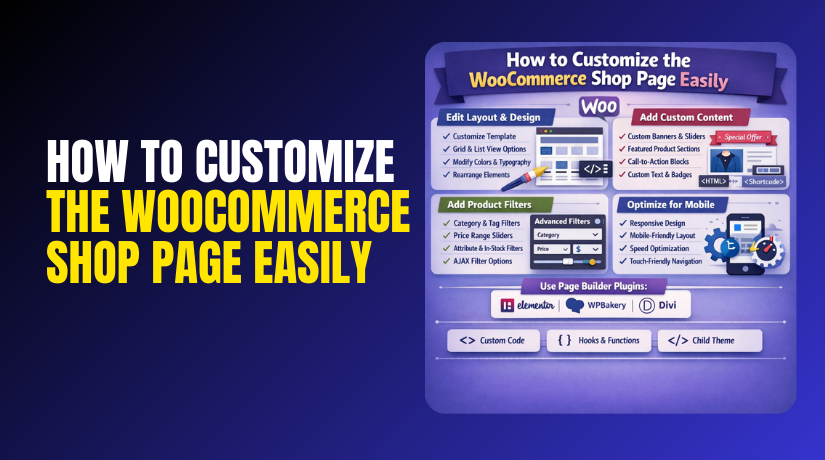
How to Customize the WooCommerce Shop Page Easily (Step-by-Step Guide)
Table of Contents
- Introduction
- What Is the WooCommerce Shop Page?
- What to Do Before You Start Any Shop Page Customization to Avoid Errors
- What You Can Customize on a WooCommerce Shop Page
- How to Customize the WooCommerce Shop Page Using Plugin
- How to Customize the WooCommerce Shop Page Using Divi (Step by Step)
- Conclusion
Introduction
Your Shop page is your main product browsing area. It shapes how visitors view products and decide fast. A clean layout makes shopping feel simple and smooth. A messy layout can confuse users and reduce sales. That is why Customize WooCommerce shop page tasks matter early. You can improve design, trust, and product discovery quickly. Many changes are possible without writing any code.
This guide focuses on practical and safe steps first. You will learn the base logic behind the Shop page. You will also learn what you should check before edits. This helps you avoid broken layouts and missing products. This part is for beginners and busy store owners. It supports WooCommerce shop page without coding goals too. In later parts, we will cover plugins and Divi steps.
What Is the WooCommerce Shop Page?
The WooCommerce Shop page is a product listing page. It shows products in a grid or list layout. It often works like an archive page in WordPress. This is why people call it a product archive. Many themes control how this page looks by default. WooCommerce provides the products and sorting tools. Your theme controls layout, spacing, and styles mostly. That is the core of WooCommerce shop page customization work. When you Edit WooCommerce shop page, you often change templates. You may also change layout options inside your theme. Some users also build a custom Shop page layout. That is possible, but it has key limits. Archive features may behave differently in custom pages.
What to Do Before You Start Any Shop Page Customization to Avoid Errors
- Take a full website backup first. A backup protects you from sudden layout breaks. It also helps if updates cause new issues. Use your host backup or a trusted backup plugin.
- Work on a staging site if possible. A staging site is a safe copy of your store. You can test changes without harming live sales. Many hosts offer one-click staging tools today.
- Confirm the correct Shop page is assigned. Go to WooCommerce shop page settings and verify the Shop page. If the wrong page is selected, products may not load. Fixing this early saves time and confusion later.
- Check your theme’s shop layout options first. Many themes have built-in controls for shop grids. You may be able to Change WooCommerce shop page layout easily. This can reduce the need for extra plugins.
- Write down the exact changes you want. List the layout and design changes in simple points. Example: banner, filters, columns, or spacing updates. This makes WooCommerce shop page customization more focused.
- Test key shop features before and after changes. Check sorting, pagination, add to cart, and quick view. This ensures your WooCommerce shop page design still works well. It also helps you catch problems fast.
- Keep plugins minimal and avoid feature overlap. Too many plugins can create conflicts and slow pages. Use one tool for one job whenever possible. This keeps Customize WooCommerce shop page work stable.
- Clear cache after every major update. Caching can show the old layout even after changes. Clear plugin cache, server cache, and browser cache. This helps you confirm your edits correctly.
What You Can Customize on a WooCommerce Shop Page
A WooCommerce Shop page is more than a product grid. You can shape how users browse and decide quickly. Smart changes improve clarity and reduce choice stress. This is the heart of WooCommerce shop page customization work. You can change layout, product display, and helpful shop tools. Many updates fit WooCommerce shop page without coding needs. But you must know what is possible and what matters. Below are the main areas you can customize safely.
Layout and Design Changes That Improve the WooCommerce Shop Page Look
Your layout controls how products appear on the screen. You can choose full width or a sidebar layout. A sidebar is useful when you want filters visible. Full width works well for large product images and clean grids. Spacing between products can also be adjusted in many themes. Better spacing makes products easier to scan fast. Fonts and colors should match your brand style. This supports a consistent WooCommerce shop page design across pages. You can also adjust button styles and hover effects. These small changes can lift clicks and add-to-cart actions. When you customize WooCommerce shop page, layout is the first win.
Product Grid Controls to Change WooCommerce Shop Page Layout Properly
The product grid decides how many products show per row. It also decides how many products show per page. Many themes provide simple grid controls in settings. Some themes use their own panel for these options. This is part of WooCommerce shop page settings you should review. Changing columns can improve product visibility on mobile screens. Fewer columns can make cards larger and clearer. More columns can fit more products for big catalogs. Sorting options also impact user flow and browsing ease. Users may want sort by price, popularity, or newest. Product order can affect what sells best first. Pagination can be classic pages or load more buttons. This helps you Change WooCommerce shop page layout for your audience.
Product Card Elements You Can Edit on the WooCommerce Shop Page
Each product card is a small sales block for your store. You can adjust what shows inside these cards. You can change image size and image ratio for consistency. Uneven images can make the grid look broken and messy. You can show or hide product titles and short text. You can also control price style and spacing for clarity. Ratings and review stars can help build buyer trust quickly. Sale badges can be styled to look clean and modern. Stock labels can help users decide faster on limited items. Add to cart buttons can be changed in style and size. Many stores also change button text for clarity. These updates help Edit WooCommerce shop page presentation without confusion.
Extra Shop Features That Make WooCommerce Shop Page Customization Stronger
You can add a banner or hero section above products. This is useful for offers, seasonal sales, and messages. You can also show category blocks for easier browsing. Category blocks help users jump into the right product group. Filters are another powerful add for fast product finding. Filters can be by price, size, color, brand, or rating. Many stores use AJAX filters for faster results and flow. Quick view can help users preview items without leaving the Shop page. Wishlist and compare tools can support decision making too. Use these tools only if they stay fast and simple. Too many tools can slow pages and confuse visitors. A balanced setup improves Customize product archive page WooCommerce results. It also keeps your Shop page usable for real buyers.
What to Focus on First When You Customize the WooCommerce Shop Page
Start with layout and product grid settings first. These changes shape the full browsing experience quickly. Then improve product card consistency and image sizing. After that, add filters if your catalog is large. Finally, add banners or category blocks for better navigation. This order keeps work simple and avoids extra edits. It also supports WooCommerce shop page without coding for most stores. When you customize WooCommerce shop page, small wins add up fast.
How to Customize the WooCommerce Shop Page Using Plugin
Plugins are the fastest way to improve your Shop page layout. They help you change design, add filters, and refine product cards. This method supports WooCommerce shop page without coding for most store owners. You can also avoid theme file edits and risky template changes. With the right plugin mix, you can Customize WooCommerce shop page in hours.
Choose the Right Plugin Type for Safe WooCommerce Shop Page Customization
Not every plugin helps with the same Shop page goal. First, decide what you want to change on the page. Then pick one plugin type that matches your main need. This keeps your WooCommerce shop page customization clean and stable. Use these plugin categories as your selection guide.
- Shop layout builder plugins help you Change WooCommerce shop page layout easily.
- Filter and search plugins help users find products faster.
- Product card enhancer plugins improve how each product card looks.
- Sorting and pagination plugins improve browsing flow and user control.
- Try to pick one strong plugin per feature area. Avoid using two plugins for the same job. This reduces clashes and keeps the Shop page fast.
Step-by-Step Way to Edit WooCommerce Shop Page Layout
Start with a plugin that controls layout and grid settings. This gives quick wins for structure and spacing. It also supports better WooCommerce shop page design on desktop and mobile. Follow these steps in the same order for best results.
- Install the plugin and activate it from your WordPress dashboard.
- Open the plugin settings and find the Shop page controls.
- Check the WooCommerce shop page settings your theme already offers.
- Set product columns for desktop, tablet, and mobile screens.
- Set products per page to match your catalog size.
- Adjust spacing so product cards do not look crowded.
- Choose full width or sidebar, based on your filter plan.
- Save settings and test the Shop page on multiple devices.
After this, your base grid should look more balanced. You can now add visual sections like banners or categories. Many layout plugins allow top content blocks too.
Step-by-Step Way to Add Shop Page Content Blocks
Content blocks help guide users before they see products. They also improve navigation for large product catalogs. This is useful when you Edit WooCommerce shop page for better product discovery. Use these steps if your chosen plugin supports content sections.
- Add a top banner section for offers or key messages.
- Add category blocks to guide users into product groups.
- Add short text that explains what your store sells.
- Add trust elements like shipping notes or return highlights.
- Keep content short so products stay visible below.
A simple top section improves clarity and boosts click paths. It also makes the page feel more planned and professional. This supports stronger WooCommerce shop page design without heavy work.
Step-by-Step Way to Add Filters and Sorting
Filters matter when you sell many products or variations. They reduce scrolling and help users narrow choices quickly. This is a core part of WooCommerce shop page customization for growing stores. Sorting also helps users compare products in their own way. Follow these steps for a stable filter setup.
- Install one filter plugin that supports your needed filter types.
- Choose filter types like price, rating, category, and attributes.
- Place filters in a sidebar or above the product grid.
- Enable AJAX filtering if the plugin supports it.
- Set filter order based on how users shop on your site.
- Use clear filter labels that match product terms and names.
- Test each filter with many products and different categories.
- Check sorting works with filters, not against them.
This setup helps you Customize product archive page WooCommerce in a user-first way. It also helps reduce bounce rates from slow browsing experiences.
Step-by-Step Way to Improve Product Cards
Product cards sell your items with small details and strong visuals. Many plugins let you change what appears on each card. This can improve clicks without changing product pages at all. Use these steps to refine product cards safely.
- Choose which elements show on product cards by default.
- Keep image, title, price, and button always visible.
- Add ratings if reviews are important for your niche.
- Add sale badges, but keep them clean and small.
- Add stock labels only if they help buying decisions.
- Enable quick view only if it stays fast.
- Add wishlist only if your audience uses it often.
- Test card alignment after every change you apply.
These changes help you Change WooCommerce shop page layout visually too. They also improve scan speed for users on mobile screens. A clean card layout supports better WooCommerce shop page design overall.


Step-by-Step Way to Control Pagination and Load More Features
Pagination shapes how users move through your product list. Some stores prefer classic page numbers for better control. Other stores prefer a load more button for smoother browsing. Plugins can help you switch between these options. Follow these steps to set it up well.
- Decide between page numbers, load more, or infinite scroll.
- Use load more for modern browsing and quick product viewing.
- Use page numbers if SEO and deep browsing matter more.
- Enable the option in the plugin settings and save changes.
- Test it with filters and sorting turned on together.
- Check mobile performance and ensure scrolling stays smooth.
This is a simple but strong part of WooCommerce shop page customization. It can improve user flow and reduce drop-offs during browsing.
How to Customize the WooCommerce Shop Page Using Divi (Step by Step)
Divi gives you strong control over Shop page templates and styling. It helps you build a branded layout without messy code edits. This method works great for modern WooCommerce shop page design goals. It also supports deeper WooCommerce shop page customization than many themes. You can still keep changes safe if you follow a clear process. The best approach is using Divi Theme Builder for archives. This helps you Customize product archive page WooCommerce properly.
What You Need Before You Edit WooCommerce Shop Page With Divi
Make sure Divi Theme or Divi Builder is installed and active. WooCommerce must be active and products must already exist. You should confirm your Shop page is assigned correctly first. This is part of basic WooCommerce shop page settings checks. Use a backup or staging site before major design changes. Then list your goals like layout, filters, and card styling. This makes Customize WooCommerce shop page work faster and cleaner.
Method A: Using Divi Theme Builder to Change WooCommerce Shop Page Layout Properly
Divi Theme Builder is the best choice for Shop archives. It lets you control templates that WooCommerce uses for product lists. This is the most stable way to Edit WooCommerce shop page design. You can build a header, content area, and product grid layout. You can also style cards to match your brand tones.
Step 1: Check the basic setup first
- Install and activate Divi Theme or Divi Builder.
- Install and activate WooCommerce.
- Add a few products for testing.
- Confirm the Shop page in WooCommerce settings.
- Take a backup or use a staging site.
Step 2: Open Divi Theme Builder
- Go to Divi → Theme Builder in the dashboard.
Step 3: Create a new template for the Shop page
- Click Add New Template.
- Select Shop Page or All Product Archives.
- Click Create Template.
Step 4: Build the template body layout
- Click Add Custom Body.
- Select Build Custom Body.
Step 5: Add a simple top banner section
- Add a new section at the top.
- Add a text module for a short headline.
- Add a second line for a short support message.
Step 6: Create the main shop layout structure
- Add a row with two columns.
- Use left column for filters or categories.
- Use right column for the product grid.
Step 7: Add the Woo product grid module
- In the right column, add Woo Products module.
- Select product source like latest or categories.
- Choose grid layout and product count.
Step 8: Style the product grid for clean design
- Set columns for desktop, tablet, and mobile.
- Fix image size for equal product card height.
- Style title, price, and button for easy reading.
- Adjust padding and spacing for better scanning.
Step 9: Add filters on the left side
- Add a widget area module if available.
- Or add filter plugin shortcodes in a text module.
- Keep filters simple and easy to use.
- Make filters mobile friendly with clean spacing.
Step 10: Save and apply the template
- Save the layout and exit the builder.
- Click Save Changes in Theme Builder.
- Clear cache and test the Shop page.
Method B: Create a Custom Divi Page and Set It as the Shop Page (Landing Style)
This method uses a normal Divi page for product sections. You build rows and add product modules for selected items. Then you set that page as the Shop page in settings. This can work for landing style Shop experiences. It can also support WooCommerce shop page without coding for visuals. But it may not behave like a true archive page. Sorting and pagination can be limited in some setups. Category pages may still use a different archive template. Use this method only when you want a curated layout.
Step 1: Create a new page with Divi
- Go to Pages → Add New.
- Name it “Shop” or “Store.”
- Click Use Divi Builder.
Step 2: Add a banner and intro section
- Add a top section with a short headline.
- Add a short message about your products or offers.
Step 3: Add category navigation blocks
- Add buttons for key product categories.
- Or add image blocks that link to categories.
- Keep the section clean and not too large.
Step 4: Add products using Divi Woo module
- Add Woo Products module to the page.
- Choose product type like featured or best sellers.
- Set grid columns and product count.
Step 5: Style the page for a clean shop look
- Keep spacing consistent across rows and sections.
- Use readable fonts and clear button styles.
- Ensure product images look uniform and aligned.
Step 6: Publish and set it as the Shop page
- Publish the page after final checks.
- Go to WooCommerce → Settings → Products.
- Set this page as the Shop page.
Step 7: Test the behavior and limitations
- Test product display on mobile and desktop.
- Test sorting and pagination if available.
- Note that some archive features may be limited.
Conclusion
A better Shop page helps users browse and choose products faster. Start with simple layout goals and clear product card design. Use plugins if you want quick changes without big redesign work. Use Divi Theme Builder when you want full archive control. Always test sorting, filters, and mobile layouts after updates. Keep your design clean, fast, and easy to scan. This makes WooCommerce shop page customization more effective long term. With the right steps, you can Customize WooCommerce shop page confidently. You can also Edit WooCommerce shop page without breaking your store experience.
WooHelpDesk provides reliable WordPress and WooCommerce support, with clear step-by-step solutions and expert help to keep your website secure, fast, and running smoothly.



