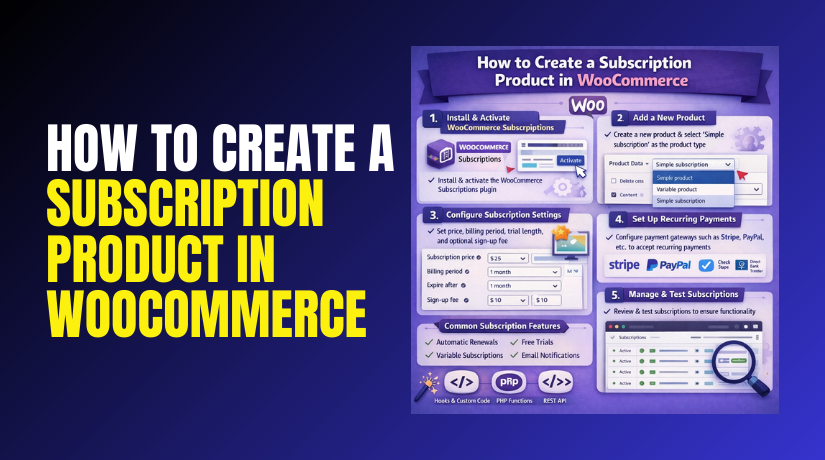
How to Create a Subscription Product in WooCommerce Easily (Complete Guide)
Table of Contents
- Introduction
- What Is a Subscription Product?
- Is a Subscription Considered a Product In WooCommerce?
- When Should You Use Subscription Products?
- What You Need Before Creating A Subscription Product In WooCommerce
- How To Create A Subscription Product In WooCommerce (Step By Step)
- Common Issues And Fixes For WooCommerce Subscriptions And Renewals
- Conclusion
Introduction
Subscription selling is growing fast in online stores today. Many buyers prefer monthly plans over one-time purchases. This model brings steady income and better customer loyalty. It also reduces repeat buying effort for customers. A WooCommerce subscription product is perfect for this purpose. It helps you sell items or access on a schedule.
This guide will help you understand subscriptions clearly first. You will also learn how they work inside WooCommerce. You will later learn how to create subscription product in WooCommerce correctly. You will also understand WooCommerce subscriptions before you install anything. You will see why subscriptions are a smart long-term option. You will also learn the terms used in subscription selling. This will make later setup steps much easier. By the end, you will feel ready for the next part. You can then move to creating products and pricing plans. Let us begin with the basics in simple words.
What Is a Subscription Product?
A subscription product is a product with repeated billing cycles. The customer pays again after a fixed time period. It can be weekly, monthly, or yearly, based on settings. The product can be physical, digital, or service-based. The main feature is ongoing billing without manual checkout. This is called WooCommerce recurring payments in simple terms. The store charges customers automatically on the renewal date. This makes selling more stable and predictable for owners. It also reduces missed payments and improves repeat revenue. Customers also enjoy easier renewals and simple tracking.
A subscription product can work in many ways online. Some stores deliver the same item every month. For example, a monthly coffee pack or snack box. Some stores give access to digital content each month. For example, premium lessons, tools, or community membership. Some stores provide recurring services on a schedule. For example, website care, SEO support, or maintenance plans. These are all examples of a WooCommerce subscription product. The difference is only what you deliver each cycle. The payment cycle remains repeating in all cases.
Is a Subscription Considered a Product In WooCommerce?
Yes, a subscription is still a product in WooCommerce store. It has a price, a checkout, and an order record. It also has a product page, just like other products. The main difference is the billing happens again on schedule. That repeated billing is called WooCommerce recurring payments for subscriptions. In simple products, the payment happens only one time.
In subscriptions, the payment repeats until the customer cancels. That is why a WooCommerce subscription product is a product type. WooCommerce can still apply taxes, shipping, and coupons here. WooCommerce can also send order emails for renewals automatically. Customers can see subscription details in their account page. They can track renewals and manage their plan settings easily. Store owners can also manage plans from the admin dashboard. This includes status, next payment date, and payment history.
So yes, it is a product with an ongoing payment rule. If you plan to create subscription product in WooCommerce, treat it like a product. You still write title, images, price, and clear plan details. You just add schedule rules for billing and renewals. This is why many stores choose WooCommerce subscriptions for repeat sales.
When Should You Use Subscription Products?
Use Subscription Products When Customers Need Regular Repeat Purchases
Many products get used up again within weeks or months. Customers do not want repeated checkout steps every time. A WooCommerce subscription product keeps their supply coming on time. It also helps your store earn stable recurring revenue monthly. This is ideal for coffee, skincare, vitamins, and pet foods. It reduces cart drop because renewal happens automatically each cycle.
Use Subscription Products When You Sell Ongoing Digital Access
Digital access works best when value continues each month. Customers pay to keep access active without interruption. This model fits courses, premium blogs, and private communities. WooCommerce subscriptions make access selling simple and organized. Renewals happen using WooCommerce recurring payments without manual follow-ups. This improves retention because customers stay active for longer periods.
Use Subscription Products When You Offer Monthly Or Weekly Service Plans
Services need regular work and regular billing for smooth flow. A subscription plan avoids chasing invoices every month. It fits website maintenance, SEO care, and support retainers. Customers like fixed plans because costs stay predictable for them. Store owners also get steady cash flow and better work planning. If you want to create subscription product in WooCommerce, services are perfect.
Use Subscription Products When You Want Tiered Plans With Clear Benefits
Tiered plans let customers pick the best plan for needs. You can offer Basic, Standard, and Premium subscription options easily. Each tier can include different features, limits, or response times. This helps you upsell customers without pushing too hard. WooCommerce subscription product tiers also improve conversion for different budgets. Customers feel more in control when they can choose.
Use Subscription Products When You Want More Retention And Predictable Income
Subscriptions help you keep customers longer than one-time sales. Customers build trust through repeated good service and delivery. This increases lifetime value and reduces heavy ad dependency. WooCommerce subscriptions create stable income you can forecast better. With WooCommerce recurring payments, renewals happen with less effort. This is best when your product gives value every cycle.
What You Need Before Creating A Subscription Product In WooCommerce
Before you create a subscription product in WooCommerce, prepare your store properly. Good preparation avoids payment failures and renewal confusion later.
Confirm WooCommerce Is Installed And Core Store Pages Work Properly
Before you start, WooCommerce must run without basic checkout errors. Your Cart, Checkout, and My Account pages must load correctly. This prevents pricing issues during renewals and subscription updates. It also ensures every WooCommerce subscription product follows a smooth purchase flow.
Use A Subscription Plugin Because WooCommerce Core Lacks Subscription Features
WooCommerce does not provide subscription options in the default setup. You need a subscriptions plugin to enable subscription product types. This plugin adds billing schedules, trials, and renewal controls. It is required to create subscription product in WooCommerce properly.
Select A Payment Gateway That Supports Automatic Recurring Charges
Recurring billing needs a gateway that supports saved payment methods. If the gateway lacks this, renewals fail and customers get alerts. Choose a gateway that supports WooCommerce recurring payments smoothly. This keeps WooCommerce subscriptions running without manual payment chasing.
Check Currency, Tax, And Shipping Settings Before Adding Subscription Plans
Wrong settings can create wrong totals on every renewal order. Confirm your store currency and location are set correctly. Review tax rules because renewals may apply taxes each cycle. If you ship items, ensure shipping methods apply to renewals too. This keeps your WooCommerce subscription product pricing consistent every month.
Enable SSL And Secure Checkout Pages For Safe Subscription Payments
Subscriptions often store payment methods for future renewals. SSL protects checkout and account data from security risks. It also improves customer trust during subscription signup. Secure pages reduce payment blocks and gateway errors during renewals.
Ensure WooCommerce Emails Work For Renewals And Customer Updates
Customers expect order emails and renewal reminders automatically. If emails fail, customers get confused and raise support tickets. Configure email sender details and use SMTP if needed. Strong email flow makes WooCommerce subscriptions feel reliable and clear.


Test Subscriptions In A Safe Environment Before Going Live
Testing helps you spot issues before real customers see them. Use a staging site or test mode for trial orders. Place a test subscription and check the next payment date. Confirm it appears in My Account and admin dashboards. This reduces risk when you create a subscription product in WooCommerce.
How To Create A Subscription Product In WooCommerce (Step By Step)
Step 1: Install And Activate A Subscriptions Plugin For WooCommerce
- Go to WordPress Dashboard and open Plugins menu.
- Click Add New and search a subscriptions plugin.
- Click Install Now and then click Activate.
- Open Products and check subscription types are visible.
- This enables WooCommerce subscriptions features for your store.
Step 2: Open Products And Start Creating A New Subscription Item
- Go to Products and click Add New option.
- Enter a clear product title that explains your plan.
- Add a short summary in the short description box.
- Add full plan details in the main description area.
- Upload a featured image to build better product trust.
Step 3: Choose The Correct Subscription Product Type For Your Offer
- Scroll to Product Data section on the same page.
- Select Simple Subscription for one single plan.
- Select Variable Subscription for multiple plan choices.
- Use Variable when you want monthly and yearly options.
- This defines how your WooCommerce subscription product will work.
Step 4: Set Subscription Price And Billing Schedule For Recurring Payments
- Open the General tab under Product Data section.
- Add price value for each billing cycle you want.
- Choose billing period like weekly, monthly, or yearly.
- Set interval like every 1 month or 3 months.
- Add a trial period if you want risk free signup.
- Add signup fee if you want upfront setup charges.
- These settings control WooCommerce recurring payments renewals.
Step 5: Configure Shipping Settings For Physical Subscription Products
- Open Shipping tab if you deliver physical products.
- Add weight and dimensions for proper shipping calculation.
- Set shipping class if your store uses shipping classes.
- Confirm shipping zones and methods are already configured.
- Test if shipping applies on renewals as expected.
Step 6: Configure Tax Settings So Renewals Calculate Correct Totals
- Check tax status and tax class in product settings.
- Confirm WooCommerce tax settings are enabled in store.
- Use correct tax class for your subscription item type.
- Test checkout totals to confirm recurring tax is right.
- This avoids wrong renewal totals and customer complaints.
Step 7: Set Inventory Options If Stock Tracking Is Required
- Open Inventory tab if you manage physical stock levels.
- Enable stock management if you have limited items.
- Set stock quantity based on your monthly delivery capacity.
- Disable stock if you sell digital access subscriptions.
- This keeps your WooCommerce subscriptions supply under control.
Step 8: Add Clear Product Page Details To Reduce Support Questions
- Add plan highlights in short description for quick clarity.
- Mention what customer receives on each renewal cycle.
- Explain trial, signup fee, and billing schedule clearly.
- Add cancellation and pause details in simple words.
- Add small FAQs inside product description for common doubts.
Step 9: Publish The Subscription Product And Review The Page Carefully
- Click Preview and check all plan details are correct.
- Confirm price and billing schedule show clearly on page.
- Check Add to Cart button works without any errors.
- Click Publish when everything looks clean and clear.
Step 10: Test Checkout And Renewal Flow Before Real Customers Buy
- Enable gateway test mode for safe testing first.
- Place a test order and complete the checkout process.
- Check My Account to see subscription appears correctly.
- Confirm next payment date and renewal schedule looks right.
- Check emails are sending for subscription order updates.
- This ensures smooth renewals with fewer payment failures.
Common Issues And Fixes For WooCommerce Subscriptions And Renewals
Subscription Product Type Not Showing After Plugin Setup
This usually happens when the plugin is not active properly. Recheck plugin activation and confirm no license issues exist. Clear cache and reload the product editor page again. Update WooCommerce and the plugin to latest stable versions. If the theme blocks fields, try switching to a default theme. This often fixes missing subscription product types quickly.
Renewal Payments Fail Or Stop Working After Some Time
This often happens due to gateway recurring payment limits. Confirm your gateway supports automatic recurring charges properly. Check if tokenization and saved methods are enabled in gateway. Also check if customer card was expired or blocked. Review failed renewal logs inside WooCommerce or gateway dashboard. Ask customers to update payment method in My Account. This improves renewal success for WooCommerce subscriptions.
Payment Gateway Does Not Support Subscription Renewals Properly
Some gateways only support one-time payments, not renewals. In that case, choose another gateway that supports subscriptions. Always check gateway subscription support before going live. Test a renewal process in sandbox mode whenever possible. This is the best way to avoid renewal failures later.
Shipping Not Charging Correctly On Subscription Renewals
This happens when shipping rules do not apply to renewals. Check your shipping zones and method conditions carefully. Confirm your plugin supports shipping on renewal orders. Also confirm you did not set free shipping by mistake. If needed, include shipping cost inside subscription price. This is a simple workaround for physical subscription products.
Taxes Are Wrong On Renewals Or Show Different Amounts
This happens due to wrong tax class or store settings. Recheck WooCommerce tax settings and customer location rules. Confirm the subscription product uses the correct tax class. Test different customer addresses to validate tax calculations. This helps keep renewal totals accurate every month.
Subscription Emails Not Sending Or Going To Spam
This happens when email settings or SMTP is not configured. Set up SMTP and use a verified sender email address. Check email templates and ensure they are enabled in WooCommerce. Ask customers to whitelist your domain for better delivery. This keeps customers updated about renewals and payments.
Customers Cannot Cancel Or Manage Their Subscription
This happens due to plugin settings or permission rules. Check the subscription management settings inside the plugin options. Confirm My Account endpoints are enabled and visible in the menu. Also confirm the user role has access to subscription pages. This helps customers manage plans without support requests.
Conclusion
A subscription product is a powerful way to build steady income. It also improves retention and makes buying easier for customers. With the right plugin and gateway, setup becomes simple. Follow each step carefully and test before you go live. Clear product page details reduce confusion and support tickets. Strong payment setup improves WooCommerce recurring payments success rates. If you need expert help with subscriptions and renewals, WooHelpDesk can support you.



