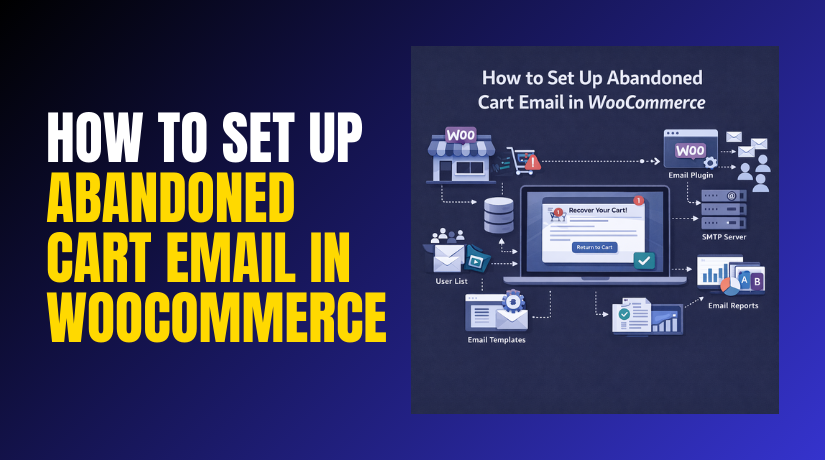
How to Set Up Abandoned Cart Email in WooCommerce (Step-by-Step Guide)
Table of Contents
- Introduction
- What Are Abandoned Cart Emails in WooCommerce?
- What Are the Uses of Abandoned Cart Emails in WooCommerce?
- What You Need Before You Start Abandoned Cart Email Setup in WooCommerce
- Set Up Abandoned Cart Email Automation in WooCommerce (Easy Method)
- Common Problems And Quick Fixes For WooCommerce Abandoned Cart Emails
- Conclusion
Introduction
Many shoppers add products, then leave without buying anything. This is called an Abandoned cart WooCommerce situation for stores. It happens due to price doubts, slow checkout, or distractions. You can recover many of these lost orders with email follow-ups. That is where WooCommerce cart abandonment email automation becomes useful. These emails remind shoppers to return and finish checkout. A good WooCommerce abandoned cart recovery plan boosts sales consistently. In this guide, you will learn the full Abandoned cart email setup WooCommerce basics. You will also understand how these emails work in real stores.
What Are Abandoned Cart Emails in WooCommerce?
An Abandoned cart email WooCommerce message is a reminder email. It is sent when a shopper leaves items in the cart. The shopper may close the tab or exit during checkout. Many stores also treat checkout exits as abandonment. That message is often called a WooCommerce abandoned checkout email. The goal is simple and practical for store owners. Bring the shopper back and complete the purchase smoothly. A WooCommerce abandoned cart email usually includes a cart link. It may also show the items left behind for clarity. Some emails include support links for quick help. This makes the return to checkout easier and faster.
In most setups, a cart becomes “abandoned” after a set time. Many stores use 30 minutes to a few hours. Some stores use longer time for high-ticket products. Your plugin or email tool decides the trigger time. That trigger starts your WooCommerce cart abandonment email sequence. The email can be one message or multiple messages. Each email is timed to match shopper behavior patterns. This simple flow builds a strong recovery system for WooCommerce.
What Are the Uses of Abandoned Cart Emails in WooCommerce?
- Recover Lost Sales Fast: An Abandoned cart email WooCommerce reminder brings shoppers back quickly. It targets real intent, not random visitors. This improves WooCommerce abandoned cart recovery without extra ad costs.
- Reduce Checkout Drop-Off Doubts: Many users leave due to shipping or payment confusion. A WooCommerce abandoned checkout email answers doubts with clear help. This makes checkout feel safe and easy again.
- Build Trust With Helpful Links: Add shipping, returns, and contact links in emails. This reduces fear and improves decision making. A strong WooCommerce cart abandonment email feels supportive, not pushy.
- Bring Back Shoppers With Product Memory: Show cart items again with names, totals, and images. Shoppers remember why they added those products. This improves clicks on WooCommerce abandoned cart email messages.
- Increase Order Value With Smart Add-Ons: Add related items in later recovery emails only. Keep suggestions small and relevant to the cart. This supports Abandoned cart email setup WooCommerce goals without pressure.
- Improve Store Decisions With Reports: Recovery plugins show carts, products, and lost revenue. You learn where most shoppers leave the checkout. This helps reduce Abandoned cart WooCommerce issues long term.
What You Need Before You Start Abandoned Cart Email Setup in WooCommerce
- Stable Cart And Checkout Flow: Test add to cart, coupons, shipping, and payment steps. Fix errors before enabling WooCommerce cart abandonment email automation. A stable checkout improves recovery results.
- Reliable Email Delivery Setup: Use an SMTP method for better email delivery. Use a domain email for your sender address. This helps your Abandoned cart email WooCommerce reach inboxes.
- Clear Target Audience Rules: Decide tracking for guests, logged-in users, or both. Guest tracking may need cookies and early email capture. This improves WooCommerce abandoned checkout email coverage.
- Ready Branding And Store Details: Keep your logo, support email, and store name consistent. Use the same tone across all recovery emails. This builds trust in every WooCommerce abandoned cart email.
- Important Policy Pages Prepared: Ensure shipping, returns, and privacy pages are live. Link them inside your recovery email templates. This supports WooCommerce abandoned cart recovery through trust.
- Simple Email Sequence Plan: Plan one to three emails with clear timing gaps. Start with a gentle reminder, then add helpful follow-ups. This keeps your Abandoned cart email setup WooCommerce clean.
- Coupon Rules If You Offer Discounts: Decide discount type, expiry, and usage limits early. Avoid giving coupons in every first email. This protects profit while supporting WooCommerce abandoned cart recovery.
Set Up Abandoned Cart Email Automation in WooCommerce (Easy Method)
Step 1: Choose The Right Plugin For Your Store Goals
- Check WooCommerce Compatibility First: Ensure the plugin supports your WooCommerce version fully. This prevents tracking bugs in Abandoned cart WooCommerce recovery flows.
- Confirm Guest Cart Tracking Support: Guest tracking helps widen your recovery list quickly. It improves WooCommerce cart abandonment email coverage for new visitors.
- Look For Restore Cart Link Feature: A restore link reduces steps and saves time. It improves clicks on WooCommerce abandoned cart email messages.
- Review Email Template And Editor Options: Templates help you create emails faster and cleaner. A good editor supports Abandoned cart email setup WooCommerce needs easily.
- Verify Reports And Recovery Tracking: Reports show recovered revenue, clicks, and conversions clearly. This helps improve WooCommerce abandoned cart recovery decisions weekly.
- Avoid Plugin Conflicts With Cache And Checkout Tools: Some cache tools block cart sessions and cookies. Confirm the plugin works with your checkout and cache setup.
Step 2: Install And Activate The Plugin Without Any Setup Mistakes
- Install From WordPress Dashboard The Correct Way: Go to Plugins, then Add New, then search plugin. Install, activate, and confirm it appears in your menu.
- Upload The Plugin Zip When You Buy Premium Versions: Download the zip file from the vendor account page. Upload, install, activate, and verify all premium features.
- Check If The Plugin Adds A WooCommerce Settings Tab: Many tools add settings under WooCommerce, not WordPress. Find the settings area before you change anything else.
- Confirm Email Sending Is Enabled On Your Server: Some hosts limit default PHP mail and block delivery. Use SMTP to support Abandoned cart email WooCommerce deliverability.
- Run A Quick Test After Activation: Add an item to cart, then refresh a few pages. If cart works, your install is stable for automation.
Step 3: Enable Cart Tracking To Start WooCommerce Abandoned Cart Recovery
- Turn On Cart Tracking For Logged-In Customers: Logged-in tracking works well with user accounts and saved carts. It improves accuracy for WooCommerce abandoned cart recovery
- Enable Guest Tracking If Your Plugin Supports It: Guest carts need cookies and email capture at checkout. This increases WooCommerce abandoned checkout email reach significantly.
- Set The Abandoned Cart Time Threshold Carefully: Choose a time like 30 to 60 minutes. This triggers WooCommerce cart abandonment email only after real exits.
- Set Cart Retention Time For Recovery Links: Retention controls how long cart data stays saved. Longer retention helps slow buyers return without losing items.
- Confirm Cookie Duration Matches Your Store Buying Cycle: Short cookie time can break guest tracking and links. Match cookie duration with your typical customer decision time.
- Exclude Admin And Test Users From Tracking: Testing carts can ruin your reports and trigger emails. Use plugin exclusions to keep data clean and accurate.
Step 4: Configure Sender Settings So Emails Look Trusted And Clean
- Set A Clear From Name Customers Will Recognize: Use your store name, not a random person name. This improves opens for WooCommerce abandoned cart email
- Use A Domain Email Address For Better Trust: Avoid free emails like Gmail for sending store emails. Domain emails reduce spam risk for Abandoned cart email WooCommerce.
- Add A Reply-To Address For Support Questions: Customers may reply when they face checkout issues. A reply-to helps solve problems and recover orders faster.
- Write A Short Footer With Store Details And Help Links: Add contact email, support hours, and policy links. This builds trust in every WooCommerce abandoned checkout email.
- Keep The Email Design Simple And Mobile Friendly: Most shoppers open emails on phones during free moments. Simple layouts improve clicks and reduce slow loading issues.
- Save Settings And Send A Test Email Before Going Live: Use the plugin test feature if it exists. Confirm delivery, branding, and links look correct everywhere.
Step 5: Create A Simple Email Sequence That Feels Helpful
- Set Email One As A Friendly Reminder Message: Send it after one to two hours. Keep it short and focus on returning to checkout. This starts your WooCommerce abandoned cart recovery
- Set Email Two To Answer Trust And Checkout Questions: Send it after twelve to twenty four hours. Add shipping, returns, and support links for quick confidence. This improves WooCommerce abandoned checkout email
- Set Email Three For Light Urgency Or Optional Offer: Send it after forty eight hours if needed. You can add a limited coupon with clear expiry rules. Use it carefully for Abandoned cart email setup WooCommerce
- Keep Email Frequency Low To Avoid Customer Annoyance: Too many emails can cause unsubscribes and complaints. A clean sequence protects your WooCommerce cart abandonment email
Step 6: Add Cart Details So Shoppers Remember Their Items
- Show Product Names, Prices, And Cart Total Clearly: This refreshes memory and reduces buying hesitation. It also improves clicks on WooCommerce abandoned cart email links.
- Add Product Images But Keep Them Lightweight: Heavy images slow emails and hurt mobile experience. Use smaller images for better Abandoned cart email WooCommerce delivery.
- Insert A Restore Cart Button As The Main Action: The restore button should open the saved cart instantly. This makes WooCommerce abandoned cart recovery faster and easier.
- Add A Direct Checkout Button For Quick Buyers: Some shoppers want to skip the cart step completely. A checkout link helps close sales from WooCommerce abandoned checkout email faster.
- Include Support And Policy Links Near The Bottom: Add shipping, returns, and contact links in one row. This reduces doubts and supports Abandoned cart WooCommerce recovery.
Step 7: Add A Coupon Or Incentive Without Hurting Profit
- Choose Discount Type Based On Your Margin: Use fixed discounts for smaller carts and percent for larger carts. Set limits to protect WooCommerce abandoned cart recovery profit.
- Set Coupon Expiry So Offers Do Not Stay Active Long: Short expiry creates urgency and prevents long misuse. This supports a safe WooCommerce cart abandonment email flow.
- Limit Coupon Usage Per Customer And Per Order: One-time use reduces coupon sharing and abuse risk. This keeps Abandoned cart email setup WooCommerce clean and controlled.
- Add Minimum Cart Value Rules When Needed: Minimum value prevents discount use on very small orders. This helps keep WooCommerce abandoned cart email offers sustainable.
- Avoid Discounts In Every First Reminder Email: Many shoppers return without any discount at all. Use coupons only when Abandoned cart WooCommerce recovery needs support.
Step 8: Test The Full Abandoned Cart Email Flow Like A Real User
- Create A Test Cart And Leave Checkout Halfway: Add items, reach checkout, then close the tab. This triggers your WooCommerce abandoned checkout email tracking.
- Wait For The Abandoned Timer And Confirm Emails Trigger: Check the exact trigger time inside your plugin settings. Confirm your WooCommerce cart abandonment email arrives as expected.
- Click Restore Links And Confirm Cart Loads Correctly: Restore should reload products, quantities, and coupon status. This confirms WooCommerce abandoned cart recovery works properly.
- Test On Mobile And Desktop Email Apps: Check Gmail, Outlook, and phone apps for layout issues. A clean look improves Abandoned cart email WooCommerce performance.
- Check If Emails Land In Spam Or Promotions Tabs: If emails land wrong, review sender settings and SPF. This improves WooCommerce abandoned cart email placement over time.
Common Problems And Quick Fixes For WooCommerce Abandoned Cart Emails
- Emails Not Sending: First, confirm WordPress can send basic emails. Many hosts block PHP mail and delay delivery often. Install an SMTP plugin and use a domain sender email. Check your From email matches your domain and mailbox. Also review server email limits and bounce messages regularly. This improves WooCommerce cart abandonment email delivery reliability.
- Emails Going To Spam: Spam placement happens due to weak domain trust signals. Add SPF and DKIM records in your DNS settings correctly. If possible, add DMARC for stronger sender protection. Avoid spam words like “Free,” “Urgent,” and “Act now” everywhere. Keep subject lines simple and reduce large image blocks. This helps your Abandoned cart email WooCommerce land in inbox.
- Guest Carts Not Tracking: Guest tracking needs cookies and early email capture points. Some plugins capture email only after order review stage. If users leave earlier, tracking fails for guest carts. Enable email capture at checkout field start if available. Also check cookie consent banners are not blocking scripts. This improves WooCommerce abandoned checkout email reach for guests.
- Restore Cart Link Not Working: Restore links can break due to caching and security tools. Exclude cart, checkout, and my account pages from caching. Also disable cache for users with cart cookies enabled. Security plugins may block URL parameters used by restore links. Whitelist the plugin endpoints and test again carefully. This stabilizes WooCommerce abandoned cart recovery links for customers.
- Duplicate Recovery Emails Sending: Duplicate emails usually come from overlapping plugins or triggers. Do not run two abandoned cart plugins together at once. Check if your email tool also sends cart emails separately. Also review the “abandoned time” and “email delay” settings carefully. Wrong timing can trigger the same email multiple times. This keeps Abandoned cart email setup WooCommerce clean and controlled.
- Coupons Being Misused Or Shared: Coupons can be shared if rules are weak and open. Set coupon to one-time use per user and per order. Add short expiry like twenty four to seventy two hours. Restrict coupons to specific products or categories when needed. Set minimum cart value to protect small orders and margins. This keeps WooCommerce abandoned cart email offers safe and profitable.
- Emails Not Personalizing Cart Items Correctly: Some emails show blank carts or wrong product data. This happens when session data expires too quickly or tracking fails. Increase cart retention time and cookie duration in plugin settings. Make sure your store uses HTTPS and stable sessions. Also check if object cache is clearing sessions early. This improves Abandoned cart WooCommerce email accuracy.
- Links Open But Checkout Still Fails: Customers may return but still face the same checkout issue. Payment failures, shipping errors, or address rules cause repeat exits. Add clear support contact links and offer quick help options. Fix checkout issues first, then rely on recovery emails later. A stable checkout improves every WooCommerce abandoned cart recovery
Conclusion
Abandoned cart emails help recover sales with simple automation. Start with tracking, then create a short email sequence. Add cart details and restore links for easy returns. Test every step before you run it live. Fix delivery and caching issues for stable results. With a strong WooCommerce abandoned cart recovery, you reduce cart loss daily.


WooHelpDesk helps you fix WooCommerce problems fast and safely. Get clear guides, proven steps, and expert support for checkout, emails, payments, and more. Visit WooHelpDesk today and keep your store running smoothly.



