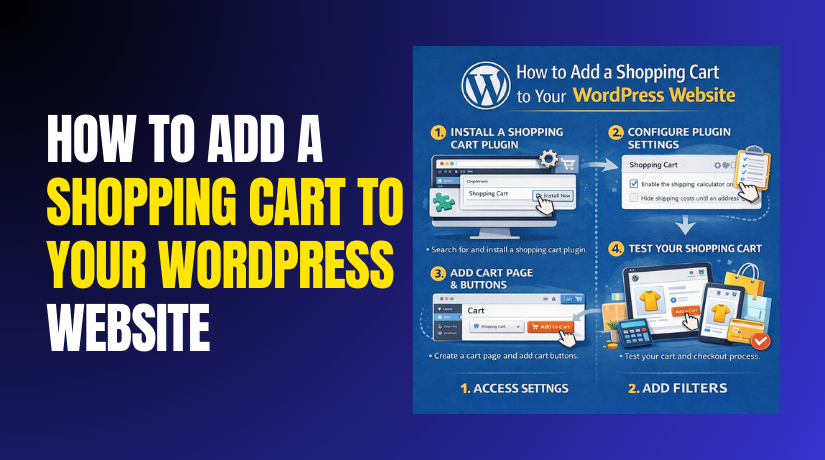
How to Add a Shopping Cart to Your WordPress Website Step by Step?
Table of Contents
- Introduction
- What Is a Shopping Cart?
- How does a shopping cart work on WordPress sites?
- Why do shopping carts matter for conversions?
- What are the Types of Shopping Carts?
- What Are the Best Practices for Shopping Carts?
- How to Add a Shopping Cart to Your WordPress Website Step by Step?
- What Are The Top 3 WordPress Plugins for Creating Great Shopping Carts?
- Final Verdict
Introduction
A shopping cart is the base of every WordPress eCommerce store. It allows customers to select products and review them easily. The cart helps users understand prices, quantities, and totals clearly. Without a proper cart, online selling becomes confusing and unreliable. Every successful store depends on a smooth shopping cart experience.
Many website owners want to add shopping cart in WordPress quickly. They often focus only on installation and skip planning steps. This approach can cause checkout errors and poor user trust. A proper WordPress shopping cart setup improves confidence and buying decisions. Customers feel safer when the cart works smoothly and predictably.
This guide explains shopping cart basics before WooCommerce shopping cart setup steps. You will learn how carts affect user flow and buying behavior. You will also understand why cart structure impacts sales performance. Learning these fundamentals helps avoid mistakes during setup. A strong foundation leads to better conversions and long-term growth.
What Is a Shopping Cart?
A shopping cart is a tool that stores selected products temporarily. It shows items, quantities, prices, taxes, and total costs. A WordPress shopping cart works through a plugin or hosted system. Most stores use a WordPress eCommerce cart plugin for control. The cart connects product pages, checkout pages, and payment gateways. It also supports coupons, shipping options, and customer account features.
How does a shopping cart work on WordPress sites?
A customer clicks an add to cart button on product pages. The cart saves product data inside sessions or browser cookies. The cart page displays items and updates totals instantly. Checkout collects billing details, shipping details, and payment method selection. After payment, the system creates an order and reduces stock. This workflow is the heart of WordPress shopping cart performance.
Why do shopping carts matter for conversions?
A fast cart reduces friction and increases completed purchases. A clear cart layout builds confidence during the buying process. A slow cart causes abandonment and lower revenue for stores. A secure cart flow protects users during payments and account creation. This is why WooCommerce shopping cart setup must be handled carefully. Smart configuration helps you create shopping carts in WordPress successfully.
What are the Types of Shopping Carts?
There are two main shopping cart types used in WordPress websites. The first type is plugin based carts inside WordPress itself. The second type is hosted carts that run on third party platforms. Both types can power a WordPress shopping cart experience. Your choice depends on control, cost, and your technical comfort. Choosing the right type improves WordPress eCommerce cart plugin results.
Type 1: Plugin Based Shopping Carts for WordPress
- Plugin carts run inside WordPress and use your hosting resources.
- WooCommerce is the most common WooCommerce shopping cart setup solution.
- These carts offer full control over products, checkout, and design.
- They support many addons for shipping, tax, and payment methods.
- They integrate easily with SEO tools and analytics tracking platforms.
- This option suits businesses wanting complete store ownership and flexibility.
Type 2: Hosted Shopping Carts With WordPress Integration
- Hosted carts run on external platforms and embed on WordPress pages.
- They use scripts, buttons, or checkout links for payments.
- You manage products inside their dashboard, not within WordPress.
- This reduces server load and simplifies security and compliance needs.
- They still function visually like a WordPress shopping cart.
- This option suits beginners wanting faster setup and fewer configurations.
Type 3: Hybrid Shopping Carts for Advanced WordPress Stores
- Hybrid carts use WooCommerce with third party checkout layers.
- Stores keep products in WordPress but route checkout externally sometimes.
- This can improve speed, reduce fraud, and support special payment options.
- It helps stores handle subscriptions or international tax requirements.
- Hybrid setups require careful testing to avoid broken checkout behavior.
- This option suits advanced stores beyond basic WordPress eCommerce needs.
What Are the Best Practices for Shopping Carts?
Best practices help your WordPress shopping cart perform smoothly and convert better. A well-optimized cart reduces confusion and increases completed checkout rates. These practices apply to every WordPress eCommerce cart plugin implementation. Ignoring them often leads to abandoned carts and customer frustration. Following proven rules ensures long-term stability and business growth.
- Keep the shopping cart simple and clean
A clean cart layout helps users understand actions without thinking much. Avoid unnecessary fields that slow down checkout completion speed. Display product name, quantity, price, and totals clearly. Use readable fonts and proper spacing for better clarity. Simple carts perform better across desktop and mobile devices.
- Optimize cart speed and performance
A slow cart increases bounce rates and reduces purchase intent. Optimize images, scripts, and hosting for faster cart loading. Use caching carefully to avoid breaking dynamic cart functions. Choose lightweight themes compatible with WooCommerce shopping cart setup. Performance optimization directly impacts WordPress shopping cart conversions.
- Ensure mobile friendly shopping cart design
Most users shop using mobile devices today worldwide. A responsive cart layout improves usability on smaller screens. Buttons should be large enough for comfortable tapping. Forms should use minimal typing and auto-fill options. Mobile optimization is essential for modern WordPress eCommerce success.
- Provide clear call to action buttons
Clear buttons guide users toward checkout without confusion. Use clear labels like “View Cart” or “Proceed to Checkout.” Avoid distracting colors or misleading button placement. Highlight the primary action visually for better focus. This improves user flow inside WordPress shopping cart pages.
- Show security signals and trust indicators
Users hesitate when payment security feels unclear or risky. Display SSL, secure payment, and trust badges properly. Explain payment steps briefly before checkout starts. Trust signals reduce fear during WooCommerce shopping cart setup. Secure carts increase confidence and completed purchases significantly.
- Allow easy cart editing and updates
Users want to change quantities or remove items easily. Provide instant updates without page reloads when possible. Show updated totals immediately after cart changes. This improves user control and satisfaction levels. Easy editing helps create shopping cart in WordPress successfully.
- Use persistent cart functionality wisely
Persistent carts remember items when users return later. This feature improves conversions for returning visitors significantly. Store cart data using sessions or logged-in accounts. Avoid aggressive persistence that feels intrusive or confusing. Balanced persistence supports WordPress shopping cart usability.
How to Add a Shopping Cart to Your WordPress Website Step by Step?
Adding a shopping cart to WordPress requires proper planning before plugin installation. Choosing the correct setup method prevents checkout issues and future scalability problems. Most WordPress stores use WooCommerce shopping cart setup for reliability. Follow these steps carefully to create a shopping cart in WordPress correctly.
Step 1: Prepare Your WordPress Website for Shopping Cart Setup
First, confirm your WordPress system is ready for eCommerce usage.
Dashboard → Updates → Check WordPress Version
Dashboard → Tools → Site Health → Review Status
Hosting Panel → SSL Settings → Enable HTTPS
Ensure WordPress is updated to the latest stable version. Use reliable hosting that supports WordPress eCommerce requirements. Enable SSL certificates to protect checkout and customer data. Choose a theme compatible with WooCommerce shopping cart setup. Avoid heavy themes that reduce cart and checkout speed.
Preparation checklist before installation
- Dashboard → Users → Check Admin Access Permissions
- Hosting Panel → PHP Settings → Verify Supported PHP Version
- Dashboard → Plugins → Installed Plugins → Deactivate Unused Plugins
- Dashboard → Pages → Add New → Create Cart, Checkout, My Account
Step 2: Install a WordPress eCommerce Cart Plugin
Now install the shopping cart plugin inside WordPress.
Dashboard → Plugins → Add New → Search “WooCommerce”
Dashboard → Plugins → WooCommerce → Install Now → Activate
WooCommerce is the most trusted WordPress shopping cart plugin. After activation, the WooCommerce setup wizard starts automatically. Follow on-screen steps to complete basic store setup.
Why WooCommerce is commonly chosen
- It integrates smoothly with WordPress core features.
- It supports products, taxes, shipping, and payments efficiently.
- Extensions allow advanced shopping cart customization easily.
Step 3: Configure Basic WooCommerce Shopping Cart Settings
After installation, configure essential cart and store settings.
Dashboard → WooCommerce → Settings → General
Dashboard → WooCommerce → Settings → Advanced
Set store address, selling locations, and currency correctly. Enable Cart and Checkout pages from Advanced settings. Configure tax options based on your business location. Save all settings after reviewing each section carefully.
Important configuration areas to review
- WooCommerce → Settings → General → Currency Options
- WooCommerce → Settings → Advanced → Cart Page Setup
- WooCommerce → Settings → Accounts → Guest Checkout Options
Step 4: Add Products to Enable Shopping Cart Functionality
The shopping cart works only after adding products.
Dashboard → Products → Add New
Enter product name, detailed description, and price information. Set inventory quantity and stock status properly. Assign product categories for better organization. Upload optimized product images for faster cart loading. Publish the product to make it available.


Product setup best practices
- Write clear product titles and short descriptions.
- Upload compressed images for faster performance.
- Enable stock management to prevent overselling issues.
Step 5: Test the Shopping Cart and Checkout Flow
Testing ensures the shopping cart works correctly before launch.
Frontend → Product Page → Add to Cart
Frontend → Cart Page → Update Quantity
Frontend → Checkout Page → Place Test Order
Add products to cart and verify totals update correctly. Complete checkout using test or sandbox payment modes. Check the confirmation page and email delivery. Fix any errors before opening the store publicly.
Testing checklist for reliability
- Confirm cart updates work without page reload problems.
- Validate checkout form errors display correctly.
- Check order emails from Dashboard → WooCommerce → Orders
Step 6: Optimize Shopping Cart for Better Conversions
Final optimization improves sales and user experience.
Dashboard → Appearance → Customize → WooCommerce
Dashboard → WooCommerce → Settings → Advanced
Remove unnecessary checkout fields to reduce friction. Add trust signals like secure payment badges visibly. Enable persistent cart for returning users. Improve speed using caching and performance plugins.
Conversion-focused improvements
- Simplify checkout steps for faster completion.
- Highlight checkout buttons using clear colors.
- Test cart responsiveness on mobile devices regularly.
What Are The Top 3 WordPress Plugins for Creating Great Shopping Carts?
Choosing the right plugin is critical for WordPress shopping cart success. A good plugin improves performance, security, and checkout experience. The wrong plugin causes slow carts and lost sales. Below are the top WordPress plugins trusted by most eCommerce stores.
1. WooCommerce Shopping Cart Plugin
WooCommerce is the most widely used WordPress eCommerce cart plugin worldwide. It offers flexibility, scalability, and full control for online stores. Most WordPress shopping cart setups rely on WooCommerce for stability.
Key Features of WooCommerce
- Supports physical, digital, and subscription products easily
WooCommerce lets you sell physical items, digital downloads, and subscriptions. You can manage different product types from one dashboard. This flexibility suits many business models. - Built in cart, checkout, order, and inventory management
WooCommerce includes a complete shopping cart and checkout system. It manages orders, stock levels, and customer data efficiently. No extra plugins are required for basic operations. - Supports multiple payment gateways and shipping methods
You can connect PayPal, Stripe, bank transfers, and other gateways. Shipping options include flat rate, free shipping, and location-based rules. This improves checkout convenience for customers. - Offers tax configuration based on location and rules
WooCommerce allows automatic or manual tax calculations. You can set tax rules based on country, state, or product type. This helps stores stay compliant with tax requirements. - Works with thousands of WordPress themes and plugins
Most modern WordPress themes support WooCommerce by default. It also integrates with SEO, performance, and marketing plugins. This ensures compatibility and long-term flexibility.
Pros of WooCommerce
- Complete control over shopping cart and checkout process
WooCommerce gives full access to cart layout and checkout fields. You can customize steps, buttons, and user flow. This helps optimize conversions and user experience. - Large extension ecosystem for advanced cart customization
Thousands of extensions add features like subscriptions and memberships. You can expand functionality without custom coding. This makes scaling easier as your store grows. - Strong community support and regular security updates
WooCommerce has a large global user and developer community. Frequent updates fix bugs and security issues. This keeps your WordPress shopping cart safe and stable. - SEO friendly structure for WordPress eCommerce stores
WooCommerce follows WordPress SEO best practices naturally. It supports clean URLs, schema, and SEO plugins. This helps product and cart pages rank better.
Cons of WooCommerce
- Requires good hosting for optimal performance
WooCommerce uses more server resources than simple cart plugins. Weak hosting can cause slow cart and checkout pages. Quality hosting is important for smooth performance. - Advanced features often need paid extensions
Some features require premium WooCommerce extensions. These include subscriptions, bookings, and advanced shipping rules. Costs can increase as store complexity grows. - Initial setup may feel complex for beginners
WooCommerce has many settings and configuration options. New users may feel overwhelmed during the first setup. Proper guidance makes the process easier.
Download Link: WooCommerce Shopping Cart Plugin
2. Easy Digital Downloads Shopping Cart Plugin
Easy Digital Downloads is a WordPress shopping cart plugin built for digital products. It focuses on speed, simplicity, and clean checkout performance. This plugin works best for stores selling downloadable items only.
Key Features of Easy Digital Downloads
- Designed specifically for digital product selling
Easy Digital Downloads is built only for downloadable products. It avoids unnecessary features meant for physical items. This keeps the shopping cart simple and efficient. - Simple cart and checkout experience for users
The cart layout is clean and easy to understand. Checkout steps are minimal and focused on payments. This reduces friction and improves purchase completion rates. - Built in file access control and download protection
The plugin protects download links from unauthorized access. Customers receive secure download links after payment. This prevents file sharing and misuse issues. - Supports discount codes and purchase history tracking
You can create discount codes for promotions easily. Customers can view their purchase history from accounts. This improves user experience and repeat sales. - Integrates with popular payment gateways easily
Easy Digital Downloads supports PayPal, Stripe, and other gateways. Payment setup is simple and reliable. This helps creators accept payments globally.
Pros of Easy Digital Downloads
- Lightweight plugin with fast cart performance
The plugin uses fewer server resources than full eCommerce systems. Cart and checkout pages load quickly. This improves performance on shared hosting. - Easy to manage digital products and licenses
Managing files, versions, and licenses is straightforward. The dashboard stays clean and organized. This suits creators with many downloadable products. - Clean checkout flow with fewer configuration steps
Setup requires fewer settings compared to WooCommerce. Beginners can launch digital stores faster. The checkout experience remains smooth and focused. - Good option for creators selling downloads or software
Bloggers, developers, and course creators benefit most. It fits websites selling ebooks, plugins, or digital tools. This makes it a niche-focused solution.
Cons of Easy Digital Downloads
- Not suitable for physical product selling
The plugin does not support shipping or inventory for physical items. Stores selling products need a different solution. This limits its use cases. - Advanced features require paid extensions
Licensing, subscriptions, and advanced reporting need add-ons. These extensions increase overall cost. Budget planning becomes important for scaling stores. - Limited customization compared to WooCommerce setups
Design and checkout customization options are fewer. Complex store layouts may feel restricted. WooCommerce offers more flexibility in this area.
Download Link: Easy Digital Downloads – eCommerce Payments and Subscriptions made easy
3. WP Simple Pay Shopping Cart Plugin
WP Simple Pay is a lightweight WordPress shopping cart plugin focused on payments. It is best suited for services, donations, and single product payments. The plugin uses Stripe to provide a fast and secure checkout experience.
Key Features of WP Simple Pay
- Stripe based checkout with secure payment processing
WP Simple Pay connects directly with Stripe for payment handling. Stripe manages security, compliance, and transaction processing. This ensures safe and reliable checkout for customers. - No complex product or inventory management needed
The plugin does not require product catalogs or stock management. You simply create payment forms instead of products. This keeps the setup simple and clutter free. - Supports one time and recurring payments easily
WP Simple Pay allows single payments and subscription billing. You can create monthly or yearly recurring charges. This works well for services, memberships, and donations. - Customizable checkout forms without heavy configuration
Checkout forms can be customized using simple settings. You can add fields, descriptions, and pricing options easily. No advanced technical setup is required. - Lightweight setup without full WooCommerce overhead
The plugin avoids heavy features found in full eCommerce systems. It loads faster and uses fewer server resources. This improves performance on smaller websites.
Pros of WP Simple Pay
- Very easy shopping cart setup process
WP Simple Pay can be set up within minutes. The interface is beginner friendly and straightforward. This helps users launch payment pages quickly. - Fast checkout experience with minimal steps
Customers complete payments with fewer clicks. The checkout flow is clean and focused only on payment. This reduces abandonment rates significantly. - Ideal for service based WordPress websites
Service providers benefit from simple payment collection. It suits consultants, freelancers, and agencies well. No product management is required. - Reduced plugin conflicts and maintenance needs
Fewer features mean fewer compatibility issues. Updates are simple and rarely cause conflicts. Maintenance effort stays low over time.
Cons of WP Simple Pay
- Not suitable for large product catalogs
The plugin is not designed for multi product stores. It lacks catalog browsing and cart item management. Large stores need a different solution. - Limited cart customization compared to WooCommerce
Customization options are basic and form focused. Advanced cart layouts are not supported. WooCommerce offers more flexibility here. - Requires Stripe account for payment processing
Payments work only through Stripe integration. Stores needing other gateways must use alternatives. This dependency limits payment options.
Download Link: WP Simple Pay Shopping Cart Plugin
Final Verdict
A shopping cart is the core of every WordPress eCommerce store. It controls product selection, pricing flow, and checkout completion smoothly. A weak cart setup reduces trust and increases abandoned checkout rates. A strong WordPress shopping cart setup improves sales and customer satisfaction. You should always plan setup before choosing any cart plugin. This reduces conflicts and keeps your store stable long-term.
If you want full store control, choose WooCommerce shopping cart setup. WooCommerce supports products, shipping, tax rules, and payment flexibility. It suits small stores and large stores with scaling needs. If you sell only downloads, choose Easy Digital Downloads. It is lightweight and focuses on speed for digital selling. If you need simple payments, choose WP Simple Pay. It works best for services, donations, and single product payments.
To rank better, keep your cart fast and easy to use. Use a lightweight theme and avoid unnecessary plugins always. Make checkout simple and remove fields that confuse users. Add trust signals and ensure mobile friendly cart performance. Test cart flow often to prevent checkout errors or failures. If you need expert help, WooHelpDesk can set everything properly. WooHelpDesk can help you create shopping carts in WordPress safely. WooHelpDesk can also optimize your WordPress eCommerce cart plugin setup.
Have questions before starting with WooCommerce & WordPress? Get support here at WooHelpDesk.



