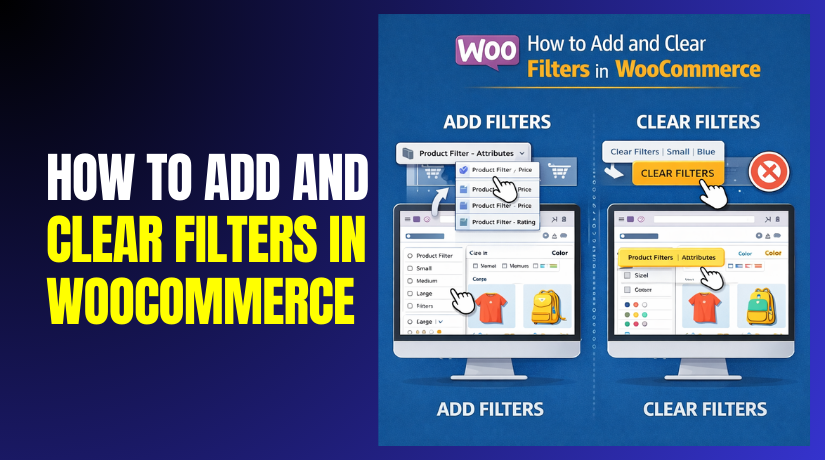
How to Add and Clear Filters in WooCommerce Step by Step?
Table of Contents
- Introduction
- What Is WooCommerce Filter?
- Why We Should Add Filters to WooCommerce Stores?
- Prerequisite of Adding Product Filtering in WooCommerce
- How to Add Filter in WooCommerce?
- How to Clear Filter in WooCommerce?
- Top 5 Best Plugins That Can Be Used to Add and Clear Filter in WooCommerce
- Final Verdict
Introduction
WooCommerce stores often contain many products and categories. Customers need quick ways to find relevant products. Browsing without filters becomes confusing and time-consuming.
WooCommerce product filters help customers narrow product results easily. Filters allow users to sort products by attributes, price, and categories. This improves usability and shopping experience.
When filters work correctly, customers stay longer in the store. They find products faster and feel more confident. This directly increases conversion rates and reduces bounce rates.
Add filters in WooCommerce to simplify product discovery. Clear WooCommerce filters to reset selections instantly. Both actions improve navigation flow.
This WooCommerce filter tutorial explains everything step by step. You will learn how filters work and why they matter. You will also understand prerequisites before setup.
What Is WooCommerce Filter?
A WooCommerce filter is a product navigation tool. It allows users to refine product listings dynamically. Filters display products matching selected conditions.
WooCommerce product filters commonly include categories, attributes, price, and ratings. Customers use these options to limit visible products. This saves time and reduces frustration.
Filters work on the shop page and category pages. They update product results without manual searching. This improves browsing efficiency.
WooCommerce shop filters setup usually uses widgets or plugins. Filters interact with product attributes and taxonomy data. Accurate product data ensures correct filter results.
Filters are especially important for large product catalogs. Without filters, customers struggle to locate products. Proper filtering enhances store professionalism.
Why We Should Add Filters to WooCommerce Stores?
- Improves Customer Browsing Experience
Filters improve customer experience significantly. Shoppers prefer quick and controlled browsing. Filters reduce effort during product selection. - Enhances Product Visibility
Add filters in WooCommerce to improve product visibility. Customers see only products matching their preferences. This prevents overwhelming and cluttered product lists. - Increases Conversion Rates
WooCommerce product filters increase conversion rates effectively. Shoppers who find products faster are more likely to buy. Filters reduce exit rates during browsing. - Creates Better Store Organization
Filters improve overall store organization. Products appear structured, clean, and professional. This builds trust with new visitors. - Supports Better SEO Performance
WooCommerce shop filters setup benefits SEO indirectly. Better user engagement signals improve search performance. Users stay longer and interact more.
Prerequisite of Adding Product Filtering in WooCommerce
- Structured Product Data Is Required
Filters depend on well-structured product data. Incorrect or missing data causes broken filters. Proper preparation ensures accurate filtering results. - Proper Product Categorization
Products must be categorized correctly before adding filters. Categories define primary product grouping. WooCommerce product filters rely heavily on these categories. - Correct Product Attribute Creation
Product attributes must be created carefully. Attributes like size, color, and brand are essential. Filters use these attributes to refine product results. - Use Global Attributes Only
Attributes should be global, not custom. Global attributes enable consistent filtering across products. Custom attributes do not work with WooCommerce filters. - Assign Attribute Values to Products
Products must have attribute values assigned properly. Empty attributes break filtering logic. Every filterable product requires complete attribute data. - Consistency Across All Products
Attribute naming and values should remain consistent. Inconsistent data leads to incorrect filter behavior. Clean data ensures smooth filtering performance.
How to Add Filter in WooCommerce?
Adding filters in WooCommerce helps customers refine product listings easily. WooCommerce offers basic filter options by default. These filters work using widgets and attributes.
This section explains how to add filters in WooCommerce step by step. Each step is important for correct WooCommerce shop filters setup.
Method 1: Add Filters Using Default WooCommerce Widgets
WooCommerce includes built-in widgets for basic filtering. These widgets work without additional plugins.
Step 1: Open Widgets Section
- Go to your WordPress dashboard first.
Dashboard → Appearance → Widgets. - This section controls sidebar and widget areas. Filters usually appear in shop sidebars.
Step 2: Locate WooCommerce Sidebar Area
- Find the widget area used for shop pages.
Appearance → Widgets → WooCommerce Sidebar. - This sidebar appears on shop and category pages. Theme support determines widget visibility.
Step 3: Add Filter by Price Widget
- Widgets → WooCommerce Filter Products by Price → Drag to sidebar.
- This widget allows filtering products by price range. Customers can adjust sliders to refine results.
- WooCommerce product filters by price improve budget-based browsing. This filter works automatically once added.
Step 4: Add Filter by Attribute Widget
- Widgets → Filter Products by Attribute → Drag to sidebar.
- Select the attribute from dropdown options. Attributes include size, color, or brand.
- Choose display type like list or dropdown. Save widget settings carefully.
- This widget enables attribute-based product filtering. It is essential for advanced filtering.
Step 5: Add Product Categories Filter
- Widgets → Product Categories → Drag to sidebar.
- This filter displays product categories. Customers can filter products by category easily.
- Enable hierarchy and count options if needed. Save widget after configuration.
Step 6: Add Filter by Rating Widget
- Widgets → Filter Products by Rating → Drag to sidebar.
- This widget allows filtering products by customer ratings. It improves trust-based browsing.
- Save the widget settings. Rating filters work automatically.
Step 7: Test Filters on Shop Page
- Visit your shop page after adding widgets.
Frontend → Shop Page → Test each filter. - Select multiple filters and verify results. Filters should update product listings correctly.
Method 2: Add Filters Using Product Attributes
Attributes power WooCommerce product filters internally. Proper attribute setup is mandatory.
Step 1: Create Global Attributes
- Dashboard → Products → Attributes.
- Add attributes like size, color, or material. Save each attribute carefully.
- Global attributes allow consistent filtering across products.
Step 2: Add Attribute Terms
- Products → Attributes → Select attribute → Configure terms.
- Add values like Small, Medium, Large. Save terms after adding.
- Terms represent filter options shown to customers.
Step 3: Assign Attributes to Products
- Dashboard → Products → All Products → Edit product.
- Product Data → Attributes tab → Select global attribute.
- Add attribute values and make them visible. Save product changes.
- Filters will not work without assigned attributes.
Method 3: Add Filters Using Shortcodes
Some themes support filter shortcodes. Shortcodes place filters inside pages.
Step 1: Create a Shop Page Layout
- Dashboard → Pages → Edit Shop Page.
- Use block editor or page builder.
Step 2: Insert Filter Shortcode
- Insert shortcode provided by theme or plugin.
Example → [woocommerce_product_filter]. - Shortcodes vary based on implementation. Check documentation carefully.
Step 3: Publish and Test Filters
- Save page changes. Visit the shop page.
- Verify filter placement and functionality.
How to Clear Filter in WooCommerce?
Clearing filters is as important as adding filters. Customers often want to reset their selections quickly. Poor filter clearing creates frustration and exits.
Clear WooCommerce filters to restore full product listings instantly. A smooth reset option improves usability and shopping confidence.
This section explains how to clear WooCommerce filters step by step. Each method targets different filter implementations.
Method 1: Clear Filters Using Default WooCommerce Widgets
WooCommerce widgets handle filter clearing automatically. However, proper setup ensures better experience.
Step 1: Use Built-In Reset Behavior
- Shop Page → Apply filters → Remove selections manually.
- WooCommerce removes filters when users deselect options. Price sliders reset when handles return to default positions.
- This is the basic WooCommerce filter clearing behavior. It works without extra configuration.
Step 2: Clear Price Filter Manually
- Shop Page → Price filter slider → Drag handles back fully.
- Dragging sliders resets price filtering instantly. Products reload with full price range applied.
- This method works for WooCommerce product filters by price.
Step 3: Clear Attribute Filters
- Shop Page → Attribute filter list → Uncheck selected values.
- Unchecked attributes immediately clear applied filters. Product results update automatically.
- This method clears color, size, and brand filters.
Step 4: Clear Category Filters
- Shop Page → Category filter → Click “All” or parent category.
- Selecting parent category resets subcategory filtering. Product listing refreshes correctly.
- Category clearing depends on widget configuration.
Method 2: Add Clear Filter Button Using Theme Support
Some WooCommerce themes include clear filter options. This depends on theme design.
Step 1: Check Theme Filter Options
- Dashboard → Appearance → Customize → WooCommerce.
- Look for filter or shop layout options. Some themes include clear filter toggles.
- Enable clear filter option if available. Save changes carefully.
Step 2: Test Clear Button on Shop Page
- Frontend → Shop Page → Apply filters → Click clear option.
- Verify that all filters reset instantly. Products should reload fully.
- Theme-based clearing improves user experience.
Method 3: Clear WooCommerce Filters Using URL Reset
WooCommerce filters apply parameters in URLs. Clearing URLs resets filters completely.
Step 1: Observe Filtered URL
- Shop Page → Apply filters → Check browser address bar.
- Filtered URLs include query strings. Examples include price or attribute parameters.
Step 2: Reload Base Shop URL
- Browser → Remove parameters → Reload base shop URL.
- This action clears all applied filters. Products display without filtering.
- This method is effective for troubleshooting filter issues.
Method 4: Clear Filters Using JavaScript Reset
Advanced setups use JavaScript for instant filter clearing. This method suits custom implementations.
Step 1: Add Clear Button in Theme


- Theme File → Add clear filters button markup.
- Button placement should be near filters. Visibility improves usability.
Step 2: Attach JavaScript Reset Logic
- Clear Button → On click → Reset filter inputs.
- JavaScript clears checkboxes, sliders, and dropdowns. Product listing refreshes automatically.
- This method requires developer assistance.
Method 5: Clear Filters Using WooCommerce Filter Plugins
Most filter plugins include clear filter features. These buttons improve user experience significantly.
Step 1: Enable Clear Filter Option in Plugin
- Dashboard → Plugin Settings → Filter Options.
- Enable clear or reset filters feature. Save plugin settings.
Step 2: Display Clear Filters Button
- Shop Page → Filter Area → Show clear button.
- Button appears automatically after activation. Users reset filters with one click.
- This is the best approach for large stores.
Top 5 Best Plugins That Can Be Used to Add and Clear Filter in WooCommerce
Default WooCommerce filters work for basic stores. Advanced stores need better control and usability. Filter plugins improve speed, flexibility, and user experience.
The following plugins are widely used for WooCommerce product filters. Each plugin supports adding and clearing filters efficiently. They suit different store sizes and requirements.
1. WooCommerce Product Filter by YITH
WooCommerce Product Filter by YITH is a well-known filtering plugin designed for WooCommerce stores. It helps store owners improve product navigation and user experience. The plugin allows customers to filter products easily based on specific conditions. It is widely used by stores with large product catalogs.
YITH focuses on performance, flexibility, and ease of use. The plugin is suitable for stores that want advanced WooCommerce product filters without custom development. It integrates smoothly with most WooCommerce themes and layouts.
Key Features of YITH WooCommerce Product Filter
- Advanced Product Filtering System
The plugin allows creating advanced WooCommerce product filters easily. Filters can be applied using categories, attributes, price ranges, and tags. This helps customers narrow product results quickly. - AJAX Filtering Without Page Reloads
YITH supports AJAX-based filtering for smoother browsing. Product results update instantly without refreshing pages. This improves browsing speed and user satisfaction. - Clear WooCommerce Filters Button
The plugin includes a clear WooCommerce filters option. Users can reset all applied filters with a single click. This improves navigation clarity and usability. - Flexible Placement Using Widgets and Shortcodes
Filters can be placed using widgets or shortcodes. This allows placement in sidebars, headers, or custom sections. Store owners gain full layout control. - Strong Theme Compatibility
YITH works well with most WooCommerce themes. It follows WooCommerce standards to avoid layout conflicts.
Pros of YITH WooCommerce Product Filter
- Fast and Responsive Filtering Experience
AJAX filtering ensures fast browsing without reloads. Customers can refine products instantly. - Easy Filter Setup and Management
Store owners can add and clear WooCommerce filters easily. The interface remains user-friendly. - Flexible Filter Placement Options
Shortcodes and widgets provide layout flexibility. Filters fit different shop designs easily. - Good Performance for Medium and Large Stores
The plugin handles large catalogs efficiently. It improves overall filtering performance. - Reliable and Actively Maintained Plugin
Regular updates ensure compatibility with WooCommerce. Long-term support improves reliability.
Cons of YITH WooCommerce Product Filter
- Premium Version Needed for Full Features
Many advanced features require the premium version. Free users may feel restricted. - Initial Setup Can Feel Complex
First-time configuration may feel heavy. Users need time to understand options. - Server Performance Affects Filter Speed
Large stores require good hosting resources. Poor servers may slow filtering. - Limited Customization in Free Version
Styling and filter options are limited without upgrading. Advanced control requires premium access.
Download Link: WooCommerce Product Filter by YITH
2. WOOF – WooCommerce Products Filter
WOOF is a powerful and flexible WooCommerce filtering plugin designed for advanced stores. It is widely used by stores with large and complex product catalogs. The plugin focuses on giving full control over WooCommerce product filters.
WOOF allows store owners to build detailed filter systems without custom coding. It is suitable for businesses that require precision filtering. The plugin supports both performance-focused and feature-rich configurations.
Key Features of WOOF Plugin
- Advanced WooCommerce Product Filtering Options
WOOF supports filtering by price, attributes, categories, and taxonomies. This allows customers to refine product listings precisely. It works well for stores with diverse products. - AJAX and Non-AJAX Filtering Modes
The plugin supports both AJAX and non-AJAX filtering. Store owners can choose the mode based on performance needs. AJAX provides faster browsing without page reloads. - Built-In Clear WooCommerce Filters Button
WOOF includes a clear WooCommerce filters option by default. Users can reset all applied filters easily. This improves navigation and user confidence. - Shortcode and Widget Support
The plugin supports shortcode and widget usage. Filters can be placed in sidebars or custom page sections. This offers layout flexibility. - Deep Customization Capabilities
WOOF offers advanced configuration options. Store owners can customize filter behavior and appearance extensively. - Optimized for Complex Product Catalogs
The plugin works well with large inventories. It handles complex attributes efficiently.
Pros of WOOF Plugin
- Highly Customizable Filtering System
WOOF provides deep customization for WooCommerce product filters. Store owners can fine-tune filtering logic. - Built-In Filter Reset Functionality
Clear filters functionality is included by default. Users can reset filters with one action. - Supports Complex Product Attributes
The plugin handles multiple and layered attributes effectively. This suits advanced product catalogs. - Flexible Filter Display Options
Filters can be displayed in various formats. This helps match different store designs. - Ideal for Large and Advanced Stores
WOOF is suitable for stores with many attributes and products. It scales well with growth.
Cons of WOOF Plugin
- Complex Interface for Beginners
The interface may feel overwhelming for new users. Learning takes time. - Performance Depends on Configuration
Incorrect setup can affect performance. Careful configuration is required. - Premium Version Required for Advanced Features
Many advanced options are locked behind paid plans. Free users may feel limited. - Styling Requires Customization
Default styles may not match all themes. Custom CSS may be needed.
Download Link: WOOF – WooCommerce Products Filter
3. JetSmartFilters by Crocoblock
JetSmartFilters is a modern WooCommerce filtering plugin developed by Crocoblock. It is specifically designed for Elementor-based WooCommerce stores. The plugin focuses on dynamic filtering and visual customization. JetSmartFilters allows store owners to build advanced WooCommerce product filters without coding. It works best for stores that prioritize design, speed, and interactive browsing. This plugin is commonly used in modern, design-focused WooCommerce websites.
Key Features of JetSmartFilters
- AJAX-Based Dynamic Filtering
JetSmartFilters supports smooth AJAX filtering without page reloads. Product results update instantly when filters are applied. This improves browsing speed and user experience. - Multiple Filter Types Available
The plugin offers checkboxes, radio buttons, sliders, dropdowns, and range filters. These options allow precise WooCommerce shop filters setup. - Built-In Clear Filters Functionality
JetSmartFilters includes reset and clear filter buttons. Users can remove all applied filters easily. This improves navigation control. - Deep Elementor Integration
The plugin integrates deeply with Elementor widgets. Filters can be connected to product grids and listings dynamically. - Visual Styling Without Code
Filters can be styled visually using Elementor controls. No custom coding is required for design customization. - Optimized for Modern Store Layouts
JetSmartFilters works well with dynamic layouts and responsive designs. It supports modern WooCommerce store structures.
Pros of JetSmartFilters
- Seamless Elementor Integration
The plugin works perfectly with Elementor. Design and functionality remain tightly connected. - Smooth and Fast Filtering Experience
AJAX filtering ensures fast performance. Users browse products without page reload interruptions. - Built-In Filter Reset Controls
Clear filter options are included by default. Users can reset filters easily. - Highly Customizable Design Options
Visual controls allow detailed styling. Filters can match brand design easily. - Fast Performance With Dynamic Loading
Dynamic content loading improves overall performance. Stores feel responsive and modern. - Ideal for Design-Focused WooCommerce Stores
This plugin suits stores where design and interactivity matter most.
Cons of JetSmartFilters
- Requires Elementor for Full Functionality
JetSmartFilters depends on Elementor. It is not suitable without Elementor installed. - Not Ideal for Non-Elementor Stores
Stores using other builders may not benefit. Compatibility remains limited. - Premium Plugin With No Free Version
There is no free plan available. Budget-sensitive users may hesitate. - Learning Curve for New Users
First-time users may need time to understand filter connections. Proper setup requires learning.
Download Link: JetSmartFilters by Crocoblock
4. FacetWP
FacetWP is a premium WooCommerce filtering plugin built for speed and scalability. It is designed for stores with large product catalogs and complex data structures. The plugin uses advanced faceted search technology to deliver fast and accurate filtering results. FacetWP is commonly used by performance-focused WooCommerce stores. It is suitable for businesses that require reliable filtering at scale. This plugin integrates well with WooCommerce and custom product data.
Key Features of FacetWP
- Faceted Search Technology
FacetWP uses faceted search technology for filtering. This allows precise and fast product filtering. Results update instantly without page reloads. - High-Performance AJAX Filtering
The plugin supports AJAX-based filtering. Product listings refresh immediately after filter selection. This improves browsing speed significantly. - Supports Multiple Filter Types
FacetWP supports filtering by attributes, price, taxonomy, and custom fields. This makes it suitable for complex WooCommerce shop filters setup. - Clear WooCommerce Filters Functionality
FacetWP includes clear filters functionality by default. Users can reset all selected facets easily. This improves navigation clarity. - Optimized for Large Product Databases
The plugin works efficiently with large WooCommerce product catalogs. It handles high data volumes without performance loss. - Developer-Friendly Customization
FacetWP provides hooks and APIs for customization. Developers can extend functionality as needed.
Pros of FacetWP
- Extremely Fast Filtering Performance
FacetWP delivers very fast filtering results. It is ideal for performance-critical stores. - Best Choice for Large WooCommerce Stores
The plugin handles large inventories efficiently. It scales well as product catalogs grow. - Advanced Filtering Accuracy
Faceted search ensures accurate product results. Customers see relevant products only. - Reliable Clear Filters Functionality
Users can clear applied filters easily. This improves the overall user experience. - Strong Developer Support and Flexibility
The plugin offers advanced customization options. Developers can tailor filters precisely.
Cons of FacetWP
- Premium Pricing Structure
FacetWP is a paid-only plugin. Pricing may feel expensive for small stores. - Requires Technical Knowledge
Initial setup requires technical understanding. Beginners may struggle initially. - Not Beginner-Friendly Interface
The interface is designed for advanced users. Learning takes time. - Styling Requires Theme Customization
Default styling is minimal. Custom CSS is often required.
Download Link: FacetWP
5. Product Filter for WooCommerce by WooBeWoo
Product Filter for WooCommerce by WooBeWoo is a user-friendly filtering plugin built for simplicity. It is designed for store owners who want quick WooCommerce shop filters setup without complexity.
The plugin focuses on ease of use and fast deployment. It works well for small and medium WooCommerce stores. WooBeWoo helps improve product navigation without technical effort. It integrates smoothly with most WooCommerce themes.
Key Features of WooBeWoo Product Filter
- Flexible WooCommerce Shop Filters Setup
The plugin supports filtering by attributes, categories, price, and tags. This helps customers refine product listings easily. - AJAX Filtering for Faster Browsing
WooBeWoo includes AJAX-based filtering. Product results update instantly without page reloads. This improves user experience. - Built-In Clear WooCommerce Filters Button
The plugin provides a clear WooCommerce filters option. Users can reset all applied filters with one click. - Drag-and-Drop Filter Builder
WooBeWoo offers a drag-and-drop filter builder. Store owners can create filters without coding knowledge. - Theme Compatibility
The plugin works with most WooCommerce themes. It follows standard WooCommerce structures for compatibility.
Pros of WooBeWoo Product Filter
- Easy Drag-and-Drop Filter Creation
The filter builder is simple and intuitive. Beginners can set up filters quickly. - Clear Filters Functionality Included
Built-in clear WooCommerce filters improve navigation. Users can reset filters easily. - AJAX Filtering Enhances User Experience
Instant filtering keeps browsing smooth. Customers do not face page reload delays. - Beginner-Friendly Interface
The plugin is easy to understand and manage. No technical background is required. - Ideal for Small and Medium Stores
WooBeWoo suits stores with moderate product catalogs. It improves navigation efficiently.
Cons of WooBeWoo Product Filter
- Advanced Features Require Paid Version
Some advanced options are available only in premium plans. Free users may feel limited. - Limited Customization in Free Plan
Styling and filter controls are restricted without upgrade. Advanced customization needs payment. - Performance Depends on Configuration
Incorrect setup may affect speed. Proper configuration is important. - Styling Adjustments May Be Needed
Default styles may not match all themes. Minor CSS changes may be required.
Download Link: Product Filter for WooCommerce by WooBeWoo
Final Verdict
WooCommerce product filters play a critical role in store usability. They help customers find products quickly and confidently. Without filters, large stores become difficult to navigate. Add filters in WooCommerce to improve product discovery and engagement. Filters reduce browsing effort and improve shopping flow. This directly increases conversion rates.
Clear WooCommerce filters are equally important for usability. Customers often want to reset selections easily. Clear filter options reduce frustration and confusion. WooCommerce shop filters setup must be planned carefully. Proper product attributes and categories ensure accurate filtering. Clean data improves filter performance.
Default WooCommerce filters work for basic stores. Advanced stores need filter plugins for better control. Plugin-based filters offer AJAX speed and reset buttons. For medium and large stores, plugins like YITH or WOOF work well. Elementor users benefit most from JetSmartFilters. Performance-focused stores should choose FacetWP.
Small and growing stores should use WooBeWoo for simplicity. Each plugin suits different business needs and budgets. There is no single best plugin for everyone.
A good WooCommerce filter tutorial always includes clearing methods. Filters without reset options harm user experience. Clear filters must be visible and accessible. Mobile optimization is essential for modern stores. Filters and clear buttons must work smoothly on mobile devices. Mobile users rely heavily on filtering.
In conclusion, adding and clearing filters in WooCommerce is essential. Proper filters improve usability, SEO signals, and conversions. Choose the right method and plugin based on store size and goals.
Have questions before starting with WooCommerce & WordPress? Get support here at WooHelpDesk.



