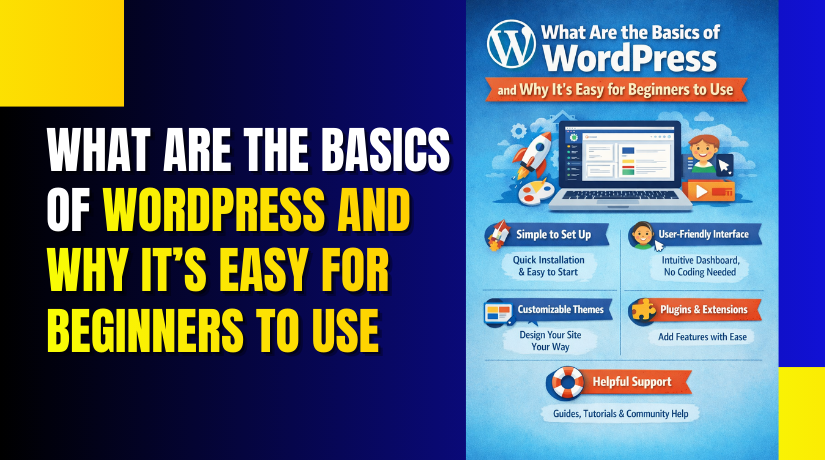
What Are the Basics of WordPress and Why It’s Easy for Beginners to Use
Table of Contents
- Introduction: What is WordPress and Why is it Beginner-Friendly?
- What Makes WordPress a Great Option for Beginners?
- What Makes WordPress Easy for Beginners to Use?
- Why WordPress is the Best Choice for Beginners
- Getting Started with WordPress: A Step-by-Step Guide
- Essential Tools and Features for WordPress Beginners
- Common Challenges for WordPress Beginners and How to Overcome Them
- Conclusion
Introduction: What is WordPress and Why is it Beginner-Friendly?
WordPress is one of the most popular content management systems (CMS) in the world. It powers over 40% of websites globally, making it the go-to choice for many businesses and individuals. Originally designed as a blogging platform, WordPress has grown into a versatile tool for building websites of all kinds—e-commerce stores, blogs, portfolios, and more.
What makes WordPress especially appealing to beginners is its ease of use. Unlike other website building platforms, WordPress doesn’t require any coding knowledge to get started. Its user-friendly interface and customizable features make it accessible to users with no technical background. Whether you’re starting your first blog or building an online store, WordPress offers a simple yet powerful solution.
What Makes WordPress a Great Option for Beginners?
WordPress is an ideal platform for beginners for several reasons. First, it’s open-source and free to use. You can create a website without spending a dime on licensing or software costs. All you need is a domain name and hosting provider, which are quite affordable.
Here’s why WordPress stands out for beginners:
- User-Friendly Dashboard
The WordPress dashboard is simple and intuitive. You can manage your content, customize your site, and install plugins with just a few clicks. The layout is easy to navigate, making it ideal for those who are new to website development. - Easy Setup Process
Getting started with WordPress is quick and easy. Many hosting providers offer one-click WordPress installation. Once installed, you can immediately start customizing your site without technical hassle. - Wide Range of Themes and Plugins
WordPress offers thousands of free and premium themes. These pre-designed templates help you create a professional-looking website without any design skills. Additionally, plugins extend the functionality of your site, making it easy to add features like contact forms, SEO optimization, and social media integration. - Supportive Community
One of the biggest advantages of using WordPress is the large, supportive community. If you encounter any issues, there are countless tutorials, forums, and resources available online. From beginner WordPress tutorials to advanced guides, the community is always there to help.
What Makes WordPress Easy for Beginners to Use?
WordPress is designed with simplicity in mind, making it accessible to everyone, including non-technical users. Here are the key features that make WordPress easy for beginners:
- Visual Editor
WordPress includes a built-in visual editor called the Gutenberg editor. This drag-and-drop editor allows you to create content without needing to know HTML or CSS. You can easily add text, images, and videos by simply dragging elements onto the page. - Customizable Themes
WordPress allows you to choose from a wide variety of themes that suit your style and business needs. You don’t have to hire a developer to create a custom design; you can easily choose and apply a theme with just a few clicks. - Easy Content Management
Adding new pages and posts is a breeze in WordPress. The content management system allows you to organize your website with categories, tags, and menus, helping you keep everything in order. You can quickly make changes to your content anytime without technical know-how. - SEO-Friendly
WordPress is optimized for search engines right out of the box. It allows you to easily set up SEO titles, meta descriptions, and URLs. You can further improve your site’s SEO by installing plugins like Yoast SEO, which provide step-by-step guidance on how to optimize your pages for search engines. - Mobile Responsiveness
Most WordPress themes are mobile-responsive, meaning they automatically adjust to fit different screen sizes. This ensures that your website will look great on both desktop and mobile devices, an essential feature for modern websites.
Why WordPress is the Best Choice for Beginners
WordPress has proven time and again that it’s the best choice for beginners. The platform is not only easy to use but also highly flexible. Whether you want to build a personal blog, an e-commerce store, or a professional business website, WordPress provides the tools you need to create a unique site.
Additionally, WordPress’s cost-effectiveness makes it an attractive option for those just starting out. You can find affordable hosting plans, and most features are free or available at a low cost. As your website grows, you can upgrade your plan or add more advanced features without needing to Understanding the WordPress User Interface
The WordPress user interface (UI) is designed with simplicity and ease of use in mind. For beginners, the UI is intuitive and straightforward, making it easy to manage your website’s content and settings. Let’s explore the key elements of the WordPress interface.
- The WordPress Dashboard: Your Central Hub
The dashboard is where you’ll spend most of your time. It’s the first screen you see after logging into your WordPress site. The dashboard provides a quick overview of your site’s performance, updates, and activities. Here’s what you can do from the dashboard:
- View Site Statistics: Monitor your recent posts, comments, and updates.
- Access Recent Activity: See the most recent comments, drafts, and site changes.
- Manage Plugins and Themes: Quickly install or update plugins and themes.
- Post and Page Management: Easily create, edit, and manage your website content.
The dashboard is clean and uncluttered, making it easy to find the tools you need.
- Navigating the WordPress Admin Bar
At the top of the screen, you’ll find the WordPress admin bar. This bar provides shortcuts to important areas of your site, including:
- Dashboard: A quick link to your site’s main dashboard.
- Add New Content: Quickly create new posts, pages, or media.
- Customization Options: Access theme customization, widgets, and menus.
- User Settings: Manage user profiles, roles, and permissions.
The admin bar makes site management even more convenient. It saves time by allowing direct access to various areas of your site without needing to navigate through the dashboard.
- Creating and Editing Content: The Visual Editor
One of the standout features of WordPress for beginners is the visual editor. It allows you to create and edit posts or pages without needing to know any coding. Here’s how it works:
- Text Formatting: Use simple buttons to bold, italicize, and format text.
- Add Media: Easily insert images, videos, and other media files by clicking a button.
- Drag and Drop: Arrange text, images, and videos using the drag-and-drop interface.
The visual editor is beginner-friendly and provides everything you need to create beautiful content. Whether you’re writing a blog post or setting up a service page, the editor ensures that your site looks great and functions well.
- Customizing Your WordPress Site: Themes and Widgets
WordPress offers an array of customizable themes that allow you to change the design and layout of your site easily. Here’s how to make the most of WordPress themes:
- Choosing a Theme: Select from thousands of free and premium themes to fit your style.
- Customizing Your Theme: Customize colors, fonts, and layouts to match your brand.
- Widgets and Menus: Add functionality and organize your site with widgets and custom menus.
Themes and widgets make it easy for beginners to design a website that looks professional, without any coding.
The WordPress user interface is specifically designed to be user-friendly. It gives beginners all the tools needed to create and manage a website without overwhelming them. From the simple dashboard to the drag-and-drop editor, WordPress makes website creation and management as easy as possible.
Whether you’re creating a blog, an online store, or a business site, the WordPress user interface helps streamline the process. With a bit of practice, you’ll feel comfortable navigating the UI and customizing your website to meet your needs.
Getting Started with WordPress: A Step-by-Step Guide
Step 0: Plan Your Website (Missing from Original)
Before diving into installation, take time to plan. This ensures your site meets your needs and avoids rework later.
- Define Your Goals: Decide the site’s purpose (e.g., blog, portfolio, e-commerce, business site). Identify your target audience and key features needed (e.g., contact forms, shop, newsletter signup).
- Brainstorm Content: List out pages (e.g., Home, About, Contact) and categories for blog posts. Sketch a basic site structure.
- Budget and Tools: Expect $3–$15/month for basic hosting. You’ll need a domain ($10–$15/year), and free tools like a text editor for notes.
- Research WordPress Types: This guide is for self-hosted WordPress.org (free software, full control). If you want a simpler hosted option, use WordPress.com, but it has limitations on customization.
Step 1: Installing WordPress on Your Web Hosting Account
This step is correct, but I’ve added domain registration and clarified one-click installs, which are now even more streamlined with AI-assisted setups in some hosts.
- Choose a Hosting Provider: Select a reliable host that supports WordPress with features like automatic backups, SSL, and one-click installs. Popular 2026 options include Bluehost, SiteGround, Hostinger, or WP Engine for managed hosting.
- Register a Domain Name: Pick a memorable domain (e.g., yourbusiness.com) via the host or a registrar like GoDaddy. Aim for .com if available; check availability and register it during hosting signup to bundle costs.
- Sign Up for Hosting: Choose a WordPress-optimized plan. Many include free domain for the first year, SSL certificate, and staging environments.
- Install WordPress: Use the host’s one-click installer (e.g., via cPanel or a dashboard tool). If manual, download from WordPress.org, upload via FTP, and run the setup wizard. This takes 5–10 minutes.
- Access Your WordPress Dashboard: Log in at “yourdomain.com/wp-admin” with the credentials from installation. Complete the initial setup wizard for basics like site title and user details.
Step 2: Choose and Install a WordPress Theme
This step is accurate, but note that many 2026 themes support full-site editing (FSE) via the block editor for easier customization without code.
- Go to Appearance > Themes: From the dashboard, navigate here.
- Search for a Theme: Browse the free WordPress.org directory (thousands available) or premium options from sites like ThemeForest. Search by niche (e.g., “blog” or “e-commerce”) and check for FSE compatibility, mobile responsiveness, and recent updates.
- Install and Activate the Theme: Click “Install” then “Activate.” Test on a staging site if your host supports it to avoid live issues.
- Optional: Import Demo Content: Many themes offer starter templates—import one via the theme’s options to jumpstart design.
Step 3: Customize Your WordPress Theme
This is mostly correct, but widgets are now often managed via the block editor or Appearance > Widgets, and FSE allows editing headers/footers directly.
- Go to Appearance > Customize: Open the customizer for live previews.
- Modify Site Identity: Upload a logo, set title/tagline, and favicon.
- Adjust Colors, Fonts, and Layout: Match your branding; use global styles in FSE themes for site-wide changes.
- Add Menus and Widgets: Create navigation menus under Appearance > Menus. Add widgets (e.g., search, social links) via Appearance > Widgets or the customizer. For advanced layouts, use the Site Editor (Appearance > Editor) in block themes.
Step 4: Install Essential Plugins
This step is solid, but I’ve updated the list with 2026 recommendations, emphasizing security/backups first. Plugins now often include AI features (e.g., auto-SEO suggestions in Yoast).


- Go to Plugins > Add New: Search and browse here.
- Search for Plugins: Focus on reputable ones with high ratings and recent updates (check the “Last Updated” date).
- Install and Activate Plugins: Click “Install Now” then “Activate.” Configure each via their settings pages. Essential plugins for beginners (install 5–10 max to avoid slowdowns):
- Security: Wordfence or Sucuri – Scans for malware and adds firewalls (missing from original; critical for protection).
- Backups: UpdraftPlus or Jetpack Backup – Automates site backups (missing; set to daily/weekly).
- SEO: Yoast SEO or Rank Math – Optimizes for search engines with AI keyword tools.
- Forms: WPForms or Gravity Forms – For contact/feedback forms.
- Performance: WP Rocket or LiteSpeed Cache – Speeds up your site (missing; improves loading times).
- E-commerce: WooCommerce – If building a store.
- Privacy: Complianz – For GDPR/CCPA compliance (increasingly important in 2026).
Step 5: Create Your First Post or Page
This is correct; the visual editor is now the block editor, which supports drag-and-drop blocks for text, images, videos, and embeds.
- Go to Posts > Add New (for blog posts) or Pages > Add New (for static pages like About Us).
- Enter Your Content: Add a title, then use blocks to insert text, media, or embeds. Preview on desktop/mobile.
- Optimize and Publish: Add categories/tags, set a featured image, and use Yoast for SEO checks. Click “Publish” to go live. Tip: Use AI tools in plugins like Jetpack for content suggestions if installed.
Step 6: Adjust Basic Settings for Your Website
This is accurate, but I’ve added privacy and reading settings.
- Go to Settings > General: Set title, tagline, email, time zone, and date format.
- Set Permalinks: Choose “Post name” for clean, SEO-friendly URLs.
- Enable Discussion Settings: Allow/moderate comments; enable notifications.
- Additional Settings:
- Reading: Set homepage (static page vs. latest posts) under Settings > Reading.
- Privacy: Create a privacy policy page (Settings > Privacy) to comply with laws.
- Users: Add roles if collaborating (e.g., editor for contributors).
Step 7: Secure, Optimize, and Launch Your Site (Missing from Original)
- Enable SSL/HTTPS: Most hosts auto-install a free certificate; force HTTPS via plugins or host settings.
- Test Everything: Preview on different devices/browsers. Use tools like Google PageSpeed Insights for performance.
- Set Up Analytics: Install Google Analytics via plugins like MonsterInsights to track visitors.
- Launch: Remove any “Coming Soon” plugins, submit to search engines via Google Search Console, and promote on social media.
- Maintenance: Regularly update WordPress, themes, and plugins (Dashboard > Updates). Schedule backups and scans.
Essential Tools and Features for WordPress Beginners
- Themes: Customizing Your Site’s Look and Feel
Themes are one of the first things you will use in WordPress. They control your website’s design, layout, and overall appearance. WordPress offers thousands of free and premium themes to choose from.
- Choosing a Theme:
Start by browsing the WordPress theme directory or premium theme marketplaces. Pick a theme that suits your website’s purpose and style. - Customizing the Theme:
Once you’ve selected a theme, you can modify it. WordPress allows you to change colors, fonts, logos, and layouts. This way, your site can reflect your brand’s unique look. - Free vs. Premium Themes:
Free themes are great for getting started. However, premium themes offer more advanced customization options and additional support. - Plugins: Extending the Functionality of Your Site
Plugins are powerful tools that allow you to add extra features to your WordPress site. Whether you want to improve SEO, manage security, or enhance your site’s speed, plugins make it possible. Here are some essential plugins for beginners:
- Yoast SEO:
This plugin helps optimize your website for search engines. It provides guidance on improving your content’s visibility and ranking. - WPForms:
A beginner-friendly plugin to create custom forms such as contact forms or surveys. - WooCommerce:
If you plan to sell products online, WooCommerce is a must-have. It turns your WordPress site into a fully functional e-commerce store. - Akismet Anti-Spam:
Prevents spam comments on your posts and pages, keeping your site clean.
To install plugins, go to Plugins > Add New in your WordPress dashboard. Search, install, and activate the plugins you need.
- Media Management: Adding and Organizing Your Content
WordPress makes it easy to manage all types of media, including images, videos, and audio files. You can upload media directly to your website’s library.
- Uploading Media:
Go to Media > Add New to upload files. WordPress supports drag-and-drop for quick uploads. - Organizing Media:
WordPress allows you to organize media in folders or by categories, making it easier to find files later. - Optimizing Images:
Large images can slow down your site. Use plugins like Smush to compress and optimize images for faster loading times. - Widgets: Adding Extra Features to Your Site
Widgets are small blocks that add content or features to your website. They can appear in sidebars, footers, or other areas of your site.
- Adding Widgets:
Go to Appearance > Widgets to add or remove widgets. You can add things like a search bar, recent posts, or social media links. - Popular Widgets:
Some commonly used widgets include:- Text Widget: Display custom text or HTML.
- Search Widget: Add a search bar to help visitors find content on your site.
- Recent Posts Widget: Show the latest blog posts on your site’s sidebar.
Widgets help you provide additional functionality and enhance the user experience without needing any coding knowledge.
- User Management: Controlling Access and Roles
WordPress allows you to manage multiple users on your site, making it easy to assign roles and permissions.
- Adding Users:
Go to Users > Add New to add users to your site. You can set roles like Administrator, Editor, Author, and Subscriber, depending on the level of access you want to grant. - Assigning Roles:
Each user role has different permissions. For example, Administrators have full access to everything, while Authors can only manage their own posts.
Managing users is especially useful if you have a team working on the site, ensuring everyone has the right level of access.
Common Challenges for WordPress Beginners and How to Overcome Them
While WordPress is beginner-friendly, there are a few common challenges you might encounter. Let’s look at these challenges and how to overcome them.
- Choosing the Right Theme
With thousands of themes available, selecting the right one can be overwhelming. Beginners often struggle with finding a theme that fits their site’s needs.- Solution: Choose a simple, responsive theme that fits your niche. Premium themes often offer better support and features.
- Managing Plugins
Plugins are essential for adding extra features, but too many plugins can slow down your website.- Solution: Only install the plugins you really need. Regularly update and deactivate plugins that are not in use.
- Site Speed
A slow website can turn visitors away. Beginners may not know how to optimize their site’s speed.- Solution: Use caching plugins like W3 Total Cache and compress images for faster loading times.
- Backup and Security
Many beginners forget to back up their WordPress site regularly, which can lead to data loss.- Solution: Install security plugins like Wordfence and set up automatic backups with plugins like UpdraftPlus.
- Content Management and SEO
Creating content that ranks well on search engines is a common challenge for beginners.- Solution: Use SEO plugins like Yoast SEO to guide you in optimizing your content. Focus on writing high-quality, relevant content for your audience.
By being aware of these challenges, you can take proactive steps to avoid them and keep your WordPress site running smoothly.
Conclusion
Starting a website with WordPress is easier than ever. With its user-friendly interface, customizable themes, and powerful plugins, WordPress is the ideal platform for beginners. You can build a professional site without any coding skills.
The key to success with WordPress is to take it step by step. Don’t rush through the setup process. Focus on learning the basics, customizing your site, and optimizing it as you go. As you continue to explore WordPress, you’ll uncover even more advanced features to enhance your site.
Whether you’re creating a blog, an online store, or a business website, WordPress offers everything you need to succeed. With patience and practice, you can master WordPress and create a website that meets your goals.
If you need help getting started or optimizing your WordPress site, WooHelpDesk is here to assist you. Our team of experts can guide you through the setup process, troubleshoot any issues, and ensure your site runs smoothly.