

What Is the Difference Between a Blog and a Website on WordPress?
Getting started with WordPress can feel a bit overwhelming at first. Many new users often ask — "Should I create a blog or a website?" It's a typical query, particularly for content producers, freelancers, and small business owners. WordPress is...
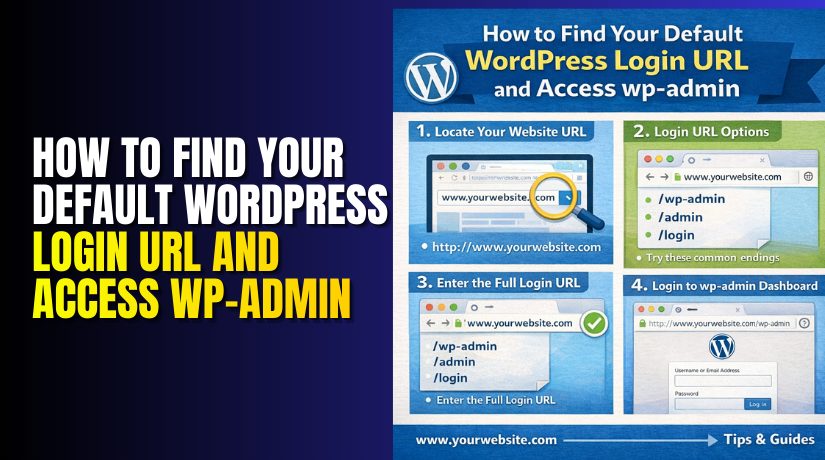
How to Find Your Default WordPress Login URL and Access wp-admin
If you use WordPress, you need to access the admin dashboard. This is where you manage everything — pages, posts, themes, plugins, and settings. To reach it, you must log in using the correct login URL. "Where is the WordPress...
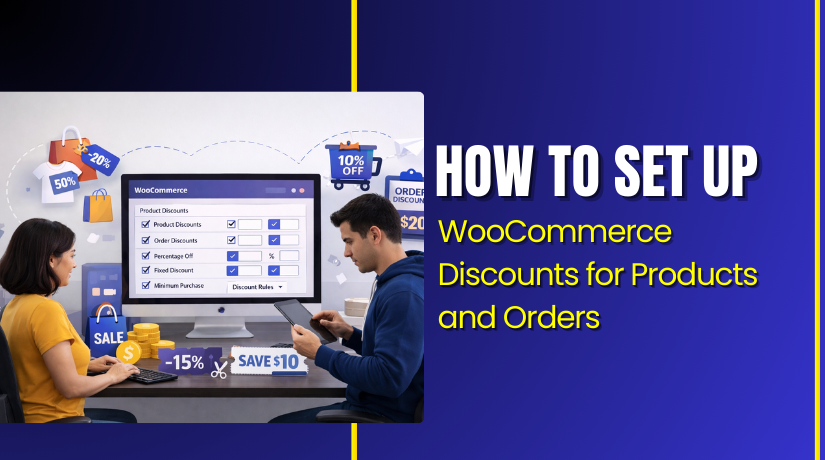
How to Set Up WooCommerce Discounts for Products and Orders
WooCommerce gives you a simple coupon system for discounts. You can create percent, fixed cart, and fixed product offers. This method is best for a clean WooCommerce discount setup. You can also track coupon usage inside your WooCommerce reports. Follow...

Best WooCommerce Theme to Increase Sales, Speed & User Experience
Choosing the best WooCommerce theme depends on your store needs. The list below covers trusted WooCommerce themes for most stores. Each WooCommerce WordPress theme is easy to start and scale. Use this list to pick the best theme for WooCommerce...
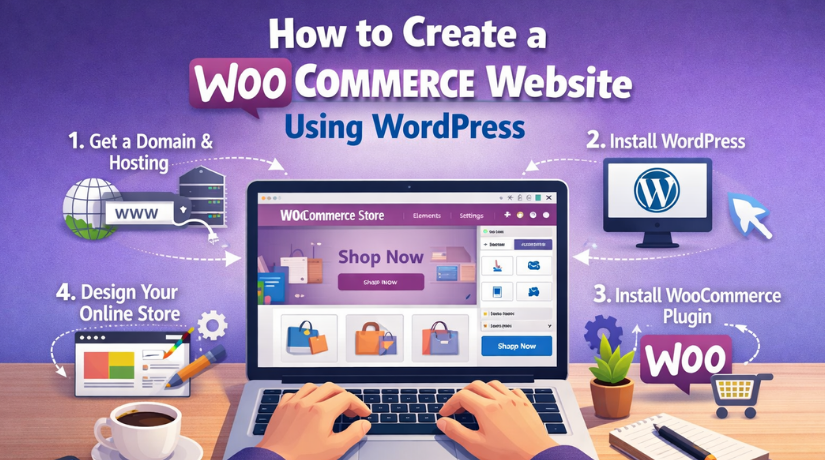
How to Create a WooCommerce Website Using WordPress (Step-by-Step Guide)
Creating a WooCommerce website in WordPress is one of the easiest ways to start selling online. You do not need advanced coding skills to begin. You only need a WordPress website and the right setup plan. WooCommerce works like an...

How to Give Someone Access to Your WordPress Multi-site
Giving someone access to your WordPress website is common. You may need help from a developer, editor, or support team. Many website owners share their own admin login quickly. That looks easy, but it is not safe. It also creates...

What is the difference between a WordPress theme and a template?
It can be difficult for many WordPress beginners to distinguish between a theme and a template. Although these terms are sometimes used synonymously, they have distinct effects on the appearance and functionality of your website. If you’re building or managing...
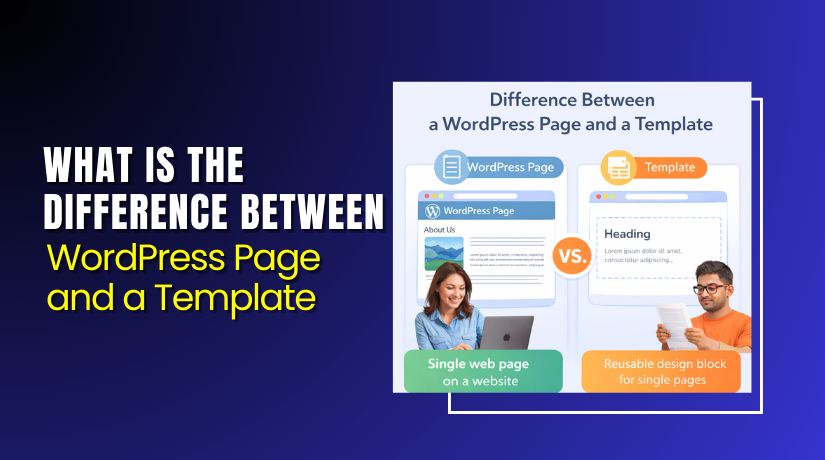
What is the Difference Between a WordPress Page and a Template?
Many WordPress beginners get confused when they hear about pages and templates. Although the two phrases have a similar sound, they have quite different functions in the operation of a website. You can create, maintain, and update your website more...
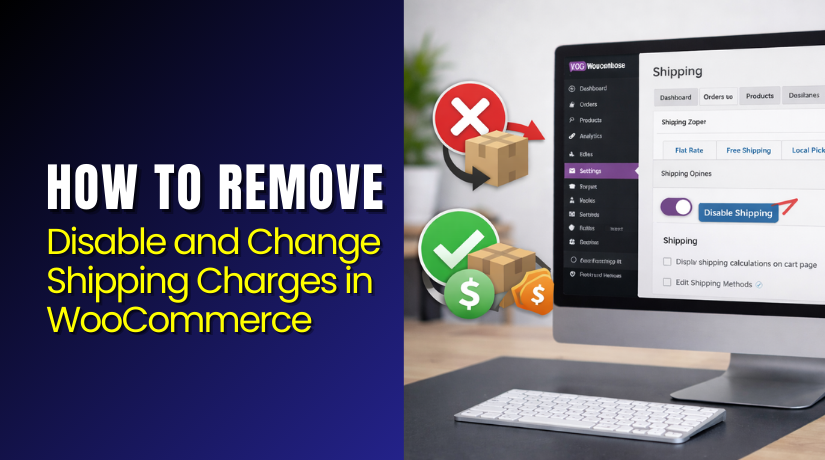
How to Remove, Disable and Change Shipping Charges in WooCommerce
Step 1: Open WooCommerce Shipping Settings in Your Dashboard Go to WordPress Admin → WooCommerce → Settings. Click the “Shipping” tab from the top menu. You will see Shipping Zones and shipping options here. This is where you remove shipping...
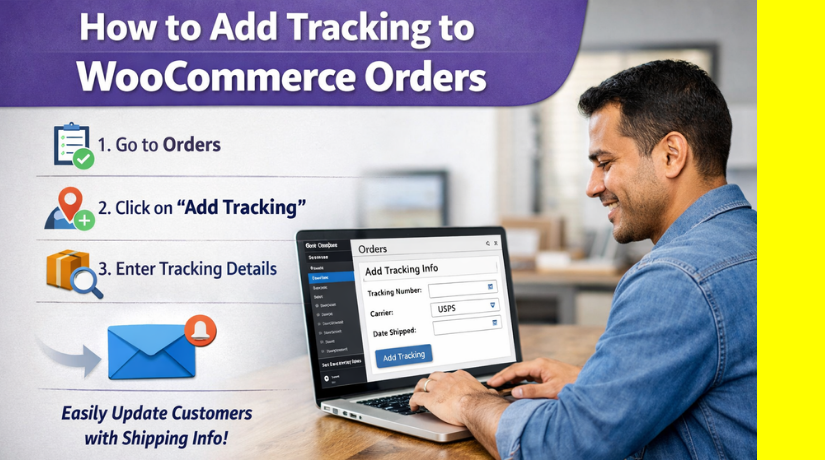
How to Add Tracking to WooCommerce Orders (Step-by-Step Guide)
In this guide, you will learn three methods for woocommerce order tracking. First, we show how to add tracking numbers in woocommerce manually. Second, we cover a woocommerce order tracking plugin for better automation. Third, we explain automatic woocommerce shipment...