How to Speed Up WordPress Website Using HostGator WP Hosting
6 mins read

How to Speed Up WordPress Website Using HostGator WP Hosting

Introduction

Website performance plays a crucial role in user experience, search engine rankings, and overall business success. Slow-loading WordPress websites can lead to increased bounce rates, reduced customer engagement, and lower conversion rates. When hosting on platforms such as HostGator, optimizing website speed becomes essential to ensure consistent performance and reliability.

This guide provides a comprehensive, step-by-step approach to speeding up a WordPress website using HostGator WP Hosting and the WP Rocket optimization plugin. It covers essential performance techniques, including speed evaluation, plugin installation, file optimization, CSS delivery improvement, lazy loading configuration, cache preloading, database cleanup, and bloat reduction. By following this guide, website owners can enhance loading speed, improve website responsiveness, and deliver a seamless browsing experience to their visitors.


1. Evaluate Website Speed Before Speeding Up
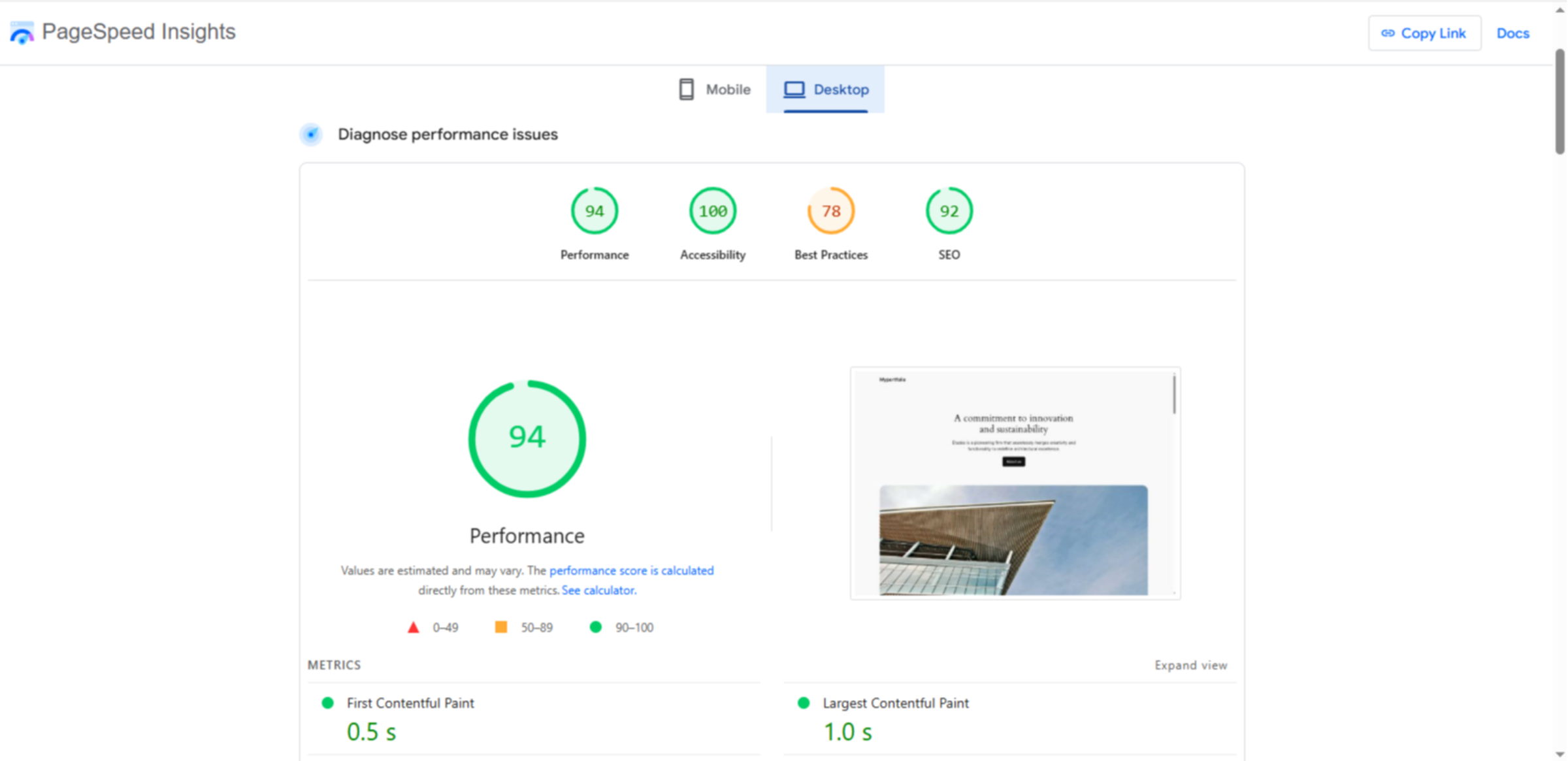
Before starting to speed up our website, it’s important to measure its current website speed to identify areas for improvement.

Evaluate Website Speed Before Speeding Up

2. Access Dashboard Websites

Click the dashboard Websites section in your HostGator account to begin managing your WordPress site.

Access Dashboard Websites

3. Open Settings Menu
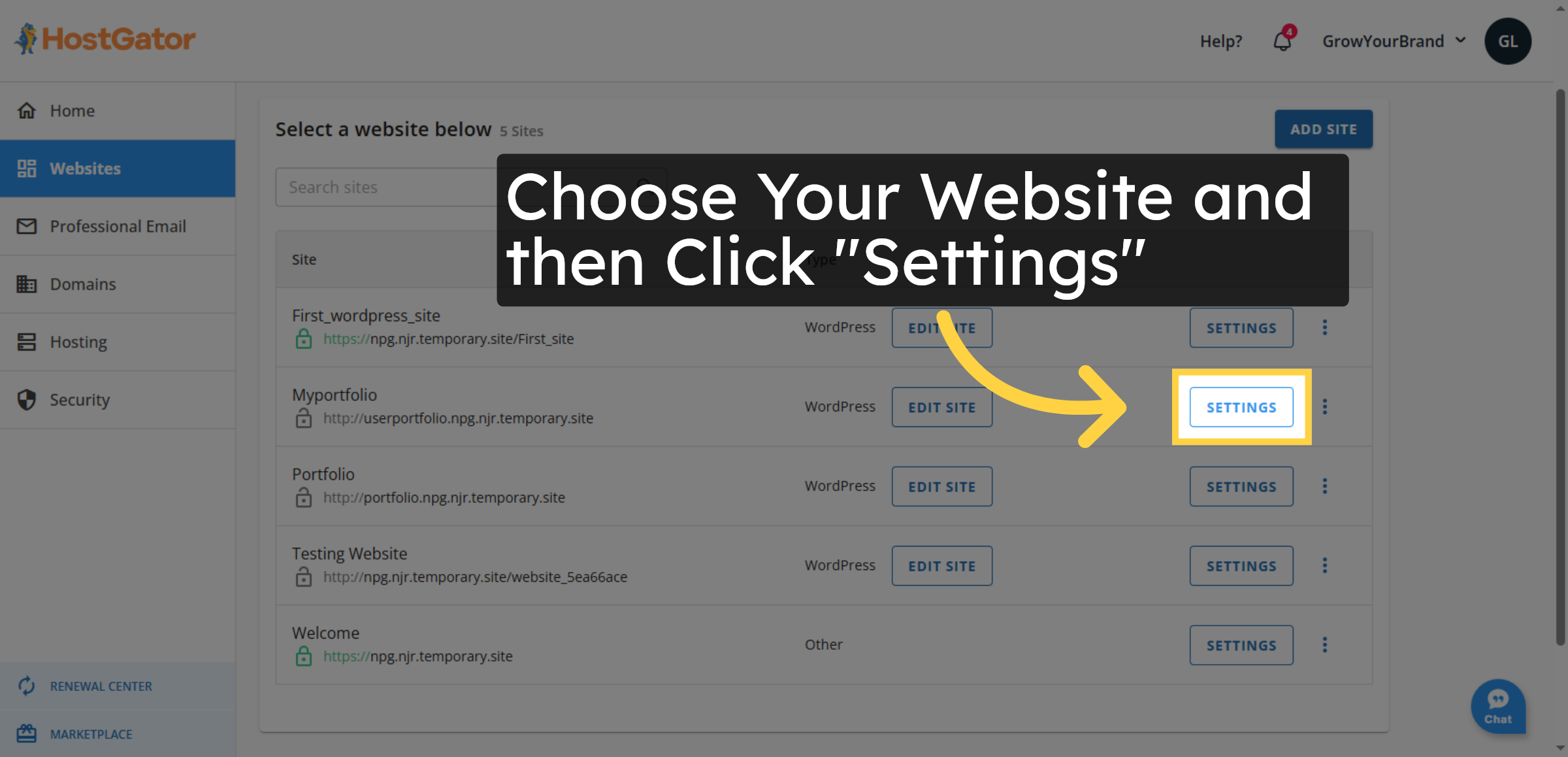
Click the Settings option to access configuration settings for your website.

Open Settings Menu

4. Enter WordPress Admin
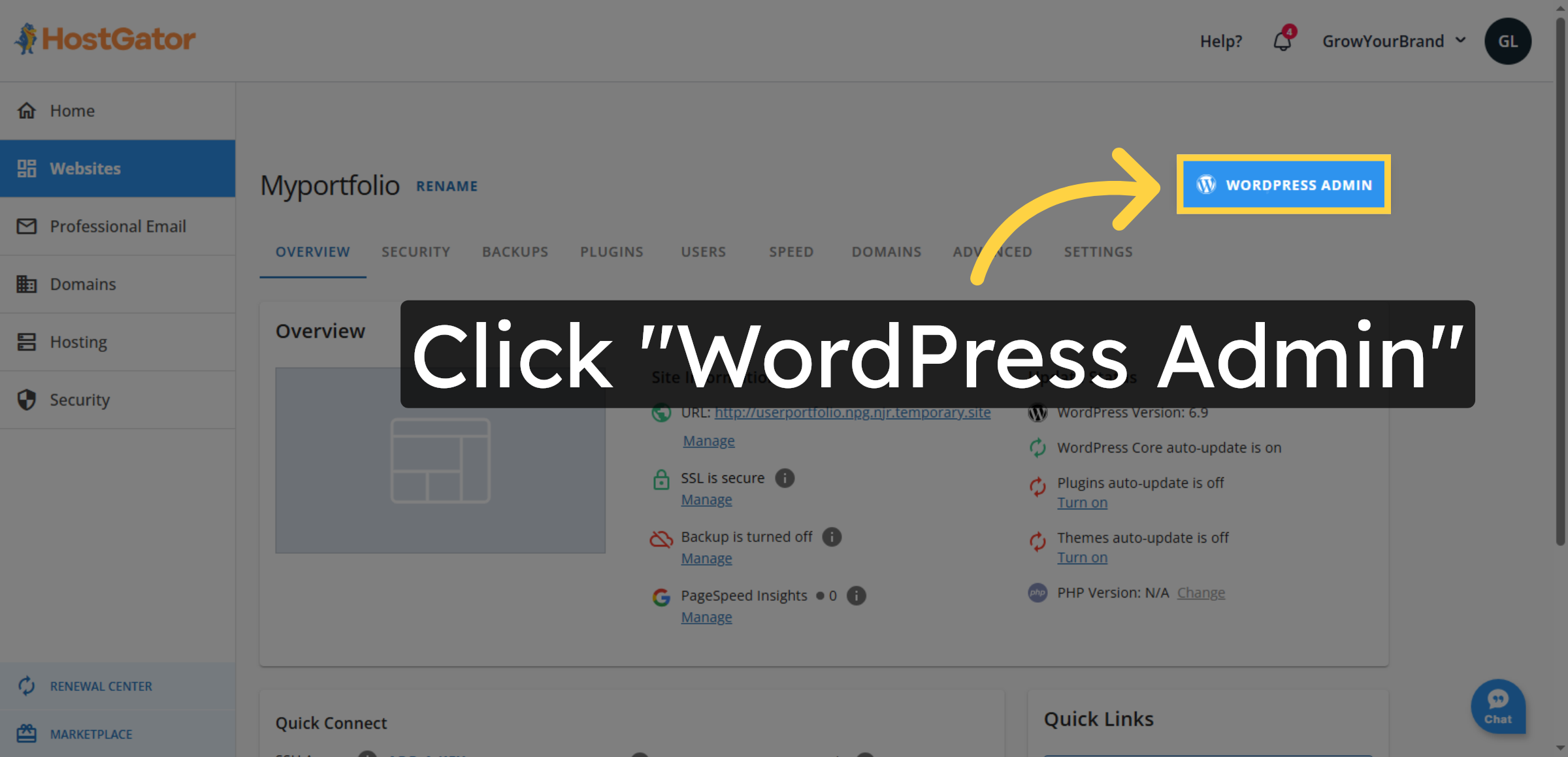
Click WordPress Admin to open the WordPress dashboard for your site.

Enter WordPress Admin

5. Switch to Temporary Site
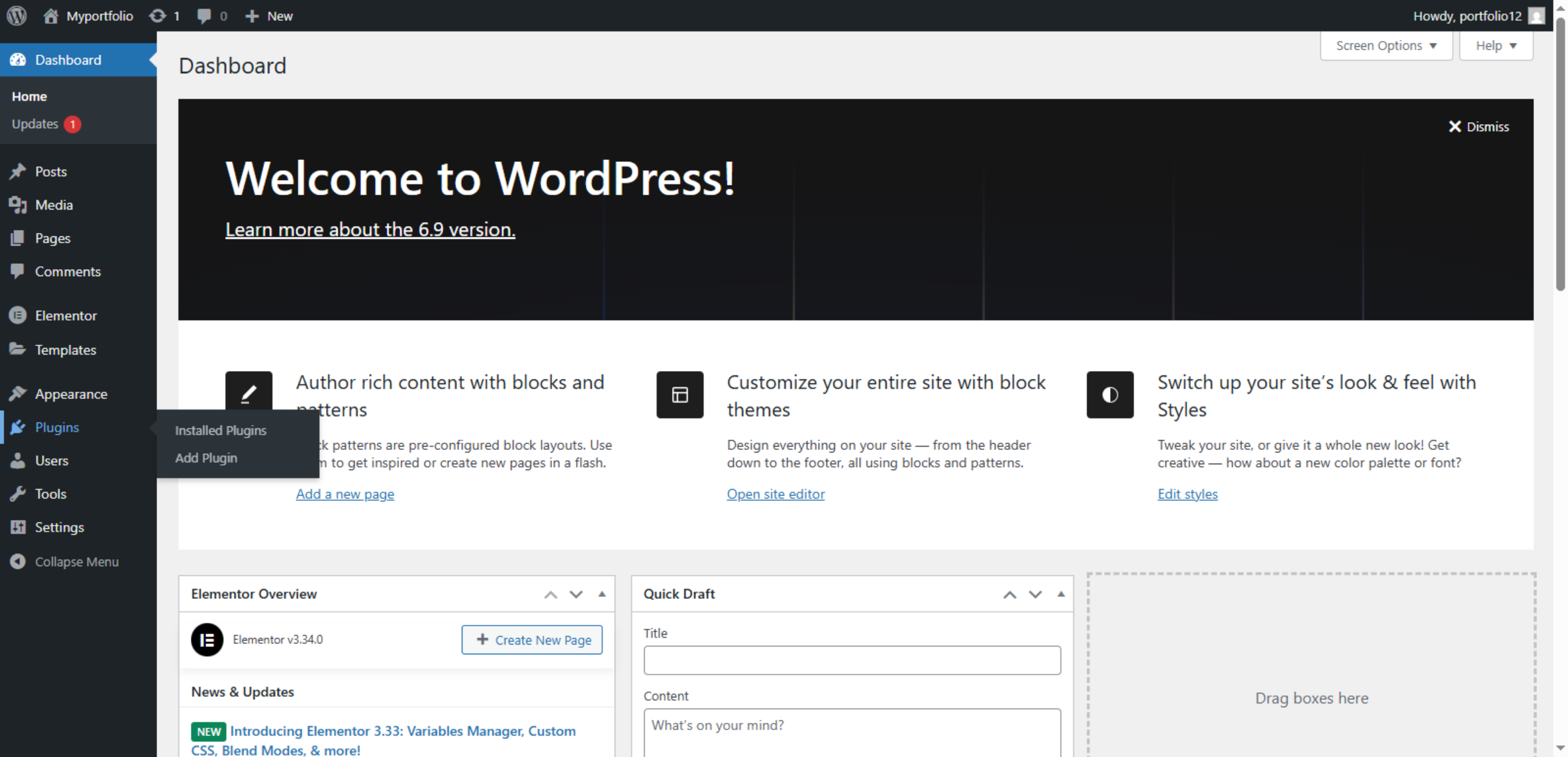
Switch to the userportfolio.npg.njr.temporary.site to perform plugin installation and optimization.

Switch to Temporary Site

6. Open Plugins Section
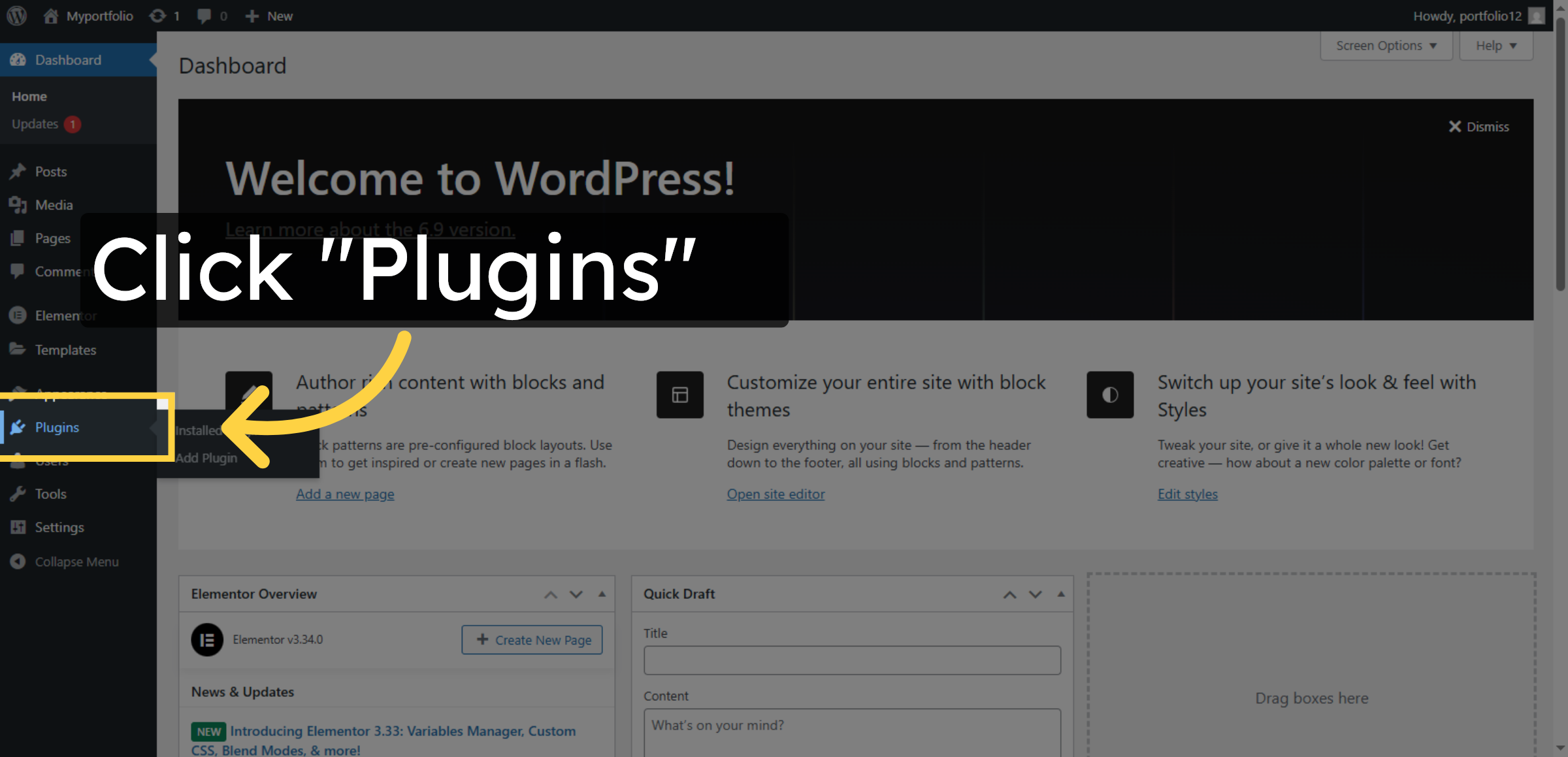
Click Plugins 0 to view the list of installed plugins on your WordPress site.

Open Plugins Section

7. Add New Plugin
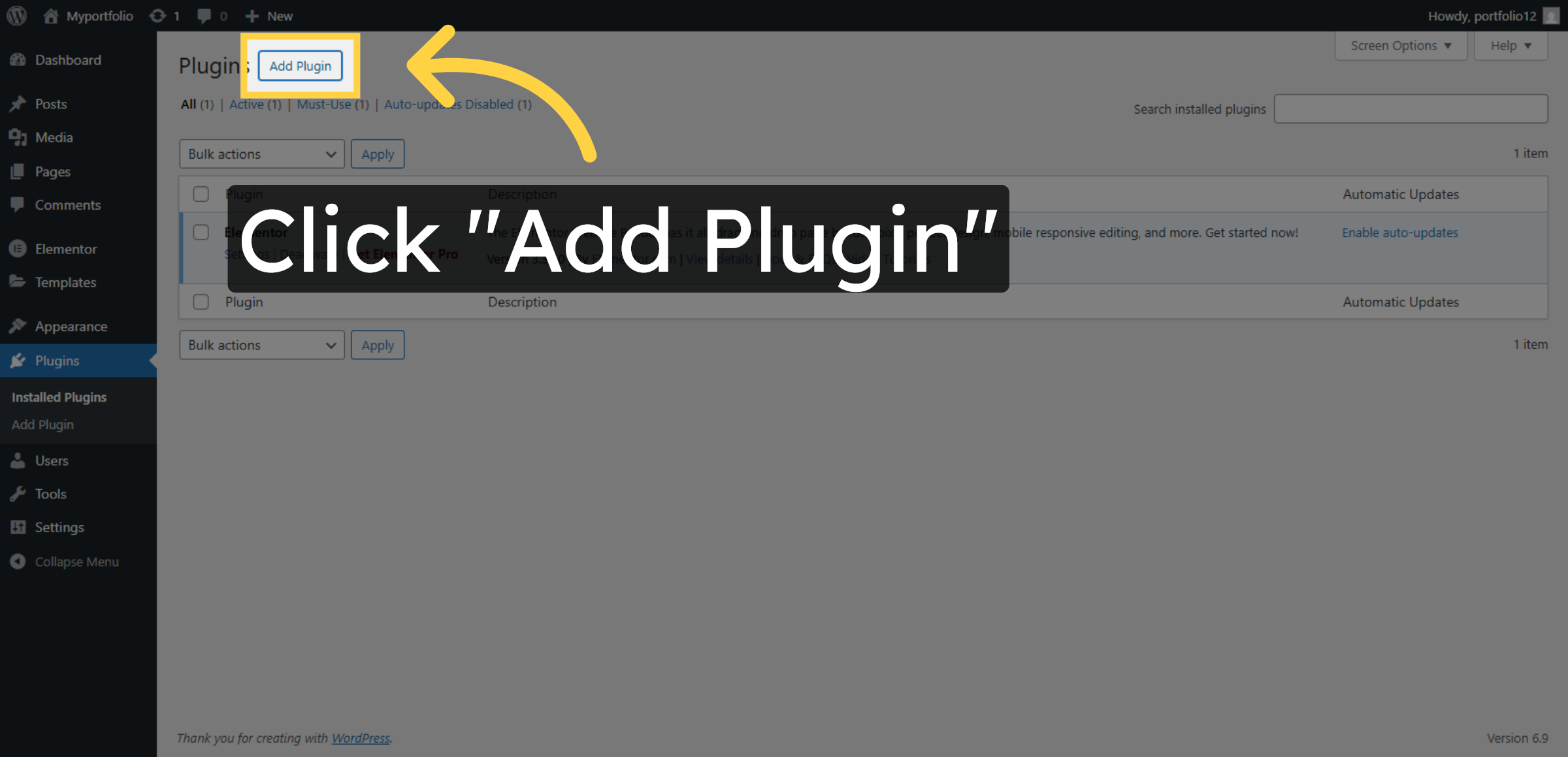
Click Add Plugin to start installing a new plugin for site optimization.

Add New Plugin

8. Select Upload Plugin
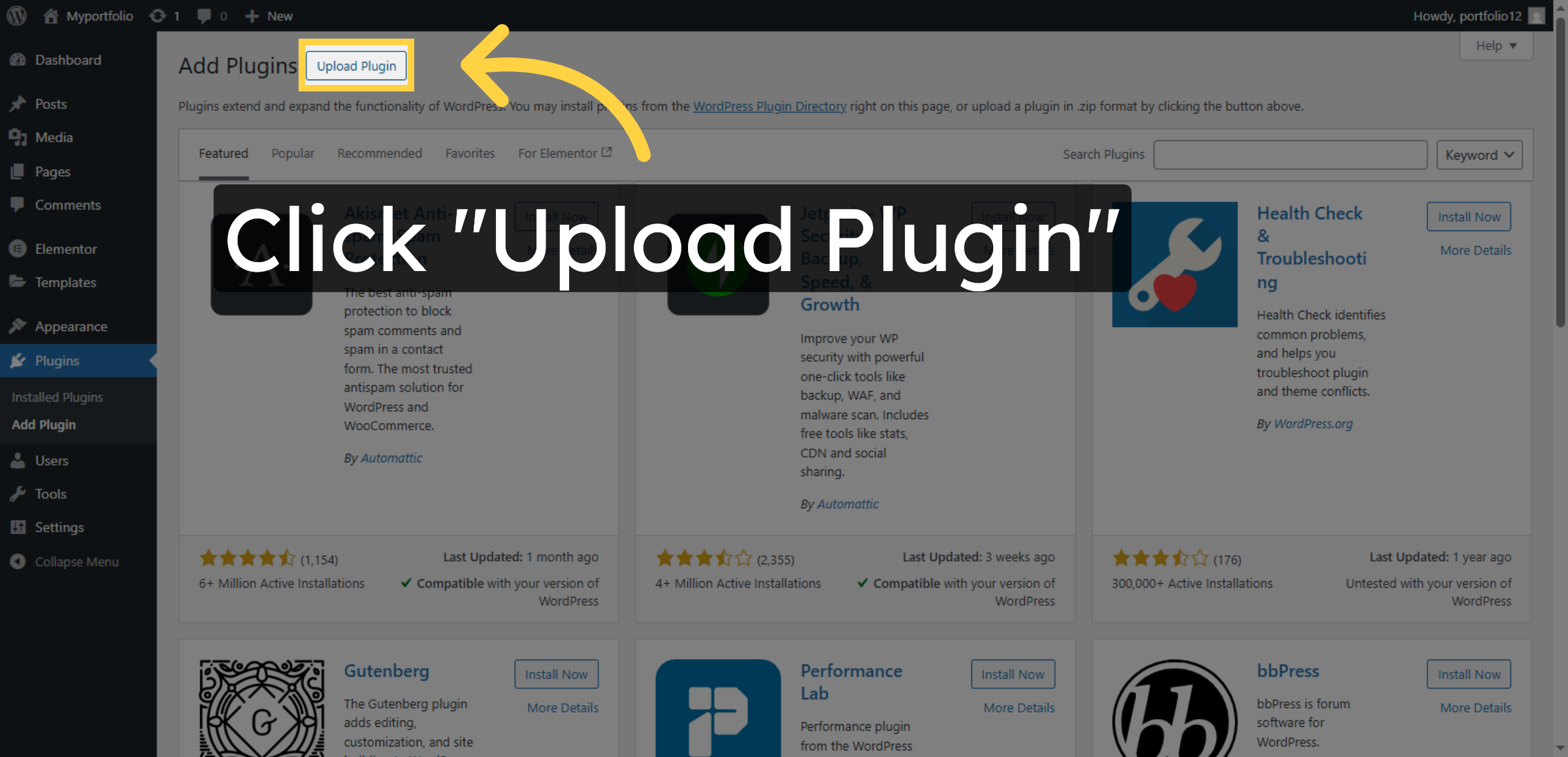
Click Upload Plugin to upload a plugin file from your computer.

Select Upload Plugin

9. Navigate to WP Rocket Site
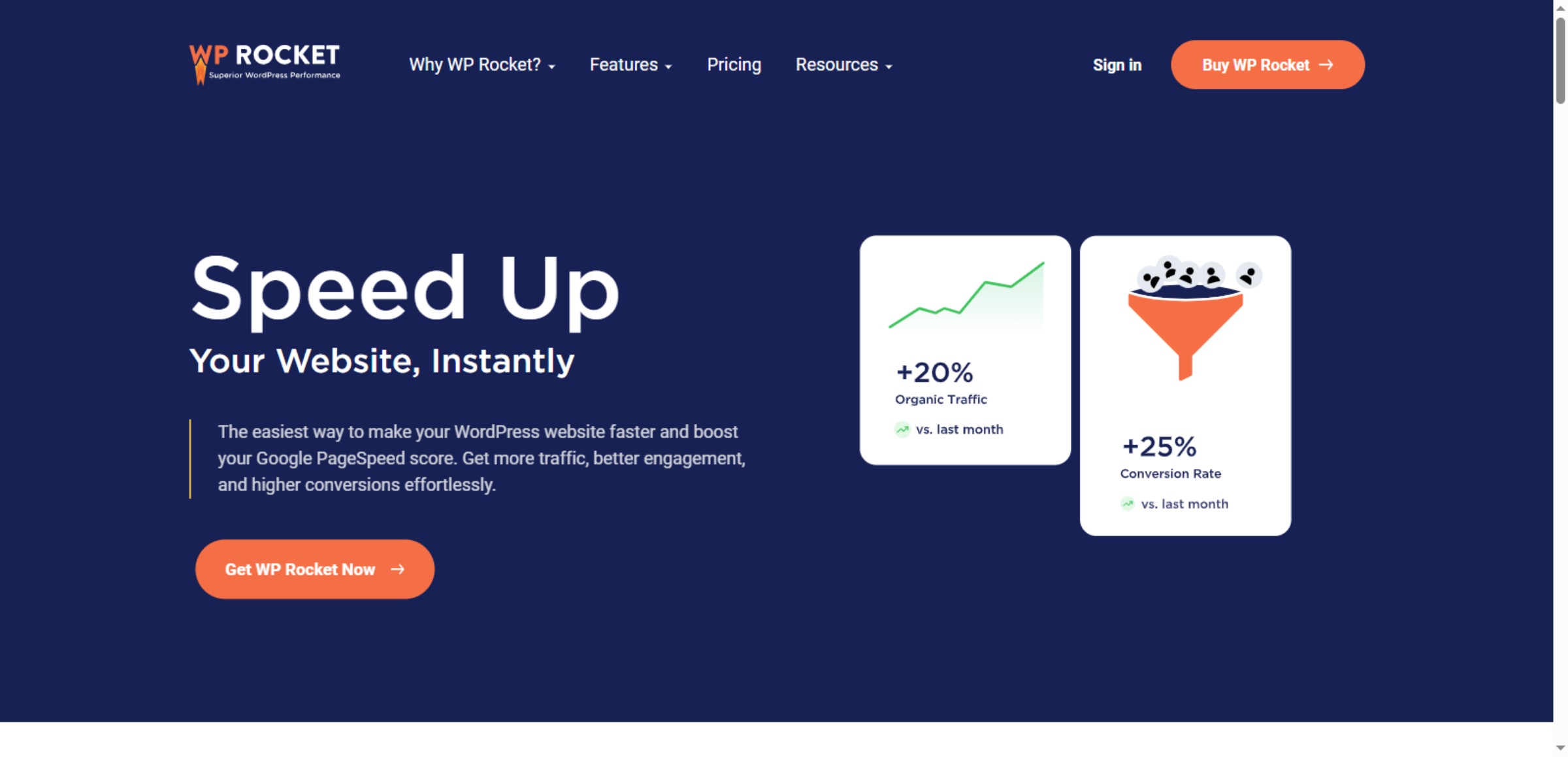
Switch to wp-rocket.me to access the WP Rocket plugin purchase page.

Navigate to WP Rocket Site

10. Access WP Rocket Purchase
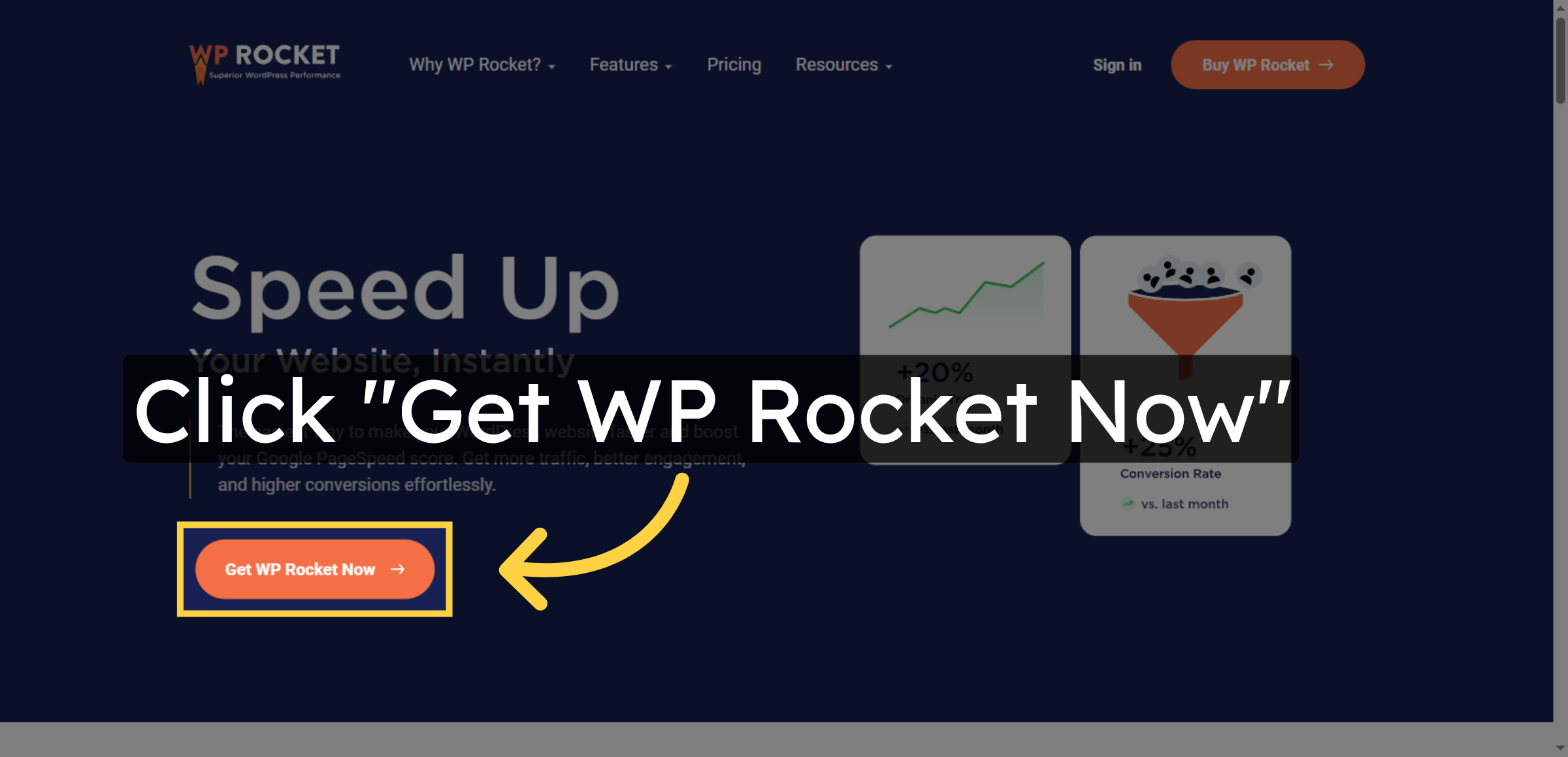
Click Get WP Rocket Now to proceed with obtaining the WP Rocket plugin.

Access WP Rocket Purchase

11. Proceed to Buy WP Rocket

Click Buy WP Rocket to purchase the plugin for optimizing your WordPress site.

Proceed to Buy WP Rocket

12. “After purchasing WP Rocket, locate the WP Rocket plugin file in your File Manager and upload it.”
“After purchasing WP Rocket, locate the WP Rocket plugin file in your File Manager and upload it.”

13. Choose Plugin Zip File
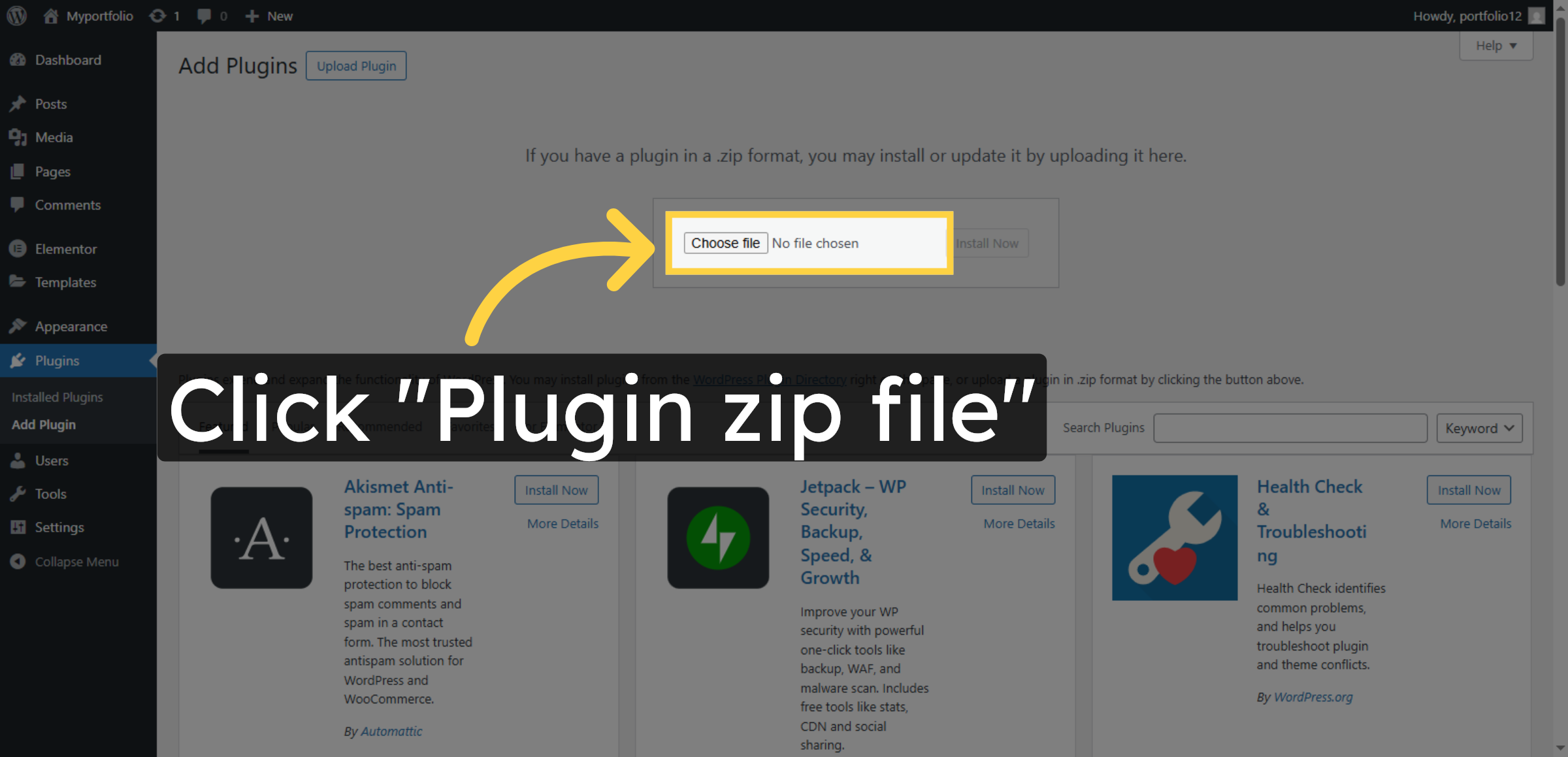
Click Plugin zip file to browse and select the plugin installation file.

Choose Plugin Zip File

14. Install Plugin
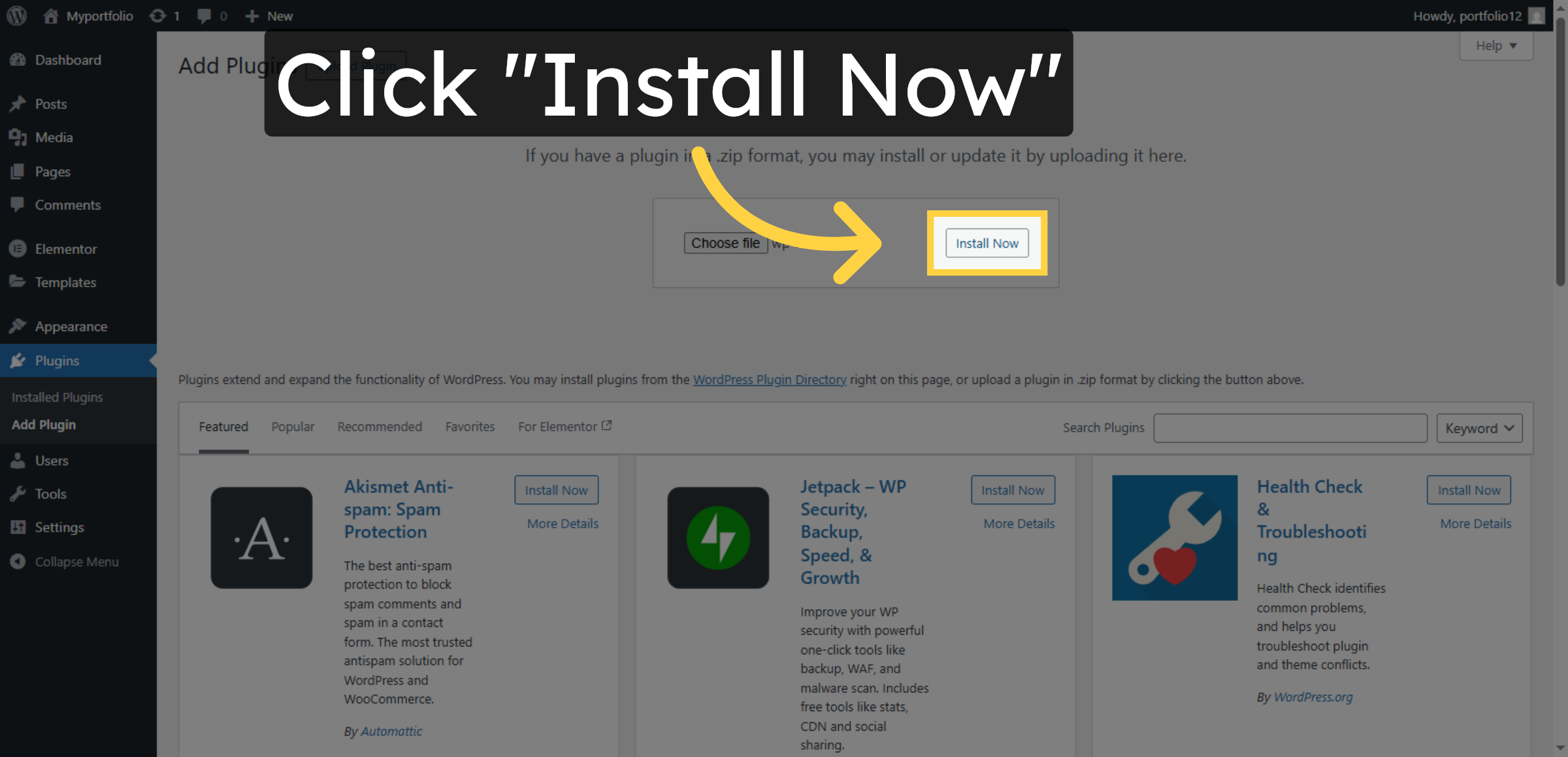
Click Install Now to begin installing the WP Rocket plugin on your WordPress site.

Install Plugin

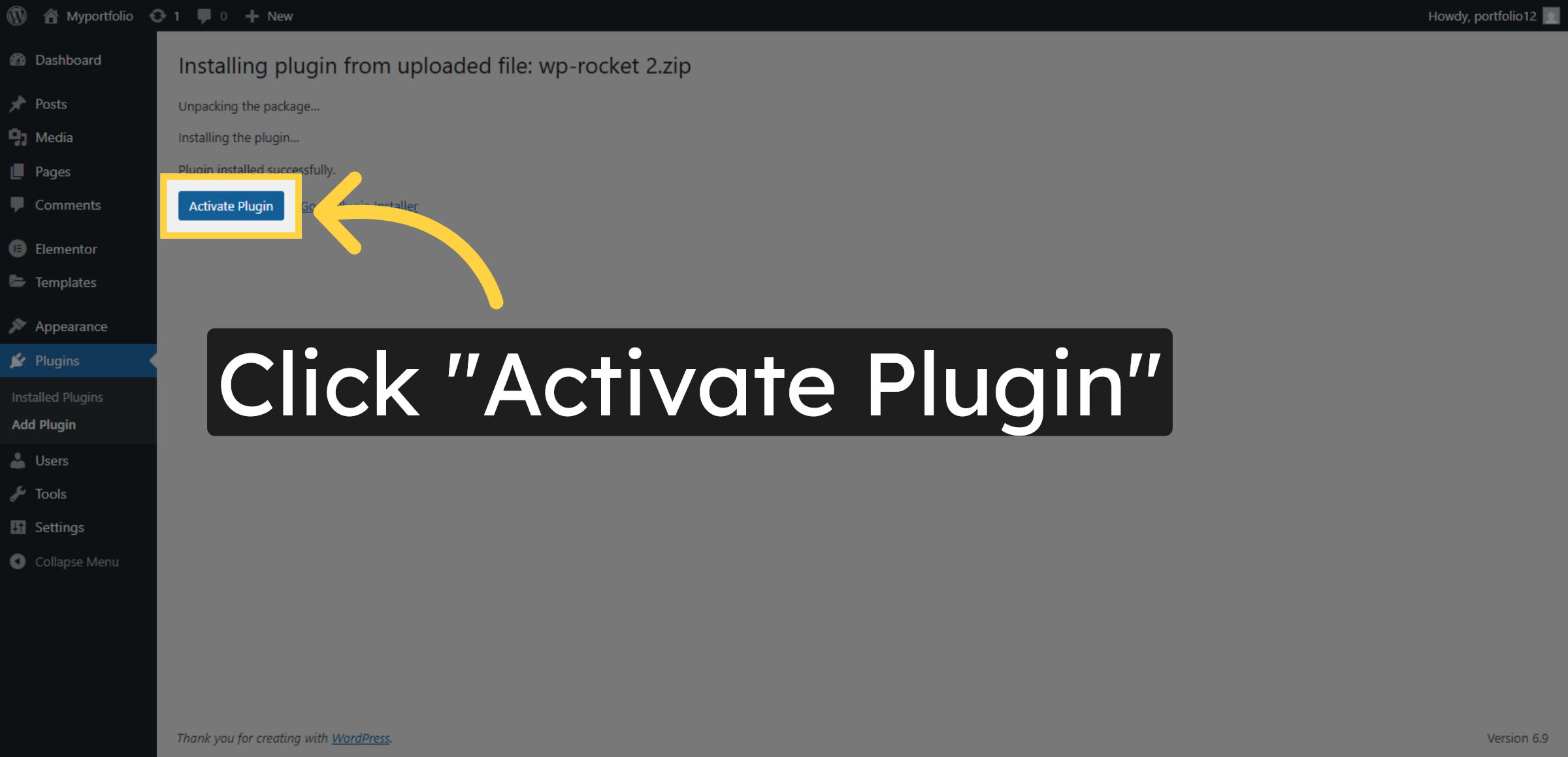
15. Activate Plugin

Click Activate Plugin to enable WP Rocket and start using its optimization features.

Activate Plugin

16. Open Plugin Settings
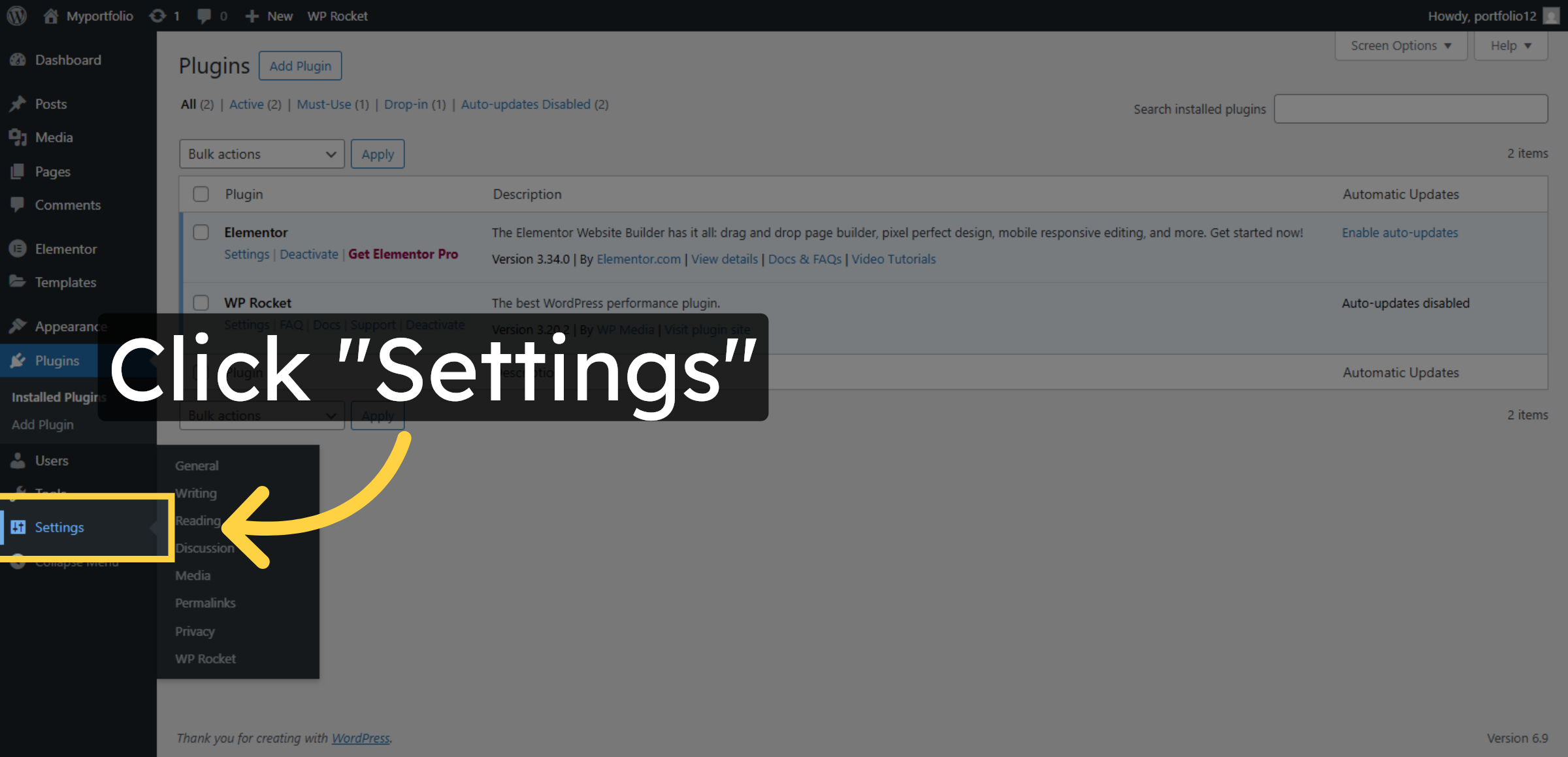
Click Settings to access the configuration options for WP Rocket.

Open Plugin Settings

17. Select WP Rocket Settings
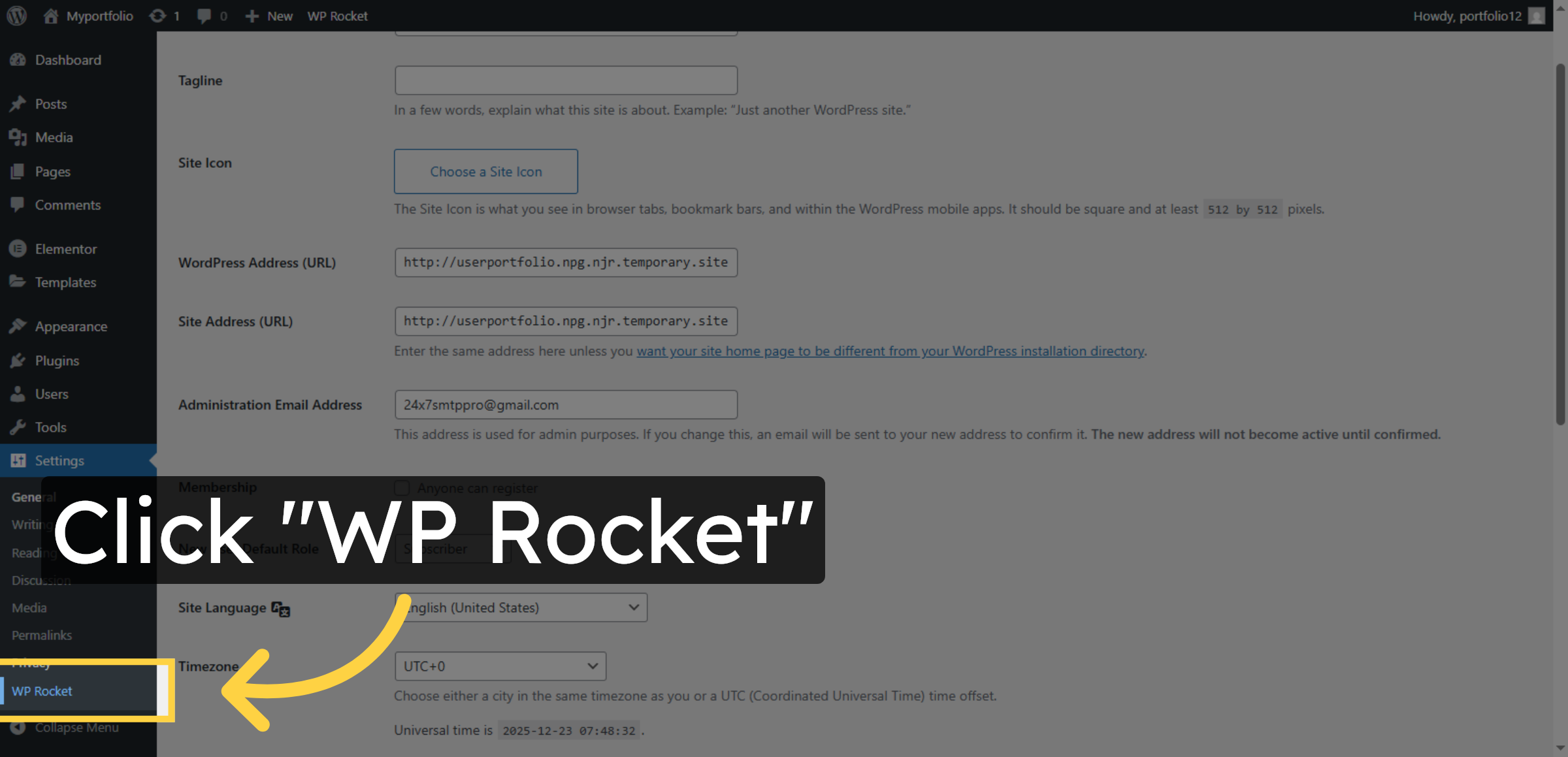
Click WP Rocket to open the plugin’s main settings page.

Select WP Rocket Settings

18. Access File Optimization
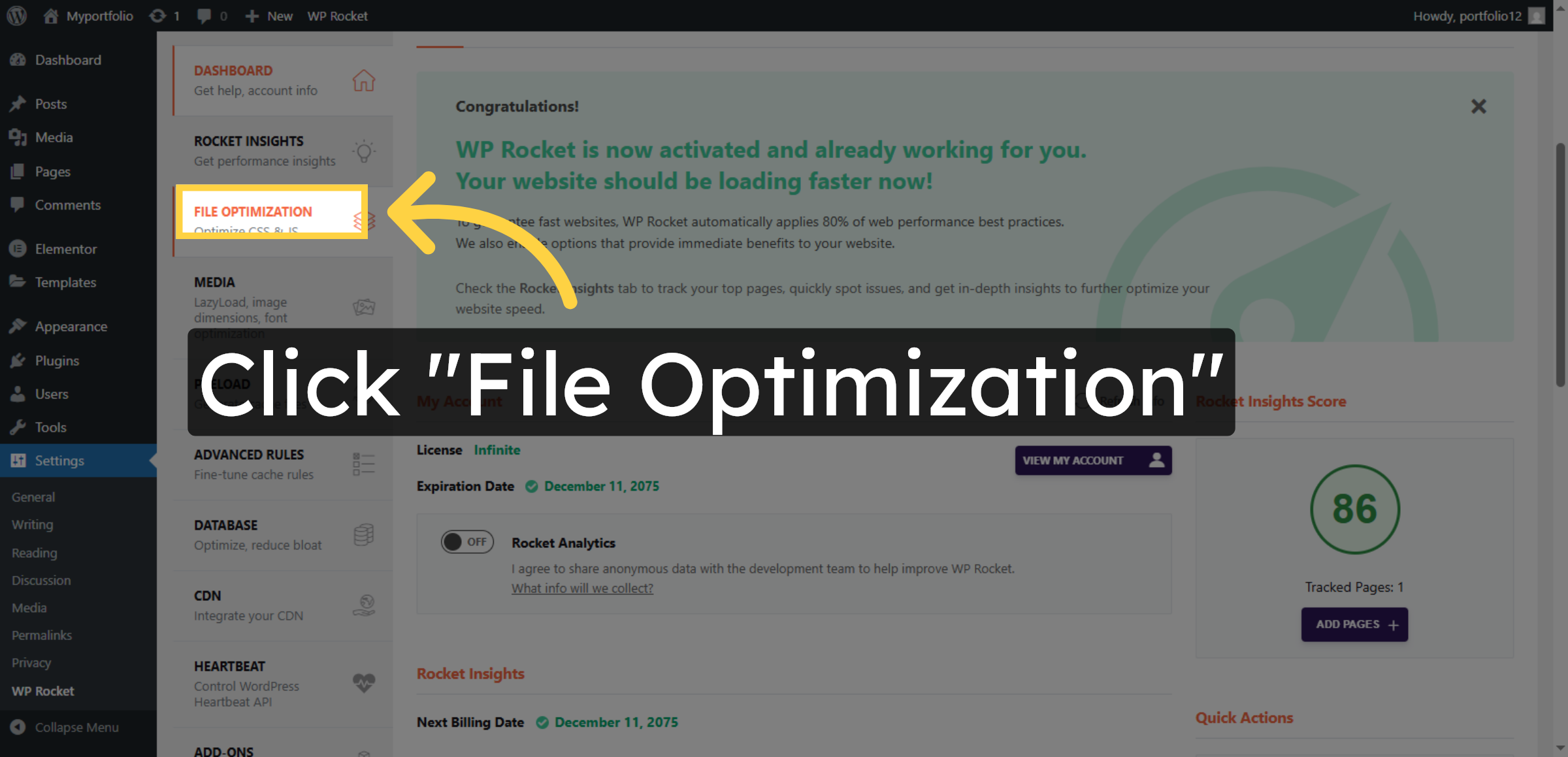
Click File Optimization to configure CSS and JavaScript optimization settings.

Access File Optimization

19. Enable CSS Delivery Optimization
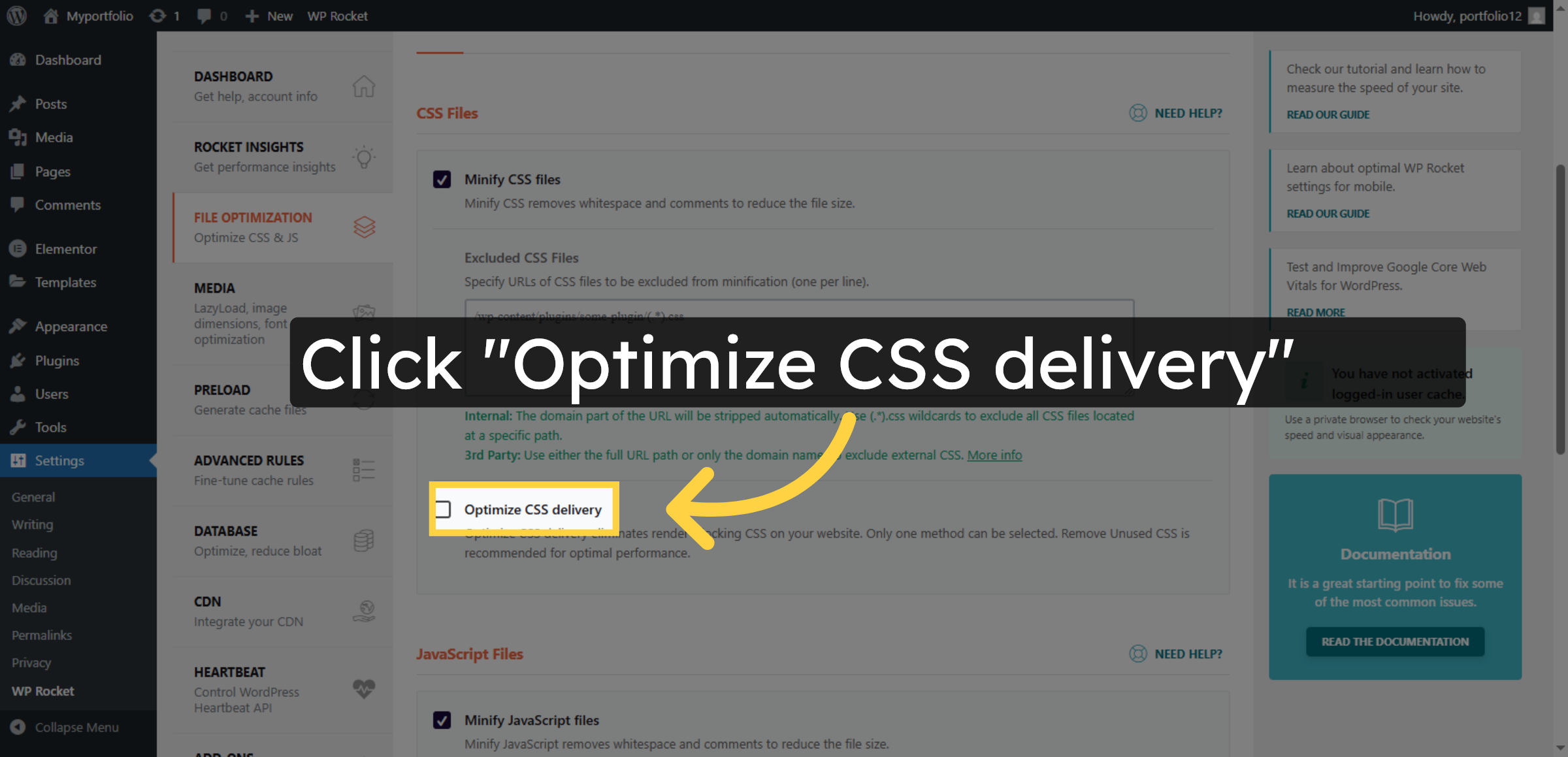
Click Optimize CSS delivery to improve how CSS files load on your site.

Enable CSS Delivery Optimization

20. Enable Remove Unused CSS
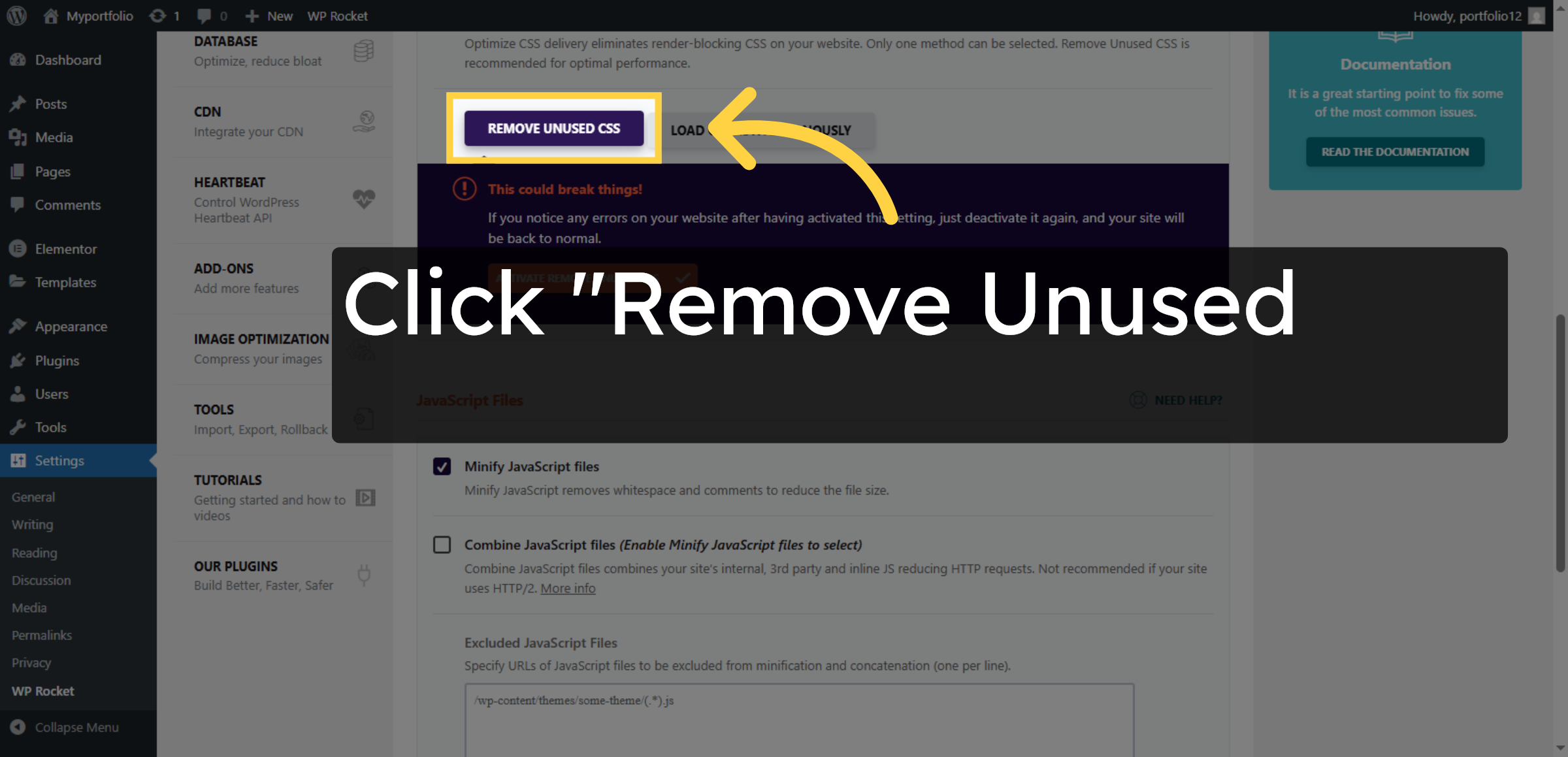
Click Remove Unused CSS to reduce unnecessary CSS and improve load times.

Enable Remove Unused CSS

21. Save File Optimization Changes
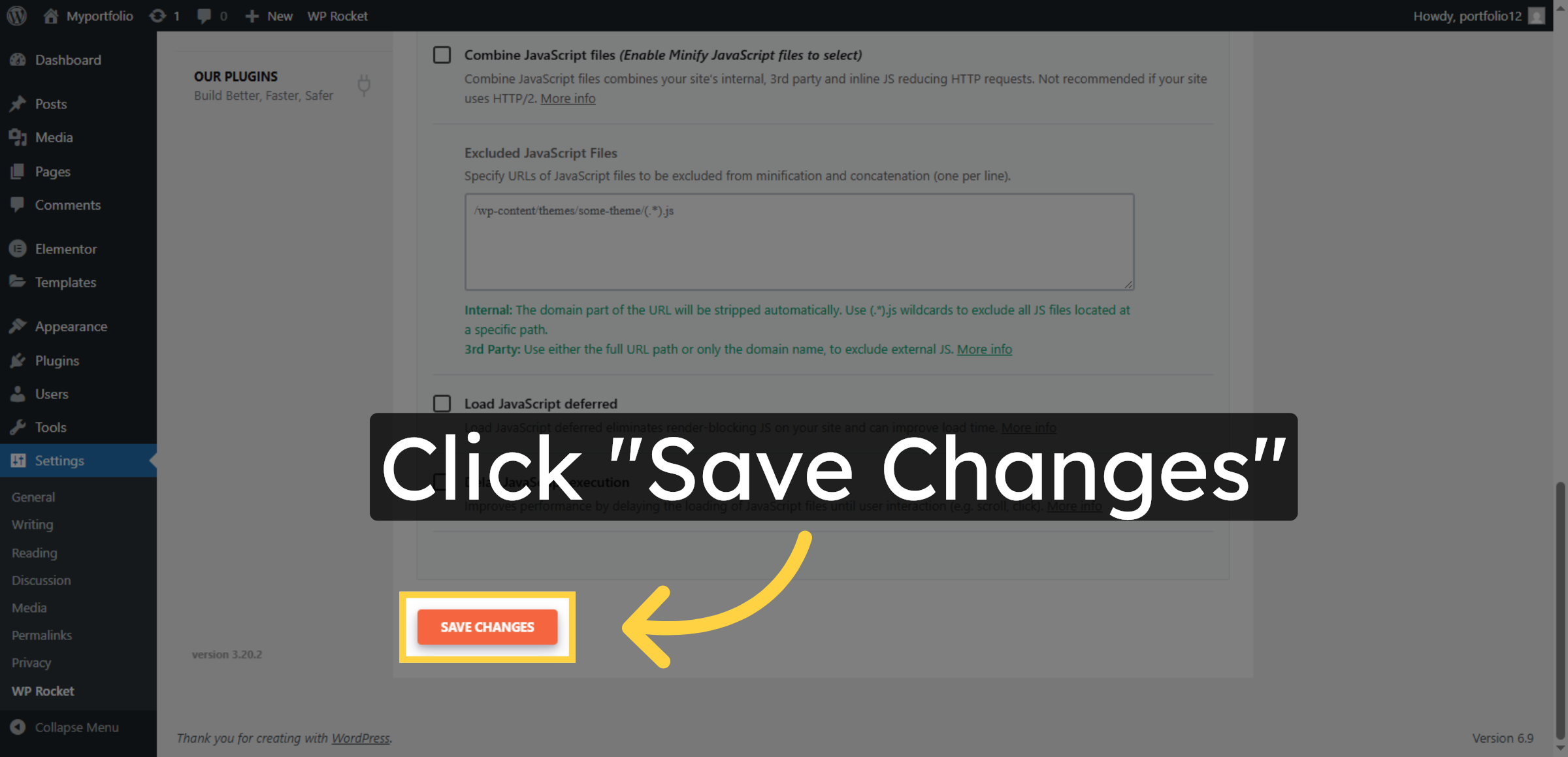
Click Save Changes to apply your CSS optimization settings.

Save File Optimization Changes

22. Click Media
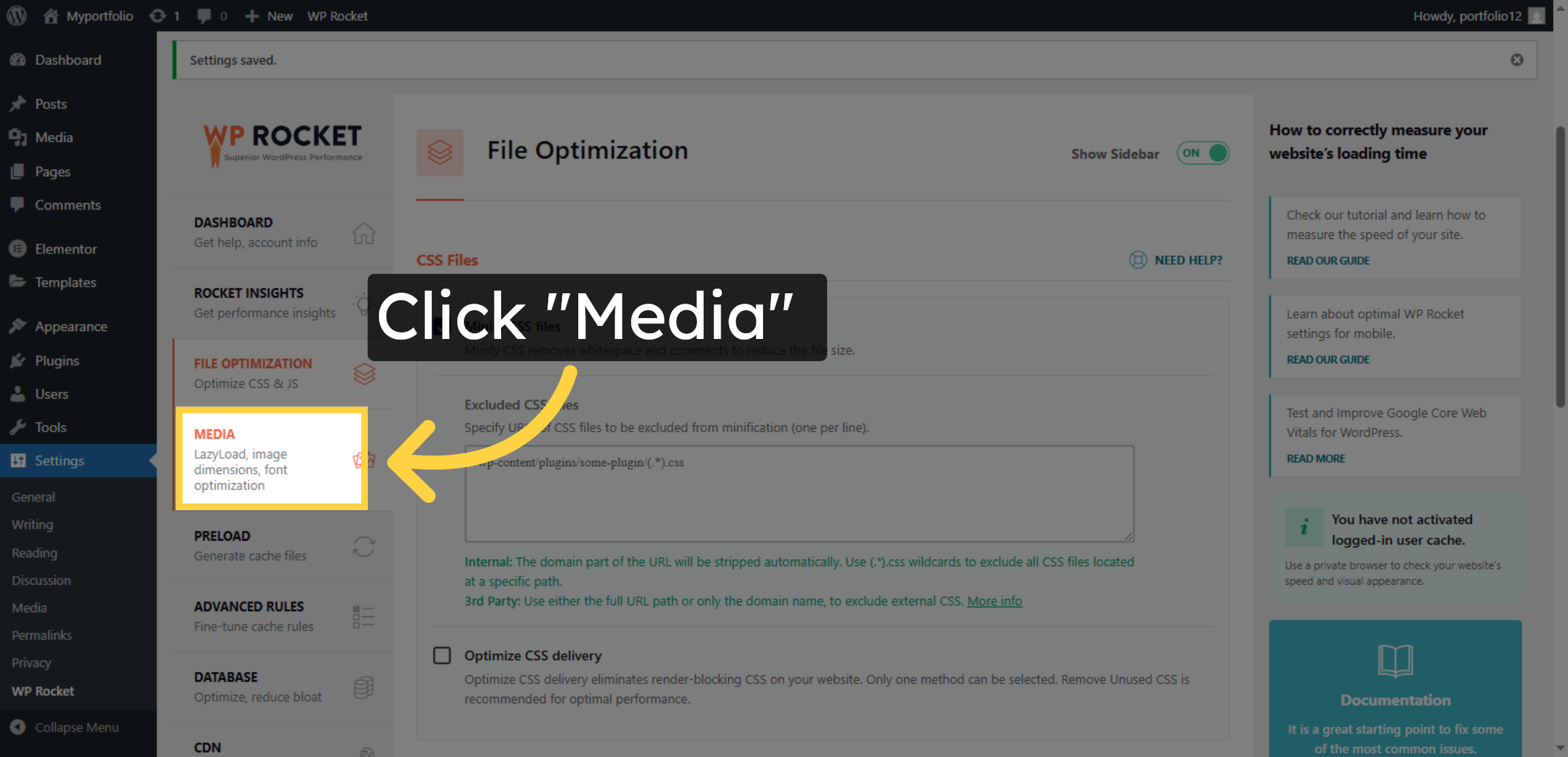
Click LazyLoad, image dimensions, font optimization to configure image and font loading.

Click Media

23. Enable LazyLoad for Images
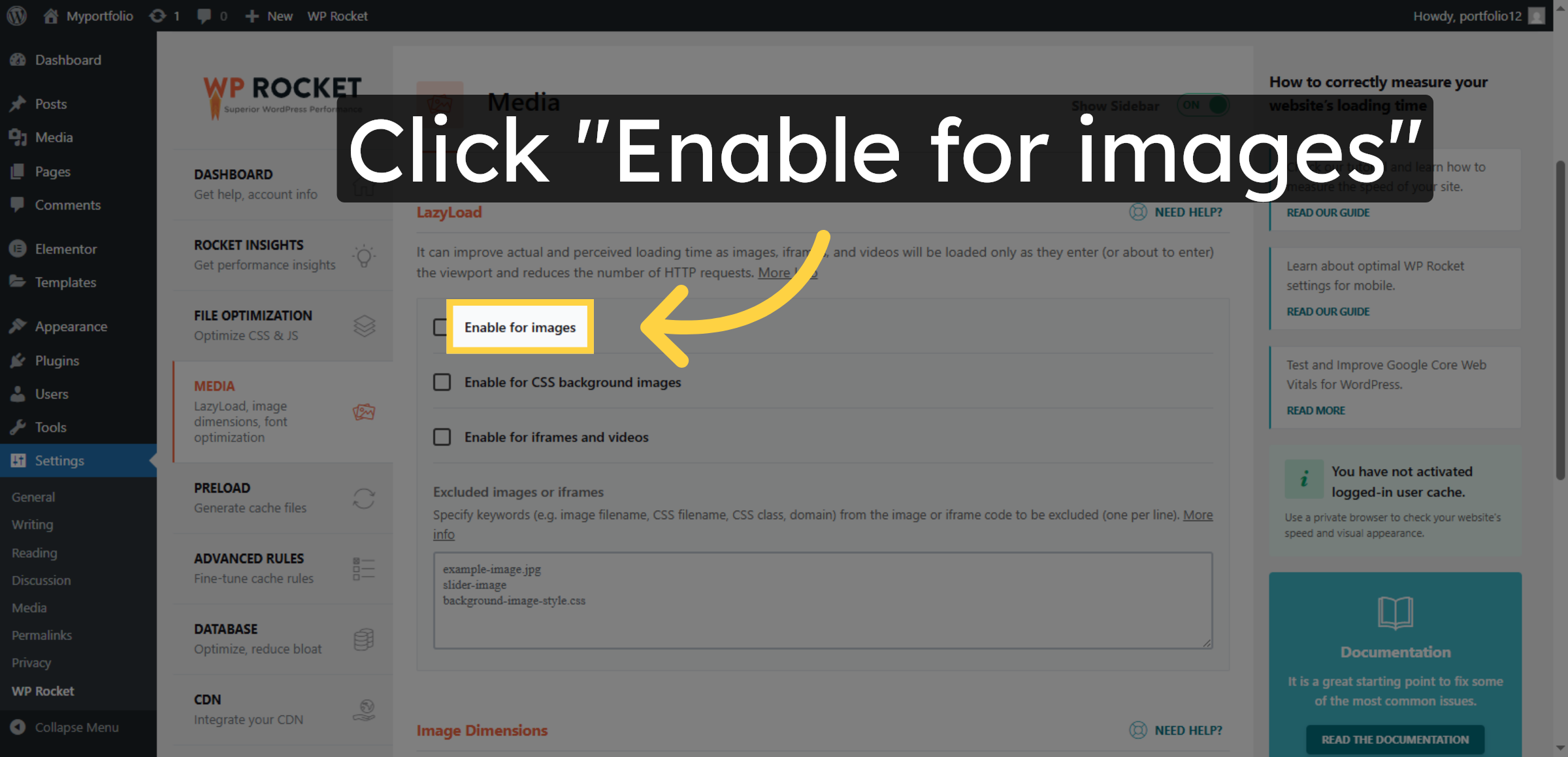
Click Enable for images to activate lazy loading for images on your site.

Enable LazyLoad for Images

Ad Banner

24. Enable LazyLoad for CSS Backgrounds
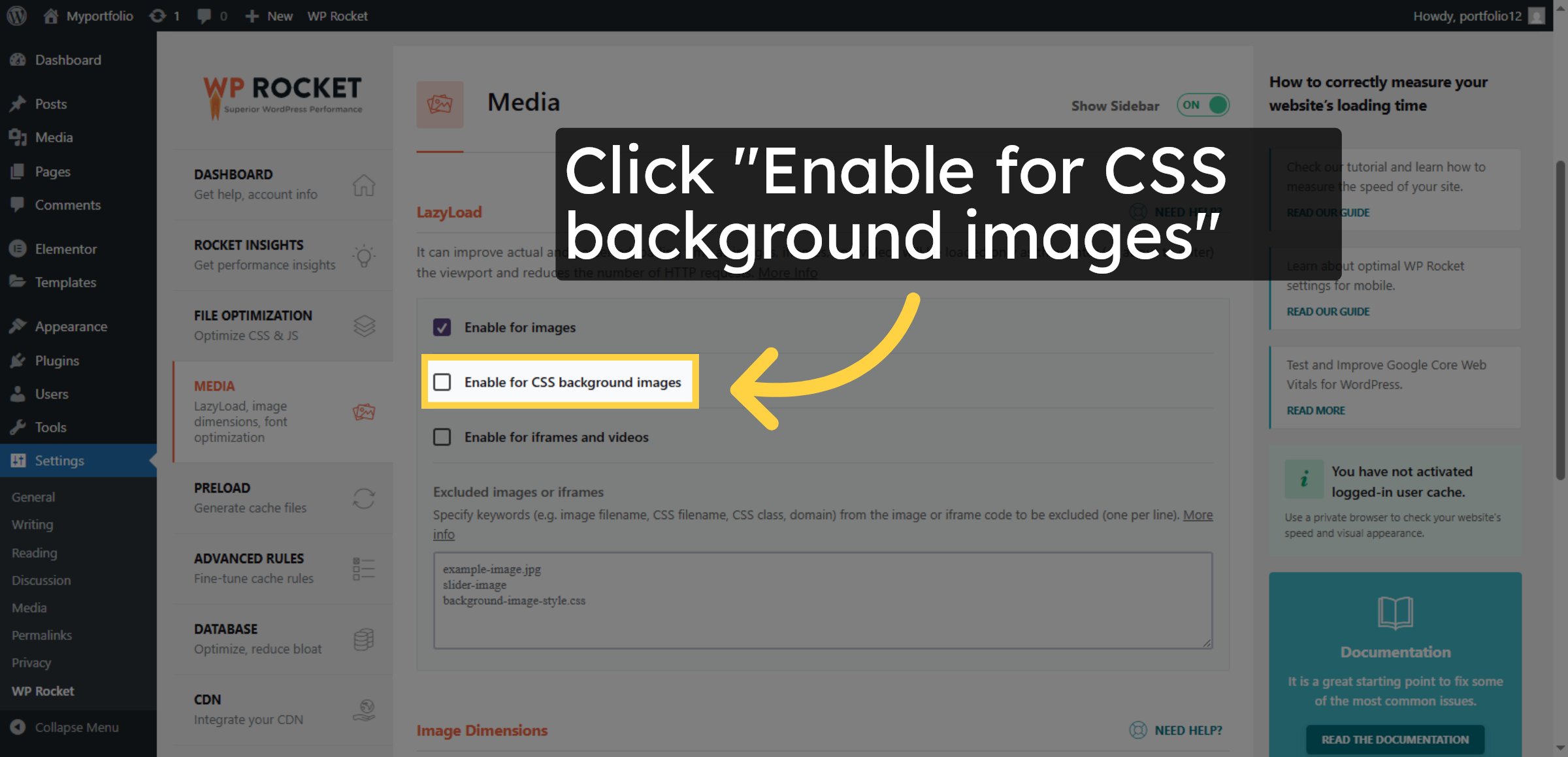
Click Enable for CSS background images to optimize background image loading.

Enable LazyLoad for CSS Backgrounds

25. Enable LazyLoad for Iframes and Videos
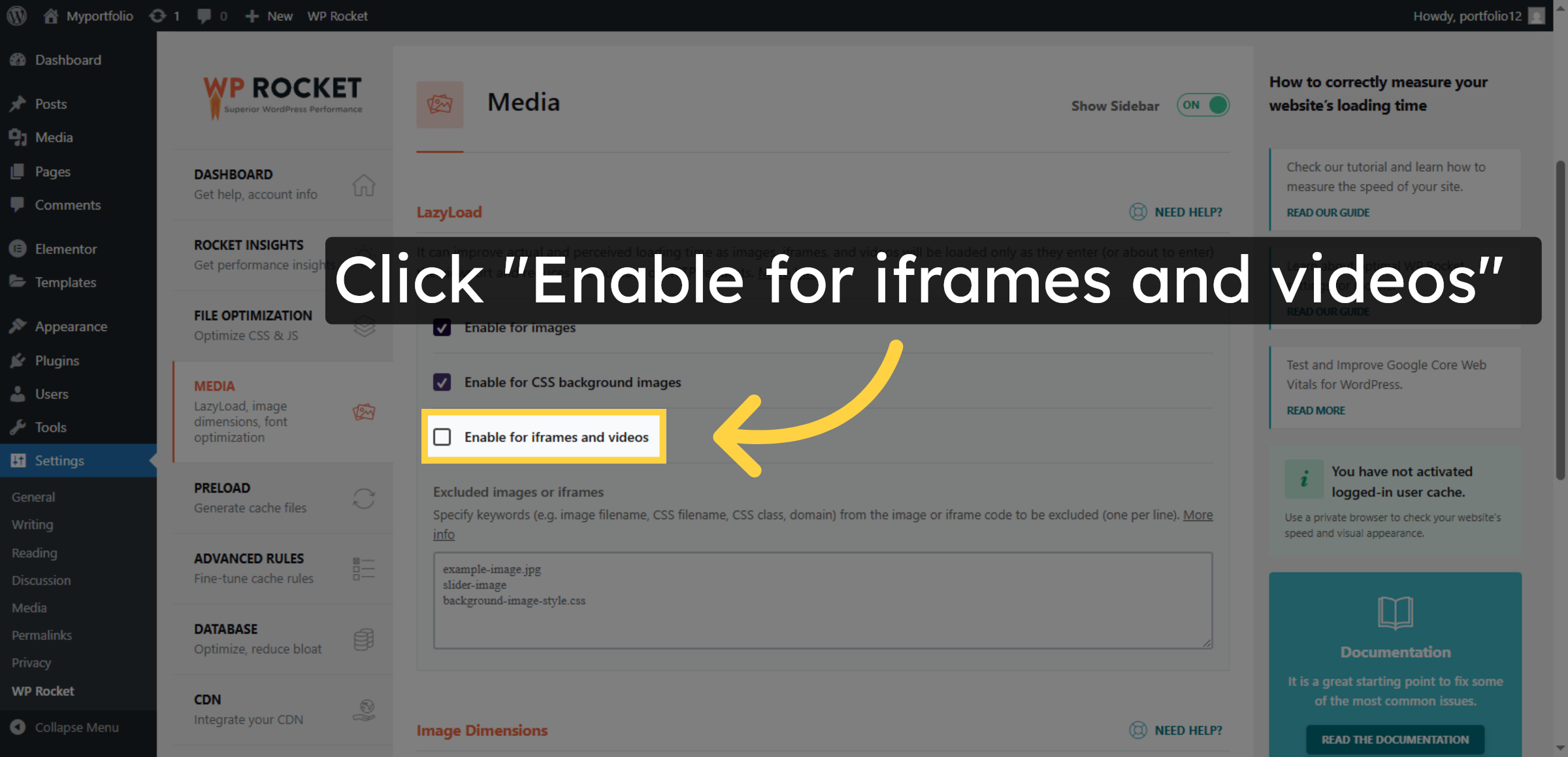
Click Enable for iframes and videos to delay loading of embedded content.

Enable LazyLoad for Iframes and Videos

26. Save LazyLoad Settings
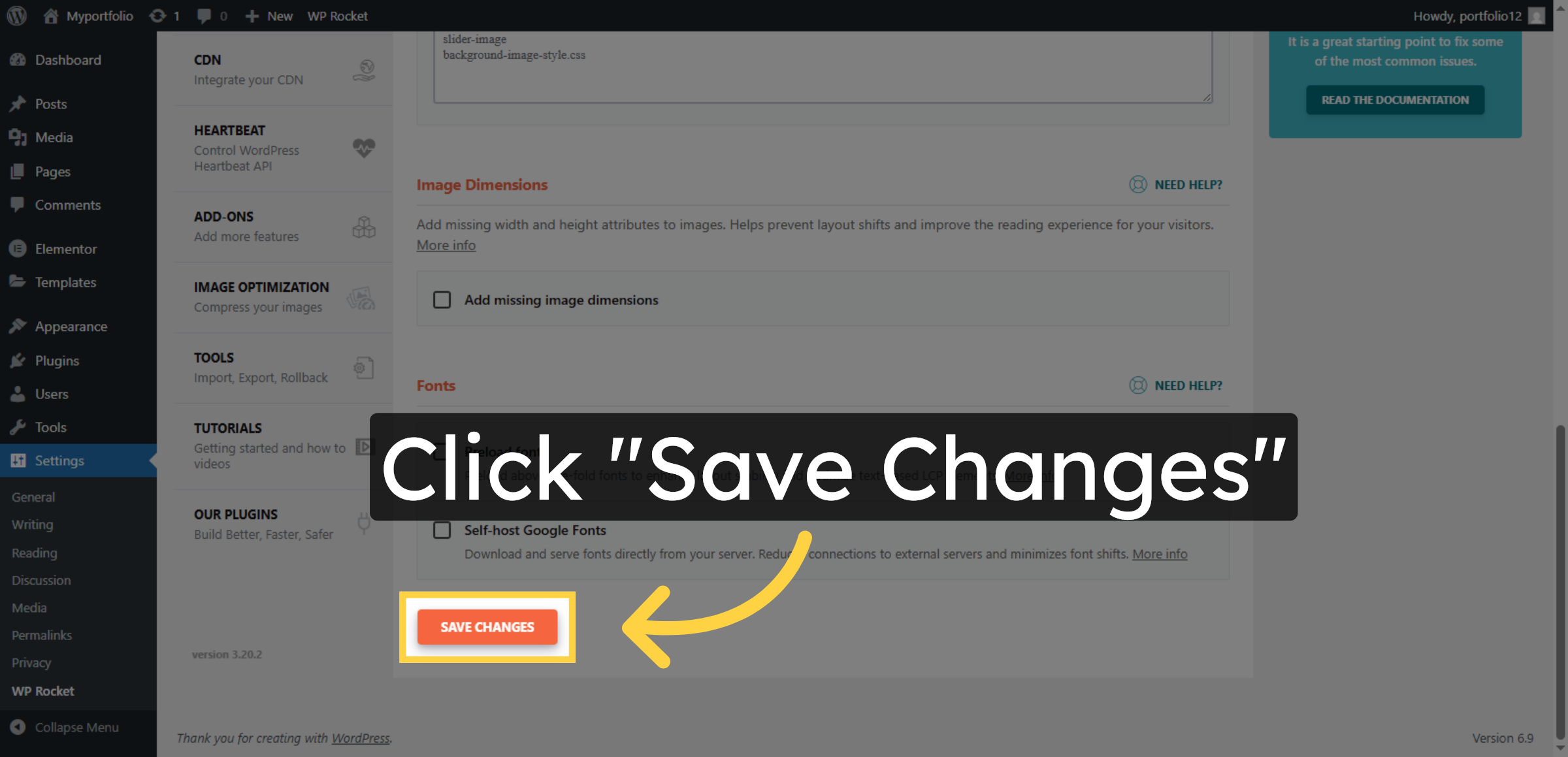
Click Save Changes to apply your lazy loading configurations.

Save LazyLoad Settings

27. Click Preload
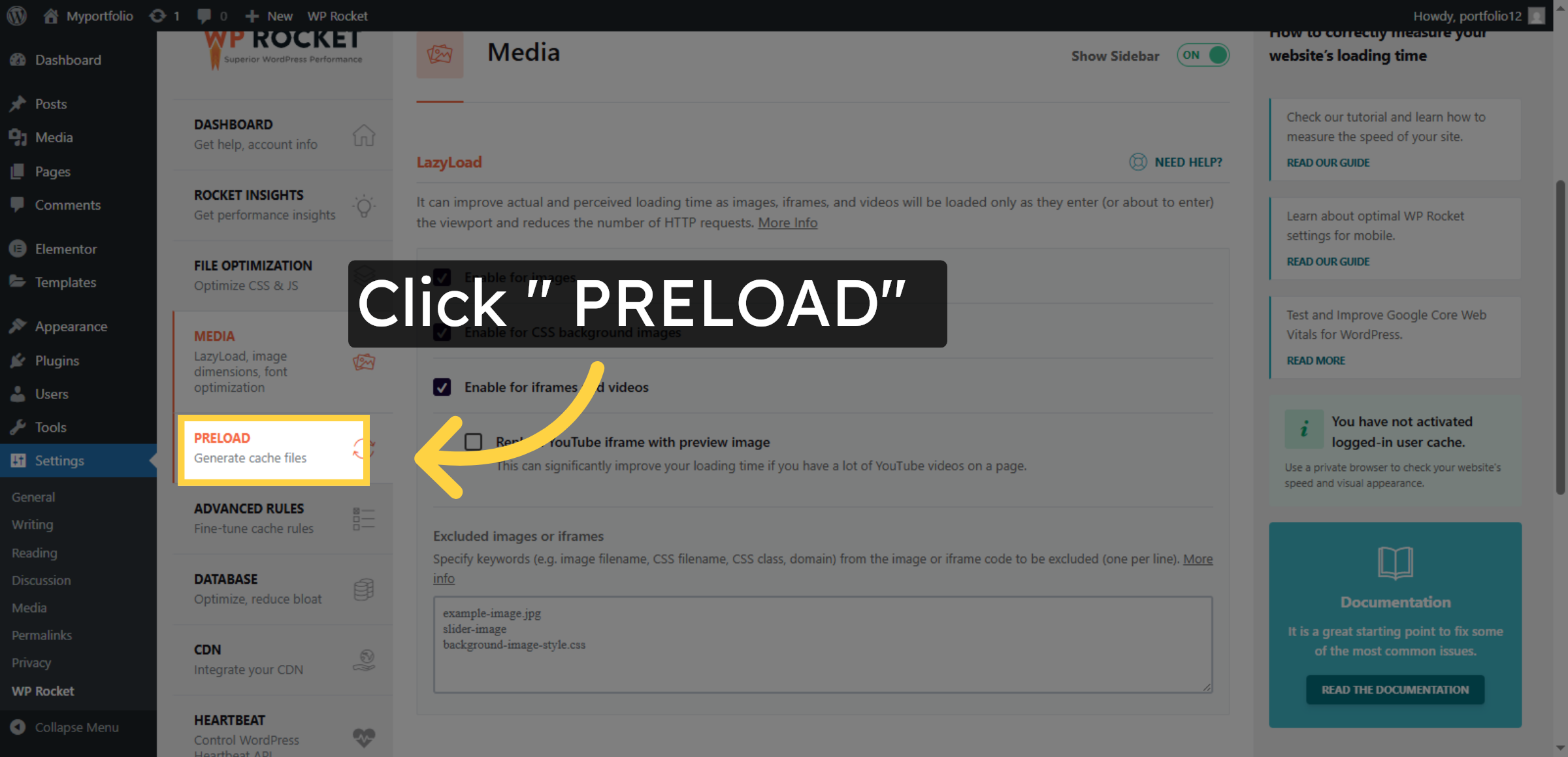
Click Generate cache files to create cached versions of your website pages for faster loading.

Click Preload

28. Enable Link Preloading
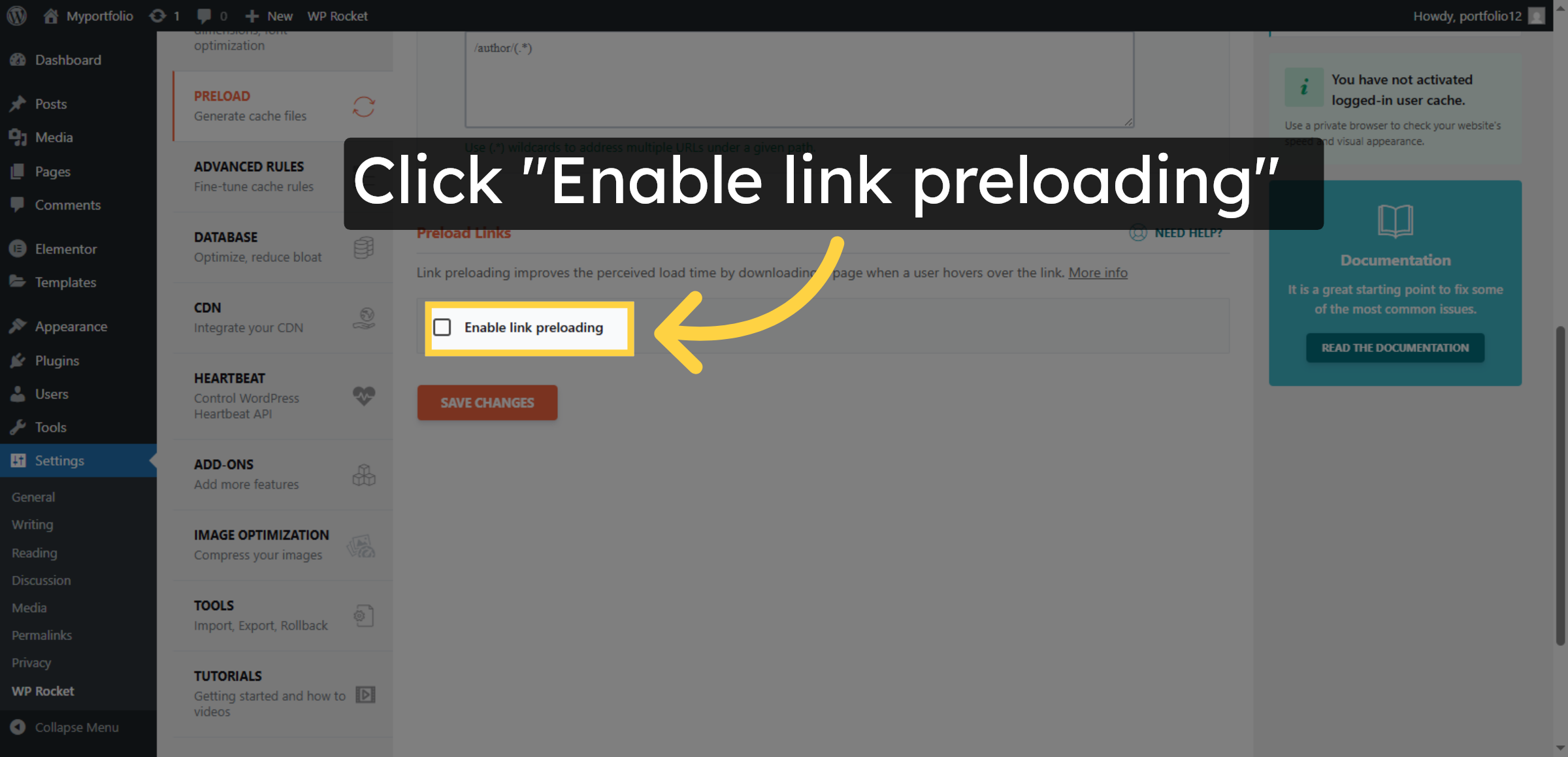
Click Enable link preloading to improve navigation speed by preloading linked pages.

Enable Link Preloading

29. Save Link Preloading Settings
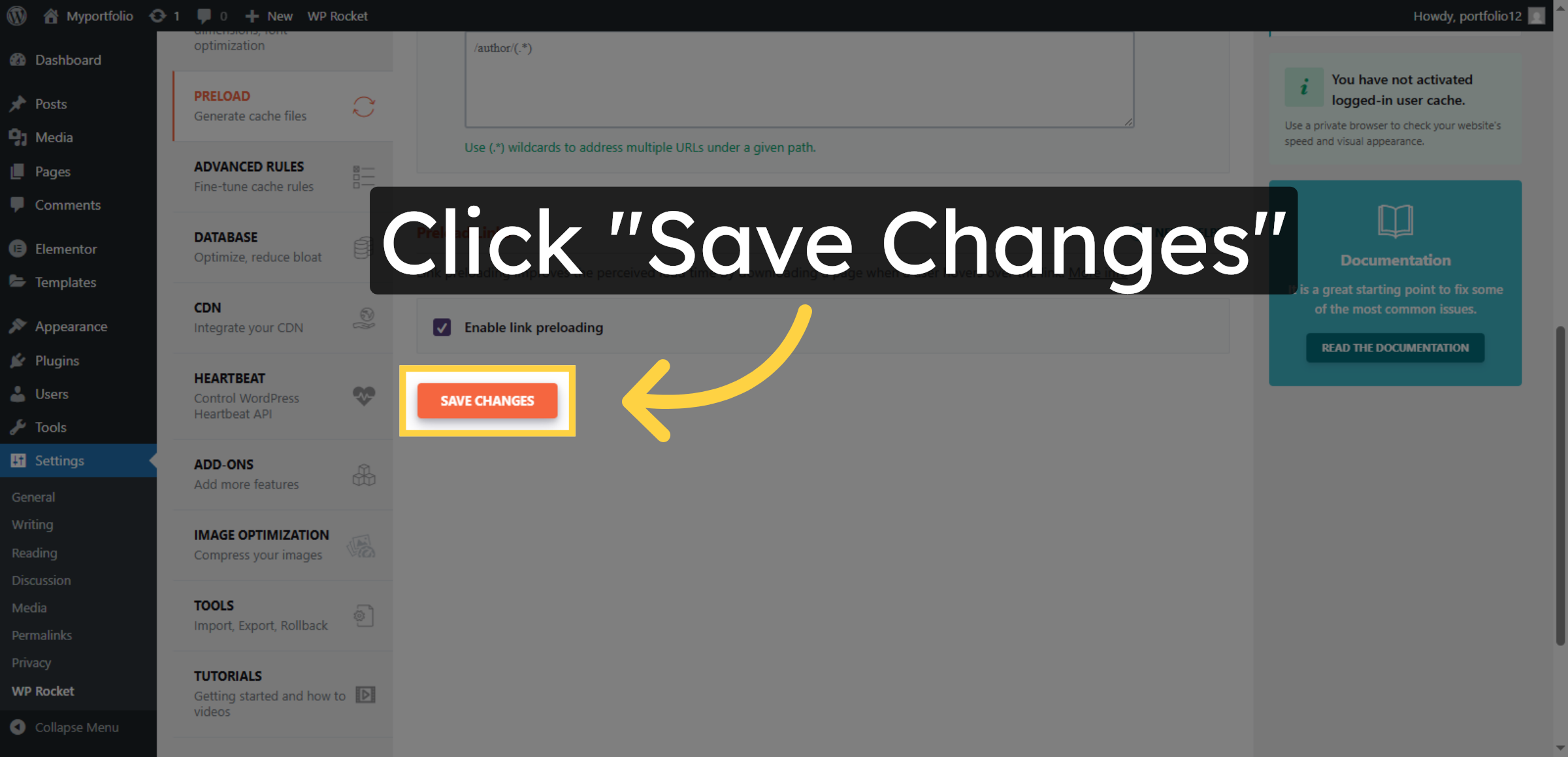
Click Save Changes to confirm your link preloading preferences.

Save Link Preloading Settings

30. Open Optimization and Bloat Reduction
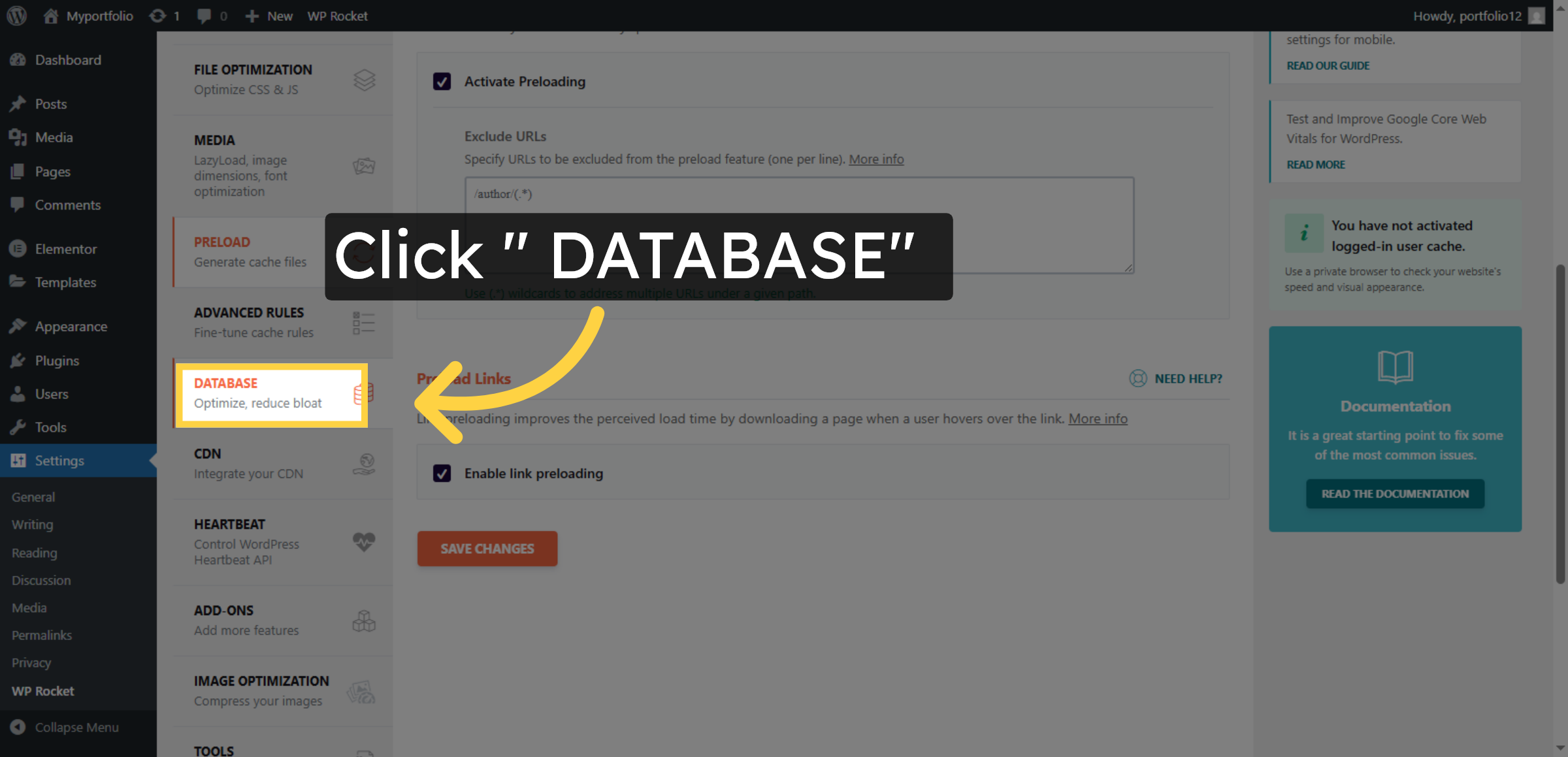
Click Optimize, reduce bloat to access options for cleaning up your WordPress database.

Open Optimization and Bloat Reduction

31. Access Revisions Settings
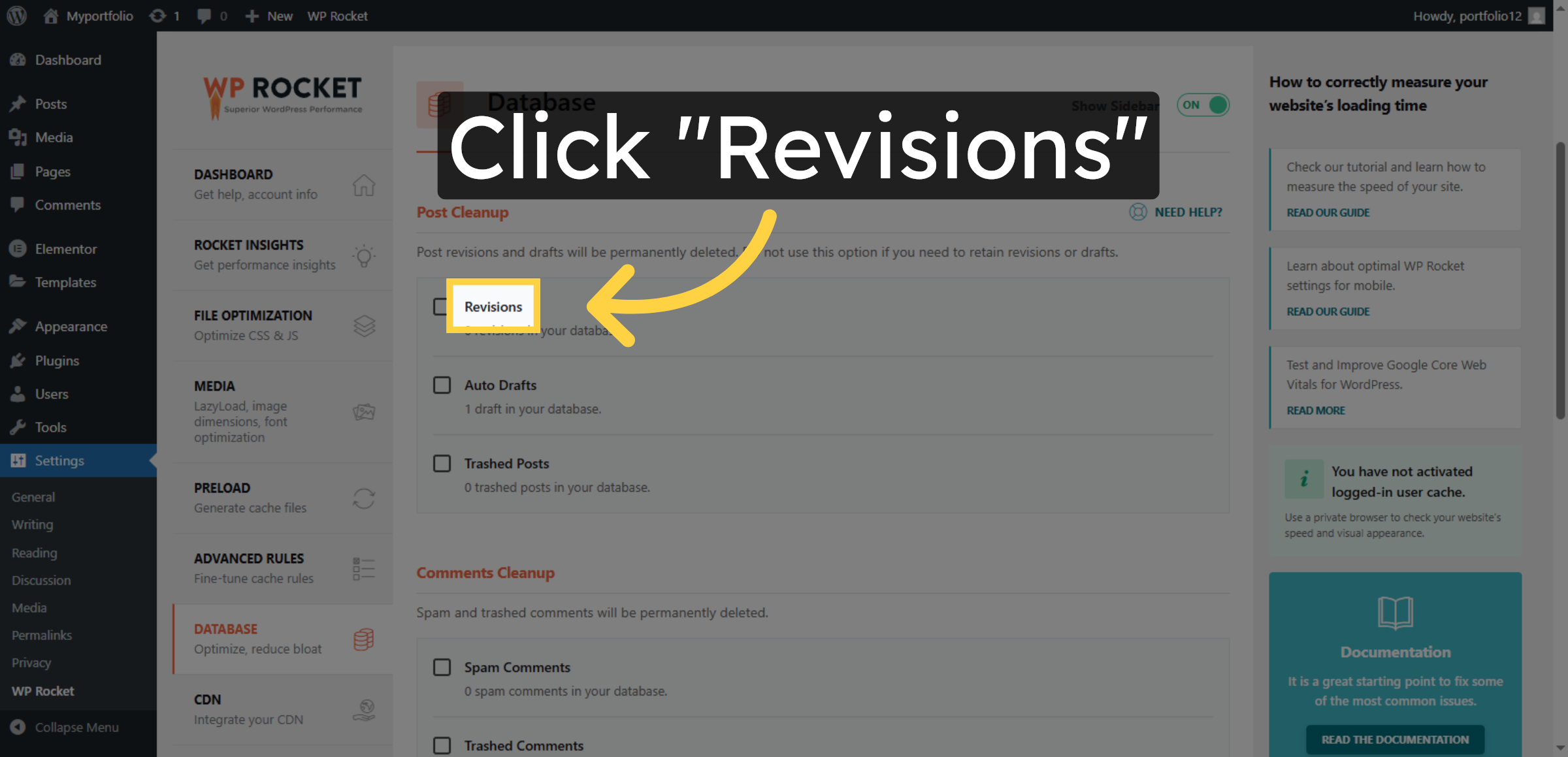
Click Revisions to manage and limit post revision storage.

Access Revisions Settings

32. Enable Auto Drafts
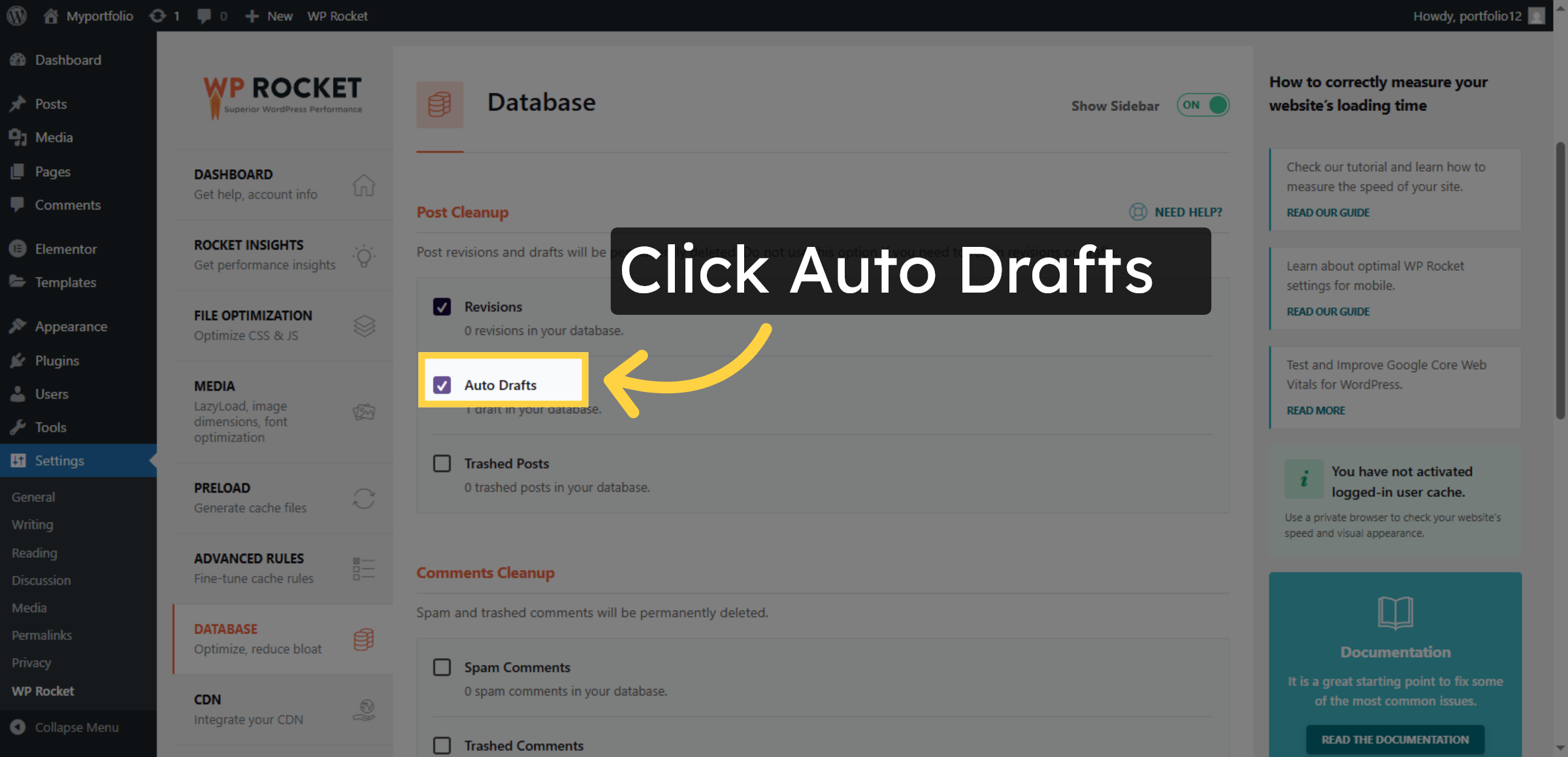
Enter 1 to set the autosave interval for posts to one minute.

Enable Auto Drafts

33. Manage Trashed Posts
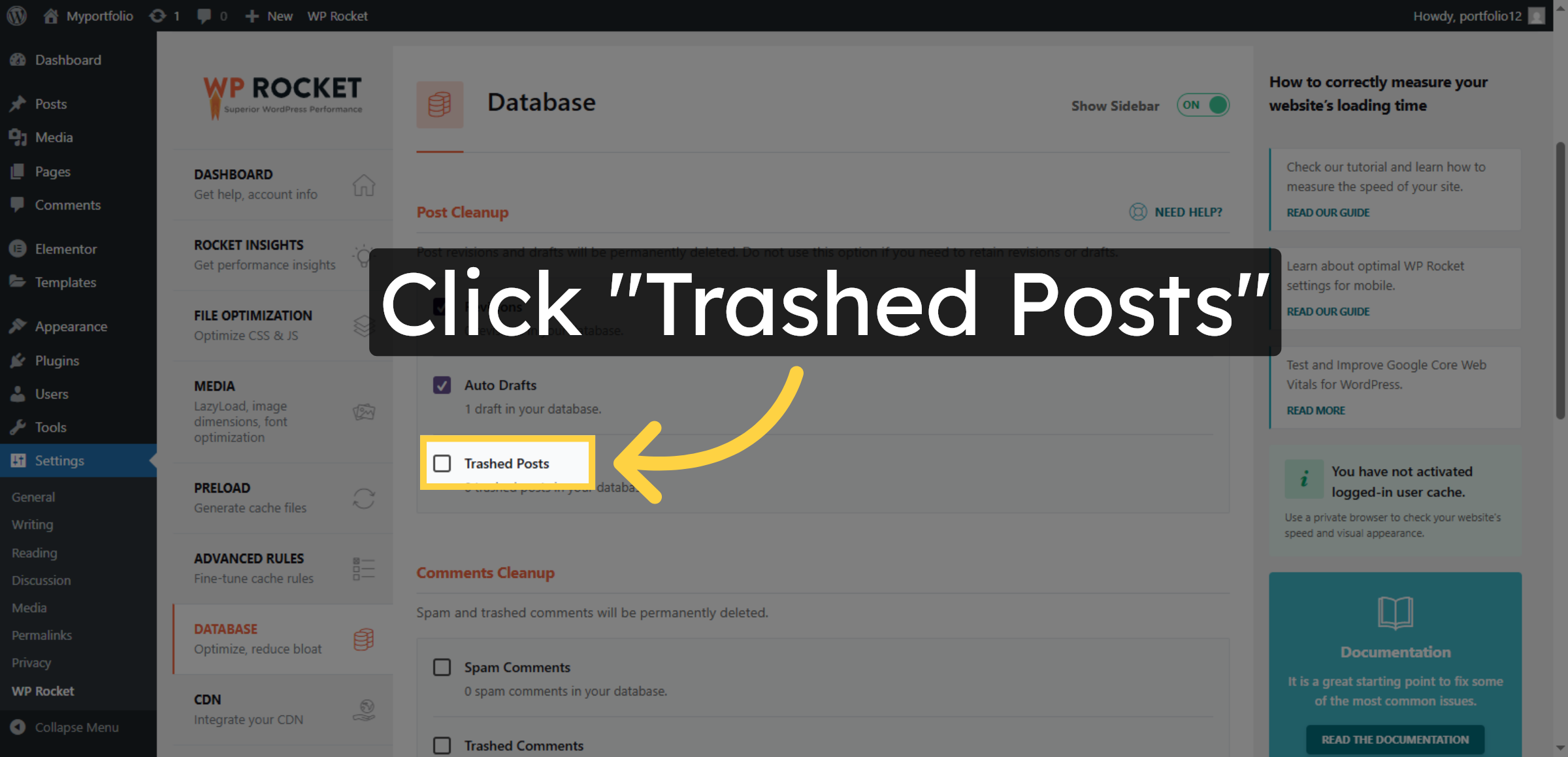
Click Trashed Posts to configure how deleted posts are handled.

Manage Trashed Posts

34. Manage All Transients
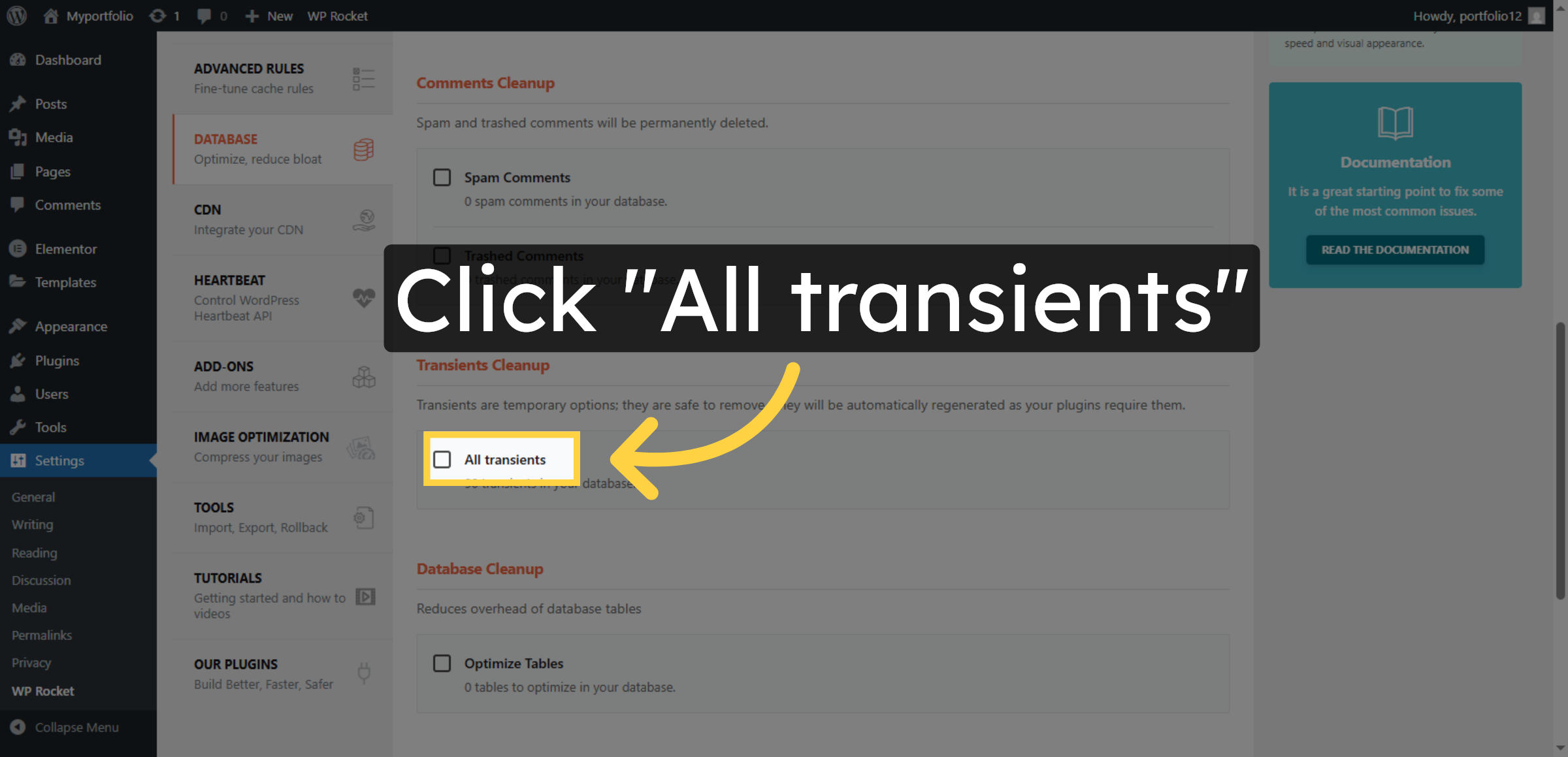
Click All transients to clear temporary cached data stored by WordPress plugins and themes.

Manage All Transients

35. Optimize Database Tables
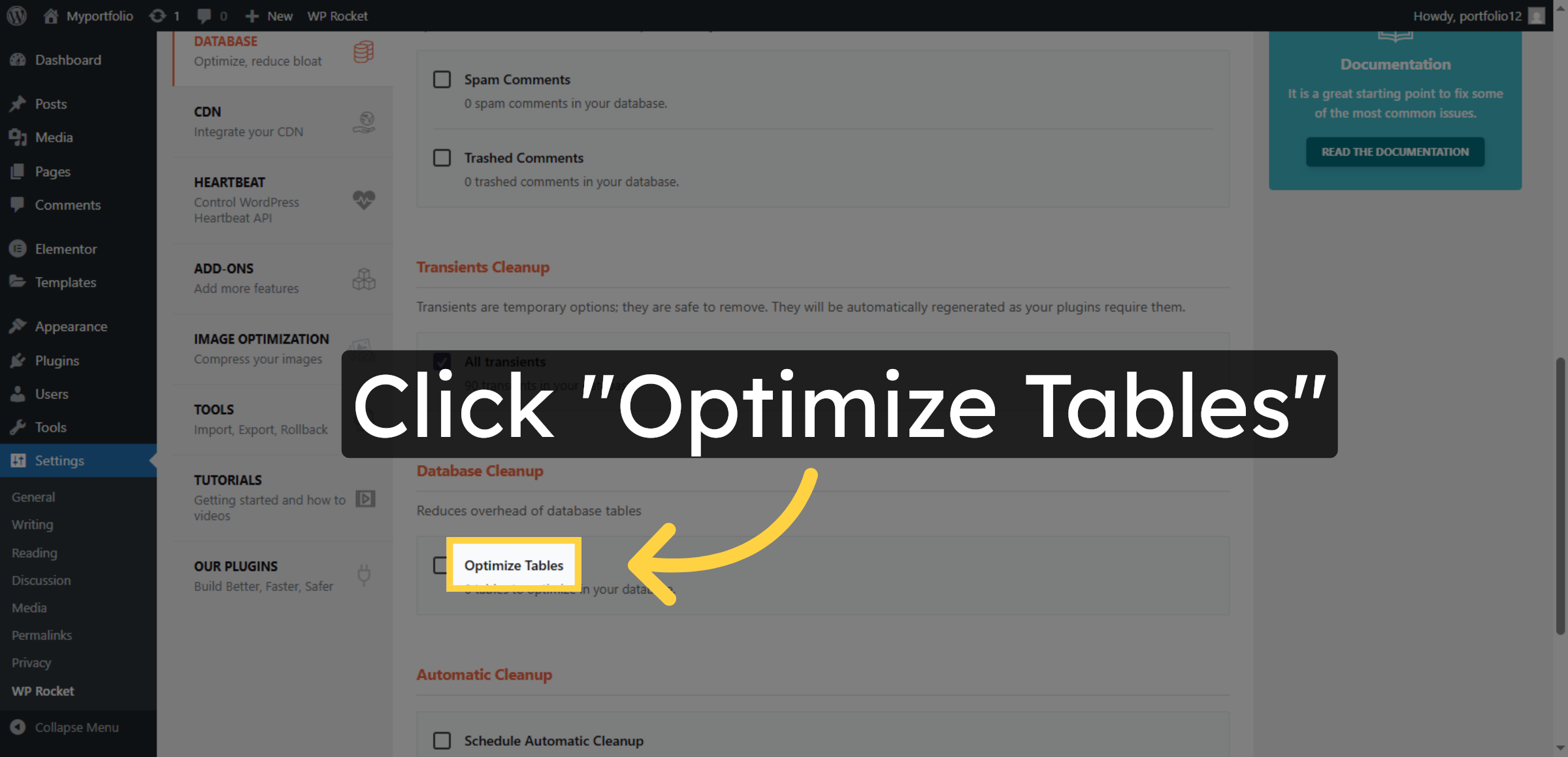
Click Optimize Tables to clean and optimize your WordPress database tables.

Optimize Database Tables

36. Save and Optimize Database
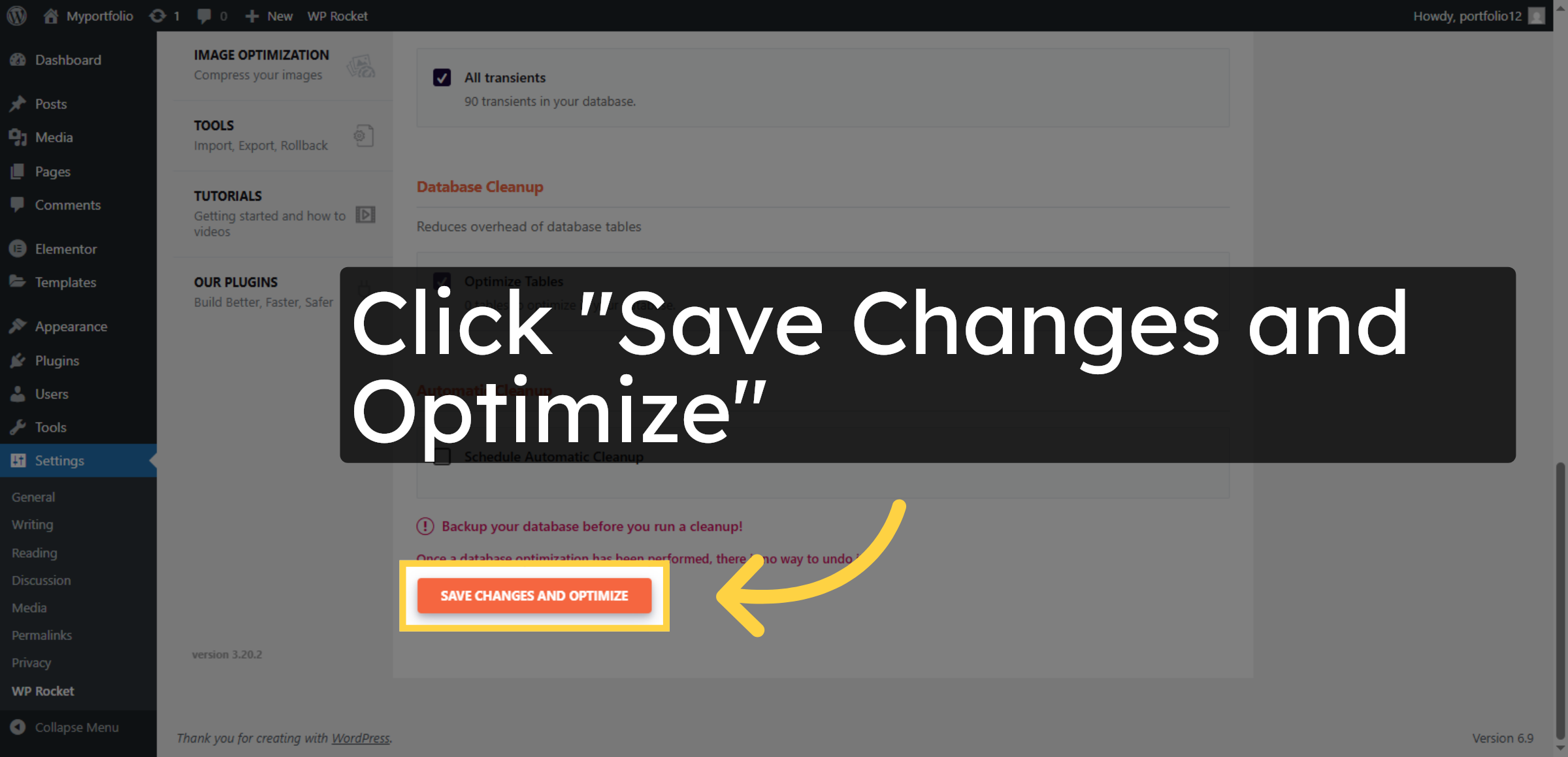
Click Save Changes and Optimize to apply all database optimization settings.

Save and Optimize Database

37. Visit Website
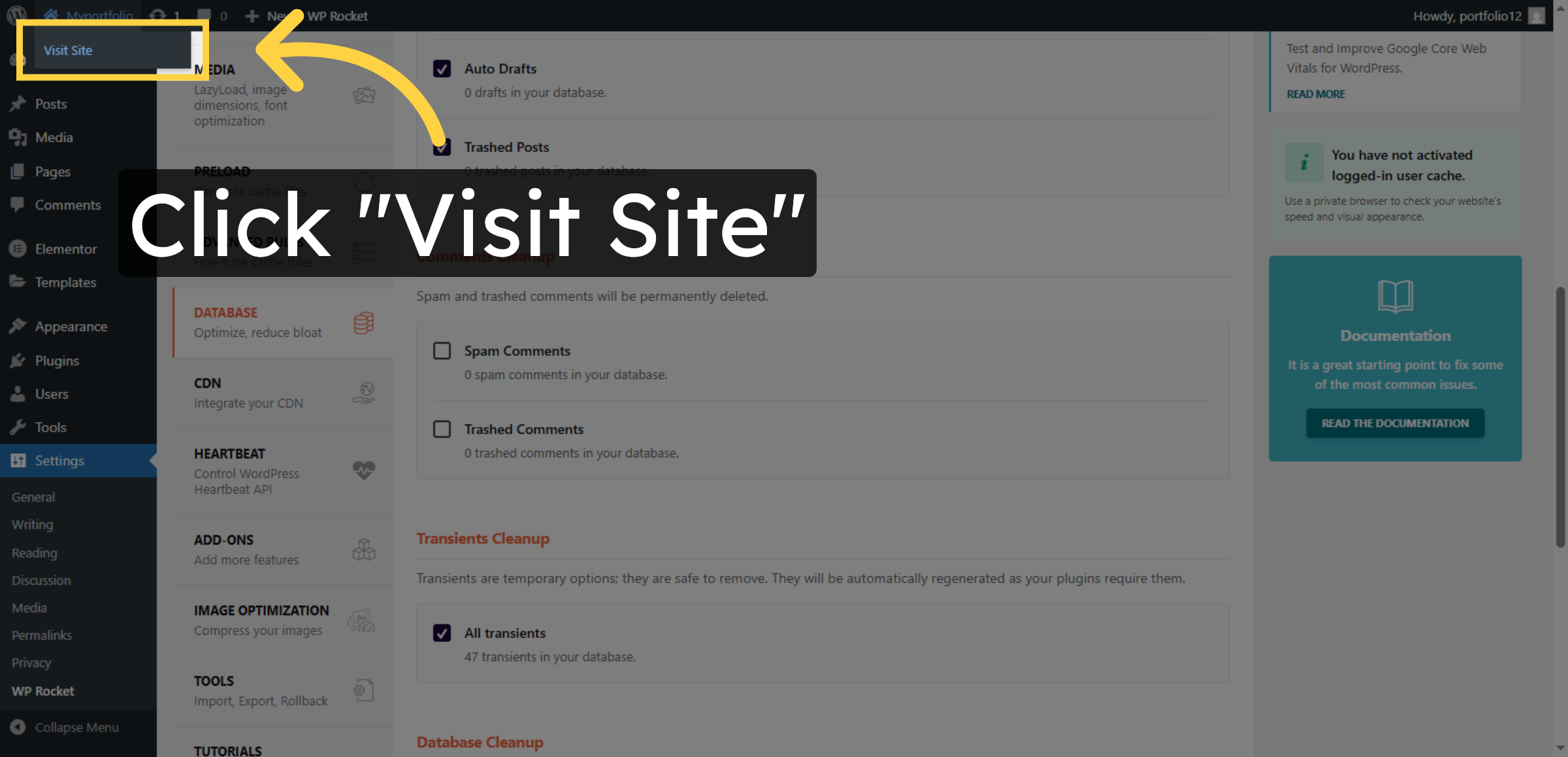
Click Visit Site to view your WordPress website and verify performance improvements.

Visit Website

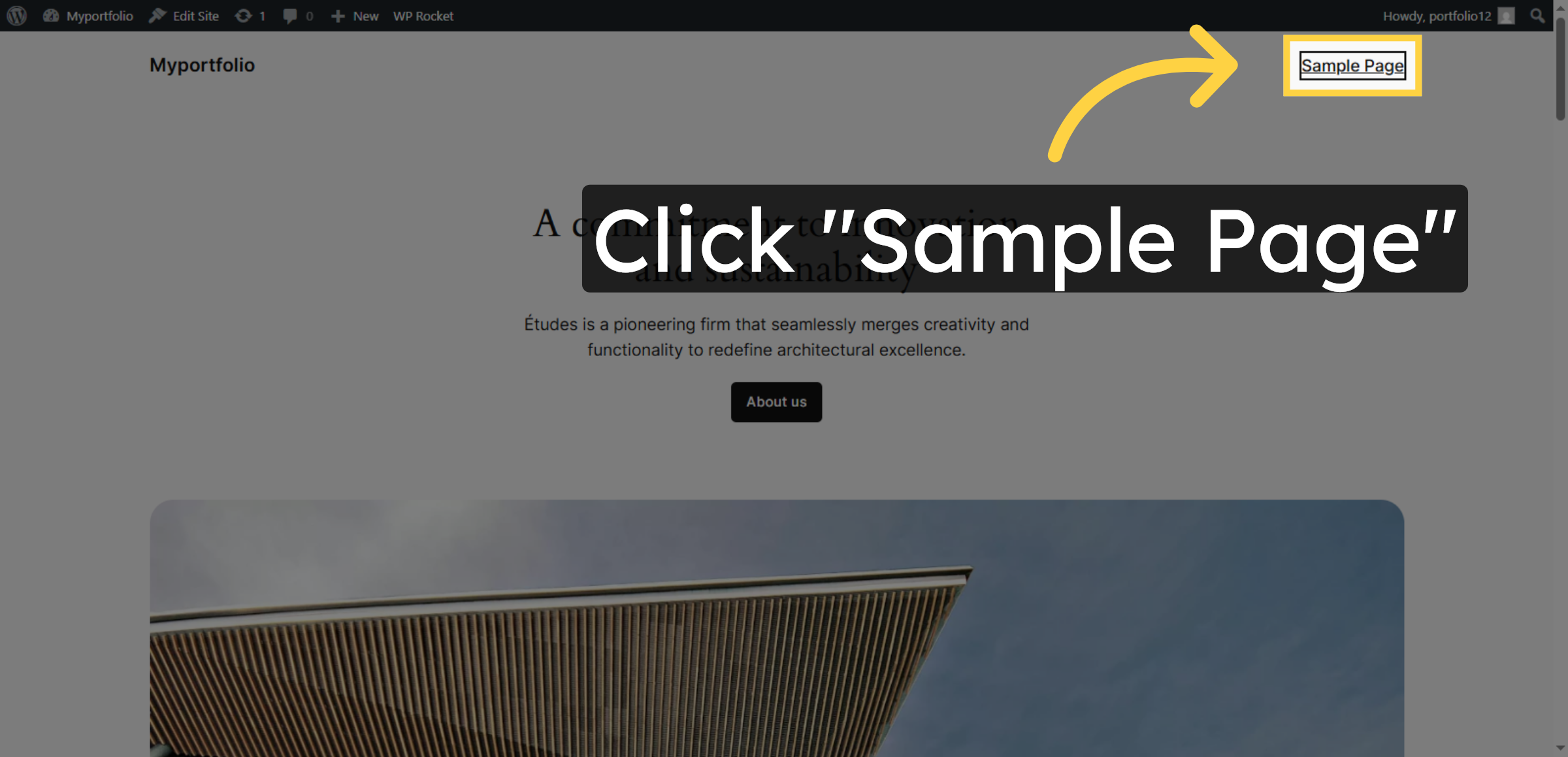
38. Open Sample Page

Click Sample Page to check the loading speed and functionality of a typical page on your site.

Open Sample Page

39. “After Speeding Up Your Website’s Performance”
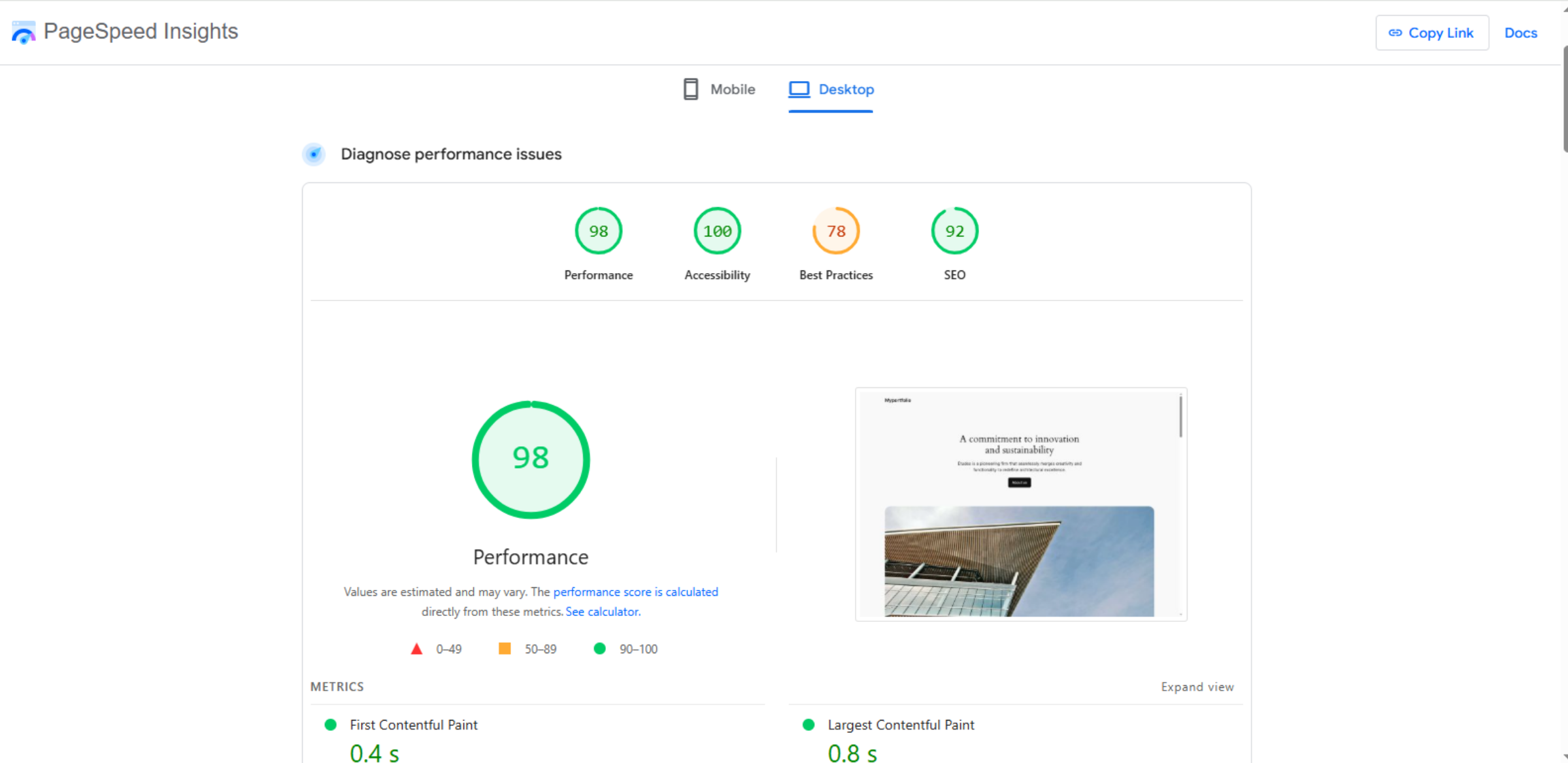
After speeding up the website, you should notice faster loading times and improved user experience.

“After Speeding Up Your Website’s Performance”

Conclusion

Optimizing website speed is an ongoing process that requires proper configuration, monitoring, and maintenance. By completing the steps outlined in this guide, you have successfully installed and configured WP Rocket to improve your WordPress website’s performance on HostGator hosting. These optimizations help reduce page load times, minimize server requests, optimize media delivery, and clean unnecessary database records.

Regular performance monitoring, plugin updates, and database maintenance are recommended to sustain long-term speed improvements. Implementing these best practices ensures that your website remains fast, efficient, and competitive in today’s digital environment. With a well-optimized website, you can provide visitors with a smooth browsing experience while improving search visibility and user engagement.

WooHelpDesk Support

Need professional assistance with WordPress speed optimization, performance tuning, caching configuration, or website maintenance? WooHelpDesk offers expert technical support to help you maximize your website’s performance.

 Visit: https://www.woohelpdesk.com

Call Us Toll-Free: +1 888 602 0119 (US & Canada)
 Performance Experts | Reliable Support | Fast Optimization

Contact WooHelpDesk today to keep your WordPress website fast, responsive, and fully optimized.


Leave a Reply

Your email address will not be published. Required fields are marked *

Leave a Reply

Your email address will not be published. Required fields are marked *