
How to Setup Advanced Product Quantity for WooCommerce to Limit Purchases Smartly
Table of Contents
- Introduction
- What is Advanced Product Quantity for WooCommerce?
- Key Features at a Glance About Plugin
- Real-World Use Cases
- How to Set Up Advanced Product Quantity in WooCommerce
- Benefits of Using Advanced Product Quantity for WooCommerce
- Conclusion
Introduction
It’s not always simple to run a WooCommerce store. One common challenge store owners face is managing how much of a product a customer can buy. Without control, customers may over-order or under-order. This can affect stock levels, shipping, and profits.
That’s where the Advanced Product Quantity for WooCommerce plugin comes in. This tool gives you full control over product quantity options. You can limit how much a customer buys. You can also set fixed amounts, steps, or even allow decimal quantities. All of this helps you sell smarter and reduce order issues.
For all types of stores, this plugin is perfect. Whether you sell wholesale, limited-stock items, or products by weight or volume, this plugin can help. It works well for B2B shops, food sellers, fabric stores, and more.
If you’re looking for a way to manage product limits better, this plugin is a great choice. It saves time, prevents mistakes, and helps create a better shopping experience.
What is Advanced Product Quantity for WooCommerce?
The Advanced Product Quantity for WooCommerce plugin is made by Addify. It’s available on the official WooCommerce marketplace. The plugin helps you set rules on how products can be purchased.
You can set:
- Minimum quantity a customer must buy
- Maximum quantity limit for a product
- Specific steps (like 2, 4, 6)
- Fixed amounts (like exactly 5)
- Custom quantity options in a dropdown
- Decimal-based purchases like 1.5 or 0.25
- Different rules for different user roles
These rules can apply to a single product, a group of products, or an entire category. You can even make special rules for wholesale buyers, retail customers, or guest users.
This plugin is also flexible. It supports variable products and works well with most themes. It’s easy to set up and does not require any coding skills.
This plugin allows store owners to:
- Avoid buying too much of the limited supply.
- Offer bulk-only options to B2B buyers
- Allow fractional buying for products sold by weight
- Keep control over order sizes during sales or events
For store owners who desire greater control without complication, it’s a fantastic answer. This plugin makes it simple to manage quantity rules, regardless of your level of experience.
Key Features at a Glance About Plugin
The Advanced Product Quantity for WooCommerce plugin comes packed with powerful features. These features help you manage how customers select product quantities. You can control how much a buyer can or must purchase.
Minimum and Maximum Quantities
You can set the lowest and highest quantity a buyer can order. For example, a customer may have to buy at least 3 items. Or, they may not be allowed to buy more than 10.
You can apply these limits to:
- Specific products
- Product categories
- User roles (like wholesale customers)
This helps control inventory and avoids very small or large orders.

Step-Based (Incremental) Quantities
This feature allows customers to buy in set steps. For example, you can let them buy in multiples of 2 only: 2, 4, 6, etc.
It is helpful for:
- Bulk purchase items
- Packs or bundled products
Step values make sure customers buy in exact quantities you define.
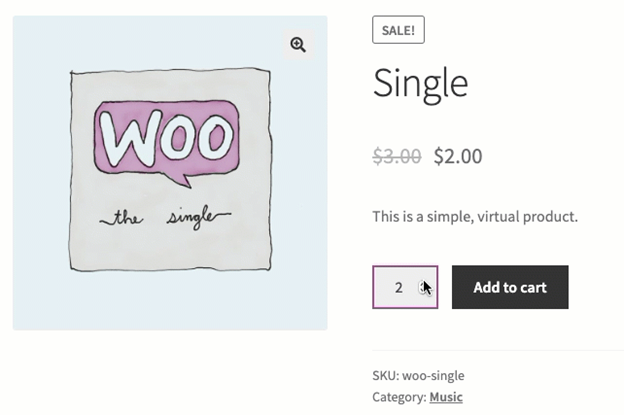
Fixed Quantities
You can force a customer to buy a fixed number of items. If you set the value to 5, they can’t choose anything else.
This is great for:
- Sale items with strict stock
- Limited-edition products
- Products sold in fixed packs
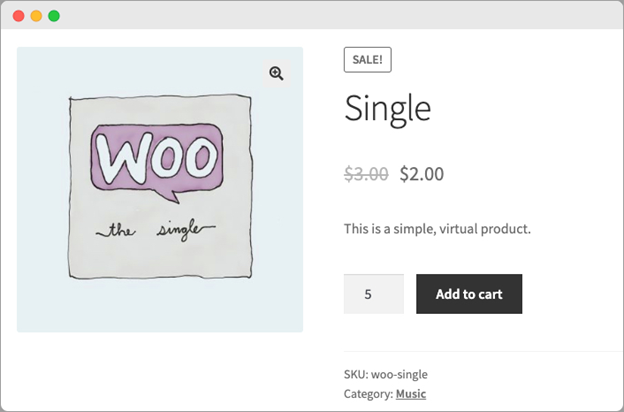
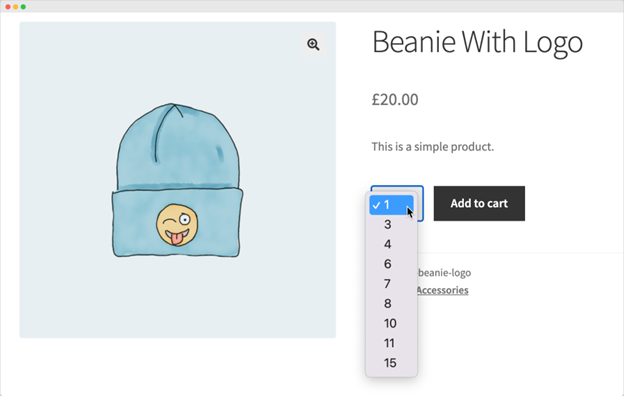
Custom Quantity Options (Comma-Separated)
You can also list specific quantities a user can select. For example, they may only choose from 1, 3, 5, or 10 units.
This appears as a dropdown, not an input box. It gives buyers limited, clear choices and avoids confusion.
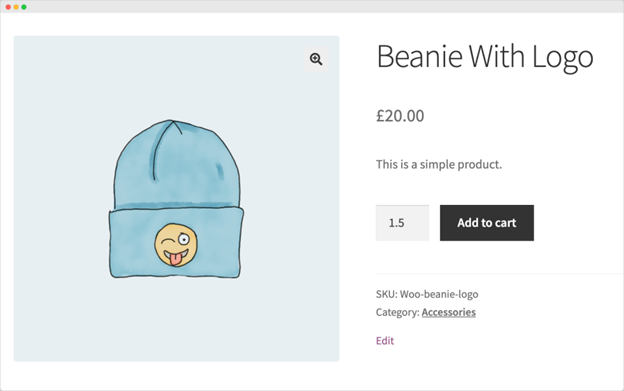
Decimal Quantities
Some stores need to sell items by weight, volume, or length. This plugin lets you set fractional values like 0.5, 1.25, or 2.75.
It’s ideal for:
- Food items (like rice, flour, or liquids)
- Fabric or material sold by meters
- Bulk goods sold by the pound
You can also set decimal step values like 0.1 or 0.25.
User Role-Based Quantity Rules
This plugin lets you create rules for different customer types. For example:
- Retail users can buy up to 10
- Wholesale users must buy at least 50
You can tailor shopping limits based on who is buying.

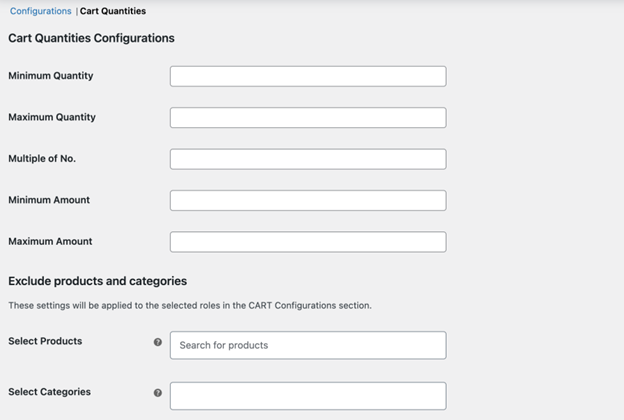
Cart-Level Rules
You can apply quantity limits across the entire cart. This includes:
- Minimum amount in the cart overall
- Maximum allowed quantity
- Minimum or maximum total value
These cart rules help guide buyers toward the right order size. You can also exclude certain categories or products from these rules.
Real-World Use Cases
Here are examples of how stores use this plugin:
- Cupcakes sold in multiples of 3
- Limited products with a fixed quantity of 5 per order
- Sell rice in decimal values like 1.5 kg
- Limit hoodie purchases to 20 units per customer
- Wholesale buyers must purchase at least 50 items
These rules help stores run smoothly while improving customer experience.
How to Set Up Advanced Product Quantity in WooCommerce
Setting up the Advanced Product Quantity for WooCommerce plugin is simple. You don’t need to write any code. The plugin has a clean interface and clear settings. Just follow these steps to control product quantity options in your store.


Installation & Activation
First, purchase the plugin from the WooCommerce marketplace. Then, install and activate it by following these steps:
- Go to your WordPress dashboard.
- Click Plugins → Add New → Upload Plugin.
- Upload the ZIP file you downloaded after purchase.
- Click Install Now, then Activate.
The plugin will show up in your WooCommerce settings after it has been activated.
Enable Global Settings
After activation, go to:
WooCommerce → Settings → Advanced Product Quantity
Here you’ll find key global settings. Enable these options to start:
- Enable decimal quantities (for fractional purchases)
- Enable quantity dropdown field (replaces the number input)
- Enable cart-level restrictions (to control total order size)
These global options apply to your entire store. You can override them for individual products later.
Create Rule-Based Quantity Conditions
You can set advanced quantity rules using the plugin’s rule system. To create a new rule:
- Go to WooCommerce → Product Quantity

- Click Add New Rule

When setting up a rule, you can:
- Add a rule title for easy reference
- Set a priority if you have overlapping rules
- Choose a restriction type:
- Default (basic limits)
- Step quantity (increments)
- Fixed quantity
- Custom quantities (comma-separated)
You can also:
- Enable dropdown selection for quantity options
- Assign quantity rules to chosen products or selected product categories
- Assign the rule to certain user roles (e.g., wholesale customers)
This rule system gives you full control over how each customer can order.
Product-Level Configuration
If you want to set quantity options for a single product:
- Go to Products → Edit Product
- Scroll to the Product Quantity Settings section
- Enable quantity restriction for that product
Then:
- Select a restriction type (Step, Fixed, or Custom)
- Set the minimum and maximum quantity
- Define the step size, if using incremental quantities
- Assign the restriction to one or more user roles
This is useful when you want special rules for a specific item.

Set Cart-Level Restrictions
Cart rules apply to the entire order, not just one product. To set these:
- Go to WooCommerce → Settings → Advanced Product Quantity → Cart Quantities
Here, you can:
- Decide on a minimum or maximum amount.
- Set a minimum or maximum cart value
- Define step quantities at the cart level
- Remove specific items or categories from the cart rules.
- Personalize the error messages that users see.
These rules help control bulk orders and guide buying behavior.
Configure Decimal Quantities
To enable decimal (fractional) purchases:
- First, make sure decimal support is enabled in global settings.
- Then go to Edit Product.
- Enable quantity restrictions.
- Choose Step Quantity.
- Set minimum and step values like 0.1, 0.25, or 0.5.
Now, customers can order partial units like 1.5 kg or 2.75 liters.
You can completely manage the number options in your business by following these instructions. The plugin makes it easy to apply rules that match your products and customer needs.
Benefits of Using Advanced Product Quantity for WooCommerce
This plugin offers more than just control. It assists business owners in creating a more enjoyable shopping environment. Whether you run a small shop or a large wholesale store, the benefits are clear and practical.
- Full Control Over Product Quantities
You decide how much customers can buy. Whether it’s a minimum, maximum, fixed amount, or step-based quantity, the plugin supports it all. This helps manage stock and reduce order issues.
You can:
- Stop clients from placing excessive or insufficient orders.
- Force exact quantities when needed
- Create clear quantity rules across your store
- Better Inventory Management
Stock control becomes easier with quantity limits in place. You can keep track of how many units go out, avoid overselling, and make smarter restocking decisions. This is very helpful for stores with limited or seasonal products.
- Improved Buying Experience
The plugin replaces the number box with a dropdown when needed. This helps users choose from only valid quantity options. It prevents mistakes and misunderstandings. Additionally, it speeds up and streamlines the purchasing experience.
For example:
- A customer sees only options like 1, 3, 5, or 10
- They don’t need to guess what’s allowed
- Fewer errors mean fewer abandoned carts
- Ideal for Wholesale and B2B Stores
Wholesale buyers often need different rules. You can use this plugin to make unique rules for them. They might need to buy in bulk or order a minimum value. All of that can be set with a few clicks.
Use cases include:
- B2B buyers must buy at least 50 units
- Retail customers can order just 1 or 2 items
- Decimal and Fractional Sales Made Easy
Selling by weight or volume is now simple. You can let buyers order 1.25 kg, 0.5 liters, or even 0.1 meters. This is great for food stores, fabric sellers, and similar businesses.
- No Code Needed
Everything works through the WordPress admin panel. You don’t need to touch code or hire a developer. It’s simple, clean, and efficient.
Conclusion
The Advanced Product Quantity for WooCommerce plugin is a smart choice for online store owners. It allows you total control over the purchasing process. You can set clear limits, allow decimal sales, and customize rules for different customers — all without needing to code.
Whether you’re selling bulk items, limited stock, or products by weight, this plugin makes the process smooth. It helps improve store operations and gives customers a better shopping experience.
The WooHelpDesk team is available to assist you with configuring your WooCommerce store or setting up this plugin. We offer expert support for all your WooCommerce and WordPress needs.
📞 Call us at +1 888 602 0119 (US & Canada) for fast and friendly assistance.
Let WooHelpDesk help you take control of your store — the right way.



