Introduction
Migrating a WordPress website to a new hosting platform requires careful planning to ensure that all content, images, themes, plugins, and settings are transferred without data loss or downtime. A smooth migration helps maintain website performance, design consistency, and user experience. GoDaddy’s managed WordPress hosting provides a reliable environment that supports easy and secure website transfers.
This guidde explains how to migrate a WordPress website to GoDaddy WP Hosting using the All-in-One WP Migration plugin. It covers exporting your existing website, downloading the backup file, importing it into GoDaddy hosting, and verifying successful migration. By following this guide, users can move their websites efficiently and safely.
1. NOTE
2. Existing Website for Export
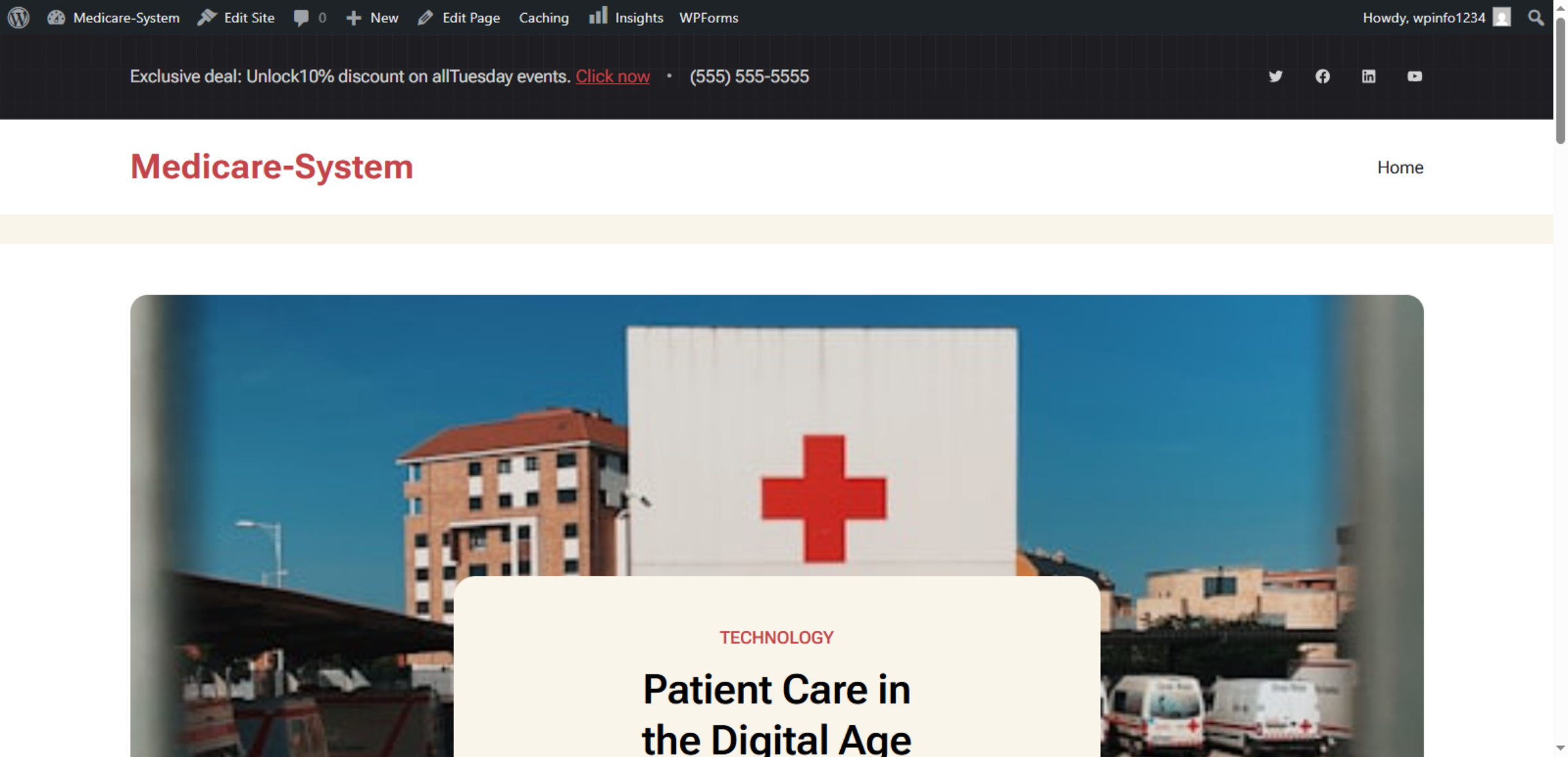
This is your existing website in its current state. During the migration process, the complete site—including pages, posts, images, themes, and settings—will be transferred to GoDaddy hosting without changing the design or content.
3. Open WordPress Dashboard
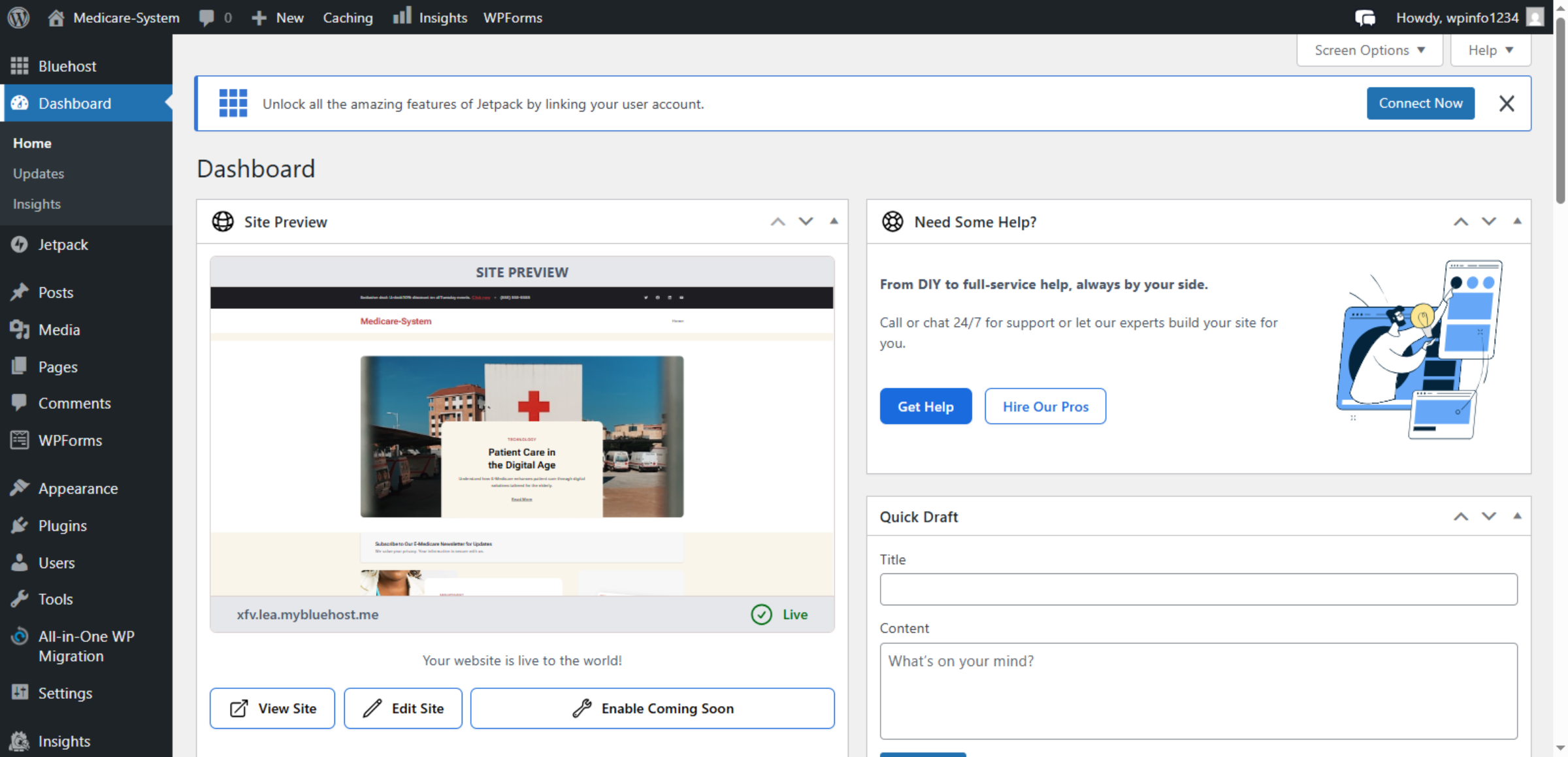
This screen shows the WordPress Admin Dashboard of your existing website, which is the starting point for the migration process.
4. Navigate To Add Plugin
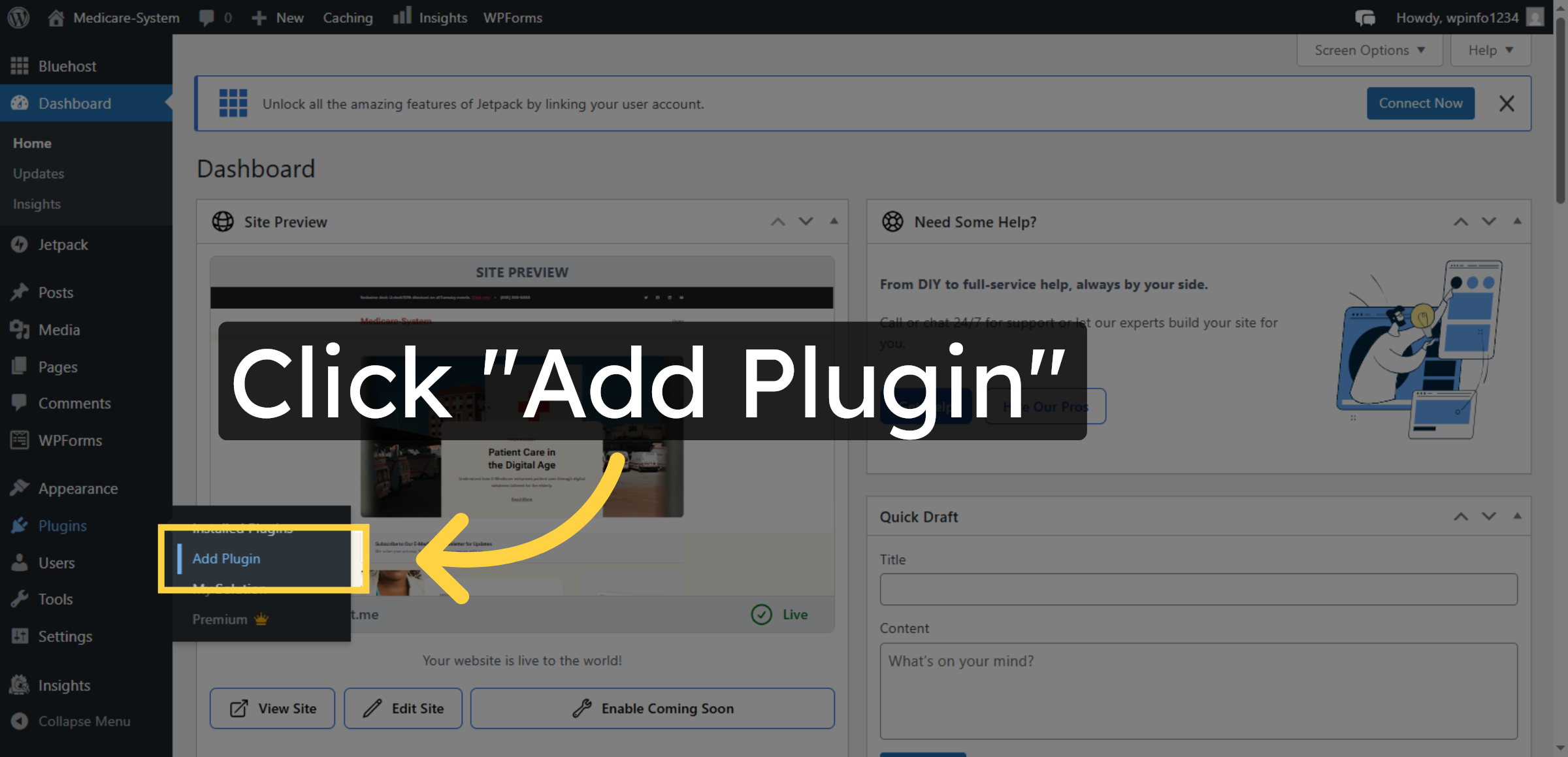
This step allows you to add a migration plugin required to move your WordPress website to GoDaddy hosting.
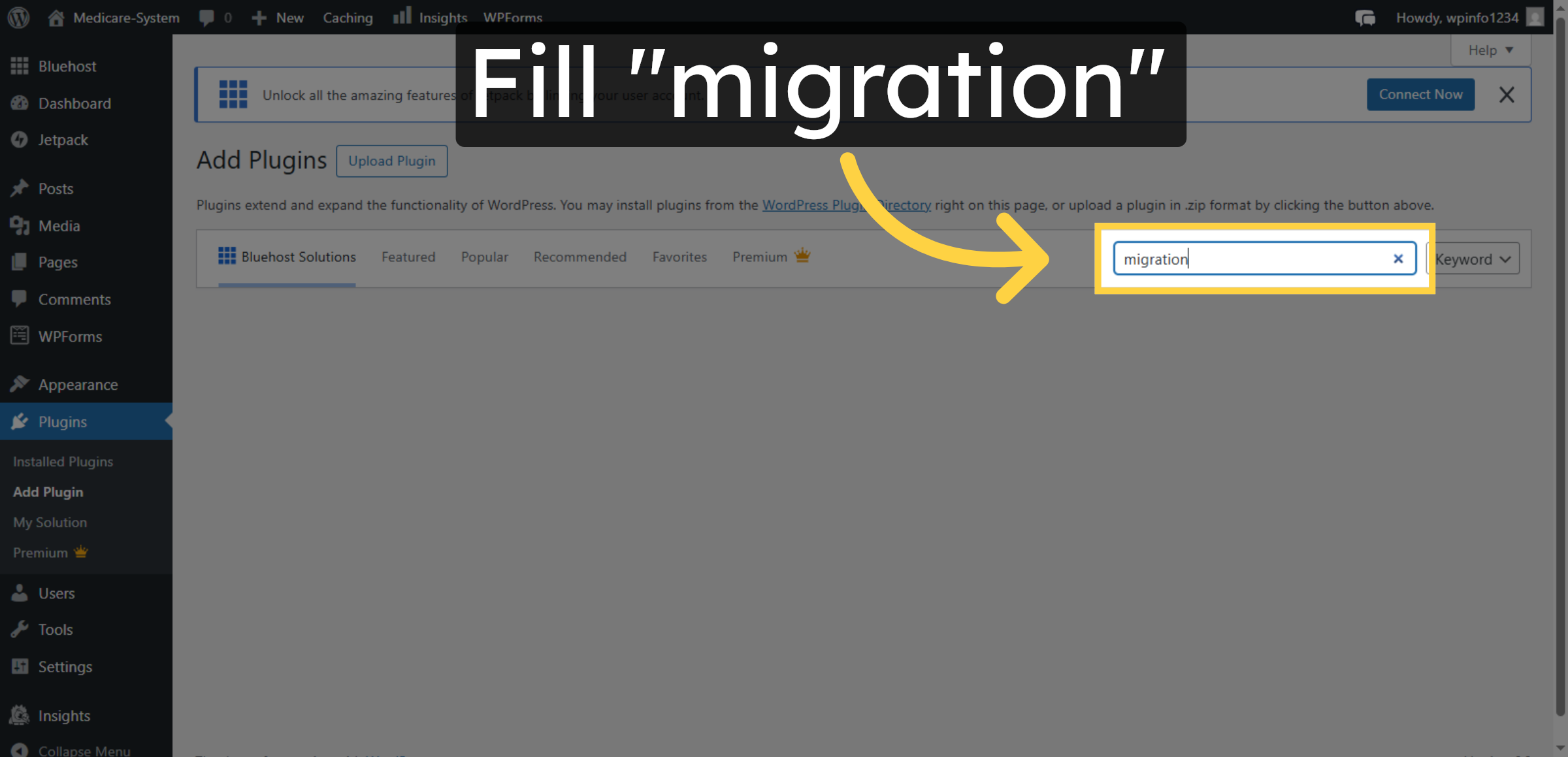
5. Search Migration Plugin
Type “migration” in the plugin search box to find a plugin used for transferring your website safely.
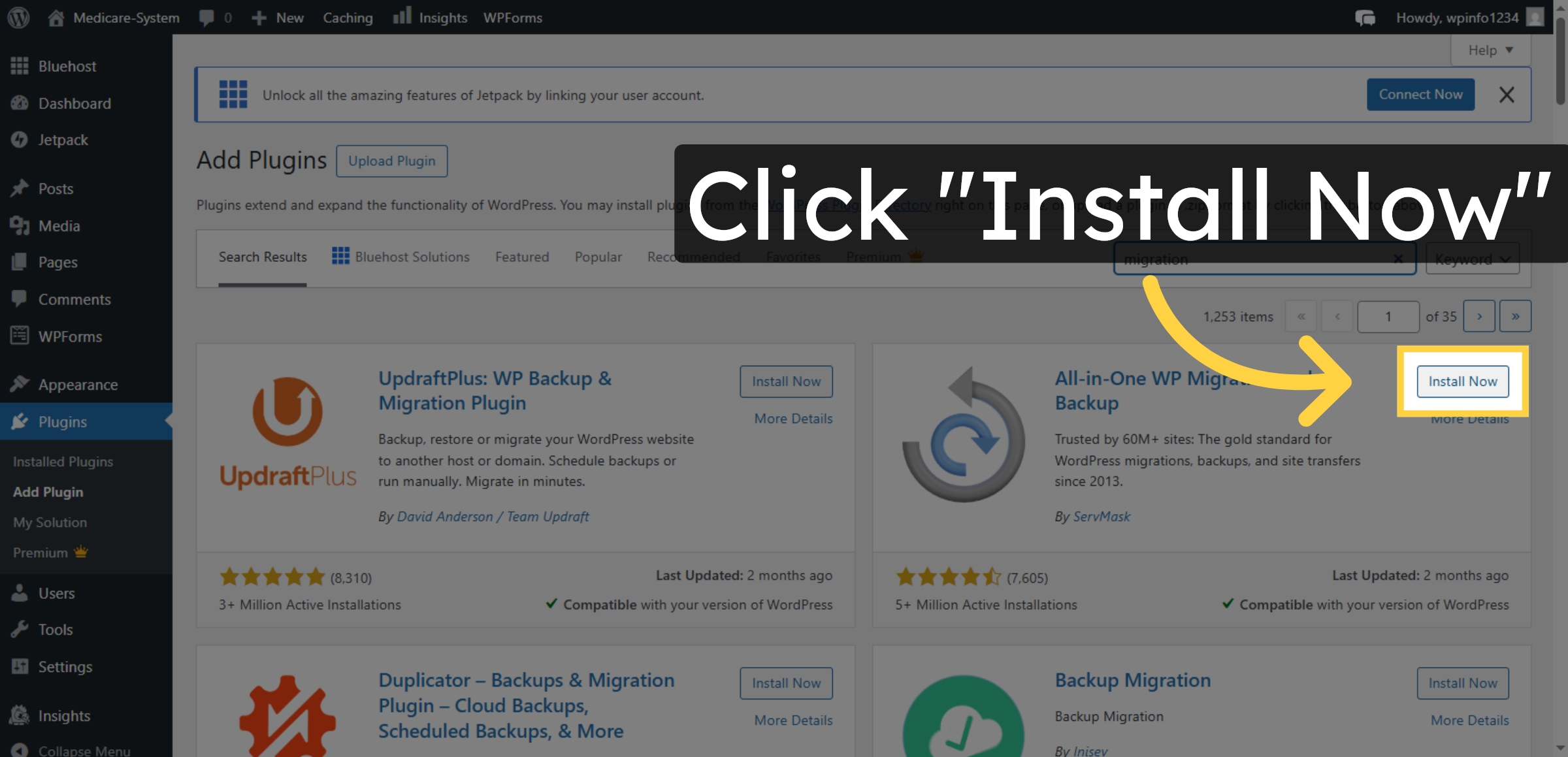
6. Install Migration Plugin
Click Install Now to add the migration plugin to your website. This plugin will help transfer your site data safely.
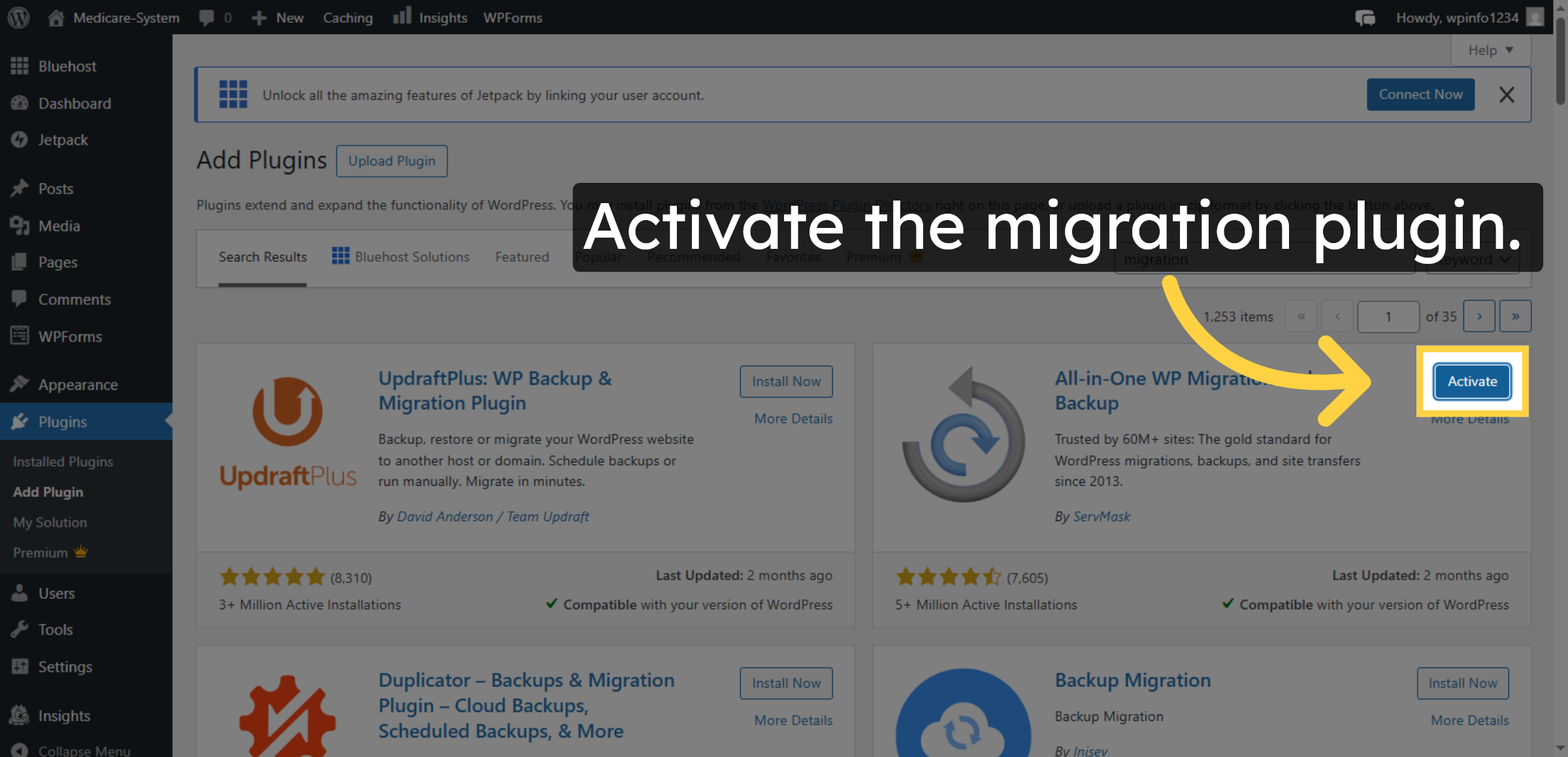
7. Activate Migration Plugin
Click Activate to enable the migration plugin. Once activated, the plugin is ready to start moving your website to GoDaddy hosting.
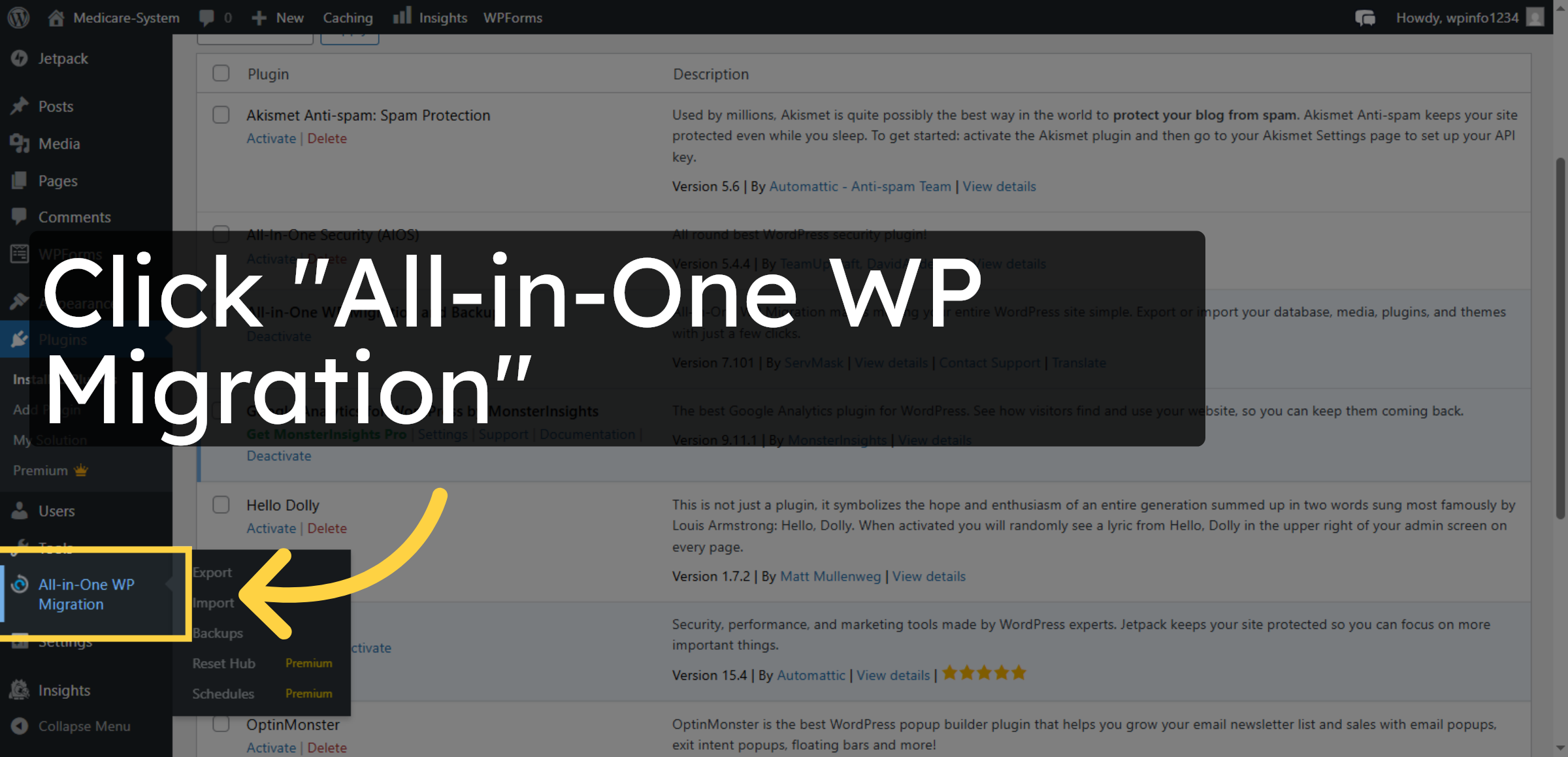
8. Open Migration Plugin
Click the All-in-One WP Migration plugin link to open its management interface.
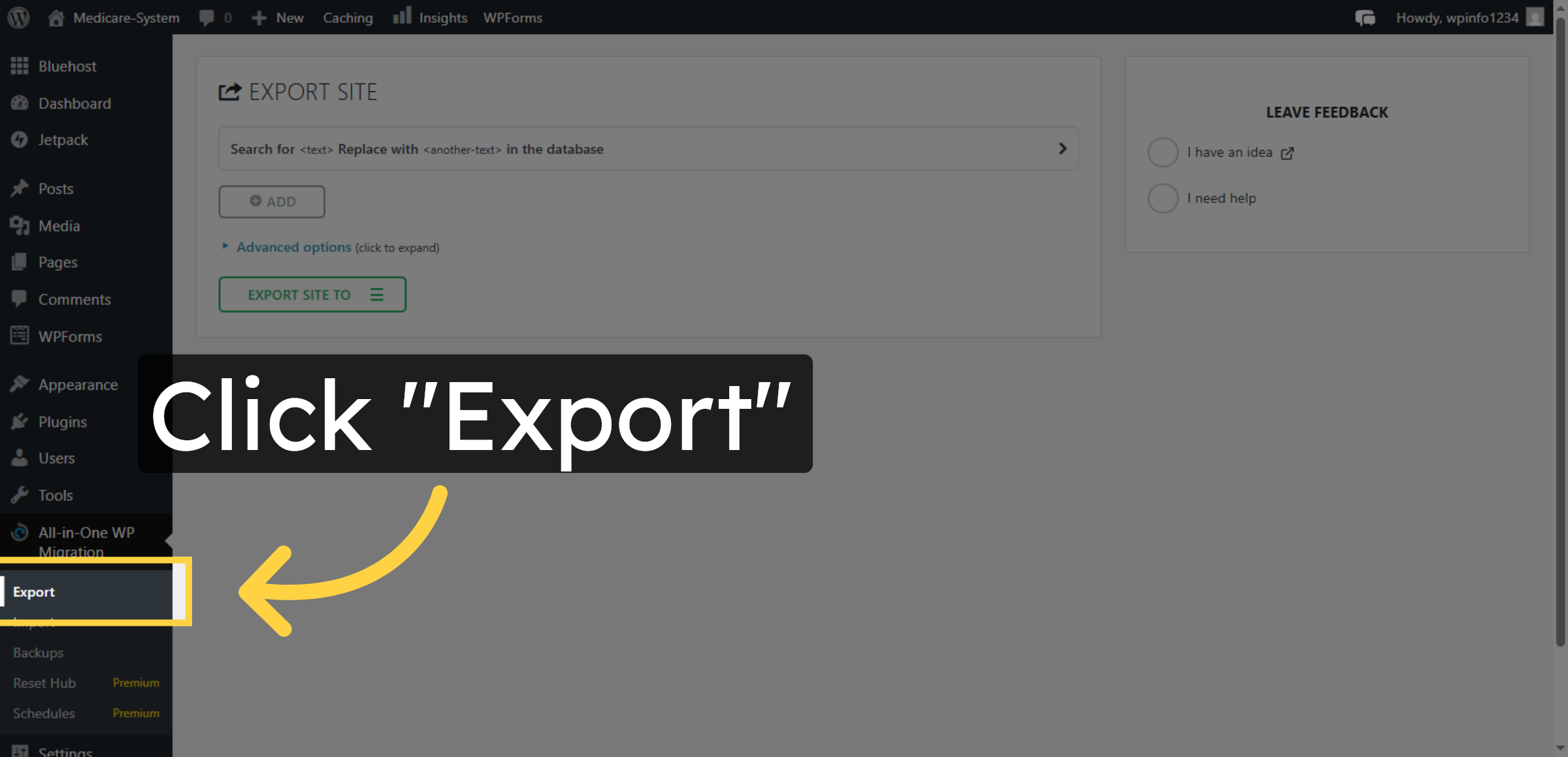
9. Start Export Process
Click the Export option for the exporting file
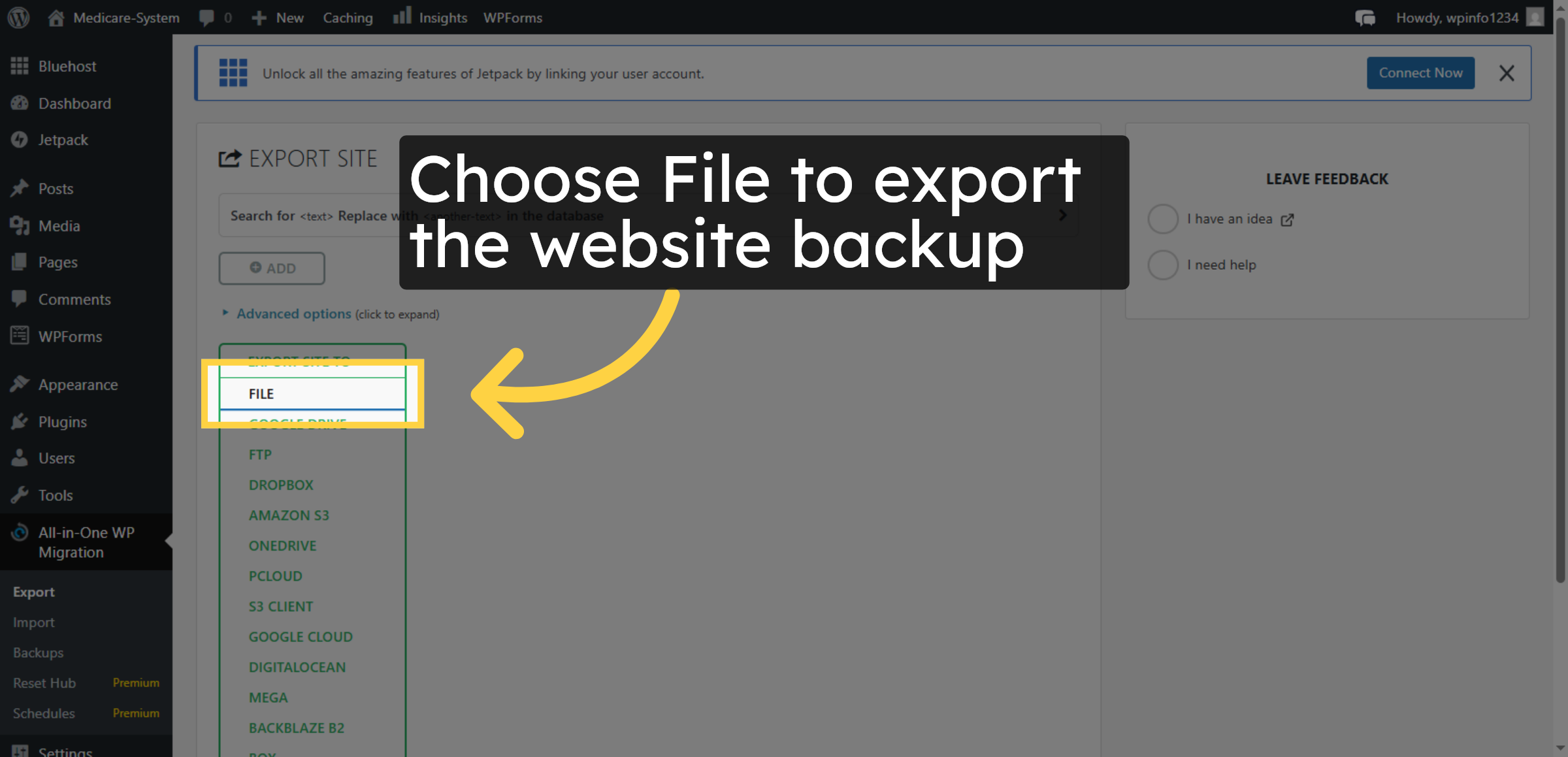
10. Choose Export File
Click the File export option to generate a downloadable site backup file.
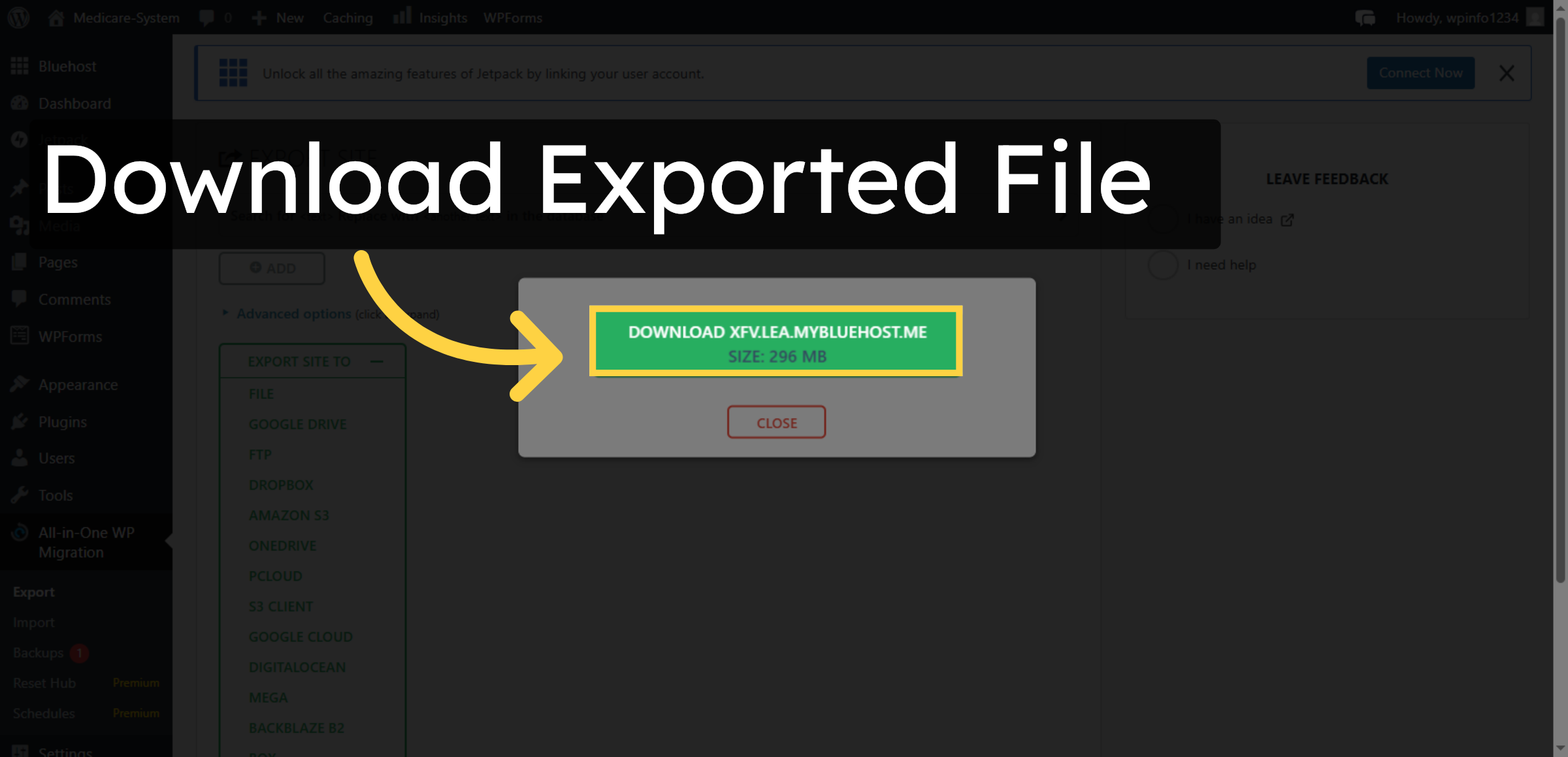
11. Download Exported File
Click the download link for the exported file to save it locally.
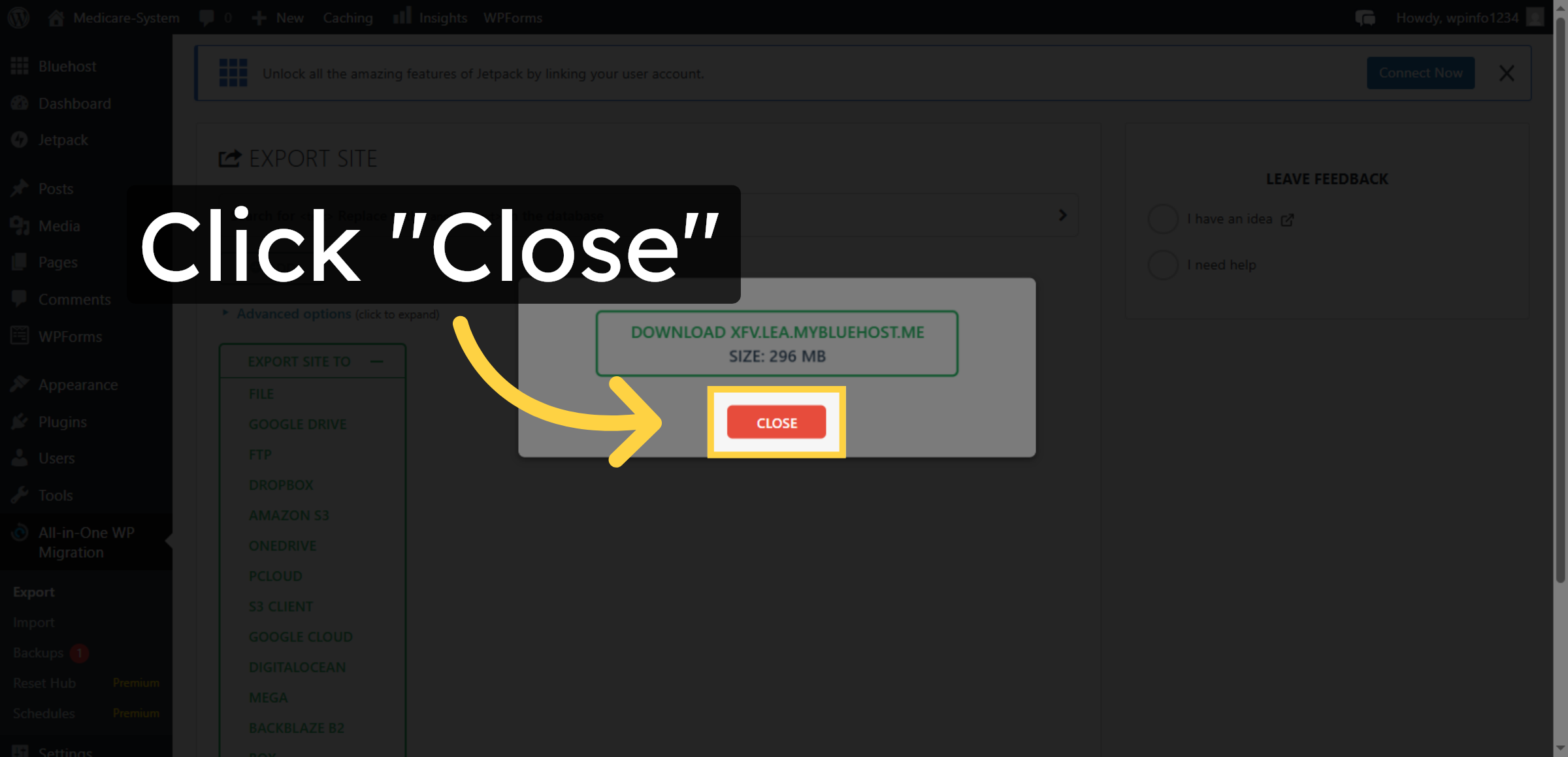
12. Close Export Window
Click the Close button to exit the export interface after downloading the file.
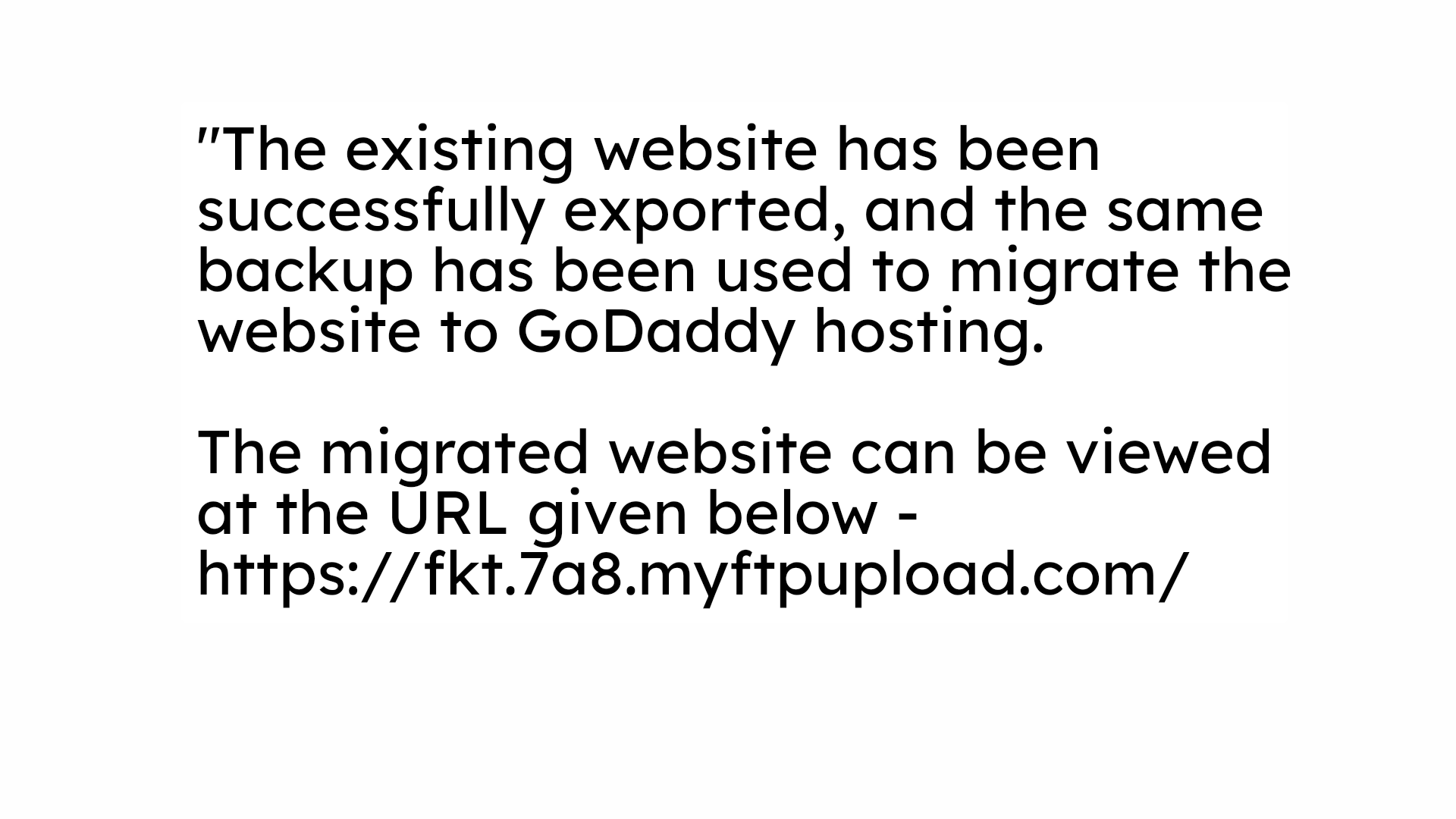
13. NOTE
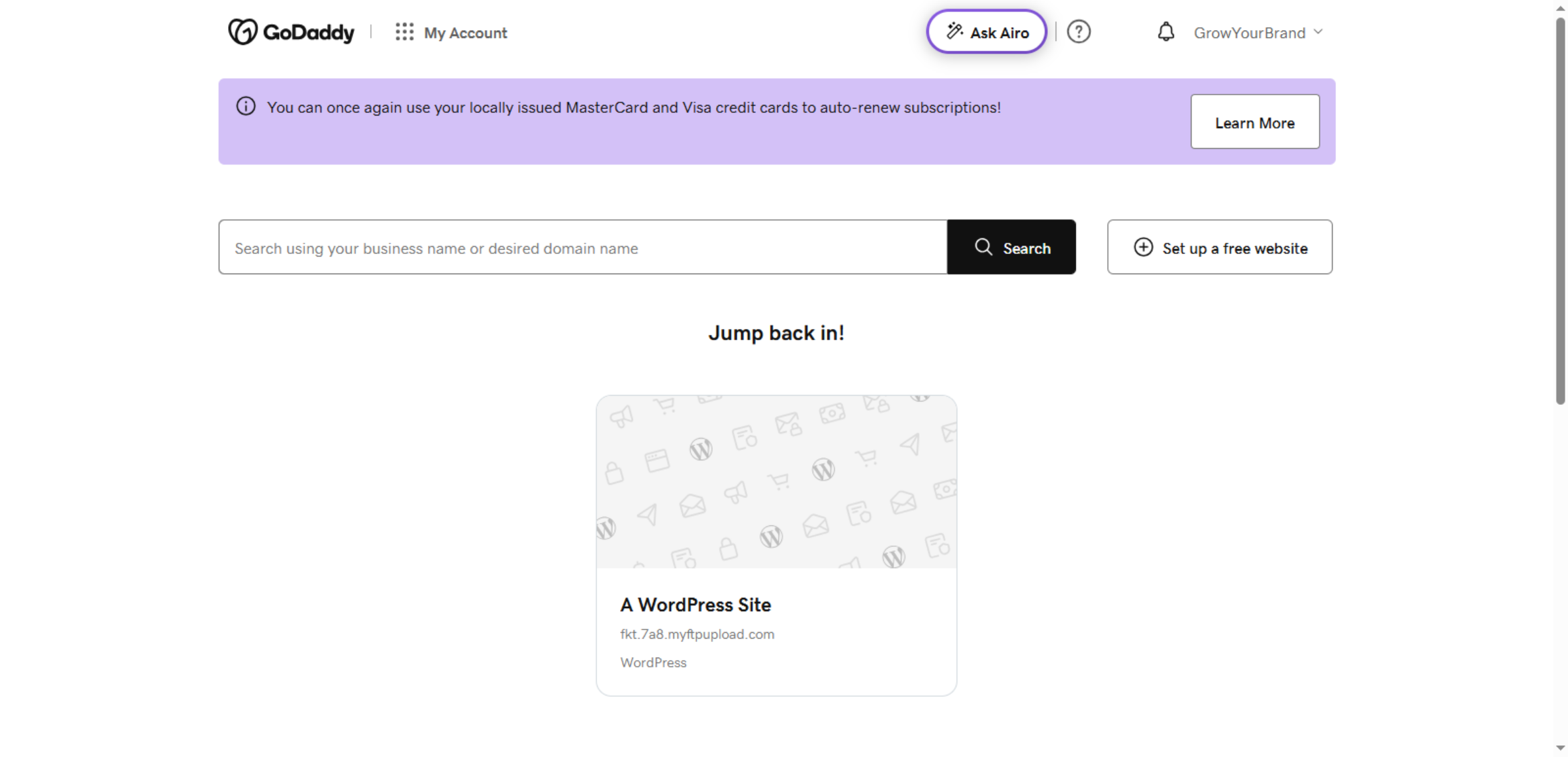
14. Access GoDaddy Account
Switch to your GoDaddy account page at account.godaddy.com to manage your hosting products.
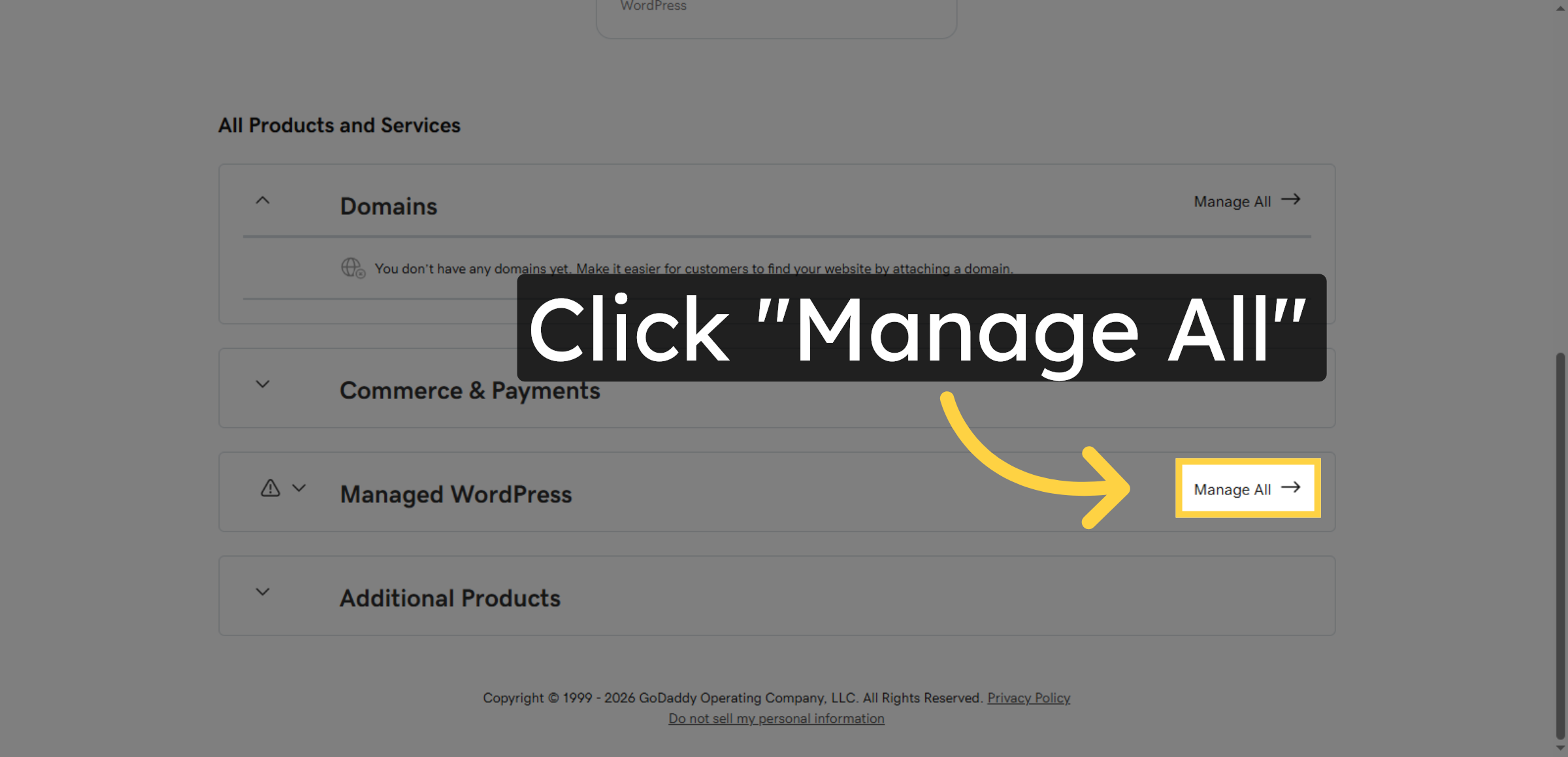
15. Manage All Hosting Sites
Click the Manage All button to view and control all your hosting sites within GoDaddy.
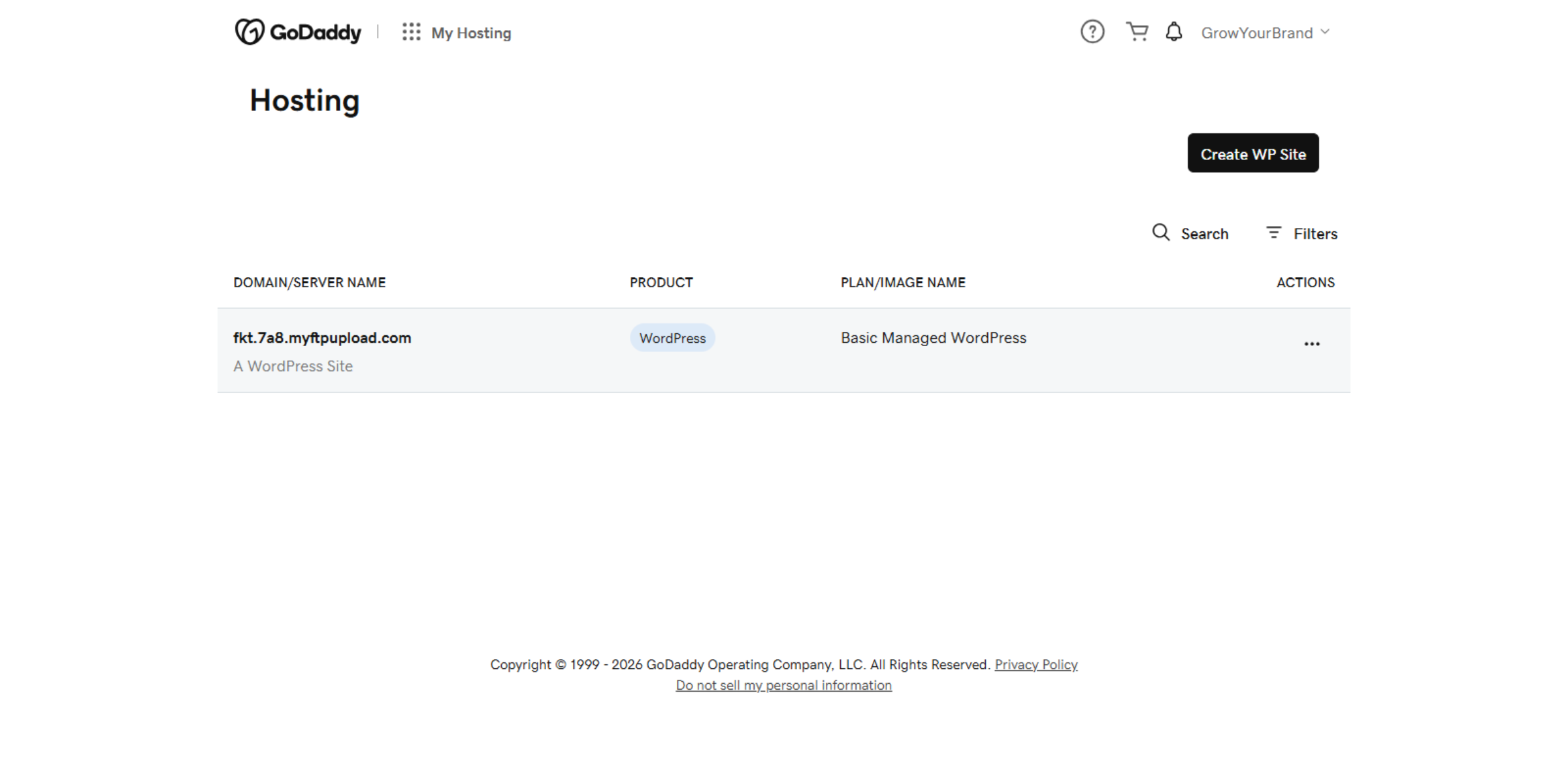
16. Open GoDaddy Hosting Panel
Switch to the GoDaddy hosting dashboard at host.godaddy.com to access hosting controls.
17. Access Hosting Options
Click the designated area to open hosting management options for your WordPress site.
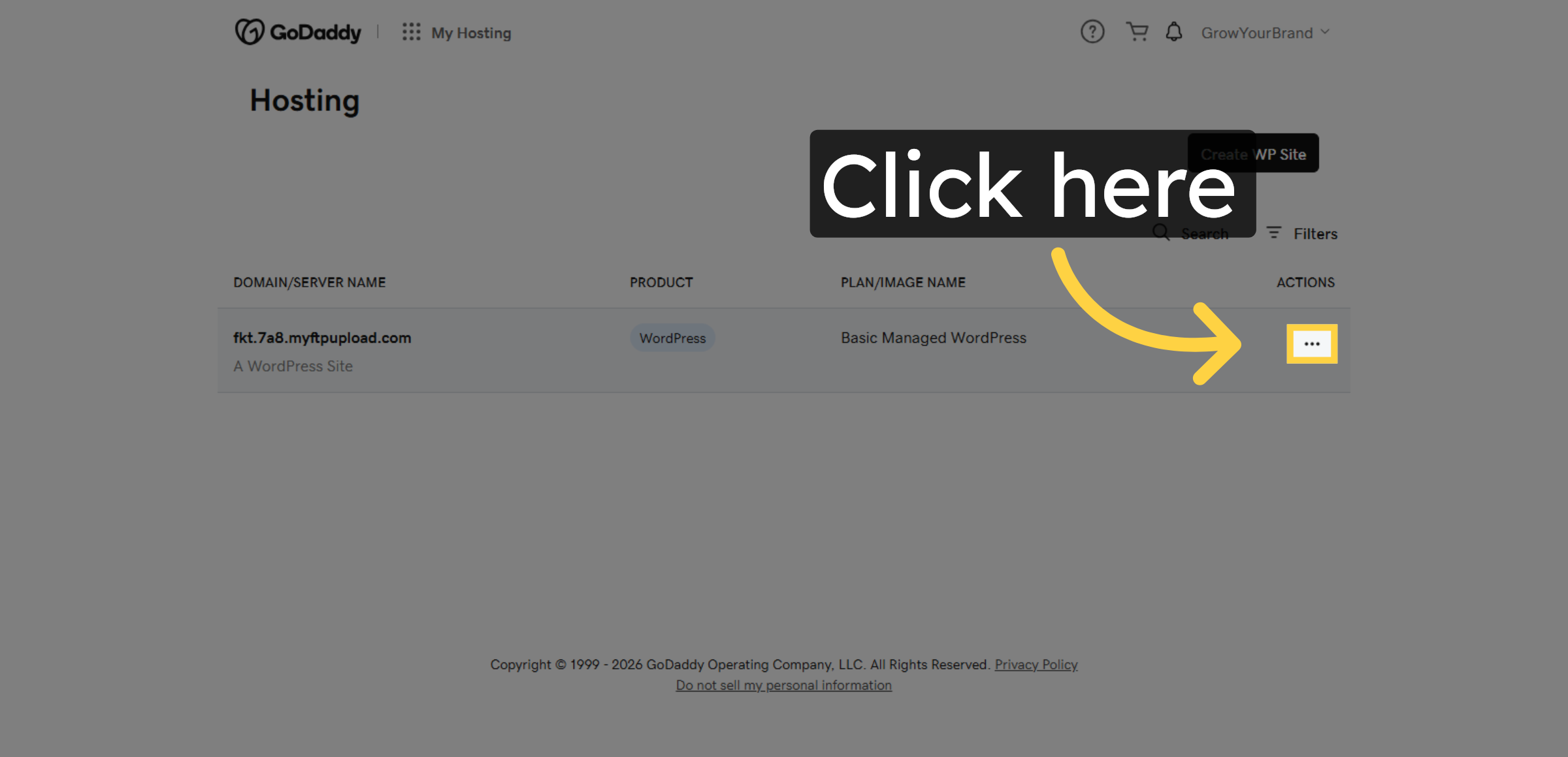
18. Open WP Admin Panel
Click the WP Admin button to open the WordPress admin dashboard for your GoDaddy hosted site.
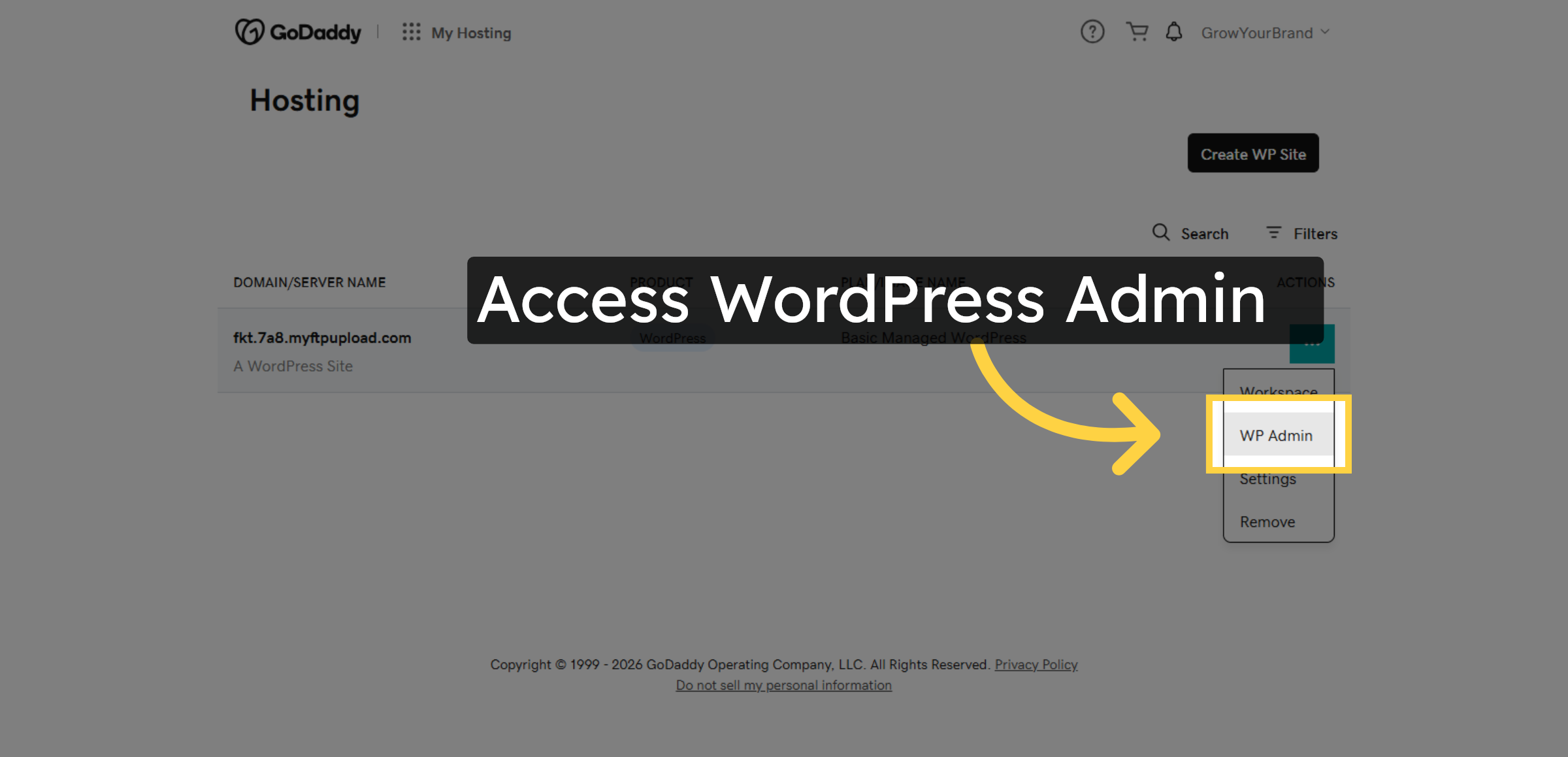
19. Switch To WP Admin Dashboard
Switch to the original WordPress site dashboard at fkt.7a8.myftpupload.com to prepare for migration.
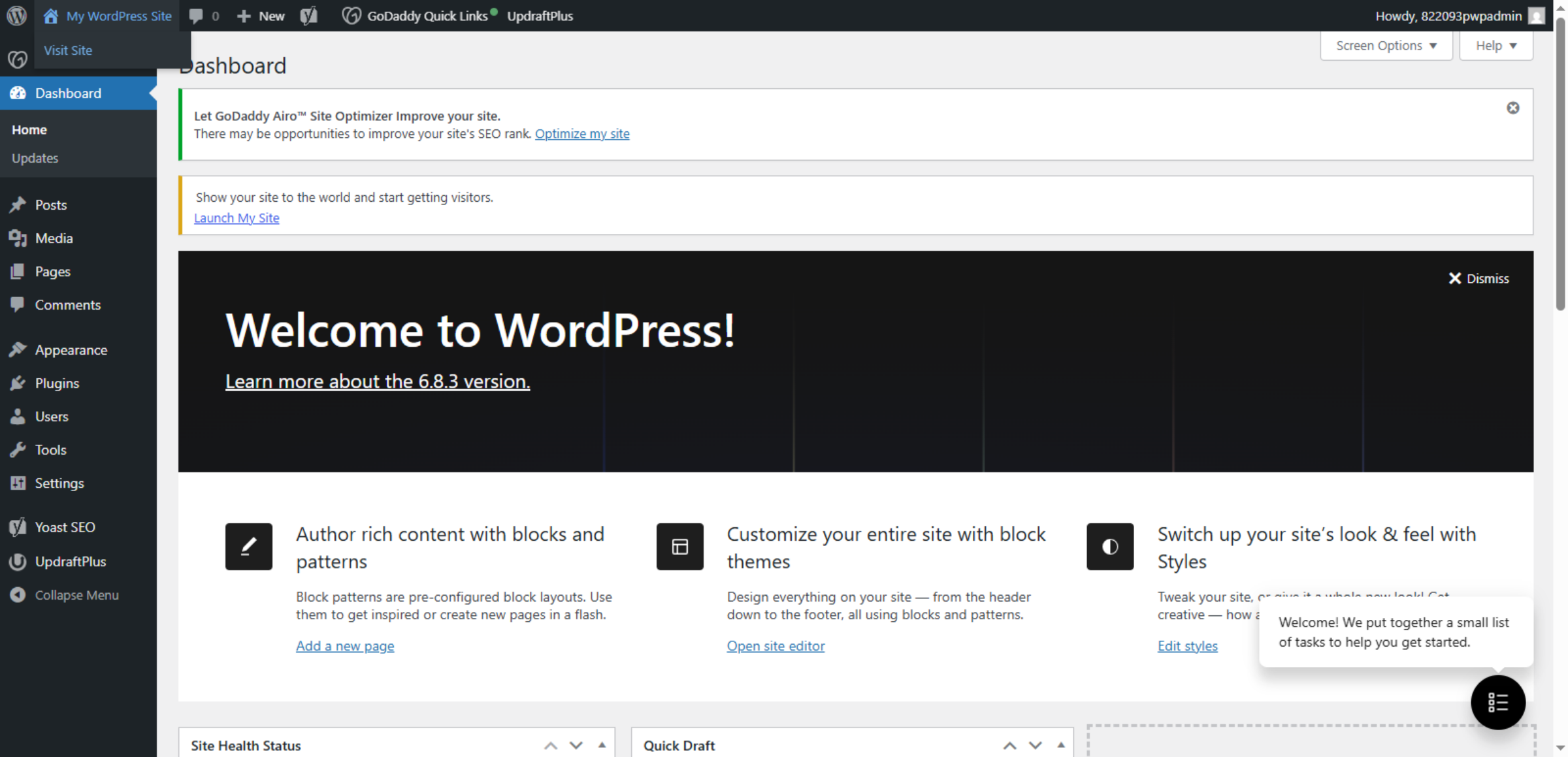
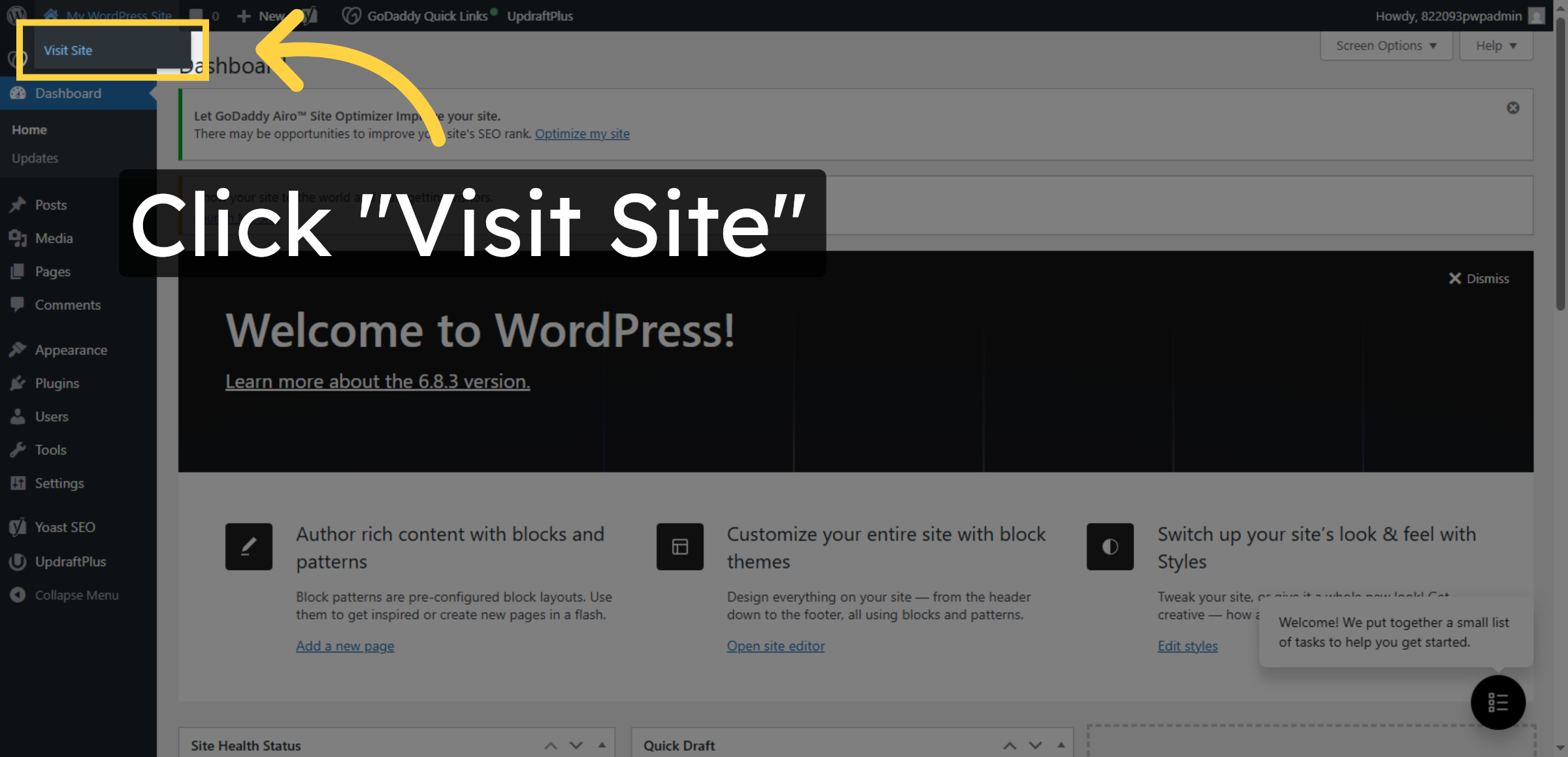
20. Visit Original Site
Click the Visit Site link to view the live version of your original WordPress website.
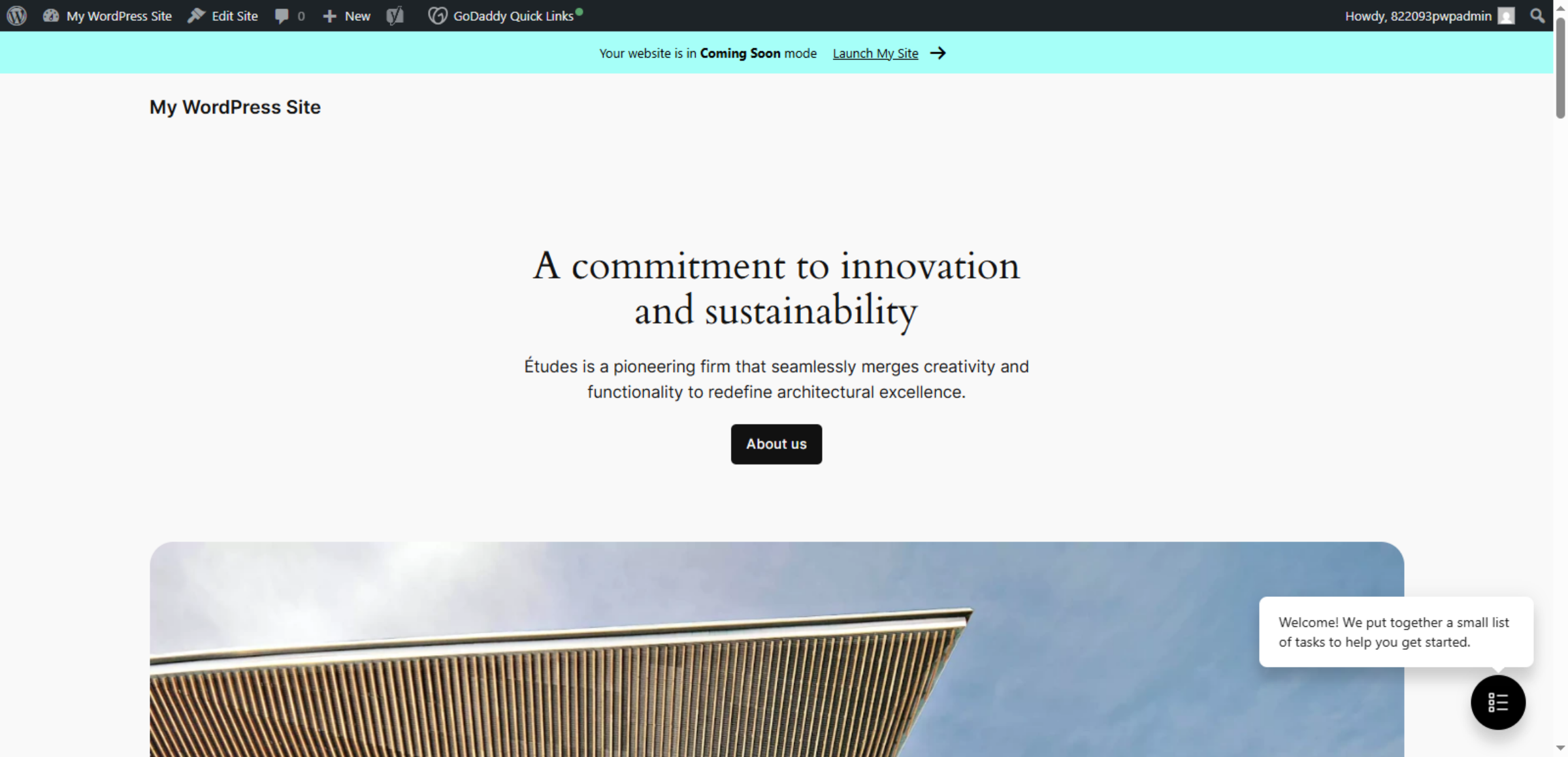
21. Destination Website for Import
Click the featured content area describing the firm’s commitment to innovation and sustainability.
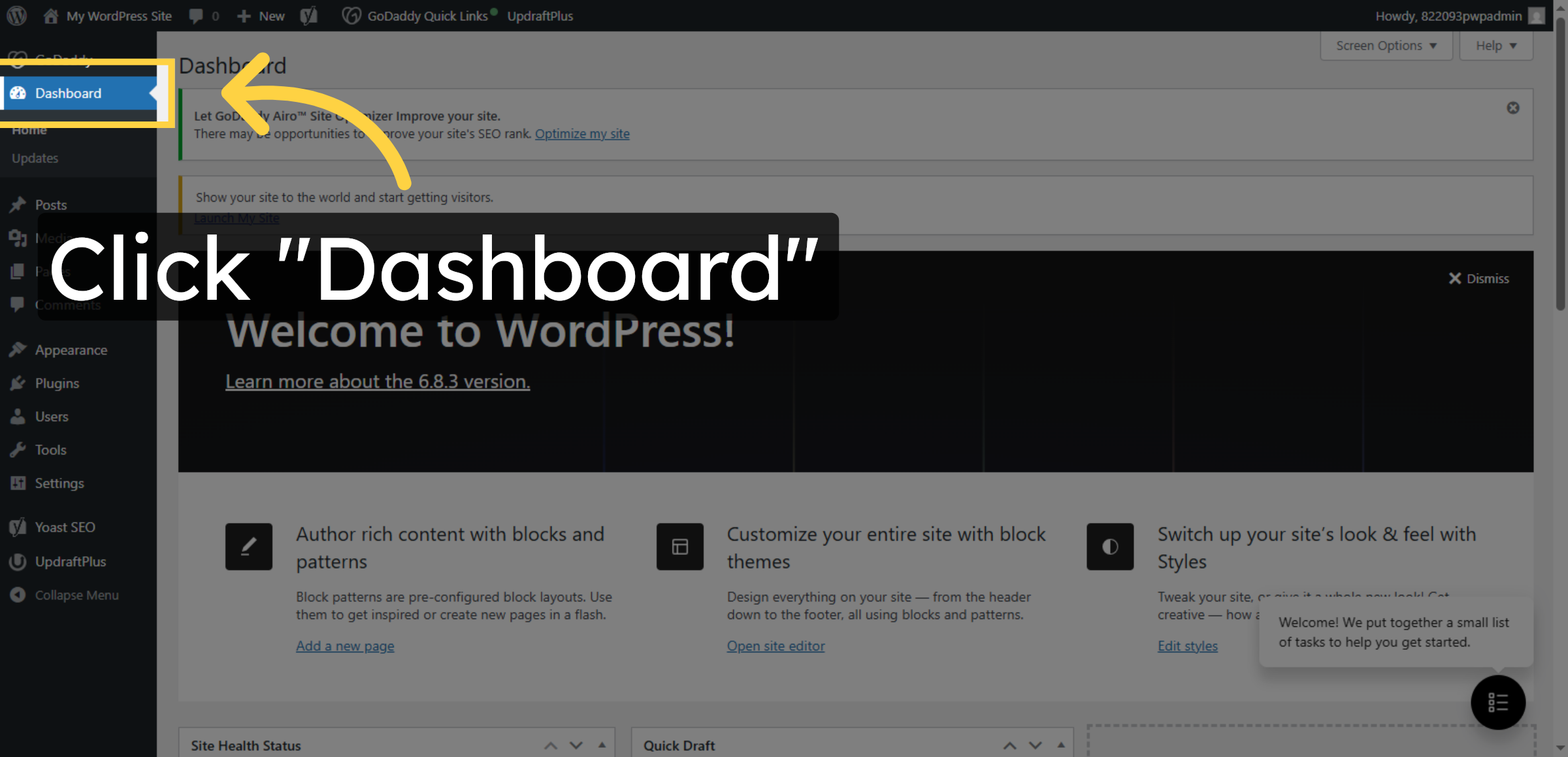
22. Open Dashboard
Click the Dashboard link in the original WordPress site to access its admin interface.
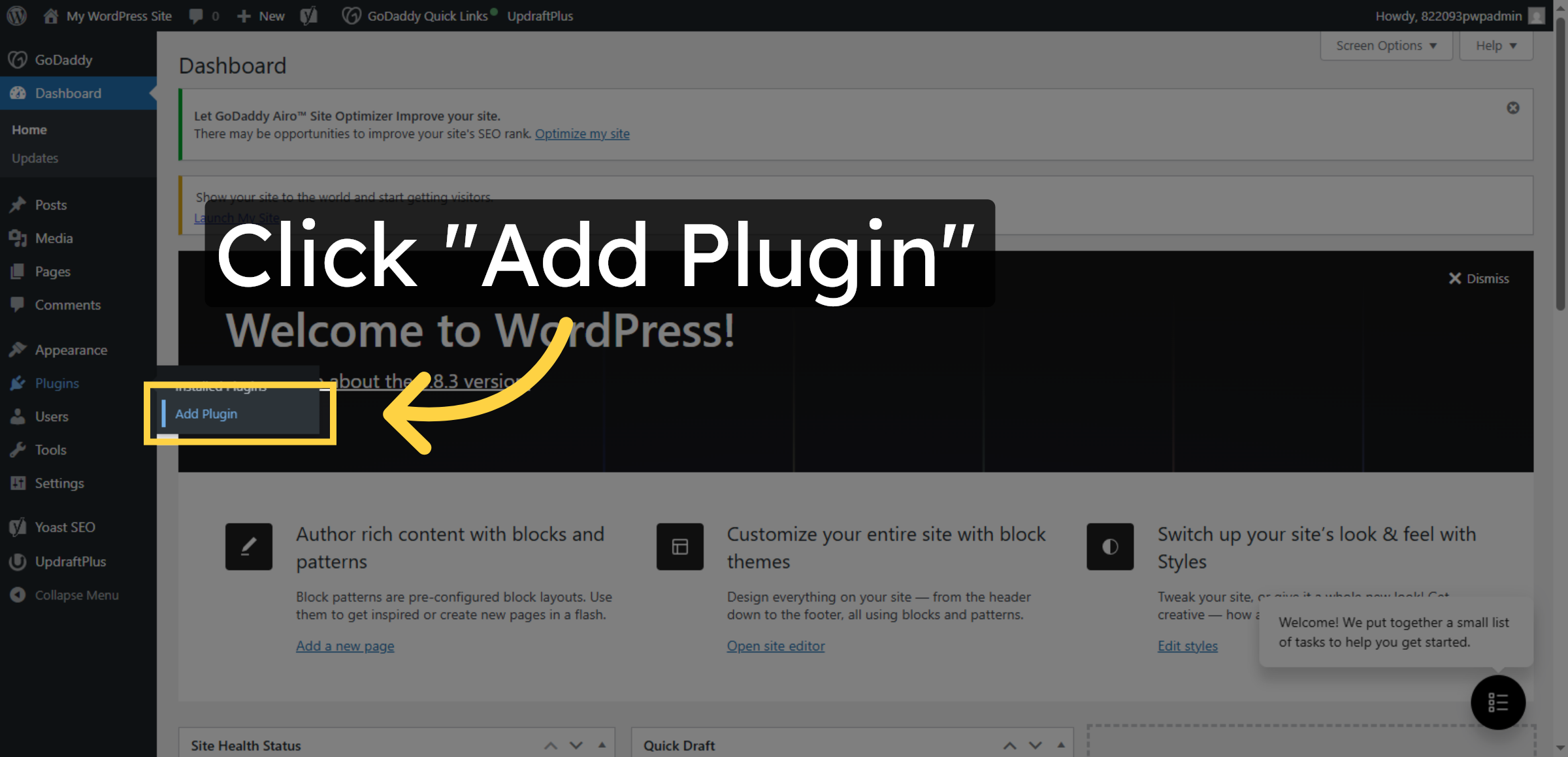
23. Navigate To Add Plugin
Click the Add Plugin option in the original site’s dashboard to install migration tools.
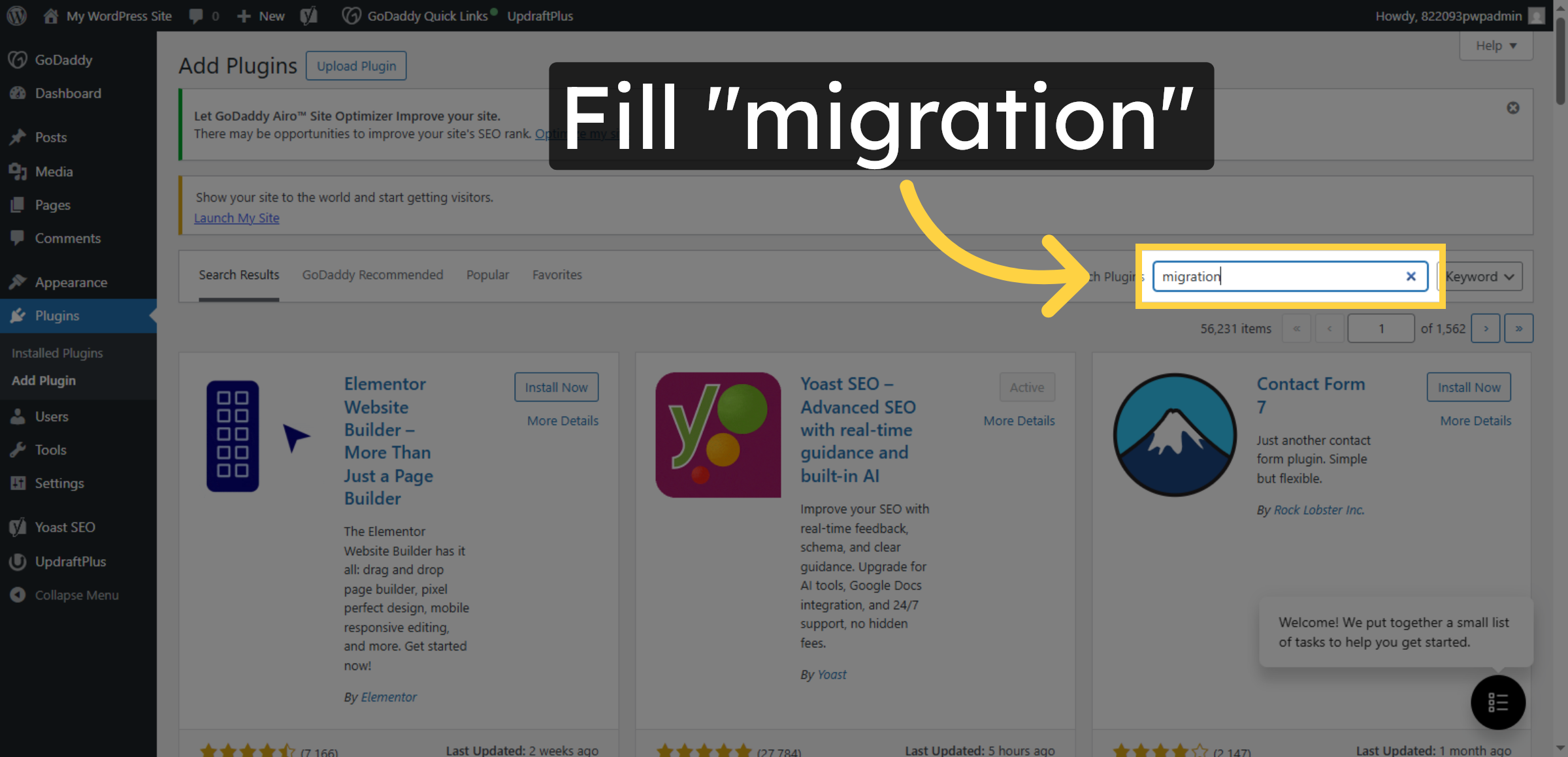
24. Search For Migration Plugin
Enter the term migration in the search box to locate the appropriate plugin.
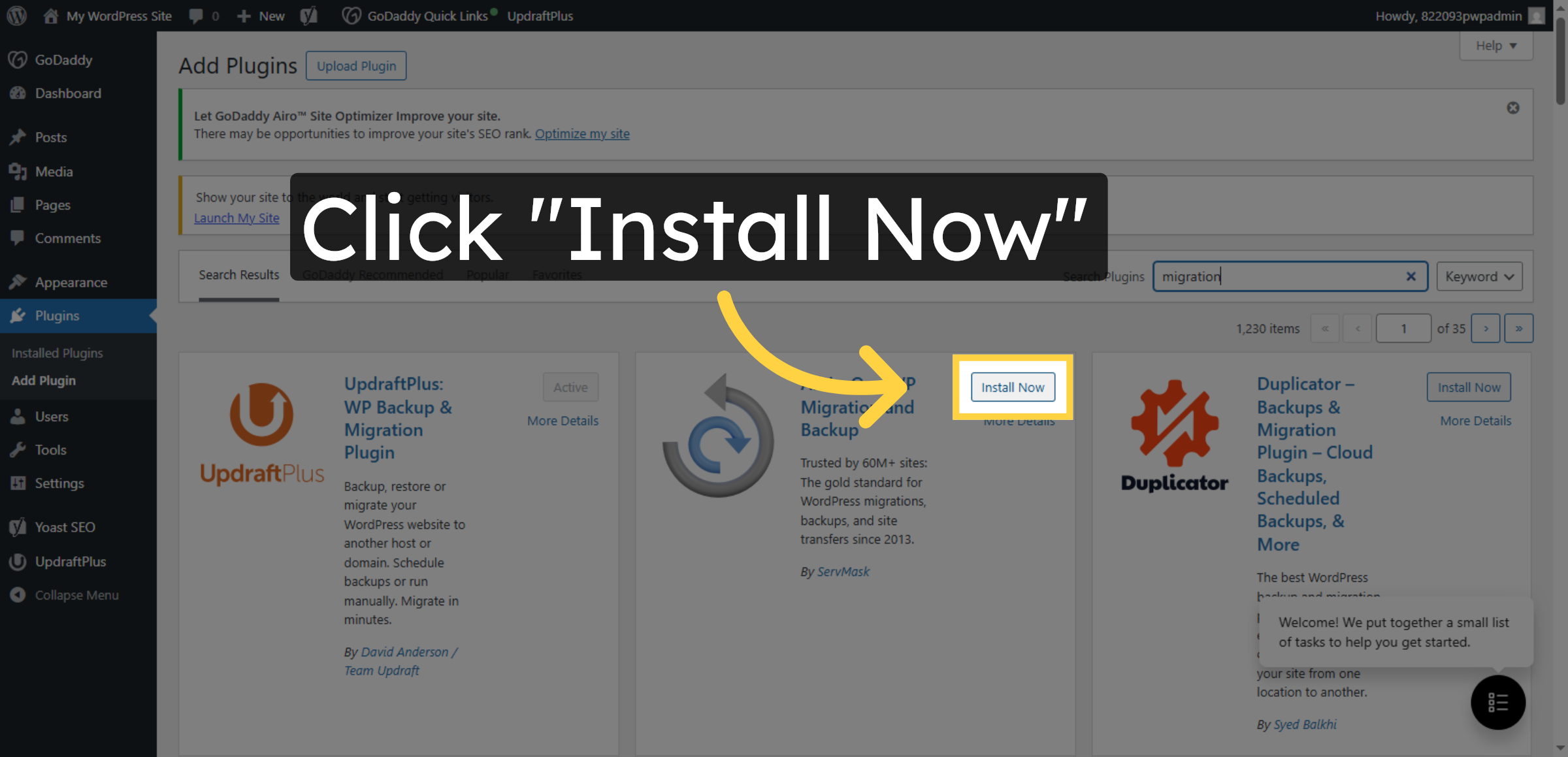
25. Install Migration Plugin
Click the Install Now button to add the migration plugin to the original WordPress site.
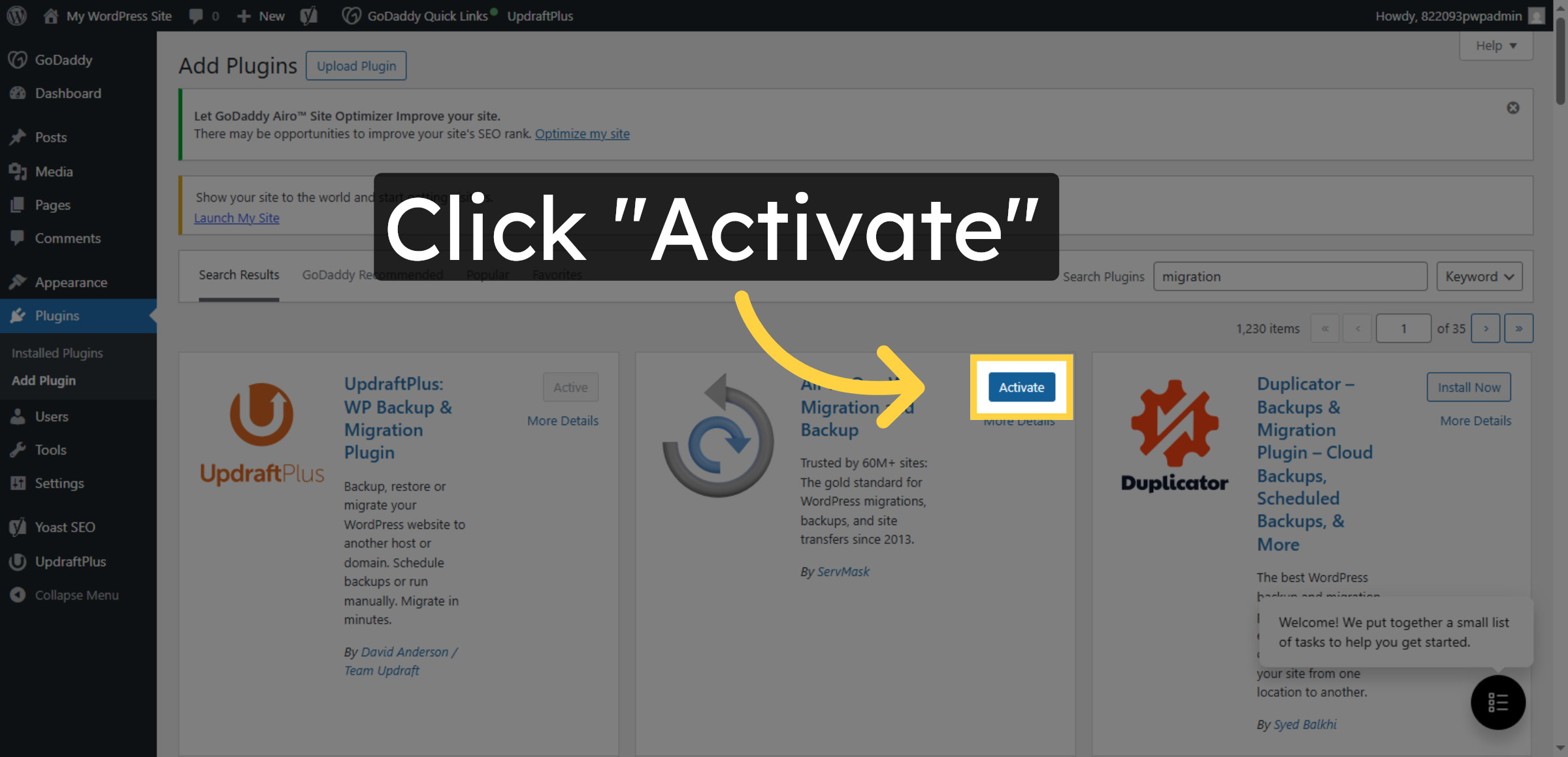
26. Activate Migration Plugin
Click the Activate button to enable the migration plugin on the original site.
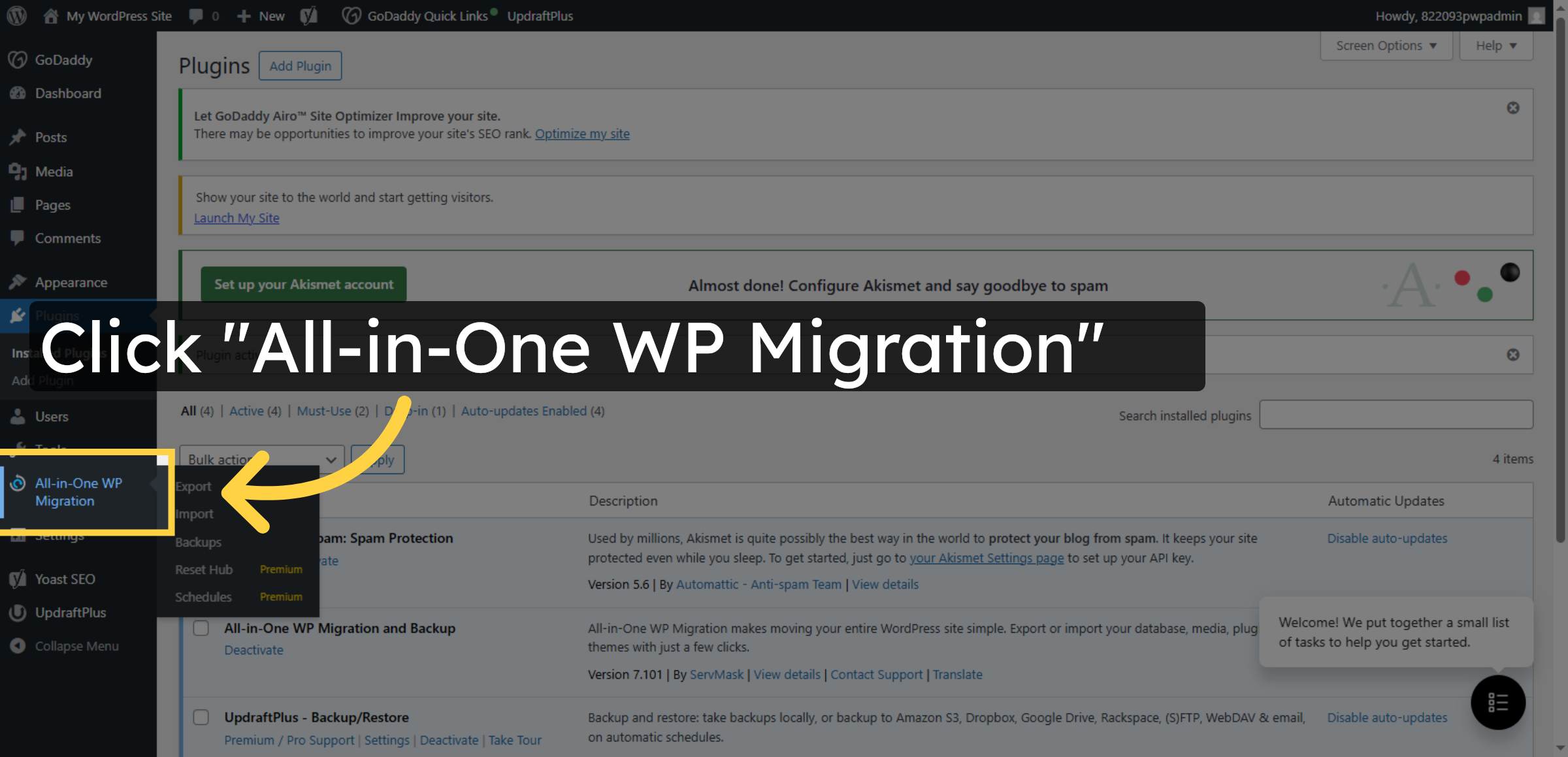
27. Open Migration Plugin
Click the All-in-One WP Migration plugin link to access its import/export features.
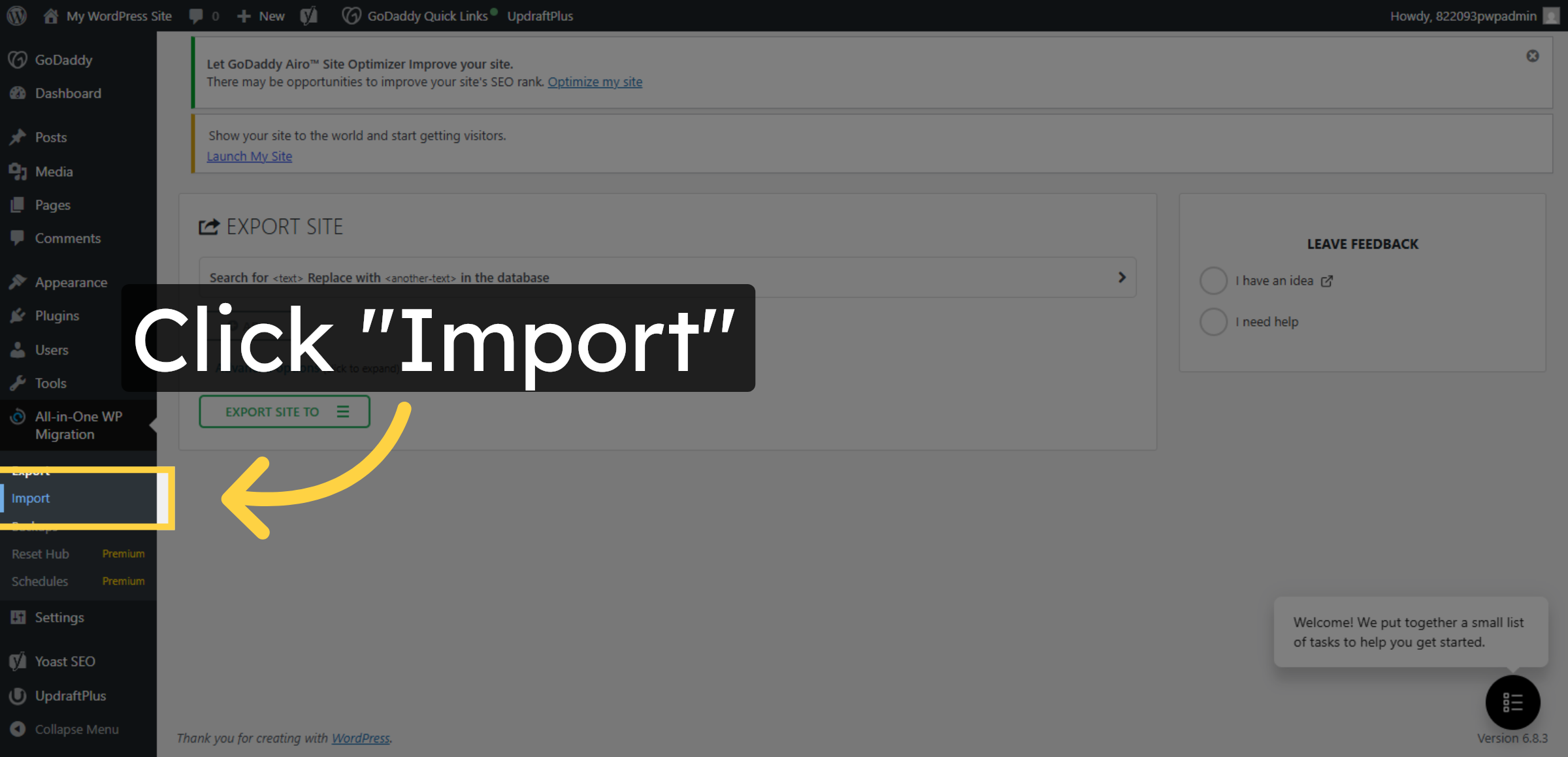
28. Select Import Option
Click the Import option to begin importing the exported site file into the new hosting environment.
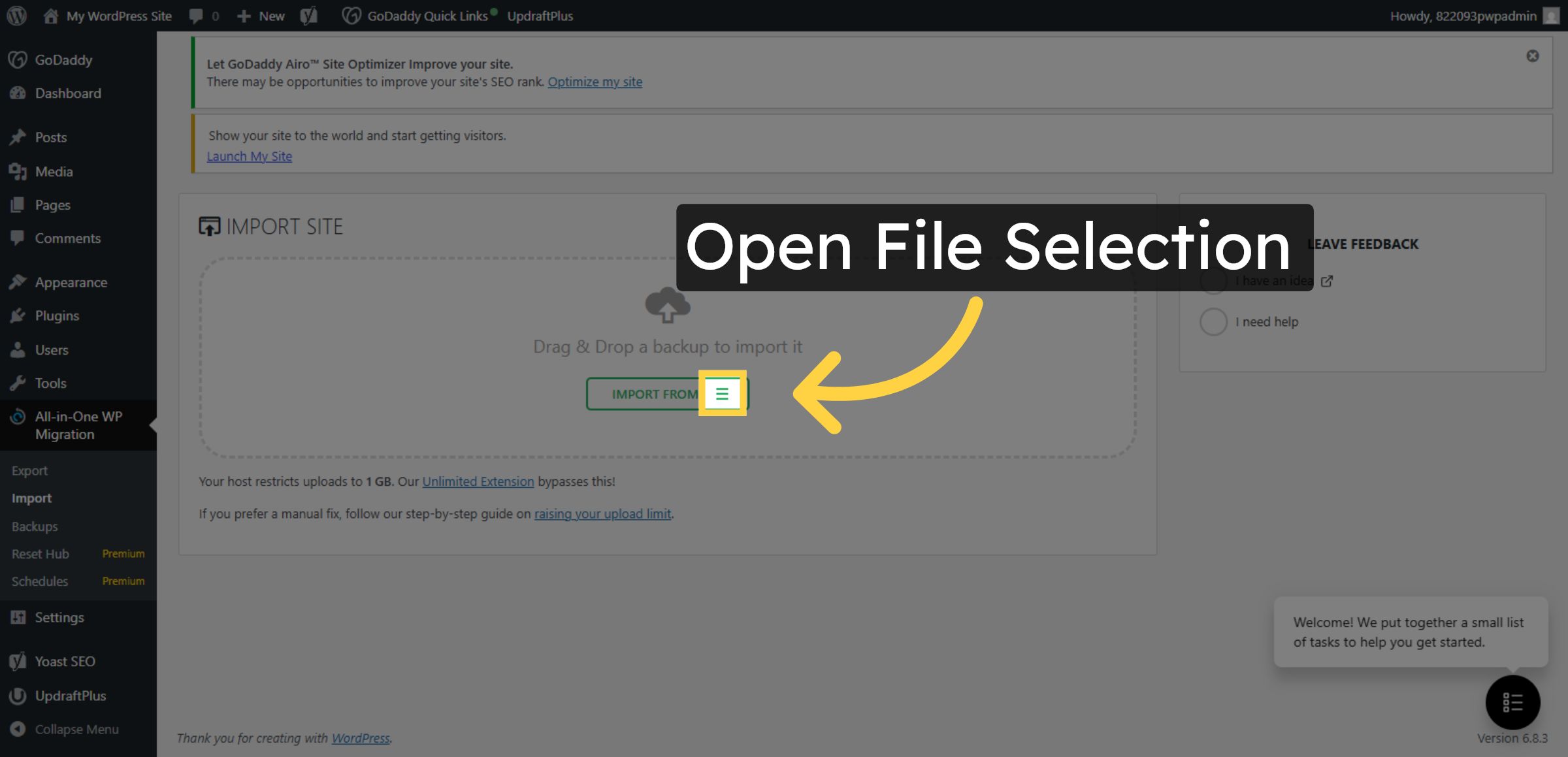
29. Open File Selection
Click the area to open the file selection dialog for importing your site backup.
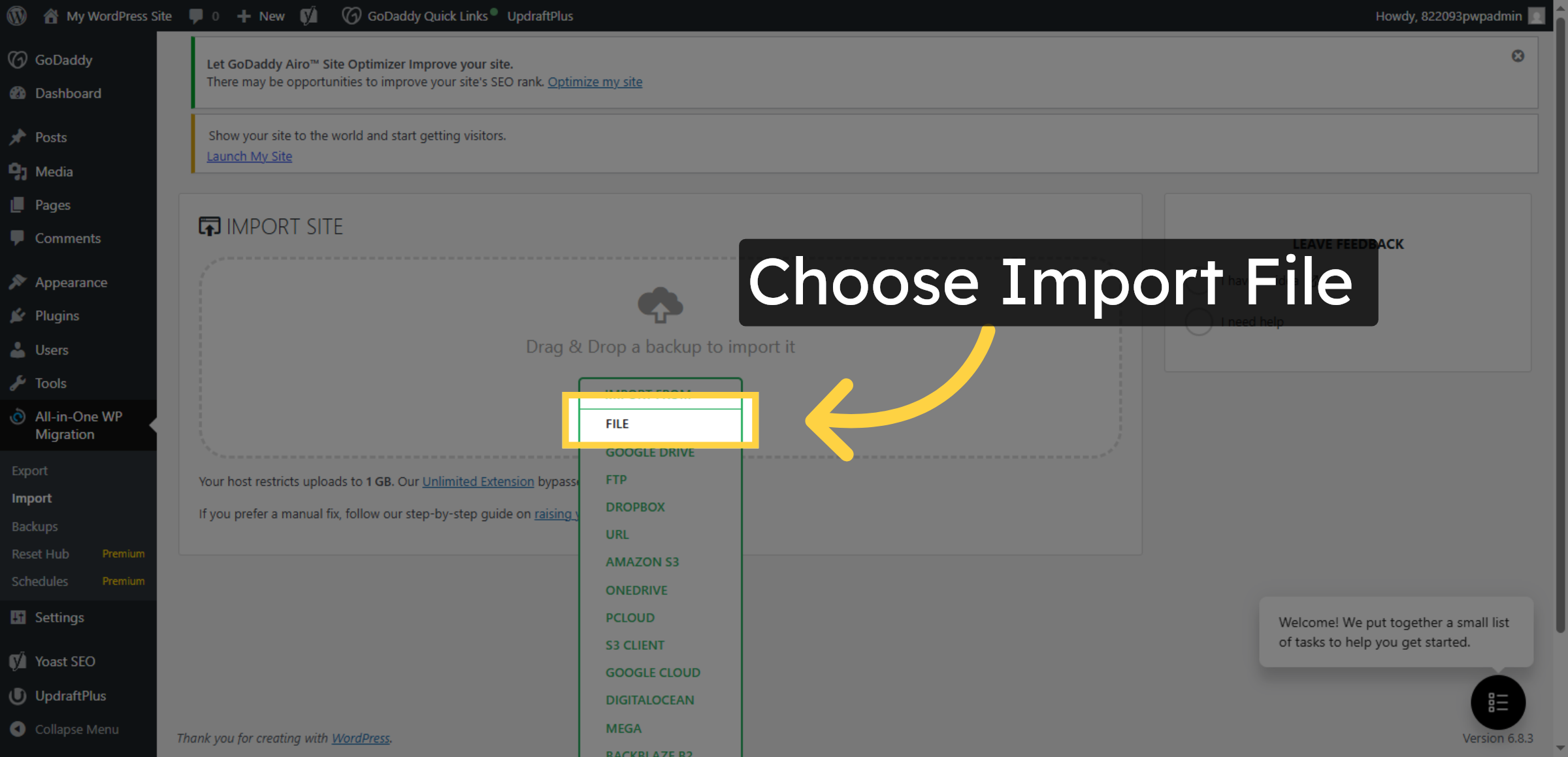
30. Choose Import File
Click the confirmation area to proceed with selecting the import file.
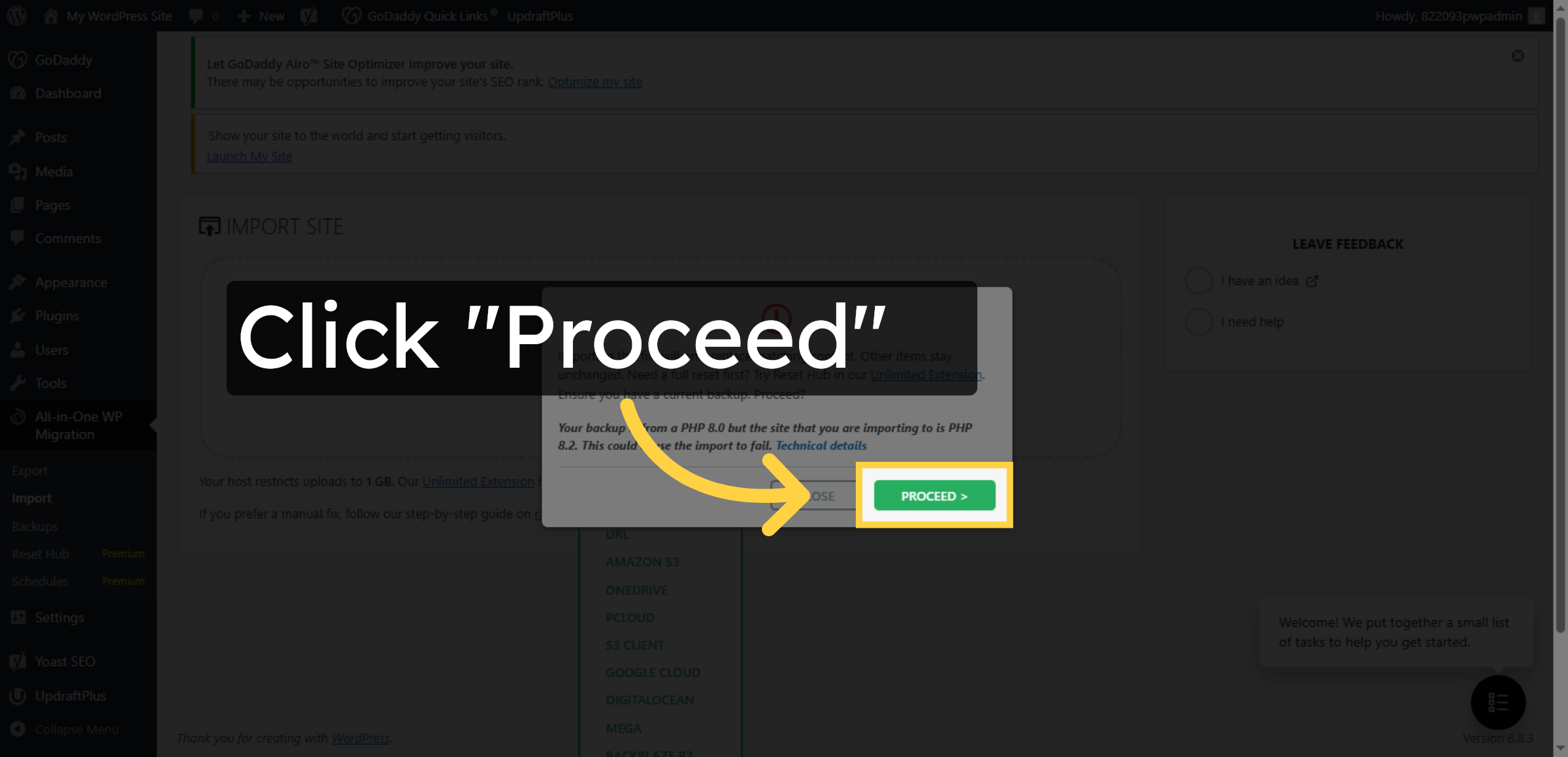
31. Proceed With Import
Click the Proceed button to start the import process of your WordPress site.
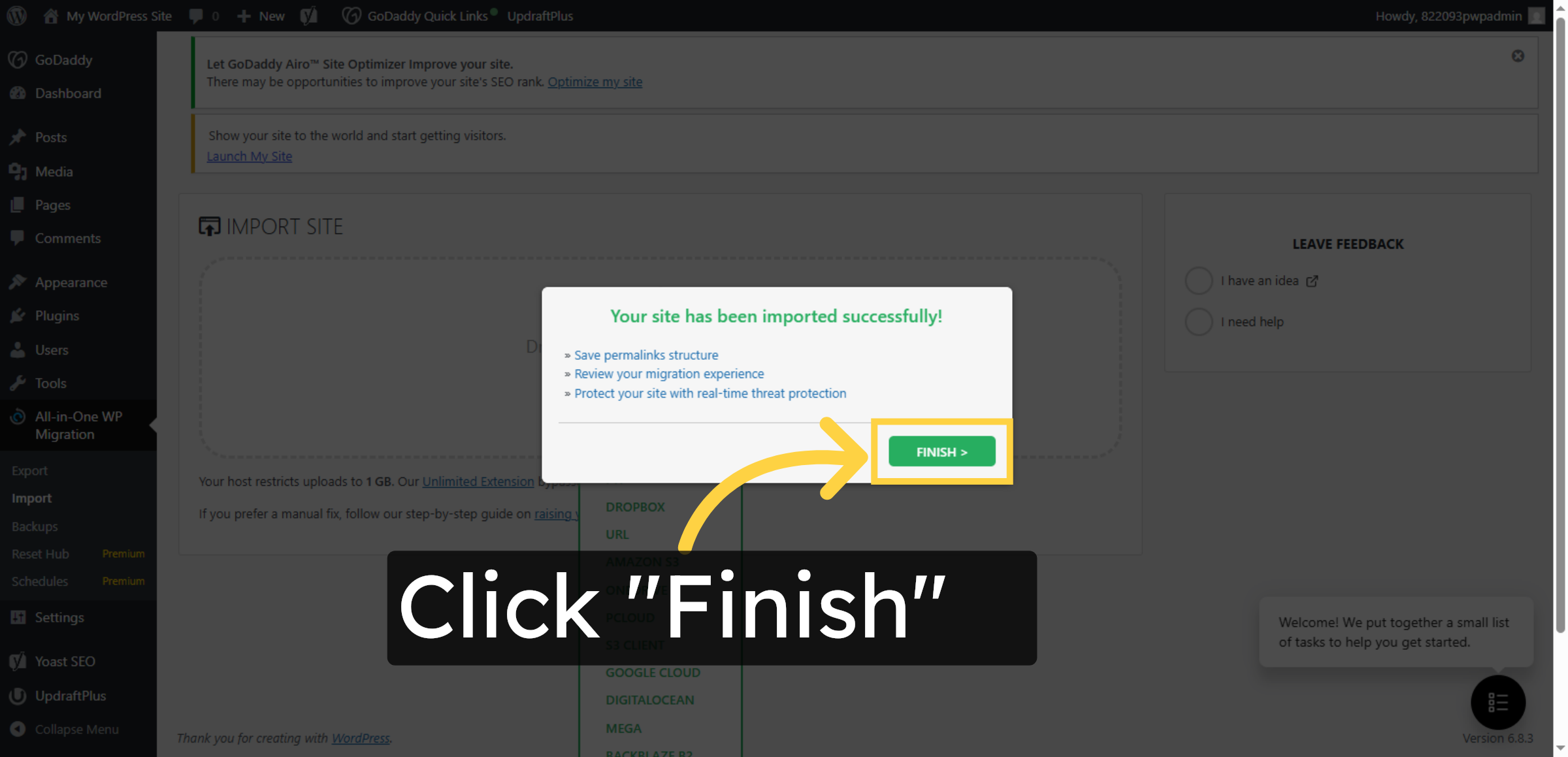
32. Finish Import Process
Click the Finish button to complete the import and finalize the migration.
33. Return To Dashboard
You will learn how to preview your site, visit it, and explore digital healthcare solutions tailored for elderly patients.
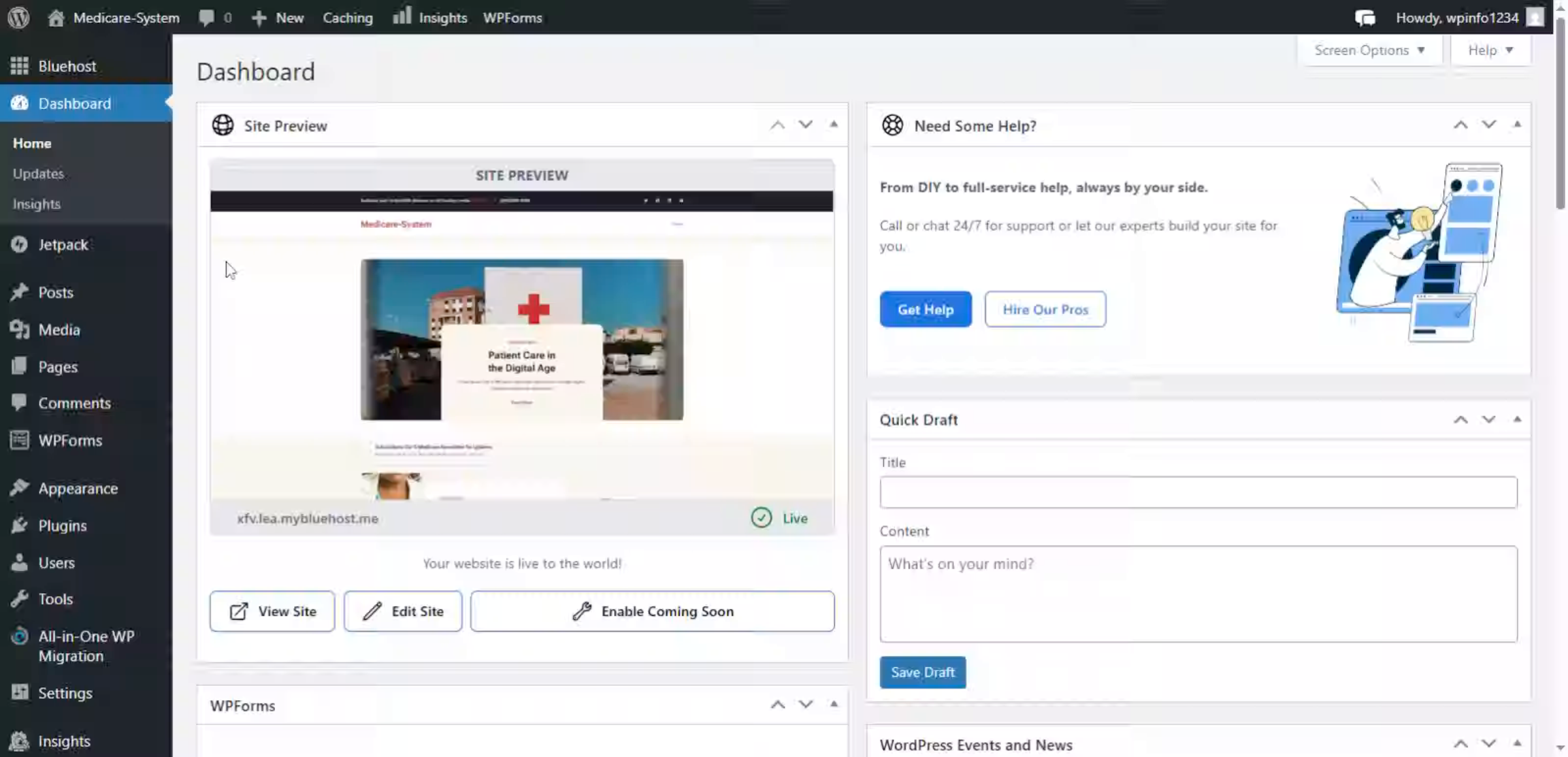
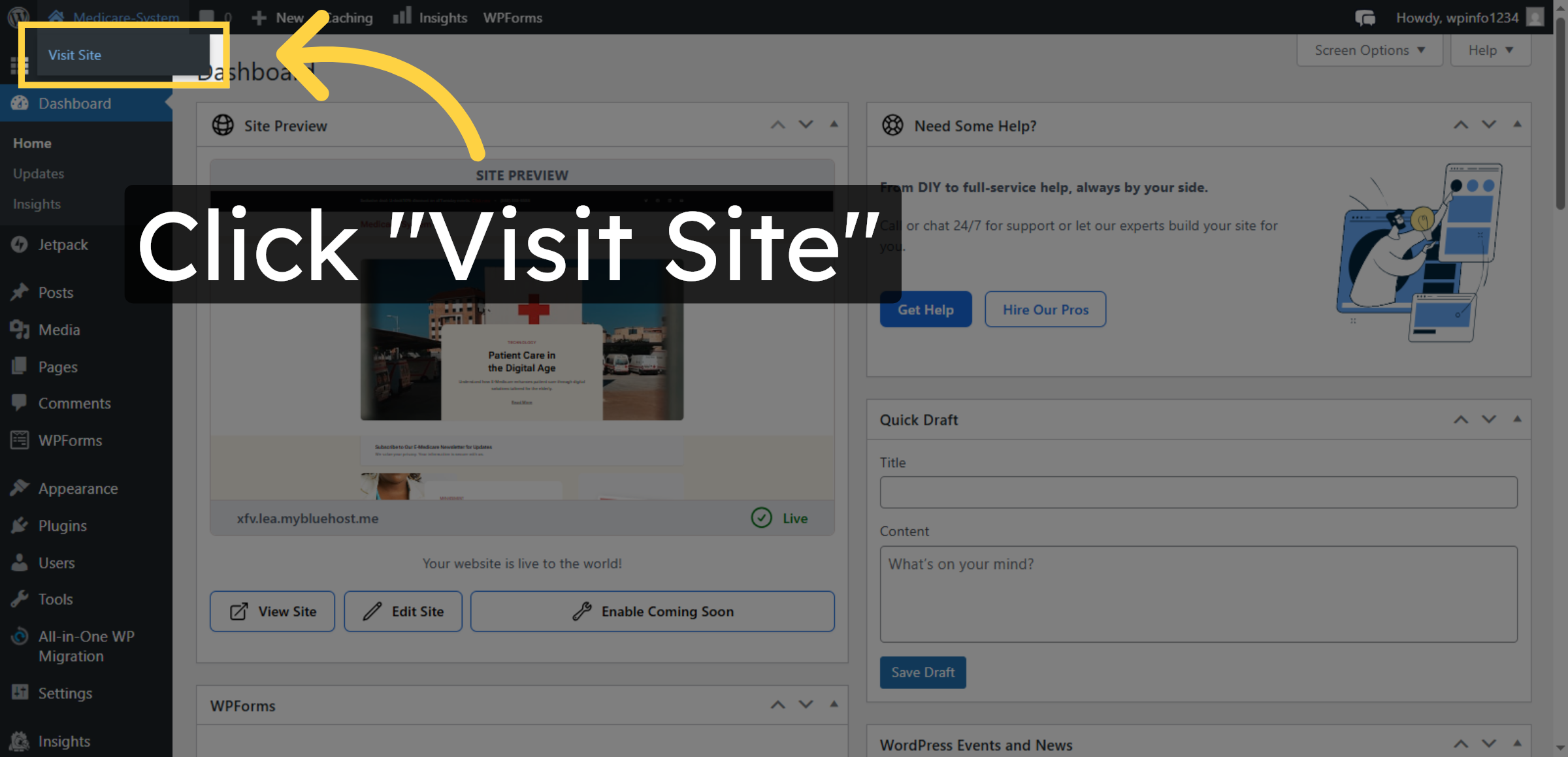
34. Visit Migrated Site
Click the Visit Site button to open your live Medicare-System website and see the current published content.
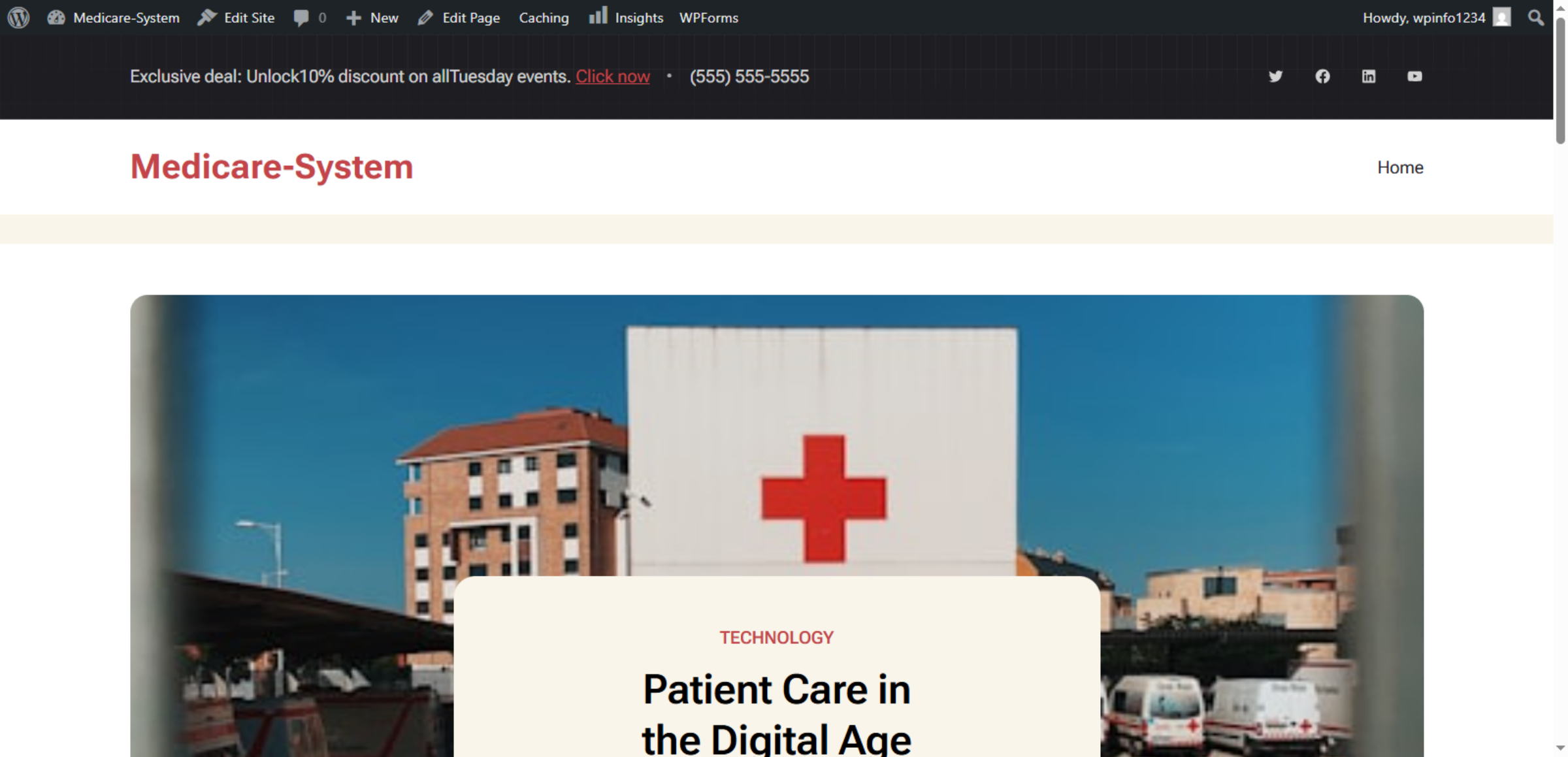
35. Website Successfully Migrated
Click the main promotional banner to verify that the migrated site content displays correctly on GoDaddy WP hosting.
Conclusion
By following this guide, you have successfully migrated your WordPress website to GoDaddy’s hosting platform. All website data, including pages, posts, media files, and settings, has been transferred correctly to the new environment. This ensures uninterrupted website functionality and consistent design.
To maintain long-term stability, it is recommended to test website features, update plugins and themes, and perform regular backups after migration. Proper maintenance will help keep your website secure, fast, and reliable.
WooHelpDesk Support
Need help with WordPress migration, hosting transfer, or post-migration setup? WooHelpDesk is here to assist you.
Visit: https://www.woohelpdesk.com
Call Us Toll-Free: +1 888 602 0119 (US & Canada)
Smooth Migration | Expert Support
Contact WooHelpDesk today for professional WordPress assistance.