How to Manage Files Efficiently Using HostGator File Manager
Introduction
Efficient file management is a fundamental aspect of maintaining and customizing a WordPress website. Website files control the structure, functionality, and appearance of your site, making proper handling essential for performance, security, and stability. Hosting platforms such as HostGator provide a built-in File Manager that allows administrators to access, edit, and organize website files directly through the browser, without requiring external FTP software.
This guide explains how to manage WordPress files using the HostGator File Manager. It covers essential operations such as navigating directories, creating new files, editing existing files, renaming file resources, and securely deleting unnecessary data. By following this step-by-step guide, users can efficiently manage backend files, apply quick updates, troubleshoot issues, and maintain better control over their website environment.
1. HostGator Dashboard
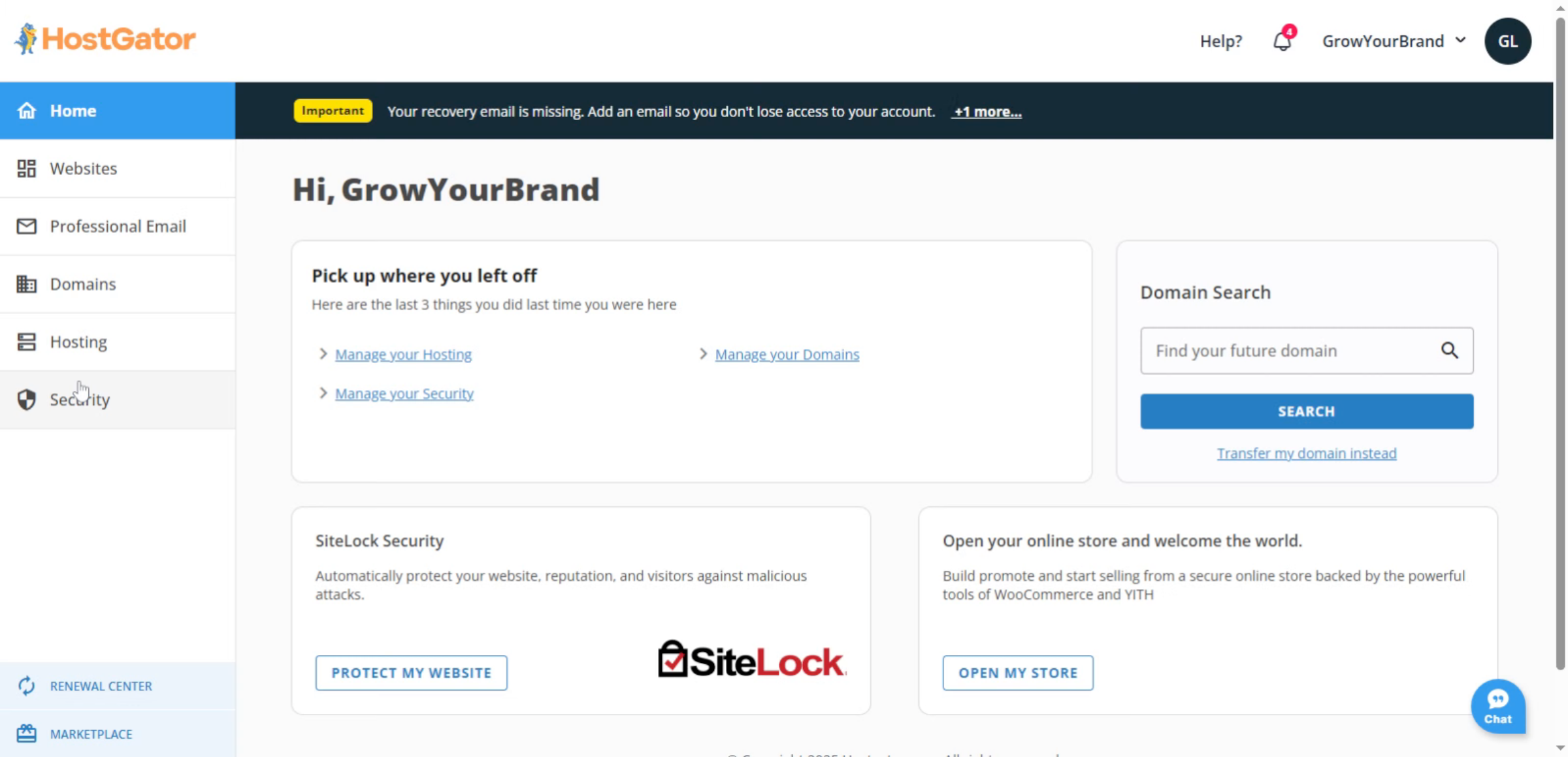
2. Access DNS Hosting
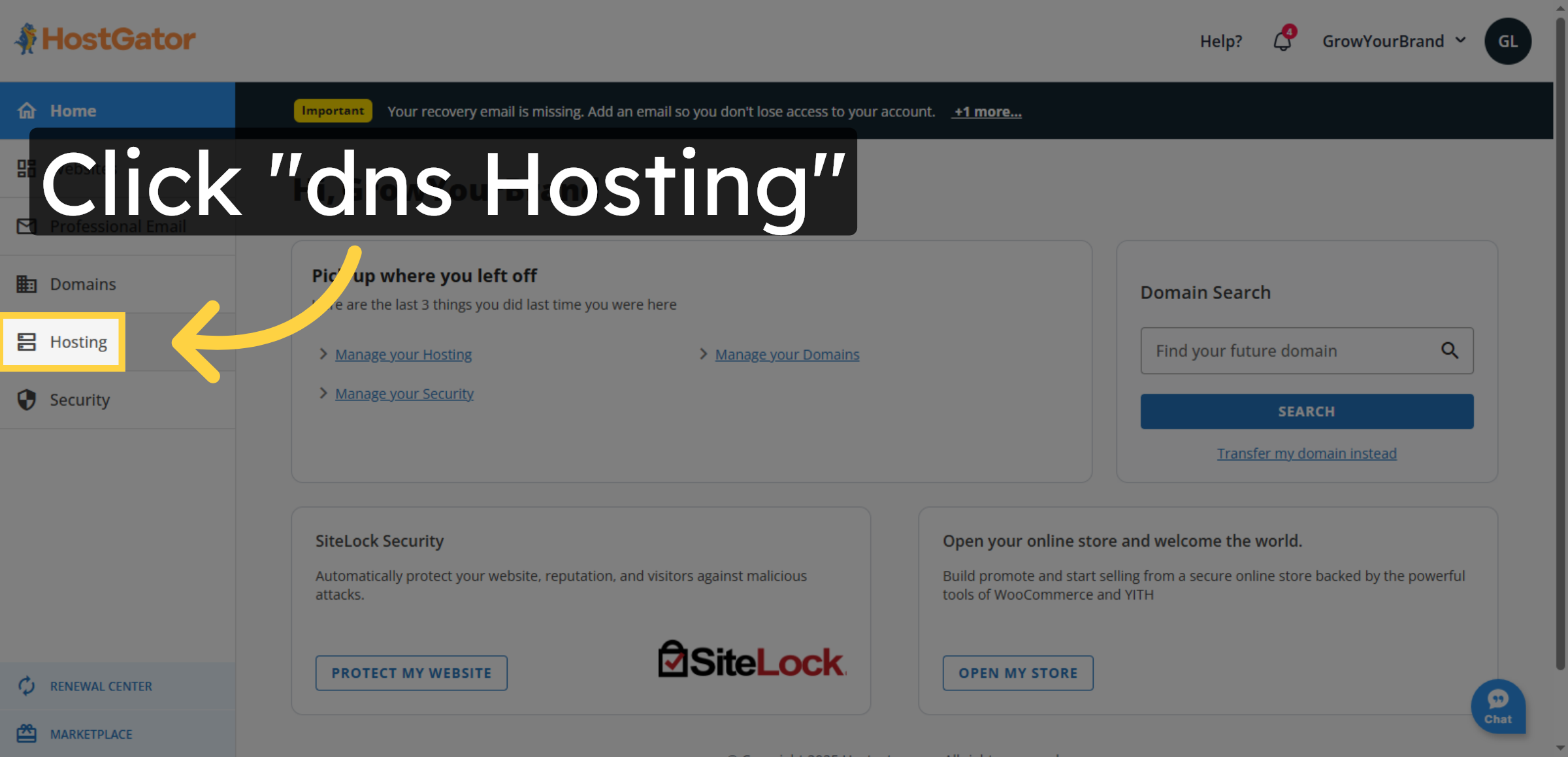
3. Open File Manager
4. Open Portfolio Directory
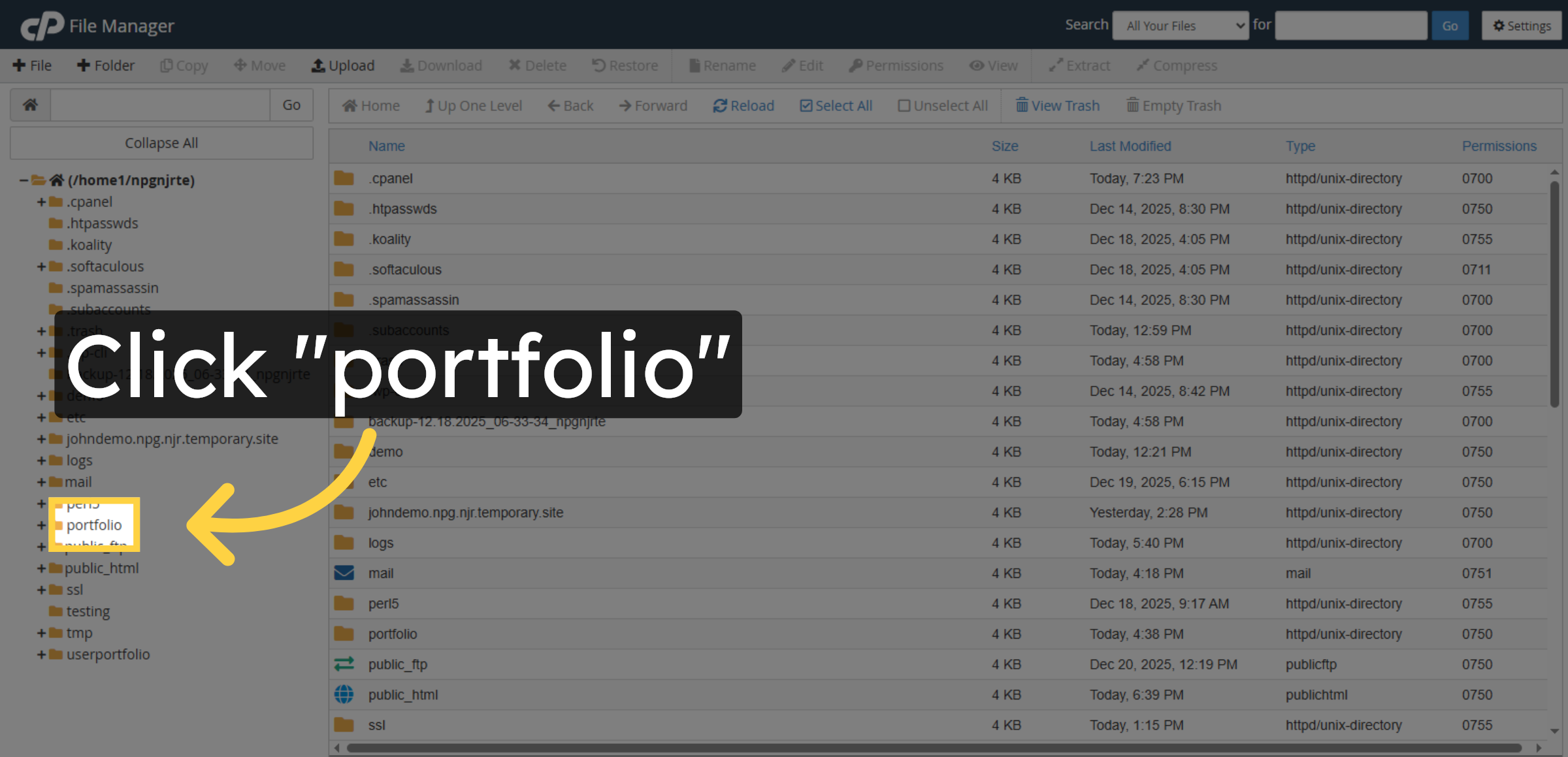
5. Select File Folder
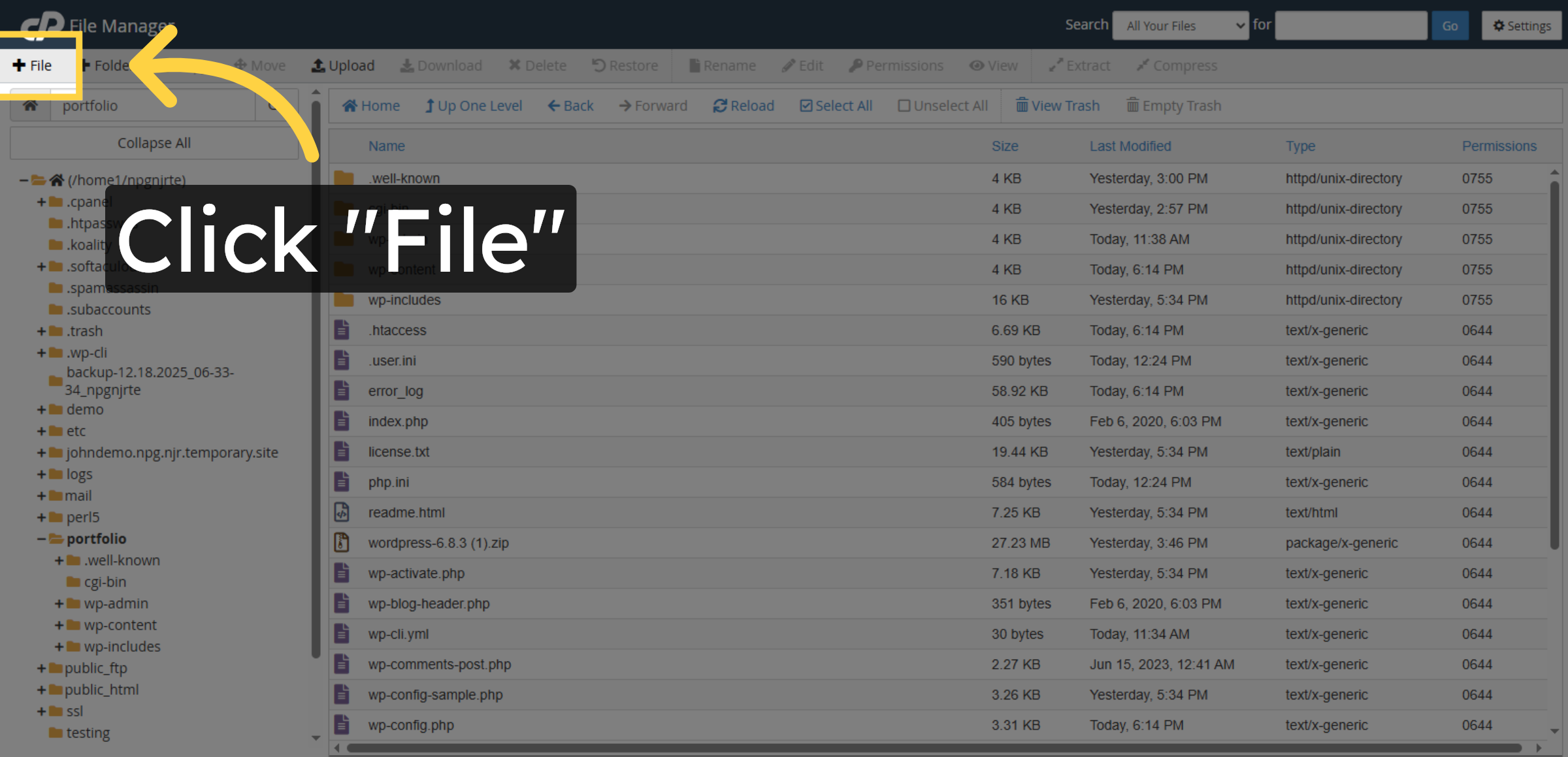
6. Enter File Name
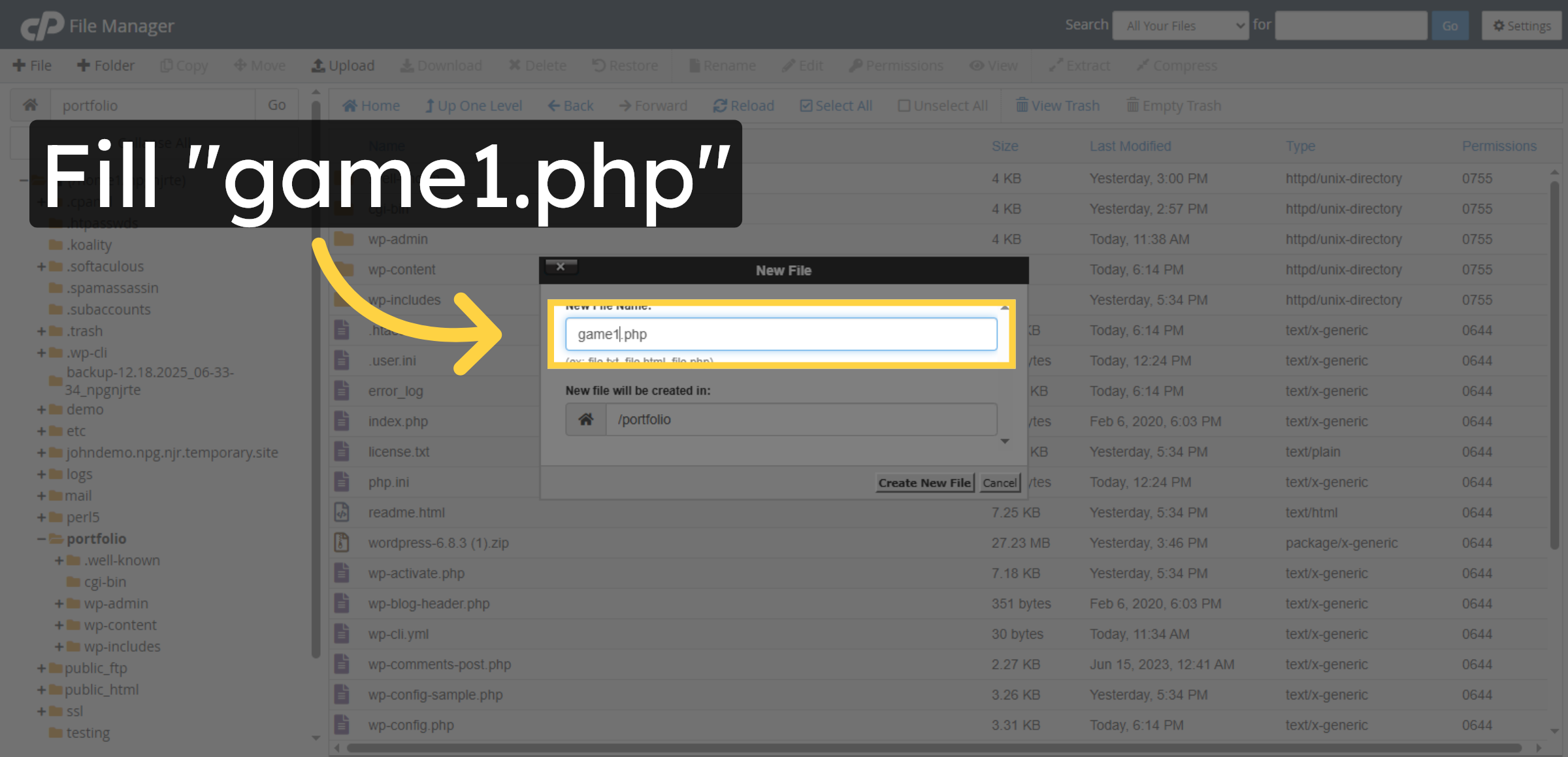
7. Create New File
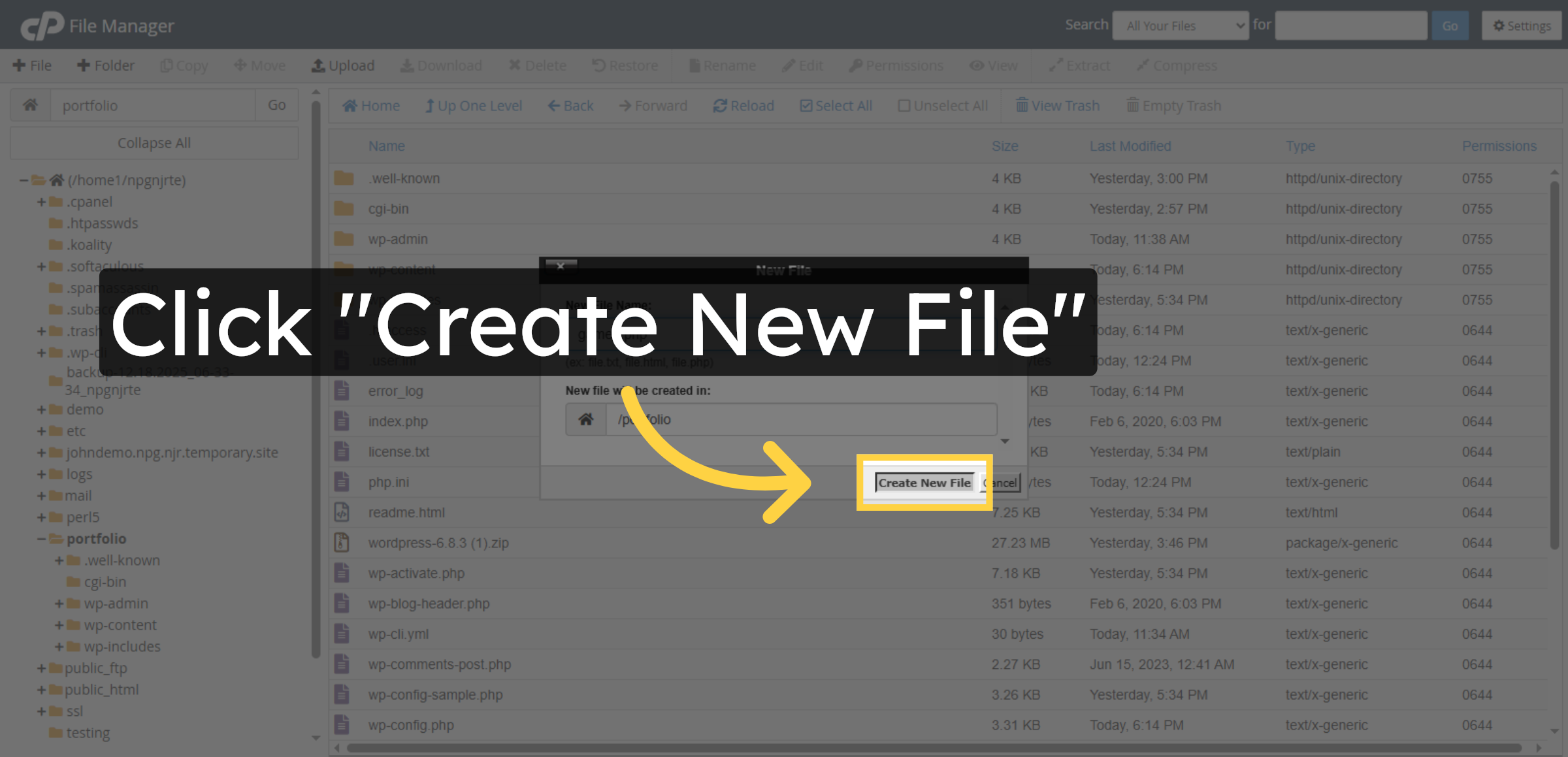
8. Select New File
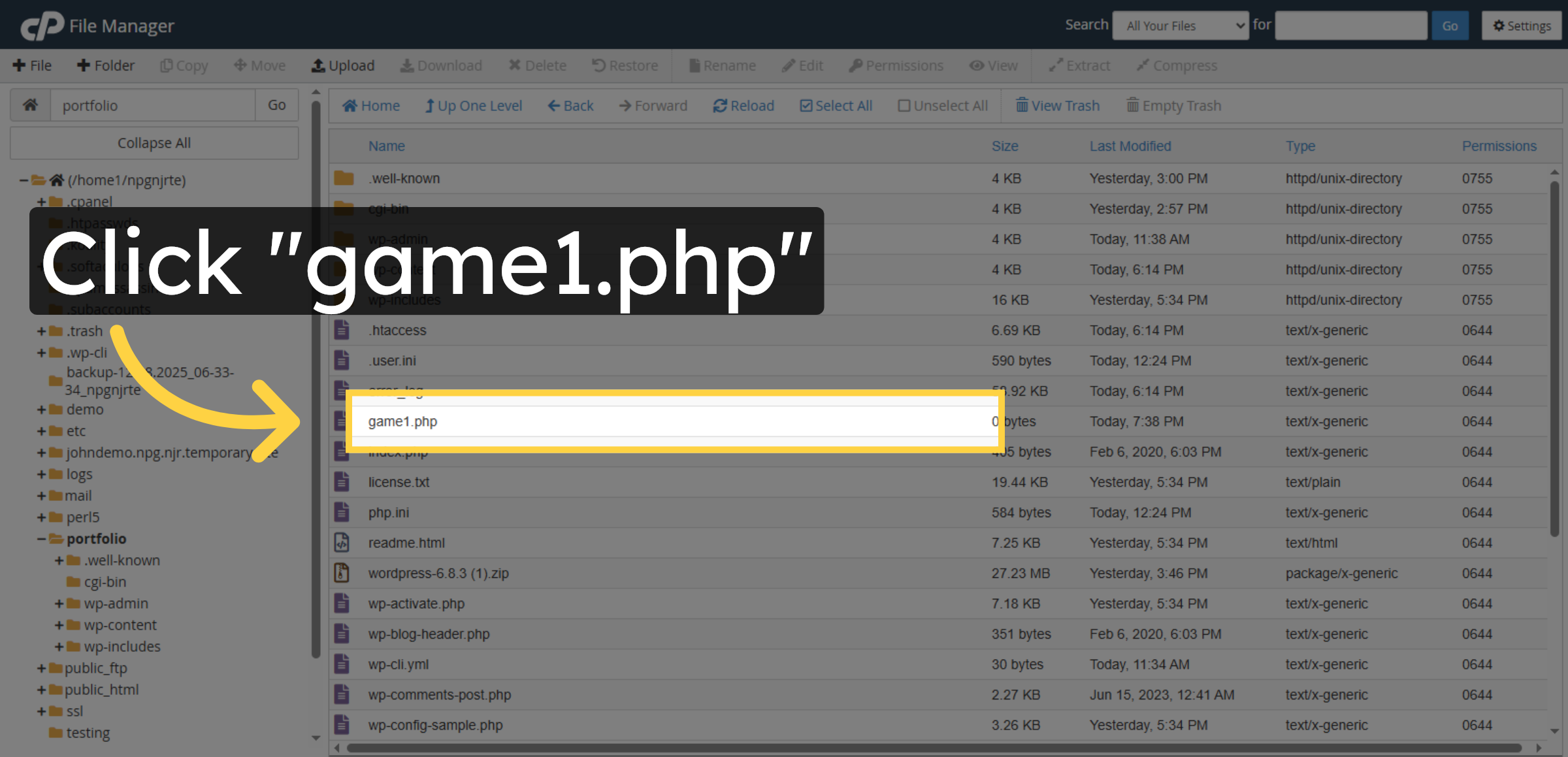
9. Open Edit Mode
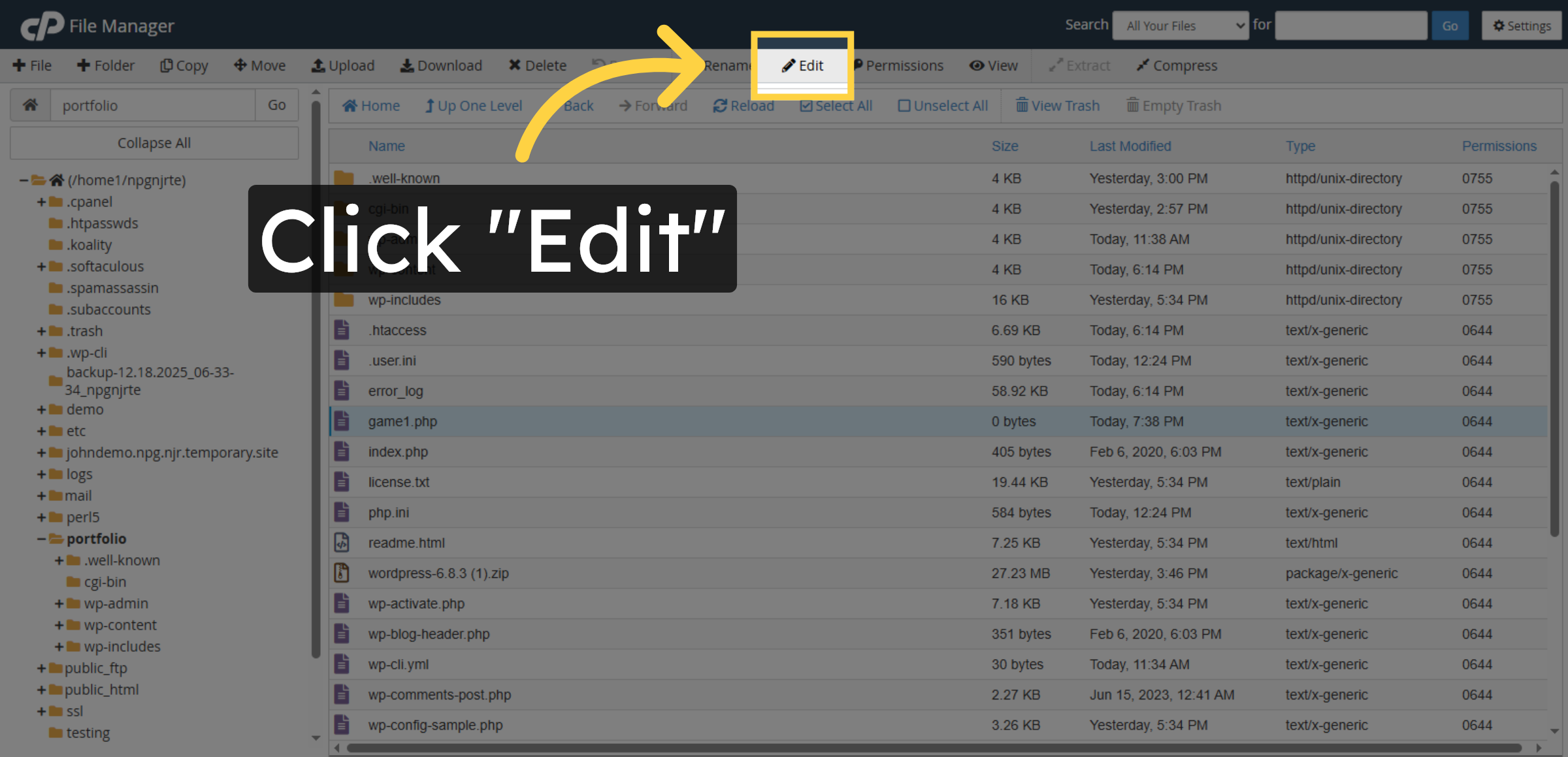
10. Confirm Edit Action
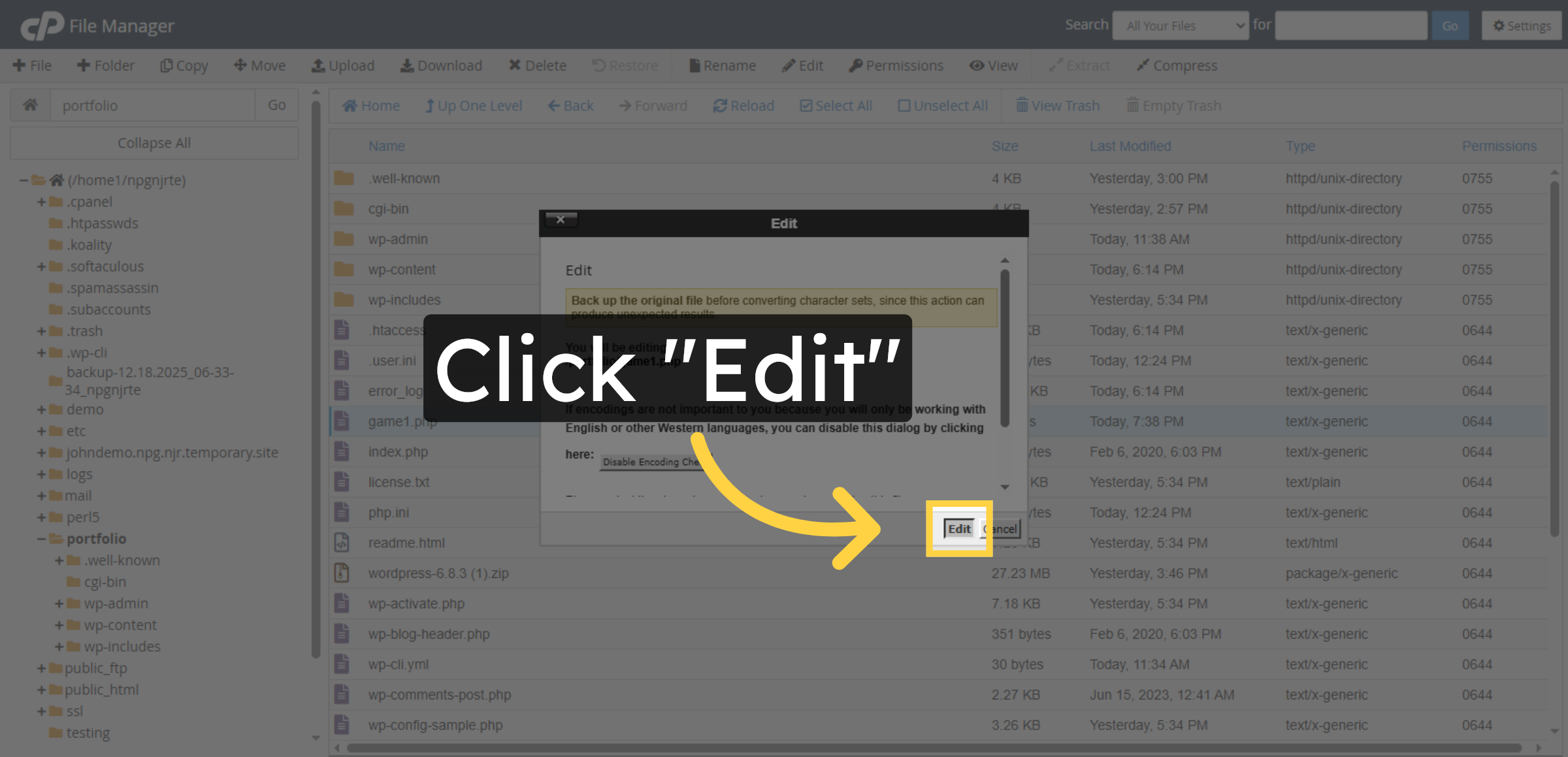
11. Save File Changes
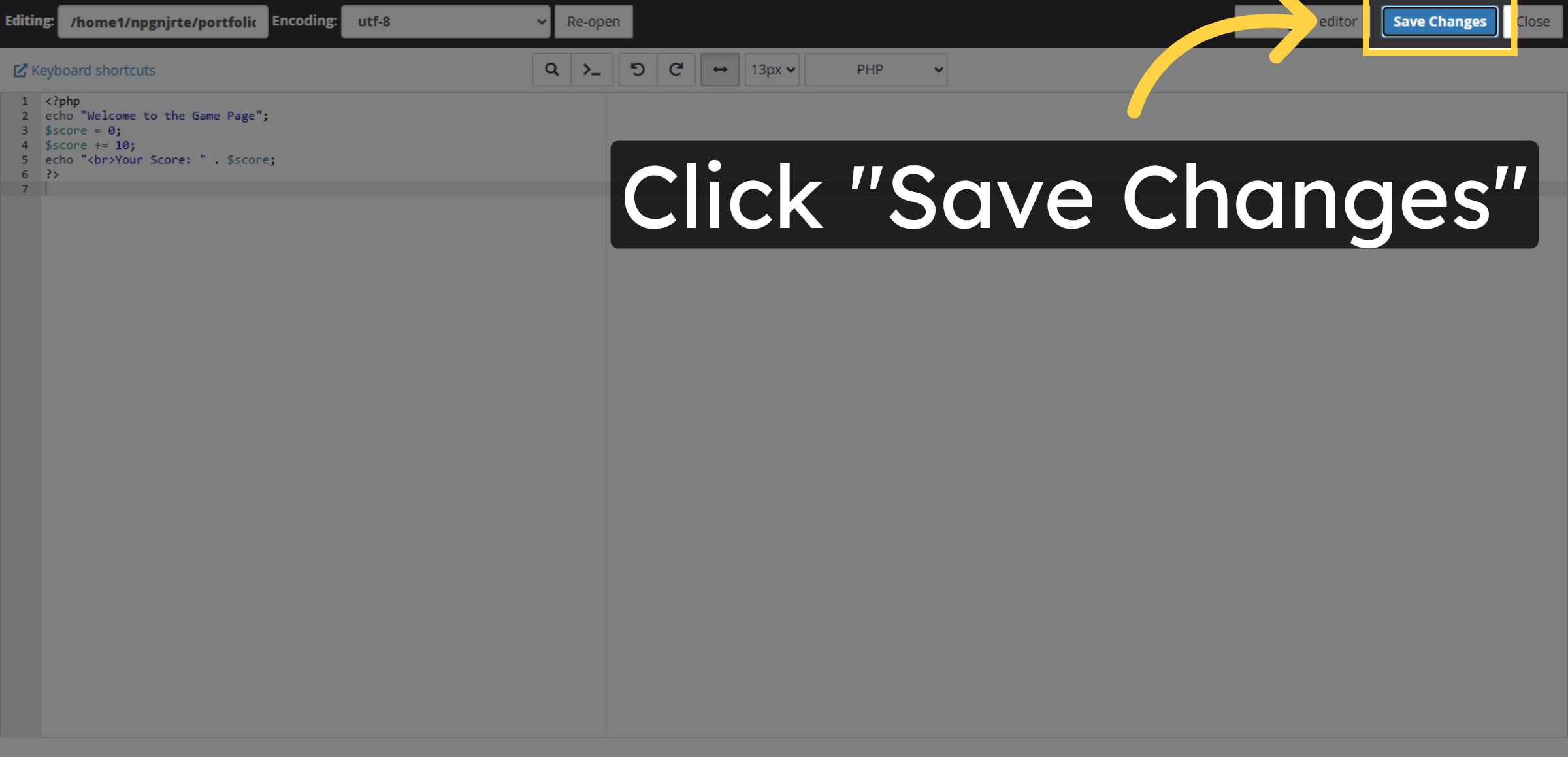
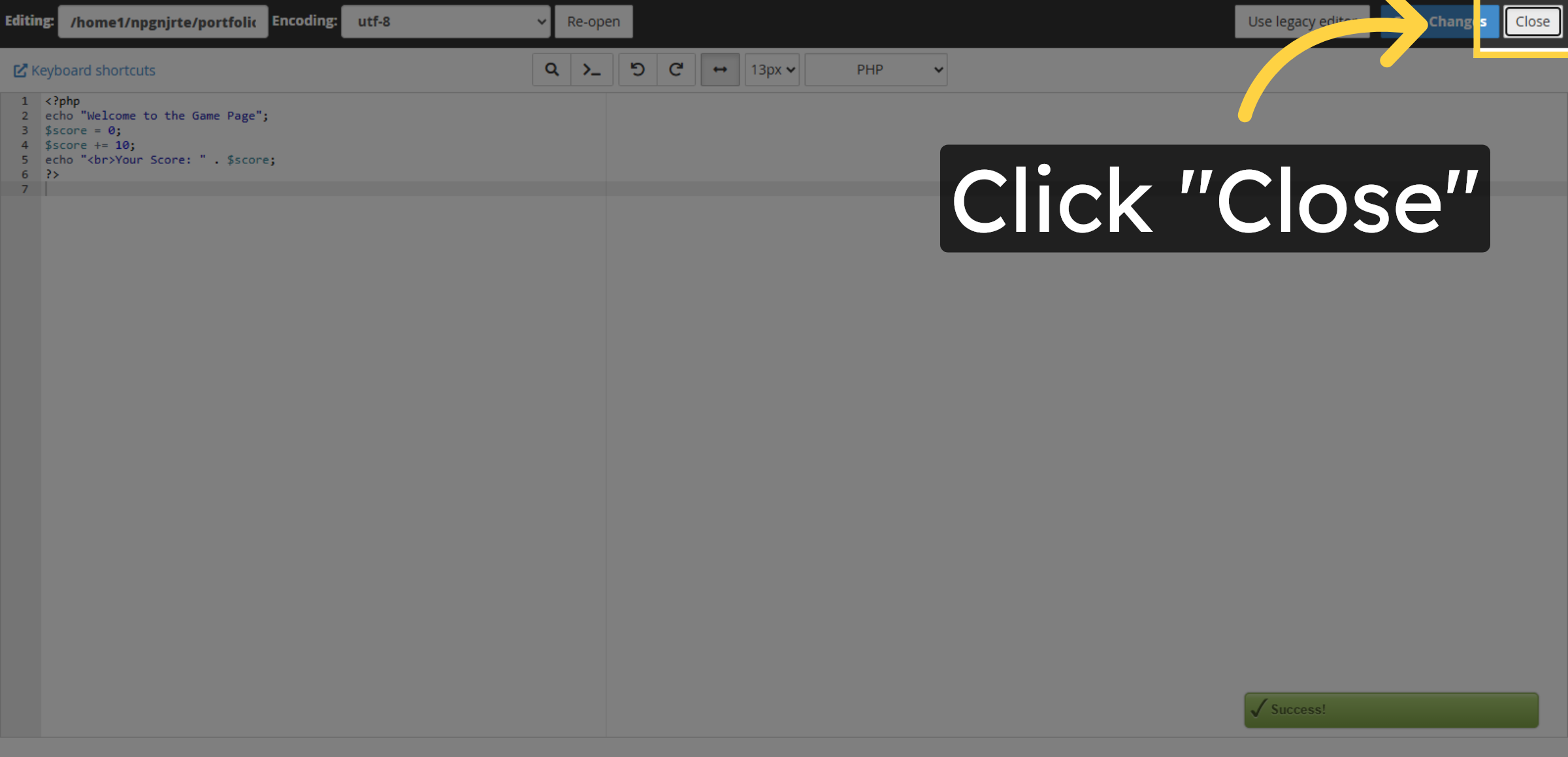
12. Close Editor
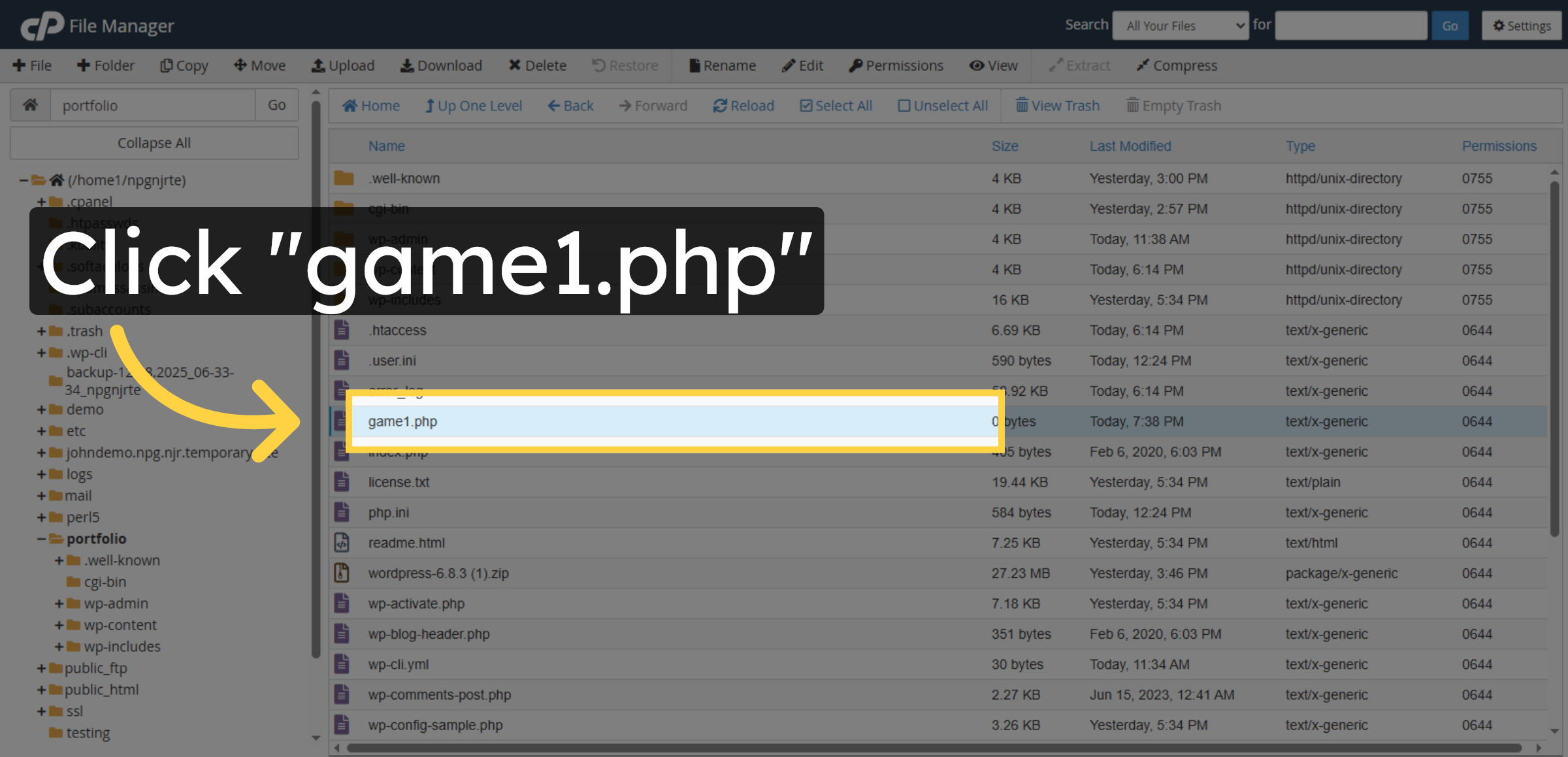
13. Select File Again
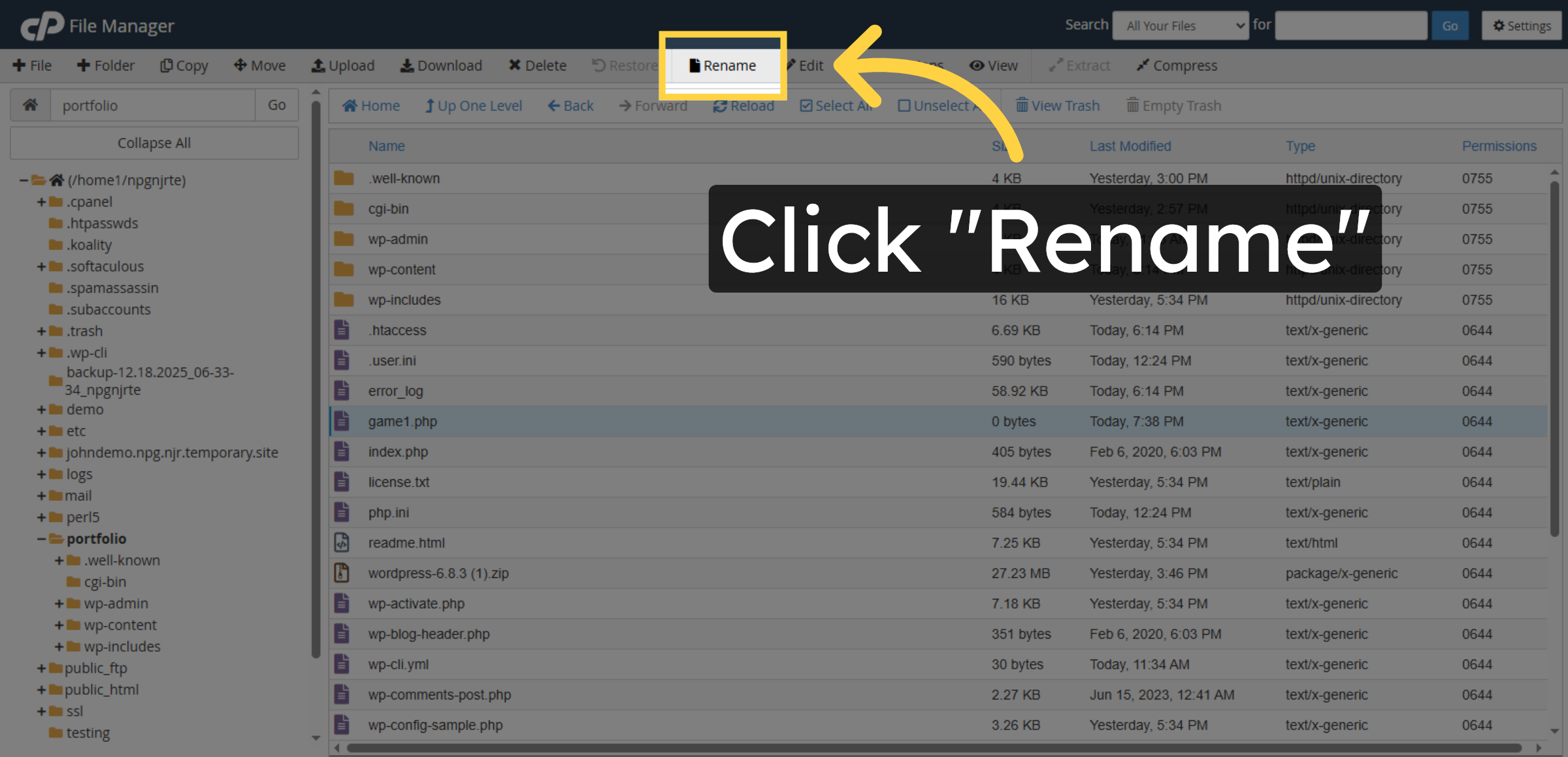
14. Initiate Rename


15. Select File for Rename
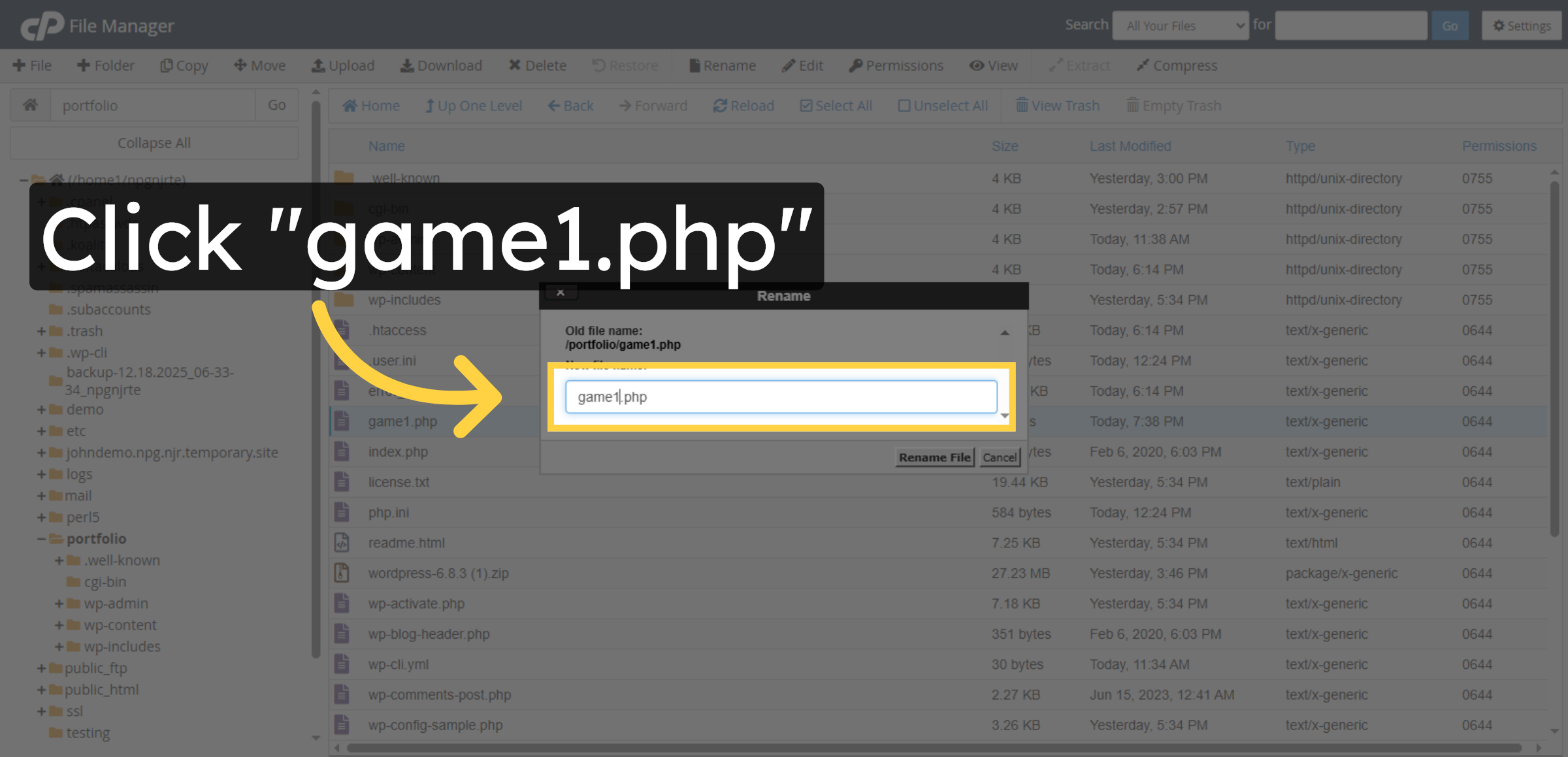
16. Enter New File Name
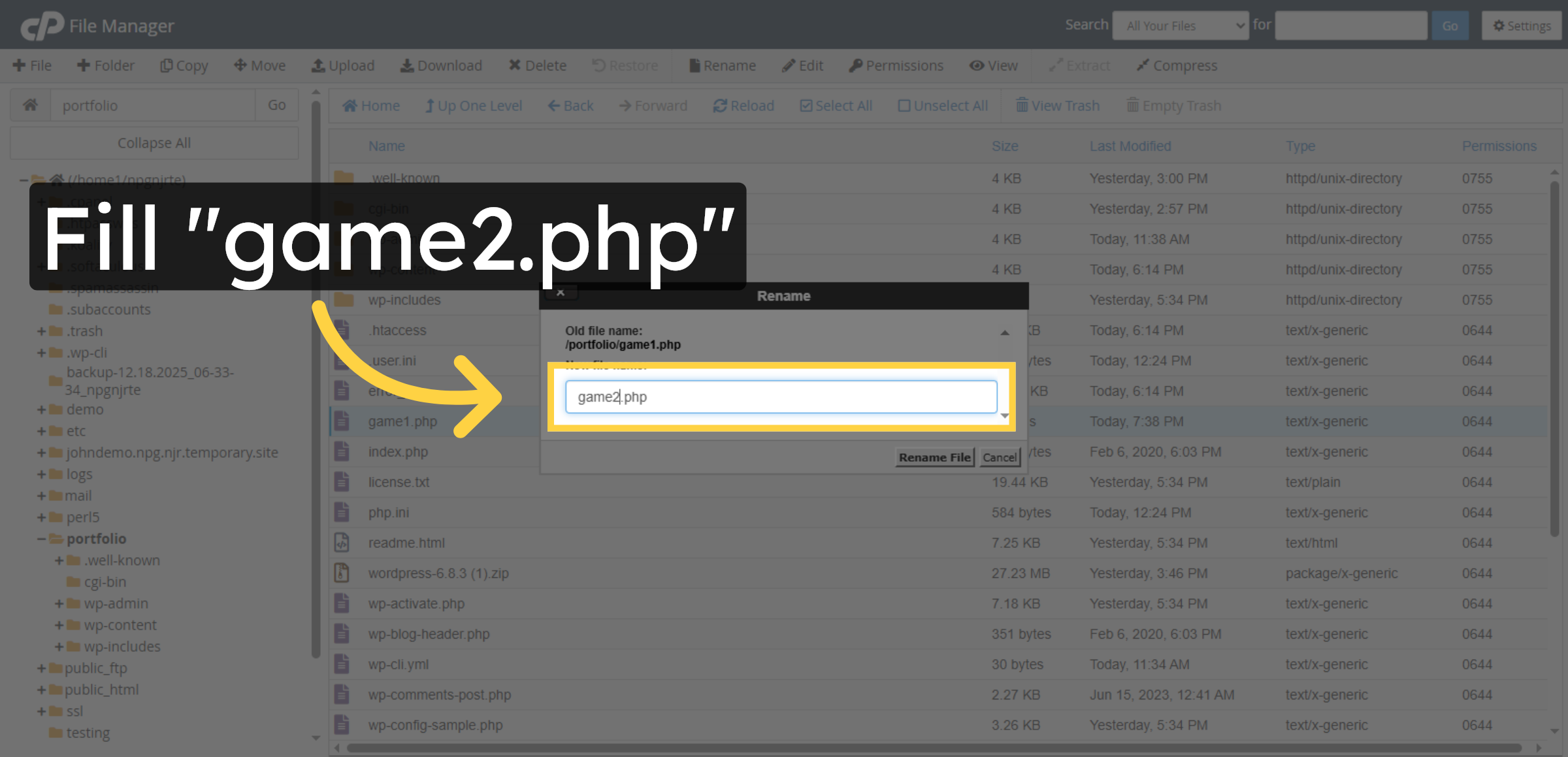
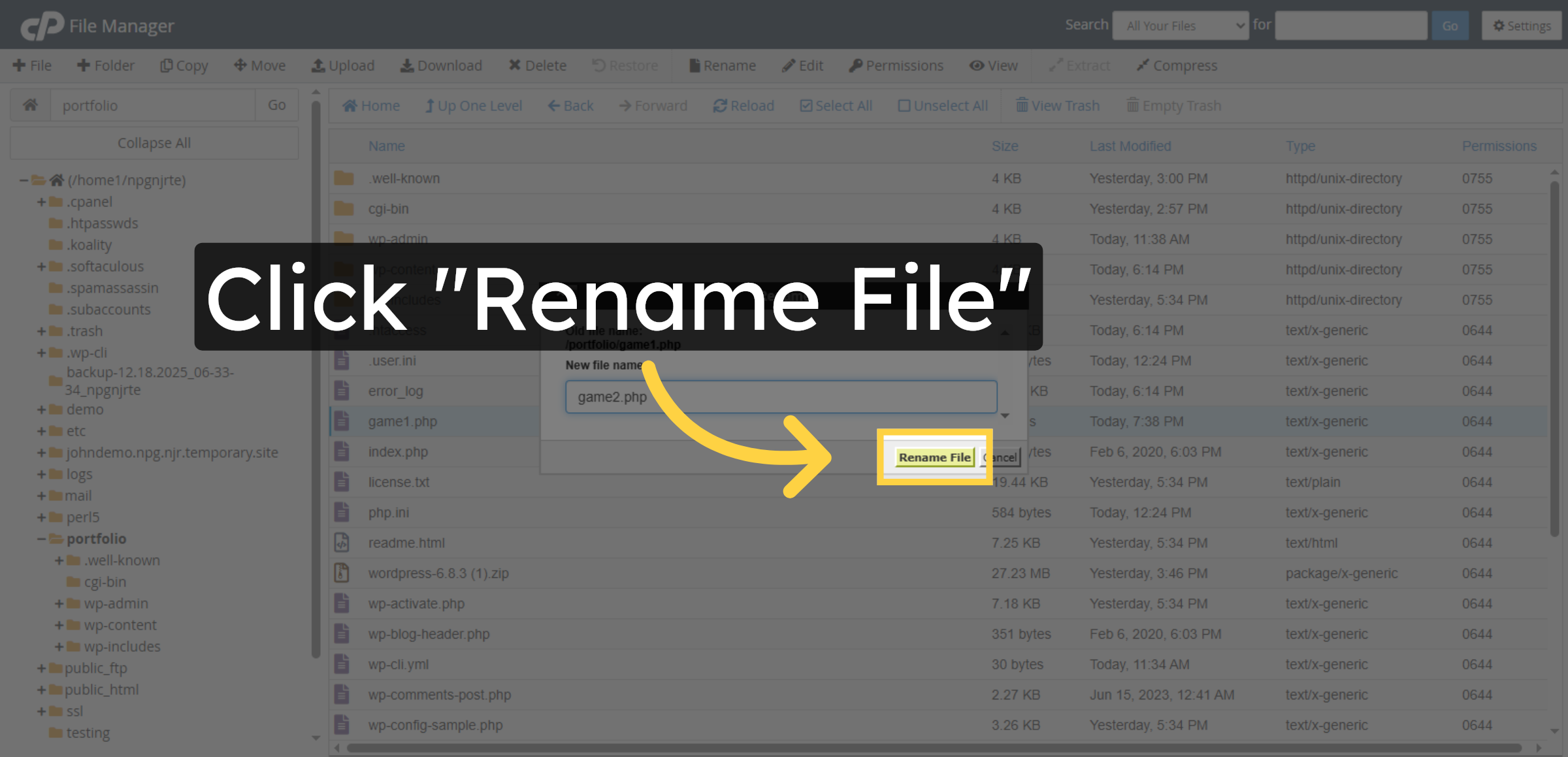
17. Confirm Rename
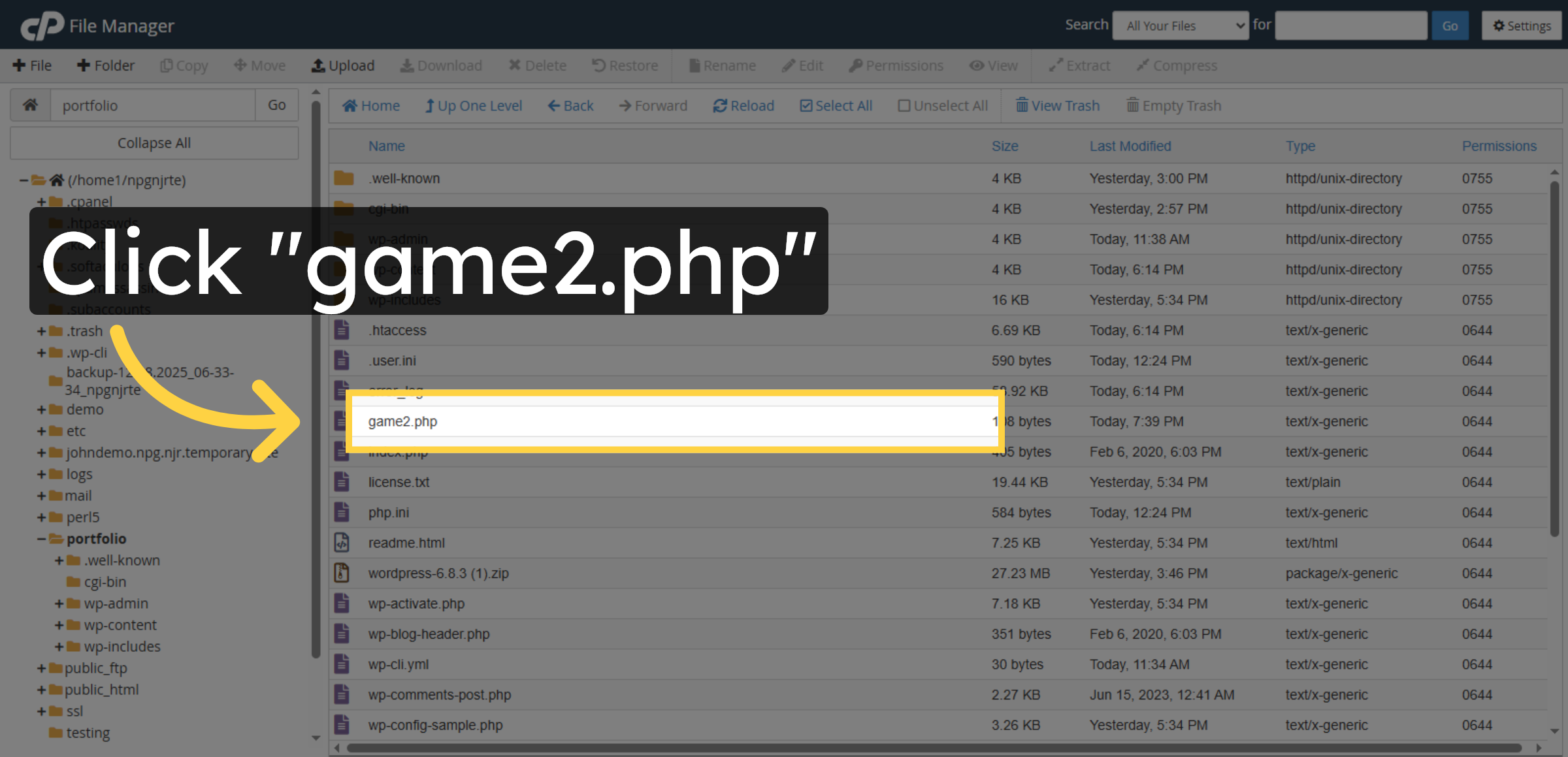
18. Select Renamed File
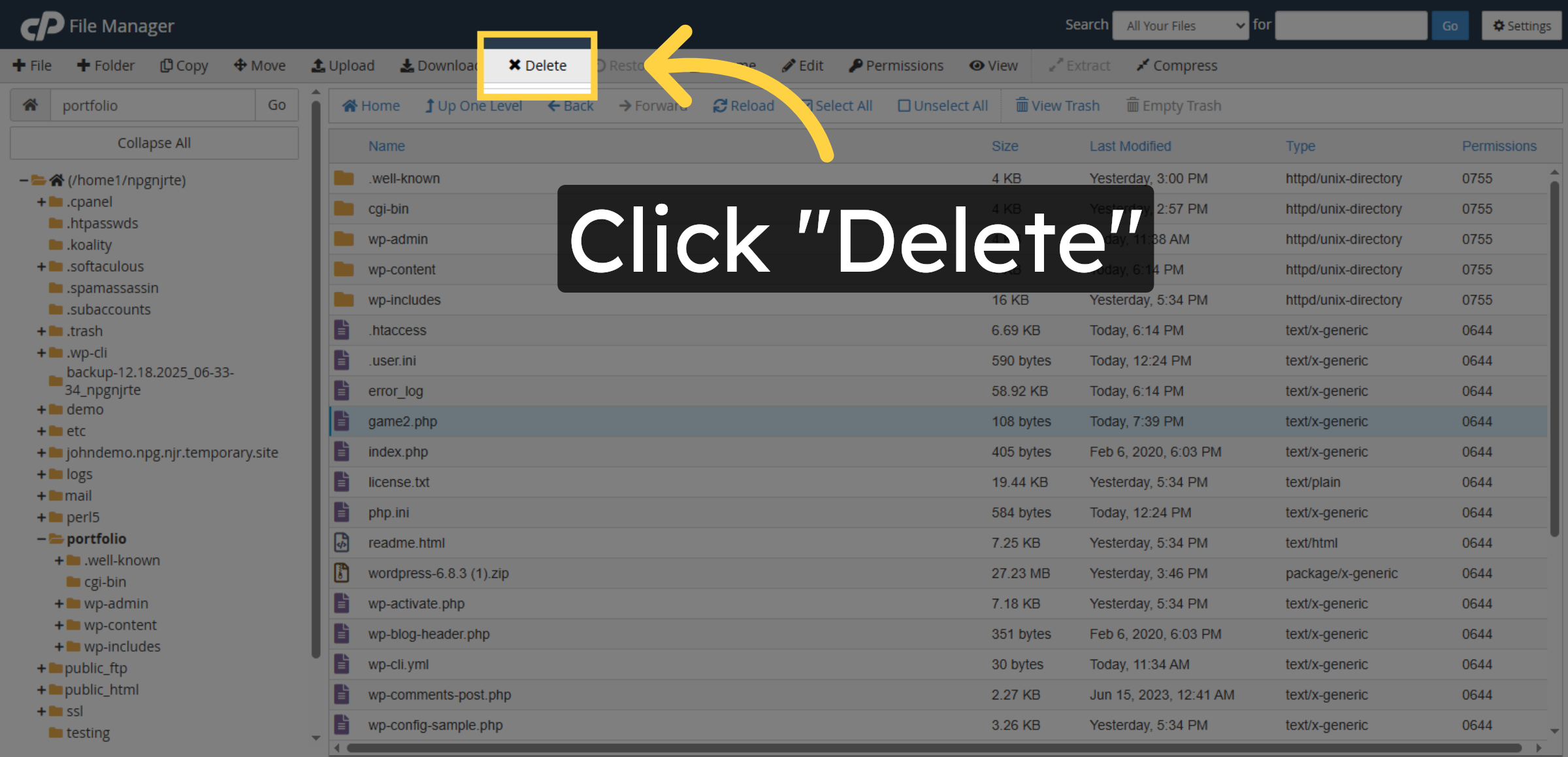
19. Delete File
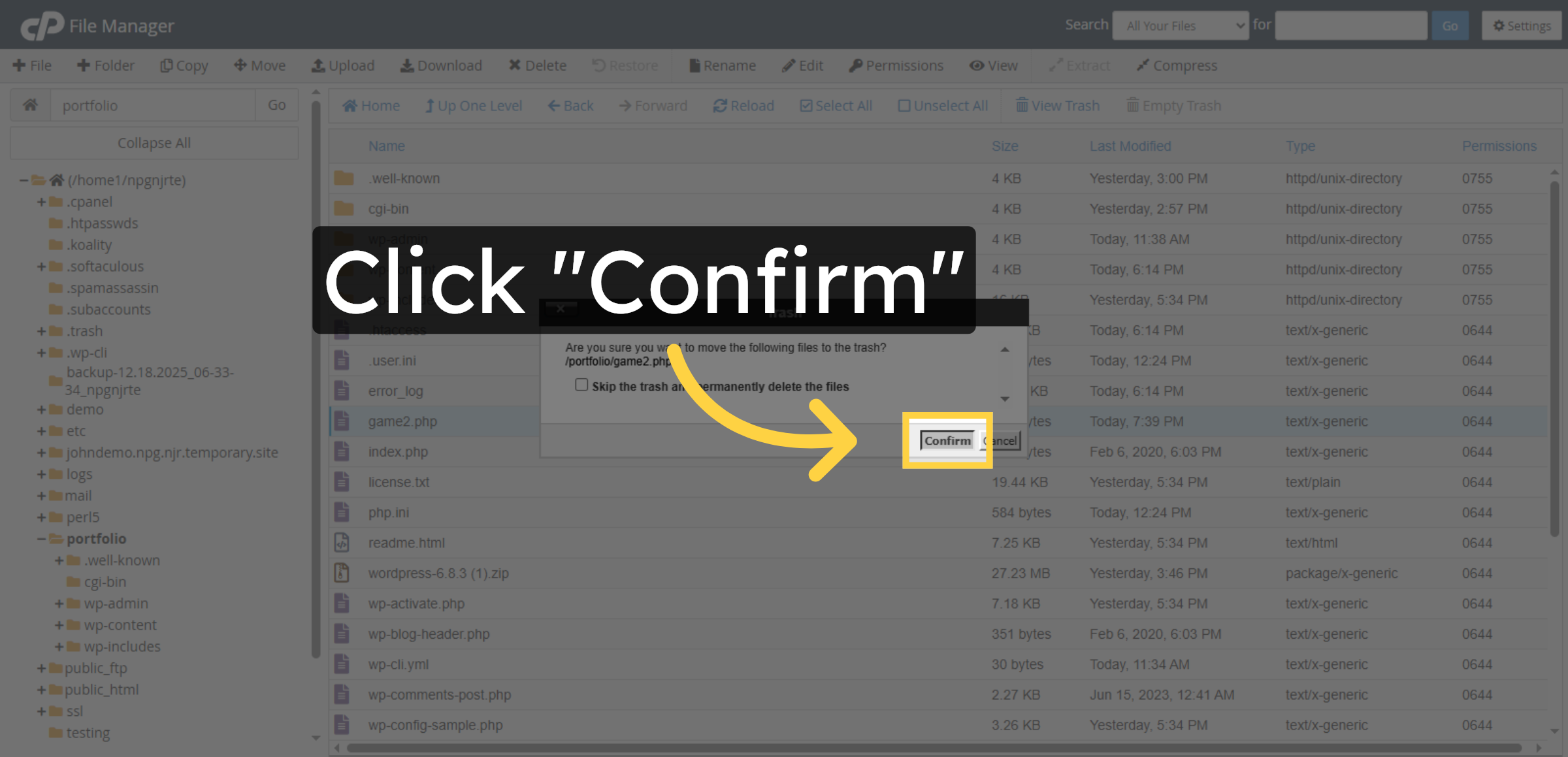
20. Confirm Deletion
Conclusion
Proper file management plays a vital role in ensuring the smooth operation and long-term stability of a WordPress website. By following the steps outlined in this guide, you have learned how to use HostGator’s File Manager to create, edit, rename, and delete website files effectively. These skills enable you to implement updates, resolve technical issues, and maintain an organized hosting environment.
Regularly reviewing and managing your website files helps prevent errors, improves site performance, and reduces security risks. It is recommended to create backups before modifying important files and to follow best practices when making structural changes. With consistent file management and careful handling, your website will remain reliable, secure, and optimized for future growth.
WooHelpDesk Support
Need professional help with WordPress file management, website customization, troubleshooting, or hosting optimization? WooHelpDesk provides expert technical support to keep your website running smoothly.
Visit: https://www.woohelpdesk.com
Call Us Toll-Free: +1 888 602 0119 (US & Canada)
Expert Assistance | Secure Management | Fast Resolution
Contact WooHelpDesk today for reliable and efficient WordPress support services.



