3 mins read

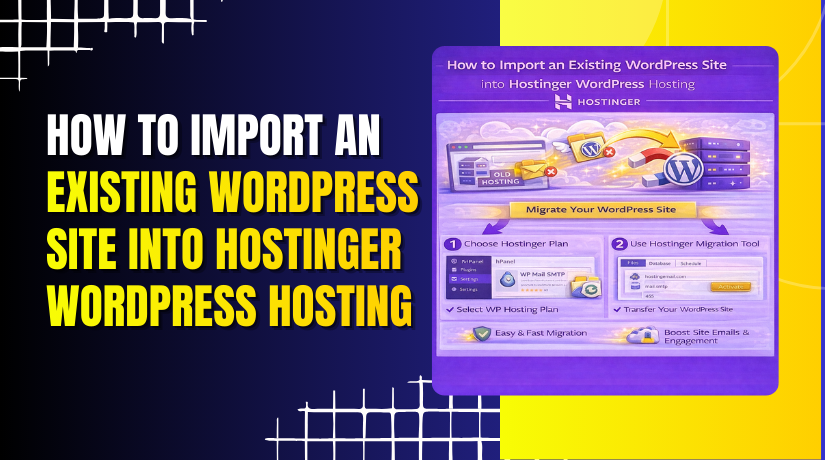
How to Import an Existing WordPress Site into Hostinger WordPress Hosting

Introduction

Importing an existing WordPress website into Hostinger WordPress Hosting is an efficient way to transfer your website’s content, design, and settings from one hosting environment to another. This process ensures that your website remains fully functional while benefiting from Hostinger’s optimized performance and security features.

This guidde explains the step-by-step procedure to import a previously exported WordPress backup file into your Hostinger hosting account using the All-in-One WP Migration plugin. It covers accessing the hosting dashboard, opening the WordPress admin panel, uploading the backup file, completing the import process, and configuring permalink settings to ensure proper website functionality.


1. Note

“The existing website has been successfully exported, and the same backup has been used to migrate the website to this hosting.

The website has been imported from:
https://darkturquoise-buffalo-320933.hostingersite.com/

to:
https://sandybrown-starling-957372.hostingersite.com/

2. Another Hosing Dashboard

From the Hostinger WordPress dashboard, access your site’s WordPress Admin panel, where you can import website content using built-in WordPress tools or plugins.
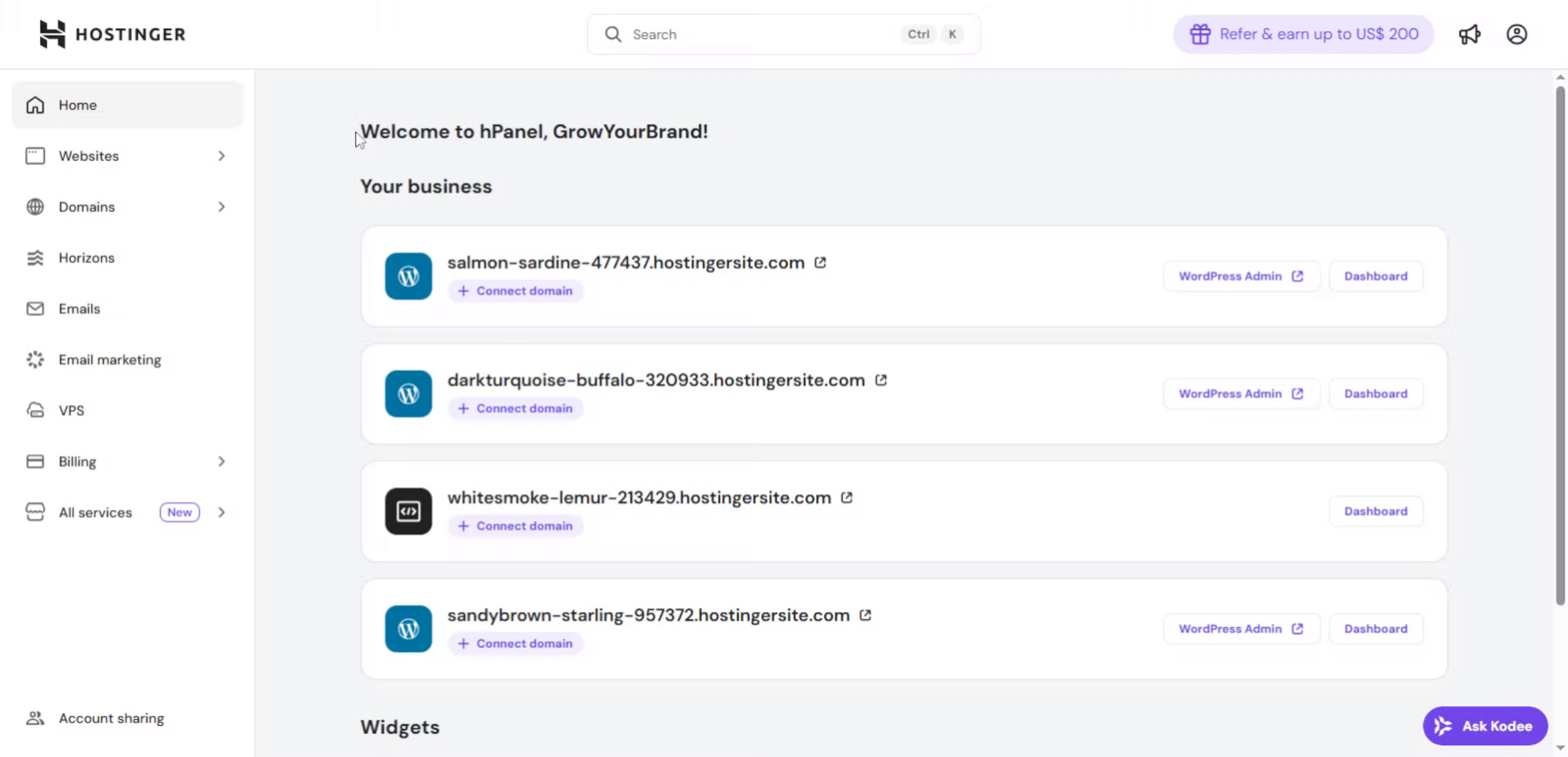
Another Hosing Dashboard

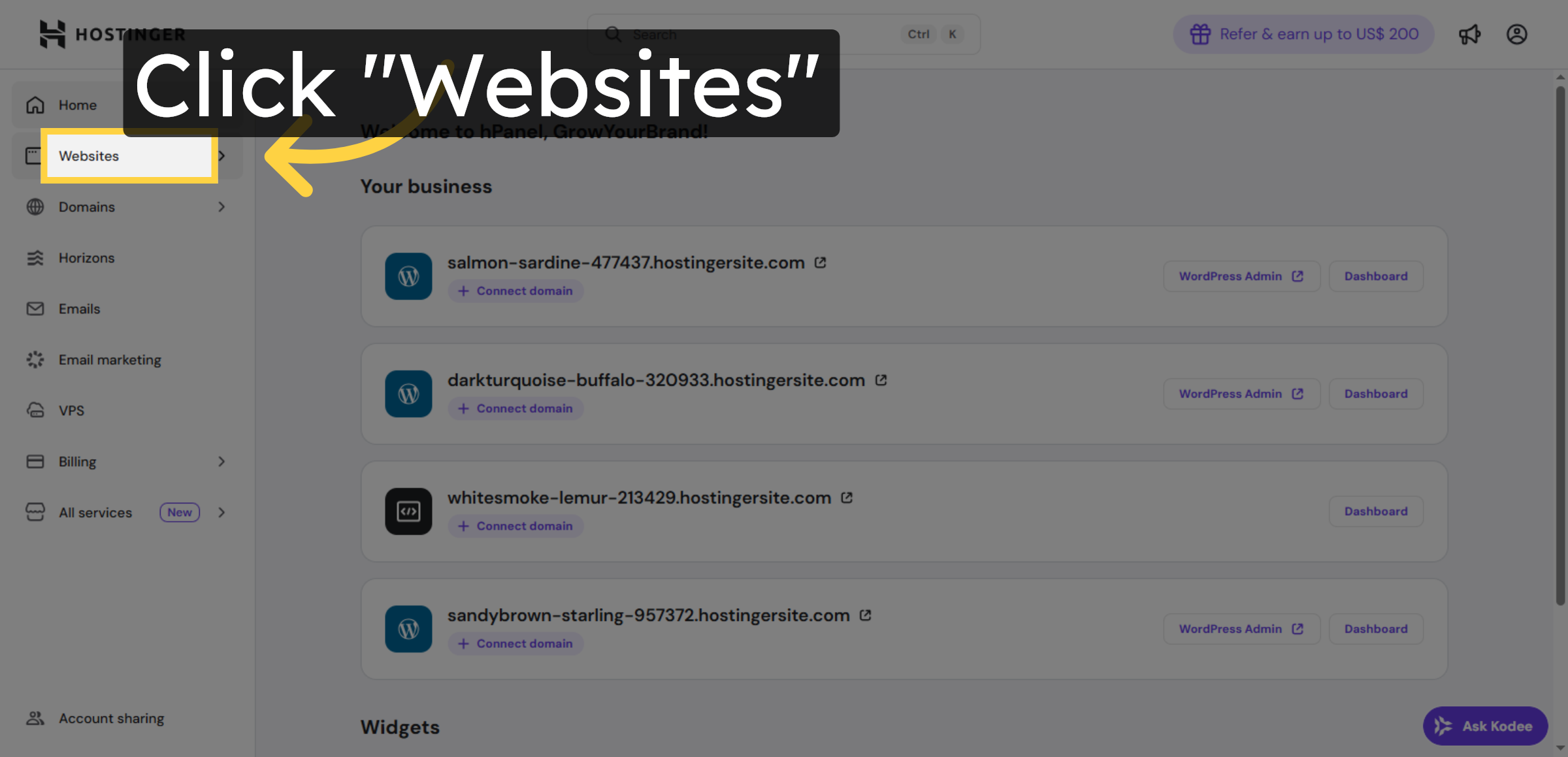
3. Click Websites Menu

Click the Websites menu in your Hostinger dashboard to view all your hosted sites.
Click Websites Menu

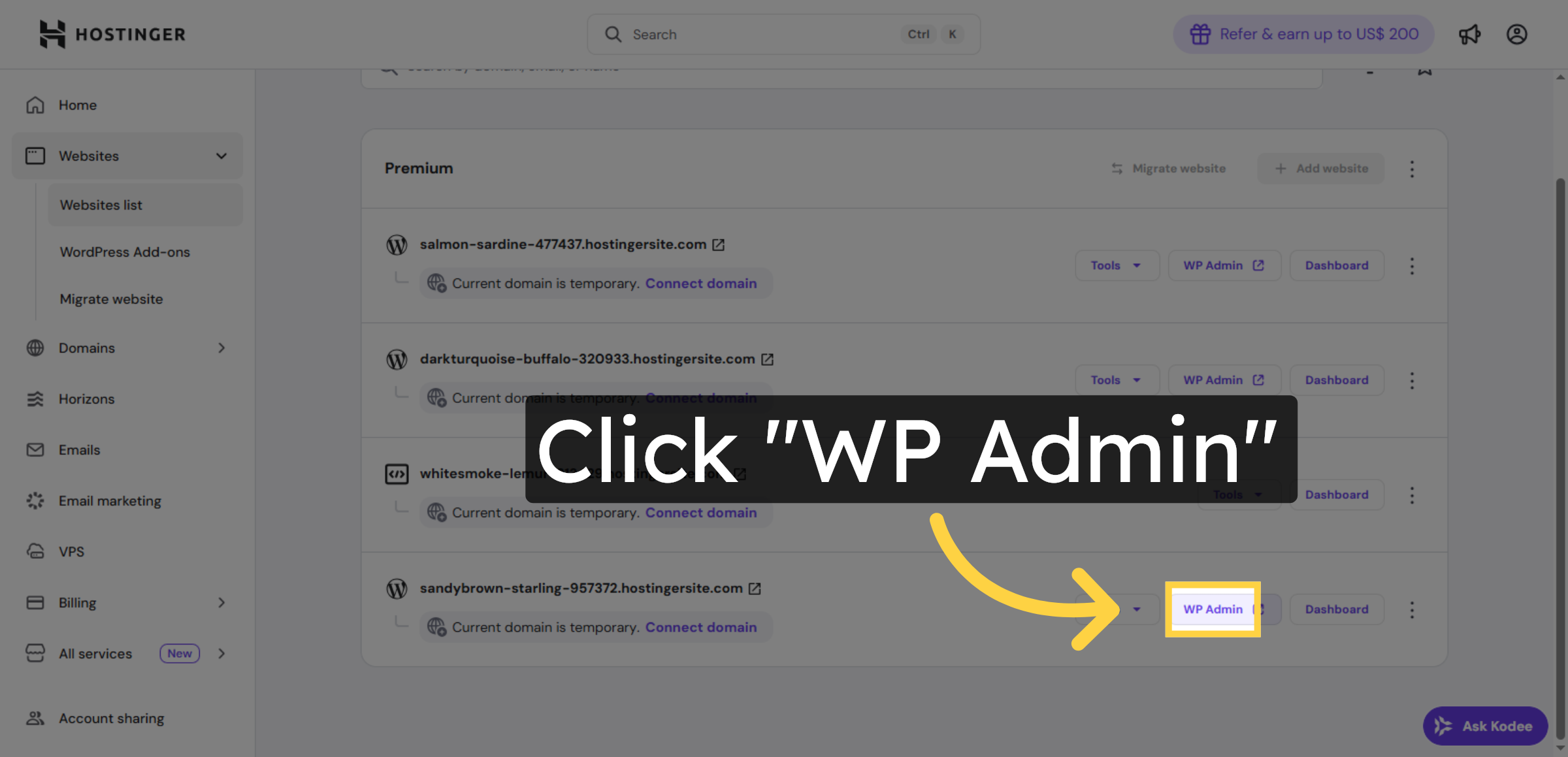
4. Access WP Admin Panel

Click WP Admin to open the WordPress dashboard and start importing your existing website into Hostinger.
Access WP Admin Panel

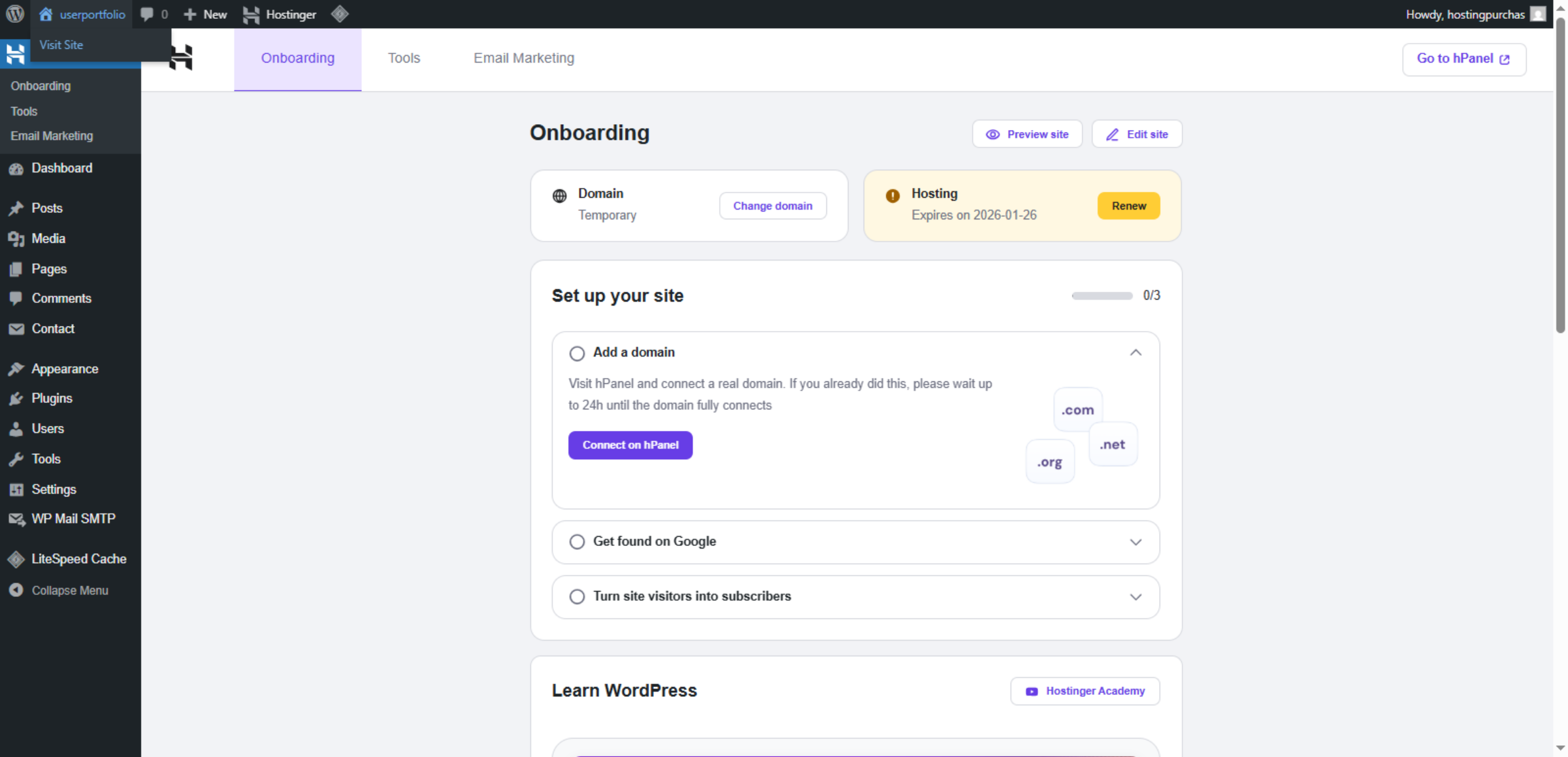
5. Switch To Specific Hosting Site

This is the Hostinger WordPress onboarding screen, where you can connect a domain, review hosting details, and complete the basic setup of your website before importing or managing content.
Switch To Specific Hosting Site

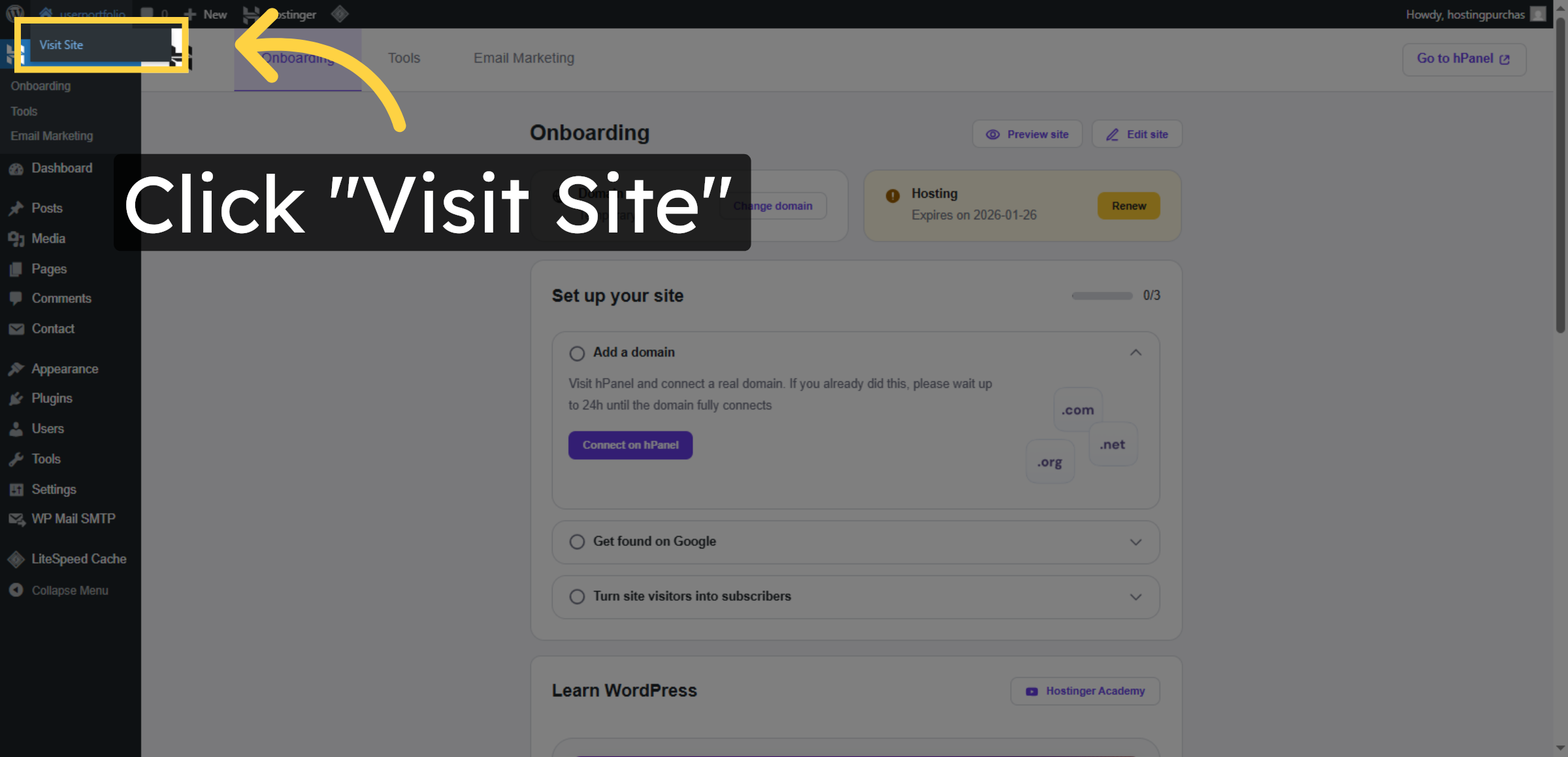
6. Visit Your WordPress Site

Click Visit Site to open the live version of your WordPress website in a new tab or window.

Visit Your WordPress Site

7. Open First WordPress Post
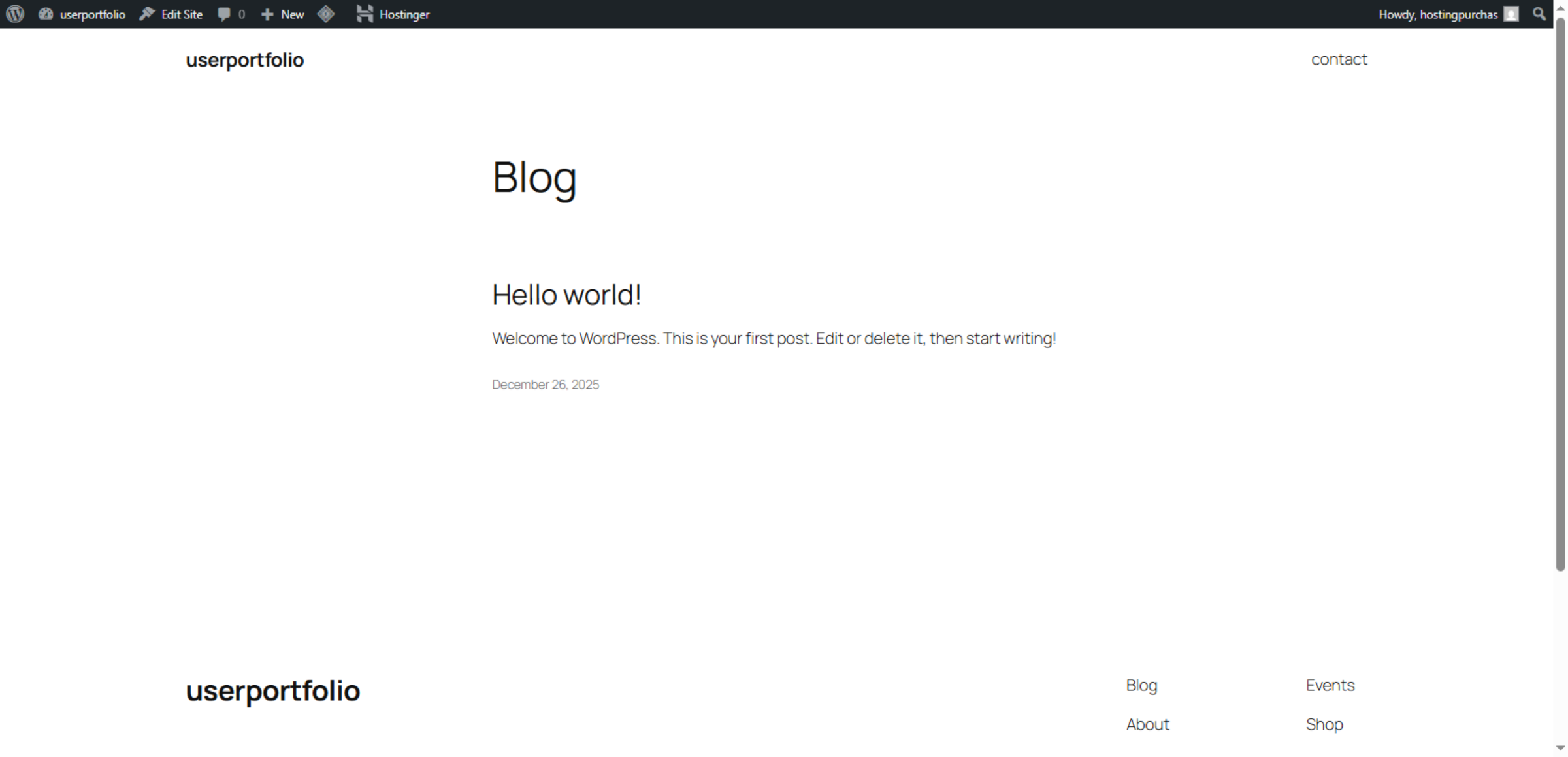
Click the Hello world! post to view the default first post on your WordPress site, which you can edit or delete as needed.

Open First WordPress Post

8. Open New Dashboard
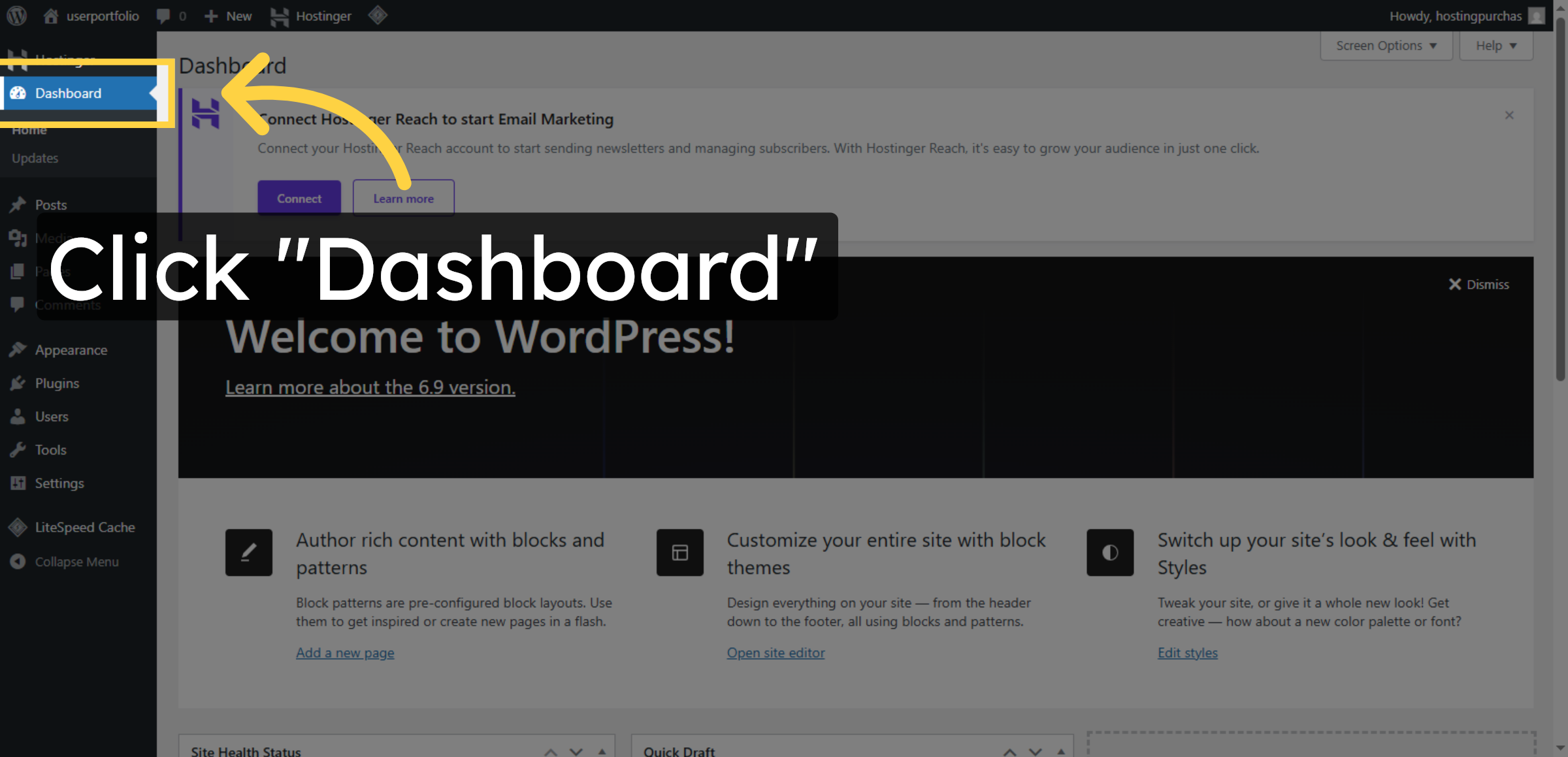
Click Dashboard to access the control panel of your new hosting account.

Open New Dashboard

9. Access Migration Plugin
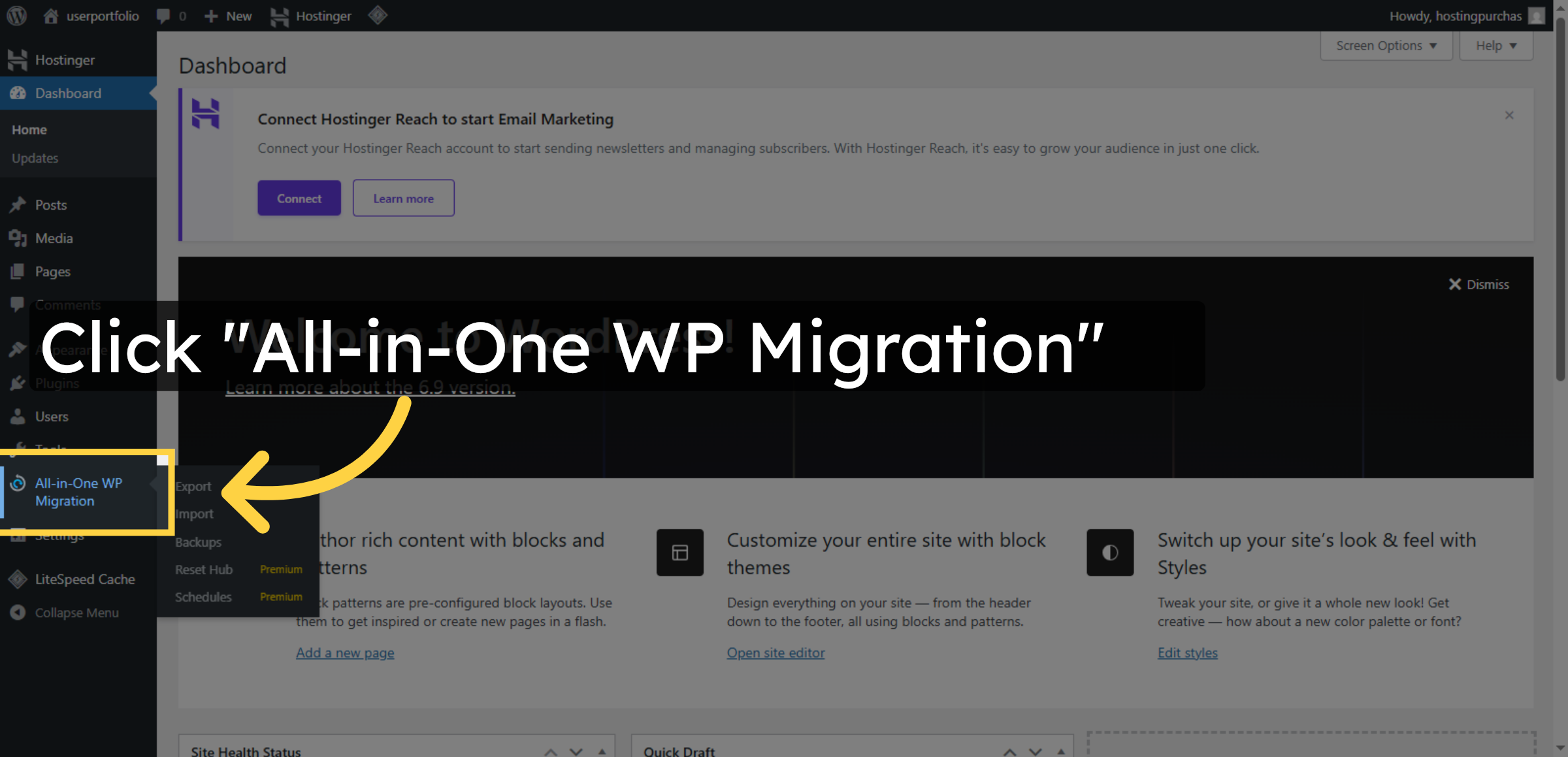
Click All-in-One WP Migration to open the plugin on your new site.

Access Migration Plugin

Ad Banner

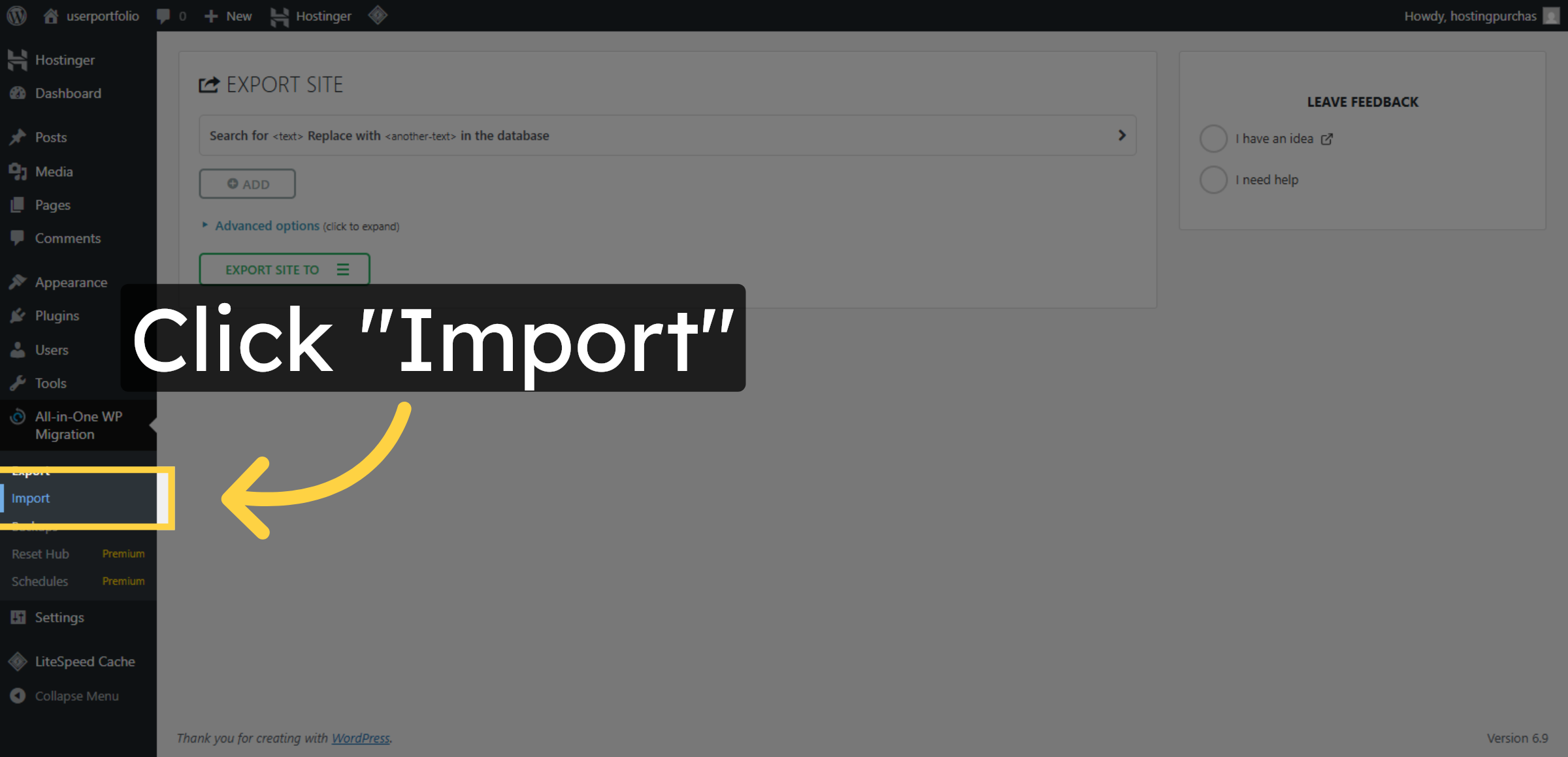
10. Start Import Process

Click Import to begin importing your website backup file.

Start Import Process

11. Open Import Options
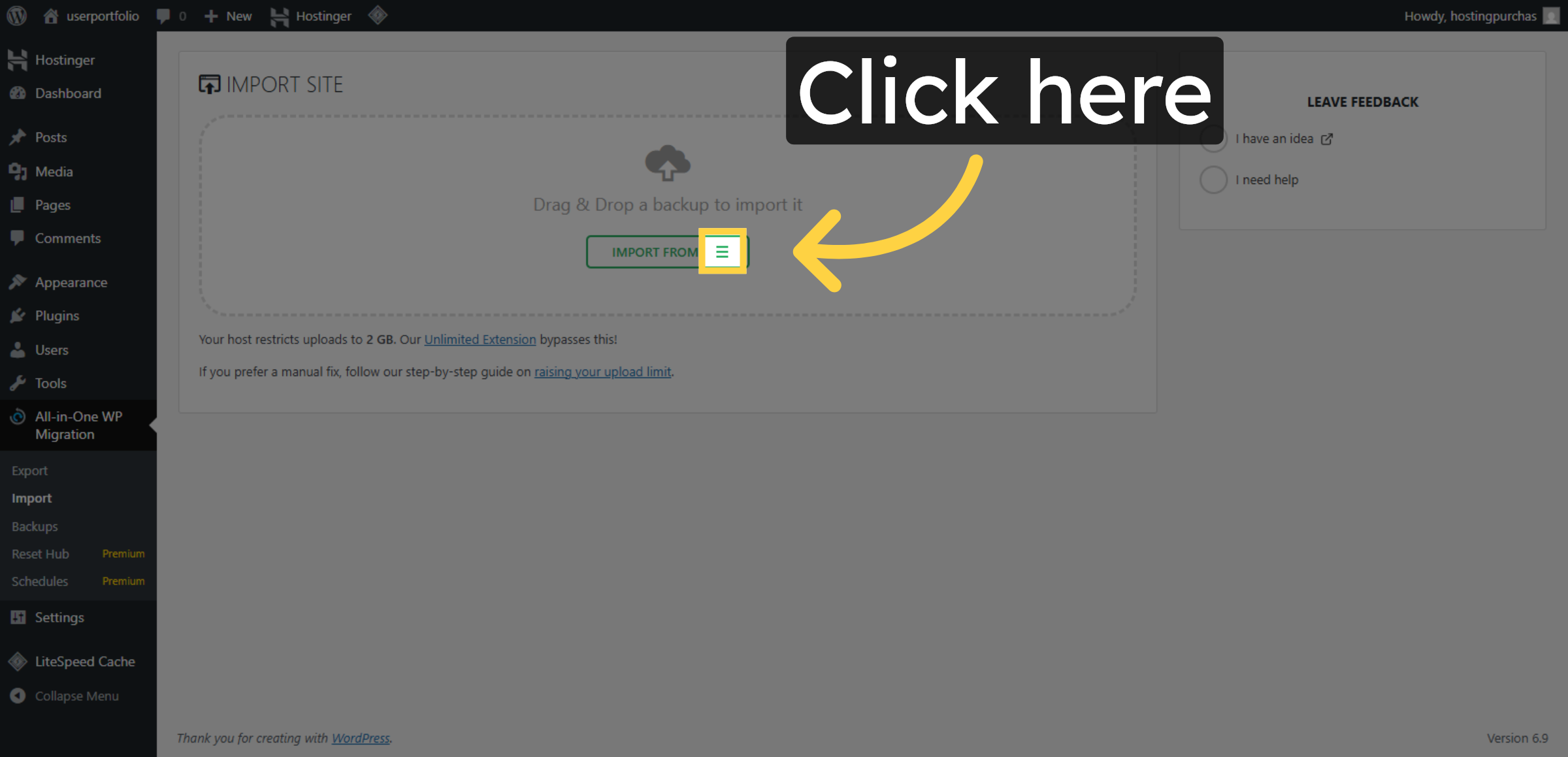
Click here to open the import file selection dialog.

Open Import Options

12. Select Import File
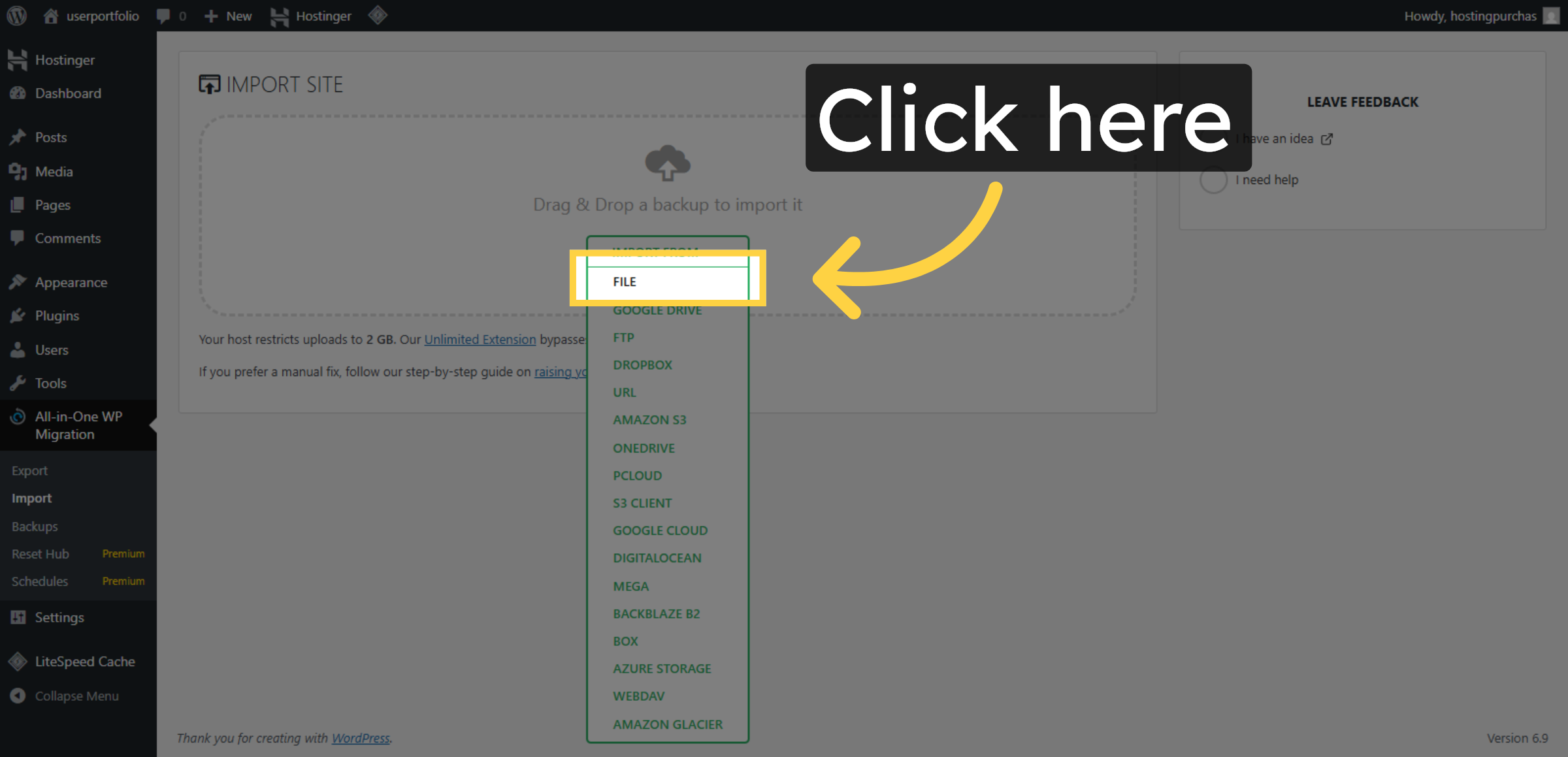
Click here to choose the backup file for import.

Select Import File

13. Proceed with Import
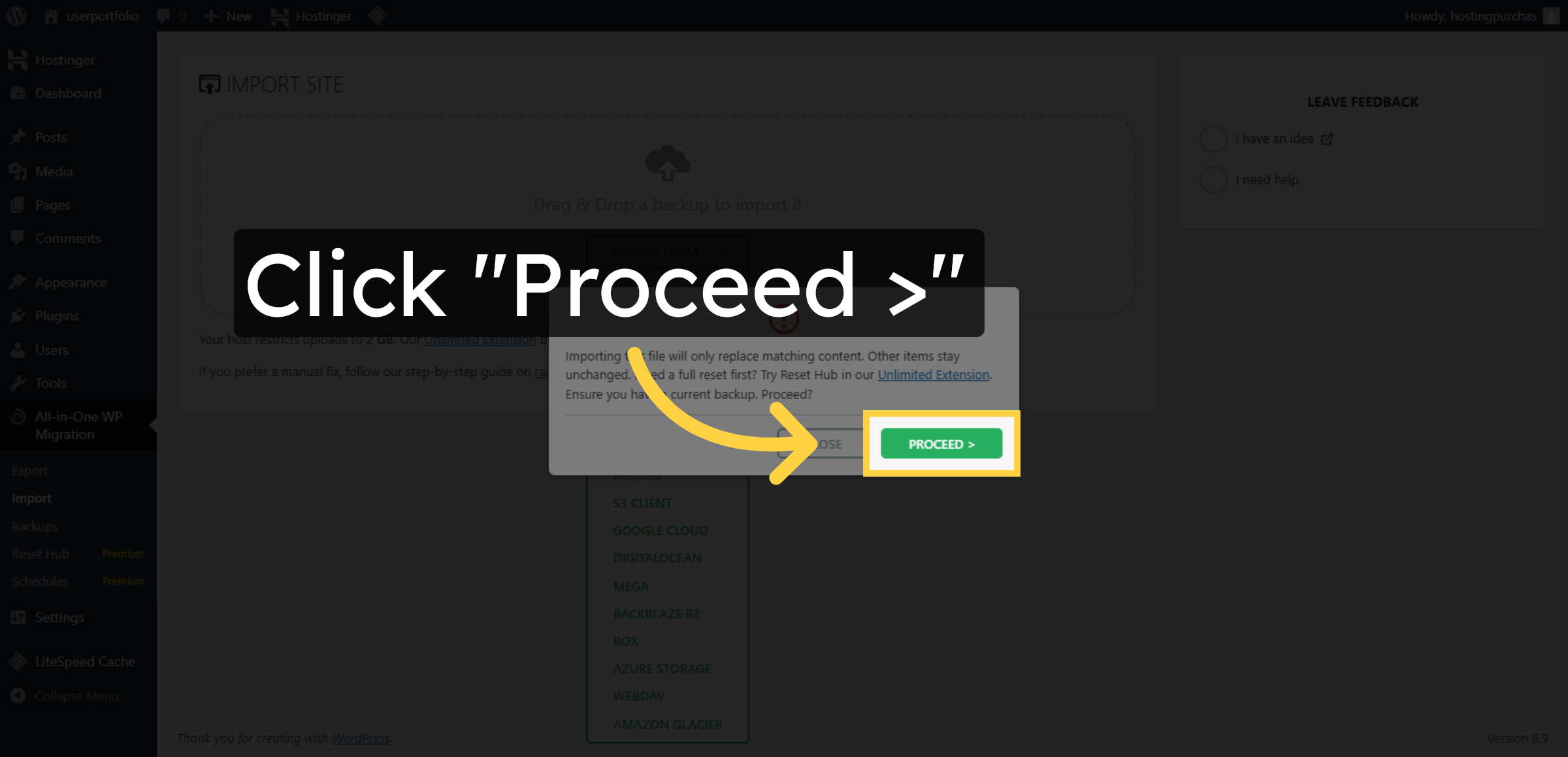
Click Proceed > to continue with the import process.

Proceed with Import

14. Finish Import
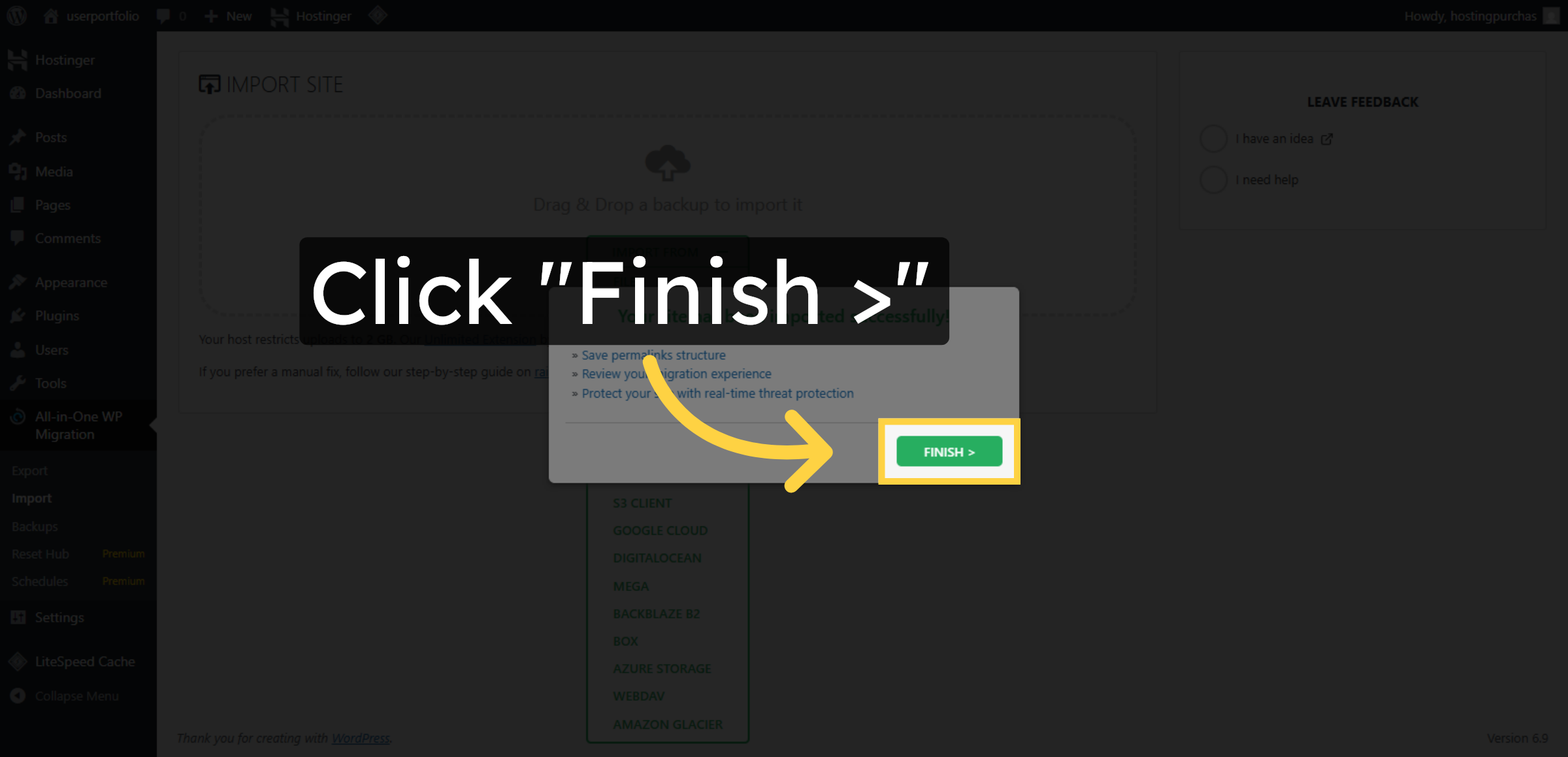
Click Finish > to complete the website import.

Finish Import

15. Open Settings Menu
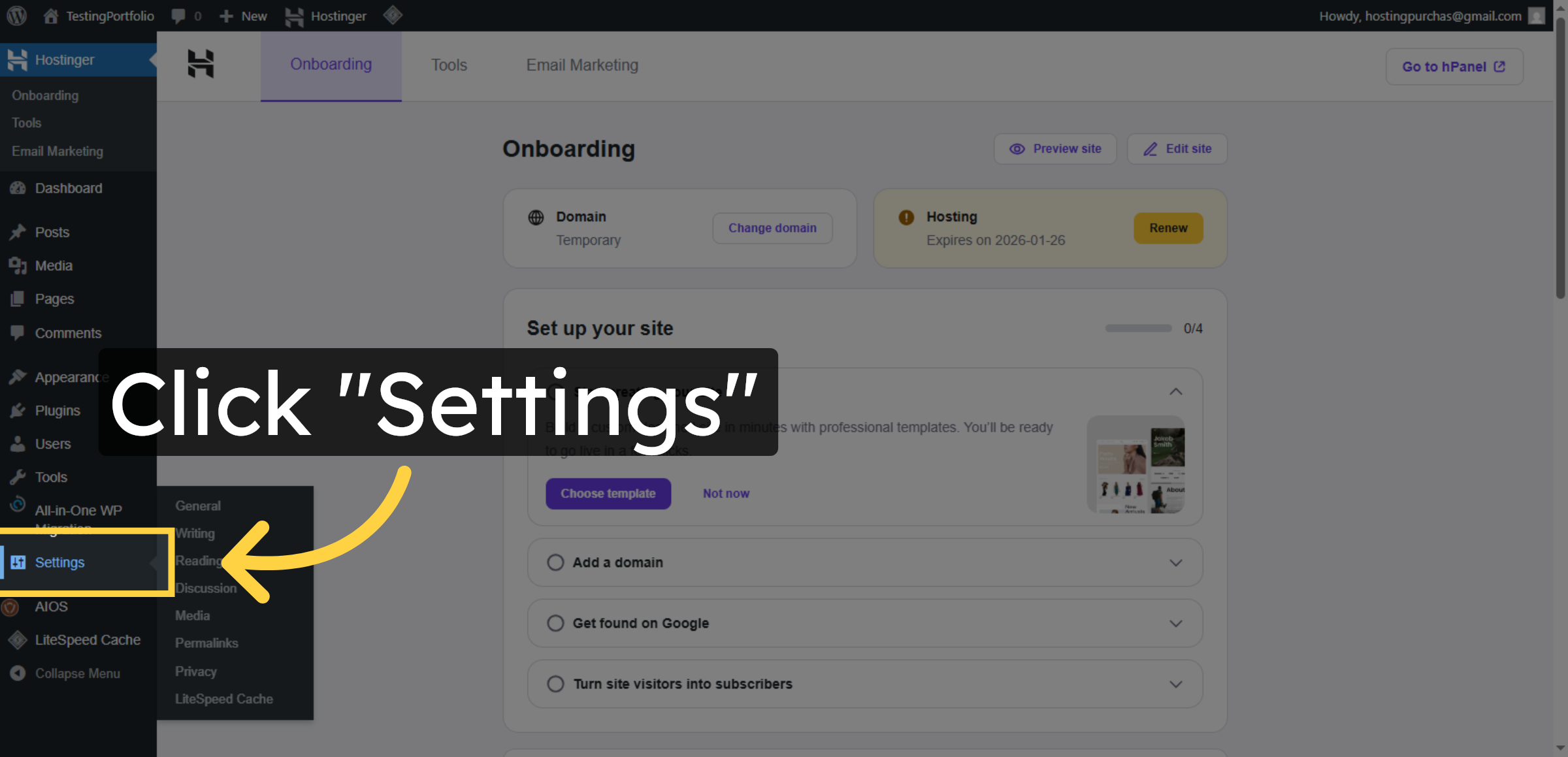
Click the Settings option in Hostingersite to access the configuration panel where permalink settings are located.

Open Settings Menu

16. Access Permalink Settings
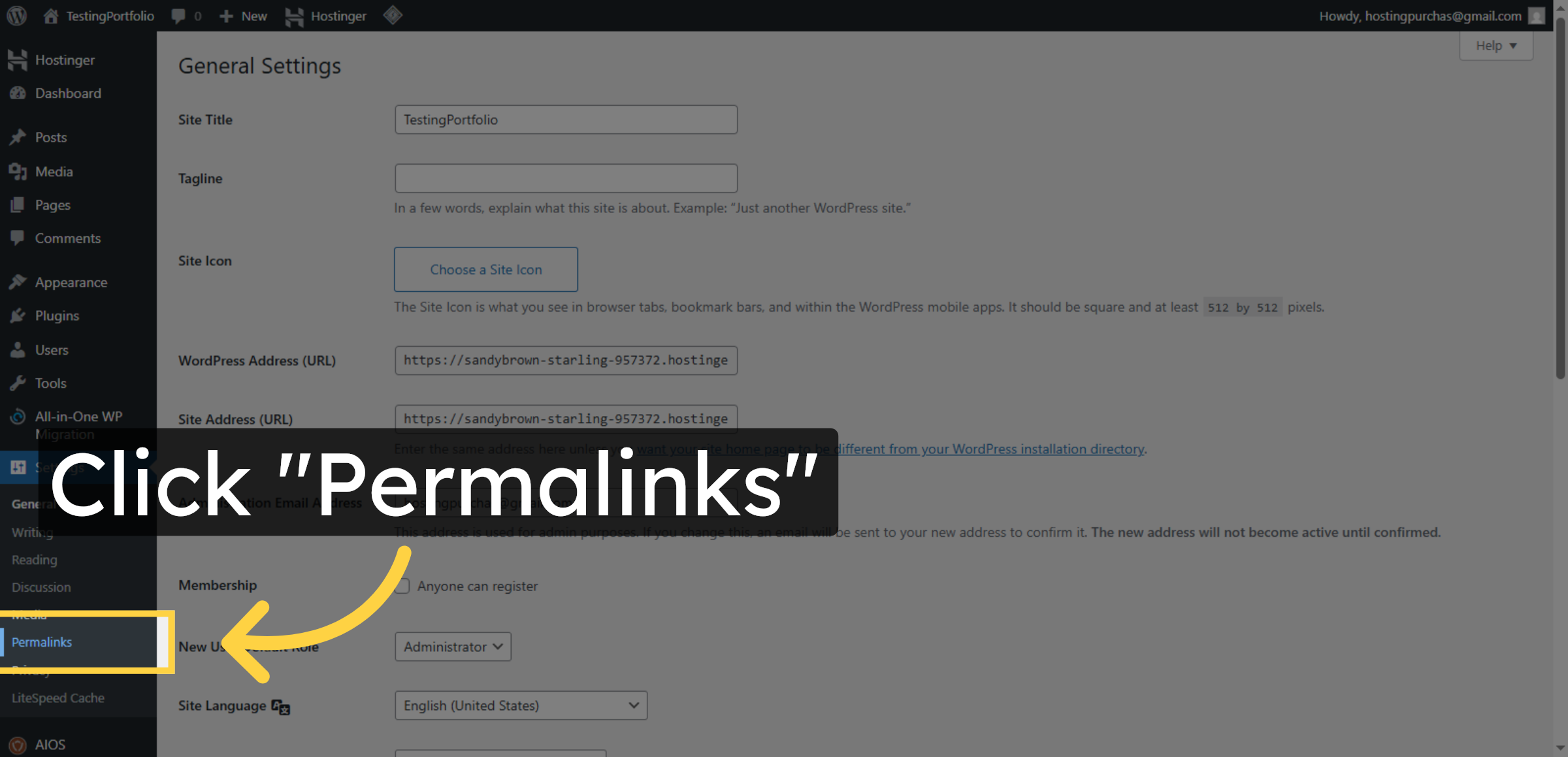
Click the Permalinks section within the Settings menu to view and modify your website’s URL structure options.

Access Permalink Settings

17. Save Permalink Changes
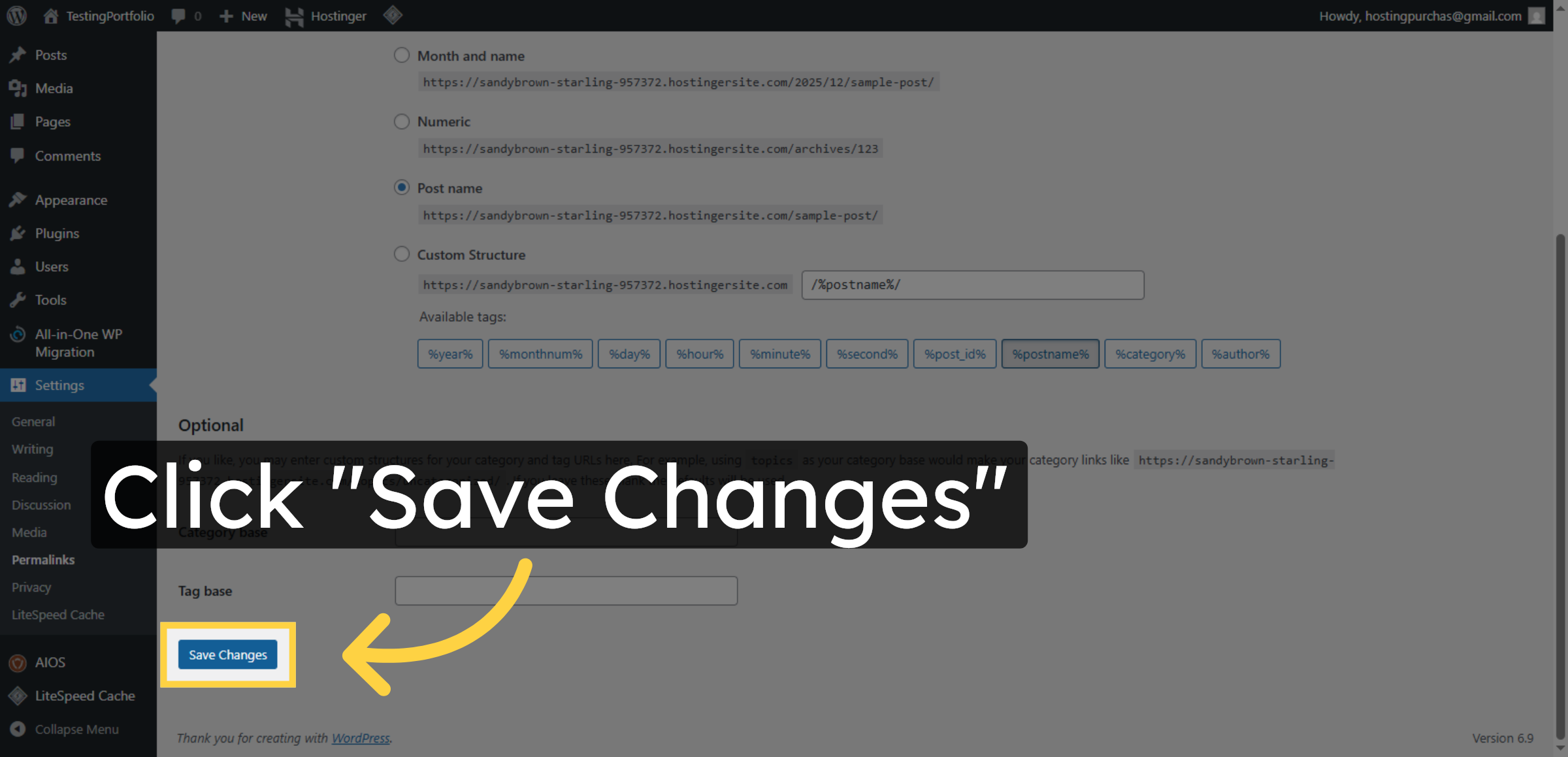
Click the Save Changes button to apply and store your updated permalink settings, ensuring your website URLs are configured correctly.

Save Permalink Changes

18. Visit Migrated Site
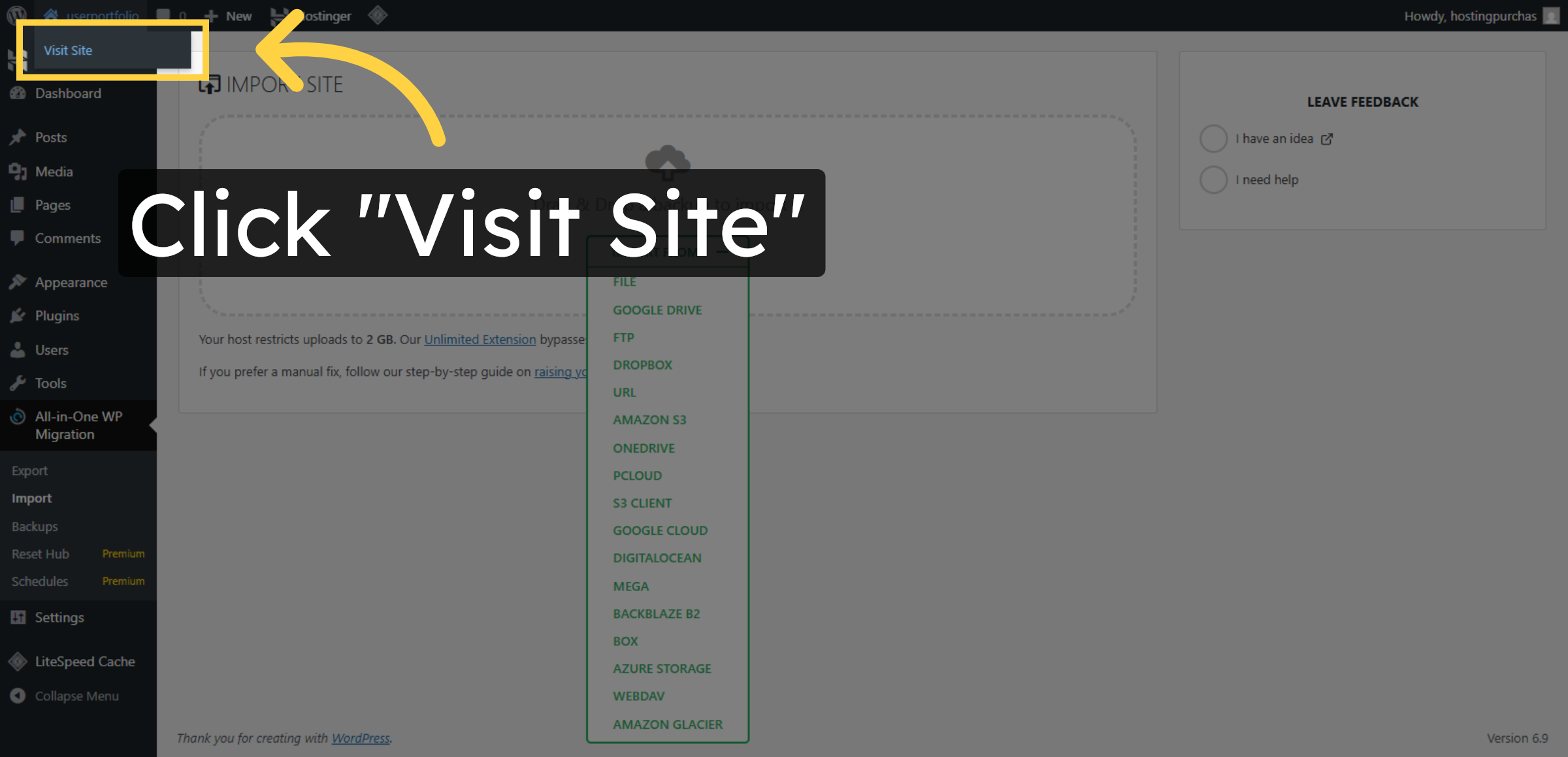
Click Visit Site to view your migrated WordPress website on Hostinger.

Visit Migrated Site

19. Open Testing Portfolio
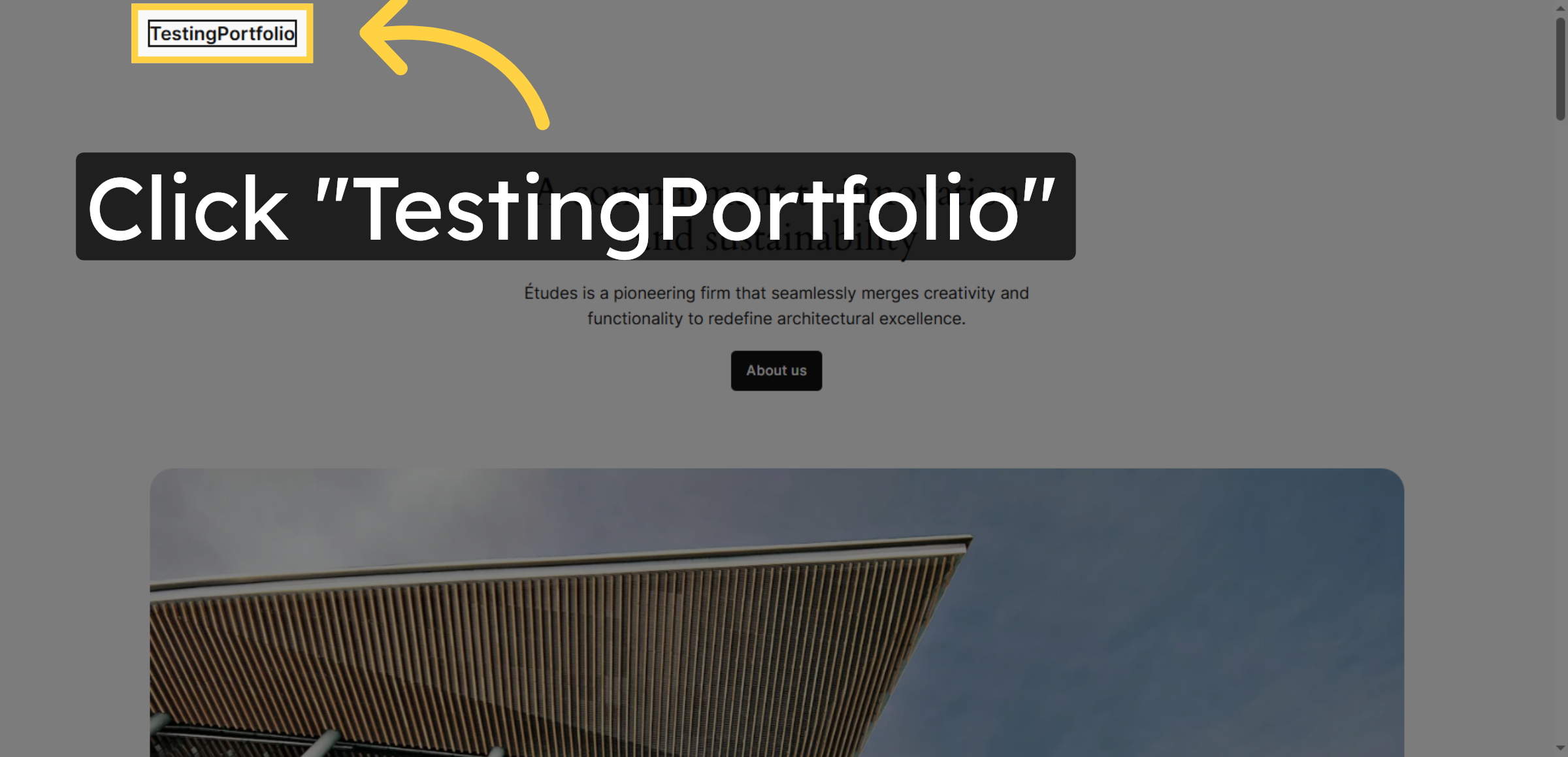
Click TestingPortfolio to verify the imported content and site functionality.

Open Testing Portfolio

Conclusion

By completing the steps in this guide, you have successfully imported your existing WordPress website into Hostinger WordPress Hosting. Your website’s pages, posts, media files, themes, plugins, and database settings have been restored accurately using the All-in-One WP Migration plugin.

After the import process, updating permalink settings and verifying website functionality ensures that all links, navigation menus, and internal structures work correctly. Regular testing and maintenance after migration help maintain site stability and performance.

WooHelpDesk Support

Need professional assistance with WordPress migration, backups, or hosting management? WooHelpDesk provides expert technical support to help you manage your website efficiently and securely.

Visit: https://www.woohelpdesk.com
Call Us Toll-Free: +1 888 602 0119 (US & Canada)
Professional Support | Seamless Migration | Trusted Solutions


Leave a Reply

Your email address will not be published. Required fields are marked *

Leave a Reply

Your email address will not be published. Required fields are marked *