How to Force HTTPS Redirect on Hostinger WordPress Hosting
Introduction
Securing your WordPress website with HTTPS is essential for protecting user data, preventing security threats, and building visitor trust. Websites that do not use HTTPS often display “Not Secure” warnings, which can discourage users and affect search engine rankings. In this guide, you will learn how to force HTTPS redirection on your Hostinger WordPress hosting account using the built-in security settings in hPanel. This method ensures that all visitors are automatically redirected from HTTP to HTTPS, keeping your website safe and compliant with modern security standards.
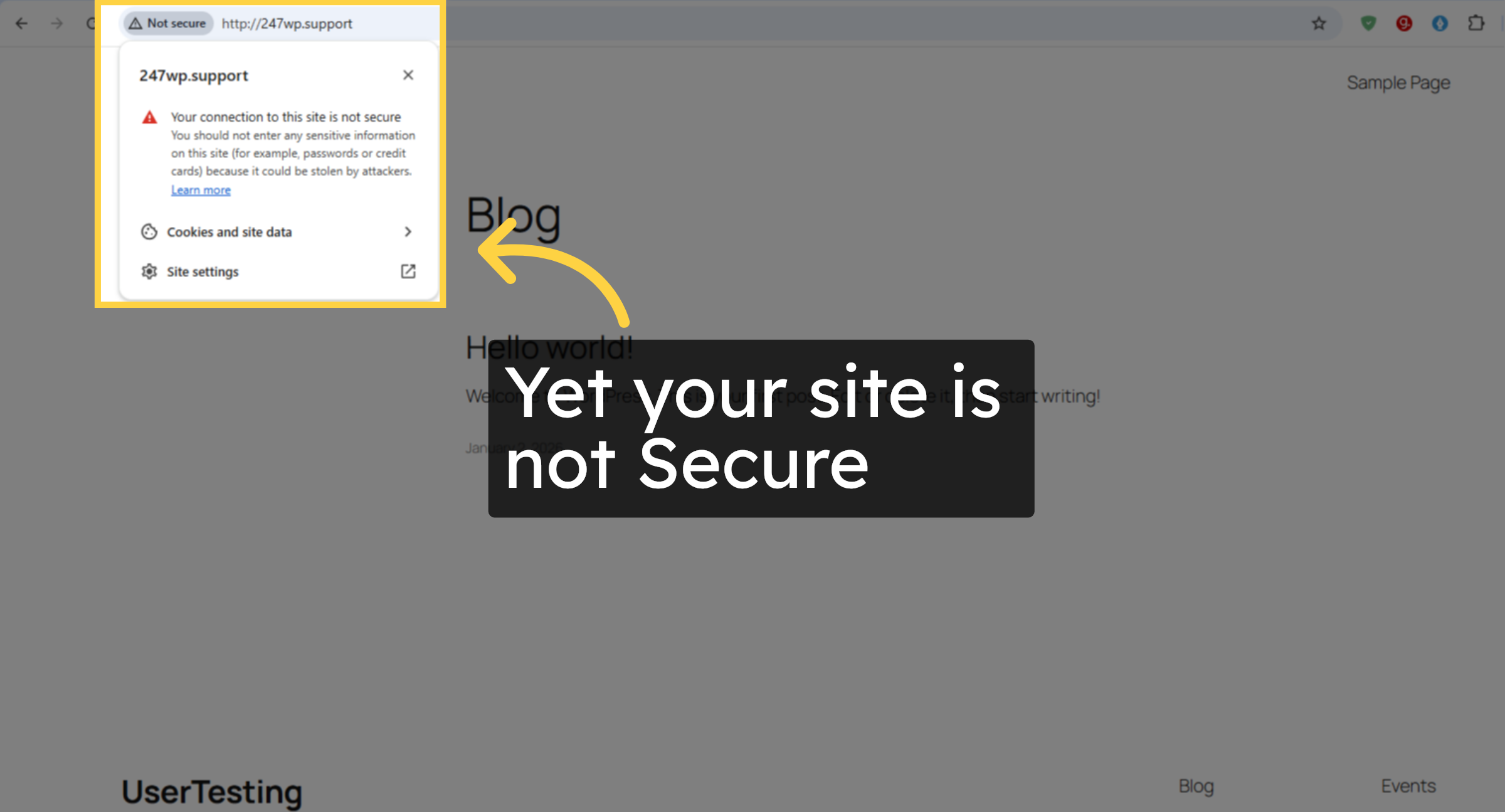
1. Site Not Secure
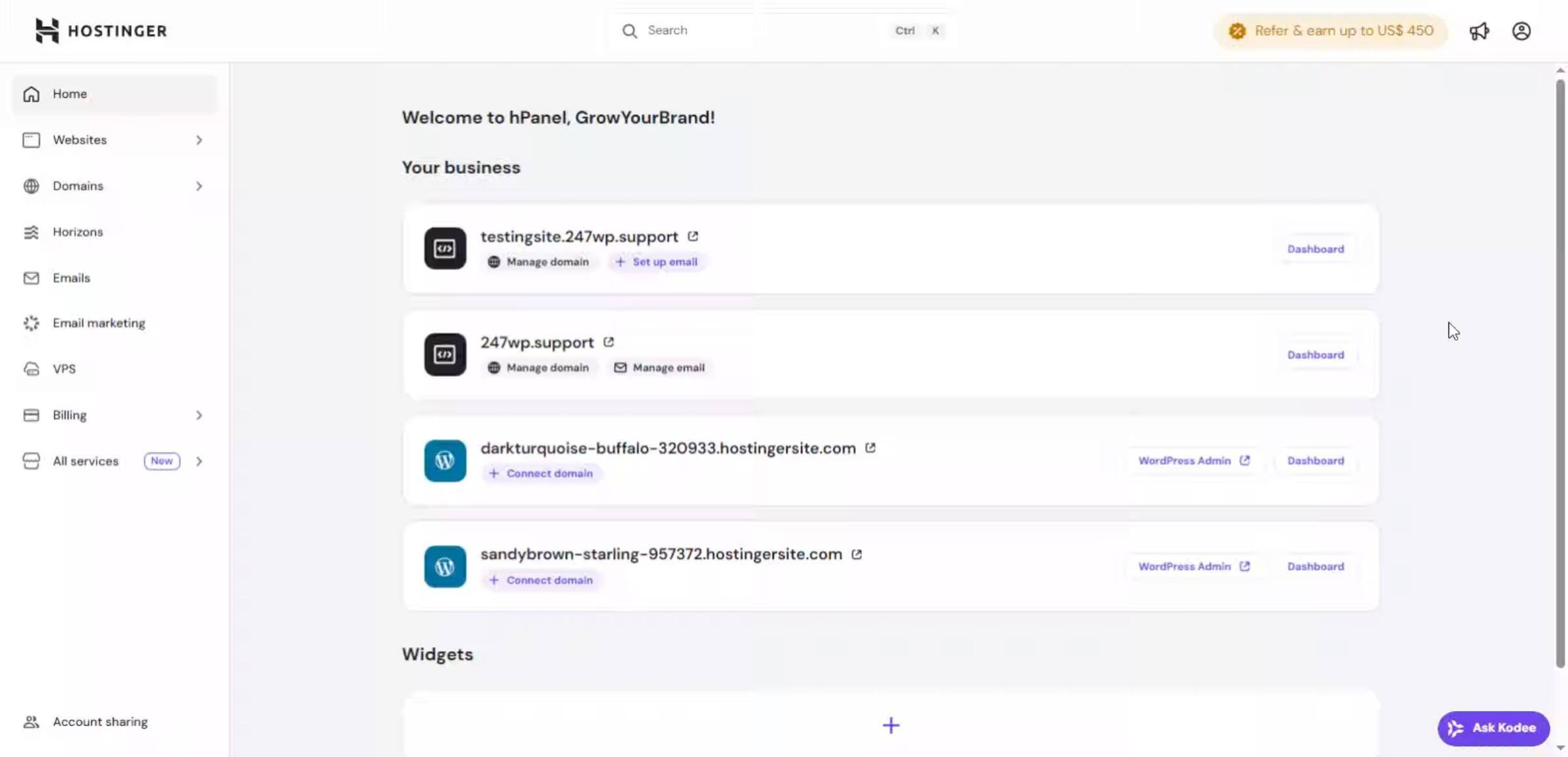
2. Hostinger hPanel
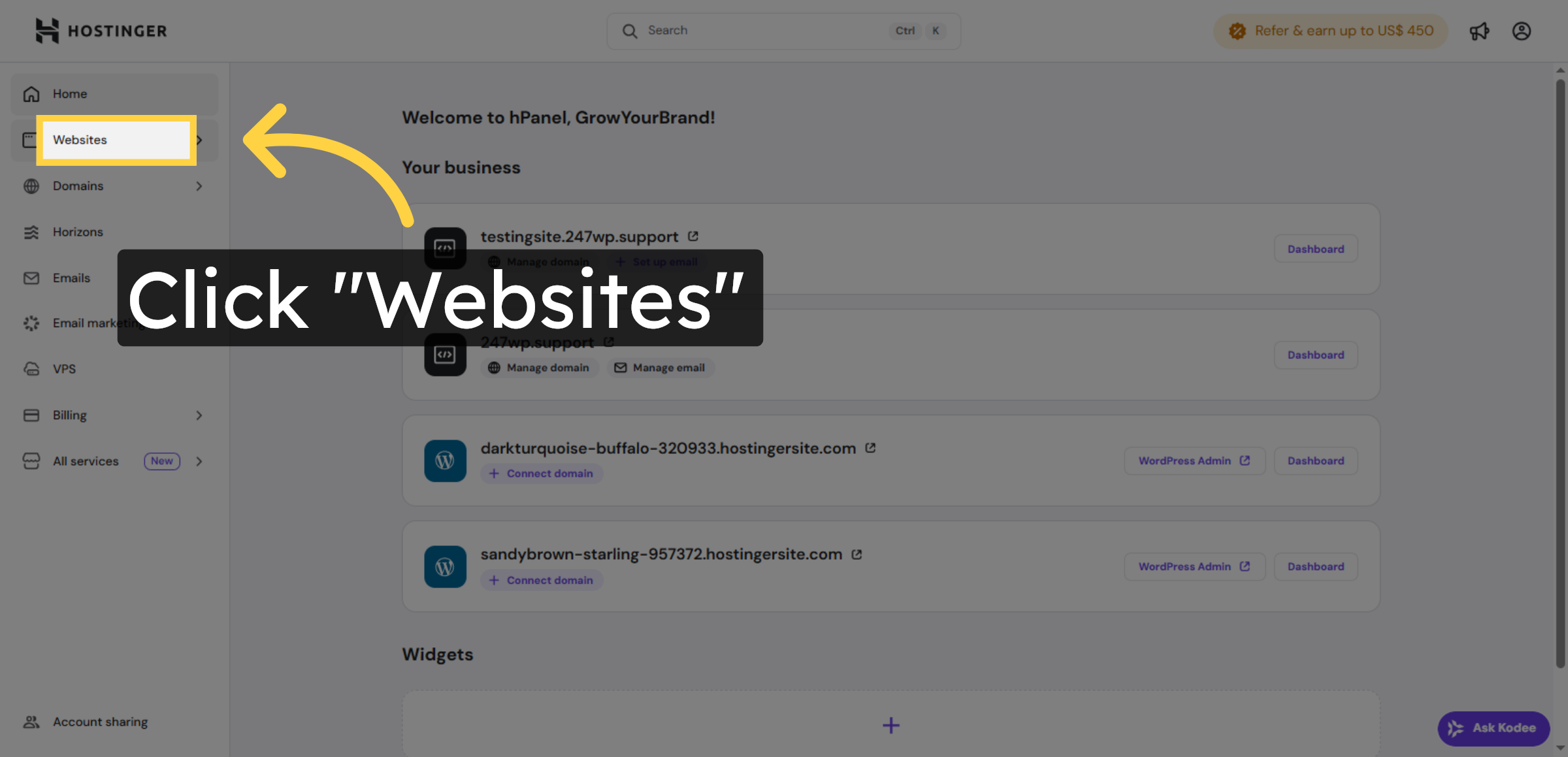
3. Navigate to Websites Section
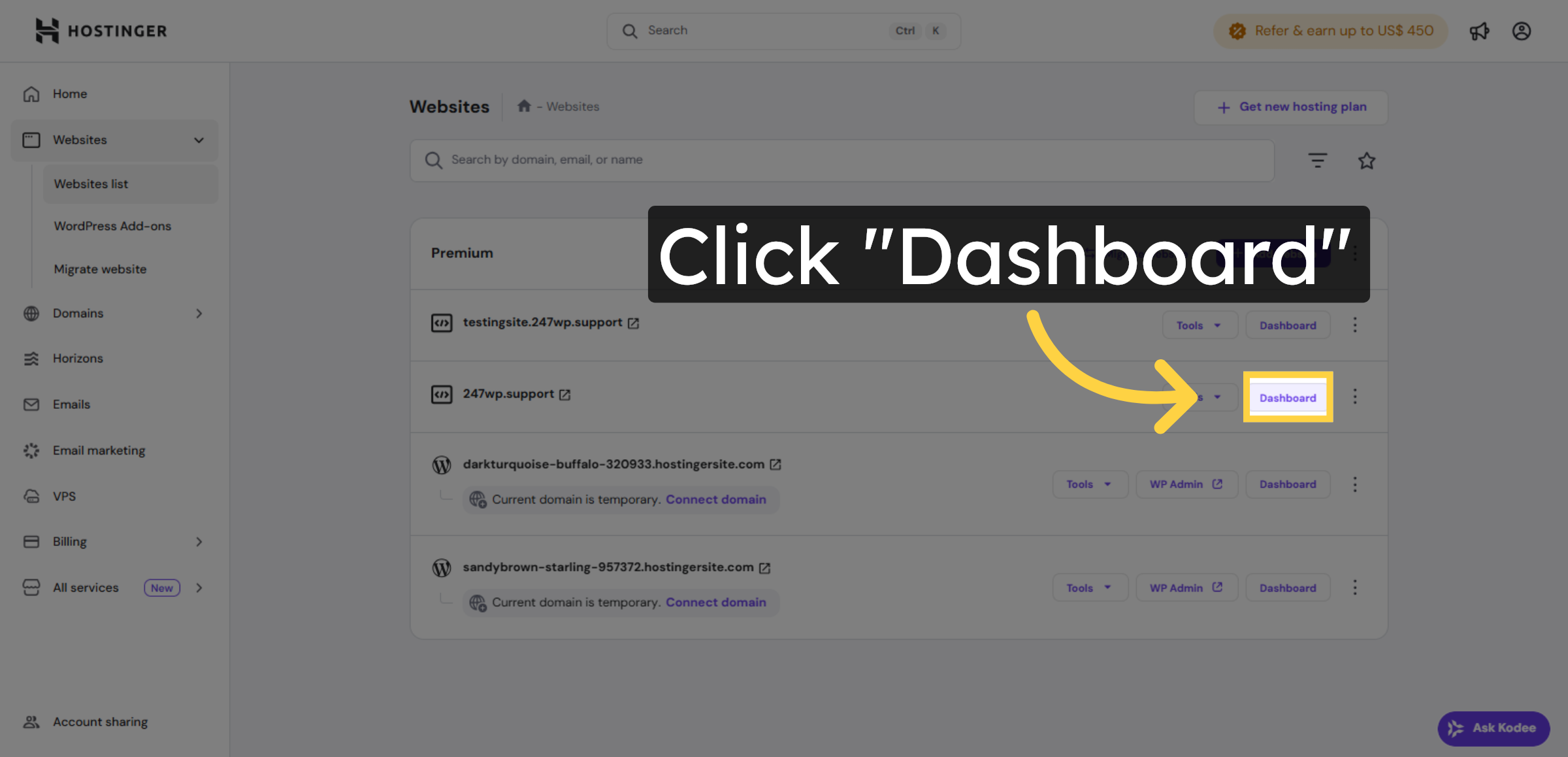
4. Open Website Dashboard
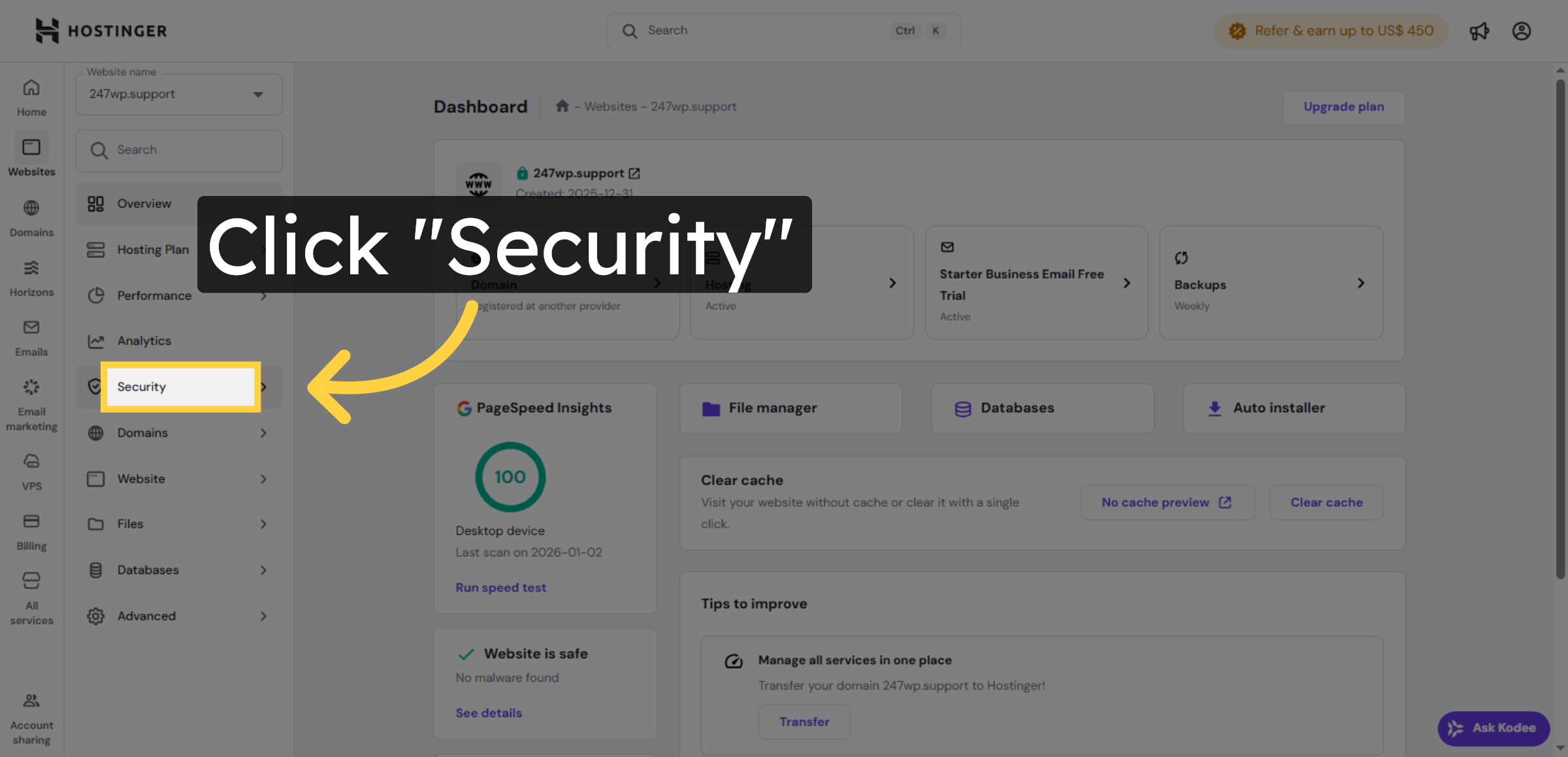
5. Access Security Settings
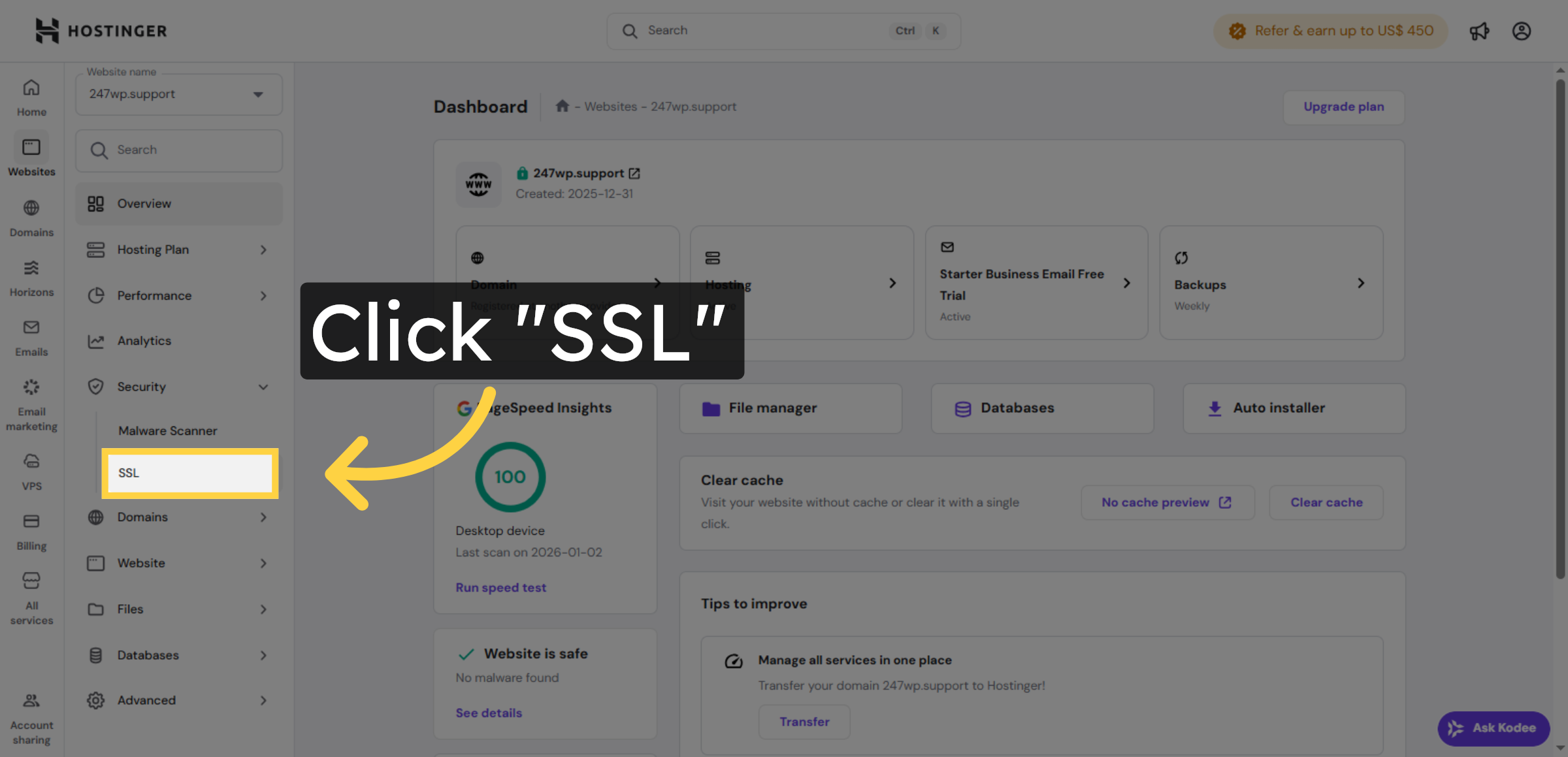
6. Select SSL Settings
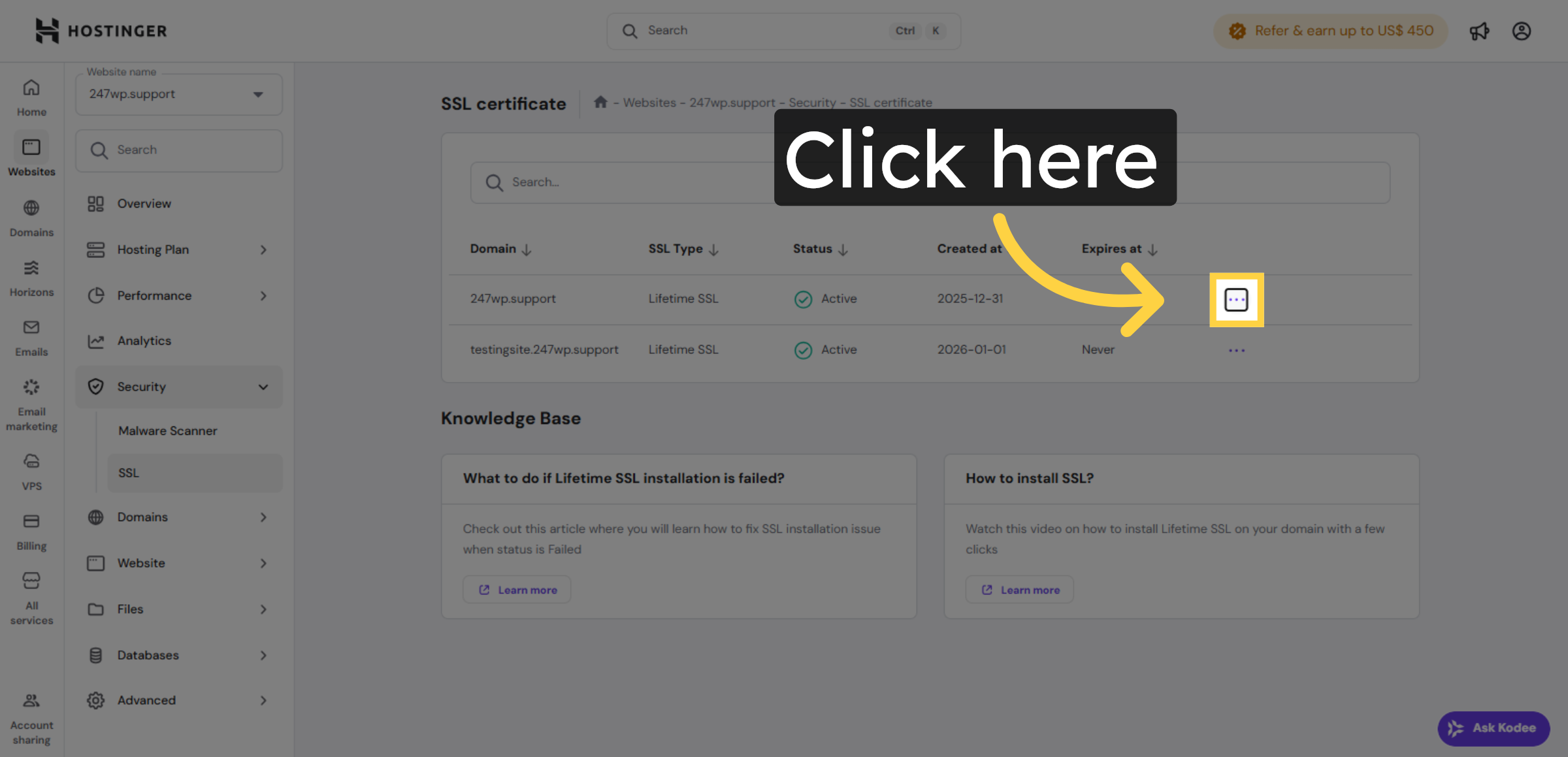
7. Open SSL Certificate Details
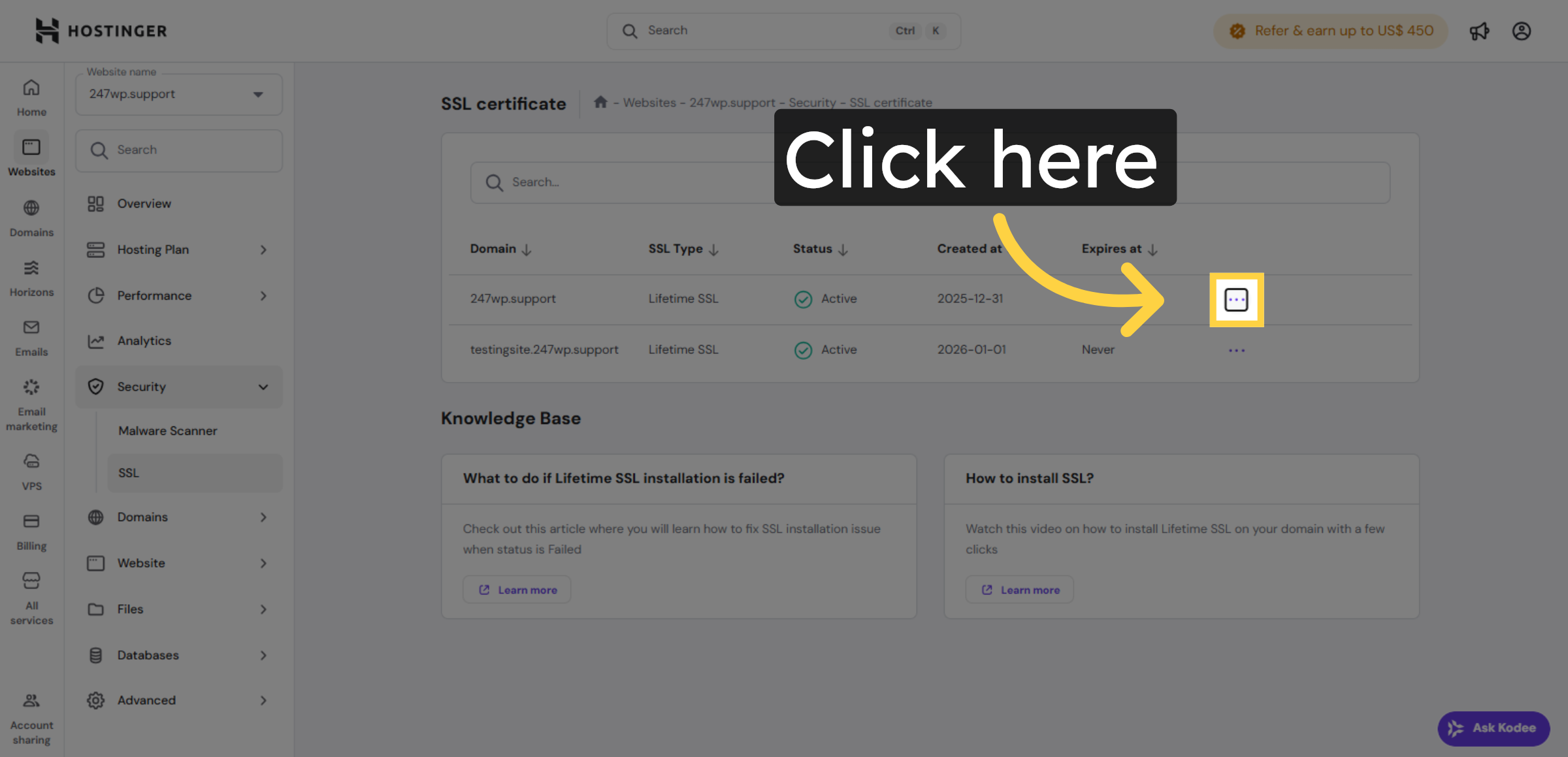
8. Enable Force HTTPS
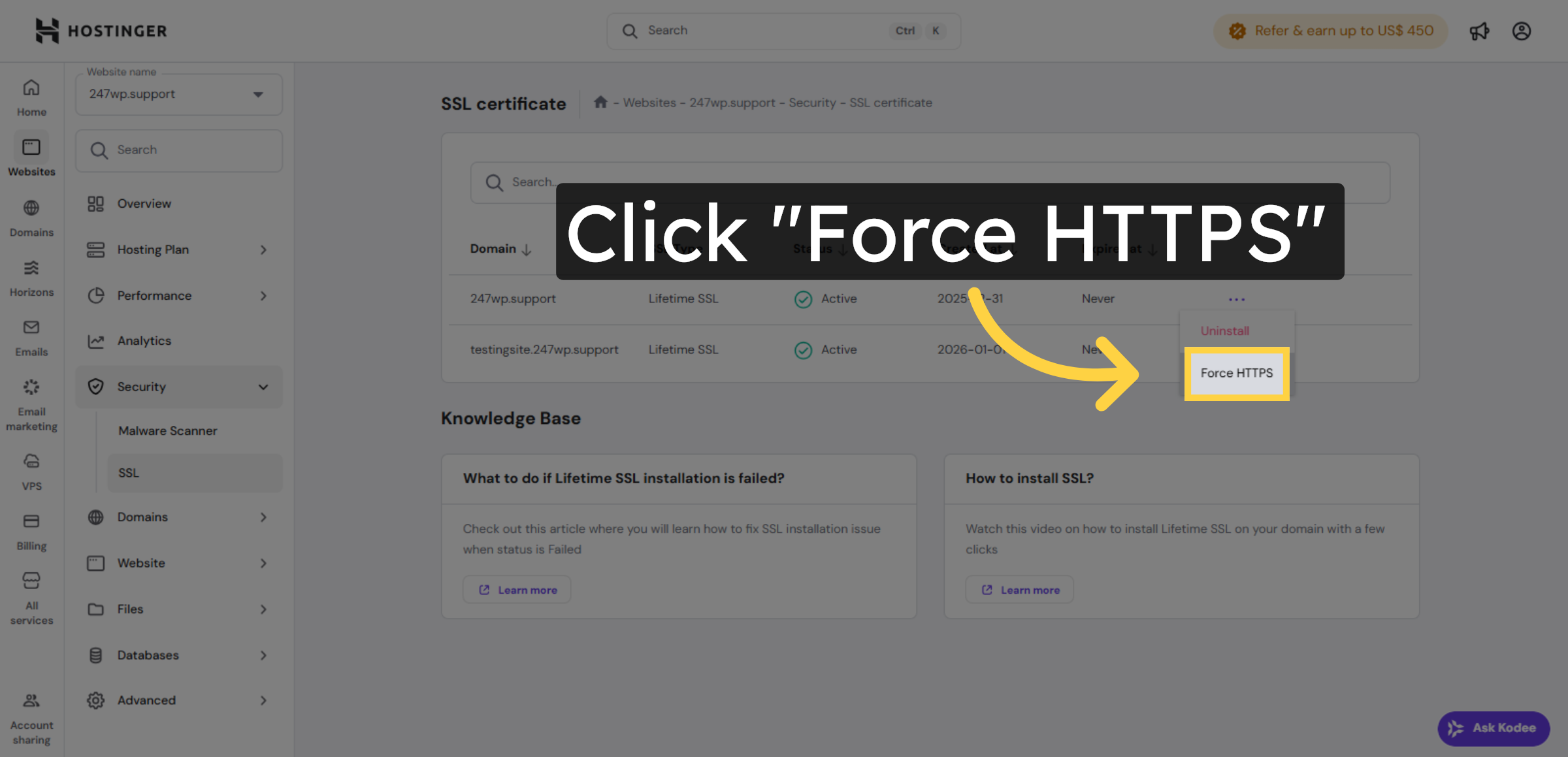


9. Confirm HTTPS Redirection
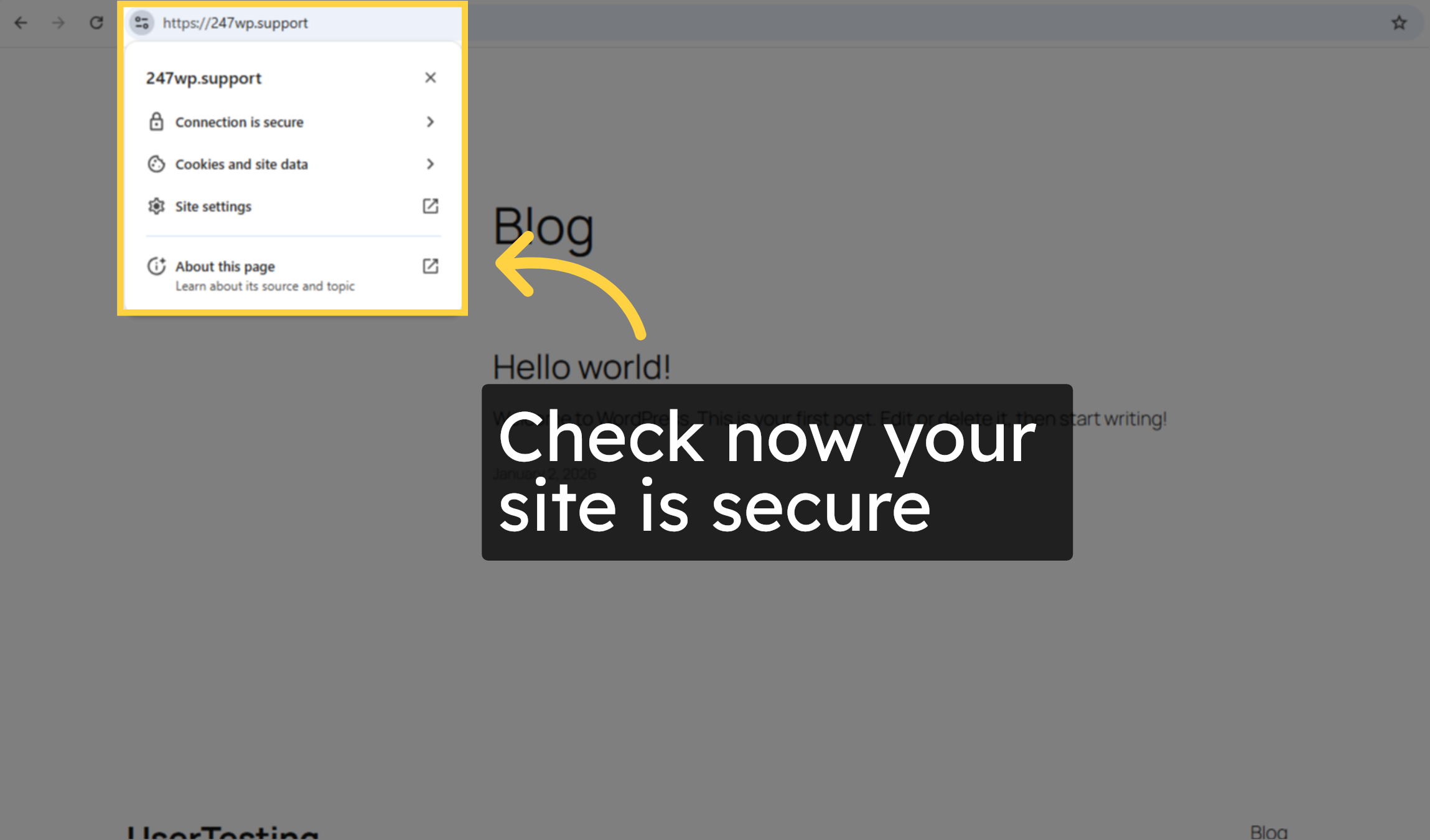
10. Check now your site is secure
Conclusion
By following the steps in this guide, you have successfully enabled Force HTTPS on your Hostinger WordPress website. This configuration ensures that all incoming traffic is redirected to a secure connection, eliminating security warnings and protecting sensitive information. Implementing HTTPS redirection improves your site’s credibility, enhances SEO performance, and strengthens overall website security. Regularly reviewing your SSL status and security settings will help maintain long-term protection.
WooHelpDesk Support
Need expert support with SSL activation, HTTPS redirection, or WordPress security?
Visit: https://www.woohelpdesk.com
Call Us Toll-Free: +1 888 602 0119 (US & Canada)
Get professional assistance to keep your website secure, fast, and reliable.



