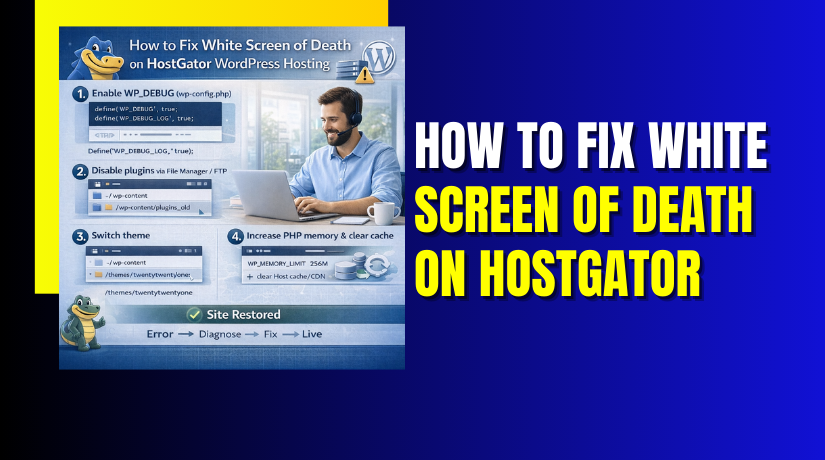
How to Fix White Screen of Death on HostGator WordPress Hosting
Introduction
The White Screen of Death (WSOD) is a critical WordPress error that causes a website to display a blank white page without any visible error message. This issue usually occurs due to theme conflicts, corrupted files, failed updates, incompatible plugins, or PHP memory limitations. When WSOD appears, it prevents administrators and visitors from accessing the website, leading to downtime and potential loss of credibility.
This guidde explains how to fix the White Screen of Death on HostGator WordPress hosting by safely updating the Astra theme and managing website files through the hosting control panel. It provides step-by-step instructions for backing up theme files, accessing the File Manager, compressing directories, applying updates, and verifying website functionality. By following this guide, users can efficiently diagnose and resolve WSOD issues while protecting their website data.
1. Problem: White Screen of Death
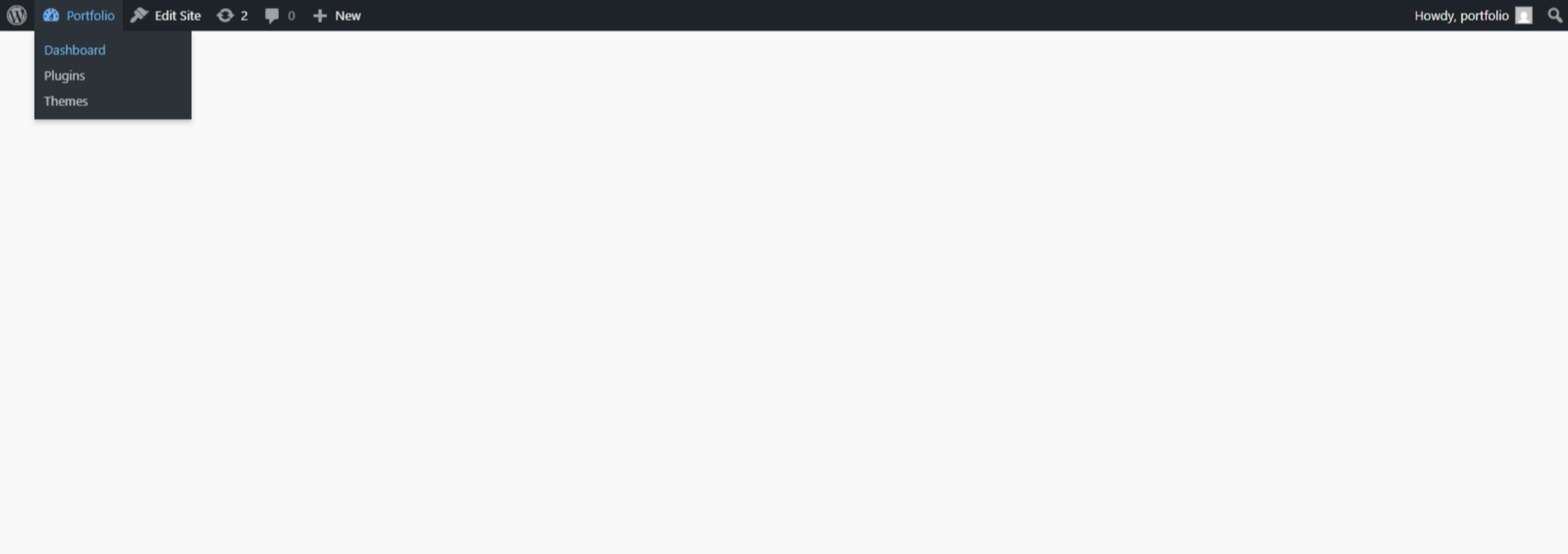
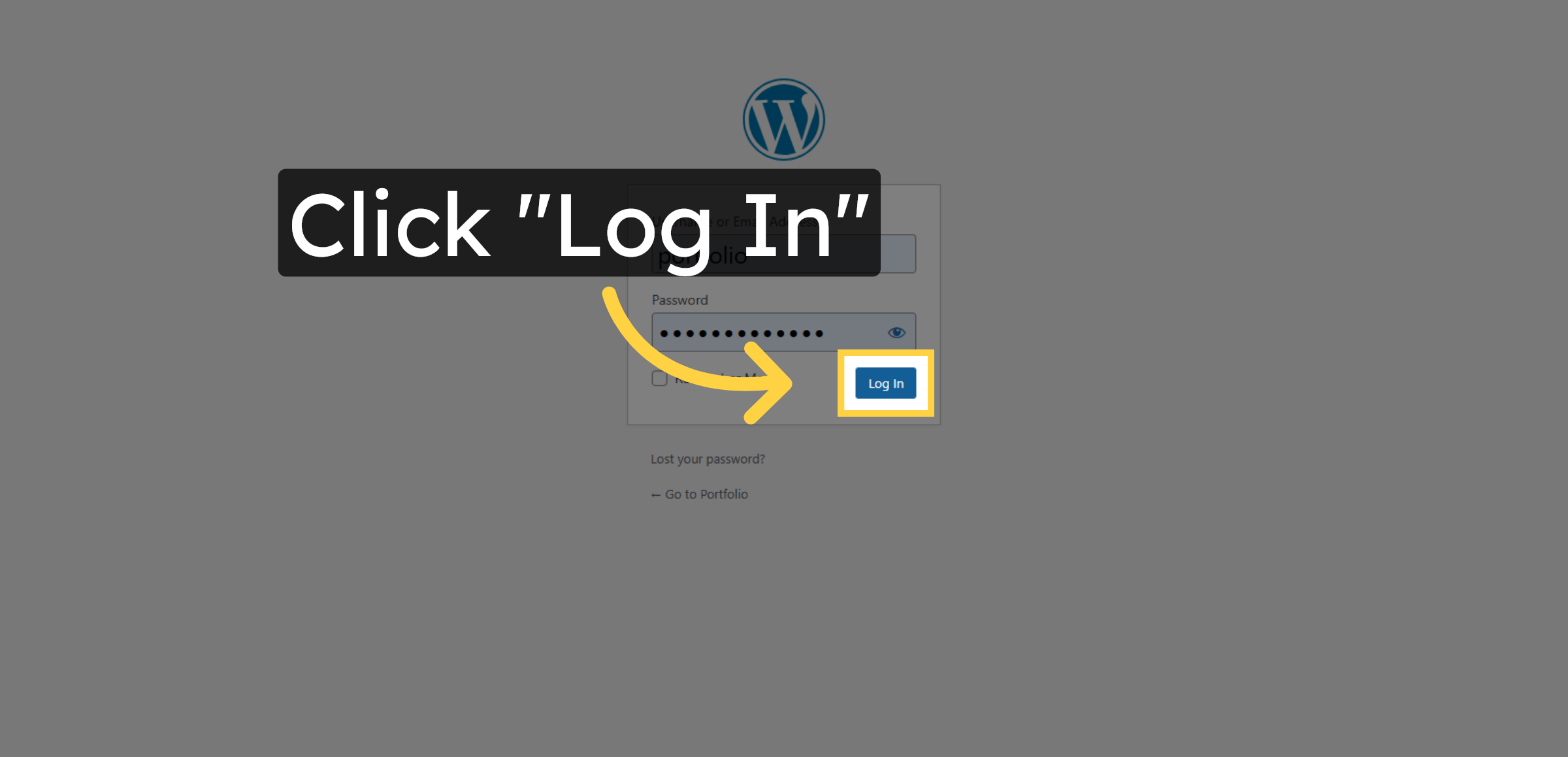
2. Log In to WordPress Dashboard
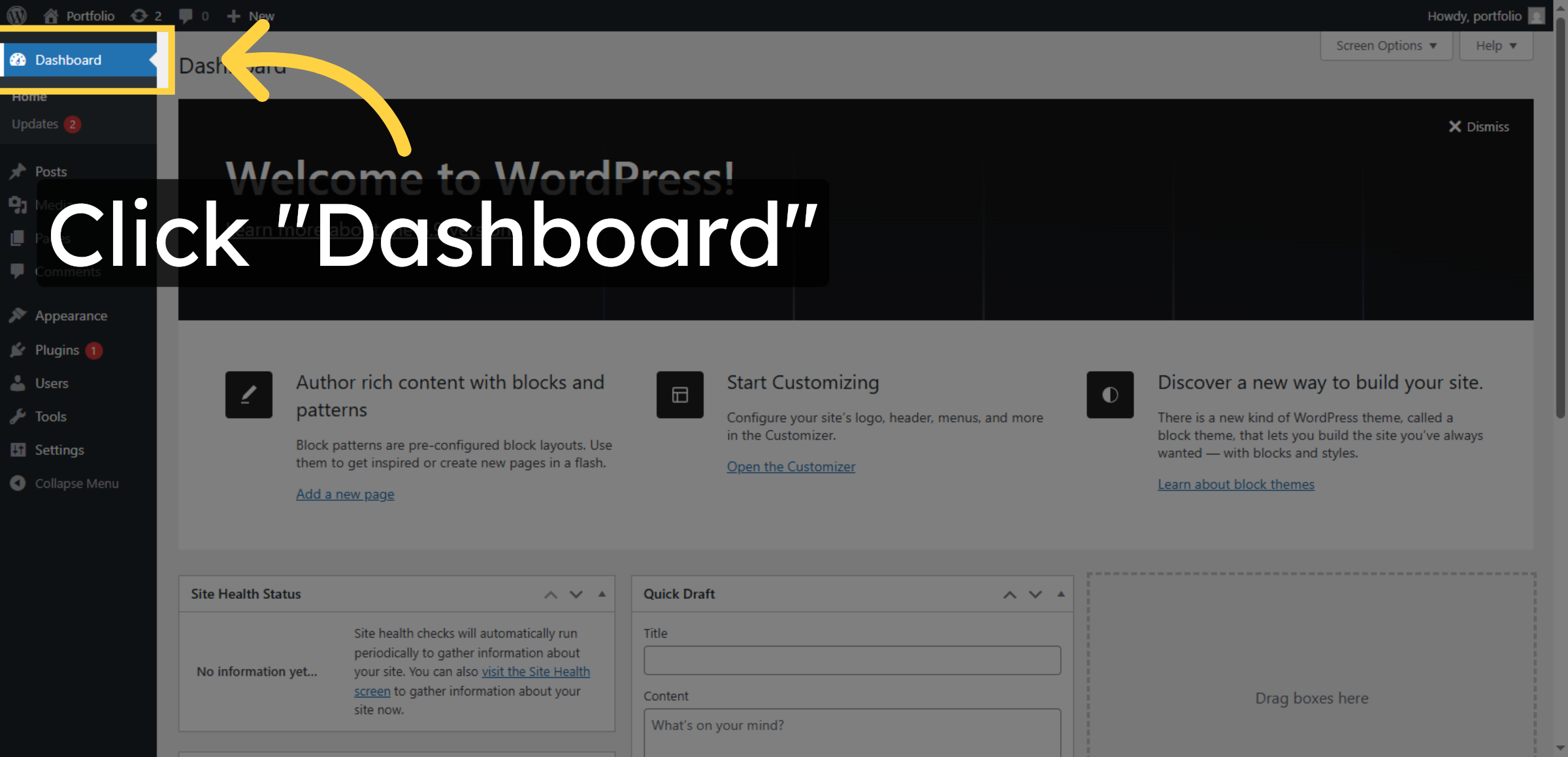
3. Navigate To Dashboard
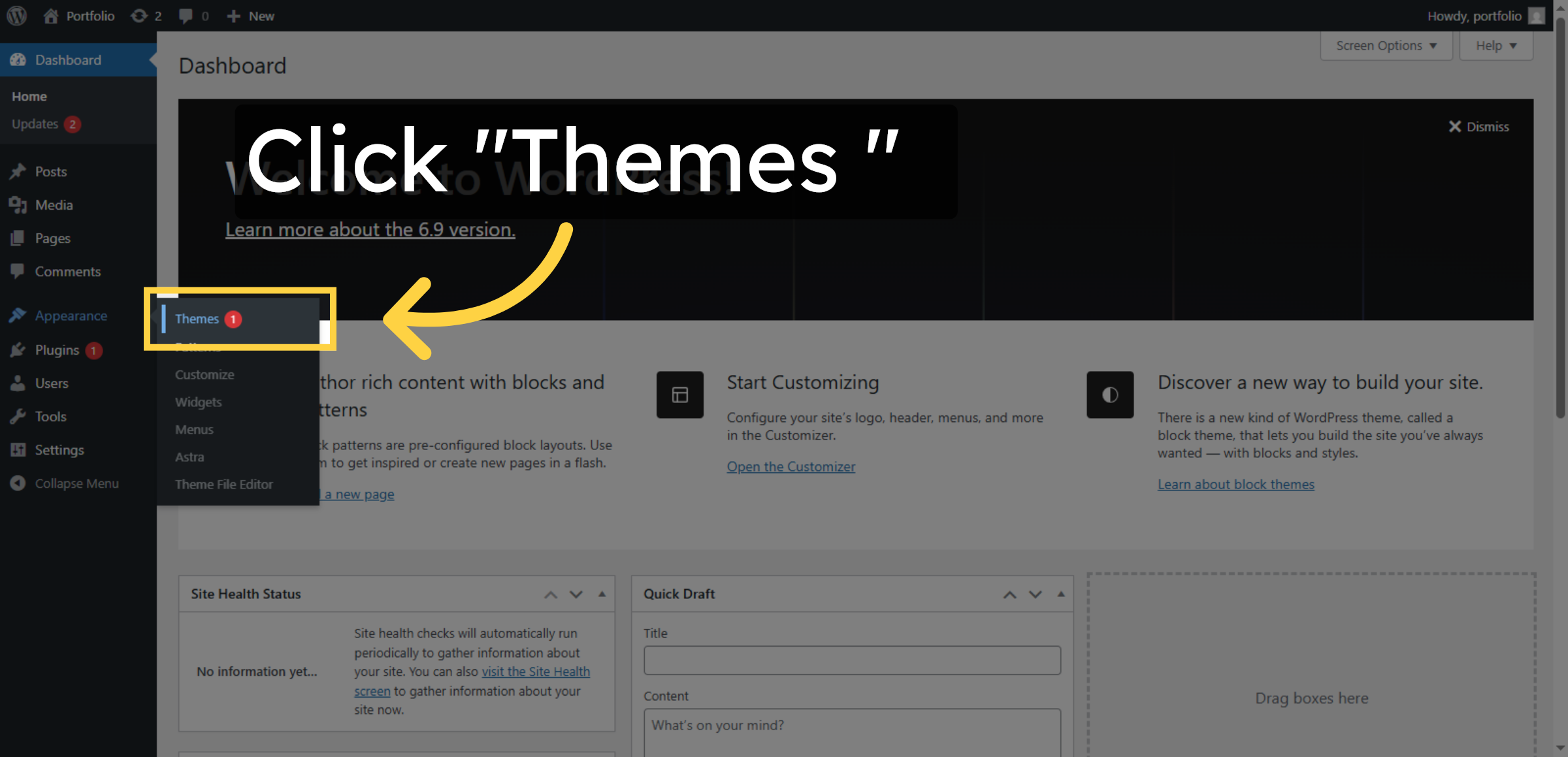
4. Select Themes Option
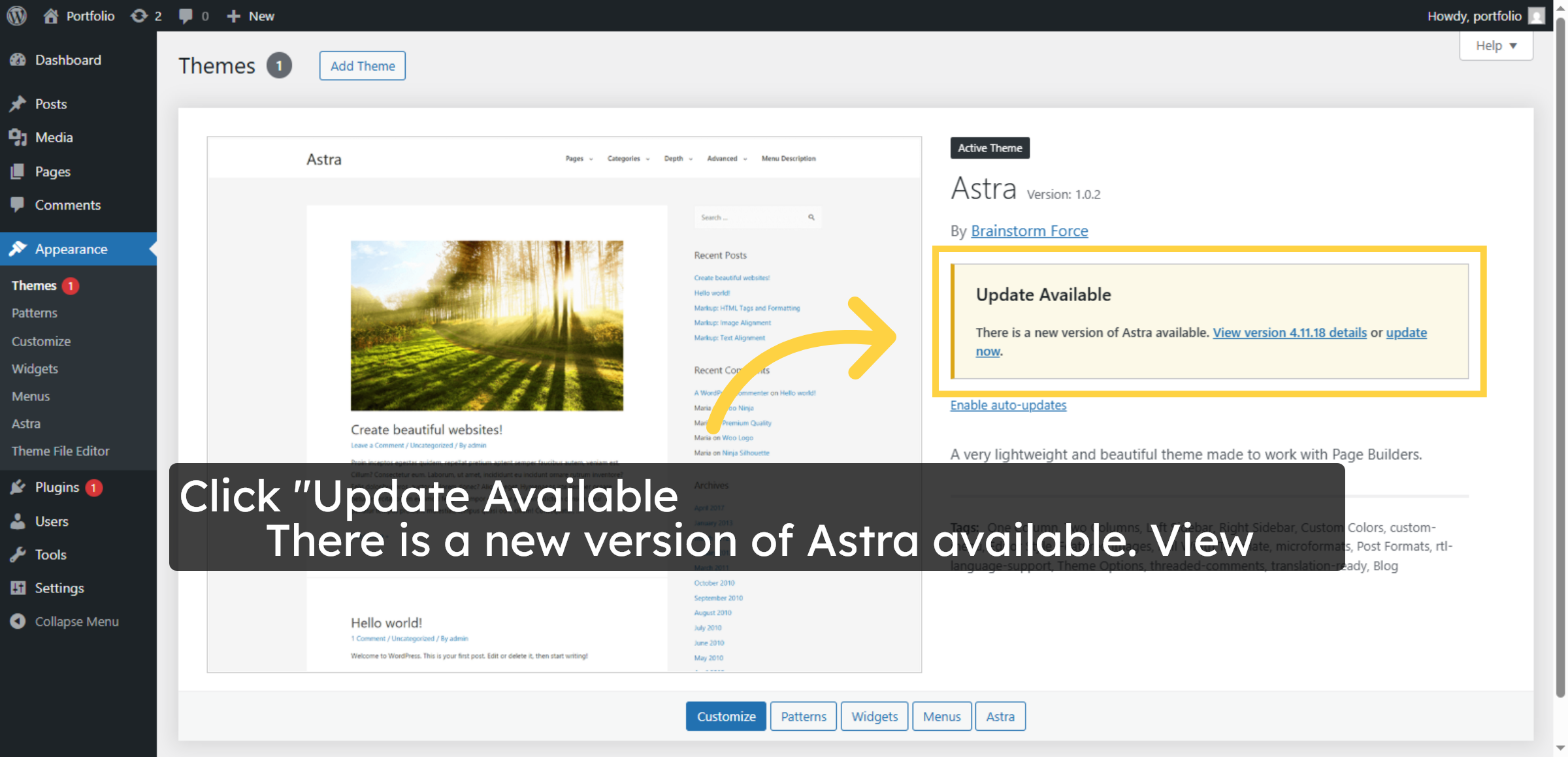
5. Click Theme Update Notification
6. Instruction
7. Go to HostGator Website
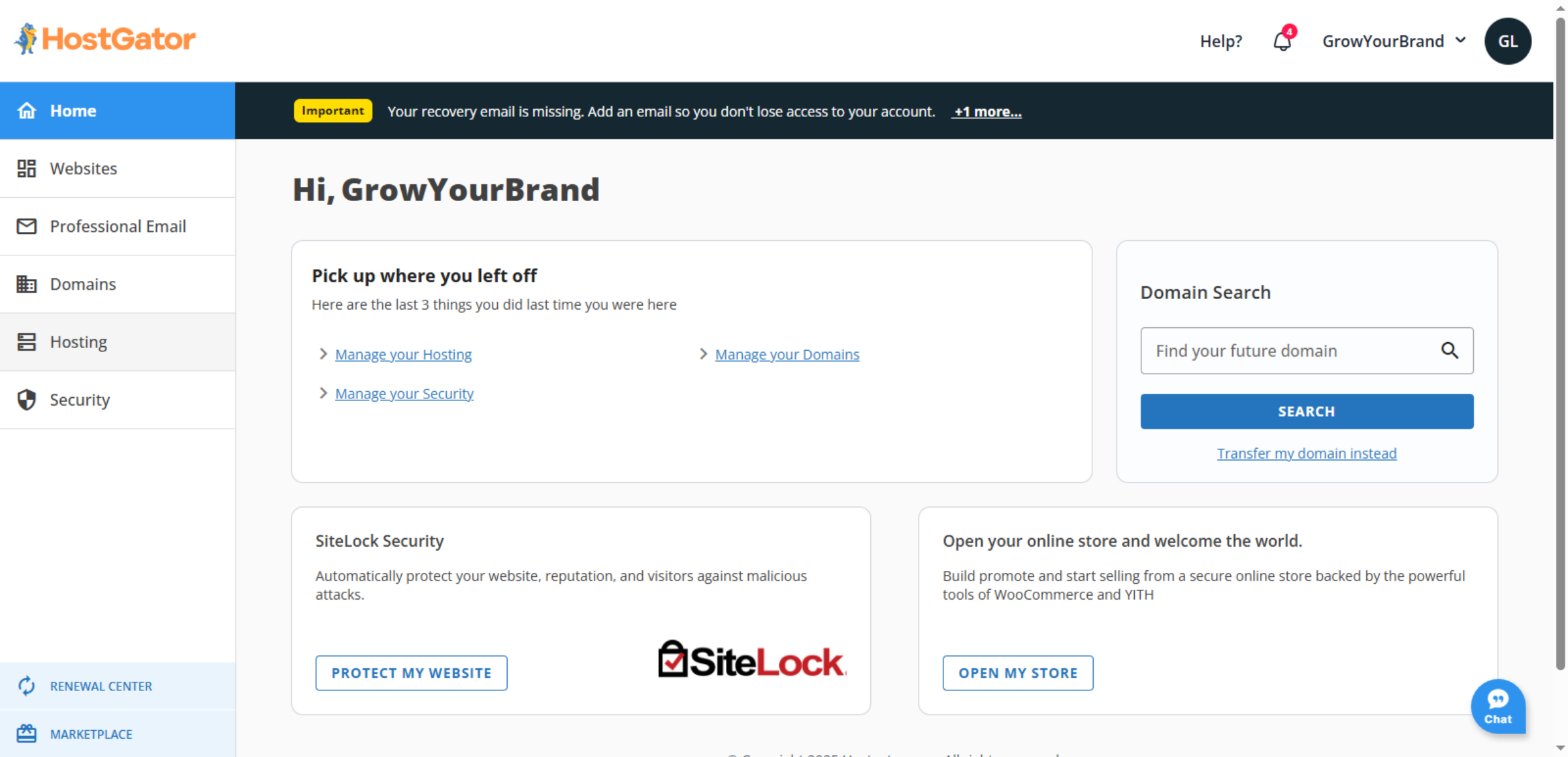
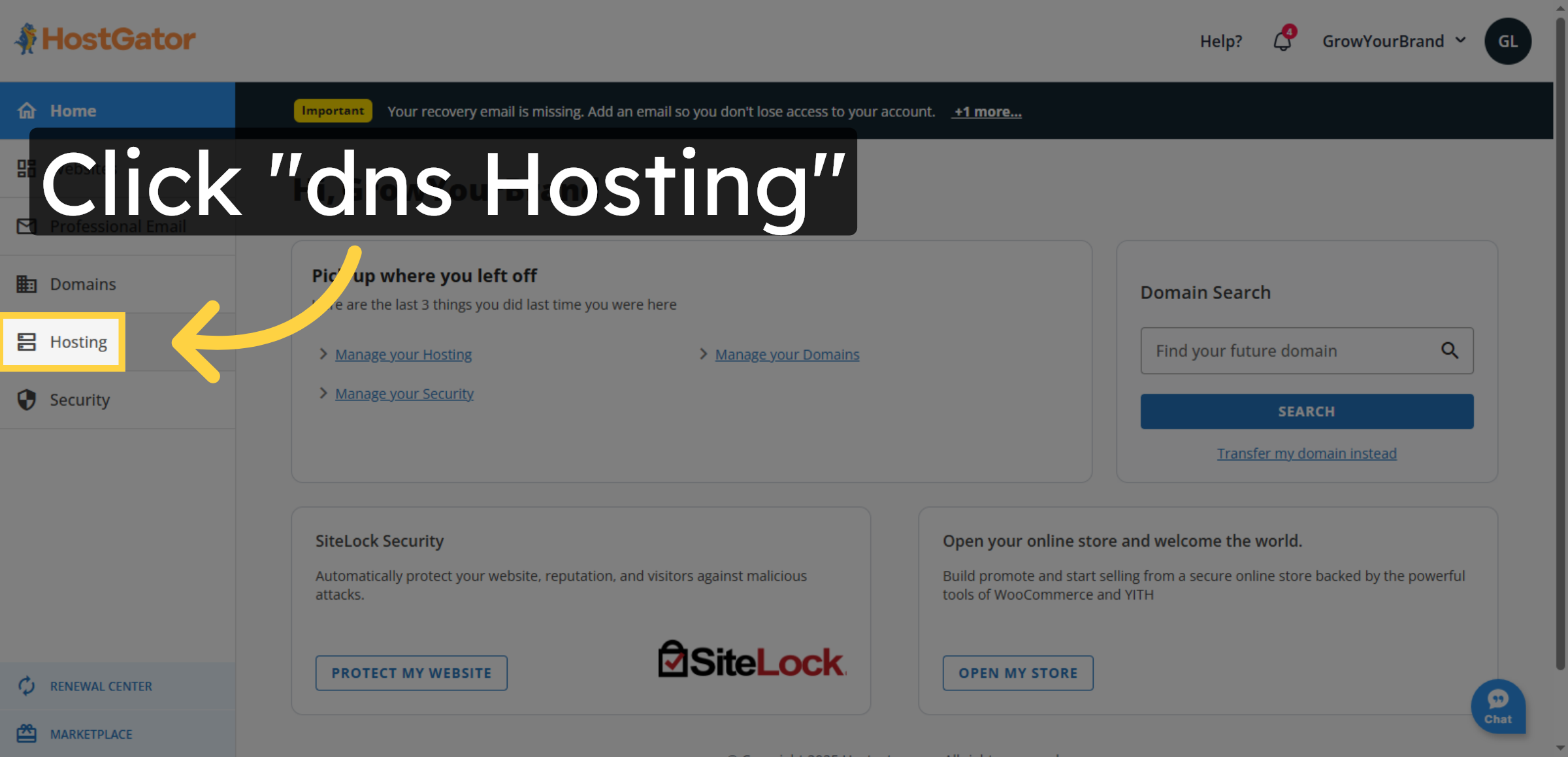
8. Access DNS Hosting
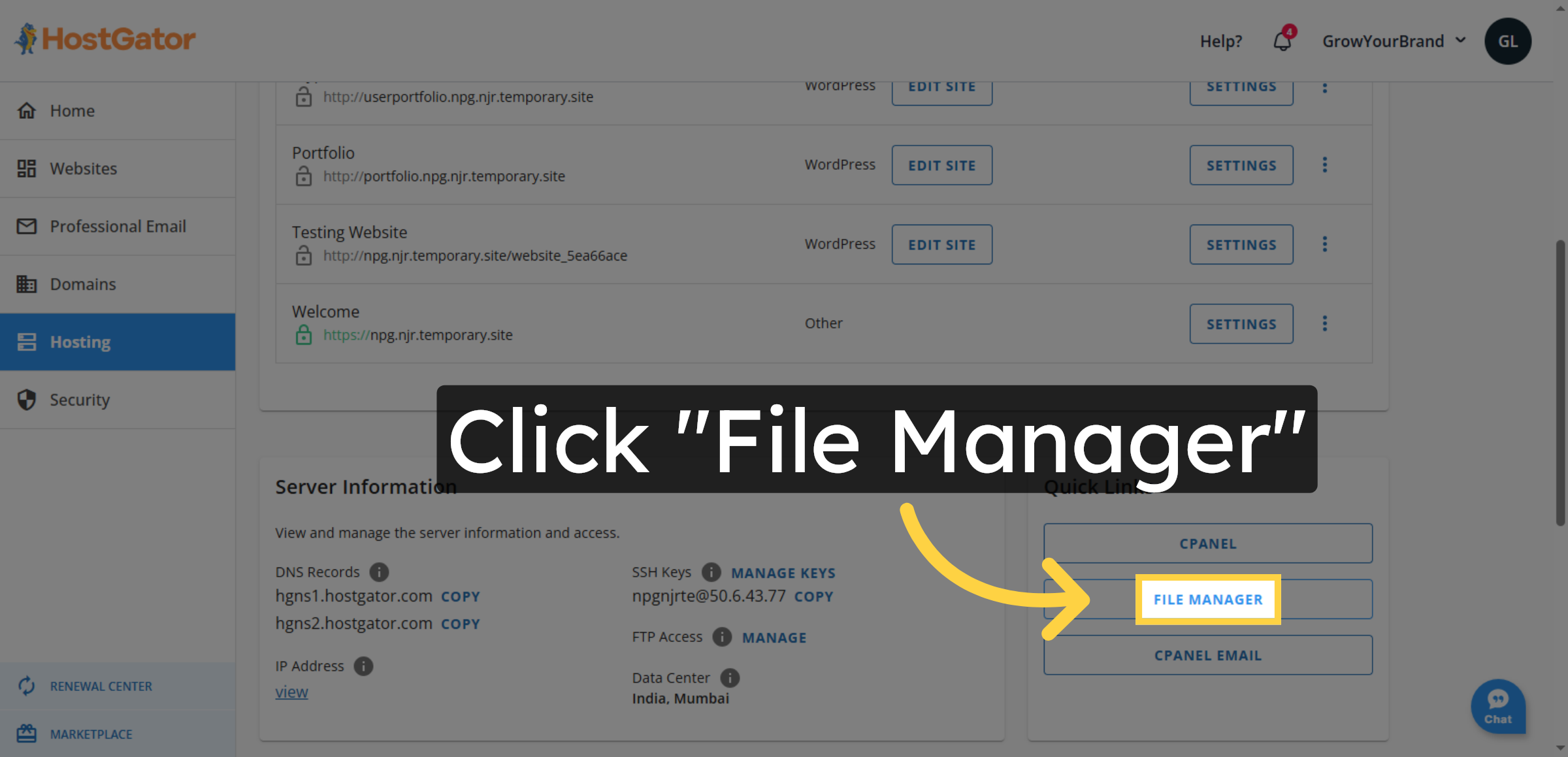
9. Open File Manager
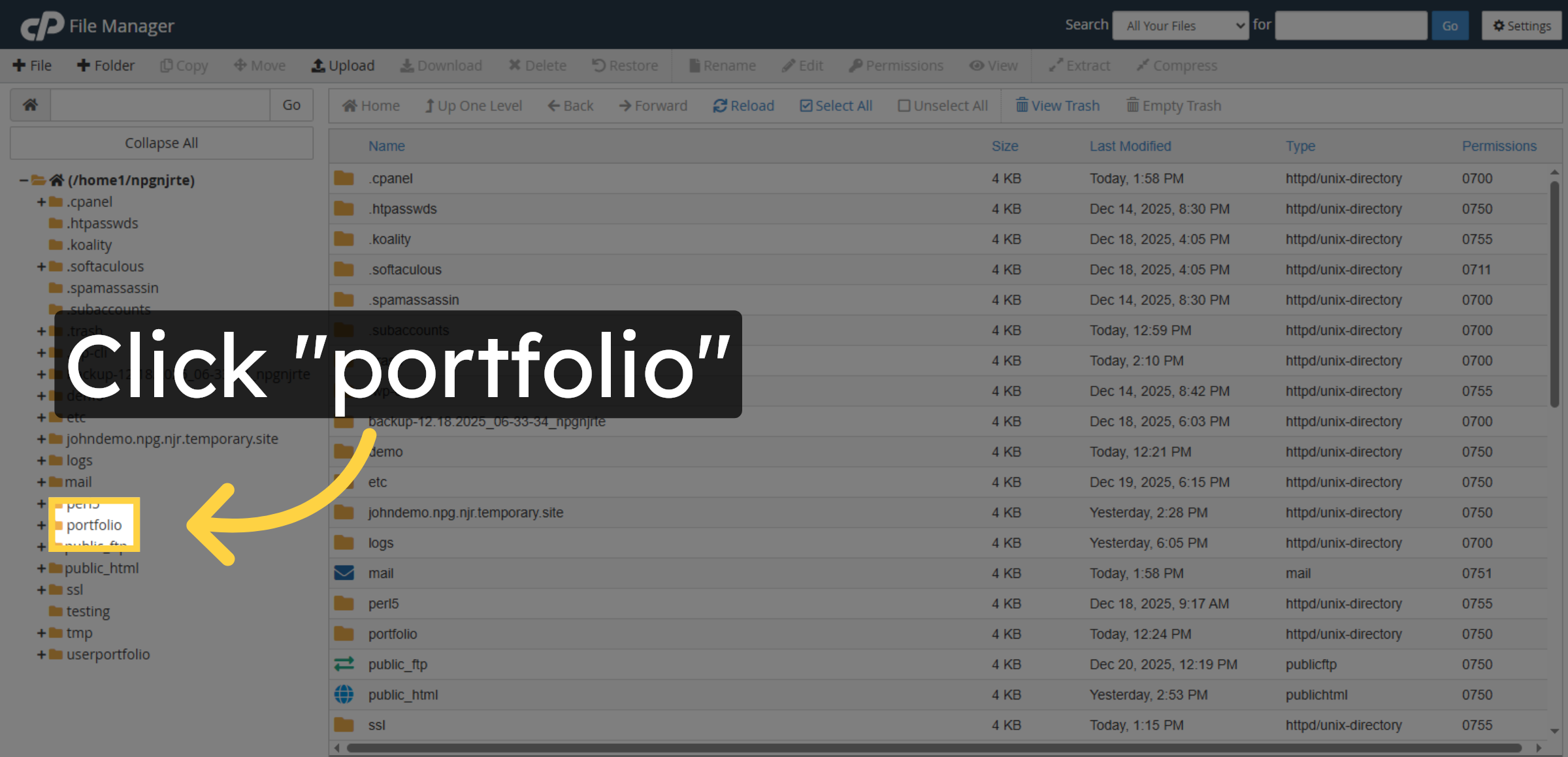
10. Open Portfolio Directory
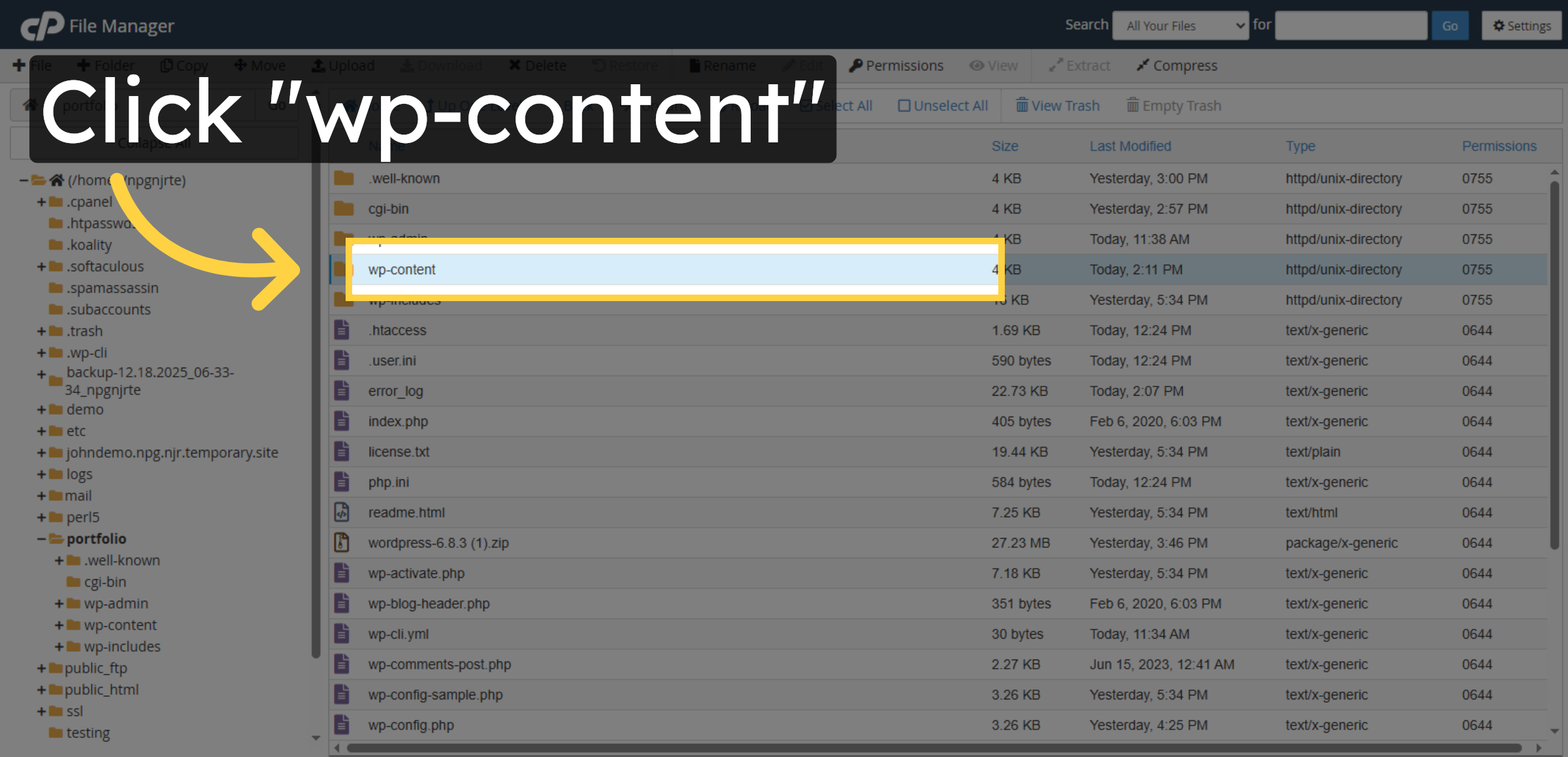
11. Open wp-content Folder Again
12. Open Themes Folder Again
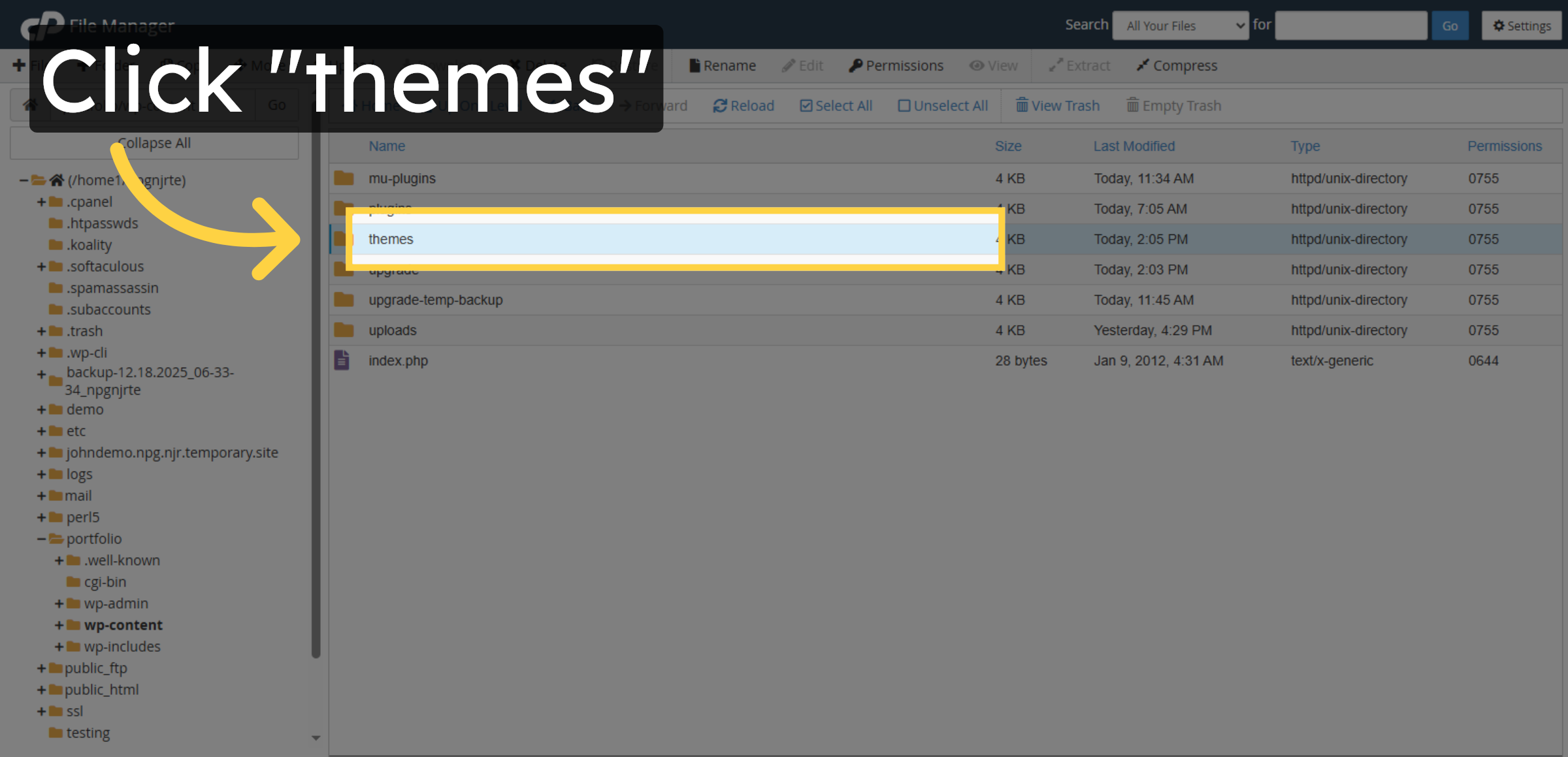
13. Open Astra Theme Folder Again
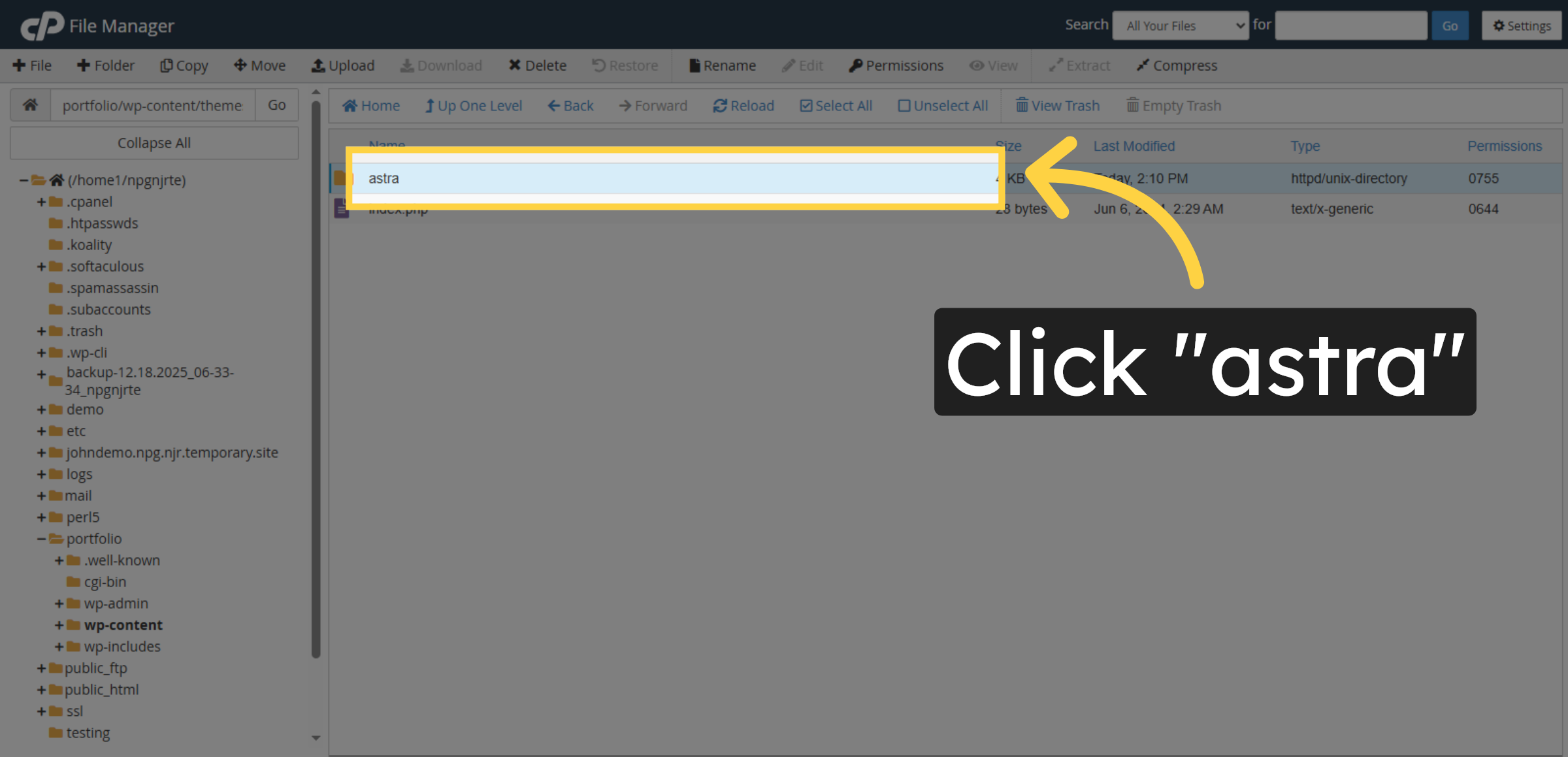
14. Initiate File Compression
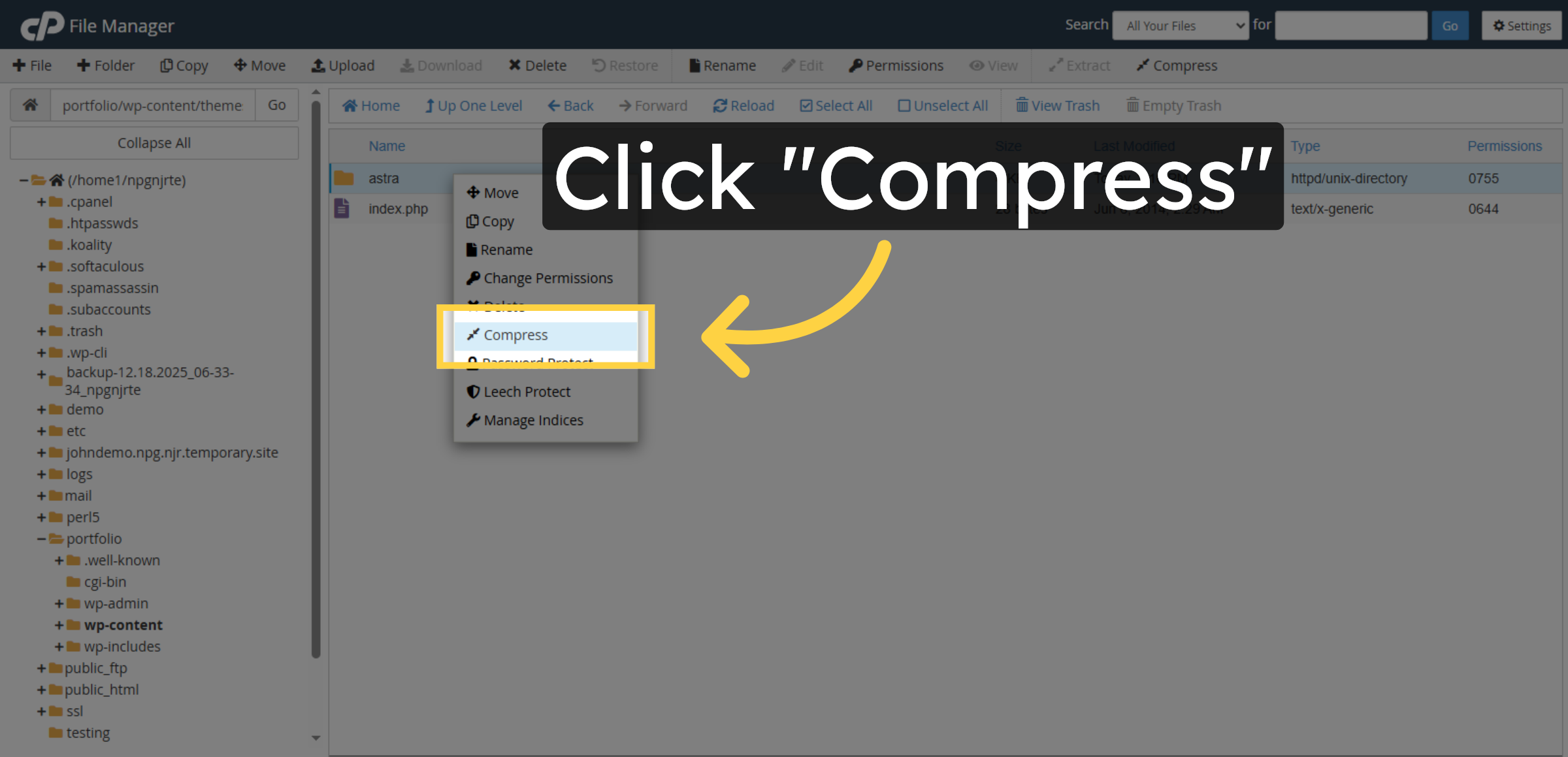


15. Start compressing files into a ZIP archive.
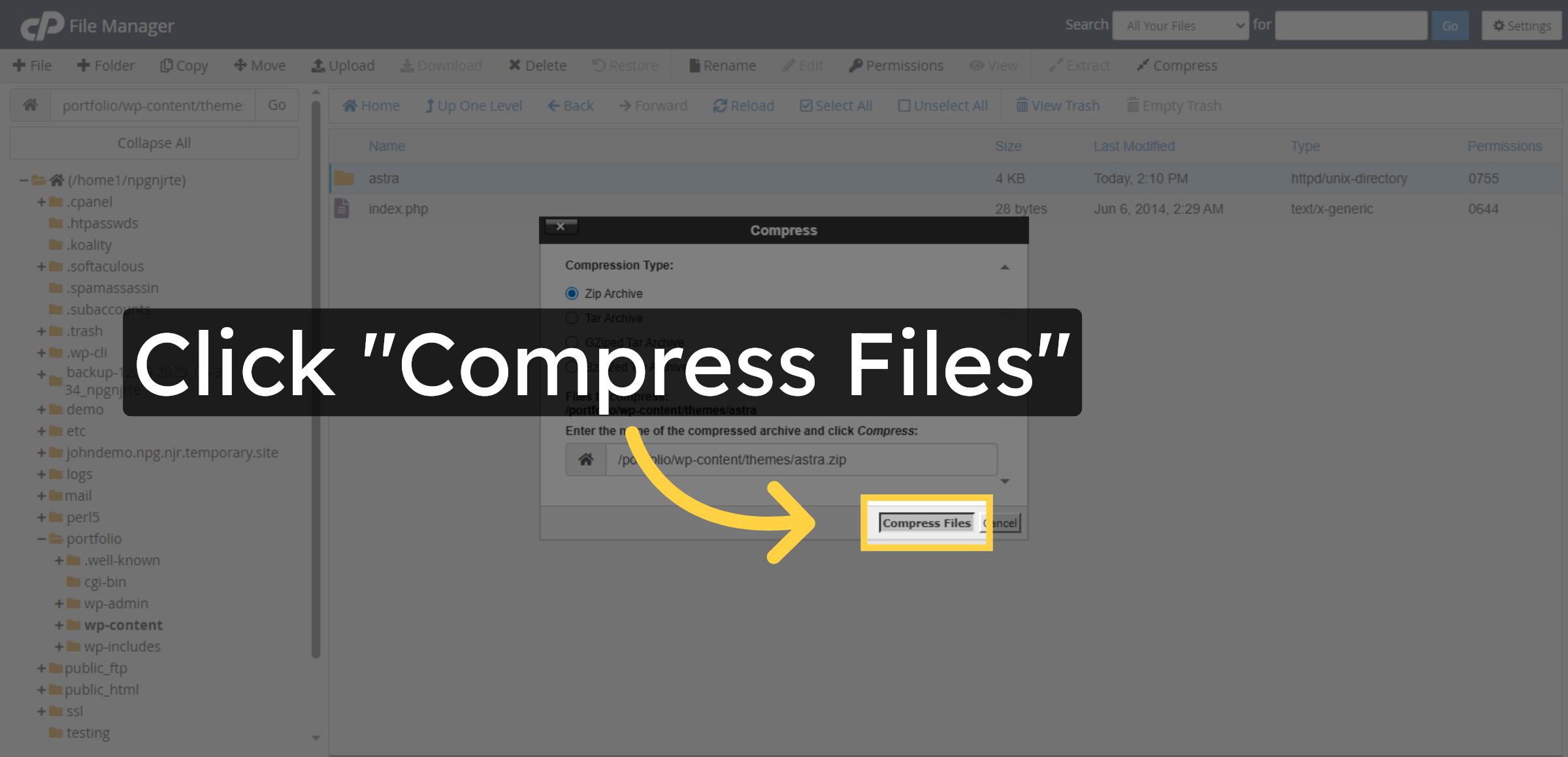
16. Close Compression Dialog
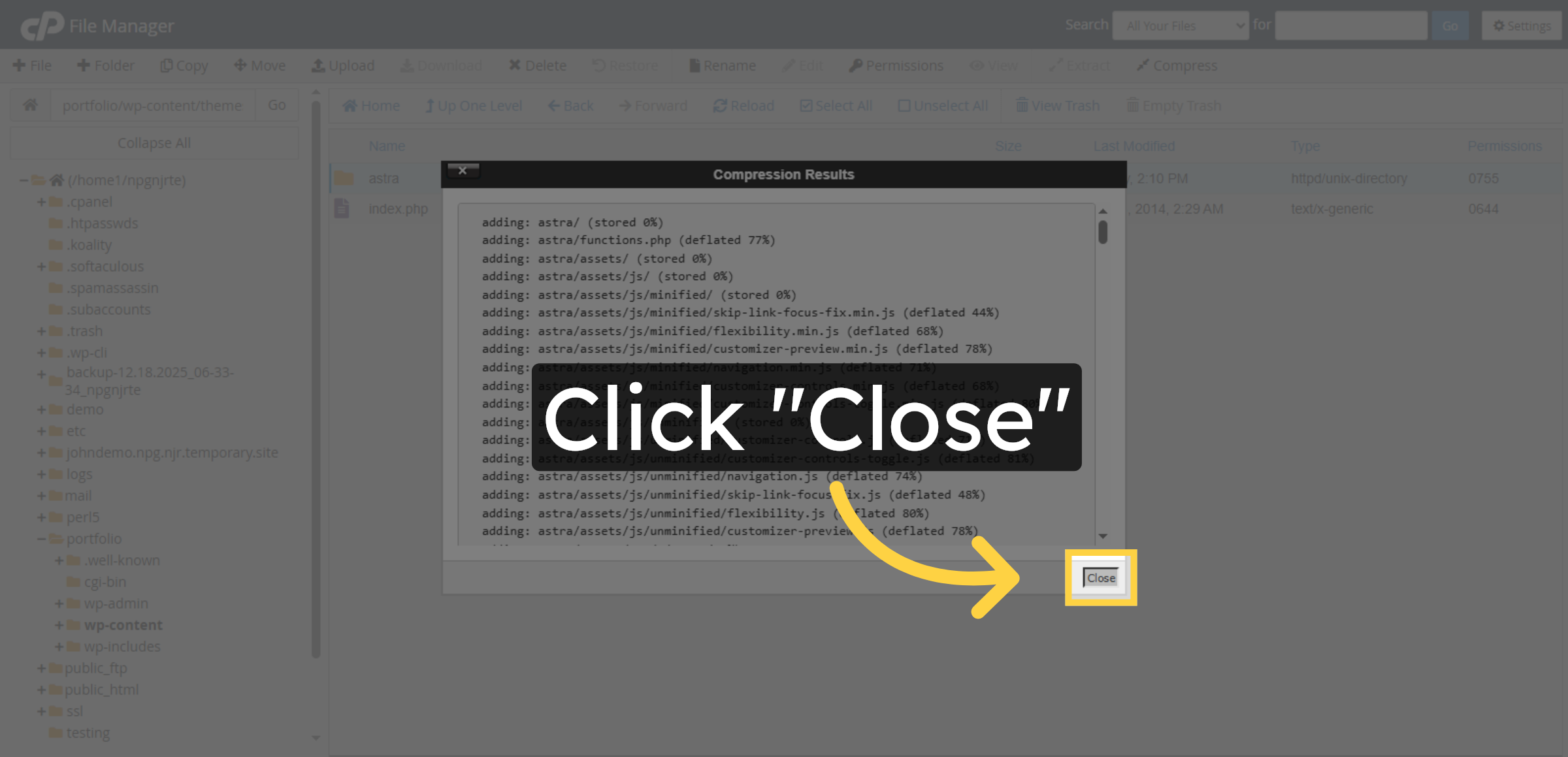
17. Return to Site for Updating Theme
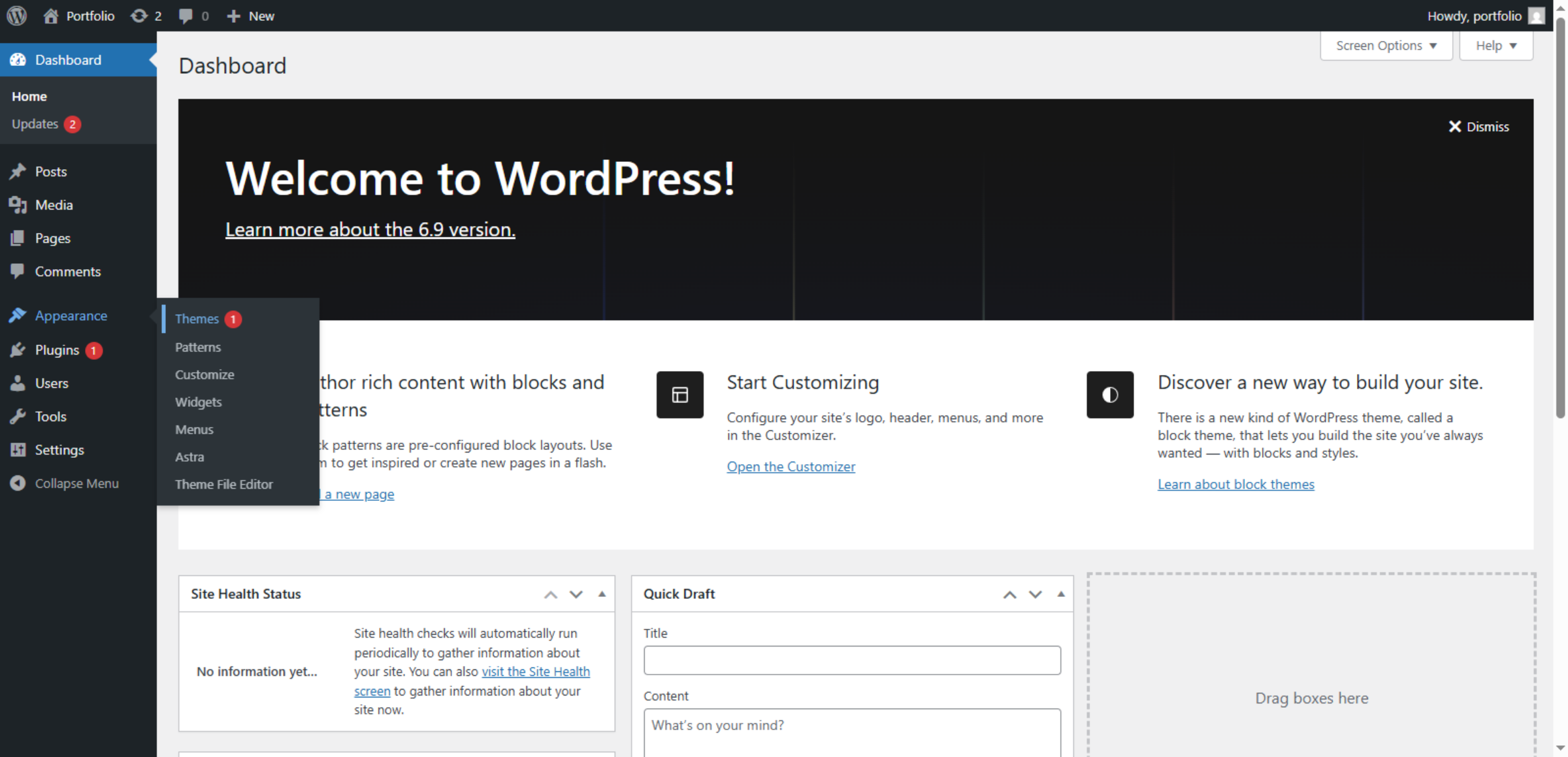
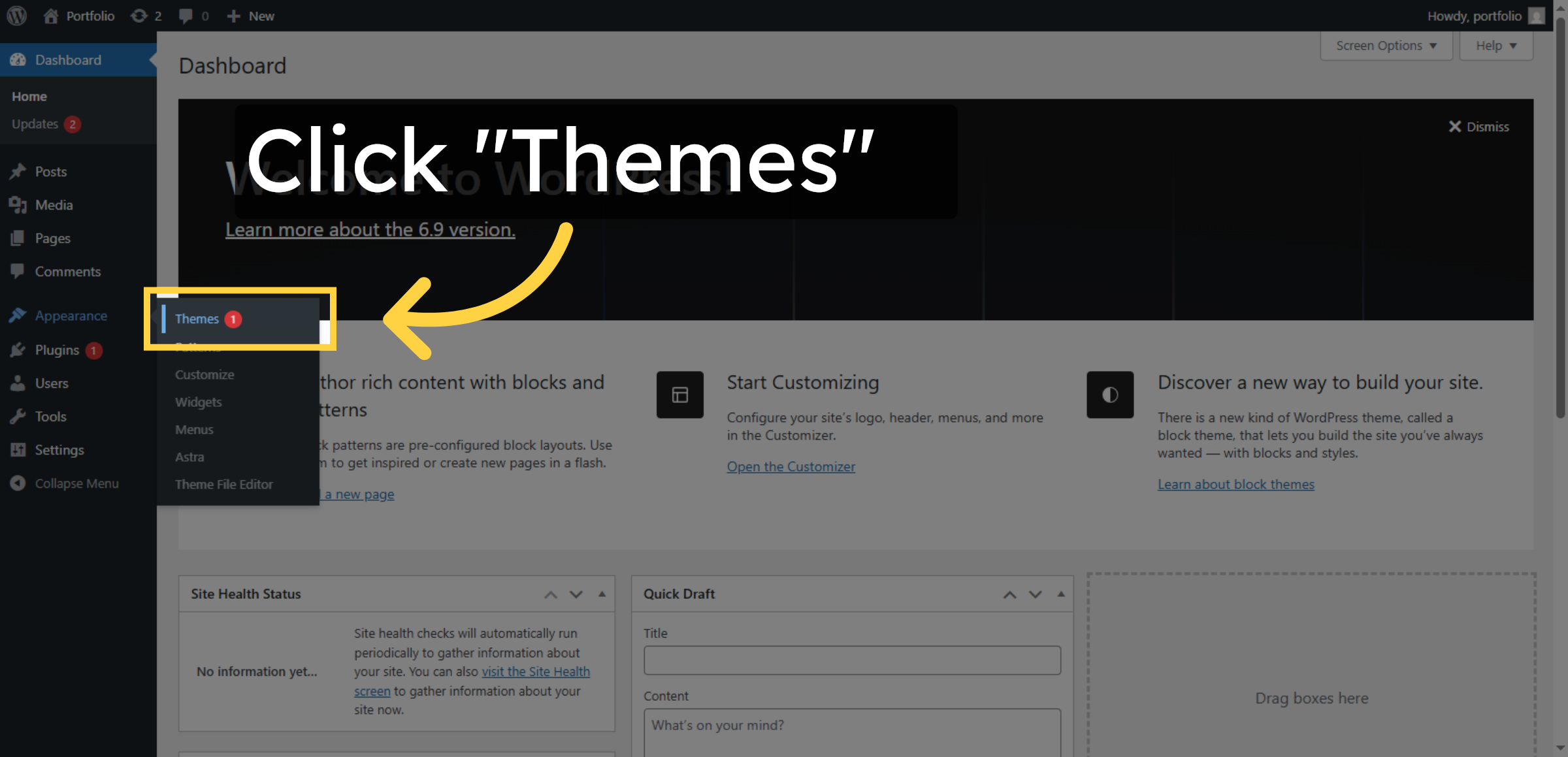
18. Open Themes Menu
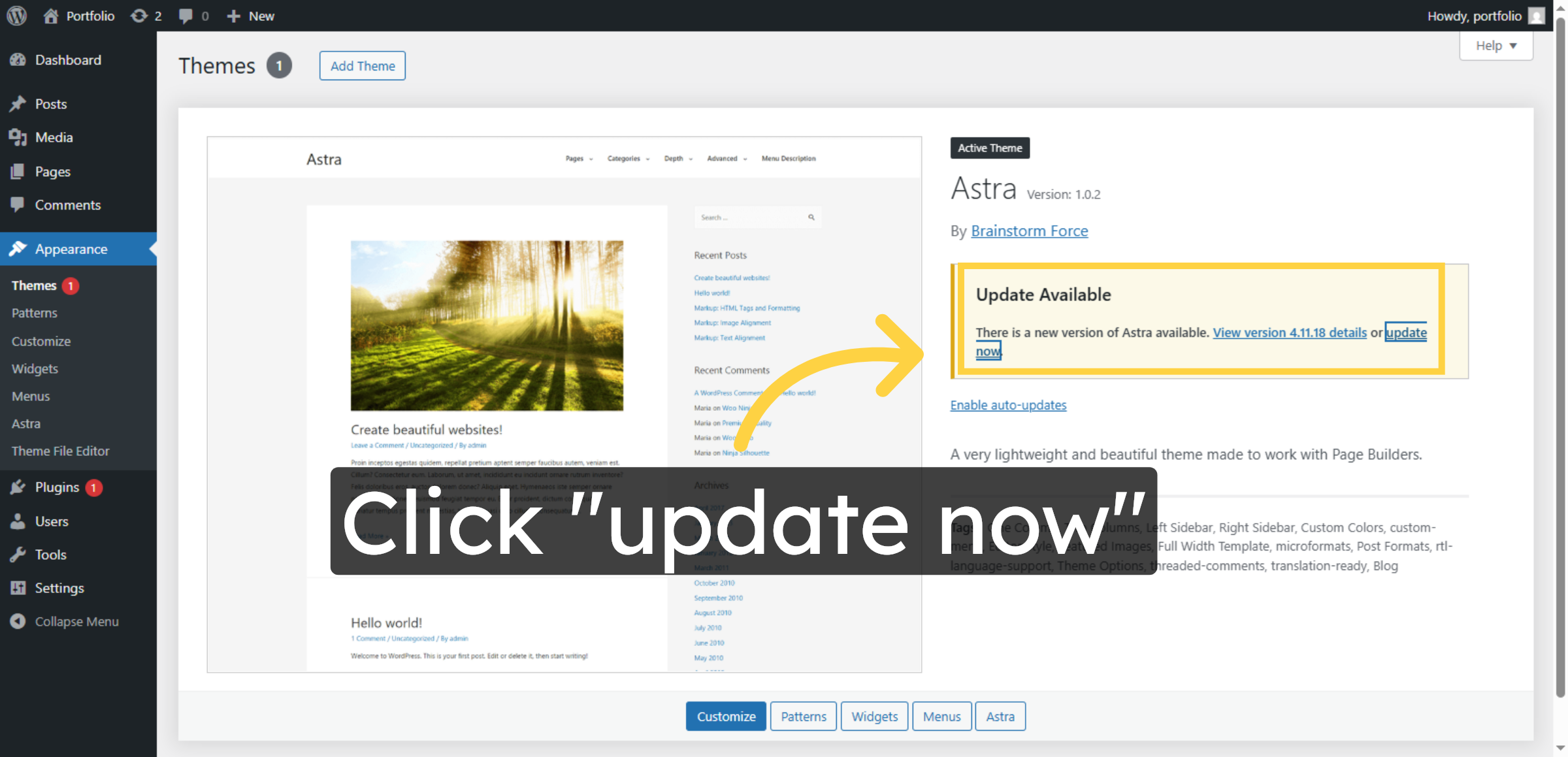
19. Click Update Now Link
20. Visit Website
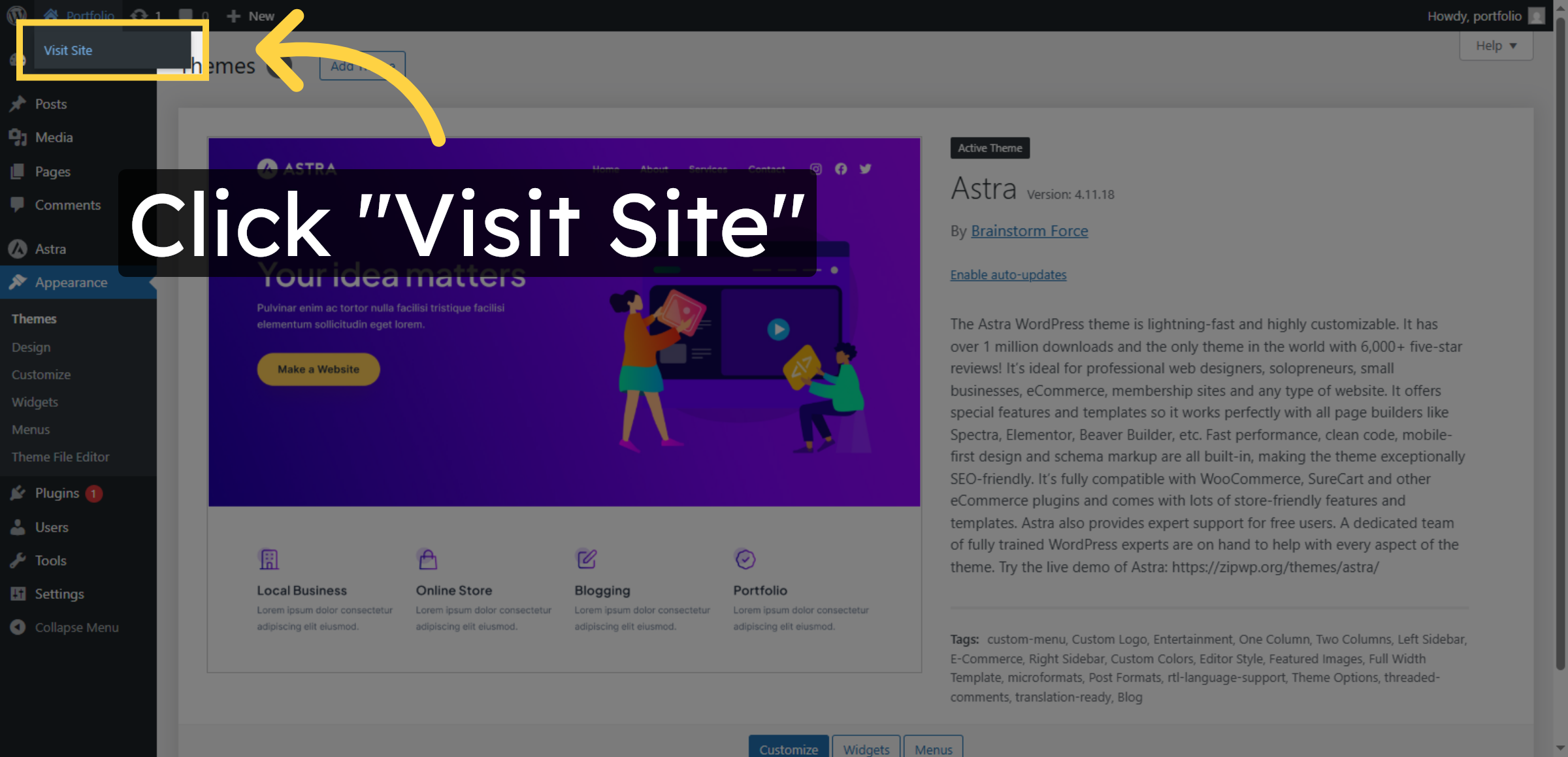
21. Access Website Builder
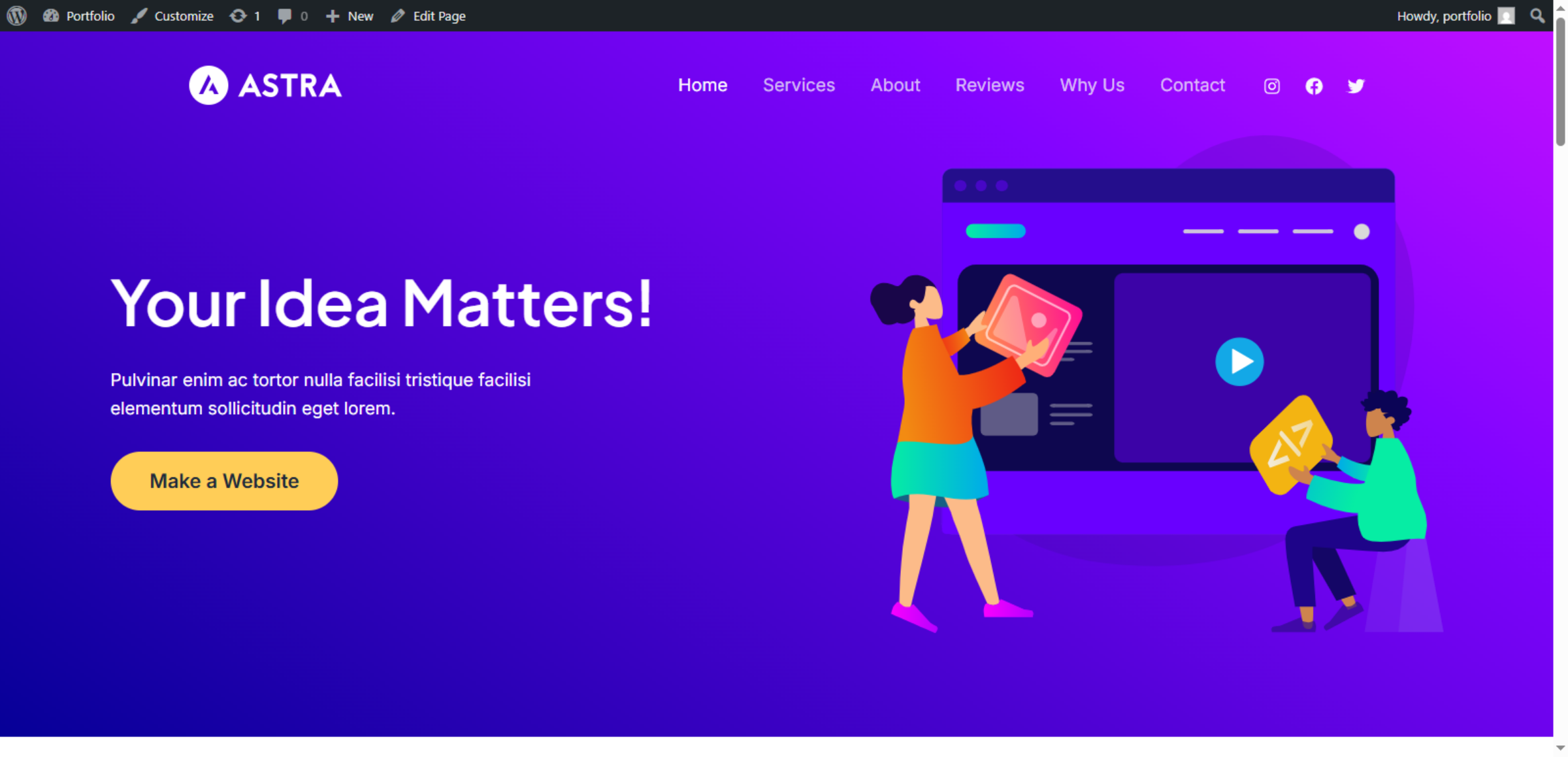
Conclusion
Resolving the White Screen of Death is essential for restoring website accessibility and maintaining a professional online presence. By following the steps outlined in this guide, you have successfully backed up your theme files, updated the Astra theme, and restored your website’s normal functionality. These actions help eliminate compatibility issues and prevent system conflicts that commonly cause WSOD errors.
To reduce the risk of future occurrences, it is recommended to regularly update themes and plugins, maintain sufficient PHP memory limits, and create backups before making major changes. Consistent monitoring and proper maintenance practices ensure long-term website stability and performance. With these safeguards in place, your WordPress website remains reliable, secure, and fully operational.
WooHelpDesk Support
Need professional assistance with WordPress error resolution, theme conflicts, website recovery, or hosting maintenance? WooHelpDesk provides expert technical support to restore your website quickly and securely.
Visit: https://www.woohelpdesk.com
Call Us Toll-Free: +1 888 602 0119 (US & Canada)
Fast Troubleshooting | Secure Recovery | Trusted Support
Contact WooHelpDesk today for dependable WordPress and HostGator support solutions.



