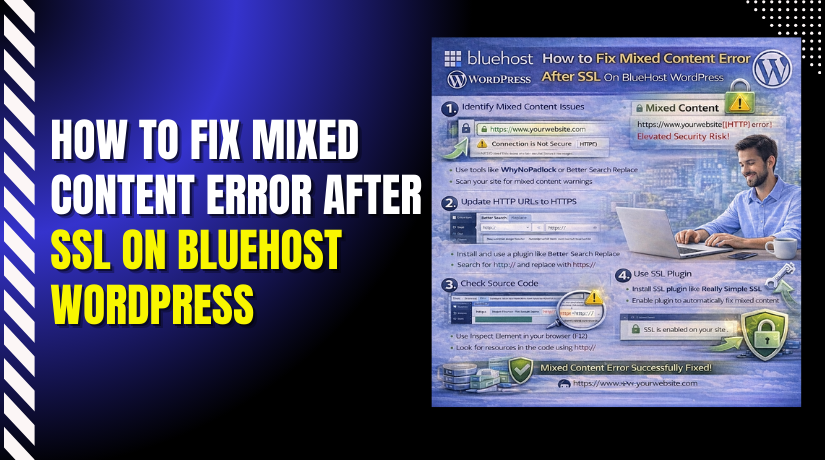
How to Fix Mixed Content Error After SSL On BlueHost WordPress
Introduction
After activating an SSL certificate, many WordPress websites continue to display security warnings due to mixed content errors. These errors occur when a website loads some resources—such as images, scripts, or stylesheets—using insecure HTTP links instead of HTTPS. As a result, browsers mark the site as partially insecure, which can reduce user trust and negatively affect search engine rankings. Hosting providers such as Bluehost offer free SSL certificates, but additional configuration is often required to ensure complete HTTPS compliance.
This guidde explains how to fix mixed content errors on a Bluehost WordPress website after enabling SSL. It provides step-by-step instructions for installing and configuring the Really Simple SSL plugin, enabling mixed content fixers, updating security settings, and verifying website protection. By following this guide, website owners can eliminate browser warnings, secure all site resources, and ensure a fully encrypted browsing experience.
1. NOTE
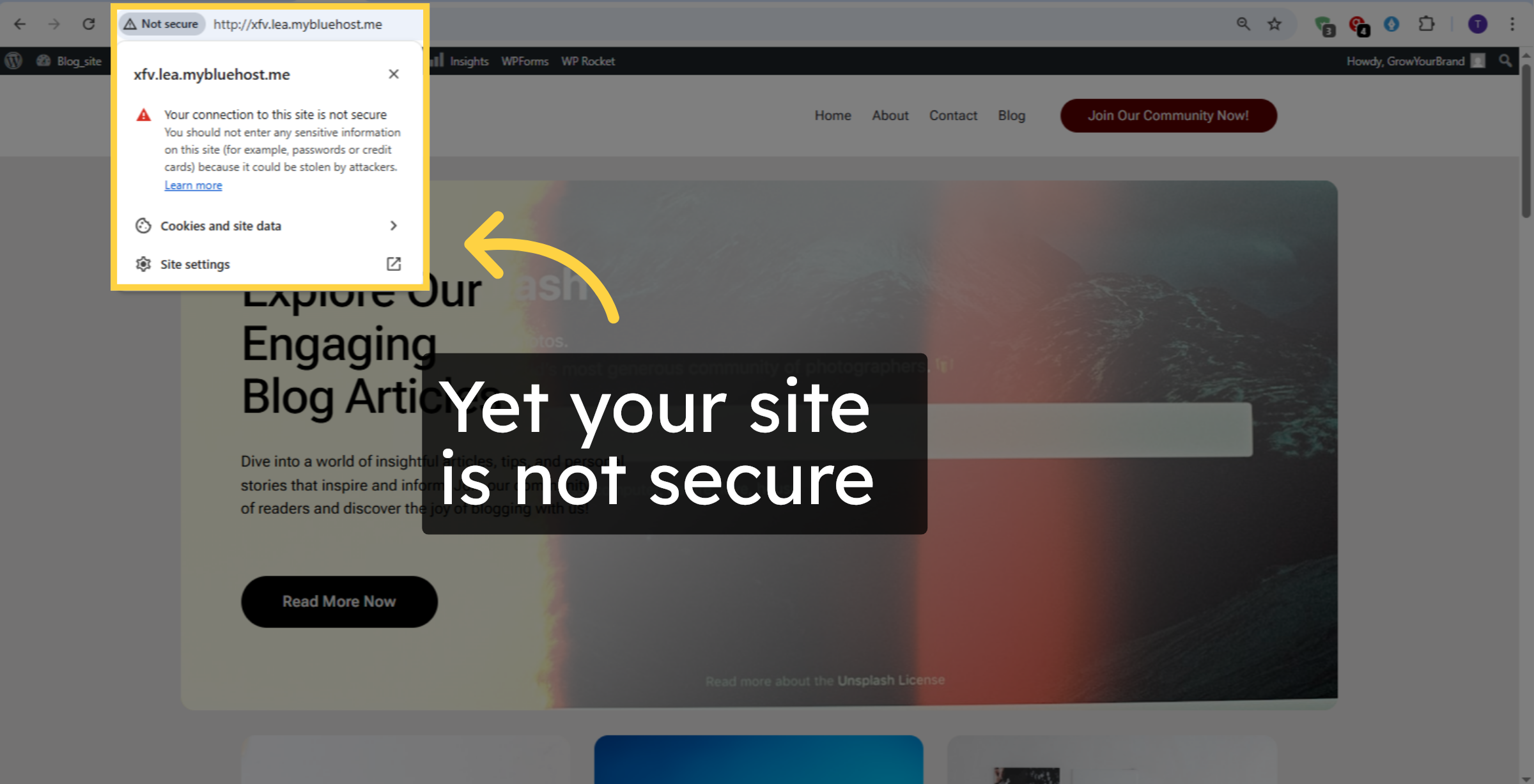
2. Introduction
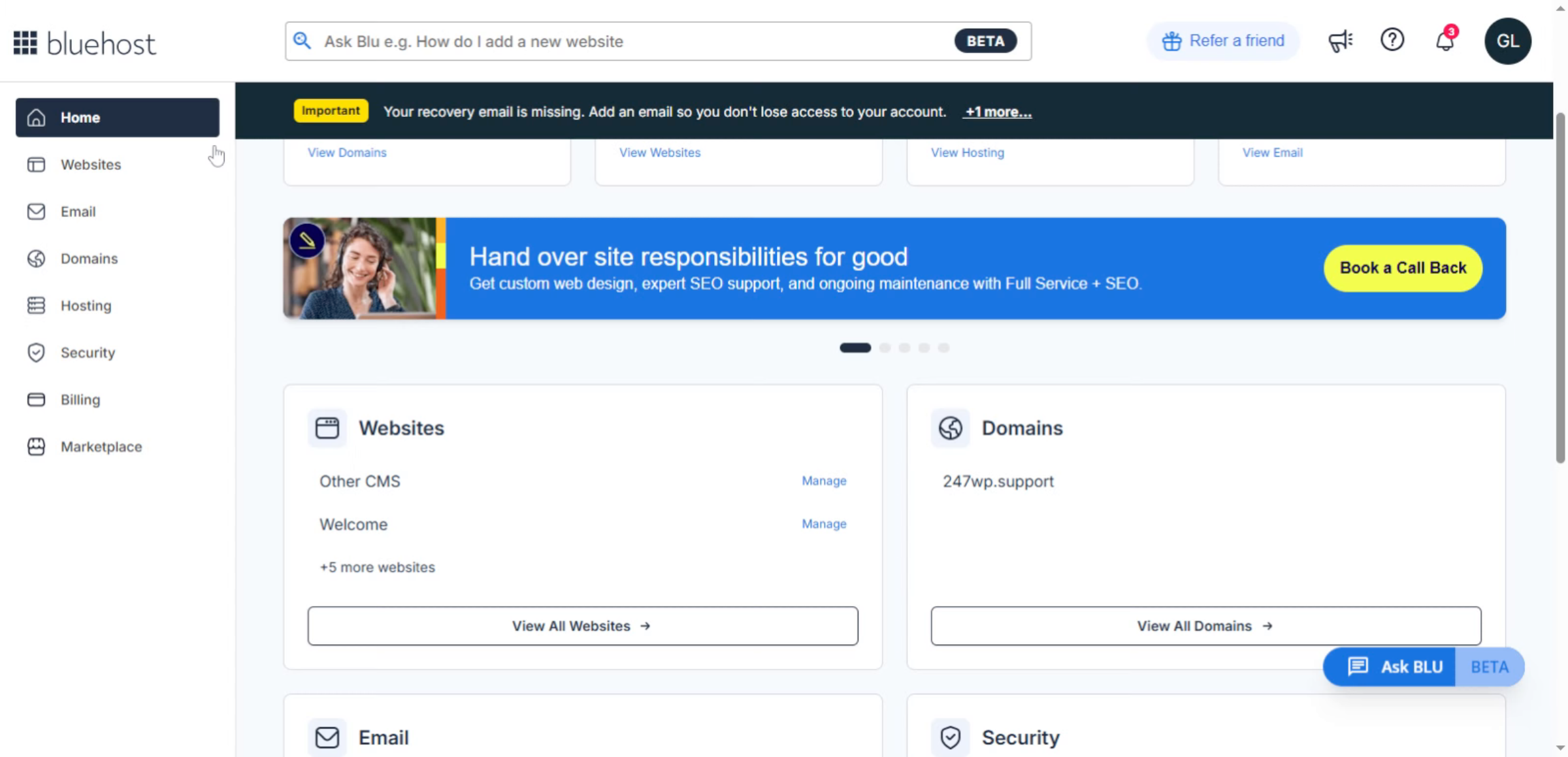
3. Open Websites Section
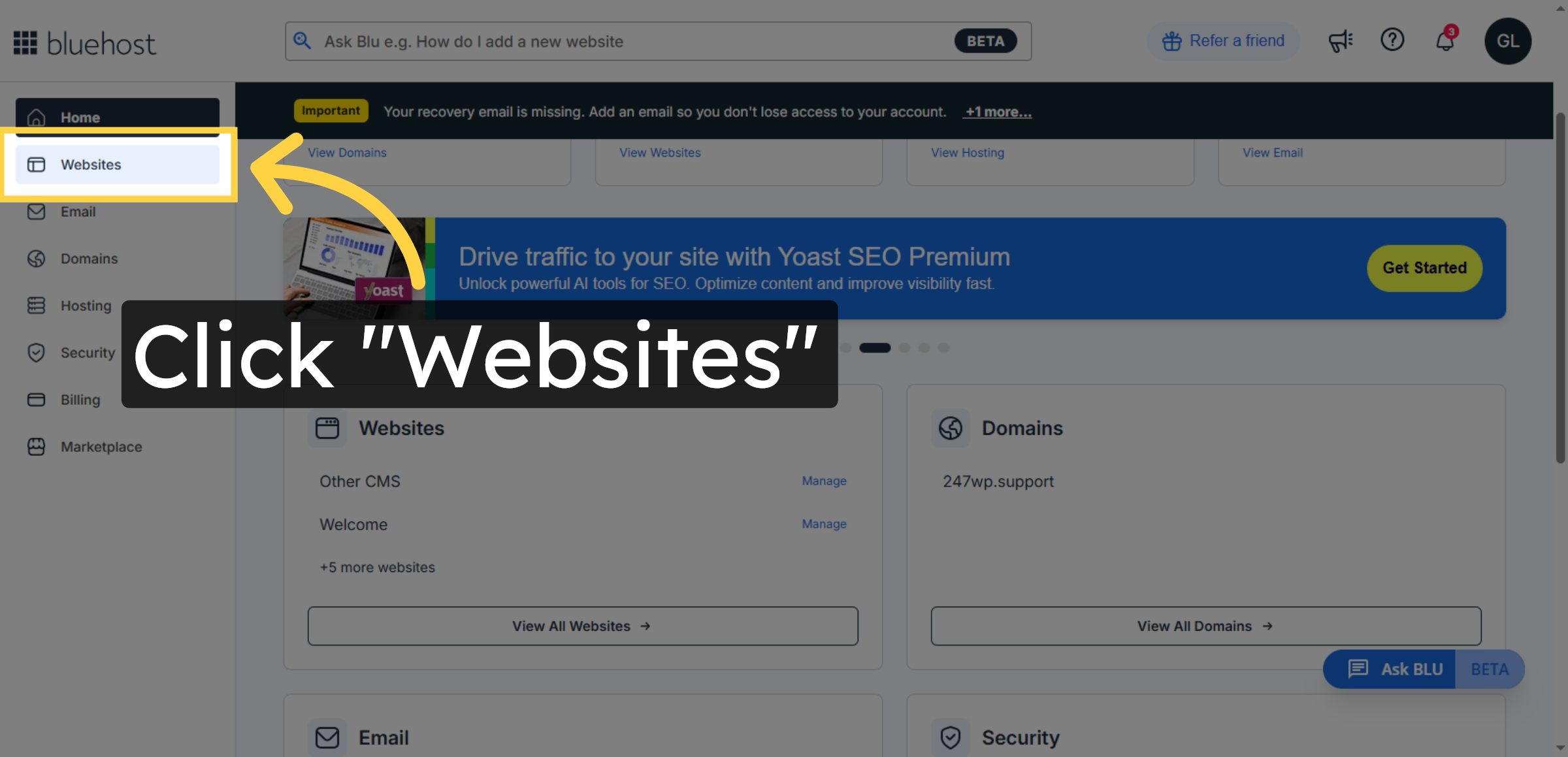
4. Open WordPress Admin
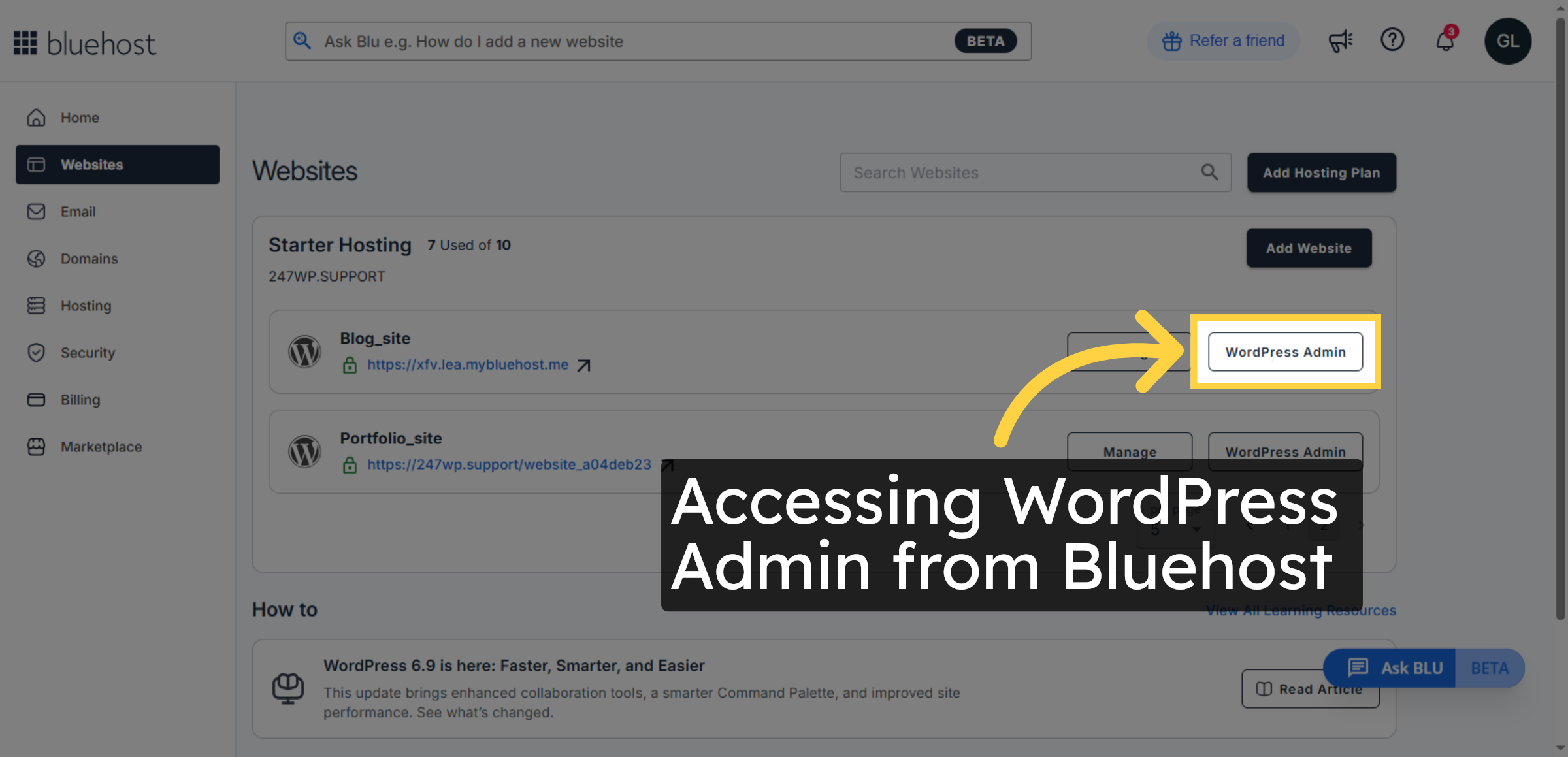
5. Switch to WordPress Site
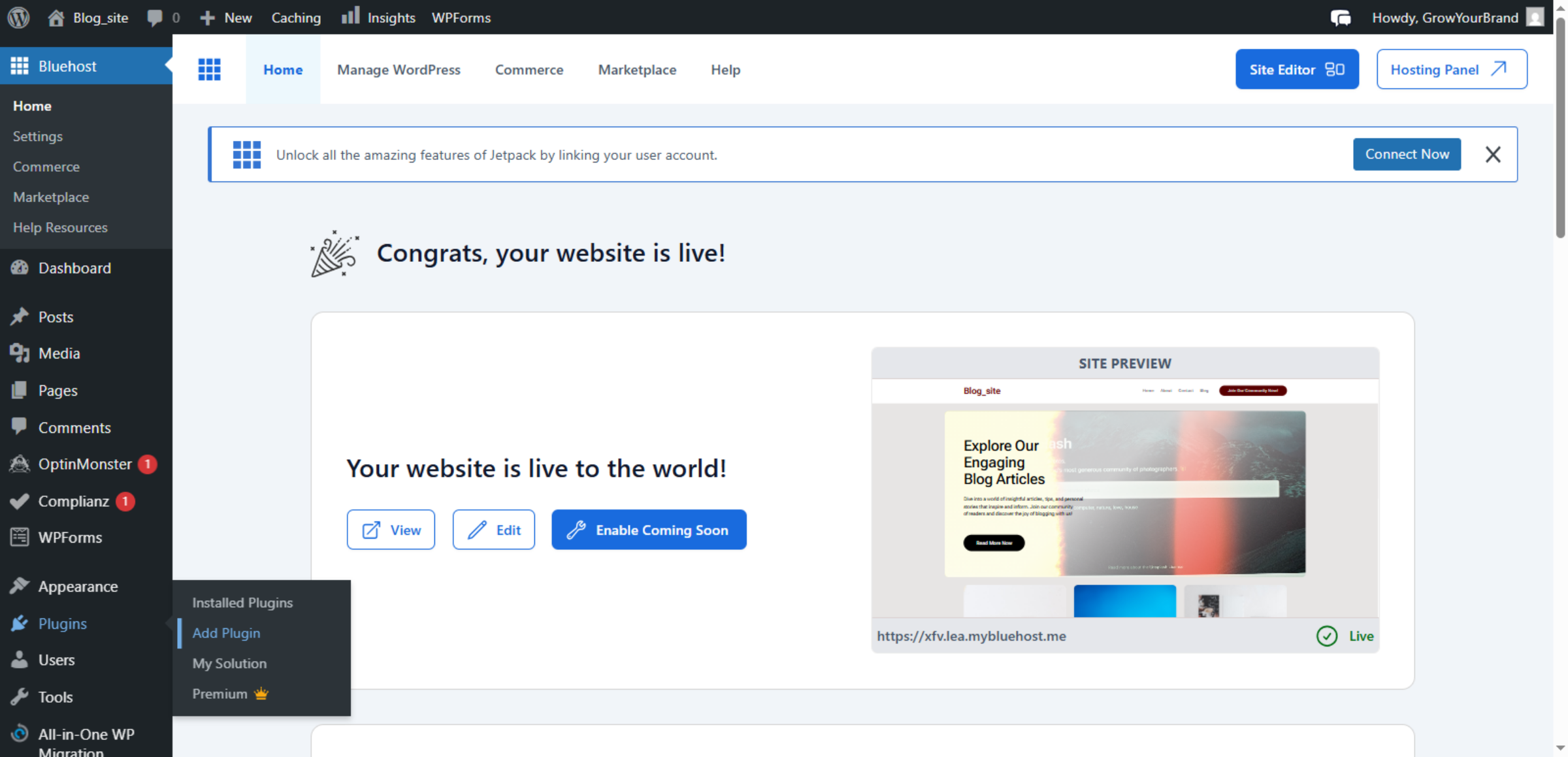
6. Add New Plugin
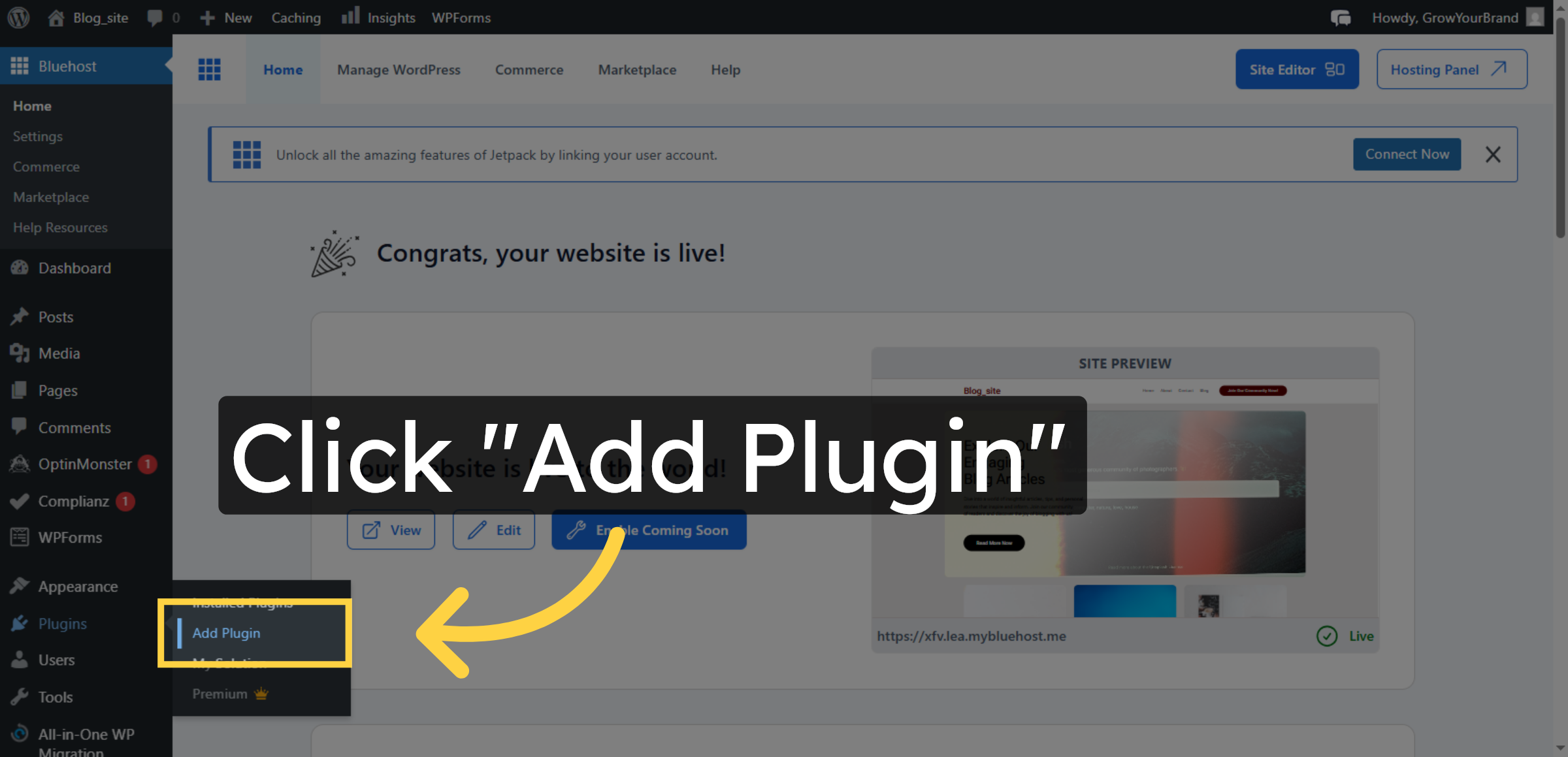
7. Search for Plugins
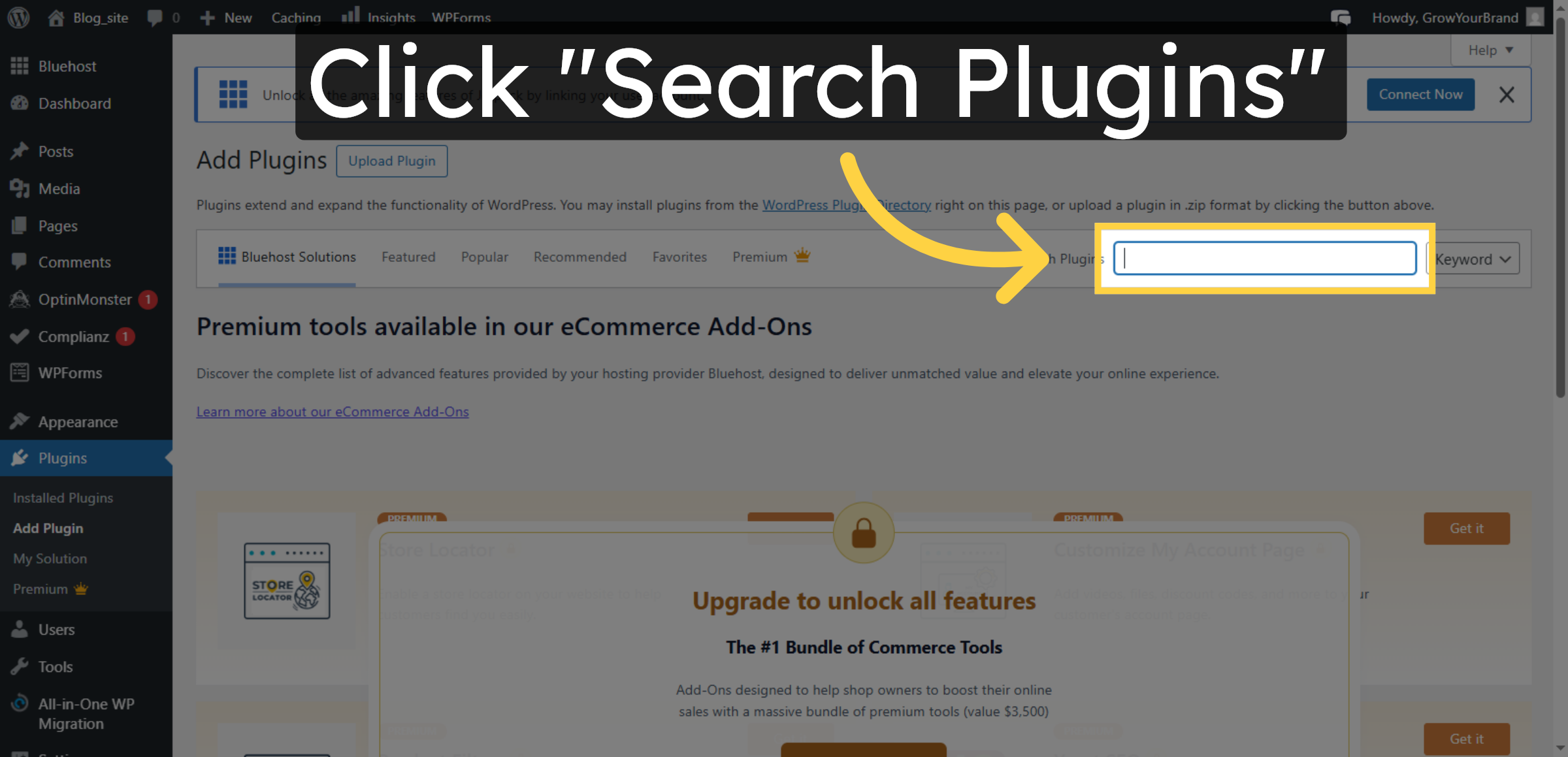
8. Enter Plugin Name
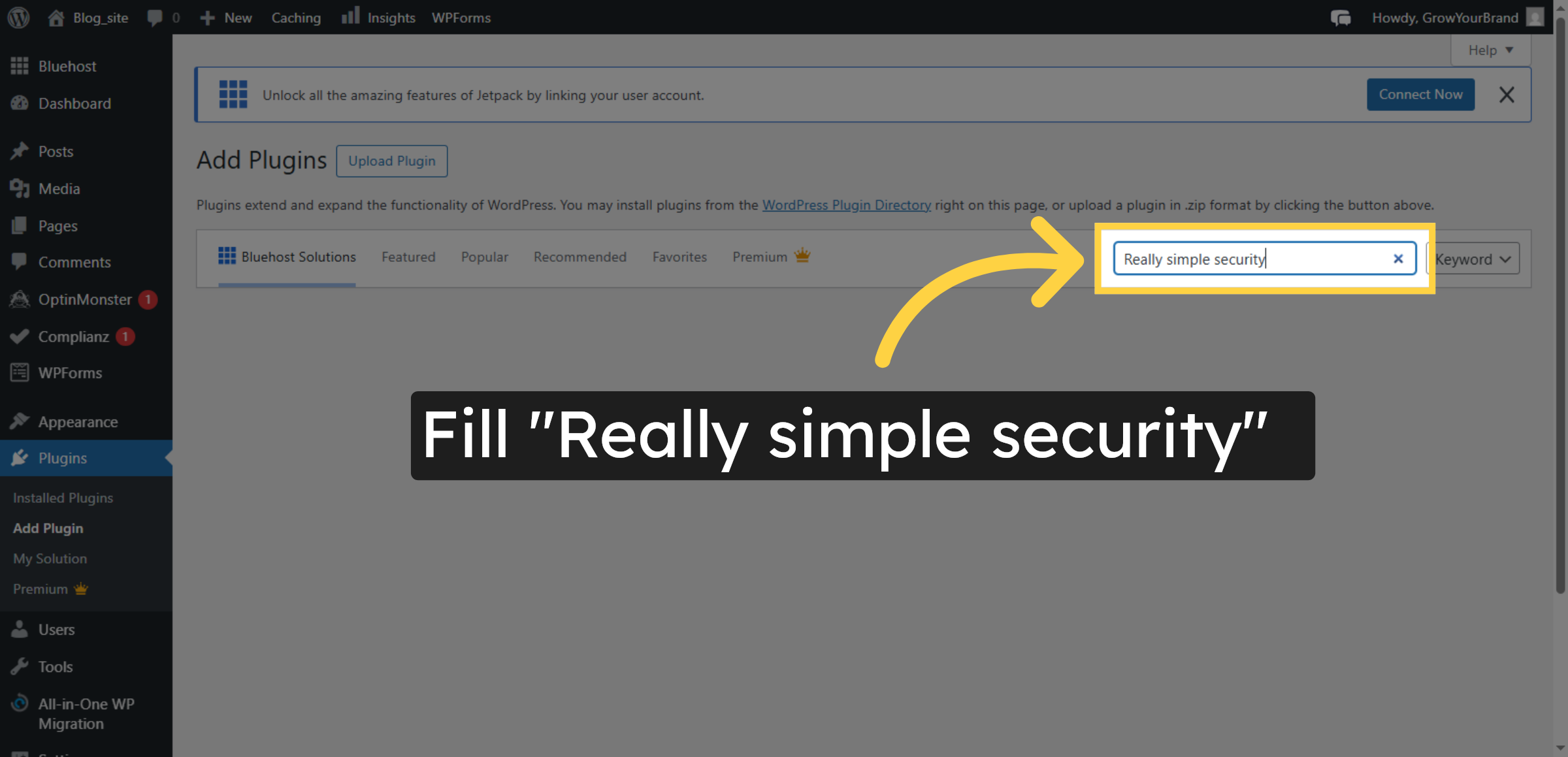
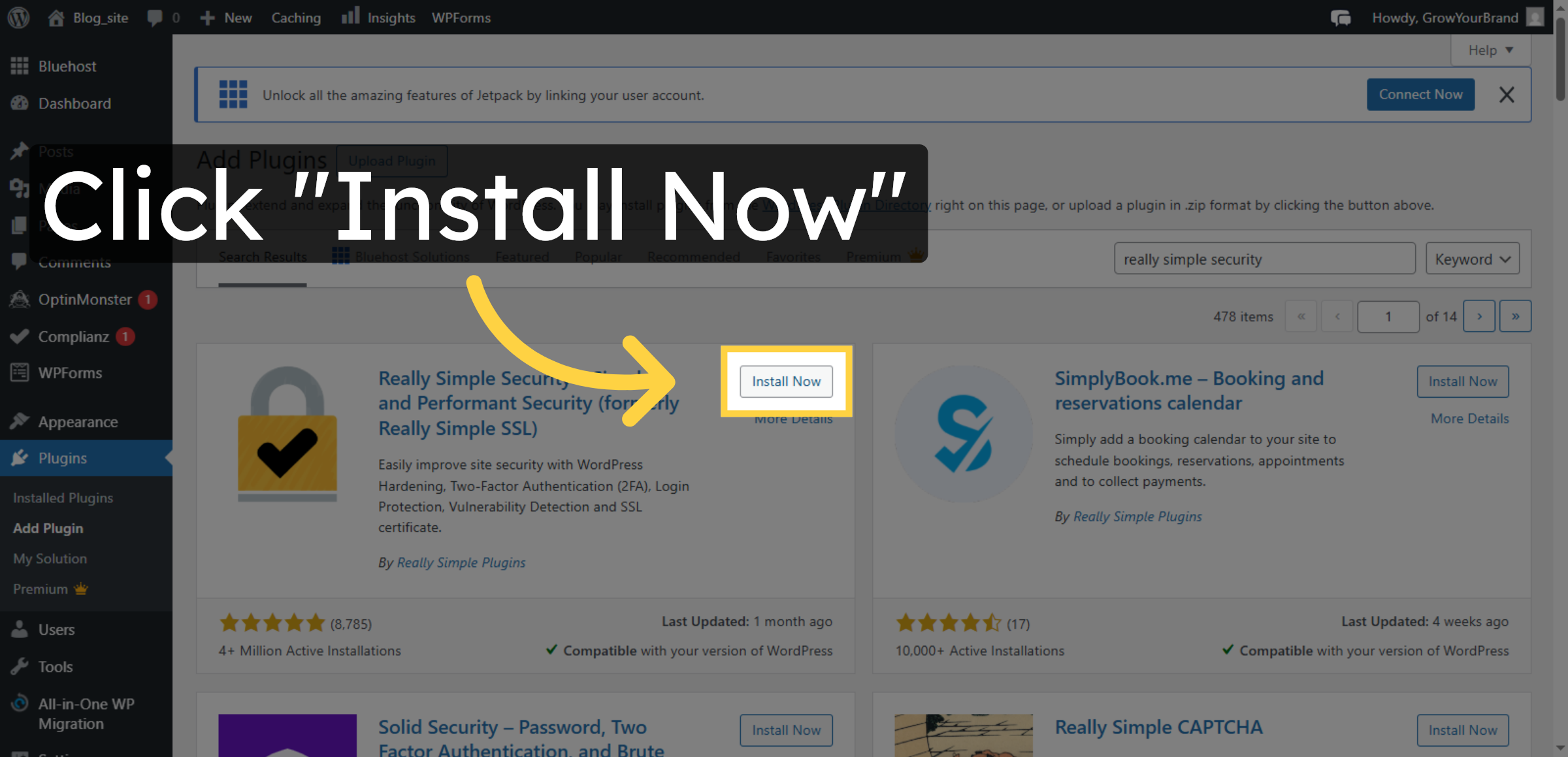
9. Install Plugin
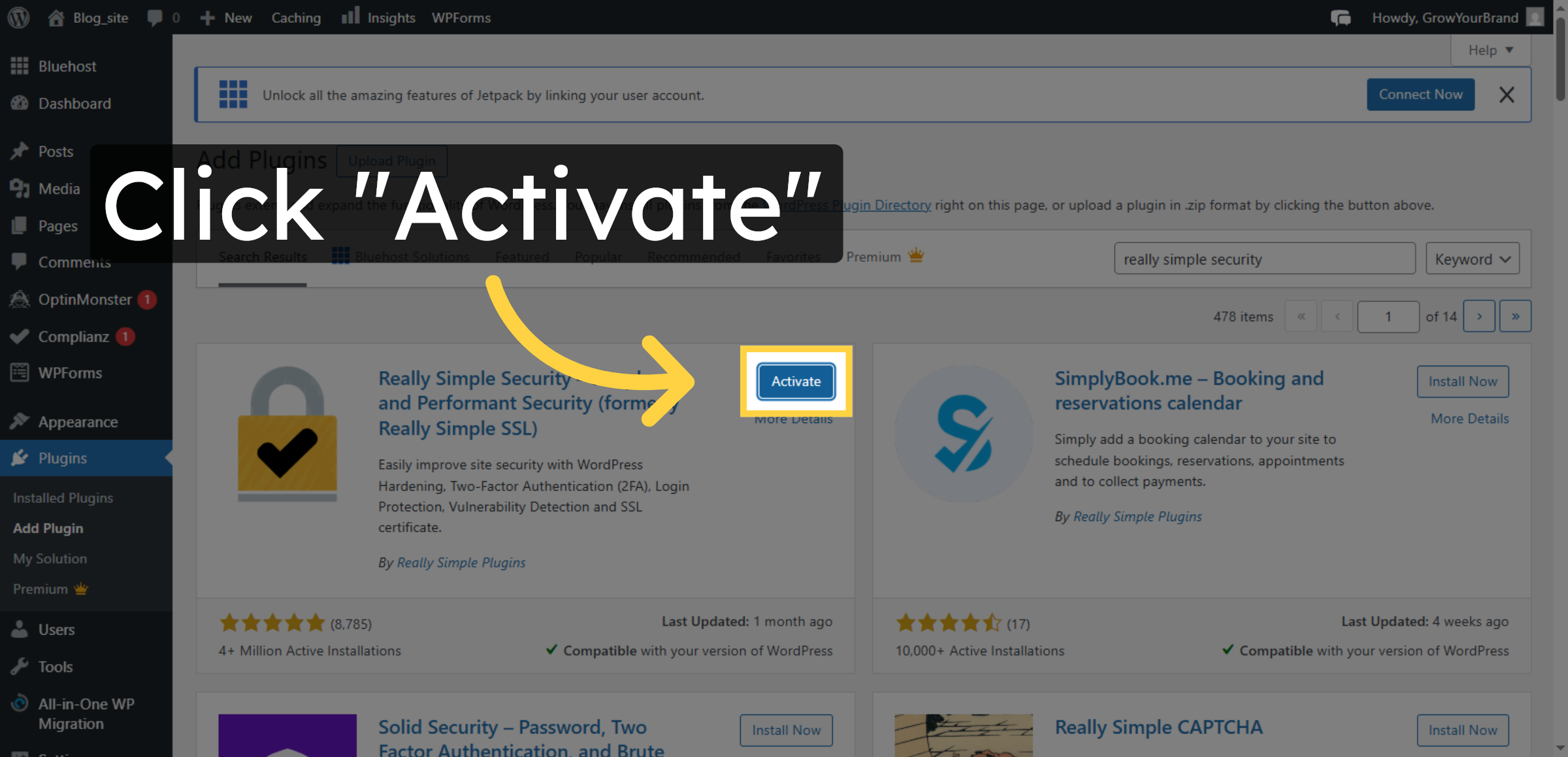
10. Activate Plugin
11. Open Security Plugin
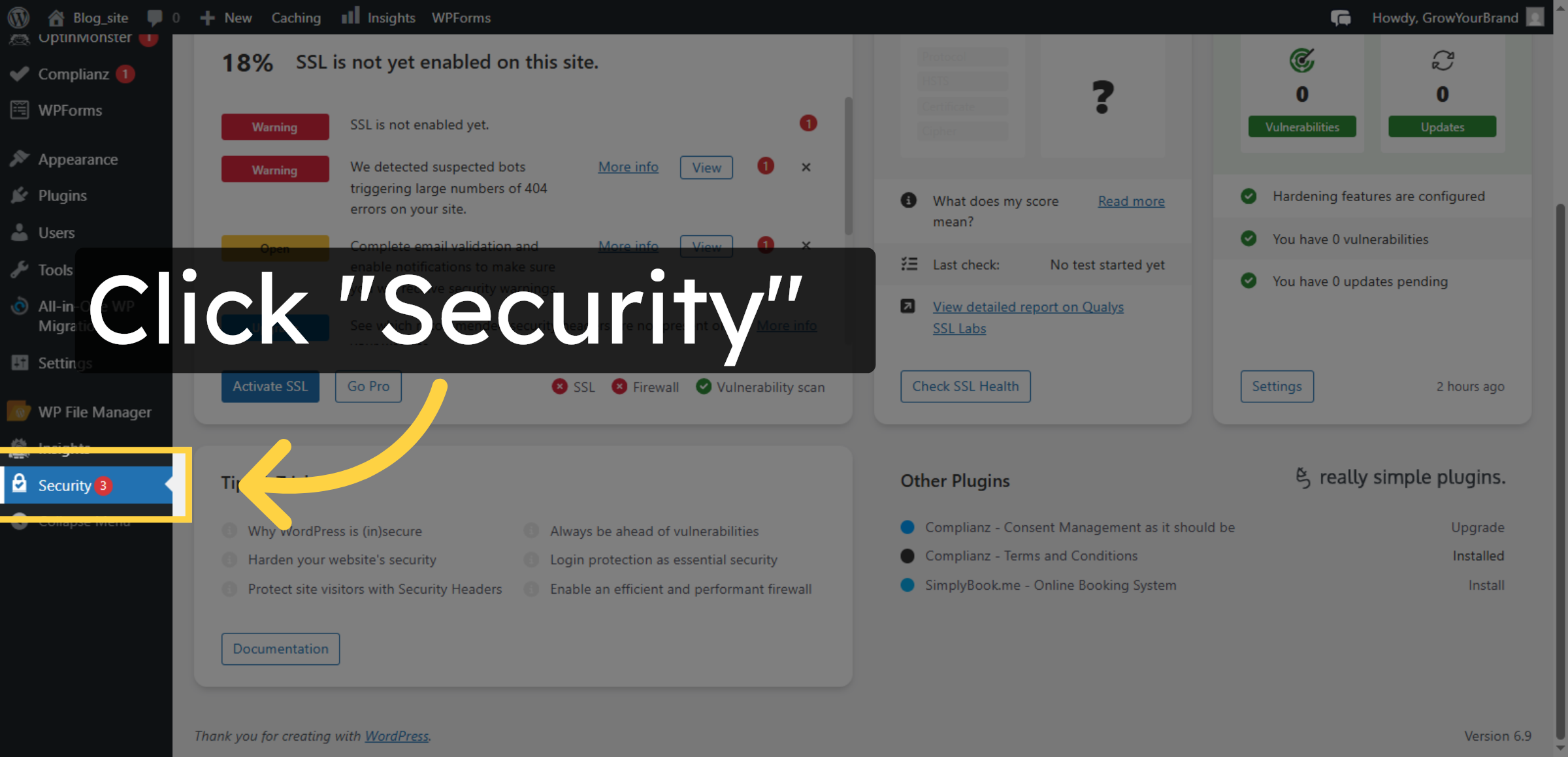
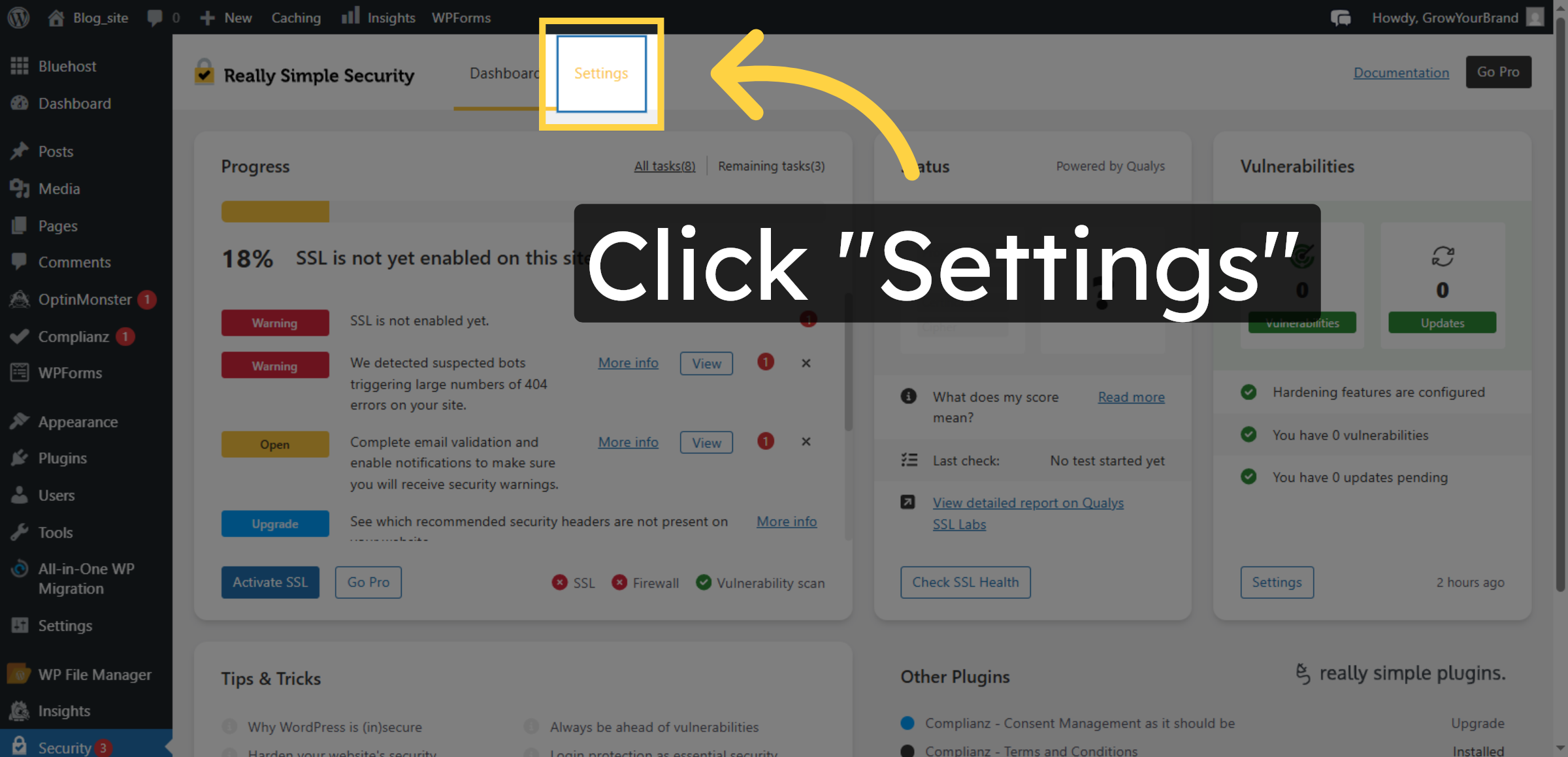
12. Access Security Settings
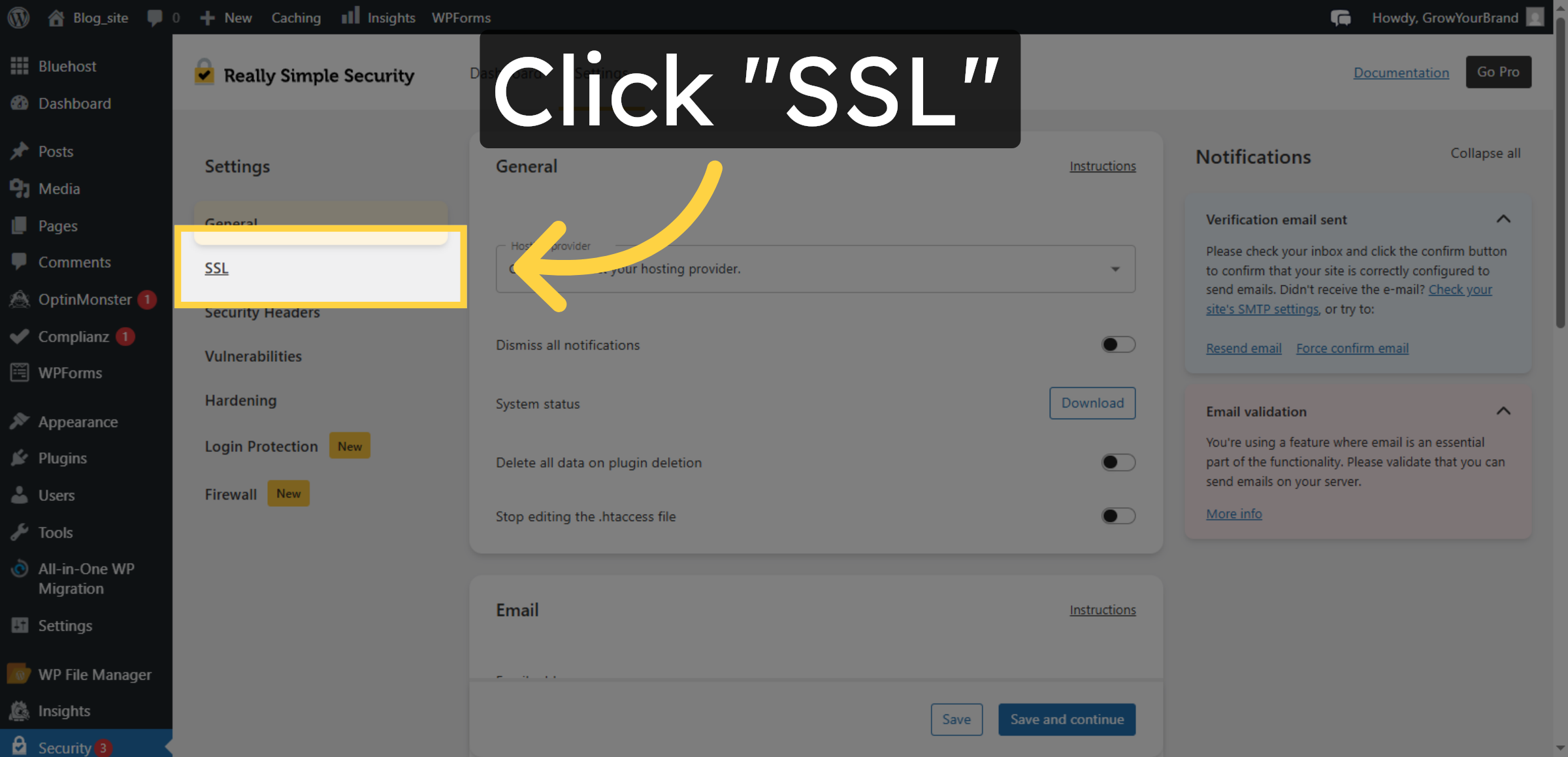
13. Select SSL Tab


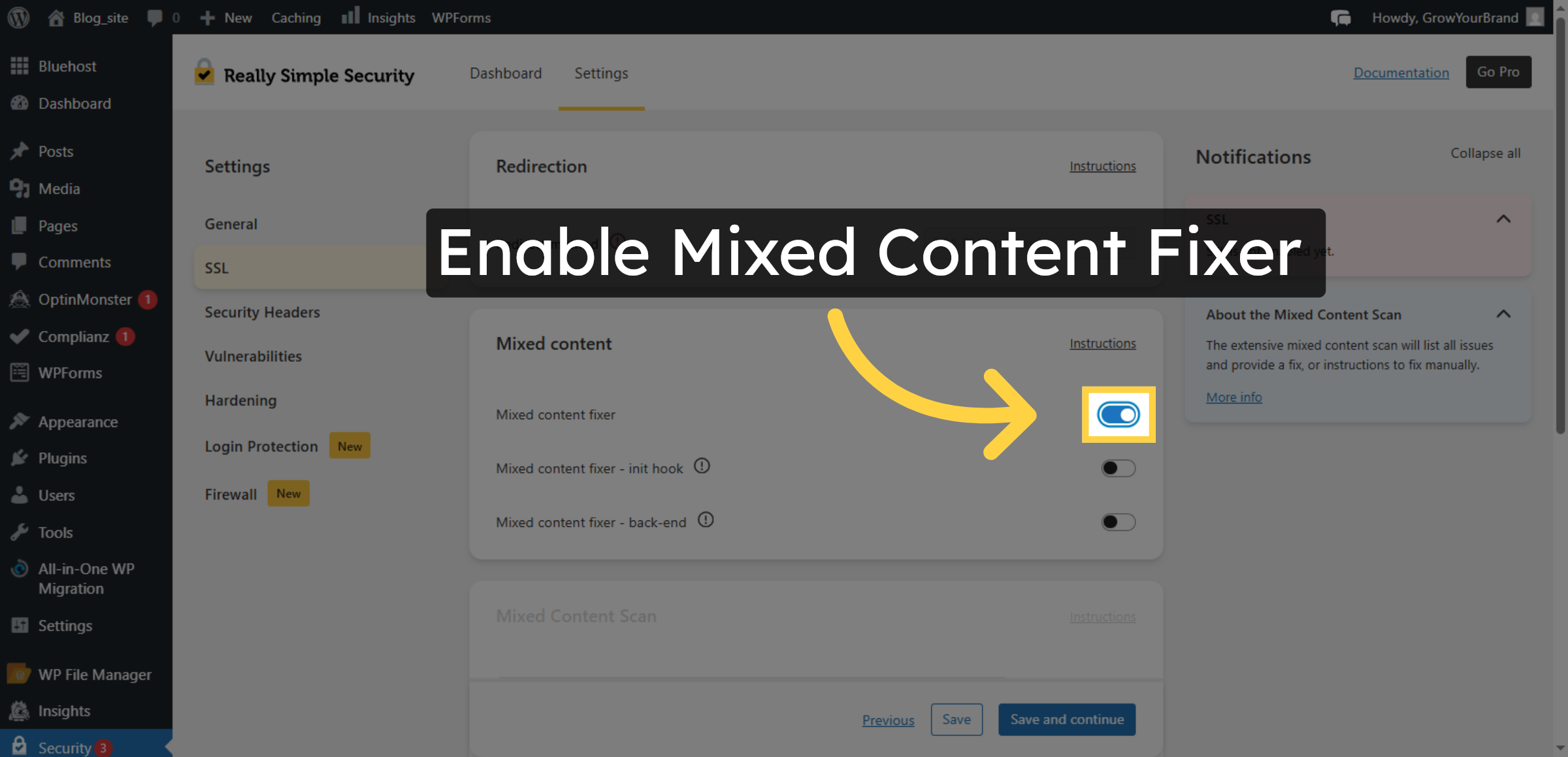
14. Enable Mixed Content Fixer
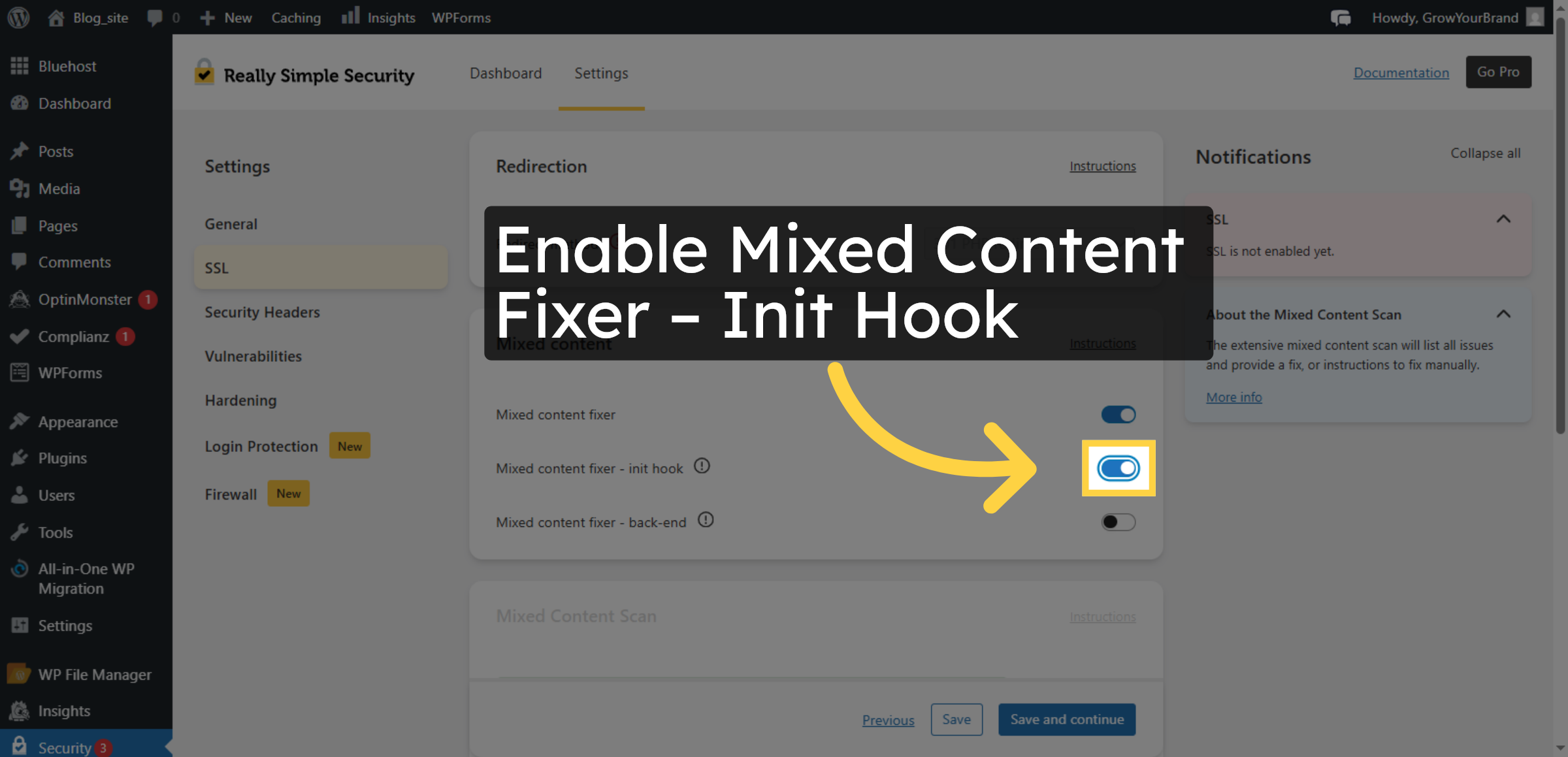
15. Enable Mixed Content Fixer – Init Hook
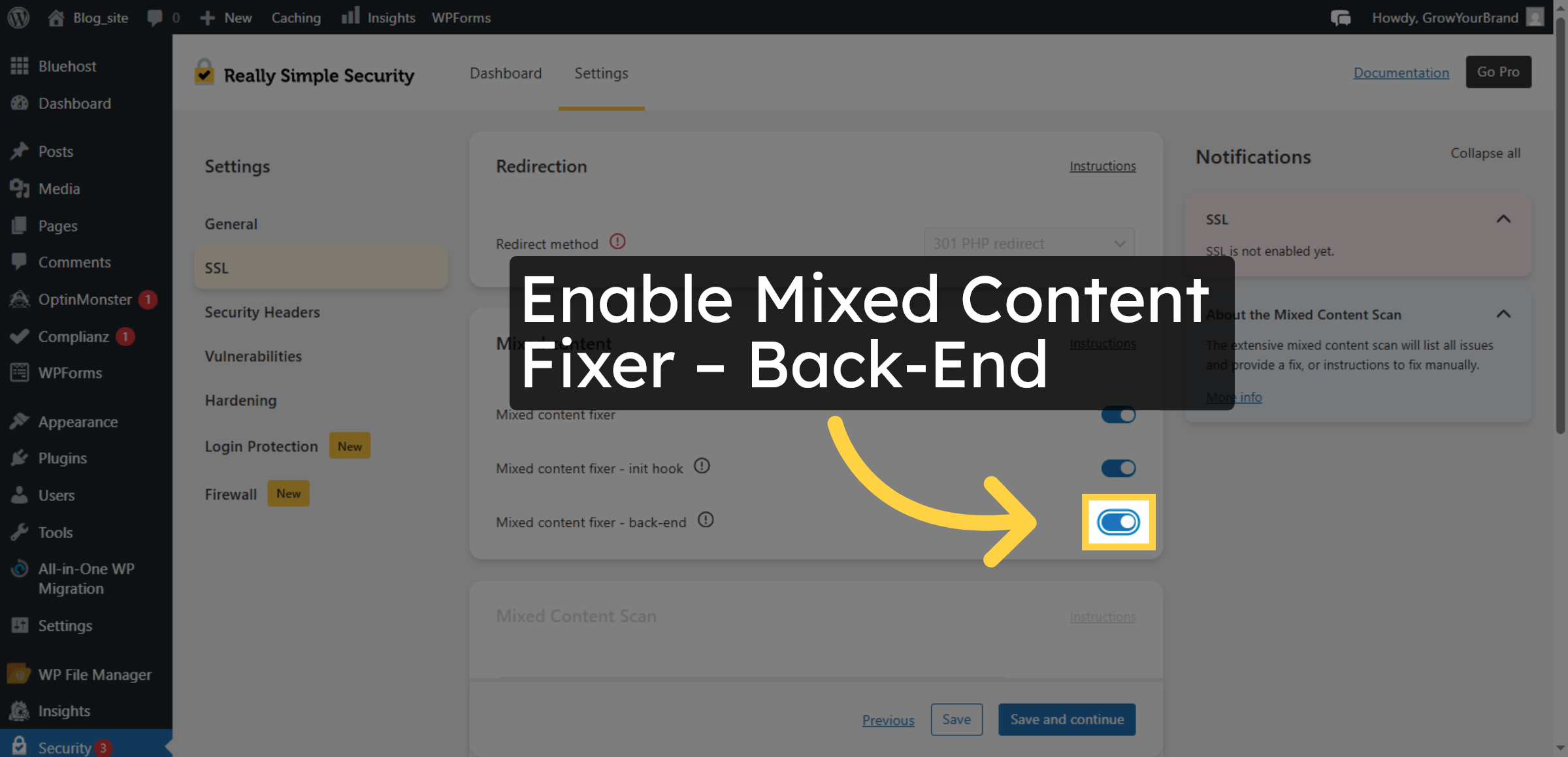
16. Enable Mixed Content Fixer – Back-End
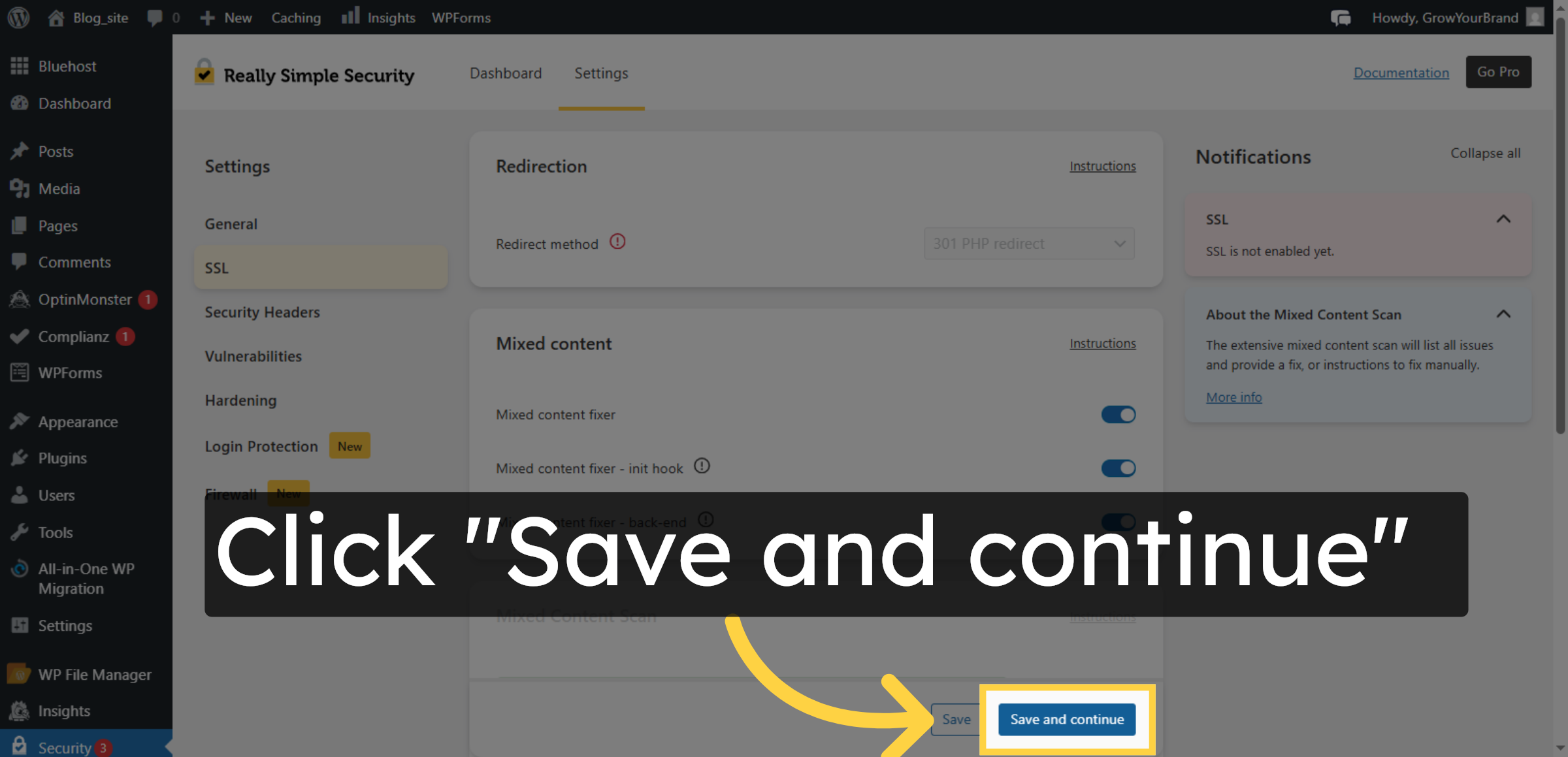
17. Save SSL Settings
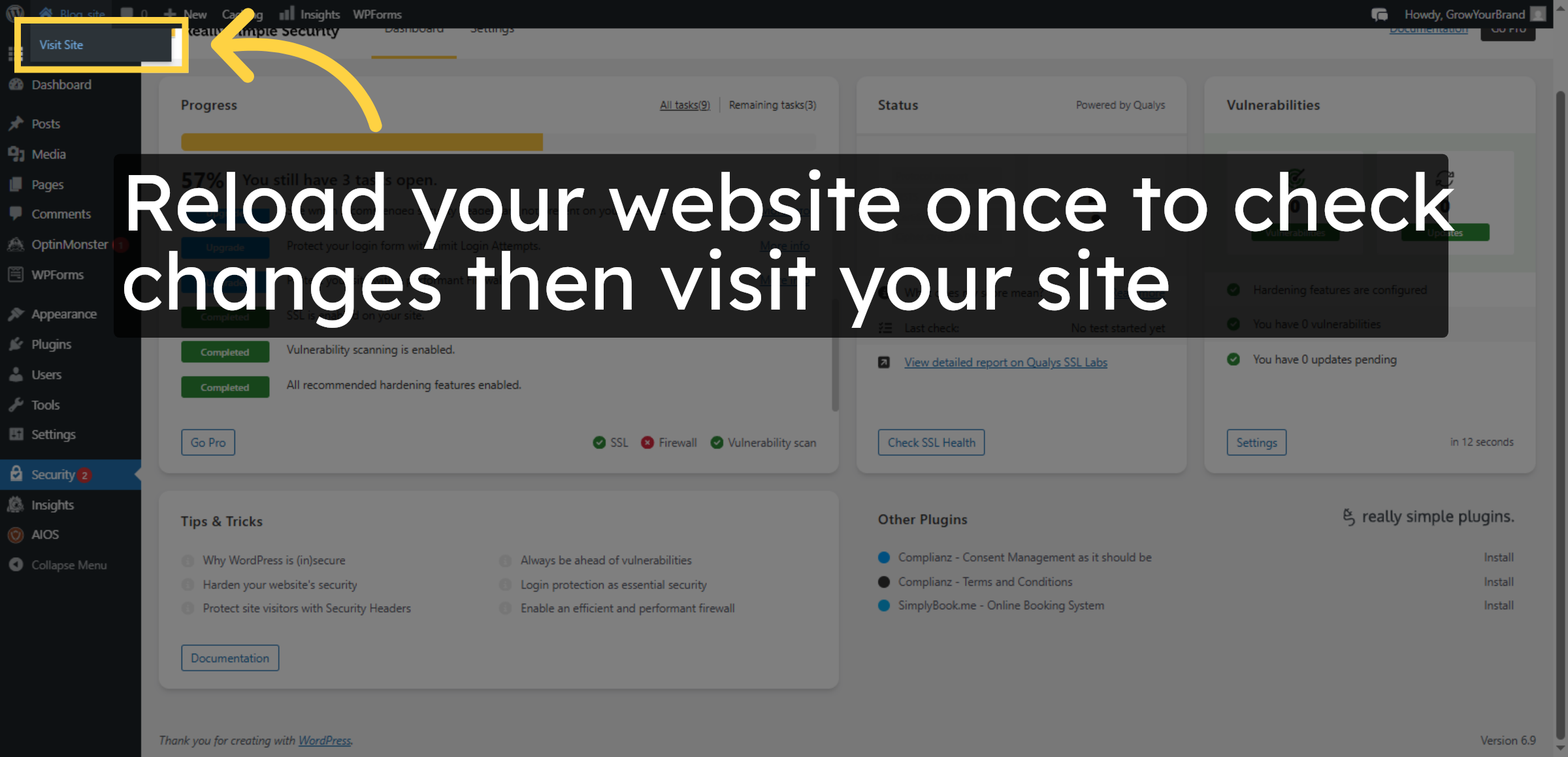
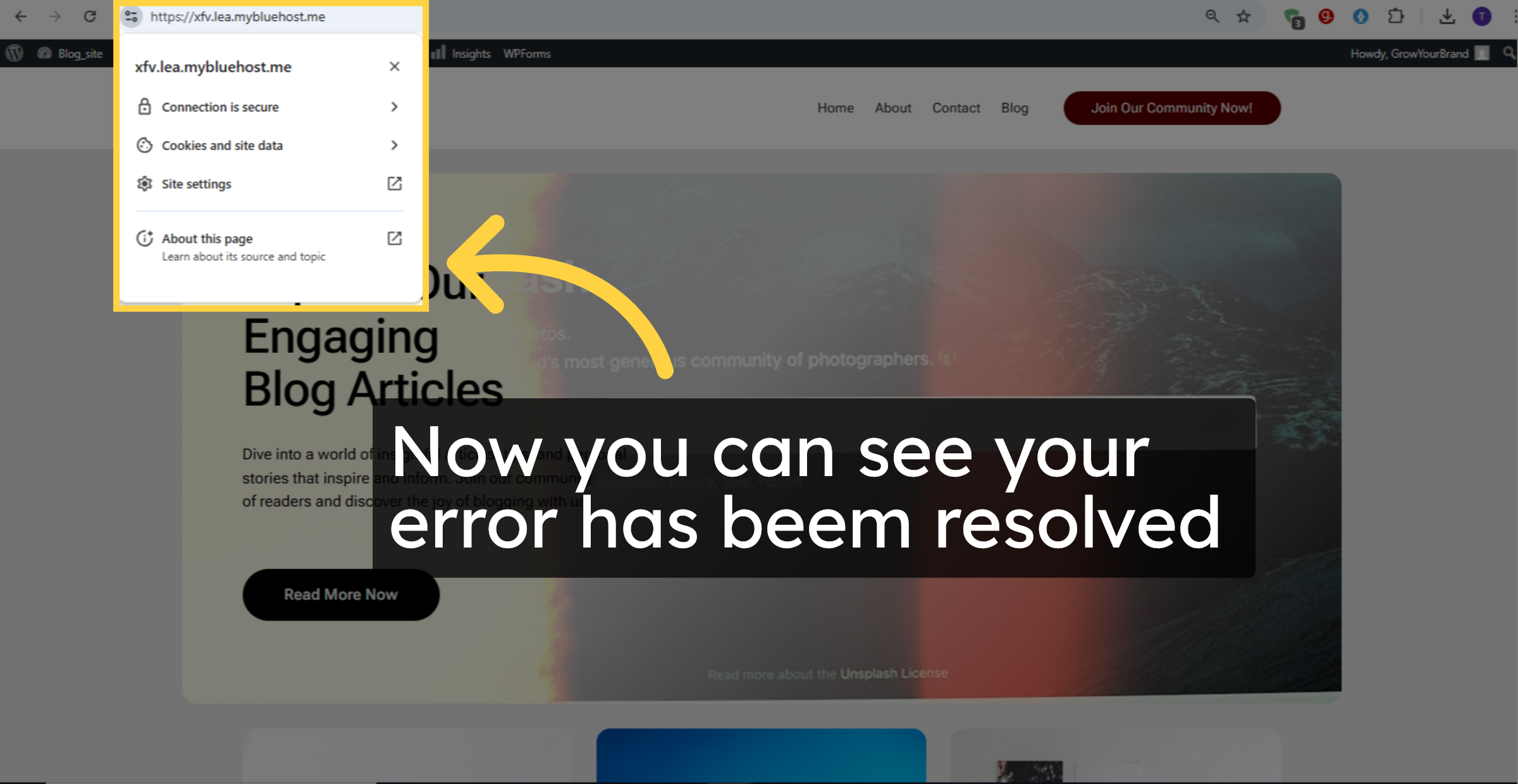
18. Verify Website Security
19. NOTE
Conclusion
Resolving mixed content errors is essential for maintaining a fully secure WordPress website after SSL activation. By following the steps outlined in this guide, you have successfully configured your site to load all resources over HTTPS and eliminated insecure content warnings. These changes enhance data protection, improve visitor confidence, and ensure compliance with modern web security standards.
To maintain long-term security, it is recommended to regularly scan your website for insecure links, update themes and plugins, and monitor SSL status. Periodic security audits and proper maintenance help prevent future SSL-related issues. With mixed content errors resolved, your website is now fully protected and optimized for safe online interactions.
WooHelpDesk Support
Need professional assistance with SSL configuration, mixed content fixes, website security, or HTTPS optimization? WooHelpDesk provides expert technical support to ensure your website remains fully secure.
Visit: https://www.woohelpdesk.com
Call Us Toll-Free: +1 888 602 0119 (US & Canada)
Complete Security | Reliable Configuration | Trusted Support
Contact WooHelpDesk today for dependable WordPress and Bluehost security solutions.



