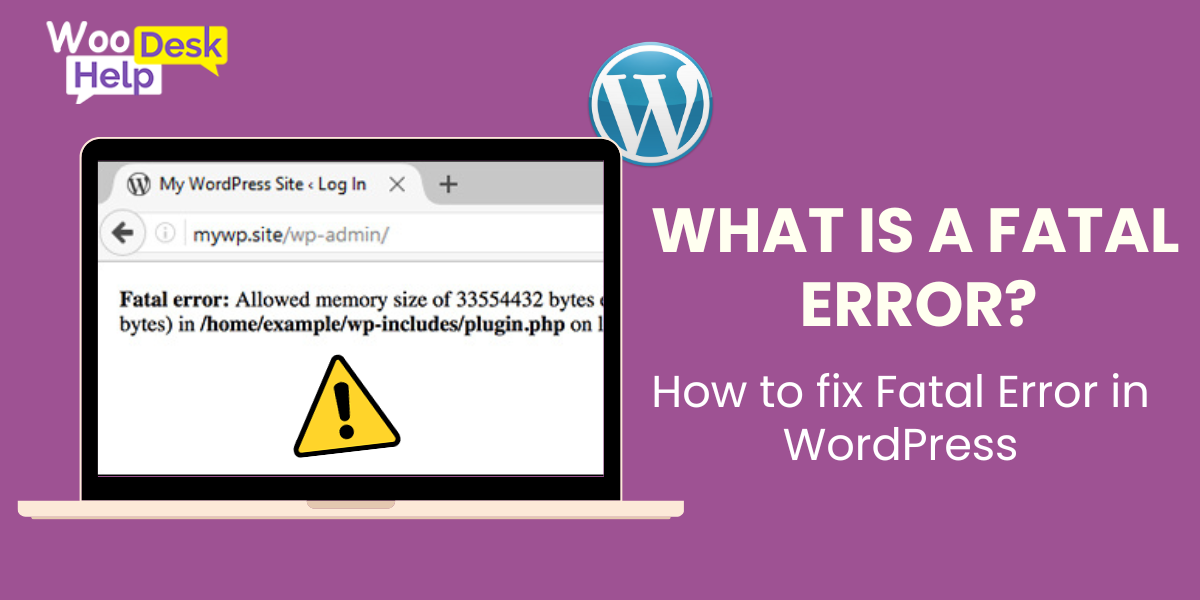
What is Fatal Error? How to fix Fatal Error in WordPress?
Table of Contents
-
Introduction
WordPress, a powerful and widely used platform for building websites, is known for its flexibility and extensive plugin ecosystem. However, it’s not immune to issues, and one of the most dreaded among them is the WordPress fatal error. These errors can be extremely problematic for both website owners and developers, as they can render a website inaccessible, disrupt functionality, and potentially drive away visitors. In this article, we will explore the causes of WordPress fatal errors and provide a checklist of steps to help you diagnose and resolve them swiftly, ensuring your website remains up and running smoothly.
-
What Is Fatal Error In WordPress?
A fatal error in WordPress is a critical and severe issue that occurs when there is a significant problem with the code running on your WordPress website. These errors are referred to as “fatal” faults since they prevent your website from operating normally to the point where it is completely unavailable. Visitors to your website often receive an error notice instead of the expected website content when a fatal error occurs.
Common causes of fatal errors in WordPress include coding errors, incompatibility between themes or plugins, memory exhaustion due to resource-intensive operations, or server-related issues.
Resolving a WordPress fatal error requires identifying the specific cause of the error and taking corrective actions, which may include debugging, deactivating problematic plugins or themes, adjusting PHP memory limits, or addressing server-related issues. Swift resolution of fatal errors is crucial to restoring your website’s functionality and ensuring a positive user experience for your audience.
-
What Causes Fatal Errors?
Discuss the common causes of fatal errors in WordPress:
- Bad Coding: Explain how poorly written code can lead to fatal errors and the importance of clean code.
- Conflict with WordPress: Describe how updates or changes to the WordPress core can sometimes trigger fatal errors.
- Conflict with another plugin: Discuss how incompatible plugins can clash and result in fatal errors.
- Conflict with Your Theme: Explain how themes that aren’t properly integrated can lead to fatal errors.
- Server Issues: Sometimes, issues on the web server hosting your WordPress site can cause fatal errors. These can include problems with server resources, configurations, or settings.
When a fatal error occurs, it typically displays an error message on the screen. Common fatal error messages include “Fatal error: Allowed memory size exhausted,” “Parse error: syntax error,” or “Fatal error: Call to undefined function.”
To resolve a WordPress fatal error, you’ll need to diagnose the specific cause of the error, which may involve reviewing error logs, deactivating plugins, switching to a default theme, or increasing PHP memory limits, as mentioned in the previous response.
It’s essential to address fatal errors promptly to restore your website’s functionality and ensure a positive user experience for your visitors. Regularly updating your WordPress core, themes, and plugins and following best coding practices can help prevent fatal errors in the first place.
-
WordPress Fatal Error Fix Checklist: Step-by-Step Guide
Certainly, here’s a brief explanation of each step in the “How To Fix WordPress Fatal Error Checklist”:
Check your error logs:


- Error logs are like a trail of breadcrumbs that can help you pinpoint the exact cause of a fatal error.
- To access error logs, log in to your hosting account or use an FTP client to locate the error_log file in your website’s directory. Alternatively, you can often find error logs in your hosting control panel.
- Review the error logs to identify the specific error message or the file and line of code where the issue occurred. This information is crucial for troubleshooting.
Deactivate all plugins:
- Plugins are a common source of conflicts that can lead to fatal errors.
- Begin by accessing your WordPress admin dashboard. If you can’t access it due to the error, use an FTP client to navigate to the “wp-content” directory and then the “plugins” folder.
- Rename the “plugins” folder to something else temporarily. This will deactivate all plugins at once.
- Now, try accessing your website. If the error is gone, it means one of the plugins was causing the issue. You can reactivate them one by one to identify the problematic plugin.
Switch to a Default Theme:
- Your WordPress theme can also be a source of fatal errors, especially if it’s not compatible with the current version of WordPress or other plugins.
- Access your website’s directory via FTP and navigate to the “wp-content/themes” folder.
- Find the currently active theme’s folder and rename it to something else. WordPress will automatically switch to a default theme.
- Check if the error persists. If it’s resolved, the theme might have been causing the issue, and you may need to update it or seek an alternative.
Increase Your PHP Memory Limit:
- Some fatal errors are caused by insufficient PHP memory, especially when your website requires more resources than are allocated.
- To increase the PHP memory limit, access your website’s root directory using FTP.
- Look for the “wp-config.php” file and edit it (you can use a plain text editor).
- Add the following line of code just before the line that says, “That’s all, stop editing!”:
define(‘WP_MEMORY_LIMIT’, ‘256M’);
- Save the file and upload it back to your server.
- Check if the error is resolved. If it was a memory-related issue, this should resolve it by allocating more memory to your WordPress site.
By following these steps in the checklist, you can systematically diagnose and address WordPress fatal errors, helping to ensure the smooth operation of your website.
-
Final Thoughts
When you begin the troubleshooting process, pause for a moment to consider recent actions taken on your website. If someone has recently updated the WordPress Core or a plugin, it’s a strong candidate for the source of the issue. Instead of immediately diving into the problem in a panic, taking a moment to reflect can prove invaluable in terms of time and stress savings.



