How to Export WordPress Website From BluehostWP Hosting
Introduction
Exporting a WordPress website is an essential process for creating reliable backups, migrating to a new hosting provider, or preserving website data for future restoration. A complete export ensures that all website content, themes, plugins, media files, and database records are securely saved in a single package. Hosting platforms such as Bluehost provide integrated tools that allow users to manage and export their WordPress sites efficiently.
This guidde explains how to export a WordPress website from Bluehost WP Hosting using the All-in-One WP Migration plugin. It provides step-by-step instructions for accessing the Bluehost dashboard, opening the WordPress admin panel, installing the required migration plugin, and generating a downloadable export file. By following this guide, website owners can safely store their website data and prepare it for seamless migration or recovery when needed.
Go to www.bluehost.com
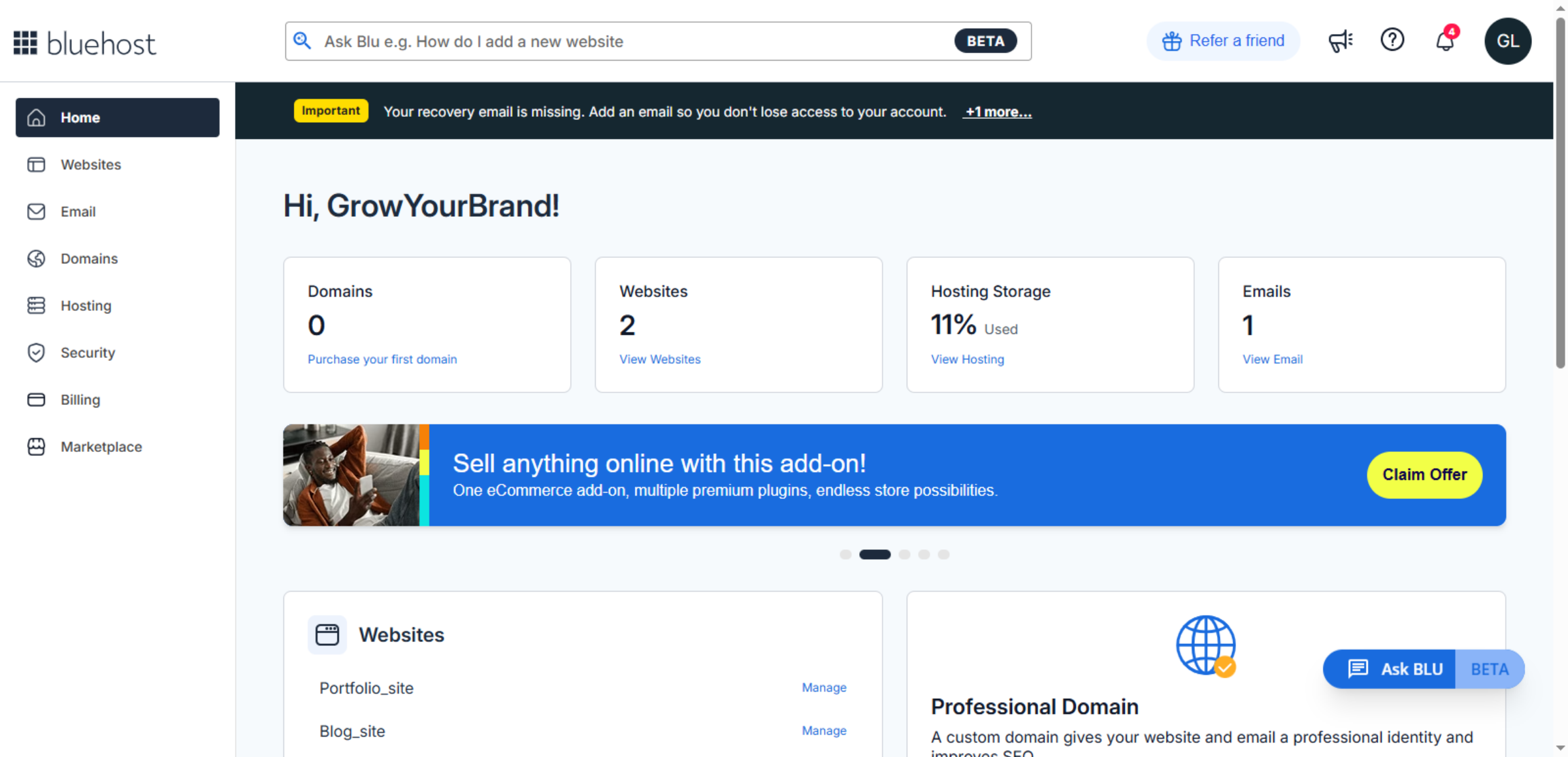
1. Access Bluehost Account Dashboard
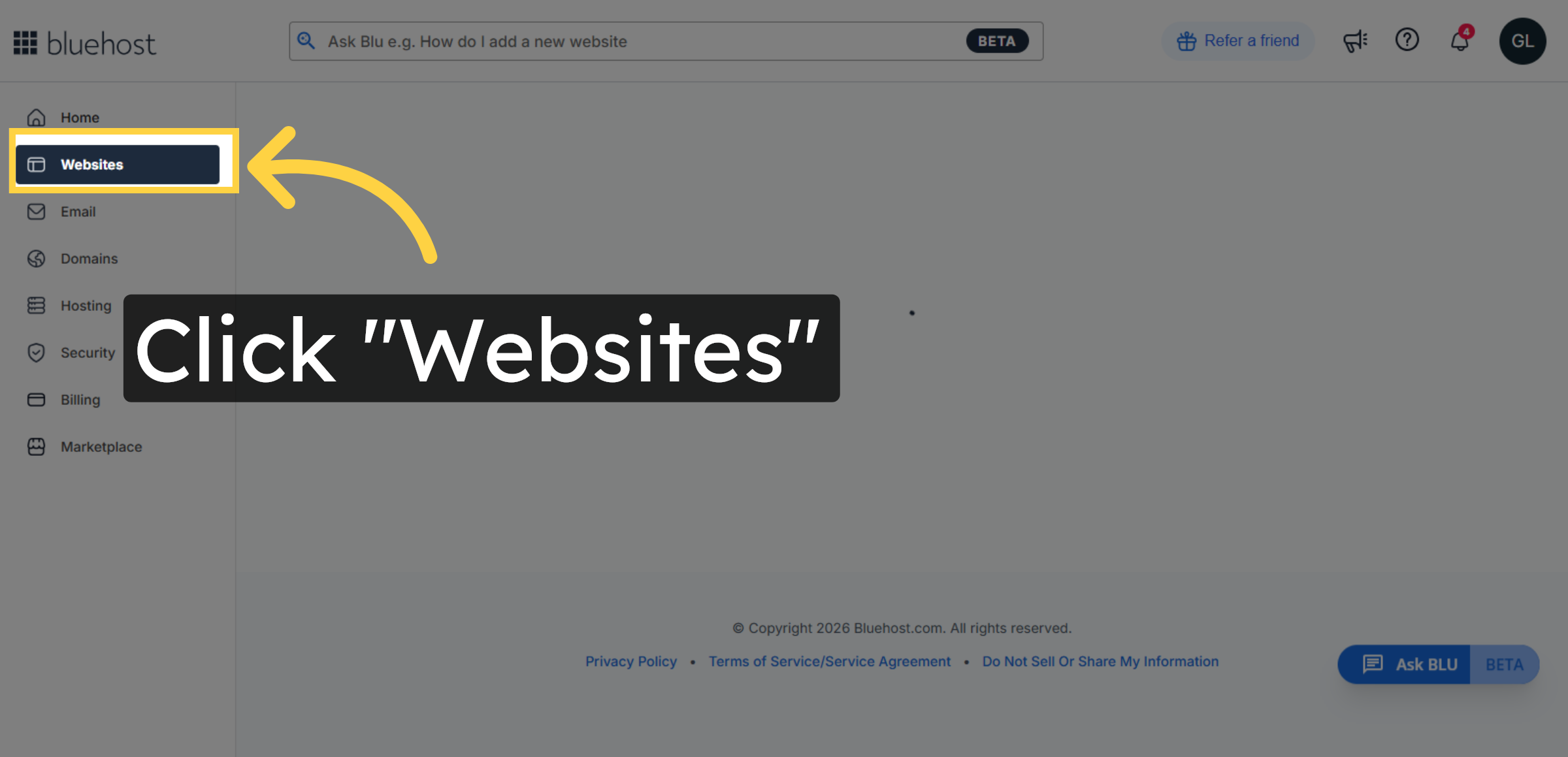
2. Navigate to Websites Section
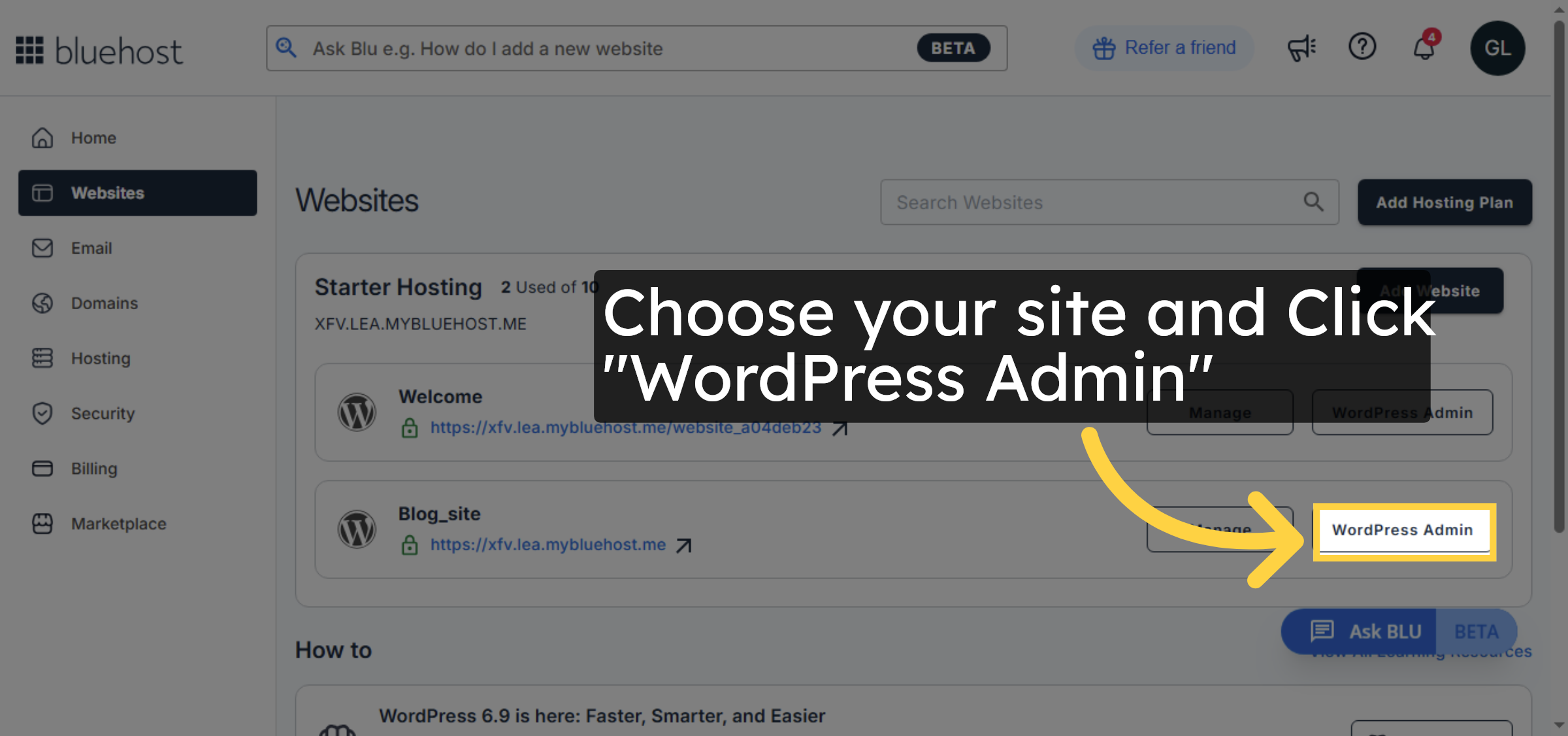
3. Open WordPress Admin Panel
4. Switch to WordPress Site URL
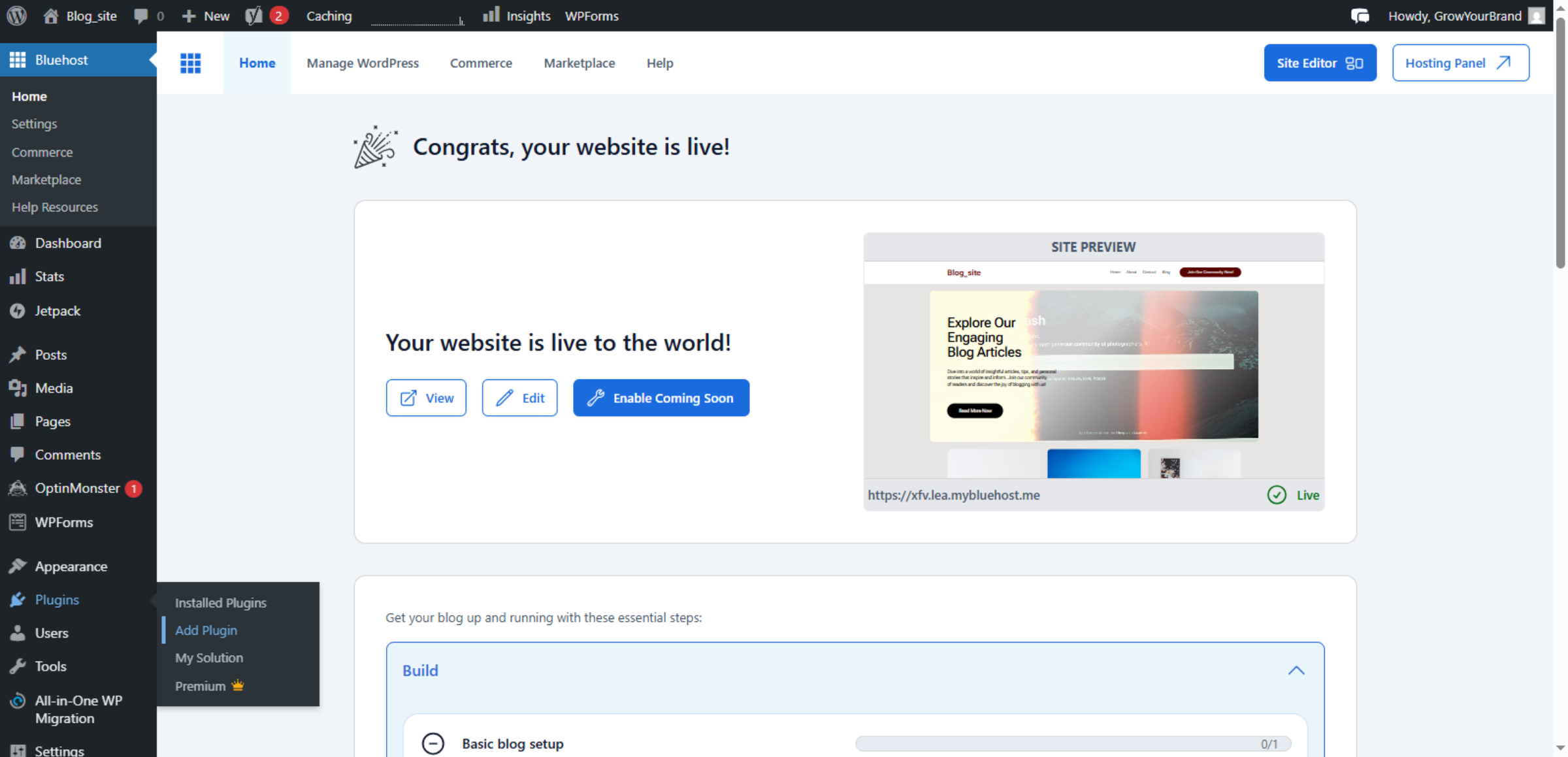
5. Open Add Plugin Page
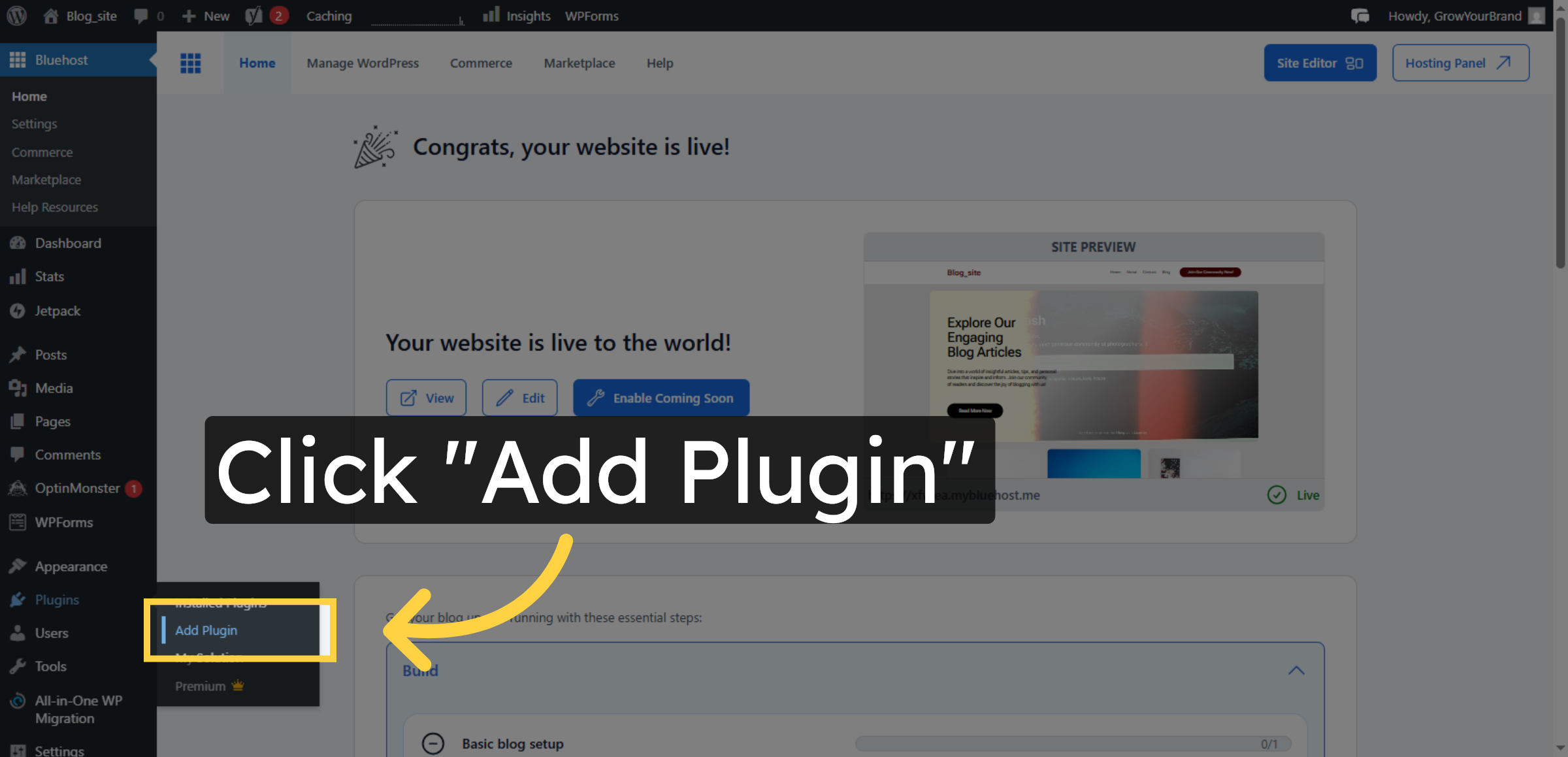
6. Select and Search for the Migration Plugin
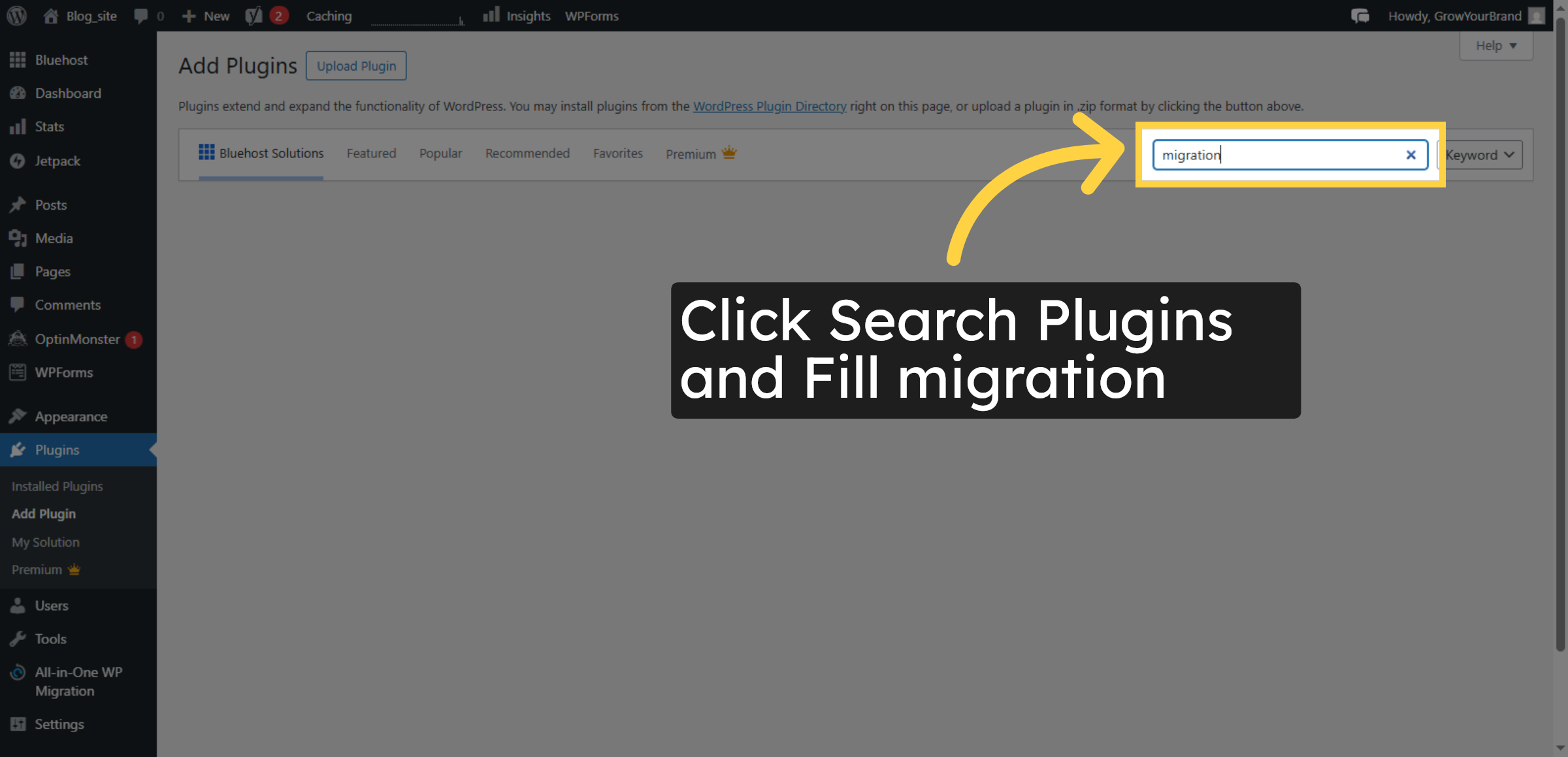
7. Install Migration Plugin
8. Activate Migration Plugin
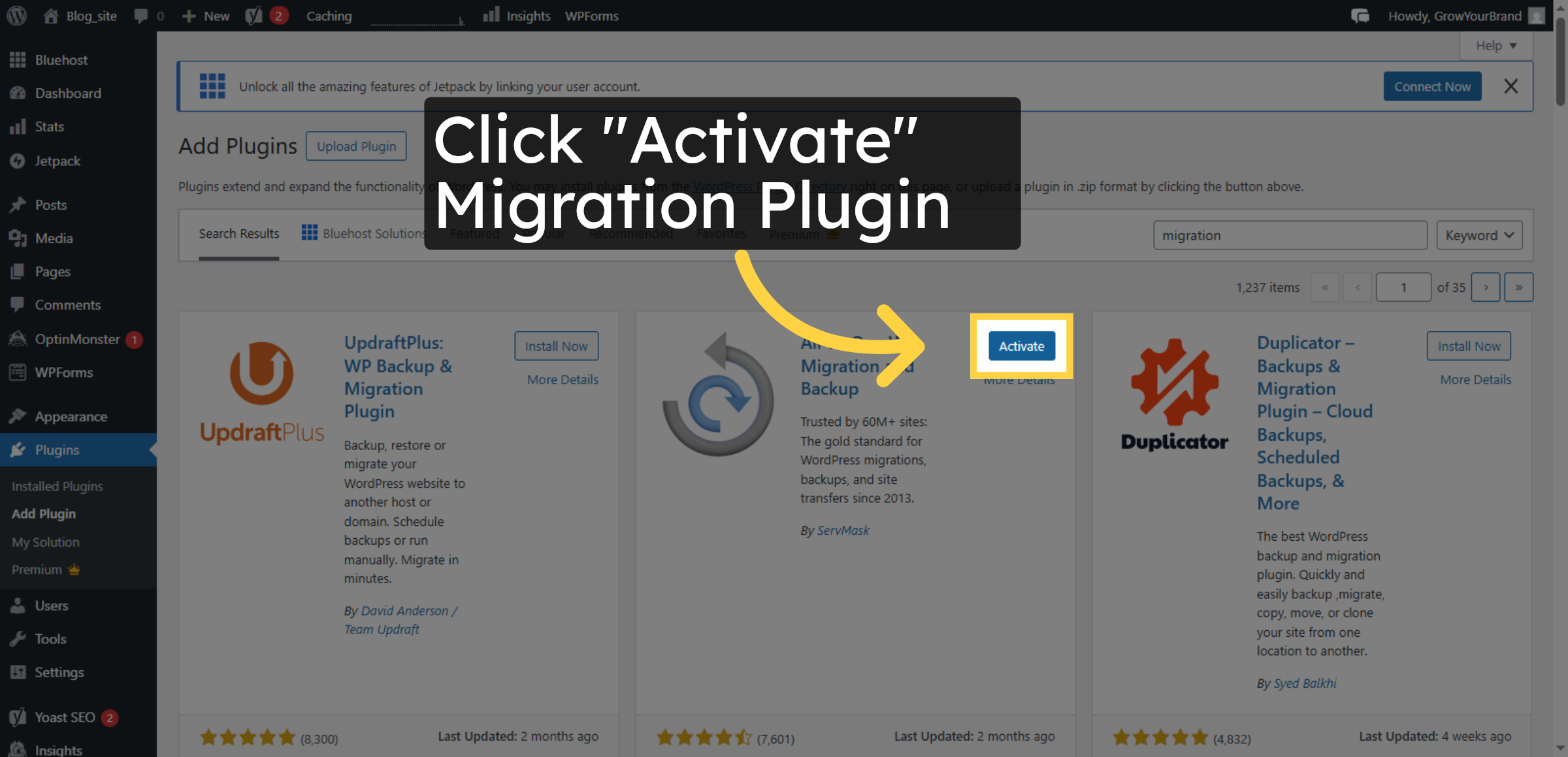
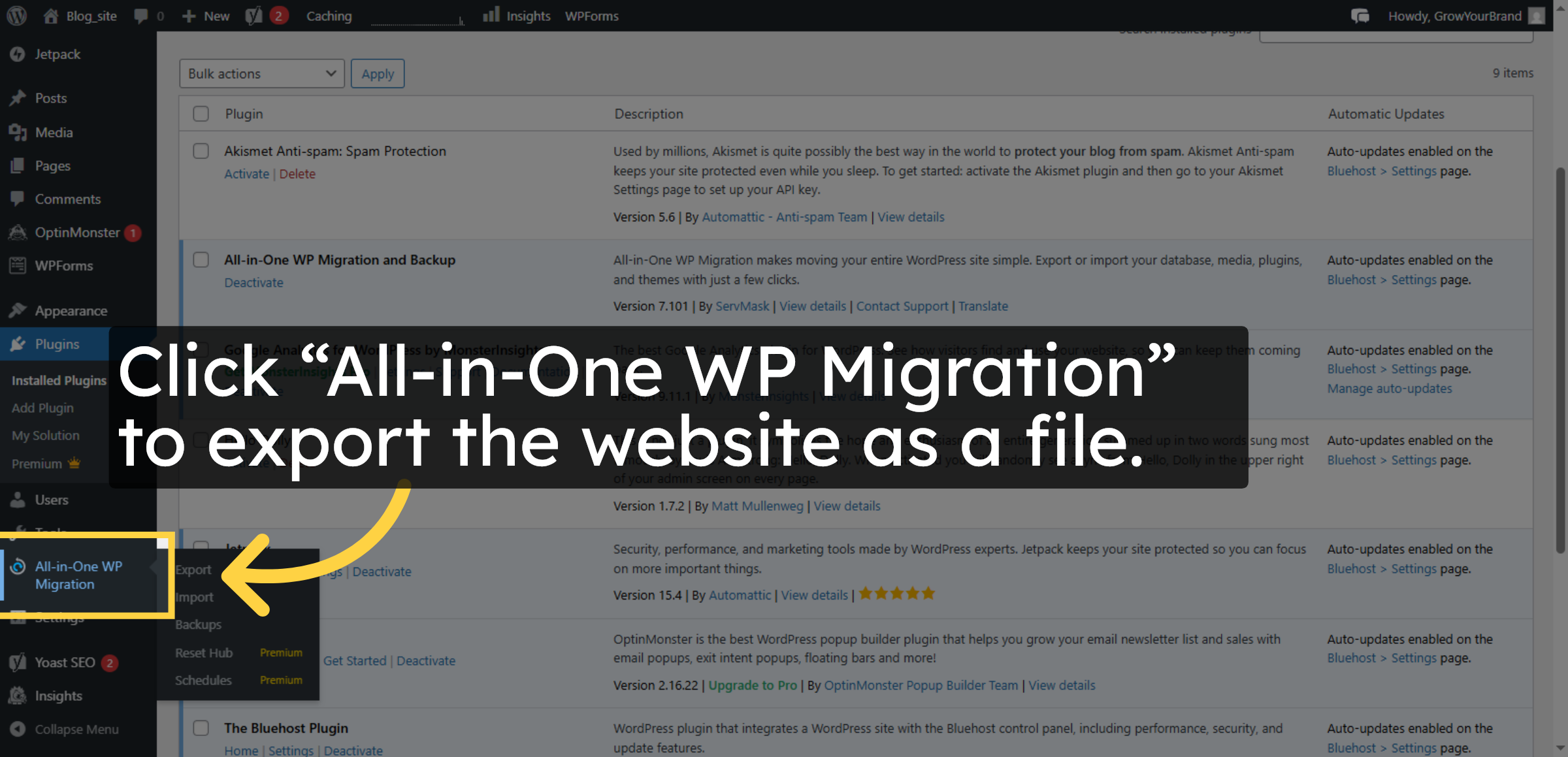
9. Open Migration Plugin Menu
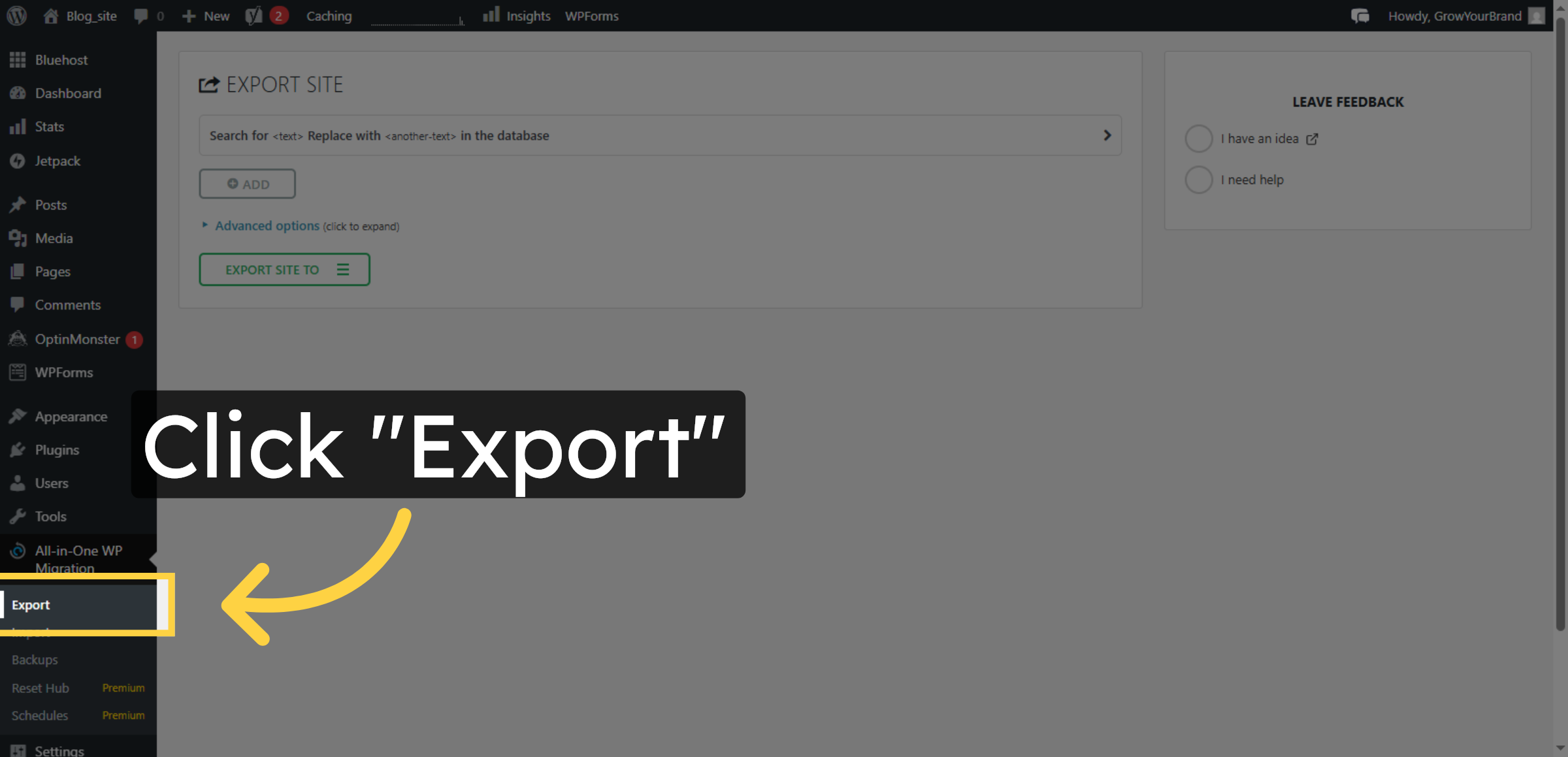
10. Select Export Option
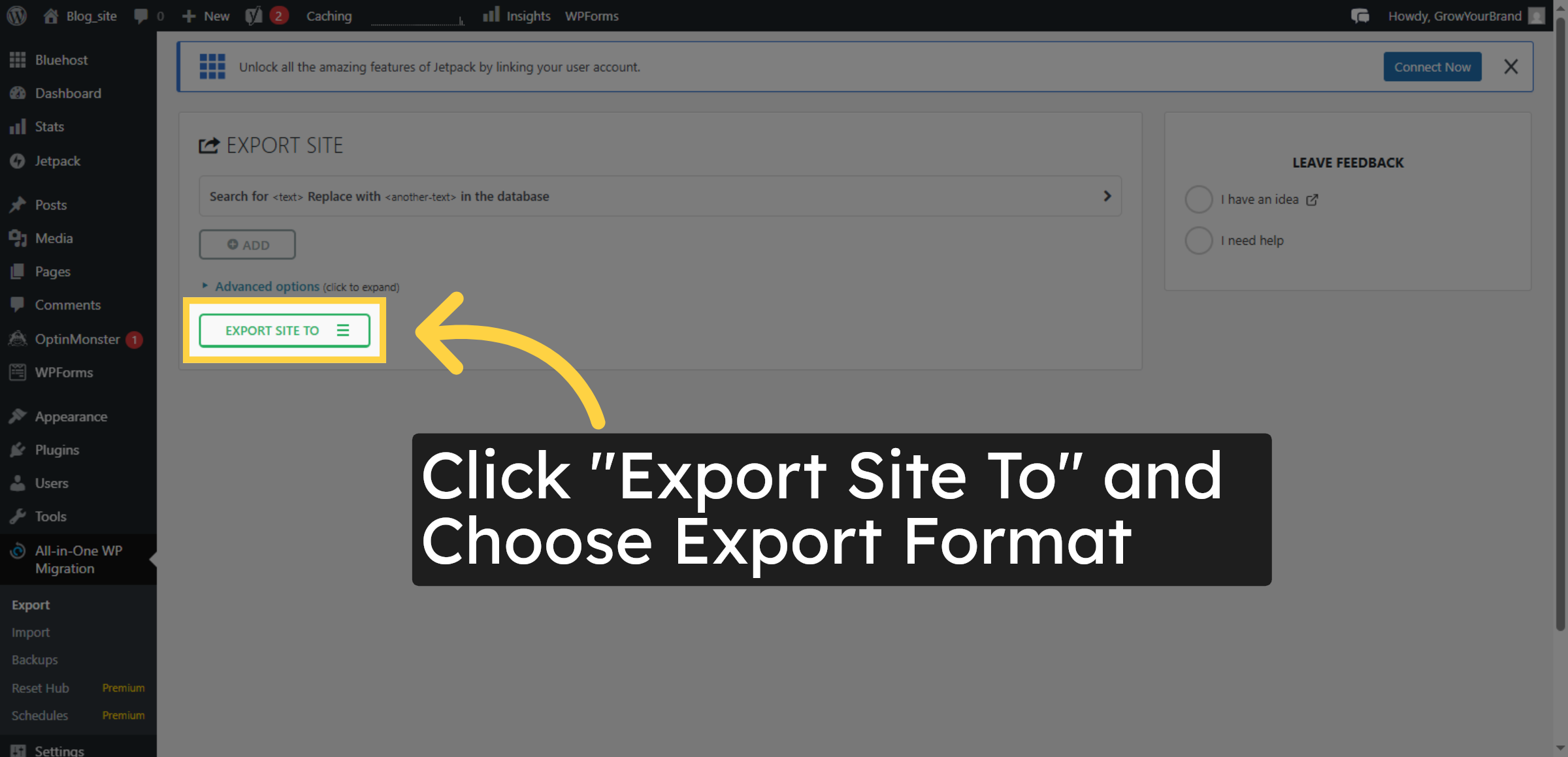
11. Choose Export Format


12. Select File Export
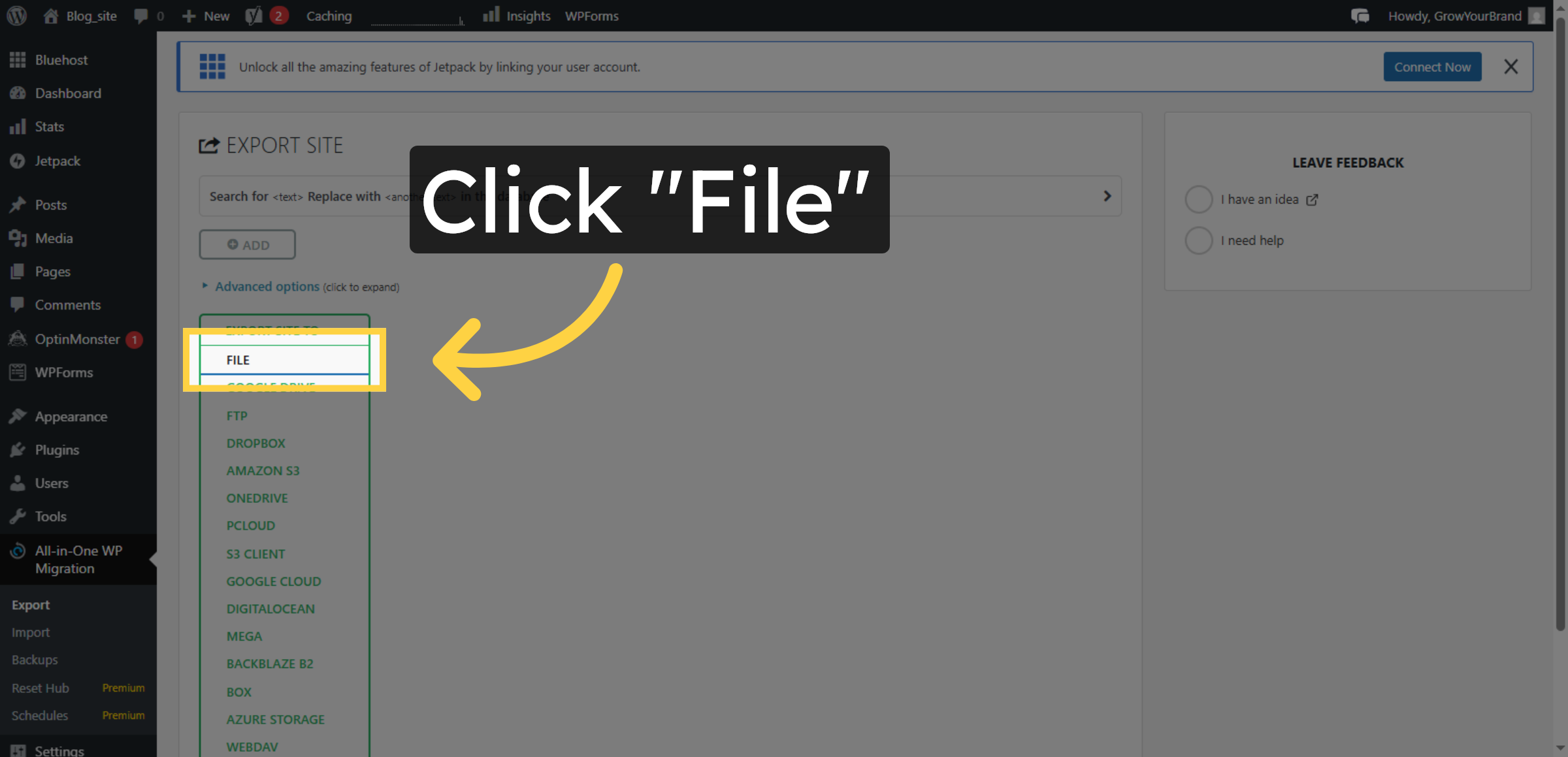
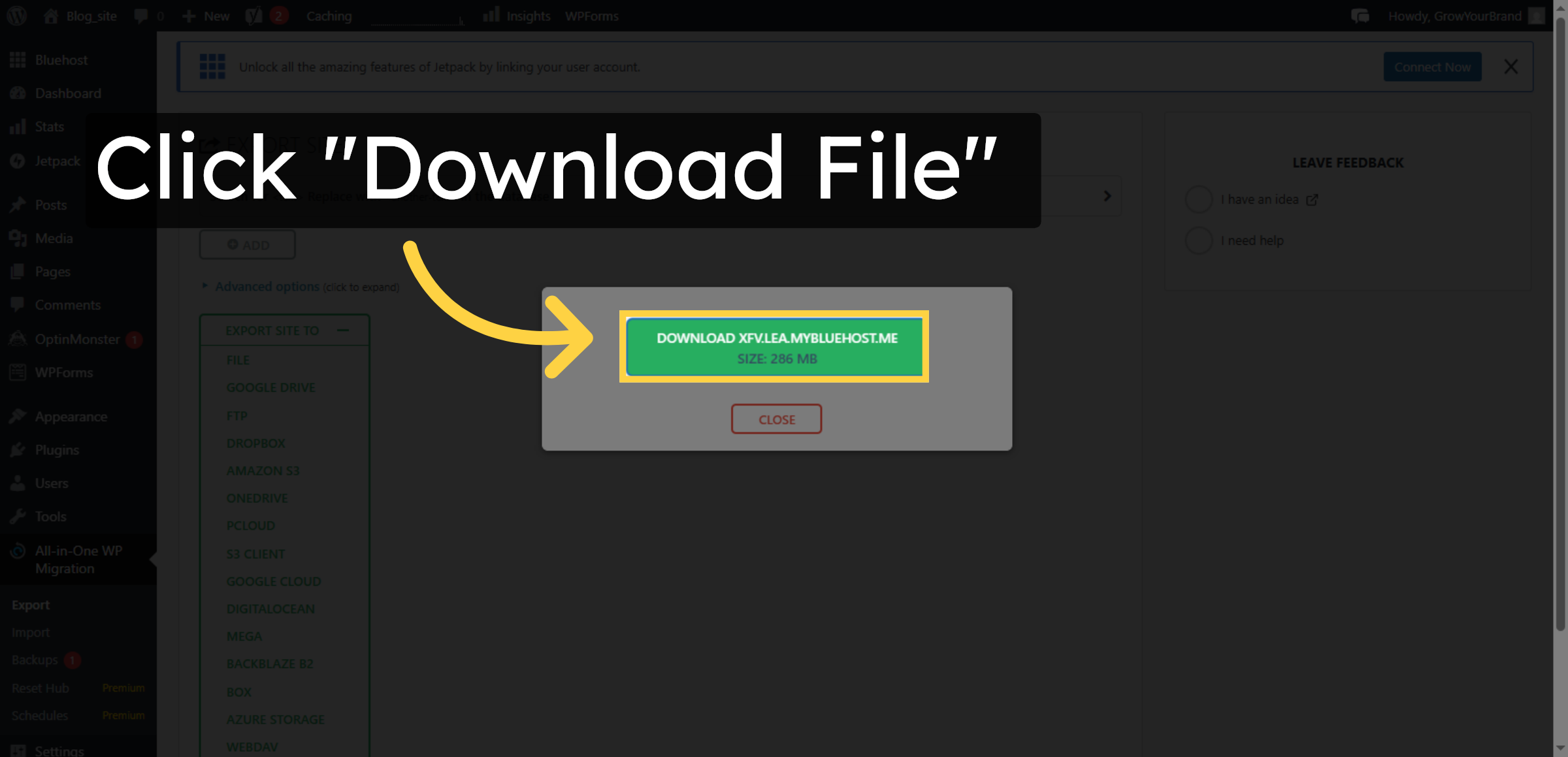
13. Download Exported Site File
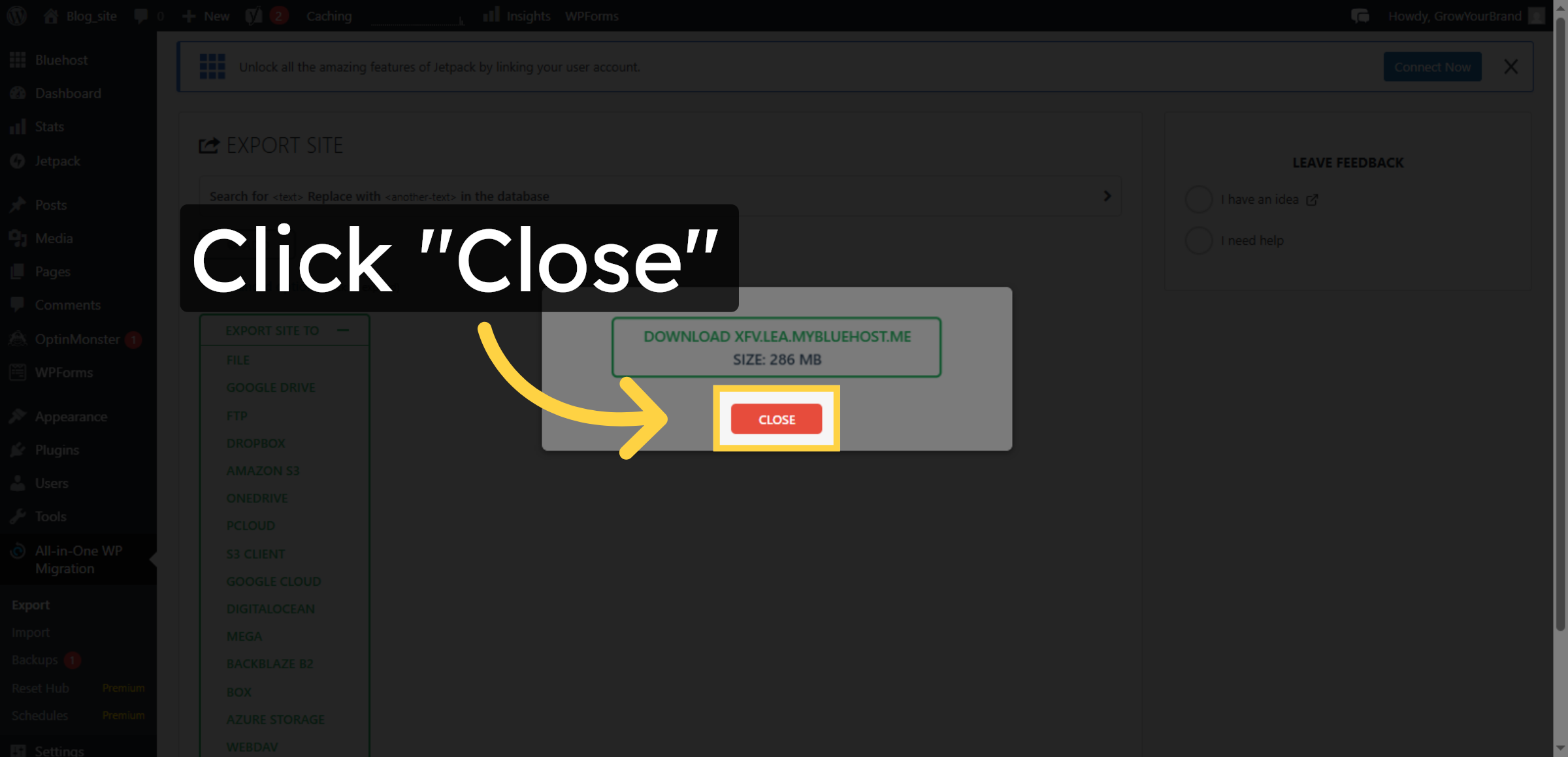
14. Close Export Window
Conclusion
Exporting your WordPress website is a crucial step in maintaining data security and operational flexibility. By following the steps outlined in this guide, you have successfully created a complete export file of your WordPress site from Bluehost hosting, including all essential files and database information. This export file serves as a reliable backup and simplifies future website migrations or restorations.
To ensure maximum protection, it is recommended to store exported files in multiple secure locations and perform regular exports as part of your website maintenance routine. Periodic testing of export and import processes further enhances recovery readiness. With proper export management practices in place, your website remains secure, portable, and prepared for future changes.
WooHelpDesk Support
Need professional assistance with WordPress exports, website migration, data backups, or hosting management? WooHelpDesk provides expert technical support to help you manage and protect your website data.
Visit: https://www.woohelpdesk.com
Call Us Toll-Free: +1 888 602 0119 (US & Canada)
Secure Exports | Reliable Backups | Trusted Support
Contact WooHelpDesk today for dependable WordPress and hosting support solutions.



