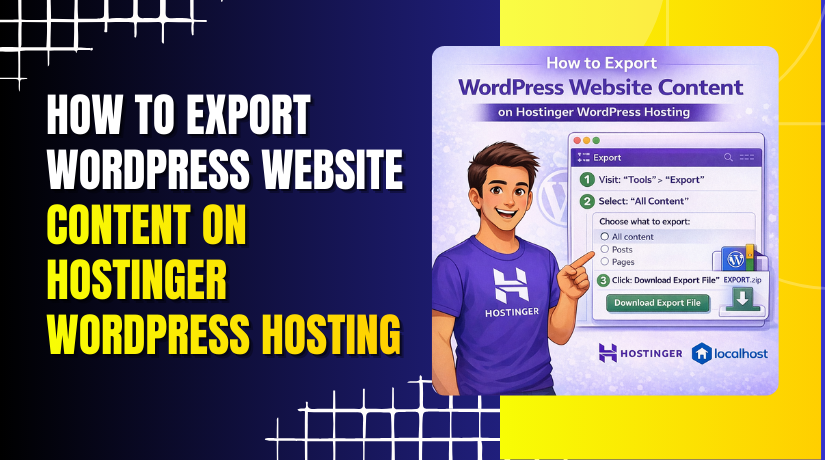
How to Export WordPress Website Content on Hostinger WordPress Hosting
Introduction
Exporting your WordPress website content is an essential practice for creating backups, migrating to another hosting provider, or safeguarding your data against unexpected issues. Hostinger WordPress Hosting provides easy access to the WordPress admin panel and supports reliable migration tools such as the All-in-One WP Migration plugin, making the export process simple and secure.
This guidde explains the step-by-step procedure to export your WordPress website content from Hostinger using the WordPress dashboard and migration plugin. It covers accessing the hosting control panel, installing the required plugin, generating a complete backup file, and downloading the exported data. By following this guide, users can ensure their website content is safely stored and ready for future use.
1. Hostinger hPanel
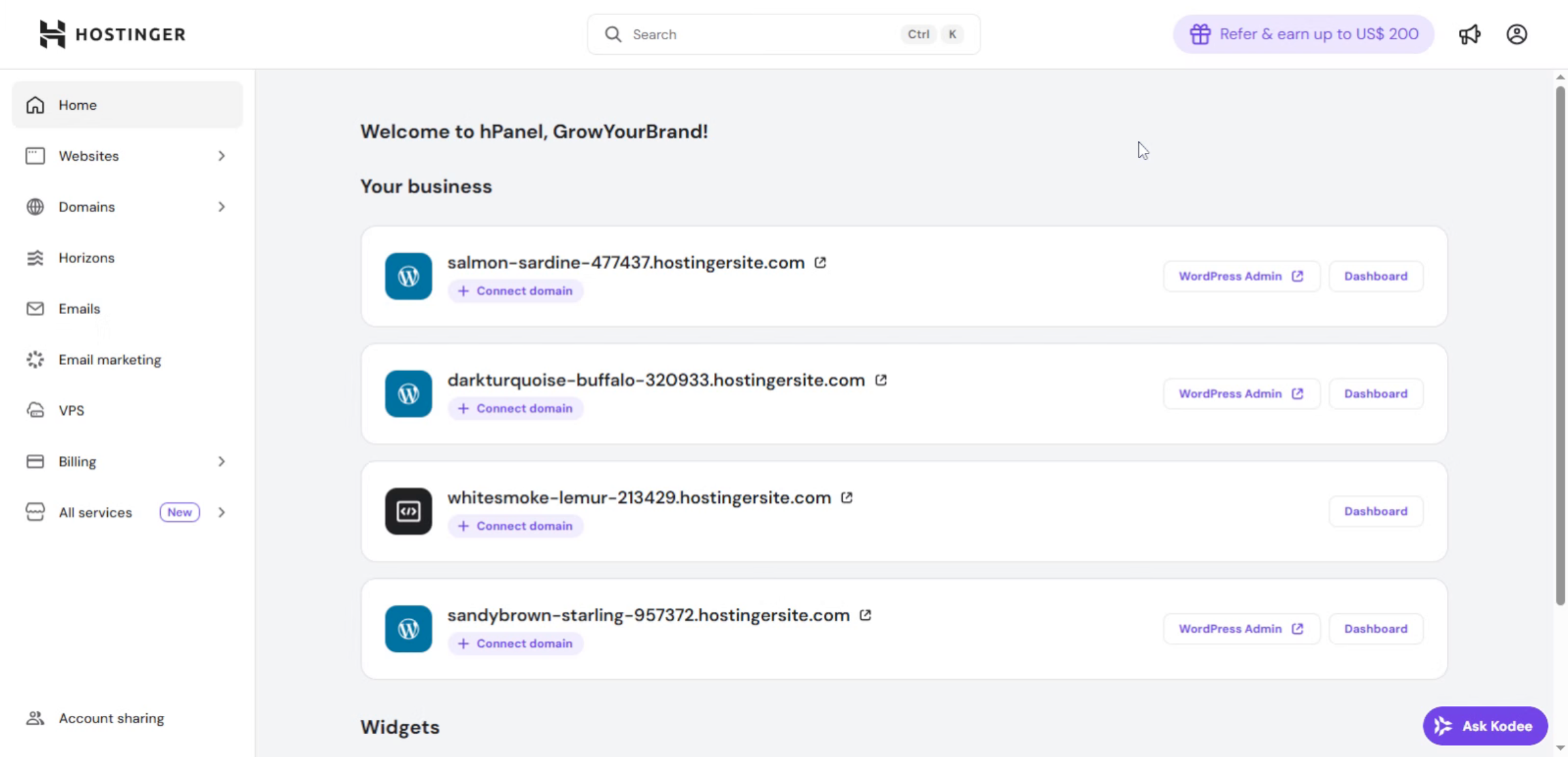
2. Click Websites Menu
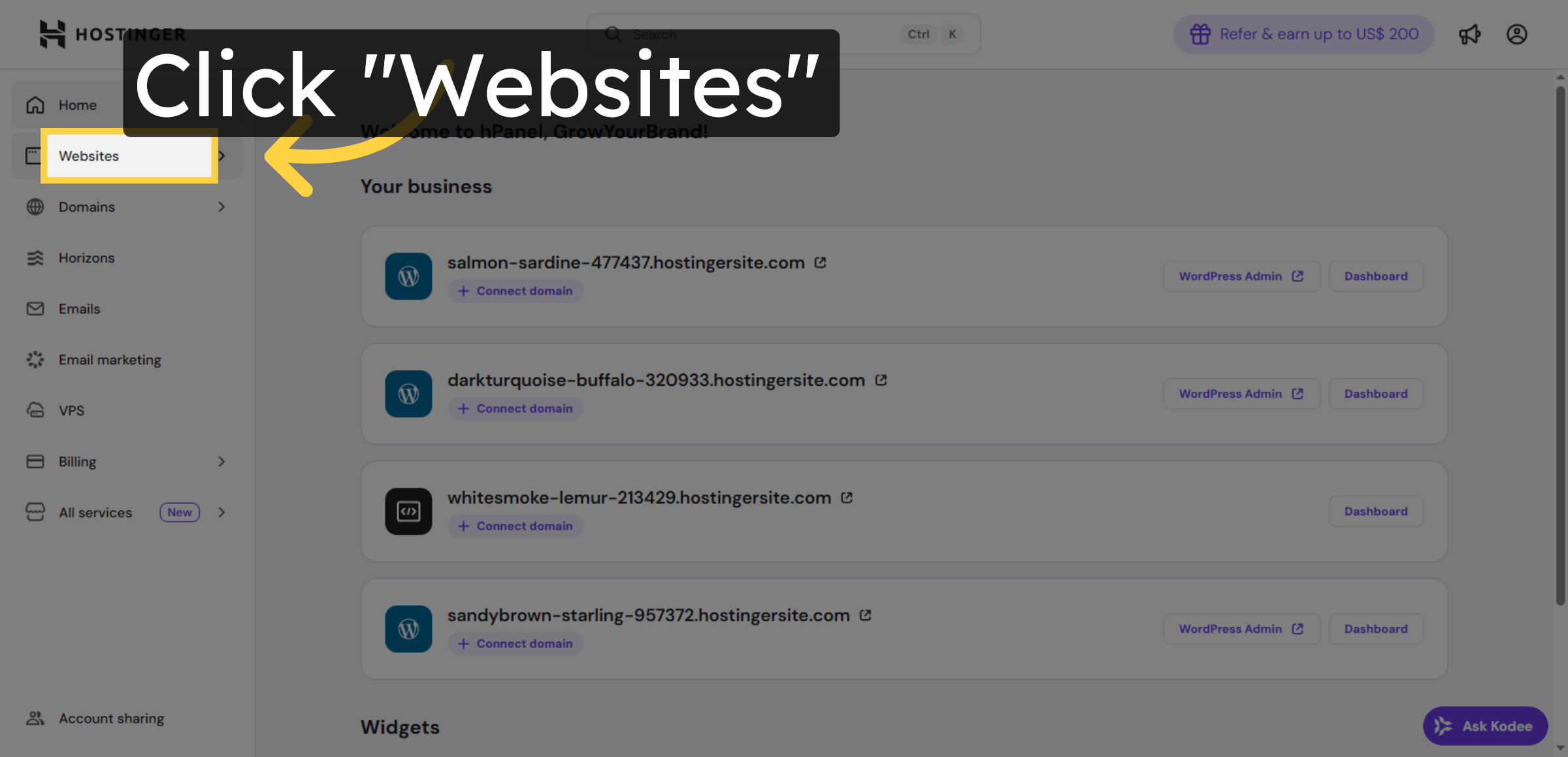
3. Access WP Admin Panel
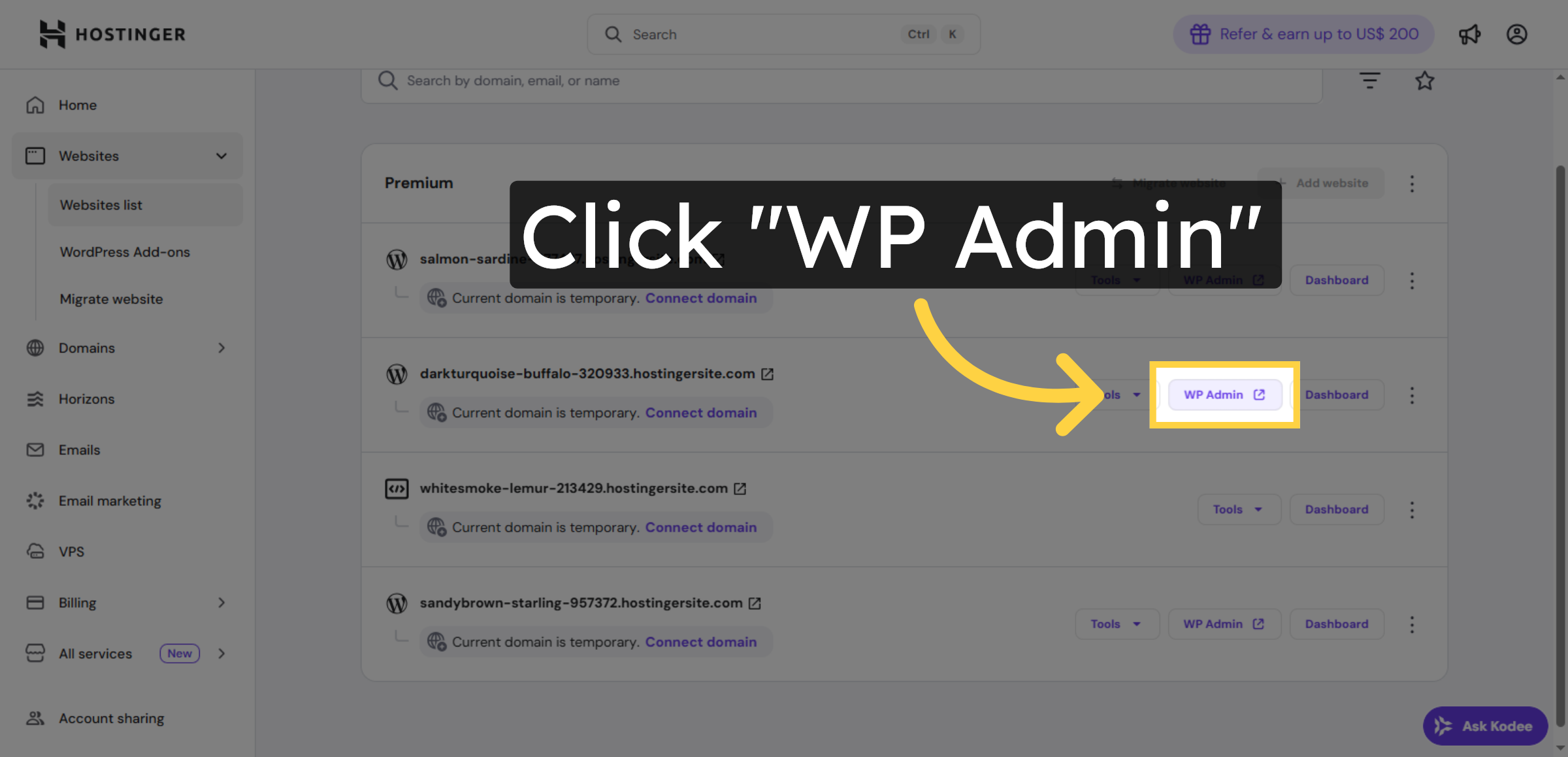
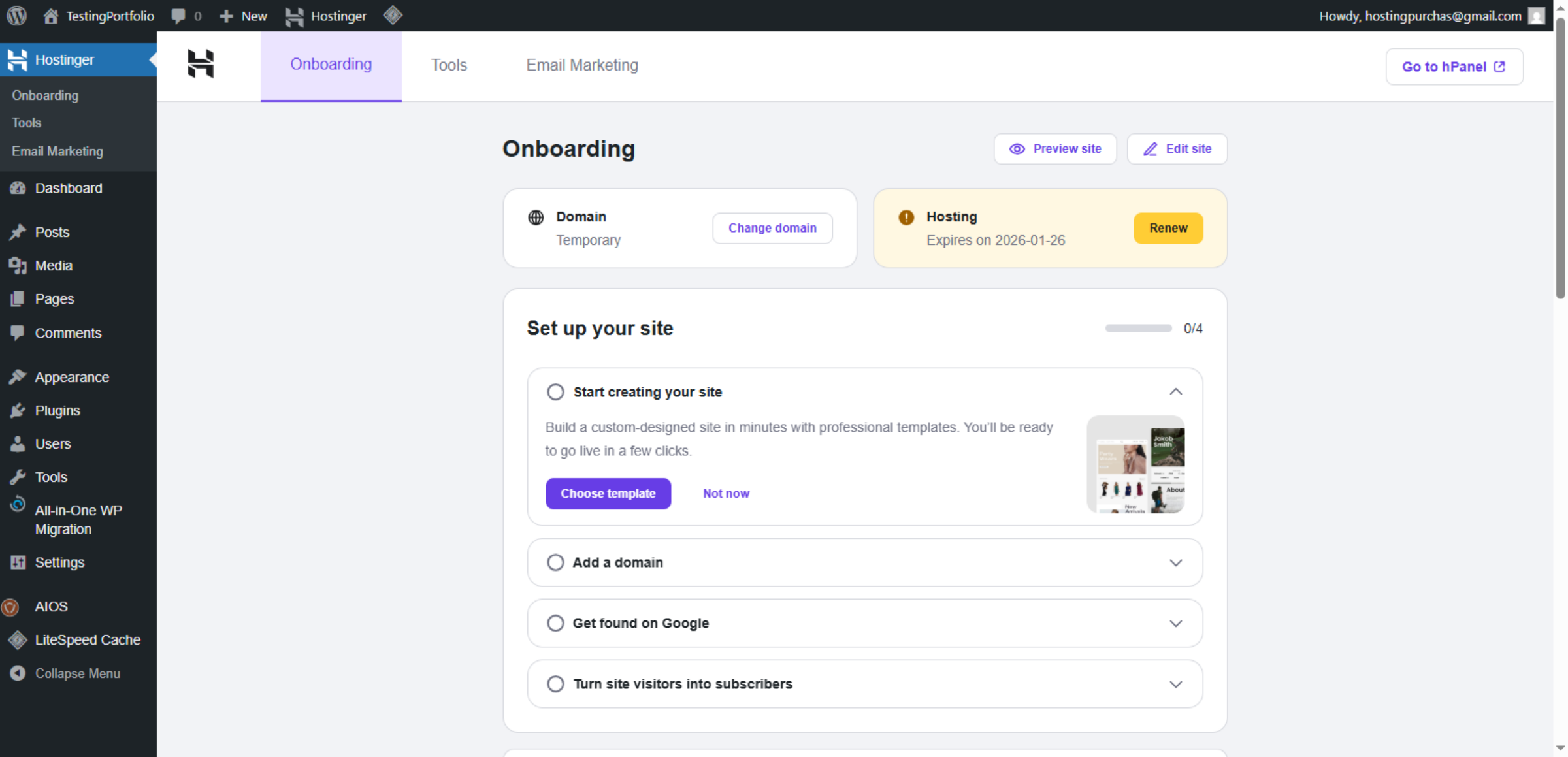
4. Switch WordPress Site
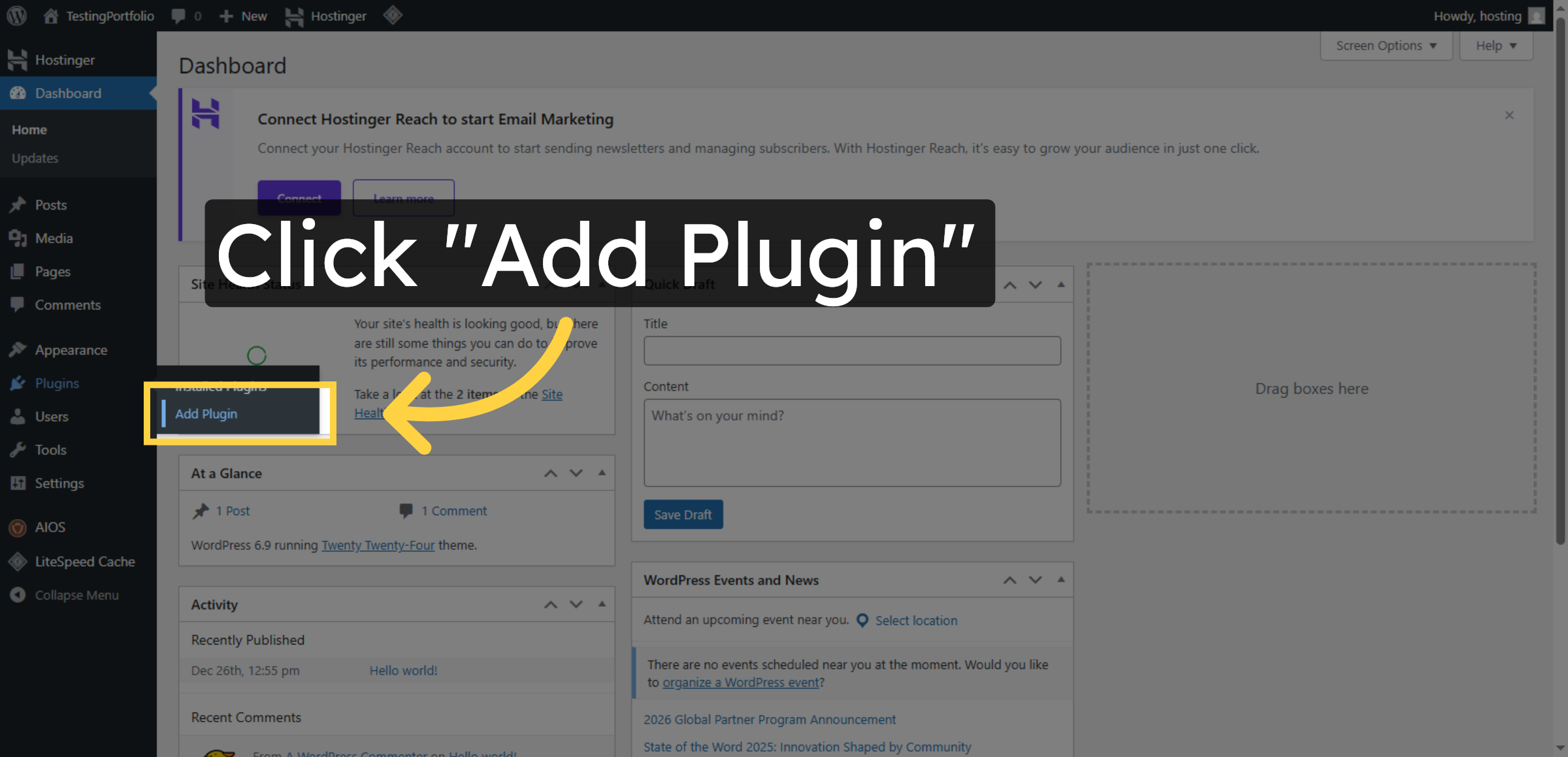
5. Open Add Plugin Page
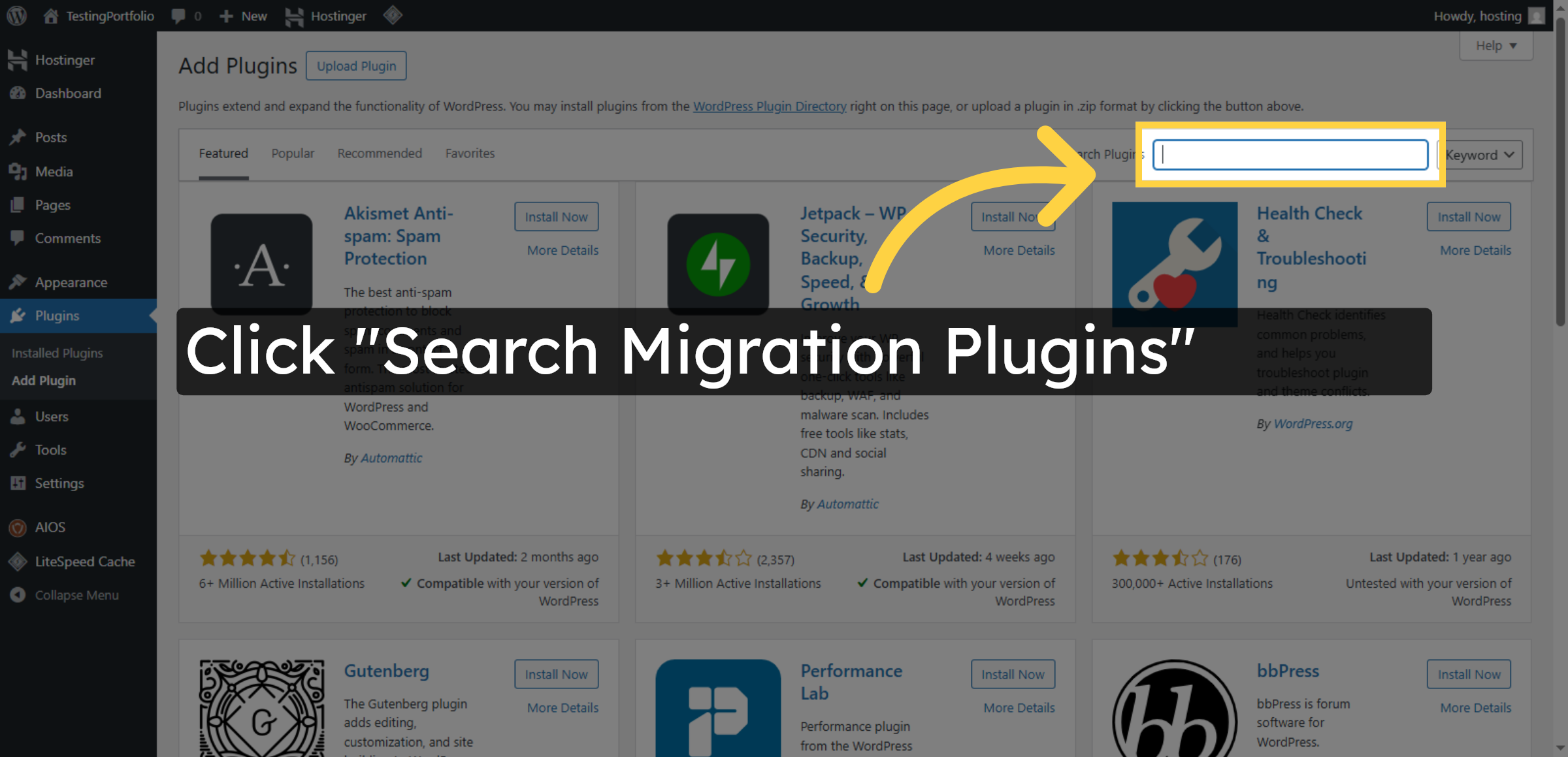
6. Access Plugin Search
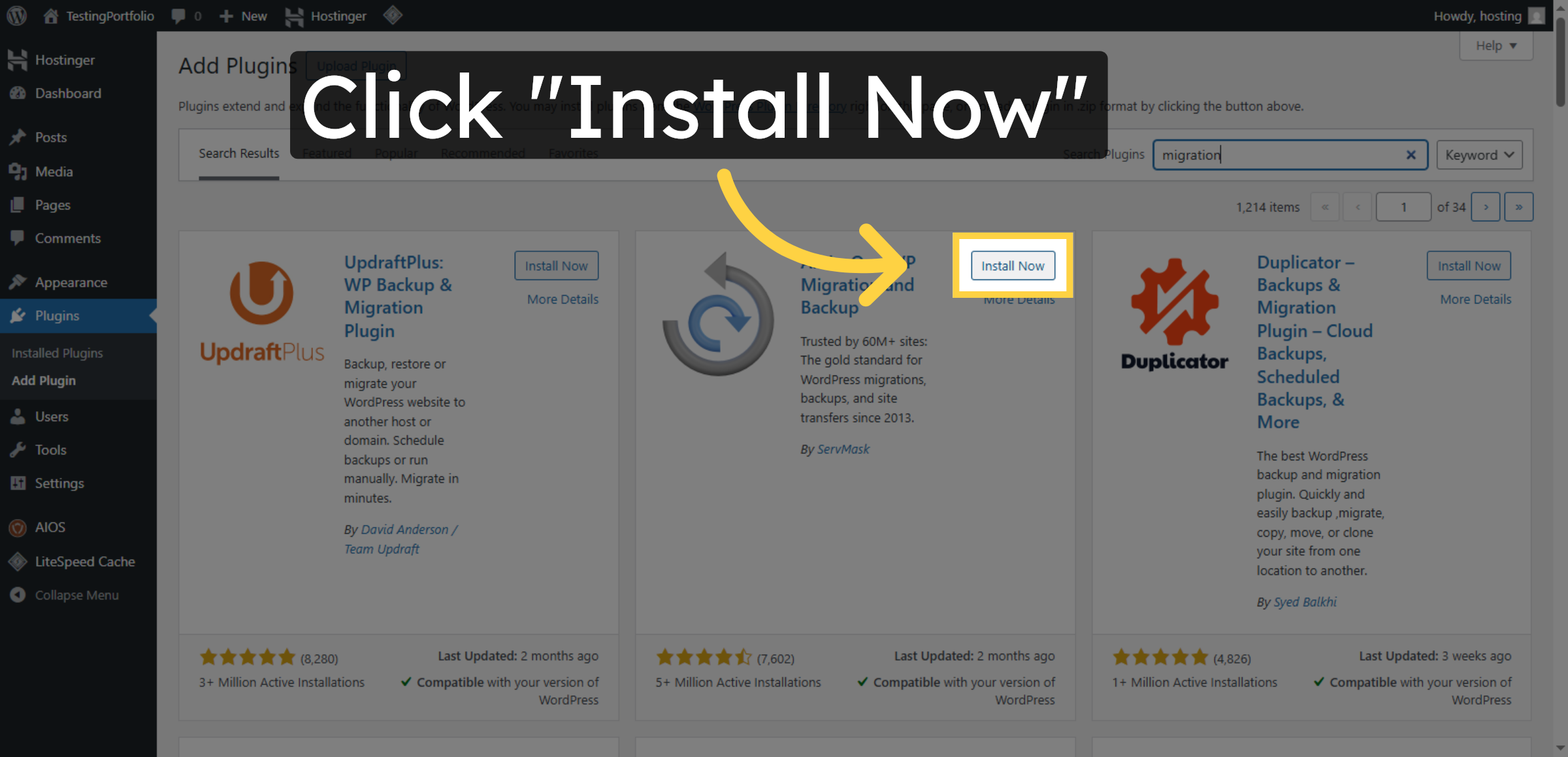
7. Install Migration Plugin
8. Activate Migration Plugin
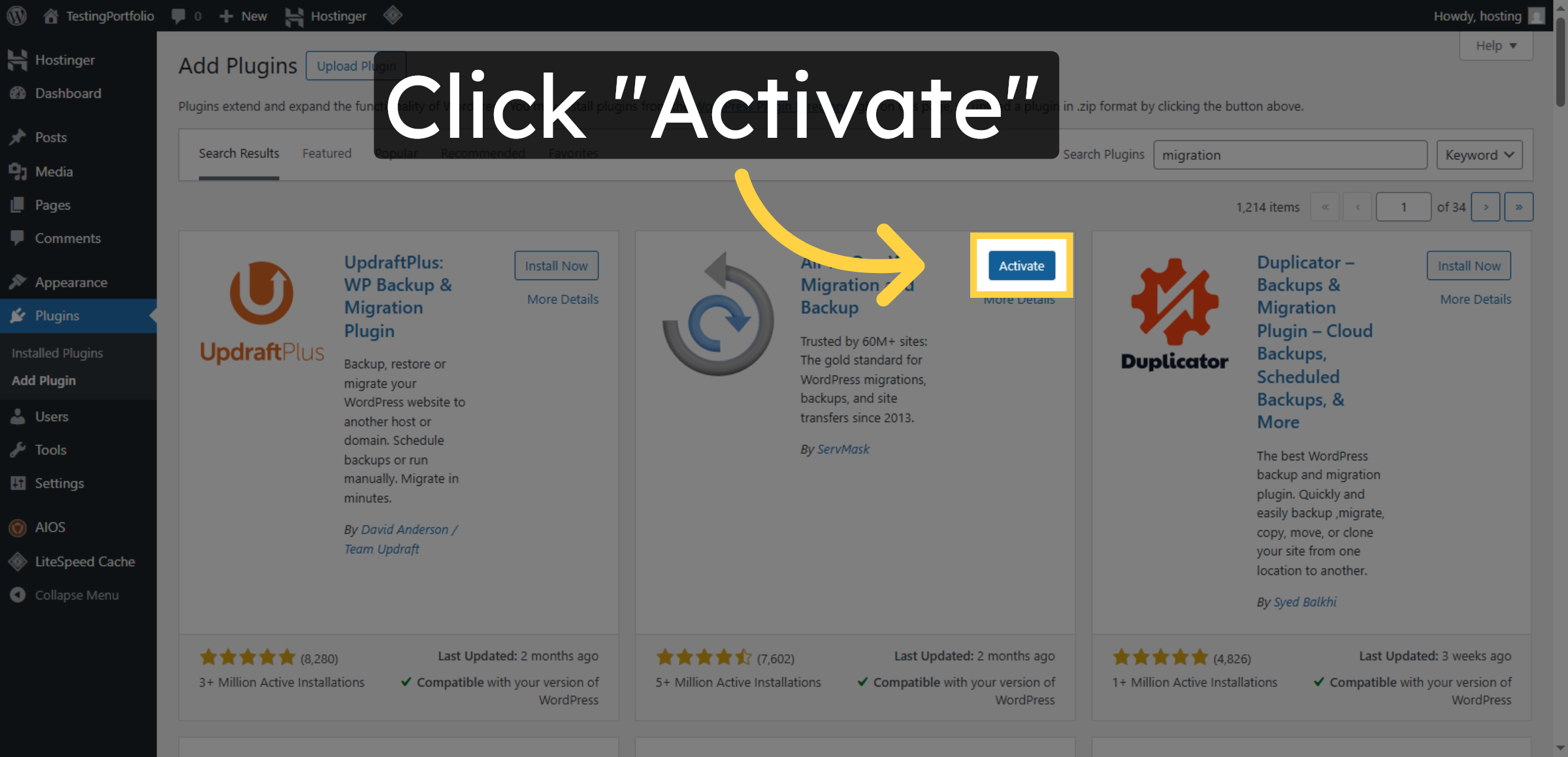
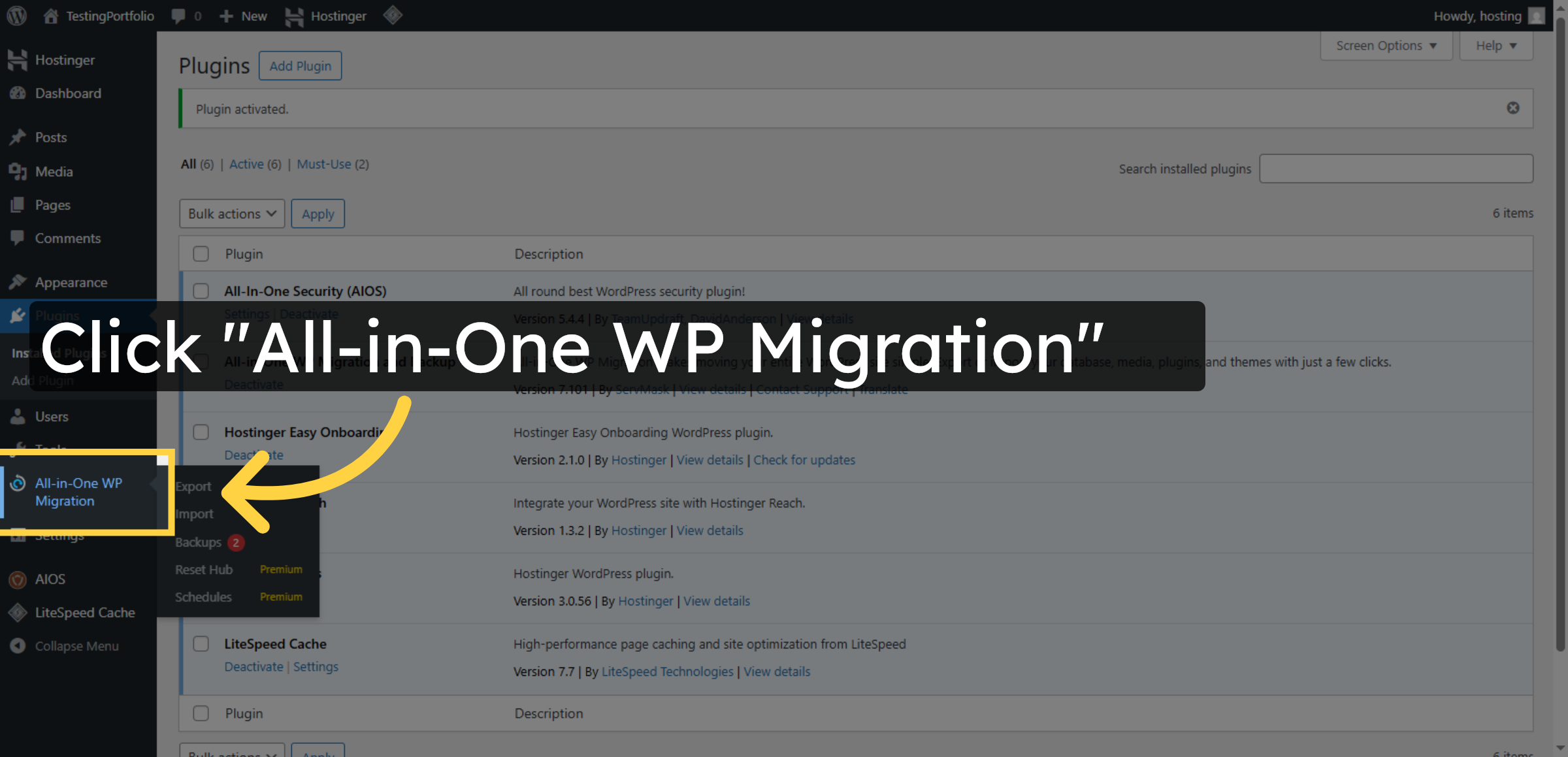
9. Open Migration Plugin


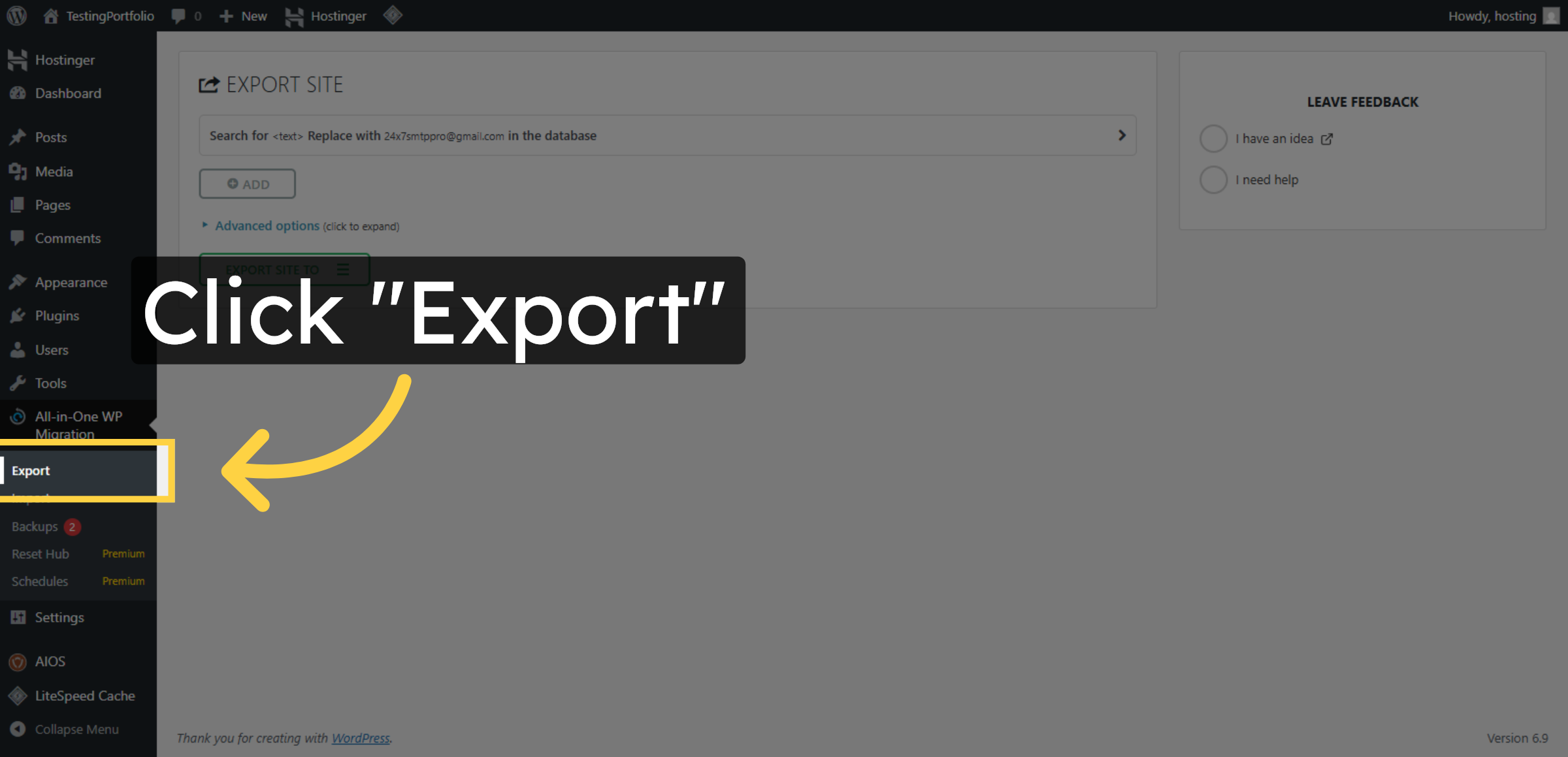
10. Initiate Export Process
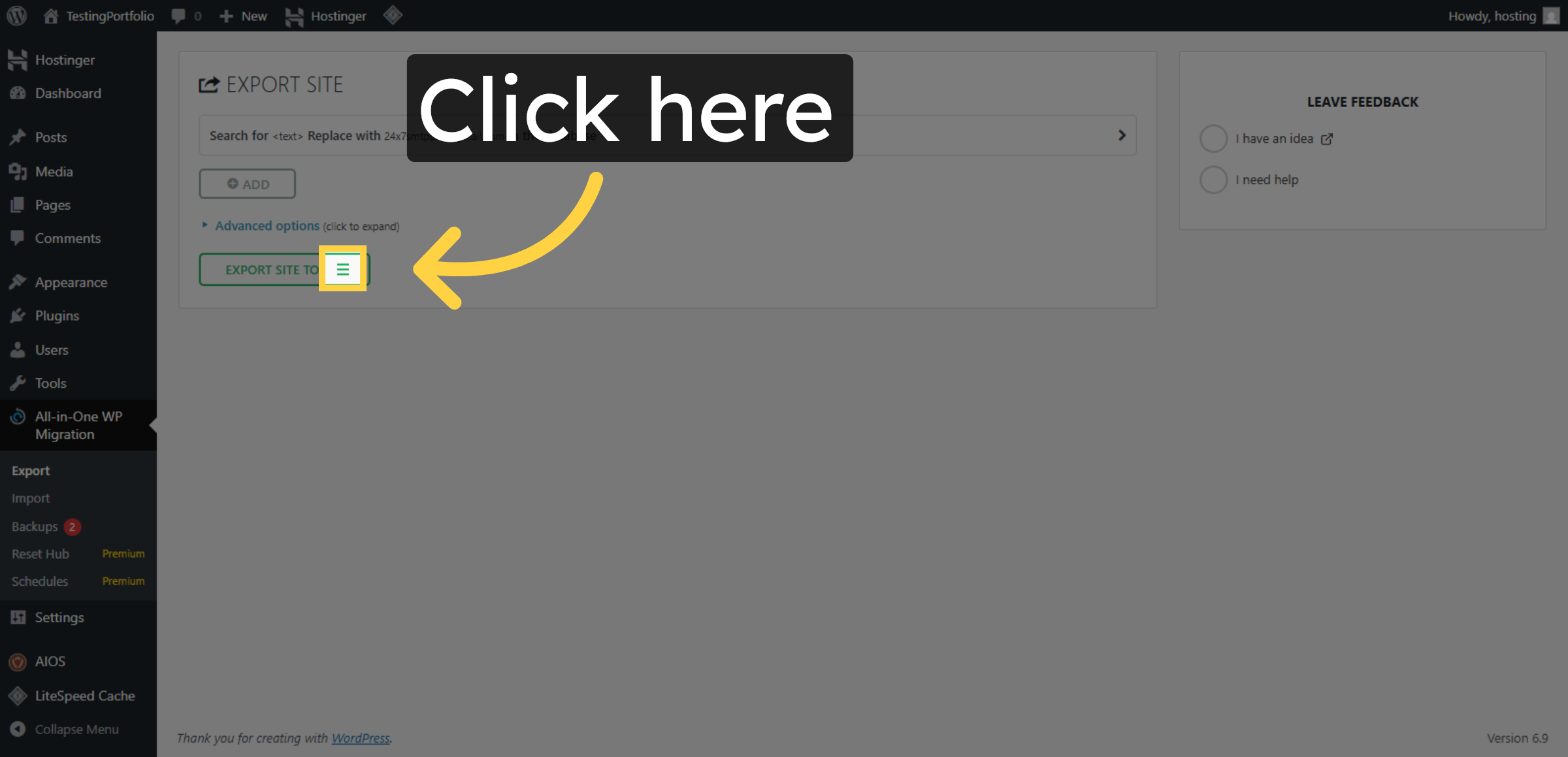
11. Proceed With Export
12. Select Export File Option
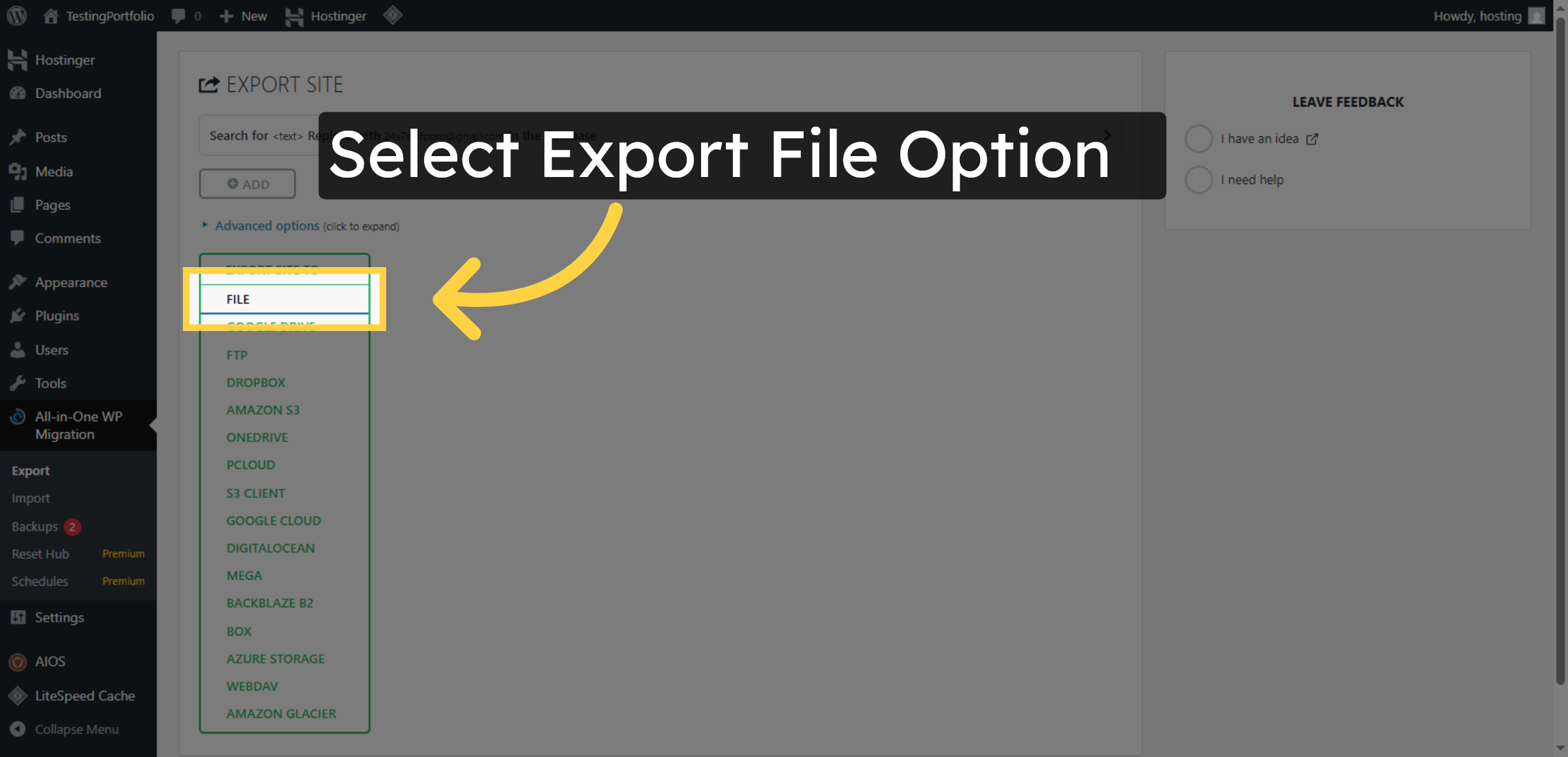
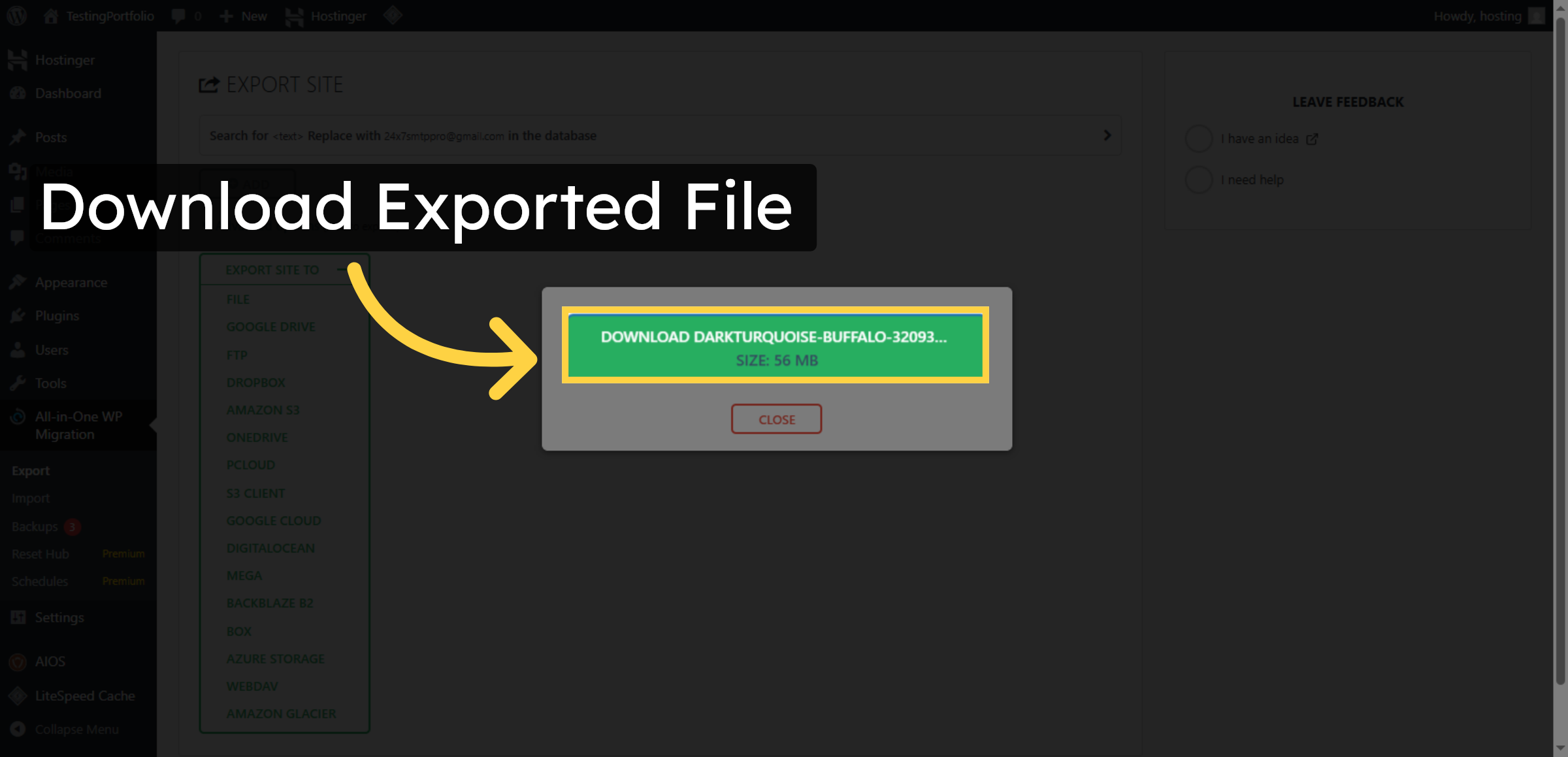
13. Download Exported File
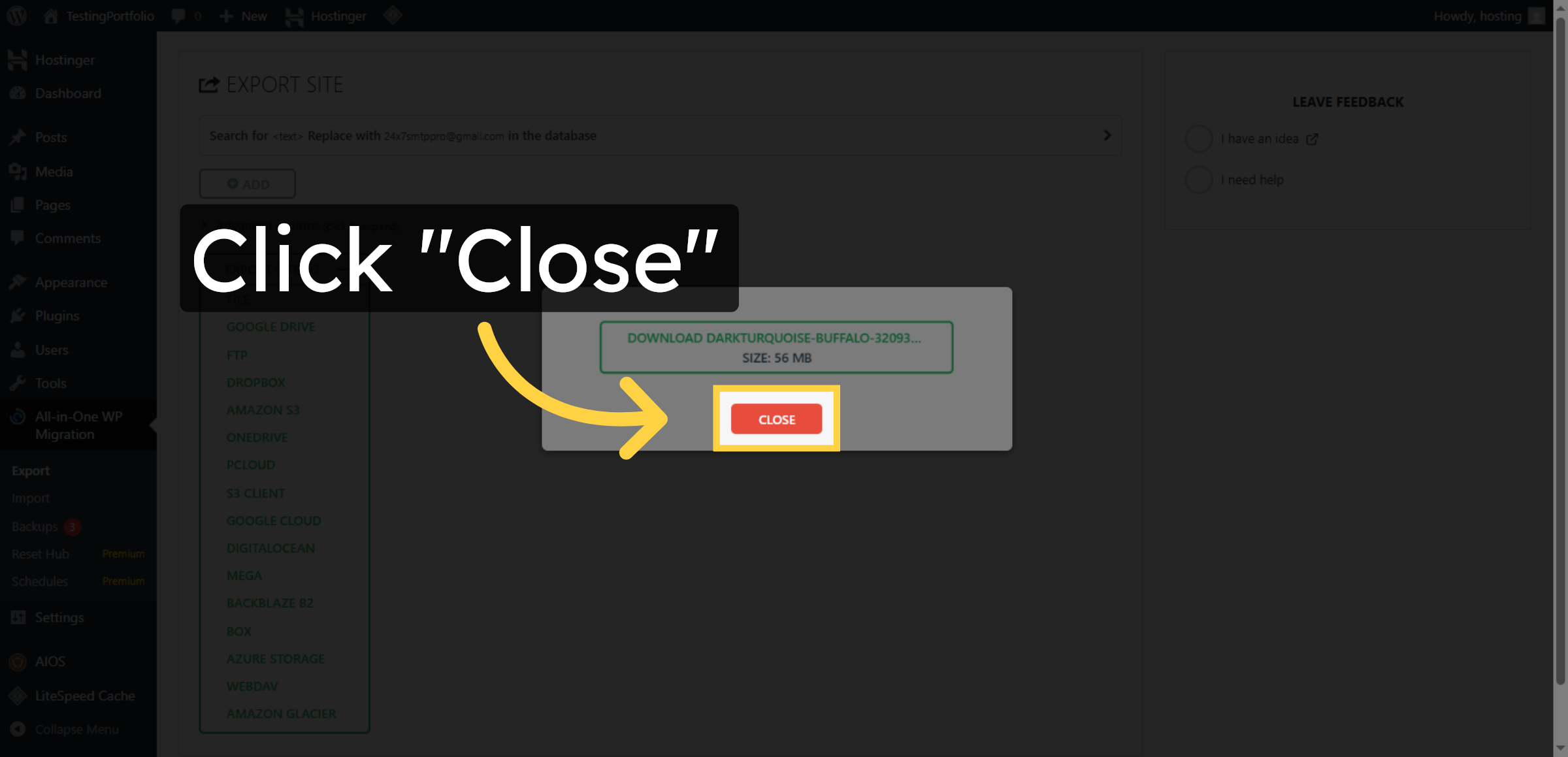
14. Close Export Window
Conclusion
By completing the steps outlined in this guide, you have successfully exported your WordPress website content from Hostinger WordPress Hosting using the All-in-One WP Migration plugin. This export file contains your website’s pages, posts, images, themes, plugins, and database information, allowing you to restore or migrate your site whenever needed.
It is recommended to store your backup file in a secure location and perform regular exports to maintain data safety. Routine backups help protect your website from data loss and ensure business continuity in case of technical failures or hosting changes.
WooHelpDesk Support
Need expert assistance with WordPress backups, migration, or hosting management? WooHelpDesk offers reliable technical support to help you manage your website efficiently and securely.
Visit: https://www.woohelpdesk.com
Call Us Toll-Free: +1 888 602 0119 (US & Canada)
Professional Support | Secure Backups | Trusted Solutions



