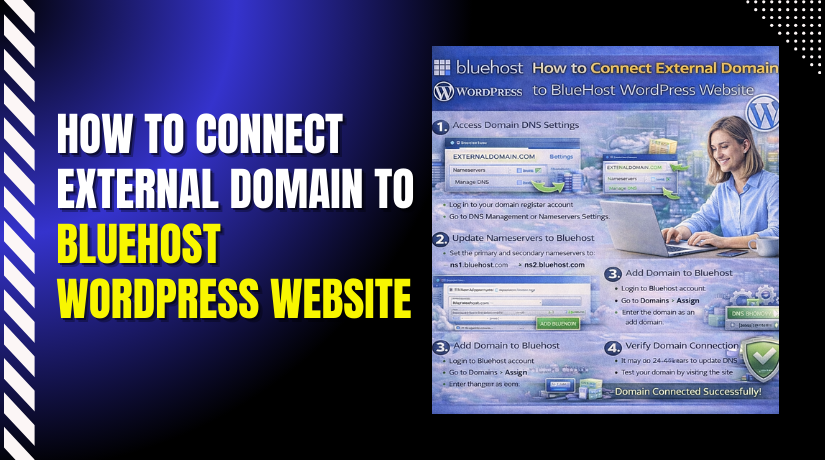
How to Connect External Domain to Bluehost WordPress Website
3 mins read

How to Connect External Domain to Bluehost WordPress Website

Introduction

Connecting an external domain to your WordPress website is an important step in building a professional online presence. It allows you to display your website under a custom domain name instead of a temporary or default URL. By linking your external domain to Bluehost hosting, you ensure better brand visibility, credibility, and easier access for visitors.

This guidde explains how to connect an external domain to your Bluehost WordPress website. It covers adding the domain in your Bluehost account, updating DNS and nameserver settings, completing verification, and confirming successful connection. By following this guide, users can link their domains smoothly and activate their websites under their preferred web address.


1. Bluehost Hosting Dashboard
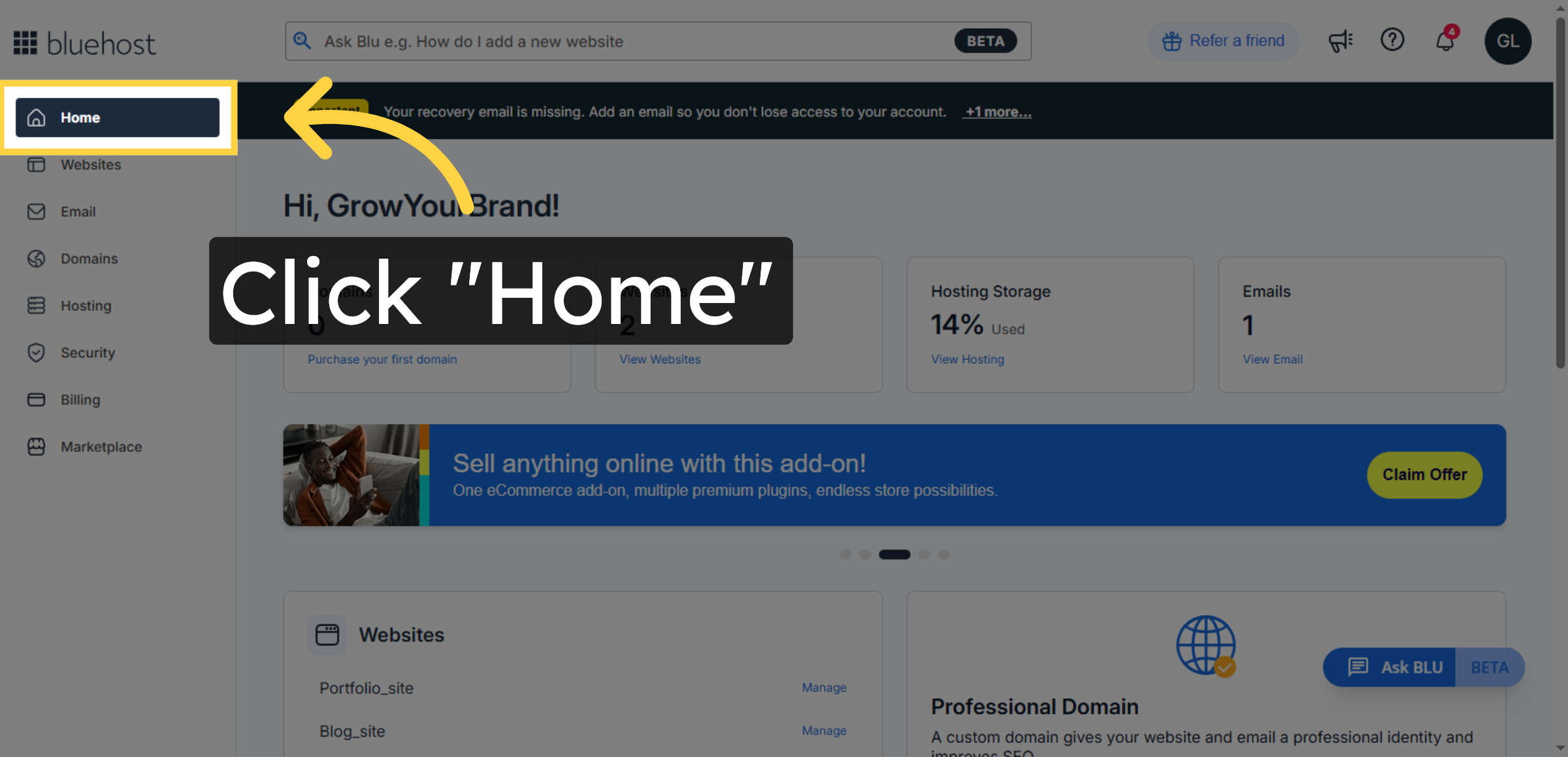
From the Bluehost Hosting Dashboard, add your external domain, update its DNS settings, and link it to your WordPress website for seamless access under your custom domain.

Bluehost Hosting Dashboard

2. Access Websites Section
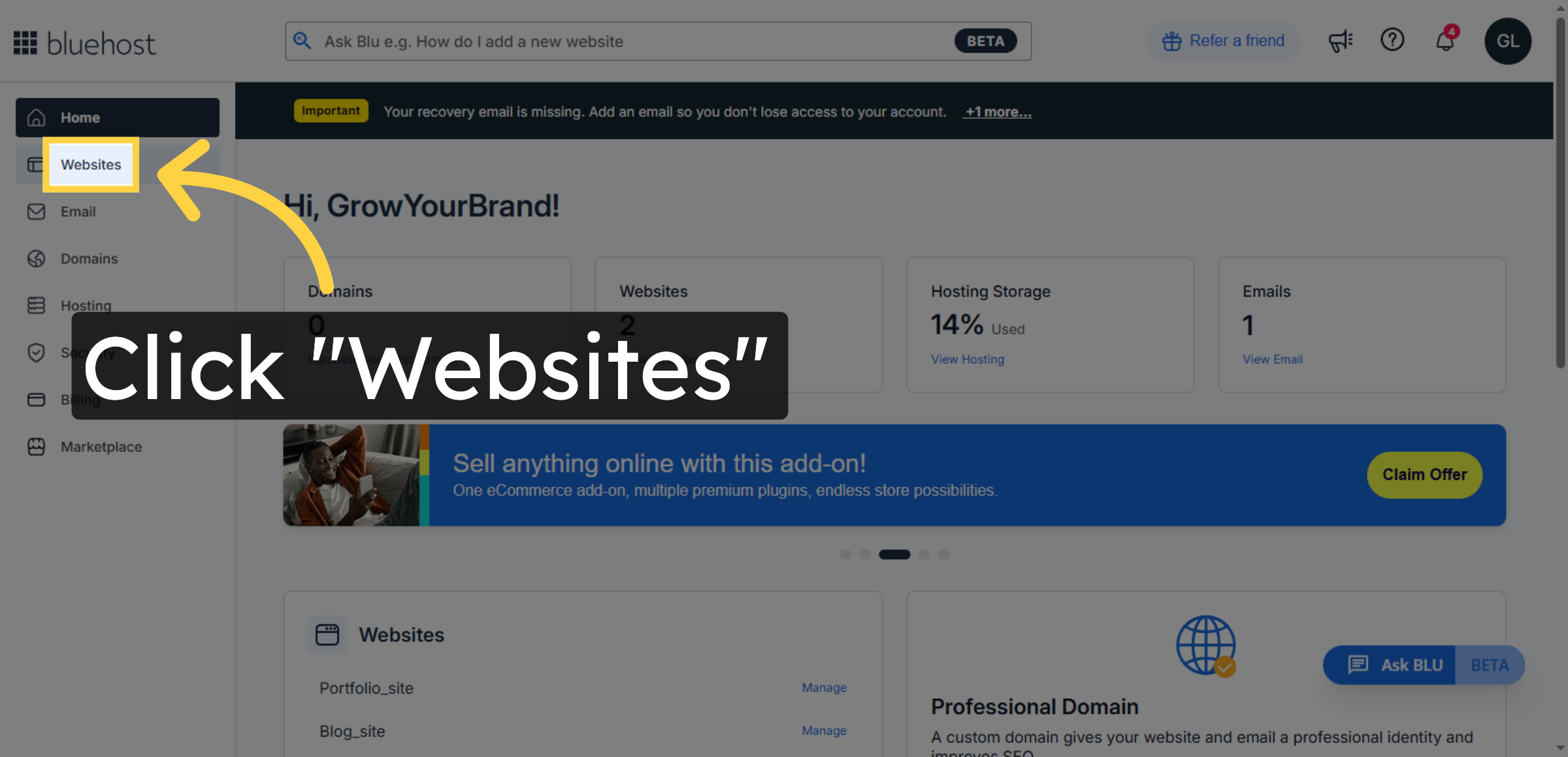
From the Websites section, you can select the WordPress site where you want to connect an external domain.

Access Websites Section

3. Open Website Management
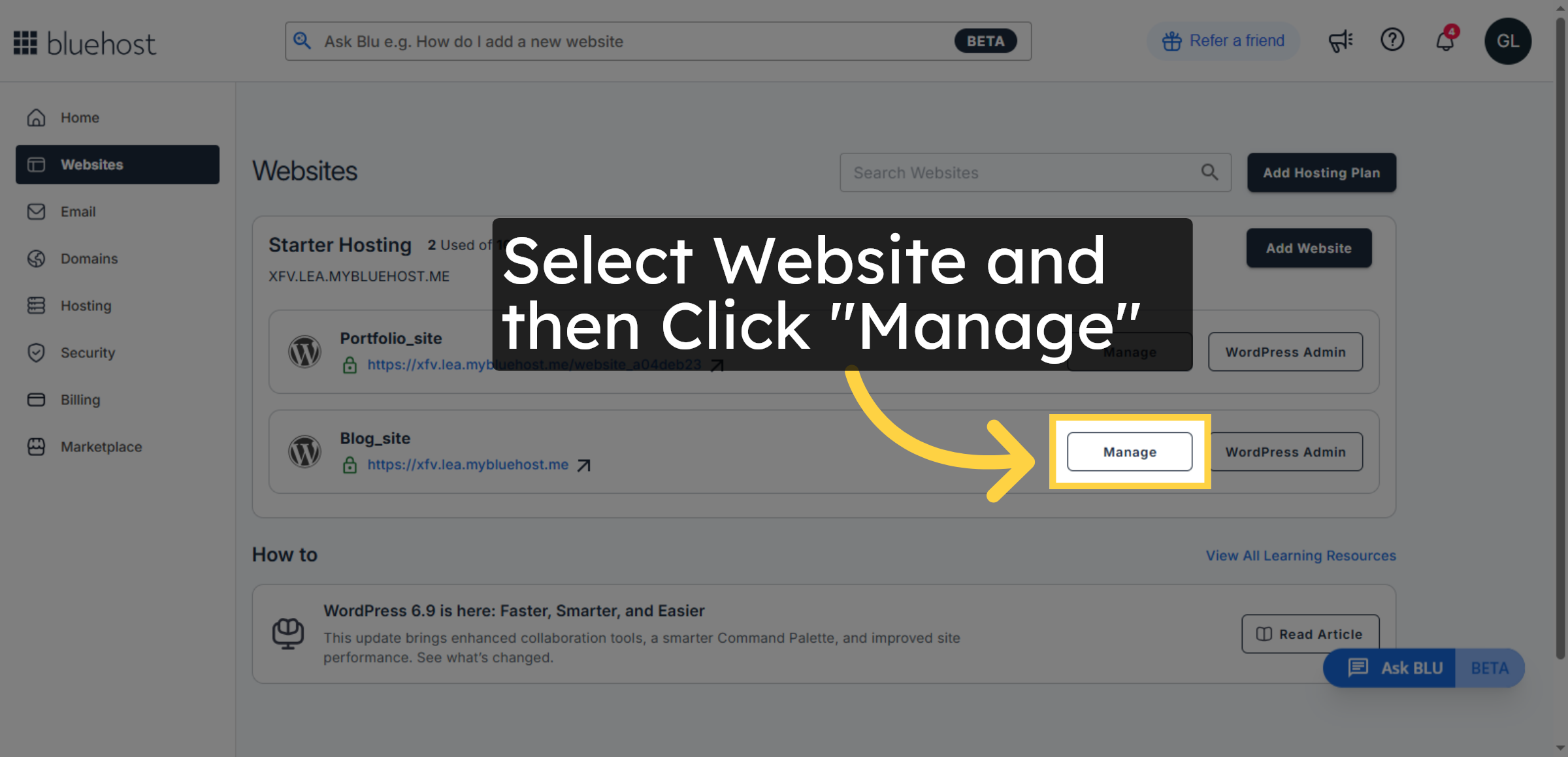
Click the Manage button next to the website you want to connect your domain to.

Open Website Management

4. Select Connect Domain Option
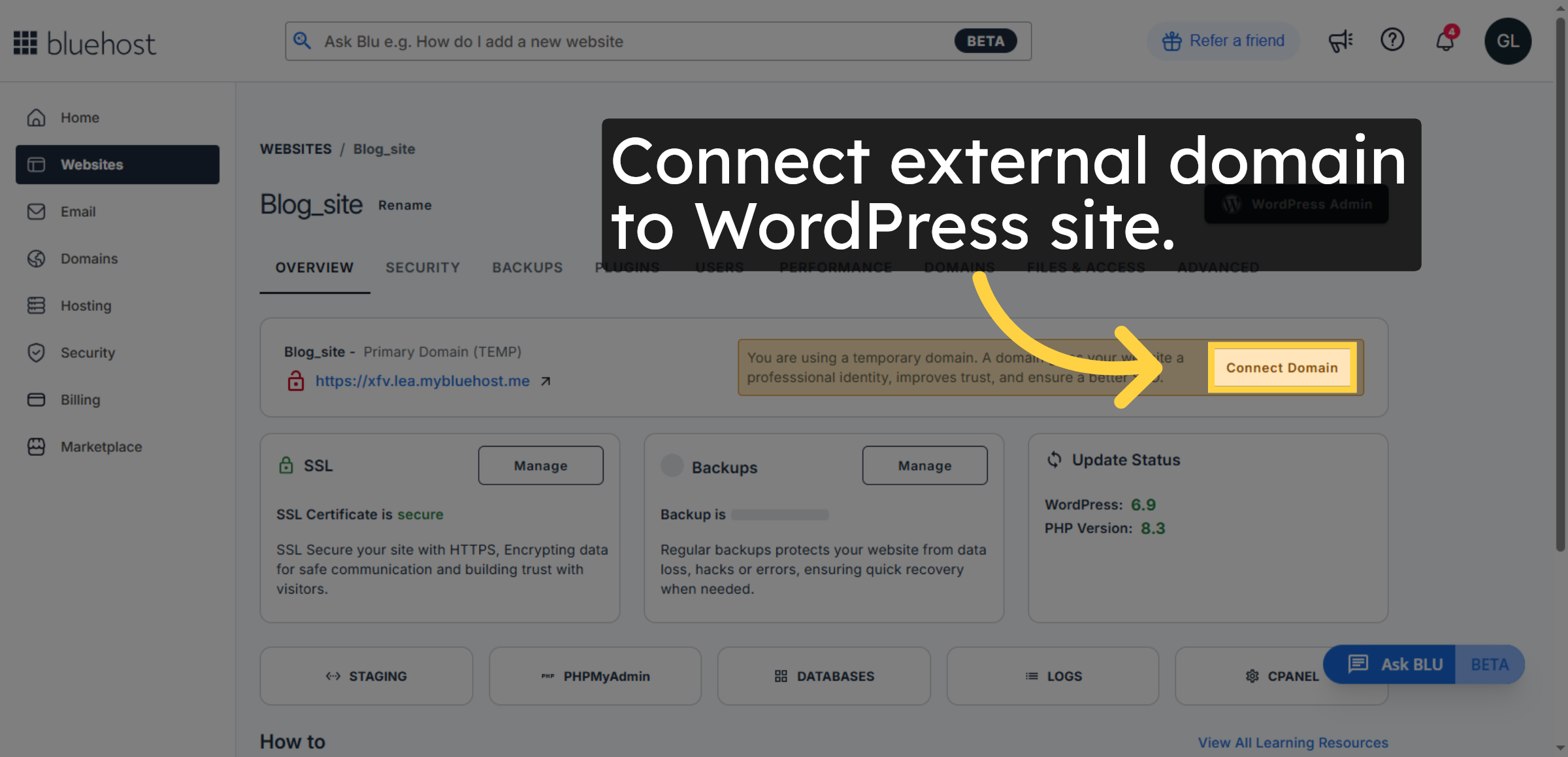
Click the Connect domain option to start linking your external domain.

Select Connect Domain Option

5. Enter Your Domain Name
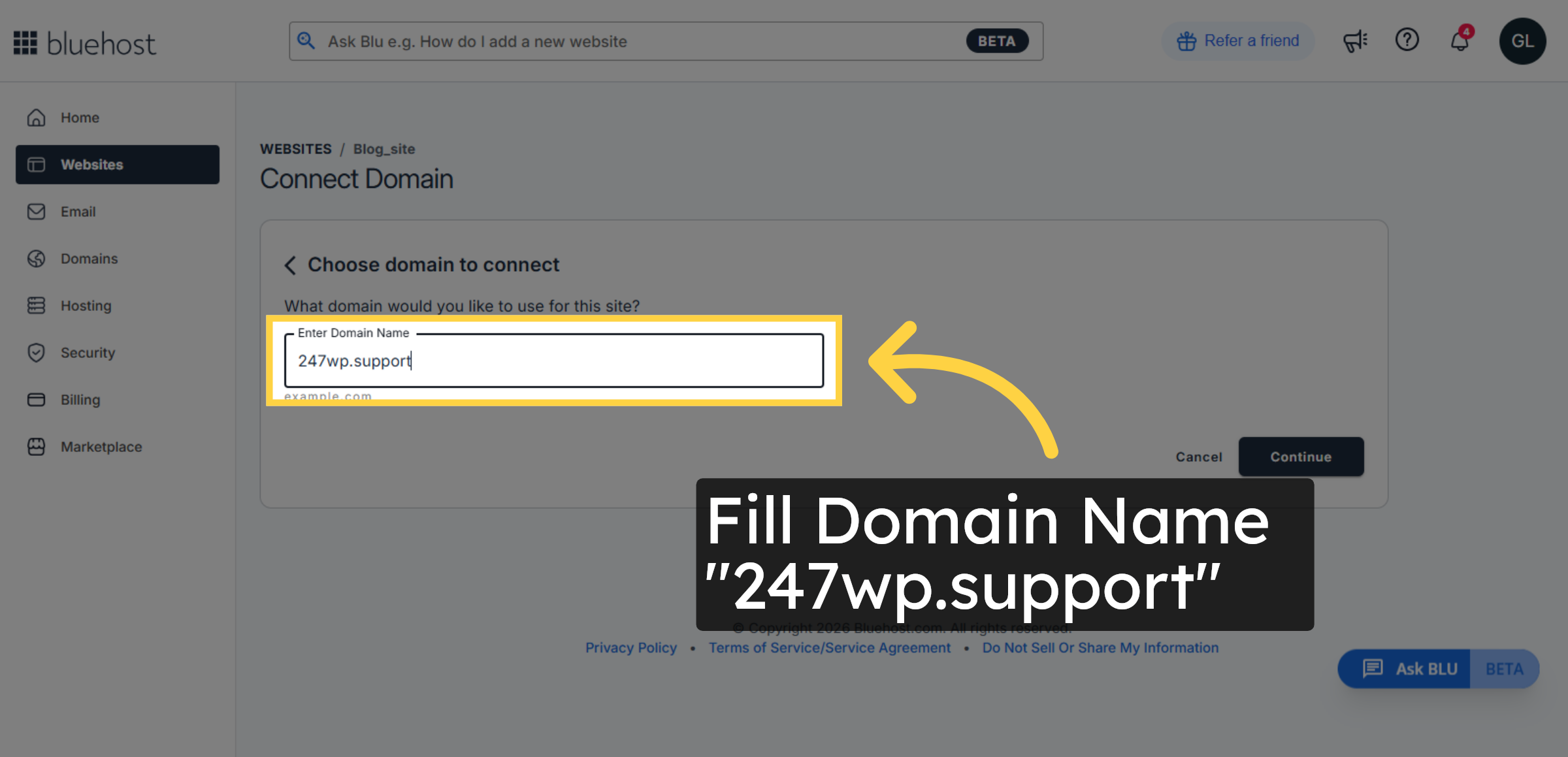
Enter your domain name to specify the external domain you want to connect.

Enter Your Domain Name

6. Proceed with Domain Connection
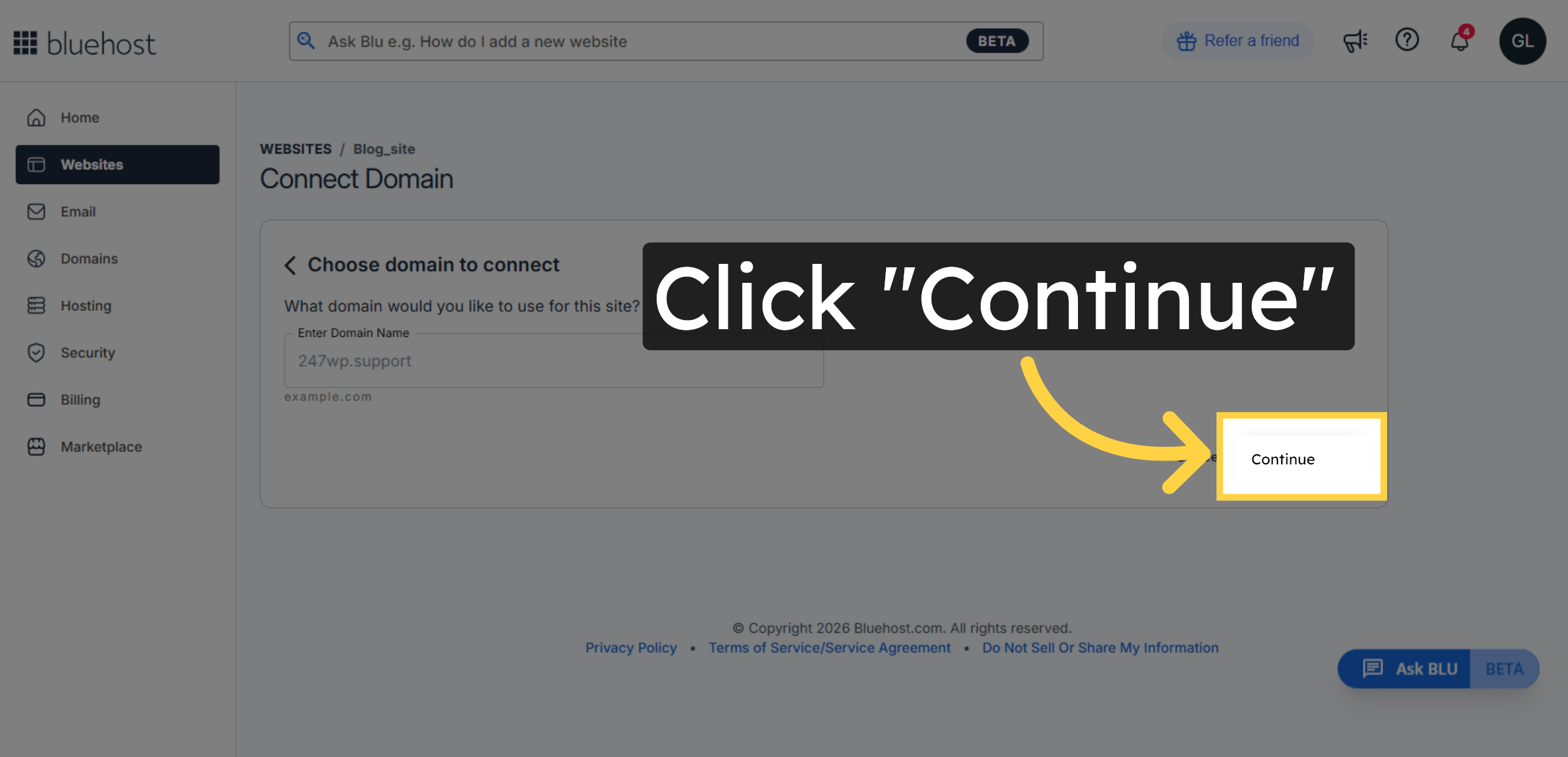
Click the Continue button to move forward with the domain connection process.

Proceed with Domain Connection

7. Complete Connection Setup
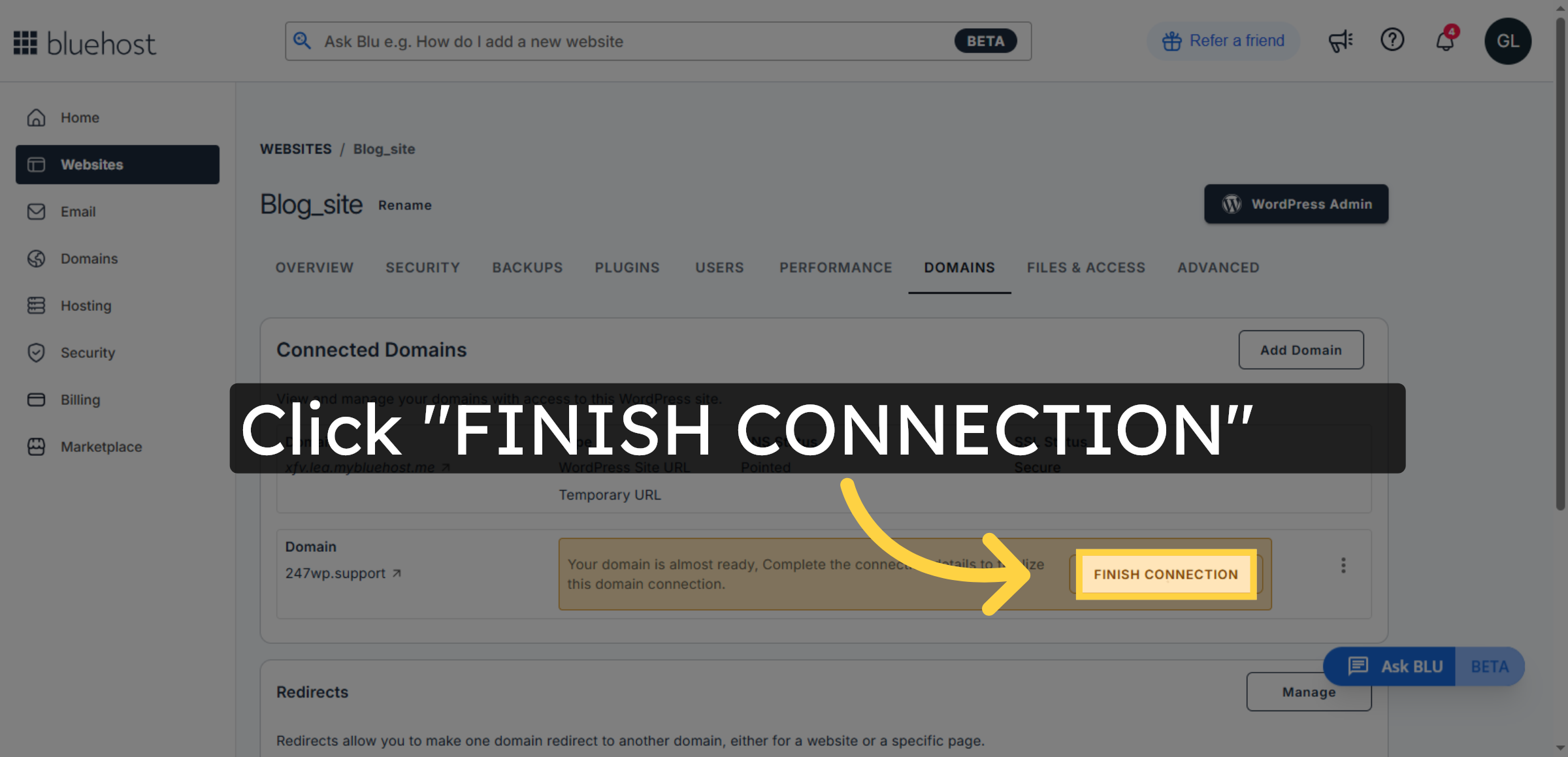
Click the Finish Connection button to finalize linking your external domain to Bluehost.

Complete Connection Setup

8. Connect Your Domain to Bluehost
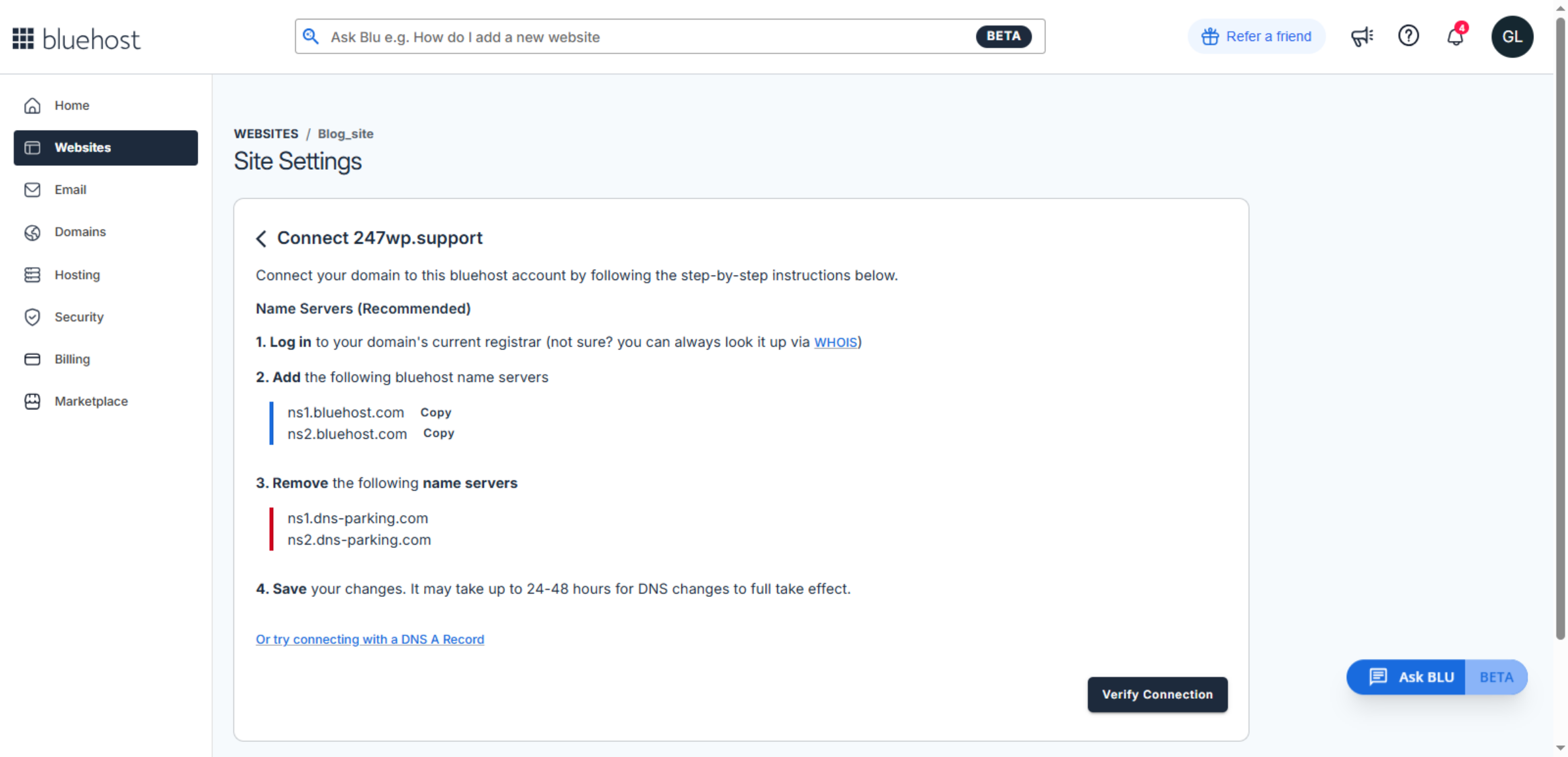
Review the step-by-step instructions provided for connecting your domain using name servers or other recommended methods.

Connect Your Domain to Bluehost

9. NOTE
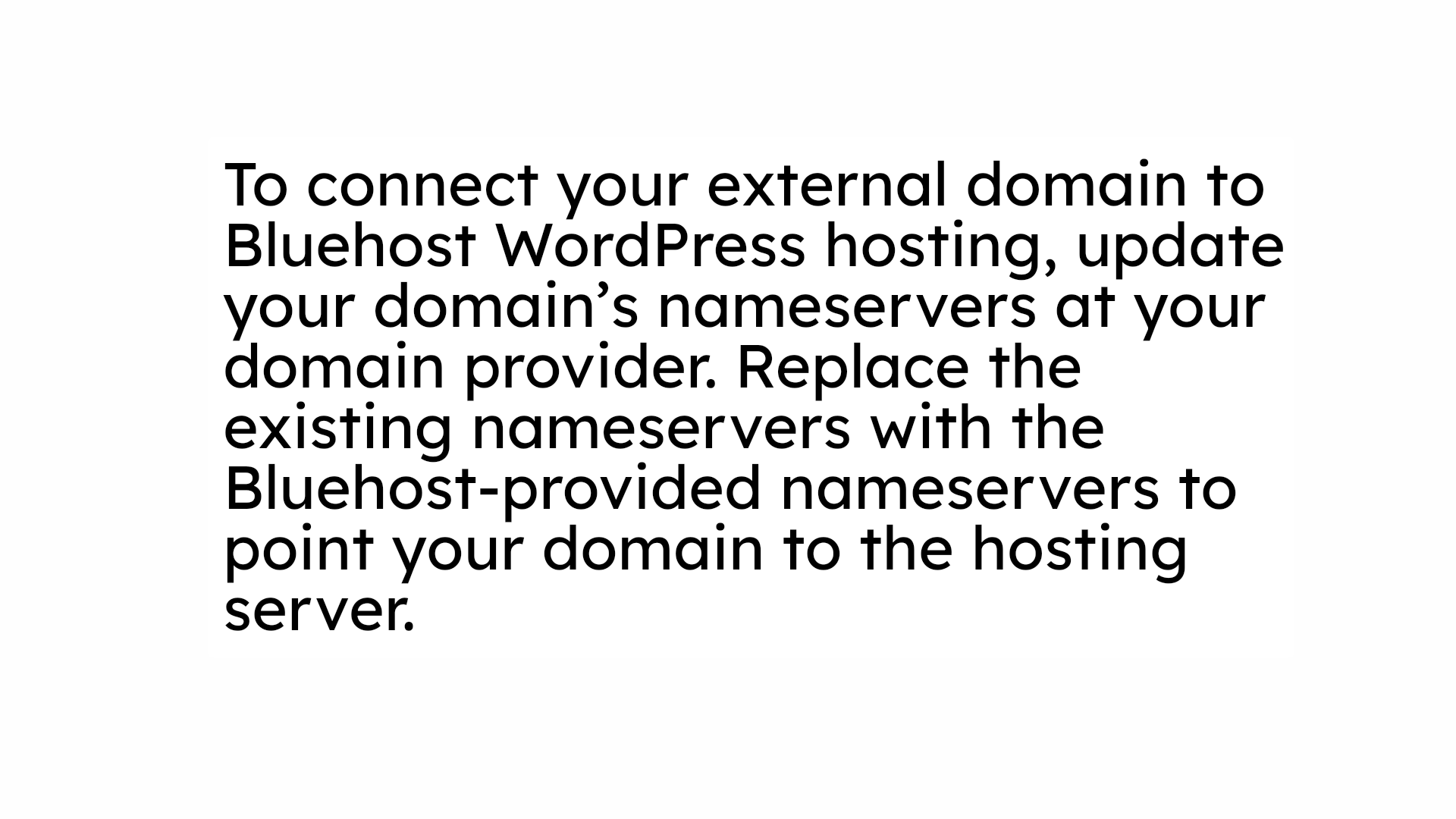
NOTE

10. Update Nameservers in DNS Management
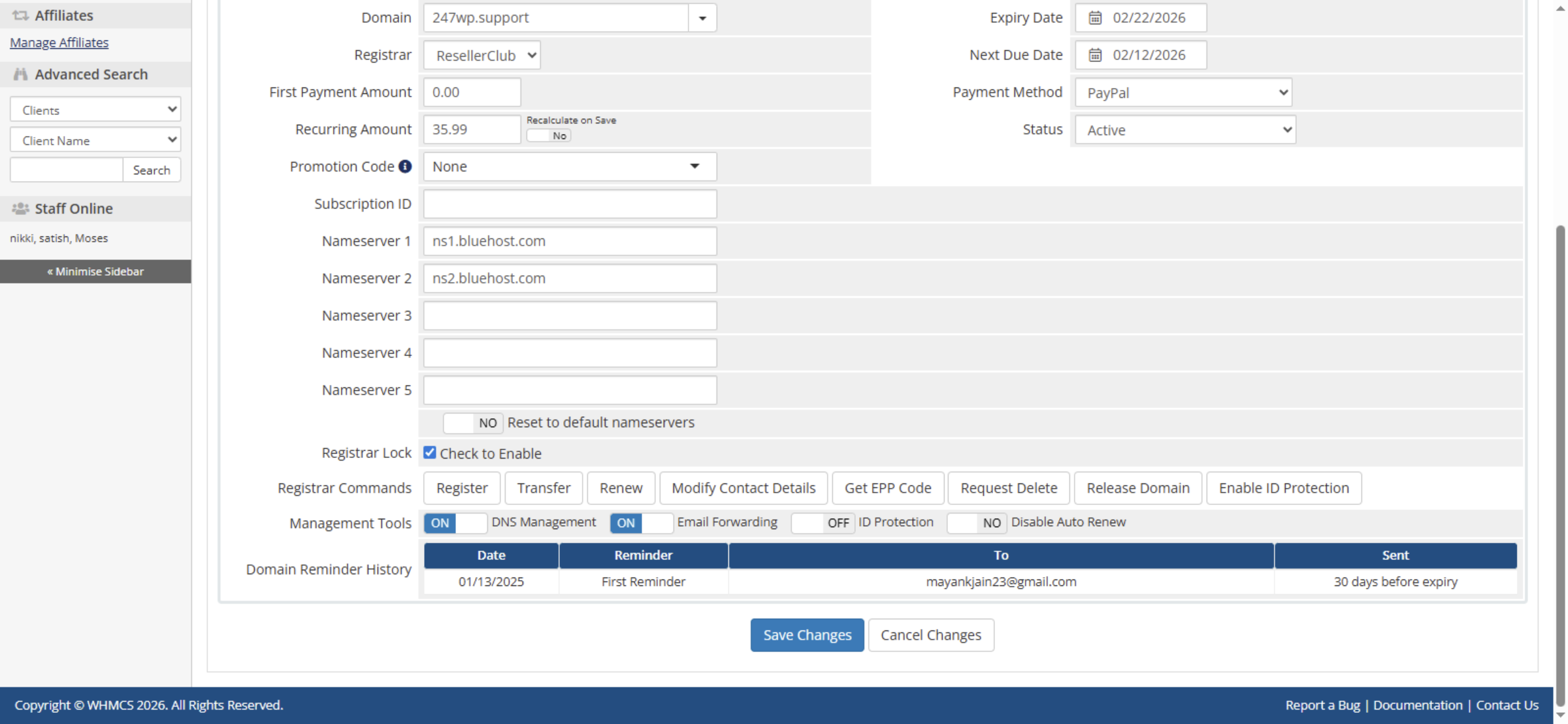
Enter the provided Bluehost nameservers in the DNS Management section of your domain registrar to connect the domain with your hosting account.

Update Nameservers in DNS Management

11. Save Nameserver Changes
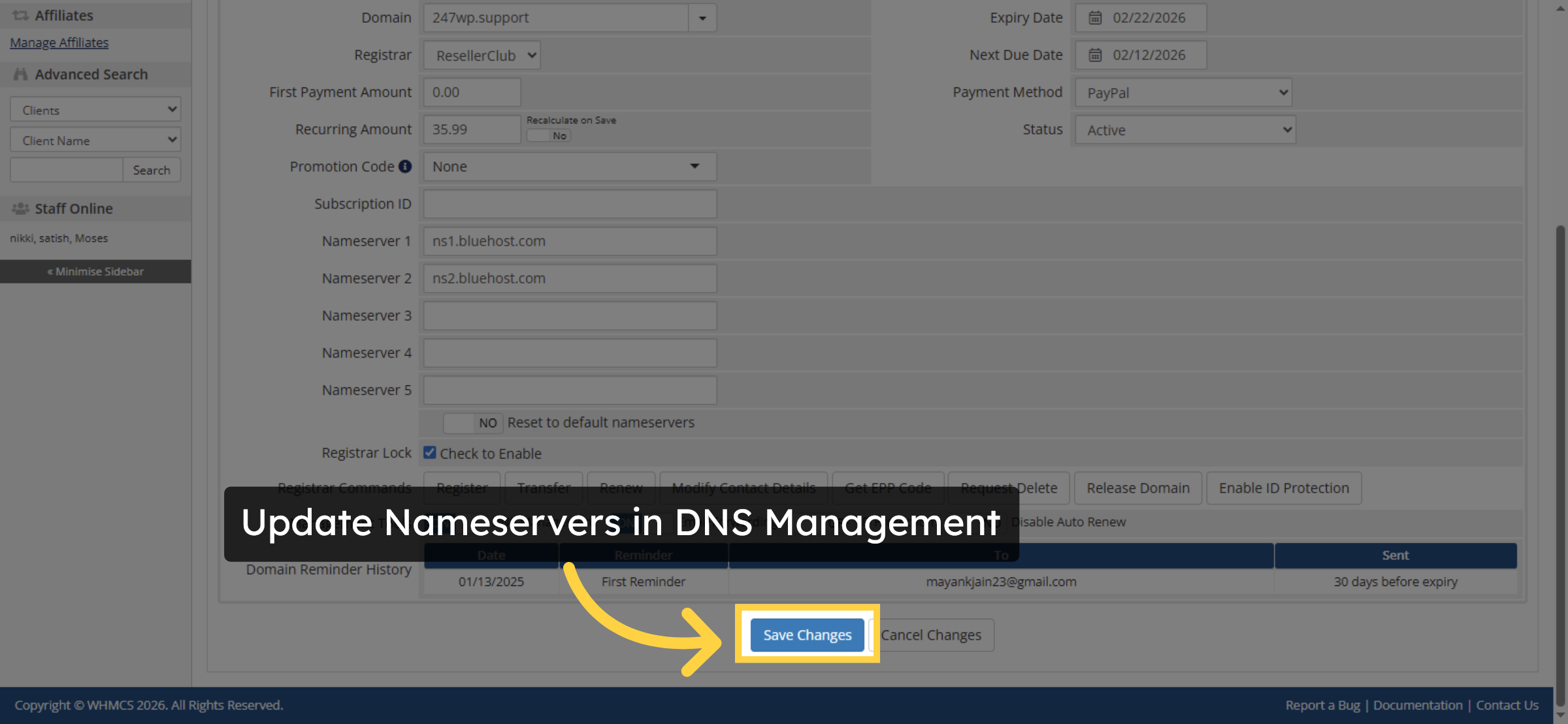
After entering the correct Bluehost nameservers, click Save Changes to apply the DNS updates and connect your domain to the hosting server.

Save Nameserver Changes

Ad Banner

12. Nameserver Update Successful

The nameserver changes have been successfully accepted by the domain registrar. Your domain is now connected to the hosting server. DNS propagation may take up to 24–48 hours to complete.

Nameserver Update Successful

13. Verify Domain Connection
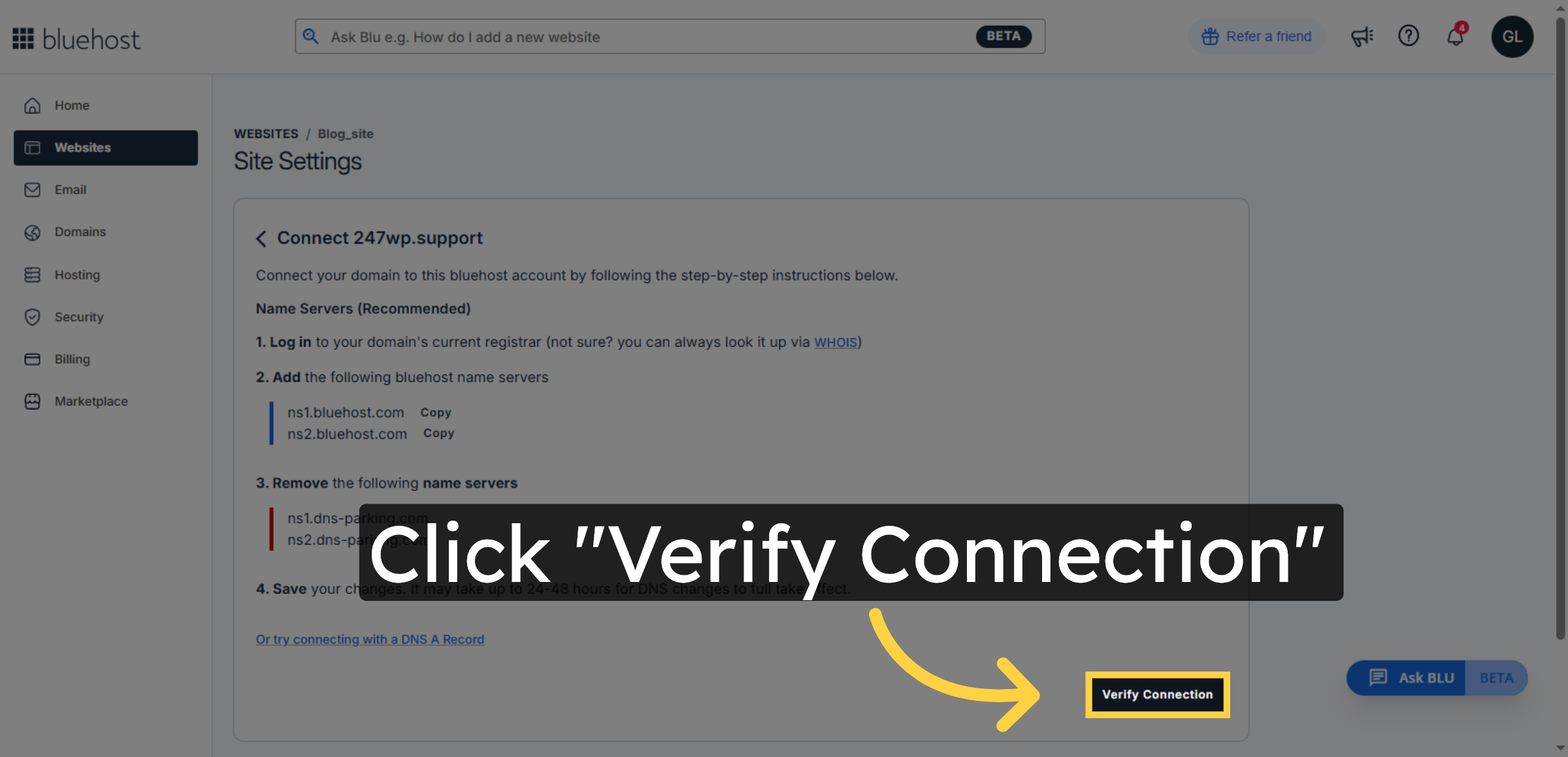
Click the Verify Connection button to confirm that your external domain is properly connected to your Bluehost WordPress website.

Verify Domain Connection

14. DNS Successfully Connected to Bluehost
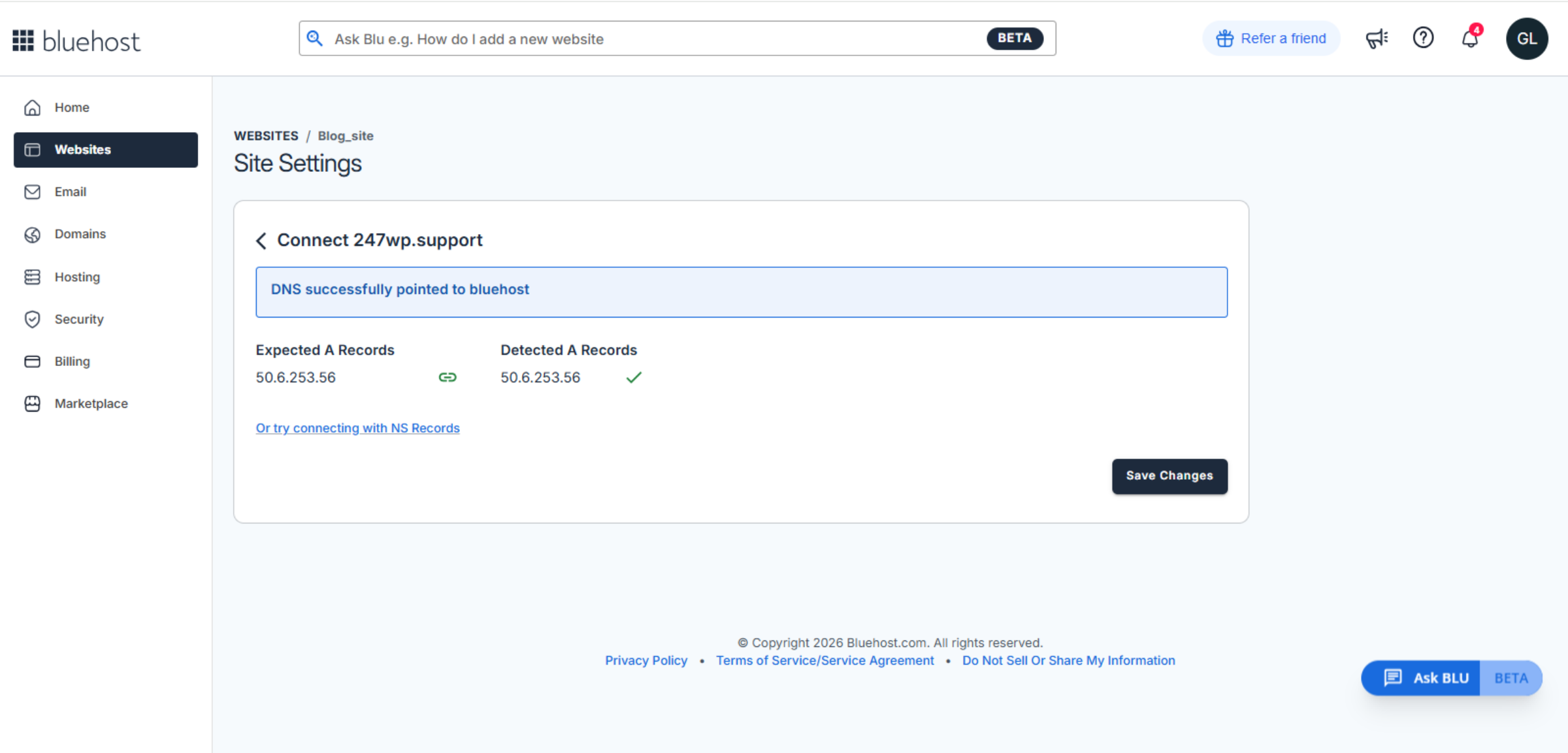
Your domain has been successfully pointed to Bluehost. The detected DNS records match the expected configuration, and your website is now properly connected to the hosting server.

DNS Successfully Connected to Bluehost

15. NOTE
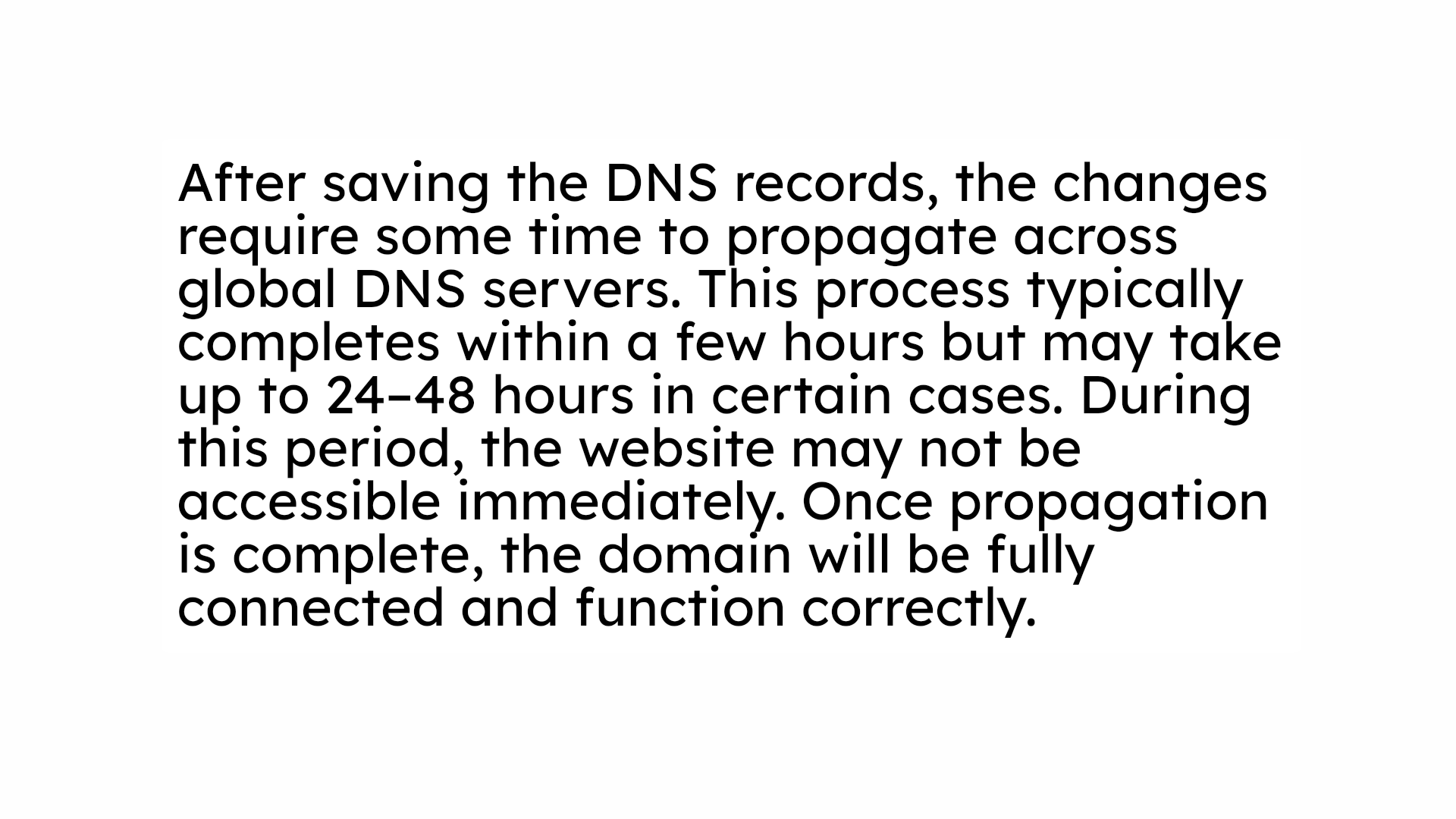
NOTE

Conclusion

By following this guide, you have successfully connected your external domain to your Bluehost WordPress website. Your domain is now properly linked to the hosting server, allowing visitors to access your website using your custom web address. This setup improves professionalism and strengthens your online identity.

To ensure consistent performance, allow sufficient time for DNS propagation and regularly monitor domain settings. Keeping your domain information updated will help prevent connectivity issues and ensure uninterrupted website access.

WooHelpDesk Support

Need help with domain connection, DNS setup, or website configuration? WooHelpDesk is ready to assist you.

Visit: https://www.woohelpdesk.com

Call Us Toll-Free: +1 888 602 0119 (US & Canada)
Smooth Setup | Expert Support

Contact WooHelpDesk today for reliable domain and hosting support.


Leave a Reply

Your email address will not be published. Required fields are marked *

Leave a Reply

Your email address will not be published. Required fields are marked *