How to Activate Free SSL Certificate on BlueHost WP Website
Introduction
Website security is a fundamental requirement for protecting user data, building customer trust, and maintaining strong search engine rankings. An active SSL certificate encrypts data exchanged between visitors and your website, ensuring that sensitive information such as login credentials and contact form submissions remains secure. Websites without SSL display “Not Secure” warnings, which can negatively impact credibility and user confidence. Hosting providers such as Bluehost offer free SSL certificates that can be easily activated through their control panel.
This guidde explains how to activate a free SSL certificate on a Bluehost WordPress website using the cPanel interface. It provides step-by-step instructions for accessing hosting settings, enabling AutoSSL, selecting your domain, and verifying HTTPS activation. By following this guide, website owners can secure their websites, improve SEO performance, and ensure safe browsing experiences for their visitors.
1. Here you can see yet your site is not secure (SSL is not active)
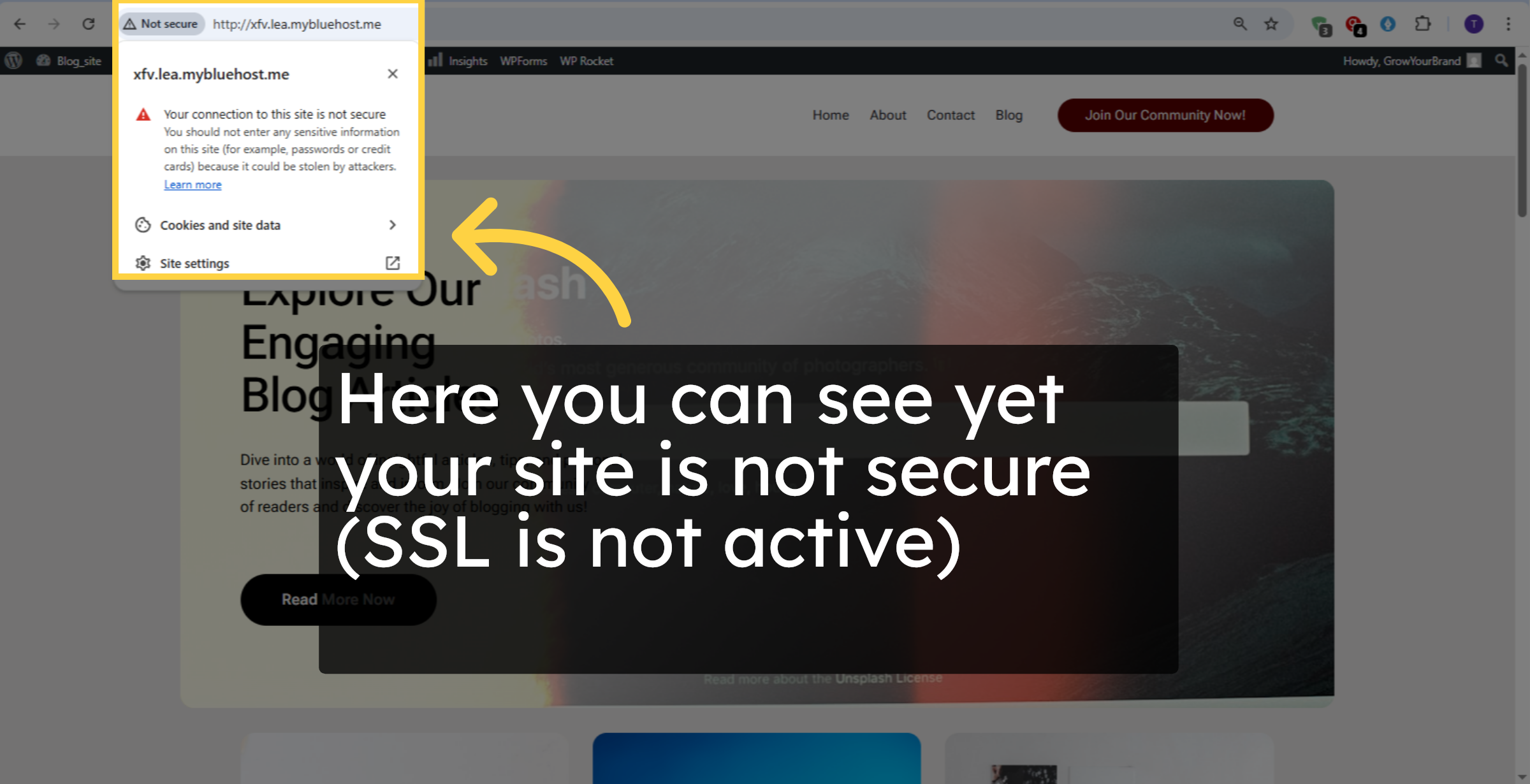
2. Introduction
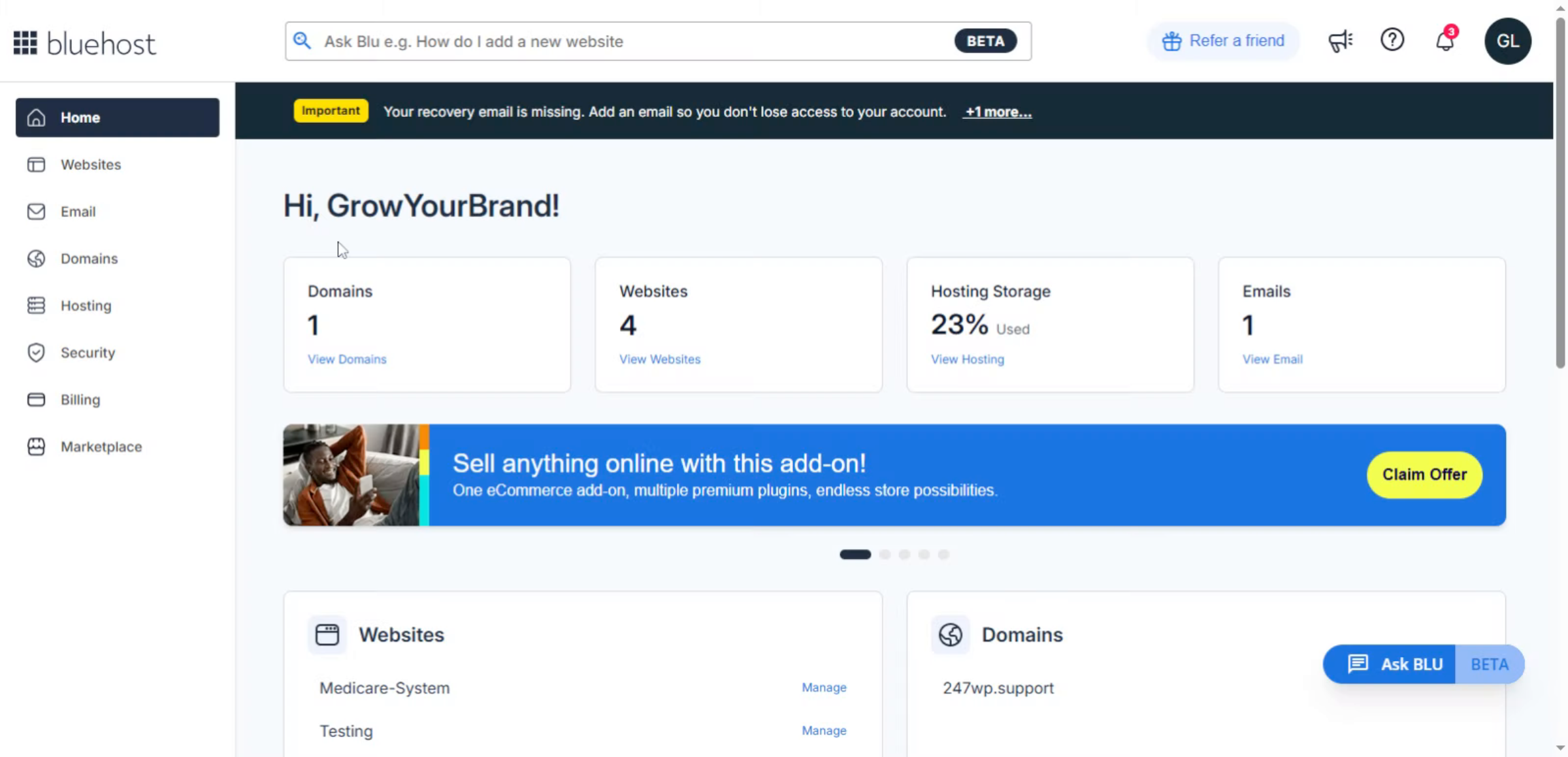
3. Navigate to Home Page
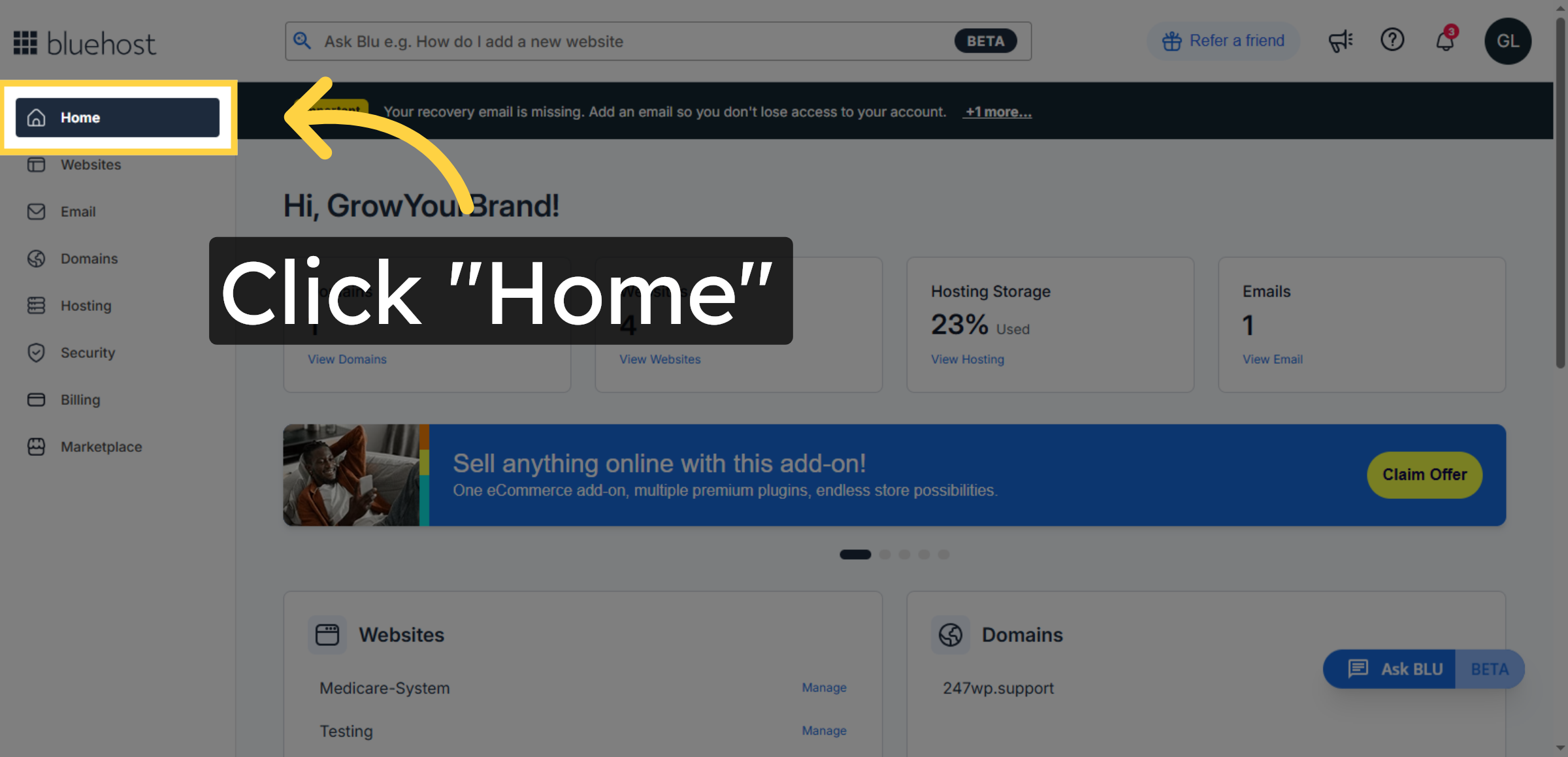
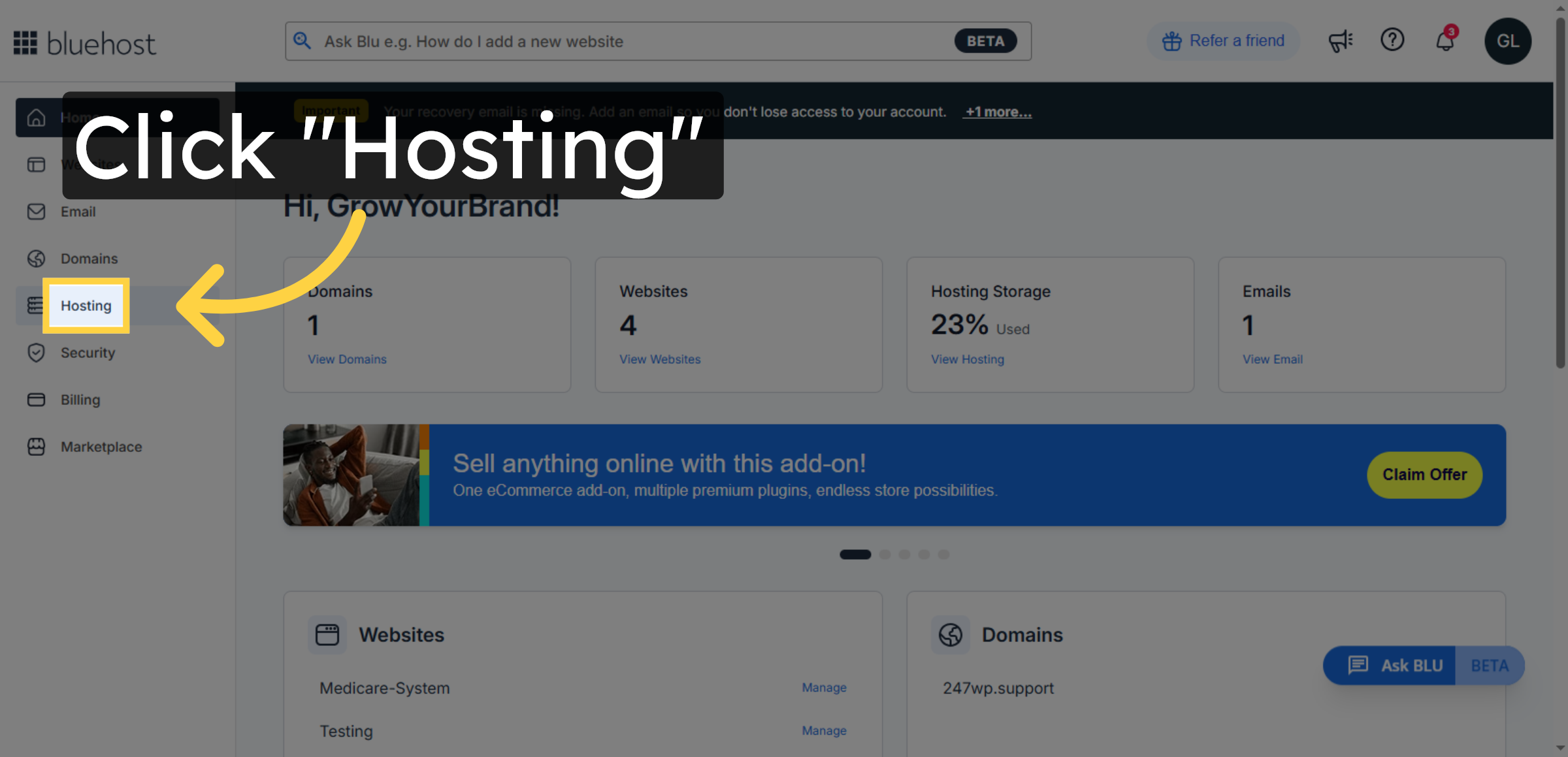
4. Access Hosting Section
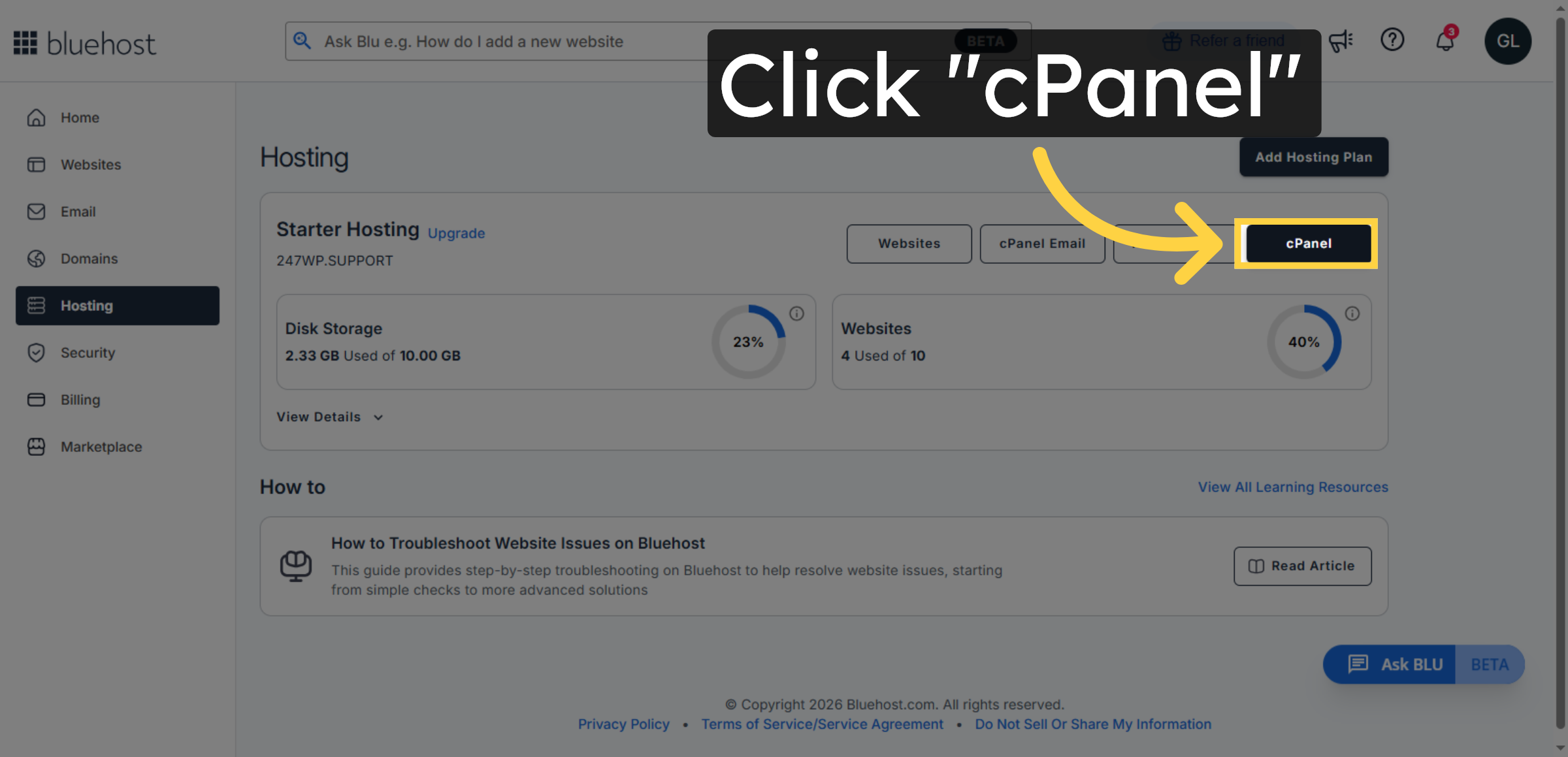
5. Open cPanel Interface
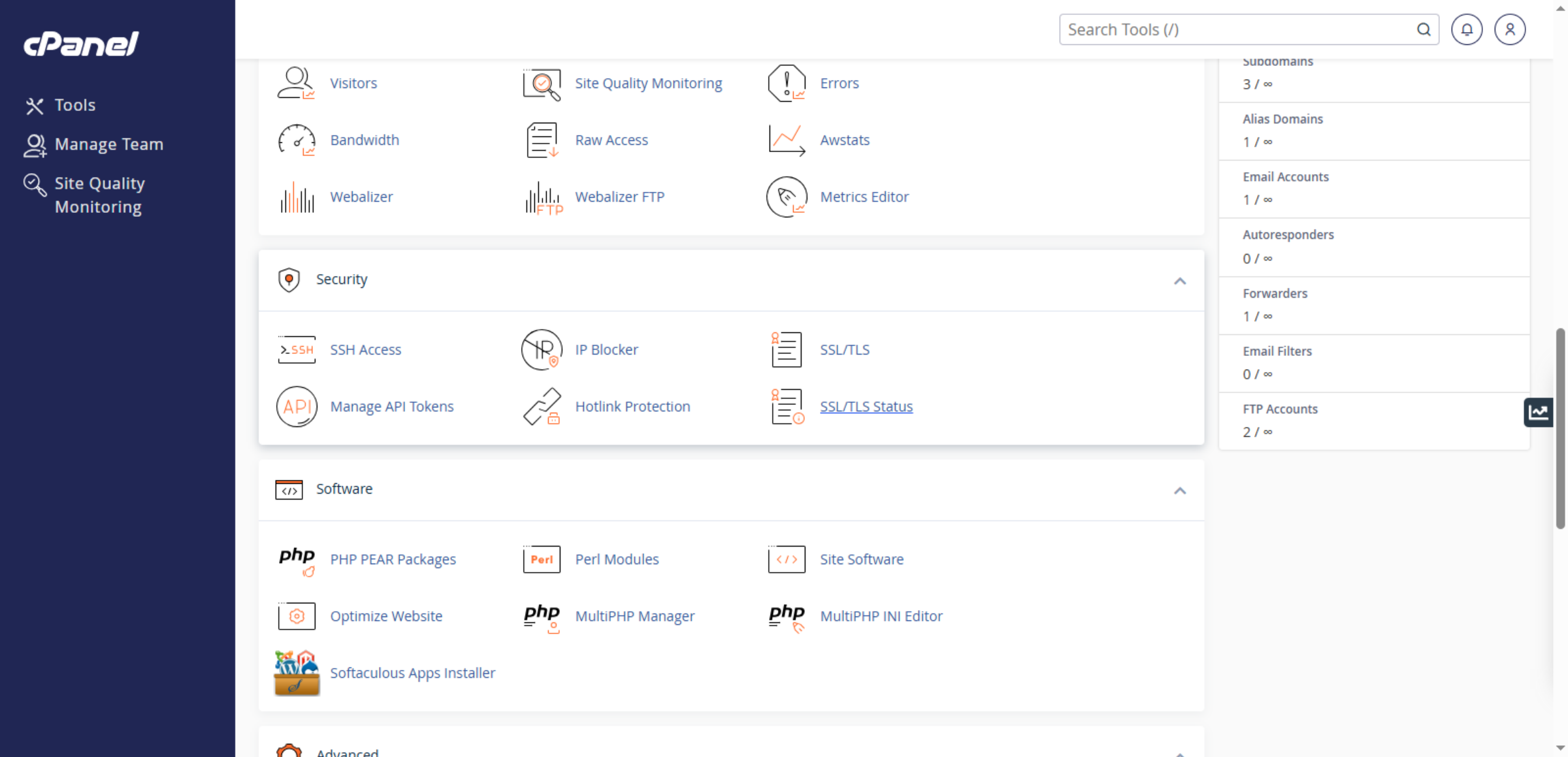
6. Switch to cPanel URL
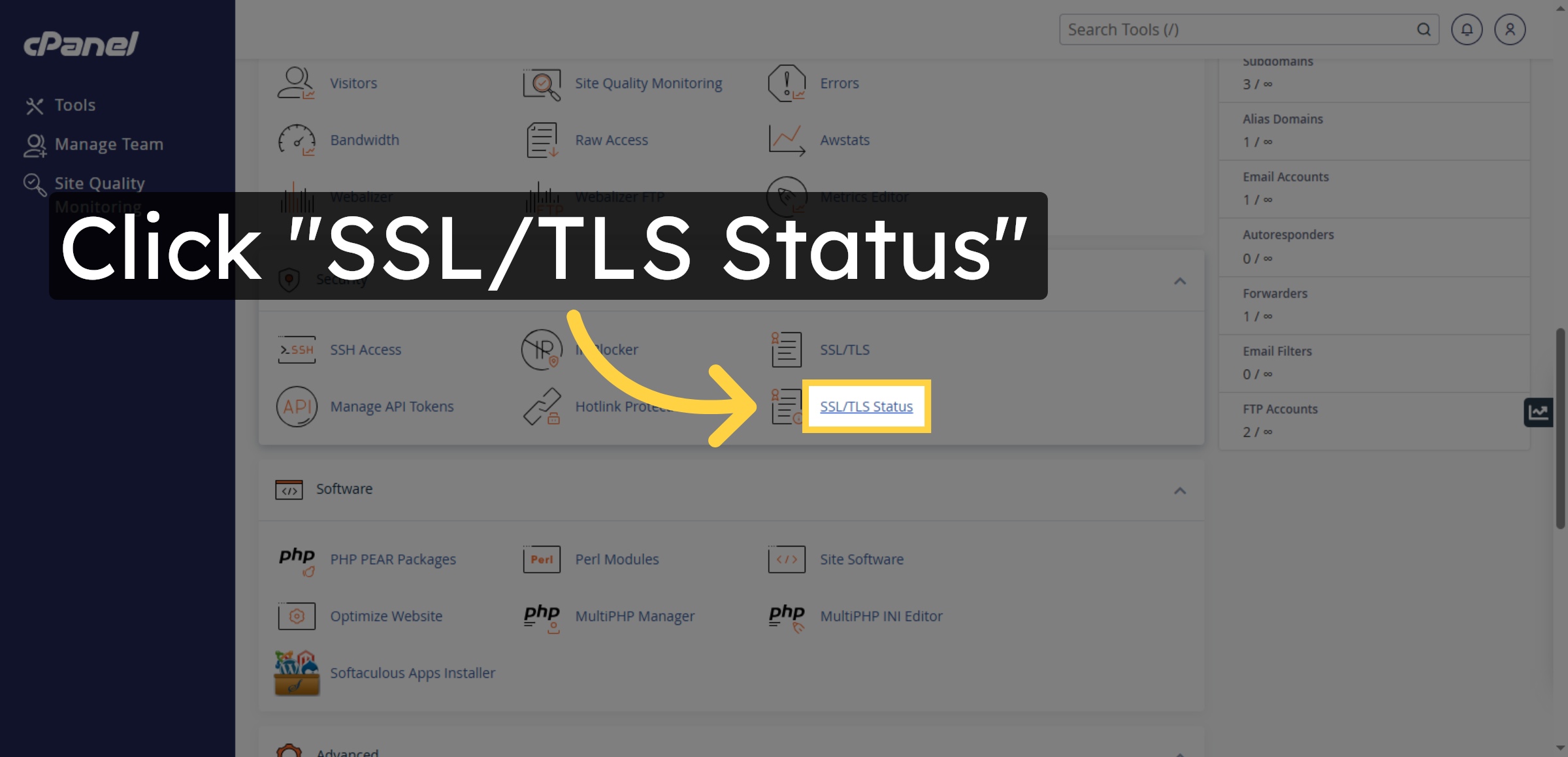
7. Open SSL/TLS Status
8. Select Domain for SSL
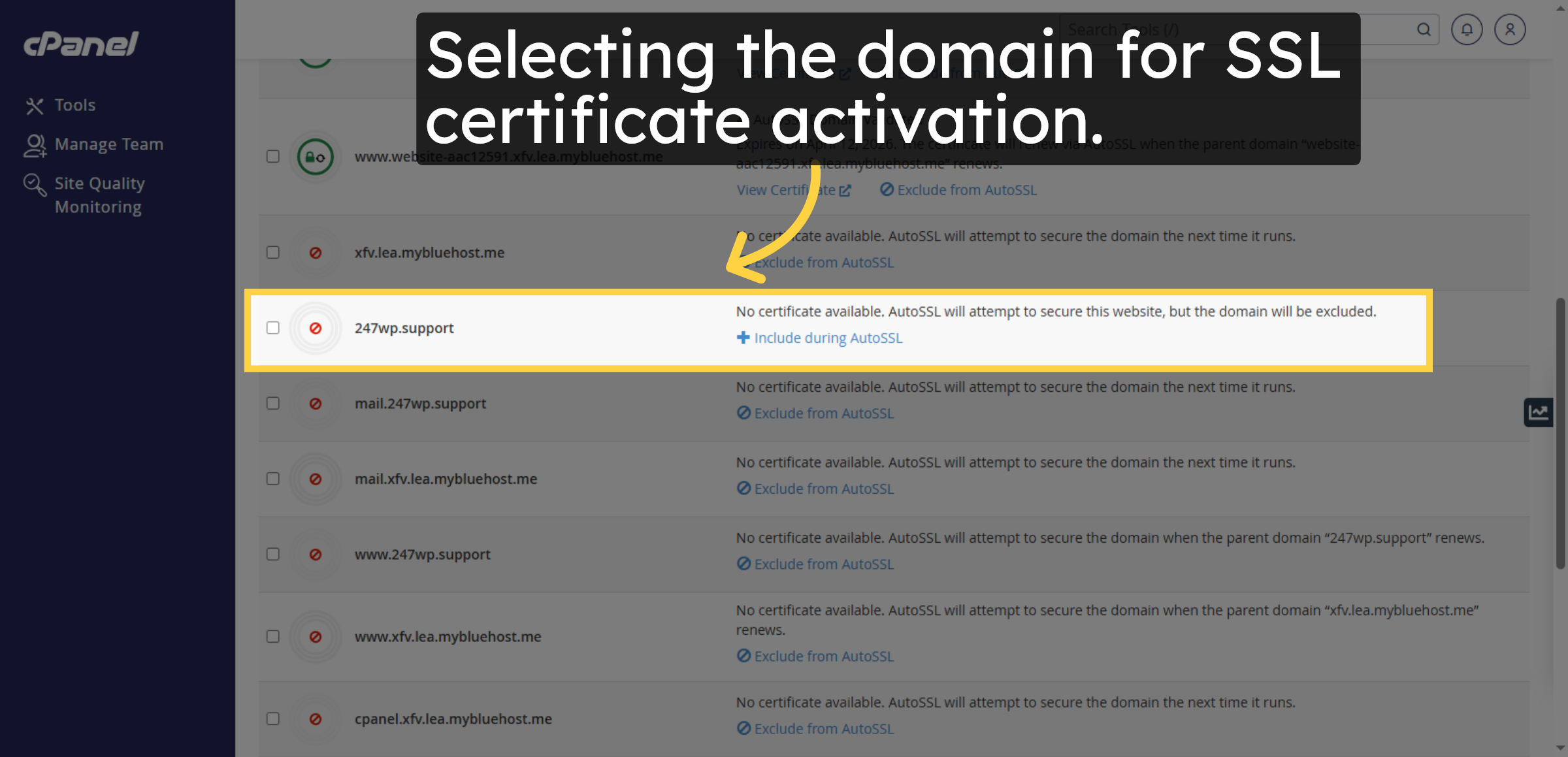
9. Enable SSL Certificate
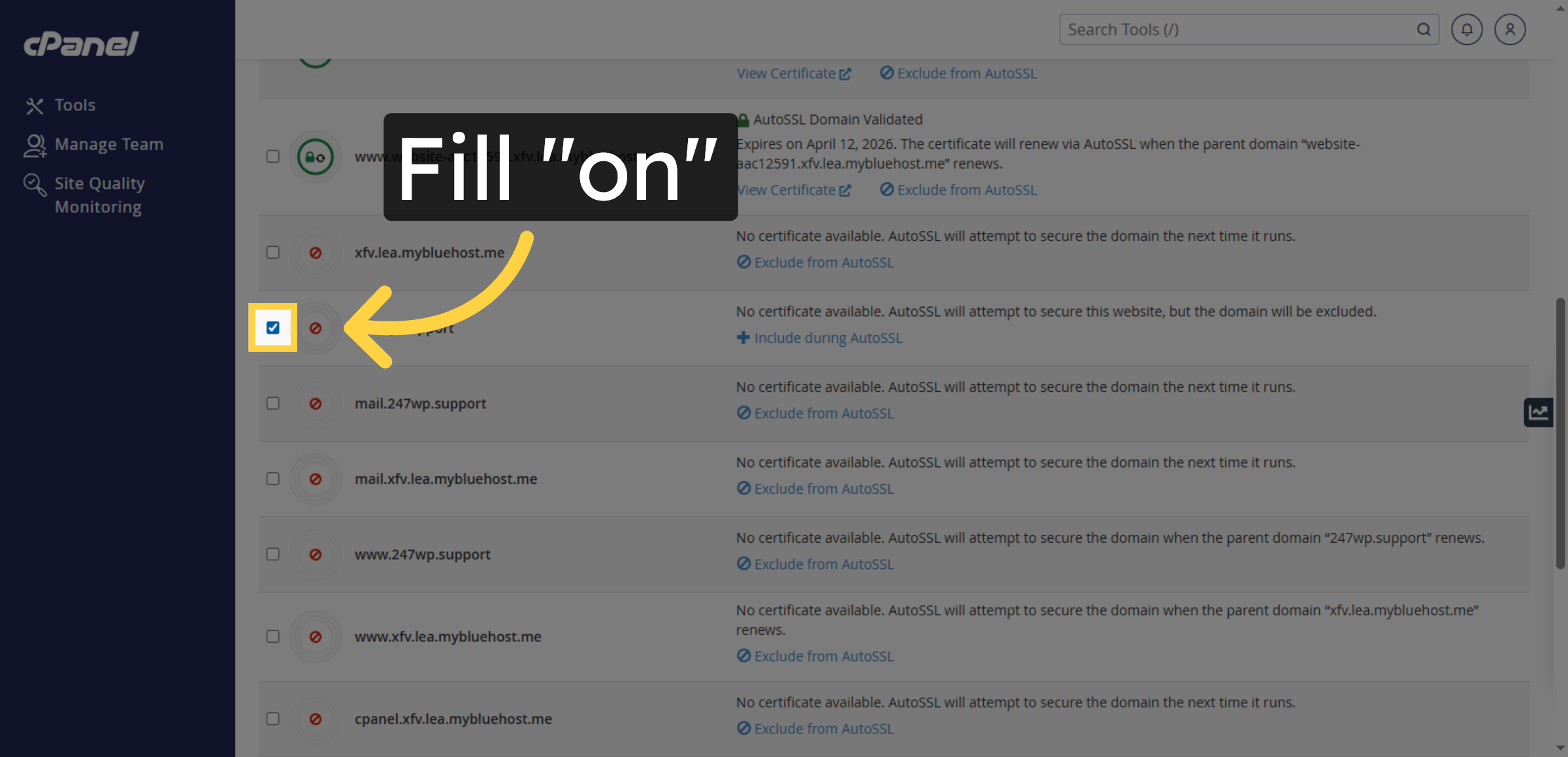
10. Run AutoSSL Process
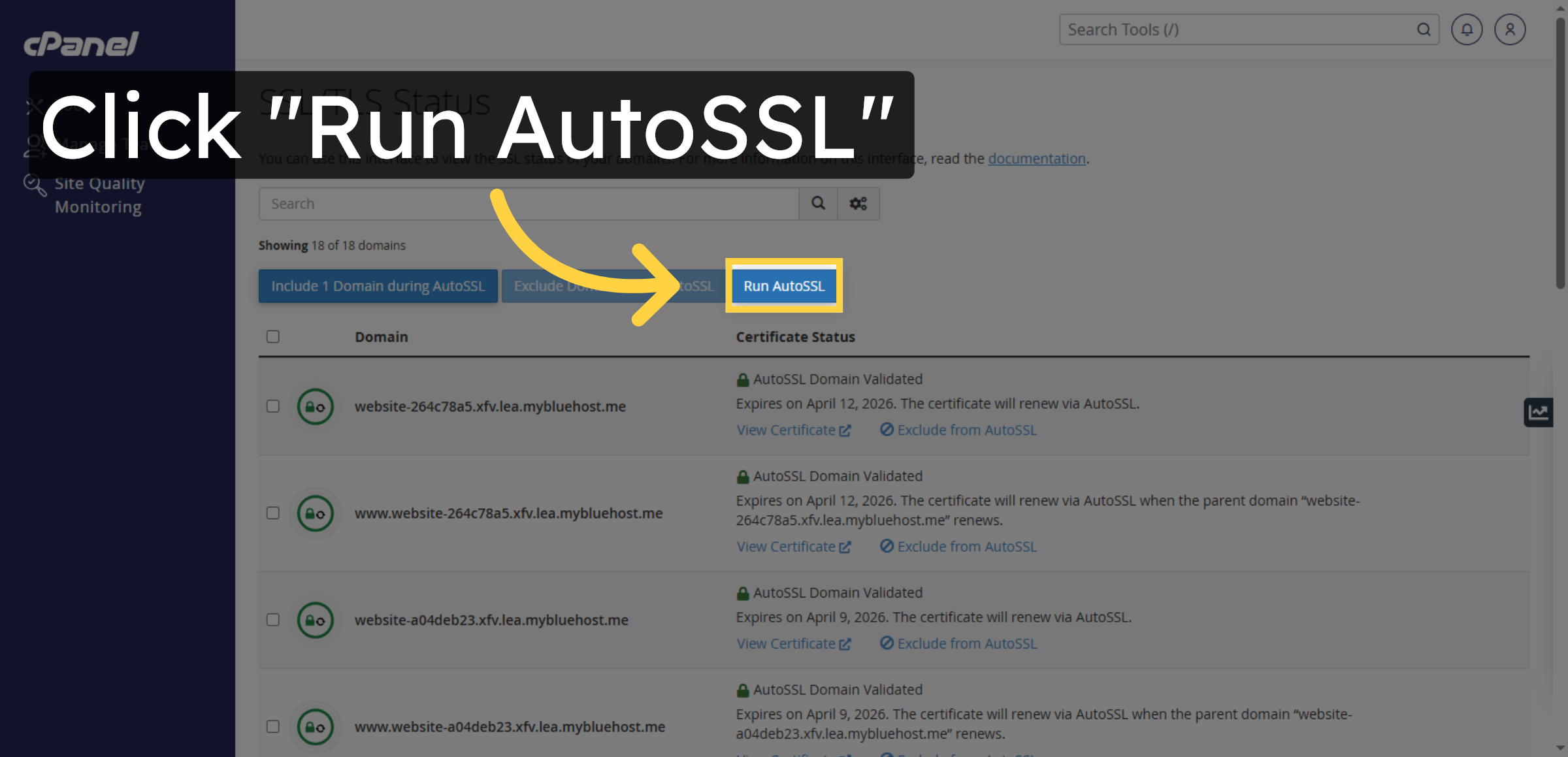


11. Switch to Site Dashboard
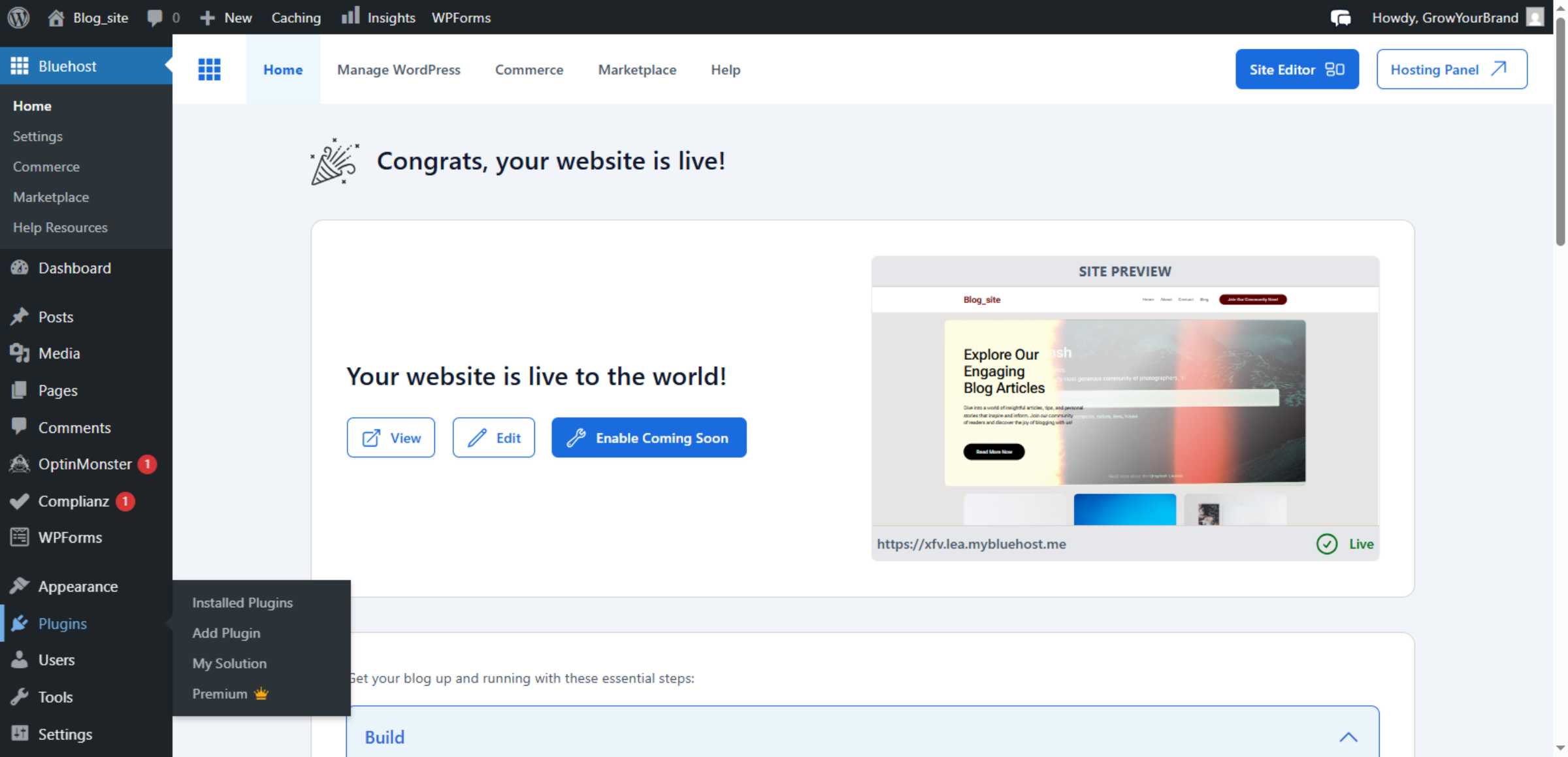
12. Visit Your Website
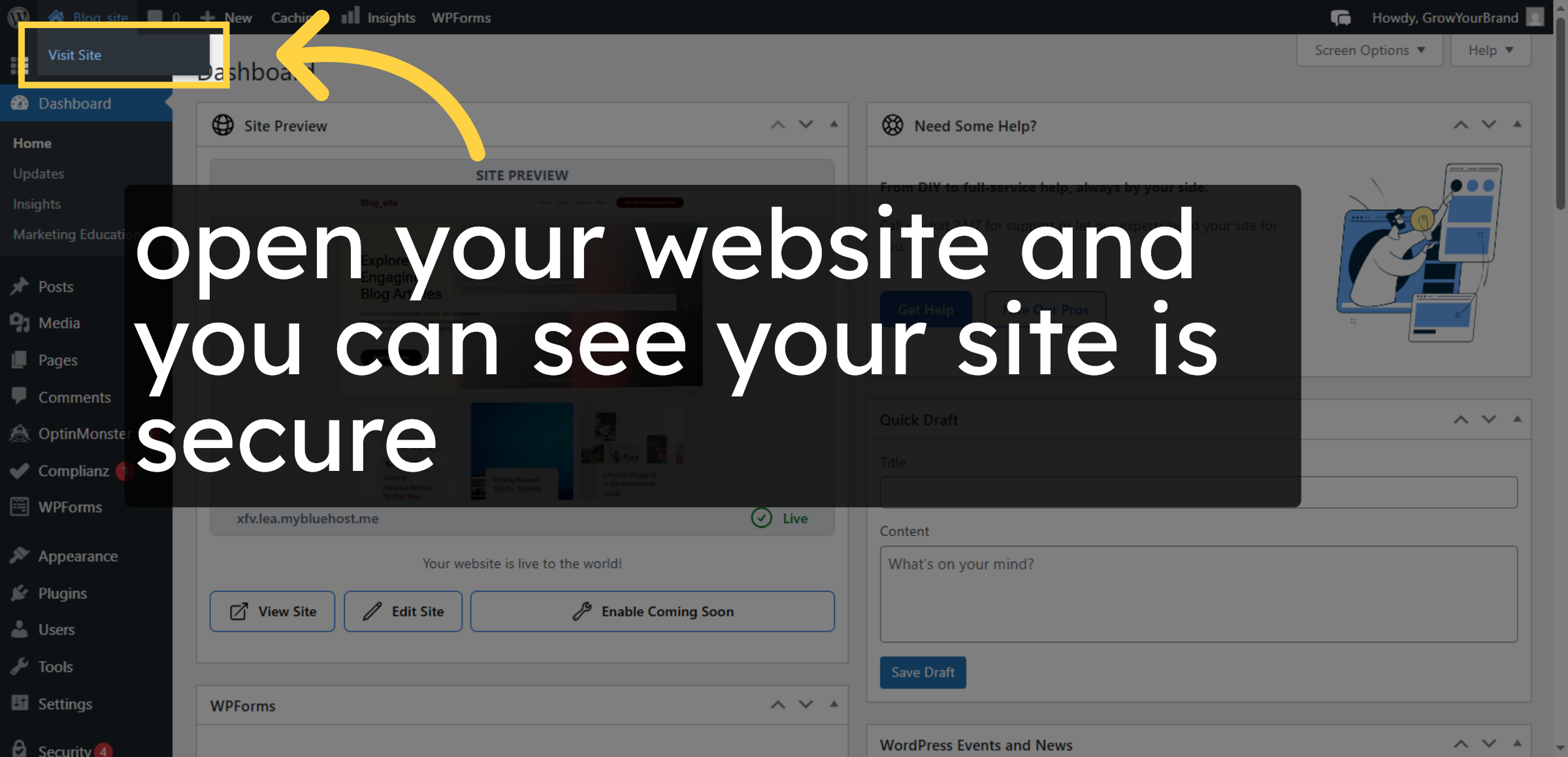
13. NOTE
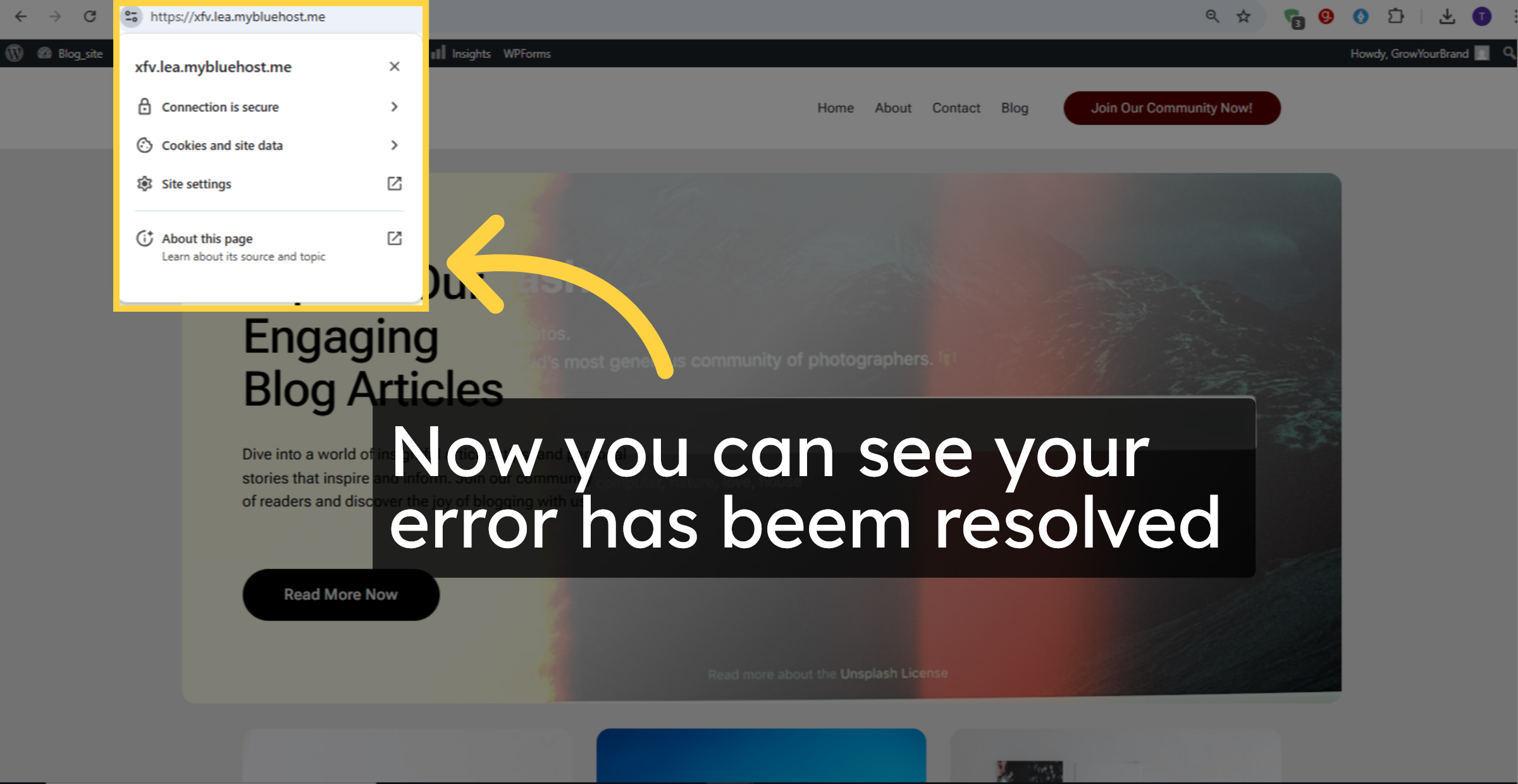
Conclusion
Activating an SSL certificate is a critical step in securing your WordPress website and protecting user information. By following the steps outlined in this guide, you have successfully enabled a free SSL certificate on your Bluehost hosting account, ensuring that your website now operates over a secure HTTPS connection. This upgrade enhances data encryption, increases visitor trust, and prevents browser security warnings.
To maintain long-term security, it is recommended to regularly monitor SSL status, renew certificates when required, and ensure that all website links use HTTPS. Periodic security audits and software updates further strengthen your website’s protection. With SSL properly configured, your website is now safer, more reliable, and compliant with modern security standards.
WooHelpDesk Support
Need professional assistance with SSL setup, website security, HTTPS configuration, or hosting management? WooHelpDesk provides expert technical support to help you protect your website and your visitors.
Visit: https://www.woohelpdesk.com
Call Us Toll-Free: +1 888 602 0119 (US & Canada)
Secure Setup | Enhanced Protection | Trusted Support
Contact WooHelpDesk today for reliable WordPress and Bluehost security solutions.



