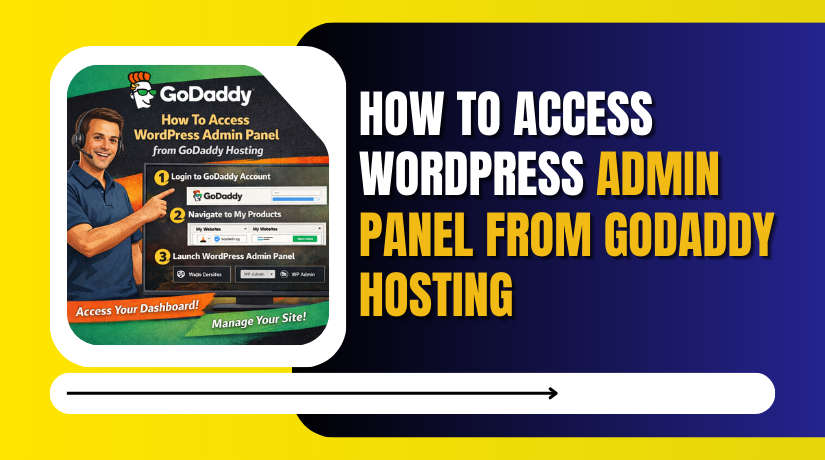
How to Access WordPress Admin Panel From GoDaddy Hosting
Introduction
Accessing the WordPress admin panel is essential for managing website content, themes, plugins, security settings, and overall site performance. GoDaddy’s managed WordPress hosting provides a centralized dashboard that allows users to log in to their WordPress sites quickly without entering separate credentials. This streamlined access improves efficiency and simplifies daily website management tasks.
This guide explains how to access the WordPress admin panel from the GoDaddy hosting dashboard. It covers navigating the GoDaddy account area, opening the Managed WordPress section, switching to the hosting dashboard, and launching the WordPress dashboard using the WP Admin option. By following this guide, users can manage their websites securely and conveniently.
1. GoDaddy Account Dashboard
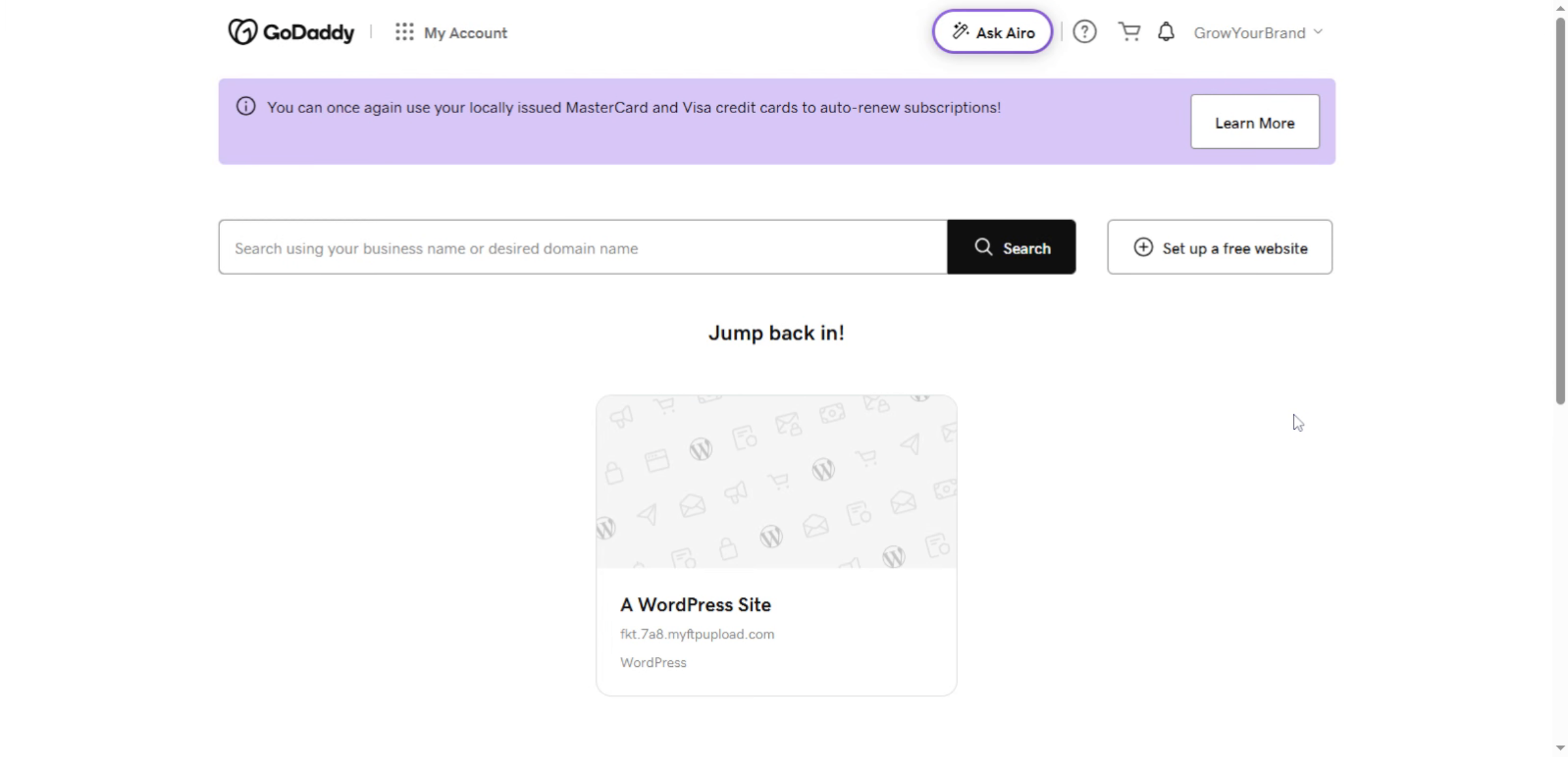
2. Access the Managed WordPress section
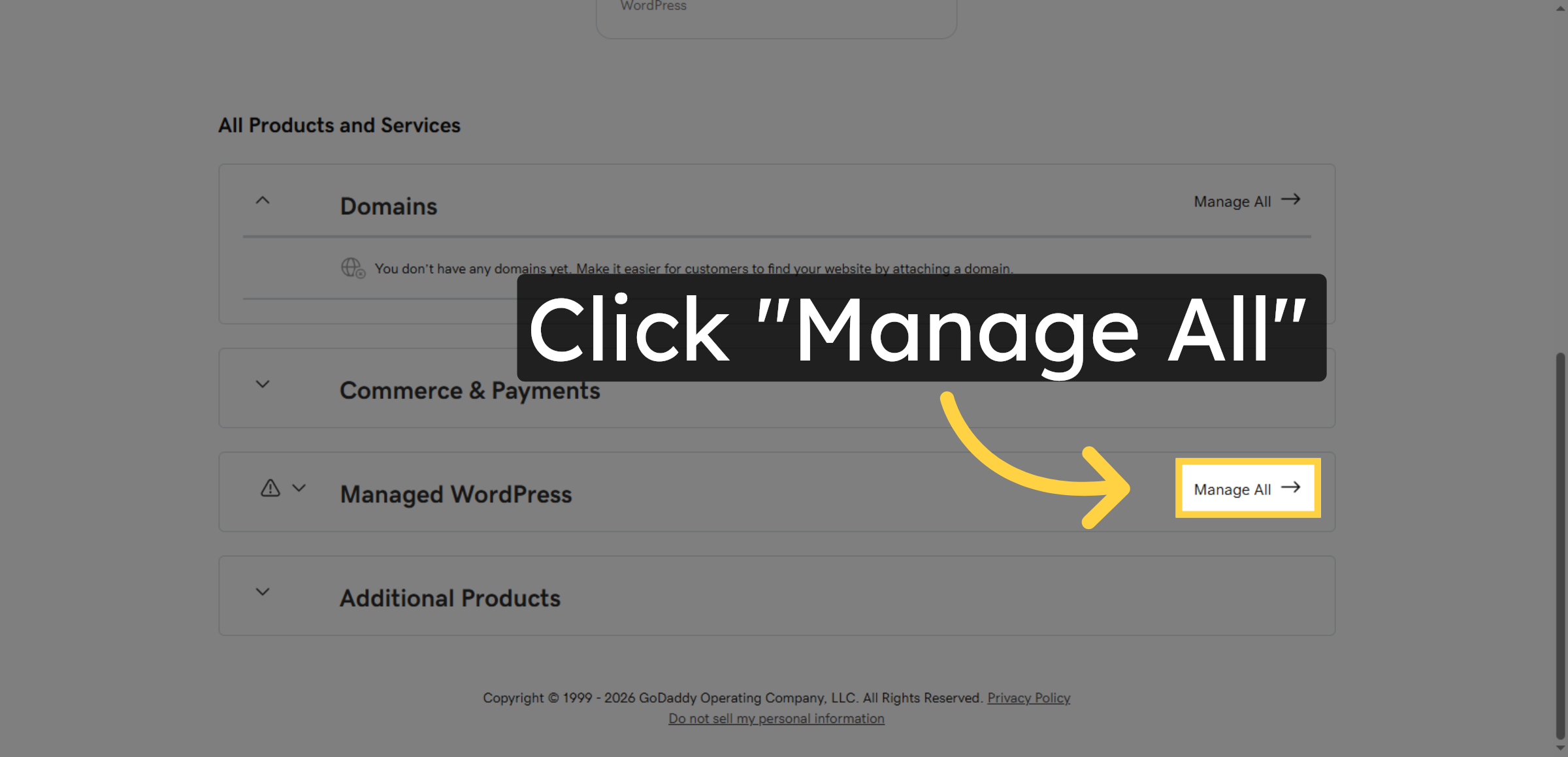
3. Switch To Hosting Dashboard
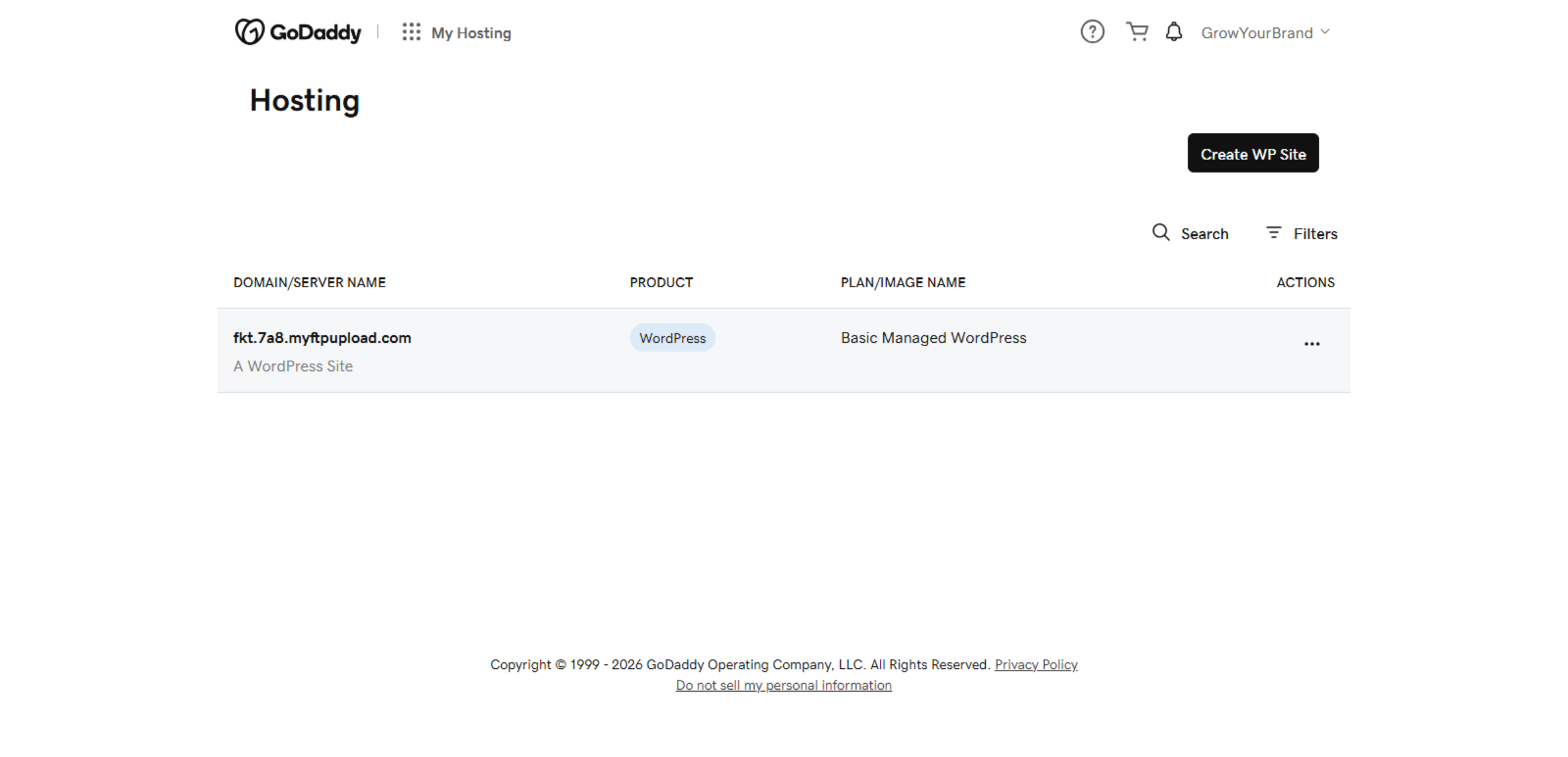
4. Access Hosting Options
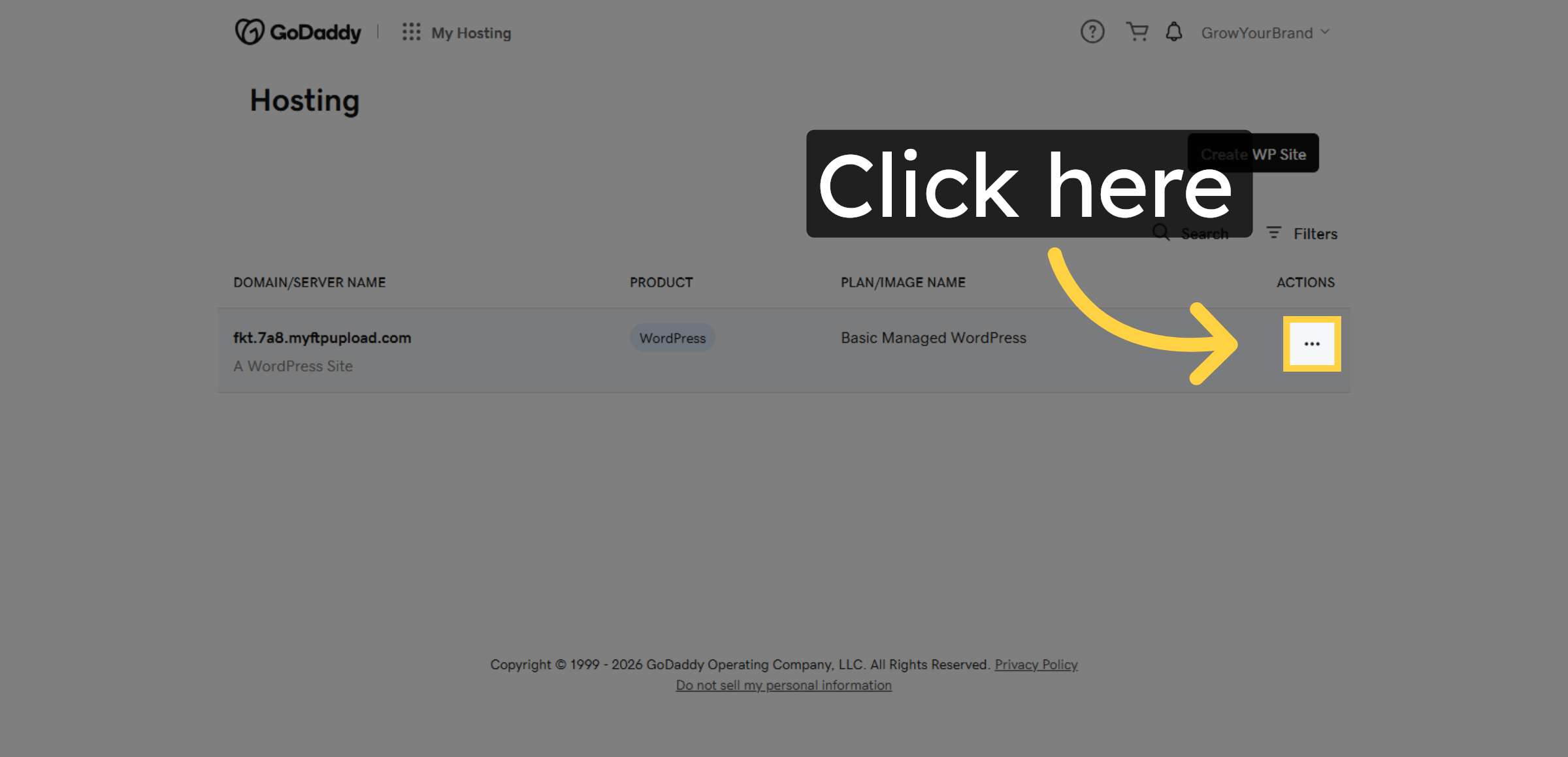
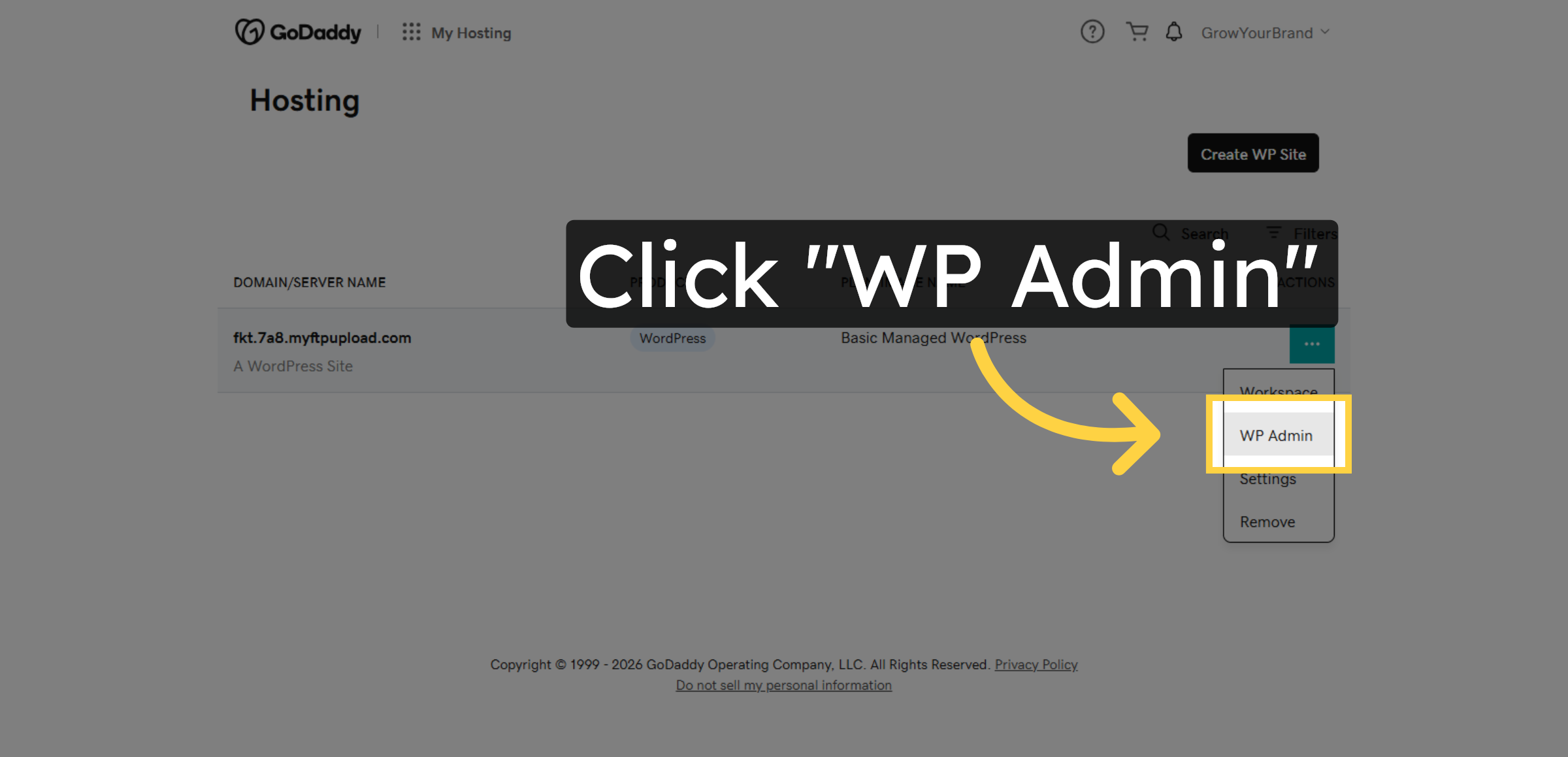
5. Click WP Admin Button
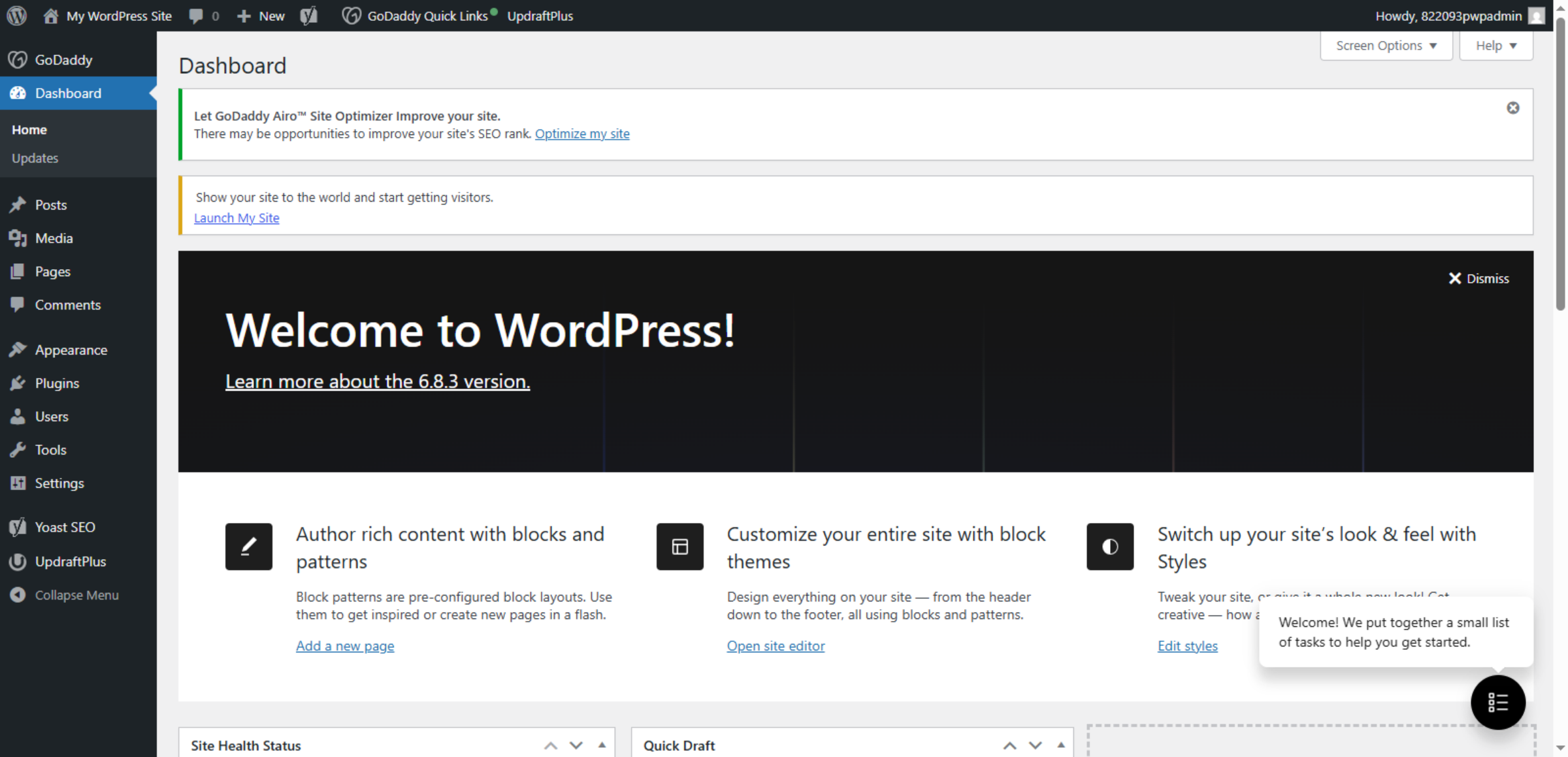
6. Switch To WordPress Dashboard
Conclusion
By following this guide, you have successfully learned how to access your WordPress admin panel directly through GoDaddy hosting. This method saves time, enhances security, and provides easy control over your website’s backend operations. You can now efficiently manage your content, plugins, and site settings from a single platform.


To maintain secure access, it is recommended to keep your account credentials protected and regularly review login activity. Proper access management helps ensure smooth and safe website operations.
WooHelpDesk Support
Need help with WordPress access, hosting setup, or website management? WooHelpDesk is ready to assist you.
Visit: https://www.woohelpdesk.com
Call Us Toll-Free: +1 888 602 0119 (US & Canada)
Easy Access | Expert Support
Contact WooHelpDesk today for professional WordPress assistance.



