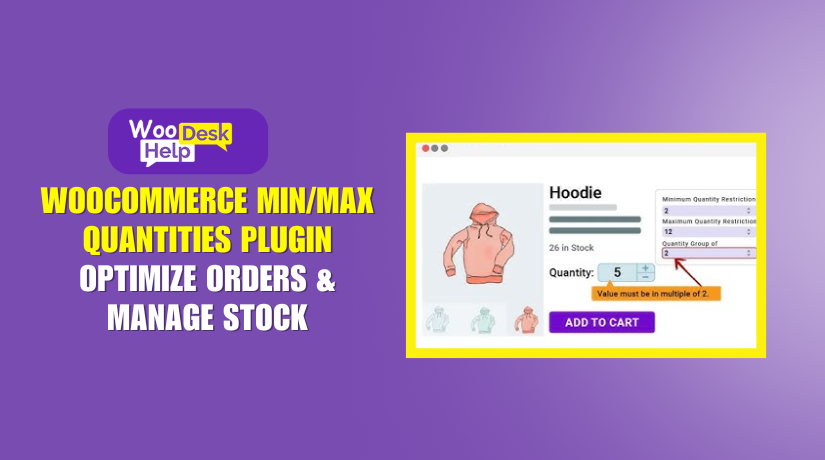
WooCommerce Min/Max Quantities Plugin: Optimize Orders & Manage Stock
Table of Contents
- Introduction
- Key Features of Min/Max Quantities for WooCommerce
- Installing & Activating the Plugin
- Setting Up Quantity Rules in WooCommerce
- Benefits of Min Max Quantities for WooCommerce
- Pricing and Support
- Conclusion
Introduction
WooCommerce store owners need control over how customers place orders. Setting minimum and maximum purchase restrictions is aided by the Min/Max Quantities for WooCommerce plugin. This ensures that customers buy within defined rules.
Many businesses face issues with small or bulk orders. Some orders may be too small to justify processing costs. Others may be too large, leading to stock shortages. This plugin solves these problems by allowing store owners to define quantity limits.
For instance, a retailer might wish to establish a $50 minimum order amount. This prevents customers from checking out with orders below that amount. Similarly, a store may limit bulk purchases to prevent stock depletion.
Using this plugin, businesses can:
- Ensure customers meet minimum purchase requirements.
- Prevent bulk buying that depletes inventory.
- Restrict orders to specific quantity multiples.
- Improve profit margins by controlling order sizes.
Setting up Min/Max Quantities is simple. Once installed, store owners can configure rules for products, categories, and orders. These rules ensure a smooth shopping experience for customers while protecting store inventory.
Key Features of Min/Max Quantities for WooCommerce
This plugin provides flexible quantity restrictions for WooCommerce stores. It offers control over product-level, category-level, and order-wide limits. The main characteristics listed below assist companies in efficiently managing orders.
Set Minimum and Maximum Quantity Per Product
Each product can have a minimum and maximum quantity determined by the store owner. This ensures customers buy within specific quantity limits. For example, a store selling gift boxes may require customers to buy at least 3 boxes.
Restrict Purchases by Category
Instead of setting rules for individual products, store owners can apply limits to product categories. A store selling wholesale electronics may require customers to buy at least 5 products from a category.
Control Order-Wide Quantity and Value Restrictions
Businesses can define minimum and maximum total quantity per order. They can also set minimum and maximum cart values. This ensures orders meet a required value before checkout.
Allow Purchases in Specific Multiples
Stores can enforce quantity multiples to streamline sales. For example, a store may sell water bottles in packs of 6. Customers will only be able to buy in multiples of 6, 12, 18, and so on.
Exempt Certain Products from Rules
Not all products need to follow the same restrictions. Store owners can exclude specific products from Min/Max rules. This is useful for gift cards or limited-edition items.
Prevent Overstocking and Stockouts
Managing inventory efficiently is key to running a store. Optimal stock levels are maintained with the use of the Min/Max plugin. It prevents customers from buying too little or too much at a time.
Installing & Activating the Plugin
The Min/Max Quantities for WooCommerce plugin helps store owners control purchase limits. Optimal stock levels are maintained with the use of the Min/Max plugin. Optimal stock levels are maintained with the use of the Min/Max plugin.
How to Install & Activate Min/Max Quantities for WooCommerce
Installing the plugin is simple and takes only a few minutes. To get started, take the actions listed below.
Step 1: Purchase and Download the Plugin
The Min/Max Quantities plugin is a premium WooCommerce extension. The official WooCommerce marketplace offers it. To buy and download the plugin, take the following actions:
- Visit the WooCommerce Marketplace at WooCommerce.com.
- Search for Min/Max Quantities for WooCommerce.
- Click Buy Now and complete the payment process.
- Once purchased, go to WooCommerce > My Account.
- Navigate to Downloads and download the plugin ZIP file.
Now, you have the plugin file ready for installation.
Step 2: Install the Plugin in WordPress
Once you have the plugin ZIP file, install it in WordPress. Follow these steps:
- Log in to your WordPress Admin Dashboard.
- Go to Plugins > Add New.
- Click Upload Plugin at the top of the page.
- Click Choose File and select the downloaded Min/Max Quantities ZIP file.
- Click Install Now and wait for the installation to complete.
- Once installed, click Activate Plugin.
The plugin is now active on your WooCommerce store.
Step 3: Access Plugin Settings
After activation, the Min/Max Quantities settings must be configured. Follow these steps to find the settings:
- Go to WooCommerce > Settings from the WordPress dashboard.
- Click the Products tab.
- Select Min/Max Quantities from the submenu.
You can define minimum and maximum purchase limitations for orders, categories, and goods in this section.
Understanding the Plugin Settings
Once inside the Min/Max Quantities settings, you will see different configuration options. Below are the key settings available:
A) Product-Level Restrictions
Set a minimum quantity per product (e.g., customers must buy at least 2).
Set a maximum quantity per product (e.g., customers cannot buy more than 10).
Require specific purchase multiples (e.g., only allow purchases in multiples of 5).
B) Category-Based Rules
Set a minimum total quantity required from a product category.
Limit how many category items can be ordered at a time.
Ensure customers meet category-wide purchase requirements before checkout.
C) Order-Level Restrictions
- Define a minimum total quantity of products required for checkout.
- Set a maximum total quantity limit per order.
- Set a minimum cart value (e.g., customers must spend at least $50).
- Restrict the maximum cart value to prevent bulk purchases.
D) Exclusion Options
- Exempt specific products from Min/Max rules.
- Exclude categories that do not need restrictions.
- Allow specific user roles to bypass restrictions.
These settings give store owners complete control over how customers place orders.
Verifying the Installation
Make sure the plugin functions properly by testing it after adjusting the settings. Follow these steps:
- Add products to the cart and check if quantity limits apply.
- Try checking out with an order below the minimum requirement.
- Attempt to add more products than the maximum limit allows.
- Ensure error messages display correctly in the cart.
- If needed, go back to WooCommerce > Settings > Min/Max Quantities to adjust rules.
Setting Up Quantity Rules in WooCommerce
The Min/Max Quantities for WooCommerce plugin allows store owners to control order sizes. You can set quantity limits per product, category, and order. This ensures that customers follow the required purchasing rules.
A thorough, step-by-step tutorial on configuring these parameters is given in this section.
1. Setting Product-Level Quantity Limits
Store owners can establish a minimum and maximum amount for each product by using product-level limits. Customers must follow these rules when adding products to their cart.
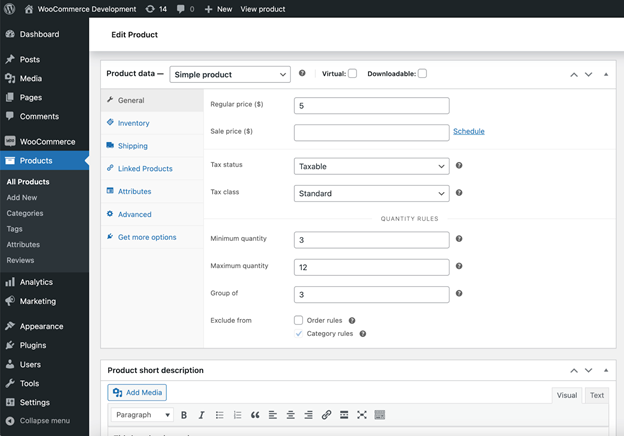
How to Set Product Min/Max Rules
- Go to WooCommerce > Products from the WordPress dashboard.
- For the product you wish to create rules for, click Edit.
- To access the Product Data section, scroll below.
- Click on the Inventory tab.
- Find the section for Min/Max Quantity Settings.
- Set the minimum quantity customers must buy.
- Set the maximum quantity customers can buy.
- If needed, set a purchase multiple (e.g., only allow purchases in sets of 3).
- Click Update to save changes.
Example Use Case
A store selling coffee mugs may require customers to buy at least 2 mugs. The store can also limit purchases to a maximum of 10 mugs per order. This ensures better inventory management and profitability.
2. Configuring Category-Based Quantity Restrictions
Instead of applying rules to individual products, you can set limits for entire categories. This means customers must follow min/max quantity rules for a specific product category.
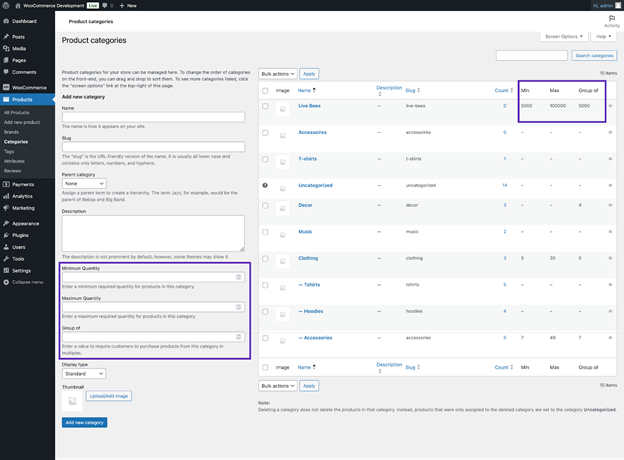
How to Set Category-Based Rules


- Go to WooCommerce > Settings in the WordPress dashboard.
- Click on the Products tab.
- Select Min/Max Quantities from the submenu.
- Click on the Categories tab.
- Select the category where you want to apply limits.
- Set a minimum quantity required for checkout.
- Set a maximum quantity allowed for checkout.
- Click Save Changes.
Example Use Case
A clothing store may sell T-shirts in bulk. The owner can set a minimum requirement of 5 T-shirts per order. Customers must buy at least 5 T-shirts from that category before checkout.
3. Setting Order-Level Quantity & Value Restrictions
Store owners can define minimum and maximum order sizes to control customer purchases. These rules apply to the entire order, not just individual products or categories.
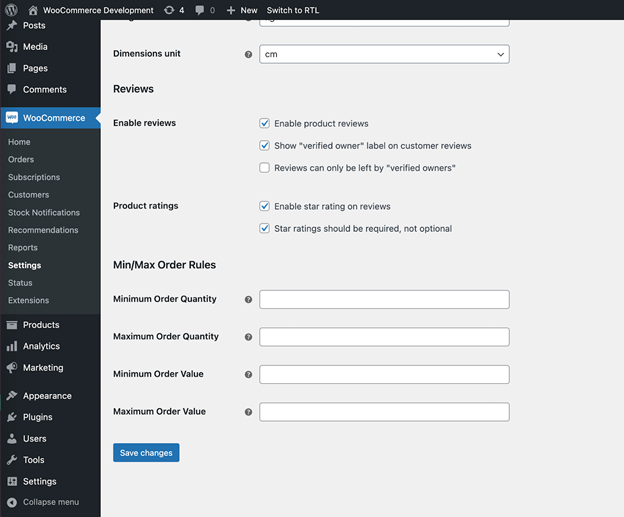
How to Set Order-Level Limits
- Go to WooCommerce > Settings in the WordPress dashboard.
- Click on the Products tab.
- Select Min/Max Quantities from the submenu.
- Click on the Orders tab.
- Set a minimum total quantity required for checkout.
- Set a maximum total quantity allowed per order.
- Define a minimum order value (e.g., customers must spend at least $50).
- Define a maximum order value (e.g., customers cannot spend more than $500).
- Click Save Changes.
Example Use Case
A wholesale supplier may require a minimum order of 20 items. At the same time, they limit bulk orders to a maximum of 200 items per order. This ensures better stock management and fair distribution.
4. Excluding Specific Products from Min/Max Rules
Some products may not need quantity restrictions. The plugin allows store owners to exclude specific products from Min/Max rules.
How to Exclude Products
- Go to WooCommerce > Products in the WordPress dashboard.
- Click on Edit for the product you want to exclude.
- Scroll down to the Product Data section.
- Click on the Inventory tab.
- Find the section for Min/Max Quantity Settings.
- Check the option Exclude this product from Min/Max rules.
- Click Update to save changes.
Example Use Case
A store selling gift cards may want to exclude them from order limits. Customers should be able to buy any quantity of gift cards without restrictions.
5. Testing Min/Max Quantity Rules
It’s crucial to test the rules after setting them up to make sure they function properly.
How to Test Your Min/Max Settings
- Add a product to the cart and check if the min/max quantity rules apply.
- Try checking out with an order below the minimum requirement.
- Attempt to add more products than the maximum limit allows.
- Ensure the error messages display correctly in the cart.
- If needed, go back to WooCommerce > Settings > Min/Max Quantities to adjust rules.
Example Test Scenario
- A customer adds one T-shirt to the cart.
- The store has set a minimum order of five T-shirts.
- The customer gets an error message saying they need to add four more.
- The checkout button is disabled until they meet the minimum requirement.
Benefits of Min Max Quantities for WooCommerce
The Min/Max Quantities for WooCommerce plugin helps businesses manage customer purchases effectively. It ensures customers follow minimum and maximum quantity rules before checkout. This improves inventory control, profit margins, and customer experience.
This section explains the key benefits of using this plugin and common use cases for different businesses.
1. Why Use Min/Max Quantities in WooCommerce?
Setting purchase limits is essential for many WooCommerce stores. This plugin provides several advantages for store owners.
Prevent Small, Unprofitable Orders
Many businesses have minimum order value requirements to cover costs. Low-value orders may not be profitable due to processing, packaging, and shipping expenses. Setting a minimum order amount ensures each sale is worthwhile.
Encourage Bulk Purchases
Businesses selling in bulk can require customers to buy larger quantities. Revenue is increased as a result, as is the average order value (AOV). For example, a wholesale store may set a minimum of 10 units per order.
Manage Inventory More Effectively
Stock management is crucial for online stores. The plugin prevents over-purchasing or under-purchasing of products. Store owners can set limits to avoid stock shortages or excess inventory.
Restrict Wholesale Orders
Some companies sell to both wholesale and retail clients.The plugin allows restrictions on maximum order size to prevent wholesale buyers from depleting stock.
Improve Customer Buying Experience
Clear purchase rules help customers understand how many items they need to buy. They are informed about the minimum and maximum amount limitations by cart messaging. This prevents confusion and makes checkout smoother.
2. Exempting Specific Products from Min/Max Rules
Not all products require quantity restrictions. The plugin allows excluding certain products from Min/Max rules.
When to Exclude a Product?
Some items do not need purchase limitations. These may include:
- Gift Cards – Customers should buy any amount without restrictions.
- Limited Edition Products – Store owners may want maximum purchase limits only.
- Custom Orders – Some stores sell personalized products with unique pricing.
How Exclusions Benefit Store Owners
By exempting certain products, businesses can keep flexibility in their order process. Customers can buy essential products freely while other items follow strict quantity rules.
Pricing and Support
The Min/Max Quantities for WooCommerce plugin is a premium extension. It helps store owners set purchase limits to manage orders effectively. This section covers the pricing, support, and final recommendations for the plugin.
1. Pricing & Support
This plugin is a paid WooCommerce extension. It comes with regular updates and official support.
Pricing Details
- Single Site License – Costs $49 per year.
- Includes Plugin Updates – Ensures compatibility with new WooCommerce versions.
- 30-Day Money-Back Guarantee – If the plugin doesn’t live up to your expectations, you can get a refund.
Support & Documentation
- Official WooCommerce Support – Get help from experienced WooCommerce support engineers.
- Comprehensive Documentation – Step-by-step guide available for installation and setup.
- Community Discussions – Find answers from other WooCommerce users in forums.
For support, store owners can submit a ticket through the WooCommerce help desk.
Conclusion
The Min/Max Quantities for WooCommerce plugin is essential for managing order sizes. It allows store owners to set purchase limits, restrict bulk buying, and improve order profitability.
This plugin helps businesses prevent small, unprofitable orders and ensure stock availability. It also provides flexibility with category-wide limits and product exclusions.
By using this plugin, WooCommerce store owners can increase revenue, maintain better inventory control, and improve customer experience.
It is a worthwhile investment for anyone wishing to optimize their WooCommerce store.



