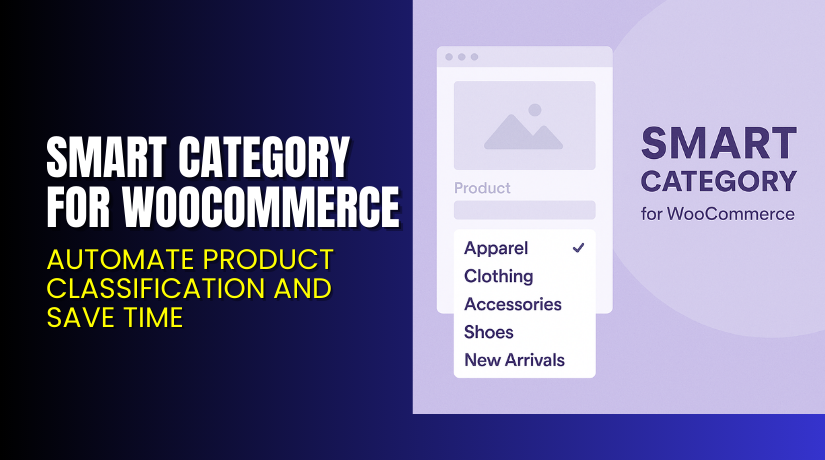
Smart Category for WooCommerce – Automate Product Classification and Save Time
Table of Contents
- Introduction
- What is Smart Category for WooCommerce?
- Key Features of Smart Category for WooCommerce
- How to Install and Configure Smart Category
- Pricing & Plans
- My Experience with Smart Category for WooCommerce
- Who Should Use This Plugin?
- Final Verdict
- FAQ
Introduction
Adding new products to your WooCommerce store can be time-consuming. Especially if you have hundreds of product categories, assigning the right one becomes frustrating.
Scrolling through endless category lists wastes time. Even worse, inconsistent categorization can lead to poor navigation and a bad user experience.
Smart Category for WooCommerce fixes this issue. It uses the product title to auto-suggest the most relevant categories. This helps store owners, product managers, and admins save time and maintain a clean category structure.
In this article, we’ll cover what the plugin does, how it works, its benefits, pricing, setup steps, and how to get help if needed.
Need help installing or configuring it? Try our Smart Category Installation & Troubleshooting Service.
What is Smart Category for WooCommerce?
Smart Category for WooCommerce is a product categorization assistant plugin by WPSlash. It helps WooCommerce store owners categorize products faster and more accurately.
As you create or edit a product, the plugin analyzes the product title. Based on its logic, it suggests the top five most relevant categories in the sidebar.
You no longer need to scroll through long category trees. With one click, you can assign the best-matching category instantly.
It doesn’t stop at categories. The plugin also works with:
- Brands (via WooCommerce Brands or custom taxonomies)
- Any other custom taxonomy your store uses
The plugin is lightweight, simple, and focused on improving productivity during product creation or bulk editing.
Key Plugin Facts:
- Developer: WPSlash
- Version: 1.2.0
- WordPress Requirement: 4.6 or higher
- WooCommerce Version: 4.0.0 or higher (tested up to 10.0.4)
- Language: English
- Supported Worldwide
- Documentation: Official Setup Guide for Smart Category
- Support Services: Installation & Troubleshooting Service
Key Features of Smart Category for WooCommerce
| Feature | Description | Why It Matters |
| Category Suggestions | Suggests top 5 categories based on product title | Saves time during product creation |
| Brand Suggestions | Suggests matching brands if brand taxonomy exists | Ensures consistent branding |
| Custom Taxonomy Support | Works with any additional taxonomy | Great for multilingual or niche stores |
| Sidebar Integration | Suggestions appear above category list | Easy to access and quick to use |
| Lightweight Plugin | Minimal code and fast processing | Doesn’t affect store performance |
How to Install and Configure Smart Category
The setup process is simple. Follow these steps to install and activate the plugin:
- Purchase the plugin from the official page.
- Download the ZIP file after purchase.
- Login to your WordPress Dashboard.
- Go to Plugins → Add New → Upload Plugin.
- Upload the ZIP file and click Install Now.
- Activate the plugin once installed.
- Go to Products → Add New or edit an existing product.
- Check the sidebar for auto-suggested categories and brands.
You don’t need to configure anything. The plugin starts working automatically by analyzing the product title.
Need installation support? Use our Installation & Troubleshooting Service.
Pricing & Plans
The pricing is simple and affordable.
| Plan | Price (USD) | Includes |
| 1-Year License | $29/year | Plugin updates, support, refund guarantee |
| 2-Year License | $46.40 (Save 20%) | Two years of updates and support |
Additional Benefits:
- $2.42/month when billed annually
- Includes full plugin access
- Secure checkout
- 30-day money-back guarantee
- Dedicated customer support
You only pay once per year. There are no hidden costs or upsells.
Buy Smart Category Plugin Now
Ready to make product entry faster and smarter?
✅ Get the plugin here → Buy Smart Category for WooCommerce
Your purchase helps improve your workflow and supports the development of more productivity tools.
My Experience with Smart Category for WooCommerce
We tested this plugin on a store with over 200 categories and multiple brands.
Pros


- Suggestions were 90% accurate based on product titles
- Saved several minutes per product upload
- Brand matching worked well with WooCommerce Brands
- Seamless sidebar integration
- Worked without conflicts with other plugins
Cons
- Doesn’t suggest sub-categories (only top-level by default)
- Title-based suggestions may need tweaking for abstract product names
- Only works during manual product creation, not imports
Overall, it’s a valuable tool for WooCommerce managers who handle frequent product uploads.
Who Should Use This Plugin?
This plugin is useful for:
- WooCommerce stores with large product catalogs
- Admins who frequently add or edit products
- Agencies managing client stores
- Stores with many brands or product taxonomies
- Sellers using custom category systems
- Beginners who want to avoid categorization mistakes
Whether you’re a solo entrepreneur or part of a large eCommerce team, Smart Category speeds up your work.
Useful Resources
Here are the most helpful resources related to this plugin:
These will help you get started, troubleshoot issues, and explore advanced usage tips.
Final Verdict
If you’re spending too much time assigning product categories, it’s time to simplify. Smart Category for WooCommerce is the tool you need.
It automatically recommends the most relevant categories, brands, and custom taxonomies. With just a click, you can organize products faster and more consistently.
The plugin is fast, lightweight, and integrates smoothly into your WordPress admin area. No complex setup required.
Buy once and save hours in the long run.
Ready to upgrade your product management?
Get Smart Category Plugin Today
Need help setting it up? Use our Smart Category Plugin Installation Service.
FAQ
Q1. How does Smart Category determine the suggested category?
It uses the product title to match keywords with existing categories.
Q2. Does it work with WooCommerce Brands plugin?
Yes, it can suggest the most relevant brand if the taxonomy is active.
Q3. Can it suggest multiple taxonomy types at once?
Yes, it supports brands, categories, and custom taxonomies together.
Q4. Does it slow down my admin panel?
No. It’s lightweight and only processes suggestions when adding or editing products.
Q5. Can I turn off suggestions if needed?
Currently, the plugin runs automatically and does not require configuration.



