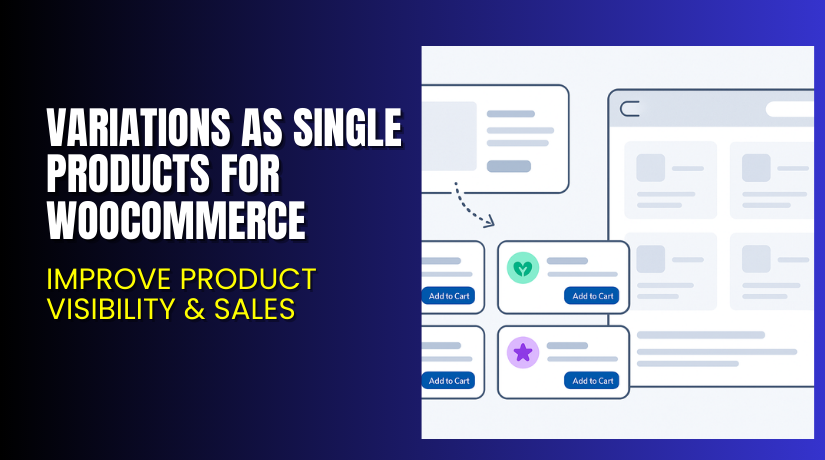
Variations as Single Products for WooCommerce – Improve Product Visibility & Sales
Table of Contents
- Introduction
- What is Variations as Single Products for WooCommerce?
- Key Features of Variations as Single Products Plugin
- How to Install and Configure the Plugin?
- Pricing & Plans
- My Experience with the Plugin
- Who Should Use This Plugin?
- Final Verdict
- FAQ
Introduction
WooCommerce stores that sell products with multiple variations often face a common issue. Product variations are only visible on the main product page. Customers must first open a product, then select their size, color, or format before purchasing.
This extra step creates friction. It also reduces the visibility of individual variations in search results, shop, and category pages.
The Variations as Single Products for WooCommerce plugin solves this problem. It displays each variation as a separate product in listings, making it easier for customers to find and purchase the right item quickly.
In this detailed guide, we’ll explain how this plugin works, key features, installation steps, pricing, pros and cons, and who should use it.
If you need help setting it up, try our Installation & Troubleshooting Services.
What is Variations as Single Products for WooCommerce?
Variations as Single Products for WooCommerce is a plugin developed by Procomltd. It allows you to display each product variation as a standalone product on:
- Shop pages
- Category pages
- Search results
This can significantly boost product visibility and improve conversion rates. Instead of hiding options in dropdowns, customers see every variation up front — each with its own title and link.
You can also choose to hide the parent (main) product from listings if needed.
The plugin is lightweight, easy to set up, and gives full control over which variations appear individually.
- Plugin Page: Buy from WooCommerce
- Official Documentation: Setup Instructions
- Support Page: Contact WooCommerce Support
Key Features of Variations as Single Products Plugin
| Feature | Description | Why It Matters |
| Show Variations as Products | Each variation appears as a standalone product | Improves search visibility |
| Hide Parent Product | Option to hide the main product | Avoids duplicate listings |
| Custom Variation Titles | Add custom names to each variation | Better product descriptions |
| Global or Product-Level Settings | Apply settings globally or per product | Offers full control |
| Sync Button | Sync existing variations with one click | Easy onboarding |
| Compatible with Search | Variations appear in WooCommerce search results | Better for SEO and UX |
Each variation acts like its own product. You can customize the title, display, and visibility independently.
How to Install and Configure the Plugin?
Installing the plugin is simple. Follow these steps:
- Visit the plugin page on WooCommerce.
- Click Buy Now and complete the checkout.
- Download the plugin ZIP file.
- Go to WordPress Dashboard → Plugins → Add New → Upload Plugin.
- Upload the file and click Install Now, then Activate.
- Navigate to WooCommerce → Settings → Variations as Products.
- Enable “Show variations as single products.”
- Choose whether to hide the parent product from listings.
- Click the “Process Variations” button to sync all existing variations.
To customize individual products:
- Go to Products → Edit Product → Variation tab
- Enter a custom name in the “Variation product name” field
- You can also exclude specific variations or hide the parent product at the product level
This allows precise control over what appears on the front end.
Pricing & Plans
| Plan | Price | Includes |
| 1-Year License | $49/year | Plugin updates, support, 30-day money-back guarantee |
The plugin is priced at $49/year, billed annually. This equals $4.09/month, making it affordable for most WooCommerce stores.
- There is no free version available
- Purchase includes updates and premium support
- Backed by WooCommerce’s 30-day refund policy
Buy it here → Get Variations as Single Products
My Experience with the Plugin
We tested this plugin on a fashion store with T-shirts in different colors and sizes. Previously, each variation could only be accessed via a dropdown. Many users never noticed all the options.
After installing this plugin:
Pros


- Each color and size appeared in shop pages
- Customers could add variations to cart faster
- Increased visibility led to more conversions
- Setup was quick with sync button
- Custom titles helped with SEO
Cons
- Some users reported theme or plugin conflicts
- Plugin support received mixed reviews
- Limited to shop, category, and search pages
- Does not automatically rename all variations
Despite some limitations, the benefits were clear — better UX, better visibility, and easier navigation.
Who Should Use This Plugin?
This plugin is ideal for:
- WooCommerce stores selling fashion, shoes, or color-based products
- Businesses where each variation is a strong seller
- Admins looking to increase visibility of all variations
- SEO-focused stores needing more indexed product pages
- Stores with large inventories of variable products
Useful Resources
Here are official resources for learning and support:
- Plugin Page on WooCommerce
- Full Plugin Documentation
- WooCommerce Contact Support
- WooHelpDesk Installation & Troubleshooting
Final Verdict
The Variations as Single Products for WooCommerce plugin is a smart tool to boost product visibility. Instead of hiding variations behind dropdowns, each becomes searchable and clickable.
This improves:
- Product discovery
- Mobile shopping experiences
- SEO and indexing
- Conversion rates
Although the plugin has room for improvement, its core functionality is reliable. For just $49/year, it offers great value for stores with many variable products.
Ready to improve product visibility?
Need setup help? Use our WooHelpDesk Services
FAQ
Q1. Can I add custom names to each variation?
Yes. Go to Edit Product → Variation tab and enter a custom name.
Q2. Can I hide the parent product from the shop page?
Yes. You can hide it globally or per product from the plugin settings.
Q3. What if variations don’t show up after activation?
Click the “Process Variations” button in WooCommerce → Settings → Variations as Products to sync.
Q4. Does it work with all WooCommerce themes?
It works with most standard WooCommerce themes, but always test before going live.



