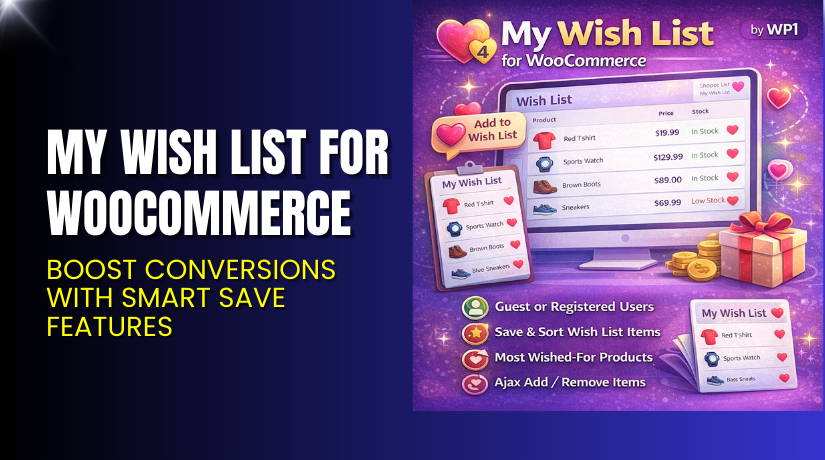
My Wish List for WooCommerce – Boost Conversions with Smart Save Features
Table of Contents
- Introduction
- What is My Wish List for WooCommerce?
- Key Features of My Wish List for WooCommerce
- How to Install and Configure the Plugin?
- Pricing & Plans
- My Experience Using the Plugin
- Who Should Use This Plugin?
- Final Verdict
- FAQ
Introduction
Many customers visit your store, browse products, add to the cart — and leave. Not everyone is ready to buy right away. Sometimes they’re comparing options. Sometimes they’re simply not ready.
That’s where a wish list comes in.
My Wish List for WooCommerce, developed by WP1, is a simple yet powerful plugin that lets users save their favorite products for future purchases. It encourages return visits, lowers abandonment, and improves customer engagement.
In this article, you’ll learn what the plugin does, how to use it, pricing details, and how to get expert support if you need help setting it up.
If you prefer done-for-you help, try our Installation & Troubleshooting Service.
What is My Wish List for WooCommerce?
My Wish List for WooCommerce allows customers to save products to a personalized wish list. Users can come back later to complete their purchase.
It works for both logged-in users and guests. For registered users, the wish list is shown in the “My Account” section. Guests can enter their email and see their saved items without an account.
The plugin uses a shortcode to display saved products on any page. It also gives store admins useful insights through a dashboard widget that shows which items are most frequently saved.
Developer: WP1
Plugin Page: My Wish List for WooCommerce
Documentation: Official Setup Guide
Support Contact: WooCommerce Help
Key Features of My Wish List for WooCommerce
| Feature | Description | Why It Matters |
| Add to Wish List | Shoppers can add any product to their wish list with one click. | Keeps users engaged and encourages return visits. |
| Guest Support | Works for non-logged-in users by entering an email. | Expands usability to all visitors. |
| Ajax-Based Add/Remove | Users can manage their wish list without reloading the page. | Faster experience = better engagement. |
| Shortcode Display | Use [my_wish_list columns=4] on any page to show wish list items. | Total control over where and how it’s displayed. |
| “My Account” Integration | Wish list tab automatically added to user dashboard. | Seamless user experience for logged-in customers. |
| Admin Dashboard Widget | Shows most-added and least-added products. | Gives you insights into buyer interest and trends. |
| Product Listing Column | Admins can see wish list counts next to products. | Helps in planning sales and featured items. |
| Fully Responsive | Works perfectly on mobile, tablet, and desktop. | Ensures smooth user experience across all devices. |
| Simple Setup | Just install and activate. Uses shortcodes and built-in tabs. | Easy to use for beginners and pros alike. |
How to Install and Configure the Plugin?
Installation is simple and quick:
- Purchase and download the plugin from the official site.
- Log in to your WordPress dashboard.
- Navigate to Plugins → Add New → Upload Plugin.
- Upload the plugin ZIP file and click Install Now.
- Activate the plugin.
- Use the shortcode [my_wish_list columns=4] to show wish list items on any page.
- Registered users will automatically see the “My Wish List” tab under their account.
Pro tip: Use the admin widget to track which products are getting the most wish list adds. That can inform your future offers and marketing.
Need help with setup? Our WooHelpDesk Plugin Service can install and configure it for you.
Pricing & Plans
The plugin is priced affordably and includes updates, support, and a refund guarantee.
Pricing (As of Latest Update)
| Plan | Price (USD) | Billed | Includes |
| 1-Year Plan | $29 | Annually | Product updates, customer support, 30-day money-back |
| Monthly Equivalent | $2.42/month | Billed annually | Full access to all plugin features |
Version: 1.6.1
Active Installations: 200+
Refund Policy: 30-day money-back guarantee
Buy with confidence from the official developers. Get My Wish List for WooCommerce
Buy My Wish List Plugin Now
This plugin is a great investment for any WooCommerce store. It’s lightweight, simple to use, and makes a big impact on engagement.
Want to get started?
Visit the official page to purchase: Buy My Wish List for WooCommerce


Need help installing or testing it on your store? Use our expert Installation & Troubleshooting Services.
My Experience Using the Plugin
We tested this plugin on a demo WooCommerce store with 40+ products. Here’s what stood out:
Pros:
- Very easy to install and use
- Works for both guests and logged-in users
- Helps understand which products are most in demand
- Integrated perfectly with “My Account” area
- Shortcode flexibility is helpful for page builders
Cons:
- No built-in analytics (beyond admin widget)
- Can’t categorize wish lists (single list only)
- Email field for guests may reduce usage slightly
Despite small limitations, it’s an excellent lightweight solution for adding powerful save-for-later functionality.
Who Should Use This Plugin?
This plugin is perfect for:
- Stores selling higher-priced or “considered purchase” items
- Fashion, electronics, and gift shops
- Bookstores, toy shops, and specialty stores
- Store owners who want to boost return visits
- Marketers who want product interest insights
If you want users to come back, finish what they started, or save items to share later — this plugin helps make that happen.
Useful Resources
- My Wish List for WooCommerce Plugin
- Official Documentation
- Developer Contact Page
- WooHelpDesk Setup Services
Final Verdict
If you want a simple way to let users save their favorite products for later, My Wish List for WooCommerce is the right tool. It encourages customer return, lowers abandonment, and helps you understand demand.
For just $29 per year, it provides must-have functionality with no learning curve.
It’s ideal for store owners who value user-friendly experiences and increased engagement.
Get Started Now → Buy the Plugin Or get setup help from WooHelpDesk
FAQ
Q1. Can guests use the wish list?
Yes. They can enter their email to save items without an account.
Q2. Can I show wish list items on any page?
Yes. Use the shortcode [my_wish_list columns=4] anywhere.
Q3. Where do logged-in users see their list?
In the “My Account” page, under the “My Wish List” tab.
Q4. Can I see which products are most saved?
Yes. Use the built-in admin dashboard widget to view most/least saved items.
Q5. Can I install it myself easily?
Yes. But if you prefer help, use our installation service.



