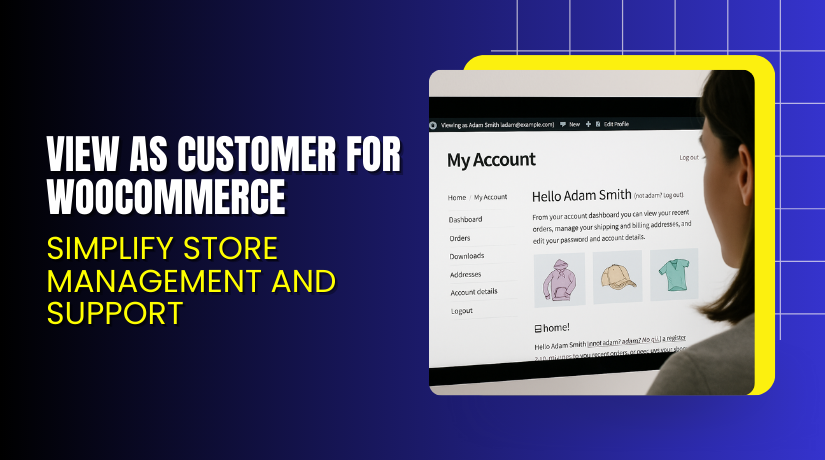
View as Customer for WooCommerce – Simplify Store Management and Support
Table of Contents
- Introduction
- What is View as Customer for WooCommerce?
- Key Features of View as Customer
- How to Install and Configure View as Customer?
- Pricing & Plans
- My Experience with View as Customer Plugin
- Who Should Use This Plugin?
- Final Verdict
- FAQ
Introduction
Running a WooCommerce store means not only managing products but also supporting customers. Many store owners and support agents face a common challenge — not knowing exactly what the customer is seeing on the frontend. This creates confusion and delays in resolving issues.
When customers report login problems, missing orders, or errors in their account area, admins struggle to replicate the issue without logging in as the customer. Logging in manually is time-consuming, insecure, and not scalable.
That’s where View as Customer for WooCommerce comes in. This plugin offers a clean and efficient way for store admins to switch their view to a customer account without asking for login credentials.
In this article, you’ll learn what this plugin does, its features, how to set it up, pricing options, and who should use it. If you ever need help with plugin setup or troubleshooting, check out our Installation & Troubleshooting Services.
What is View as Customer for WooCommerce?
View as Customer for WooCommerce is a simple yet powerful plugin developed by Zorem. It allows store administrators to view the store and customer account area exactly as a specific customer would.
This is useful for store managers, support agents, and developers who need to:
- Troubleshoot customer account issues
- Understand what customers see on the frontend
- Take actions on behalf of a customer
The plugin does not require configuration. Once installed, it adds a new option in the WordPress admin bar. You can search for any customer by name or email and switch to their view in one click.
There’s no need to reset passwords, create dummy users, or ask customers for credentials. You simply “view as” them securely and log out when done.
- Official Plugin Page: View as Customer for WooCommerce
- Documentation: Plugin Documentation
- Support: Official Support Page
- Contact Developer: Contact Zorem
Key Features of View as Customer
| Feature | Description | Why It Matters |
| Admin Bar Integration | Adds a menu in the top WordPress admin bar | Quick access from any page without page reloads |
| Customer Search | Search customers by name or email | Easily find the right user without manual lookup |
| View Account Area | Access the customer’s My Account page | See what the customer sees in real time |
| View Store Frontend | Navigate the store as the customer | Check cart, checkout, and product visibility |
| No Settings Needed | Installs without configuration | Saves time and avoids complexity |
| Secure Session Handling | Automatically logs out the admin when switching | Ensures privacy and avoids misuse |
| Role-Based Access Control | Use WordPress capabilities to restrict access | Only allow specific users to switch accounts |
| Lightweight Plugin | No impact on performance | Optimized for speed and compatibility |
| One-Click Logout | Instantly return to admin session | Makes support workflows fast and simple |
How to Install and Configure View as Customer?
Setting up the plugin is simple. No configuration is required post-installation.
Steps to install:
- Download the plugin from the official plugin page.
- Go to your WordPress dashboard → Plugins → Add New.
- Upload the ZIP file and click Install Now.
- Click Activate after installation.
- You will now see a “View As Customer” option in the admin bar.
- Search for a customer using their name or email.
- Select the customer to instantly switch to their account view.
- Use the store as they would — access cart, account, orders.
- When done, log out of the customer account to return as admin.
If you face any issues during installation, consider using our Installation & Troubleshooting Services.
Pricing & Plans
The plugin is available in three pricing tiers. Pricing is billed yearly and in USD:
| Plan | Price/year | Usage Limit |
| One Site | $39 | Use on 1 WooCommerce site |
| Five Sites | $149 | Use on 5 WooCommerce sites |
| Ten Sites | $249 | Use on 10 WooCommerce sites |
Every plan includes:
- One year of updates
- Priority support
- Access to the latest features
You can upgrade your license any time if you manage more stores.
Buy View as Customer Plugin Now
Ready to improve your store support experience?
Buy View as Customer for WooCommerce
Your purchase supports the plugin’s development and allows us to create more content and support resources.
My Experience with View as Customer Plugin
I tested this plugin on a WooCommerce store with multiple customer accounts. Here’s what stood out:
Pros
- Very easy to use
- No configuration needed after activation
- Works perfectly with all themes tested
- Helped us resolve a customer complaint in under 5 minutes
- Fast support from Zorem when questions came up
- Clean admin interface with no clutter
Cons


- No audit log of switched sessions (useful for teams)
- Not available in a monthly billing option
- No direct “return to admin” button — requires manual logout
Overall, the experience was smooth. It worked exactly as described.
Who Should Use This Plugin?
This plugin is ideal for:
- WooCommerce store owners
- Customer support teams
- Developers troubleshooting store issues
- Agencies managing multiple client sites
- QA testers verifying user roles and experiences
If your customers ever report account issues, you need this plugin.
Useful Resources
Here are all the official links you may find useful:
- Plugin Page
- Plugin Documentation
- Developer Contact
- Plugin Support
- Installation & Troubleshooting Services
These will help you understand, install, and get help with the plugin anytime.
Final Verdict
If you manage a WooCommerce store and need to provide fast, accurate customer support, View as Customer is a must-have.
It takes the guesswork out of troubleshooting and gives you full visibility into what your customers experience.
There’s no learning curve, no complex settings, and no performance overhead. Just install it and start helping your customers better.
Buy it today and streamline your support workflow.
Get View as Customer for WooCommerce
Need expert setup help? Use our Installation & Troubleshooting Services.
FAQ
Q1. Is View as Customer compatible with all WooCommerce themes?
Yes. It works with most WooCommerce-compatible themes. Test it after install.
Q2. Do I need to configure the plugin after install?
No. It works out of the box. No settings are required.
Q3. Can I switch back to admin after viewing a customer account?
Yes. Simply log out of the customer account to return as admin.
Q4. Can support agents use this plugin?
Yes, as long as they have the right admin privileges in WordPress.
Q5. Will this affect customer data or orders?
No. It’s read-only unless you manually take actions on behalf of the customer.
Q6. How often is this plugin updated?
It receives regular updates and is actively maintained by Zorem.
Q7. Can I get support for this plugin?
Yes. All paid users get priority support from the official Zorem support team.



