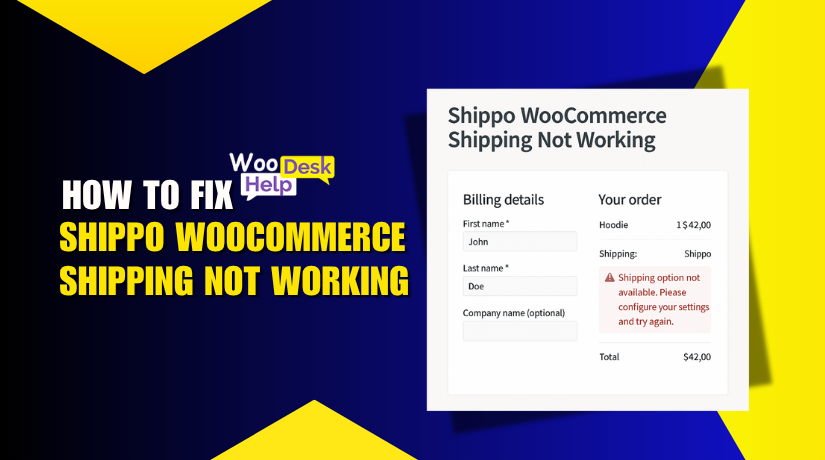
Why Is Shippo WooCommerce Shipping Not Working? Complete Troubleshooting Guide
Table of Contents
- Introduction
- How Shippo Integrates with WooCommerce
- Common Reasons Why Shippo Isn’t Working
- Fixing API and Authentication Errors
- Solving Sync & Order Issues
- Address & Rate-Related Problems
- How to Fix Missing Shipping Rates
- Shipping Label Issues, Debug Mode, and Best Practices
- Conclusion
Introduction
There are numerous moving components involved in operating an internet store. One of the most important is shipping. That’s where tools like Shippo come in. Shippo is a popular shipping solution for WooCommerce users. It helps store owners print labels and show live shipping rates to customers.
But what happens when Shippo WooCommerce Shipping is not working? Orders stop syncing. Shipping labels fail. And your checkout becomes confusing for customers. If you’re facing these issues, you’re not alone.
Many WooCommerce users in the USA report connection issues with Shippo. Some experience missing shipping rates. Others find labels won’t generate. These problems hurt your store’s operations and customer experience.
In this guide, we’ll explain why these errors happen. You’ll learn how to fix them step-by-step. We’ll cover everything from authentication failures to address validation issues. Whether you’re a beginner or a developer, this post is for you.
How Shippo Integrates with WooCommerce
Shippo works with WooCommerce using an API. An API is a tool that lets two platforms talk to each other. The Shippo plugin connects your WooCommerce store to Shippo’s platform. This allows Shippo to read order data and send shipping details.
Here’s what Shippo does in WooCommerce:
- Syncs customer orders in real-time
- Validates shipping addresses
- Displays live shipping rates at checkout
- Generates printable shipping labels
- Lets you track shipments easily
To do this, Shippo needs:
- A working API key
- Correct WooCommerce shipping settings
- Valid shipping addresses from customers
Most issues begin when one of these elements fails. For example, if your API key is wrong, you’ll see a Shippo WooCommerce connection issue. If an address is missing, rates won’t appear. If orders fail to sync, labels won’t generate.
Some users also face the WooCommerce Shippo plugin error after updates. That usually happens due to plugin conflicts or outdated versions.
It’s important to understand that Shippo depends on data from your store. If your store sends bad data, Shippo can’t return correct rates or labels.
Common Reasons Why Shippo Isn’t Working
Shippo is a powerful tool, but things can go wrong. When your WooCommerce Shippo plugin error shows up, it’s time to troubleshoot. Many users run into common issues that stop Shippo from working properly.
Below, we explain each major problem. These are the most reported reasons for failure in the Shippo-WooCommerce connection.
- API Authentication Errors
The most common cause is API failure. Shippo connects to WooCommerce via an API key. If that key is missing or wrong, the connection fails.
You may see errors like:
- “Shippo WooCommerce authentication failed”
- “Shippo WooCommerce API connection error”
These messages mean Shippo can’t access your store. It cannot fetch order data or send shipping rates. Always double-check your API key. Make sure it’s active and properly pasted.
- Order Sync Problems
Another issue is order syncing. Shippo needs real-time access to your WooCommerce orders. If syncing fails, no labels will be created. You may also miss shipping updates.
Common signs include:
- “Shippo WooCommerce order sync failed”
- “Shippo order sync failed WooCommerce”
These errors happen if:
- Your order is missing key shipping data
- The customer address is not complete
- The plugin is out of date
Sync problems can break your shipping workflow. You must fix these fast to avoid delays.
- Invalid or Incomplete Addresses
Shippo relies on valid customer addresses. If an address is incomplete or incorrect, Shippo may reject it. This can lead to missing rates or failed labels.
Look for these errors:
- “Invalid address Shippo WooCommerce”
- “Address field missing Shippo WooCommerce”
These messages mean one or more address fields are empty or formatted wrong. Check the street, ZIP code, and country. All fields must be present and accurate.
- API Timeout and Server Delays
Sometimes Shippo can’t respond in time. This causes an API timeout. It happens when the server is too slow or under heavy load.
You may notice:
- Delays in showing live shipping rates
- Cart freezing during checkout
- Failed label generation
If this happens often, you might see this error:
- “Shippo API timeout WooCommerce”
Timeouts are usually temporary. But if they persist, your store’s performance may be affected. Try reducing the number of plugins and monitor server load.
Fixing API and Authentication Errors
Shippo won’t function if it can’t establish a connection with your WooCommerce store. Most of the time, the problem starts with a broken API connection. The API is the bridge between your store and Shippo.
These are not minor issues. Without a working API, Shippo can’t read your orders. It can’t show live shipping rates or generate labels. Let’s break down how to fix these problems one step at a time.
- Recheck Your API Key
Your API key is like a password between Shippo and WooCommerce. If it’s wrong, expired, or deleted, the connection fails.
Here’s how to verify it:
- Go to your Shippo dashboard
- Click on Settings > API
- Copy the Live API Token
- Paste it into your WooCommerce Shippo plugin settings
Make sure there are no extra spaces when you paste the key. The relationship might be broken by even a little misspelling.
Unless you are doing testing, use the Live API key instead of the test key.
- Confirm Your Plugin Settings
A broken API is often caused by plugin misconfiguration. Once your WooCommerce dashboard is open, navigate to:
- WooCommerce > Settings > Shipping > Shippo
Verify that your Shippo account is active and linked. If it says “disconnected,” reconnect it using your API token again.
Also, confirm that you’ve selected the correct shipping origin address in the plugin settings.
- Enable Debug Mode for Logs
Sometimes the error is not clear. That’s where Shippo WooCommerce debug mode helps. This tool creates detailed logs of what’s going wrong.
To turn it on:
- Go to WooCommerce > Status > Logs
- Look for Shippo log files
- Enable debug mode in Shippo plugin settings
The logs will show you if the issue is with authentication, address data, or something else.
- Check for Conflicting Plugins
Other plugins can block Shippo’s API access. These could be:
- Security plugins blocking outbound requests
- Firewall settings from your host
- Caching plugins interfering with live updates
To check this:
- Temporarily disable other shipping plugins
- Clear your WooCommerce cache
- Try Shippo again
If it starts working, the conflict is confirmed.
- Make Sure You’re Using HTTPS
Shippo requires secure connections. If your store runs on HTTP instead of HTTPS, the API may reject the call.
To fix it:
- Use an SSL certificate (most hosts offer it for free)
- Update your WordPress and WooCommerce URLs to use HTTPS
- Retest the Shippo plugin
- Update the Plugin and WordPress Core
API problems may be caused by outdated WordPress versions or plugins. Make sure you:
- Use the latest version of the Shippo WooCommerce plugin
- Update WordPress core and WooCommerce plugin
- Backup your site before updating
Sometimes, newer Shippo APIs stop working with older plugin versions.
Fixing these authentication errors can restore Shippo’s full features. Once resolved, your orders will sync, and shipping rates will return.


Solving Sync & Order Issues
Once your API is working, the next step is syncing orders. Shippo must read order data from WooCommerce to work correctly. If syncing fails, shipping labels can’t be generated. Rates might not appear either.
- Why Sync Issues Happen
Order sync problems are often caused by missing or incorrect data. Shippo needs accurate order information to calculate rates and generate labels.
Here are the common causes:
- The shipping address is incomplete or missing
- Product weight or dimensions are not entered
- A required field in the checkout is blank
- The order status is not compatible (e.g., draft or failed)
Even one missing field can stop syncing completely.
- How to Fix Order Sync Errors
To fix sync problems, start by reviewing the order details.
Steps to follow:
- Go to WooCommerce > Orders
- Open the failed order
- Check the shipping address fields
- Confirm the product weight and size
- Make sure the order is marked as “Processing” or “Completed”
After correcting the data, try syncing the order again using the Shippo plugin.
- Use Shippo WooCommerce Debug Mode
If syncing still fails, turn on Shippo WooCommerce debug mode. This will log the exact error. It helps you understand what part of the order is causing failure.
Check the logs in:
- WooCommerce > Status > Logs
- Select a log file that starts with “shippo”
This helps pinpoint issues quickly without guessing.
Address & Rate-Related Problems
Address errors and missing live shipping rates are common with Shippo. When addresses are not correct, the plugin can’t show rates or create labels. These issues often confuse store owners, but they’re usually simple to fix.
Here, we’ll look at two major issues:
- Invalid or missing address fields
- Live shipping rates not appearing during checkout
Let’s go through both in detail.
- Invalid or Incomplete Address Fields
Shippo checks every shipping address before showing rates. If the address is wrong or missing details, Shippo will reject it.
You may see these common errors:
- Invalid address Shippo WooCommerce
- Address field missing Shippo WooCommerce
These errors mean that one or more required address fields are missing. Shippo can’t process the order if the address isn’t valid.
Common causes include:
- Missing ZIP or postal code
- Incorrect state or country names
- Empty street address or apartment number
- Use of special characters not supported by Shippo
Even one missing field can stop Shippo from working. To avoid these issues:
- Use required fields in your WooCommerce checkout settings
- Add address validation plugins for better input control
- Test orders using real U.S. addresses to verify formatting
Make sure the customer’s address matches USPS or courier standards. You can use tools like the USPS Address Validator for accuracy.
- Live Shipping Rates Not Showing
Another major issue is when Shippo live shipping rates are not working. Use the latest version of the Shippo WooCommerce plugin.
This problem can be frustrating because it stops customers from completing purchases.
Causes of missing shipping rates:
- API timeout errors from Shippo’s server
- Invalid or incomplete shipping addresses
- Shipping zones not set up in WooCommerce
- Conflict with another shipping plugin
- Store running in test mode instead of live mode
One common error here is:
- Shippo API timeout WooCommerce
This happens when Shippo’s server takes too long to respond. It may be due to high traffic, or your host blocking outbound requests.
How to Fix Missing Shipping Rates
Here’s how you can resolve the issue:
- Double-check that your API key is active and correct
- Confirm that the store is using Live API, not test mode
- Make sure shipping zones and methods are correctly defined
- Use real, valid U.S. addresses during testing
- Disable other shipping rate plugins to test for conflicts
- If the Shippo API timeout persists, look through the server logs.
If you’re using a caching plugin, clear all caches after making changes.
Also, avoid using flat rate settings with live rate plugins at the same time. This can confuse how WooCommerce picks the shipping option.
Getting addresses right and enabling live rates are key to smooth shipping. These settings also reduce cart abandonment and support better customer experience.
Shipping Label Issues, Debug Mode, and Best Practices
Even if Shippo is connected and addresses are correct, things can still go wrong. One common issue many store owners face is that shipping labels do not generate in WooCommerce. This can delay shipments and confuse staff.
- Shipping Labels Not Generating
You may try to create a label, but nothing happens. Alternatively, an error can appear while creating the label.
Common causes of this issue include:
- Missing weight or dimensions for products
- Wrong shipping service selected
- Invalid or incomplete address
- Order status not suitable for label generation
- Plugin conflict blocking API calls
If you see errors like:
- Shippo shipping label not generating WooCommerce
- WooCommerce Shippo plugin error
These mean the plugin couldn’t generate a label due to a data or setup issue.
Steps to fix the label issue:
- Open the order in WooCommerce > Orders
- Ensure that each product has a weight and size entered
- Confirm the shipping address is complete and valid
- Make sure the order is marked as Processing
- Try changing the shipping carrier or service level
- Disable any other shipping plugins temporarily
Once fixed, retry label generation from the order page.
- Using Shippo WooCommerce Debug Mode
If label errors or rate failures continue, enable debug mode. The Shippo WooCommerce debug mode gives detailed logs. These logs help identify which part is failing.
To turn on debug mode:
- Go to WooCommerce > Settings > Shipping > Shippo
- Locate the option to activate debug mode.
- Save your changes
- Reproduce the issue (e.g., try to create a label again)
Then check the log file:
- Go to WooCommerce > Status > Logs
- Select the most recent log with “shippo” in the name
- Open it and look for errors or failed API requests
The logs may show missing product data, rejected addresses, or timeout errors. This gives you direct insight into what needs fixing.
- Best Practices to Prevent Future Issues
Once things are working, you’ll want to keep them running smoothly. Here are some proven tips:
- Keep plugins updated: Always run the latest version of Shippo and WooCommerce
- Use HTTPS: Shippo needs secure connections to work reliably
- Avoid unnecessary plugins: Conflicts might arise from using too many plugins.
- Test in staging: Use a test site to check updates or new features
- Use proper shipping zones: Set up zones carefully to match your delivery areas
- Check orders before shipping: Confirm weight, size, and address fields are complete
It also helps to monitor your shipping workflow regularly. Early problem detection can cut down on customer complaints and save time.
By solving label problems and using debug tools, you gain full control. Combined with smart habits, your store’s shipping can run error-free and fast.
Conclusion
Problems with shipping can cost you money, effort, and the faith of your customers. When Shippo fails to work with WooCommerce, it’s more than a technical glitch—it’s a business risk. You shouldn’t have to spend hours digging through settings or logs. This is the point at which professional assistance is crucial. At WooHelpDesk, we specialize in solving tough WooCommerce problems quickly and efficiently. Whether it’s fixing API errors, restoring shipping labels, or setting up live rates the right way, our team is here to help. Don’t let shipping troubles slow down your store. Reach out to WooHelpDesk today and get your WooCommerce shipping back on track—with confidence and zero guesswork.



