
How to Set Up Smart Search & Product Filter for WooCommerce to Improve Product Discovery
Table of Contents
- The Problem with Default WooCommerce Search
- Why Advanced Product Filtering Matters
- Introducing Smart Search & Product Filter by Searchanise
- Key Features Explained
- Step-by-Step Setup Process
- Best Use Cases for This Plugin
- Tips to Maximize the Plugin’s Potential
- Conclusion
The Problem with Default WooCommerce Search
One excellent platform for online retailers is WooCommerce. But its default search is basic and outdated. It doesn’t show instant results or suggestions while typing. There’s no predictive search or typo correction. It struggles to handle large product catalogs. This means shoppers may not find what they want quickly.
Also, the default filters are limited. Customers can’t filter by custom tags, SKUs, or attributes. This leads to frustration and missed sales. A shopper who can’t find a product is unlikely to complete a purchase.
Why Advanced Product Filtering Matters
Today’s online shoppers expect speed and accuracy. They want search results to update in real time. They anticipate filters based on brand, size, color, price, and other factors. If your store doesn’t offer this, users may leave.
A smart search and filter plugin can change this. It boosts conversions and enhances the buying experience. Your clients locate what they’re looking for more quickly. With less work, you sell more goods.
Here’s why improved filtering matters:
- It reduces bounce rates.
- It makes navigation faster.
- It boosts customer satisfaction.
- It increases the chances of conversion.
Introducing Smart Search & Product Filter by Searchanise
Searchanise offers one of the best solutions for this problem. Their plugin, Smart Search & Product Filter for WooCommerce, replaces the standard search with a smarter one.
Trusted by over 14,800 brands, the plugin offers a rich set of features. Brands like Sennheiser and Durex use it. It includes predictive search, live filtering, and more. It can improve conversions by up to 60% within months.
Your WooCommerce store becomes a potent shopping tool with this plugin. In a matter of seconds, it assists users in finding just what they need.
Key Features Explained
Live Smart Search with Autocomplete
The plugin offers a fast and smart search experience. Suggestions emerge automatically as customers begin typing. Predictive search is the term for this capability. It shows possible product names even before typing is complete. This saves time and keeps users engaged.
Smart search also includes autocorrect. If a shopper misspells a word, the plugin still finds the right result. That means fewer “no results found” messages.
Each suggestion comes with useful details like:
- Product image
- Price
- Quick add-to-cart button
- Stock status (optional)

Customers may now easily take action straight from the search box thanks to this.
WooCommerce AJAX Filter Integration
This plugin includes a built-in WooCommerce AJAX filter. This means filters update without reloading the page. It creates a smooth and fast experience, especially on mobile devices.
AJAX filtering is more modern than the default WooCommerce filters. When a user selects a filter, only the product grid updates. The page remains in its current position. This improves site speed and user satisfaction.
Benefits of AJAX filtering:
- Faster load time
- Cleaner interface
- Fewer clicks needed
- Mobile-friendly browsing
Faceted Filtering for Better Navigation
Faceted filtering lets users narrow results by multiple conditions. This is especially helpful on large stores with hundreds or thousands of items.
The plugin allows filtering by:
- Price
- Categories
- Tags
- Attributes (color, size, brand)
- SKUs, variants, and custom fields
You can also set up filters using custom taxonomies or ACF fields. This gives complete control over how products are filtered.
Customers can choose more than one filter at once. For example, they can select both “red” and “blue” or “size M” and “size L.” This is called multi-filter selection and it helps deliver precise results.
The filter layout is also flexible:
- Filters can appear on the side or top of the page
- You have the option to display the filters by default either enlarged or compressed
This makes matching your store’s appearance simple.
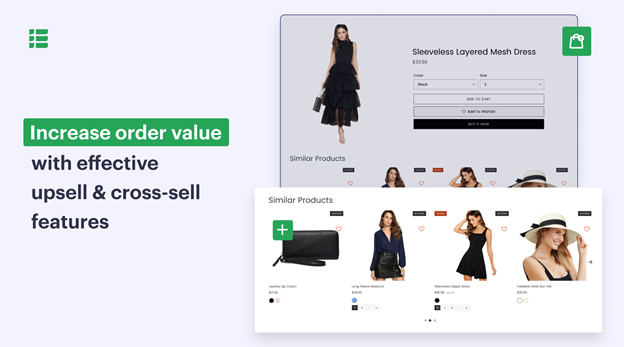
Product Merchandising in Search Results
Smart Search & Product Filter also includes merchandising tools. These tools let you promote certain products inside search results.
You can:
- Add badges like “New,” “Sale,” or custom labels
- Set time limits for promotions
- Show product ratings and reviews
This helps draw attention to featured products. It’s a great way to push new arrivals or seasonal items.
Controlling what people see initially is made easier with the option to promote within search. You guide them toward the items you want to highlight.
Built-in Analytics Dashboard
The plugin comes with a powerful analytics dashboard. It gives real-time data about how people use your store search.
You can track:
- Most popular search queries
- Searches that return no results
- Top-selling products from search
This data helps you improve your store. If you notice certain searches return no results, you can add related products or adjust keywords. If a product is popular, you can boost its visibility even more.
Use analytics to:
- Optimize stock levels according to actual demand.
- Plan content and blog posts using actual search terms
- Improve product descriptions and tags

You can better service users if you have a deeper understanding of their needs.
Compatibility and Performance
Smart Search & Product Filter is built to handle big product catalogs. It works well even if your store has 10,000+ SKUs.
Some store owners have seen page load times drop from 20 seconds to just 2–3 seconds after using this plugin. That’s a major improvement in performance.
The plugin is also:
- Compatible with most WooCommerce themes
- Supports custom jQuery selectors for non-standard themes
- Works with multilingual setups and translated content
You don’t need to worry about slowing down your site. The plugin is optimized to work in the background without causing issues.
Step-by-Step Setup Process
Installing and setting up the Smart Search & Product Filter plugin is simple. You will be guided through each step by this guide. Regardless of your level of knowledge with WordPress, you may follow along.
Step 1: Install the Plugin


Installing the plugin from the WordPress dashboard is the first step.
- Go to Plugins > Add New
- Search for Searchanise – Smart WooCommerce Search
- Click Install Now
- Then click Activate
Once the plugin is active, it will start indexing your store automatically.
Step 2: Let the Plugin Index Your Content
After activation, the plugin starts collecting and indexing your store data. This includes:
- Published products
- Product categories
- Blog posts
- Static pages
The plugin indexes all important product fields:
- Name
- Description
- SKU
- Price
- Categories
- Tags
- Product attributes
No extra action is needed during this step. Indexing happens in the background. You’ll be notified once it’s done.
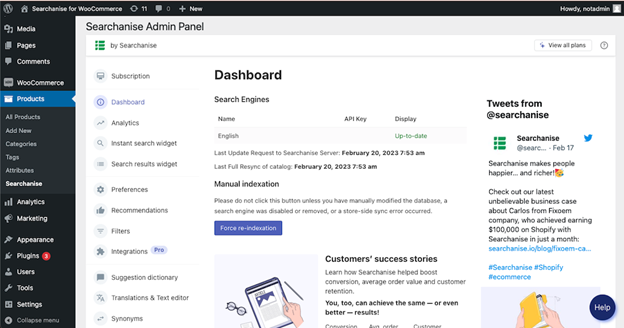
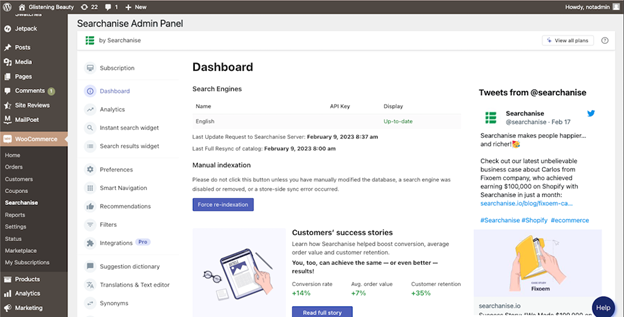
Step 3: Access the Searchanise Control Panel
Next, open the plugin’s control panel. The location depends on your version.
- For version 1.0.11 or earlier:
Go to Products > Searchanise - For version 1.0.12 or later:
Go to WooCommerce > Searchanise
From here, you can manage all settings and features.
Step 4: Configure Basic Settings
Go to the plugin settings under WooCommerce > Settings > Searchanise. Adjust important options:
- Search Input Selector: Change this only if your theme has a custom search box.
- Use Full-Text Search: Enable to replace the default WooCommerce search.
- Sync Catalog: Choose real-time, scheduled, or manual indexing.
- Use Direct Image Links: Enable for faster image loading.
- Import Blog Posts: Turn on to include blog content in search results.
These options help customize how search works in your store.
Step 5: Customize Filters
You can now set up filters to match your store needs. Go to Searchanise > Filters.
Filters can be created from:
- Product attributes (like size or color)
- Tags and categories
- Variants and metafields
- Custom taxonomies
- Custom fields (from plugins like ACF)
You can also:
- Allow multi-filter selection
- Choose top or side filter display
- Set filters to appear open or collapsed
This gives full control over how filters work and look.
Step 6: Enable Search Widgets
The plugin provides two important widgets:
- Instant Search Widget
This shows live results as users type. - Sticky Widget
A floating search icon that stays visible on screen.
To enable Sticky Widget:
- Go to Search & Navigation > Instant Search Widget > Sticky Widget
- Set “Show sticky widget” to Always
To build a unique results page, you may also activate the Search Results Widget. This replaces WooCommerce’s default search page with a faster, AJAX-powered layout.
Step 7: Manual Re-Indexing
If you make big changes, you may need to re-index. This applies when:
- You change tax settings
- You update the product database manually
To re-index:
- Go to Searchanise > Dashboard
- Click Force Re-indexation
This ensures your search results are always accurate.
Step 8: Start Free Trial or Subscribe
After setup, you’ll get a 14-day free trial of all features.
To subscribe:
- Launch the control panel for Searchanise.
- Select “View All Plans” from the upper-right position
- Choose a plan and complete the process
If you cancel, the plugin will stop working. So make sure to manage your subscription from the dashboard.
Your store has a robust search and filter mechanism now that everything is set up. Customers can explore your products faster and with more control.
Best Use Cases for This Plugin
Not every store needs complex features. But if your catalog is growing, a smart search system is a must. The Smart Search & Product Filter for WooCommerce plugin fits well in many types of online stores.
Here are some ideal use cases:
- Fashion and Apparel Stores
Let users filter by size, color, brand, and price. - Electronics and Gadgets Stores
Allow filtering by technical specs, tags, SKUs, and variants. - Home and Furniture Sites
Help customers find products by material, category, or feature. - Multi-category General Stores
Make search smoother across hundreds or thousands of products.
This plugin can be useful if your store has more than 100 goods. Customers won’t scroll endlessly or get lost in categories.
Tips to Maximize the Plugin’s Potential
Use these best practices to make the most of this plugin. These tips will improve performance, user experience, and even SEO.
- Use Analytics to Guide Decisions
Check the built-in analytics often. Look at top searches, failed searches, and popular products. Use this data to improve:
- Product descriptions
- Tags and keywords
- Inventory planning
- Highlight Key Products Using Merchandising
Use labels like “New” or “Sale” to catch attention. You can also promote seasonal items or featured collections. - Keep Filters Clear and Logical
Avoid adding too many filters. Only what is useful should be kept. Sort filters into groups that people can understand. - Match the Design to Your Theme
Customize filter placement and widget style. Keep the layout clean and aligned with your brand. - Re-index After Big Updates
Always re-index your store after making changes. This keeps your search results accurate.
Conclusion
The default WooCommerce search can limit your store’s growth. Customers expect fast, accurate, and flexible browsing today. This plugin offers all of that—and more.
From predictive live search to powerful product filters, it creates a smoother shopping journey. The result? More time spent on-site, fewer lost sales, and higher conversions.
Both installation and management are straightforward. Even better, you get full control without needing to code.
If you want to improve product discovery and boost revenue, this is the right tool.
Need help setting it up or optimizing it for your store?
Contact WooHelpDesk today — your trusted WooCommerce support team.
📞 Call us at +1 888 602 0119 (US & Canada)
Your customers deserve a better way to search. And your store deserves more sales.



