How to SetUp Twilio SMS Notifications for WooCommerce to Boost Customer Engagement
Table of Contents
- Introduction
- Why Use SMS for Order Updates?
- What Makes Twilio SMS Notifications Special?
- Designed for Growth and Customer Care
- Features & Use Cases of Twilio SMS Notifications for WooCommerce
- Step-by-Step Setup Process for Twilio SMS Notifications in WooCommerce
- Personalize SMS Messages for Better Engagement
- Use Manual Messages to Add a Personal Touch
- Shorten URLs for Clean and Clear SMS
- Extend Functionality with WooCommerce Bookings
- Final Tips for Success
- Conclusion
Introduction
In today’s fast-moving world, customers want quick and clear updates. Email frequently disappears into inboxes. However, SMS messages are viewed nearly immediately. That’s where the Twilio SMS Notifications WooCommerce plugin comes in.
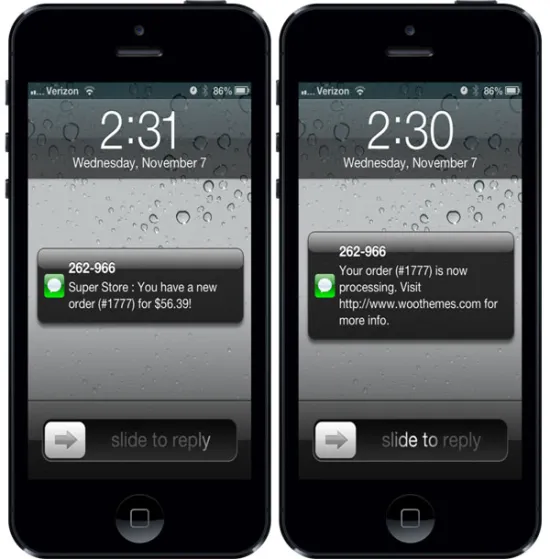
This plugin helps WooCommerce store owners send real-time text messages to customers. Messages are sent when the order status changes, like from “Processing” to “Completed.” Admins can also get SMS alerts when a new order is placed. It’s fast, simple, and highly effective.
Why Use SMS for Order Updates?
95% of text messages are opened. The majority can be read in five seconds. That’s much faster than email. With SMS, your customer gets updates instantly. It strengthens customer confidence and makes the buying journey smoother.
Here are some reasons SMS is better:
- No delays like with emails.
- Higher visibility.
- More personal and direct.
A happy customer is more likely to return and order again. With WooCommerce SMS plugin Twilio, you create a better connection with buyers.
What Makes Twilio SMS Notifications Special?
This plugin connects WooCommerce with Twilio, a trusted SMS service. It supports over 40 countries. Even better, it’s easy to set up and use. You don’t need coding or tech skills.
You can:
- Customize messages based on order status.
- Let customers choose to receive SMS at checkout.
- Send alerts to your own phone when a sale happens.
It goes beyond updates. Discount codes can also be included in SMS texts. For example, say thanks with 10% off the next order. This encourages repeat purchases.
Designed for Growth and Customer Care
The plugin gives you full control. You can choose which messages to send and when. It works with standard and custom order statuses. You can even send messages manually from the order page.
In short, Twilio WooCommerce plugin is perfect for growing stores. It improves communication and helps build loyalty. It’s fast, flexible, and helps your business stand out.
Features & Use Cases of Twilio SMS Notifications for WooCommerce
Strong functionalities are provided by the Twilio WooCommerce SMS notifications plugin. It provides real-time updates to customers and store owners. It’s more than just sending texts — it’s a complete SMS system for WooCommerce.
Let’s explore each feature in detail.
- Automatic SMS Alerts for Customers
Consumers want to know how their orders are progressing. This plugin sends SMS messages when order statuses change.
You can select which status updates trigger a message:
- Processing
- Completed
- On hold
- Refunded
- Custom statuses
Each message can be fully customized. You can include details like:
- Order number
- Order amount
- Customer name
- Store name
This helps keep the customer informed. It also reduces support requests.
- Opt-in SMS at Checkout
Customers can choose to receive SMS updates during checkout. A simple checkbox lets them opt-in.
You can:
- Customize the checkbox’s label.
- Choose whether or not it is checked by default.
If the checkbox is left blank in settings, all customers will receive SMS updates automatically.
- Manual SMS from the Order Page
Sometimes, you may want to send a custom SMS. This can be done from WooCommerce’s Edit Order screen.
It’s easy to:
- Type your message
- Preview the character count
- Send it right away
Manual SMS is great for sending personal notes or updates.
- Admin Notifications for New Orders
Store owners can get SMS alerts when a new order is placed. You can enable admin notifications and set the mobile numbers to receive them.
Commas are used to separate numbers so that you can add more than one.
Messages can include:
- Order ID
- Customer name
- Order total
You stay in the loop, even when you’re away from your desk.
- Smart Message Personalization
You can use shortcodes to make messages personal and clear. Some common tags include:
- %shop_name% – Your store’s name
- %order_id% – Order number
- %order_amount% – Total order value
- %billing_name% – Customer’s billing name
- %order_status% – Current status
This helps build trust and improves customer experience.
- Automatic Return SMS Messages
When a customer replies to your SMS, you can send back an automatic message. This is useful for support or follow-up replies.
You can set:
- A custom return message (max 160 characters)
- You can also choose to save responses in Twilio without sending a reply.
Although optional, this feature is a pleasant addition.
- WooCommerce Bookings Integration
If you use WooCommerce Bookings, this plugin helps even more. Updates via SMS can be sent for:
- Booking confirmations
- Reminders before an appointment
- Booking cancellations or follow-ups
This ensures your customers never miss a booking.
- URL Shortening with Firebase
Long links can take up space in SMS. This plugin supports link shortening using Firebase Dynamic Links.
To enable it, just enter your Firebase API key and domain in the settings. It saves space and keeps messages neat.
Step-by-Step Setup Process for Twilio SMS Notifications in WooCommerce
The Twilio WooCommerce SMS plugin is easy to set up. Coding knowledge is not required. Just follow these steps to connect Twilio to your store and start sending SMS notifications.
Step 1: Install the Plugin
Install the plugin first from within your WooCommerce account.
Here’s how:
- Log in to your WooCommerce dashboard.
- Go to Plugins > Add New.
- Click Upload Plugin.
- Choose the plugin ZIP file you downloaded.
- Click Install Now, then Activate.
Once active, you’ll see SMS settings in your WooCommerce settings area.
Step 2: Connect Your Twilio Account
You must have a Twilio account in order to send messages. It only takes a few minutes and is free to create.


Do the following:
- Log in to your Twilio Console.
- Copy your Account SID and Auth Token.
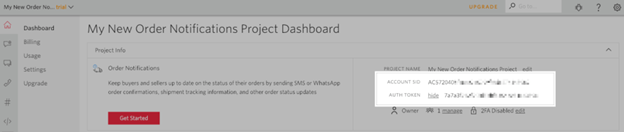
- Go to WooCommerce > Settings > SMS > Connection Settings.
- Paste your SID and Token into the fields.
- Enter your Twilio phone number under “From Number”.
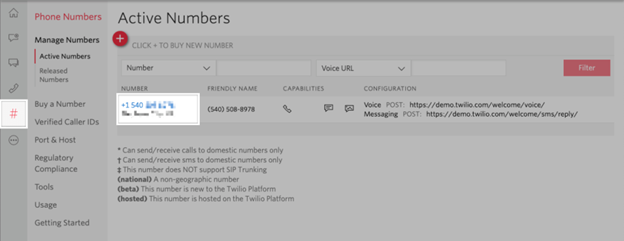
Click Save changes when done.
This connects your WooCommerce store to the Twilio SMS gateway.
Step 3: Set Up SMS Opt-In at Checkout
Now, allow customers to choose SMS updates at checkout.
You can:
- Customize the opt-in checkbox’s label.
- Choose if the checkbox is selected by default.
- Leave the label blank to send messages to all customers (not recommended).
This keeps your SMS updates compliant and respectful of user choice.

Step 4: Customize Your SMS Notifications
Go to WooCommerce > Settings > SMS to customize messages.
You can:
- Choose which order statuses send messages.
- Create unique messages for each status.
- Use smart tags like %order_id% or %billing_name%.
This makes your messages clear, helpful, and personal.

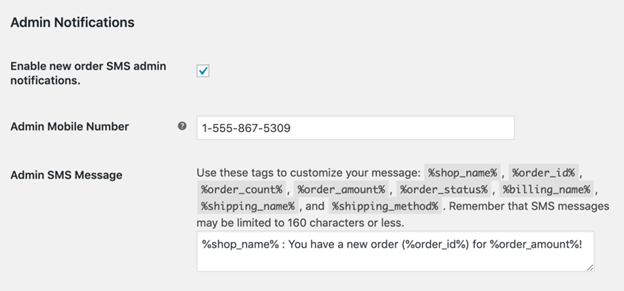
Step 5: Enable Admin SMS Alerts (Optional)
When a new order is placed, you can receive notifications.
To enable:
- Tick the box for Admin Notifications.
- Add your phone number (or multiple numbers with commas).
- Customize the admin message if needed.
This keeps you updated on every sale.
Step 6: Send a Test SMS
You should send a test message before going live.
Use the Send Test SMS tool in the settings. Enter your number and a short message. Make sure it goes through.
If you’re using a trial Twilio account, the number must be verified.
Personalize SMS Messages for Better Engagement
Custom messages make your store feel more human. Use dynamic tags to create helpful and friendly messages.
Here are a few tips:
- Use the customer’s name in the message.
- Mention the order number and amount.
- Add a thank-you message or discount code.
Example:
“Hi %billing_first%, thanks for your order #%order_id%! Use code SAVE10 for 10% off your next purchase.”
You can create different messages for each order status. This enables you to lead the client through the entire process.
Use Manual Messages to Add a Personal Touch
Sometimes, automatic messages aren’t enough. You might want to say something more specific. From the order edit screen, you can send a manual SMS.
This is great for:
- Apologizing for delays
- Thanking loyal customers
- Giving personal updates or custom tracking info
Manual messages help build trust and customer loyalty.
Shorten URLs for Clean and Clear SMS
Long links take up space in a text message. You can shorten them using Firebase Dynamic Links.
To enable this:
- Create a Firebase project
- Add your API key and domain to the plugin settings
All URLs in your messages will now be short and neat.
Extend Functionality with WooCommerce Bookings
If you use WooCommerce Bookings, this plugin works well with it. You can send SMS updates for bookings, such as:
- Confirmations
- Reminders
- Cancellations
- Follow-ups
This keeps your customers informed and reduces no-shows.
Final Tips for Success
- Test every SMS template before using it.
- Keep messages under 160 characters.
- Monitor delivery using the order notes section.
With these tips and tools, your store will offer a better customer experience. SMS is a straightforward yet effective method of maintaining relationships and fostering trust.
Conclusion
A clever method of keeping your consumers informed, involved, and happy is to use the Twilio SMS Notifications for WooCommerce plugin. From order updates to admin alerts, it adds real-time communication to your store with ease. Whether you’re just starting or scaling up, SMS keeps your business connected.
Need help setting it up or customizing it? WooHelpDesk is here to assist.
📞 Call us at +1 888 602 0119 (US & Canada) for expert WooCommerce and WordPress support. Let’s make your store better, together.



