How to Set Up Tag Pilot PRO GTM Integration for WooCommerce
Table of Contents
- Introduction & Purpose of Tag Pilot PRO GTM Plugin
- How to Set Up Tag Pilot PRO Step-by-Step Process
- Features & Events Tracked by Tag Pilot PRO
- Why Choose Tag Pilot PRO Over Other WooCommerce GTM Plugins
- Conclusion
Introduction & Purpose of Tag Pilot PRO GTM Plugin
Tracking user behavior on your WooCommerce store is very important. But managing this data across tools like Google Analytics, Facebook Pixel, or Google Ads can be confusing. That’s where Tag Pilot PRO GTM Integration for WooCommerce comes in.
This plugin helps you connect WooCommerce with Google Tag Manager (GTM). It pushes all eCommerce events into your GTM workspace in real time. You can then forward this data to various tools, such as:
- Google Analytics 4 (GA4)
- Facebook Pixel
- Google Ads
- TikTok Ads
- Microsoft UET
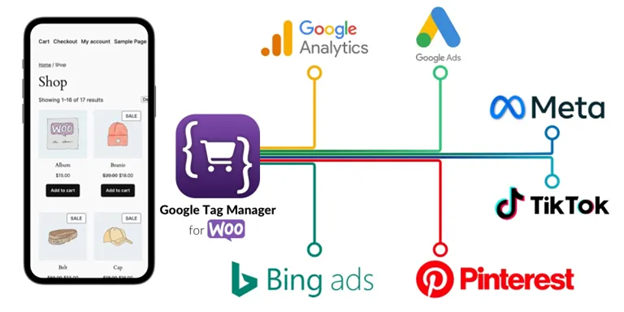
This plugin’s “Track Once, Send Everywhere” strategy is its greatest benefit. You don’t need multiple tracking codes or separate plugins. Everything is tracked using one plugin and sent through GTM to your tools.
Most store owners struggle with tracking because:
- Tracking setup is too technical.
- Data is inconsistent across platforms.
- Multiple plugins create conflicts or errors.
- It takes a lot of time and effort to debug.
Tag Pilot PRO solves these issues by offering a full tracking solution made for WooCommerce. It supports all major WooCommerce themes and plugins. This includes support for multilingual sites, wishlists, and quick view features.
It also helps improve your reporting and ad performance. You get full sales funnel tracking—from product views to checkout and purchase.
Another key feature is its pre-made GTM presets. You don’t have to create GTM tags and triggers manually. Just import the preset and make a few simple changes.
The most recent GTM features are completely compatible with the plugin. It even supports Google Consent Mode v2, which is now required in many regions for data privacy.
In short, Tag Pilot PRO is perfect for:
- Store owners who want clean, reliable tracking
- Marketers who use multiple tools like GA4 and Facebook Ads
- Developers looking for a flexible GTM setup
This plugin brings speed, simplicity, and accuracy to WooCommerce tracking.
How to Set Up Tag Pilot PRO Step-by-Step Process
Setting up Tag Pilot PRO GTM Integration for WooCommerce is easy. Technical knowledge or coding abilities are not required. Just follow this step-by-step process, and you’ll be tracking data in no time.

Step 1: Install and Activate the Plugin
First, go to the WooCommerce Marketplace and buy the plugin.
Then follow these steps to install it:
- Go to your WordPress Dashboard
- Click Plugins > Add New
- Click Upload Plugin at the top
- Upload the .zip file you downloaded
- Click Install Now, then click Activate
The plugin will be operational after it has been activated.
Step 2: Add Google Tag Manager Code
Next, you need to add your GTM container snippets.
Follow these steps:
- Go to Settings > Google Tag Manager in your WordPress dashboard
- Open your GTM account at tagmanager.google.com
- Click Admin > Install Google Tag Manager
- Copy the two code snippets shown (one for <head>, one for <body>)
- Go back to WordPress and paste both codes into their matching fields
- Scroll down and click Save Settings
Now the plugin will start pushing data to your GTM workspace.
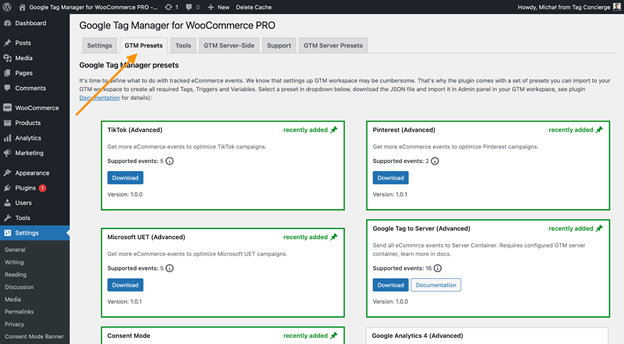
Step 3: Download a GTM Preset File
Tag Pilot PRO gives you pre-built GTM presets for different tools.
These settings cut down on mistakes and save you time. You don’t have to build GTM tags, triggers, or variables from scratch.
To download a preset:
- In WordPress, go to Settings > Google Tag Manager
- Click on the GTM Presets tab
- Choose a preset (like GA4 or Facebook Pixel)
- Click Download to save the .json preset file

Step 4: Import the Preset into GTM
Now it’s time to bring that preset into your GTM workspace.
Here’s how:
- Go to tagmanager.google.com
- Click your GTM container
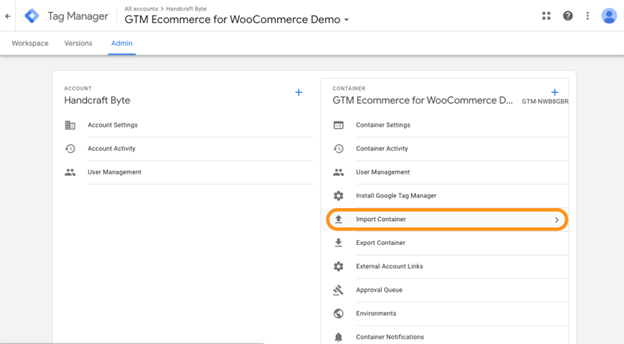
- Go to Admin > Import Container
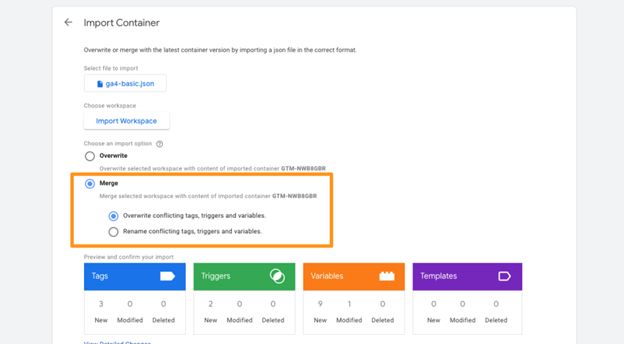
- Upload the .json file you downloaded
- Select your workspace, which is typically the Default Workspace.
- After choosing Merge, Replace incompatible variables, triggers, and tags
- Click Confirm
The preset will now appear in your GTM setup. You can preview all the tags and folders before publishing.
Step 5: Add Your Tracking ID
After importing the preset, you need to add your tracking ID.
For example:
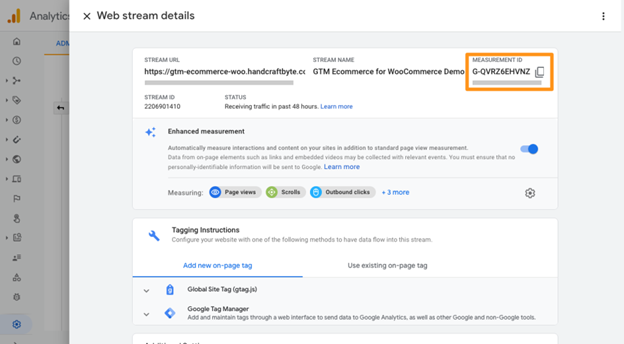
- For GA4, you’ll need your GA4 Measurement ID
- For Facebook Pixel, add your Pixel ID
Steps:
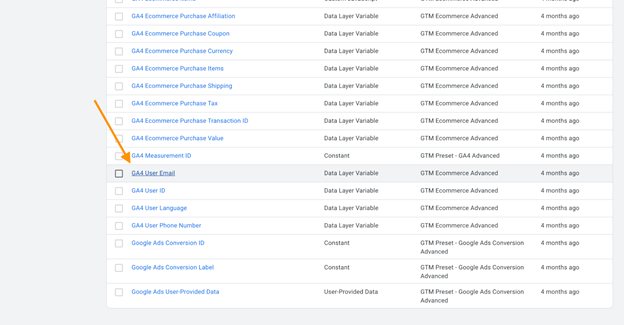
- In GTM, go to the Variables section
- Look for a variable like GA4 Measurement ID
- Click it, paste your own ID, and Save
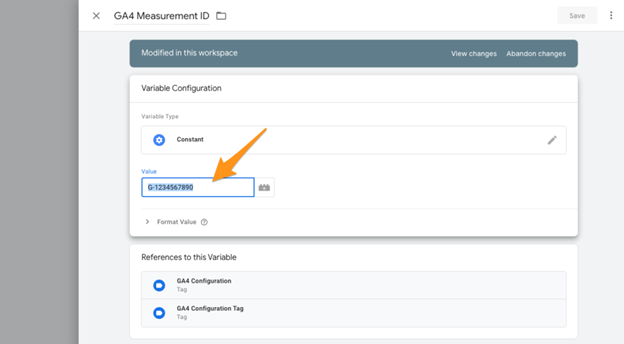
This connects your WooCommerce store to the correct account.
Step 6: Publish and Test
Now you’re ready to go live.
In GTM:


- Click Submit to publish your changes
- Give your update a brief name or description.

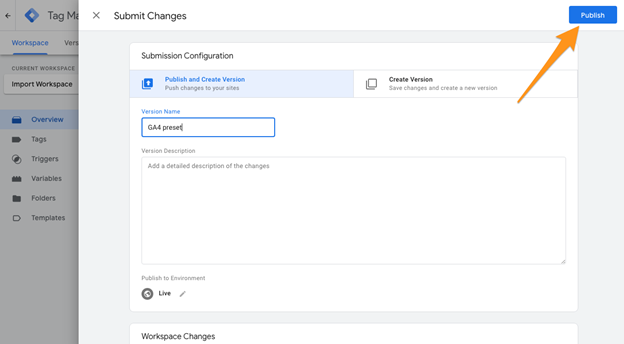
To test your setup:
- Open Google Analytics 4 and go to Realtime
- Visit your store and perform actions like add to cart or checkout
- You should see these events in GA4 or your tracking tool
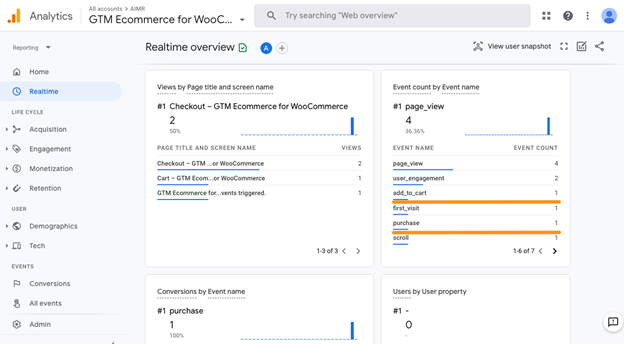
You can also use Tag Assistant in your browser to check if tags are firing.
Features & Events Tracked by Tag Pilot PRO
WooCommerce’s Tag Pilot PRO GTM Integration provides robust tracking capabilities. It covers your entire eCommerce journey, from product view to purchase. This gives you detailed insights across tools like GA4, Facebook Pixel, and others.
The purpose of the plugin is to assist store owners in making wiser choices. You can understand how users behave and what makes them convert.
Full Sales Funnel Event Tracking
The plugin tracks key steps of your customer’s shopping journey. These are the most important actions for any online store.
Here’s a list of standard events the plugin supports:
- view_item_list – when users view a product list or category
- select_item – when a product is clicked from a list
- view_item – when a user opens a product page
- add_to_cart – when a product is added to cart
- view_cart – when the cart page is opened
- remove_from_cart – when an item is removed from the cart
- begin_checkout – when checkout is started
- add_billing_info – when billing details are entered
- add_payment_info – when payment method is selected
- add_shipping_info – when shipping info is added
- purchase – when the order is completed (thank you page)
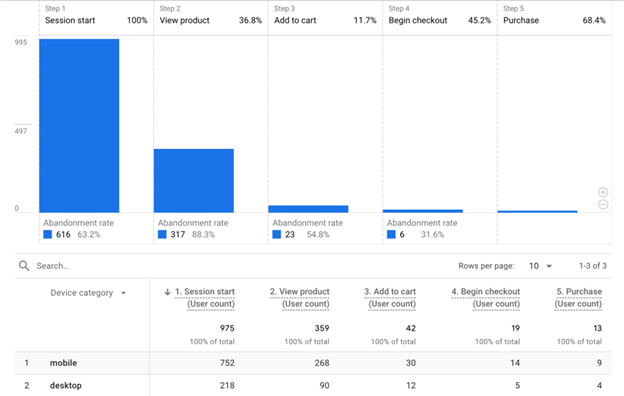
These events send accurate data to GTM for further use in GA4, Ads, and other tools.
Extra Events and Support for More Plugins
Tag Pilot PRO also tracks advanced and optional events. These give you deeper insights into user behavior.
Additional tracked events include:
- abandon_cart – if a user leaves from the cart page (experimental)
- abandon_checkout – if a user exits during checkout (experimental)
- add_to_wishlist – when a user adds a product to wishlist
- remove_from_wishlist – when wishlist items are removed
- language and currency changes – tracks multilingual and multi-currency activity
- user_data – captures email, phone, and address during checkout steps
This is particularly beneficial for retailers who use:
- WooCommerce Wishlists
- Quick View plugins
- WPML or Polylang for multilingual
- Multi-currency plugins
What Product and Order Data Is Captured?
Each event includes key information like:
- Product ID
- Product name
- Price and quantity
- Coupon code
- Brand and variant
- List or category name
- Transaction total
- Shipping, tax, and currency
- Applied coupons
This helps tools like Google Analytics and Facebook Ads show accurate reports.
All this happens automatically once the plugin and presets are set up.
Why Choose Tag Pilot PRO Over Other WooCommerce GTM Plugins
There are many Google Tag Manager plugins available for WooCommerce. GTM4WP is among the most popular free choices.While it offers basic features, it lacks many of the tools needed for full eCommerce tracking.
Tag Pilot PRO goes beyond that. It gives you everything in one plugin. From easy setup to advanced tracking, it simplifies your workflow.
Tag Pilot PRO vs GTM4WP: Key Differences
While both Tag Pilot PRO and GTM4WP help connect WooCommerce with Google Tag Manager, they offer very different experiences.
GTM4WP is a free plugin that offers basic GTM integration. It works well for simple setups but lacks features needed for deep eCommerce tracking. On the other hand, Tag Pilot PRO is a premium solution built specifically for WooCommerce users who want full control, better compatibility, and faster setup.
Here’s why Tag Pilot PRO stands out:
- GTM Presets Included
Tag Pilot PRO comes with ready-to-use GTM presets. These presets help you work faster by cutting out manual setup steps. GTM4WP does not offer this feature. - Simplified GA4 and Facebook Pixel Setup
With Tag Pilot PRO, setting up GA4 or Facebook Pixel takes just a few clicks. GTM4WP requires you to create all tags, triggers, and variables manually. - Full Funnel Event Tracking
Every stage of the consumer journey is tracked by Tag Pilot PRO, from product viewing to final purchase. GTM4WP tracks only limited eCommerce actions. - Consent Mode v2 Support
Tag Pilot PRO supports Google Consent Mode v2 by default. This helps you comply with privacy laws. GTM4WP does not support Consent Mode out of the box. - Multilingual Compatibility
Popular multilingual plugins like WPML and Polylang are compatible with Tag Pilot PRO. GTM4WP offers only basic compatibility. - Premium Support and Updates
With Tag Pilot PRO, you get access to fast and helpful support. GTM4WP support is community-based and may not be as reliable for urgent issues.
If you want a simple setup, advanced tracking, and professional support, Tag Pilot PRO is the clear choice.
With Tag Pilot PRO, you don’t need to create tags manually. You also get more event tracking options, which means better insights.
Built for WooCommerce and Growth
Tag Pilot PRO is not just another tracking plugin. It’s built for WooCommerce users who want better marketing performance.
You can:
- Use one plugin to connect with all your ad tools
- Keep tabs on all consumer interactions at the store.
- Ensure that your data is consistent across all platforms.
- Reduce time spent on setup and troubleshooting
It also works well with:
- Variable products
- Cart & Checkout blocks
- Wishlists and Quick View plugins
- High-Performance Order Storage (HPOS)
Privacy-Ready with Consent Mode v2
The plugin includes built-in support for Consent Mode v2. This is important if your customers are in the EU or California.
It allows you to:
- Respect user privacy choices
- Stay compliant with data laws
- Avoid legal risks while tracking properly

Conclusion
Tag Pilot PRO GTM Integration is a smart investment for WooCommerce store owners. It saves time, improves data accuracy, and supports better marketing decisions.
Whether you’re running Google Ads, Facebook campaigns, or tracking with GA4—this plugin helps you do it better, faster, and with confidence.
If you need help setting up Tag Pilot PRO or need expert support for your WooCommerce or WordPress site, WooHelpDesk is here for you.
✅ Friendly support
✅ Fast response times
✅ Woo and WP experts you can trust
📞 Call us at +1 888 602 0119 (US & Canada) for WooCommerce & WordPress support.
Let us take the stress out of your tracking setup so you can focus on growing your store.



