How to Setup “Add Featured Videos in Product Gallery for WooCommerce
Table of Contents
- Introduction
- Why Product Videos Matter in Online Shopping
- Why Use This WooCommerce Plugin?
- Features Overview – What You Can Do with This Plugin
- Step-by-Step Setup Process for Add Featured Videos in Product Gallery
- Benefits for Store Owners
- Final Thoughts
Introduction
If you’re running a WooCommerce store, product presentation matters a lot. Most online shoppers can’t touch or feel what they’re buying. That’s why using videos in your product gallery is a game changer.
The WooCommerce plugin Add Featured Videos in Product Gallery assists in resolving this issue. It lets you add videos to product pages and replace product images with video. You can also add videos to the product gallery or show different videos for product variations.
This simple but powerful plugin improves how your products are viewed. It helps users make faster, better buying decisions. Video brings life to your listings. It can build trust, answer questions, and reduce returns.
Why Product Videos Matter in Online Shopping
Today, online buyers want more than just images. They want to see products in action. Videos help explain size, features, and use — much better than photos.
Here’s why product videos help:
- Show product use in real-world situations
- Build trust by offering better product details
- Answer common customer questions before purchase
- Boost your website’s presence in search results (Google loves video content)
- Increase time spent on your product pages
Adding videos also helps users with buying intent. They don’t have to guess how the product works. They can just click and watch.
Why Use This WooCommerce Plugin?
Product videos are quite simple to use thanks to the plugin. You don’t need coding or a developer.
With this WooCommerce product video plugin, you can:
- Add featured videos in product gallery
- Add movies from Vimeo or YouTube to product pages.
- Show a video instead of the main product image
- Display videos for different product variations
All of this happens directly from your WooCommerce admin area.
Anyone who wishes to construct a WooCommerce product gallery with video should use this plugin. It works smoothly and keeps your shop professional and user-friendly.
Features Overview – What You Can Do with This Plugin
The Add Featured Videos in Product Gallery for WooCommerce plugin comes packed with useful features. It helps store owners showcase products in a more interactive way. You may create a strong visual display on your product page with a few clicks.
This plugin is made to improve how products are shown. It allows you to add videos to WooCommerce product gallery, replace images with videos, and much more.
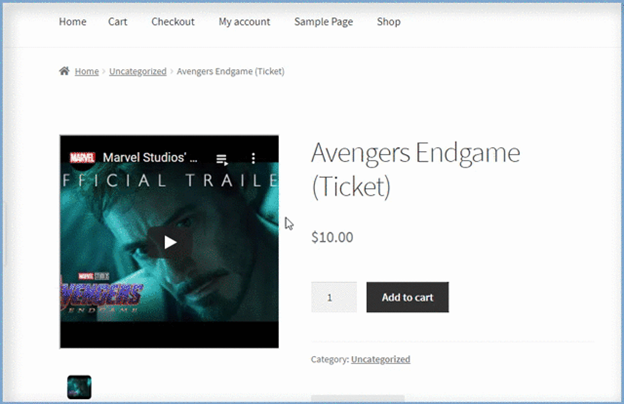
Add a Featured Video in Place of the Main Image
This plugin lets you replace the main product image with a video. You can upload a video directly or link one from platforms like:
- YouTube
- Vimeo
- Dailymotion
- Metacafe
This helps customers view the product in action right away.
Add Multiple Videos to the Product Gallery
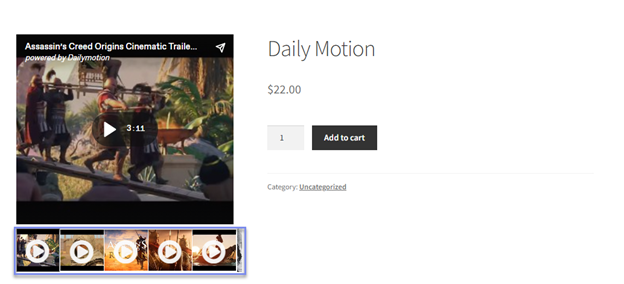
You can also add multiple videos to the product gallery. You can include videos alongside your product images in the gallery. Customers can click through them just like they do with images.
You can also:
- Put the videos in the order you want.
- Customize thumbnails for better presentation
- Choose between popup display or inline view
This creates a clean and engaging gallery experience.
Show Product Videos in a Lightbox Popup
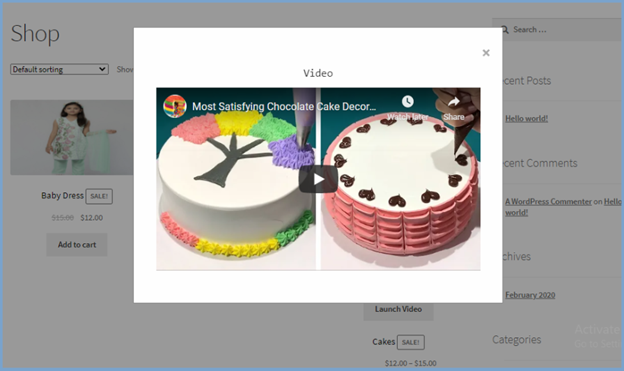
Videos can open in a popup lightbox. This means users can watch the video without leaving the product page. The video pops up in front of the screen when the customer clicks the “Launch Video” button.
This feature improves viewing comfort and keeps users focused on your store.
Display Videos for Product Variations
You can add unique videos for each product variation. For example, if you sell shirts in three colors, each color can have its own video. This helps users in distinguishing different versions.
It’s a fantastic method to decrease returns and increase confidence.
Upload or Embed Videos with Ease
The plugin supports:
- Video upload in formats like MP4, MKV, MOV, and more
- Embed links from video platforms (YouTube, Vimeo, etc.)
Neither code nor external tools are required.
Customize Thumbnails for Each Video
Custom video thumbnails can be uploaded. This helps make the video preview more attractive. A good thumbnail increases the chance that users will click and watch.
Step-by-Step Setup Process for Add Featured Videos in Product Gallery
This plugin makes it simple to add featured videos to your WooCommerce product gallery. No prior knowledge of coding is required. This guide explains each stage in detail. Follow along and you’ll have product videos up in minutes.
Step 1: Purchase and Download the Plugin
To start, visit the plugin page on WooCommerce.com.
- Buy the plugin from the official product page.
- Download the.zip file from your WooCommerce account after making a transaction.
This file contains the full plugin needed for installation.
Step 2: Install and Activate the Plugin
Now, log into your WordPress admin panel.
- Go to Plugins > Add New > Upload Plugin.
- Click Choose File and select the .zip file.
- Click Install Now, then activate the plugin.
Once enabled, the Featured Video tab will appear in the WooCommerce settings.


Step 3: Configure General Plugin Settings
To begin setting up the plugin:
- Go to WooCommerce > Settings > Featured Video.
- Here you’ll find general options for video display.
You can control:
- Slider Style – horizontal or vertical
- Autoplay – auto-start videos on page load
- Mute – start video with no sound
- Loop – repeat the video automatically
- Full Screen Option – allow fullscreen viewing
- Hide Controls – remove play/pause buttons
- Video Size – set custom height/width for videos
You can also hide videos on the shop page if needed.
Step 4: Add a Featured Video to a Product
The moment has come to incorporate a video into a product.
- Go to Products > All Products and edit a product.
- Scroll to the Featured Video section in the editor.
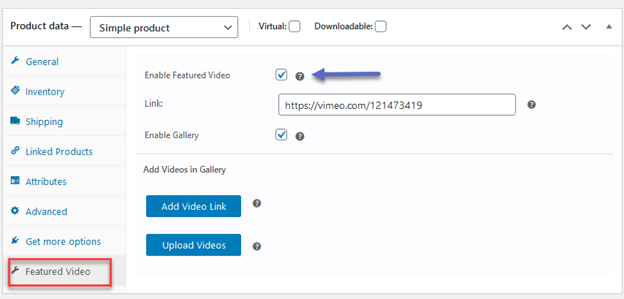
- Tick the checkbox to Enable Featured Video.
- Choose how you want to add the video:
- Upload Video – select from your media library
- Custom URL – paste a link from YouTube, Vimeo, etc.
This featured video will now appear in place of the main product image.
Step 5: Add Videos to the Product Gallery
Videos can also be added to the gallery of product images.
- Stay on the product edit page.
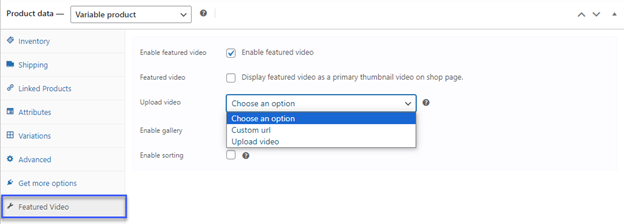
- In the Featured Video tab, check Enable Gallery.
- Tick Enable Sorting if you want to arrange videos manually.
- Click Add Video, then upload a file or paste a video link.
As many videos as you need can be added.
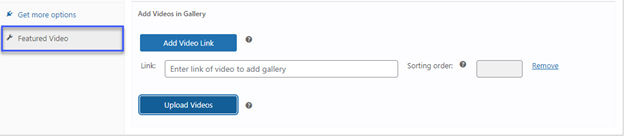
Additional options:
- Set a thumbnail for each video
- Move gallery objects around using drag-and-drop
- Make use of the gallery’s pictures and videos.
This helps make your product page look rich and interactive.
Step 6: Add Videos for Product Variations
Are there any modifications of your items available?
You can assign unique videos for each variation.
- Navigate to the Variations section on the product edit page.
- Select a variation, and scroll to the video option.
- You may either paste a video link or upload a video.
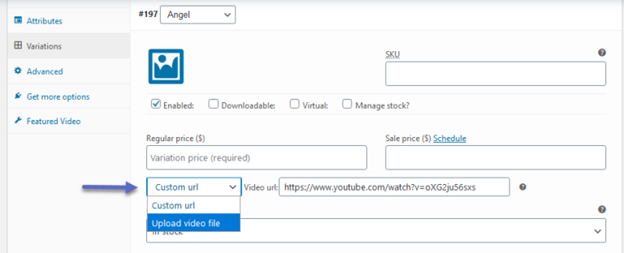
Each variation can now display its own video. This is great for colors, sizes, or styles.
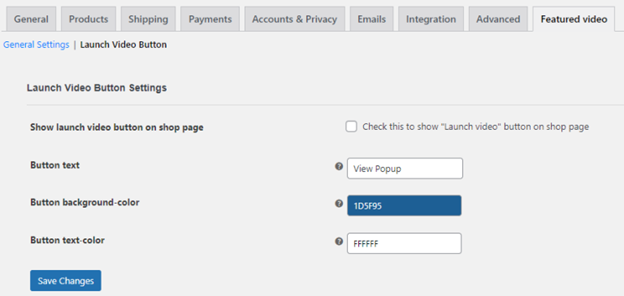
Step 7: Customize the “Launch Video” Button
Want to show videos in a popup?
The plugin includes a Launch Video button.
To customize this:
- Go to WooCommerce > Settings > Featured Video.
- Scroll to the Launch Video Button section.
Here, you can:
- The button on the shop page can be shown or hidden.
- Change the button text
- Choose the text color and background color
You now have complete control over how people view and engage with your films.
Step 8: Save Settings and Test Your Product Page
After you’ve added videos, be sure to:
- Click “Update” or “Publish” the product page
- Visit the product on your site to test how videos display
- Try the gallery, popups, and variation videos on both desktop and mobile
Everything should work smoothly if set up correctly.
Benefits for Store Owners
Adding videos to your WooCommerce store is a smart move. It’s also quick and easy using the Add Featured Videos in Product Gallery for WooCommerce plugin. This plugin helps you turn basic product pages into rich, interactive experiences.
You don’t need advanced skills. You just need this plugin and a few minutes. Now let’s look at the clear benefits store owners can get from using it.
Using product videos isn’t just about looks. It’s about helping your customers and growing your business. Here’s what you can expect when you add this plugin:
- Better Product Display
Videos show how the product looks, works, or fits in real life. - Fewer Returns
Consumers are aware of what to anticipate. There are fewer returns and complaints as a result. - More Time Spent on Product Pages
Videos keep people engaged and increase the time spent on your site. - Improved Trust
A good video helps customers trust the product and your store. - Higher Conversion Rates
Customers feel confident, which leads to more completed purchases. - Stand Out From Competitors
Most stores only use images. With videos, you offer something better. - Great for Product Variations
Show different colors, sizes, or features with separate videos.
Whether you sell clothes, gadgets, or furniture, videos help customers decide faster. You make shopping easier, and that means more sales for you.
Final Thoughts
Customers today expect more from online stores. Images are not always enough. Videos give life to your products. They respond to frequently asked questions and foster trust. You don’t need to be an expert in technology to use this plugin. Everything is integrated into the dashboard of WooCommerce.
You can include links from Vimeo, YouTube, and other websites, or you can upload videos. You can replace images, create video galleries, and show different videos for variations. You can even customize how videos look and play on the site.
If you’re serious about improving your store, this plugin is a must-have. It works well with most themes, page builders, and mobile devices. Plus, it’s lightweight and easy to use.
Improve the buying experience for your customers. Try the WooCommerce product video plugin and see the difference it makes.
Need help setting it up? Contact the experts at WooHelpDesk for personalized support.
For WooCommerce or WordPress assistance, call us at +1 888 602 0119 (US & Canada) — we’re here to help!



