How to Setup the Hide Price & Add to Cart Button Plugin for WooCommerce
Table of Contents
- Introduction
- What is the “Hide Price & Add to Cart Button” Plugin?
- Key Features of the Plugin
- Real-World Use Cases
- Step-by-Step Setup Process for Hide Price & Add to Cart Button for WooCommerce
- Tips for Using the Plugin Effectively
- Compatibility and Technical Details
- Conclusion
Introduction
In online stores, showing or hiding product prices is a smart strategy. Sometimes, you want to keep prices visible for everyone. Other times, hiding them makes more sense. This is common in B2B, wholesale, or custom product stores.
Additionally, hiding the Add to Cart button can enhance user experience. You may want users to contact you before buying. Or maybe you’re not ready to sell some products yet.
A WooCommerce plugin such as Hide Price & Add to Cart Button can help with that. This tool gives you full control over who sees prices and cart buttons. It helps store owners set up pricing rules without any coding.
This is especially useful if you:
- Encourage people to sign in before viewing the costs.
- Need to show different pricing based on user roles
- Run a catalog-only store with no direct sales
- Sell in multiple countries with different rules
What is the “Hide Price & Add to Cart Button” Plugin?
The Hide Price & Add to Cart Button plugin is made by Addify. It lets you control how and when prices and cart buttons appear. You can apply settings to products, categories, or your entire store.
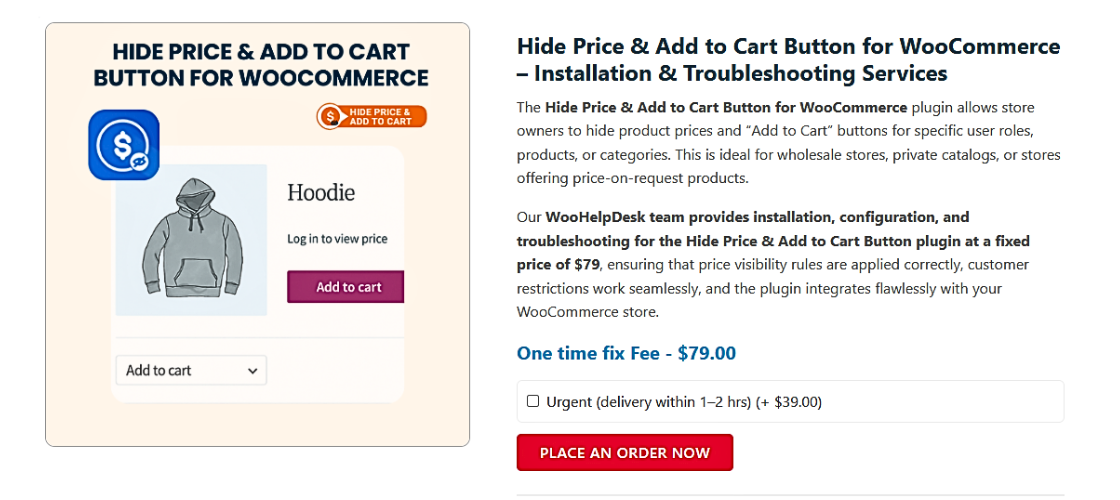
With this plugin, you can:
- Hide prices for guests or logged-in users
- Show prices only to selected user roles
- Replace prices with custom messages
- As necessary, take the Add to Cart button off
- Add a contact form instead of a buy button
- Create multiple rules for different user types
You can also target users based on country. This helps if you don’t sell in certain regions.
The plugin is compatible with the majority of WooCommerce themes and is simple to use. For store owners who wish to have more control over prices, it’s perfect.
Key Features of the Plugin
The Hide Price & Add to Cart Button plugin offers powerful features. It lets you control how customers view prices and cart options. Store owners can hide these elements for selected users or countries.
Here are the key features explained in detail:
- Hide Price and/or Add to Cart Button
The Add to Cart button, the price, or both may be hidden. This can be applied to:
- Specific products
- Entire product categories
- The whole store
This is useful when you want to delay purchases or show products without selling them.
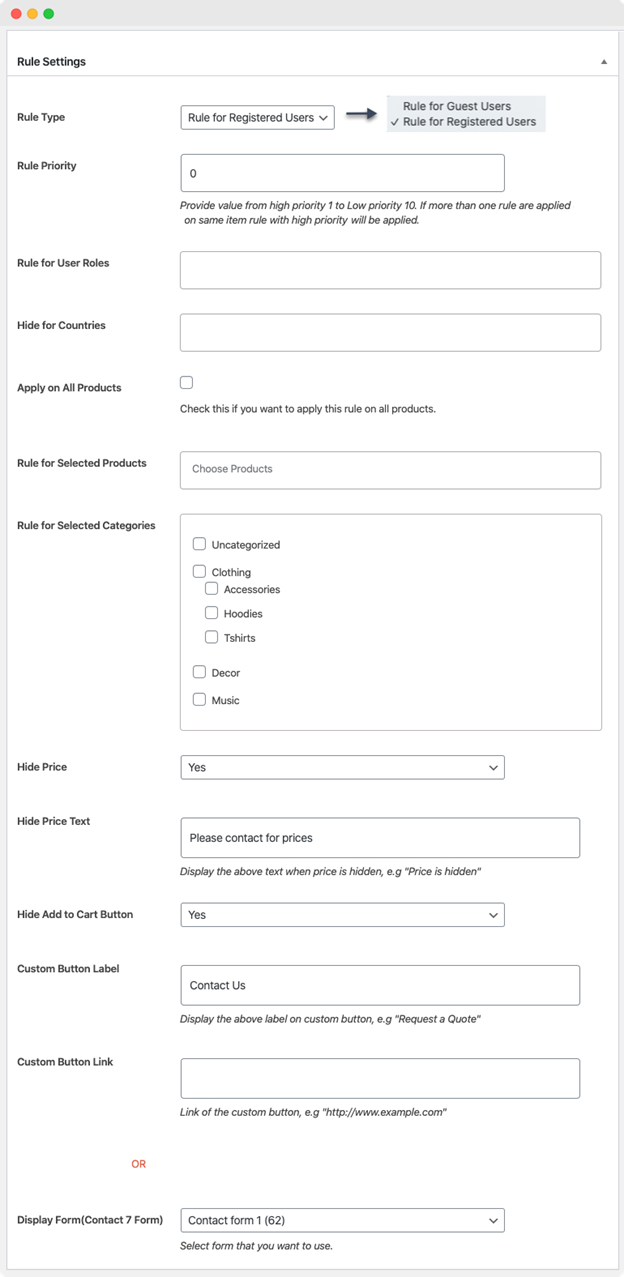
- Target Guest or Logged-In Users
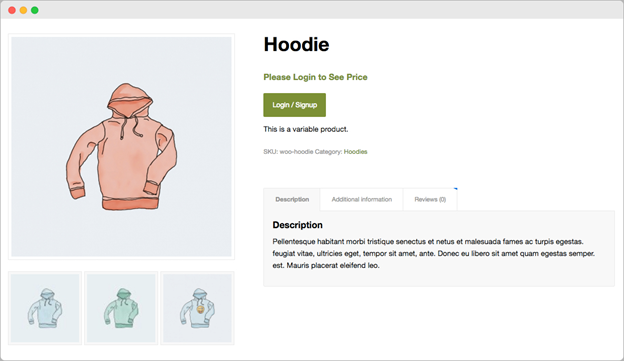
You can hide prices for guest users only. They are encouraged to sign up or log in as a result. Or you can show prices to everyone but hide the Add to Cart option.
- Role-Based Visibility
The plugin allows you to hide content based on user roles. For example, you can show prices to regular customers, but hide them from wholesale users. This helps when you use different pricing strategies for different groups.
- Country-Based Rules
You can hide prices or buttons for users in selected countries. The plugin determines the visitor’s location by using their IP address. This feature is great if you do not ship to certain regions.
- Custom Text Replacement
You can substitute a personalized message for the price rather than simply concealing it. For example, show “Login to view price” or “Contact us for pricing.” This keeps the product page informative and clean.
- Replace Add to Cart with Button or Form
If you hide the Add to Cart button, you can replace it with:
- A personalized button that takes users to a different page
- A Contact Form 7 popup to collect user requests
This is ideal for stores that offer custom pricing or products.
- Rule-Based System
The plugin uses a flexible rule-based system. For various users, roles, or goods, you can define different rules. Each rule has a priority level so you can control which one applies first.
Real-World Use Cases
This plugin solves real problems for many types of WooCommerce stores. Here are a few typical and useful use cases:
WooCommerce Hide Price for Guest Users
Show prices only to logged-in customers. This is useful for private stores or membership-based pricing.
WooCommerce Hide Price Until Login
Let customers view products, but only see prices after logging in. This helps you protect your pricing strategy.
WooCommerce Catalog Mode
Make your store into a catalog by using the plugin. Products are visible but prices and cart options are hidden. This is perfect for showroom-style or wholesale catalogs.
WooCommerce Hide Add to Cart for Specific Countries
Hide the Add to Cart button for users from countries you don’t ship to. This prevents confusion and reduces cart abandonment.
WooCommerce Hide Price Based on User Role
You can show prices to regular users and hide them from wholesale buyers. Or do the reverse, depending on your sales model.
WooCommerce Hide Add to Cart for Certain Products
Some products may need custom pricing or approval. Hide the cart button and show a form instead.


Step-by-Step Setup Process for Hide Price & Add to Cart Button for WooCommerce
Setting up the Hide Price & Add to Cart Button plugin is simple. You don’t need coding skills. Just follow each step carefully to create your own rules.
Let’s go through the full setup process step by step.
- Install and Activate the Plugin
Installing the plugin on your WooCommerce store is the first step.
- Purchase the plugin through the WooCommerce store.
- After purchasing, download the plugin’s ZIP file.
- In your WordPress dashboard, go to Plugins → Add New.
- Click Upload Plugin and upload the ZIP file.
- Click Install Now, then Activate the plugin.
Once activated, you will find its settings in your WooCommerce menu.
- Access the Plugin Settings
After activation, go to:
WooCommerce → Settings → Hide Price & Add to Cart.
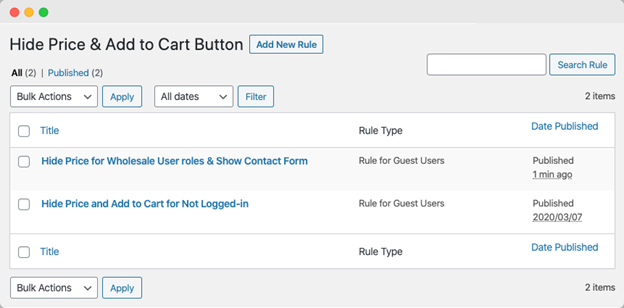
This is where you’ll manage all the rules. The settings page is clean and easy to use.
Click on “Add New Rule” to begin.
- Create a New Rule
Each rule controls how pricing and cart options are displayed.
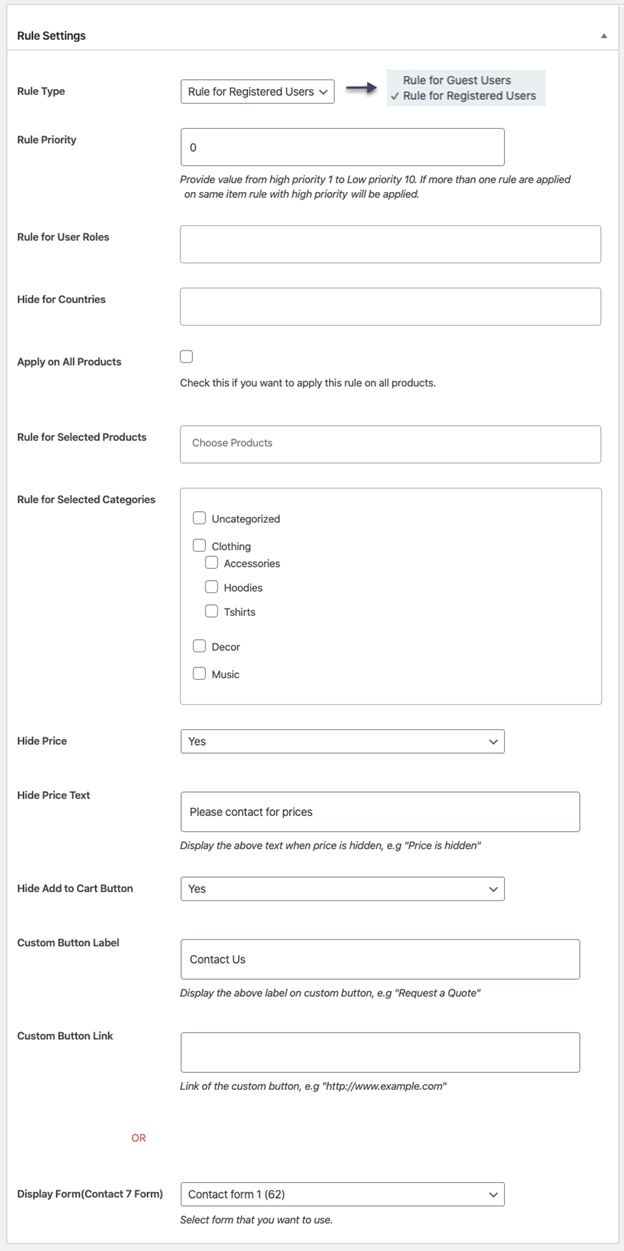
When creating a new rule, you can:
- Set a rule title (for your reference).
- Choose Guest Users or Registered Users as the target.
- Select specific user roles if needed.
- Choose target countries (based on visitor IP).
- Pick products or categories to apply the rule to.
- If you have more than one rule, set the rule priority.
This flexibility helps you build complex pricing logic with ease.
- Hide Price and Replace with Text
If you want to conceal the product price, activate the Hide Price toggle.
Then, you can:
- Leave the price area blank.
- Or, show a custom message like:
- “Login to view price”
- “Available after registration”
- “Contact us for pricing”
This helps keep the product page informative without showing pricing.
- Hide Add to Cart and Replace It
Turn on Hide Add to Cart if you wish to hide the Add to Cart button.
Then choose how to replace it:
- Custom Button:
- Add button text (e.g., “Request a Quote”)
- Add a link (e.g., contact or pricing page)
- Contact Form 7 Popup:
- Choose a Contact Form 7 form
- This form appears in a popup on the product page
This is great for custom products, inquiries, or manual quotes.
- Save and Apply the Rule
Once your settings are complete, scroll down and click Save Rule.
The rule becomes active immediately on your site. No need to refresh or code anything.
- Test the Rule
Always test after saving your rule. Use different:
- User accounts (guest, logged-in, wholesale role, etc.)
- Products and categories
- Locations (use VPN to test countries if needed)
Testing ensures the rule works as expected before going live.
Tips for Using the Plugin Effectively
Using the plugin the right way helps you get better results. Here are some pointers to maximize it.
- Plan your rules first
Before setting up, list what users should see or not see. - Use clear custom messages
If hiding prices, let users know what to do next. For example:- “Please log in to see the price”
- “Contact us for a custom quote”
- Set rule priorities smartly
Lower numbers mean higher priority. Make sure your top rule comes first. - Combine with other tools
Use it with quote plugins or product visibility extensions. More control over who can view what is made possible by this. - Keep the user journey simple
Don’t confuse your visitors. Use clean buttons and helpful links.
These small changes improve your site’s experience and conversions.
Compatibility and Technical Details
This plugin works smoothly with modern WooCommerce stores. Complicated settings are not a concern for you.
Here’s what you need to know:
- Works with WordPress 4.6 and above
- Supports WooCommerce 3.0.0 up to 9.x
- Compatible with Contact Form 7
- Uses a free IP detection API to apply country rules
- Designed to follow standard WooCommerce flows
It also works with most themes and doesn’t slow down your store.
Conclusion
The Hide Price & Add to Cart Button plugin is a powerful tool. It gives you full control over product visibility.
Whether you sell to guests, members, or across borders, this plugin fits your needs. It’s great for:
- Catalog-only stores
- Wholesale or B2B shops
- Stores with restricted shipping zones
- Businesses needing custom pricing
It’s easy to set up and manage. Even non-technical users can use it confidently.
If you want to guide how users shop on your site, this plugin is the perfect solution. Take complete control of your WooCommerce pricing experience by giving it a try right now.
Need help setting it up in your store?
Contact WooHelpDesk today for expert WordPress and WooCommerce support.
📞 Call us at +1 888 602 0119 (US & Canada) — we’re here to help!



