
How to Use Catalog Visibility Options for WooCommerce to Hide Prices and Restrict Access
Table of Contents
- Introduction
- What is Catalog Visibility Options for WooCommerce?
- Key Features & Use Cases
- How to Setup Catalog Visibility Options for WooCommerce – Step-by-Step Guide
- Why Use Catalog Visibility Options?
- Conclusion
Introduction
Running an online store means offering flexibility to your customers. But sometimes, you may not want to sell products online. Instead, you might want to showcase items without allowing purchases. This is where WooCommerce falls short on its own.
Many store owners need to hide prices or restrict purchases. For example, some businesses serve wholesale customers only. Others may want to launch their store in stages—showing products first, and enabling checkout later. Some must follow strict pricing policies and hide prices from public view.
The good news is, you don’t need a custom-coded solution. The Catalog Visibility Options for WooCommerce plugin solves this need easily. It helps you control what users can see and do in your store. Whether you want to hide prices, remove the add to cart button, or make your store catalog-only, this plugin does it all.
In this post series, we’ll explore how the plugin works, how to set it up, and how it helps your business.
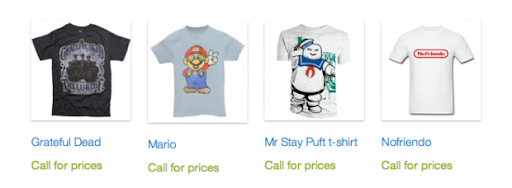
What is Catalog Visibility Options for WooCommerce?
Catalog Visibility Options for WooCommerce is an official plugin by WooCommerce. It helps you turn your store into a catalog-only site. You can remove eCommerce features like pricing, cart, and checkout. This gives you full control over who can view, buy, or even see product prices.
You don’t need to disable your full store. You can:
- Hide prices from guest users only
- Allow purchases only for logged-in users
- Show custom messages instead of prices
- Remove the Add to Cart button completely
- Show different products based on location
- Restrict product visibility by user role
Let’s say you only sell to approved dealers. You can hide pricing for all guests. Once a user logs in, they can see prices and buy. If you follow MAP (Minimum Advertised Price) rules, you can hide pricing from the public to stay compliant.
You can even show a login form in place of prices or buttons. This guides users to register or sign in. For businesses that want to launch slowly, this plugin is perfect. You can add products today, but enable purchases later with one setting.
In short, this plugin gives WooCommerce the flexibility it lacks by default. Whether you’re running a wholesale store, a regional catalog, or a members-only site—this plugin makes it possible.
Key Features & Use Cases
The Catalog Visibility Options for WooCommerce plugin includes several powerful features. Each one helps store owners control who sees prices, who can purchase, and what is shown on product pages. These tools are simple to use but make a big difference.
Let’s take a closer look at the main features and how they can be used.
Hide Prices from Certain Users
One of the most used features is the ability to hide prices. This is helpful if you sell only to logged-in users or approved customers.
You can:
- Hide prices from all visitors
- Hide prices only from non-logged-in users
- Show prices only to users with specific roles
Instead of the price, you can show a custom message. This might be something like:
- “Login to view prices”
- “Contact us for a quote”
- “Available for approved users only”
This feature is perfect for B2B, wholesale, or invite-only stores.
Disable Add to Cart Button
You can also disable the Add to Cart button. This removes the option to purchase products directly from your site.
Options include:
- Remove Add to Cart for all users
- Allow Add to Cart only for logged-in users
- Replace the button with custom text or links
This is helpful if you want to display products but not sell them yet. You can showcase items and activate sales later when you’re ready.
Role-Based Product Access
You can control visibility using user roles. For example:
- Only “Wholesaler” role users can see certain products
- “Retail Customer” users can view everything
- Guests (non-logged-in users) see only selected products
This is great if you serve different customer types on one site.
You can apply these settings:
- By individual product
- By entire product category
You don’t need extra plugins to manage this. It’s all built into the extension.
Location-Based Visibility (Geo-restriction)
Want to show or hide products based on the user’s country? The plugin lets you do that too.
You can:
- Display products only in selected countries
- Show a location picker on your site
- Use auto-detection to show local catalogs
If your products aren’t available in all regions, this helps keep things clear for users.
Custom Messages and Shortcodes
Instead of showing prices or purchase options, you can display useful messages. The plugin also offers shortcodes to add:
- Login forms
- Registration links
- Password reset links
This helps guide visitors to register or sign in before they can access full product details.
Real Use Cases
Here are a few ways store owners use this plugin:
- Wholesale stores hiding prices from public view
- Businesses under MAP rules hiding prices from search engines
- Retailers showcasing a new collection before launch
- Membership stores allowing only members to purchase
These features make the plugin ideal for flexible, role-based, or private WooCommerce stores.
How to Setup Catalog Visibility Options for WooCommerce – Step-by-Step Guide
Setting up the Catalog Visibility Options for WooCommerce plugin is simple. You don’t need any coding skills. Just follow these steps to install, configure, and control what users see in your store.
Step 1: Install and Activate the Plugin


First, purchase the plugin from the official WooCommerce site. Then follow these steps:
- Download the .zip file from your WooCommerce account.
- Go to your WordPress dashboard.
- Navigate to Plugins > Add New.
- Click on Upload Plugin and choose the downloaded file.
- Click Install Now, then activate the plugin.
Once activated, you’ll find new options under your WooCommerce settings.
Step 2: Configure Global Settings
Go to WooCommerce > Settings > Visibility Options. This is where you control the plugin’s main features.
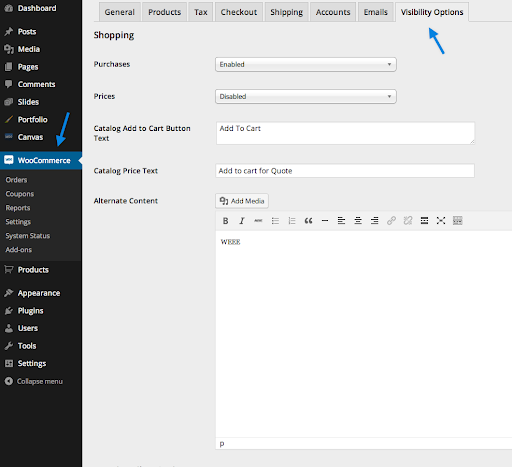
You’ll see two key sections: Purchases and Prices.
Purchases:
- Enabled – Store works like normal.
- Disabled – No one can make purchases.
- Enabled for Logged-in Users – Only logged-in users can buy.
Prices:
- Enabled – Show prices to everyone.
- Disabled – Hide prices from all users.
- Enabled for Logged-in Users – Guests can’t see prices.
If you disable prices, the Add to Cart button will also be disabled automatically. You can choose to show a message instead of the price or button.
Step 3: Set Role-Based Restrictions
You can limit access by user role. This is useful for stores that serve different types of users.
To do this:
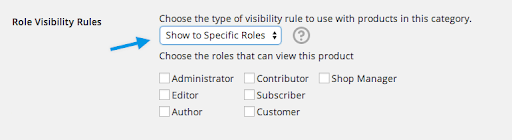
- Go to Products > Categories.
- Edit a category and choose Show to Specific Roles.
- Select the roles that should see the products in that category.
- Save changes.
You can do the same for individual products:
- Go to Products > All Products.
- Edit a product and find the Restrictions tab.
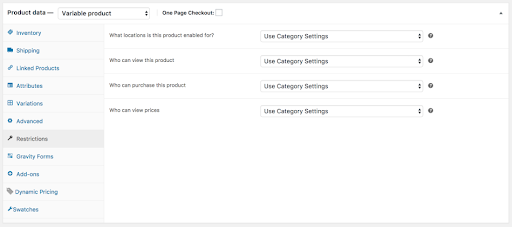
- Choose who can view, purchase, or see the price.
- You can pick “Everyone” or “Specific Roles.”
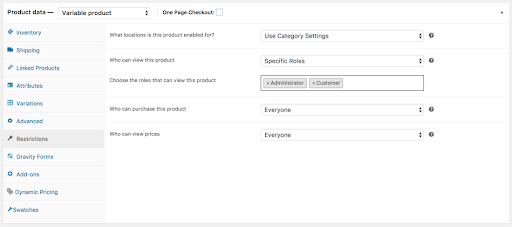
These controls let you run a public catalog while keeping certain items private.
Step 4: Set Up Location-Based Visibility
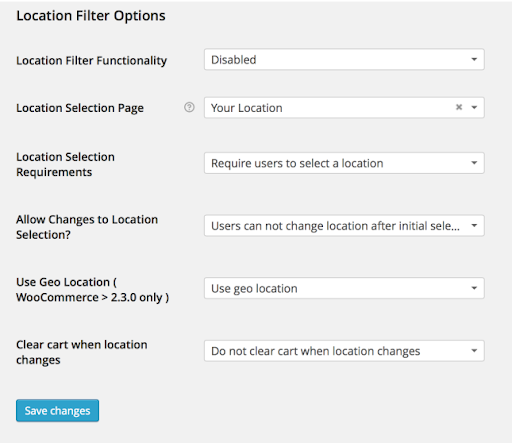
You can show or hide products based on user location.
- Go to WooCommerce > Settings > Visibility Options.
- Enable the Location Filter Functionality.
- Choose whether users can select their country or use geo-location.
- Set if users can change their location later.
- Decide if the cart should be cleared when the location changes.
Add a [location_picker] shortcode to a page to let users select their country manually.
Step 5: Use Shortcodes for Login and Register Forms
To help users sign in or create an account, use built-in shortcodes:
- [woocommerce_logon_form] – Adds a login form
- [woocommerce_register_link] – Adds a register link
- [woocommerce_forgot_password_link] – Adds a password reset link
You can place these shortcodes anywhere, including product pages.
Why Use Catalog Visibility Options?
The Catalog Visibility Options plugin gives you complete control. You decide who sees prices, who can buy, and what visitors can access. This flexibility helps many types of stores run better.
Let’s explore the key benefits in detail.
- Create a Catalog-Only Store with Ease
With one setting, you can remove all purchase options. Your WooCommerce store becomes a clean product catalog. It’s perfect for:
- Product launches
- Showcasing collections
- Businesses not ready to sell online
You still keep product images and descriptions visible to users.
- Hide Prices for Non-Logged-In Users
Some stores sell only to registered customers. This plugin lets you hide prices from guests. Only logged-in users can see pricing and make purchases.
This helps you:
- Protect wholesale pricing
- Keep prices private
- Follow business policies
You can show a login prompt or custom message instead of prices.
- Control Access by User Roles
Do you have different user groups like retailers, dealers, or VIPs? This plugin allows you to show or hide content based on their roles. You can:
- Let only wholesalers view bulk items
- Show exclusive products to certain customers
- Hide purchase options from guests
It’s an easy way to manage complex store access.
- Show Products Based on User Location
You can control product visibility by country. If your products aren’t available in some regions, hide them easily. The plugin can detect a user’s location or let them choose it.
This helps:
- Avoid confusion about availability
- Keep your store focused and localized
- Improve user experience
Conclusion
The Catalog Visibility Options for WooCommerce plugin is more than a tool. It’s a solution for stores needing more control. Whether you’re running a wholesale site, preparing to launch, or limiting purchases to certain users—it covers it all.
It’s simple to use, flexible, and fully integrates with WooCommerce. With its features, you can protect your pricing, manage visibility, and offer a better experience to your visitors.
If you need a way to hide prices, limit purchases, or create a catalog, this plugin is a smart choice for your store.
Still need help setting it up or customizing it for your store?
Our team at WooHelpDesk is here to assist. We specialize in WooCommerce and can help you get the most out of this plugin.
Contact WooHelpDesk today and let us help you build a smarter, more flexible store.



