
How to Fix WooCommerce Cart Items Disappear on Checkout
Table of Contents
- Introduction and Overview
- Common Reasons for WooCommerce Cart Items Disappear on Checkout
- Troubleshooting WooCommerce Cart Issues
- Fix the WooCommerce Cart Items Disappear on Checkout
- Preventive Measures for WooCommerce Cart Issues
- Conclusion
Introduction and Overview
A smooth checkout is crucial for every WooCommerce online store. Visitors expect an easy shopping experience. They add products to their cart and want to complete checkout quickly. When cart items disappear on checkout, it frustrates customers instantly. This issue can severely hurt your store’s credibility and sales. Customers facing cart issues usually leave your website immediately. As a result, you lose sales and loyal customers, hurting your brand reputation.
Cart-related issues in WooCommerce stores are common. One major issue is the WooCommerce cart empty after adding products. Imagine carefully selecting items, only to find an empty cart at checkout. Such unexpected empty carts create confusion and frustration for shoppers.
Another common issue occurs when WooCommerce cart items disappear on checkout. Shoppers place items in their cart but lose them during the payment stage. Losing cart items at checkout negatively impacts customer trust and confidence. Users expect reliability and smooth transactions from WooCommerce websites.
The problem also shows up as the WooCommerce cart clears on refresh. Visitors browse through pages, and suddenly, the cart becomes empty again. Cart data should remain consistent as customers navigate your store. Frequent cart clearing problems force shoppers to repeatedly add products again.
These cart issues cause noticeable declines in conversions and sales. Store owners must take cart stability seriously. Not addressing cart issues quickly can lead to permanent customer dissatisfaction. Buyers prefer stores that offer smooth and reliable checkout experiences.
Some typical scenarios that customers often face include:
- WooCommerce cart session issues (sessions expiring unexpectedly).
- WooCommerce cart items missing after update (after a WooCommerce or plugin update).
- WooCommerce cart empty after payment (completed orders show empty carts afterward).
- WooCommerce cart items disappearing intermittently (cart items vanish randomly).
- WooCommerce cart items disappear when logged out (visitors lose cart contents upon logging out).
Your WooCommerce store’s checkout process should work flawlessly every time. Ensuring cart stability boosts your conversion rates significantly. Customers return repeatedly to stores with hassle-free checkouts. Store owners must identify and solve cart disappearance issues promptly.
This detailed blog post will clearly explain WooCommerce cart issues thoroughly. You will learn common causes, diagnostic steps, and effective solutions. Also included are proactive measures to stop future WooCommerce cart issues entirely.
Common Reasons for WooCommerce Cart Items Disappear on Checkout
Cart items disappearing in WooCommerce happens for several common reasons. Understanding these causes helps you quickly pinpoint the issue in your store. Let’s dive deeper into each main cause of these frustrating WooCommerce cart problems.
Session Management Issues
WooCommerce manages user carts through sessions. Sessions temporarily store cart data as customers browse your site. However, WooCommerce cart session issues frequently occur. Sessions may expire prematurely or fail to save customer cart data. When this happens, shoppers lose their cart contents suddenly.
Some symptoms indicating session-related issues include:
- Cart empties unexpectedly while browsing.
- Users find their WooCommerce cart clears on refresh.
- Customers report repeated cart loss during checkout.
Poor session handling is often due to server settings or PHP session timeouts. A session issue can seriously disrupt a shopper’s experience on your website.
Caching Plugins and Misconfigurations
Caching plugins speed up WooCommerce websites by temporarily saving page content. However, caching plugins can also create serious cart issues if incorrectly configured. Improper caching leads to cart contents disappearing unpredictably. Visitors face the issue of WooCommerce cart items disappearing intermittently.
Misconfigured caching plugins can also cause:
- WooCommerce cart not retaining products after customers add them.
- Visitors seeing outdated or empty cart pages.
- Cart issues after a product update or site changes.
Caching plugins like WP Super Cache or W3 Total Cache frequently cause these issues. Poor caching configuration directly impacts user experience, causing frustration and lost sales.
Plugin and Theme Conflicts
Conflicts between WooCommerce and other plugins or themes cause frequent cart problems. Compatibility issues commonly result in the error WooCommerce cart items disappear on checkout. These conflicts arise when plugins or themes interfere with WooCommerce’s cart functions.
Signs of plugin and theme conflicts include:
- Customers repeatedly experiencing empty WooCommerce cart after payment.
- Cart items vanish specifically during checkout or payment steps.
- Issues appear suddenly after installing or updating plugins/themes.
Plugin or theme conflicts can quickly become serious issues for WooCommerce store owners. Identifying conflicting plugins early helps prevent major disruptions.
Server and Hosting Problems
The quality of hosting greatly affects WooCommerce cart functionality. Cheap or overloaded hosting frequently results in cart instability. Server resource limits or improper settings often mean WooCommerce cart is not saving items effectively.
Typical symptoms of server-related cart issues:
- Customers experience frequent loss of cart items.
- WooCommerce cart empties itself randomly due to server downtime.
- Slow server responses cause session data loss and cart instability.
Low-quality hosting environments severely disrupt WooCommerce stores, harming customer experience and trust.
AJAX and JavaScript Errors
WooCommerce relies heavily on JavaScript and AJAX for dynamic cart updates. When these scripts fail, cart functionality breaks down. Customers see items disappear or never save correctly in their carts. Such issues lead to complaints about the WooCommerce cart not working properly.
AJAX and JavaScript-related symptoms include:
- Cart buttons not functioning correctly.
- Cart items vanish immediately after addition.
- Customers repeatedly report WooCommerce cart empty after adding products.
Script-related errors significantly hurt WooCommerce stores by causing confusion and frustration among shoppers.
Troubleshooting WooCommerce Cart Issues
Troubleshooting why your WooCommerce cart items disappear is the first step. Proper diagnosis helps in applying effective fixes quickly. Follow these simple steps to pinpoint cart problems accurately.
Enable Debugging in WordPress
Start by turning on WordPress debugging mode. Debugging helps detect hidden errors causing cart disruptions. Check your site’s error log files after enabling debug mode. Error logs clearly show issues related to sessions or plugins.


Check Browser Console for Errors
Open your browser’s developer tools to check for JavaScript or AJAX errors. Console errors usually indicate scripts failing to load or run properly. Such errors directly affect WooCommerce cart performance. Look for specific messages related to WooCommerce functions or scripts failing to execute.
Temporarily Disable Plugins
Deactivate your caching and security plugins temporarily. Misconfigured plugins often cause unexpected cart clearing or disappearance issues. After disabling, test if cart problems continue or disappear completely. If issues stop, plugins are likely causing the cart instability.
Switch to Default WooCommerce Theme
Switch temporarily to WooCommerce’s official theme (Storefront). This action helps confirm if the theme is causing the cart problem. Themes with conflicts frequently trigger cart issues during checkout or browsing.
Review Server and Hosting Logs
Check your server logs for recent errors, especially relating to sessions. Server logs clearly identify session timeouts, database errors, or resource problems. Common hosting issues include slow response times or limited server resources.
Test User Login States
Evaluate if cart problems happen specifically when users are logged out. Log in and out repeatedly to test different user scenarios clearly. Common issues include cart items disappearing when logged out or refreshed:
- Cart clears after a user logs out.
- Cart items vanish when users log in.
- Guest carts not saving properly.
Accurate diagnosis ensures efficient fixes and better WooCommerce cart stability.
Fix the WooCommerce Cart Items Disappear on Checkout
Once diagnosed, fixing WooCommerce cart issues becomes straightforward. The right solutions help stabilize your online store’s checkout process. Here are practical ways to permanently fix and prevent cart disappearance problems.
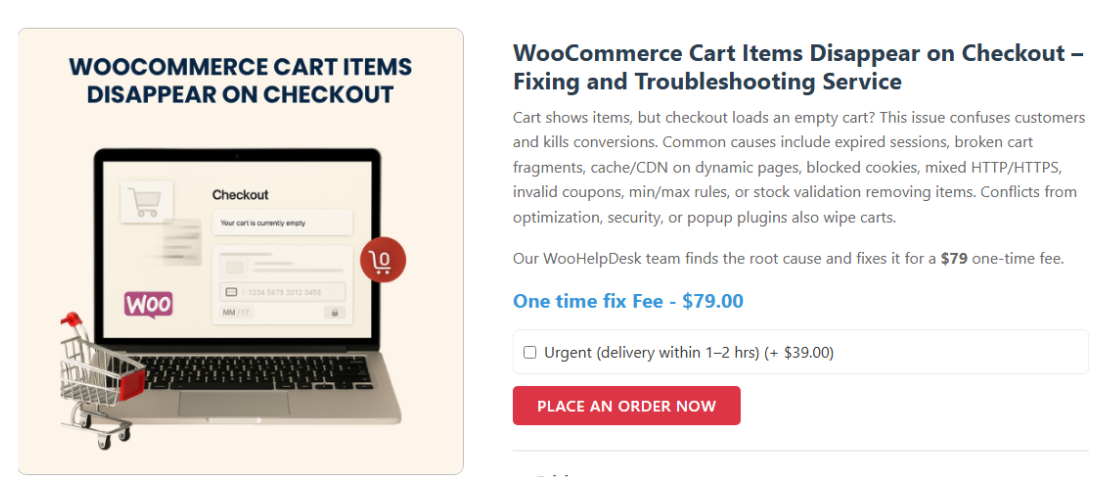
Session and Server Improvements
WooCommerce relies heavily on sessions to maintain cart data. Adjusting server and session settings greatly improves cart stability. Make sure PHP session settings match WooCommerce requirements. Increase session durations to ensure carts don’t expire quickly.
Consider these steps to improve sessions:
- Increase PHP session timeout durations.
- Check server settings for proper session handling.
- Regularly clear old sessions from your server.
Using reliable hosting providers also makes a huge difference. Choose WooCommerce-optimized hosts popular in the USA. Better hosting ensures stable cart performance, reducing issues significantly.
Caching Plugin Adjustments
Caching plugins frequently cause cart issues when wrongly configured. Proper caching setup eliminates intermittent cart disappearance problems. Exclude WooCommerce pages from caching completely to ensure correct cart function. Important pages include:
- Cart page
- Checkout page
- My account page
Clearly instruct your caching plugin to skip these pages. After adjustments, carts will retain items reliably, reducing customer frustration.
Resolving Plugin and Theme Conflicts
Plugins and themes can disrupt WooCommerce carts significantly. To resolve conflicts, follow careful testing steps. Deactivate plugins one-by-one to identify the problematic ones clearly. After identifying the conflict, update or remove problematic plugins immediately.
Regularly update WooCommerce plugins and themes. Outdated software frequently triggers cart disappearance issues. After updates, always test thoroughly on staging sites first. Doing this ensures smooth cart performance during future updates.
Security Plugin Configuration
Security plugins sometimes interfere with WooCommerce cart operations unintentionally. To prevent issues, adjust security plugin settings carefully. Whitelist important WooCommerce URLs within security plugins clearly. Essential URLs to whitelist include:
- /cart
- /checkout
- /my-account
Whitelisting ensures that security plugins don’t accidentally block cart operations. Proper configuration maintains cart stability and avoids unnecessary interference.
AJAX and JavaScript Troubleshooting
WooCommerce carts rely on AJAX and JavaScript to function properly. Resolving script issues helps maintain reliable cart performance. Regularly check browser consoles for JavaScript or AJAX-related errors. If errors occur, identify the exact scripts or plugins causing problems.
Steps for resolving script issues:
- Check error messages in browser console regularly.
- Temporarily deactivate plugins causing JavaScript errors.
- Ensure JavaScript files load correctly from WooCommerce and plugins.
Fixing AJAX and JavaScript errors helps ensure carts consistently save customer products. Stable scripts greatly enhance overall shopping experiences in your store.
Preventive Measures for WooCommerce Cart Issues
Preventing cart disappearance issues proactively is always better than reacting later. Follow these simple best practices to prevent WooCommerce cart problems permanently:
- Regularly perform audits to identify and fix potential issues early.
- Always maintain frequent site backups before making major updates.
- Test new plugins or themes first on staging environments before live deployment.
- Regularly clear and manage session data on your server.
- Keep WooCommerce, themes, and plugins consistently updated to the latest versions.
- Use reliable and proven hosting providers specifically optimized for WooCommerce websites.
Implementing these preventive tips regularly protects your WooCommerce store from unexpected cart issues. Maintaining good store health ensures smoother customer transactions consistently.
Conclusion
Resolving WooCommerce cart disappearance issues boosts your store’s reliability. Follow the detailed steps above to fix cart issues permanently. Stable cart functionality directly improves customer trust and boosts sales. Make cart stability your top priority for a smoother customer experience.
If you still face difficulties solving WooCommerce cart problems, contact WooHelpDesk. Our experienced WooCommerce experts offer fast and reliable support. We quickly identify and resolve cart issues affecting your online store.
Don’t let disappearing carts harm your customer satisfaction or store sales. Reach out to WooHelpDesk now and get your cart issues solved today!



