How to Use Currency Switcher for WooCommerce to Sell Globally
Table of Contents
- Introduction
- Why You Need a WooCommerce Currency Switcher
- Core Features & Use Cases of Currency Switcher for WooCommerce
- Setup and Configuration
- Broad Plugin Compatibility
- Syncs with WooCommerce Analytics
- Conclusion
Introduction
Running a global WooCommerce store brings big opportunities. But selling internationally also means one major challenge—currency differences. If your customers can’t see prices in their own currency, they may leave your site.
That’s where the Currency Switcher for WooCommerce plugin helps.
This plugin lets store owners show product prices in multiple currencies. Customers can view and pay in their local currency. This creates a better shopping experience and builds trust.
It’s not just about display. This plugin offers real-time currency conversion using reliable exchange rate APIs. You can also set manual exchange rates if you prefer.
Why You Need a WooCommerce Currency Switcher
U.S.-based stores selling globally need to show prices people understand. Customers in Europe, Asia, or Canada don’t want to guess how much an item really costs. Currency confusion leads to abandoned carts.
With a currency switcher plugin, you remove that guesswork. Buyers can shop in their currency, from the first product view to checkout.
It also boosts conversion rates. When users see local pricing, they’re more likely to trust your store and complete the purchase.
Localized Pricing Builds Customer Confidence
The plugin uses IP-based geo-location to detect where the shopper is. It then displays the price in that visitor’s currency. This happens automatically. No need for the customer to select anything manually—though they can still switch currencies if they want.
This makes your store feel local, even if you ship globally. That’s what international customers want—a local experience from a global brand.
A Smart Investment for WooCommerce Stores
If you’re looking to grow beyond the U.S., this plugin is a must-have. It’s flexible, easy to use, and works with the latest WooCommerce versions.
Core Features & Use Cases of Currency Switcher for WooCommerce
The Currency Switcher for WooCommerce plugin comes with powerful features. Each one is designed to improve your store’s global shopping experience. Let’s explore them in simple terms.
-
Show Prices in Multiple Currencies
This plugin lets you add and show multiple currencies. You can set any currency you need from the backend. Customers can then choose their preferred one from a dropdown.
It helps international buyers feel more confident when shopping. They don’t have to convert prices manually. Everything is updated based on their selection.
This is especially useful for stores selling across Europe, Asia, Australia, and other global markets.

-
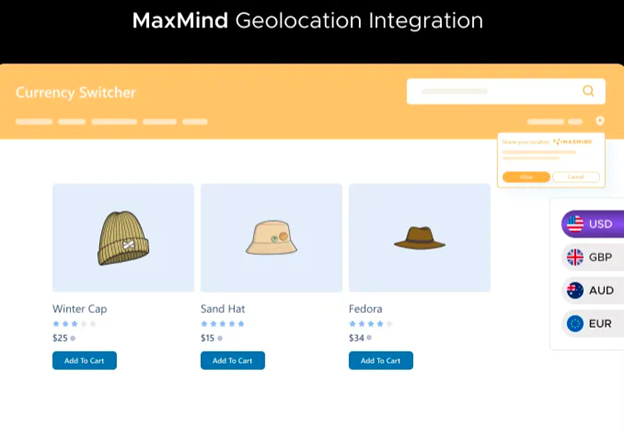
Auto-Detect Currency by Location
The plugin can automatically detect the shopper’s location. It uses the visitor’s IP address to know where they are. Based on this, it shows the correct currency.
This is great for first-time visitors. They don’t have to pick a currency manually. The store does it for them. It feels seamless and smart.
Geo-detection is powered by MaxMind, a reliable IP location tool. The setup is simple and accurate.
-
Live Exchange Rate Updates
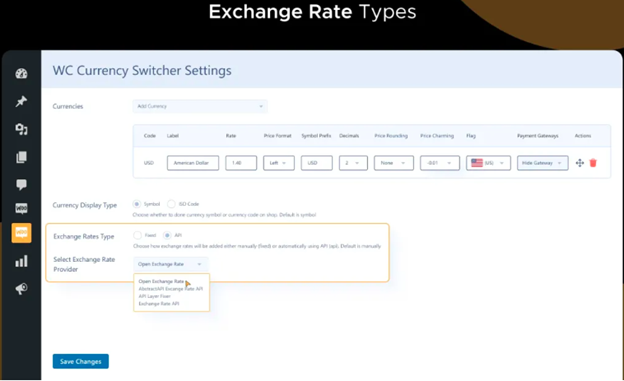
You can choose to update exchange rates automatically or manually. Automatic updates are pulled from trusted APIs like:
- Open Exchange Rates
- Abstract API
- Fixer API
- WPExperts Exchange Rate API
You can set how often the rates should update. This keeps pricing accurate without extra work. Manual rates are also supported if you prefer more control.
-
Custom Pricing by Zone
If you sell in different regions, this feature is a game changer. You can set custom pricing zones for countries or regions.
Each zone can have its own:
- Currency
- Exchange rate
- Product pricing (simple or variable products)
This is perfect for stores targeting specific markets with local pricing strategies. You can create price variations without extra plugins.

-
Currency Switcher Anywhere on Site
You can place the currency switcher in many spots:
- Top menu
- Sidebar widget
- Sticky button
- Checkout page
- Product pages
- Even via shortcode
This makes switching currency easy for any visitor. The switcher is always visible and user-friendly. You can also customize its look to match your theme.

-
Complete Purchases in User’s Currency
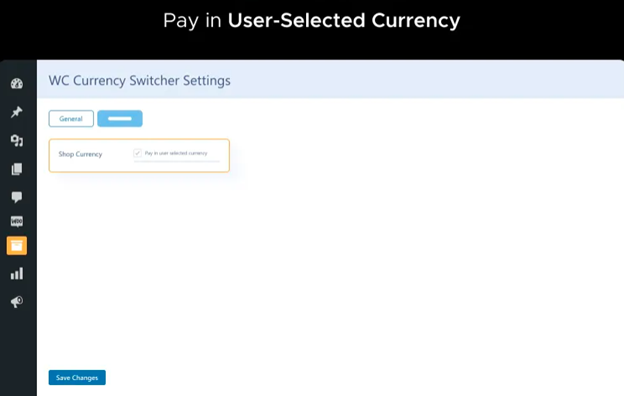
Customers can not only see prices in their currency—they can pay in it too. This removes last-minute surprises at checkout.
However, if you prefer, you can set the store to only accept payment in the base currency. This gives you full control over how transactions are handled.
-
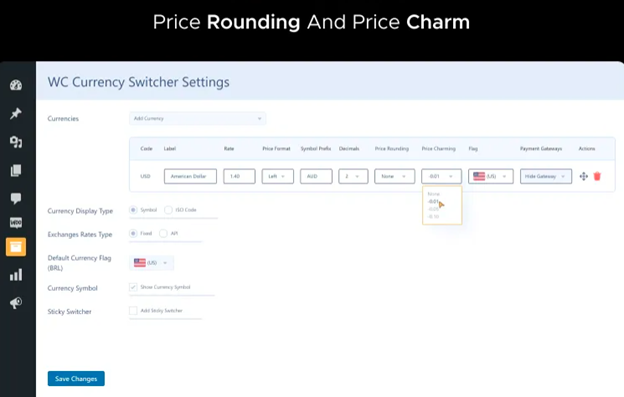
Price Rounding and Price Charm
To make prices look clean and appealing, the plugin includes:
- Price rounding: Round prices to the nearest 0.25, 0.50, 1, 5, or 10
- Price charm: Apply price endings like “.99” or “.95”
This helps keep your store pricing consistent and sales-friendly. Many shoppers respond better to prices that feel familiar.
-
Billing and Shipping Based Currency
The plugin can change the currency at checkout based on:
- The customer’s billing country
- The shipping destination
This ensures your customer always sees the right currency, even if they browse from one country but ship to another.

-
Useful for Any Store Type
Whether you run a store selling:


- Physical products
- Subscriptions
- Digital downloads
- Wholesale items
This plugin works well. It supports many product types and checkout flows.
It’s also compatible with other WooCommerce plugins like B2B, Subscriptions, and more.
Setup and Configuration
One of the best things about the Currency Switcher for WooCommerce plugin is its easy setup. You don’t need to be a developer or tech expert. Just follow a few simple steps to get started.
Step 1: Install and Activate the Plugin
First, buy the plugin from the WooCommerce marketplace. After downloading the plugin ZIP file:
- Go to your WordPress dashboard.
- Navigate to Plugins > Add New.
- Click Upload Plugin, then choose the ZIP file.
- Click Install Now, then activate it.
Once activated, you’ll see new settings under the WooCommerce menu.
Step 2: Add Your Currencies
Now it’s time to add the currencies you want to offer.
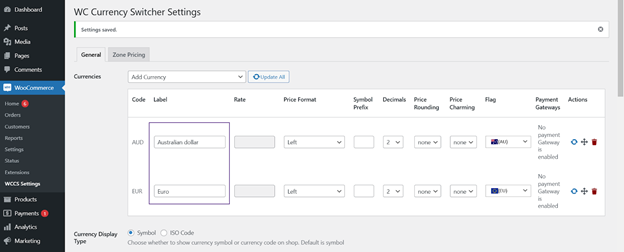
- Go to WooCommerce > WCCS Settings.
- Under the Currencies tab, choose from the available list.

- Add as many currencies as needed.
- Set a label name for each one.
- Choose whether to show a symbol, ISO code, or flag.
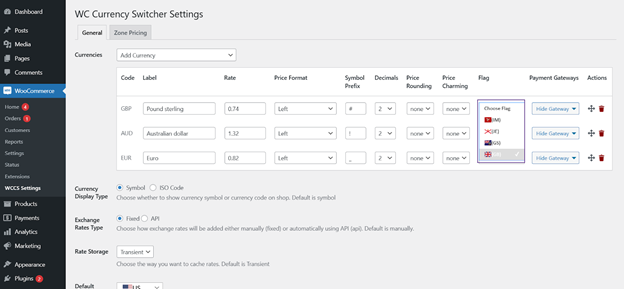
You can reorder currencies or delete them anytime.
Step 3: Set Exchange Rates
You can choose from two types of exchange rates:
- Fixed Rate: Enter a static value manually for each currency.
- API Rate: Connect to a live exchange rate provider.
For API rates, select a provider like Fixer or Open Exchange Rates. Enter your API key and set how often rates should update. You can also get notified by email when rates change.
Step 4: Configure Currency Display
The plugin offers flexible display options. You can show the currency switcher as:
- A widget
- A menu item
- A sticky button
- A shortcode in a custom location
Choose where you want it to appear. You can also pick a switcher style and layout that matches your store.
Step 5: Enable Location Features (Optional)
You can set currency to change based on:
- Billing country
- Shipping country
- Geo-location IP address
Enable these options from the WCCS Settings panel. Add location-based currencies for a better user experience.
Step 6: Customize Advanced Options
You can fine-tune your store using:
- Price rounding
- Price charm endings
- Coupon currency settings
- Zone pricing for different regions
Each setting has clear labels and dropdowns. Just choose what fits your business.
Once your setup is complete, your store will be ready for international sales. Visitors will see local prices and can switch currencies with ease.
Broad Plugin Compatibility
The Currency Switcher for WooCommerce plugin works well with many popular extensions. This makes it a smart choice for stores with advanced setups.
The plugin is tested with key WooCommerce extensions. It works smoothly with:
- WooCommerce Subscriptions
- B2B for WooCommerce
- Smart Custom Product Addons
- Role-Based Pricing
- Wholesale for WooCommerce
- WooCommerce Bookings
- WooCommerce Deposits
- WPML for language-based currency switching
It also supports performance tools like LiteSpeed Cache and WP Rocket. You can enable cache compatibility from the settings panel.
This wide support ensures the plugin doesn’t break your checkout or product pricing.
Syncs with WooCommerce Analytics
The plugin supports order sync with WooCommerce Analytics. Orders made in different currencies are converted to your store’s base currency, and the converted values show up in reports.
This helps you track sales data correctly, regardless of which currency was used. You can sync orders anytime from the plugin settings.
It’s a great feature for store owners who rely on WooCommerce reports to measure performance.
Conclusion
The Currency Switcher for WooCommerce is built for global success. It’s easy to use, powerful, and integrates well with other tools.
Whether you sell to one country or fifty, this plugin helps you speak the shopper’s language—their currency. It creates trust, improves user experience, and boosts sales.
Need help setting it up or customizing it for your store? Our team at WooHelpDesk is here to assist you anytime.
Contact us for expert WooCommerce support and solutions tailored to your store’s needs.
Adding this plugin to your WooCommerce store is a smart move for growth—and you don’t have to do it alone.



